WebPagesEN Folder
WebPagesEN Folder
MultiLanguage Considerations
Clients who wish to have multilingual pages will need to do four things:
- You will need to duplicate the WebPagesEN folder for each language you want to support and change the ending to be a two character language code. For example, WebPagesFR for French or WebPagesES for Spanish, WebPagesDE for German (we suggest using the ISO two character language code).
- Translate all the web pages within the new WebPagesXX folder as required
- edit the TMTemplates/tmnavLanguages.html to add a language and a flag to the navigation for each language you with to support.
- In Company Preferences on the WebListener tab, add in the language codes that you want TheatreManager to look for in the htdocs folder. That means you can put the languages in place using the WebPagesXX folder, but TM will not recognize them until you edit the company preferences.
- Where appropriate, on the main corporate web site, you might wish to edit the links to direct to a specific page by adding the &lang=XX to the direct links.
|
After a patron picks their language, the next time they log in, Theatre Manager will recall and use their personal language preference. |
TMattendance.html
TMattendance.html
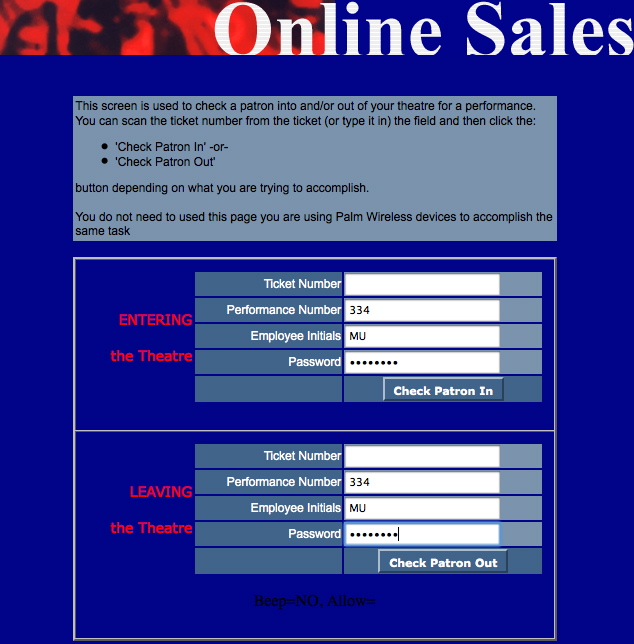
Description:
- This page is designed to check patrons in and out of the venue through a web browser as opposed to directly through Theatre Manager or by hand held scanner.
- The Used status of the ticket is updated within the Patron's record in Theatre Manager.
- An example of how this page functions can be found by clicking here.
Questions and Answers:
Q: What needs to be done to setup the TMattendance.html page for tracking attendance in Theatre Manager?
A: The page only needs to be accessed in order to use the attendance tracking feature. For additional details on setting up the scanning process please click here.
____________________________________________________________
Location:
htdocs/1/WebPagesEN
Able to Call Page(s):
- Not Applicable
Called By Page(s):
- Not Applicable
Page(s) Referenced:
TMattendancePalm.html
TMattendancePalm.html
Description:
- Contains two links designed to communicate with the Theatre Manager database for testing the web interface of the checkin and checkout process.
- This page determines if a connectivity issue is between the hand held scanners or the network.
- The page will need to be edited to reflect the internal IP address of the apache machine.
- It will also need to be edited to reflect Performance sequence number(s) and Ticket number(s) that are currently setup within the database. The numbers currently listed within the page were selected from the Demo Database for Theatre Manager.
- If the page fails after the edits are complete it indicates an issue within the network communication that will need to be addressed prior to troubleshooting hand held scanner related issues.
- If the page is successful in it's communication and the hand held scanners do not connect it means the issue lies with the scanners and either their connectivity to the network or their setup.
Questions and Answers:
Q:
A:
____________________________________________________________
Location:
htdocs/1/WebPagesEN
Able to Call Page(s):
- Not Applicable
Called By Page(s):
- Not Applicable
TMcalendars.html
TMcalendars.html
Description:
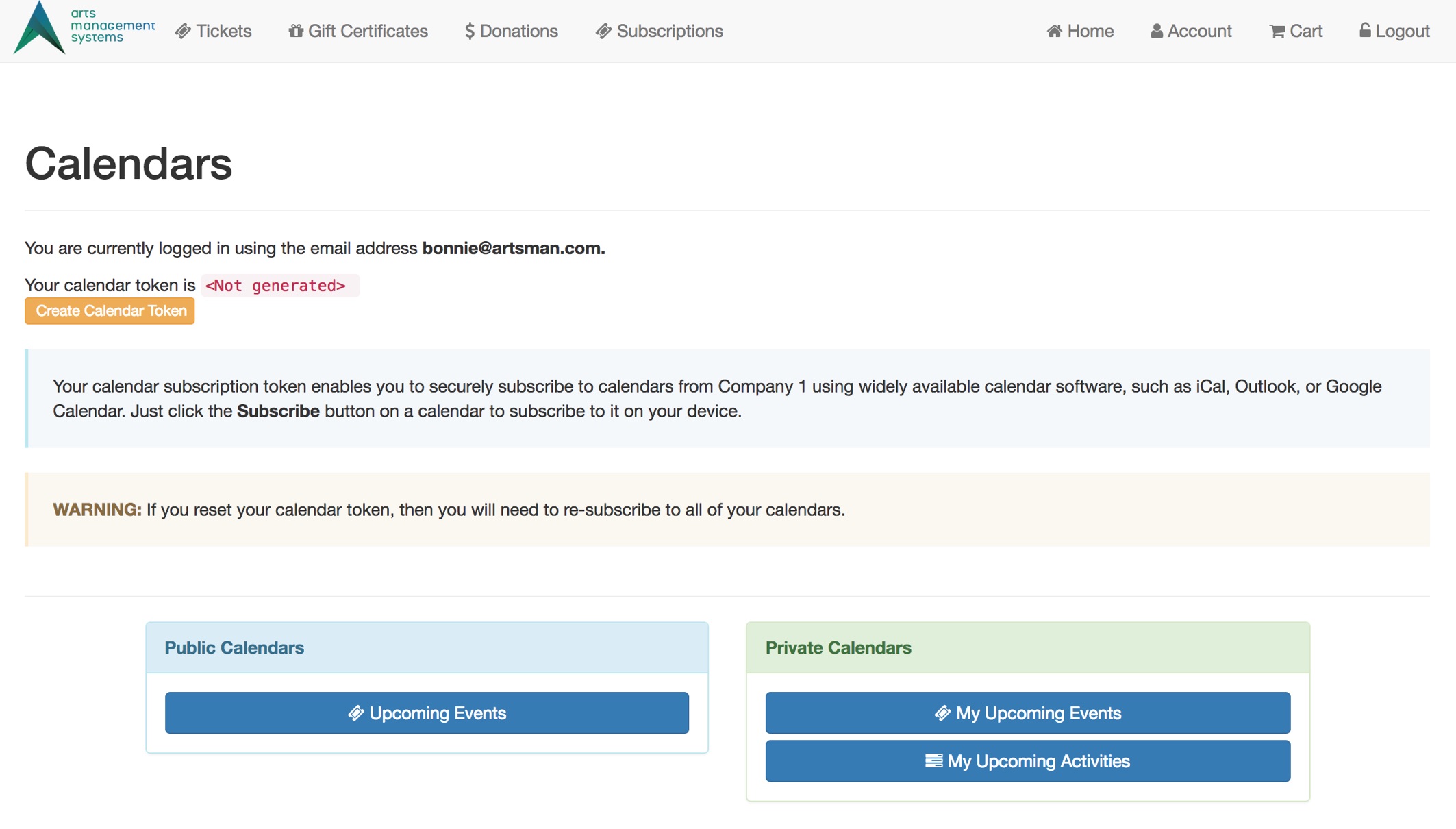
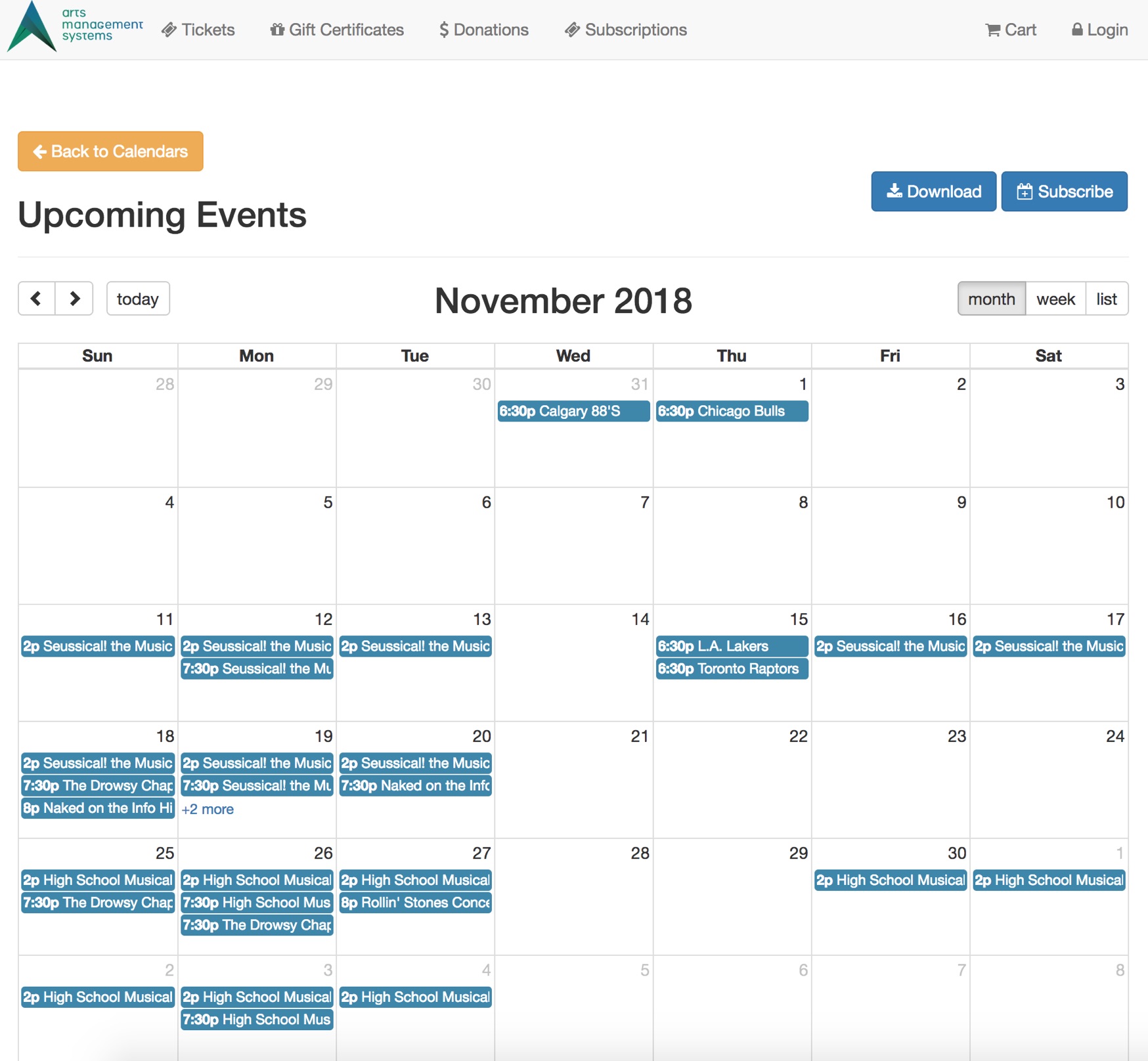
- This page contains the button links to the Upcoming Events, My Upcoming Events and My Upcoming Activities calendars.
- The Upcoming Events calendar displays a list of upcoming Performances and Courses available for purchase online.
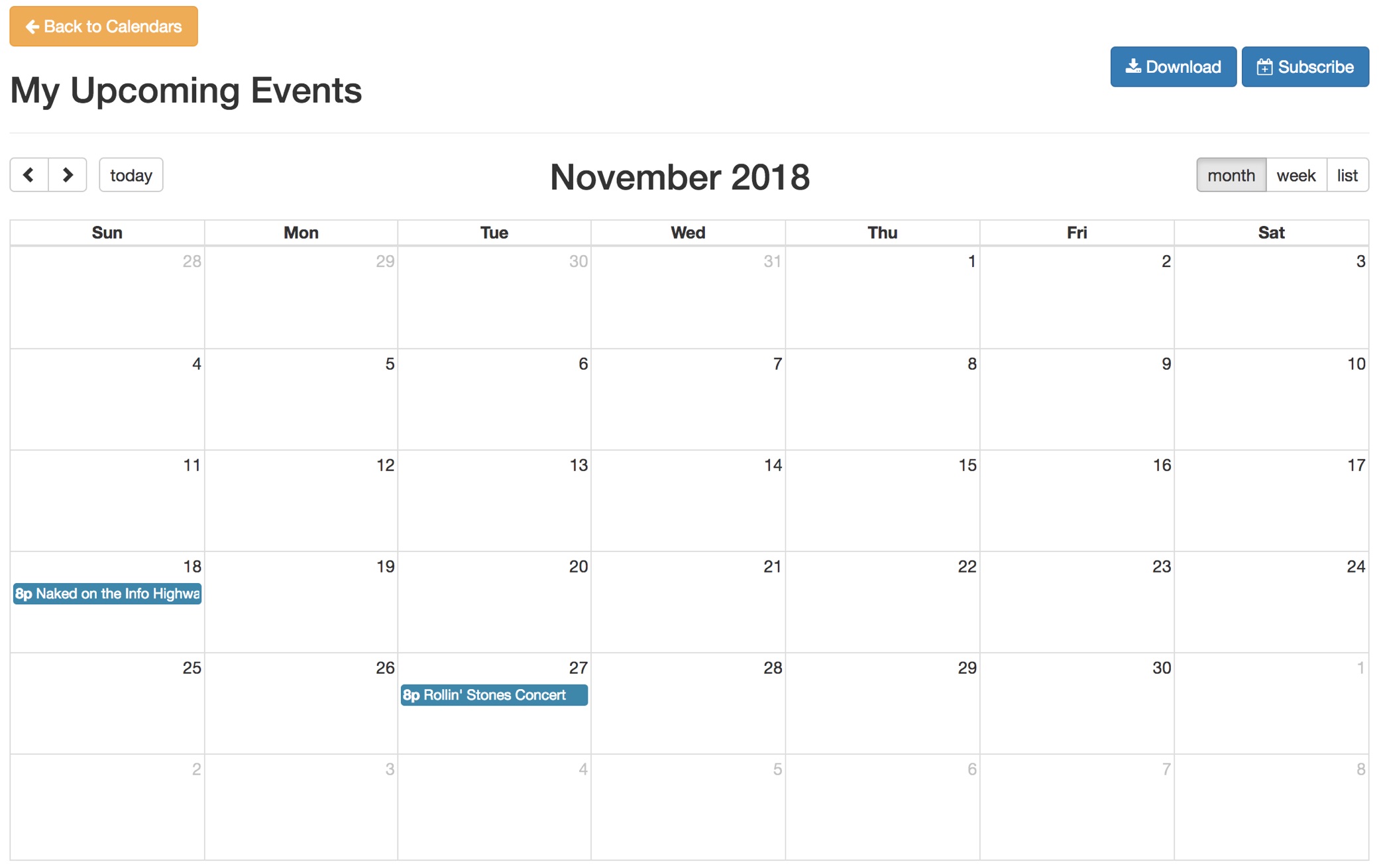
- The My Upcoming Events calendar contains a calendar of performances and coursed the patron has purchased admission to.
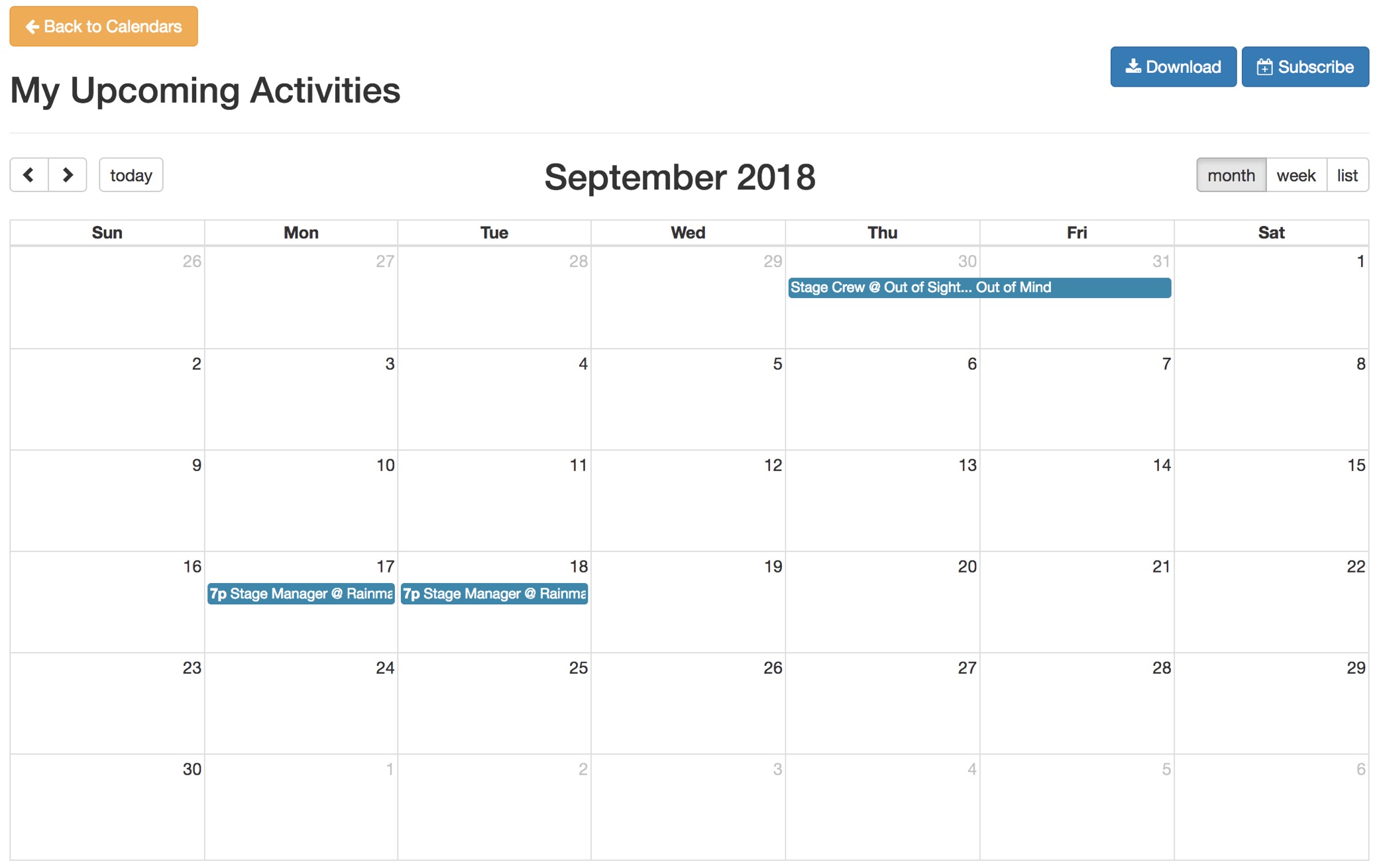
- The My Upcoming Activities calendar shows a list of upcoming activities the patrons has been scheduled to perform through Theatre Manager.
- The page also contains the token needed for subscribing to the calendars listed above.
Questions and Answers:
Q: What is the Calendar Token for?
A: The Token is used for subscribing to a calendar. It is a unique value that allows for syncing with outside applications such as iCal, Outlook or Google Calendars.
____________________________________________________________
Q: Why would you reset a Calendar Token?
A: Reseting the token makes the previous token invalid. It prevents any previously subscribed calendar applications from accessing the calendar until the token has been updated in that program.
____________________________________________________________
Q: Is the Calendar Token needed to download the calendar?
A: The token is only needed when subscribing to a calendar.
____________________________________________________________
Q: What is the difference between Downloading and Subscribing to a Calendar?
A: When a calendar is downloaded the ICS file contains all Performances and Classes as of the download date. By subscribing to a calendar the details in the third party application will update as the information in the Theatre Manager database updates. If new Events are made available online the Performances or Classes will appear in the subscribed Upcoming Events calendar. When the patron purchases, exchanges or refunds tickets the details will automatically update in the subscribed My Upcoming Events calendar.
____________________________________________________________
Location:
htdocs/1/WebPagesEN
Able to Call Page(s):
Called By Page(s):
Page(s) Referenced:
tmCalendar Folder
tmMyUpcomingActivities.html
tmMyUpcomingEvents.html
tmUpcomingEvents.html
tmCampaign Folder
tmCampaign Folder
Custom pages can be created for an event by duplicating the existing default page. The word Default in the page name is then replaced with the donation campaign number. The donation campaign number is located in the Seq # column under Setup >> System Tables >> Donation Campaigns in Theatre Manager. If this column is not visible simply right click on any of the column headers and select it. The column with then display in the list.
tmCampaign1.html
tmCampaign1.html
Description:
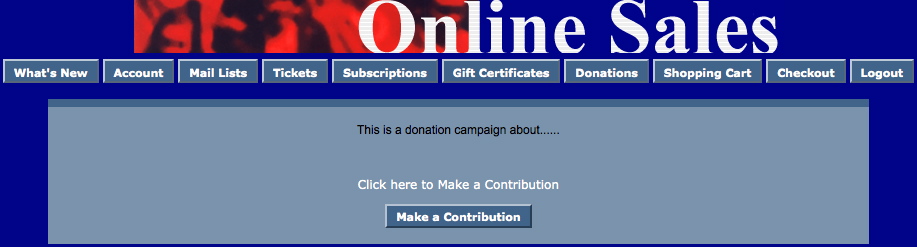
- This page provides a description of the donation campaign.
- The campaign name is pulled from the External Name of the campaign from within Theatre Manager.
- The default page pulls the description information directly from the Notes tab for the Donation Campaign setup inside Theatre Manager.
- The title of the page includes a number that references the campaign sequence number from within Theatre Manager.
- This is a custom page that can be edited to reflect the details of this specific campaign.
Location:
htdocs/1/WebPagesEN/tmCampaign
Able to Call Page(s):
Called By Page(s):
Page(s) Referenced:
tmCampaign2.html
tmCampaign2.html
Description:
- This page provides a description of the donation campaign.
- The campaign name is pulled from the External Name of the campaign from within Theatre Manager.
- The default page pulls the description information directly from the Notes tab for the Donation Campaign setup inside Theatre Manager.
- The title of the page includes a number that references the campaign sequence number from within Theatre Manager.
- This is a custom page that can be edited to reflect the details of this specific campaign.
Location:
htdocs/1/WebPagesEN/tmCampaign
Able to Call Page(s):
Called By Page(s):
Page(s) Referenced:
tmCampaignDefault.html
tmCampaignDefault.html
Description:
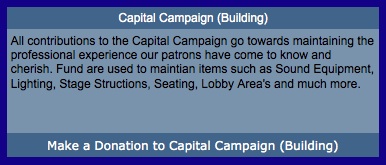
- This page provides a description of the donation campaign.
- The campaign name is pulled from the External Name of the campaign from within Theatre Manager.
- The default page pulls the description information directly from the Notes tab for the Donation Campaign setup inside Theatre Manager.
Location:
htdocs/1/WebPagesEN/tmCampaign
Able to Call Page(s):
Called By Page(s):
Page(s) Referenced:
TMcart.html
TMcart.html
Description:
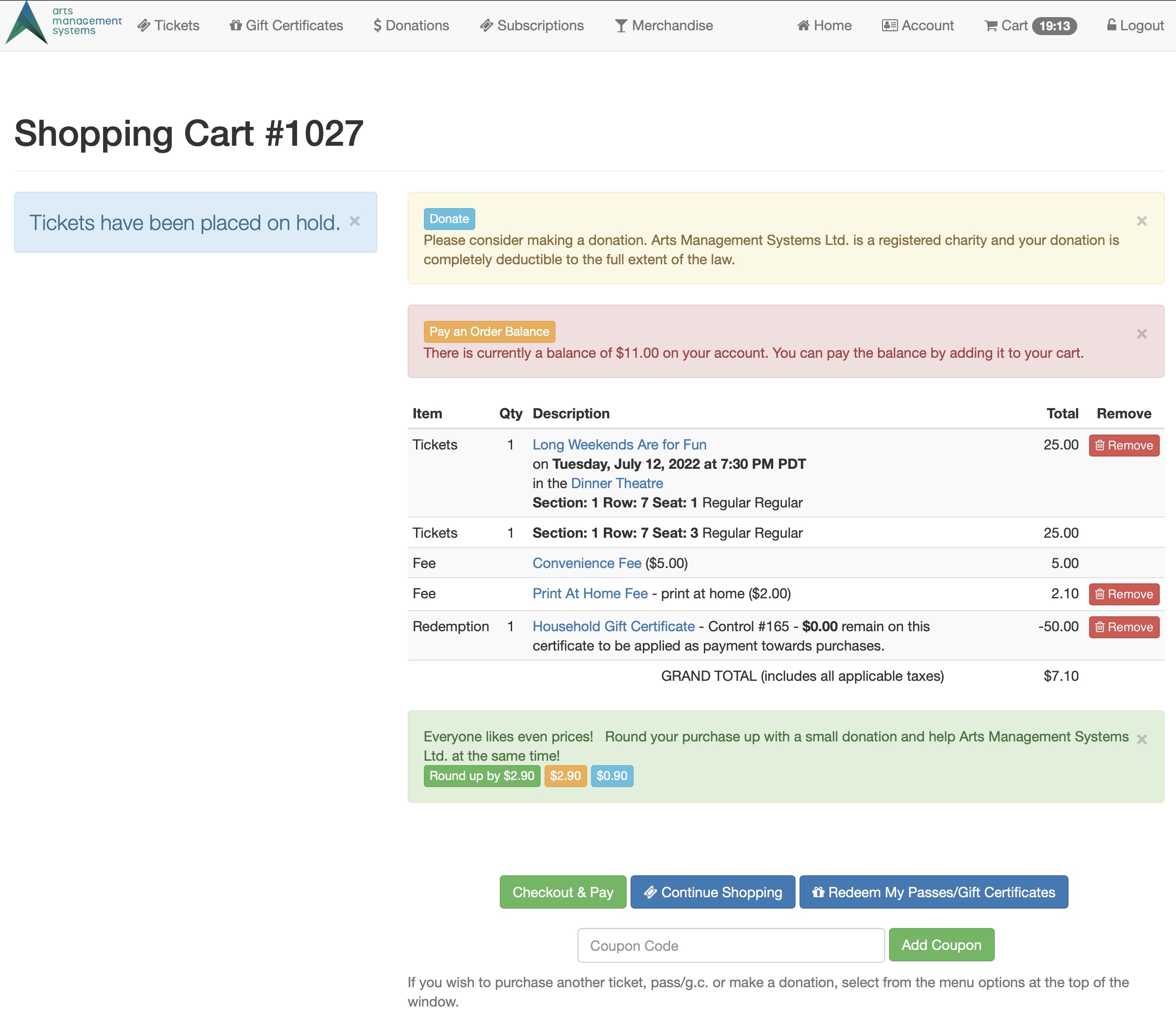
- Lists all items currently within the patrons online shopping cart. This includes any fees or coupons associated with the purchase.
- This page is presented after each new tickets, subscription, donation or member type is added to an order.
- If the item is checked in Setup >> Company Preferences of Theatre Manager, the option to have tickets Mailed will appear within this window.
- If the item is checked in Setup >> Company Preferences of Theatre Manager, the patron is asked if they would like to add a donation to their ticket purchase.
- If the item is checked in Setup >> Company Preferences of Theatre Manager, the option to enter a coupon appears.
Questions and Answers:
Q:
A:
____________________________________________________________
Location:
htdocs/1/WebPagesEN
Able to Call Page(s):
- tmCampaignDefault.html (optional)
- TMcheckout.html
- TMcoupon.html
- TMdonation.html (optional)
- TMError.txt
- tmEventDefault.html (optional purchase)
- tmMailFeeDefault.html (optional)
- tmOrderFeeDefault.html (optional)
- tmPassDefault.html (optional purchase)
- tmSubscriptionDefault.html (optional purchase)
- tmtermsandconditions.html
- TMtickets.html
- tmVenueDefault.html (optional purchase)
Called By Page(s):
- TMdonation.html
- tmPackageDefault.html
- TMpatronLimitedProfile.html
- TMpassAskAmount.html
- TMsubscriptionsPriceMapDefault.html
- TMticketsPrice_MapDefault.html
- Any page containing the navigation buttons.
Page(s) Referenced:
- buttonRollover.html
- dropDownMenuFunction.html
- pleaseWaitMessage.html
- pleaseWaitMessageFunction.html
- rowCartCoupon.html
- rowCartCourse.html
- rowCartCourseNewGroup.html
- rowCartDonation.html
- rowCartFestival.html
- rowCartFestivalNewGroup.html
- rowCartMailFee.html
- rowCartOrderCouponFee.html
- rowCartOrderFee.html
- rowCartPass.html
- rowCartPassRedemption.html
- rowCartReserve.html
- rowCartReserveNewGroup.html
- rowCartSub.html
- rowCartSubNewGroup.html
- setHOUSEHOLD_PATRON_SELECTION_LIST.html
- setHOUSEHOLD_PATRON_SELECTION_LISTempty.html
- styleButtons.css
- stylePages.css
- TMError.txt
- tmFooter.html
- tmnavButtons.html
- tmTicketHandling.html
- rowcartdonationroundup.html
TMcheckout.html
TMcheckout.html
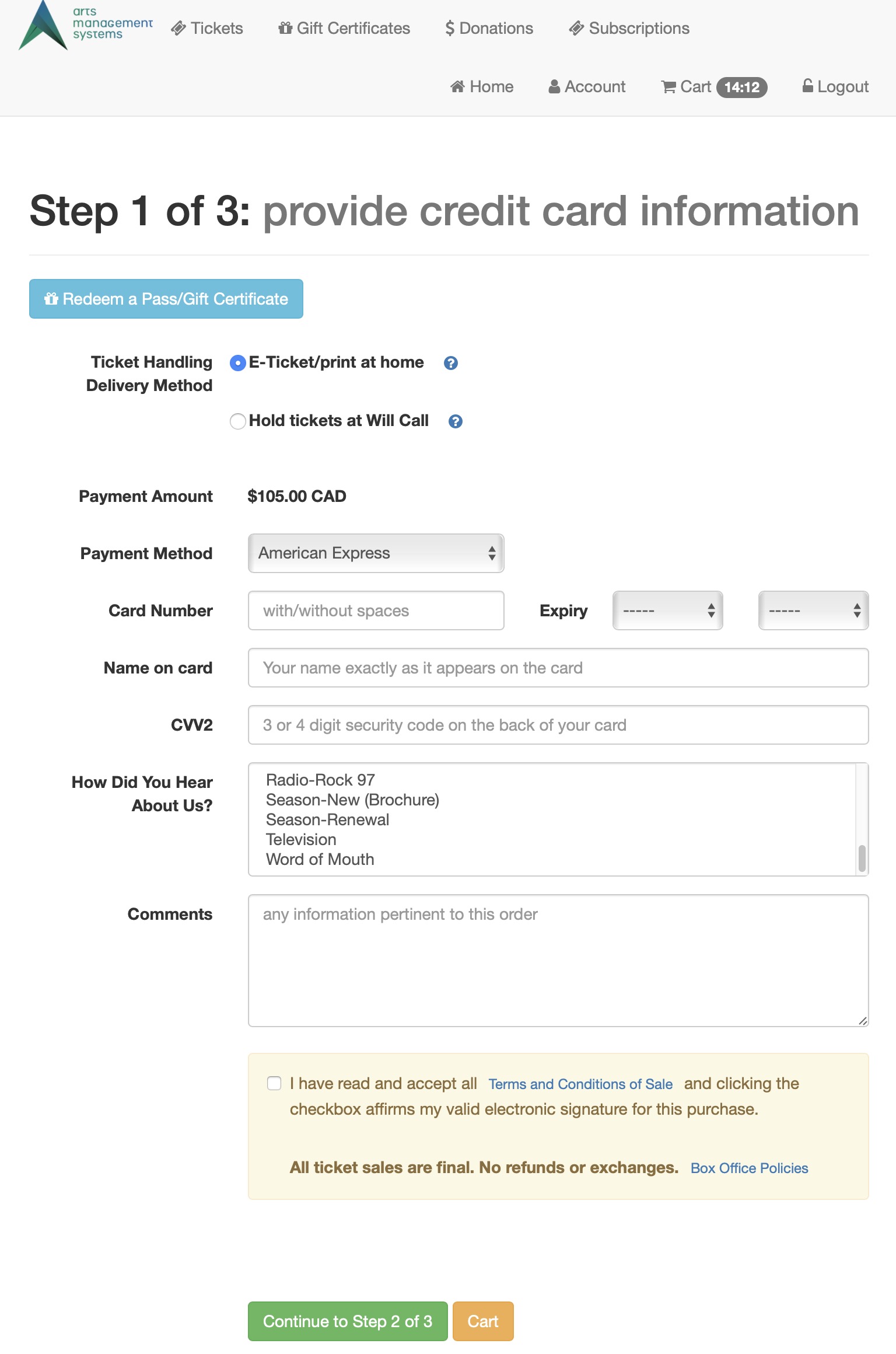
Description:
- This page is the final page before payment for the Order it processed.
- The ticket handling at the top of the pages reflects the setup of E-Ticket handling within company preferences.
- The the wording for E-Ticket handling may need to be altered to more accurately reflect the policies of the organization.
- The Payment Method, Card Number, Name as it Appears, CID, Card Expiry Date fields are all mandatory fields for credit card processing.
- If the How Did You Hear field may be set as a mandatory field within the Theatre Manager database it will also need to be entered before processing a payment.
- If their are no Payment Method listed in the drop down click here.
- To learn how to create options for multiple currency payment methods click here.
- The terms and conditions checkbox only appears if enabled in company preferences
Questions and Answers:
Q: Why are there no payment methods in the drop down list?
A: If your credit card payment methods do not appear in the drop down it may be the Merchant Account is not setup to be used online. In Theatre Manager go to Setup >> System Tables >> Merchant Accounts. Double click on the merchant account and ensure the By the Web Listener box is checked. Under the Cards tab in the merchant account double click on each card and ensure the Available At Internet box is checked. The card will also need a bullet in the Yes column for Authorize Via Credit Card Server.
Location:
htdocs/1/WebPagesEN
Able to Call Page(s):
- tmBoxOfficePolicy.html
- TMcheckoutCardError.html
- TMcheckoutNoItems.html
- TMcheckoutNoPayment.html
- TMcheckoutProcessing.html
- TMlogin.html
Called By Page(s):
- TMcart.html
- Any page listing the navigation buttons after the patron has logged into the online sales.
Page(s) Referenced:
- buttonRollover.html
- dropDownMenuFunction.html
- pleaseWaitMessage.html
- pleaseWaitMessageFunction.html
- setCCMONTH_LIST.html
- setCCMONTH_LISTempty.html
- setMERCHANT_LIST.html
- setMERCHANT_LISTempty.html
- setPAYMENT_LIST.html
- setPAYMENT_LISTempty.html
- setREASON_TO_BUY_LIST.html
- setREASON_TO_BUY_LISTempty.html
- setYEAR_LIST.html
- setYEAR_LISTempty.html
- styleButtons.css
- stylePages.css
- ,tmCheckoutPostDatedPayments.html
- TMError.txt
- tmtermsandconditions.html
- tmTicketHandling.html
- tmFooter.html
- tmnavButtons.html
- rowcartdonationroundup.html
TMcheckoutCardError.html
TMcheckoutCardError.html
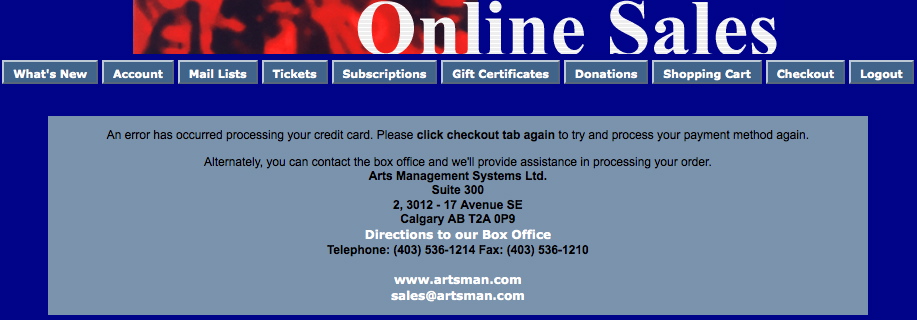
Description:
- This page is displayed when the connection between apache and the web listener is interrupted during the processing of a payment.
- The contact information within this page is pulled directly from the Company tab in Setup >> Company Preferences of Theatre Manager.
Location:
htdocs/1/WebPagesEN
Able to Call Page(s):
- maps.google.com
- The companies web site as it appears in the Company tab of Setup >> Company Preferences within Theatre Manager.
Called By Page(s):
Page(s) Referenced:
TMcheckoutConfirmation.html
TMcheckoutConfirmation.html
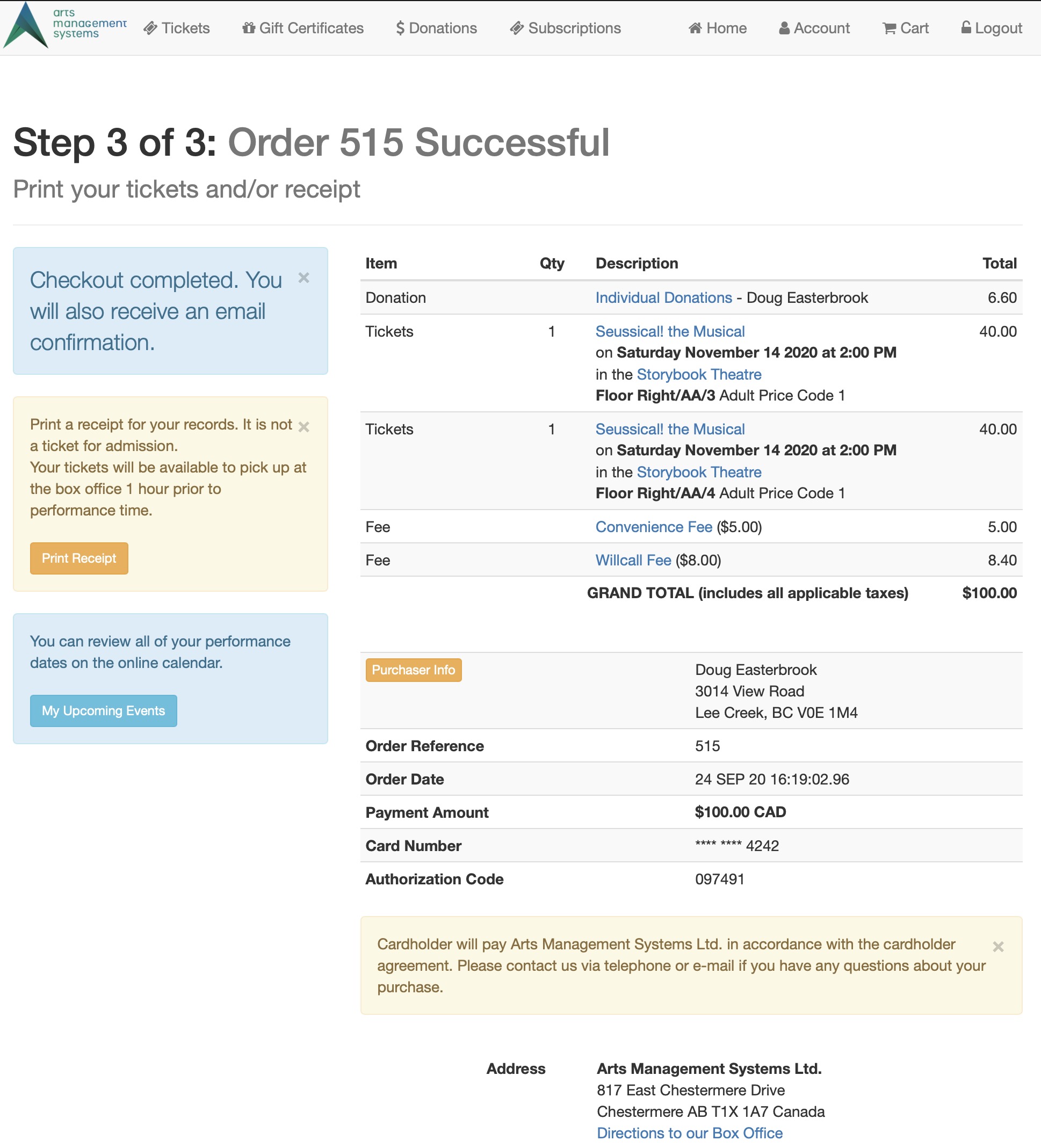
Description:
- This is the confirmation page listing a break down of the items within the Patron's Order.
- This page allows the patron to print a copy of their purchase much like a receipt. Theatre Manager will also email the patron a confirmation receipt as a part of the purchase process.
- Many of the fields within this page are pulled directly from Theatre Manager based on the patrons purchase.
- If the Print At Home Tickets option is checked in the Web Options tab of Setup >> System Tables in Theatre Manager a third button will appear toward the top of this window. The button reads Print Tickets and is designed to print out a paper copy of tickets (complete with bar code) to be presented at the venue for admittance.
Location:
htdocs/1/WebPagesEN
Able to Call Page(s):
- TMoldCartHeaders.html
- maps.google.com
- The companies web site as it appears in the Company tab of Setup >> Company Preferences within Theatre Manager.
Called By Page(s):
Page(s) Referenced:
- buttonRollover.html
- rowCheckoutCoupon.html
- rowCheckoutCourse.html
- rowCheckoutDonation.html
- rowCheckoutFestival.html
- rowCheckoutMailFee.html
- rowCheckoutOrderCouponFee.html
- rowCheckoutOrderFee.html
- rowCheckoutPass.html
- rowCheckoutPaymentPlan.html
- rowCheckoutReserve.html
- rowCheckoutSub.html
- rowCheckoutSubNewGroup.html
- styleButtons.css
- stylePages.css
- rowCheckoutPassRedemption.html
- tmContact.html
- tmContactHours.html
- tmFooter.html
- tmnavButtons.html
TMcheckoutInvoiceEmail.html
TMcheckoutInvoiceEmail.html
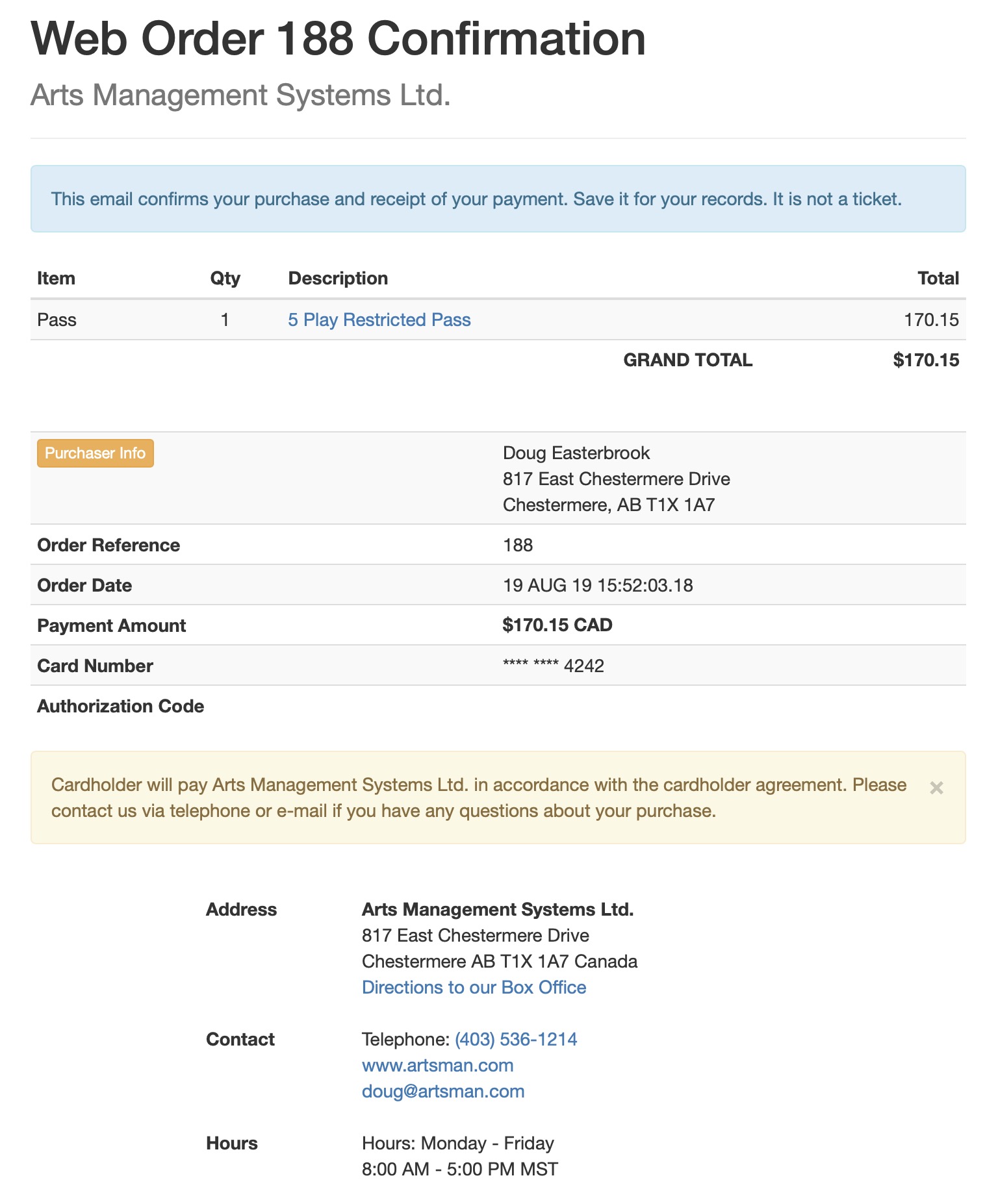
Description:
- This is the email confirmation page listing a break down of the items within the Patron's Order.
- This page is emailed after each payment is complete as a receipt of the purchase.
- Many of the fields within this page are pulled directly from Theatre Manager based on the patrons purchase.
Location:
htdocs/1/WebPagesEN
Able to Call Page(s):
- TMoldCartHeaders.html
- maps.google.com
- The companies web site as it appears in the Company tab of Setup >> Company Preferences within Theatre Manager.
Called By Page(s):
- Not Appicable
Page(s) Referenced:
- buttonRollover.html
- rowCartCoupon.html
- rowCartCourse.html
- rowCartCourseNewGroup.html
- rowCartDonation.html
- rowCartFestival.html
- rowCartFestivalNewGroup.html
- rowCartMailFee.html
- rowCartOrderCouponFee.html
- rowCartOrderFee.html
- rowCartPass.html
- rowCartReserve.html
- rowCartReserveNewGroup.html
- rowCartSub.html
- rowCartSubNewGroup.html
- rowCheckoutCoupon.html
- rowCheckoutCourse.html
- rowCheckoutDonation.html
- rowCheckoutFestival.html
- rowCheckoutMailFee.html
- rowCheckoutOrderCouponFee.html
- rowCheckoutOrderFee.html
- rowCheckoutPass.html
- rowCheckoutPaymentPlan.html
- rowCheckoutReserve.html
- rowCheckoutSub.html
- rowCheckoutSubNewGroup.html
- styleButtons.css
- stylePages.css
- tmContact.html
- tmContactHours.html
- tmFooter.html
TMcheckoutNoItems.html
TMcheckoutNoItems.html

Description:
- This page is presented when a patron attempts to process an empty cart.
Location:
htdocs/1/WebPagesEN
Able to Call Page(s):
Called By Page(s):
Page(s) Referenced:
TMcheckoutNoPayment.html
TMcheckoutNoPayment.html
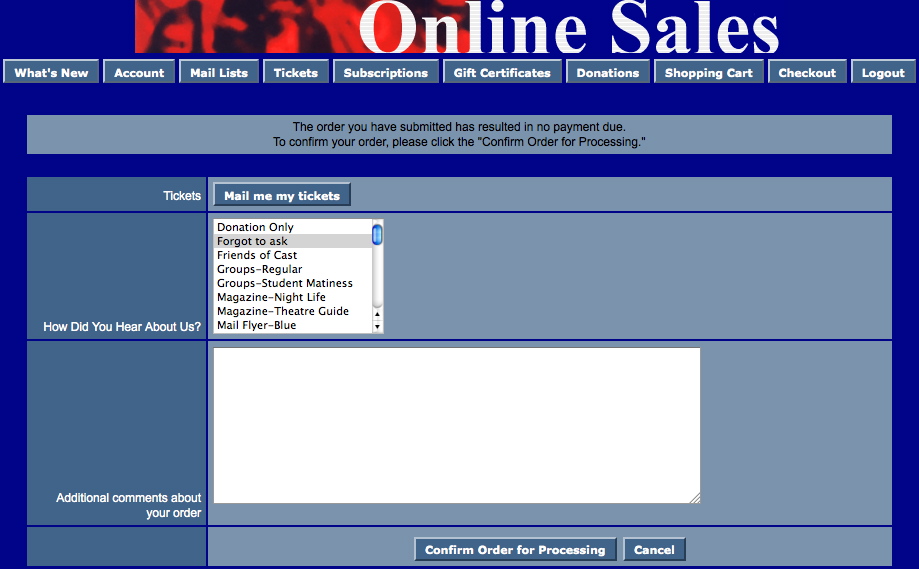
Description:
- This page is presented when the total value of the items added to the web sales cart is zero. No payment is required for the Order.
- When the Confirm Order for Processing button is clicked the Order is completed in Theatre Manager.
- The ticket handling at the top of the pages reflects the setup of E-Ticket handling within the database. For more information on this setup click here
Location:
htdocs/1/WebPagesEN
Able to Call Page(s):
Called By Page(s):
- TMcart.html
- Any page listing the navigation buttons.
Page(s) Referenced:
TMcheckoutProcessing.html
TMcheckoutProcessing.html
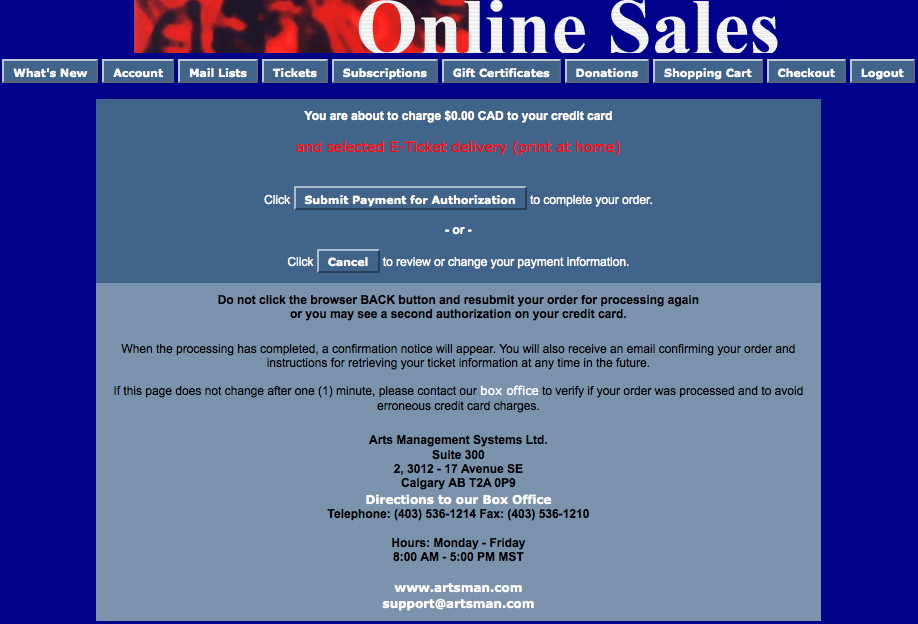
Description:
- The final confirmation page before the payment is processed against the patrons credit card.
- This age will automatically refresh when the payment is finished processing within Theatre Manager.
Location:
htdocs/1/WebPagesEN
Able to Call Page(s):
- TMcheckout.html
- TMcheckoutConfirmation.html
- maps.google.com
- The companies web site as it appears in the Company tab of Setup >> Company Preferences within Theatre Manager.
Called By Page(s):
Page(s) Referenced:
tmContent Folder
tmContent Folder
contentBoard.html
contentBoard.html
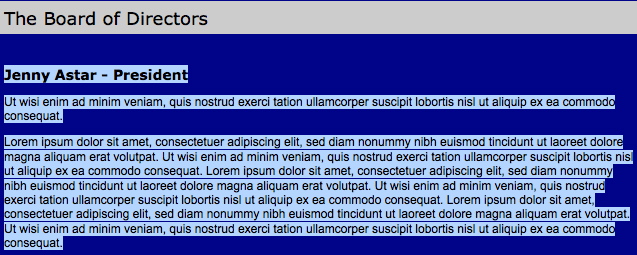
Description:
- A sample page for Board of Directors information.
Location:
htdocs/1/WebPagesEN/tmContent
Able to Call Page(s):
- Not Applicable
Called By Page(s):
Page(s) Referenced:
contentClass.html
contentClass.html
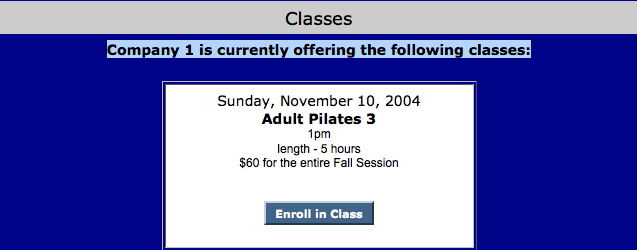
Description:
- A sample list of upcoming Courses or Classes the organization is offering.
- The course description information is hard coded onto the page.
- The Enroll in Class buttons are coded to reference the course in the TMtickets.html using the Event # from within Theatre Manager for the course.
Location:
htdocs/1/WebPagesEN/tmContent
Able to Call Page(s):
Called By Page(s):
Page(s) Referenced:
contentContact.html
contentContact.html
Description:
- Contact information for the Organization.
- The Company information is pulled directly from the Setup >> Company Preferences tab of Theatre Manager.
Location:
htdocs/1/WebPagesEN/tmContent
Able to Call Page(s):
- maps.google.com
- The companies web site as it appears in the Company tab of Setup >> Company Preferences within Theatre Manager.
Called By Page(s):
Page(s) Referenced:
contentDonation.html
contentDonation.html
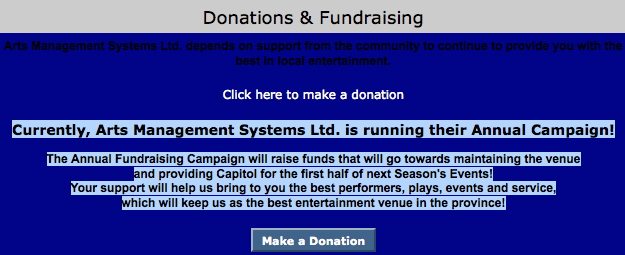
Description:
- A sample page describing the organizations donation campaigns.
- The donation description information is hard coded onto the page.
Location:
htdocs/1/WebPagesEN/tmContent
Able to Call Page(s):
Called By Page(s):
Page(s) Referenced:
contentEvents.html
contentEvents.html

Description:
- A sample page describing the organizations upcoming special events.
- The event description information is hard coded onto the page.
- The link behind the event title references the tmEvent1.html where the number 1 is replaced with the Event # from within Theatre Manager.
- The Click Here to Purchase Tickets link and the Purchase Tickets buttons both reference the TMtickets.html page where the Event # has been added to the button to present just the performances for this event. See the Redirecting a link to a specific page in the Web Listener page for more information on creating links within Theatre Manager.
Location:
htdocs/1/WebPagesEN/tmContent
Able to Call Page(s):
Called By Page(s):
Page(s) Referenced:
contentMailList.html
contentMailList.html

Description:
- A sample page describing the options to subscribe to Mail Lists.
- The mail list description information is hard coded onto the page.
- The Click Here to Subscribe to Mail List link and the Subscribe to Mail List button both reference the TMmaillist.html page
Location:
htdocs/1/WebPagesEN/tmContent
Able to Call Page(s):
Called By Page(s):
Page(s) Referenced:
contentPass.html
contentPass.html

Description:
- A sample page describing the Pass Type items available for sale.
- The pass description information is hard coded onto the page.
- The Click Here to Purchase a Pass link and the Purchase Pass button both reference the TMpass.html page
Location:
htdocs/1/WebPagesEN/tmContent
Able to Call Page(s):
Called By Page(s):
Page(s) Referenced:
contentSeason.html
contentSeason.html
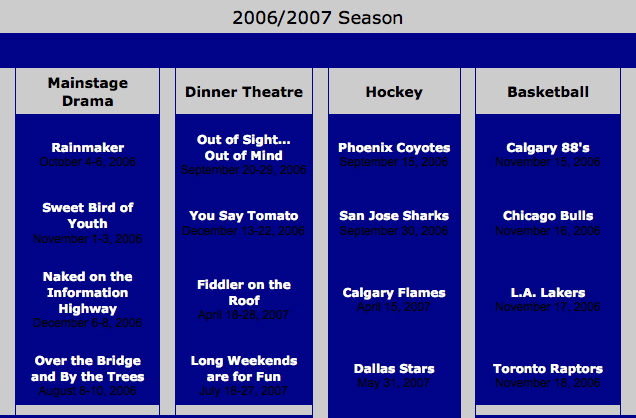
Description:
- A sample page of the upcoming season for the organizations.
- The event description information is hard coded onto the page.
- The link behind the event title references the tmEvent1.html where the number 1 is replaced with the Event # from within Theatre Manager. The Event # has been added to the link to present just the performances for this event. See the Redirecting a link to a specific page in the Web Listener page for more information on creating links within Theatre Manager.
Location:
htdocs/1/WebPagesEN/tmContent
Able to Call Page(s):
Called By Page(s):
Page(s) Referenced:
contentSeason2002.html
contentSeason2002.html
Description:
- A sample page of a past seasons individual performances.
- The event description information is hard coded onto the page.
- The link behind the event title references the tmEvent1.html where the number 1 is replaced with the Event # from within Theatre Manager. The Event # has been added to the link to present just the performances for this event. See the Redirecting a link to a specific page in the Web Listener page for more information on creating links within Theatre Manager.
Location:
htdocs/1/WebPagesEN/tmContent
Able to Call Page(s):
Called By Page(s):
Page(s) Referenced:
contentSeason2003.html
contentSeason2003.html
Description:
- A sample page of a past seasons individual performances.
- The event description information is hard coded onto the page.
- The link behind the event title references the tmEvent1.html where the number 1 is replaced with the Event # from within Theatre Manager. The Event # has been added to the link to present just the performances for this event. See the Redirecting a link to a specific page in the Web Listener page for more information on creating links within Theatre Manager.
Location:
htdocs/1/WebPagesEN/tmContent
Able to Call Page(s):
Called By Page(s):
Page(s) Referenced:
contentStaff.html
contentStaff.html
Description:
- A sample page of Staff information for the organization.
Location:
htdocs/1/WebPagesEN/tmContent
Able to Call Page(s):
- Not Applicable
Called By Page(s):
Page(s) Referenced:
contentVolunteer.html
contentVolunteer.html

Description:
- A sample page for Volunteer information.
- The company name and telephone number are pulled from Setup >> Company Preferences within Theatre Manager.
Location:
htdocs/1/WebPagesEN/tmContent
Able to Call Page(s):
- Not Applicable
Called By Page(s):
Page(s) Referenced:
TMcoupon.html
TMcoupon.html
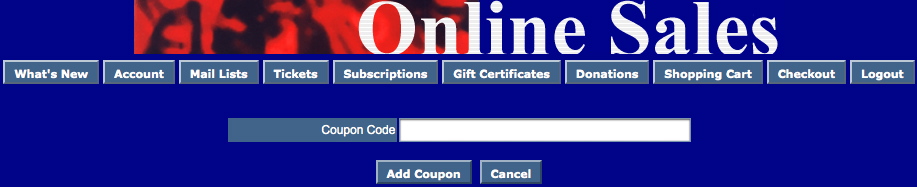
Description:
- When an invalid coupon code is entered this page is displayed offering the patron an opportunity to reenter the code.
Location:
htdocs/1/WebPagesEN
Able to Call Page(s):
Called By Page(s):
tmCustom Folder
tmCustom Folder
This folder will contain a copy of each web page customized for an organizations online tickets site that does not pertain to the tmGifs folder. Online sales will review the tmCustom folder prior to the default web pages. If a custom page is located the online sales will display the custom page over the default page. For more information please click here.
This folder contains customized copies of the default pages from within the WebPagesEN folder. These pages have been edited to meet the design and desired look for the organizations online sales. Each page contained within a sub-folder should be saved to the corresponding folder within the tmCustom folder. For details on the default WebPagesEN folder click here.
tmCampaign Folder (Custom)
tmCampaign Folder (Custom)
This folder contains customized copies of the default pages from within the tmCampaign folder. These pages have been edited to meet the design and desired look for the organizations online sales. For details on the default tmCampaign folder click here.
tmContent Folder (Custom)
tmContent Folder (Custom)
This folder contains customized copies of the default pages from within the tmContent folder. These pages have been edited to meet the design and desired look for the organizations online sales. For details on the default tmContent folder click here.
tmEvent Folder Custom
tmEvent Folder Custom
This folder contains customized copies of the default pages from within the tmEvent folder. These pages have been edited to meet the design and desired look for the organizations online sales.
For details on the default tmEvent folder click here.
tmFee Folder (Custom)
tmFee Folder (Custom)
This folder contains customized copies of the default pages from within the tmFee folder. These pages have been edited to meet the design and desired look for the organizations online sales. For details on the default tmFee folder click here.
tmMaps Folder (Custom)
tmMaps Folder (Custom)
This folder contains customized copies of the default pages from within the tmMaps folder. These pages have been edited to meet the design and desired look for the organizations online sales. For details on the default tmMaps folder click here.
tmPass Folder (Custom)
tmPass Folder (Custom)
This folder contains customized copies of the default pages from within the tmPass folder. These pages have been edited to meet the design and desired look for the organizations online sales. For details on the default tmPass folder click here.
tmScripts Folder (Custom)
tmScripts Folder (Custom)
This folder contains customized copies of the default pages from within the tmScripts folder. These pages have been edited to meet the design and desired look for the organizations online sales. For details on the default tmScripts folder click here.
tmSubscription Folder (Custom)
tmSubscription Folder (Custom)
This folder contains customized copies of the default pages from within the tmSubscription folder. These pages have been edited to meet the design and desired look for the organizations online sales. For details on the default tmSubscription folder click here.
TMtemplates Folder (Custom)
TMtemplates Folder (Custom)
This folder contains customized copies of the default pages from within the TMtemplates folder. These pages have been edited to meet the design and desired look for the organizations online sales.
For details on the default TMtemplates folder click here.
tmVenue Folder (Custom)
tmVenue Folder (Custom)
This folder contains customized copies of the default pages from within the tmVenue folder. These pages have been edited to meet the design and desired look for the organizations online sales. For details on the default tmVenue folder click here.
TMdonation.html
TMdonation.html
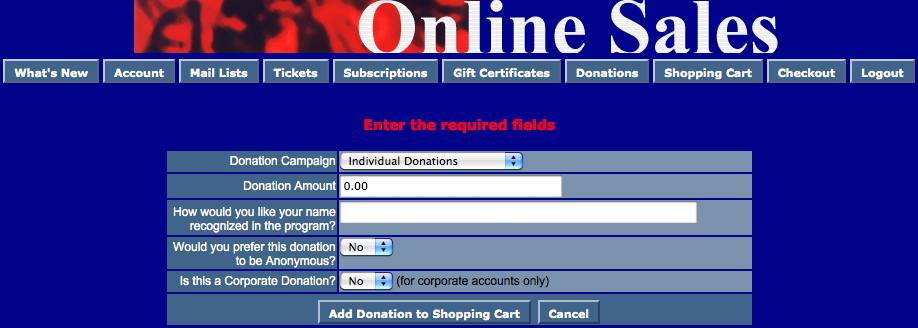
Description:
- The page for entering Donation purchases.
- This page can be linked on the main web page using the steps as outlined in the ReadeMe About Configuring Index.html.txt page. Links can be to the generic Donation page or to specific campaigns.
- The mandatory fields within this pages are Donation Campaign and Donation Amount.
Customizations if donation fields madatory
There are 3 fields on that are donor popup fields on the notes tab of the donation window. For the fields have been made mandatory, then you will need to have a code table value for custom donation field1, donation field2 and/or donation field3 in order for donations donations to be accepted online.
There is an include file for tmTemplates/tmDonationHiddenFields.html that may need revised if any of the donation fields have been made mandatory. If so, then you will need to look at that file and uncomment the appropriate fields below.
Change the value of xxx, yyy, or zzz in the input strings below to be the internal record number of the appropriate popup. Also, move the mandatory input field so that it is not uncommented
<INPUT NAME="DD_FLD1_FC_SEQ" TYPE=hidden id="DD_FLD1_FC_SEQ" value="xxx">
<INPUT NAME="DD_FLD2_FC_SEQ" TYPE=hidden id="DD_FLD2_FC_SEQ" value="yyy">
<INPUT NAME="DD_FLD3_FC_SEQ" TYPE=hidden id="DD_FLD3_FC_SEQ" value="zzz">
Location:
htdocs/1/WebPagesEN
Able to Call Page(s):
Called By Page(s):
- contentDonation.html
- TMCart.html
- Any page containing the navigation buttons.
Page(s) Referenced:
TMdonationmonthly.html
TMdonationmonthly.html
Note that this feature that will be coming but has not yet been implemented.
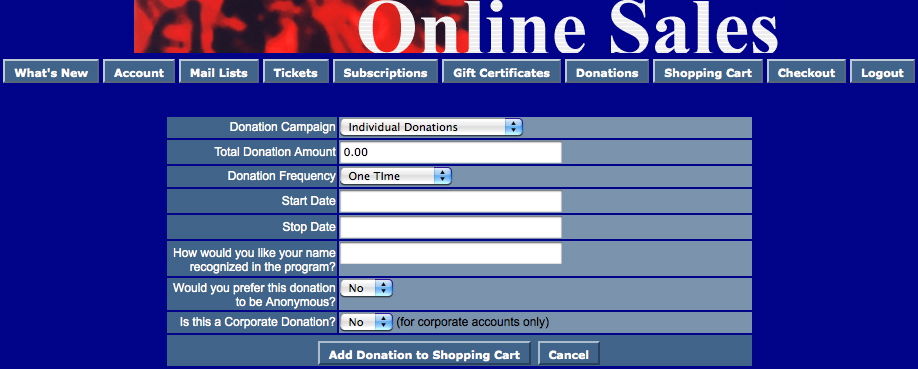
Description:
- This page allows patrons to setup a donate using a post dated payment schedule.
- The manditory fields are Donation Campaign, Total Donation Amount, Donation Frequency, Start Date and End Date.
- Theatre Manager will create a Donation for the amount indicated in the Total Donation Amount field. It will then setup multiply payments for the Donation based on the Donation Frequency in combination with the Start/End Date.
Location:
htdocs/1/WebPagesEN
Able to Call Page(s):
Called By Page(s):
- Not Applicable
Page(s) Referenced:
TMError.txt
TMError.txt
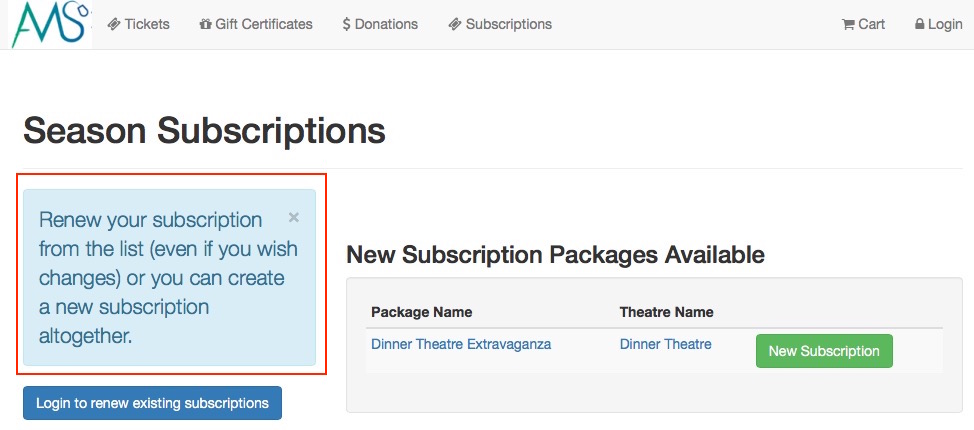 Description:
- The TMError.txt page feeds the messages located at the top of many pages.
- The TMError.txt page is referenced as F_HTML_PAGE_MESSAGE.
Location:
htdocs/1/WebPagesEN
Caveat changing some error messages
 |
You may change any error message that you wish to suit the needs of your venue. However, a few pertain to the sign-in process and may indicate that an email address cannot be used which you may not want to change.
During our Oct 2016 PCI audit, we were required to them generic because it is against PCI rules to divulge information or conditions that could make it easier for a hacker to gain access to a patrons account. Visa/Master Card's reasoning is simple: If you say the email exists, then a hacker would likely cross reference that with other information stolen or bought on the internet. Since people tend to use the same passwords across web sites, they would cross reference and might gain access. For your safety and the safety of your patrons, we ensure Theatre Manager passes the PCI Audit- to give you less to worry about. The PCI council places 100% web site security over empathy to make any commerce web site easier for patrons to use. |
| Message # | Purpose of error message that could occur during login process | Message before being genericized for PCI Audit |
|---|---|---|
| 10012 | error message if email address could not be found in the database during the login process. | Error - Please enter a valid email address and password combination. |
| 10013 | error message if email does exist in the database, but password is incorrect during login. Should be same message as 10012 to limit ability to delineate this condition | Error - invalid email address and password combination{br}(note: password is case sensitive). |
| 10032 | the response if email address found and message sent to patron. it is now generc to say that if the email address was found, then an email would be sent, which does not give away the fact that the email adddress does exist | A password reset has been sent to your email address at {email}.{br}Please look for the email and follow the instructions on it. |
| 10034 | response for email address not in the database. The message is set to be same as 10032 for PCI/OWASP compliance so that no information is conveyed back to the user as to success or failure of the request - it helps prevent finding information in the system for brute force attacks. | We're sorry, there are no accounts associated with the email address {email}. Please verify it. |
| 10255 | response indicating email address appears invalid because we are unable to lookup the mail exchange server for that email address. Again, according to PCI/OWASP, it is more secure to simply say the email address is invalid (and we suggest to contact the box office) | {contents} appears invalid. Unable to lookup the mail exchange server for that email address. |
| 10256 | response indicating email address appears invalid because we are unable to lookup the DNS server for that email address. Again, according to PCI/OWASP, it is more secure to simply say the email address is invalid (and we suggest to contact the box office) so this message is set to the same as 10255. | {contents} appears invalid. Unable to lookup the DNS server for that email address. |
| 10257 | response indicating email address is already on file and to use 'forgot password' instead. Again, according to PCI/OWASP, it is more secure to simply say the email address is invalid (and we suggest to contact the box office) so this message is set to the same as 10255. | {contents} is currently in use and cannot be used for the creation of a new account.{br}If this is your email address, please request your password instead. |
Able to Call Page(s):
- Not Applicable
Called By Page(s):
- palmCheckin.html
- palmCheckout.html
- palmTime.html
- TMattendance.html
- TMcart.html
- TMcheckout.html
- TMcheckoutCardError.html
- TMcheckoutNoItems.html
- TMcheckoutNoPayment.html
- TMcheckoutProcessing.html
- TMcoupon.html
- TMdonation.html
- TMdonationmonthly.html
- TMfutureTickets.html
- TMfutureTicketsPrint.html
- TMhome.html
- TMlogin.html
- TMloginSelectPatron.html
- TMlogoff.html
- TMlogoffOpenCart.html
- TMmaillist.html
- TMmaillistDisallow.html
- TMmaillistQuickAdd.html
- TMmaillistVerify.html
- TMoldCartDetails.html
- TMoldCartDetailsPrint.html
- TMoldCartDetailsPrint.html
- TMoldCartHeaders.html
- tmPackageDefault.html
- TMpass.html
- TMpassAskAmount.html
- TMpasswordChange.html
- TMpasswordForgot.html
- TMpasswordResetChange.html
- TMpatronLimitedProfile.html
- TMpatronNew.html
- TMpatronUpdate.html
- TMsubscriptionMapDefault.html
- TMsubscriptionMapDefaultf.html
- TMsubscriptionPriceMapDefault.html
- TMsubscriptions.html
- TMsubscriptionsMapDefaultf.html
- TMsubscriptionsPriceMapDefault.html
- TMsubscriptionsRenew.html
- TMsys404.html
- TMsysBackupInProgress.html
- TMsysCookiesDisabled.html
- TMsysInvalidCall.html
- TMsysInvalidCallDirect.html
- TMsysInvalidCallNoAccess.html
- TMsysInvalidFunction.html
- TMsysWebSalesDisabled.html
- TMtickets.html
- TMticketscalendar.html
- TMticketsMaxPurchased.html
- TMticketsPrice_MapDefault.html
- TMticketsSection_MapDefault.html
- TMticketsSection_MapDefaultc.html
- TMticketsSection_MapDefaultf.html
- TMticketsSoldOut.html
- TMvolcalendar.html
- TMvolunteer.html
Page(s) Referenced:
- Not Applicable
tmEvent Folder
tmEvent Folder
Custom pages can be created for an event by duplicating the existing default page. The word Default in the page name is then replaced with the event number. The event number is located in the Event # column under Setup >> Events in Theatre Manager.
tmEvent1.html
tmEvent1.html
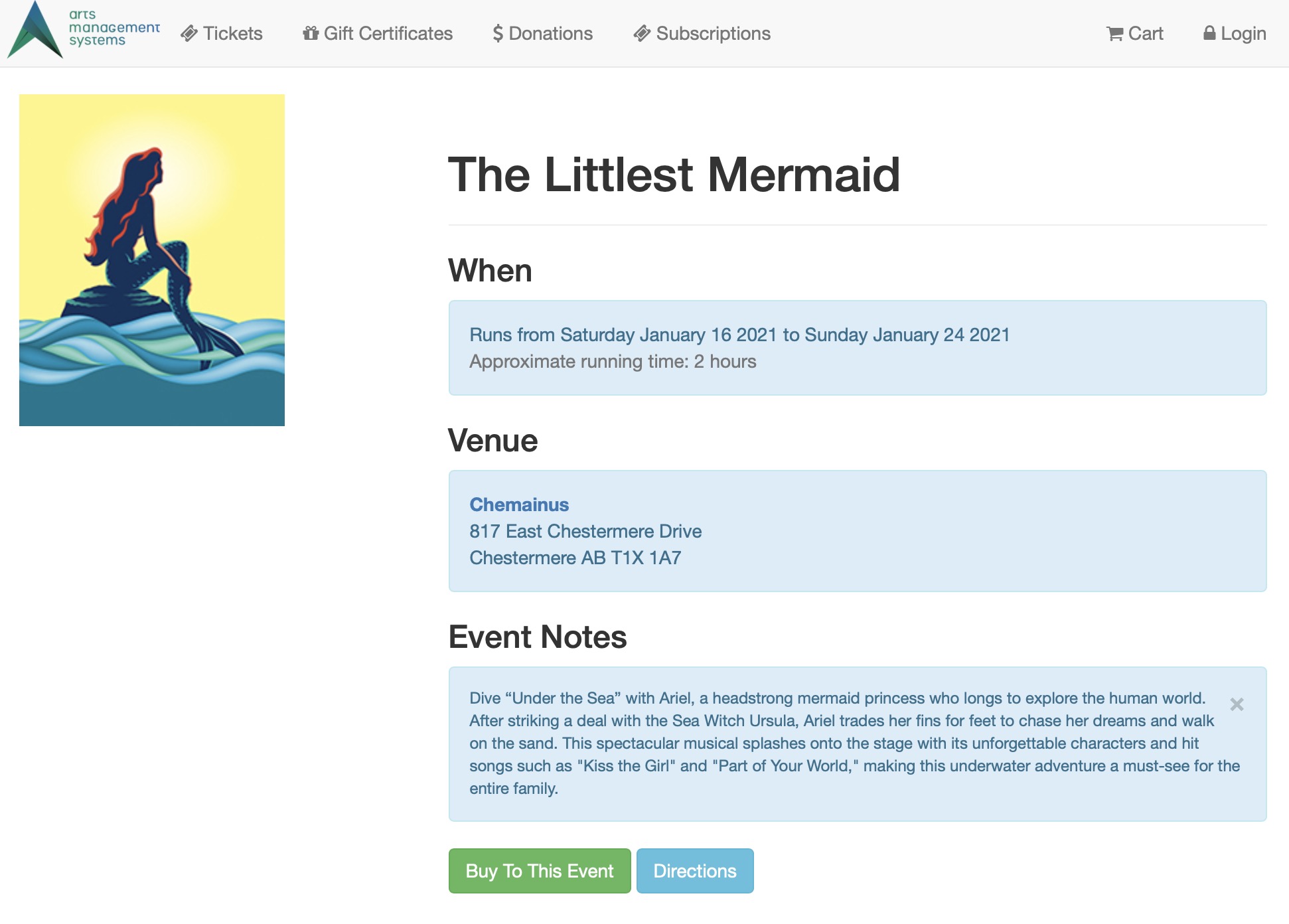 Description:
- This page provides a description of the over all event and it's details.
- This is a custom page that can be edited to reflect the details of this specific event.
- The name of the page includes a number that references the event sequence number from within Theatre Manager.
- The event name is pulled from the external name of the event from within Theatre Manager.
- The run start and end date are pulled from the performance tab within the event setup of Theatre Manager.
- The venue and it's address are pulled from the map the event was built on within Theatre Manager.
- The run time, description information and image are directly from the marketing tab of the event from within Theatre Manager.
Location:
htdocs/1/WebPagesEN/tmEvent
Able to Call Page(s):
Called By Page(s):
Page(s) Referenced:
tmEventDefault.html
tmEventDefault.html
Description:
- This page provides a description of the over all event and it's details.
- The event name is pulled from the external name of the event from within Theatre Manager.
- The run start and end date are pulled from the performance tab within the event setup of Theatre Manager.
- The venue and it's address are pulled from the map the event was built on within Theatre Manager.
- The run time, description information and image are directly from the marketing tab of the event from within Theatre Manager.
Location:
htdocs/1/WebPagesEN/tmEvent
Able to Call Page(s):
Called By Page(s):
- NextEventNormal.html
- PrevEventNormal.html
- rowCartCourseNewGroup.html
- rowCartFestivalNewGroup.html
- rowCartReserveNewGroup.html
- rowCartSub.html
- rowCartSubNewGroup.html
- rowCheckoutCourse.html
- rowCheckoutFestival.html
- rowCheckoutReserve.html
- rowFutureTicketHeader.html
- rowFutureTicketPrintHeader.html
- rowOldCartCourse.html
- rowOldCartFestival.html
- rowOldCartReserve.html
- rowOldCartSub.html
- rowOldCartPrintCourse.html
- rowOldCartPrintFestival.html
- rowOldCartPrintReserve.html
- rowOldCartPrintSub.html
- rowPkgTicketFestival.html
- rowPerfDetailCal.html
- rowTicketEvent.html
- rowTicketEventImage.html
- rowTicketEventName.html
- rowTicketEventNotOnSaleYet.html
- TMcart.html
- TMtickets.html
Page(s) Referenced:
tmLiveEventReminderEmailDefault.html
tmLiveEventReminderEmailDefault.html
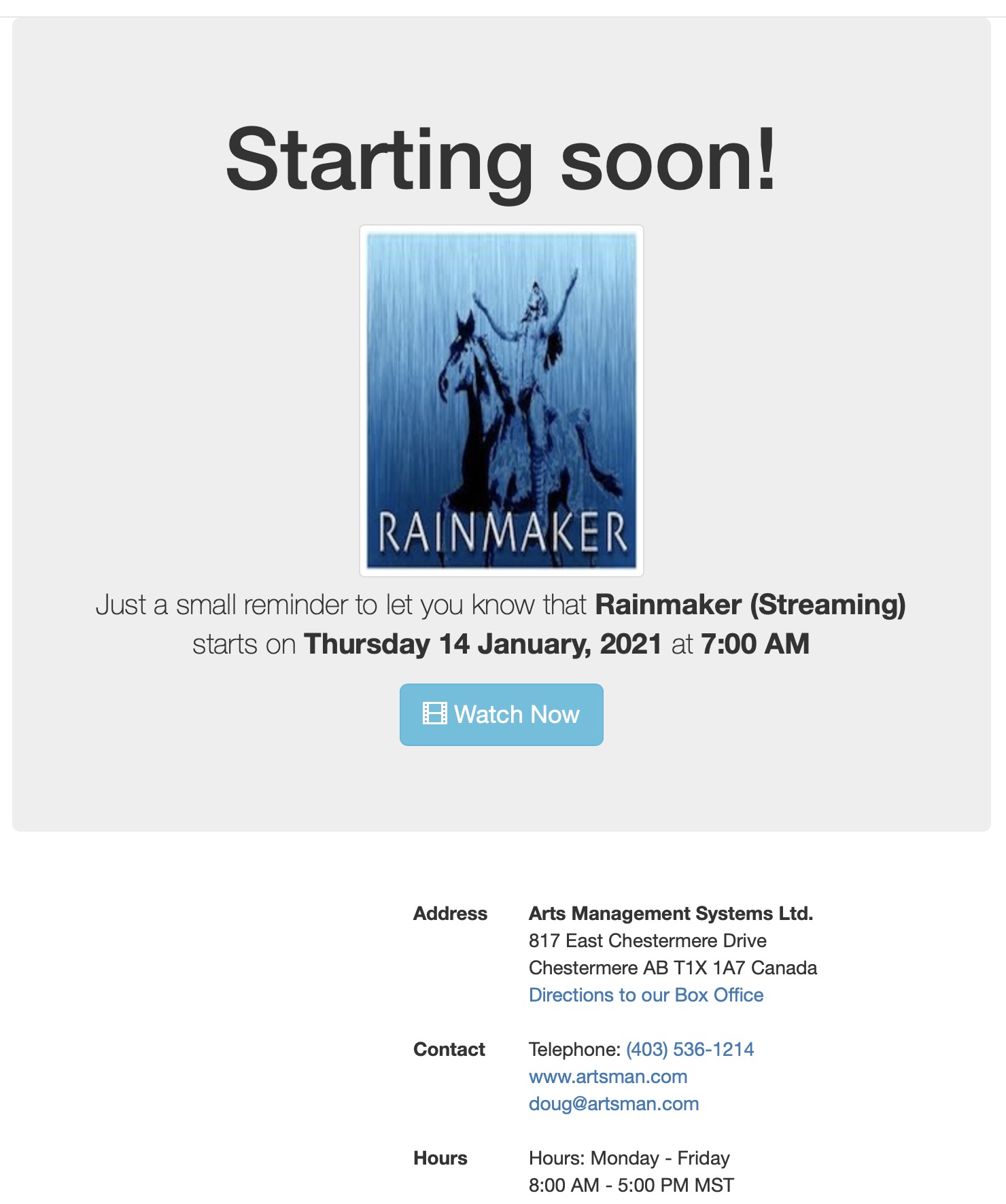
|
An example of the default email reminder page tmLiveEventReminderEmailDefault.html for live events is below. This can be customized for each live event if you would like. |
|
Email reminders must be enabled for the performances that you wish to send an automatic reminder for. |
tmFee Folder
tmFee Folder
Custom pages can be created for a fee by duplicating the existing default page. The word Default in the page name is then replaced with the fee sequence number. The fee number is located in the Fee # column under Setup >> System Tables >> Fee Types in Theatre Manager. If this column is not visible simply right click on any of the column headers and select Fee #. The column with then display in the list.
tmBoxOfficePolicy.html
tmBoxOfficePolicy.html
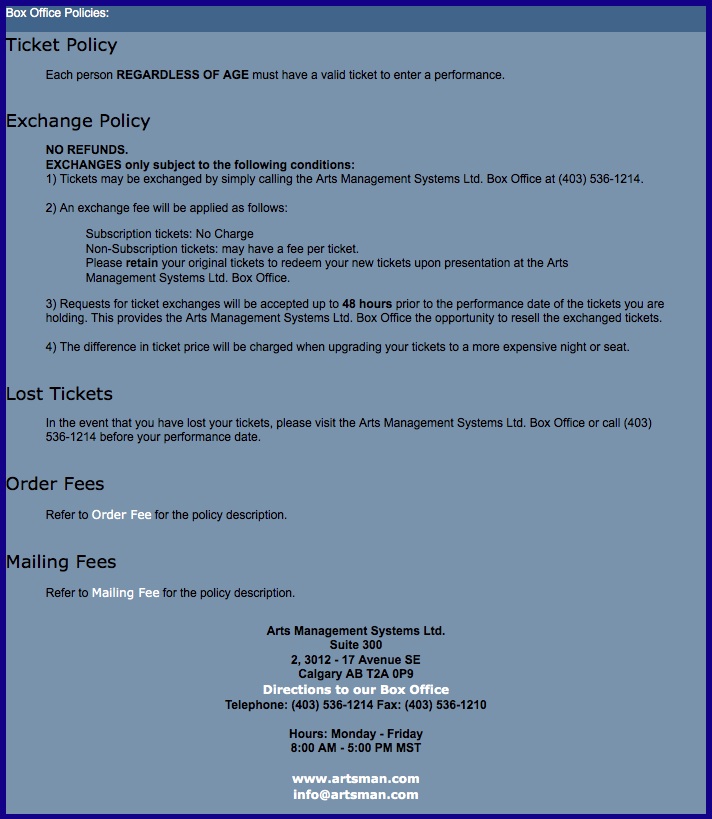
Description:
- A list of box office policies as they apply to the organization.
- This page should be edited to accurately reflect the policies of the organization.
Location:
htdocs/1/WebPagesEN/tmFee
Able to Call Page(s):
- maps.google.com
- tmOrderFeeDefault.html
- tmMailFeeDefault.html
- The companies web site as it appears in the Company tab of Setup >> Company Preferences within Theatre Manager.
Called By Page(s):
- TMcheckout.html
- TMfutureTickets.html
- TMfutureTicketsPrint.html
- tmnavButtonsFooter.html
- tmtermsandconditions.html
Page(s) Referenced:
tmFeeDefault.html
tmFeeDefault.html
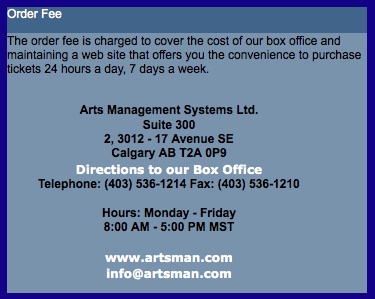
Description:
- This is the default web page called for online fees.
- The name of the fee and the description are pulled from the Fee Type from within Theatre Manager.
- Any fee created for online sales will present this page with the fee title is clicked on. This excludes mailing fees and order fees as they have their own default pages.
Location:
htdocs/1/WebPagesEN/tmFee
Able to Call Page(s):
- maps.google.com
- The companies web site as it appears in the Company tab of Setup >> Company Preferences within Theatre Manager.
Called By Page(s):
Page(s) Referenced:
tmMailFee.html
tmMailFee.html
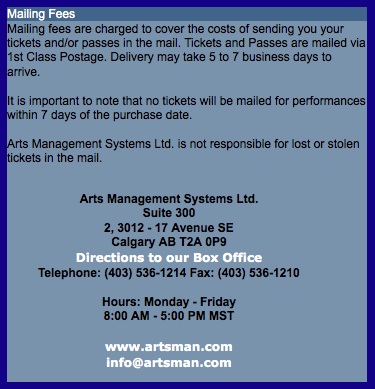
Description:
- This is the web page called for online mailing fees.
- The name of the fee and the description are hard coded into the web page.
Location:
htdocs/1/WebPagesEN/tmFee
Able to Call Page(s):
- maps.google.com
- The companies web site as it appears in the Company tab of Setup >> Company Preferences within Theatre Manager.
Called By Page(s):
Page(s) Referenced:
tmMailFeeDefault.html
tmMailFeeDefault.html
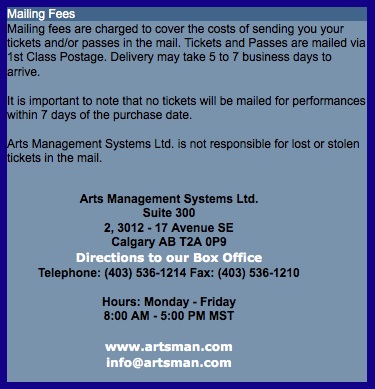
Description:
- This is the default web page called for online mailing fees.
- The name of the fee and the description are hard coded into the web page.
Location:
htdocs/1/WebPagesEN/tmFee
Able to Call Page(s):
- maps.google.com
- The companies web site as it appears in the Company tab of Setup >> Company Preferences within Theatre Manager.
Called By Page(s):
Page(s) Referenced:
tmOrderFee.html
tmOrderFee.html
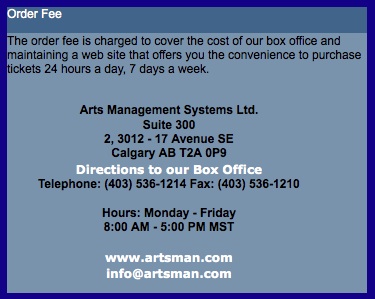
Description:
- This is the web page called for online order fees.
- The page pulls the name of the fee from within Theatre Manager.
- The description of the fee is hard coded in the web page.
Location:
htdocs/1/WebPagesEN/tmFee
Able to Call Page(s):
- maps.google.com
- The companies web site as it appears in the Company tab of Setup >> Company Preferences within Theatre Manager.
Called By Page(s):
Page(s) Referenced:
tmOrderFeeDefault.html
tmOrderFeeDefault.html
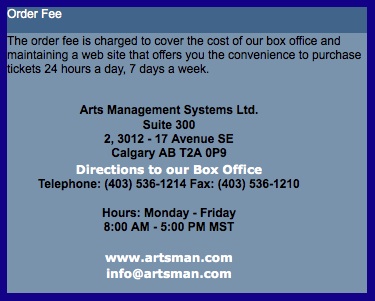
Description:
- This is the default web page called for online order fees.
- The page pulls the name of the fee from within Theatre Manager.
- The description of the fee is hard coded in the web page.
- If the existing online order fee were duplicated within Theatre Manager and a custom fee page not created, this would be the page pulled to describe the fee.
Location:
htdocs/1/WebPagesEN/tmFee
Able to Call Page(s):
- maps.google.com
- The companies web site as it appears in the Company tab of Setup >> Company Preferences within Theatre Manager.
Called By Page(s):
Page(s) Referenced:
tmPrivacyPolicy.html
tmPrivacyPolicy.html
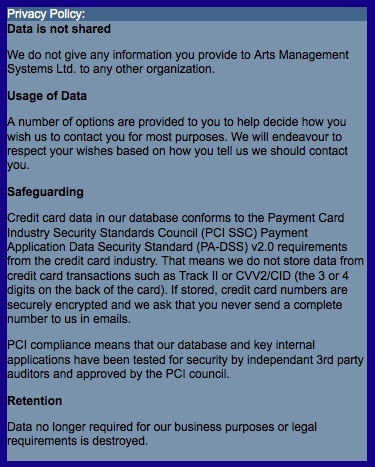
Description:
- Outlines the Privacy Policy of the organization including management and handling of data.
- Used in conjunction with Limited Profiles to encourage patrons to provide full login information.
Location:
htdocs/1/WebPagesEN/tmFee/
Able to Call Page(s):
- Not Applicable
Called By Page(s):
Page(s) Referenced:
- Not Applicable
TMfutureTickets.html
TMfutureTickets.html
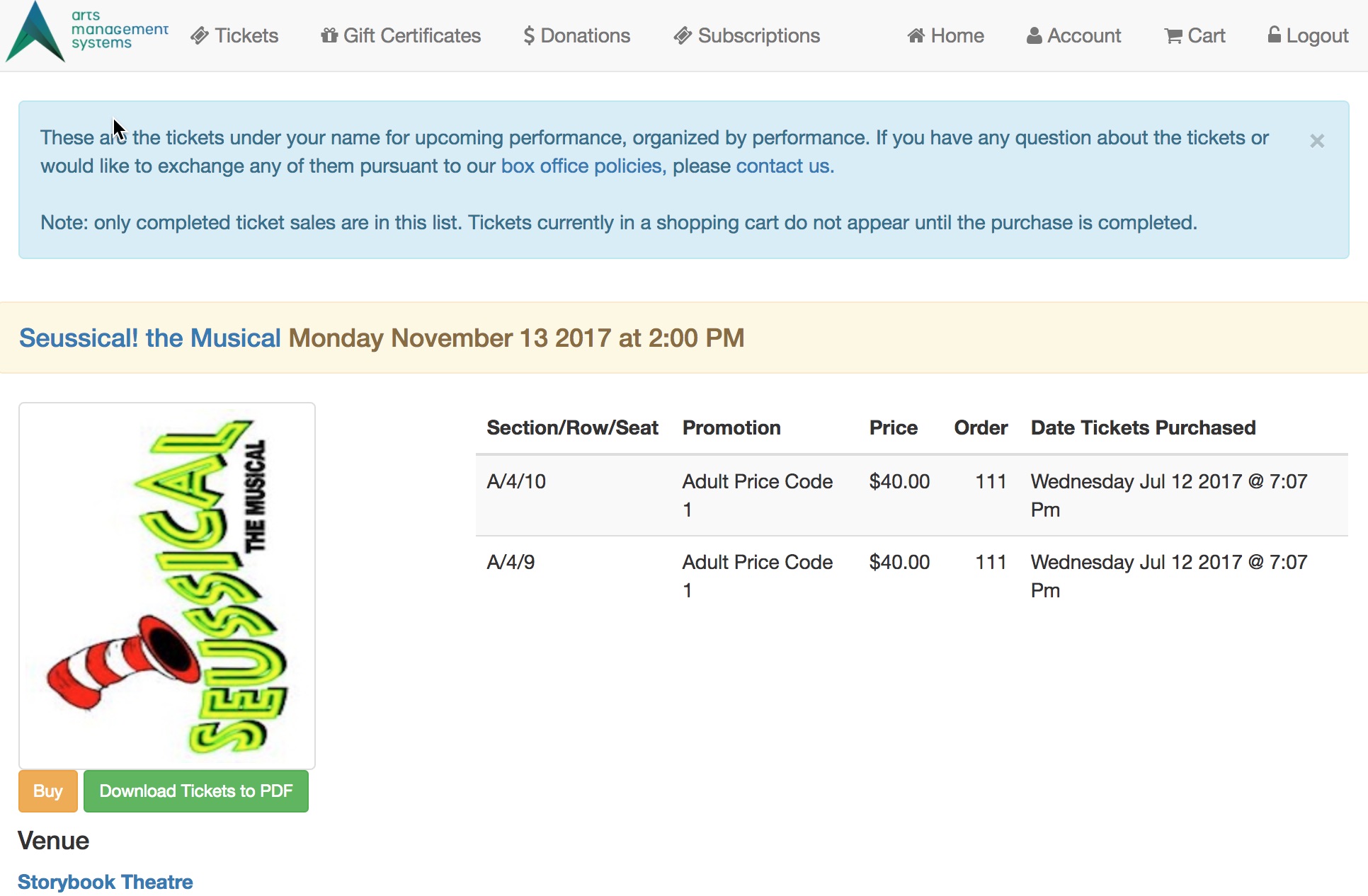
Description:
- Presents a list of tickets to future events purchased online.
- Patrons can review their upcoming events
- Patrons can print their tickets or generate a PDF of the ticket if these features are enabled for the Event.
Special Variables:
- F_HTML_HISTORICAL_CART_LIST - the list of future tickets belonging to the patron
- F_HTML_HISTORICAL_CART_LIST_PRINTABLE_COUNT - the number of tickets in the list that can be printed at home
- F_HTML_HISTORICAL_CART_LIST_COUNT - the number of tickets in the list
Location:
htdocs/1/WebPagesEN
Able to Call Page(s):
- contentContact.html
- maps.google.com
- tmBoxOfficePolicy.html
- TMfutureTicketsPrint.html
- TMhome.html
- The companies web site as it appears in the Company tab of Setup >> Company Preferences within Theatre Manager.
Called By Page(s):
Page(s) Referenced:
TMfutureTicketsPrint.html
TMfutureTicketsPrint.html

Description:
- Presents and prints a page listing tickets to future events.
- This page is printer friendly in that it does not contain the default banner or buttons and is largely black and white.
- When the "Print at home tickets" box is checked in Setup > Company Preferences > Web Options Tab, this page is the ticket that patrons can print with the bar code for admission to events. If the box is not checked, then the bar code will not present. For more information on the Web Options Tab, click here.
- The buttons which call this page (when activated in Web Options) are located on TMfutureTickets.html and TMcheckoutConfirmation.html.
Questions and Answers:
Q: Can this page be updated such that the print at home tickets will contain organization-specific or other information?
A: Yes, it can. The page itself can be updated to contain whatever text a client wishes to include. Please note that this same page is used for all events, so event-specific information or similar will print on all tickets generated from this page.
____________________________________________________________
Q: Can I add a logo to the print at home tickets?
A: Yes, you can. Simplest way is to put the logo image file inside tmGifs and then include a link on this page. The link should contain the full path to the image as appose to just a "img src="httpstmGifs/sponsorLogo.jpg" reference.. Please note that any logo included here will print on every ticket, regardless of event. So a sponsor logo for one show only would print on every show's tickets.
____________________________________________________________
Q: Can I add colour or a background colour to the tickets?
A: Yes, you can. We originally chose to have the page print in black and white to make things easier on the end user (and their toner cartridge) but if you'd like the tickets to have colour, you can edit the stylePages.css file. The areas to edit are those that end in "print," ie, backgroundprint or tablerowdetailprint.
____________________________________________________________
Q: Can I print one ticket per page?
A: Yes, you can. This page pulls ticket details from the rowFutureTicketPrintCourse.html, rowFutureTicketPrintFestival.html, rowFutureTicketPrintHeader.html and rowFutureTicketPrintReserved.html pages. These pages can be altered to fill one full page. The following web page gives examples on how to create page breaks http://www.w3.org/TR/css-print/#s.8.2.
____________________________________________________________
Q: The number under the bar code contains leading zeros, how important are these extra zeros?
A: The leading zeros are added to standardize the length of the ticket number. They are largely for esthetics. When the bar code is scanned Theatre Manager removes the leading zeros.
____________________________________________________________
Location:
htdocs/1/WebPagesEN
Able to Call Page(s):
Called By Page(s):
Page(s) Referenced:
TMattendanceCourse.html
TMattendanceCourse.html
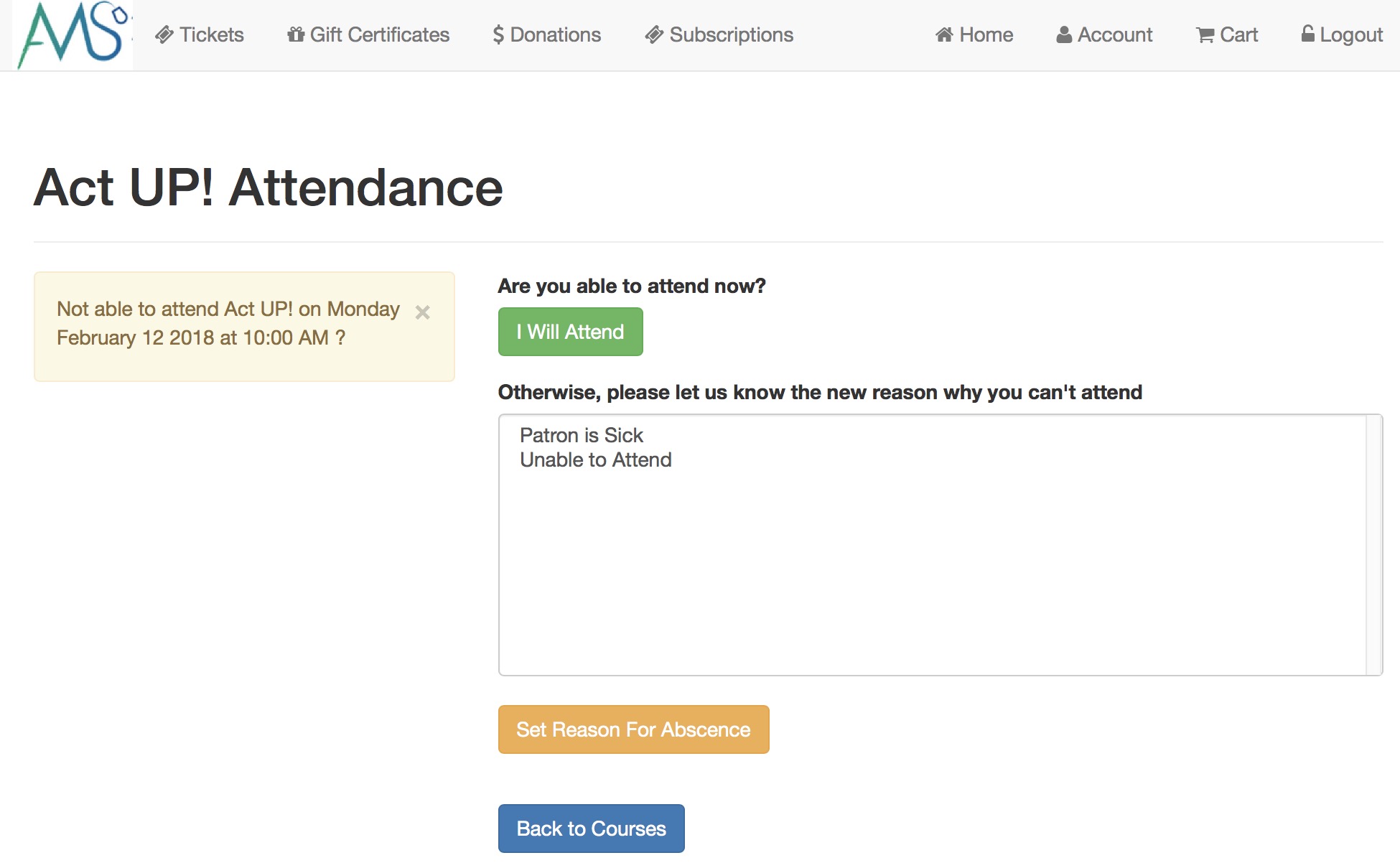
This lets the patron set their own reason for not attending a class online. The process is:
- Log in to the online sales
- Select Upcoming Courses button from the Home Page
- Find the date of the class and then click on the absent icon associated with the particular class
TMeventManagement.html
TMeventManagement.html
- cancelling a class
- rescheduling a class (i.e change the date)
- taking attendance
- adding a new participant to a class
- cancelling participation in the class
Permission to do these functions is determined by:
- A volunteer/staff activity is enabled for online management on code tables
- That activity is assigned to an entire event or s single performance for the staff/volunteer from one of:
- the volunteer/staff event activities window
- the volunteer detail window
- The personnel tab on the task window
- That performance or event that they are managing is in the in future
You can have a direct link to the manage events page
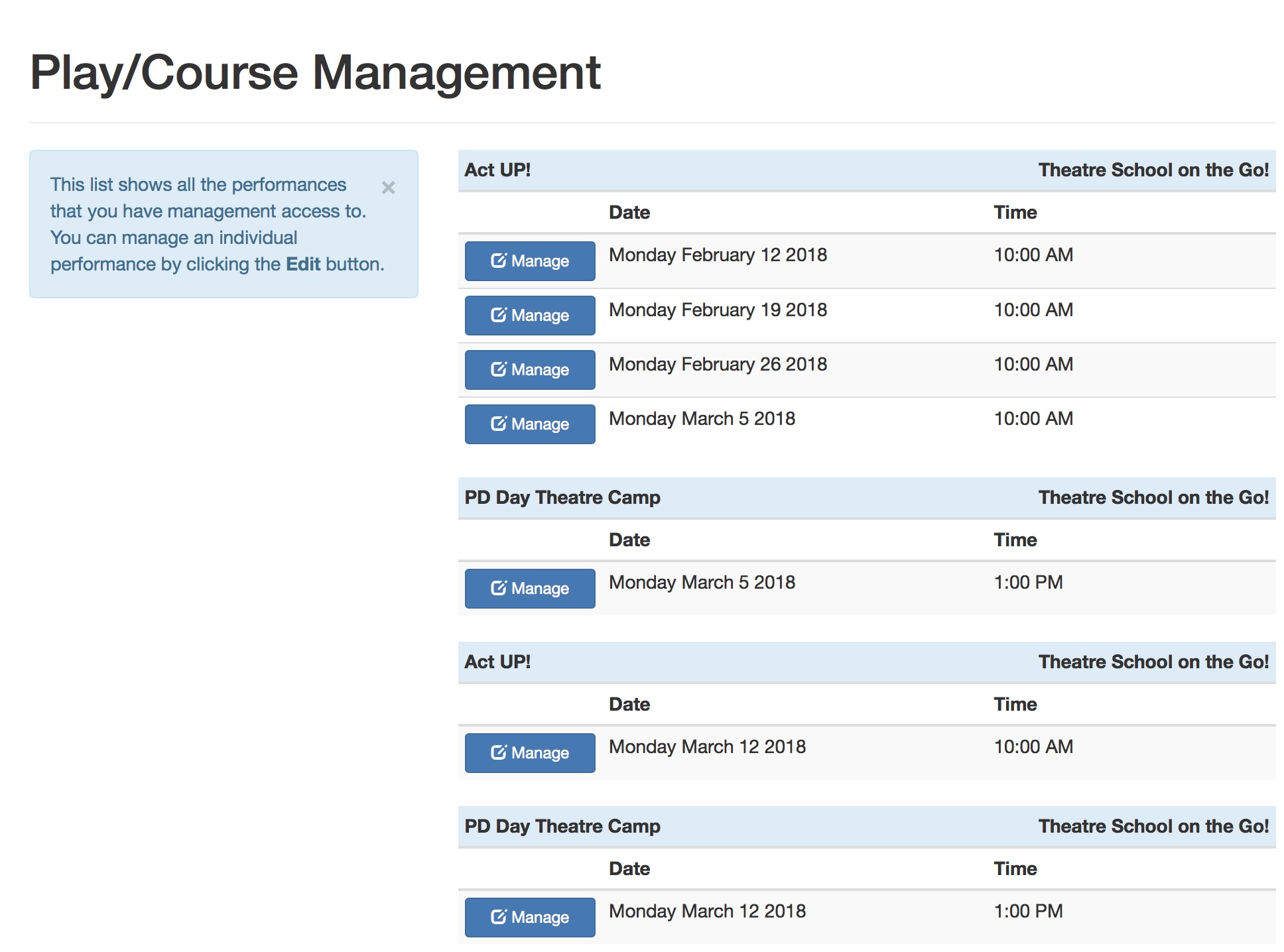
TMfutureCourses.html
TMfutureCourses.html
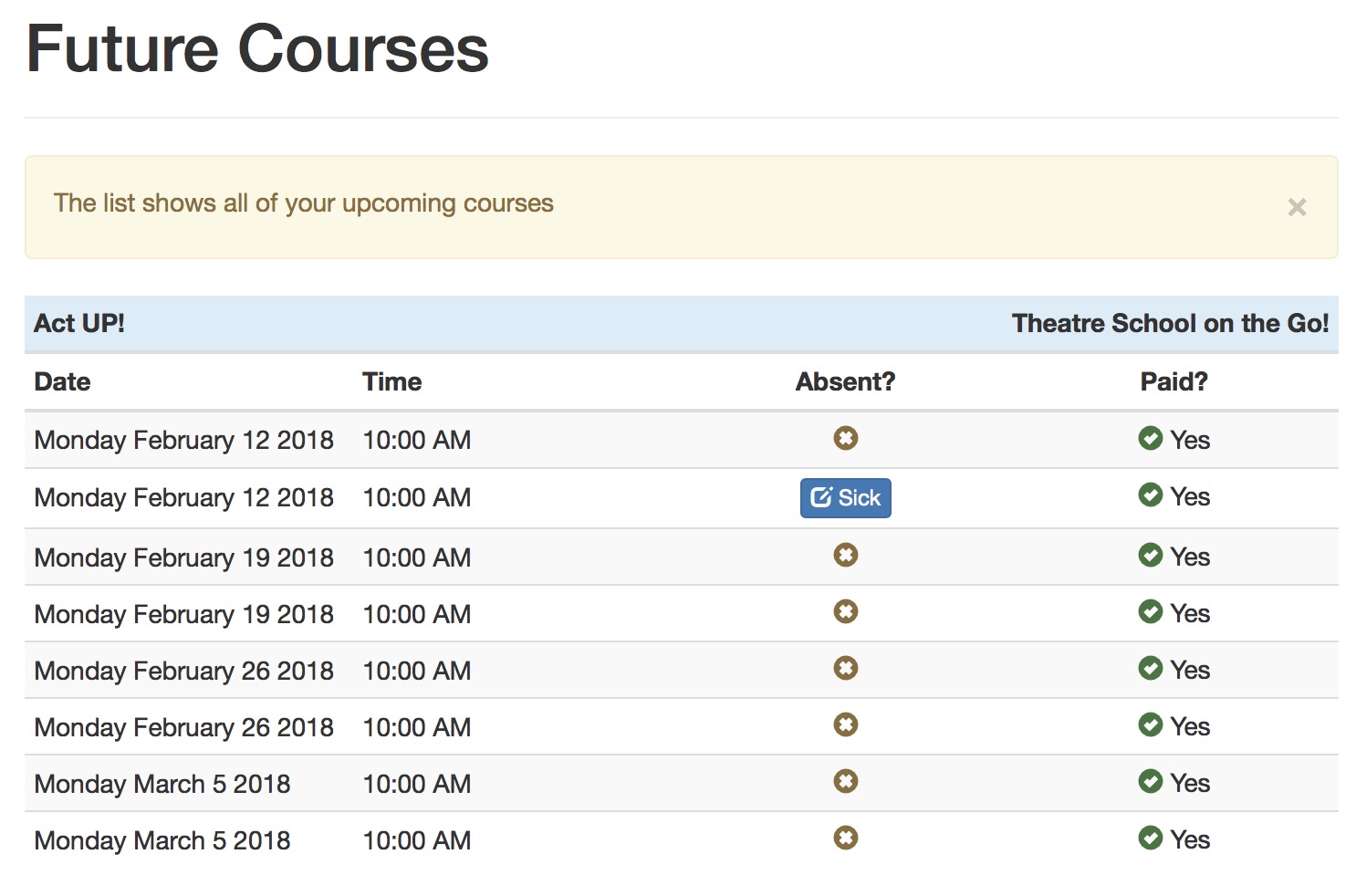
On this window, patrons can indicate if they cannot make a class (in a course). The are allowed to select an attendance reason from a limited list set up in code tables.
If the user clicks on any of the absent icons as part of the list, they can add, change or clear the attendance reason on another web page.
tmGifs Folder
tmGifs Folder
background.gif
background.gif

Description:
- This image is references as the background of the invoice emailed to patrons upon the completion of a sale.
Location:
htdocs/1/WebPagesEN/tmGifs
Able to Call Page(s):
- Not Applicable
Called By Page(s):
Page(s) Referenced:
- Not Applicable
backgroundBottom.gif
backgroundBottom.gif

Description:
- This image is called as a part of the .backgroundBottom reference in the default style sheets.
Location:
htdocs/1/WebPagesEN/tmGifs
Able to Call Page(s):
- Not Applicable
Called By Page(s):
Page(s) Referenced:
- Not Applicable
backgroundSide.gif
backgroundSide.gif

Description:
- This image is called as a part of the .backgroundSide reference in the default style sheets.
Location:
htdocs/1/WebPagesEN/tmGifs
Able to Call Page(s):
- Not Applicable
Called By Page(s):
Page(s) Referenced:
- Not Applicable
bg_main.gif
bg_main.gif

Description:
- Can be added to the style sheets as the background image.
Location:
htdocs/1/WebPagesEN/tmGifs
Able to Call Page(s):
- Not Applicable
Called By Page(s):
- Currently Not Applicable
Page(s) Referenced:
- Not Applicable
custom.css
custom.css
Individual bootstrap elements can be formatted in the custom.css page to create a unique design for the ticketing site.
____________________________________________________________
Location:
htdocs/1/WebPagesEN/tmGifs/
Able to Call Page(s):
- Not Applicable
Called By Page(s):
Page(s) Referenced:
- none
cvv2.gif
cvv2.gif
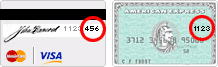
Description:
- This image contains examples of the location for the CVV, CVV2 or CID number on a credit card.
- The purpose of this image is to assist patrons during the purchase process in locating the number to complete their online sale.
- CVV, CVV2 or CID numbers are not stored within the Theatre Manager database.
Location:
htdocs/1/WebPagesEN/tmGifs
Able to Call Page(s):
- Not Applicable
Called By Page(s):
Page(s) Referenced:
- Not Applicable
handicapped.gif
handicapped.gif

Description:
- This is an image of the handicap stencil.
- The image is used to draw attention to important information for patron requiring accessibility information.
Location:
htdocs/1/WebPagesEN/tmGifs
Able to Call Page(s):
- Not Applicable
Called By Page(s):
Page(s) Referenced:
- Not Applicable
normalize.css
normalize.css
Description:
- Defines the standard page layout for the online sales and normalizes differences between various web browsers.
Location:
htdocs/1/WebPagesEN/tmGifs/
Able to Call Page(s):
- Not Applicable
Called By Page(s):
Page(s) Referenced:
Language Flag gifs
Language Flag gifs


Description:
- There are several different Language Flags in the tmGifs folder.
- If a desired flag is current not available, additional images can be added to the folder.
- The images are used, in conjunction with buttons, to navigate back and forth between the multilingual WebPages folders.
- An organization would need to translate the WebPages folder to the desired languages before implementing this feature.
- Please see the WebPagesEN folder for additional information on setting up multilingual pages.
Location:
htdocs/1/WebPagesEN/tmGifs
Able to Call Page(s):
- Not Applicable
Called By Page(s):
Page(s) Referenced:
- Not Applicable
nav_space.gif
nav_space.gif

Description:
- This image represents a line.
Location:
htdocs/1/WebPagesEN/tmGifs
Able to Call Page(s):
- Not Applicable
Called By Page(s):
- Currently Not Applicable
Page(s) Referenced:
- Not Applicable
pageHeader.gif
pageHeader.gif

Description:
- This image is the default online sales page header.
- It's pulled by the stylePages.css onto almost every page within the online sales.
- This image is often replaced with a page header that more accurately resembles the organizations main web pages.
Location:
htdocs/1/WebPagesEN/tmGifs
Able to Call Page(s):
- Not Applicable
Called By Page(s):
Page(s) Referenced:
- Not Applicable
spacer.gif
spacer.gif
Description:
- This image represents a blank space.
- It is most often used to place a space between images on a page. An example would be the flags on the Language Flags Gif page.
Location:
htdocs/1/WebPagesEN/tmGifs
Able to Call Page(s):
- Not Applicable
Called By Page(s):
- Currently Not Applicable.
Page(s) Referenced:
- Not Applicable
step1.gif
step1.gif

Description:
- This image is used to indicate a first step.
- The images is designed to draw notice to fields that require the patrons attention.
Location:
htdocs/1/WebPagesEN/tmGifs
Able to Call Page(s):
- Not Applicable
Called By Page(s):
- TMsubscriptionMapDefault.html
- TMsubscriptionMapDefaultf.html
- TMsubscriptionsMapDefaultf.html
- TMticketsSection_MapDefault.html
- TMticketsSection_MapDefaultc.html
- TMticketsSection_MapDefaultf.html
Page(s) Referenced:
- Not Applicable
step2.gif
step2.gif

Description:
- This image is used to indicate a second step.
- The images is designed to draw notice to fields that require the patrons attention.
Location:
htdocs/1/WebPagesEN/tmGifs
Able to Call Page(s):
- Not Applicable
Called By Page(s):
- TMsubscriptionMapDefault.html
- TMsubscriptionMapDefaultf.html
- TMsubscriptionsMapDefaultf.html
- TMticketsSection_MapDefault.html
- TMticketsSection_MapDefaultc.html
- TMticketsSection_MapDefaultf.html
Page(s) Referenced:
- Not Applicable
step3.gif
step3.gif

Description:
- This image is used to indicate the third step.
- The images is designed to draw notice to fields that require the patrons attention.
Location:
htdocs/1/WebPagesEN/tmGifs
Able to Call Page(s):
- Not Applicable
Called By Page(s):
- TMsubscriptionMapDefault.html
- TMsubscriptionMapDefaultf.html
- TMsubscriptionsMapDefaultf.html
- TMticketsSection_MapDefault.html
Page(s) Referenced:
- Not Applicable
step4.gif
step4.gif

Description:
- This image is used to indicate the fourth step.
- The images is designed to draw notice to fields that require the patrons attention.
Location:
htdocs/1/WebPagesEN/tmGifs
Able to Call Page(s):
- Not Applicable
Called By Page(s):
Page(s) Referenced:
- Not Applicable
stop.html
stop.html

Description:
- This image represents a stop sign.
- The image is used to draw attention to important information that should be read prior to navigating away from the current page.
Location:
htdocs/1/WebPagesEN/tmGifs
Able to Call Page(s):
- Not Applicable
Called By Page(s):
Page(s) Referenced:
- Not Applicable
styleButtons.css
styleButtons.css
NOTE: NO LONGER USED WITH THE RESPONSIVE PAGE DESIGN -- refer to custom.css instead.
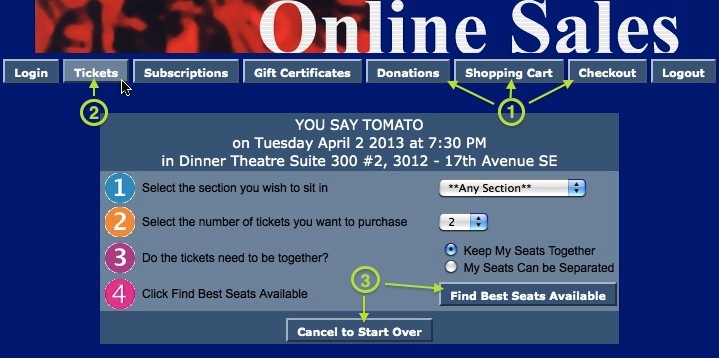
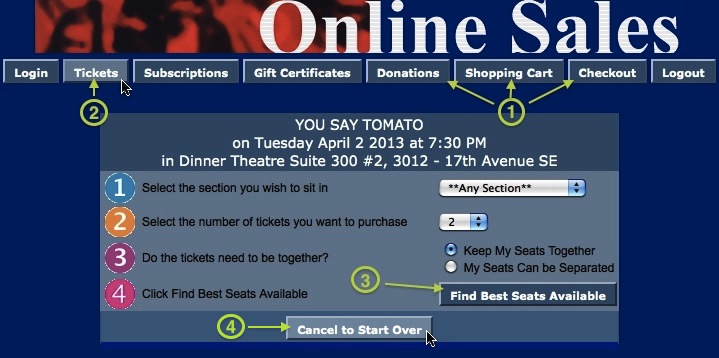
Description:
- This stylesheet contains the styles that are used for the buttons on the various web pages within the Web Sales Module that have buttons.
- Stylesheets (also called Cascading Style Sheets hence "css") are used to change the look of web pages. By having them you can set text, buttons, hyperlinks and so forth to different colors, size, etc. They are called in with a <link rel="stylesheet" href="" type="text/css"> where within the double quotes would be the path of the stylesheet.
- The different styles are called from source code an changes to the text, hyperlinks, etc of a web page can be made simply by editing the stylesheet instead of manually changing each page individually.
- The look of the buttons can be changed by editing the fields within the style sheet. For example, if you don't like the light blue halo around the navigation buttons across the top of the page you can change the colour by editing the board color in the .button style.
- Not Applicable
| # | Item | Description |
| 1 | .button | References the buttons across the top of the online sales window. |
| 2 | .buttonover | The result of a mouse hovers over the buttons across the top of the online sales window. |
| 3 | .new | The buttons within the tables in the online sales window. |
| 4 | newover | The change in a button within the the tables when an mouse if hovered over it. |
Questions and Answers:
Q: Why are the navigation buttons appearing in deep red on Internet Explorer, but are normal on other browsers?
A: When the line below is uncommented in the style sheets the buttons appear a graded red in an Internet Explorer browser.
filter:progid:DXiMageTransform.microsoft.Gradient(GradientType=0,StartColorStr='#ff800000',EndColorStr='#ff800000');
For details on commenting out the crimson filter click here.
____________________________________________________________
Q: I do most of my web development testing with Safari or Chrome as a web browser, and eventually I get around to checking things with Internet Explorer. What I am seeing with our ticketing site is two vastly different color schemes. Is there a separate set of .css files or something that pertains specifically to Internet Explorer, or are they just different from the Mac browsers?
A: In part, this has to do with the color calibration of the monitor the patron is using to view your site. You can change the color calibration for your monitors - which is especially easy on a Mac. While Mac has color correction set up for your monitor, your browser may or may not use color correction for web content/images depending on its setup. Your color picker reports what your Operating System thinks it is rendering. Another browser may report something else.
Most Mac browsers (Safari, Firefox) use color management to display what is theoretically True Color. This means that it will read the colors that are embedded in original web page or image, match them to the color calibration of your monitor and display them appropriately. Unmanaged browsers (such as Internet Explorer) do not read the embedded color coding and apply colors according to a default set in a color palette - which may or may not match what the original web page designer intended.
So while this is not a solution, it is an explanation. The images and web page elements are being sent identically to all browsers. The various browsers, however, are interpreting the color palette differently. Safari and Firefox offer color calibration to your monitor. Other browsers may not.
____________________________________________________________
Location:
htdocs/1/WebPagesEN/tmGifs/
Able to Call Page(s):
Called By Page(s):
Page(s) Referenced:
stylePages.css
stylePages.css
NOTE: NO LONGER USED WITH THE RESPONSIVE PAGE DESIGN -- refer to custom.css instead.
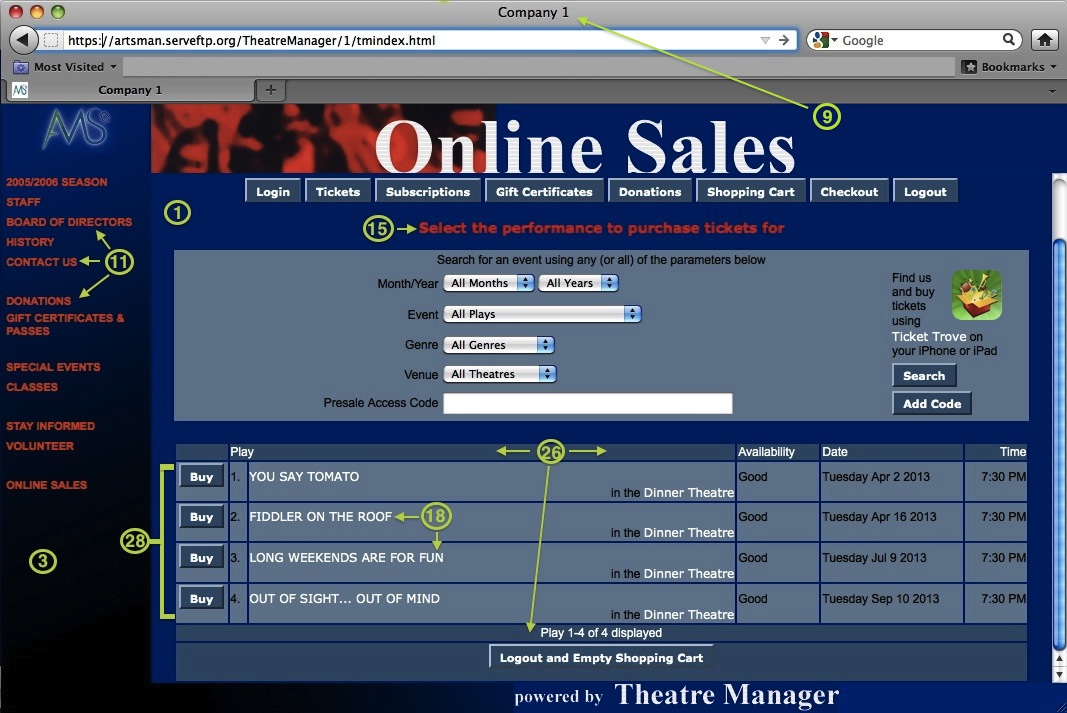
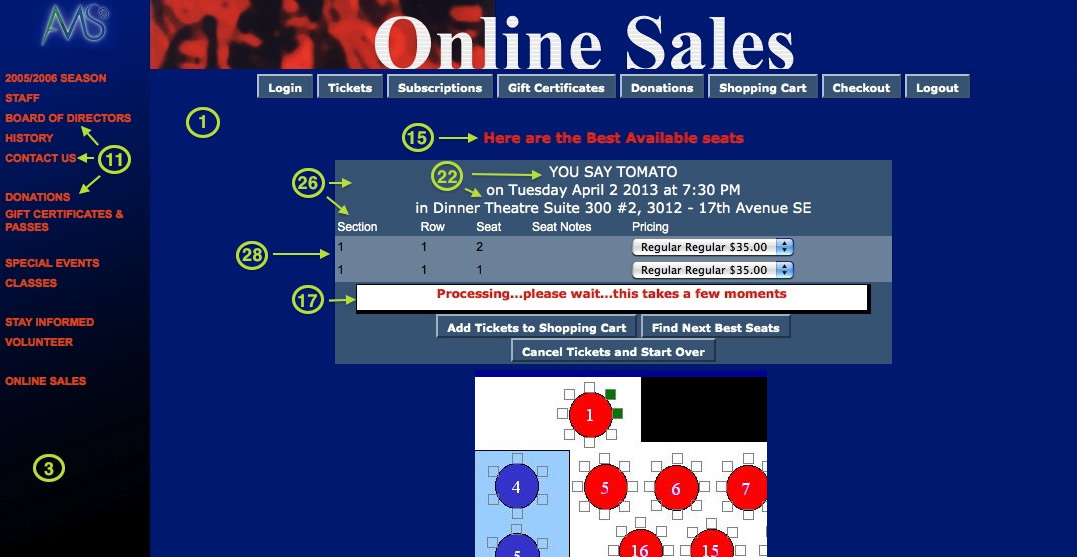
Description:
- Stylesheets (also called Cascading Style Sheets hence "css") are used to change the look of web pages. They can set text, buttons, hyperlinks and so forth to different colors, size, etc. The usefulness is that they are called in with a <link rel="stylesheet" href="" type="text/css"> where within the double quotes would be the path of the stylesheet. The different styles are called using source code and you can change the text, hyperlinks, etc of a web page simply by editing the stylesheet instead of manually changing each page individually.
- This stylesheet contains the design for all pages within the Web Sales module. The styles in this css page changes the properties of text and hyperlinks to different font sizes, colors, etc.
- You can change how items look by changing the fields within this page. For example, if you don't like a text color simple change the color field within the appropriate style.
- To comment out information within the style sheet add a /* at the beginning of the text and */ at the end of the text.
- The references below containing the word Print belong to web pages where the page name ends in the word Print. These pages are designed to be printer friendly versions of the original page. The references are also used when any page is printed. Some organizations customize their web pages with colours schemes that are not printer friendly. These references allows for a colour combination that will be visible when pages is printed.
- Not Applicable
| # | Item | Description |
| 1 | .background | Indicates the colour, image and attributes to be used for the background in most web pages within the online sales. |
| 2 | .backgroundPrint | The colour to be used as the background for print pages from within the web sales. |
| 3 | .backgroundSide | The colour used for the tmnavSide.htmlpage. When using frames, this attribute can be edited to meet the design requirements for the side panels. |
| 4 | .backgroundSidePrint | The colour of the side panels, when printed, while using frames within the web pages. |
| 5 | .limitedprofilelogin | Allows for the over all customization of the TMpatronLimitedProfile.html page. |
| 6 | .limitedprofileentry | The customization of the entry fields within the TMpatronLimitedProfile.html page. |
| 7 | .main | A text style mainly included within <P> tags in the web pages. Sets the font size and colour of text within a web page. |
| 8 | .mainPrint | The text colour for print pages from within the web sales. |
| 9 | .missingfield | The font used for fields where information must be entered to meet the mandatory data requirements within the Theatre Manager database. |
| 10 | .title | The header of the page that often appears at the top of the browser window. |
| 11 | .titlePrint | Header for print pages from within the web sales. |
| 12 | a.navlink | Attributes for the navigation links within the tmnavSide.html pages. It is also used in the TMattendancePalm.htmlpage. |
| 13 | a.navlinkPrint | The attributes of a.navlink when printed. |
| 14 | a.navlink:hover | The result of a mouse moving over a hyperlink in the tmnavSide.html page. |
| 15 | a.navlinkPrint:hover | The attributes of a.navlink:hover when a mouse is on top of it at the time the page is printed. |
| 16 | .message | The text pulled from the TMError.txt page. This text is found across the top of the web page. |
| 17 | .messagePrint | The attributes of .message when printed. |
| 18 | .waitmessage | This message appears on web pages where it make take a moment for the request to return with information from the database. |
| 19 | a.link | An <A HREF> style for links within the web pages. |
| 20 | a.linkPrint | The attributes of a.link when printed. |
| 21 | a.link:hover | The result of a mouse moving over the a.link hyperlink in the web pages. |
| 22 | a.linkPrint:hover | The attributes of a.link:hover when a mouse is on top of it at the time the page is printed. |
| 23 | .playinfo | The text within the season or ticket sales process that describes the performance details. |
| 24 | .playinfoPrint | The attributes of a.playinfo when printed. |
| 25 | .backgroundBottom | The colour used for the tmnavBottom.htmlpage. When using frames, this attribute can be edited to meet the design requirements for the bottom panels. |
| 26 | .backgroundBottomPrint | The colour of the bottom panels, when printed, while using frames within the web pages. |
| 27 | .tablerowheader | Descriptive information within the tables of the web pages. |
| 28 | .tablerowheaderprint | The attributes of .tablerowheader when printed. |
| 29 | .tablerowdetail | Active information within the tables of the web pages. |
| 30 | .tablerowdetailprint | The attributes of .tablerowdetail when printed. |
| # | Item | Description |
| 31 | .calendarheader | For Future Implementation. |
| 32 | .calendarcellheadercurrentmonth | For Future Implementation. |
| 33 | .calendcellheadercurrentdate | For Future Implementation. |
| 34 | .calendarcellheaderothermonth | For Future Implementation. |
| 35 | .calendarcellheaderotherdate | For Future Implementation. |
| 36 | table.inner | For Future Implementation. |
| 37 | table.outer | For Future Implementation. |
| 38 | table.calendar | For Future Implementation. |
| 39 | table.calendar a.link | For Future Implementation. |
| 40 | table.calendar a.link:hover | For Future Implementation. |
| 41 | .calendar2 | For Future Implementation. |
| 42 | table.calendar tr | For Future Implementation. |
| 43 | table.calendar td | For Future Implementation. |
| 44 | .calendar2 | For Future Implementation. |
| 45 | .table.calendarother | For Future Implementation. |
| 46 | table.calendarother a.link | For Future Implementation. |
| 47 | table.calendarother a.link:hover | For Future Implementation. |
| 48 | .calendar2 | For Future Implementation. |
| 49 | table.calendarother td | For Future Implementation. |
| 50 | table.datenumber | For Future Implementation. |
| 51 | table.datenumber tr | For Future Implementation. |
| 52 | table.datenumber td | For Future Implementation. |
| 53 | table.datenumber td#green | For Future Implementation. |
| 54 | table.datenumberother | For Future Implementation. |
| 55 | table.datenumberother tr | For Future Implementation. |
| 56 | table.datenumberother td | For Future Implementation. |
| 57 | table.datenumberother td#noborder | For Future Implementation. |
Location:
WebPagesEN/tmGifs/
Able to Call Page(s):
Called By Page(s):
Page(s) Referenced:
tickettrove.jpg
tickettrove.jpg

Description:
- This image is the Arts Management Systems TicketTrove application logo.
Location:
htdocs/1/WebPagesEN/tmGifs
Able to Call Page(s):
- Not Applicable
Called By Page(s):
Page(s) Referenced:
- Not Applicable
tmCompanyLogo.gif
tmCompanyLogo.gif

Description:
- This image is of the Arts Management Systems company logo.
Location:
htdocs/1/WebPagesEN/tmGifs
Able to Call Page(s):
- Not Applicable
Called By Page(s):
Page(s) Referenced:
- Not Applicable
tmName.gif
tmName.gif

Description:
- This image contains the words "Theatre Manager".
- It's designed to be used in conjunction with the tmPoweredBy.gif.
- The Letter of Confirmation agreement states "As part of the license, you agree to place on a static web page on your main site, the phrase "Powered By Theatre Manager" and that the phrase be linked back to the ArtsMan home page at http://www.artsman.com.".
Location:
htdocs/1/WebPagesEN/tmGifs
Able to Call Page(s):
- Not Applicable
Called By Page(s):
Page(s) Referenced:
- Not Applicable
tmPoweredBy.gif
tmPoweredBy.gif

Description:
- This image contains the words "powered by".
- It's designed to be used in conjunction with the tmName.gif.
- The Letter of Confirmation agreement states "As part of the license, you agree to place on a static web page on your main site, the phrase "Powered By Theatre Manager" and that the phrase be linked back to the ArtsMan home page at http://www.artsman.com.".
Location:
htdocs/1/WebPagesEN/tmGifs
Able to Call Page(s):
- Not Applicable
Called By Page(s):
Page(s) Referenced:
- Not Applicable
TMhome.html
TMhome.html
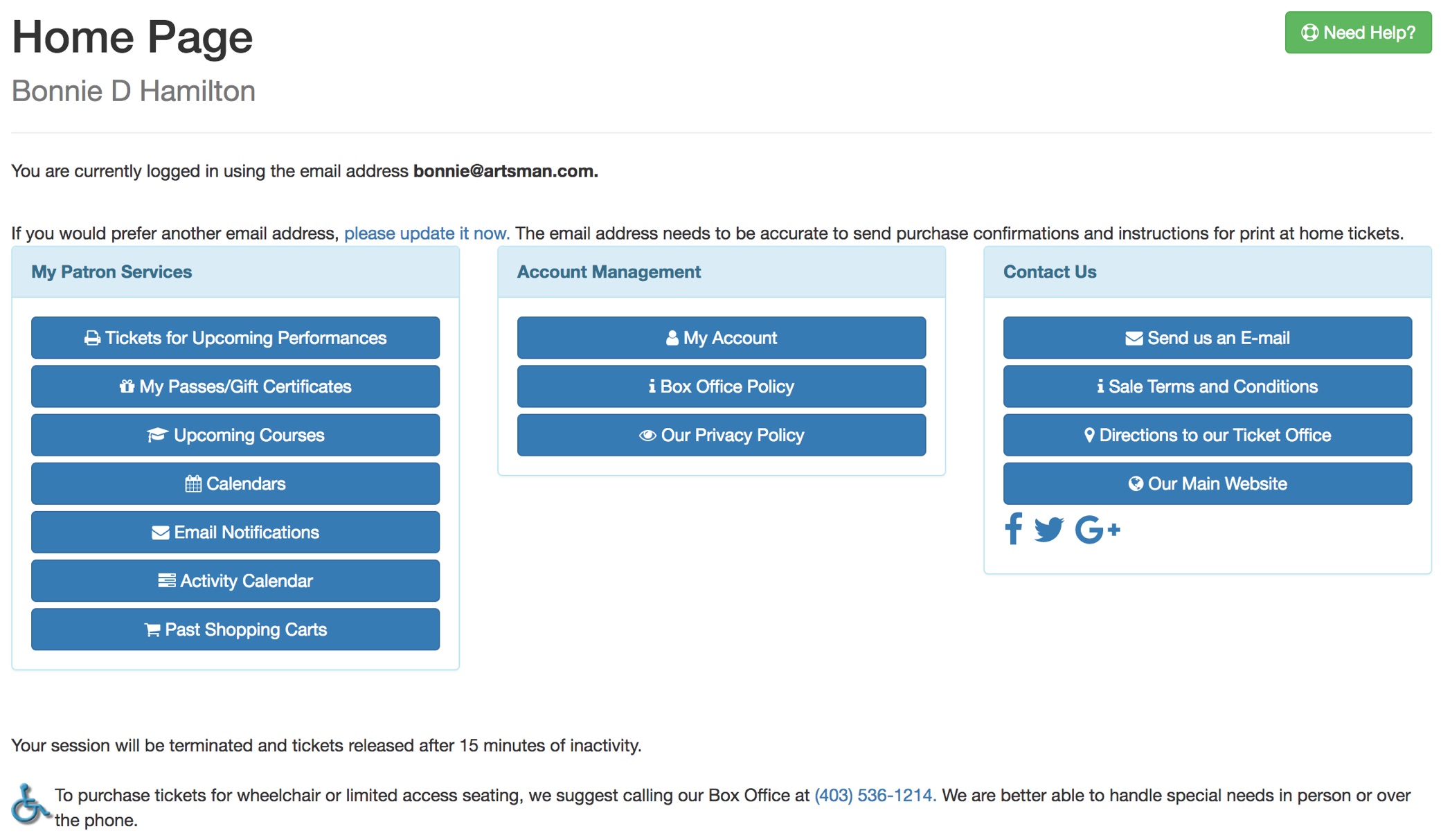
Description:
This is the home page to the online sales. It can be the first page patrons see after the login to the online sales. It is designed to provide all options available to the patron for managing their online account, such as:
- My Patron Services
- Tickets for upcoming performances - which is a list of all tickets that the patron has purchased for events in the future
- Account Management
-
Contact Us
Location:
htdocs/1/WebPagesEN
Able to Call Page(s):
Called By Page(s):
- TMcoupon.html
- TMdonation.html
- TMdonationmonthly.html
- TMlogin.html
- TMoldCartDetails.html
- TMpatronUpdate.html
- TMpass.html
- Any page containing the navigation buttons after the Patron has logged into the online sales.
Page(s) Referenced:
tmindex.html
tmindex.html
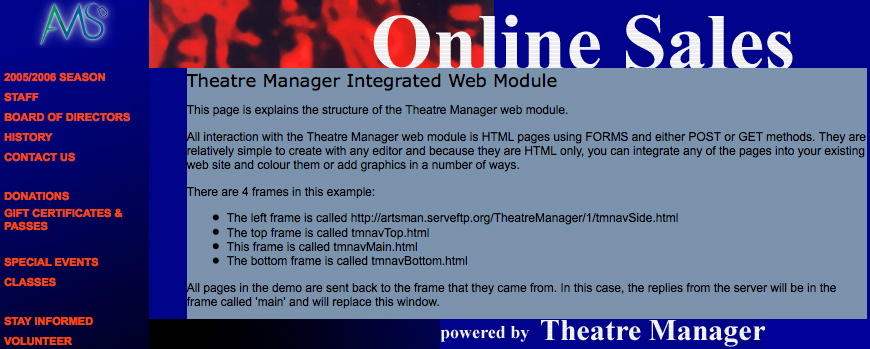
Description:
- This page integrates frames with the online web sales.
- The Index.html page needs to be edited in order to reference the online sales using frames.
Location:
htdocs/1/WebPagesEN
Able to Call Page(s):
- Not Applicable.
Called By Page(s):
Page(s) Referenced:
TMlogin.html
TMlogin.html
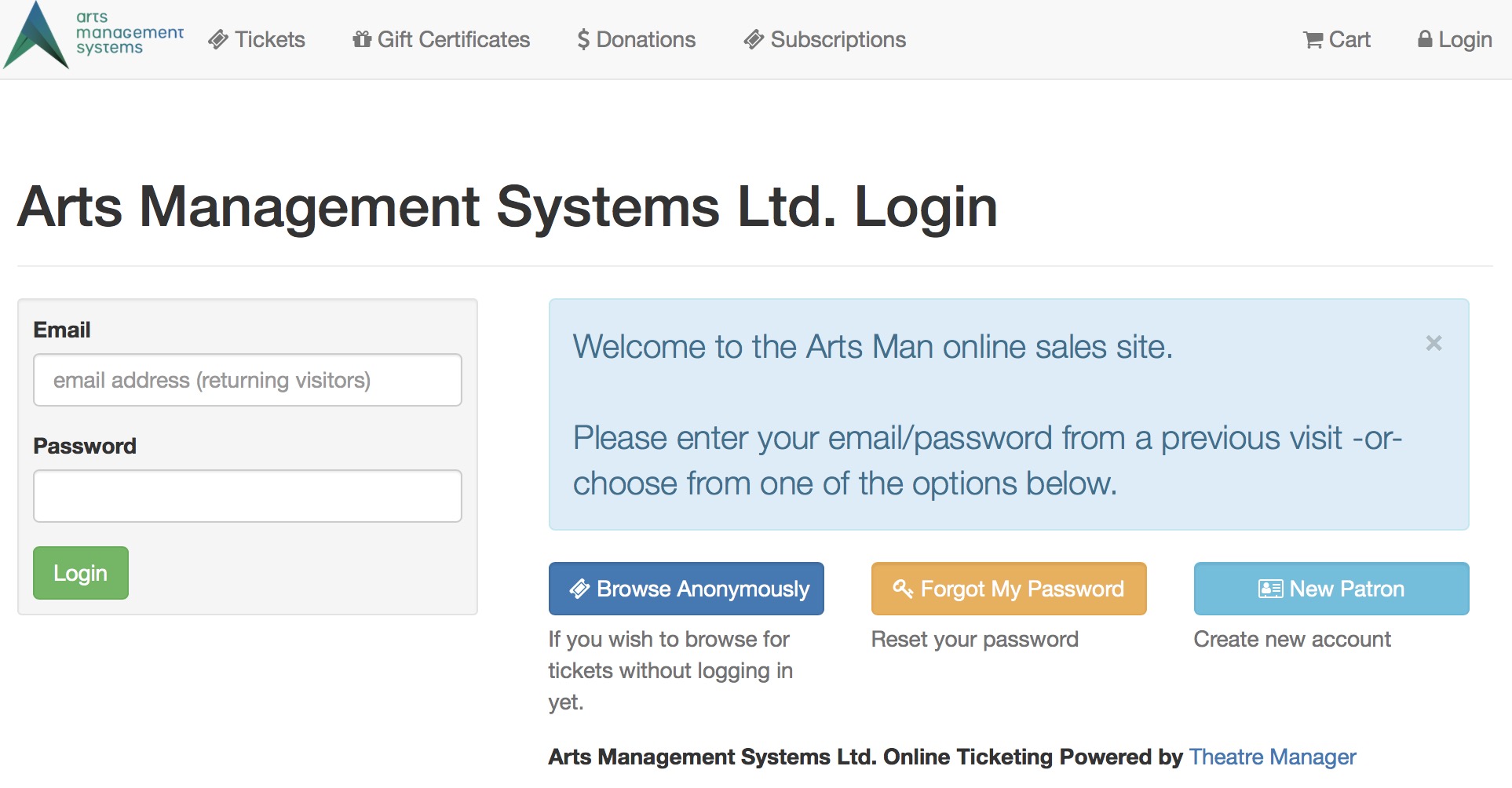
Description:
- This page allows patrons to login to the online sales in order to complete a transaction within Theatre Manager.
- By logging in to the online sales Theatre Manager can attach the patrons purchase to their patron record within the database.
- This is the mandatory initial page for all online sales when Allow Anonymous Login is not selected in the Company Preferences Web Options tab
- The Allow Anonymous Login, when selected in the Company Preferences Web Options tab
- causes the Browse Anonymously button to appear on the login page, which the patron uses to search for events without identifying themselves -and-
- allows a web developer to redirect the patron using specific URLs to almost any starting page.
|
The Forgot my password button takes the patron to a web page where they can request their password to be re-sent to them.
Alternatively, if the patron is unable to do this for any reason, the box office can initiate a password reset from the patron window |
Location:
htdocs/1/WebPagesEN
Able to Call Page(s):
Called By Page(s):
- tmLoginForm.html
- TMloginSelectPatron.html
- TMpatronLimitedProfile.html
- TMpatronNew.html
- TMpatronUpdate.html
- TMsysCookiesDisabled.html
- Any page containing the navigation buttons.
Page(s) Referenced:
TMloginSelectPatron.html
TMloginSelectPatron.html
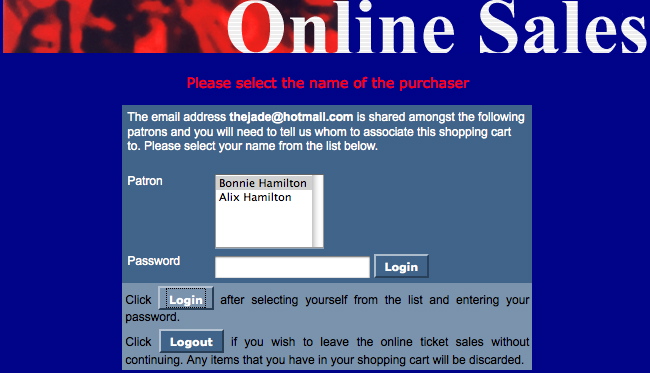
Description:
- Allows the patron the option to choose which member in the household this ticket order should belong to.
Location:
htdocs/1/WebPagesEN
Able to Call Page(s):
Called By Page(s):
Page(s) Referenced:
TMlogoff.html
TMlogoff.html
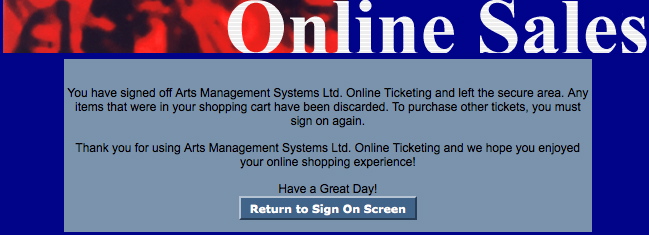
Description:
- The page presenting when a patron click the logout button in Theatre Manager.
- This page acts as a confirmation the patron has been logged out of the online sales.
Location:
htdocs/1/WebPagesEN
Able to Call Page(s):
Called By Page(s):
- tmPackageDefault.html
- TMlogoffOpenCart.html
- Any page containing the navigation buttons.
Page(s) Referenced:
TMlogoffOpenCart.html
TMlogoffOpenCart.html
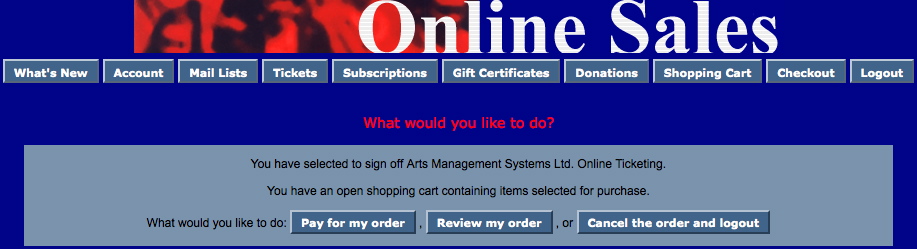
Description:
- This page acts as a warning to a patron logging out of the online sales when they currently have items within their online shopping cart.
Location:
htdocs/1/WebPagesEN
Able to Call Page(s):
Called By Page(s):
- Any page containing the navigation buttons but only when the patron attempts to log out and their online cart has unreleased items.
Page(s) Referenced:
TMmaillist.html
TMmaillist.html
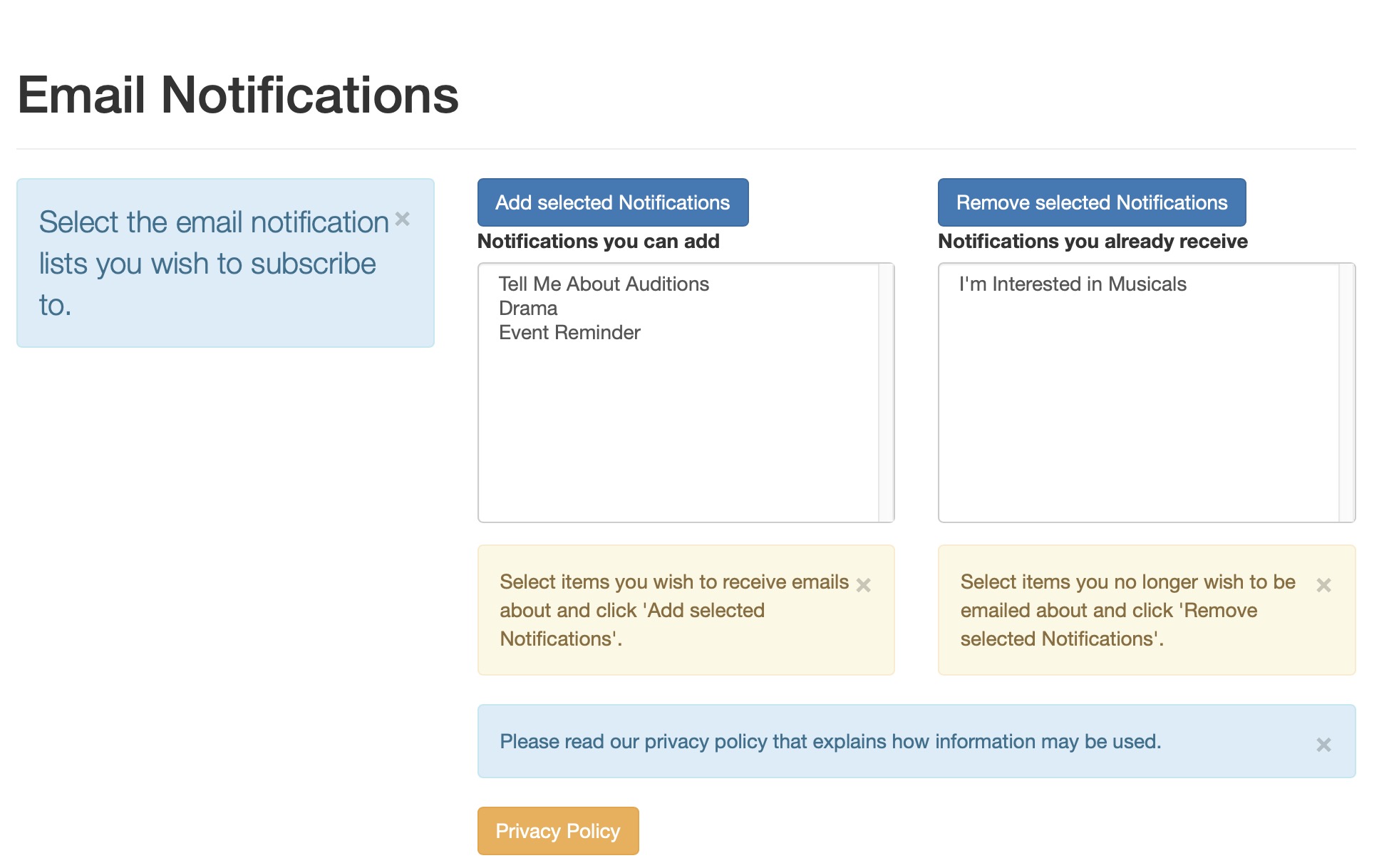
- Allows patrons who have logged into the online sales to subscribe and unsubscripe to their desired mail lists and provide explicit opt-in and opt-out for correspondence from the venue (per CRTC anti spam legislation)
- Only those Mail Lists that have the Allow Patrons to subscribe/unsubscribe via the internet box checked within the Mail List setup will be available in the lists.
- The Patron can select a Mail Lists from the Subscribe to a Mail List column and use the "Subscribe to selected Mail List" button to move their name onto the Mail List within the Theatre Manager database.
- The patron can select a Mail List in the Unsubscribe from a Mail List column and click the "Remove from selected Mail List" button to remove their name from the Mail list with the Theatre Manager database.
Location:
htdocs/1/WebPagesEN
Able to Call Page(s):
- Not Applicable.
Called By Page(s):
- Any page containing the navigation buttons after the Patron has logged into the online sales.
- The Home page
- The patron insert and patron update pages
- contentMailList.html
- tmnavButtonsFooter.html
Page(s) Referenced:
TMmaillistDisallow.html
TMmaillistDisallow.html
Description:
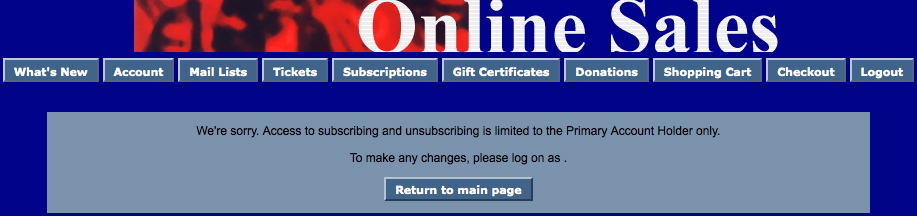
- This page is presented when a secondary member of a household attempts to remove a Mail List that is set to only select primary members of the household in the Theatre Manager database.
- The Patron needs to login to the online sales as the primary patron in the household in order to remove the Mail List.
Location:
htdocs/1/WebPagesEN
Able to Call Page(s):
Called By Page(s):
Page(s) Referenced:
TMmaillistQuickAdd.html
TMmaillistQuickAdd.html
Description:
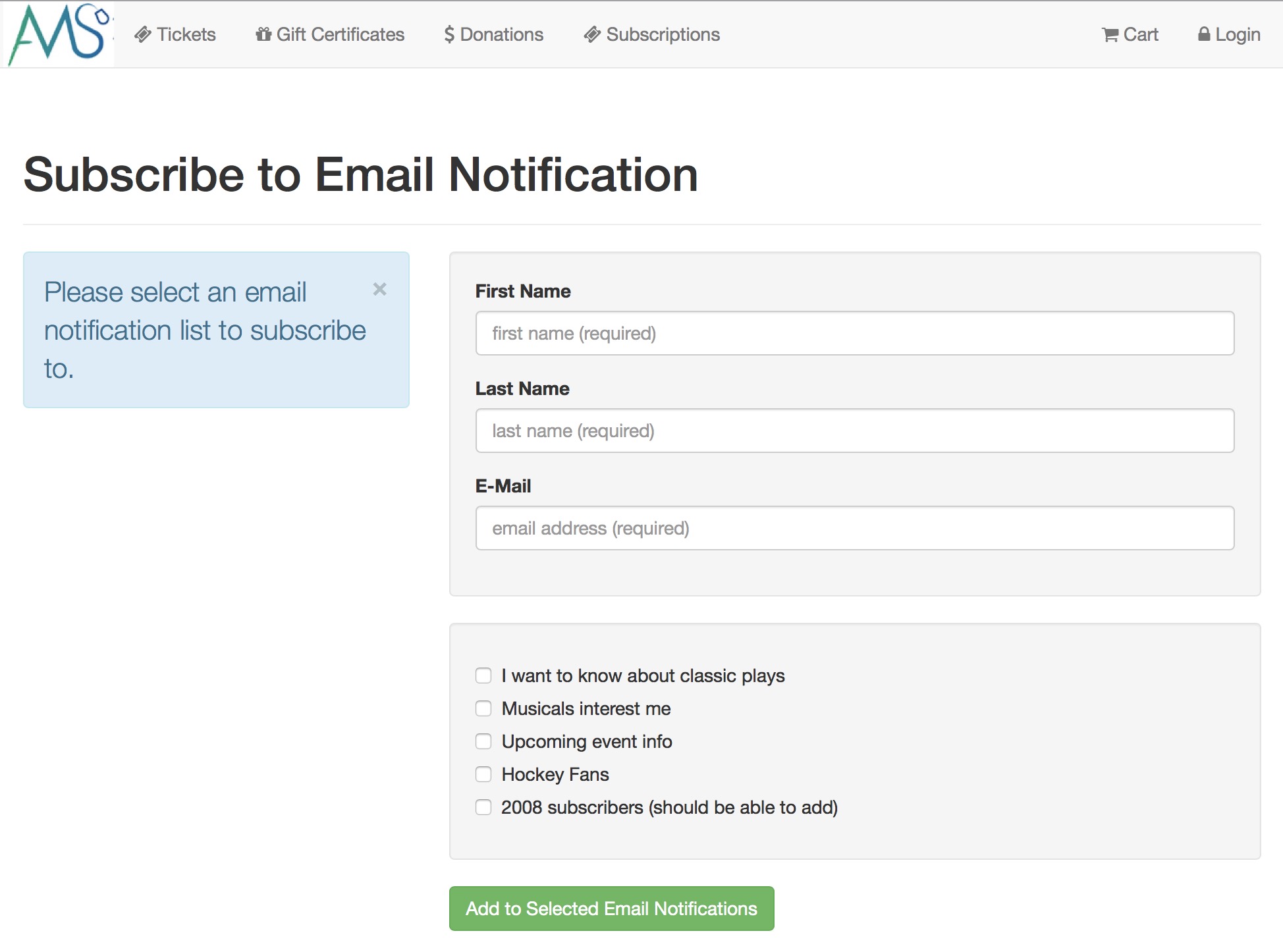
- Populates a list with check boxes of Mail Lists for the patron to indicate those they wish to sign up for.
- If the patron is not signed in to the online sale, fields will be available for the patrons first name, last name and email address.
Questions and Answers:
Q: How can the mail lists that appear be altered.
A: The mail lists that display in the TMmaillistQuickAdd.html page are hard coded onto the page. The page can be edited to include as many mail list are are needed. In order to add a mail list the mail list sequence number is required. Please see the following link on how to find the mail list sequence number.
____________________________________________________________
Location:
htdocs/1/WebPagesEN
Able to Call Page(s):
- Not Applicable.
Called By Page(s):
Page(s) Referenced:
TMmaillistUnverifiedEmail.html
TMmaillistUnverifiedEmail.html
Description:
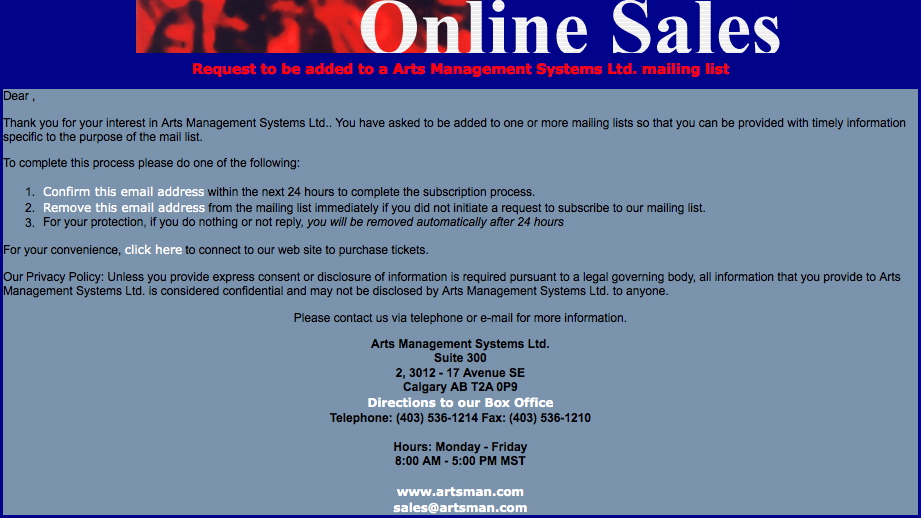
- The confirmation page that appears after a patron adds themselves to a Mail List using the Quick Add feature.
Location:
htdocs/1/WebPagesEN
Able to Call Page(s):
- maps.google.com
- TMhome.html
- TMmaillistVerify.html
- TMtickets.html
- The companies web site as it appears in the Company tab of Setup >> Company Preferences within Theatre Manager.
Called By Page(s):
Page(s) Referenced:
TMmaillistVerify.html
TMmaillistVerify.html
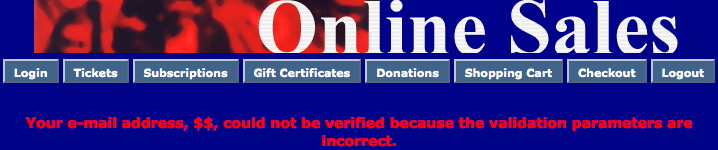
Description:
- This page is displayed when the Confirm This Email Address link from the TMmaillistUnverifiedEmail.html page is clicked and the patron has not entered an email address.
Location:
htdocs/1/WebPagesEN
Able to Call Page(s):
- Not Applicable
Called By Page(s):
Page(s) Referenced:
tmMaps Folder
tmMaps Folder
Custom pages can be created based on the venue by duplicating the existing default page. The word Default in the page name is then replaced with the map number. The map number is located in the Map # column under Setup >> Venue Maps in Theatre Manager.
There are three TMticketSection_MapDefault pages that look very similar. The page ending in a C is for courses. The page ending in a F is for festival seating or general admission performances. The page without an additional letter is for reserved seating performances. A custom page can be created for these three types of ticket sale and made specific to the venue.
TMsubscriptionMapDefault.html
TMsubscriptionMapDefault.html
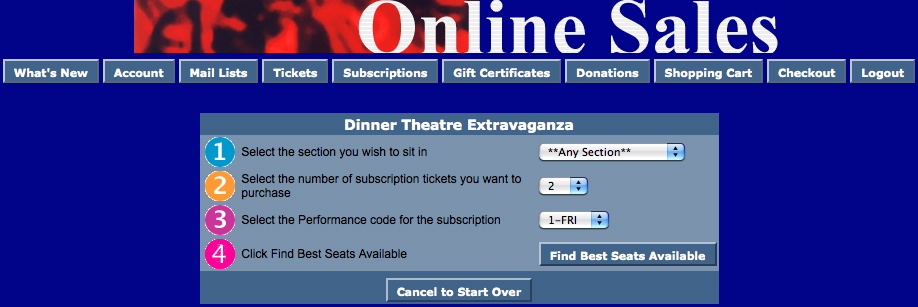
Description:
- This page allows the patron to choose the subscription details they would prefer for Reserved seating events.
- Step 1 is a drop down of seating sections pulled from the Best Seat Settings tab from within the Map in Theatre Manager. Depending on the seat configuration of your venue (in particular dinner theatre seating), your Seat Name file may have been setup for a two-pass approach to Best Available seating. For more information on the two-pass system click here.
- Step 2 allows the patron to choose the number of subscriptions they wish to purchase. The quantity is limited to the number of tickets allowed to be sold per Order within Theatre Manager.
- Step 3 indicates the day of the week the patron wishes to attend. This drop down is populated when there is more then one performance date within the season package.
- Step 4 confirms the options as they are indicated about and takes the patron to the TMsubscriptionPriceMapDefault.html page.
Location:
htdocs/1/WebPagesEN/tmMaps
Able to Call Page(s):
Called By Page(s):
Page(s) Referenced:
TMsubscriptionMapDefaultf.html
TMsubscriptionMapDefaultf.html

Description:
- For Future Implementation
- This page allows the patron to choose the subscription details they would prefer for Festival Seating/General Admission events.
- Step 1 allows the patron to choose the number of subscriptions they wish to purchase. The quantity is limited to the number of tickets allowed to be sold per Order within Theatre Manager.
- Step 2 indicates the day of the week the patron wishes to attend. This drop down is populated when there is more then one performance date within the season package.
- Step 3 confirms the options as they are indicated about and takes the patron to the TMsubscriptionPriceMapDefault.html page.
Location:
htdocs/1/WebPagesEN/tmMaps
Able to Call Page(s):
Called By Page(s):
Page(s) Referenced:
TMsubscriptionPriceMapDefault.html
TMsubscriptionPriceMapDefault.html
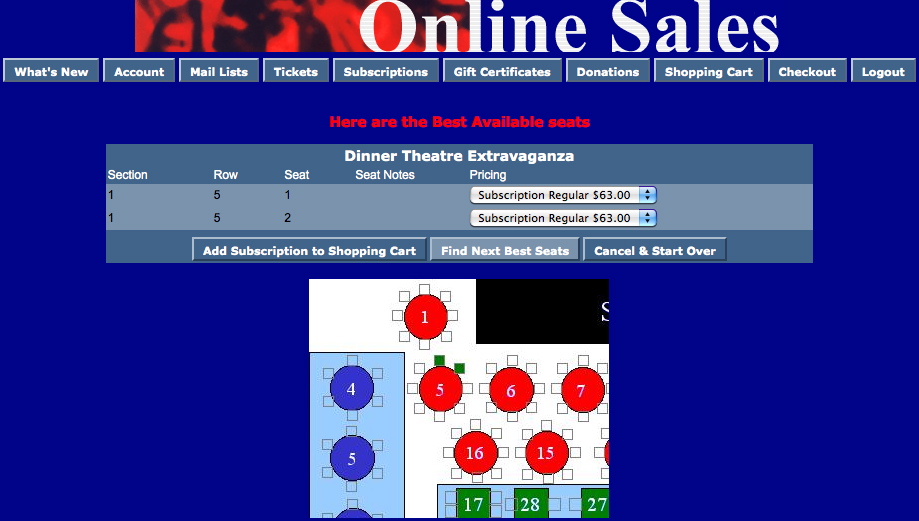
Description:
- Allows the patron to review the best available seating option within the section they choose from the TMsubscriptionMapDefault.html page. The best available seats are indicated in the Seat Names tab of the Map within Theatre Manager. The Best Avail Area and Best Seat # columns determine the order of the seats. Depending on the seat configuration of your venue (in particular dinner theatre seating), your Seat Name file may have been setup for a two-pass approach to Best Available seating. For more information on the two-pass system click here.
- The drop down next to the seat location allows the patron to choose the appropriate price for the seat. The pricing options in the list are pulled from the event within Theatre Manager. Only prices that are indicated as Season pricing will be available in the drop down.
- The patron can click the Next Best Available button and they will be presented with the next option for available seats within the section.
Questions and Answers:
Q:How can the Pricing drop down order be altered?
A: The pricing drop down is sorted in descending order based on highest price to lowest price. The promotion external description will determine the sort if there are two or more price points of the same value. Promotions sort in ascending order. For steps on how to access the sales promotion click here. Please note not all Promotions or Price Codes are available online and altering promotions will only need to be done for those options that appear online.
____________________________________________________________
Q: How do you remove the price code name from the Pricing drop down?
A: Select the Web Options tab under Setup >> Company Preferences in Theatre Manager. Remove the check from the Show Price Code option in the Permitted Ticket Printing Options section of the page. Clear the cache on the web listener for the change to take effect. For detailed steps on how to clear the cache in Theatre Manager click here.
____________________________________________________________
Q: How do you remove the Promotion from the Pricing drop down?
A: Select the Web Options tab under Setup >> Company Preferences in Theatre Manager. Remove the check from the Show Sales Promotion option in the Permitted Ticket Printing Options section of the page. Clear the cache on the web listener for the change to take effect. For detailed steps on how to clear the cache in Theatre Manager click here.
____________________________________________________________
Location:
htdocs/1/WebPagesEN/tmMaps
Able to Call Page(s):
Called By Page(s):
Page(s) Referenced:
TMsubscriptionsMapDefaultf.html
TMsubscriptionsMapDefaultf.html
Description:
- For Future Implementation
Location:
htdocs/1/WebPagesEN/tmMaps
Able to Call Page(s):
Called By Page(s):
Page(s) Referenced:
TMsubscriptionsPriceMapDefault.html
TMsubscriptionsPriceMapDefault.html
Description:
- WEB PAGE CURRENTLY UNDER CONSTRUCTION
Location:
htdocs/1/WebPagesEN/tmMaps
Able to Call Page(s):
Called By Page(s):
Page(s) Referenced:
TMticketsPrice_MapDefault.html
TMticketsPrice_MapDefault.html
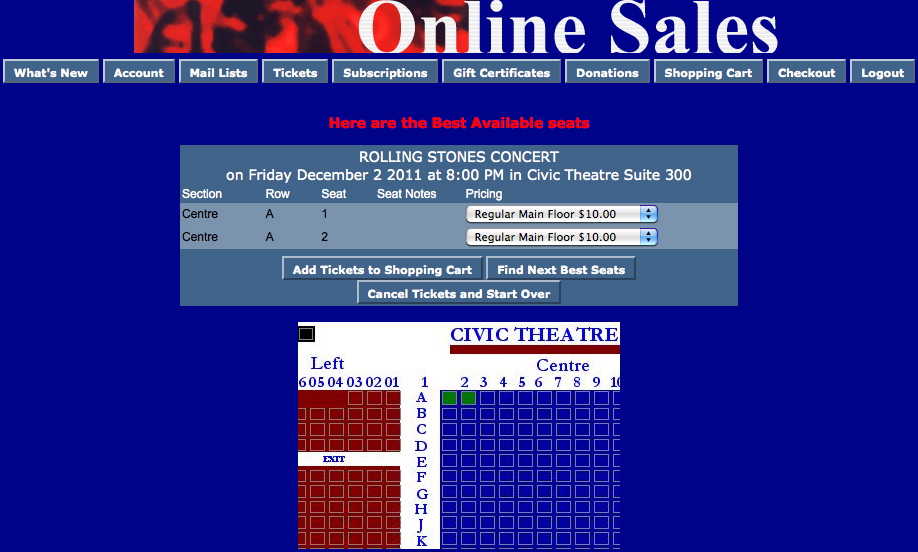
Description:
- Displays the best available seating option within the section the patron chose from the TMticketsSection_MapDefault.html page. The best available seats are indicated in the Seat Names tab of the Map within Theatre Manager. The Best Avail Area and Best Seat # columns determine the order of the seats. Depending on the seat configuration of your venue (in particular dinner theatre seating), your Seat Name file may have been setup for a two-pass approach to Best Available seating. For more information on the two-pass system click here.
- The patron can click the Next Best Available button and they will be presented with the next option for available seats within the section.
- The drop down next to the seat location allows the patron to choose the appropriate price for the seat. The pricing options in the list are pulled from the event within Theatre Manager. Only prices available online will be displayed in the drop down. Season Subscription online pricing does not appear in the drop down.
Questions and Answers:
Q: How can the Pricing drop down order be altered?
A: The pricing drop down is sorted in descending order based on highest price to lowest price. The promotion external description will determine the sort if there are two or more price points of the same value. Promotions sort in ascending order. For steps on how to access the sales promotion click here. Please note not all Promotions or Price Codes are available online and altering promotions will only need to be done for those options that appear online.
____________________________________________________________
Q: How do you remove the price code name from the Pricing drop down?
A: Select the Web Options tab under Setup >> Company Preferences in Theatre Manager. Remove the check from the Show Price Code option in the Permitted Ticket Printing Options section of the page. Clear the cache on the web listener for the change to take effect. For detailed steps on how to clear the cache in Theatre Manager click here.
____________________________________________________________
Q: How do you remove the Promotion from the Pricing drop down?
A: Select the Web Options tab under Setup >> Company Preferences in Theatre Manager. Remove the check from the Show Sales Promotion option in the Permitted Ticket Printing Options section of the page. Clear the cache on the web listener for the change to take effect. For detailed steps on how to clear the cache in Theatre Manager click here.
____________________________________________________________
Q: How can I make the entire map display?
A: Change the selected_border value in the image reference near the bottom of the page to be 999.
____________________________________________________________
Q: How can I change the color the seats appear as on the map?
A: Change the selected_color in the image reference near the bottom of the page to the desired hex color value.
____________________________________________________________
Q: How do you change the map image at the bottom of the page so it does not display the image from within Theatre Manager?
A:Add the desired image to the tmGifs folder with the WebPages. Comment out the existing image reference line at the bottom of the page. Add a new image reference for the desired image. The full path name is not required. /tmGifs/image.jpg can be used ad this page is already referencing the WebPages through the base reference.
____________________________________________________________
Location:
WebPages/1/WebPagesEN/tmMaps
Able to Call Page(s):
- TMcart.html
- TMticketsMaxPurchased.html
- TMticketsPrice_MapDefault.html
- TMticketsSection_MapDefault.html
- TMticketsSection_MapDefaultc.html
- TMticketsSection_MapDefaultf.html
Called By Page(s):
- TMticketsSection_MapDefault.html
- TMticketsSection_MapDefaultc.html
- TMticketsSection_MapDefaultf.html
Page(s) Referenced:
TMticketsSection_MapDefault.html
TMticketsSection_MapDefault.html
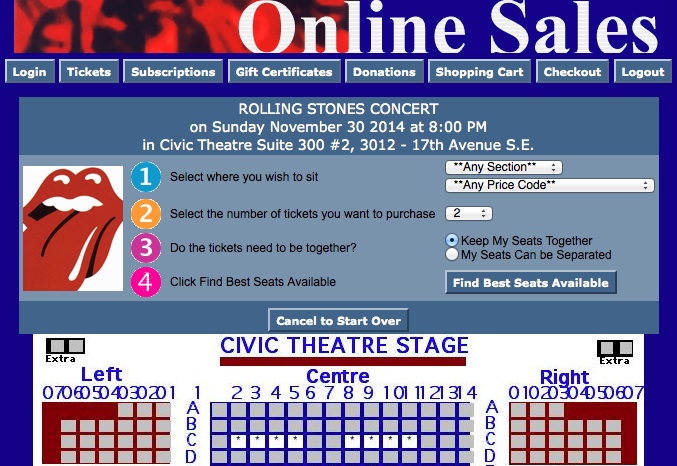
Description:
- This pages is specific to reserved seating performances.
- The patron can choose the ticket options they would prefer to add to their cart.
- The event title, date and time are pulled from Theatre Manager based on the selection from the previous window.
- Step 1 is a drop down of seating sections pulled from the Best Seat Settings tab from within the Map in Theatre Manager.
- Step 2 allows the patron to indicate the number of tickets they wish to purchase. The quantity is limited to the number of tickets allowed to be sold per Order within Theatre Manager.
- Step 3 searches the database for the preferences from the above steps. It loads the TMticketsPrice_MapDefault.html page.
- The map is pulled directly from the Theatre Manager database. The page can be duplicated and the word Default changed to the map number from within Theatre Manager. The page can then be edited to display an image specific to the venue.
- Web sales produces seats using the Best Seat settings within each venue map. For more information on the Best Seat settings, click here. Depending on the seat configuration of your venue (in particular dinner theatre seating), your Seat Name file may have been setup for a two-pass approach to Best Available seating. For more information on the two-pass system click here.
Questions and Answers:
Q: Can I replace the map image with an image of my own?
A: Yes, the image can be replaced. Place the desired image in the tmGifs folder. Locate the line containing the F_HTML_SEATMAP references towards the bottom of the page. Comment out the line. Add an image reference to the page calling the desired image from the tmGifs folder. Please note the reference should only require the folder name (tmGifs) and the full image name.
____________________________________________________________
Q: Can I change the default value in the drop down for number of seats to purchase?
A: Yes, you can. The default value is controlled in the Performance details. It can be altered by going to Setup >> Events and searching for the desired event. Double click on the event and select the Performance tab. Double click on the desired performance to open the Performance Detail window. Select the Web Settings tab. The Suggested Purchase Qty field determines the default value in the drop down within the online sales.
____________________________________________________________
Q: Can I increase/decrease the value in the drop down for number of seats to purchase?
A: Yes, you can. This value is controlled by the over all cart limit, event limit and performance limits.
- The cart limit is located in Setup >> System Preferences under the Web tab. It's controlled by the Maximum Tickets field. This value determines the total number of tickets that are allowed per cart. If the patron has already added tickets to their cart the drop down will decrease by the number of tickets in the cart.
- The Event limit is in the Eventtab of the Event Setup. The Web Purchase Limit defaults to the cart limit from above. However, a value can be entered into the field to alter the total number of tickets that can be purchased over all for the Event. This means if there are several performances this is the total tickets for all performances. If an event has a maximum of 8 tickets regardless of performances this is where the value would be set.
- Finally, the Performance limit is controlled in the Web Settings tab. This is located by selecting the Performance tab in the Event and double clicking on the performance. The Web Purchase Limit field controls the maximum tickets per performance that can be purchased. If an event has a limit of four tickets per performance this is where the value would be set.
Location:
htdocs/1/WebPagesEN/tmMaps
Able to Call Page(s):
Called By Page(s):
Page(s) Referenced:
- buttonRollover.html
- constantALLPRICECODES.txt
- constantANYSECTIONS.txt
- pleaseWaitMessage.html
- pleaseWaitMessageFunction.html
- setBEST_AREA_SEARCH_LIST.html
- setBEST_AREA_SEARCH_LISTempty.html
- setBEST_PRICE_CODE_SEARCH_LIST.html
- setBEST_PRICE_CODE_SEARCH_LISTempty.html
- setTICKET_QTY_LIST.html
- setTICKET_QTY_LISTempty.html
- step1.gif
- step2.gif
- step3.gif
- styleButtons.css
- stylePages.css
- TMError.txt
- tmFooter.html
- tmnavButtons.html
TMticketsSection_MapDefaultc.html
TMticketsSection_MapDefaultc.html
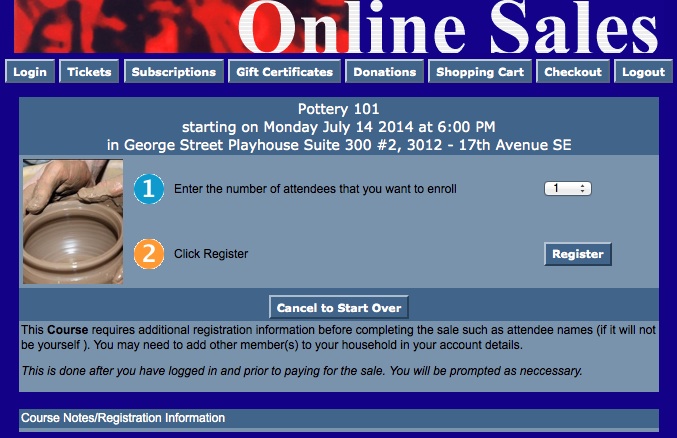
Description:
- This pages is specific to Courses. Note the c at the end of the page name.
- The patron can choose the ticket options they would prefer to add to their cart.
- The event title, date and time are pulled from Theatre Manager based on the selection from the previous window.
- Step 1 allows the patron to choose the number of admissions to the course they wish to purchase. The quantity is limited to the number of tickets allowed to be sold per Order within Theatre Manager.
- Step 2 searches the database for the preferences from the above steps. It loads the TMticketsPrice_MapDefault.html page.
- For details on how to setup a course click here.
Questions and Answers:
Q: Can I replace the map image with an image of my own?
A: Yes, the image can be replaced. Place the desired image in the tmGifs folder. Locate the line containing the F_HTML_SEATMAP references towards the bottom of the page. Comment out the line. Add an image reference to the page calling the desired image from the tmGifs folder. Please note the reference should only require the folder name (tmGifs) and the full image name.
____________________________________________________________
Q: Can I change the default value in the drop down for number of seats to purchase?
A: Yes, you can. The default value is controlled in the Performance details. It can be altered by going to Setup >> Events and searching for the desired event. Double click on the event and select the Performance tab. Double click on the desired performance to open the Performance Detail window. Select the Web Settings tab. The Suggested Purchase Qty field determines the default value in the drop down within the online sales.
____________________________________________________________
Q: Can I increase/decrease the value in the drop down for number of seats to purchase?
A: Yes, you can. This value is controlled by the over all cart limit, event limit and performance limits.
- The cart limit is located in Setup >> System Preferences under the Web tab. It's controlled by the Maximum Tickets field. This value determines the total number of tickets that are allowed per cart. If the patron has already added tickets to their cart the drop down will decrease by the number of tickets in the cart.
- The Event limit is in the Eventtab of the Event Setup. The Web Purchase Limit defaults to the cart limit from above. However, a value can be entered into the field to alter the total number of tickets that can be purchased over all for the Event. This means if there are several performances this is the total tickets for all performances. If an event has a maximum of 8 tickets regardless of performances this is where the value would be set.
- Finally, the Performance limit is controlled in the Web Settings tab. This is located by selecting the Performance tab in the Event and double clicking on the performance. The Web Purchase Limit field controls the maximum tickets per performance that can be purchased. If an event has a limit of four tickets per performance this is where the value would be set.
Location:
htdocs/1/WebPagesEN/tmMaps
Able to Call Page(s):
Called By Page(s):
Page(s) Referenced:
TMticketsSection_MapDefaultf.html
TMticketsSection_MapDefaultf.html
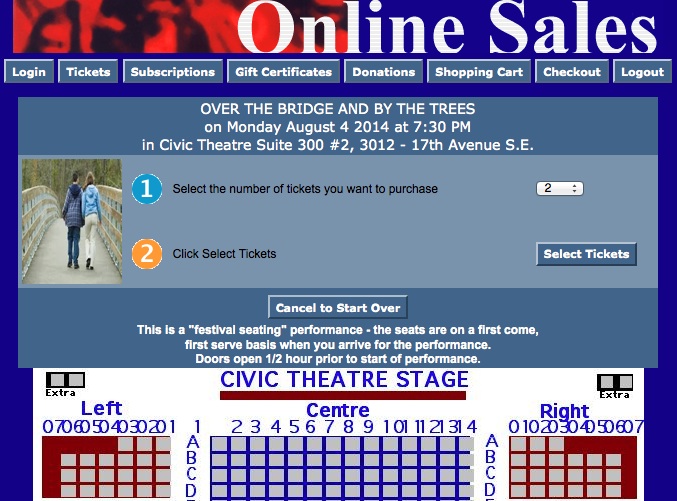
Description:
- This pages is specific to Festival Seating/General Admission seating performances. Note the f at the end of the page name.
- The patron can choose the ticket options they would prefer to add to their cart.
- The event title, date and time are pulled from Theatre Manager based on the selection from the previous window.
- Step 1 allows the patron to indicate the number of tickets they wish to purchase. The quantity is limited to the number of tickets allowed to be sold per Order within Theatre Manager.
- Step 2 searches the database for the preferences from the above steps. It loads the TMticketsPrice_MapDefault.html page.
- The map is pulled directly from the Theatre Manager database. The page can be duplicated and the word Default changed to the Pricing Map number from within Theatre Manager. The page can then be edited to display an image specific to the venue.
Questions and Answers:
Q: Can I replace the map image with an image of my own?
A: Yes, the image can be replaced. Place the desired image in the tmGifs folder. Locate the line containing the F_HTML_SEATMAP references towards the bottom of the page. Comment out the line. Add an image reference to the page calling the desired image from the tmGifs folder. Please note the reference should only require the folder name (tmGifs) and the full image name.
____________________________________________________________
Q: Can I change the default value in the drop down for number of seats to purchase?
A: Yes, you can. The default value is controlled in the Performance details. It can be altered by going to Setup >> Events and searching for the desired event. Double click on the event and select the Performance tab. Double click on the desired performance to open the Performance Detail window. Select the Web Settings tab. The Suggested Purchase Qty field determines the default value in the drop down within the online sales.
____________________________________________________________
Q: Can I increase/decrease the value in the drop down for number of seats to purchase?
A: Yes, you can. This value is controlled by the over all cart limit, event limit and performance limits.
- The cart limit is located in Setup >> System Preferences under the Web tab. It's controlled by the Maximum Tickets field. This value determines the total number of tickets that are allowed per cart. If the patron has already added tickets to their cart the drop down will decrease by the number of tickets in the cart.
- The Event limit is in the Eventtab of the Event Setup. The Web Purchase Limit defaults to the cart limit from above. However, a value can be entered into the field to alter the total number of tickets that can be purchased over all for the Event. This means if there are several performances this is the total tickets for all performances. If an event has a maximum of 8 tickets regardless of performances this is where the value would be set.
- Finally, the Performance limit is controlled in the Web Settings tab. This is located by selecting the Performance tab in the Event and double clicking on the performance. The Web Purchase Limit field controls the maximum tickets per performance that can be purchased. If an event has a limit of four tickets per performance this is where the value would be set.
Location:
htdocs/1/WebPagesEN/tmMaps
Able to Call Page(s):
Called By Page(s):
Page(s) Referenced:
tmPickYourSeatMapDisplay.html
tmPickYourSeatMapDisplay.html
at the bottom of the page is an <img> tag that shows the actual map:
<img src="<field>F_HTML_SEATMAP"</field>&reserved_colour=007700&reserved_boundary=true&reserved_seat_border=5&format=svg" width="80%"/>
- Pick your seat formats with interactivity
- pick - Special Case. If you have pick your own seats turned on, this is the preferred format. It will give you an svg graphic that is interactive and the patron can use to pick their seats is on. It forces always show sold seats on the map, regardless if it is turned off in Theatre Manager.
- svg - will also display in svg format. However, this format respects the show sold seats option for the performance. It may not be useful for pick your own as somebody wouldn't know which other seats are taken, but it could be useful to show people where their seats are.
- Static Formats with no interactivity
- png - you will only get a png image in a static map. You cannot pick your owns seat and the map has no interactivity
- jpeg - similar to png, except the image is in jpeg format
- pdf - similar to png, except it is a pdf
- use true, yes,y, or 1 for a zoomed in area around the reserved seats
- false, no,n, or 0 for a full sized map (or do not specify the parameter)
- If true, the map displayed to the user will contain a rectangle outlining the viewable area that would be shown if reserved_only was specified. This encircles the offered seats and clearly indicates where in the venue the user will sit.
- If the reserved_only parameter is not specified at the same time as this parameters, then the map is shown at full size, with the rectangle around the seats.
|
See also tmpickYourSeatScripts.html for some options that can be made regarding zoom controls on scripts that handle the maps. |
| format=xxx | specifies the graphic format in which to display your seat maps on a web page.
|
||
| reserved_only=false |
specifies that the map image to be drawn contains only a zoomed in sub-set of the entire map, centred around the seats that are offered to the patron. It the parameter is ignored if the map is in pick-your-own-seat mode. Values are:
|
||
| reserved_boundary=true |
Indicates that a boundary is to be drawn around the seats that are offered to the user (not avaliable when map is in pick-your-own mode)
|
||
| reserved_seat_border=## | Specifies the distance (in seats) from the offered seats where the reserved_boundary will be placed. Reasonable values are 2 seats around the reserved seats or 4 seats around the reserved seats | ||
| reserved_boundary_color=FF0000 | Specifies the colour of the boundary drawn around the seats that are offered (if not using pick your own) | ||
| reserved_boundary_width=xx | Specifies the width of the boundary drawn around the offered seats (if not using pick your own). The default size is 3/4 of the average width of seats on the map. You can make it more or less. | ||
| seat_color=FF0000 |
Specifies the colour of the unsold (available) seats on the map as a RGB hex string.
i.e. FF0000 means bright red and 007700 is green |
||
| selected_color=000000 | Specifies the stroke (border) color of the selected seats as a RGB hex string. These seats that a patron is picking on the reserve your seat map. | ||
| reserved_color=FF0000 | Specifies the fill color of the temporarily held best seats as a RGB hex string | ||
| unavailable_color=00FF00 | Specifies the fill color of the unavailable seats as a RGB hex string. Seats are unavailable if they are already sold to another patron or held for any reason. | ||
| unavailable_text=X | Specifies the single character that will be used to put in seats that are not available. This over-rides the '*' that TM will put in unavailable seats. You can use any ascii character you want such as 'X'. You may even use %20 (space), which if used in conjunction with unavailable_color will provide a solid square for unavailable seats. | ||
| seat_font=X | The font to use for seat labels when using mouseover to show the door/section/row/seat and seat description (depends on what the description setup is in the SCG map on the pricing map setup) | ||
| seat_size=X | The size of the fonts on the seat labels | ||
| seat_font_scale=X | SVG scaling factor to apply to the font size (depends on the scale used when constructing the SVG map) | ||
| seat_font_load=X | "embed": base64 embedded font, "local": locally loaded font from tmVendor, "cdn": remotely loaded font from Content Delivery Network (CDN) |
tmPickYourSeatScripts.html
tmPickYourSeatScripts.html
There is a comment in the file about halfway down (on/around line 41-42) that looks like:
// Initialize the widget with new pan and zoom values

 widget.init();
- pan_step_distance: default is 800 pixels -- and that is the incremental step distance that the image goes left/right or up/down when the left/right up/down buttons are clicked. SVG maps can be very large (as far as pixels go, so 800 is not really much movement -- and it is dependant on the overall size of the map
- zoom_multiple: default is 0.1 (10%) percent and that is the percentage of zoom in/out when using the zoom buttons on the map.
To add the parameters to the web page code and create different settings, you would edit the two lines above so that they look like:
// Initialize the widget with new pan and zoom values

widget.init( {

“pan_step_distance”: 800,

“zoom_multiple”: 0.1

} )
|
These values do not apply when the patron is using a touch device because the hand gestures of pinch and swipe take over and the 'controls' are hidden from the user. They only work for the controls when they are visible on a computer web page. |
|
See also tmPickYourSeatMapDisplay.html for some options that can be made regarding colouring and fonts on the actual SVG map as the user interacts with the pick your seats process. |
tmnavBottom.html
tmnavBottom.html

Description:
- The footer page attached to tmindex.html.
- The page pulls images from the tmGifs folder. The page can be edited to meet the organizations needs.
Location:
htdocs/1/WebPagesEN
Able to Call Page(s):
- Not Applicable
Called By Page(s):
Page(s) Referenced:
tmnavMain.html
tmnavMain.html
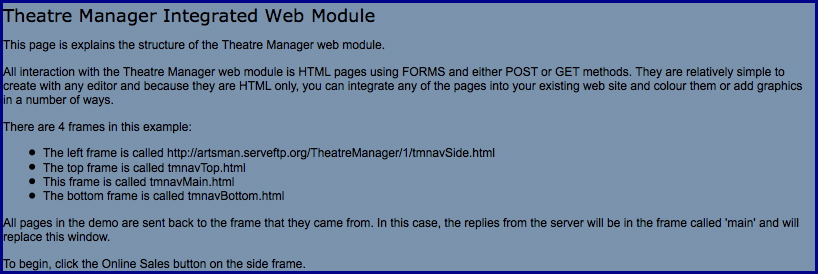
Description:
- This is the main body of the page when using tmindex.html.
- As links or buttons are clicked within the frames the information in this page is replaced with the page referenced by the link or button.
Location:
htdocs/1/WebPagesEN
Able to Call Page(s):
- Not Applicable
Called By Page(s):
Page(s) Referenced:
tmnavSide.html
tmnavSide.html
Description:
- The left side column of the tmindex.html page.
- References the pages in the tmContent folder.
Location:
htdocs/1/WebPagesEN
Able to Call Page(s):
- contentBoard.html
- contentClass.html
- contentContact.html
- contentDonation.html
- contentEvents.html
- contentHistory.html
- contentMailList.html
- contentPass.html
- contentSeason.html
- contentSeason2002.html
- contentSeason2003.html
- contentStaff.html
- contentVolunteer.html
Called By Page(s):
Page(s) Referenced:
tmnavTop.html
tmnavTop.html

Description:
- The header page attached to tmindex.html.
- The page pulls the pageHeader.gif. The page can be edited to meed the organizations needs.
Location:
htdocs/1/WebPagesEN
Able to Call Page(s):
- Not Applicable
Called By Page(s):
Page(s) Referenced:
TMoldCartDetails.html
TMoldCartDetails.html
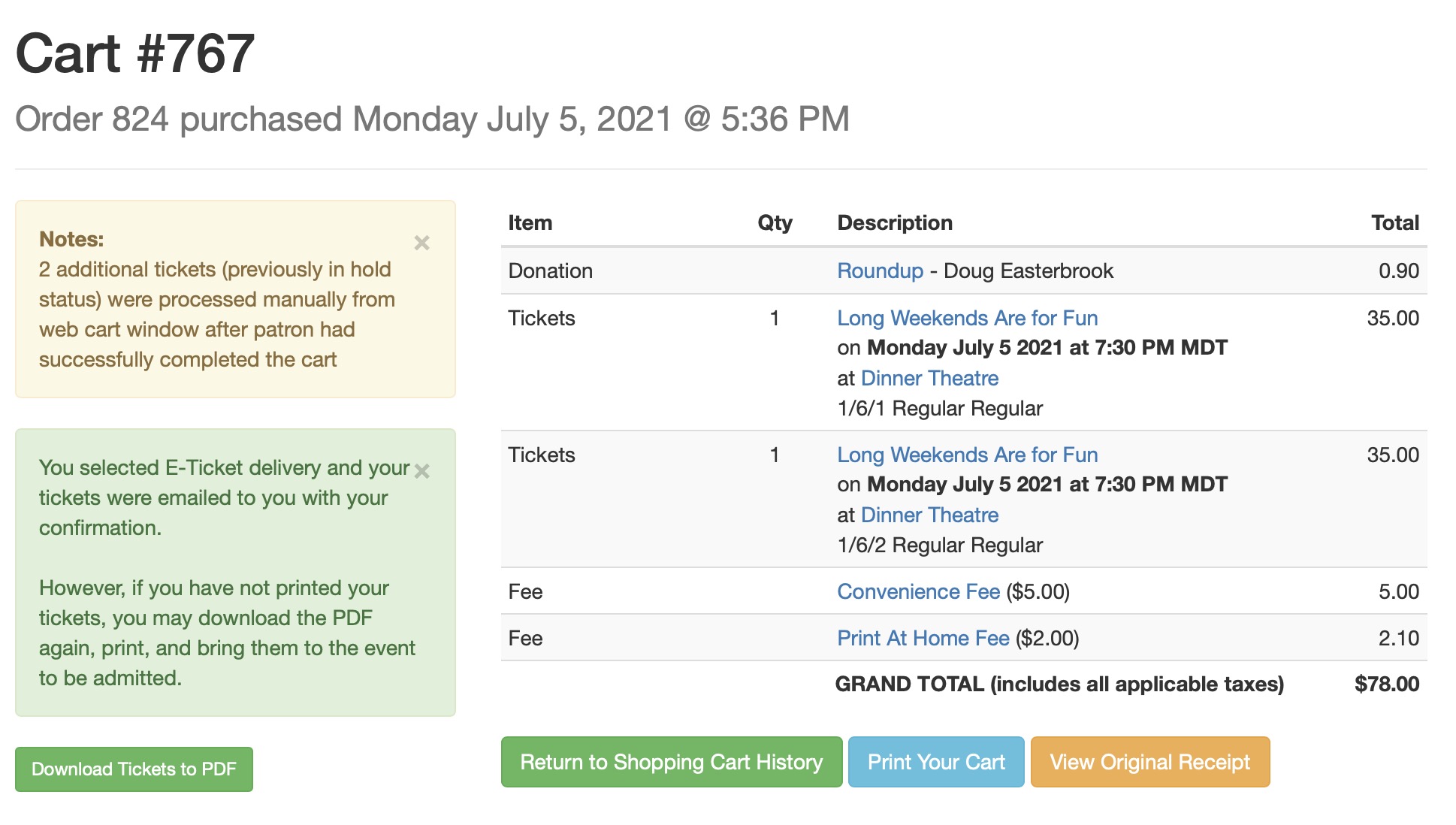
Description:
- Lists the items that were a past of a completed historical cart.
- The details of the cart are pulled directly from the Theatre Manager database.
Location:
htdocs/1/WebPagesEN
Able to Call Page(s):
- TMcart.html
- tmCampaignDefault.html
- tmEventDefault.html
- tmFeeDefault.html
- TMoldCartDetailsPrint.html
- tmPassDefault.html
- tmSubscriptionDefault.html
Called By Page(s):
Page(s) Referenced:
- buttonRollover.html
- rowOldCartCoupon.html
- rowOldCartCourse.html
- rowOldCartDonation.html
- rowOldCartFestival.html
- rowOldCartMailFee.html
- rowOldCartOrderCouponFee.html
- rowOldCartOrderFee.html
- rowOldCartPass.html
- rowOldCartReserve.html
- rowOldCartSub.html
- styleButtons.css
- stylePages.css
- TMError.txt
- tmFooter.html
- tmnavButtons.html
TMoldCartDetailsPrint.html
TMoldCartDetailsPrint.html
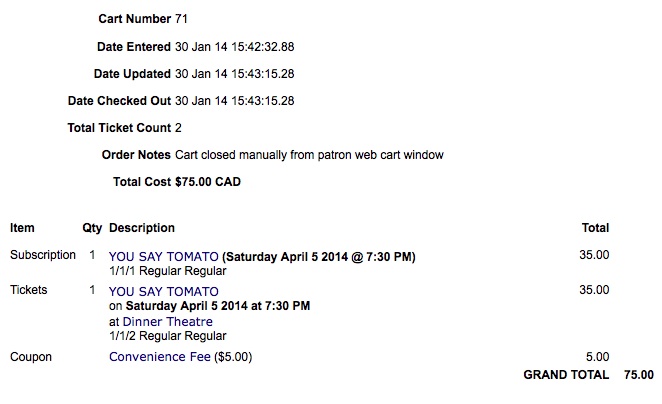
Description:
- A printer friendly copy of the Old Cart Detail page.
- The page will present as a preview behind the machines default printer page setup.
Location:
htdocs/1/WebPagesEN
Able to Call Page(s):
- Not Applicable
Called By Page(s):
Page(s) Referenced:
- buttonRollover.html
- rowOldCartPrintCourse.html
- rowOldCartPrintDonation.html
- rowOldCartPrintFestival.html
- rowOldCartPrintOrderCoupondFee.html
- rowOldCartPrintOrderFee.html
- rowOldCartPrintPass.html
- rowOldCartPrintReserve.html
- rowOldCartPrintSub.html
- styleButtons.css
- stylePages.css
- TMError.txt
- tmFooter.html
TMoldCartHeaders.html
TMoldCartHeaders.html
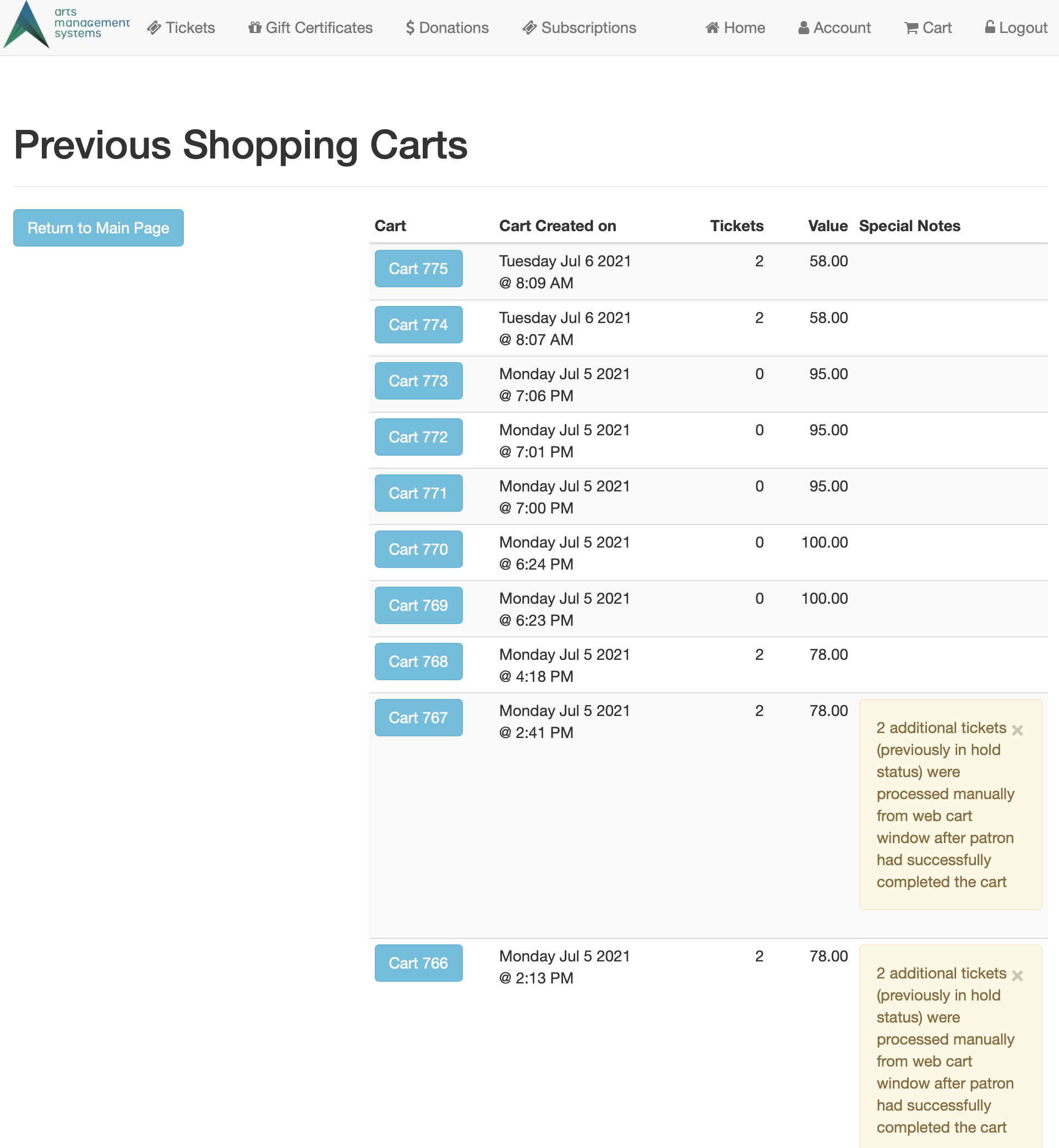 Description:
- A list of past shopping carts for events that have already happened.
Location:
htdocs/1/WebPagesEN
Able to Call Page(s):
Called By Page(s):
Page(s) Referenced:
tmPackages Folder
tmPackages Folder
Custom pages can be created for a package by duplicating the existing default page. The word Default in the page name is then replaced with the package number. The package number is located in the Package # column under Setup >> System Tables >> Packages in Theatre Manager. If this column is not visible simply right click on any of the column headers and select it. The column with then display in the list.
tmPackageDefault.html
tmPackageDefault.html
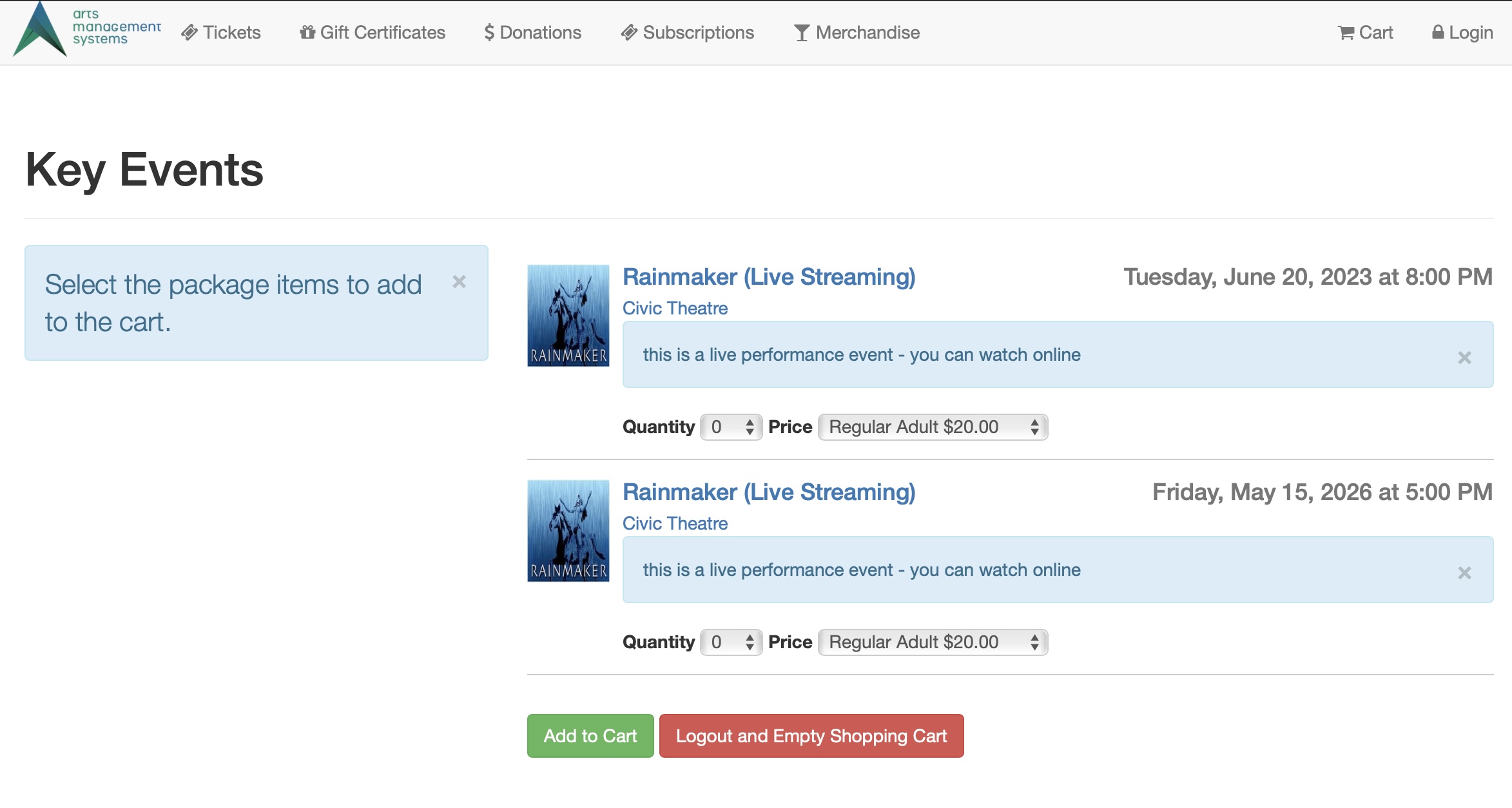
Description:
- Lists available items within a package for purchase online.
- Packages are a collection of items that have been grouped together within the Theatre Manager database and can be sold together within the online sales.
Questions and Answers:
Q: How do I setup a Package for online sales?
A Please see Package Setup in our online help for details on creating a new package:
____________________________________________________________
Q: How can the Availability options column be changed?
A: The text in the Availability column is located in the rowPkgTicketFestival.html page. By accessing this template the percentage level for availability can be altered. In addition the colour of the text and the wording can be altered as desired.
____________________________________________________________
Location:
htdocs/1/WebPagesEN/tmPackages
Able to Call Page(s):
Called By Page(s):
- Not Applicable
Page(s) Referenced:
tmPass Folder
tmPass Folder
Custom pages can be created for a pass by duplicating the existing default page. The word Default in the page name is then replaced with the pass type number. The pass type number is located in the Type # column under Setup >> System Tables >> Member Types in Theatre Manager. If this column is not visible simply right click on any of the column headers and select it. The column with then display in the list. Please note the word Member may have been altered in the database base for the organization.
tmPass1.html
tmPass1.html
Description:
- Provides a description of the pass type with a sequence number of 1.
- This is an example of how to create a custom pass page.
Location:
htdocs/1/WebPagesEN/tmPass
Able to Call Page(s):
Called By Page(s):
Page(s) Referenced:
tmPassDefault.html
tmPassDefault.html
Description:
- Provides a description of the pass selected.
- The details of the description are pulled from the Notes tab in the Member Type setup within Theatre Manager. For more information on the Notes tab in Theatre Manager, click here.
Location:
htdocs/1/WebPagesEN/tmPass
Able to Call Page(s):
Called By Page(s):
- cellPassLookupDescription.html
- cellPassLookupValue.html
- rowCartPass.html
- rowCartPassRedemption.html
- rowCheckoutPass.html
- rowPassRemainingValue.html
Page(s) Referenced:
TMpass.html
TMpass.html
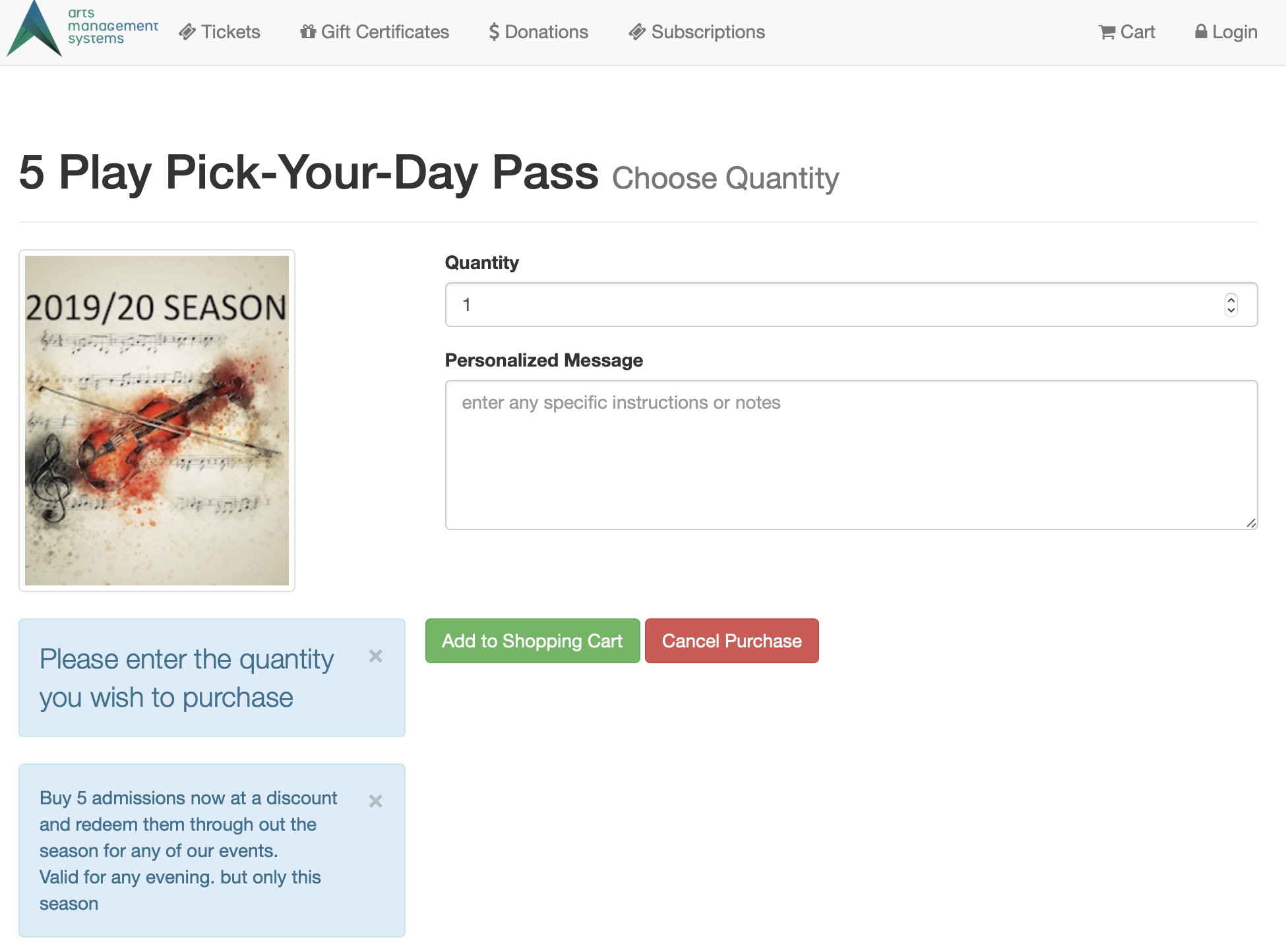
Description:
- The TMpass.html page lists all items currently available for sale in Member Type area of Theatre Manager.
- This page is accessed by the button that is titles Gift Certificate in the default web pages.
- Often the button and this area of Theatre Manager are renamed to something like Pass, Gift Certificate, Sales Items or another option chosen by the organization.
Location:
htdocs/1/WebPagesEN
Able to Call Page(s):
Called By Page(s):
- contentPass.html
- TMcart.html
- tmPassDefault.html
- Any page containing the navigation buttons.
Page(s) Referenced:
TMpassAskAmount.html
TMpassAskAmount.html
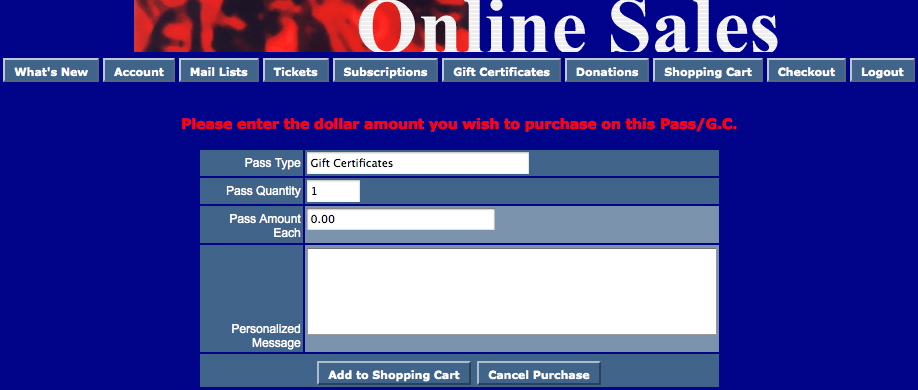
Description:
- This page is designed to enter the details of the Membership/Pass/Gift Certificate being purchased.
- Member Type are created in Setup >> System Tables Member Types of Theatre Manager.
- Depending on the setup of the Member Type, the value of the item may need to be entered in this window.
- Information entered in the Personalized Notes field will appear in the Notes tab of the Membership Detail window within Theatre Manager.
Location:
htdocs/1/WebPagesEN
Able to Call Page(s):
Called By Page(s):
Page(s) Referenced:
TMpassAvailable.html
TMpassAvailable.html
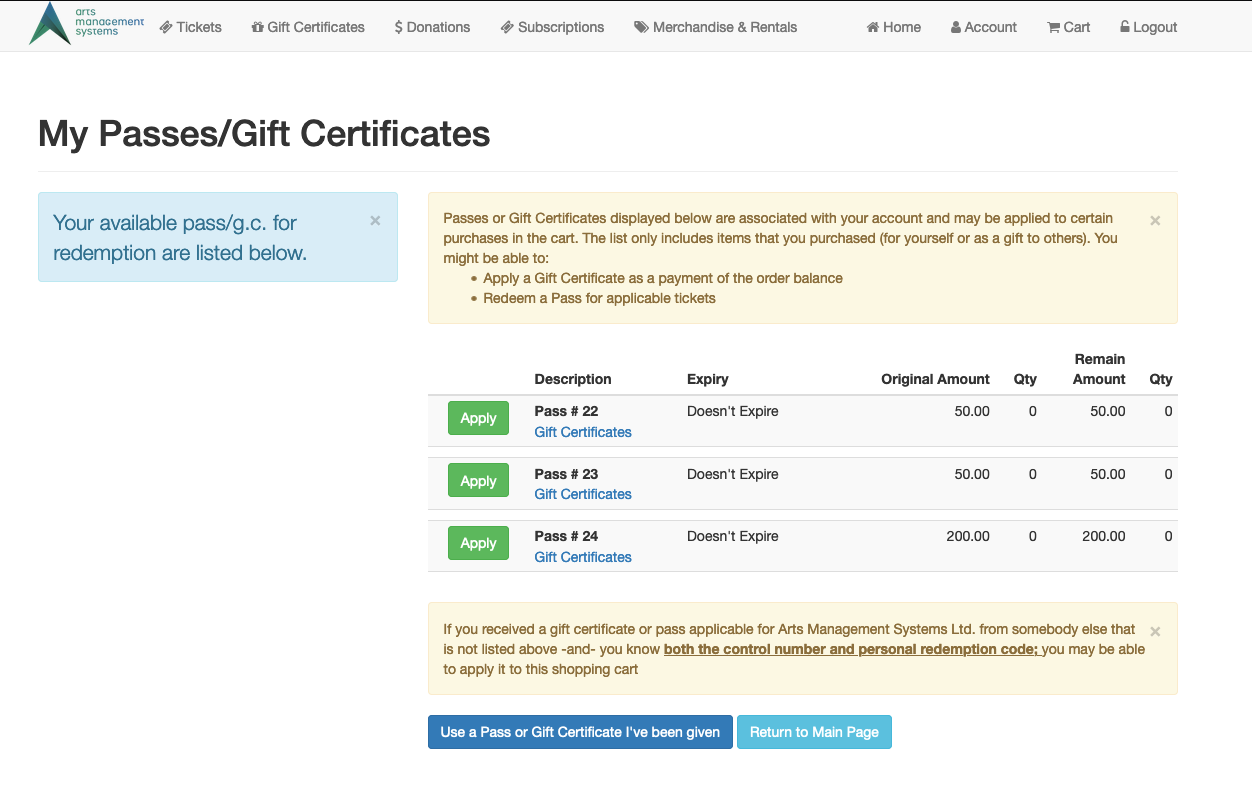
Description:
- This page displays all Passes currently available on the patrons record.
- Passes with available balances can be applied to balances on the current Order.
Location:
htdocs/1/WebPagesEN
Able to Call Page(s):
Called By Page(s):
Page(s) Referenced:
TMpassCheckBalance.html
TMpassCheckBalance.html
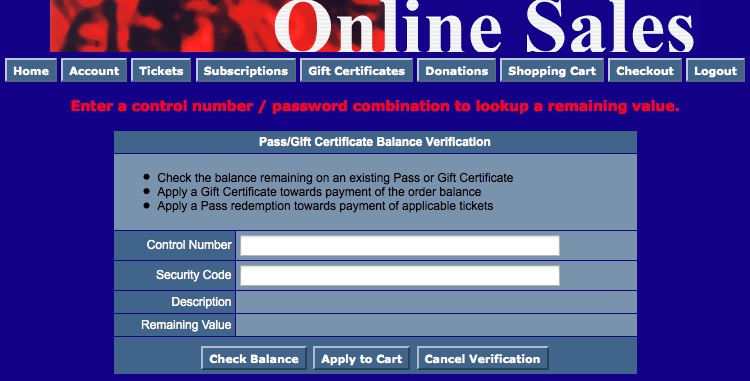
Description:
- This page allows a patrons to check the outstanding balance on passes.
- The patron must know the Control Number for the Pass and the Password associated with the Control Number. .
- The password is only obtainable through printing a ticket for the Pass directly from Theatre Manager.
Location:
htdocs/1/WebPagesEN
Able to Call Page(s):
Called By Page(s):
Page(s) Referenced:
TMpasswordChange.html
TMpasswordChange.html
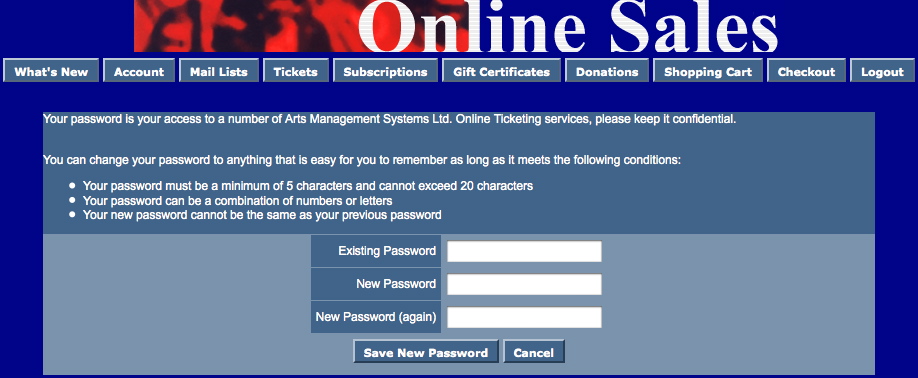
Description:
- This page allows a patron to change their existing online password to a new password.
- When an email address is entered into Theatre Manager the application generates a random password for the patron. The first time the patron attempts to login to the online sales using the Password they will be redirected to this page. The Patron can then set their password to something they choose.
Location:
htdocs/1/WebPagesEN
Able to Call Page(s):
Called By Page(s):
Page(s) Referenced:
TMpasswordChangeEmail.html
TMpasswordChangeEmail.html
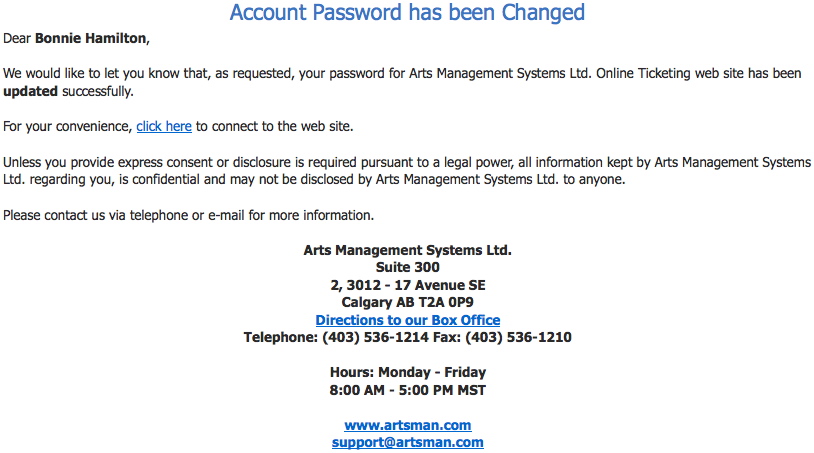
Description:
- This email is automatically sent when a patron changes their password using the TMpasswordChange.html page.
Location:
htdocs/1/WebPagesEN
Able to Call Page(s):
- maps.google.com
- The companies web site as it appears in the Company tab of Setup >> Company Preferences within Theatre Manager.
- The ticketing site as referenced in index.html
Called By Page(s):
Page(s) Referenced:
TMpasswordEmptyEmail.html
TMpasswordEmptyEmail.html
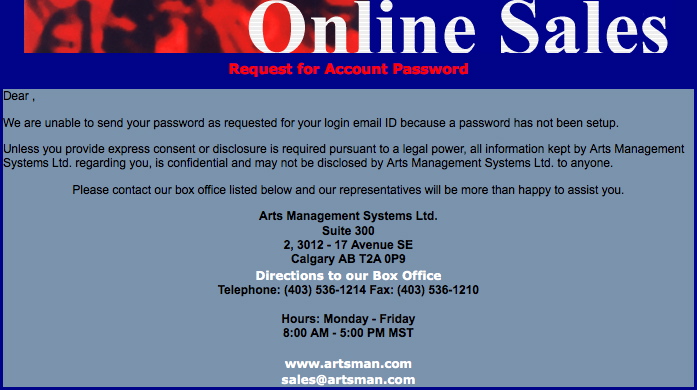
Description:
- This email is sent to a patron when their email address is selected in their patron window and the Send Password button is clicked from within Theatre Manager.
- The most common reason for this email to be sent would be the patrons email address is not the primary email for their patron record but rather a secondary email. Secondary email addresses cannot be used to login to the online sales module therefore Theatre Manager does not assign a password to them.
Location:
htdocs/1/WebPagesEN
Able to Call Page(s):
- maps.google.com
- The companies web site as it appears in the Company tab of Setup >> Company Preferences within Theatre Manager.
Called By Page(s):
- Not Applicable.
Page(s) Referenced:
TMpasswordForgot.html
TMpasswordForgot.html
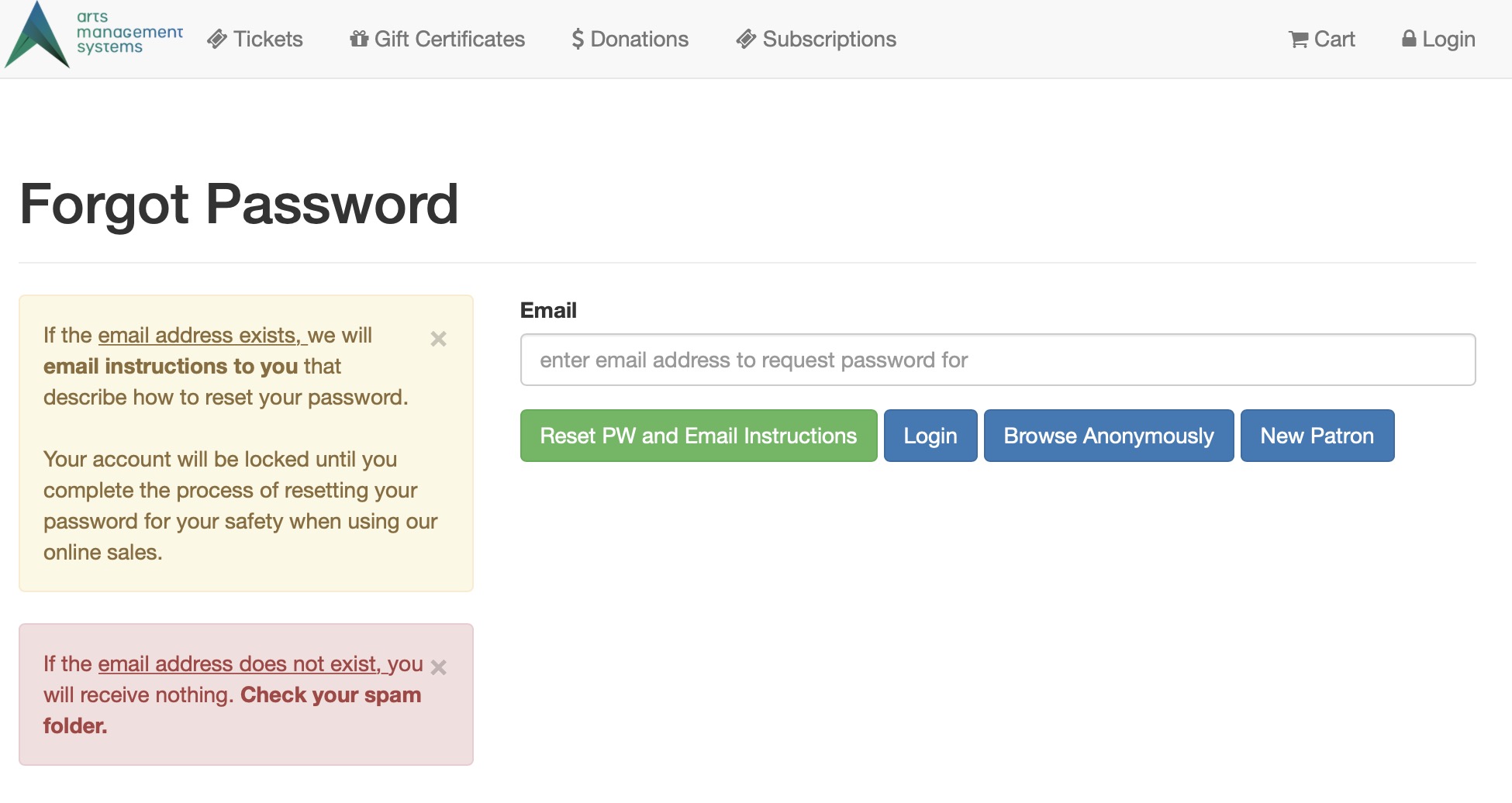
Description:
- The patron enters their email address in this page and an email will be sent to the address entered. This email will ask them to reset their password within 48 hours. In the interim, their existing account will be rendered inaccessible until they do reset their password.
- A message states that if the email address does not exist, the patron will receive nothing. This is intentional, is required by the PCI council, and is good internet safety so that attackers cannot determine if an email exists through credential stuffing (meaning they got an email password from another comproized server and are attempting to see if your database also has it).
If the email address exists under two patrons, the same message/process occurs and the box office will need to de-duplicate the email address in Theatre Manager before they can get an email reset.
|
If the patron is unable to do reset their password for any reason, the box office can initiate a password reset from the patron window. A box office reset should only be used if the patron has requested it explicitly - it sends the same email as above. |
Location:
htdocs/1/WebPagesEN
Able to Call Page(s):
Called By Page(s):
Page(s) Referenced:
TMpasswordForgotEmail.html
TMpasswordForgotEmail.html
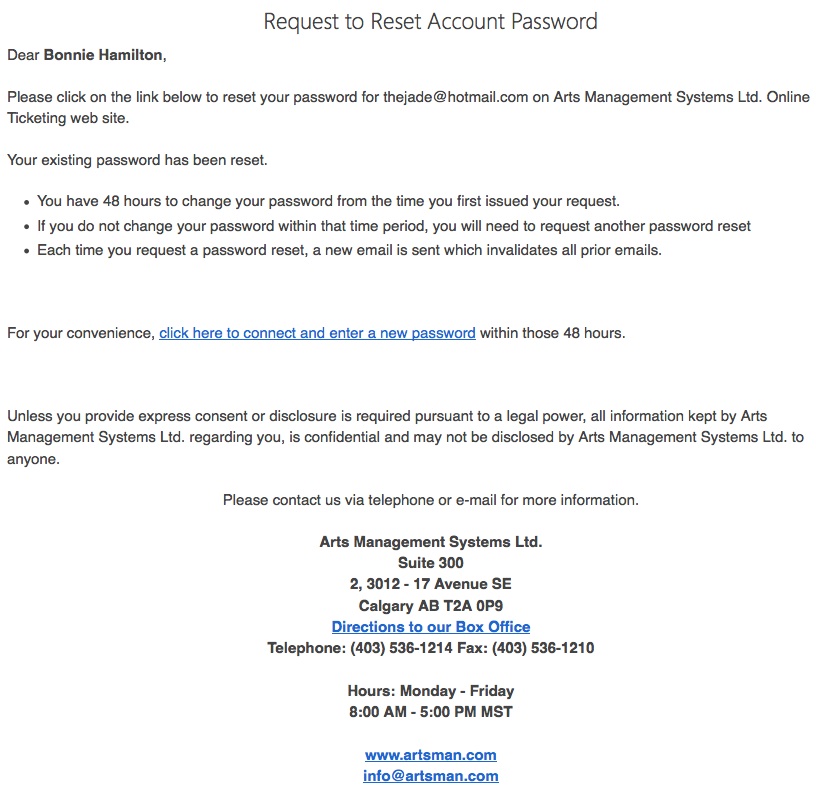
Description:
- This is a sample of the email sent when a patron clicks the Forgot My Password button.
- The link allows the patron to reset their password.
- Only patrons with access to the email address can receive the link and reset the password.
Location:
htdocs/1/WebPagesEN
Able to Call Page(s):
Called By Page(s):
- Not Applicable
Page(s) Referenced:
TMpasswordForgotEmailReset.html
TMpasswordForgotEmailReset.html
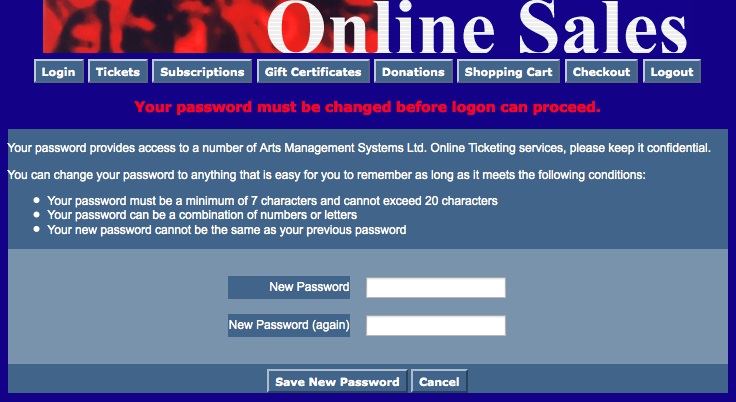
Description:
- Patron can reset their password using the link from the email.
Location:
htdocs/1/WebPagesEN
Able to Call Page(s):
Called By Page(s):
Page(s) Referenced:
TMpasswordResetChange.html
TMpasswordResetChange.html
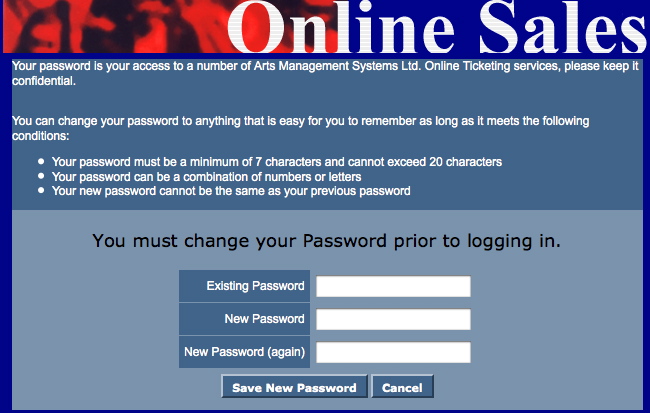
Description:
- This page allows patrons to change their passwords.
- If this is the first time a patron has logged into Theatre Manager using a password generated within the database they will be directed to this page. The patron is encouraged to change their password to something easier to remember then the Theatre Manager generated password.
- The new password must be at least 7 characters long
- The new password cannot contain special characters such as exclamation marks or ampersands.
Location:
htdocs/1/WebPagesEN
Able to Call Page(s):
Called By Page(s):
Page(s) Referenced:
TMpasswordResetEmail.html
TMpasswordResetEmail.html
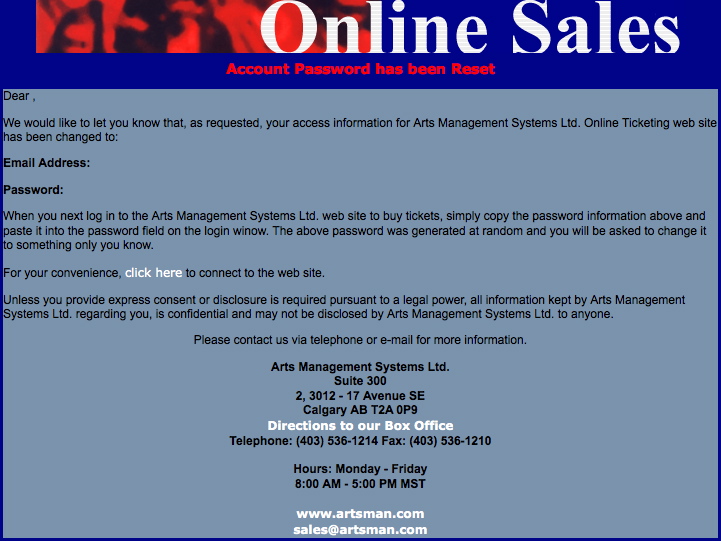
Description:
- The email that is sent when a patrons click the Save New Email button in the TMpasswordResetChange.html
- The Password is populated using the online sales password for the email address within the Theatre Manager database.
Location:
htdocs/1/WebPagesEN
Able to Call Page(s):
Called By Page(s):
- Not Applicable
Page(s) Referenced:
TMpatronLimitedProfile.html
TMpatronLimitedProfile.html
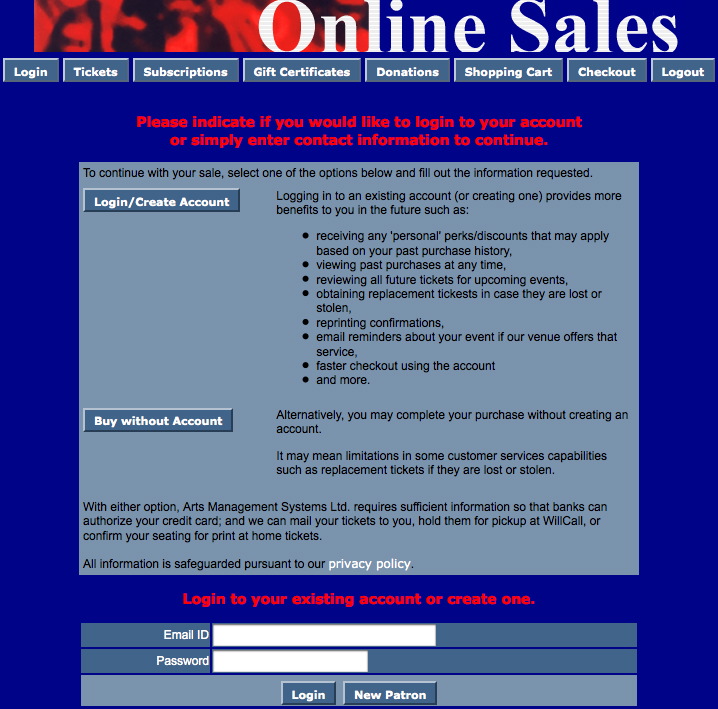
Description:
- Allows for patrons to login to the online sales without creating a full patron profile.
- This page is only accessible is a patron is not logged in and click the checkout button in the online sales window.
- Only those options with an asterisk next to them are mandatory fields.
Questions and Answers:
Q: Where is the limited profile option enabled?
A: In Theatre Manager click Setup >> System Preferences. Select the Mandatory Data tab. Check the desired locations in the Allow Limited Profile Patron On section.
____________________________________________________________
Q: Where are the limited profile account settings in Theatre Manager?
A: In Theatre Manager click Setup >> System Preferences. Select the Mandatory Data tab. Place a check mark next to the desired fields for limited profile in the Limited Profile Web Sales Checkout Patron Data section.
____________________________________________________________
Q: How can I hid fields that are not mandatory?
A: Fields that are not mandatory can be commented out in the tmLoginLimitedPatron.html page.
____________________________________________________________
Location:
htdocs/1/WebPagesEN
Able to Call Page(s):
Called By Page(s):
Page(s) Referenced:
- buttonRollover.html
- pleaseWaitMessage.html
- pleaseWaitMessageFunction.html
- rowPatronAddress.html
- rowPatronContact.html
- rowPatronEmail.html
- rowPatronEmailLimitedProfile.html
- setSALUTATION_LIST.html
- setSALUTATION_LISTempty.html
- showhidediv.html
- styleButtons.css
- stylePages.css
- TMError.txt
- tmFooter.html
- tmLoginForm.html
- tmLoginLimitedPatron.html
- tmnavButtons.html
TMpatronNew.html
TMpatronNew.html
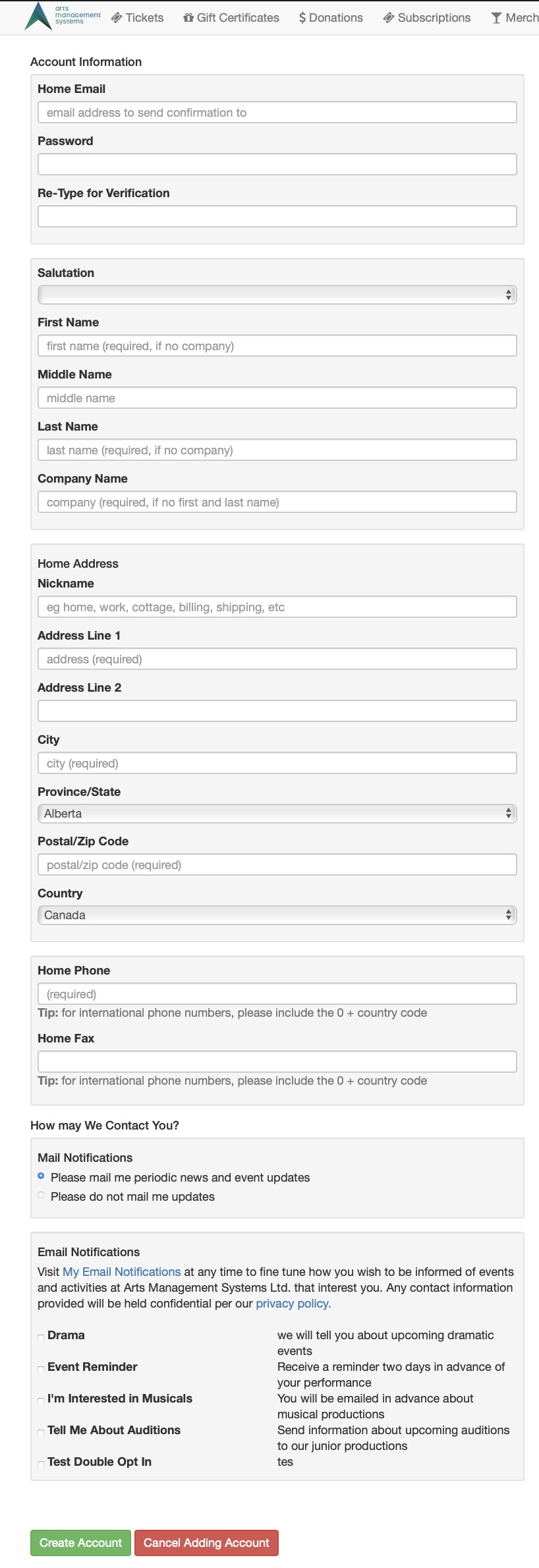
Description:
- This pages creates an account in the Theatre Manager database for a new patron.
- The mandatory fields are set within the Theatre Manager database in Setup >> System Preferences under the Mandatory Data tab.
- All fields indicated within this window update specific database fields within Theatre Manager.
Location:
htdocs/1/WebPagesEN
Able to Call Page(s):
Called By Page(s):
Page(s) Referenced:
- buttonRollover.html
- constantPATRONCONTACTNEW.txt
- pleaseWaitMessage.html
- pleaseWaitMessageFunction.html
- rowPatronAddress.html
- rowPatronContact.html
- rowPatronEmail.html
- setCOUNTRY_LIST.html
- setCOUNTRY_LISTempty.html
- setPROVINCE_LIST.html
- setPROVINCE_LISTempty.html
- setSALUTATION_LIST.html
- setSALUTATION_LISTempty.html
- styleButtons.css
- stylePages.css
- TMError.txt
- tmFooter.html
- tmnavButtons.html
TMpatronNewEmail.html
TMpatronNewEmail.html
Description:
- This page is sent in the form of an email every time a new Patron Account is setup in the TMpatronNew.html page.
Location:
htdocs/1/WebPagesEN
Able to Call Page(s):
- maps.google.com
- The companies web site as it appears in the Company tab of Setup >> Company Preferences within Theatre Manager.
- The ticketing site as referenced in index.html
Called By Page(s):
Page(s) Referenced:
TMpatronUpdate.html
TMpatronUpdate.html
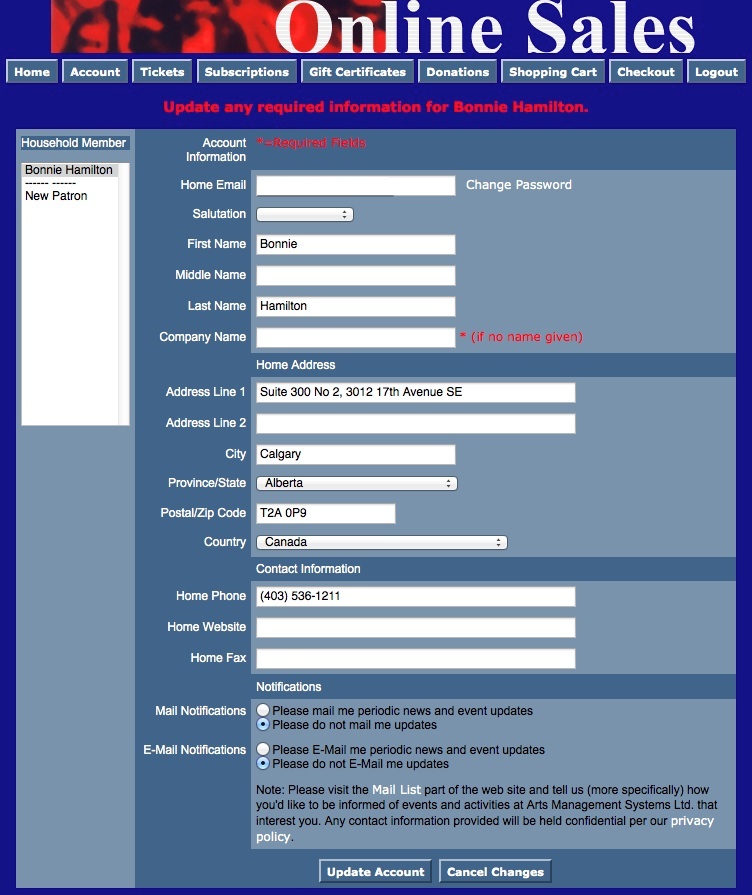 Description:
- This window displays the patrons primary information as it appear in their patron record within the database.
- When a patron updates their record the changes are made directly to the database. If the patron record is altered at the box office the changes will appear to the patron the next time they login.
Location:
htdocs/1/WebPagesEN
Able to Call Page(s):
Called By Page(s):
- Any page containing the navigation buttons.
- tmnavButtonsFooter.html
Page(s) Referenced:
- buttonRollover.html
- constantNEWPATRON.txt
- constantPATRONCONTACTEXISTING.txt
- dropDownMenuFunction.html
- pleaseWaitMessage.html
- pleaseWaitMessageFunction.html
- setCOUNTRY_LIST.html
- setCOUNTRY_LISTempty.html
- rowPatronAddress.html
- rowPatronContact.html
- rowPatronEmail.html
- setPROVINCE_LIST.html
- setPROVINCE_LISTempty.html
- setSALUTATION_LIST.html
- setSALUTATION_LISTempty.html
- pleaseWaitMessage.html
- setHOUSEHOLD_PATRON_LIST.html
- setHOUSEHOLD_PATRON_LISTempty.html
- styleButtons.css
- stylePages.css
- TMError.txt
- tmFooter.html
- tmnavButtons.html
TMpatronUpdateEmail.html
TMpatronUpdateEmail.html
Description:
- This email is automatically sent when a patron changes their patron record using the TMpatonUpdate.html page.
Location:
htdocs/1/WebPagesEN
Able to Call Page(s):
Called By Page(s):
- Not Applicable
Page(s) Referenced:
tmScripts Folder
Javascript
Javascript
Location:
/WebPagesEN/tmScripts
buttonRollover.html
Description:
<SCRIPT LANGUAGE="JavaScript">
<!--
function pviiClassNew(obj, new_style) {
obj.className = new_style;
}
//-->
</SCRIPT>
Since the buttons that are contained within the tmnavButtons.html page are form inputs, they require Cascading Style Sheets in order to customize their colours and styles. This script allows the buttons to roll from one style to another.
The variables onMouseOver="pviiClassNew(this,'buttonover')" onMouseOut="pviiClassNew(this,'button')" are included in each tag for each button.
dropDownMenuFuctions.html
Description:
<script language="Javascript">
<!--
function submitForm(form, action){
//Change the name of the hidden input, hiddenSubmit, to be the name of the action we need to perform
document.getElementById(form).hiddenSubmit.name = action;
document.getElementById(form).submit();
}
//-->
</script>
This function is used to submit a form when a <!select /> list is used. The page must include this function as well as a hidden parameter within the form, TMForm. <!input type=hidden name=hiddenSubmit value="">
navSideRollover.html
Description:
<SCRIPT language="JavaScript">
<!--
function NavRollOver(oTd) {if (!oTd.contains(event.fromElement)) {oTd.bgColor="";}}
function NavRollOut(oTd) {if (!oTd.contains(event.toElement)) {oTd.bgColor="";}}
//-->
</SCRIPT>
This script allows the cells within the navSide table to roll from one colour to another, creating dynamic buttons out of table data. The variables onmouseover="NavRollOver(this)" onmouseout="NavRollOut(this)" are contained within the
pleaseWaitMessageFuction.html
Description:
<script language="JavaScript">
<!--
function process() {
var processingMessage = 'Processing...please wait...this takes a few moments';
var messageHeight = '25px';
if (navigator.appName=="Microsoft Internet Explorer") {
pleaseWait.innerHTML = processingMessage;
document.all.pleaseWait.style.height = messageHeight;
document.all.pleaseWait.style.visibility = 'visible';
}
if (navigator.appName=="Netscape") {
document.getElementById("pleaseWait").innerHTML = processingMessage;
document.getElementById("pleaseWait").style.height = messageHeight;
document.getElementById("pleaseWait").style.visibility = 'visible';
}
if (navigator.appName=="Safari") {
document.getElementById("pleaseWait").innerHTML = processingMessage;
document.getElementById("pleaseWait").style.height = messageHeight;
document.getElementById("pleaseWait").style.visibility = 'visible';
}
}
//-->
</script>
showhidediv.html
Description:
<script language="javascript">
<!--
function divdisplay(layer_ref,state) {
if (document.all) { //IS IE 4 or 5 (or 6 beta)
eval( "document.all." + layer_ref + ".style.display = " + state);
}
if (document.layers) { //IS NETSCAPE 4 or below
document.layers[layer_ref].display = state;
}
if (document.getElementById &&!document.all) {
hza = document.getElementById(layer_ref);
hza.style.display = state;
}
}
//-->
</script>
This will show or hide a div statement by name on the screen state= 'none' if you want to see it on the screen state= 'block' if you want it to be disabled from the user.
<script language="javascript">
<!--
function divvisibility(layer_ref,state) {
if (document.all) { //IS IE 4 or 5 (or 6 beta)
eval( "document.all." + layer_ref + ".style.visibility = " + state);
}
if (document.layers) { //IS NETSCAPE 4 or below
document.layers[layer_ref].visibility = state;
}
if (document.getElementById &&!document.all) {
hza = document.getElementById(layer_ref);
hza.style.visibility = state;
}
}
</script>
this will change the visibility of a div by name on the screen state= 'visible' if you want to see it on the screen state= 'hidden' if you want it to be hidden off the screen from the user
buttonRollover.html
buttonRollover.html
Description:
- Changed the look of a button in the online sales web page when a mouse is hovered over it.
- Accesses the styleButtons.css to change the attributes of the button.
Location:
htdocs/1/WebPagesEN
Able to Call Page(s):
- Not Applicable
Called By Page(s):
- contentClass.html
- contentDonation.html
- contentEvents.html
- contentMailList.html
- contentPass.html
- TMattendance.html
- tmBoxOfficePolicy.html
- tmCampaign1.html
- tmCampaign2.html
- tmCampaignDefault.html
- TMcart.html
- TMcheckout.html
- TMcheckoutCardError.html
- TMcheckoutConfirmation.html
- TMcheckoutInvoiceEmail.html
- TMcheckoutNoItems.html
- TMcheckoutNoPayment.html
- TMcheckoutProcessing.html
- TMcoupon.html
- TMdonation.html
- TMdonationMonthly.html
- tmEvent1.html
- tmEventDefault.html
- tmFeeDefault.html
- TMfutureTickets.html
- TMfutureTicketsPrint.html
- TMhome.html
- TMlogin.html
- TMloginSelectPatron.html
- TMlogoff.html
- TMlogoffOpenCart.html
- tmMailFee.html
- tmMailFeeDefault.html
- TMmaillist.html
- TMmaillistDisallow.html
- TMmaillistQuickAdd.html
- TMmaillistVerify.html
- tmnavSide.html
- TMoldCartDetails.html
- TMoldCartDetailsPrint.html
- tmOrderFee.html
- TMoldCartHeaders.html
- tmOrderFeeDefault.html
- tmPackageDefault.html
- tmPass1.html
- tmPassDefault.html
- TMpass.html
- TMpassAskAmount.html
- TMpasswordChange.html
- TMpasswordForgot.html
- TMpasswordResetChange.html
- TMpatronLimitedProfile.html
- TMpatronNew.html
- TMpatronUpdate.html
- TMsubscriptionMapDefault.html
- TMsubscriptionMapDefaultf.html
- TMsubscriptionPriceMapDefault.html
- TMsubscriptionsMapDefaultf.html
- TMsubscriptionsPriceMapDefault.html
- TMticketsPrice_MapDefault.html
- TMticketsSection_MapDefault.html
- TMticketsSection_MapDefaultc.html
- TMticketsSection_MapDefaultf.html
- tmSubscriptionDefault.html
- TMsubscriptions.html
- TMsubscriptionsRenew.html
- TMsysBackupInProgress.html
- TMsysBusyListeners.html
- TMsysBusyListenersNorefresh.html
- TMsysInvalidCall.html
- TMsysInvalidCallDirect.html
- TMsysInvalidCallNoAccess.html
- TMsysInvalidFunction.html
- TMsysWebSalesDisabled.html
- TMtickets.html
- TMticketscalendar.html
- TMticketsMaxPurchased.html
- TMticketsSoldOut.html
- tmVenueDefault.html
- TMvolcalendar.html
- TMvolunteer.html
Page(s) Referenced:
cartCountdownFunctions.html
disclaimer.html
disclaimer.html
Description:
- This pages contains the Arts Management Systems disclaimer.
Location:
htdocs/1/WebPagesEN/TMtemplates/
Able to Call Page(s):
- Not Applicable
Called By Page(s):
- TMattendance.html
- tmBoxOfficePolicy.html
- tmCampaignDefault.html
- TMcart.html
- TMcheckout.html
- TMcheckoutCardError.html
- TMcheckoutConfirmation.html
- TMcheckoutInvoiceEmail.html
- TMcheckoutNoItems.html
- TMcheckoutNoPayment.html
- TMcheckoutProcessing.html
- tmContactPopup.html
- TMcontentBoard.html
- TMcontentClass.html
- TMcontentContact.html
- TMcontentDonation.html
- TMcontentEvent.html
- TMcontentHistory.html
- TMcontentMailList.html
- TMcontentPass.html
- TMcontentSeason.html
- TMcontentSeason2002.html
- TMcontentSeason2003.html
- TMcontentStaff.html
- TMcontentVolunteer.html
- TMcoupon.html
- TMdonation.html
- TMdonationmonthly.html
- tmEventDefault.html
- tmFeeDefault.html
- tmFutureTicketsPrint.html
- TMhome.html
- TMfutureTickets.html
- TMlogin.html
- TMloginSelectPatron.html
- TMlogoff.html
- TMlogoffOpenCart.html
- tmMailFee.html
- tmMailFeeDefault.html
- TMmaillist.html
- TMmaillistDisallow.html
- TMmaillistQuickAdd.html
- TMmaillistVerify.html
- TMmaillistVerifyEmail.html
- tmnavBottom.html
- tmnavMain.html
- tmnavSide.html
- tmnavTop.html
- TMoldCartDetails.html
- TMoldCartDetailsPrint.html
- TMoldCartheaders.html
- tmOrderFee.html
- tmOrderFeeDefault.html
- tmPackageDefault.html
- TMpass.html
- TMpassAskAmount.html
- TMpassAvailable.html
- TMpassCheckBalance.html
- TMpassDefault.html
- TMpasswordChange.html
- TMpasswordChangeEmail.html
- TMpasswordEmptyEmail.html
- TMpasswordForgot.html
- TMpasswordForgotEmail.html
- TMpasswordForgotEmailReset.html
- TMpasswordResetChange.html
- TMpasswordResetEmail.html
- TMpatronLimitedProfile.html
- TMpatronNew.html
- TMpatronNewEmail.html
- TMpatronUpdate.html
- TMpatronUpdateEmail.html
- tmPrivacyPolicy.html
- tmSubscriptionDefault.html
- TMsubscriptions.html
- TMsubscriptionsRenew.html
- TMsubscriptionMapDefault.html
- TMsubscriptionMapDefaultf.html
- TMsubscriptionPriceMapDefault.html
- TMsubcriptionsMapDefaultf.html
- TMsubscriptionsPriceMapDefault.html
- TMsys404.html
- TMsysBackupInProgress.html
- TMsysCookiesDisabled.html
- TMsysInvalidCall.html
- TMsysInvalidCallDirect.html
- TMsysInvalidCallNoAccess.html
- TMsysInvalidFunction.html
- TMsysWebSalesDisabled.html
- tmtermsanconditions.html
- TMtickets.html
- TMticketsCalendar.html
- TMticketsMaxPurchased.html
- TMticketsPrice_MapDefault.html
- TMticketsSection_MapDefault.html
- TMticketsSection_MapDefaultc.html
- TMticketsSection_MapDefaultf.html
- TMticketsSoldOut.html
- tmVenueDefault.html
- TMvolcalendar.html
- TMvolunteerActivity.html
Page(s) Referenced:
- Not Applicable
dropDownMenuFunction.html
dropDownMenuFunction.html
Description:
- Submits a form when a <select> reference is in place.
Location:
htdocs/1/WebPagesEN
Able to Call Page(s):
- Not Applicable
Called By Page(s):
Page(s) Referenced:
- Not Applicable
googleHeader.html
googleHeader.html
Description:
- Can be edited to add the Asynchronous Snippet to the top of each web page for Google Analytics.
- UA-xxxxxxx-1 with your personal google analytics account number
- .yourvenue.org with the trailing part of your tickets.yourvenue.org web site name
_gaq.push(['_setAccount', 'UA-xxxxxxx-1']);
_gaq.push(['_setDomainName', '.yourvenue.org']);
Location:
htdocs/1/WebPagesEN/tmScripts
Able to Call Page(s):
- Not Applicable
Called By Page(s):
- TMattendance.html
- tmCampaignDefault.html
- TMcart.html
- TMcheckout.html
- TMcheckoutCardError.html
- TMcheckoutConfirmation.html
- TMcheckoutNoItems.html
- TMcheckoutNoPayment.html
- TMcheckoutProcessing.html
- TMcoupon.html
- TMdonation.html
- TMdonationmonthly.html
- tmPrivacyPolicy.html
- TMfutureTickets.html
- TMfutureTicketsPrint.html
- TMhome.html
- TMlogin.html
- TMloginSelectPatron.html
- TMlogoff.html
- TMlogoffOpenCart.html
- TMmaillist.html
- TMmaillistDisallow.html
- TMmaillistQuickAdd.html
- TMmaillistVerify.html
- TMsubscriptionMapDefault.html
- TMsubscriptionMapDefaultf.html
- TMsubscriptionPriceMapDefault.html
- TMsubscriptionMapDefaultf.html
- TMsubscriptionsPriceMapDefault.html
- TMticketsPrice_MapDefault.html
- TMticketsSection_MapDefault.html
- TMticketsSection_MapDefaultc.html
- TMticketsSection_MapDefaultf.html
- TMoldCartDetails.html
- TMoldCardDetailsPrint.html
- TMoldCartHeaders.html
- tmPackageDefault.html
- TMcart.html
- tmPassDefault.html
- TMpass.html
- TMpassAskAmount.html
- TMpasswordChange.html
- TMpasswordForgot.html
- TMpasswordResetChange.html
- TMpatronLimitedProfile.html
- TMpatronNew.html
- TMpatronUpdate.html
- tmSubscriptionDefault.html
- TMsubscriptions.html
- TMsubscriptionsRenewal.html
- TMsys404.html
- TMsysBackupInProgress.html
- TMsysCookiesDisabled.html
- TMsysInvalidCall.html
- TMsysInvalidCallDirect.html
- TMsysInvalidCallNoAccess.html
- TMsysInvalidFunction.html
- TMsysWebSalesDisabled.html
- tmtermsandconditions.html
- TMtickets.html
- TMticketsCalendar.html
- TMticketsMaxPurchased.html
- TMticketsSoldOut.html
- tmVenueDefault.html
- TMvolcalendar.html
- TMvolunteer.html
Page(s) Referenced:
- Not Applicable
navSideRollover.html
navSideRollover.html
Description:
- Changed the look of a link in the online sales web page when a mouse is hovered over it.
- Accesses the stylePages.css to change the attributes of the link..
Location:
htdocs/1/WebPagesEN/tmScripts
Able to Call Page(s):
- Not Applicable
Called By Page(s):
Page(s) Referenced:
pleaseWaitMessageFunction.html
pleaseWaitMessageFunction.html

Description:
- Displays the previously hidden field containing the Please Wait message.
- This message is displayed while the online sales accesses the database to present new information.
Location:
htdocs/1/WebPagesEN/tmScripts
Able to Call Page(s):
- Not Applicable
Called By Page(s):
- TMcart.html
- TMcheckout.html
- TMcheckoutNoPayment.html
- TMcheckoutProcessing.html
- TMdonation.html
- TMdonationmonthly.html
- TMhome.html
- tmPackageDefault.html
- TMsubscriptionMapDefault.html
- TMsusbscriptionMapDefaultf.html
- TMsusbcriptionPriceMapDefault.html
- TMsubscriptionsMapDefaultf.html
- TMsubscriptionsPriceMapDefault.html
- TMticketsPrice_MapDefault.html
- TMticketsSection_MapDefault.html
- TMticketsSection_MapDefaultc.html
- TMticketsSection_MapDefaultf.html
- TMpass.html
- TMpassAskAmount.html
- TMpasswordChange.html
- TMpasswordResetChange.html
- TMpatronLimitedProfile.html
- TMpatronNew.html
- TMpatronUpdate.html
- TMsubscription.html
- TMsubscriptionsRenew.html
- TMtickets.html
Page(s) Referenced:
- Not Applicable
showhidediv.html
showhidediv.html
Description:
- Displays additional information on the TMpatronLimitedProfile.html page when the correct button is selected.
Location:
htdocs/1/WebPagesEN/tmScripts
Able to Call Page(s):
- Not Applicable
Called By Page(s):
Page(s) Referenced:
- Not applicable
styles.html
styles.html
Description:
- This pages is designed to pull the stylesheets into each page within the online sales.
- Any edits to the look of the pages should be made within the stylesheets.
Location:
htdocs/1/WebPagesEN/tmScripts/
Able to Call Page(s):
- Not Applicable
Called By Page(s):
- TMattendance.html
- tmBoxOfficePolicy.html
- tmCampaignDefault.html
- TMcart.html
- TMcheckout.html
- TMcheckoutCardError.html
- TMcheckoutConfirmation.html
- TMcheckoutInvoiceEmail.html
- TMcheckoutNoItems.html
- TMcheckoutNoPayment.html
- TMcheckoutProcessing.html
- tmContactPopup.html
- TMcontentBoard.html
- TMcontentClass.html
- TMcontentContact.html
- TMcontentDonation.html
- TMcontentEvent.html
- TMcontentHistory.html
- TMcontentMailList.html
- TMcontentPass.html
- TMcontentSeason.html
- TMcontentSeason2002.html
- TMcontentSeason2003.html
- TMcontentStaff.html
- TMcontentVolunteer.html
- TMcoupon.html
- TMdonation.html
- TMdonationmonthly.html
- tmEventDefault.html
- tmFeeDefault.html
- tmFutureTicketsPrint.html
- TMhome.html
- TMfutureTickets.html
- TMlogin.html
- TMloginSelectPatron.html
- TMlogoff.html
- TMlogoffOpenCart.html
- tmMailFee.html
- tmMailFeeDefault.html
- TMmaillist.html
- TMmaillistDisallow.html
- TMmaillistQuickAdd.html
- TMmaillistVerify.html
- TMmaillistVerifyEmail.html
- tmnavBottom.html
- tmnavMain.html
- tmnavSide.html
- tmnavTop.html
- TMoldCartDetails.html
- TMoldCartDetailsPrint.html
- TMoldCartheaders.html
- tmOrderFee.html
- tmOrderFeeDefault.html
- tmPackageDefault.html
- TMpass.html
- TMpassAskAmount.html
- TMpassAvailable.html
- TMpassCheckBalance.html
- TMpassDefault.html
- TMpasswordChange.html
- TMpasswordChangeEmail.html
- TMpasswordEmptyEmail.html
- TMpasswordForgot.html
- TMpasswordForgotEmail.html
- TMpasswordForgotEmailReset.html
- TMpasswordResetChange.html
- TMpasswordResetEmail.html
- TMpatronLimitedProfile.html
- TMpatronNew.html
- TMpatronNewEmail.html
- TMpatronUpdate.html
- TMpatronUpdateEmail.html
- tmPrivacyPolicy.html
- tmSubscriptionDefault.html
- TMsubscriptions.html
- TMsubscriptionsRenew.html
- TMsubscriptionMapDefault.html
- TMsubscriptionMapDefaultf.html
- TMsubscriptionPriceMapDefault.html
- TMsubcriptionsMapDefaultf.html
- TMsubscriptionsPriceMapDefault.html
- TMsys404.html
- TMsysBackupInProgress.html
- TMsysCookiesDisabled.html
- TMsysInvalidCall.html
- TMsysInvalidCallDirect.html
- TMsysInvalidCallNoAccess.html
- TMsysInvalidFunction.html
- TMsysWebSalesDisabled.html
- tmtermsanconditions.html
- TMtickets.html
- TMticketsCalendar.html
- TMticketsMaxPurchased.html
- TMticketsPrice_MapDefault.html
- TMticketsSection_MapDefault.html
- TMticketsSection_MapDefaultc.html
- TMticketsSection_MapDefaultf.html
- TMticketsSoldOut.html
- tmVenueDefault.html
- TMvolcalendar.html
- TMvolunteerActivity.html
Page(s) Referenced:
tmSubscription Folder
tmSubscription Folder
Custom pages can be created for a season package by duplicating the existing default page. The word Default in the page name is then replaced with the season package number. The season package number is located in the Seq # column under Patron Sales >> Season Reservations >> Setup Season Packages in Theatre Manager.
tmSubscriptionDefault.html
tmSubscriptionDefault.html
Description:
- This page displays the description and note information from the season package. This information is pulled directly from the Theatre Manager database.
- Customized pages can be created for season packages by duplicating this page and changing the word Default at the end of the title to the season package sequence number from within Theatre Manager. The season package number is located in the Seq # column under Patron Sales >> Season Reservations >> Setup Season Packages.
Location:
htdocs/1/WebPagesEN
Able to Call Page(s):
Called By Page(s):
- rowCheckoutSub.html
- rowCheckoutSubNewGroup.html
- rowSubBookedHeader.html
- rowSubNewDetail.html
- rowSubRenewHeader.html
Page(s) Referenced:
TMsubscriptions.html
TMsubscriptions.html
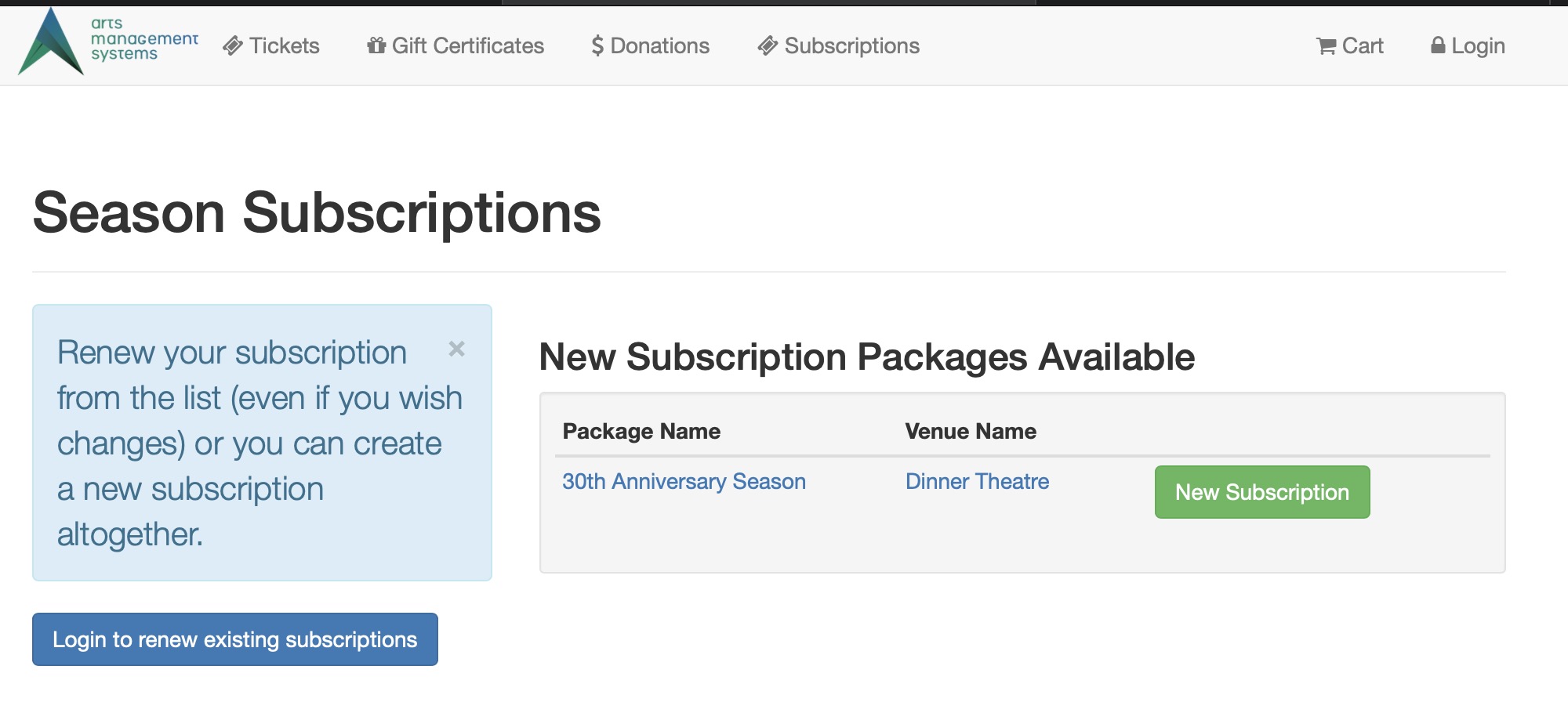
Description:
- Lists the Season Packages that are available to purchace.
- Packages are made available for sale in the Setup Season Package by opening the desired page with Theatre Manager.
- Packages available to the patron depend on availability and the patrons season package history.
Questions and Answers:
Q: How can I edit the text at the top of the window that says "You are not currently logged in. Subscriptions can be renewed here after login." ?
A: This text is located in the rowSubRenewAnonymous.html page. Open this page and edit the text as desired.
____________________________________________________________
Location:
htdocs/1/WebPagesEN
Able to Call Page(s):
- tmSubBookedHeader.html
- tmSubRenewHeader.html
- tmSubscriptionDefault.html
- TMsubscriptionMapDefault.html
- TMsubscriptionMapDefaultf.html
- TMsubscriptionsRenew.html
- rowSubRenewAnonymouse.html
- tmVenueDefault.html
Called By Page(s):
- Any page containing the navigation buttons.
Page(s) Referenced:
TMsubscriptionsRenew.html
TMsubscriptionsRenew.html
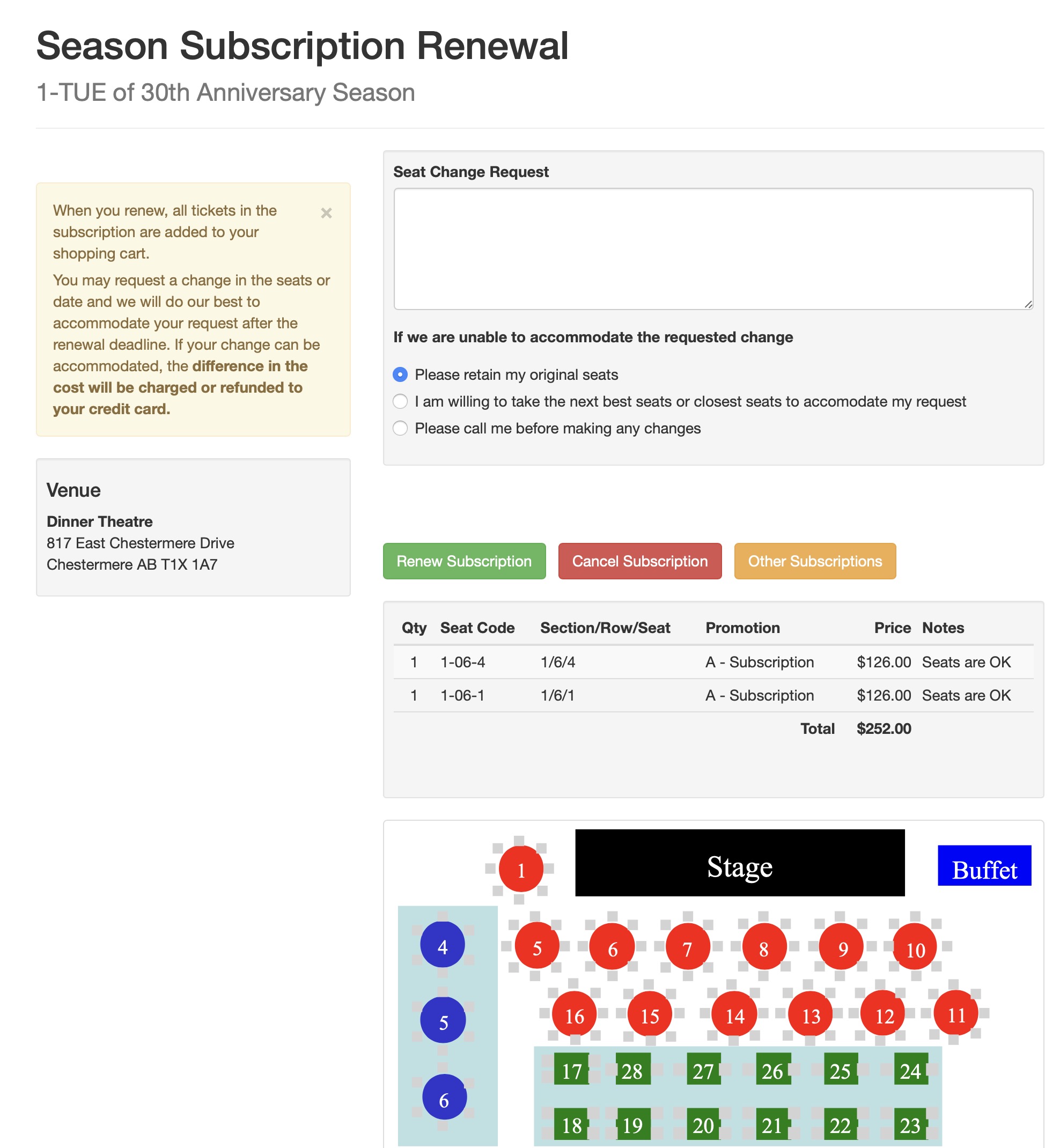
Description:
- The Renewal page for season subscription packages.
- If a patron has a package for the selected season already in their patron record they will be presented with this page.
- This option is only available for season packages where the Renew Online option is selected in the Setup Season Package by opening the desired page with Theatre Manager.
Location:
htdocs/1/WebPagesEN
Able to Call Page(s):
- tmSubscriptionDefault.html
- TMsubscriptionMapDefault.html
- TMsubscriptionMapDefaultf.html
- tmVenueDefault.html
Called By Page(s):
Page(s) Referenced:
TMsys404.html
TMsys404.html
Description:
- This page is displayed when a patron attempts to access a page that does not exist. This can often be caused by bookmarking a page within the online sales as the titles of the pages are static.
Location:
htdocs/1/WebPagesEN
Able to Call Page(s):
- maps.google.com
- The companies web site as it appears in the Company tab of Setup >> Company Preferences within Theatre Manager.
Called By Page(s):
- Not Applicable.
Page(s) Referenced:
TMsysBackupInProgress.html
TMsysBackupInProgress.html
Description:
- This page is displayed when Theatre Manager is paused for a backup.
- Most backups are run while the system is in use rather then paused.
- For more information on how to backup the database click here.
Location:
htdocs/1/WebPagesEN
Able to Call Page(s):
- maps.google.com
- The company web site as it appears in the Setup >> Company Preferences of Theatre Manager.
Called By Page(s):
- Not Applicable
Page(s) Referenced:
TMsysCookiesDisabled.html
TMsysCookiesDisabled.html
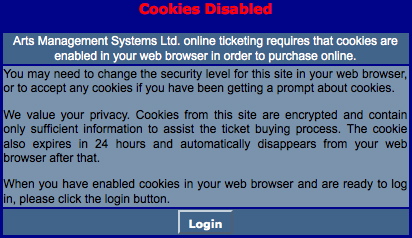
Description:
- This page is displayed when a patron has disabled cookies on their internet browser.
- Cookies from the online sales are encrypted and contain only sufficient information to assist the ticket buying process.
- The cookie expires in 24 hours and is removed from the web browser at that time.
Location:
htdocs/1/WebPagesEN
Able to Call Page(s):
Called By Page(s):
Page(s) Referenced:
TMsysInvalidCall.html
TMsysInvalidCall.html
Description:
- The page the patron is attempting to access does not exist.
- This can be caused by the patron bookmarking a page or attempting to access a page incorrectly referenced on the organizations main web site.
Location:
htdocs/1/WebPagesEN
Able to Call Page(s):
- maps.google.com
- The companies web site as it appears in the Company tab of Setup >> Company Preferences within Theatre Manager.
Called By Page(s):
- Not Applicable
Page(s) Referenced:
TMsysInvalidCallDirect.html
TMsysInvalidCallDirect.html
Description:
- This page indicates the patron attempted to access a page they do not have privileges to access.
Location:
htdocs/1/WebPagesEN
Able to Call Page(s):
- maps.google.com
- tmindex.html
- The companies web site as it appears in the Company tab of Setup >> Company Preferences within Theatre Manager.
Called By Page(s):
- Not Applicable
Page(s) Referenced:
TMsysInvalidCallNoAccess.html
TMsysInvalidCallNoAccess.html
Description:
- The page the patron is attempting to access does not exist.
Location:
htdocs/1/WebPagesEN
Able to Call Page(s):
- maps.google.com
- The companies web site as it appears in the Company tab of Setup >> Company Preferences within Theatre Manager.
Called By Page(s):
- Not Applicable
Page(s) Referenced:
TMsysInvalidFunction.html
TMsysInvalidFunction.html
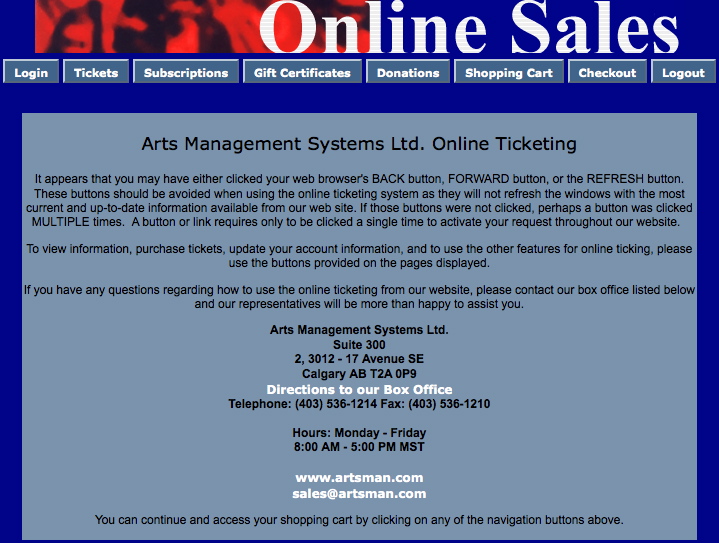
Description:
- This page is displayed when a patron uses the browser navigation buttons or clicks a button within the online sales multiple times.
- Patrons are asked to refrain from using the back button in the TMhome.html page.
Location:
htdocs/1/WebPagesEN
Able to Call Page(s):
- maps.google.com
- The companies web site as it appears in the Company tab of Setup >> Company Preferences within Theatre Manager.
Called By Page(s):
- Not Applicable
Page(s) Referenced:
TMsysWebSalesDisabled.html
TMsysWebSalesDisabled.html
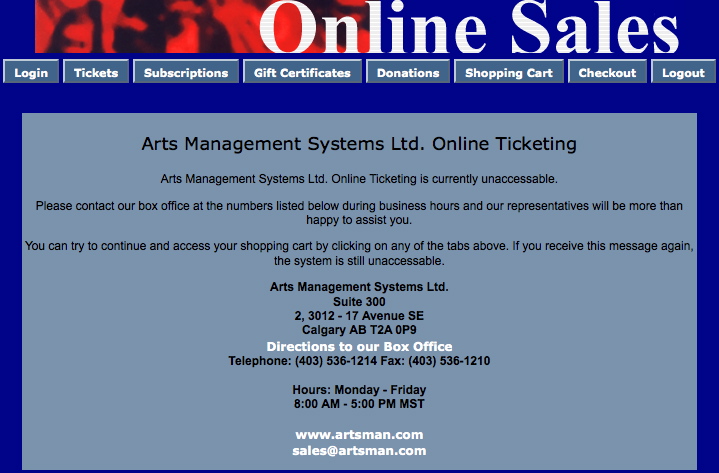
Description:
Location:
htdocs/1/WebPagesEN
Able to Call Page(s):
- maps.google.com
- The companies web site as it appears in the Company tab of Setup >> Company Preferences within Theatre Manager.
Called By Page(s):
- Not Applicable
Page(s) Referenced:
TMtemplates Folder
cellCartPassMaxRedemptionExceeded.html
cellCartPassMaxRedemptionExceeded.html

Description:
- Displays a breakdown of the pass redemption for passes where a maximum redeemable amount has be set in the setup of the pass within Theatre Manager.
Location:
htdocs/1/WebPagesEN/TMtemplates/
Able to Call Page(s):
- Not Applicable.
Called By Page(s):
- rowCartCourse.html
- rowCartCourseNewGroup.html
- rowCartFestival.html
- rowCartFestivalNewGroup.html
- rowCartReserve.html
- rowCartReserveNewGroup.html
Page(s) Referenced:
- Not Applicable.
cellPassLookupDescription.html
cellPassLookupDescription.html

Description:
- Displays the external description for the pass and any sales notes from within Theatre Manager.
Location:
htdocs/1/WebPagesEN/TMtemplates/
Able to Call Page(s):
Called By Page(s):
Page(s) Referenced:
- Not Applicable.
cellPassLookupValue.html
cellPassLookupValue.html

Description:
- Displays the remaining value on the pass and the expiry date if applicable.
Location:
htdocs/1/WebPagesEN/TMtemplates/
Able to Call Page(s):
Called By Page(s):
Page(s) Referenced:
- Not Applicable.
cellPerfDetailCalCurrent.html
cellPerfDetailCalCurrent.html
Description:
- Pulls the current months performance dates directly from Theatre Manager for the volunteer calendar.
Location:
htdocs/1/WebPagesEN/TMtemplates/
Able to Call Page(s):
- Not Applicable
Called By Page(s):
Page(s) Referenced:
- Not Applicable
cellPerfDetailCalOther.html
cellPerfDetailCalOther.html
Description:
- Pulls the prior and future months performance dates directly from Theatre Manager for the volunteer calendar.
Location:
htdocs/1/WebPagesEN/TMtemplates/
Able to Call Page(s):
- Not Applicable
Called By Page(s):
Page(s) Referenced:
- Not Applicable
cellPerfDetailCalTextProperty.html
cellPerfDetailCalTextProperty.html
Description:
- Pulls the performance time and title from Theatre Manager for the volunteer calendar.
Location:
htdocs/1/WebPagesEN/TMtemplates/
Able to Call Page(s):
- Not Applicable
Called By Page(s):
Page(s) Referenced:
- Not Applicable
cellPerfDetailCalTitleProperty.html
cellPerfDetailCalTitleProperty.html
Description:
- Pulls the performance notes and sales notes for a performance from Theatre Manager for the volunteer calendar.
Location:
htdocs/1/WebPagesEN/TMtemplates/
Able to Call Page(s):
- Not Applicable
Called By Page(s):
Page(s) Referenced:
- Not Applicable
cellVolDetailCalCurrent.html
cellVolDetailCalCurrent.html
Description:
- Pulls the date and activity the volunteer will be performing from Theatre Manager for the volunteer calendar.
Location:
htdocs/1/WebPagesEN/TMtemplates/
Able to Call Page(s):
- Not Applicable
Called By Page(s):
Page(s) Referenced:
- Not Applicable
cellVolDetailCalOther.html
cellVolDetailCalOther.html
Description:
- Pulls the historical date and activities the volunteer is scheduled to perform from Theatre Manager for the volunteer calendar.
Location:
htdocs/1/WebPagesEN/TMtemplates/
Able to Call Page(s):
- Not Applicable
Called By Page(s):
Page(s) Referenced:
- Not Applicable
constantALLEVENTS.txt
constantALLEVENTS.txt

Description:
- The default text for the event drop down at the top of the TMtickets.html page.
- Allows for the customization of the text and accommodates change of language
Location:
htdocs/1/WebPagesEN/TMtemplates/
Able to Call Page(s):
- Not Applicable
Called By Page(s):
Page(s) Referenced:
- Not Applicable
constantALLGENRES.txt
constantALLGENRES.txt

Description:
- The default text for the genre drop down at the top of the TMtickets.html page.
- Allows for the customization of the text and accommodates change of language.
Location:
htdocs/1/WebPagesEN/TMtemplates/
Able to Call Page(s):
- Not Applicable
Called By Page(s):
Page(s) Referenced:
- Not Applicable
constantALLPRICECODES.txt
constantALLPRICECODES.txt
Description:
- The text displayed for "Any Price Code" in the Best Area Search .
Location:
htdocs/1/WebPagesEN/TMtemplates/
Able to Call Page(s):
- Not Applicable
Called By Page(s):
Page(s) Referenced:
- Not Applicable
constantALLSECTIONS.txt
constantALLSECTIONS.txt
Description:
- The text displayed for "All Section" in the Best Section Search .
Location:
htdocs/1/WebPagesEN/TMtemplates/
Able to Call Page(s):
- Not Applicable
Called By Page(s):
Page(s) Referenced:
- Not Applicable
constantALLVENUES.txt
constantALLVENUES.txt

Description:
- The default text for the venue drop down at the top of the TMtickets.html page.
- Allows for the customization of the text and accommodates change of language
Location:
htdocs/1/WebPagesEN/TMtemplates/
Able to Call Page(s):
- Not Applicable
Called By Page(s):
Page(s) Referenced:
- Not Applicable
constantALLYEARS.txt
constantALLYEARS.txt

Description:
- The default text for the year drop down.
- Allows for the customization of the text to accommodate change of language.
Location:
htdocs/1/WebPagesEN/TMtemplates/
Able to Call Page(s):
- Not Applicable
Called By Page(s):
Page(s) Referenced:
- Not Applicable
constantMONTHS.txt
constantMONTHS.txt

Description:
- The default text for month drop downs.
- Allows for the customization of the text to accommodate change of language
Location:
htdocs/1/WebPagesEN/TMtemplates/
Able to Call Page(s):
- Not Applicable
Called By Page(s):
Page(s) Referenced:
- Not Applicable
constantNEWPATRON.txt
constantNEWPATRON.txt
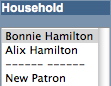
Description:
- The default text for adding a new patron in the left column of the TMpatronUpdate.html page.
- Allows for the customization of the text and accommodates change of language
Location:
htdocs/1/WebPagesEN/TMtemplates/
Able to Call Page(s):
- Not Applicable
Called By Page(s):
Page(s) Referenced:
- Not Applicable
constantPATRONCONTACTEXISTING.txt
constantPATRONCONTACTEXISTING.txt

Description:
- The default text for contact information within the TMpatronUpdate.html page.
- The contact type is coded into Theatre Manager. The sequence numbers are listed within this page and should not be altered.
- The location options are based on the default selection for Patron Location within Setup >> System Tables >> Code Tables of Theatre Manager.
- In this page the number 2 appears twice. It the value is undefined in the Theatre Manager database the online sales will leave the text in this location blank.
- Allows for the customization of the text and accommodates change of language
Location:
htdocs/1/WebPagesEN/TMtemplates/
Able to Call Page(s):
- Not Applicable
Called By Page(s):
Page(s) Referenced:
- Not Applicable
constantPATRONCONTACTLIMITED.txt
constantPATRONCONTACTLIMITED.txt

Description:
- Limits the data required for limited patron profiles and indicates the 'mandatory' fields.
Location:
htdocs/1/WebPagesEN/TMtemplates/
Able to Call Page(s):
- Not Applicable
Called By Page(s):
Page(s) Referenced:
- Not Applicable
constantPATRONCONTACTNEW.txt
constantPATRONCONTACTNEW.txt

Description:
- The default text for contact information within the TMpatronNew.html page.
- The contact type is coded into Theatre Manager. The sequence numbers are listed within this page and should not be altered.
- The location options are based on the default selection for Patron Location within Setup >> System Tables >> Code Tables of Theatre Manager.
- In this page the number 2 appears twice. It the value is undefined in the Theatre Manager database the online sales will leave the text in this location blank.
- Allows for the customization of the text and accommodates change of language
Example
An example of the file and how it affects the new patron window is shown below. In the default file, all items are commented out (with a '#' in the first column). In the sample, 5 entries were made:
- 4 <tab> Work - means there will be an email address area at the top of the screen called Work
- 1 <tab> Home - means there will be an address block called Home
- 1 <tab> Work - means there will be a second address block called Work
- 2 <tab> Home - means there will be an phone field called Home
- 2 <tab> Work - means there will be an phone field called Work
some notes:
- Home or Work must be valid entries in the location code table. If you leave them blank, then TM will take the defaults for each block type.
- You can have as many of each block type as you wish -- for example you could have 10 home phone number prompts just by having 10 entries in the file.
- There must be a <tab> after the block type and the name of the block.
- You must have a block specified that meets your minimum data requirements. For example: if you require any address entries, then you must have at least one address block. You must also have an email block, as that is the patron's identifier
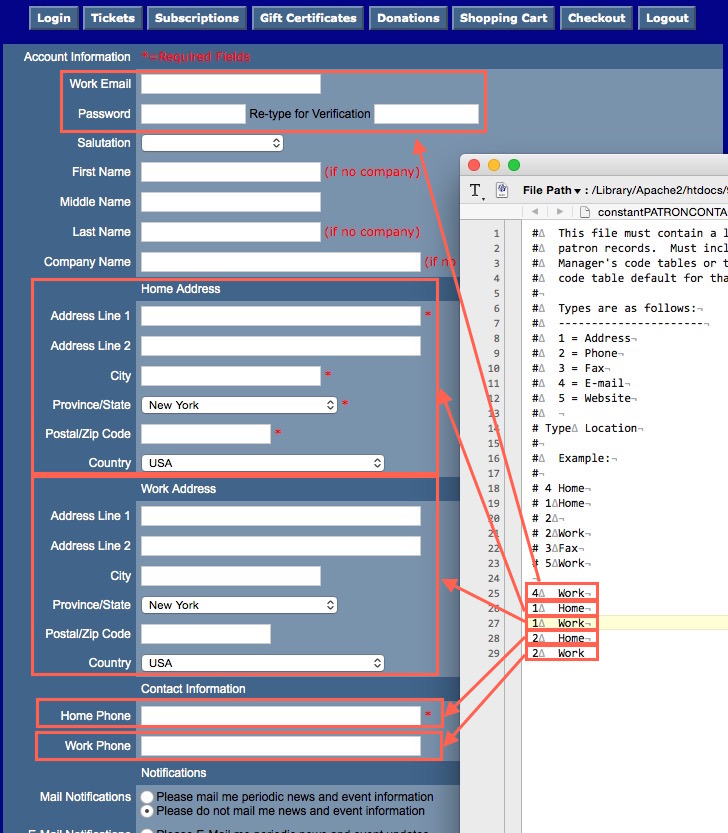
Location:
htdocs/1/WebPagesEN/TMtemplates/
Able to Call Page(s):
- Not Applicable
Called By Page(s):
Page(s) Referenced:
- Not Applicable
constantYESNO.txt
constantYESNO.txt

Description:
- The default text for the anonymous and corporate drop down at the top of the TMdonation.html page.
- Allows for the customization of the text and accommodates change of language
Location:
htdocs/1/WebPagesEN/TMtemplates/
Able to Call Page(s):
- Not Applicable
Called By Page(s):
Page(s) Referenced:
- Not Applicable
rowCartDonationRoundup.html
rowCartDonationRoundup.html
Enable Round up to the Nearest $x.xx
You can enable rounding up the cart to an even amount of your choice with a donation. The feature must first be enabled in Company Preferences -> Web Options. After that, the web page defaults to prompt the user to round up the purchase:
- The nearest $10.00
- The nearest $5.00
- The nearest $1.00
- BUT, only if the current cart total is not an even $1.00 amount.. The default round up amount can be changed in the web page.
|
Note: There is a difference between:
|
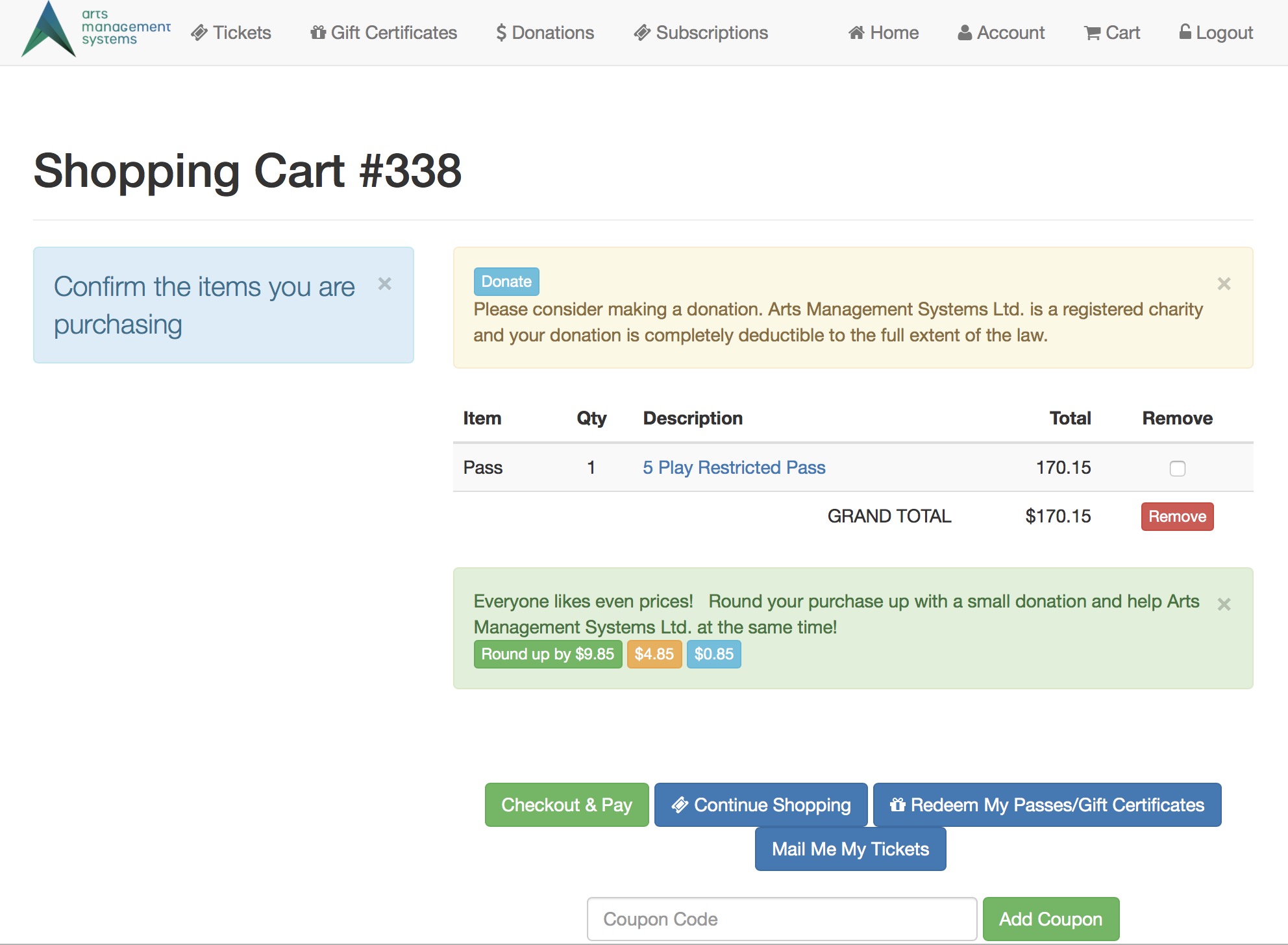
Changing the amount at which the cart asks
In the web page text below, there is a 1 that points to an opening condition at the top of the page and the bottom of the page. That indicates to only include the round up code if the cart does not round to an even dollar. You can change that number to $5.00, $7.50, $9.33 - any number you want. If the cart balance is NOT an even multiple of that amount, then the round up option will show in the web page.
The other Round-Up amounts can only be - EVEN MULTIPLES of the main amount
The number you pick for this value be an even multiple of the round up suggestions. Examples: Make this number
- $2.00 if your round up values are $2.00, $6.00 and $20 (all divisible by $2.00)
- $2.50 if your round up values are $2.50, $5.00 and $25 (all divisible by $2.50)
- $10.00 if your round up values are $10.00, $20.00 and $30 (all divisible by $10.00)
Changing the amount to round up by
The page suggests 3 values for rounding up (you can add more). However, if you want to change them, you can see the number 2 which points to a pair of dollar amounts. You must change both, since one is the input value and the other is the button description. Those 3 values are in smaller squares:
- round up to 1.00 (the default)
- round up to 5.00 the middle choice
- round up to 10.00, the first button
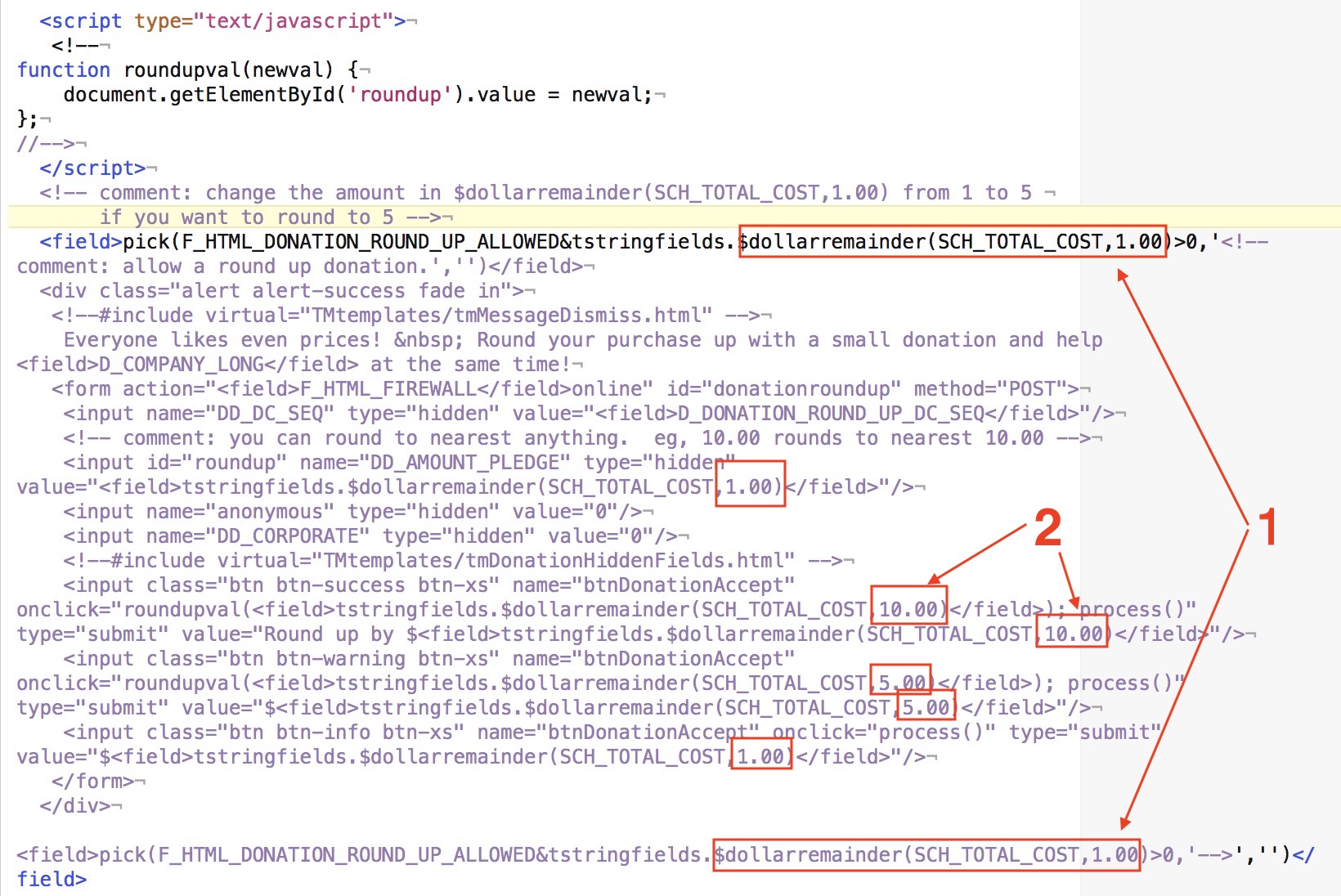
Location:
htdocs/1/WebPagesEN/TMtemplates/
Able to Call Page(s):
- Not Applicable
Called By Page(s):
Page(s) Referenced:
- Not Applicable
tmCheckoutDonationReasonToBuy.html
tmCheckoutDonationReasonToBuy.html
- This web page include file is only used when patrons check out with only a donation in their cart
- It much be changed if you have made reason to buy mandatory for all orders, which also means those orders taken on your web site. In the case of orders containing only donations, you want the donation process to be speedy - and so you must then pick the value you prefer as the mandatory Donation reason to buy. This is placed in the hidden field on this web page
What to Change:

- Find the sequence number that you want to use as the donation reason to buy for any online donations. This is found in Setup >> System Tables >> Code Tables under Order Reason to Buy.
- Update the ORD_REASON_BUY_FC_SEQ numeric Value in the web page
- Once changes have been made, this page should be saved to the /1/WebPagesXX/tmTemplates folder.
Location:
htdocs/1/WebPagesEN/tmTemplates
Able to Call Page(s):
- none
Called By Page(s):
tmErrorMessageInfo.html
tmErrorMessageInfo.html
The tmErrorMessageInfo.html is widely included throughout web sales to display error messages to the user. It is often shown on the left side of the screen (or top of the screen in mobile views)
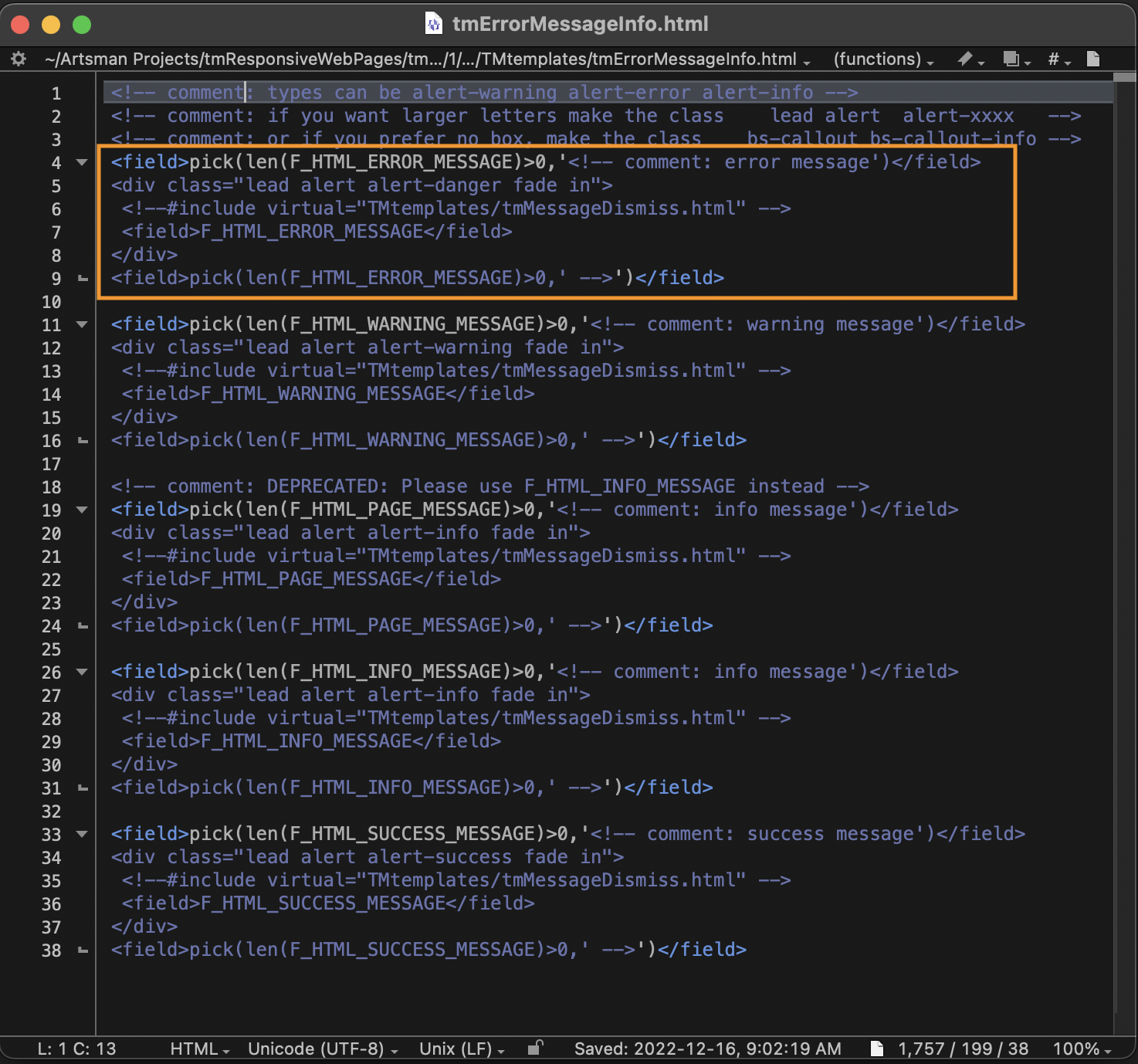
In the example below, a donation amount was not entered, but the "Add Donation" button was clicked. You can see how the blue alert box was generated, ultimately telling the online shopper to "Enter The Required Fields".
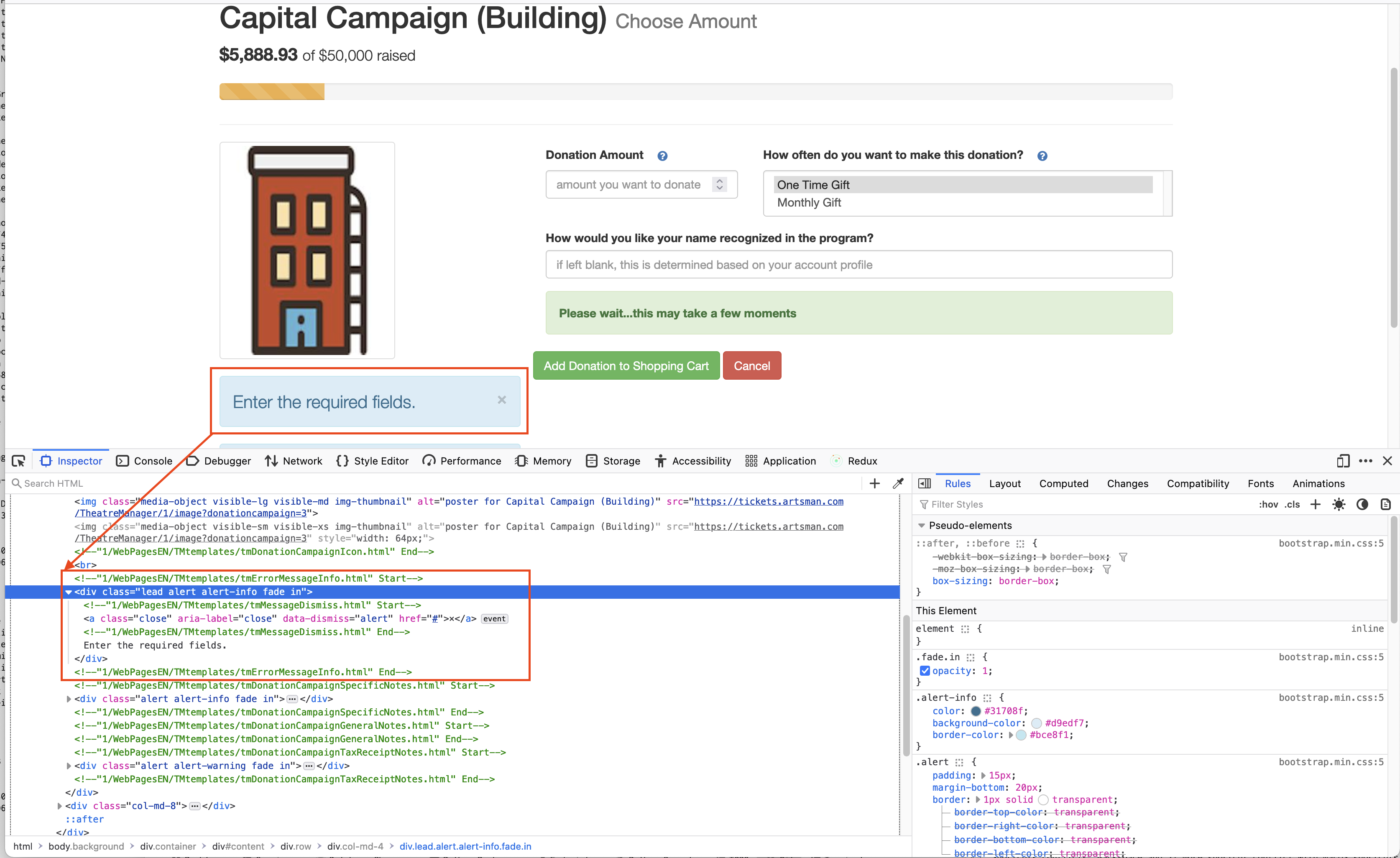
tmdonationhiddenfields.html
tmdonationhiddenfields.html
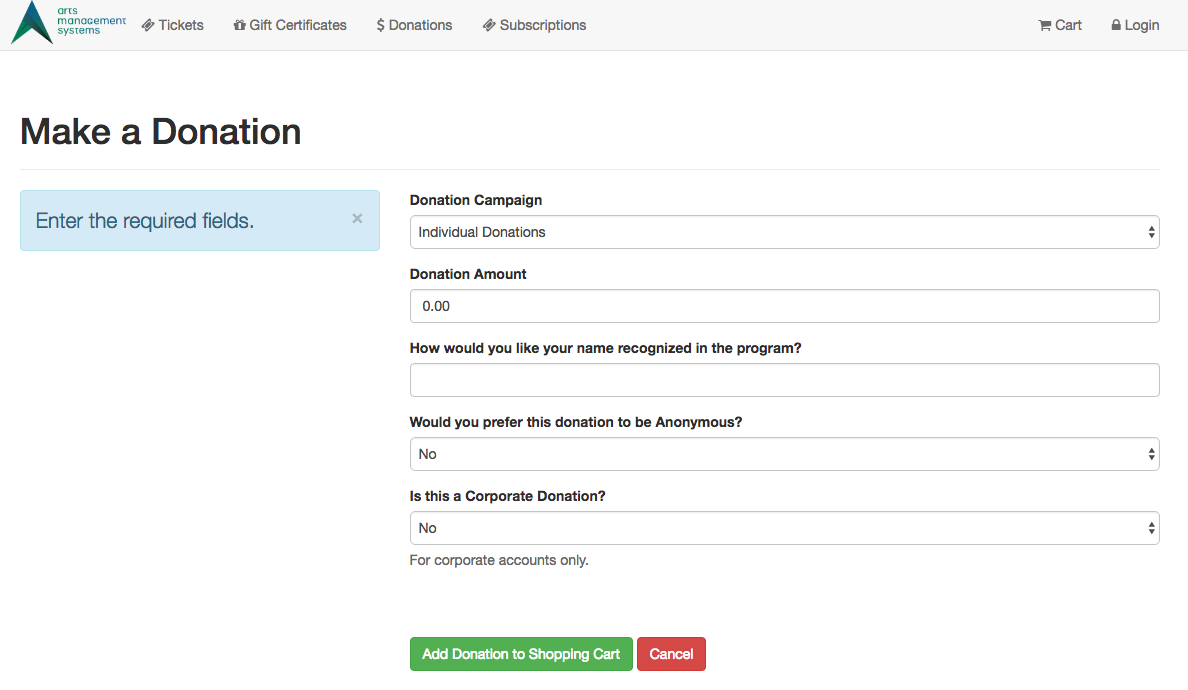
Description:
Customizations if donation fields have been made madatory
There are 3 fields on that are donor popup fields on the notes tab of the donation window. If these fields have been made mandatory, then you will need to find the code table value for these custom fields:
- donation field1 which refers to DD_FLD1_FC_SEQ, and/or
- donation field2 which refers to DD_FLD2_FC_SEQ, and/or
- donation field3 which refers to DD_FLD3_FC_SEQ
Change the value of xxx, yyy, or zzz in the input strings below to be the internal record number (Seq #) of the appropriate popup. Also, move the mandatory input field above the <!-- comment: in the file so that it becomes uncommented and active in the web page.
<INPUT NAME="DD_FLD1_FC_SEQ" TYPE=hidden id="DD_FLD1_FC_SEQ" value="xxx">
<INPUT NAME="DD_FLD2_FC_SEQ" TYPE=hidden id="DD_FLD2_FC_SEQ" value="yyy">
<INPUT NAME="DD_FLD3_FC_SEQ" TYPE=hidden id="DD_FLD3_FC_SEQ" value="zzz">
Location:
htdocs/1/WebPagesEN/TMtemplates
Able to Call Page(s):
-
None
Called By Page(s):
Page(s) Referenced:
-
None
NextEventEmpty.html
NextEventEmpty.html

Description:
- Displays an empty field in place of the date where there isn't a performance on that date or the performance for that date is not listed as available for sale online.
Location:
htdocs/1/WebPagesEN/TMtemplates/
Able to Call Page(s):
- Not Applicable
Called By Page(s):
Page(s) Referenced:
- Not Applicable
NextEventNormal.html
NextEventNormal.html

Description:
- Displays the performance information on the performance date within the calendar.
- This information is pulled directly from the Theatre Manager database.
- Only performances indicated as available for sale via the web under the Performance tab of Setup >> Events in the Theatre Manager database will appear.
Location:
htdocs/1/WebPagesEN/TMtemplates/
Able to Call Page(s):
Called By Page(s):
Page(s) Referenced:
- Not Applicable
NextVolEmpty.html
NextVolEmpty.html

Description:
- Displays an empty field under a date where there is no scheduled volunteer activity for that day.
Location:
htdocs/1/WebPagesEN/TMtemplates/
Able to Call Page(s):
- Not Applicable
Called By Page(s):
Page(s) Referenced:
- Not Applicable
NextVolNormal.html
NextVolNormal.html

Description:
- Displays the volunteer information on the calendar for the date when the volunteer is scheduled to perform an activity.
- The volunteer activity is pulled directly from the Theatre Manager database.
Location:
htdocs/1/WebPagesEN/TMtemplates/
Able to Call Page(s):
- Not Applicable
Called By Page(s):
Page(s) Referenced:
- Not Applicable
palmCheckin.html
palmCheckin.html
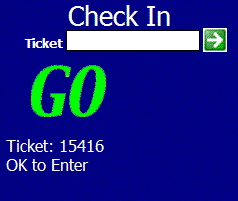

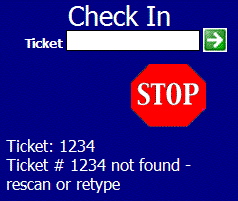
Description:
- This pages is sent as a response to hand held scanners during the Check In process.
- The page provides the status of the admission, the beep associated with the status and the reason for the message.
- The scanner needs to be set to the check in option prior to scanning tickets.
- If the ticket status is set to Not Used within Theatre Manager scanning the ticket will change the status and indicate the ticket is a "GO" for admission.
- If the ticket status is set to Used within Theatre Manager the result will be the "STOP" screen. This is due to a ticket previously being scanned as checked in but not being scanned as checked out. Thus the status is still Used within Theatre Manager.
Location:
htdocs/1/WebPagesEN/TMtemplates/
Able to Call Page(s):
- Not Applicable
Called By Page(s):
- This page is called by a hand held scanner.
Page(s) Referenced:
- Not Applicable
palmCheckout.html
palmCheckout.html
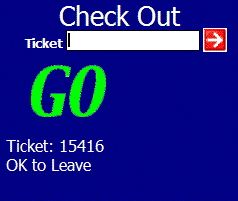
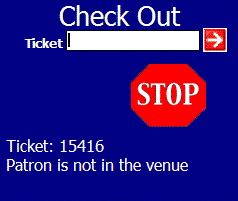
Description:
- This pages is sent as a response to hand held scanners during the check out process.
- The page provides the status of the admission, the beep associated with the status and the reason for the message.
- The scanner needs to be set to the check out option prior to scanning tickets.
- If the ticket status is set to Used within Theatre Manager scanning the ticket will change the status and indicate the ticket is a "GO" for check out.
- If the ticket status is set to Not Used within Theatre Manager the result will be the "STOP" screen. This is caused by a ticket that has not previously been scanned into the venue. Thus the status is still Not Used within Theatre Manager.
Location:
htdocs/1/WebPagesEN/TMtemplates/
Able to Call Page(s):
- Not Applicable
Called By Page(s):
- This page is called by a hand held scanner.
Page(s) Referenced:
- Not Applicable
palmTime.html
palmTime.html

Description:
- This page displays the current date and time for the web listener it reaches.
- The page is designed for testing to ensure Apache and at least one web listener are up and running.
- Arts Management Systems uses a tool called InterMapperwhen testing client sites where online sales are experiencing frequent outages. InterMapper is set to request the palmTime.html page. When the page is not available, a message is sent by email to the indicated recipients.
- If another tool is used for monitoring online sales, it is recommended that this be the page it checks for activity. This will ensure tools, such as google analytics, do not present false statistics for online activity due to monitoring.
Location:
htdocs/1/WebPagesEN/TMtemplates/
Able to Call Page(s):
- Not Applicable.
Called By Page(s):
- Not Applicable.
Page(s) Referenced:
- Not Applicable.
pleaseWaitMessage.html
pleaseWaitMessage.html

Description:
- Acts as a place saver for the pleaseWaitMessgeFuction.html message.
- Each page containing the pleaseWaitMessage.html reference also contains a reference to the pleaseWaitMessageFunction.html. When a button within the page references the OnClick-process() function the Please Wait message is pulled from the script within the pleaseWaitMessgeFuction.html page. The text is displayed on the page in the location of the pleaseWaitMessage.html place saver.
Location:
htdocs/1/WebPagesEN/TMtemplates/
Able to Call Page(s):
- Not Applicable
Called By Page(s):
- TMcart.html
- TMcheckout.html
- TMcheckoutNoPayment.html
- TMcheckoutProcessing.html
- TMdonation.html
- TMdonationmonthly.html
- TMhome.html
- tmPackageDefault.html
- TMsubscriptionMapDefault.html
- TMsubscriptionMapDafaultf.html
- TMsubscriptionPriceMapDefault.html
- TMsubscriptionsMapDefaultf.html
- TMsubscriptionsPriceMapDefault.html
- TMticketsPrice_MapDefault.html
- TMticketsSection_MapDefault.html
- TMticketsSection_MapDefaultc.html
- TMticketsSection_MapDefaultf.html
- TMpass.html
- TMpassAskAmount.html
- TMpasswordChange.html
- TMpasswordResetChange.html
- TMpatronLimitedProfile.html
- TMpatronNew.html
- TMpatronUpdate.html
- TMsubscriptions.html
- TMsubscriptionsRenew.html
- tmLoginForm.html
- TMtickets.html
Page(s) Referenced:
- Not Applicable
PrevEventEmpty.html
PrevEventEmpty.html

Description:
- Displays an empty field in place of the date where there isn't a performance on that date or the performance for that date is not listed as available for sale online.
Location:
htdocs/1/WebPagesEN/TMtemplates/
Able to Call Page(s):
- Not Applicable
Called By Page(s):
Page(s) Referenced:
- Not Applicable
PrevEventNormal.html
PrevEventNormal.html

Description:
- Displays the performance information on the performance date within the calendar.
- This information is pulled directly from the Theatre Manager database.
- Only performances indicated as available for sale via the web under the Performance tab of Setup >> Events in the Theatre Manager database will appear.
Location:
htdocs/1/WebPagesEN/TMtemplates/
Able to Call Page(s):
Called By Page(s):
Page(s) Referenced:
- Not Applicable
PrevVolEmpty.html
PrevVolEmpty.html

Description:
- Displays an empty field under a date where there is no scheduled volunteer activity for that day.
Location:
htdocs/1/WebPagesEN/TMtemplates/
Able to Call Page(s):
- Not Applicable
Called By Page(s):
Page(s) Referenced:
- Not Applicable
PrevVolNormal.html
PrevVolNormal.html

Description:
- Displays the volunteer information on the calendar for the date when the volunteer is scheduled to perform an activity.
- The volunteer activity is pulled directly from the Theatre Manager database.
Location:
htdocs/1/WebPagesEN/TMtemplates/
Able to Call Page(s):
- Not Applicable
Called By Page(s):
Page(s) Referenced:
- Not Applicable
TMoldCartDetailsPrint.html
TMoldCartDetailsPrint.html
Description:
Location:
htdocs/1/WebPagesEN/TMtemplates/
Able to Call Page(s):
Called By Page(s):
Page(s) Referenced:
rowCartCoupon.html
rowCartCoupon.html

Description:
- Displays the details of the Coupon Code applied to the cart within the online sales.
- The coupon code is setup in Theatre Manager under Setup >> System Tables >> Coupons and Pre-Access Codes. For more information on setting up coupon codes click here.
- A coupon code can be entered in the TMcart.html or TMtickets.html page.
- Once the code is added it will appear in the TMcart.html page.
- The details of the coupon are pulled directly from Theatre Manager.
- To remove a coupon check the box to the far right of the coupon in the cart and click the Remove button at the bottom of the window. The patron can add the coupon to the cart again if desired while available redemption exist.
Location:
htdocs/1/WebPagesEN/TMtemplates/
Able to Call Page(s):
- Not Applicable
Called By Page(s):
Page(s) Referenced:
- Not Applicable
rowCartCourse.html
rowCartCourse.html

Description:
- Displays the quantity and price of the course when more then one admission to the course is purchased in the online sales.
- The information is pulled directly from Theatre Manager.
- If only one admission to the course is purchased this line will not appear.
- For details on how to setup a course click here.
- To alter the price of a course admission or remove a course when too many are added to the cart the entire course purchase must be removed. Check the box to the far right of the first registration for the course and click the Remove button at the bottom of the window. The course can then be purchased again selecting the desired price and or quantity.
Questions and Answers:
Q: How does Theatre Manager assign a ticket when someone other then the person logged in is selected from the drop down as the course participant?
A: Theatre Manager will gift the course to the member of the household the ticket is purchased for. This means the ticket will appear in both the purchaser and the attendees patron records. This allows for reporting one who attended a course and who purchased a course based on criteria.
____________________________________________________________
Location:
htdocs/1/WebPagesEN/TMtemplates/
Able to Call Page(s):
- Not Applicable
Called By Page(s):
Page(s) Referenced:
rowCartCourseNewGroup.html
rowCartCourseNewGroup.html

Description:
- Displays the course details, quantity, course location and price added to the online cart.
- The information is pulled directly from Theatre Manager.
- For details on how to setup a course click here.
- To alter the price of a course admission or remove a course when too many are added to the cart the entire course purchase must be removed. Check the box to the far right of the first registration for the course and click the Remove button at the bottom of the window. The course can then be purchased again selecting the desired price and or quantity.
Location:
htdocs/1/WebPagesEN/TMtemplates/
Able to Call Page(s):
Called By Page(s):
Page(s) Referenced:
rowCartDonation.html
rowCartDonation.html

Description:
- Displays the details of the Donation(s) added to the cart within the online sales.
- Donations can be added to a cart on the TMcart.html or TMdonation.html page.
- For steps on how to enable a donation campaign for online sales click here.
- To remove a donation check the box to the far right of the donation in the cart and click the Remove button at the bottom of the window.
Location:
htdocs/1/WebPagesEN/TMtemplates/
Able to Call Page(s):
Called By Page(s):
Page(s) Referenced:
- Not Applicable
rowCartFestival.html
rowCartFestival.html

Description:
- Displays the quantity and price of a festival seating or general admission ticket when more then one admission to the performance is purchased in the online sales.
- The information is pulled directly from Theatre Manager.
- If only one admission to the performance is purchased this line will not appear.
- For details on how to setup a new festival seating performance click here.
- To change the price of a festival seating ticket or remove a ticket when too many are added to the cart the entire performance purchase must be removed. Check the box to the far right of the first ticket for the performance and click the Remove button at the bottom of the window. The patron can purchase tickets for the performance again selecting the desired price or quantity.
Location:
htdocs/1/WebPagesEN/TMtemplates/
Able to Call Page(s):
- Not Applicable
Called By Page(s):
Page(s) Referenced:
rowCartFestivalNewGroup.html
rowCartFestivalNewGroup.html

Description:
- Displays the performance details, quantity, performance location, seating location and price of the festival seating or general admission ticket added to the online cart.
- The information is pulled directly from Theatre Manager.
- For details on how to setup a new festival seating or general admission performance click here.
- To change the price of a festival seating ticket or remove a ticket when too many are added to the cart the entire performance purchase must be removed. Check the box to the far right of the first ticket for the performance and click the Remove button at the bottom of the window. The patron can purchase tickets for the performance again selecting the desired price or quantity.
Location:
htdocs/1/WebPagesEN/TMtemplates/
Able to Call Page(s):
Called By Page(s):
Page(s) Referenced:
rowCartMailFee.html
rowCartMailFee.html

Description:
- Displays the details of the Mailing Fee added to the cart within the online sales.
- It's recommended the fee be turned off with Theatre Manager rather then removed from the source code in the event the fee may be used in the future.
- A Mailing Fee can be turned off and on using the Mail To Patron option under the Web Options tab in Setup >> Company Preferences in Theatre Manager. Uncheck the box to remove the Mail Me My Tickets button from the online sales.
- The value of the Mailing Fee is determined by the fee selected in the Mail Fee box under the Web Options tab of Setup >> Company Preferences with Theatre Manager.
- The TMcart.html and TMcheckout.html pages both allow the patron to request the items in their cart to be mailed.
- To remove the mail fee check the box to the far right of the fee in the cart and click the Remove button at the bottom of the window. The order will no longer be flagged with a patron wants tickets mailed status within Theatre Manager.
Location:
htdocs/1/WebPagesEN/TMtemplates/
Able to Call Page(s):
Called By Page(s):
Page(s) Referenced:
- Not Applicable
rowCartOrderCouponFee.html
rowCartOrderCouponFee.html

Description:
- Displays the name and value of the fee associated with a Coupon. This fee is only added to the Order when the subsequent Coupon is added to the cart.
Location:
htdocs/1/WebPagesEN/TMtemplates/
Able to Call Page(s):
- Not Applicable.
Called By Page(s):
Page(s) Referenced:
- Not Applicable.
rowCartOrderFee.html
rowCartOrderFee.html

Description:
- Displays the details of the Internet Order Fee added to the cart within the online sales.
- This Fee can be edited by double clicking on the Order Internet fee in Setup >> System Tables >> Fee Tables.
- Often the external description for the fee is titled Convenience Fee. The name of the fee can be altered by editing the External Name field in the setup of the fee within Theatre Manager.
- The fee is automatically added to the order based on the fee setup. Removing the Check from the Automatically Add To Order box within Theatre Manager will remove the fee from online sales.
- The value of the fee can be altered under the Calculation tab of the fee setup within Theatre Manager. There are options to charge a per ticket fee, per order fee and to add tax to the fee within the setup.
Location:
htdocs/1/WebPagesEN/TMtemplates/
Able to Call Page(s):
Called By Page(s):
Page(s) Referenced:
- Not Applicable
rowCartPass.html
rowCartPass.html

Description:
- Displays the details of the Pass(s), Gift Certificates(s) or Membership(s) added to the cart within the online sales.
- A Pass in the Theatre Manager database is called a Member Type by default. Often an organization will change the default name to pass, gift certificate, gc or other such options.
- Member types can be added to a cart from the TMpass.html page.
- For steps on how to enable a member type for online sales click here.
- To remove a member type check the box to the far right of the type in the cart and click the Remove button at the bottom of the window.
Location:
htdocs/1/WebPagesEN/TMtemplates/
Able to Call Page(s):
Called By Page(s):
Page(s) Referenced:
- Not Applicable
rowCartPassRedemption.html
rowCartPassRedemption.html

Description:
- Displays the details of the Pass(s), Gift Certificates(s) or Membership(s) redeemed in the cart.
Location:
htdocs/1/WebPagesEN/TMtemplates/
Able to Call Page(s):
Called By Page(s):
Page(s) Referenced:
- Not Applicable
rowCartReserve.html
rowCartReserve.html

Description:
- Displays the quantity and price of the reserved seating ticket when more then one admission to the reserved performance is purchased in the online sales.
- The information is pulled directly from Theatre Manager.
- If only one admission to the performance is purchased this line will not appear.
- For details on how to setup a new reserved seating performance click here.
- To change the price of a reserved seating ticket, change the seating location or remove a ticket when too many are added to the cart the entire performance purchase must be removed. Check the box to the far right of the first ticket for the performance and click the Remove button at the bottom of the window. The patron can purchase tickets again for the performance selecting the desired section, quantity and price.
Location:
htdocs/1/WebPagesEN/TMtemplates/
Able to Call Page(s):
- Not Applicable
Called By Page(s):
Page(s) Referenced:
rowCartReserveNewGroup.html
rowCartReserveNewGroup.html

Description:
- Displays the performance details, quantity, performance location, seating location and price of a reserved seating ticket added to the online cart.
- The information is pulled directly from Theatre Manager.
- For details on how to setup a new reserved seating performance click here.
- To change the price of a reserved seating ticket, change the seating location or remove a ticket when too many are added to the cart the entire performance purchase must be removed. Check the box to the far right of the first ticket for the performance and click the Remove button at the bottom of the window. The patron can purchase tickets again for the performance selecting the desired section, quantity and price.
Location:
htdocs/1/WebPagesEN/TMtemplates/
Able to Call Page(s):
Called By Page(s):
Page(s) Referenced:
rowCartSub.html
rowCartSub.html

Description:
- Displays the details of the performance, price and seating location within the season package in the online cart.
- The information is pulled directly from Theatre Manager.
- For details on how to setup a season subscription package click here.
- To change the price of a subscription package, change the seating location or remove a ticket when too many are added to the package the entire package must be removed. Check the box to the far right of the first line of the ticket for the package and click the Remove button at the bottom of the window. The patron can purchase the package again selecting the desired section, quantity and price.
Location:
htdocs/1/WebPagesEN/TMtemplates/
Able to Call Page(s):
Called By Page(s):
Page(s) Referenced:
- Not Applicable
rowCartSubNewGroup.html
rowCartSubNewGroup.html

Description:
- Displays the details of the season package, the first performance, the seat price and the seating location added to the online cart.
- The information is pulled directly from Theatre Manager.
- For details on how to setup a season subscription package click here.
- To change the price of a subscription package, change the seating location or remove a ticket when too many are added to the package the entire package must be removed. Check the box to the far right of the first line of the ticket for the package and click the Remove button at the bottom of the window. The patron can purchase the package again selecting the desired section, quantity and price.
Location:
htdocs/1/WebPagesEN/TMtemplates/
Able to Call Page(s):
Called By Page(s):
Page(s) Referenced:
- Not Applicable
rowCheckoutCoupon.html
rowCheckoutCoupon.html

Description:
- Displays the name of the fee and it's value in the checkout confirmation when it's been added to an online sale.
Location:
htdocs/1/WebPagesEN/TMtemplates/
Able to Call Page(s):
- Not Applicable.
Called By Page(s):
Page(s) Referenced:
- Not Applicable.
rowCheckoutCourse.html
rowCheckoutCourse.html

Description:
- Displays the name and location of the course as well as the price in the checkout confirmation when it's been added to an online sale.
Location:
htdocs/1/WebPagesEN/TMtemplates/
Able to Call Page(s):
Called By Page(s):
Page(s) Referenced:
- Not Applicable.
rowCheckoutDonation.html
rowCheckoutDonation.html

Description:
- Displays the name of the donation campaign, the publication name and value of the donation in the checkout confirmation when it's been added to an online sale.
Location:
htdocs/1/WebPagesEN/TMtemplates/
Able to Call Page(s):
Called By Page(s):
Page(s) Referenced:
- Not Applicable.
rowCheckoutFestival.html
rowCheckoutFestival.html

Description:
- Displays the name, location and price of a festival seating performance in the checkout confirmation when it's been added to an online sale.
Location:
htdocs/1/WebPagesEN/TMtemplates/
Able to Call Page(s):
Called By Page(s):
Page(s) Referenced:
- Not Applicable.
rowCheckoutMailFee.html
rowCheckoutMailFee.html

Description:
- Displays the mailing fee and it's value in the checkout confirmation when it's been added to an online sale.
Location:
htdocs/1/WebPagesEN/TMtemplates/
Able to Call Page(s):
Called By Page(s):
Page(s) Referenced:
- Not Applicable.
rowCheckoutOrderCouponFee.html
rowCheckoutOrderCouponFee.html

Description:
- Displays the name of the fee and it's value in the checkout confirmation when it's been added to an online sale.
Location:
htdocs/1/WebPagesEN/TMtemplates/
Able to Call Page(s):
Called By Page(s):
Page(s) Referenced:
- Not Applicable.
rowCheckoutOrderFee.html
rowCheckoutOrderFee.html

Description:
- Displays the name name and value of an order fee when it's been added to an online sale.
Location:
htdocs/1/WebPagesEN/TMtemplates/
Able to Call Page(s):
Called By Page(s):
Page(s) Referenced:
- Not Applicable.
rowCheckoutPass.html
rowCheckoutPass.html

Description:
- Displays the name and value of the member type/pass in the checkout confirmation when it's been added to an online sale.
Location:
htdocs/1/WebPagesEN/TMtemplates/
Able to Call Page(s):
Called By Page(s):
Page(s) Referenced:
- Not Applicable.
rowCheckoutPassRedemption.html
rowCheckoutPassRedemption.html

Description:
- Displays the date and amount for each post dated payment.
Location:
htdocs/1/WebPagesEN/TMtemplates/
Able to Call Page(s):
- Not Applicable.
Called By Page(s):
Page(s) Referenced:
- Not Applicable.
rowCheckoutPaymentPlan.html
rowCheckoutPaymentPlan.html

Description:
- Displays the date and amount for each post dated payment.
Location:
htdocs/1/WebPagesEN/TMtemplates/
Able to Call Page(s):
- Not Applicable.
Called By Page(s):
Page(s) Referenced:
- Not Applicable.
rowCheckoutReserve.html
rowCheckoutReserve.html

Description:
- Displays the name, location, seat and price of a reserved seating performance in the checkout confirmation when it's been added to an online sale.
Location:
htdocs/1/WebPagesEN/TMtemplates/
Able to Call Page(s):
Called By Page(s):
Page(s) Referenced:
- Not Applicable.
rowCheckoutSub.html
rowCheckoutSub.html

Description:
- Displays the name of the subscription, seating location and price in the checkout confirmation when it's been added to an online sale.
Location:
htdocs/1/WebPagesEN/TMtemplates/
Able to Call Page(s):
Called By Page(s):
Page(s) Referenced:
- Not Applicable.
rowCheckoutSubNewGroup.html
rowCheckoutSubNewGroup.html

Description:
- Displays the name of the subscription, seating location, venue and price in the checkout confirmation when it's been added to an online sale.
Location:
htdocs/1/WebPagesEN/TMtemplates/
Able to Call Page(s):
Called By Page(s):
Page(s) Referenced:
- Not Applicable.
rowFutureTicketCourse.html
rowFutureTicketCourse.html

Description:
- Displays the course detail including the promotion, price, order number and date/time purchased for future courses. This information is pulled of the Theatre Manager database.
Location:
htdocs/1/WebPagesEN/TMtemplates/
Able to Call Page(s):
- Not Applicable.
Called By Page(s):
Page(s) Referenced:
- Not Applicable.
rowFutureTicketFestival.html
rowFutureTicketFestival.html

Description:
- Displays the detail for festival seating tickets including the promotion, price, order number and date/time purchased for future courses. This information is pulled of the Theatre Manager database.
Location:
htdocs/1/WebPagesEN/TMtemplates/
Able to Call Page(s):
- Not Applicable.
Called By Page(s):
Page(s) Referenced:
- Not Applicable.
rowFutureTicketHeader.html
rowFutureTicketHeader.html

Description:
- Displays the date, time, name of the event and the location for future courses, general admission or reserved seating events. This information is pulled of the Theatre Manager database.
- If the Print At Home option is turned on in Company Preferences and for the Performance a Print Tickets button will also appear. This allows patron to print their ticket for admission to the Performance.
Location:
htdocs/1/WebPagesEN/TMtemplates/
Able to Call Page(s):
Called By Page(s):
Page(s) Referenced:
- Not Applicable.
rowFutureTicketPrintCourse.html
rowFutureTicketPrintCourse.html

Description:
- Displays the course detail including the promotion, price, order number and date/time purchased for future courses. This information is pulled from the Theatre Manager database.
- If the Print At Home option is turned on in Company Preferences and for the Course a bar code will appear before the course text. This allows patron to print this page and present it as admission to the Course.
Location:
htdocs/1/WebPagesEN/TMtemplates/
Able to Call Page(s):
- Not Applicable.
Called By Page(s):
Page(s) Referenced:
- Not Applicable.
rowFutureTicketPrintFestival.html
rowFutureTicketPrintFestival.html

Description:
- Displays the detail for festival seating tickets including the promotion, price, order number and date/time purchased for future courses. This information is pulled of the Theatre Manager database.
- If the Print At Home option is turned on in Company Preferences and enabled for the Performance, a bar code will appear. This allows patron to print this page and present it as admission to the Performance.
Location:
htdocs/1/WebPagesEN/TMtemplates/
Able to Call Page(s):
- Not Applicable.
Called By Page(s):
Page(s) Referenced:
- Not Applicable.
rowFutureTicketPrintHeader.html
rowFutureTicketPrintHeader.html

Description:
- Displays the date, time, name of the event and the location for future courses, general admission or reserved seating events. This information is pulled of the Theatre Manager database.
- Also contains the column headers for the bar code, seating location, price, order and purchase date displayed on the TMfutureTicketsPrint.html page.
Location:
htdocs/1/WebPagesEN/TMtemplates/
Able to Call Page(s):
Called By Page(s):
Page(s) Referenced:
- Not Applicable.
rowFutureTicketPrintReserved.html
rowFutureTicketPrintReserved.html

Description:
- Displays the detail for reserved seating tickets including the section/row/seat, promotion, price, order number and date/time purchased for future courses. This information is pulled of the Theatre Manager database.
- If the Print At Home option is turned on in Company Preferences and for the Performance a bar code will appear before the seating location. This allows patron to print this page and present it as admission to the Performance.
Location:
htdocs/1/WebPagesEN/TMtemplates/
Able to Call Page(s):
- Not Applicable.
Called By Page(s):
Page(s) Referenced:
- Not Applicable.
rowFutureTicketReserved.html
rowFutureTicketReserved.html

Description:
- Displays the detail for reserved seating tickets including the section/row/seat, promotion, price, order number and date/time purchased for future courses. This information is pulled of the Theatre Manager database.
Location:
htdocs/1/WebPagesEN/TMtemplates/
Able to Call Page(s):
- Not Applicable.
Called By Page(s):
Page(s) Referenced:
- Not Applicable.
rowOldCartCoupon.html
rowOldCartCoupon.html

Description:
- Displays the coupon details for coupon added to a historical cart within the online sales.
Location:
htdocs/1/WebPagesEN/TMtemplates
Able to Call Page(s):
- Not Applicable.
Called By Page(s):
Page(s) Referenced:
- Not Applicable.
rowOldCartCourse.html
rowOldCartCourse.html

Description:
- Displays the course detail of a course added to a historical cart within the online sales.
Location:
htdocs/1/WebPagesEN/TMtemplates
Able to Call Page(s):
Called By Page(s):
Page(s) Referenced:
- Not Applicable
rowOldCartDonation.html
rowOldCartDonation.html

Description:
- Displays the donation details for donations added to a historical cart within the online sales.
Location:
htdocs/1/WebPagesEN/TMtemplates
Able to Call Page(s):
Called By Page(s):
Page(s) Referenced:
rowOldCartFestival.html
rowOldCartFestival.html

Description:
- Displays the detail for festival seating tickets including the promotion, price, order number and date/time purchased for future courses. This information is pulled of the Theatre Manager database.
Location:
htdocs/1/WebPagesEN/TMtemplates
Able to Call Page(s):
Called By Page(s):
Page(s) Referenced:
- Not Applicable.
rowOldCartHeader.html
rowOldCartHeader.html

Description:
- Displays the column headers at the top of the table in the TMoldCartDetails.html page.
Location:
htdocs/1/WebPagesEN/TMtemplates
Able to Call Page(s):
- Not Applicable.
Called By Page(s):
Page(s) Referenced:
- Not Applicable.
rowOldCartMailFee.html
rowOldCartMailFee.html

Description:
- Displays the details of the mail fee added to a historical online cart.
Location:
htdocs/1/WebPagesEN/TMtemplates/
Able to Call Page(s):
Called By Page(s):
Page(s) Referenced:
- Not Applicable.
rowOldCartOrderCouponFee.html
rowOldCartOrderCouponFee.html

Description:
- Displays the details of the fee associated with a coupon from a history online cart.
Location:
htdocs/1/WebPagesEN/TMtemplates/
Able to Call Page(s):
Called By Page(s):
Page(s) Referenced:
- Not Applicable.
rowOldCartOrderFee.html
rowOldCartOrderFee.html

Description:
- Displays the name of the fee added to a historical cart within the online sales.
Location:
htdocs/1/WebPagesEN/TMtemplates
Able to Call Page(s):
Called By Page(s):
Page(s) Referenced:
- Not Applicable.
rowOldCartPass.html
rowOldCartPass.html

Description:
- Displays the member type or pass details for pass added to a historical cart within the online sales.
Location:
htdocs/1/WebPagesEN/TMtemplates
Able to Call Page(s):
Called By Page(s):
Page(s) Referenced:
- Not Applicable.
rowOldCartPrintCoupon.html
rowOldCartPrintCoupon.html

Description:
- Displays the coupon details for coupon added to a historical cart within the online sales.
Location:
htdocs/1/WebPagesEN/TMtemplates
Able to Call Page(s):
- Not Applicable.
Called By Page(s):
Page(s) Referenced:
- Not Applicable.
rowOldCartPrintCourse.html
rowOldCartPrintCourse.html

Description:
- Displays the course detail of a course added to a historical cart within the online sales.
- If the Print At Home option is turned on in Company Preferences and for the Course a bar code will appear before the text Course. This allows patron to print this page and present it as admission to the Course.
Location:
htdocs/1/WebPagesEN/TMtemplates
Able to Call Page(s):
Called By Page(s):
Page(s) Referenced:
- Not Applicable.
rowOldCartPrintDonation.html
rowOldCartPrintDonation.html

Description:
- Displays the donation details for donations added to a historical cart within the online sales.
Location:
htdocs/1/WebPagesEN/TMtemplates
Able to Call Page(s):
Called By Page(s):
Page(s) Referenced:
- Not Applicable.
rowOldCartPrintFestival.html
rowOldCartPrintFestival.html

Description:
- Displays the detail for festival seating tickets including the promotion, price, order number and date/time purchased for future courses. This information is pulled of the Theatre Manager database.
- If the Print At Home option is turned on in Company Preferences and for the Performance a bar code will appear before the text Festival Seating. This allows patron to print this page and present it as admission to the Performance.
Location:
htdocs/1/WebPagesEN/TMtemplates
Able to Call Page(s):
Called By Page(s):
Page(s) Referenced:
- Not Applicable.
rowOldCartPrintOrderCouponFee.html
rowOldCartPrintOrderCouponFee.html

Description:
- Displays the details of the fee associated with a coupon from a history online cart.
Location:
htdocs/1/WebPagesEN/TMtemplates
Able to Call Page(s):
Called By Page(s):
Page(s) Referenced:
- Not Applicable.
rowOldCartPrintOrderFee.html
rowOldCartPrintOrderFee.html

Description:
- Displays the name of the fee added to a historical cart within the online sales.
Location:
htdocs/1/WebPagesEN/TMtemplates
Able to Call Page(s):
Called By Page(s):
Page(s) Referenced:
- Not Applicable.
rowOldCartPrintPass.html
rowOldCartPrintPass.html

Description:
- Displays the member type or pass details for pass added to a historical cart within the online sales.
Location:
htdocs/1/WebPagesEN/TMtemplates
Able to Call Page(s):
Called By Page(s):
Page(s) Referenced:
- Not Applicable.
rowOldCartPrintReserve.html
rowOldCartPrintReserve.html

Description:
- Displays the detail for reserved seating tickets including the section/row/seat, promotion, price, order number and date/time purchased for future courses. This information is pulled of the Theatre Manager database.
- If the Print At Home option is turned on in Company Preferences and for the Performance a bar code will appear before the text Festival Seating. This allows patron to print this page and present it as admission to the Performance.
Location:
htdocs/1/WebPagesEN/TMtemplates
Able to Call Page(s):
Called By Page(s):
Page(s) Referenced:
- Not Applicable.
rowOldCartPrintSub.html
rowOldCartPrintSub.html

Description:
- Displays the details of a subscription ticket added to a historical cart within the online sales.
Location:
htdocs/1/WebPagesEN/TMtemplates
Able to Call Page(s):
Called By Page(s):
Page(s) Referenced:
- Not Applicable.
rowOldCartReserve.html
rowOldCartReserve.html

Description:
- Displays the detail for reserved seating tickets including the section/row/seat, promotion, price, order number and date/time purchased for future courses. This information is pulled of the Theatre Manager database.
Location:
htdocs/1/WebPagesEN/TMtemplates
Able to Call Page(s):
Called By Page(s):
Page(s) Referenced:
- Not Applicable.
rowOldCartSub.html
rowOldCartSub.html

Description:
- Displays the details of a subscription ticket added to a historical cart within the online sales.
Location:
htdocs/1/WebPagesEN/TMtemplates
Able to Call Page(s):
Called By Page(s):
Page(s) Referenced:
- Not Applicable.
rowPassRemainingValues.html
rowPassRemainingValues.html

Description:
- Displays the details of the values remaining on a Pass(s), Gift Certificates(s) or Membership(s).
Location:
htdocs/1/WebPagesEN/TMtemplates/
Able to Call Page(s):
Called By Page(s):
Page(s) Referenced:
- Not Applicable
rowPatronAddress.html
rowPatronAddress.html
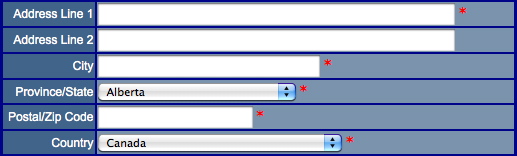
Description:
- Displays address lines, City, Province/State, Postal/Zip Code and a Country drop down fields to enter patrons address information. This information is added to the Theatre Manager database.
- Asterisk next to fields indicate mandatory data that must be entered for the Theatre Manager database.
Questions and Answers:
Q: How can the mandatory fields be changed?
A: There are two steps. The first is the Asterisk can be removed from the field within this page. The second within Theatre Manager. Click Setup >> System Preferences. Select the Mandatory Data tab. Remove the checks from the Full Profile Patron Data fields as desired.
____________________________________________________________
Location:
htdocs/1/WebPagesEN/TMtemplates/
Able to Call Page(s):
- Not Applicable
Called By Page(s):
Page(s) Referenced:
rowPatronContact.html
rowPatronContact.html

Description:
- Displays contact fields for entering a patrons fax number, phone number or web site into the Theatre Manager database.
Questions and Answers:
Q:
A:
____________________________________________________________
Location:
htdocs/1/WebPagesEN/TMtemplates/
Able to Call Page(s):
- Not Applicable
Called By Page(s):
Page(s) Referenced:
rowPatronEmail.html
rowPatronEmail.html

Description:
- Displays a field for entering the patrons email address.
- If the patron is inserting their email address into the database to create a new record fields for entering their password also appears.
- If the patron is reviewing their account information, Theatre Manager will display the type of email address as it is listed in the Theatre Manager database.
Questions and Answers:
Q: How can a patron change they type of email address displayed in their account window?
A: This information is controlled in the database. If a patron wished to change an email from home to work or other they will need to contact the box office to update their patron record.
____________________________________________________________
Location:
htdocs/1/WebPagesEN/TMtemplates/
Able to Call Page(s):
- Not Applicable
Called By Page(s):
Page(s) Referenced:
rowPatronEmailLimitedProfile.html
rowPatronEmailLimitedProfile.html

Description:
- Displays a field where a patron can enter their email address for a limited profile.
- If the patron is not logged in to the online sales a password field will also appear to create a limited profile account in the Theatre Manager database.
Questions and Answers:
Q: Where is the limited profile option enabled?
A: In Theatre Manager click Setup >> System Preferences. Select the Mandatory Data tab. Check the desired locations in the Allow Limited Profile Patron On section.
____________________________________________________________
Q: Where are the limited profile account settings in Theatre Manager?
A: In Theatre Manager click Setup >> System Preferences. Select the Mandatory Data tab. Place a check mark next to the desired fields for limited profile in the Limited Profile Web Sales Checkout Patron Data section.
____________________________________________________________
Location:
htdocs/1/WebPagesEN/TMtemplates/
Able to Call Page(s):
- Not Applicable
Called By Page(s):
Page(s) Referenced:
- Not Applicable.
rowPerfDetailCal.html
rowPerfDetailCal.html

Description:
- Displays the Performance details in a calendar view.
Location:
htdocs/1/WebPagesEN/TMtemplates
Able to Call Page(s):
Called By Page(s):
Page(s) Referenced:
- Not Applicable.
rowPerfHeaderCal.html
rowPerfHeaderCal.html

Description:
- Displays the month at the top of the calendar and the days of the week for each column within the calendar.
Location:
htdocs/1/WebPagesEN/TMtemplates
Able to Call Page(s):
- Not Applicable.
Called By Page(s):
Page(s) Referenced:
- Not Applicable.
rowPkgTicketFestival.html
rowPkgTicketFestival.html

Description:
- Displays the performance detail for each performance item within the package.
Questions and Answers:
Q: How can items be added to a package?
A: For details on how to add items to a package see the following online help page:
http://help.theatremanager.com/theatre-manager-online-help/adding-items-package
____________________________________________________________
Location:
htdocs/1/WebPagesEN/TMtemplates
Able to Call Page(s):
Called By Page(s):
Page(s) Referenced:
- Not Applicable.
rowSubBookedFestival.html
rowSubBookedFestival.html

Description:
- Displays the details of a festival seating ticket for the season package.
Location:
htdocs/1/WebPagesEN/TMtemplates
Able to Call Page(s):
- Not Applicable.
Called By Page(s):
Page(s) Referenced:
- Not Applicable.
rowSubBookedHeader.html
rowSubBookedHeader.html

Description:
- Displays the details of a season packages purchased for the first time this year.
- In contains the name and information for the package as well as the status of the package.
- This page pulls the details of the package from the Theatre Manager database and references additional pages for the seat information.
Location:
htdocs/1/WebPagesEN/TMtemplates
Able to Call Page(s):
Called By Page(s):
Page(s) Referenced:
rowSubBookedReserved.html
rowSubBookedReserved.html

Description:
- Displays the details of a reserved seating ticket for the season package.
- When multiple seats are booked a line will appear for each seat within the package.
Location:
htdocs/1/WebPagesEN/TMtemplates
Able to Call Page(s):
- Not Applicable.
Called By Page(s):
Page(s) Referenced:
- Not Applicable.
rowSubNewDetail.html
rowSubNewDetail.html

Description:
- Displays the name of the season package and the venue it takes place in. This information is pulled from the season package setup within Theatre Manager.
Questions and Answers:
Q: How can the name of the package be changed?
A: In Theatre Manager go to Patron Sales >> Season Subscriptions >> Setup Season Packages. Double click on the desires season package. Alter the External Description field to display the name of the package as it should appear online.
____________________________________________________________
Location:
htdocs/1/WebPagesEN/TMtemplates
Able to Call Page(s):
Called By Page(s):
Page(s) Referenced:
- Not Applicable.
rowSubNewHeader.html
rowSubNewHeader.html

Description:
- Displays the column heads for new season subscriptions and the button to purchase a new subscription.
Location:
htdocs/1/WebPagesEN/TMtemplates
Able to Call Page(s):
Called By Page(s):
Page(s) Referenced:
rowSubNewNone.html
rowSubNewNone.html

Description:
- Displays a message when there are no new subscriptions available for sale online.
Questions and Answers:
Q: Where can I edit the telephone number pulled in this message?
A: The telephone number is pulled from the Theatre Manager database. It's located in the Company tab of Setup >> Company Preferences.
____________________________________________________________
Location:
htdocs/1/WebPagesEN/TMtemplates
Able to Call Page(s):
- Not Applicable.
Called By Page(s):
Page(s) Referenced:
- Not Applicable.
rowSubNoSeat.html
rowSubNoSeat.html

Description:
- Displays text indicating there are no season subscription seats available in the desired seating section. This can happen when all seats in the section are sold/held or when there is no online pricing available for the seats.
Location:
htdocs/1/WebPagesEN/TMtemplates
Able to Call Page(s):
- Not Applicable.
Called By Page(s):
Page(s) Referenced:
- Not Applicable.
rowSubRenewAnonymous.html
rowSubRenewAnonymous.html

Description:
- The text explaining why a patron cannot see their existing subscriptions when they are not currently logged into the online sales.
Location:
htdocs/1/WebPagesEN/TMtemplates
Able to Call Page(s):
- Not Applicable.
Called By Page(s):
Page(s) Referenced:
- Not Applicable
rowSubRenewFestival.html
rowSubRenewFestival.html

Description:
- Displays the details of a festival seating ticket for a renewed season package.
Location:
htdocs/1/WebPagesEN/TMtemplates
Able to Call Page(s):
- Not Applicable.
Called By Page(s):
Page(s) Referenced:
- Not Applicable.
rowSubRenewHeader.html
rowSubRenewHeader.html

Description:
- Displays the details of a season packages renewed for the coming year.
- In contains the name and information for the package as well as the status of the package.
- This page pulls the details of the package from the Theatre Manager database and references additional pages for the seat information.
Location:
htdocs/1/WebPagesEN/TMtemplates
Able to Call Page(s):
Called By Page(s):
Page(s) Referenced:
rowSubRenewReserved.html
rowSubRenewReserved.html

Description:
- Displays the details of a reserved seating tickets for a renewed season package.
- When multiple seats are booked a line will appear for each seat within the package.
Location:
htdocs/1/WebPagesEN/TMtemplates
Able to Call Page(s):
- Not Applicable.
Called By Page(s):
Page(s) Referenced:
- Not Applicable.
rowSubReserve.html
rowSubReserve.html

Description:
Location:
htdocs/1/WebPagesEN/TMtemplates
Able to Call Page(s):
- Not Applicable
Called By Page(s):
Page(s) Referenced:
- Not Applicable
rowTicketCourse.html
rowTicketCourse.html

Description:
- Displays "Course" and lists the available online pricing options. This information is pulled from within the Theatre Manager database.
- The pricing available online is determined by the price and promotion setup within the course in Theatre Manager.
Location:
htdocs/1/WebPagesEN/TMtemplates
Able to Call Page(s):
- Not Applicable.
Called By Page(s):
Page(s) Referenced:
- Not Applicable.
rowTicketEvent.html
rowTicketEvent.html

Description:
- Displays the details the Performance from within the Theatre Manager database.
Questions and Answers:
Q: How can the Availability percentages be altered?
A: The Availability options are located in the rowTicketEventAvailability.html page.
____________________________________________________________
Location:
htdocs/1/WebPagesEN/TMtemplates/
Able to Call Page(s):
- tmEventDefault.html
- TMticketsSection_MapDefault.html
- TMticketsSection_MapDefaultc.html
- TMticketsSection_MapDefaultf.html
- tmVenueDefault.html
Called By Page(s):
Page(s) Referenced:
rowTicketEventAvailability.html
rowTicketEventAvailability.html

Description:
- Displays the availability of the Performance based on details from the Theatre Manager database.
Questions and Answers:
Q: How can the Availability percentages be altered?
A: Each option (Good, Limited, Very Limited, Sold Out) are indicated based on the percentage of seats sold within the Theatre Manager database compared to the Reporting Capacity listed for the individual performance. The percent values are listed on the page in the F_SOLD_PERCENT statements and can be altered to meet the organizations needs.
____________________________________________________________
Q:How are the colors used in the Availability column altered?
A: Each option is listed following a font color. Altering the hex code associated with the font color will change the color of the text.
____________________________________________________________
- different colours, change them
- different ranges for the levels, then adjust the ranges as appropriate.
- more (or fewer) distinct levels, then duplicate (or remove) some lines and adjust ranges, as appropriate
<field>pick(F_SOLD_PERCENT<80,'','Good')</field>
<field>pick(F_SOLD_PERCENT>=80&F_SOLD_PERCENT<90,'','<font color="#FF00FF">Limited</font>')</field>
<field>pick(F_SOLD_PERCENT>=90&F_SOLD_PERCENT<100,'','<font color="#FF00FF">Very Limited</font>')</field>
<field>pick(F_SOLD_PERCENT>=100,'','<font color="#FF0000">Sold Out</font>')</field></td>
Location:
htdocs/1/WebPagesEN/TMtemplates/
Able to Call Page(s):
- Not Applicable
Called By Page(s):
Page(s) Referenced:
- Not Applicable
Calculation of F_SOLD_PERCENT
Calculation of F_SOLD_PERCENT
Calculating the initial number available
Avail = SeatsInHouse - Total Sold - Box Office Holds - Internet Holds
Calculating the number 'sold'
First, the total seats considered sold or taken includes all holds. So the base number sold is.Sold = number sold for event + tickets held at box office _ tickets held in shopping carts
Calculating the percent available
The percent of tickets available is dependant on the values of seats available and reporting quantities. The percentage is dewtermined as follows.
- If Avail <= 0 then F_SOLD_PERCENT = 100
- if SeatsReport < SeatsInHouse then
- if SeatsReport = SeatsInHouse then
rowTicketEventCallBoxOffice.html
rowTicketEventCallBoxOffice.html

Description:
- Displays the date a Performance will be available for sale online based on details from the Theatre Manager database as well as a link to the Box Office contact information should the patron require more information.
- If the Performance does not have a set on sale date the patron will only see a link to Call Box Office.
Questions and Answers:
Q: How can the On Sale date be altered?
A: The On Sale date is pulled from the Web Settings tab inside the Performance Detail window.
____________________________________________________________
Location:
htdocs/1/WebPagesEN/TMtemplates/
Able to Call Page(s):
Called By Page(s):
Page(s) Referenced:
- Not Applicable
rowTicketEventExport.html
rowTicketEventExport.html
Description:
- Do Not Alter This Page.
- This pages is used in conjunction with the TicketTrove mobile device application. The application will soon be available for iPhone and iPad interfaces.
- The information within the page is pulled directly from Theatre Manager.
Location:
htdocs/1/WebPagesEN/TMtemplates
Able to Call Page(s):
- Not Applicable.
Called By Page(s):
Page(s) Referenced:
- Not Applicable.
rowTicketEventExportCustom.html
rowTicketEventExportCustom.html
Description:
- Pull Event information for Performance available for sale online directly from Theatre Manager.
- This page can be customized to pull the desired Event information for external viewing in the TMticketsExportCustom.html page.
Location:
htdocs/1/WebPagesEN/TMtemplates
Able to Call Page(s):
- Not Applicable.
Called By Page(s):
Page(s) Referenced:
- Not Applicable.
rowTicketEventImage.html
rowTicketEventImage.html

Description:
- Displays the TicketTrove/Web image for the Performance based on details from the Theatre Manager database.
Questions and Answers:
Q: How can the Event Image be altered?
A: The Event Image is taken from the TicketTrove/Web field in the Marketing tab of the Event setup. A new image can be dragged and dropped onto the field to update it.
____________________________________________________________
Location:
htdocs/1/WebPagesEN/TMtemplates/
Able to Call Page(s):
Called By Page(s):
Page(s) Referenced:
- Not Applicable
rowTicketEventName.html
rowTicketEventName.html

Description:
- Displays the name, location and notes for the Performance based on details from the Theatre Manager database.
Questions and Answers:
Q: Where can the details on this page be altered?
A: The Performance name, location and notes are all pulled from within the Event Setup and can be edited in their respective fields.
____________________________________________________________
Location:
htdocs/1/WebPagesEN/TMtemplates/
Able to Call Page(s):
Called By Page(s):
Page(s) Referenced:
- Not Applicable
rowTicketEventNotOnSaleYet.html
rowTicketEventNotOnSaleYet.html
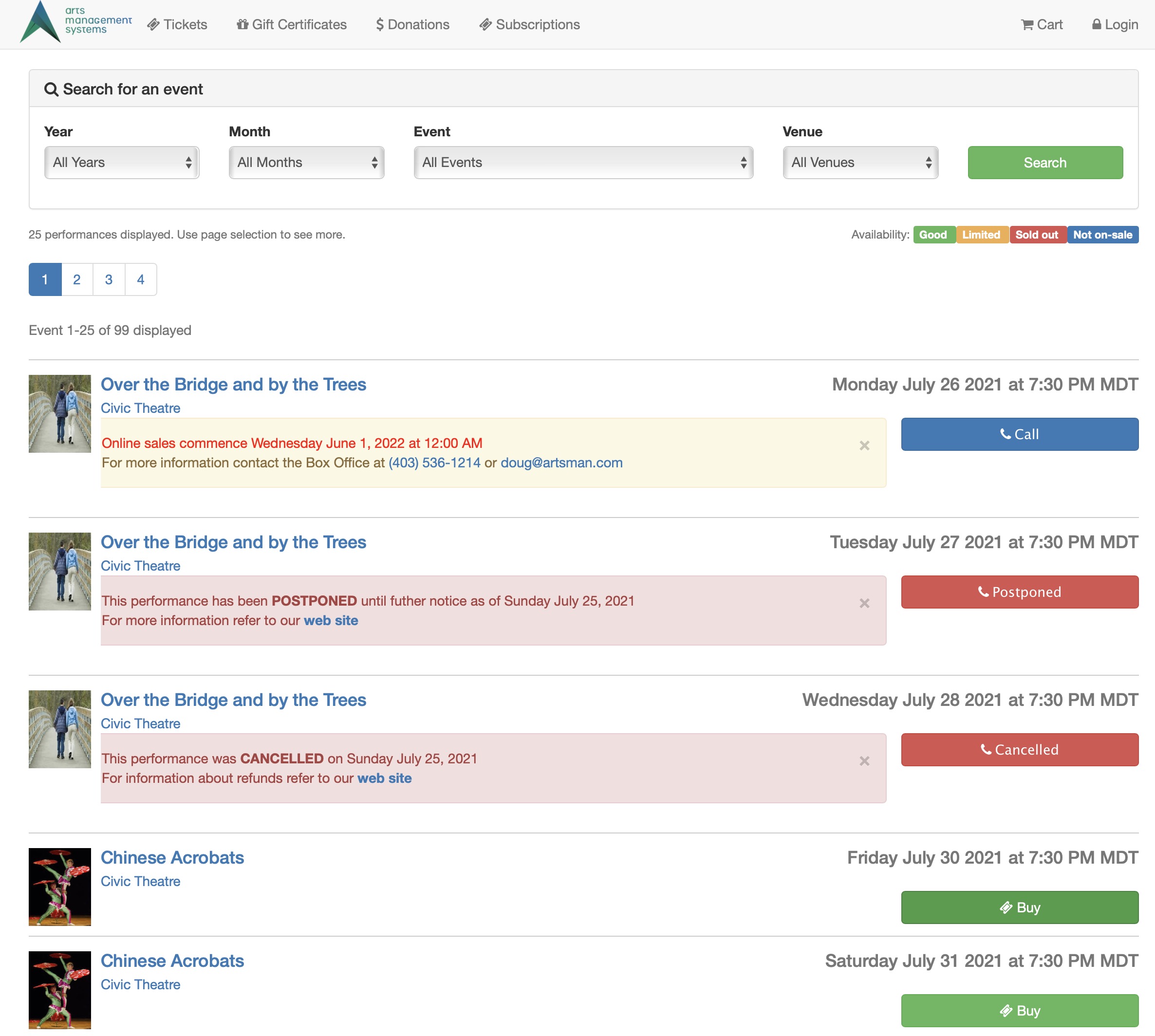
Description:
- Displays information about the Performance if the Performance is set to be displayed online
- There are three status options that can be set for performances (when not onsale). These affect which message will be displayed as per the example above.
- It will be onsale - just not yet.
- It has been postponed to a future date
- It has been CANCELLED - and likely there will be refunds
Questions and Answers:
Q: Can the On Sale date be altered?
A: Yes, the date can be altered. See the rowTicketEventCallBoxOffice.html for more details.
____________________________________________________________
Location:
htdocs/1/WebPagesEN/TMtemplates/
Able to Call Page(s):
Called By Page(s):
Page(s) Referenced:
rowTicketFestival.html
rowTicketFestival.html

Description:
- Displays the description for a festival seating ticket and lists the available online pricing options. This information is pulled from within the Theatre Manager database.
- The term Festival Seating can be altered in Setup >> Company Preferences under the Appearance tab within Theatre Manager.
- The pricing available online is determined by the price and promotion setup within the event in Theatre Manager.
Questions and Answers:
Q: Can the pricing drop down be displayed as a list?
A: Yes, the drop down can be displayed as a list. For more details please visit the Creating A Price Code List page in the online help.
____________________________________________________________
Location:
htdocs/1/WebPagesEN/TMtemplates/
Able to Call Page(s):
- Not Applicable
Called By Page(s):
Page(s) Referenced:
rowTicketNoSeat.html
rowTicketNoSeat.html

Description:
- Displays text indicating there are no seats available in the desired seating section. This can happen when all seats in the section are sold/held or when there is no online pricing available for the seats.
Location:
htdocs/1/WebPagesEN/TMtemplates
Able to Call Page(s):
- Not Applicable.
Called By Page(s):
Page(s) Referenced:
- Not Applicable.
rowTicketPageHeader.html
rowTicketPageHeader.html

Description:
- Page header at the top of the TMtickets.html page.
- Allows for the option to view additional pages of upcoming performances.
Location:
htdocs/1/WebPagesEN/TMtemplates/
Able to Call Page(s):
Called By Page(s):
Page(s) Referenced:
- Not Applicable
rowTicketPageList.html
rowTicketPageList.html

Description:
- Provides numeric page numbers in hyperlink form at the bottom of the TMtickets.html page for navigating to additional pages of performances not visible on the current page.
- The number of performances listed on the page is directly related to Max Events settings under the Web Options tab in Setup >> Company Preferences of Theatre Manager.
Location:
htdocs/1/WebPagesEN/TMtemplates
Able to Call Page(s):
Called By Page(s):
Page(s) Referenced:
- Not Applicable.
rowTicketReserve.html
rowTicketReserve.html

Description:
- Displays the section, row, seat number, sales notes and lists the available online pricing options. This information is pulled from within the Theatre Manager database.
- The name of the seat (section, row, seat number) as well as the sales notes are pulled directly from the Map for the venue within the online sales.
- The pricing available online is determined by the price and promotion setup within the event in Theatre Manager.
Questions and Answers:
Q: Can the pricing drop down be displayed as a list?
A: Yes, the drop down can be displayed as a list. For more details please visit the Creating A Price Code List page in the online help.
____________________________________________________________
Location:
htdocs/1/WebPagesEN/TMtemplates/
Able to Call Page(s):
- Not Applicable
Called By Page(s):
Page(s) Referenced:
rowVolDetailCal.html
rowVolDetailCal.html

Description:
- A volunteers scheduled activities are pulled from within the Theatre Manager database to populate the calendar view on the TMvolunteer.html page.
Location:
htdocs/1/WebPagesEN/TMtemplates
Able to Call Page(s):
- Not Applicable.
Called By Page(s):
Page(s) Referenced:
- Not Applicable.
rowVolHeaderCal.html
rowVolHeaderCal.html

Description:
- The column headers in the calendar view on the TMvolunteer.html page.
Location:
htdocs/1/WebPagesEN/TMtemplates
Able to Call Page(s):
- Not Applicable.
Called By Page(s):
Page(s) Referenced:
- Not Applicable.
rowVolHistoryDetail.html
rowVolHistoryDetail.html

Description:
- A volunteers scheduled activities are pulled from within the Theatre Manager database to populate the list view on the TMvolunteer.html page.
Location:
htdocs/1/WebPagesEN/TMtemplates
Able to Call Page(s):
- Not Applicable.
Called By Page(s):
Page(s) Referenced:
- Not Applicable.
rowVolHistoryHeader.html
rowVolHistoryHeader.html

Description:
- The column headers in the list view on the TMvolunteer.html page.
Location:
htdocs/1/WebPagesEN/TMtemplates
Able to Call Page(s):
- Not Applicable.
Called By Page(s):
Page(s) Referenced:
- Not Applicable.
setACTIVITY_LIST.html
setACTIVITY_LIST.html

Description:
- Displays the personnel/volunteer activity the patron is scheduled to performed.
- If the patron is not currently scheduled to perform an activity there will be nothing to list.
- To access the personnel module open the desired patrons record and click the Personnel button at the top of the window within Theatre Manager. To learn more about scheduling an activity for a patron after the Personnel window is open click here.
- Please note the word Personnel may have been customized within Theatre Manager. Often it is replace with Volunteer.
Location:
htdocs/1/WebPagesEN/TMtemplates/
Able to Call Page(s):
- Not Applicable
Called By Page(s):
Page(s) Referenced:
- Not Applicable
setACTIVITY_LISTempty.html
setACTIVITY_LISTempty.html

Description:
- Displays the text **Nothing available to select** under the Activity column when there patron is not scheduled for an activity within Theatre Manager.
- To avoid this message the patron can be scheduled for a position in the Personnel/Volunteer module within Theatre Manager. To access this module open the patrons record within Theatre Manager and click the Personnel button at the top of the window. Steps on how to schedule an activity for a patron can be found by clicking here.
- Please note the word Personnel may have been customized within Theatre Manager. Often it is replaced with Volunteer.
Location:
htdocs/1/WebPagesEN/TMtemplates/
Able to Call Page(s):
- Not Applicable
Called By Page(s):
Page(s) Referenced:
- Not Applicable
setBEST_AREA_SEARCH_LIST.html
setBEST_AREA_SEARCH_LIST.html
Description:
- The options provided in the Best Area Search as defined in Best Seat Search tab on the Pricing Map.
Location:
htdocs/1/WebPagesEN/TMtemplates/
Able to Call Page(s):
- Not Applicable
Called By Page(s):
Page(s) Referenced:
- Not Applicable
setBEST_AREA_SEARCH_LISTempty.html
setBEST_AREA_SEARCH_LISTempty.html
Description:
- The options provided in the Best Area Search when the Best Seat Search has not been defined.
Location:
htdocs/1/WebPagesEN/TMtemplates/
Able to Call Page(s):
- Not Applicable
Called By Page(s):
Page(s) Referenced:
- Not Applicable
setBEST_PRICE_CODE_SEARCH_LIST.html
setBEST_PRICE_CODE_SEARCH_LIST.html
Description:
- The options provided in the Price Code Search as defined in Price Code Search tab on the Pricing Map.
Location:
htdocs/1/WebPagesEN/TMtemplates/
Able to Call Page(s):
- Not Applicable
Called By Page(s):
Page(s) Referenced:
- Not Applicable
setBEST_PRICE_CODE_SEARCH_LISTempty.html
setBEST_PRICE_CODE_SEARCH_LISTempty.html
Description:
- The options provided in the Best Area Search when the Price Code Search has not been defined.
Location:
htdocs/1/WebPagesEN/TMtemplates/
Able to Call Page(s):
- Not Applicable
Called By Page(s):
Page(s) Referenced:
- Not Applicable
setCAMPAIGN_LIST.html
setCAMPAIGN_LIST.html

Description:
- The drop down list of donation campaigns available for online sales as indicated within Theatre Manager.
- To add campaigns to the list click Setup >> System Tables >> Donation Campaigns inside Theatre Manager. Double click on the desired campaign and select the Edits tab. Check the box for Accepted on the Internet. Close the window to save the changes.
Location:
htdocs/1/WebPagesEN/TMtemplates/
Able to Call Page(s):
- Not Applicable
Called By Page(s):
Page(s) Referenced:
- Not Applicable
setCAMPAIGN_LISTempty.html
setCAMPAIGN_LISTempty.html

Description:
- Displays the text **Nothing available to select** in the Donation Campaign drop down when there is no donation campaigns indicated as available online within Theatre Manager.
- To avoid this message go to Setup >> System Tables >> Donation Campaigns. Double click on the desired campaign and select the Edits tab. Check the box for Accepted on the Internet. Close the window to save the changes.
Location:
htdocs/1/WebPagesEN/TMtemplates/
Able to Call Page(s):
- Not Applicable
Called By Page(s):
Page(s) Referenced:
- Not Applicable
setCCMONTH_LIST.html
setCCMONTH_LIST.html
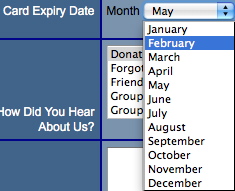
Description:
- Presents a list of Months in the credit card expiry month drop down that the patron can choose from in order to enter the expiry date of their credit card for payment.
Location:
htdocs/1/WebPagesEN/TMtemplates/
Able to Call Page(s):
- Not Applicable
Called By Page(s):
Page(s) Referenced:
- Not Applicable
setCCMONTH_LISTempty.html
setCCMONTH_LISTempty.html

Description:
- Displays the text **Nothing available to select** in the credit card expiry month field when there is are no active merchant accounts within Theatre Manager.
- The merchant account must be available for online sales in order to process credit cards. Go to Setup >> System Tables >> Merchant Accounts. Double click on the merchant account to open it. Check the box for Enable Card Use By The Web Listener. Close the window to save the changes.
Location:
htdocs/1/WebPagesEN/TMtemplates/
Able to Call Page(s):
- Not Applicable
Called By Page(s):
Page(s) Referenced:
- Not Applicable
setCOUNTRY_LIST.html
setCOUNTRY_LIST.html
Description:
- Displays a list of Countries from within the database.
- The options in the list can be edited in the Theatre Manager database by going to Setup >> System Tables >> Code Tables and selecting Country in the left column. Double click on any of the listings to make changes.
Location:
htdocs/1/WebPagesEN/TMtemplates/
Able to Call Page(s):
- Not Applicable
Called By Page(s):
Page(s) Referenced:
- Not Applicable
setCOUNTRY_LISTempty.html
setCOUNTRY_LISTempty.html

Description:
- Displays the text **Nothing available to select** in the Country drop down when there is no online Countries within Theatre Manager.
- The most common reason for this messages is there are not Country options available online. To avoid this message go to Setup >> System Tables >> Code Tables. Select Country in the left column and double click on the desired Country in the right column. Check the box for Available At Internet. Close the window to save the changes.
Location:
htdocs/1/WebPagesEN/TMtemplates/
Able to Call Page(s):
- Not Applicable
Called By Page(s):
Page(s) Referenced:
- Not Applicable
setEMAIL_LOCATION_LIST.html
setEMAIL_LOCATION_LIST.html

Description:
- Displays the name of the email location based on the data from the patron record within Theatre Manager.
- The location can only be changed in the patron contact card from within Theatre Manager.
Location:
htdocs/1/WebPagesEN/TMtemplates
Able to Call Page(s):
- Not Applicable.
Called By Page(s):
Page(s) Referenced:
- Not Applicable.
setEMAIL_LOCATION_LISTempty.html
setEMAIL_LOCATION_LISTempty.html

Description:
- Displays the text **Nothing available to select** in the email location drop down when there are no locations type marked as available for sale online within Theatre Manager.
- This drop down allows for patrons to select the location of their email address.
- To avoid this message click Setup >> System Tables >> Code Tables within Theatre Manager. Select Paton Location from the left column. Double click on the type that should be available online. Check the box for Available at Website. Close the window to save the changes.
Location:
htdocs/1/WebPagesEN/TMtemplates
Able to Call Page(s):
- Not Applicable.
Called By Page(s):
Page(s) Referenced:
- Not Applicable.
setEVENT_LIST.html
setEVENT_LIST.html
Description:
- Presents the future Events in a drop down list based on their available for sale via the web status within Theatre Manager.
- Events made active by the use of a Pre-Access Code will not appear in the drop down.
- This drop down allows for patrons to search by event title to locate their desired performance.
Location:
htdocs/1/WebPagesEN/TMtemplates/
Able to Call Page(s):
- Not Applicable
Called By Page(s):
Page(s) Referenced:
- Not Applicable
setEVENT_LISTempty.html
setEVENT_LISTempty.html

Description:
- Displays the text **Nothing available to select** in the event drop down when there are no performances marked as available for sale online within Theatre Manager.
- To avoid this message click the Events icon at the top of the window in Theatre Manager. Open an Event and select the Performance tab. Select one performance and check the box at the top of the window for Allow Selling Via The Internet. Close the window to save the changes.
Location:
htdocs/1/WebPagesEN/TMtemplates/
Able to Call Page(s):
- Not Applicable
Called By Page(s):
Page(s) Referenced:
- Not Applicable
setFAX_LOCATION_LIST.html
setFAX_LOCATION_LIST.html

Description:
- Displays the name of the fax location based on the data from the patron record within Theatre Manager.
- The location can only be changed in the patron contact card from within Theatre Manager.
Location:
htdocs/1/WebPagesEN/TMtemplates
Able to Call Page(s):
- Not Applicable.
Called By Page(s):
Page(s) Referenced:
- Not Applicable.
setFAX_LOCATION_LISTempty.html
setFAX_LOCATION_LISTempty.html

Description:
- Displays the text **Nothing available to select** in the fax number location drop down when there are no locations type marked as available for sale online within Theatre Manager.
- This drop down allows for patrons to select the location of their fax number.
- To avoid this message click Setup >> System Tables >> Code Tables within Theatre Manager. Select Paton Location from the left column. Double click on the type that should be available online. Check the box for Available at Website. Close the window to save the changes.
Location:
htdocs/1/WebPagesEN/TMtemplates
Able to Call Page(s):
- Not Applicable.
Called By Page(s):
Page(s) Referenced:
- Not Applicable.
setGENRE_LIST.html
setGENRE_LIST.html

Description:
- Displays a drop down of Genre's for the performances available for sale within the online sales. The options in the drop down are populated based on the genre selected in the Marketing tab of the Event within Theatre Manager.
Location:
htdocs/1/WebPagesEN/TMtemplates
Able to Call Page(s):
Called By Page(s):
Page(s) Referenced:
- Not Applicable
setGENRE_LISTempty.html
setGENRE_LISTempty.html

Description:
- Displays All Genres when there are no performances listed or genres have not been indicated for the performances listed in the online sales the drop down will state All Genres.
Location:
htdocs/1/WebPagesEN/TMtemplates
Able to Call Page(s):
- Not Applicable
Called By Page(s):
Page(s) Referenced:
- Not Applicable
setHOUSEHOLD_PATRON_LIST.html
setHOUSEHOLD_PATRON_LIST.html
Description:
- Displays a list of names associated with the email address on the TMpatronUpdate.html page.
- This list of names is pulled directly from the Theatre Manager database. It is a list of names from the household that use the same email address. Only patrons within the same household can share an email address.
- The patron can choose the name of the record they wish to update within Theatre Manager. Clicking the Update Account button at the bottom of the window will updated the database.
Location:
htdocs/1/WebPagesEN/TMtemplates/
Able to Call Page(s):
- Not Applicable
Called By Page(s):
Page(s) Referenced:
- Not Applicable
setHOUSEHOLD_PATRON_LISTempty.html
setHOUSEHOLD_PATRON_LISTempty.html

Description:
- Displays the text **Nothing available to select** when the patron access the
- TMpatronUpdate.html and is not logged in.
- To avoid this message the patron can log into the online sales.
Location:
htdocs/1/WebPagesEN/TMtemplates/
Able to Call Page(s):
- Not Applicable
Called By Page(s):
Page(s) Referenced:
- Not Applicable
setHOUSEHOLD_PATRON_SELECTION_LIST.html
setHOUSEHOLD_PATRON_SELECTION_LIST.html
Description:
- Displays a list of names associated with the email address on the TMCart.html page.
- This list of names is pulled directly from the Theatre Manager database. It is a list of names from the household that use the same email address. Only patrons within the same household can share an email address.
- The patron can choose the name of the patron they wish to assign the course to within Theatre Manager.
- This drop down will only appear if there is more then one member of the household within Theatre Manager.
- If the patron would like to assign a course to another person they will need to add that patron to their household. This is done by clicking Account at the top of the window, choose the New Patron option in the list on the left and add the patron information to their household.
Location:
htdocs/1/WebPagesEN/TMtemplates/
Able to Call Page(s):
- Not Applicable
Called By Page(s):
Page(s) Referenced:
- Not Applicable
setHOUSEHOLD_PATRON_SELECTION_LISTempty.html
setHOUSEHOLD_PATRON_SELECTION_LISTempty.html
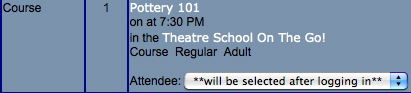
Description:
- Displays the text **will be selected after logging in** in the Attendee drop down when the patron is not currently signed in to online sales.
- To avoid this message the patron can login to online sales before adding a course to their online cart or they can sign in after adding the course and return to the cart.
- If the patron would like to assign a course to another person they will need to add that patron to their household. This is done by logging into the online sales, clicking Account at the top of the window, choose the New Patron option in the list on the left and add the patron information to their household.
Location:
htdocs/1/WebPagesEN/TMtemplates/
Able to Call Page(s):
- Not Applicable
Called By Page(s):
Page(s) Referenced:
- Not Applicable
setLOGIN_PATRON_LIST.html
setLOGIN_PATRON_LIST.html
Description:
- Displays a list of names associated with the email address entered at the time of login.
- This list of names is pulled directly from the Theatre Manager database. It is a list of names from the household that use the same email address. Only patrons within the same household can share an email address.
- The patron must choose a name from the list and this will be the record the cart is added to within Theatre Manager.
Location:
htdocs/1/WebPagesEN/TMtemplates/
Able to Call Page(s):
- Not Applicable
Called By Page(s):
Page(s) Referenced:
- Not Applicable
setMERCHANT_LIST.html
setMERCHANT_LIST.html

Description:
- Displays the payment methods available for completing the order when there is more then one currency.
- This option requires a second merchant account to be created under Setup >> System Tables >> Merchant Types within Theatre Manager. For details on how to create a merchant account click here.
- The Enable Card Use By The Web Listener box should be checked under the Software Type of the Merchant Account.
- In the setup of the new merchant account select the Currency tab. Select the desired country from the Currency Country drop down and enter a G/L Account to allocate the difference from the exchange rate.
- The Exchange Rate should be entered under Setup >> System Tables >> Currency Exchange within Theatre Manager. For more information on setting up a Currency Exchange rate click here.
- Select the Cards tab and add the credit cards that should be processed using this currency rate. If a card can be used for more then one rate a second payment method should be setup for the card type. For more information on setting up payment methods click here.
Location:
htdocs/1/WebPagesEN/TMtemplates/
Able to Call Page(s):
- Not Applicable
Called By Page(s):
Page(s) Referenced:
- Not Applicable
setMERCHANT_LISTempty.html
setMERCHANT_LISTempty.html

Description:
- Hides the option to select a currency.
- To avoid a single currency a second merchant account needs to be setup in Setup >> System Tables >> Merchant Accounts within Theatre Manager. The Currency Country field under the Currency tab needs to be set to something other then the same Country as the existing merchant account.
Location:
htdocs/1/WebPagesEN/TMtemplates/
Able to Call Page(s):
- Not Applicable
Called By Page(s):
Page(s) Referenced:
- Not Applicable
setMONTH_LIST.html
setMONTH_LIST.html
Description:
- Presents the twelve months of the year in a drop down list.
- This allows for patrons to search by month to find their desired date faster.
Location:
htdocs/1/WebPagesEN/TMtemplates/
Able to Call Page(s):
- Not Applicable
Called By Page(s):
Page(s) Referenced:
- Not Applicable
setMONTH_LISTempty.html
setMONTH_LISTempty.html

Description:
- Displays the text **Nothing available to select** in the month drop down when there are no performances marked as available for sale online within Theatre Manager.
- To avoid this message click the Events icon at the top of the window in Theatre Manager. Open an Event and select the Performance tab. Select one performance and check the box at the top of the window for Allow Selling Via The Internet. Close the window to save the changes.
Location:
htdocs/1/WebPagesEN/TMtemplates/
Able to Call Page(s):
- Not Applicable
Called By Page(s):
Page(s) Referenced:
- Not Applicable
setPASS_LIST.html
setPASS_LIST.html
Description:
- Presents the memberships or passes in a drop down list based on their available for sale via the web status within Theatre Manager.
- This drop down allows for patrons to select the member type they wish to purchase.
- Member types are made available for sale by checking the Via The Internet box under the Edits tab of Setup >> System Tables >> Member Types within Theatre Manager.
- Many organizations choose to rename Memberships to Passes, Gift Certificates, or Other Sales Items. The name of this area within Theatre Manager is at the discretion of the organization.
Location:
htdocs/1/WebPagesEN/TMtemplates/
Able to Call Page(s):
- Not Applicable
Called By Page(s):
Page(s) Referenced:
- Not Applicable
setPASS_LISTempty.html
setPASS_LISTempty.html

Description:
- Displays the text **Nothing available to select** in the event drop down when there are no member types marked as available for sale online within Theatre Manager.
- This drop down allows for patrons to select the pass type they wish to purchase.
- To avoid this message click Setup >> System Tables >> Member Types within Theatre Manager. Open a member type that should be offered online. Select the Edits tab and check the box for Via The Internet under the Allow Membership To Be Purchased. Close the window to save the changes.
- Many organizations choose to rename Memberships to Passes, Gift Certificates, or Other Sales Items. The name of this area within Theatre Manager is at the discretion of the organization.
Location:
htdocs/1/WebPagesEN/TMtemplates/
Able to Call Page(s):
- Not Applicable
Called By Page(s):
Page(s) Referenced:
- Not Applicable
setPAYMENT_LIST.html
setPAYMENT_LIST.html
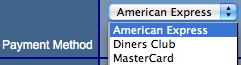
Description:
- Presents the payment methods in a drop down list based on their settings within Theatre Manager.
- This drop down allows for patrons to select the credit card type they wish to use in order to complete their purchase.
- To make a payment method available online go to Setup >> System Tables >> Code Tables. Select Payment Methods in the left column and double click on the desired method. Check the Available At Internet box and close the window to save changes.
- Only credit card payment methods can be made available online at this time.
Location:
htdocs/1/WebPagesEN/TMtemplates/
Able to Call Page(s):
- Not Applicable
Called By Page(s):
Page(s) Referenced:
- Not Applicable
setPAYMENT_LISTempty.html
setPAYMENT_LISTempty.html

Description:
- Displays the text **Nothing available to select** in the payment drop down when there are no payment methods available for online within Theatre Manager.
- This drop down allows for patrons to select the credit card type they wish to use in order to complete their purchase.
- This message can appear if there are no payment methods enabled for online sales. To correct this go to Setup >> System Tables >> Code Tables. Select the Payment Methods in the left column. Double click on the payment method and check the box for Available At Internet. Close the window to save the changes.
- The merchant account for the payment method must also be available for online sales. Go to Setup >> System Tables >> Merchant Accounts. Double click on the merchant account to open it. Check the box for Enable Card Use By The Web Listener. Close the window to save the changes.
- Only credit card payment methods can be made available online at this time.
Location:
htdocs/1/WebPagesEN/TMtemplates/
Able to Call Page(s):
- Not Applicable
Called By Page(s):
Page(s) Referenced:
- Not Applicable
setPHONE_LOCATION_LIST.html
setPHONE_LOCATION_LIST.html

Description:
- Displays the name of the phone location based on the data from the patron record within Theatre Manager.
- The location can only be changed in the patron contact card from within Theatre Manager.
Location:
htdocs/1/WebPagesEN/TMtemplates
Able to Call Page(s):
- Not Applicable.
Called By Page(s):
Page(s) Referenced:
- Not Applicable.
setPHONE_LOCATION_LISTempty.html
setPHONE_LOCATION_LISTempty.html

Description:
- Displays the text **Nothing available to select** in the phone number location drop down when there are no locations type marked as available for sale online within Theatre Manager.
- This drop down allows for patrons to select the location of their phone number.
- To avoid this message click Setup >> System Tables >> Code Tables within Theatre Manager. Select Paton Location from the left column. Double click on the type that should be available online. Check the box for Available at Website. Close the window to save the changes.
Location:
htdocs/1/WebPagesEN/TMtemplates
Able to Call Page(s):
- Not Applicable.
Called By Page(s):
Page(s) Referenced:
- Not Applicable.
setPROMOTIONSSUB_LIST.html
setPROMOTIONSSUB_LIST.html
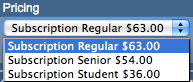
Description:
- Provides a drop down of available season pricing for the displayed seats.
- The availability of a price depends on the setup of the pricing structure for an event and sales promotion.
- The desired price needs to be available for use within the performance that are a part of the package. This is adjusted by opening the event, selecting the Pricing tab, single clicking on the performance in the left column, double clicking on the price code and placing a check mark in the Allow Price Code To Be Used box within Theatre Manager.
- At least one season promotion enabled for online sales needs to be active for the performance in the package. In Theatre Manager open the Event, select the Promotions tab and change the Promotions Shown drop down in the lower right corner to All. Locate the desired season sales promotion, select it and click the Allow Use button at the bottom of the window.
- At least one of the price points that are active for the season performances can not be listed in the Excludes Price Code field of sales promotion. The Excludes Price Code field is found in the Description tab of the promotion. The promotion can be found in Setup >> System Tables >> Sales Promotions within Theatre Manager.
- The Season Promotion must be a Season Ticket Type for G/L Posting under the Description tab of Setup >> System Tables >> Sales Promotions within Theatre Manager.
- The Season Promotion needs to be available for online sales. The Via The Internet box needs to be checked in the Edits tab of the promotion found in Setup >> System Tables >> Sales Promotions within Theatre Manager.
Location:
htdocs/1/WebPagesEN/TMtemplates/
Able to Call Page(s):
- Not Applicable
Called By Page(s):
Page(s) Referenced:
- Not Applicable
setPROMOTIONSSUB_LISTempty.html
setPROMOTIONSSUB_LISTempty.html

Description:
- Displays the text **Nothing available to select** in the price drop down when there are is no available season pricing for a package within Theatre Manager.
- This drop down allows for patrons to select price at which they will purchase their tickets.
- To prevent this message the desired price needs to be available for use within the performances that are a part of the package. This is adjusted by opening the event, selecting the Pricing tab, single clicking on the performance in the left column, double clicking on the price code and placing a check mark in the Allow Price Code To Be Used box within Theatre Manager.
- To prevent this message at least one season promotion enabled for online sales needs to be active for the performance in the package. In Theatre Manager open the Event, select the Promotions tab and change the Promotions Shown drop down in the lower right corner to All. Locate the desired season sales promotion, select it and click the Allow Use button at the bottom of the window.
- To prevent this message at least one of the price points that are active for the season performances can not be listed in the Excludes Price Code field of sales promotion. The Excludes Price Code field is found in the Description tab of the promotion. The promotion can be found in Setup >> System Tables >> Sales Promotions within Theatre Manager.
- To prevent this message the Season Promotion must be a Season Ticket Type for G/L Posting under the Description tab of Setup >> System Tables >> Sales Promotions within Theatre Manager.
- To prevent this message the Season Promotion needs to be available for online sales. The Via The Internet box needs to be checked in the Edits tab of the promotion found in Setup >> System Tables >> Sales Promotions within Theatre Manager.
Location:
htdocs/1/WebPagesEN/TMtemplates/
Able to Call Page(s):
- Not Applicable
Called By Page(s):
Page(s) Referenced:
- Not Applicable
setPROMOTIONS_LIST.html
setPROMOTIONS_LIST.html
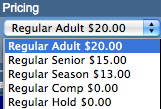
Description:
- Provides a drop down of available pricing for the displayed seats.
- The availability of a price depends on the setup of the pricing structure for an event and the sales promotion.
- The desired price needs to be available for use within the performance. This is adjusted by opening the event, selecting the Pricing tab, single clicking on the performance in the left column, double clicking on the price code and placing a check mark in the Allow Price Code To Be Used box within Theatre Manager.
- At least one promotion enabled for online sales needs to be active for the performance. In Theatre Manager open the Event, select the Promotions tab and change the Promotions Shown drop down in the lower right corner to All. Locate the desired Internet sales promotion, select it and click the Allow Use button at the bottom of the window.
- At least one of the price points that are active for the performance can not be listed in the Excludes Price Code field of sales promotion. The Excludes Price Code field is found in the Description tab of the promotion. The promotion can be found in Setup >> System Tables >> Sales Promotions within Theatre Manager.
- The Sales Promotion needs to be available for online sales. The Via The Internet box needs to be checked in the Edits tab of the promotion found in Setup >> System Tables >> Sales Promotions within Theatre Manager.
Location:
htdocs/1/WebPagesEN/TMtemplates/
Able to Call Page(s):
- Not Applicable
Called By Page(s):
Page(s) Referenced:
- Not Applicable
setPROMOTIONS_LISTempty.html
setPROMOTIONS_LISTempty.html

Description:
- Displays the text **Nothing available to select** in the price drop down when there is no available online pricing for the performance within Theatre Manager.
- This drop down allows for patrons to select price at which they will purchase their tickets.
- The availability of a price depends on the setup of the pricing structure for an event and sales promotion.
- To prevent this message the desired price needs to be available for use within the performance. This is adjusted by opening the event, selecting the Pricing tab, single clicking on the performance in the left column, double clicking on the price code and placing a check mark in the Allow Price Code To Be Used box within Theatre Manager.
- To prevent this message at least one promotion enabled for online sales needs to be active for the performance. In Theatre Manager open the Event, select the Promotions tab and change the Promotions Shown drop down in the lower right corner to All. Locate the desired Internet sales promotion, select it and click the Allow Use button at the bottom of the window.
- To prevent this message at least one of the price points that are active for the performance can not be listed in the Excludes Price Code field of sales promotion. The Excludes Price Code field is found in the Description tab of the promotion. The promotion can be found in Setup >> System Tables >> Sales Promotions within Theatre Manager.
- To prevent this message the Sales Promotion needs to be available for online sales. The Via The Internet box needs to be checked in the Edits tab of the promotion found in Setup >> System Tables >> Sales Promotions within Theatre Manager.
Location:
htdocs/1/WebPagesEN/TMtemplates
Able to Call Page(s):
- Not Applicable
Called By Page(s):
Page(s) Referenced:
- Not Applicable
setPROVINCE_LIST.html
setPROVINCE_LIST.html
Description:
- Displays a list of Provinces or States available online depending on the Country the patron chooses in the drop down window.
- The options in the list can be edited in the Theatre Manager database by going to Setup >> System Tables >> Code Tables and selecting Province in the left column. Double click on any of the listings to make changes.
- Please note the word province may be changed to State within the Theatre Manager database.
Location:
htdocs/1/WebPagesEN/TMtemplates/
Able to Call Page(s):
- Not Applicable
Called By Page(s):
Page(s) Referenced:
- Not Applicable
setPROVINCE_LISTempty.html
setPROVINCE_LISTempty.html

Description:
- Displays the text **Nothing available to select** in the Province/State drop down when there is no online Provinces/States within Theatre Manager.
- The most common reason for this messages is there are not provinces for the region available online. To avoid this message go to Setup >> System Tables >> Code Tables. Select Provinces in the left column and double click on the desired province in the right column. Check the box for Available At Internet. Close the window to save the changes.
- Please note the word province may be changed to State within the Theatre Manager database.
Location:
htdocs/1/WebPagesEN/TMtemplates/
Able to Call Page(s):
- Not Applicable
Called By Page(s):
Page(s) Referenced:
- Not Applicable
setREASON_TO_BUY_LIST.html
setREASON_TO_BUY_LIST.html
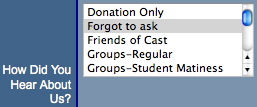
Description:
- Presents a drop down of options for the patron to choose from indicating how they heard about the performances they purchased. This information is used for marketing purposes.
- Additional options can be added to the Theatre Manager database by going to Setup >> System Tables >> Code Tables, clicking Order Reason to Buy in the left column and using the New button at the top of the window.
Location:
htdocs/1/WebPagesEN/TMtemplates/
Able to Call Page(s):
- Not Applicable
Called By Page(s):
Page(s) Referenced:
- Not Applicable
setREASON_TO_BUY_LISTempty.html
setREASON_TO_BUY_LISTempty.html

Description:
- Displays the text **Nothing available to select** in the how did you hear list when there is no available online reasons within Theatre Manager.
- To avoid this message go to Setup >> System Tables >> Code Tables and select Order Reason To Buy in the left column within Theatre Manager. Double click on one of the option in the right column and check the box for Available At Internet. Close the window to save the changes.
Location:
htdocs/1/WebPagesEN/TMtemplates/
Able to Call Page(s):
- Not Applicable
Called By Page(s):
Page(s) Referenced:
- Not Applicable
setSALUTATION_LIST.html
setSALUTATION_LIST.html
Description:
- Displays the a drop down box of the available online salutations from within Theatre Manager.
- Only those salutations that have been indicated as Available At Internet within their setup in Theatre Manager will be displayed.
- To change the visibility of a status online go to Setup >> System Tables >> Code Tables within Theatre Manager. Select Patron Salutations in the left column. Double click on a salutation in the right column that should be available online. Alter the check box for Available At Internet accordingly. Close the window to save the changes.
Location:
htdocs/1/WebPagesEN/TMtemplates/
Able to Call Page(s):
- Not Applicable
Called By Page(s):
Page(s) Referenced:
- Not Applicable
setSALUTATION_LISTempty.html
setSALUTATION_LISTempty.html

Description:
- Displays the text **Nothing available to select** in the salutation drop down when there is no available salutations within Theatre Manager.
- To prevent this message go to Setup >> System Tables >> Code Tables within Theatre Manager. Select Patron Salutations in the left column. Double click on a salutation in the right column that should be available online. Check the box for Available At Internet. Close the window to save the changes.
Location:
htdocs/1/WebPagesEN/TMtemplates/
Able to Call Page(s):
- Not Applicable
Called By Page(s):
Page(s) Referenced:
- Not Applicable
setSUBSCRIBE_LIST.html
setSUBSCRIBE_LIST.html
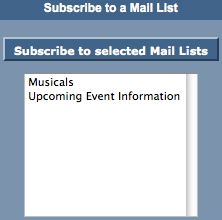
Description:
- Displays a list of available mail lists the patron can subscribe to online.
- To add a mail list the Allow Patron To Subscribe/Unsubscribe Via The Internet box needs to be checked for the list within Theatre Manager. To access this option click the Mail List button at the top of the window in Theatre Manager. Double click on the desired mail list and select the Description tab. Check the Allow Patron To Subscribe/Unsubscribe Via The Internet box. Close the window to save the changes.
Location:
htdocs/1/WebPagesEN/TMtemplates/
Able to Call Page(s):
- Not Applicable
Called By Page(s):
Page(s) Referenced:
- Not Applicable
setSUBSCRIBE_LISTempty.html
setSUBSCRIBE_LISTempty.html

Description:
- Displays the text **Nothing available to select** when there are no available mail lists for the patron to subscribe to.
- This can be caused by the lack of available mail lists online or if the patron has subscribed to all available mail lists.
- To add a mail list the Allow Patron To Subscribe/Unsubscribe Via The Internet box needs to be checked for the list within Theatre Manager. To access this option click the Mail List button at the top of the window in Theatre Manager. Double click on the desired mail list and select the Description tab. Check the Allow Patron To Subscribe/Unsubscribe Via The Internet box. Close the window to save the changes.
Location:
htdocs/1/WebPagesEN/TMtemplates/
Able to Call Page(s):
- Not Applicable
Called By Page(s):
Page(s) Referenced:
- Not Applicable
setSUBS_SERIES_LIST.html
setSUBS_SERIES_LIST.html

Questions and Answers:
Q: How can the series list be customized to display something other then what is pulled from the Theatre Manager database?
A: To make the events in the subscription display as "First Sun in Run @8:00pm" the following would be used:
<field>pick(mid(PB_SERIES_CODE,1,1),'','First','Second','Third','Fourth','Fifth')</field>
The following example displays the series code on the screen in the popup box:
<field>mid(PB_SERIES_CODE,3,3)</field> in run @ <field>pick(pos(mid(PB_SERIES_CODE,7,1),'ME'),'8:00','2:00','8:00')</field>pm
____________________________________________________________
Description:
- Presents a list of available series options to choose from in a drop down format.
- Some organizations have more then one performance within their season package. Each performance is indicated by a series code. This allows Theatre Manager to book the patron into the same night for each event within the season package.
- Only performances marked as Season Control Performance within the Control House in Theatre Manager will appear in the drop down.
Location:
htdocs/1/WebPagesEN/TMtemplates/
Able to Call Page(s):
- Not Applicable
Called By Page(s):
Page(s) Referenced:
- Not Applicable
setSUBS_SERIES_LISTempty.html
setSUBS_SERIES_LISTempty.html

Description:
- Displays the text **Nothing available to select** in the series drop down when there is no season control performances within the control house in Theatre Manager.
- Some organizations have more then one performance within their season package. Each performance is indicated by a series code. This allows Theatre Manager to book the patron into the same night for each event within the season package.
- To avoid this messaged ensure at least on performance has the Season Control Performance box checked within it's setup. This is accessed by clicking the Event button at the top of Theatre Manager, double clicking on the event and selecting the Performance tab.
Location:
htdocs/1/WebPagesEN/TMtemplates/
Able to Call Page(s):
- Not Applicable
Called By Page(s):
Page(s) Referenced:
- Not Applicable
setTICKET_QTY_LIST.html
setTICKET_QTY_LIST.html

Description:
- Displays a drop down of the quantity of tickets the patron can purchase for the Performance.
- This number is determined by the number of tickets in the patrons current cart, the system default per order and the performance per order limit.
Location:
htdocs/1/WebPagesEN/TMtemplates/
Able to Call Page(s):
- Not Applicable
Called By Page(s):
- TMsubscriptionMapDefault.html
- TMsubscriptionMapDefaultf.html
- TMsubscriptionsMapDefaultf.html
- TMticketsSection_MapDefault.html
- TMticketsSection_MapDefaultc.html
- TMticketsSection_MapDefaultf.html
Page(s) Referenced:
- Not Applicable
setTICKET_QTY_LISTempty.html
setTICKET_QTY_LISTempty.html

Description:
- Displays the text **Maximum tickets per order has been reached** in the quantity drop down when the maximum tickets per order has been met.
- If the maximum quantity of tickets is being meet too soon it's possible to increase the number of tickets per order in the Maximum Tickets field of the Web tab in Setup >> System Preferences within Theatre Manager.
- The event purchase limit can also impact the maximum tickets a patron can purchase. This limit can be adjusted in the Patron Purchase Limit field located in the Event tab. To access this event click the Events tab at the top of the window and double click on the event to open it within Theatre Manager.
Location:
htdocs/1/WebPagesEN/TMtemplates/
Able to Call Page(s):
- Not Applicable
Called By Page(s):
- TMsubscriptionMapDefault.html
- TMsubscriptionMapDefaultf.html
- TMsubscriptionsMapDefaultf.html
- TMticketsSection_MapDefault.html
- TMticketsSection_MapDefaultc.html
- TMticketsSection_MapDefaultf.html
Page(s) Referenced:
- Not Applicable
setUNSUBSCRIBE_LIST.html
setUNSUBSCRIBE_LIST.html
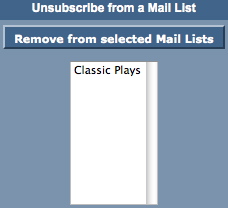
Description:
- Displays a list of mail lists the patron can unsubscribe from.
- This list is populated based on the mail lists the patron has previously subscribed to.
Location:
htdocs/1/WebPagesEN/TMtemplates/
Able to Call Page(s):
- Not Applicable
Called By Page(s):
Page(s) Referenced:
- Not Applicable
setUNSUBSCRIBE_LISTempty.html
setUNSUBSCRIBE_LISTempty.html

Description:
- Displays the text **Nothing available to select** when there are no available mail lists for the patron to unsubscribe from.
- This can be caused by the lack of available mail lists online or if the patron has not subscribed to any of the available mail lists.
- To add a mail list the Allow Patron To Subscribe/Unsubscribe Via The Internet box needs to be checked for the list within Theatre Manager. To access this option click the Mail List button at the top of the window in Theatre Manager. Double click on the desired mail list and select the Description tab. Check the Allow Patron To Subscribe/Unsubscribe Via The Internet box. Close the window to save the changes.
Location:
htdocs/1/WebPagesEN/TMtemplates/
Able to Call Page(s):
- Not Applicable
Called By Page(s):
Page(s) Referenced:
- Not Applicable
setVENUE_LIST.html
setVENUE_LIST.html
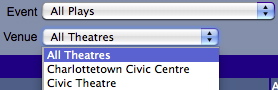
Description:
- Presents a list of Venues, where upcoming events will take place, in a drop down list. The venue is a part of the event setup and the list is based on the events available for sale via the web status within Theatre Manager.
- This drop down allows for patrons to search for their desired performance by venue.
Location:
htdocs/1/WebPagesEN/TMtemplates/
Able to Call Page(s):
- Not Applicable
Called By Page(s):
Page(s) Referenced:
- Not Applicable
setVENUE_LISTempty.html
setVENUE_LISTempty.html

Description:
- Displays the text **Nothing available to select** in the venue drop down when there are no performances marked as available for sale online within Theatre Manager.
- To avoid this message click the Events icon at the top of the window in Theatre Manager. Open an Event and select the Performance tab. Select one performance and check the box at the top of the window for Allow Selling Via The Internet. Close the window to save the changes.
Location:
htdocs/1/WebPagesEN/TMtemplates/
Able to Call Page(s):
- Not Applicable
Called By Page(s):
Page(s) Referenced:
- Not Applicable
setWEBSITE_LOCATION_LIST.html
setWEBSITE_LOCATION_LIST.html

Description:
- Displays the name of the website location based on the data from the patron record within Theatre Manager.
- The location can only be changed in the patron contact card from within Theatre Manager.
Location:
htdocs/1/WebPagesEN/TMtemplates
Able to Call Page(s):
- Not Applicable.
Called By Page(s):
Page(s) Referenced:
- Not Applicable.
setWEBSITE_LOCATION_LISTempty.html
setWEBSITE_LOCATION_LISTempty.html

Description:
- Displays the text **Nothing available to select** in the website location drop down when there are no locations type marked as available for sale online within Theatre Manager.
- This drop down allows for patrons to select the location type for their website.
- To avoid this message click Setup >> System Tables >> Code Tables within Theatre Manager. Select Paton Location from the left column. Double click on the type that should be available online. Check the box for Available at Website. Close the window to save the changes.
Location:
htdocs/1/WebPagesEN/TMtemplates
Able to Call Page(s):
- Not Applicable.
Called By Page(s):
Page(s) Referenced:
- Not Applicable.
setYEAR_LIST.html
setYEAR_LIST.html
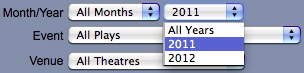
Description:
- In the calendar view this presents the year(s) in a drop down based on the Season Year for the performances marked as available for sale online within Theatre Manager.
- For credit card processing the year is programed to display the current year and ten years in advance of the current date.
- This drop down allows for patrons to search by year to find their desired date faster.
Location:
htdocs/1/WebPagesEN/TMtemplates/
Able to Call Page(s):
- Not Applicable
Called By Page(s):
Page(s) Referenced:
- Not Applicable
setYEAR_LISTempty.html
setYEAR_LISTempty.html

Description:
- Displays the text **Nothing available to select** in the year drop down when there are no performances marked as available for sale online within Theatre Manager.
- To avoid this message click the Events icon at the top of the window in Theatre Manager. Open an Event and select the Performance tab. Select one performance and check the box at the top of the window for Allow Selling Via The Internet. Close the window to save the changes.
Location:
htdocs/1/WebPagesEN/TMtemplates/
Able to Call Page(s):
- Not Applicable
Called By Page(s):
Page(s) Referenced:
- Not Applicable
tmCheckoutPostDatedPaymentRules.html
tmCheckoutPostDatedPaymentRules.html
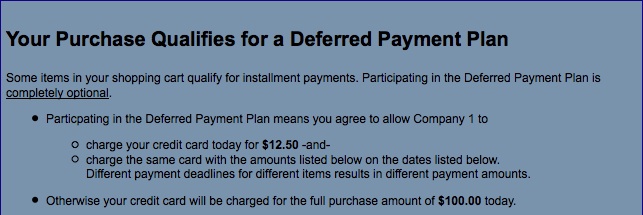
Description:
- Displays the rules surrounding the use of Post Dated Payments for billing.
Location:
htdocs/1/WebPagesEN/TMtemplates/
Able to Call Page(s):
- Not Applicable
Called By Page(s):
Page(s) Referenced:
- Not Applicable
tmCheckoutPostDatedPayments.html
tmCheckoutPostDatedPayments.html
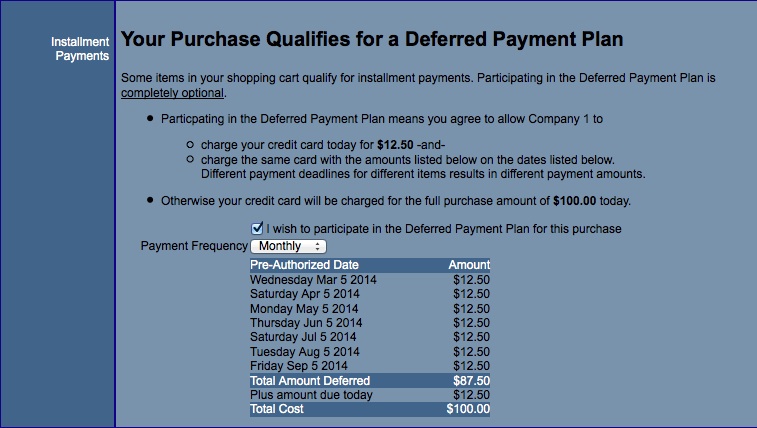
Description:
- Displays the rules Post Dated Payment options for billing.
Location:
htdocs/1/WebPagesEN/TMtemplates/
Able to Call Page(s):
- Not Applicable
Called By Page(s):
Page(s) Referenced:
tmContact.html
tmContact.html
Description:
- Pulls the company name, address, telephone number, fax, web site and email address as it appears in the Company tab of Setup >> Company Preferences within Theatre Manager
- The Google Map link draws on the address for Company tab of Setup >> Company Preferences within Theatre Manager
- The main web site address is pulled from the Company tab of Setup >> Company Preferences within Theatre Manager
Location:
htdocs/1/WebPagesEN/TMtemplates/
Able to Call Page(s):
- maps.google.com
- The companies web site as it appears in the Company tab of Setup >> Company Preferences within Theatre Manager.
Called By Page(s):
- tmBoxOfficePolicy.html
- TMcheckoutCardError.html
- TMcheckoutConfirmation.html
- TMcheckoutInvoiceEmail.html
- TMcheckoutProcessing.html
- contentContact.html
- tmFeeDefault.html
- TMfutureTickets.html
- tmMailFee.html
- tmMailFeeDefault.html
- tmindex.html
- TMmaillistUnverifiedEmail.html
- tmOrderFee.html
- tmOrderFeeDefault.html
- tmPasswordChangeEmail.html
- TMpasswordEmptyEmail.html
- TMpasswordForgotEmail.html
- TMpasswordResetEmail.html
- TMpatronNewEmail.html
- TMpatronUpdateEmail.html
- TMsys404.html
- TMsysBackupInProgress.html
- TMsysInvalidCall.html
- TMsysInvalidCallDirect.html
- TMsysInvalidCallNoAccess.html
- TMsysInvalidFunction.html
- TMsysWebSalesDisabled.html
- TMticketsMaxPurchased.html
- TMticketsSoldOut.html
Page(s) Referenced:
- Not Applicable
tmContactHours.html
tmContactHours.html
Description:
- Pulls the company name, address, telephone number, fax, web site and email address as it appears in the Company tab of Setup >> Company Preferences within Theatre Manager
- The hours of operation are hard coded into this page and may need to be edited to reflect the accurate information for the organization
Location:
htdocs/1/WebPagesEN/TMtemplates/
Able to Call Page(s):
- maps.google.com
- The companies web site as it appears in the Company tab of Setup >> Company Preferences within Theatre Manager.
- The companies email address as it appears in the Web Server setup of Company Preferences within Theatre Manager.
Called By Page(s):
- contentContact.html
- tmBoxOfficePolicy.html
- TMcheckoutConfirmation.html
- TMcheckoutInvoiceEmail.html
- TMcheckoutProcessing.html
- tmContactPopup.html
- tmFeeDefault.html
- TMfutureTickets.html
- tmindex.html
- tmMailFee.html
- tmMailFeeDefault.html
- TMmaillistUnverifiedEmail.html
- tmOrderFee.html
- tmOrderFeeDefault.html
- TMpasswordChangeEmail.html
- TMpasswordEmptyEmail.html
- TMpasswordForgotEmail.html
- TMpasswordResetEmail.html
- TMpatronNewEmail.html
- TMpatronUpdateEmail.html
- TMsys404.html
- TMsysBackupInProgress.html
- TMsysInvalidCall.html
- TMsysInvalidCallDirect.html
- TMsysInvalidCallNoAccess.html
- TMsysInvalidFuncation.html
- TMsysWebSalesDisabled.html
- TMtickesMaxPurchased.html
- TMticketsSoldOut.html
Page(s) Referenced:
- Not Applicable
tmContactPopup.html
tmContactPopup.html
Description:
- Displays the Box Office contact information.
Questions and Answers:
Q: The location in Directions to our Box Office link is incorrect, how can it be fixed?
A: The location is based on the address in the Company tab of Company Preferences within Theatre Manager. If the address appears correctly in Theatre Manager it means Google has the location wrong. Contact Google to make the necessary changes.
____________________________________________________________
Location:
htdocs/1/WebPagesEN/TMtemplates/
Able to Call Page(s):
- Not Applicable
Called By Page(s):
Page(s) Referenced:
tmFooter.html
tmFooter.html
Description:
- Pulls the Footer details from the Web Listener tab found in Setup >> Company Preferences of Theatre Manager
Location:
htdocs/1/WebPagesEN/TMtemplates/
Able to Call Page(s):
- Not Applicable
Called By Page(s):
- tmBoxOfficePolicy.html
- TMcart.html
- TMcheckout.html
- TMcheckoutCardError.html
- TMcheckoutConfirmation.html
- TMcheckoutInvoiceEmail.html
- TMcheckoutNoItems.html
- TMcheckoutNoPayment.html
- TMcheckoutProcessing.html
- TMcoupon.html
- TMdonation.html
- TMdonationmonthly.html
- tmEventDefault.html
- tmFeeDefault.html
- TMfutureTickets.html
- TMfutureTicketsPrint.html
- TMhome.html
- TMlogin.html
- TMloginSelectPatron.html
- TMlogoff.html
- TMlogoffOpenCart.html
- tmMailFee.html
- tmMailFeeDefault.html
- TMmaillist.html
- TMmaillistDisallow.html
- TMmaillistQuickAdd.html
- TMmaillistUnverifiedEmail.html
- TMmaillistVerify.thml
- TMoldCartDetails.html
- TMoldCartDetailsPrint.html
- TMoldCartHeaders.html
- tmOrderFee.html
- tmOrderFeeDefault.html
- tmPackageDefault.html
- tmPassDefault.html
- TMpass.html
- TMpassAskAmount.html
- TMpasswordChange.html
- TMpasswordChangeEmail.html
- TMpasswordEmptyEmail.html
- TMpasswordForgot.html
- TMpasswordForgotEmail.html
- TMpasswordResetChange.html
- TMpwasswordResetEmail.html
- TMpatronLimtedProfile.html
- TMpatronNew.html
- TMpatronNewEmail.html
- TMpatronUpdate.html
- TMpatronUpdateEmail.html
- TMsubscriptionMapDefault.html
- TMsubscriptionMapDefaultf.html
- TMsubscriptionPriceMapDefaulthtml
- TMsubscriptionsMapDefaultf.html
- TMsubscriptionsPriceMapDefault.html
- tmSubscriptionDefault.html
- TMsubscriptions.html
- TMsubscriptionsRenew.html
- TMsys404.html
- TMsysBackupInProgress.html
- TMsysCookiesDisabled.html
- TMsysInvalidCall.html
- TMsysInvalidCallDirect.html
- TMsysInvalidCallNoAccess.html
- TMsysInvalidFunction.html
- TMsysWebSalesDisabled.html
- TMtickets.html
- TMticketscalendar.html
- TMticketsMaxPurchased.html
- TMticketsPrice_MapDefault.html
- TMticketsSection_MapDefault.html
- TMticketsSection_MapDefaultc.html
- TMticketsSection_MapDeafultf.html
- TMticketsSoldOut.html
- tmVenueDefault.html
- TMvolcalendar.html
- TMvolunteer.html
Page(s) Referenced:
- Not Applicable
tmLoginForm.html
tmLoginForm.html
Description:
- Displays the mandatory fields from the database and their names, need to login to a limited user profile for online sales
- The mandatory fields are located in the Allow Limited Profile Patrons On section of the Mandatory
Location:
htdocs/1/WebPagesEN/TMtemplates/
Able to Call Page(s):
Called By Page(s):
Page(s) Referenced:
tmLoginLimitedPatron.html
tmLoginLimitedPatron.html

Description:
- Displays the fields to be filled in for limited profile accounts.
Questions and Answers:
Q: How can the mandatory fields be changed?
A: In Theatre Manager click Setup >> System Preferences. Select the Mandatory Data tab. Remove the check from the options in the Limited Profile Web Sales Checkout Patron Data section for the fields that should not be mandatory.
____________________________________________________________
Q: How can I hid fields that are not mandatory?
A: Fields that are not mandatory can be commented out in this page.
____________________________________________________________
Location:
htdocs/1/WebPagesEN/TMtemplates/
Able to Call Page(s):
- Not Applicable
Called By Page(s):
Page(s) Referenced:
tmMailListQuickAddInsert.html
tmMailListQuickAddInsert.html
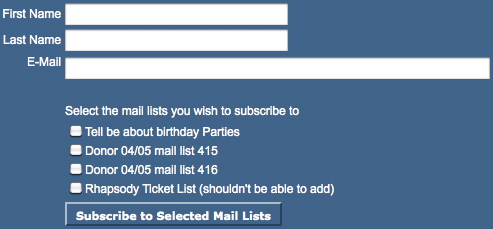
Description:
- Populates a list of Mail Lists with check boxes for the patron to indicate the Mail Lists they wish to sign up for.
- The list can be customized using the Mail List Sequence number from within Theatre Manager
- Allows for the ability to add subscribing and unsubscribing to a Mail List to any online page
Location:
htdocs/1/WebPagesEN/TMtemplates/
Able to Call Page(s):
- Not Applicable
Called By Page(s):
Page(s) Referenced:
tmnavButtons.html
tmnavButtons.html

Description:
- This web page include file is designed to show the buttons listed at the top of most pages within the online sales. Since all pages are responsive, on smaller screens like smartphones, the menus will collapse until there is only a logo and the hamburger menu (per the image to the right). clicking on the hamburger will expand or collapse the hidden actual menu items.
- The name seen on the button can be altered by editing the text within the double quotes
- in some cases, you only need to change the value in Company Preferences - Appearance Tab.
- For example changing the work Gift Certificate in value="Gift Certificates" to be Passes or Memberships.
- The icon can be changed by picking a different icon name from any of those supported by font awsome
- The cart countdown feature (beside the cart link) can be enabled and disabled in Company Preferences->Web Options tab
- It is recommended buttons are commented out within the file if not needed (rather then deleted) in the event they are needed at a later date.
Location:
htdocs/1/WebPagesEN/TMtemplates/
Able to Call Page(s):
- TMcart.html
- TMcheckout.html
- TMdonation.html
- TMhome.html
- TMlogin.htm
- TMlogoff.html
- TMmaillist.html
- tmnavLanguages.html
- TMpass.html
- TMpatronUpdate.html
- TMsubscriptions.html
Called By Page(s):
- tmBoxOfficePolicy.html
- tmCampaignDefault.html
- TMcart.html
- TMcheckout.html
- TMcheckoutCardError.html
- TMcheckoutConfirmation.html
- TMcheckoutNoItems.html
- TMcheckoutNoPayment.html
- TMcheckoutProcessing.html
- TMcoupon.html
- TMdonation.html
- TMdonationmonthly.html
- tmEventDefault.html
- tmFeeDefault.html
- TMhome.html
- TMfutureTickets.html
- TMlogoffOpenCart.html
- tmMailFee.html
- tmMailFeeDefault.html
- TMmaillist.html
- TMmaillistDisallow.html
- TMmaillistQuickAdd.html
- TMmaillistVerify.html
- TMoldCartDetails.html
- TMoldCartheaders.html
- tmOrderFee.html
- tmOrderFeeDefault.html
- tmPackageDefault.html
- TMpass.html
- TMpassAskAmount.html
- TMpasswordChange.html
- TMpatronLimitedProfile.html
- TMpatronUpdate.html
- tmSubscriptionDefault.html
- TMsubscriptions.html
- TMsubscriptionsRenew.html
- TMsubscriptionMapDefault.html
- TMsubscriptionMapDefaultf.html
- TMsubscriptionPriceMapDefault.html
- TMsubcriptionsMapDefaultf.html
- TMsubscriptionsPriceMapDefault.html
- TMsysBackupInProgress.html
- TMsysInvalidCall.html
- TMsysInvalidCallNoAccess.html
- TMsysInvalidFunction.html
- TMsysWebSalesDisabled.html
- TMtickets.html
- TMticketsCalendar.html
- TMticketsMaxPurchased.html
- TMticketsPrice_MapDefault.html
- TMticketsSection_MapDefault.html
- TMticketsSection_MapDefaultc.html
- TMticketsSection_MapDefaultf.html
- TMticketsSoldOut.html
- tmVenueDefault.html
- TMvolcalendar.html
- TMvolunteer.html
Page(s) Referenced:
tmnavLanguages.html
tmnavLanguages.html
Description:
- The language flags only appear when multiple languages are setup. This included uncommenting the lines within this page and adding details under the Web Listener tab of Setup >> Company Preference within Theatre Manager.
- A line can be added to this file for each desired language.
- The Language codes for &lang=XX where XX must have a WebPagesXX folder and be found in Theatre Manager under Setup >> Company Preferences in the Web Listener tab.
- Currently this reference is tied to the tmnavButtons.html page and will appear to the left of the buttons at the top of the window when the references is not commented out.
- Sample Flag images can be found in the tmGifs folder for referencing.
Location:
htdocs/1/WebPagesEN/TMtemplates/
Able to Call Page(s):
- Not Applicable
Called By Page(s):
Page(s) Referenced:
- Not Applicable
tmtermsandconditionsMODAL.html
tmtermsandconditionsMODAL.html
Description:
Location: htdocs/1/WebPagesEN/TMtemplates/ Able to Call Page(s): Called By Page(s): Page(s) Referenced: |
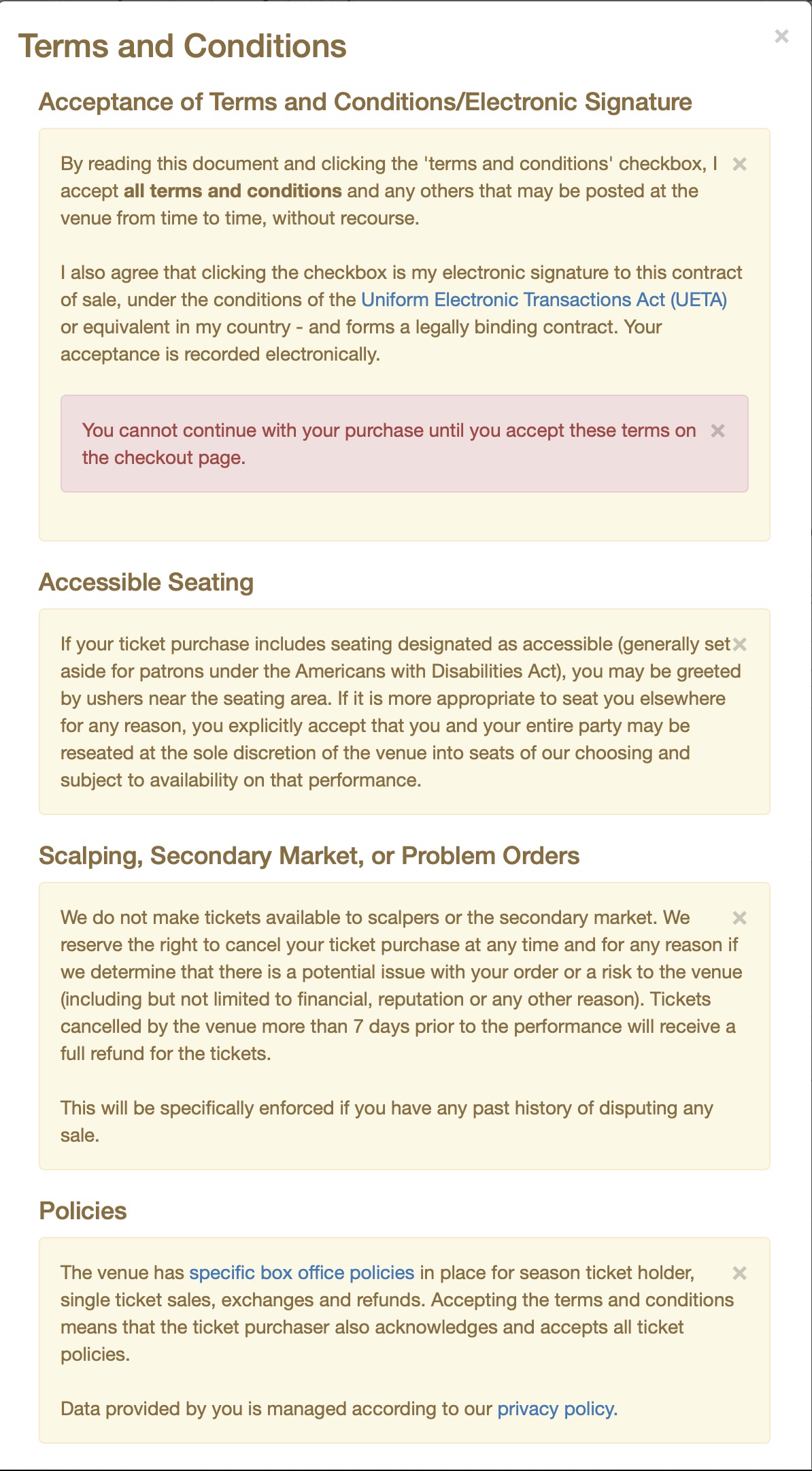
|
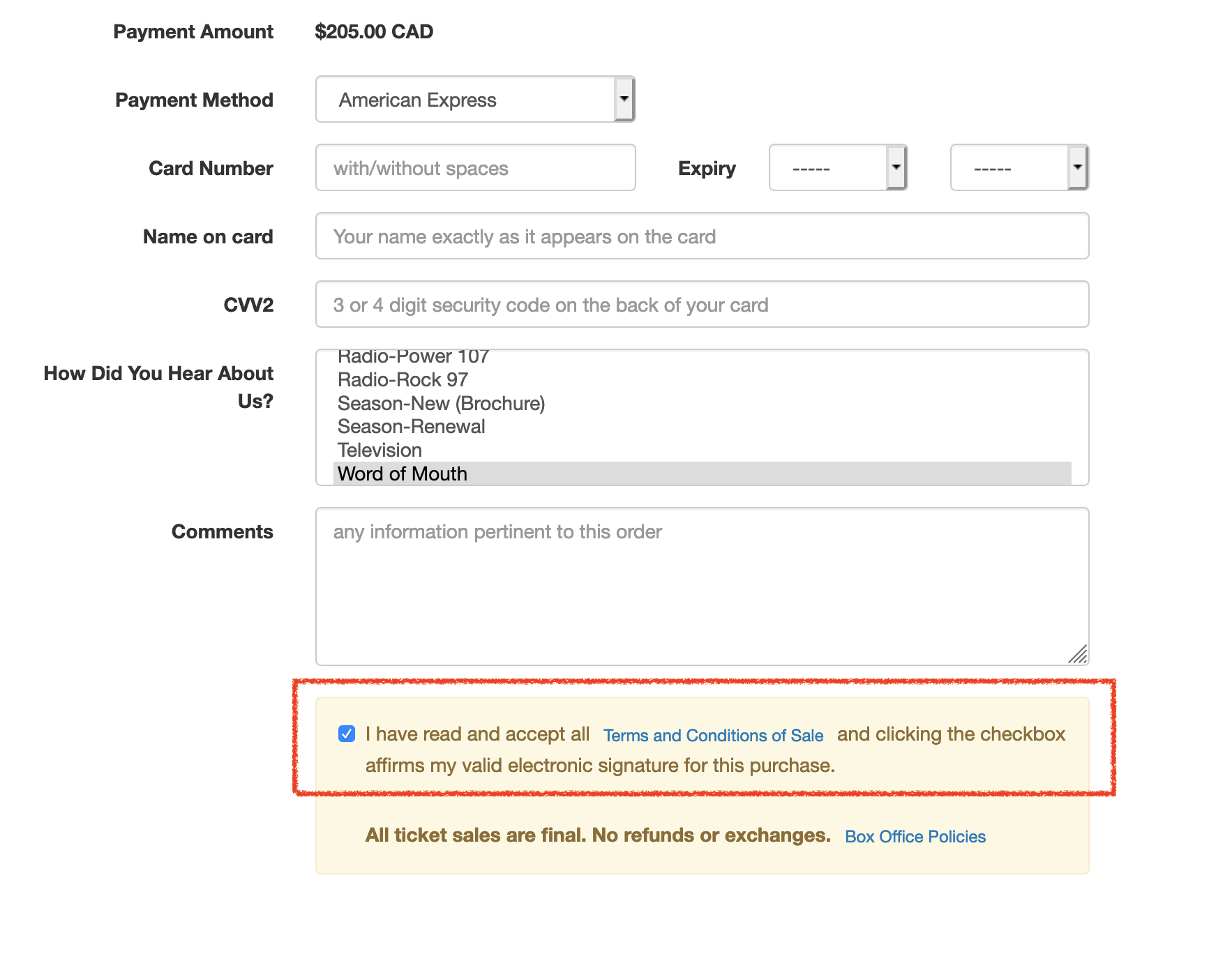
tmPoweredBy.html
tmPoweredBy.html

Description:
- The Theatre Manager powered by slogan.
Location:
htdocs/1/WebPagesEN/TMtemplates/
Able to Call Page(s):
- Main web site
- www.artsman.com
Called By Page(s):
Page(s) Referenced:
- Not Applicable.
tmSocialMedia.html
tmSocialMedia.html

Description:
- Social Media links displayed on theTMhome.html page
Location:
htdocs/1/WebPagesEN/TMtemplates/
Able to Call Page(s):
- Main web site
Called By Page(s):
Page(s) Referenced:
- Not Applicable
tmTicketHandling.html
tmTicketHandling.html
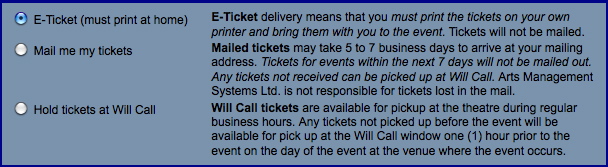
Description:
- Displays the available E-Ticket printing options based on the setup in the Theatre Manager database. For more details on online printing options click here.
Location:
htdocs/1/WebPagesEN/TMtemplates/
Able to Call Page(s):
- Not Applicable.
Called By Page(s):
Page(s) Referenced:
- Not Applicable.
tmnavButtonsFooter.html
tmnavButtonsFooter.html
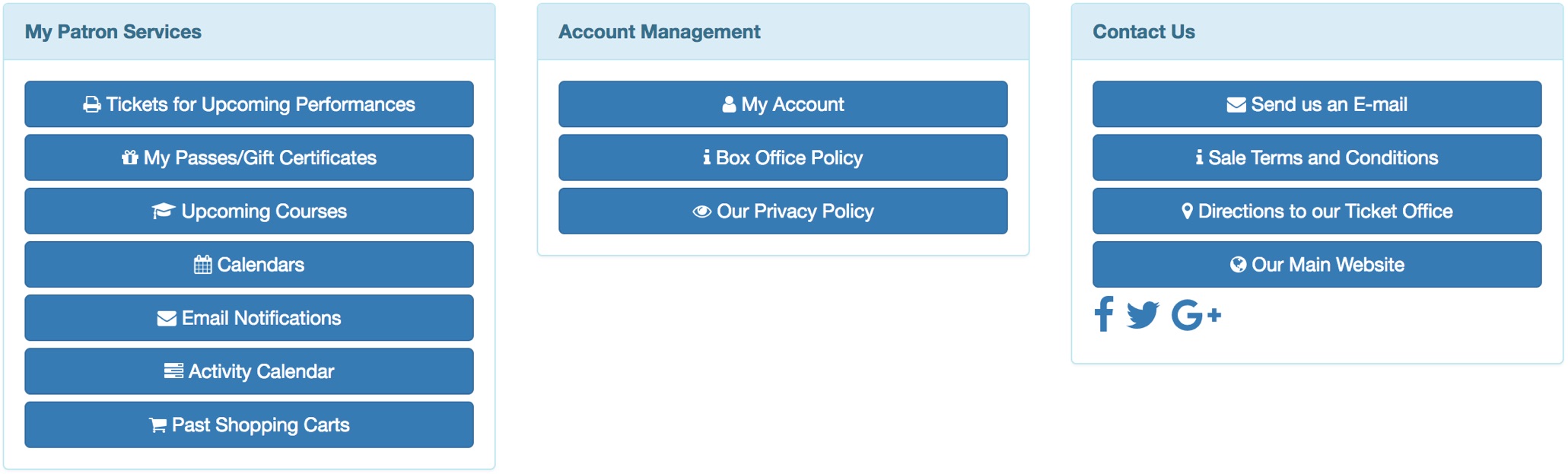
Description:
- Patron Services, Account Management and Contact Us links from the TMhome.html page
Location:
htdocs/1/WebPagesEN/TMtemplates/
Able to Call Page(s):
- Main web site
- tmBoxOfficePolicy.html
- TMcalendar.html
- TMfutureTickets.html
- TMmaillists.html
- TMoldCartHeaders.html
- TMpatronUpdate.html
- TMpassAvailable.html
- tmPrivacyPolicy.html
- tmtermsandconditions.html
- TMvolunteerActivity.html
Called By Page(s):
Page(s) Referenced:
TMtickets.html
TMtickets.html
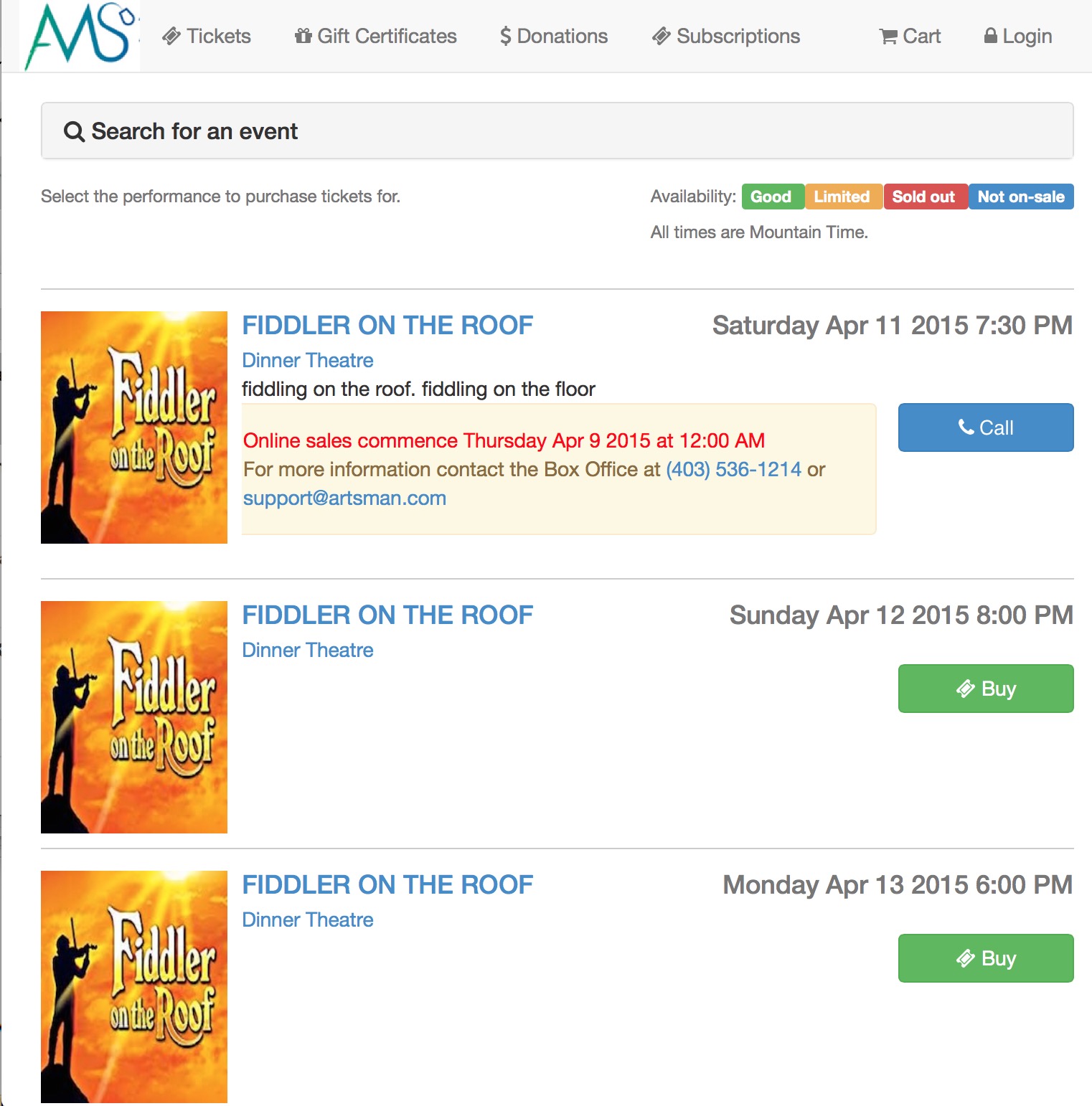
Description:
- This is traditionally the first pages patrons see when accessing the online sales process. It's the default reference in the page
- This page contains a list of all performances that have been made available for sale via the web within Theatre Manager.
- Additional performances may be added to the list when a presales access coupon is in use.
- The rowTicketEventAvailability.html template can be edited to change the percentage and font colour in the Availability column.
- To edit the column widths this page, the rowTicketEvent.html and the rowTicketEventNotOnSaleYet.html pages need to be updated. The later will ensure the content of the page displays correctly.
Questions and Answers:
Q: How can the Availability options column be changed?
A: The text in the Availability column is located in the rowTicketsEventAvailability.html page. By accessing this template the percentage level for availability can be altered. In addition the colour of the text and the wording can be altered as desired.
____________________________________________________________
Location:
htdocs/1/WebPagesEN
Able to Call Page(s):
- TicketTrove Application Page
- TMcoupon.html
- tmEventDefault.html
- TMticketsSection_MapDefault.html
- TMticketsSection_MapDefaultc.html
- TMticketsSection_MapDefaultf.html
- tmVenueDefault.html
Called By Page(s):
- contentEvents.html
- index.html
- TMcart.html
- TMlogin.html
- TMmaillistUnverifiedEmail.html
- TMpassAskAmount.html
- Any page containing the navigation buttons.
Page(s) Referenced:
- buttonRollover.html
- constantALLEVENTS.txt
- constantALLVENUES.txt
- constantALLYEARS.txt
- constantMONTHS.txt
- disclaimer.html
- googleHeader.html
- pleaseWaitMessage.html
- pleaseWaitMessageFunction.html
- rowTicketEvent.html
- rowTicketEventNotOnSaleYet.html
- rowTicketPageHeader.html
- rowTicketPageList.html
- setEVENT_LIST.html
- setEVENT_LISTempty.html
- setGERNE_LIST.html
- setGENRE_LISTempty.html
- setMONTH_LIST.html
- setMONTH_LISTempty.html
- setVENUE_LIST.html
- setYEAR_LIST.html
- setVENUE_LISTempty.html
- setYEAR_LISTempty.html
- styles.html
- TMError.txt
- tmFooter.html
- tmnavButtons.html
TMticketscalendar.html
TMticketscalendar.html
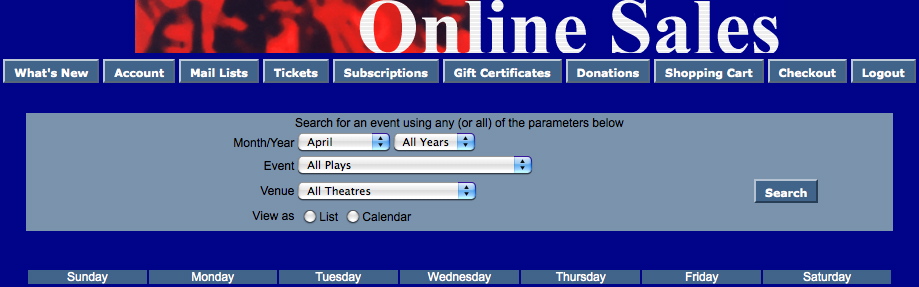
Description:
- THIS PAGE IS CURRENTLY UNDER CONSTRUCTION
Location:
htdocs/1/WebPagesEN
Able to Call Page(s):
- tmEventDefault.html
- TMticketsSection_MapDefault.html
- TMticketsSection_MapDefaultc.html
- TMticketsSection_MapDefaultf.html
- tmVenueDefault.html
Called By Page(s):
Page(s) Referenced:
- buttonRollover.html
- cellPerfDetailCalCurrent.html
- cellPerfDetailCalOther.html
- cellPerfDetailCalTextProperty.html
- cellPerfDetailCalTitleProperty.html
- NextEventEmpty.html
- NextEventNormal.html
- rowPerfDetailCal.html
- rowPerfHeaderCal.html
- setEVENT_LIST.html
- setEVENT_LISTempty.html
- setMONTH_LIST.html
- setMONTH_LISTempty.html
- setVENUE_LIST.html
- setVENUE_LISTempty.html
- setYEAR_LIST.html
- setYEAR_LISTempty.html
- styleButtons.css
- stylePages.css
- TMError.txt
- tmFooter.html
- tmnavButtons.html
TMticketsExport.html
TMticketsExport.html
Description:
- Do Not Alter This Page.
- This pages is used in conjunction with the TicketTrove mobile device application. The application is currently available for iPhone and iPad interfaces.
Questions and Answers:
Q: How can I export event details from this page?
A: Please click here for details on how to export event data.
____________________________________________________________
Q: What if I want to change the information to be exported from this page?
A: To details on how to alter information in an export please click here.
____________________________________________________________
Location:
htdocs/1/WebPagesEN
Able to Call Page(s):
- Not Applicable.
Called By Page(s):
- Not Applicable.
Page(s) Referenced:
TMticketsExportCustom.html
TMticketsExportCustom.html
Description:
- Provides a list of Events in a drupal like CMS/front end style in an XML format.
- This information can be viewed through the web rather then needing direct access to Theatre Manager.
- The page will provide details of the Event that can be used as an import to other application or for creating customized links on an organizations main website.
- Viewing the source code of the page will display the field reference details.
- Only Performances that are indicates as available for sale online will be visible.
- The rowTicketEventExportCustom.html page can be altered to display the desired Event information for this page.
Questions and Answers:
Q: How can I export event details from this page?
A: Please click here for details on how to export event data.
____________________________________________________________
Location:
htdocs/1/WebPagesEN
Able to Call Page(s):
- Not Applicable.
Called By Page(s):
- Not Applicable.
Page(s) Referenced:
TMticketsMaxPurchased.html
TMticketsMaxPurchased.html
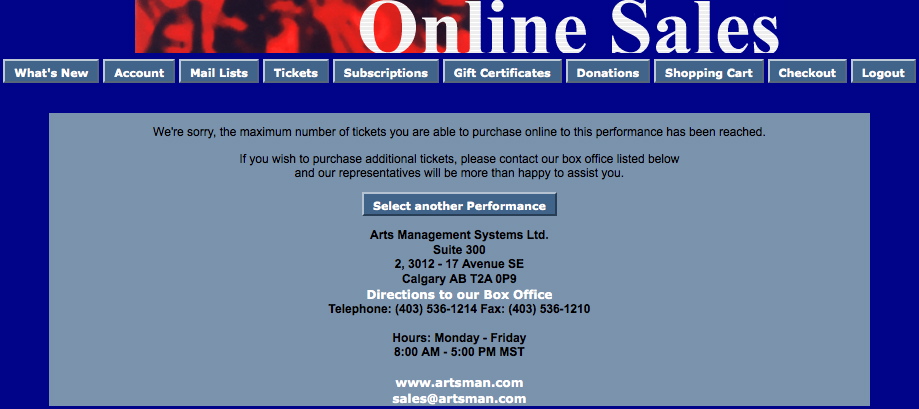
Description:
- The online sales has a defined maximum number of tickets that can be purchases per order, per event and per performance. When any of these limits have been reached this page is displayed.
- The Maximum Tickets in an Order is set under the Web tab in Setup >> System Preferences within Theatre Manager.
- The Patron Purchase Limit for an event is indicated in the Event tab of Setup >> Events within Theatre Manager.
- The Web Purchase Limit for a performance setting can be found by clicking Setup >> Events, selecting the Performance tab, double clicking in the desired performances and selecting the Web Settings tab.
Location:
htdocs/1/WebPagesEN
Able to Call Page(s):
- maps.google.com
- TMtickets.html
- The companies web site as it appears in the Company tab of Setup >> Company Preferences within Theatre Manager.
Called By Page(s):
Page(s) Referenced:
TMticketsSoldOut.html
TMticketsSoldOut.html
- sold out, or
- no longer can be sold online (see reasons below)
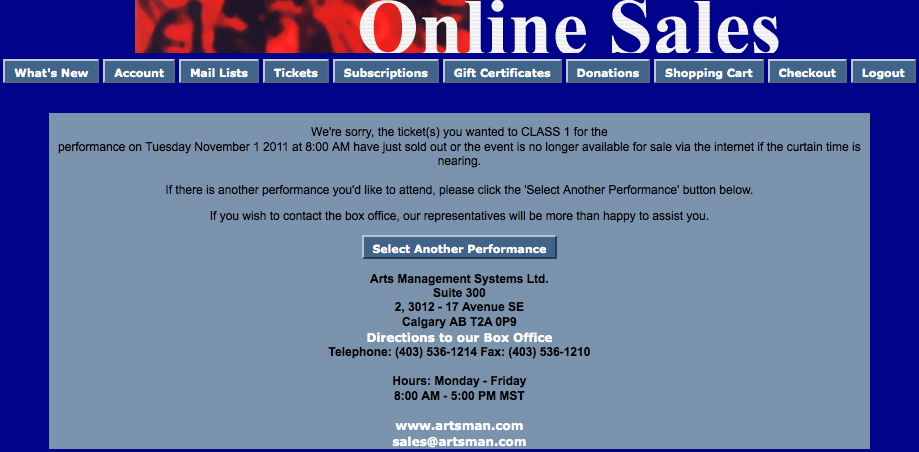
Description:
- Tickets for an event area available to purchase online until the event is sold out, it is manually removed from online sales or the performance has reached the minutes prior to start remove time.
- If a performance sells out while a patron is in the middle of the sales process they will receive this page. However, if the performance is already sold out prior to their attempt to purchase tickets it will be indicated in the Availability column of the TMtickets.html page.
- The Remove Minutes Before It Starts is set under the Web tab in Setup >> System Preferences within Theatre Manager.
- The Stop Sales in Advance for an event is indicated in the Event tab of Setup >> Events within Theatre Manager.
- The Stop Sales in Advance for a performance setting can be found by clicking Setup >> Events, selecting the Performance tab, double clicking in the desired performances and selecting the Web Settings tab.
Location:
htdocs/1/WebPagesEN
Able to Call Page(s):
- maps.google.com
- TMtickets.html
- The companies web site as it appears in the Company tab of Setup >> Company Preferences within Theatre Manager.
Called By Page(s):
Page(s) Referenced:
tmVenue Folder
tmVenue Folder
Custom pages can be created for a venue by duplicating the existing default page. The word Default in the page name is then replaced with the Pricing Map number. The Pricing Map number is located in the Map # column under Setup >> Theatre Maps in Theatre Manager.
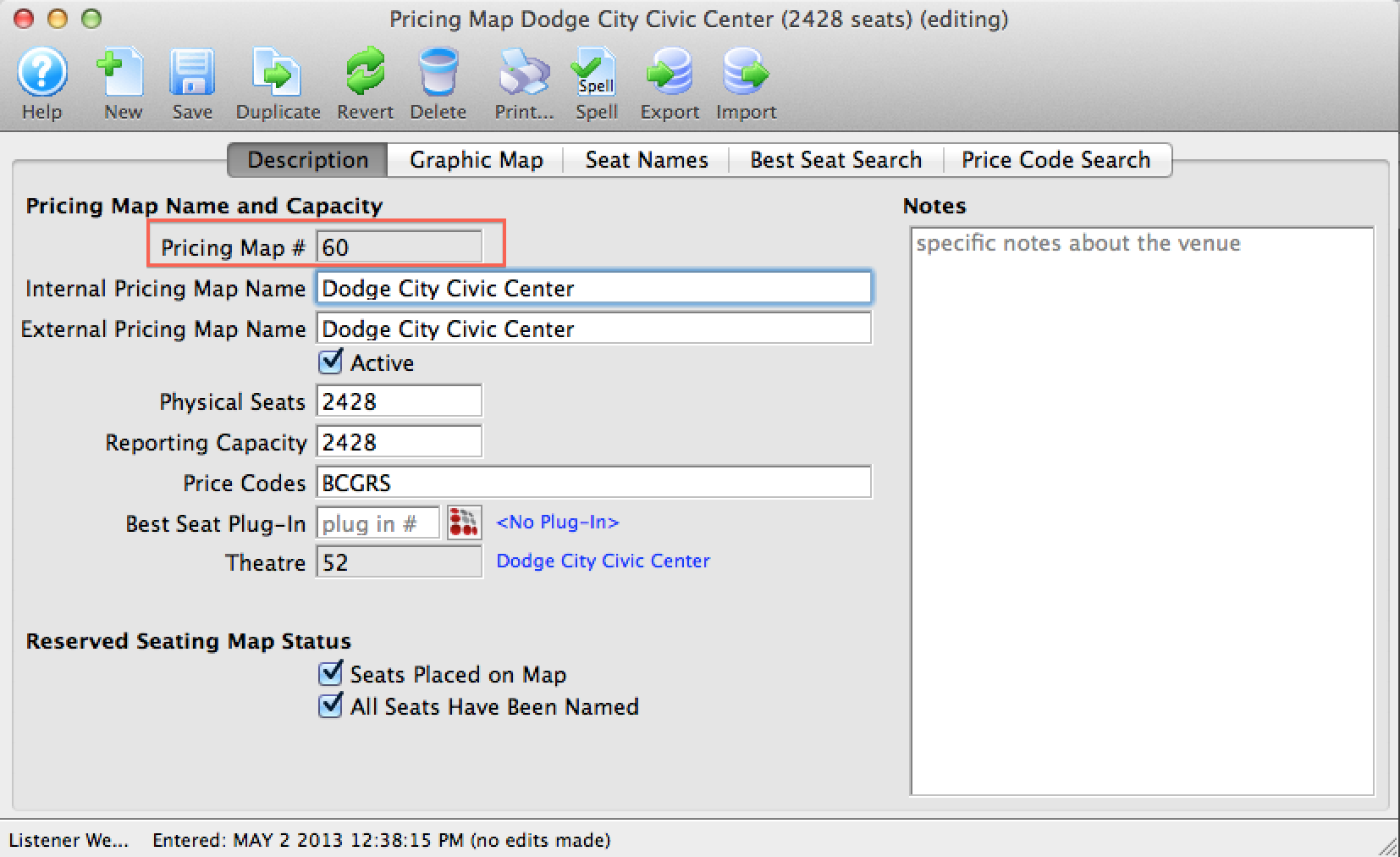
tmVenueDefault.html
tmVenueDefault.html

Description:
- A descriptive page of a Venue tickets are sold for.
- The Default page pulls the venue information directly from the Map setup with Theatre Manager.
- This page can be duplicated and the word Default changed to the map number from within Theatre Manager. The page can then be customized for the specific venue.
Location:
htdocs/1/WebPagesEN/tmVenue
Able to Call Page(s):
Called By Page(s):
- rowCartCourseNewGroup.html
- rowCartFestivalNewGroup.html
- rowCartReserveNewGroup.html
- rowCheckoutCourse.html
- rowCheckoutFestival.html
- rowCheckoutReserve.html
- rowCheckoutSubNewGroup.html
- rowFutureTicketHeader.html
- rowFutureTicketPrintHeader.html
- rowOldCartCourse.html
- rowOldCartFestival.html
- rowOldCartReserve.html
- rowOldCartPrintCourse.html
- rowOldCartPrintFestival.html
- rowOldCartPrintReserve.html
- rowPkgTicketFestival.html
- rowSubBookedHeader.html
- rowSubNewDetail.html
- rowSubRenewHeader.html
- rowTicketEvent.html
- rowTicketEventName.html
- rowTicketEventNotOnSaleYet.html
Page(s) Referenced:
TMvolcalendar.html
TMvolcalendar.html
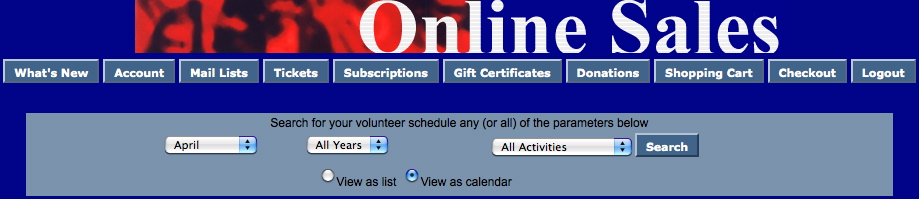
Description:
- THIS PAGE IS CURRENTLY UNDER CONSTRUCTION
Location:
htdocs/1/WebPagesEN
Able to Call Page(s):
- Not Applicable At This Time
Called By Page(s):
- Not Applicable At This Time
Page(s) Referenced:
- buttonRollover.html
- cellVolDetailCalCurrent.html
- cellVolDetailCalOther.html
- constantMONTHS.txt
- constantALLYEARS.txt
- NextVolEmpty.html
- NextVolNormal.html
- PrevVolEmpty.html
- PrevVolNormal.html
- rowVolDetailCal.html
- setACTIVITY_LIST.html
- setACTIVITY_LISTempty.html
- setMONTH_LIST.html
- setMONTH_LISTempty.html
- setYEAR_LIST.html
- setYEAR_LISTempty.html
- styleButtons.css
- stylePages.css
- TMError.txt
- tmFooter.html
- tmnavButtons.html
TMvolunteerActivity.html
TMvolunteerActivity.html
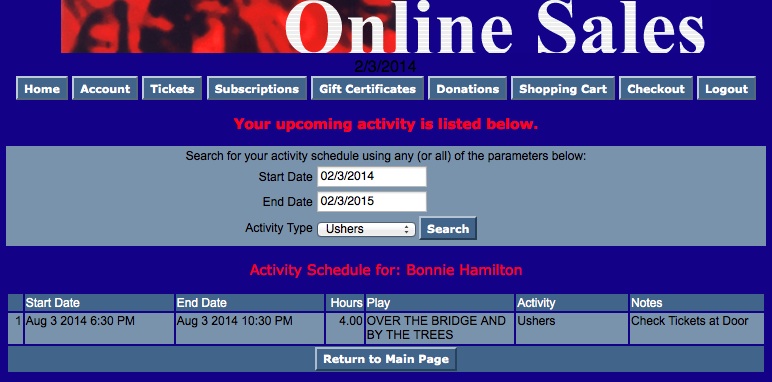
Description:
- Displays a list of future events, dates and times the patrons is scheduled to volunteer.
- This information is pulled directly from the Theatre Manager database.
Location:
htdocs/1/WebPagesEN
Able to Call Page(s):
Called By Page(s):
Page(s) Referenced: