Theatre Manager: Responding to COVID 19
Theatre Manager: Responding to COVID 19
 COVID 19 is worldwide problem that has resulted in some strong recommendations from government for people to be careful in, and/or avoid large gatherings. In a number of jurisdictions, this has meant cancelling events, postponing, offering refunds and some possible insurance implications. It is also causing some organizations to permit work-at-home
COVID-19 has affected the arts, entertainment and sports industry, probably more than most. We offer some thoughts how you can address it in Theatre Manager.
 |
Before you do any refunding, please make sure to set up gift certificates and donation campaigns to track refunds appropriately if you are not giving money back.
Do not leave the order on account. |
 |
VERY IMPORTANT: BEFORE REFUNDING PAYMENTS TO CREDIT CARDS...
Please read the rules regarding refunds to credit cards, which are managed by your credit card provider. Theatre Manager does its best to determine which refund rule applies, based on how the card was authorized. If you cannot get refunds working, your merchant provider is the key to unlocking the door. |
|
 IF YOU RECEIVE A MESSAGE THAT THERE ARE NO PRIOR PAYMENTS... if you receive a message from Theatre Manager that there are NO PRIOR PAYMENTS when doing a refund, the root cause is because merchant providers have been forcing venues to use linked refunds, meaning they imposed a typical time limit of having to refund within 120 days of purchase. In these times of crisis, each venue seems to have a different time limit and you can set it in Theatre Manager's Merchant Setup. It may work if you increase the time frame. If not, you may need to talk to the bank to have them raise the timeframe on their end as well. |
Managing Events due to Unforseen Circumstances
Managing Events due to Unforseen Circumstances
COVID-19 is at the forefront of everyone's mind. It's presence is headlining news, social media and daily conversation. There is a lot of uncertainly about it's impact and how long that impact may last. Many communities are facing imposed group gathering limits or mandated building closures. This has lead to the implementation of social distancing practices for those events that can still take place and for those that cannot, the postponement or cancellation of events.
We want to reassure all our clients that we are here to support you during this unforeseen and unprecedented time. We know the decisions made in early days will have a long term impact both socially and financially. To assist with implementing precautionary measures we offer the suggestions below:
Social Distancing
Social Distancing is the conscious effort to reduce close contact with other people. Officials have recommended Social Distancing as a means to help slow or prevent the spread of COVID-19. If you are implementing Social Distancing at your venue it may mean working from home and/or creating more space between patrons during a performance.
Working From Home
For those working from home and requiring access to Theatre Manager, there are tools that can be put in place to provide access from outside the office. If you are self-hosting your database, where the database serve is located in your office, we recommend using a VPN for secure access and an application such a Remote Desktop, LogMeIn, Go To My PC or TeamViewer. Applications such as these will allow you to access a computer within the office and work from that computers desktop. If you choose to implement a Terminal Server staff can work off the same machine using their own remote session. The process for accessing the database remotely is outlined in the help page Remote Access to Theatre Manager.
Artsman clients currently using our Cloud Hosting service can connect to their database simply by installing Theatre Manager on their work station, selecting Cloud Hosting and entering their unique Key/Password. The link for installing Theatre Manage is the same as those provided in the initial email for connecting to Cloud Hosting. If you require the installation link for Theatre Manager please contact the support team and we will be happy to provide this information. The details on how to connect to a Cloud Hosting database are located in the help page AMS Cloud Setup.
Distance between Seats
Some clients may be continuing with events and implementing Social Distancing within the Theatre. One approach to this process is holding seats within the venue to not only limit the number of patrons who can attend but also offer more space between seats for those attending. Local officials will determine the recommended distance between patrons and seats.
**** Web page on how to hold seats
Postponing An Event
Cancelling An Event
Many clients have had to close their doors in an effort to protect the public. This has lead to the cancellation of events. An outline of our recommendations during this time can be found on our help page Cancelling an Event.
When cancelling an event there are many ways to deal with currently purchased tickets. Options include:
- exchanged into another event
- refunded to a donation
- refunded to a pass or gift certificate
- payment returned to the patron
Create Social Distance Maps
Create Social Distance Maps
- Ticket sales. There are two ways to do this in theatre manager:
 Using automatic holds - where if a patron buys at the boxoffice or online, a 'cocoon' of seats will be placed around the purchase automatically. Next best seats will show that cocoon moving with the patron's seat choice'.
This method automatically adjusts the holds depending on what the patron buys - and is the recommended approach - but it requires a bit more venue setup to make it automatic.
A very important feature of the automatic method is that you can use reporting capacity for the price map to limit the total overall seats sold for a performance to meet governmental limits - the reporting capacity can be set to ignore social distance holds. This makes it very easy to limit sales to a specific number when sold online. (Box office is allowed to ignore limits if need be)
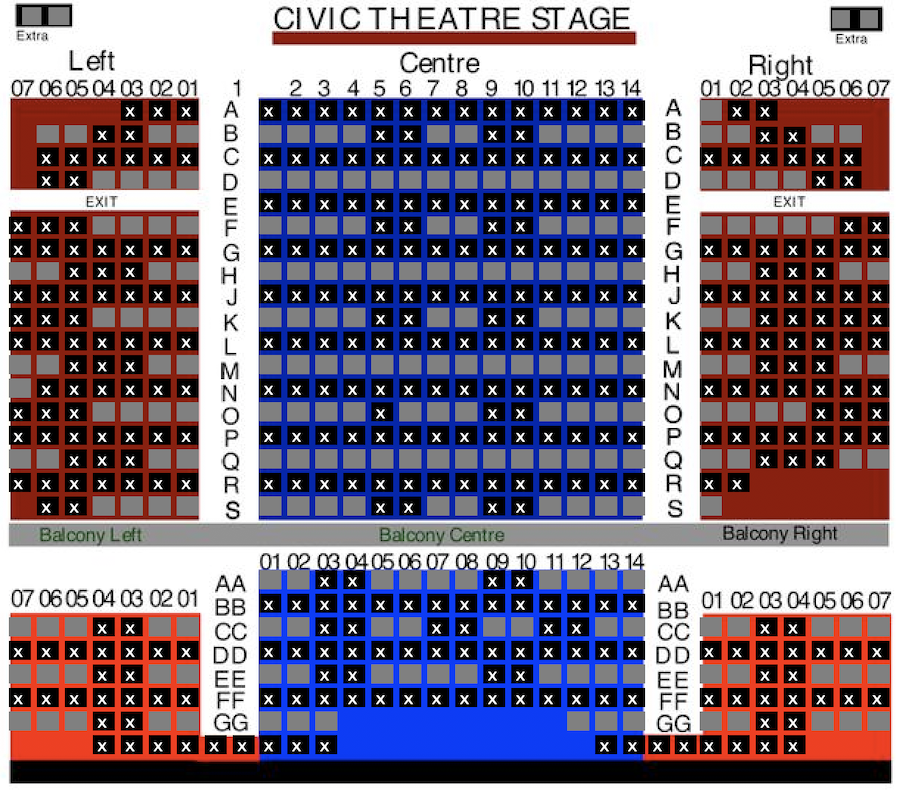 Using manual holds - where you pre-specify the holds in the venue and all other seats are held manually.
This also requires setup, and does not guarantee that people will have a safety barrier if the box office releases some seats inadvertently. It can be set up more quickly - and might be used as a stop gap until you build an automatic social distance map.
- On the night of the performance, entering into the venue in a managed way by calling people in by Zone Number that you set up in the pricing map
|
You can use the zone number entry process for reserved seating whether you are using social distancing sales process or not. |
Social Distance Maps using Automatic Holds
Social Distance Maps using Automatic Holds
|
Automatic social distance holds has been a feature of Theatre Manager for quite a while - primarily for use for dinner theatres and ADA seating. You may even be using this feature on some of your maps. |
|
NOTE: If you have permanent house helds (eg for light board), DO NOT set social distance seats for permanent holds. Instead, set the rest of your social distance seating as if those seats never existed. If you want to make permanent holds look like they are blocked online, set the hold letter to 'q'. |
In the context of social distance sales and COVID19, you can create an empty seat barrier around each seat. If you do:
- when seats are bought online and/or sold at the box office or over the phone,
- theatre manager will put a social distance ring of held seats around the seats that were sold.
Implementing Automatic Social Distance Sales
The following is a recommended process for doing social distance seating:
- Select and edit a venue you want to implement social distancing for
- Select the pricing map that you currently use and right-Click to duplicate it
- After duplicating the pricing map:
- edit the pricing map and:
- Change the internal name of the map to indicate it is for social distancing. eg you might change it from
My Main Venue to something indicator to the patrons like My Main Venue with automatic social distance
- Alter any price codes if you want to offer fewer
- Change the internal name of the map to indicate it is for social distancing. eg you might change it from
- Click on the Graphic Map tab and
- On the description tab, a very important feature of the automatic method is to set the reporting capacity. It should be set to limit the total overall seats sold for a performance to meet governmental limits while ignore social distance holds.
For example: this lets you set an absolute limit of 100 sold seats in a venue, regardless of how many social distance seats are required to make that happen.
- edit the pricing map and:
- Edit your ticket face and add the zone number to the ticket face in some prominent way
- Find the events in the future and change the pricing map to the new one you just edited
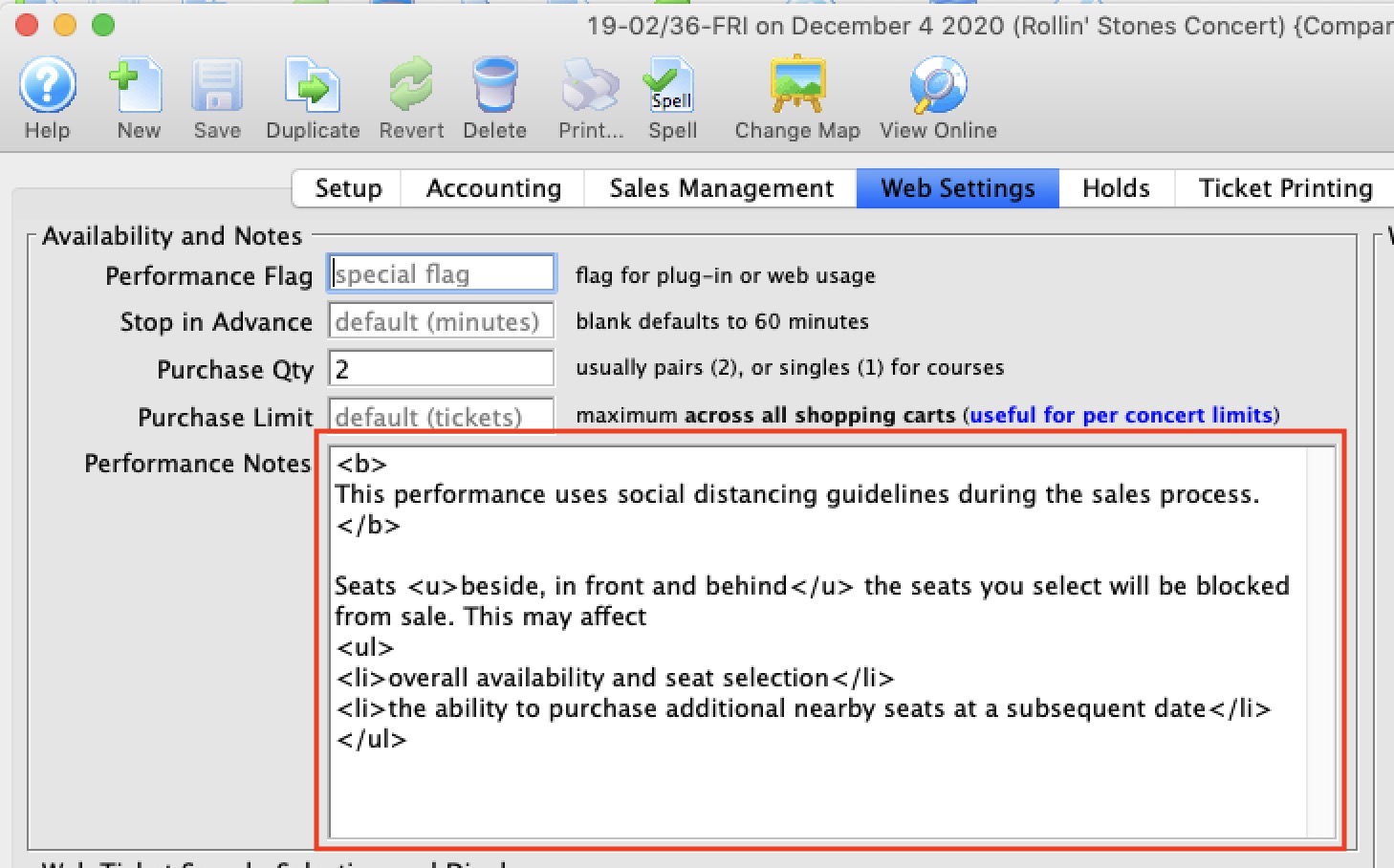
- Add some performance notes similar per the image below to give the patrons some assurance, or customize your ticket event list to indicate that the performance is sold with social distance in mind.
What does the Social Distance Map look like online?
There are two icons, one for each of
- sold seats (or manual holds by box office) - the person in the seat
- social distance hold seats - a 'do not use' icon representing the socially held seats which will be shown as a 'q' in the box office.
Social Distancing Maps using Manual Holds
Social Distancing Maps using Manual Holds
|
This technique can be used to reduce venue size down to government mandated levels by adding enough mandatory holds.
We recommend the automated social distancing approach as it handles spacing automatically - but it may not be for every venue. |
|
You might start out with a pattern of seats that create distance .. and as the performance fills in, you can re-adjust the holds based on purchased seats |
Distance between Seats
Some clients may be continuing with events and implementing Social Distancing within the Theatre. One approach to this process is holding seats within the venue to not only limit the number of patrons who can attend but also offer more space between seats for those attending. Local officials will determine the recommended distance between patrons and seats.
Distance between patrons in a performance can be created by holding seats. Depending on where you are in the process the options below outline how to create holds:
- in the setup of a map to ensure the seats are held when building future event
- in the maps tab for a performance for an event
- through the Order window for individual performances
Changing Maps
An organization may decide to create a Social Distancing map. This map would contain held seats to meet the regulations outlined by officials for group gatherings. Upcoming events can be altered to use this map. When capacity regulations are lifted the map can be updates once more to return to the original configuration or holds can be released within the performances themselves. The process for implementing a Social Distancing map would be:
- duplicate the existing map
- hold seats on the map
- change the map on an existing event
- update the holds for the performance to use the default holds for the new map
Some organizations may choose to move from Reserved Seating to General Admission / Festival Seating to allow patrons the option to create distance between themselves and others attending a performance. Click the Changing a Performance from Reserved to General Admission Seating link for details steps.
Updating Web Pages
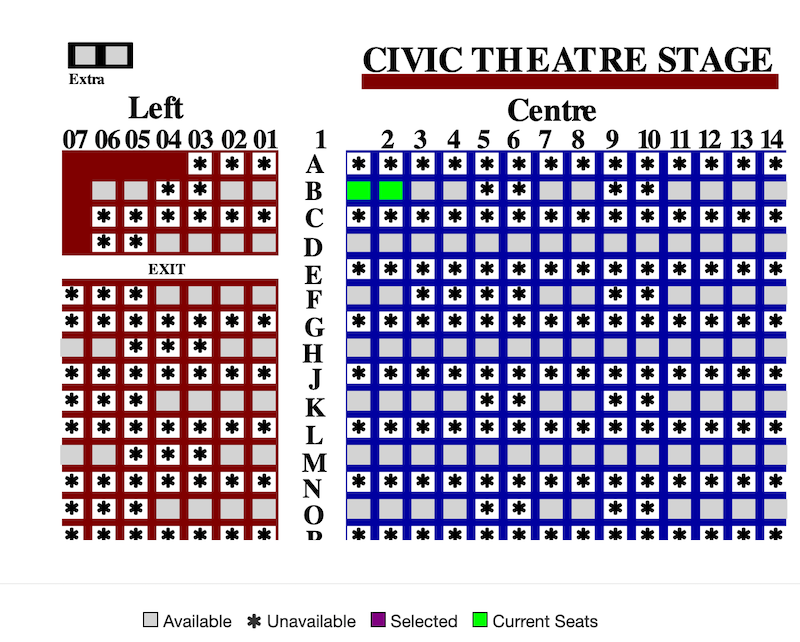
By default Theatre Manager displays unavailable seats on the map using a Font Awesome icon that appears in the shape of a person. This icon is used for both sold and held seats. The default icon works well under traditional circumstances where we are holding seats to manage how the house fills, to block off sections or to be booked at a later date using complimentary tickets. However, when implementing social distancing the icon may create the illusion of sitting next to another person when in fact the seats will remain empty. For this reason we recommend editing the web pages and changing the icon for seats that are currently unavailable.
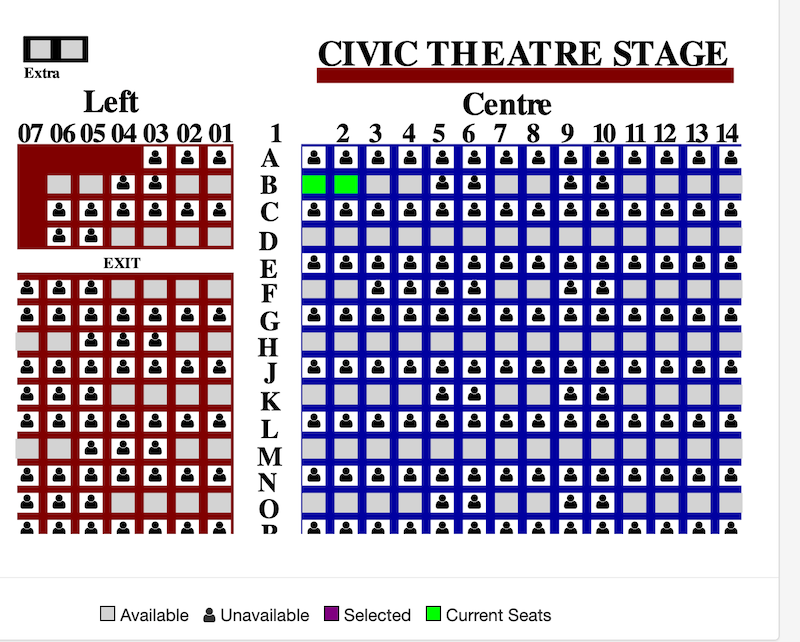
The web pages to edit may not currently be customized for your organization. If this is the case you'll need to download the most recent default pages and copy the pages into the WebPagesEN/tmMaps folder on your Primary Web Listener computer. Once the pages are in place you can then make changes to the content. The pages and edits are outlined below:
- WebPagesXX/tmMaps/tmChangePerformanceMap.html
- Change unavailable_text= - on Line 3
- Change unavailable_text= - on Line 4
- WebPagesXX/tmMaps/tmPickYourSeatMapDisplay.html
- Change unavailable_text= - on Line 42
- Change fa-user - on Line 56
The icon currently displayed on the page can be updated to any of the available options on the Font Awesome website. In this example the default icon is replaced with an asterisk. The values for an asterisk are  and fa-asterisk. Once replaced, Clear Web Cache in one of two ways:
- Clear Web Cache button in System Preferences on the Director tab -or-
- go to each of the web listeners, start the Director and clear the cache on the 'status' page
If your organization has implemented steps for Social Distancing not listed above we would love to hear about them. Please contact the support team and let us know what you are doing to help limit risk.
Reopening Venues After Covid
Reopening Venues After Covid
Some Provinces and States are implementing phases for reopening to the public that are conditional on:
- Number of people partially vaccinated
- Number of people fully vaccinated
- Rate of decline for new COVID-19 cases
- Demand on ICU and hospital facilities
- Variants of COVID-19 prevalent in a region
- Other mitigating local factors
Since its a guessing game exactly when you might be able to open, the following scenarios/examples might hep you with your own strategies
Entry Requirements (such as Proof of Vaccination)
Entry Requirements (such as Proof of Vaccination)
- Rules varies from place to place and change by the day.
- Please be aware your your local requirements and edit the following web pages as appropriate.
|
Theatre Manager does not support uploading vaccination status. Most rules we have seen require proof at the door to avoid issues such as people buying tickets for others. |
|
Adding Covid 19 related instructions for entry to the venue including those Provinces or States that require vaccine proof or passports means adding text to some fields in web options in Theatre Manager Company Preferences. |
|
These instructions assume you have not customized the following pages:
|
If you want to let your patrons know that they are subject to some specific requirements, editing one or more of the following web pages are things you can do right now:
| Warning before purchase |
 There are three note/warning/danger text areas you can add to the event list in the Event list in the purchasing tab in the Web options on the company preferences window. You can make your event list look like the one to the right be editing the Warning and Danger tabs as per the images below. Note: that the example uses markup to achieve bold, underline and bullet points -- without having to know HTML. |
|
Sample Warning Note in Markup
Sample danger Note in Markup
|
|
| Explicit acknowledgement at time of payment |

These are:
Acknowledgement Please be sure to enable the Acknowledge Terms and Conditions checkbox to see this warning. If enabled, the user will be required to acknowledge they have read the terms and conditions. This acknowledgement is stored for each cart. The requirement for acknowledgement of terms and conditions must be enabled in company preferences. We suggest only saying that you have a policy and add a link so that they can read the policy on your main web site. |
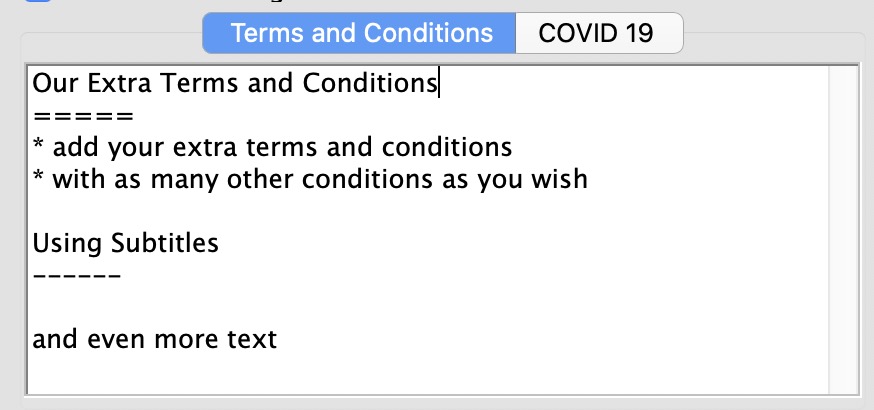
Terms and ConditionsAdd your extra terms and conditions that will show when they are enabled on the checkout window.
|
|
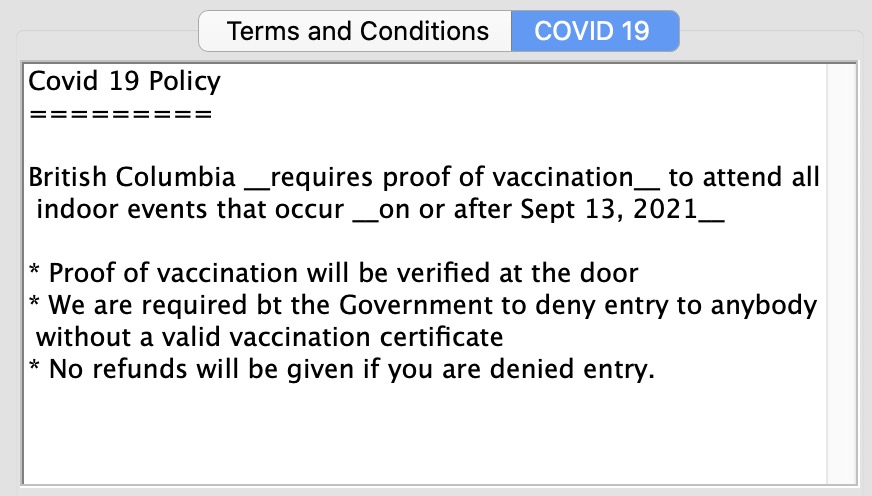
Covid 19Enter your Covid 19 policy in plain text, HTML or markup language and it will appear in the web site automatically. Adding words to covid 19 tab are what causes the 'accept terms and conditions' checkbox on the web site to say that there are Covid 19 conditions per the instructions above.
|


 There are two notes that pertain to terms and conditions that you can change on the
Payment Acknowledgement Page
Payment Acknowledgement Page
 The edits for this consist of manipulating the following files in the TMtemplates as follows
- editing tmCheckoutRefundExchangePolicy.html
- editing tmtermsandconditionsmodal.html
- duplicating
- tmtermsandconditionsAccessibleSeating.html
- and calling it tmtermsandconditionsCovid19.html
- Copying and Editing a new tmtermsandconditionsCovid19.html
Copy tmBoxOfficePolicyCovid19Modal.html
Copy tmBoxOfficePolicyCovid19Modal.html
|
The instructions assume you have downloaded the latest pages so you can customize them. Please download if you have not done so. |
- Copy the file tmBoxOfficePolicyCovid19Modal.html from the sample webpages tmFee folder and put it into the same place in your website
- The file look like the code below - you do not need to make any changes
|
<div aria-labelledby="AccountModalDialog" class="modal fade" id="Covid19Policy" role="dialog" tabindex="-1"> <div class="modal-dialog" role="document"> <div class="modal-content"> <div class="modal-header"> <button aria-label="Close" class="close" data-dismiss="modal" type="button"> <span aria-hidden="true"> × </span> </button> <h3 class="modal-title modal-info"> Box Office Policies </h3> <div class="modal-body"> <!--#include virtual="tmFee/tmBoxOfficePolicyCovid19.html" --> </div> <div class="modal-footer"> <button class="btn btn-info" data-dismiss="modal" type="button"> Close </button> </div> </div> </div> </div> </div> |
Edit tmBoxOfficePolicy.html
Edit tmBoxOfficePolicy.html
|
The instructions assume you have downloaded the latest pages so you can customize them. Please download if you have not done so. |
- Copy the file tmBoxOfficePolicy.html from the sample webpages tmFees folder and put it into the same place in your website
- Edit the file which will look like the code below
- Add in the new line highlighted in yellow. You can copy and paste it
- If the line looks like it is already there, remove the comment: in it to make it the same as below
- Save the File
|
<!DOCTYPE html> <html lang="en"> <head> <base href="<field>F_HTML_IMAGE_SERVER</field>"/> <title> <field>D_COMPANY_LONG</field> | Box Office Policies </title> <!--#include virtual="tmScripts/styles.html" --> <!--#include virtual="tmScripts/pleaseWaitMessageFunction.html" --> <!--#include virtual="tmScripts/googleHeader.html" --> </head> <body class="backgroundPopup"> <div class="container"> <div id="content"> <h3> Box Office Policies </h3> |
|
<!--#include virtual="tmFee/tmBoxOfficePolicyCovid19.html" --> |
|
<!--#include virtual="tmFee/tmBoxOfficePolicyTickets.html" --> <!--#include virtual="tmFee/tmBoxOfficePolicyExchanges.html" --> <!--#include virtual="tmFee/tmBoxOfficePolicyLostTickets.html" --> <!--#include virtual="tmFee/tmBoxOfficePolicyOrderFees.html" --> <!--#include virtual="tmFee/tmBoxOfficePolicyMailingFees.html" --> <!--#include virtual="TMtemplates/tmContactHours.html" --> </div> </div> <!--#include virtual="TMtemplates/tmFooter.html" --> </body> </html> |
Edit tmBoxOfficePolicyCovid19
Edit tmBoxOfficePolicyCovid19
|
The instructions assume you have downloaded the latest pages so you can customize them. Please download if you have not done so. |
- Find the file called tmBoxOfficePolicyCovid19.html in the sample web site tmFee folder
- Copy it to your web site tmFee folder
- This file has sample wording in it about covid 19 policies
- Find the code in yellow and DELETE it from your web page
- Make any wording changes you might need to make to suit your Province or State's specific rules
- Save the File
| <!-- comment: remove this line and the last line to add a covid 19 policy and then change wording as appropriate |
|
<h4> Covid 19 Policy </h4> <div class="alert alert-warning fade in"> <!--#include virtual="TMtemplates/tmMessageDismiss.html" --> British Columbia <b> requires proof of vaccination </b> to attend all indoor events that occur <b> on or after September 13, 3021 </b> <p> </p> <ul> <li> Proof of vaccination will be verified at the door. </li> <li> We are required by the Government to deny entry to anybody without a valid vaccination certificate. </li> <li> No refunds will be given if you are denied entry. </li> </ul> </div> |
| remove this last line --> |
Edit tmCheckoutCovid19Policy
Edit tmCheckoutCovid19Policy
|
The instructions assume you have downloaded the latest pages so you can customize them. Please download if you have not done so. |
- Copy the file tmCheckoutCovid19Policy.html from the sample webpages tmTemplates folder and put it into the same place in your website
- Edit the file which should look like the code below to make it suitable for your needs
- Save the File
|
<field>pick(SCH_TIX_QUANTITY+SCH_PASS_QUANTITY,'<!-- comment: if more than donations, show covid19 policy')</field> <br/> <br/> By clicking the checkbox, I also agree to the <!-- button trigger modal --> <button class="btn btn-link btn-xs" data-target="#Covid19Policy" data-toggle="modal" type="button"> Covid 19 Vaccination Requirements for entry </button> policy <!--#include virtual="tmFee/tmBoxOfficePolicyCovid19Modal.html" --> <field>pick(SCH_TIX_QUANTITY+SCH_PASS_QUANTITY,'-->')</field> |
Edit tmCheckoutTermsAndConditionsAcceptance.html
Edit tmCheckoutTermsAndConditionsAcceptance.html
|
The instructions assume you have downloaded the latest pages so you can customize them. Please download if you have not done so. |
- Copy the file tmCheckoutTermsAndConditionsAcceptance.html from the sample webpages TMtemplates folder and put it into the same place in your website
- Edit the file which will look like the code below
- Add in the new line highlighted in yellow. You can copy and paste it
- Save the File
| <field>pick(D_REQD_ACKNOWLEDGE_CRITERIA,'<!-- comment:')</field> <div class="form-group"> <div class="col-sm-offset-3 col-sm-9"> <div class="checkbox"> <div class="alert alert-warning"> <label for="conditions"> <input id="conditions" name="ORD_ACKNOWLEDGED_CONDITIONS" type="checkbox" value="1" <field>pick(SCH_ACKNOWLEDGED_CONDITIONS,'','checked')</field>/> I have read and accept all <!-- button trigger modal --> <button class="btn btn-link btn-xs" data-target="#termsConditions" data-toggle="modal" type="button"> Terms and Conditions of Sale </button> and clicking the checkbox affirms my valid electronic signature for this purchase. |
|
<!--#include virtual="TMTemplates/tmCheckoutCovid19Policy.html" --> |
|
<!--#include virtual="TMtemplates/tmCheckoutRefundExchangePolicy.html" --> </label> <!--#include virtual="TMtemplates/tmtermsandconditionsModal.html" --> </div> </div> </div> </div> <field>pick(D_REQD_ACKNOWLEDGE_CRITERIA,'-->')</field> |
Edit tmtermsandconditionsSpecialAnnouncements.html
Edit tmtermsandconditionsSpecialAnnouncements.html
|
The instructions assume you have downloaded the latest pages so you can customize them. Please download if you have not done so. |
- Copy the file tmtermsandconditionsSpecialAnnouncements.html from the sample webpages TMtemplates folder and put it into the same place in your website
- Edit the file which will look like the code below
- Add in the new line highlighted in yellow. You can copy and paste it
- Save the File
|
<!--#include virtual="tmFee/tmBoxOfficePolicyCovid19.html" --> |
|
<!-- comment: place any special/topical announcements/policies here. Eg: Covid 19 <h4> Special Announcements </h4> <div class="alert alert-warning fade in"> <!--#include virtual="TMtemplates/tmMessageDismiss.html" --> Watch this space for any special policies. </div> --> |
Adjusting reporting capacity to limit online sales
Adjusting reporting capacity to limit online sales
|
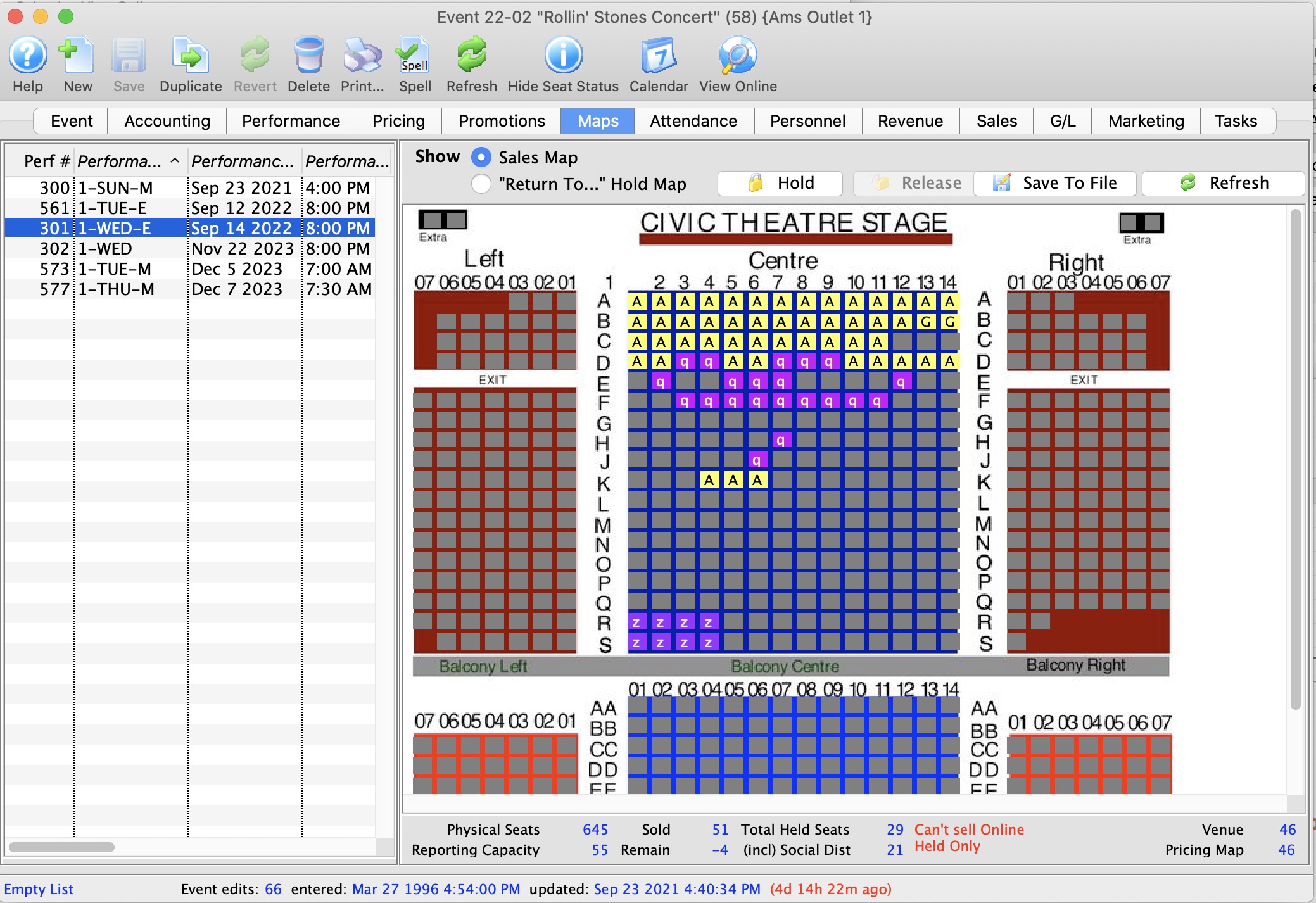
To help manage online sales based on reporting capacity, the lower part of the map window shows current physical capacity, reporting capacity, sold, held totals and the number remaining that can be sold online. |
- Adjust the reporting capacity on each performance to fine tune online sales within a venue.
For example, if you only ever want 100 tickets sold online for a performance, change the reporting capacity to 100. Once the
total tickets sold + total tickets held >= reporting capacity
You will be unable to sell any more tickets online where the event will look sold out, even if there are physical seats that are available which could be sold at the box office.

- Monitor your sales process from the box office window (Which will clearly state when there are helds only left) or from the event map window below which indicates similar information.
The remaining seats indicate how many more seats can still be sold online. When it is negative, online sales are prevented because you have reached reporting capacity, even if there are seats left that could be sold to the performance. They cannot be sold online unless you adjust the reporting capacity (see step 1).
You may want to
- Start with a reporting capacity that allows seats to be sold. Don't forget to add house 'helds' to your capacity at the start
- As total sold gets closer to your desired capacity, you may want to lower the reporting capacity to restrict seats more tightly
In the example, you can see sold totals , helds and reporting capacity on the event map window..
Conditionally Opening: with Fallback to streaming
Conditionally Opening: with Fallback to streaming
- You might have to close again - and could do streaming
- You are able to open with social distance seats - and might do streaming, but haven't decided
- Are able to open fully -but might still decide to offer live streaming for those who don't feel comfortable coming
Reserved Seating Performances
If you intend to use reserved seating when you open, but you want to hedge your bets in case you can't open, then we'd suggest the general approach of:
- Sell your event using social distance seating
- Near the performance time, decide how much you are able to open. Depending what you decide, you can open the event for more sales and/or user live event streaming to supplement what its available to the patron
Setup for selling
- Create a social distance map according to rules you think will be in place (eg 6 feet distance, etc).
- On the Performance:
- Turn off the Performance E-Mail Reminder so that no automatic email goes out. We will use this later, but for now, we don't want reminders going out that could confuse patrons since you are not sure how exactly they will see the performance.
- Add a performance note indicating that how they will see the event is to be determined and subject to re-opening rules
- Sell tickets using the social distance map as you would normally (online or at box office)
Closer to the performance date:
You will need to make some decisions regarding how you want to sell the performance. It may depend on how much you have already sold.
- If you cannot open the venue to patrons and want to stream the performance instead:
- Change the sales method from reserved to festival and increase sales capacity of the venue. The capacity increase is to allow selling as much streaming a you wish.
- Add your live streaming option to the performance
- Add a remind before performance date. TM will then send the 'watch this performance' email to patrons who have purchased.
- If you can open but only with social distancing and might also want to add streaming option
- (optionally) add your live streaming option to the performance
- Add a remind before performance date. TM will then send the 'watch this performance' email to patrons who have purchased.
-
 If you can fully open without social distancing
- Change the pricing map for the performance to one that does not use social distance seats
- On the Maps Tab for the event, Remove the 'Q' holds by:
- Highlighting all the seats on the map that have social distance holds (anything sold is ignored)
- Right click, and use the Release Seats option from the context menu to release the holds on the seats you've selected.
- If you don't want to release some of the holds, then don't select the seats
- (Optionally) add your live streaming option to the performance
General Admission Performances
If your plan is to can sell general admission tickets and convert it to a streaming event if you can't open, the steps we'd suggest are:
Setup the event
- Turn off the Performance E-Mail Reminder so that no automatic email goes out. We will use this later, but for now, we don't want reminders going out that could confuse patrons since you are not sure how exactly they will see the performance.
- Add a performance note indicating that how they will see the event is to be determined and subject to re-opening rules
- Sell tickets as you normally would
Closer to Performance
If you find you can't open as you thought, simply add live streaming to the performance:
- Add your live streaming option to the performance
- Add a remind before performance date. TM will then send the 'watch this performance' email to patrons who have purchased.
Removing Social Distance Q Holds
Removing Social Distance Q Holds
|
If a venue has been using the automatic social distance holds feature, the 'q' holds sold online are PERMANENT since that was the offer made to patrons at the time of booking |
As venues reopen after Covid, we suspect rules around social distancing will change, both relaxing and restricting.
However, if rules are relaxed by the authorities, there are two options that you can use in order to sell those Social Distance holds. These are:
- Full Opening: Remove all social distance seats from the venue map and proceed forward as if they were never there. You are telling theatre manager that no further social distancing will be required - ever. Online, these new seats will be available to anybody.
- Selectively Opening Seats: which means you opt to release one or two of the social distance seats at a time to squeeze a patron into those seats. These seats you have released may break bubbles and they will be available for patrons to purchase at the box office or online. However, the social distance map rules are still in force; menaing that the next sale may add some other social distance holds.
This might be best thought of as opening up only a couple of seats without giving up the full protection of your social distance sales map. It lets a few extra seats be sold and requires special permission to be set up for an employee.
Full Opening: Removing all 'q' holds from social distance map to return to normal
Full Opening: Removing all 'q' holds from social distance map to return to normal
- Switch to a map that doesn't use social distance holds. That prevents them being added for new sales
- Clear all the social distance 'q' holds that are currently in place
|
These instrutions assume that there are the same (or very similar) number of seats and general venue setup in the two pricing maps. This does will not work if the venues are wildly different. eg, this is not recommended if you change a dinner theatre pricing map to something like a hockey arena pricing map. |
Here are the steps:
- Change the pricing map for the performance to one that does not use social distance seats.
- On the Maps Tab for the event, Remove the 'Q' holds by:
-
Highlighting all the seats on the map that have social distance holds (anything sold is ignored)
- Right click, and use the Release Seats option from the context menu to release the holds on the seats you've selected.
- If you don't want to release some of the holds, then don't select those seats you want to remain as social distance holds
- resume selling tickets
- You may have to verify seats if the venue sizes are slightly different
Selectively removing PERMANENT 'q' holds (Temporarily)
Selectively removing PERMANENT 'q' holds (Temporarily)
|
Selectively removing social distance holds is a feature you can assign to some employees. It is designed to allow you to over-ride the holds, break an existing bubble, and squeeze somebody into the seats. However, any new seats that are sold will still see the social distance process applied to the seats. |
 Social distance seating held because of an online purchase are, by design, a little more PERMANENT and protected than other types of holds.
Even if an employee has permission to release these social distance holds in employee setup, they can may not be allowed to release these PERMANENT holds since that was a specific promise made to patrons when they purchased online at that time (i.e. the seats would be held for them).
Releasing the PERMANENT Social Distance Holds
 Releasing these permanent social distance holds is no different than releasing any other hold, with one exception.
If Theatre Manager notices you are trying to release one of these seats, you will get:
- An acknowledgement message similar to the one of the right that tells you how many social distance seats you are trying to release -or-
- If the employee is not permitted to release these special holds, they will receive a message asking for the initials and password of another employee who can release the seats -- and then they'll be able to release the seats for this sale only
The PERMANENT social distance ticket holds can be released:
- From the event setup window Map tab which can release for multiple performances
- While editing an order and selling a reserved seating ticket
- Manage Favourite seats window
- While editing season package for a specific patron
Enabling Access to Release PERMANENT holds
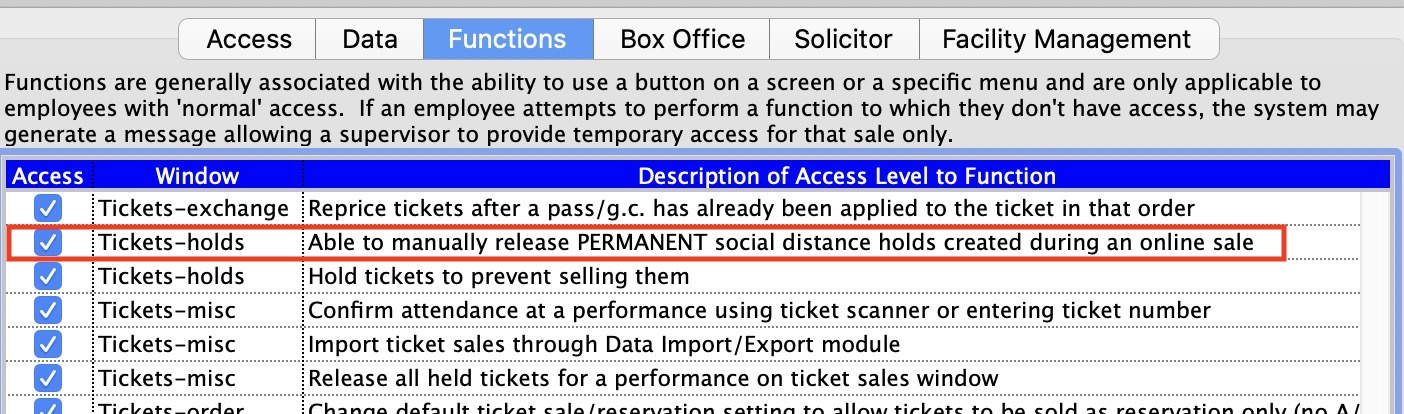 Selected employees need to be given permission to release these 'q' holds temporarily. This is given in the employee setup. For those who are not given permanent permission, then as a one time permission can be given at time of attempted release of the holds from another employee who has the capability.
Events you want to stream online
Events you want to stream online
|
Refer to the section on live streaming using content delivery services where the event is setup and sold in Theatre Manager, and the customer is delivered the content automatically. |
Events that are Cancelled
Events that are Cancelled
An outline containing recommendations for managing event cancellations can be found in the help page Cancelling an Event. These recommendations include generating Revenue and House reports prior to refunding tickets and creating a Mail List of those patrons who have purchased for future reference.
You can refund tickets and create an offsetting payment, donation or add a gift certificate/pass in three ways:
- Individually, on a patron by patron basis (summary and youtube videos below)
- Mass refund to a performance (also summarized below)
- Mass refund across events (also summarized below)
When cancelling an event there are many options for dealing with currently purchased tickets.
|
Before you do any refunding, please make sure to set up gift certificates and donation campaigns to track refunds appropriately if you are not giving money back.
Do not leave the order on account. |
|
VERY IMPORTANT: BEFORE REFUNDING PAYMENTS TO CREDIT CARDS...
Important: Please read the rules regarding refunds to credit cards, which are managed by your credit card provider. Theatre Manager does its best to determine which refund rule applies, based on how the card was authorized. If you cannot get refunds working, your merchant provider is the key to unlocking the door. |
Refunding to an individual patron
When a patron calls in, you have several options for refunding tickets based on their needs. These include:
- exchanging tickets to events in the future
- refunding tickets to a donation to keep funds within the organization (YouTube video link, also below)
- refunding tickets to a pass or gift certificate for future use (YouTube video link, also below)
- refunding payments to a patron
Refunding an entire performance
|
VERY IMPORTANT: Before refunding to gift certificates or donations, we suggest making a new and explicit gift certificate or donation campaign to track the refunds. |
If you intend to cancel an entire entire event, you can:
- refund all tickets to a performance at one time with (or without) creating payments (See video above) . You can select some people and refund to them (on the group basis) using one of the following methods:
- credit cards, or
- donations, or
- gift certificates
-or-
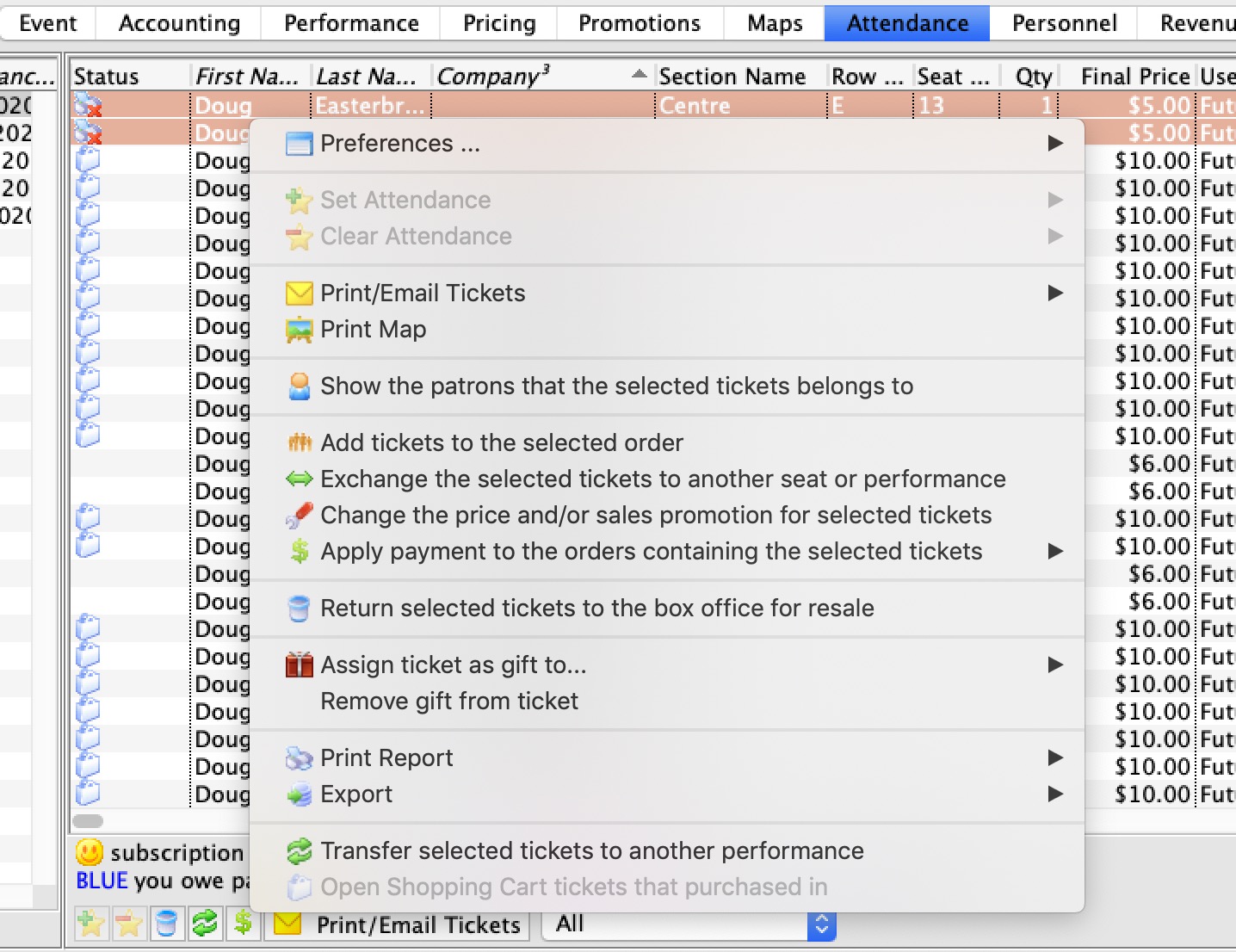 Select a range of orders, patrons or ticket types from the attendance tab where you can:
- work through the list of attendees from top to bottom
- use the context menu to refund only those tickets manually.
- This allows you to mark any future tickets in the order and also refund them if that might be important.
- And you can decide on the refund payment method on a per-order basis (checks, cards, eft, to a donation, or to a gift certificate, etc)
Remember to generate all Reports or Mail Lists about those patrons who have purchased prior to following these steps should you wish to contact them in the future.
Refunding across performances and events
You can search for and create a custom list of tickets in the Batch Functions->Unprint or Refund batch of tickets. This option let you:
- select tickets that cross events, performances, patron, etc.
- refund the tickets en-masse like the refund process in the attendance tab of events and dates
Adding donation quicklinks to emails, TM pages, and any other web pages
Adding donation quicklinks to emails, TM pages, and any other web pages
|
Please refer to the section donation quicklinks to find out how to create a single link that quickly adds a donation to a shopping cart.
Using quick-links enables you to do things like:
|
Events that are Postponed
Events that are Postponed
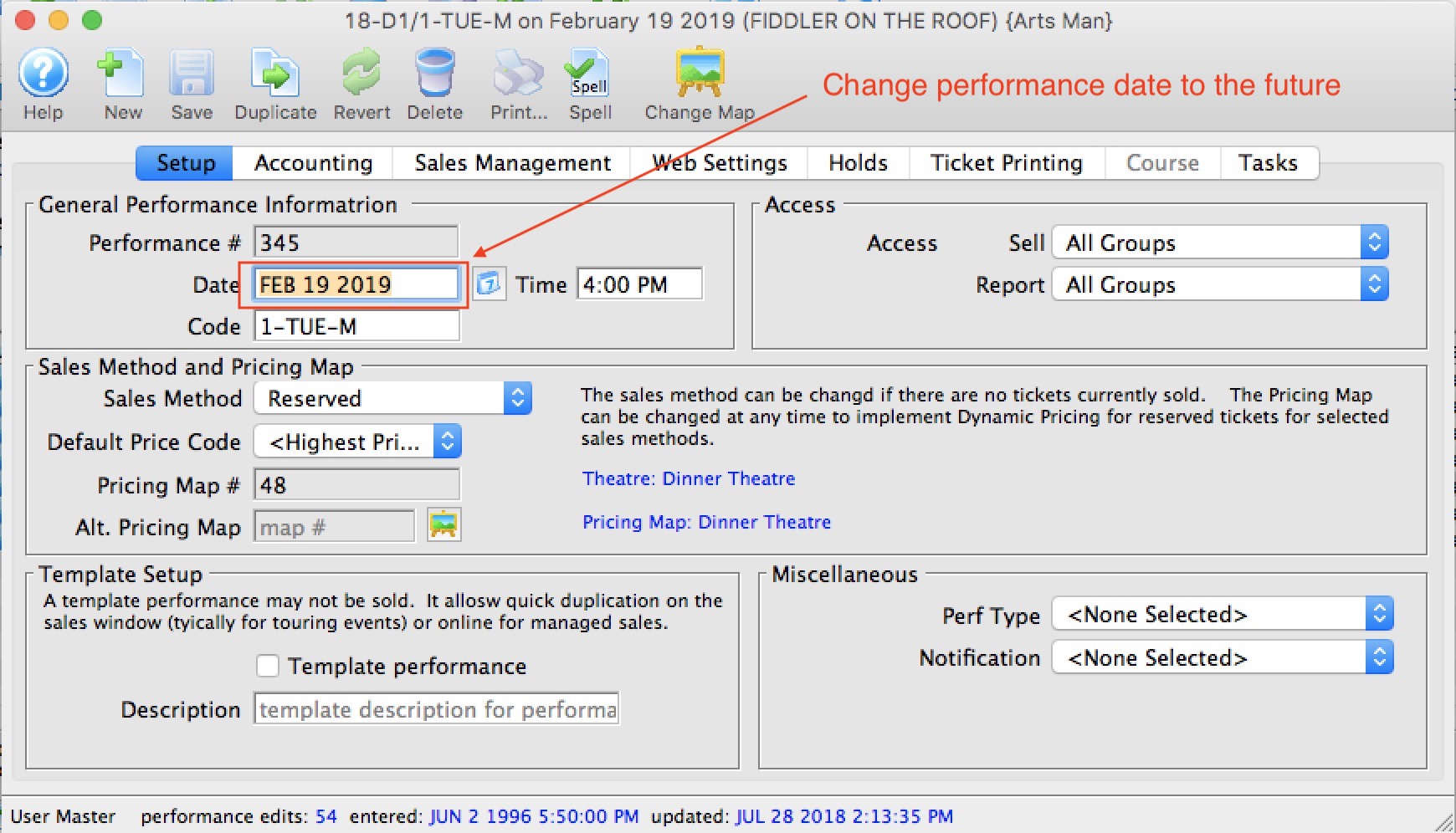 If performances are to postponed to a future date, it is quite easy in Theatre Manager - simply change the date to the future and you are done.
Optionally, you might want to mark the performance postponedin the performance setup and allow it to be visible on the internet.
|
If you don't know the future date of the postponed event, we suggest simply changing the name of the event and add '(postpoend)' to the title.
If you are doing deferred revenue accounting:
|
You will need to:
- Find the event and view the list of performances
- Edit the performance and simply change the date to a future date. Any tickets for that date are now for the future date and revenues will continue to be deferred until the performance date.
Notifying customers of the changes
Once you have changed the performance dates for the desired events to the future, you should do an email blast to all patrons for those performances listing when their new performance is. You might wish to:
- Send letters and e-mails to patrons notify them of their new event dates and seat locations
- base your form letter on the Ticket data per performance
- create a table within the letter with performance dates, times, event names and seat locations
- indicate in the letter that upcoming performances and tickets are listed within the table
- use the list of events you changed as criteria
- merge the letters and emails, Consolidate Tickets per Patron
- Alternatively, ask patrons to find and print tickets online:
- base your form letter on the Ticket data per performance
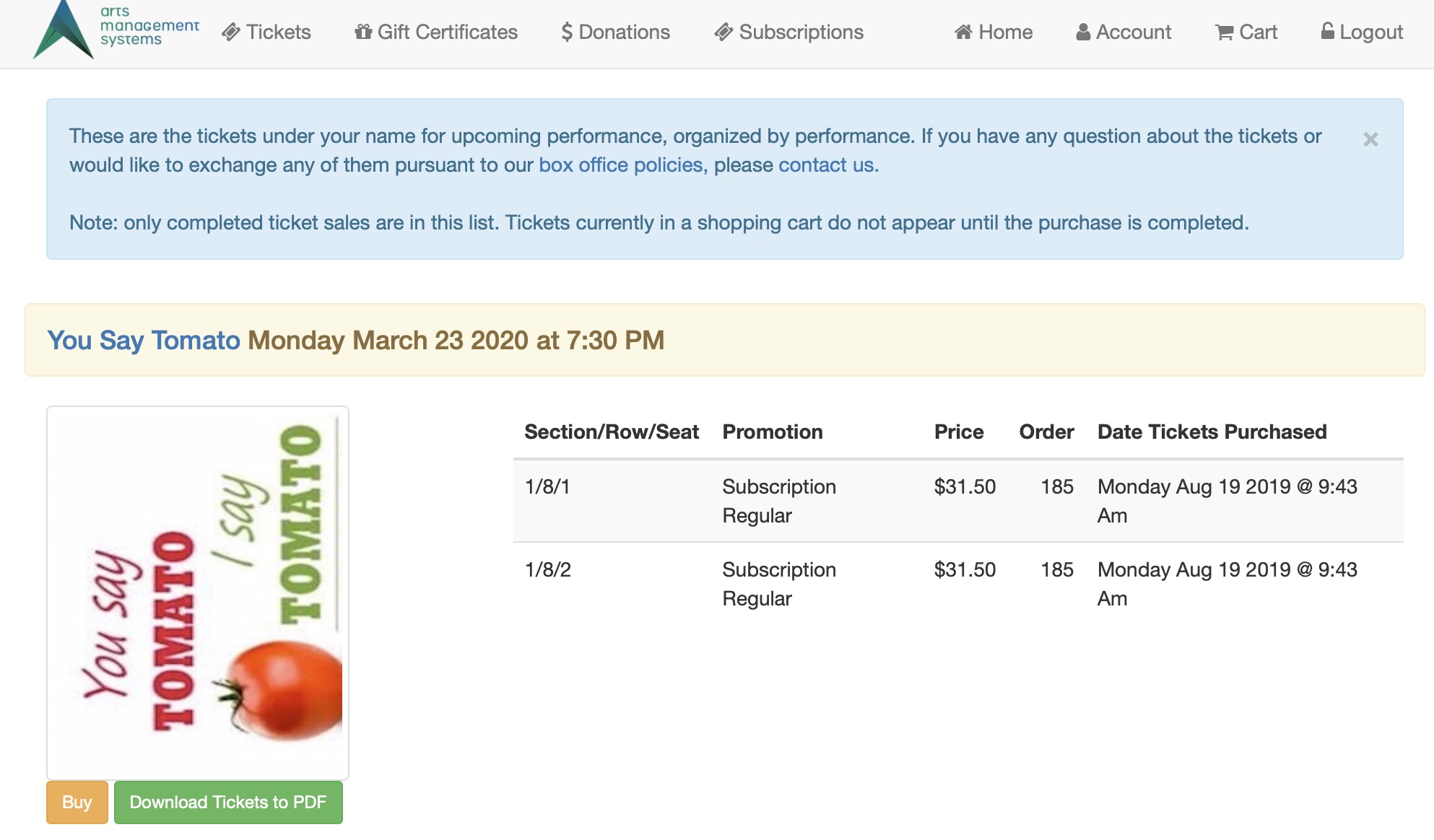
- Suggest that people login to the web site to review their upcoming performances, see revised dates and to reprint any tickets as required (the example web page below is what a patron would see under their account)
- use the list of events you changed as criteria
- When merging, change the duplicates setting to one letter/email per patron so that each patron gets one email
|
We suggest adding the following link to your email or mail correspondence so that patrons can go online and see their future performances and tickets. The link will show the web page below (after the patron signs in)
https://[tickets.yourvenue.org]/TheatreManager/1/online?futuretickets |
Example of future tickets web page on web site
The example below shows that the future tickets web page looks like when a customer logs in online. They can see their events with the new dates, along with the ability to print tickets at home. If you change many tickets for many events, this might be the best thing to direct customers to, so that they can print their own.
Partial Refunds of Tuition to Courses
Partial Refunds of Tuition to Courses
|
Please refer to the section on course management called Refunding a Partial Amount for a Course for details.
Effectively, you:
|
Where did money get refunded to?
Where did money get refunded to?
- a gift certificate
- a donation
- being left on account, or
- actually refunded to the patron?
It is a very good question. There is no one report that can tell you all this, primarily because of the fundamental nature of how accrual accounting works. But if you refund to donations or gift certificates, there is a way get reports for this
|
Before you do any refunding, please make sure to set up gift certificates and donation campaigns to track refunds appropriately if you are not giving money back.
Do not leave the order on account. |
|
Theatre Manager uses accrual accounting. In simplistic terms, it means a payment only pays down the balance of an order - you cannot tell how a particular ticket was paid for. Please read a detailed explanation
When trying to report on refunds, a similar dilemma occurs. If you refund some tickets in an order that contains donations, passes, or other items, you cannot tell exactly what the refund was for, since it only decreases the balance payable on the order to the patron. |
The following sections describe:
- A quick outline of what happens in accrual accounting during a ticket refund
- How to best track what money was refunded to (gift certificate, donation or refund)
- The 3 key report areas/data sources that can be used to determine how you gave money back
What happens to accounting during a ticket refund?
What happens to accounting during a ticket refund?
- Refunding one or more tickets causes:
- you to owe the patron something in return -and-
- until you SELL them something, the order will have a balance owing. This shows up throughout order and patron lists in Theatre Manager in blue.
- To address the order balance payable to the patron, you need to one of the following to convert the payable owed the patron:
- convert the order balance payable to a donation, - or -
- convert the balance payable to a gift certificates -or-
- give the patron money (cash or refund to credit card)
|
Before you do any refunding, please make sure to set up gift certificates and donation campaigns to track refunds appropriately if you are not giving money back.
Do not leave the order on account. |
|
You can tell how much you refunded to an event using the Transaction history by event report (see also the youtube video explanation).
However, this report only tells you how much you refunded, and not what you refunded money to. |
|
You can refer to reports that show where money went if you've refunded tickets to passes, gift certificates and/or donations. |
How should we best track what we refunded money to?
How should we best track what we refunded money to?
|
VERY IMPORTANT: At a minimum, we suggest refunding the money to gift certificate or a donation that you give a very specific name to - which can then be tracked.
The mass refund of tickets option supports return to gift certificate or donation. Do not leave the order on account. |
|
EQUALLY IMPORTANT: If you want to track refunds by event, make a separate donation of gift certificate for each event that you are refunding and take care to refund only tickets to the appropriate campaign or gift certificate. |
By way of short example:
If you create one or both of these below, then refund tickets and buy:
- a gift certificate called COVID certificate, you can track refunds to passes by counting the passes.
- donation campaign called COVID donation campaign, you can track refunds to donations by looking at this campaign
What reports can I use to see where money went?
What reports can I use to see where money went?
|
If you refunded all tickets to donations or gift certificates, you can get an accurate sense of what you exchanged things to using a report from one of three report categories:
|
|
Any difference between ticket refunds and purchases of gift certificates/donations means that the patron received their refund by cash/card/or check. |
Finding where your money is
| How much ticket money was refunded? |
If you want to simply find the total value of tickets refunded and who you refunded them to refer to the transaction history report
If you want to see how much you refunded on a daily basis or by event, use
|
| How much was returned to gift certificates? |
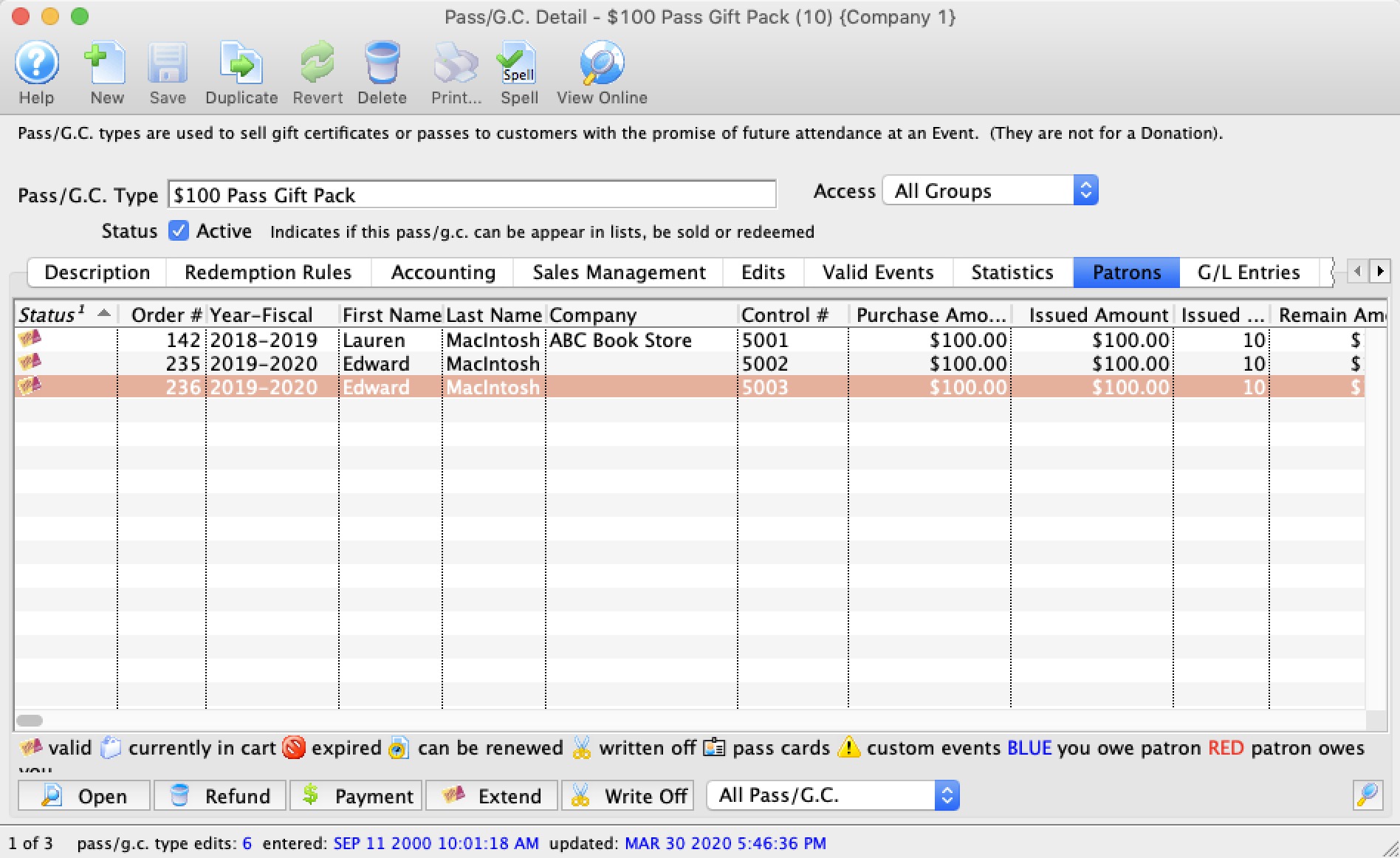 On the Gift Certificate patron tab you can see an accurate list of the patrons that have been given the gift certificate for their ticket return. You can use this data to:
|
| How much was returned to donations? |
 In the donation campaign donation tab, you can see a list of all donors whose tickets were returned for donations. You can use this data to:
|
| How much was returned to cash or credit card? |
Very simply, the difference of the
Total Ticket Refunds - Total Donations to COVID campaign - Total purchases of COVID Gift Certificates = Total Refunds to Cash and Credit Card. Ultimately accounting reports in your accounting system should tell you the net difference because the data comes changes to your accounts. These can be backed up with the GL reports, the daily sales summaries and the other reports mentioned above. |
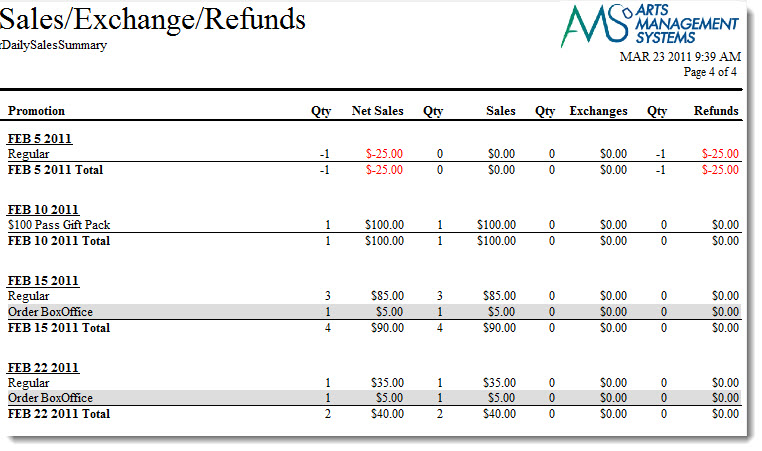
Finding the total value of tickets refunded
Finding the total value of tickets refunded
Some key ones are:
- Transaction History By Event - as explained by the youtube video in this page (click to see in youtube) This one is quite relevant since it shows all the refund transactions with the detail who you refunded to
- If you are only interested in totals for some events, some of the other transaction based reports might be better suited. Be sure to provide appropriate criteria for the report such as:
- The date range after after which you want to consider transactions - eg all transactions after a certain date
- Only look at the ticket refund transactions
|
Please read the steps of cancelling an event for more information |
|
If you have refunded some of the tickets to a donation or a gift certificate and want to find out the amount returned to the patron, then:
Total tickets returned - total donations purchased (for ticket return) - total gift certificates purchased (for ticket return> You can get all this from transaction reports. |
What if I didn't use Passes or Donations to track Refunds
What if I didn't use Passes or Donations to track Refunds
|
Before you do any refunding, please make sure to set up gift certificates and donation campaigns to track refunds appropriately if you are not giving money back.
Do not leave the order on account. |
|
HOWEVER: if you did not:
|
I just refunded tickets and left the orders on account
If you just left your orders on account when doing tickets refunds, you will have a lot of orders or patrons that show:
- in blue on the Receivables Window -or-
- negative on the Receivables Report
- Double click on the order that is blue (showing you owe the patron money)
- If you are sure this is from a ticket return and there are no other orders with this patron's name on it, refer to refunding to an individual patron and add one of following to take up the balance:
- Gift Certificate or Pass
- Donation - if the patron indicates that is their intent
- Refund the money - if the patron indicates that is their intent.
I didn't use a specific pass and I should have
If you didn't make a new gift certificate or pass to track ticket refunds for COVID, then:
- make the appropriate pass/gift certificate to suit your needs.
- find the patrons you used the incorrect or hard to track pass for:
- Edit the pass
- Change to your new, easier to track Pass/Gift Certificate Type (make sure its the same redemption type as the old one)
I didn't use a specific donation campaign and I should have
If you didn't make a new donation campaign to track ticket refunds for COVID, then:
- make the donation campaign to suit your needs.
- find the patrons you used the incorrect or hard to track campaign for:
- Edit the donation
- Change the campaign to your new, easier to track donation campaign.
Extend the expiry date of season passes
Extend the expiry date of season passes
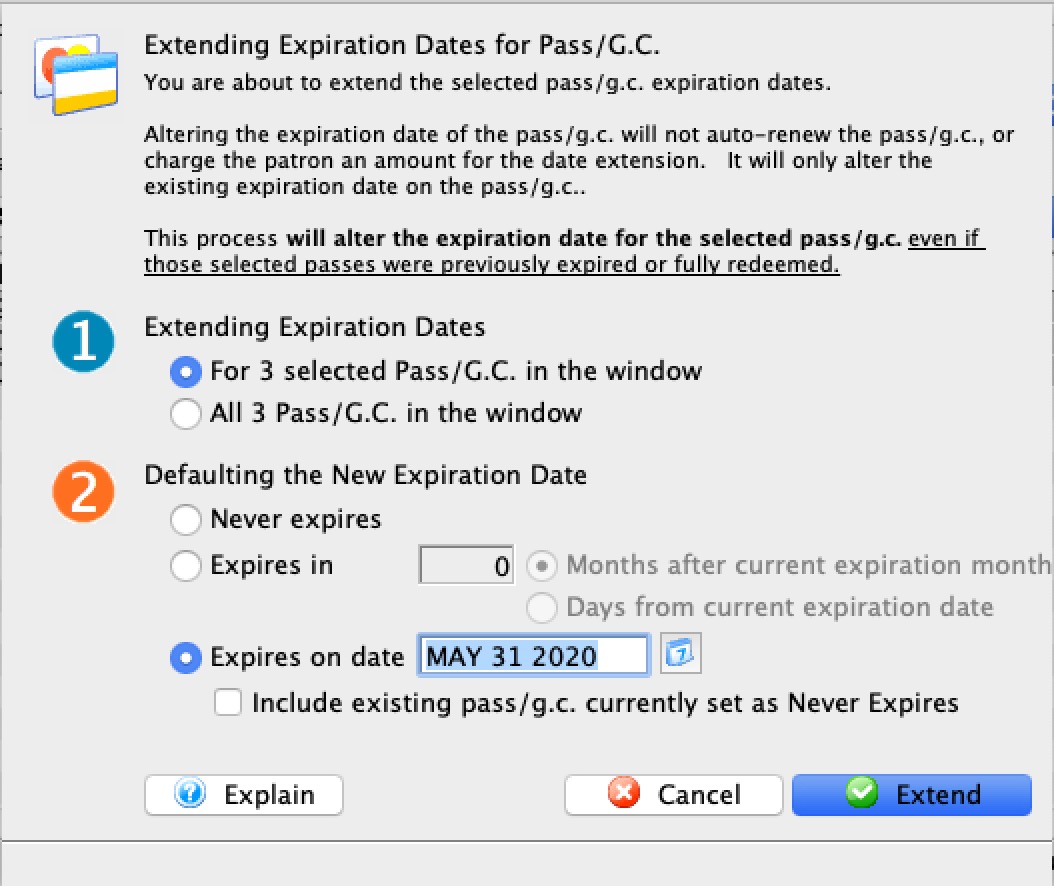 If you need to extending the expiry date of selected Subscription Passes or Gift Certificates that are already in the hands of the patrons because the season is cancelled and you want them to use the pass next year, it is easy to do so.
You will need to:
- Do it one pass type at a time - so you can do subscription passes, then corporate passes, then gift certificates, etc
- and within each pass type, look for the unexpired ones in the pass/GC setup window - patron tab and select them
- There is an Extend button on that window (and explained in the above link) that lets you set a new expiry date on the pass or gift certificate
|
Note: any attempt to try to extend a pass or gift certificate that never expires will be ignored UNLESS you:
|
Working From Home
Working From Home
Hosting Options:
- Self-Hosted: your database and web services are on your own internal servers. You need to supply you own remote access tools.
- Artsman Cloud Hosted: your database is hosted by Artsman. Much simpler remote access, since all people in your company are, in effect, using remote access, no matter where they are located.
Working from home: Venues hosting their own databases
Working from home: Venues hosting their own databases
|
Various ways of accessing the database remotely are outlined in Remote Access to Theatre Manager and refers to some considerations to maintain PCI compliance.
Comprehensive Links are provided in the page above, as well as some key technologies below for convenience. |
Common remote access mechanisms
While there are many vendors of remote access software, the ones that we see used most often are:
- Using a VPN and local copy of TM for full and secure network access - best used when internet connections are fast
- Using Microsoft Remote Access (RDP) and Terminal Server for full managed access to TM - best used when internet is marginal/poor or you need to control internal network access
- Using a remote access tool like TeamViewer, LogMeIn, or similar to simply access your own machine from a remote location. Best when no remote ticket printing is required.
Working from home: Venues using Artsman Cloud
Working from home: Venues using Artsman Cloud
The following three steps indicate how to install on your home computer:
- Download and run the latest 64 bit version of Theatre Manager for:
- Macintosh (for Sierra or later) or
- Windows (64 bit V7.0 or later)
- Note: Contact the Artsman support team if you are running Windows 7 (32 bit) on your home computer for a special installer.
- Connect to Artsman Cloud Hosting:
- follow the steps in the online help page
- use your company cloud credentials -and-
- log in using your standard Theatre Manager Employee password when you see the password screen
- (Optional) Install any recommended Windows or OSX updates available to your home machine so that you have the latest security patches and virus software definitions. However, stay with your current version. eg:
- if you are using High Sierra on macOS, just update to latest High Sierra patch.
- If you are at Mojave, update to latest Mojave patch.
- Do not update to a more recent OS version like Mojave or Catalina or Windows 7.1 to Windows 8.1 or Windows 8.1 to Windows 10 at this time.
- This helps ensure that your personal applications still work.