Frequently Asked Questions
There are a number of common questions that are received each day regarding Theatre Manager. The goal of this section is to help the user find answers to those common questions. Below are the various categories included in this FAQ. Each category has a list of common questions and links to the appropriate answers. Please browse this section as someone may have already asked the same question that you have.
How I do know if there is a Theatre Manager Update available?
There are a few ways to check:
- Have your IT department allow outgoing port 443 from TM server and workstations to www2.artsman.com on the internet.
Theatre Manager automatically checks for updates if enabled in system preferences. If there are any, installs them in the background.
When an update has been installed, every user will see a notification on startup per the number of days in their employee preferences
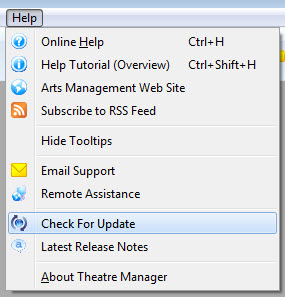
- You can check using Main Menu item Help>>Check for Updates.
You should not need to download an update, but if you do, please read the general update procedure and make sure to read the appropriate release notes prior to proceeding with the update.
ADA (Americans with Disability Act)
- The full act at Title III Places of Public Accommodation (nicely formatted) -and/or-
- online documentation for section 36.302 (text that can be copied) that also has a fair bit of information regarding commentary on the act and the lawmakers subsequent interpretations and intentions -and/or-
- an excerpt concerning ticketing from the act that we have provided below. Do not make this your only reading as it is only intended to highlight some key portions regarding ticketing and does not include other intents or goals of lawmakers that are in the full text of the act.
Purpose of the ADA Act
The key purpose of the act is to provide equal (neither better, worse, nor different) ability to buy tickets through all avenues and see events. This means you may be affected by this act in the following manners:
- For all ticket sales there must be equal opportunity to purchase tickets. This means same hours, methods and terms. If you have web sales, you must accommodate sales of accessible seating online.
- If you provide maps and brochures to the public, you will need to provide equal level of specificity to the diagram regarding accessible seats. This means online sales maps must mark or designate those seats.
- If you have multiple prices in your venue, you may need to change the price that an accessible seat can be sold for so that there is proportionality in the price of the seats allocated for accessibility.
- You may have to increase the number of seats that you set aside to accommodate selling tickets to people with accessible needs. The act is specific about:
- a minimum of 3 companion seats for each wheelchair seat, if you would sell 4 tickets to a normal member of the public -or-
- the ability to buy up to the same number of seats as anybody else (if more than 3) -and-
- companions must be in the same row or as close as possible to the accessible seating area. This capability is adjusted in the best seat algorithm in Theatre Manager.
- Ticket holds are a part of managing a venue. You need to formulate your policies and use some Theatre Manager reports to help identify holds
- The ADA act stipulates how venues may investigate situations where there is good cause to believe that seating has been purchased fraudulently. You can require patrons attest that they are using accessible seats properly by acknowledging the terms and conditions of all sales prior to checkout.
Venue Setup for ADA
- The graphic map must identify the ADA seating area
- The best seats algorithm may need changed and you should include at least 3 additional companion seats (in the same row or close proximity)
- The seat names and/or purpose for the ADA seats should be clearly marked when presented to the patron. This can be done two different ways depending on the version of TM you are using.
- Any best seat search capability should provide direct access to one or more of the ADA seating areas so that they can be accessed quickly.
- You may need to remove some of the default venue holds on the accessible seats.
Identify ADA seating area
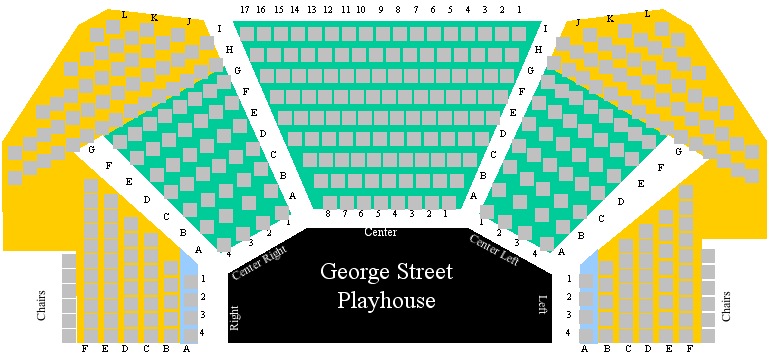 It is fairly easy in Theatre Manager to identify the accessible areas using colour, text, and/or an icon. We recommend changing the background area of the accessible seating to be blue (as per the image to the right) to clearly identify where they are in the venue.
You may also want to put a legend on the map for 'Price A', 'Price B' and 'ADA seats' so that it is equality and abundantly clear where each area is.
Best Seating Setup
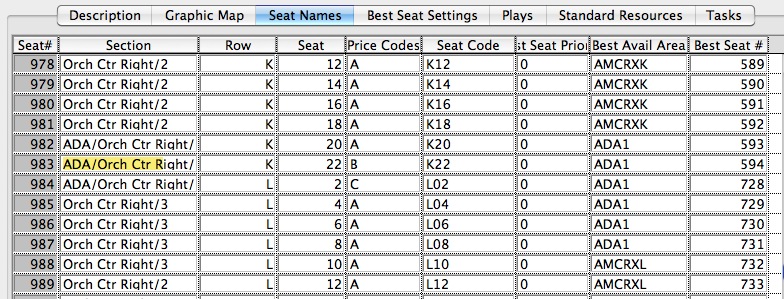 The setup for best seating has a some strategies for you to consider.
There are four columns that require special attention for ADA seating:
- Best Seat #: We recommend ADA seating be highest number in the Best Seat # column where possible. This means, the best seat algorithm will chose the ADA seats last - every time. It reduces the effect of them being selected by any patron unwittingly.
- Best Avail Area: Name the Best Avail Area column with a clearly identifying nomenclature such as ADA or WC. If you have multiple accessible areas, then name them ADA1, ADA2, ADA3. This way they are considered separate by Theatre Manager.
Notice in or example, there are only 3 ADA seats in this area (seats 982, 983, 984) but the ADA act requires that companion seats be available as well - up to 3 companion seats per ADA seat subject to availability. If you make them in the same row, add the caption ADA to the Best Avail Area for sufficient seats to meet your ADA requirements.
These seats should always have a higher Best Seat # than the actual ADA seats. This way, in cases of sellout, you can sell those seats to able-bodied person (they do not have to be saved for companion seats)

If you place a '#' at the end of a best available area, it has a special meaning. It causes MT to make two passes of the seats, offering a subset preferentially before offering the rest of the seats if nothing else is left.
- Seat Flag:: place a 1 in this column to indicate that there are notes associated with this seat (see next field - below)
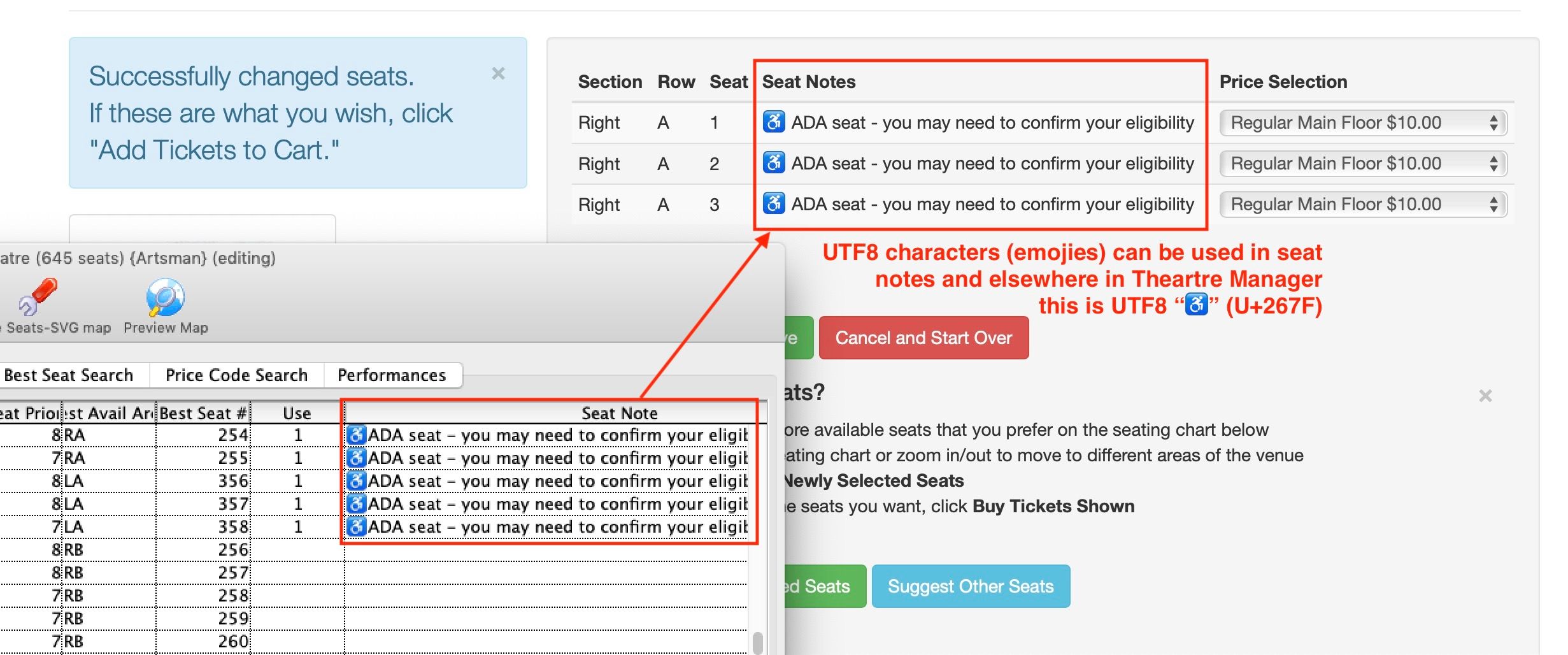
- Seat Note:: Add a note to the seat clearly indicating that it is for ADA access. In the text, you may want to:
- label it as wheelchair, removable seat (call ahead), companion seat, bed capable, transfer only
- add other data that a lesser abled person may need in order to select the seat, such as accessible via ramp or elevator.
- Add a UTF8 wheelchair character to indicate accessibility. It will display online per the example below. The character was copied and pasted from this web site and displays in most browsers.
- some venues also include notes to indicate that fully capable patrons may be asked to move if they select this seat and other policies notes
|
Theatre manager has a feature called
Associated Seats that can be useful for ADA seating setup.
If you associate a group of ADA seats as the primary seat and companion seats, then booking one of them will automatically hold the others for the same patron until you manually release them. |
Identify ADA seats to Patron
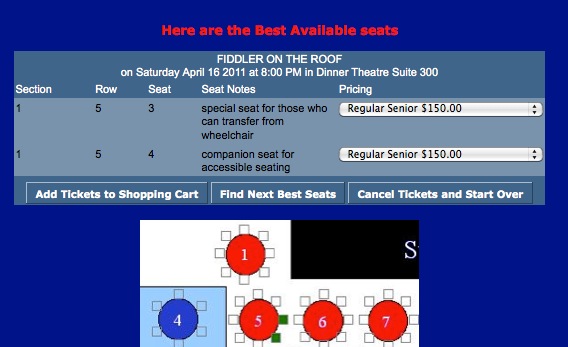
An ADA requirement includes identification of the ADA seat and what it may mean to the patron (see sample to the right). For a patron requiring accessible seats, it should be clear what they selected. Conversely, you can also direct those who selected the seats in error to find some others.
You cannot prevent anyone buying ADA designated seats -- because the ADA act stipulates that anybody, ablebodied or not, can buy them on behalf of another. Fraud detection must be done after the fact (according to the act).
Adding Seat Notes
- Each and every seat in a reserved seating venue can have a 300 character Seat Note associated with it. It can be used to explain any ADA requirements or directions. This field can also be used to indicate an special seating notes like sightline restrictions if they are of benefit to your patrons, or a tag to show a picture that will display what the view is from the seat.
- There is a column called Use which is flag to indicate if the seat note is an internal note (0) or if it can be displayed on the web site to patrons (1). Normally ADA seating notes would have a 1 in this column. Notes appear on the tooltips for a seat at the box office and can be added to the online SVG graphic tooltip notes. You can also place comments and html tags within the seats notes if you wish.
- The standard web pages will display the tooltips if you provide them.
Searching for Tickets
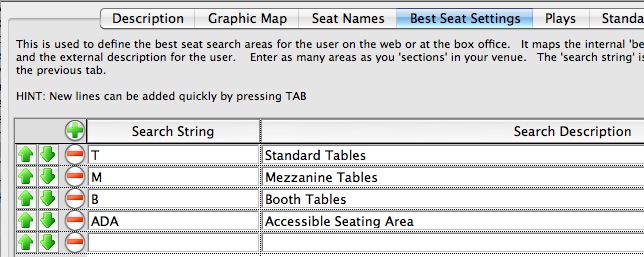 The 'Best Seat Settings' tab in the venue setup indicates how people can find tickets. If you name the seats in your accessible section 'ADA' or 'WC' or some equivalent terminology, then you can put in search areas into your web sales to help find those accessible seats.
If you have multiple accessible sections, you could call them ADA1, ADA2, etc. and provide an individual search for each one.
Ticket Prices for ADA
However you may need to change your seat map so that the pricing of any seats in the ADA area match the proportion of seats in the entire house. For example, if your venue has:
- 100 seats at price 'A' (50% of the house - most expensive ticket)
- 60 seats at price 'B' (30% of the venue - mid range ticket)
- 40 seats at price 'C' (20% of the venue- least expensive ticket)
Note that our reading of the act does not state that all accessible tickets purchased by one person need be at the same price. That could mean that the accessible seats could be set up explicitly so that their prices match an exact proportion of the ticket prices in the rest of the venue.
There is also a fairness reading of how to set prices according to the act. If all your accessible seats are amongst your 'A' tickets, then you must follow the proportional pricing approach and make some price 'B' and 'C' seats available.
If all your accessible seating is amongst the 'C' area due to how the venue was constructed, then you will need to make the accessible seating at a 'C' price because you cannot arbitrarily charge more just to maintain proportionality. The principle cited in the act is that the price must be the same as if an able-bodied person was to purchase a ticket in that area.
Theatre Manager Implementation Approach
Once you have decided how many accessible tickets you want at each pricing area as appropriate for your venue, you enter that into the venue setup under the 'Seat Names' tab. Look for the column named 'Price Codes' and enter the Price codes against the ADA accessible seats - see the sample below.
Specifically, you will see in this venue that only 3 seats are marked ADA (982,983,984) and they have been given price codes A (seat 982), B (seat 983) and C (seat 984) as per proportionality and seating area for this venue.
Ticket Holds for ADA
- all non-accessible seats have been sold
- all non-accessible seats in a specific area have been sold, so accessible seats in that area may also be released
- all non-accessible seats in a designated price category have been sold, so remaining accessible seat can no be released to the public
If you do hold seats that are released periodically, you will also need to hold accessible seats in proportion to the public seats that are held back. (eg, if you hold 10% of a house for later, you need to hold 10% of the accessible seats). The interpretation of the act is very specific that the venue can exclude from the held count those seats count held for promoters, actors, and others held under contract.
Implementing in Theatre Manager
Implementing this in Theatre Manager is quite straightforward.
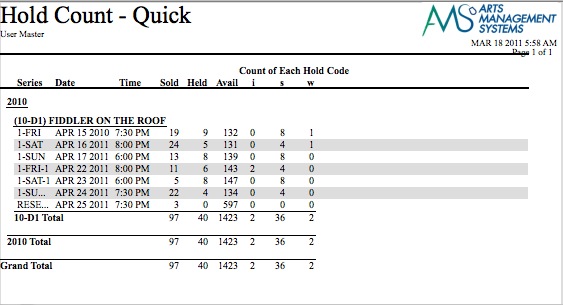 If you do hold seats for the public, then you must also hold the proportion of accessible seats. Run the ticket inventory report called Ticket Hold Counts-Quick to help determine total counts. This report may exported to excel or copy/pasted to excel and proportional calculations run.
- If you periodically release seats, check your house and release the ADA seats at the same time, in proportion.
- If you do not hold any seats (other than those promoter, actor, contracted seats, etc seats mentioned above), then you don't have to hold any accessible seating because (by definition) you will have designed the best seat algorithm to bias ADA seats as the last to be suggested and you will have guided able-bodied patrons not to pick those seats unless they need them.
- However, having no accessible seats does seem a bit harsh, so we'd recommend keeping at a small reserve of accessible seats on hold till you release all seats to the public before the performance - as we don't think that all people who use accessible seating will be as active on the internet at the proponents of the law might anticipate.
Policy Additions for ADA
Box Office Policies
- You cannot require people who buy accessible tickets online to visit the box office to pick up the tickets if you do not require abled people to do the same thing (same rules for all). However, you can monitor who uses your accessible seats by having ushers greet people in the accessible area. You are also allowed to reseat people in the accessible seats under some circumstances.
- You may have to adjust season subscription policies for renewing seats the following year if the subscription includes accessible seats. It appears that you can ask subscribers to attest in writing that they need accessible seating (but not for single tickets)
- If you allow an able person to buy a group of tickets on behalf of others, then you must also allow that same privilege to people who buy accessible seating. Such policies would mean you cannot require accessible seating to be returned to the box office for resale. It would also mean that a fully able person may end up in the accessible seating, if those tickets are bought by a disabled person and given away - and that means the abled person is fully entitled to sit in the accessible seating.
- Ticket holders of normal seating are allowed to change to accessible seating in a comparable location if seats are available when the individual presents the tickets.
Guarding against Fraudulent use of ADA seats
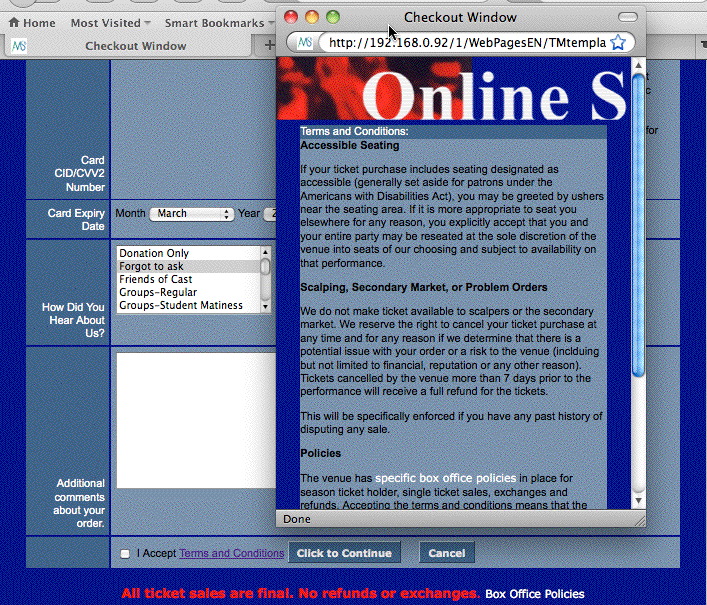 You can, however, use a feature in Theatre Manager web sales process to require people, at time of checkout, to read terms and conditions prior to accepting the credit card and completing the sale. Theatre Manager records that the person has validated reading the conditions.
In those terms and conditions, you may put a policy wording that is supported by the act such as people 'attest' that they need the ADA seats if they purchased some and that they agree they may be moved under circumstances provided for in the act.
You may also want to put wording about scalpers, secondary sales, a link to your your box office policies, etc in the terms and conditions. Theatre Manager records that people clicked the checkbox on the web detail screen.
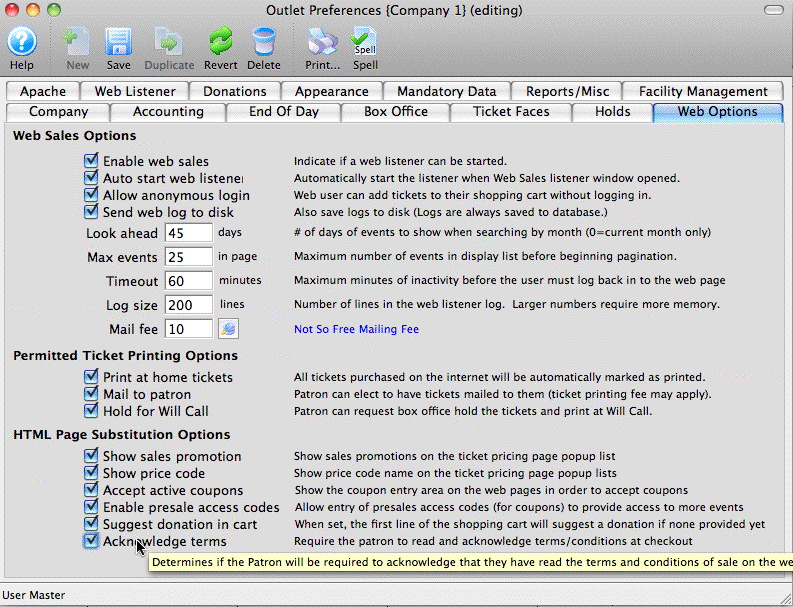 Requiring people to 'accept terms and conditions' of the sale is done by:
- ensuring that all standard web page changes have been made on the TM checkout page as per version 9.05 release notes
- That you are using version 9.05 or later of Theatre Manager
- That you have enabled the 'read terms and conditions' checkbox on the company preferences window as per the picture to the right.
Secondary Market
Appendix: Excerpt from the ADA Act
Section (f) is about ticketing, applies directly and is reproduced below.
- (1)
- (i) For the purposes of this section, 'accessible seating' is defined as wheelchair spaces and companion seats that comply with sections 221 and 802 of the 2010 Standards along with any other seats required to be offered for sale to the individual with a disability pursuant to paragraph (4) of this section.
- (ii) Ticket sales. A public accommodation that sells tickets for a single event or series of events shall modify its policies, practices, or procedures to ensure that individuals with disabilities have an equal opportunity to purchase tickets for accessible seating
- (A) During the same hours;
- (B) During the same stages of ticket sales, including, but not limited to, pre-sales, promotions, lotteries, wait-lists, and general sales;
- (C) Through the same methods of distribution;
- (D) In the same types and numbers of ticketing sales outlets, including telephone service, in-person ticket sales at the facility, or third-party ticketing services, as other patrons; and
- (E) Under the same terms and conditions as other tickets sold for the same event or series of events.
- (2) Identification of available accessible seating. A public accommodation that sells or distributes tickets for a single event or
series of events shall, upon inquiry
- (i) Inform individuals with disabilities, their companions, and third parties purchasing tickets for accessible seating on behalf of individuals with disabilities of the locations of all unsold or otherwise available accessible seating for any ticketed event or events at the facility;
- (ii) Identify and describe the features of available accessible seating in enough detail to reasonably permit an individual with a disability to assess independently whether a given accessible seating location meets his or her accessibility needs; and
- (iii) Provide materials, such as seating maps, plans, brochures, pricing charts, or other information, that identify accessible seating and information relevant thereto with the same text or visual representations as other seats, if such materials are provided to the general public.
- (3) Ticket prices.
- The price of tickets for accessible seating for a single event or series of events shall not be set higher than the price for other tickets in the same seating section for the same event or series of events. Tickets for accessible seating must be made available at all price levels for every event or series of events. If tickets for accessible seating at a particular price level cannot be provided because barrier removal in an existing facility is not readily achievable, then the percentage of tickets for accessible seating that should have been available at that price level but for the barriers (determined by the ratio of the total number of tickets at that price level to the total number of tickets in the assembly area) shall be offered for purchase, at that price level, in a nearby or similar accessible location.
- (4) Purchasing multiple tickets.
- (i) General. For each ticket for a wheelchair space purchased by an individual with a disability or a third-party purchasing such a ticket at his or her request, a public accommodation shall make available for purchase three additional tickets for seats in the same row that are contiguous with the wheelchair space, provided that at the time of purchase there are three such seats available. A public accommodation is not required to provide more than three contiguous seats for each wheelchair space. Such seats may include wheelchair spaces.
- (ii) Insufficient additional contiguous seats available. If patrons are allowed to purchase at least four tickets, and there are fewer than three such additional contiguous seat tickets available for purchase, a public accommodation shall offer the next highest number of such seat tickets available for purchase and shall make up the difference by offering tickets for sale for seats that are as close as possible to the accessible seats.
- (iii) Sales limited to fewer than four tickets. If a public accommodation limits sales of tickets to fewer than four seats per patron, then the public accommodation is only obligated to offer as many seats to patrons with disabilities, including the ticket for the wheelchair space, as it would offer to patrons without disabilities.
- (iv) Maximum number of tickets patrons may purchase exceeds four. If patrons are allowed to purchase more than four tickets, a public accommodation shall allow patrons with disabilities to purchase up to the same number of tickets, including the ticket for the wheelchair space.
- (v) Group sales. If a group includes one or more individuals who need to use accessible seating because of a mobility disability or because their disability requires the use of the accessible features that are provided in accessible seating, the group shall be placed in a seating area with accessible seating so that, if possible, the group can sit together. If it is necessary to divide the group, it should be divided so that the individuals in the group who use wheelchairs are not isolated from their group.
- (5) Hold and release of tickets for accessible seating.
- (i) Tickets for accessible seating may be released for sale in certain limited circumstances. A public accommodation may release unsold tickets for accessible seating for sale to individuals without disabilities for their own use for a single event or series of events only under the following circumstances
- (A) When all non-accessible tickets (excluding luxury boxes, club boxes, or suites) have been sold;
- (B) When all non-accessible tickets in a designated seating area have been sold and the tickets for accessible seating are being released in the same designated area; or
- (C) When all non-accessible tickets in a designated price category have been sold and the tickets for accessible seating are being released within the same designated price category.
- (ii) No requirement to release accessible tickets. Nothing in this paragraph requires a facility to release tickets for accessible seating to individuals without disabilities for their own use.
- (iii) Release of series-of-events tickets on a series-of-events basis.
- (A) Series-of-events tickets sell-out when no ownership rights are attached. When series-of-events tickets are sold out and a public accommodation releases and sells accessible seating to individuals without disabilities for a series of events, the public accommodation shall establish a process that prevents the automatic reassignment of the accessible seating to such ticket holders for future seasons, future years, or future series, so that individuals with disabilities who require the features of accessible seating and who become newly eligible to purchase tickets when these series-of-events tickets are available for purchase have an opportunity to do so.
- (B) Series-of-events tickets when ownership rights are attached. When series-of-events tickets with an ownership right in accessible seating areas are forfeited or otherwise returned to a public accommodation, the public accommodation shall make reasonable modifications in its policies, practices, or procedures to afford individuals with mobility disabilities or individuals with disabilities that require the features of accessible seating an opportunity to purchase such tickets in accessible seating areas.
- (i) Tickets for accessible seating may be released for sale in certain limited circumstances. A public accommodation may release unsold tickets for accessible seating for sale to individuals without disabilities for their own use for a single event or series of events only under the following circumstances
- (6) Ticket transfer.
- Individuals with disabilities who hold tickets for accessible seating shall be permitted to transfer tickets to third parties under the same terms and conditions and to the same extent as other spectators holding the same type of tickets, whether they are for a single event or series of events.
- (7) Secondary ticket market.
- (i) A public accommodation shall modify its policies, practices, or procedures to ensure that an individual with a disability may use a ticket acquired in the secondary ticket market under the same terms and conditions as other individuals who hold a ticket acquired in the secondary ticket market for the same event or series of events.
- (ii) If an individual with a disability acquires a ticket or series of tickets to an inaccessible seat through the secondary market, a public accommodation shall make reasonable modifications to its policies, practices, or procedures to allow the individual to exchange his ticket for one to an accessible seat in a comparable location if accessible seating is vacant at the time the individual presents the ticket to the public accommodation.
- (8) Prevention of fraud in purchase of tickets for accessible seating. A public accommodation may not require proof of disability, including, for example, a doctor's note, before selling tickets for accessible seating.
- (i) Single-event tickets. For the sale of single-event tickets, it is permissible to inquire whether the individual purchasing the tickets for accessible seating has a mobility disability or a disability that requires the use of the accessible features that are provided in accessible seating, or is purchasing the tickets for an individual who has a mobility disability or a disability that requires the use of the accessible features that are provided in the accessible seating.
- (ii) Series-of-events tickets. For series-of-events tickets, it is permissible to ask the individual purchasing the tickets for accessible seating to attest in writing that the accessible seating is for a person who has a mobility disability or a disability that requires the use of the accessible features that are provided in the accessible seating.
- (iii) Investigation of fraud. A public accommodation may investigate the potential misuse of accessible seating where there is good cause to believe that such seating has been purchased fraudulently.
Accounting, End of Day and Year End
This section explains a number of common questions regarding accounting setup and daily or year end balancing
Event Settlement
Theatre Manager provides the supporting documentation in order to complete the settlement process. Often there are items negotiated that need to be calculated outside of Theatre Manager. An excel document should be created to calculate the final values in the settlement process.
REVENUE
Theatre Manager will report the total revenue figure for the sales processed through the program.
| Step | Purpose |
| Step 1 | Run the End of Day Wizard.
Running the End of Day Wizard will post any outstanding sales transactions. It ensures all sales are journalized to the event. During the Sales Entries process ensure the option to Convert reservation-only orders to sales is set to Past performances only. Any tickets marked as Reservation Only for this past event will be converted to an Accounts Receivable. |
| Step 2 | Ensure the Event is in Balance.
Review the totals at the bottom of the GL tab within the event to make sure there are no differences. These totals can also be used to determine the total ticket revenue to be used in the settlement Excel sheet. |
| Step 3 | Clear up Event Receivables.
Run a Receivables-Based on Order Balances by Event report. The criteria would be Event # is one of (the event to be settled). This report will display any current receivables associated with the event to be settled. The value of the tickets listed in this report are included in all sales figures listed within Theatre Manager and any GL postings created during the End of Day. These receivables should be reviewed and managed before continuing with the settlement. If any changes are made repeat steps one and two above. |
EXPENSES
Before determining the total expenses for the event the contract should be reviewed. Often there are details in the contract that determine how certain expenses are to be calculated and who is resposible to pay them.
| Step | Purpose |
| Step 4 | Calculate Project Expenses.
If there is a Project for the Event within Theatre Manager review and finalize all tasks, resources and personnel. Changing the billing status for the Project to Invoice. Generate an Invoice and use the balance due to calculate the Project Expenses. |
| Step 5 | Outstanding Promoter Receivables.
This accounts for any tickets taken by the promoter to be sold at another location (consignment). The value of these tickets is included in the total sales reported by Theatre Manager however, the monies have not been collected by the box office. This amount should be deducted during the settlement process. To determine the quantity of tickets and amount to deduct a Tickets Sold/Revenue by Promotion & Price Code report can be generated. The criteria would be Event # is one of (the event to be settled). |
| Step 6 | Credit Card Processing Fees.
Run the Revenues by Payment Method-Ticket Based report. The criteria would be Event # is one of (the event to be settled). This report will list the totals collected for the event broken down by Payment Method. Since Theatre Manager allows for multiple payments on an order this report brakes out the values to the fourth decimal place to accommodate orders with more than one payment. Use the values in this report to determine the percentage or amount to be charged back to the promoter for processed cards. |
| Step 7 | Per Ticket Fees.
Often a per ticket fee is charged to the promoter for each ticket. If this fee has not been built into the ticket price and backed out of the Revenue listed above it should be calculated as an expense. If the fee applies to Complimentary or Consignment tickets it should be listed as a part of the settlement. Fees on free or promoter receivable tickets have not been collected. |
| Step 8 | Royalties.
If the royalties need to be paid by the organization and not the promoter these should be deducted as per the contract. To assist with the royalty figures a Revenue Summary for Royalty-Quick report can be generated. The criteria would be Event # is one of (the event to be settled). Royalties may apply to the copywrite or music used within the production. |
| Step 9 | Promoter Advances.
If any advances have been provided to the promoter these values should be deducted as a part of the expenses in the final settlement. Any amounts would have been negotiated outside of Theatre Manager and should be confirmed with the accounting department. |
Changing Tax Rates
In all cases of tax changes, consult your accountant for official rules
|
When a new tax rate becomes effective at midnight, it is very important you shut down the web listeners at midnight. Then not bring them back online until all the pricing changes and/or tax rate changes have been completed. This ensures all the web ticket sales after midnight are using the new tax rate. |
|
If you have not stopped your web listener please do not proceed. It is imperative the web sales be stopped at midnight the morning the tax rate changes. An end of day must be done and the steps below completed before online sales can be started again. |
Miscellaneous questions we've been asked:
- Do I need to create a new tax rate or can I just change the existing one? It's best to create a new tax rate. This will allow for more accurate reporting in the future and to keep better track of which tax rate was applied to each sale.
- Should I shut down the web listeners before midnight? You could, however, you may find there are many patrons attempting to purchase tickets at the last minute to avoid the new tax rate change. We recommend you keep the web listeners running as long as possible to allow for ticket sales as the pre-existing rate to make your patrons happy. However, the web listener should not run past midnight the morning the tax rate changes.
- Do I need to make all the changes to the pricing/tax rates after midnight or can they wait until the next day? Making the changes to the pricing/tax rates can be made the next day, as long as the web listeners and box office do not do any activity until the changes have been put into place and 'tested'.
- What happens when tickets sold at the old tax rate are exchanged? The rules and government interpretation indicate the 'old' tickets are refunded at the old tax rate and the 'new' tickets are subject to the tax rate in effect at the time of the exchange. Theatre Manager does this automatically for you.
- What should I do if there is a difference left over after "exchanging" tickets? When an exchange occurs it may be possible the patron originally paid more than the current value of the ticket. Depending on the organizations policy you may return this money to the patron, wave the difference, turn the balance into a donation or add an order fee for the value of the difference. If the difference in the exchange results in the patron owning you money then the next step would be to add a payment to the order and collect the required amount.
Steps that can be done in advance of the tax change
A. Rename the existing Tax Code to include the percentage value
|
If the tax code already indicates the percentage value move to step B. |
- Go to Setup >> System Tables >> Tax Tables.
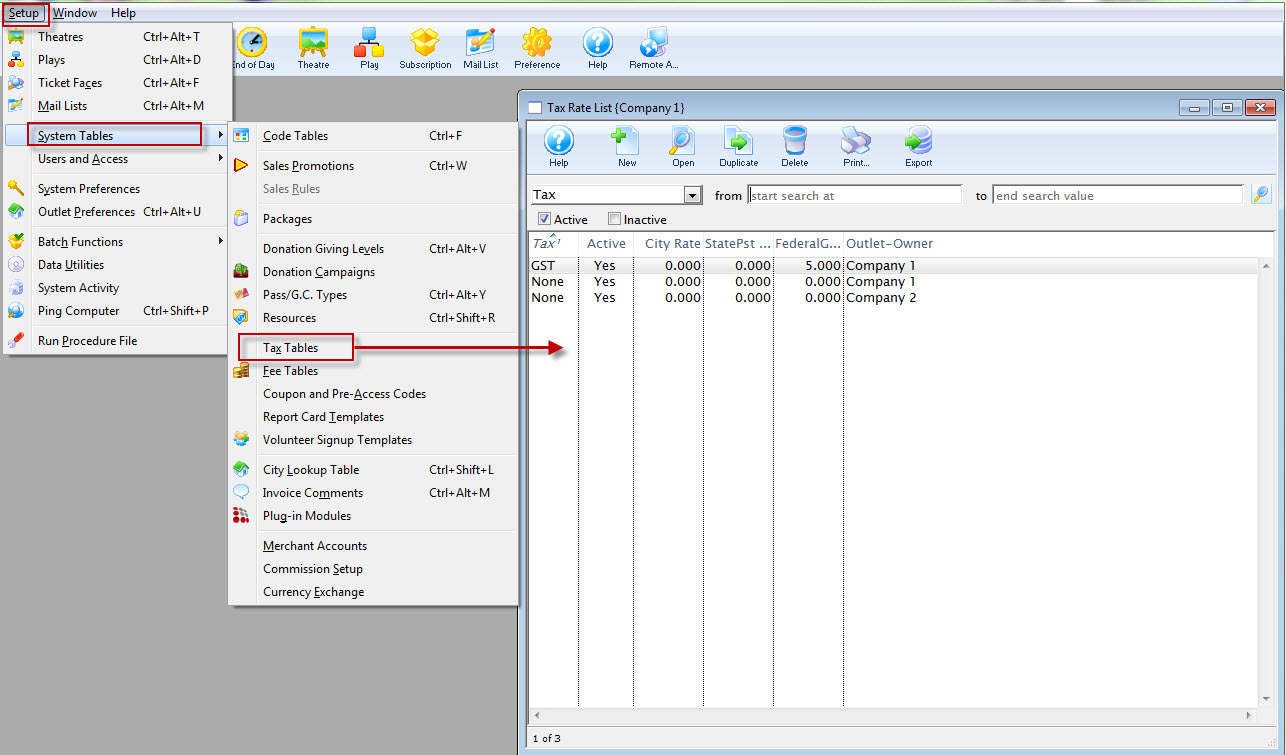
- Double click on the old tax code currently being used.
- Change the Tax Code name field to something that included the percentage of the rate.
For Example:
Province Current Name New Name British Columbia Tax or HST HST 12% Ontario Tax or GST GST 5% - Click the Save button to save the changes.
B. Create a new Tax Code for the new Tax Rate
- Go to Setup >> System Tables >> Tax Tables.
- Click the
 button to create a new tax code.
 - Set the name of the tax code to something to reflect the new rate.
Province Tax Rate British Columbia GST 5% Ontario HST 13% - Starting with the City tab, set the appropriate tax rate and G/L Accounts.
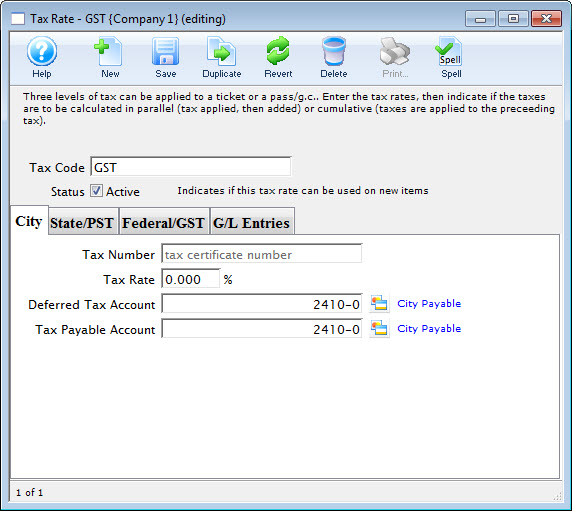
The G/L Accounts will likely be the same G/L Accounts that were used for the prior tax table.
- Repeat for the PST and GST tabs.
- Click the
 button to save the changes.
Repeat steps A & B (above) for any other Tax Codes that contain the old tax rate. In a situation where the GL Account number is different click here to learn how to create a new account number.
|
For Step B above, you can change the name of the City tab in Tax Tables by going to Setup > System Preferences > Appearance tab and changing the right side of Federal Tax from City to HST. |
Steps to take when the tax change occurs
The following steps must be completed after midnight on the date the tax rates are to change and prior to sales beginning.
If you are running Theatre Manager's Web Sales module, make sure to shutdown all listeners by midnight. The Web Sales listeners can be restarted after the following changes have been made.
A. Make a Backup
The first step in making any major change to the database it to create a backup. A backup not only provides a starting point but it also means there is something to revert back to should things go wrong. For details on how to create a backup of the database click here.
B. Update Events
- Go to Setup >> Events.
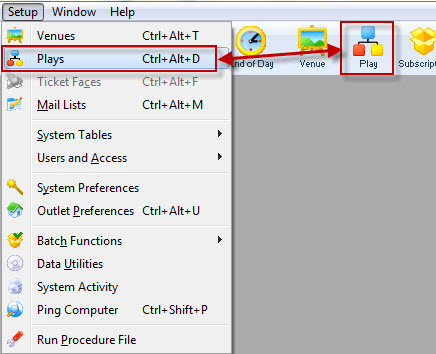
- Search for an event that is currently on sale and double click to open it.
- Click the Accounting tab.
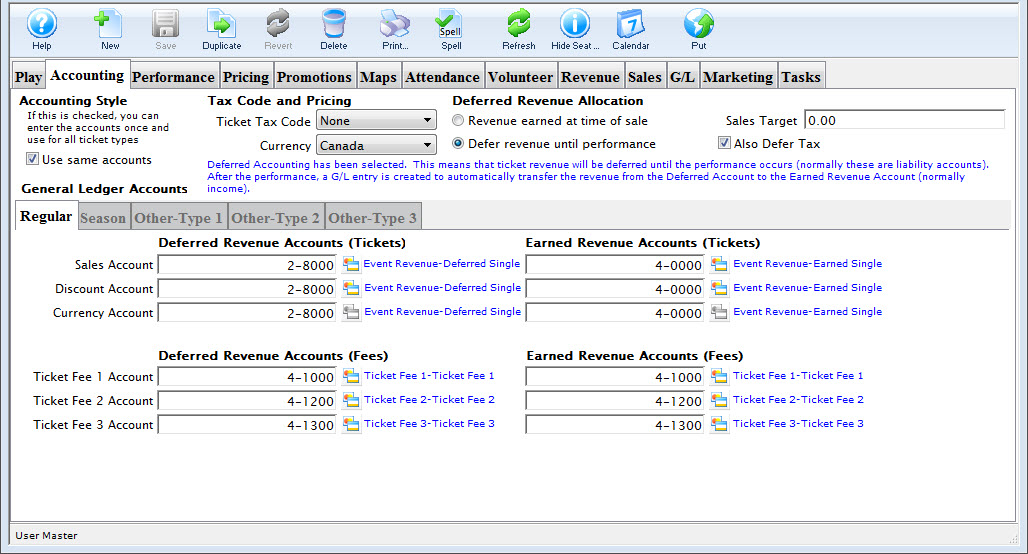
- Change the "Ticket Tax Code" from the old tax rate to the new tax table.

Changing the tax rate on the accounting tab changes it for all performances. If you wish to only change the tax code on a few of the performances, then do not change it on this tab.
- Double click on only those performances that are to be sold under the new tax rate.
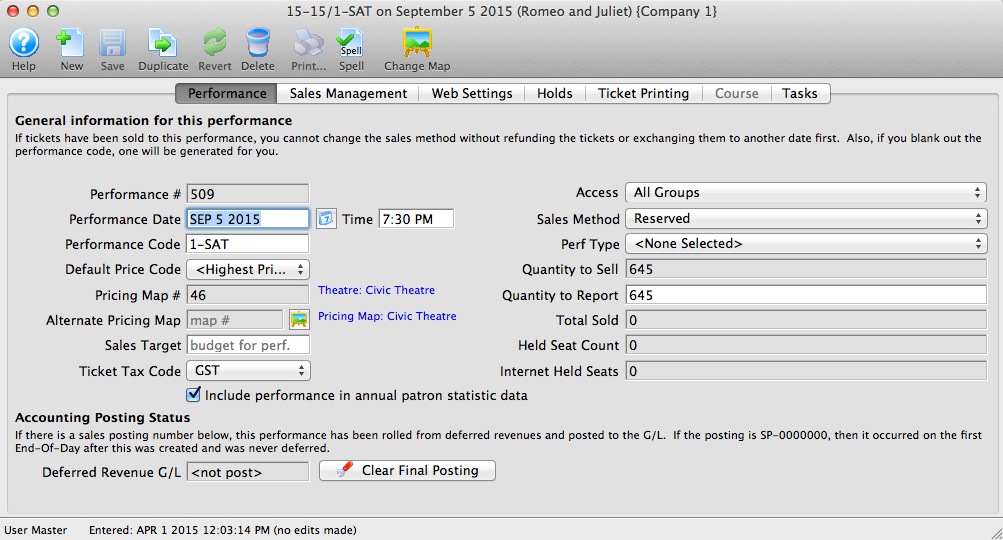
- Change the Tax Rate Code in the Performance Detail window.
- Double click on only those performances that are to be sold under the new tax rate.
- Click the button in the toolbar / ribbon bar.
If tax is currently backed out of the ticket sales price, the value of the ticket will need to be altered under the Pricing tab for each Event. This is done by:
- Double clicking on the Price Code.
- Entering the base price of the ticket (including tax).
- Clicking the Calculate Price Excluding Taxes button.
- Repeat these steps for all other current and future events.
C. Update Ticket Sales Promotions
If the tax rate switch is instantaneous (i.e. it all happens on one day), then simple change the tax rate on the promotions.
However, if the tax rate is to be phased in, where an old tax rate applies to some events or performances and a new tax rate applies to other events and/or performances, you will need to create a second set of sales promotions to mirror the first and enable/disable them as appropriate.
For example, if a regular ticket can be sold with only Ontario Sales tax up till a deadline, but regular tickets for other events require HST, then you will need to rename your old 'Regular' to 'Regular RST' and add a 'Regular HST' promotion - and enable them as appropriate for performances. After the tax change is full implemented, you can merge the two sales promotions together if you wish.
- Go to Setup >> System Tables >> Sales Promotions.
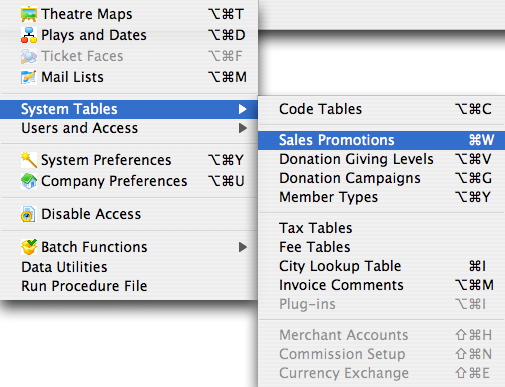
- Search for an active Sales Promotion
- Double click the Sales Promotion to open it.
- Select the Calculation tab.
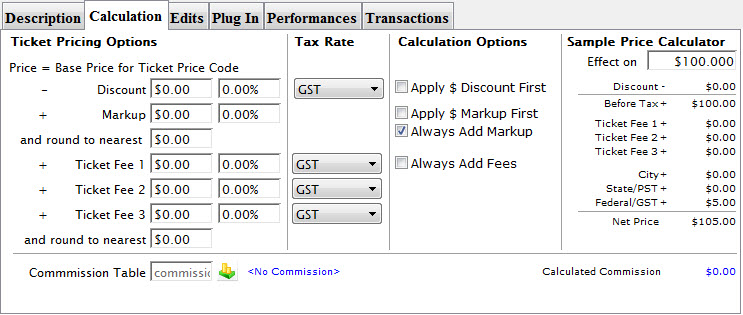
- Change the Tax Rate(s) from the old tax rate to the new tax rate.
There are four (4) tax rates per sales promotion that may or may not be effected.
- Click the button to save the changes.
- Repeat these steps for all other active Sales Promotions.
D. Update Memberships/Passes/Gift Certificates
In most cases, a gift certificate should not have any tax charged against it at time of sale as it is what called a 'financial instrument'. No taxes are payable buying a gift certificate and the tax is calculated at the time of exchanging the gift certificate for a ticket
Some items like a play pass or merchandise may have tax applied and could need to be changed. You will need to decide which passes/memberships or gift certificates are subject to the tax change.
- Go to Setup >> System Tables >> Member Types.
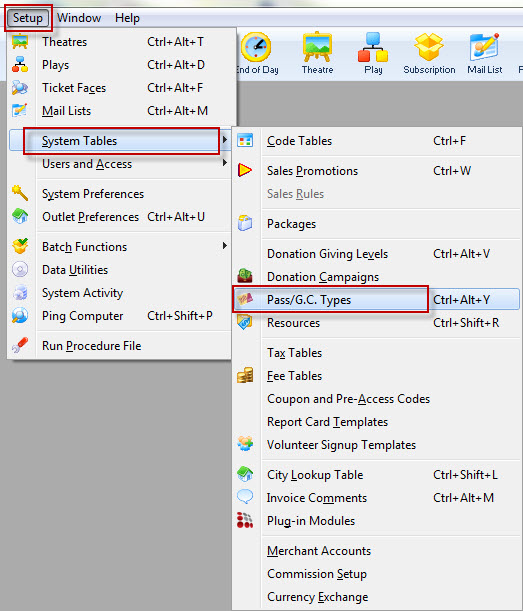
- Search for an active membership.
- Double click the membership to open it.
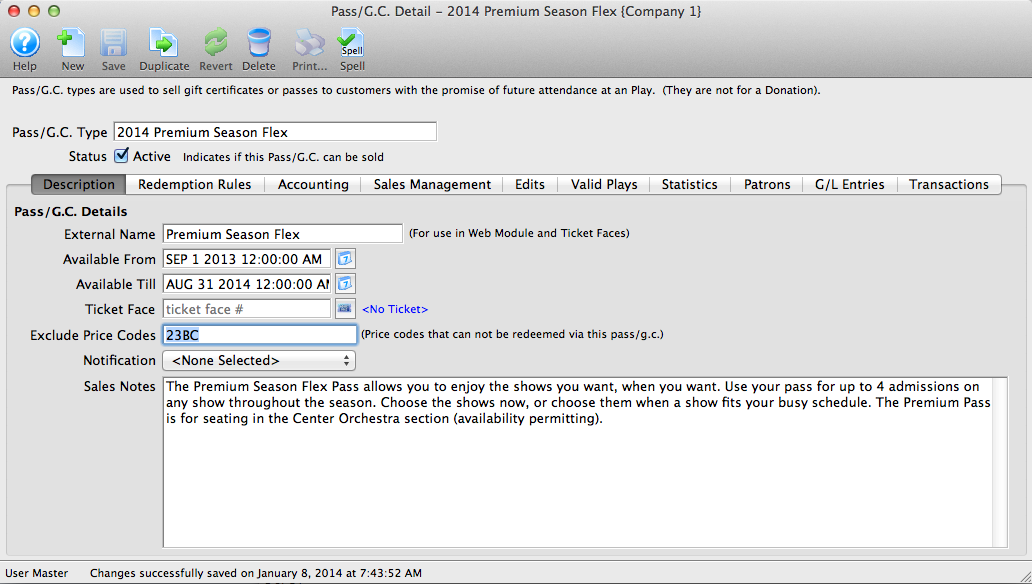
- Select the Accounting tab.
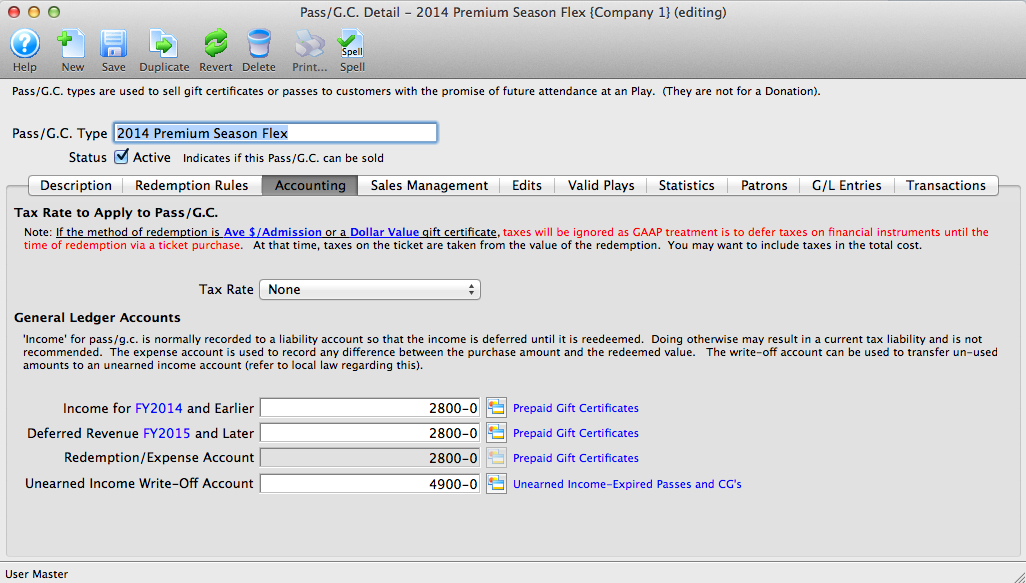
- Change the "Tax Rate" from the old tax rate to the new tax rate.
- Click the button to save the changes.
- Repeat these steps for all other active memberships, passes or items to be purchased.
E. Update Transaction Fees
- Go to Setup >> System Tables >> Fee Tables.
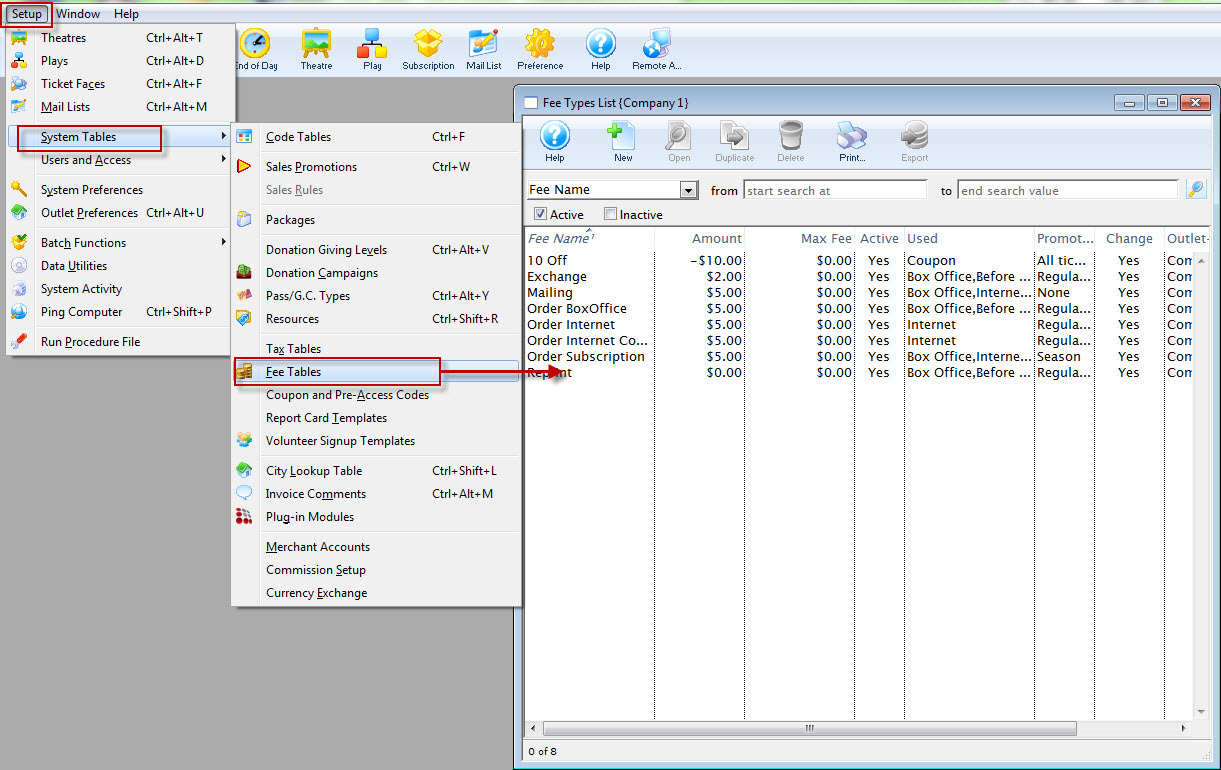
- Double click on the first Fee in the list.
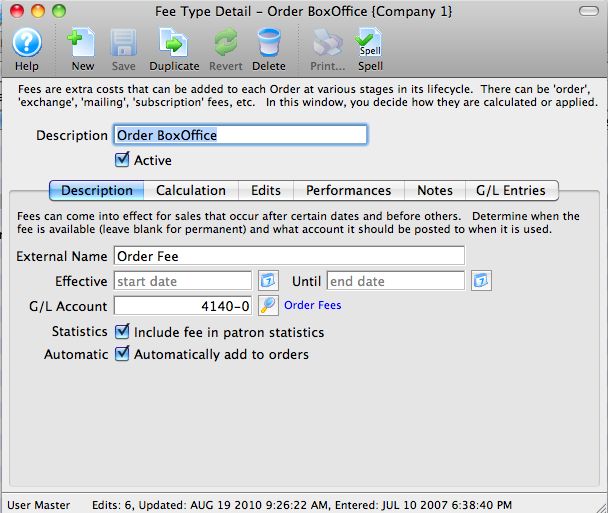
- Select the Calculation tab.
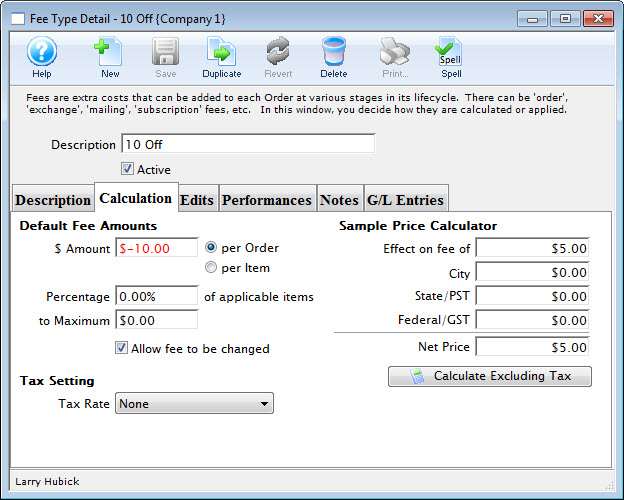
- Change the Tax Rate from the old tax rate to the new tax rate.
- Close the window to save the changes.
- Repeat these steps with all other Fees.
F. Update The Facility Management Module
It may be necessary to update the tax rate on any projects where a future invoice is required. You may need to update resources and personnel for each task that spans over the date of the tax rate change for those projects that require billing.RESOURCES
- Go to Setup >> System Tables >> Resources.
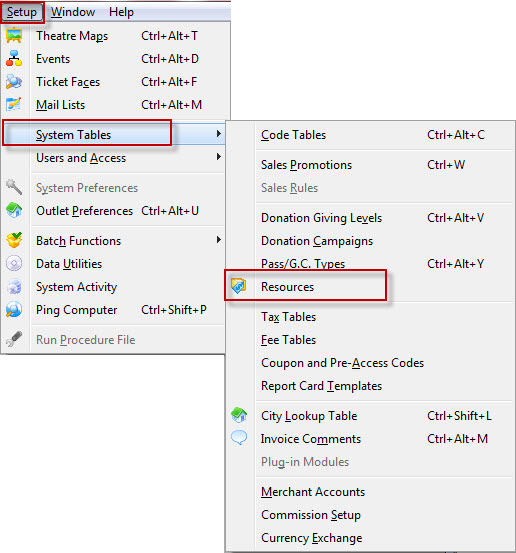
- Double click on the first Resource.
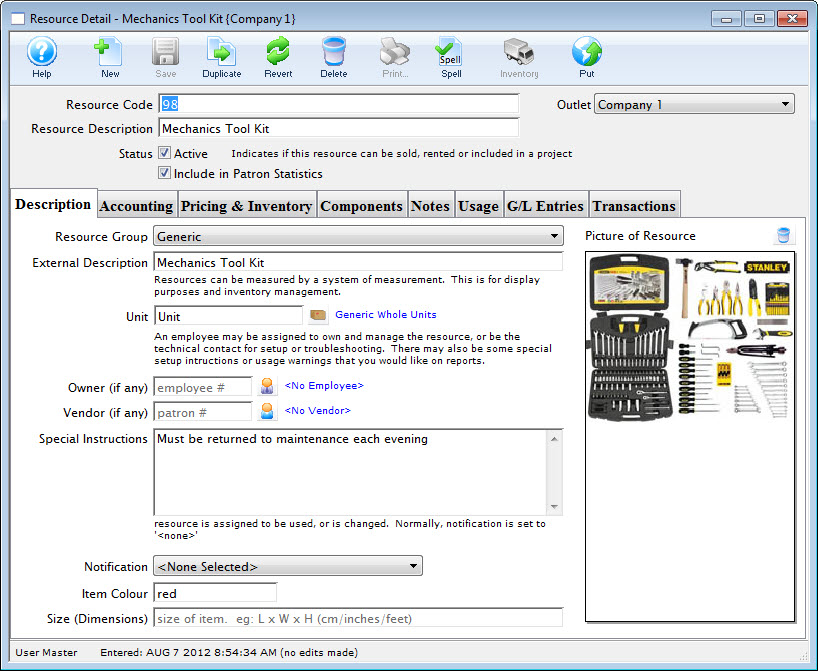
- Select the Accounting tab.
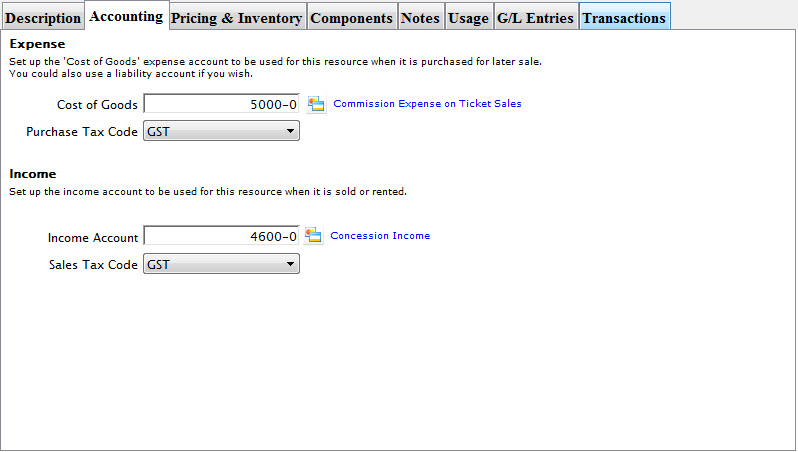
- Change the Purchase Tax Rate and the Sales Tax Code from the old tax rate to the new tax rate.
- Close the window to save the changes.
- Repeat these steps with all other Resources.
PERSONNEL/VOLUNTEER ACTIVITY- Go to Setup >> System Tables >> Code Table.
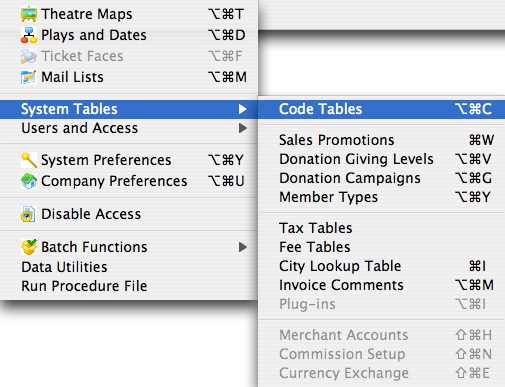
- Select the Volunteer Activity option in the left column.
- Double click on the first activity in the column on the left.
- Select the Facility tab.
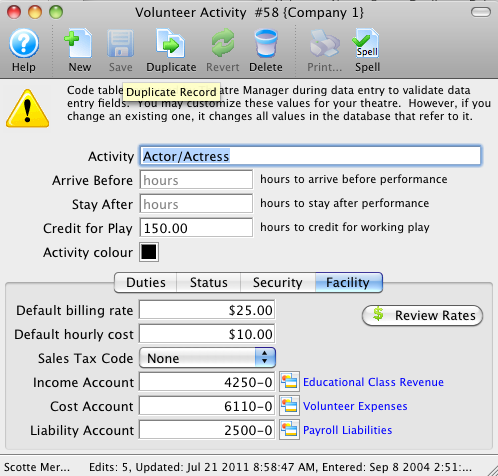
- Change the Sales Tax Code from the old tax rate to the new tax rate.
- Close the window to save the changes.
- Repeat these steps with all other Resources.
Congratulations! New sales may now be processed, and all Web Sales listeners can be started.
Transitional rules: HST on Ticket Exchanges bought before HST implementation
The Arts Management team are not tax accountants or experts, so Theatre Manager is designed to implement a somewhat safe interpretation of the rules. These rules were generally acceptable for the Maritime provinces HST transition some years back.
Please read the examples below that are taken from Ontario Transitional Rules and do check with your accountants. There is enough in this document to warrant taking the safer road on the taxation side. As I said, we are not tax accountants, so the actual rules may be different, or there may be specific exceptions that we are not aware of.
The approach that you can take in TM to handle exchanges is:
- new tickets (and exchanged tickets) get the new tax rate that applies to the performance
- refunded tickets are refunded at the tax rate used to buy them
- venues who want to implement what are effectively tax rebates on subscription ticket exchanges need to discount the final order difference using a negative order fee to write off the HST. It will come through the end of day as 'negative' tax, but in the end, that is good because you can track it as an input tax credit.
This assumes that it is legally valid to do that. Please please please, talk to your Accountant for your specific situation.
Background History to the TM Transitional Rules
The rules that we've been observing are are found in a published web article by the Ontario Government.
| There is a small section in this document near the bottom labelled Returns and exchanges near example 28 which is excerpted below. it is the subsequent caveat that is the most interesting.
Example 28: In July 2010, a person returns a shirt that was purchased in June 2010 for $40. The vendor exchanges the returned shirt for another shirt that costs $60. In this situation, the vendor would collect the Ontario component of the HST on $20.
If the RST did not apply to property that was purchased before July 1, 2010, and it is exchanged on or after July 1, 2010, the Ontario component of the HST would apply to the full consideration for the replacement property.
Tickets generally have no RST. By that interpretation, exchanges for events that occur after July 1,2010 would be charged the HST on the full amount, even if bought before May 1, 2010. |
|
Example 22 speaks to tickets (albeit a circus example) and has an implication that shows across the boundary of july, but sold earlier than May (i.e. buy now, go later), should probably have HST in them in the first place. It states:
Consideration due or paid on or before October 14, 2009: Notwithstanding the general RST wind-down rules, the RSTA would apply where consideration for a sale of goods, services or admissions becomes due or is paid on or before October 14, 2009.
Example 22: In September 2009, a vendor sells tickets to a circus show to be held in July 2010. The RST would apply to the price of admission.
Interesting interpretation of this is that if you were not charging RST (because you were exempt), then you cannot use the 'difference on the exchange' from example 28. Otherwise, you might be able to take advantage of example 28 - but you would have to have been charging RST on tickets last October. |
|
Revenue Canada speaks to a transitional rule with a ticket example using Stratford Festival. It has a specific example where tickets are purchased after May and the performance is in July. It clearly states that HST applies. Revenue Canada speaks of a transitional rule that follows:
The HST will generally apply to a service to the extent that the service is performed on or after July 1, 2010. The HST will generally not apply, however, to a supply of a service if all or substantially all (90 per cent or more) of the service is performed before July 20 Our reading of that suggests that a subscription where 10% or more of the ticket value is after July 1st suggests that HST should be applied to the initial sale. |
| There are some exceptions to the transition rules listed in various places.
We took a representative example from Tax Tips for subscriptions. In every interpretation we've seen, this means magazine periodicals. Anything mentioning tickets refers to transportation. Nothing specifically talks to non-profit arts organizations exchanging subscription tickets when a new tax rate applies. |
|
Finally, there is a small note in the Ontario Transitional Rules document called 'anti-avoidance'.
It looks innocuous - but the meaning is clear - if the Government thinks you are doing something to avoid the tax (they coin it 'blatant tax avoidance arrangements', then trouble looms and the department of finance can make any rule they want. So, 'buy your pass now to avoid HST next year' may (or may not) be on that 'tax avoidance arrangement' category. Anti-avoidance Existing anti-avoidance rules in the ETA (Excise Tax Act) would apply to transactions to which the general transitional rules for the HST apply. Additional anti-avoidance rules may be implemented in order to maintain the integrity of the GST/HST and the RST during the period of transition to the HST in Ontario. The legal ruling from University of Toronto is provided for your reference. Would the Government prosecute? Might not, it may be bad press. On the other hand, Governments like their tax revenue, so they might, especially if it amounted to a significant tax influx when you consider the value of all advance subscription tickets sold for all venues in the entire Province for a year. |
I hope these references help. If you are confused, I can understand it. Our reading is not necessarily correct, but in the absence of a very specific printed ruling, we've chosen to play safe, yet give the venues an option of using a negative order fees to effectively claim back the tax if that is what they wish to do.
Donation Clearing Account
- the Donation Account Donations Normally Post to -and-
- the Donation Bank Clearing Account
To set this up, you would change the BANK ACCOUNT in the Campaign setup to the restricted GL account you have assigned to the separate bank account.
In this example, let's assume your general CASH GL account is 1000, and the Capital Campaign GL account is 1008.
|
While the payments for all sales goes into the general operating account at the bank, and the majority of your campaigns are sending those funds directly to the standard 1000 GL account, the Capital Campaign is going into the 1008 account. |
GL entries for the restricted Donation - no payment yet
The next assumption is that a $50,000 donation is pledged - but not paid - to the capital campaign. This simply increases A/R by $50,000, and increases the Capital Campaign donation GL account (in this example, 4125).
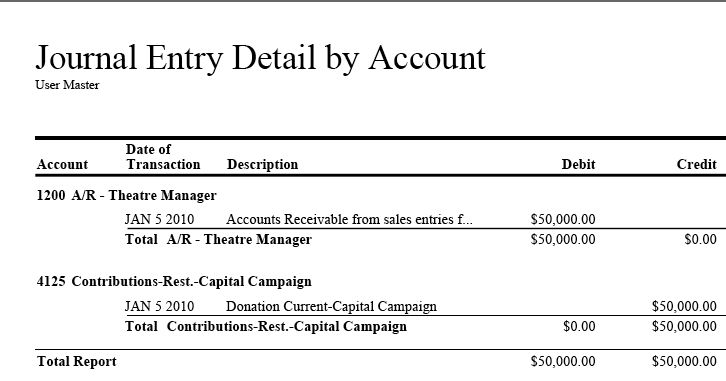
GL entries when part or all of the payment is received
When the donation is paid (either in part or in full), Theatre Manager will tell you through the End Of Day reporting to move the funds from where they were originally posted to the separate bank account.
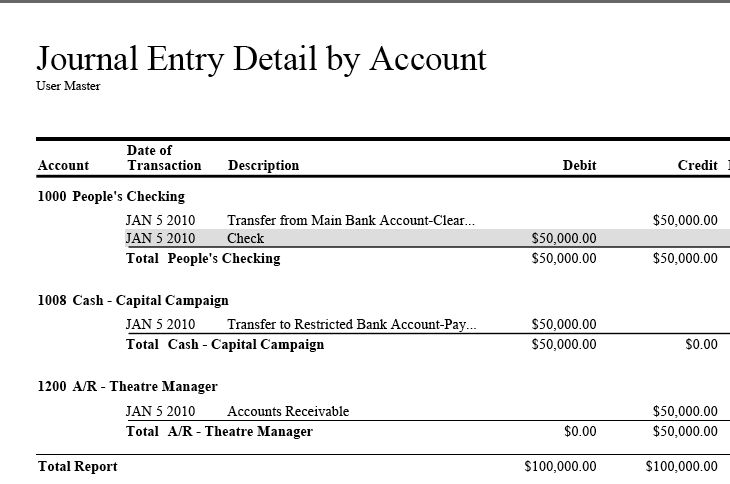
What this means to Finance
To understand this report, first remove the simple offsetting transactions for Accounts Receivable. eg:
- The final transaction reduces the A/R - and-
- and the second transaction increases the CASH account by $50,000, which is the amount of the payment.
- These are the same transactions we see for every payment in Theatre Manager. Reduce A/R, increase cash.
That leaves us with the two transfer GL entries.
- The first is the Transfer from (1000).
- It is a credit for $50,000
- meaning that you are going to need to manually take the funds OUT of the cash account (main bank account) using your online banking
- The second is the Transfer To:
- which moves the money IN to the other bank account
- which is 1008 (because that is where you are keeping the actual money for the capital campaign).
|
The Only action you need to do is watch for the transfer out and then do something outside TM to move the funds from your operating account to the restricted asset account for the campaign when the payment is made. |
Donation Clearing Example Setup
Code Table Default Accounts
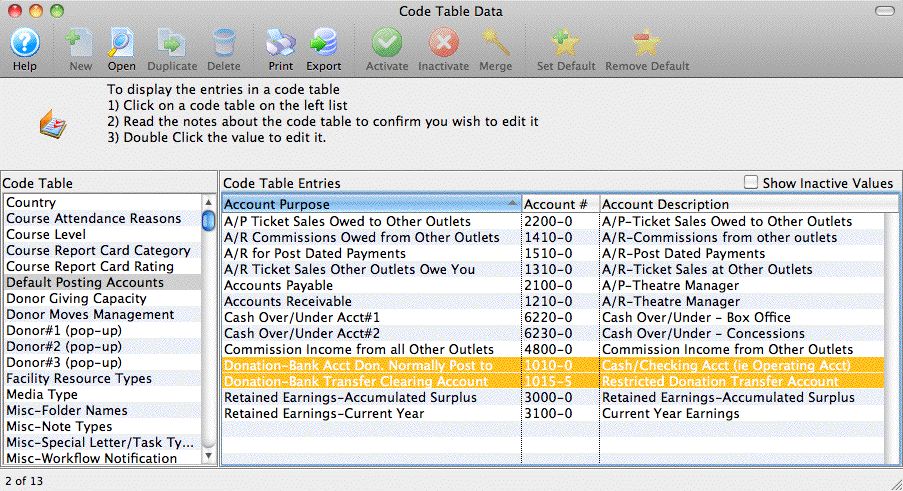
The two highlighted accounts below are what makes the automatic creation of G/L entries for transferring donations to the restricted account work.
- The first is the Donation-Bank Acct. Don. Normally Post To. which really should be the same account number as the operating account. When you look at a normal donation (second picture), you will see this account is placed into the 'Bank Account' field
- The second is the Donation-Bank Transfer Clearing Account. This will be an asset clearing account - which in general means that if something gets posted to this account, you will need to make a manual GL entry in your accounting system to get it moved from this holding place to the right bank account
Typical Donation - Non Restricted
This sample shows how the bank account is entered for almost every donation campaign. Typically these would be referred to as non-restricted. Theatre Manager will put any payments received against these donations into the operating account
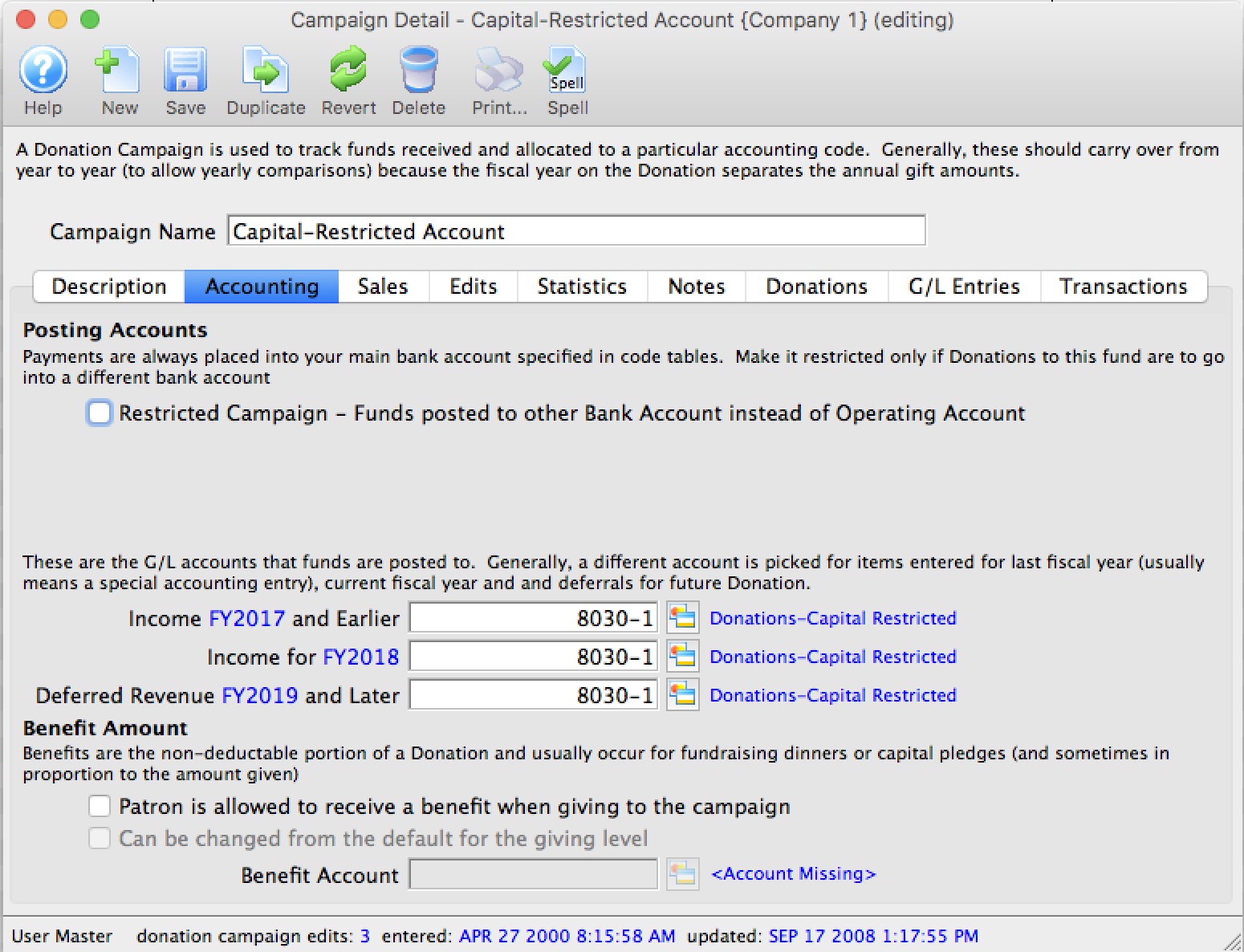
Special Donation - Restricted
This sample shows how the bank account is entered for a donation that is deemed to be 'restricted' - meaning the money needs to be moved to a different bank account, or accounted for in some different manner. When the donation is paid for, Theatre Manager will create a clearing entry for you to this account.

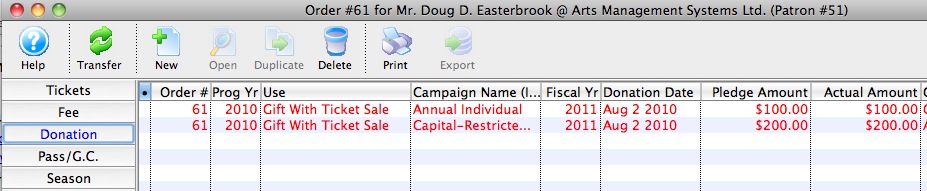
Example of an order
This picture shows an order with two donations in it, one for each of the donation campaigns described above.
Sales Posting
When the sales posting is created, you can see that each of the donations is placed into its own sales/income account. This will happen whether or not there is a payment yet.

Deposit Posting
When the payment is received at some time after the donation is entered (it could be right away, or the payments for some donations can be received in installments), running the deposit process is intelligent enough to:
- Put the entire check into the cash account
- Decrease the receivables account like any other payment
- Add two special entries that offset each other
- The first entry from Theatre Manager is telling you to put some money into the restricted bank account because a payment was received for the donation
- The second entry is in the restricted donation transfer account. Normally the total value of funds in this account is zero. However, as payments for restricted donations are received, this account will increase in size. Theatre Manager tells you which donation the funds are for. At some periodic basis (daily, weekly, monthly), you will need to clear this account to zero. To do this, you go to your web banking and transfer funds from your operating account over to the various restricted accounts as identified by the clearing account.

End Of Day Settlement over an Extended Break
 |
The easiest way to handle an extended break (eg over the christmas holidays) where there are no events being performed and nobody is in the office is to temporarily enable the Emergency Mode on the merchant account.
This is probably the best option if nobody is around |
|
Alternately, you can let cards be authorized, but you will need to check with your credit card processor to find the maximum period in which credit cards must be settled before they are automatically released.
If you can remote in and periodically do a deposit, this is probably the best option |
Options for processing over an extended break
On an extended break, and if you have web sales occurring, deposits still need to take place on a regular basis. Therefore, your options are to do one or more of the following:
- Turn your merchant processor into Emergency Mode over the holidays when nobody is in the office. This option is probably the easiest and means:
- All credit cards taken online will the treated as post dated payments (they can be authorized for real when you get back)
- You might be taking a small risk that the card get declined, but since no tickets have gone out and (assuming that there are no events performed during this time), you have complete control of your inventory, including refunding it if need be
- When everybody returns from break, turn off Emergency Mode and authorize all cards at end of day
- Stop all sales during the break, including Box Office, Web Sales and any donation entry by the Development Department - essentially 'close the shop'
- Come in to the office and do your deposits every few days
- Remote into your company network from your home office and perform your deposit.
- Do a final deposit before you leave the office and then one first thing when you come back (read the cautionary note)
Caveat for Options that do not use the Emergency Mode Feature
Your credit card processor (Chase Paymentech, Authorize.net, Elavon, Moneris, etc.) prefers that you settle your credit card batch on a regular basis (i.e. daily). Your merchant provider sets a specified maximum frequency between settlements so that they can guarantee that the amounts they have authorized for you will still be available when you go to collect the funds. Because authorized credit cards must be settled within the pre-defined frequency, there is a "Settle Batch Frequency" setting in the Setup>>Merchant Accounts>>Settlement tab that retains the maximum days that your merchant provider indicates before a settlement is required. The maximum setting in Theatre Manager is set for seven days before settlement is required, however it is recommended that this is set at three days in order to maintain clean batches and regular settlements.
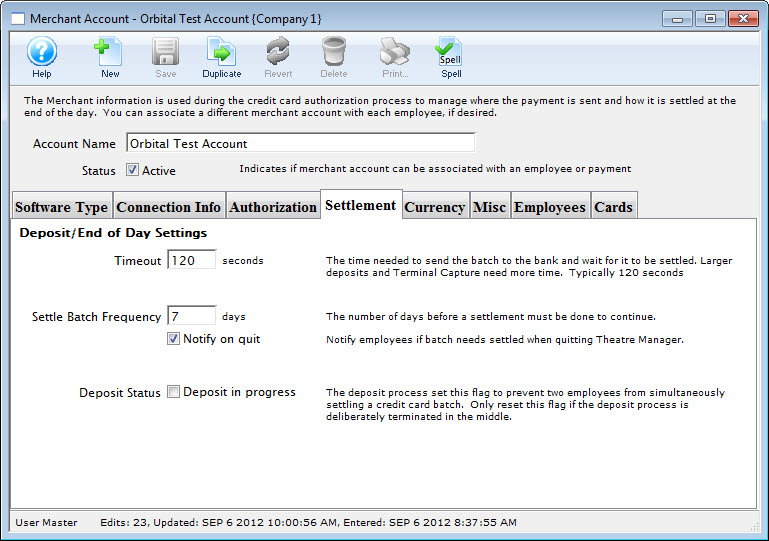
This setting applies to Box Office Sales only, and if you are running web sales over an extended break (such as the end of year holiday season), your web sales will continue to authorize credit cards beyond the time out setting in Theatre Manager.
|
For most online payment gateways (Paymentech Orbital, Authorize.net, etc.) the actual timeout may be up to 30 days or longer and having a extended break of less then 30 days may not have any impact on your non-settled authorized cards. Check with your credit card processor to determine the maximum period in which credit cards must be settled. Some credit card processors offer the service of auto-closing your batch if you plan to be away for an extended period. If you choose this option, you will need to force your deposit when you return from the break, after ensuring that Theatre Manager and your processor have the same credit cards and amounts in your batch(es). Check directly with your processor (Chase Paymentech, Authoriza.net, Elavon, Moneris, et.c) to see if they offer this service. |
|
You do not need to perform a complete End Of Day (Deposits, Sales Entries, A/R Posting, and Reports). You only need to complete the Deposit portion of the End Of Day in order to settle the batch. |
Option 2:
Turning off web sales means you do not need to come in at all. If this is a time of year when you do not have many online ticket sales, gift certificates, passes or donations, this may be an acceptable option for you. Unless you have a need for this approach, it is really not recommended.
Option 3:
If you can stop by the office once every few days (within the limits of the Batch Settlement Frequency), then you can run the Deposits in order to clear the open batch. You do not need to run the full End Of Day until you return from the break if you do not want to. This is a reasonable solution.
Option 4:
The more likely option is to remote in to your company network from your home office and perform the deposits. You can (along with your IT department's permission and direction) use a remote connection to access your company network and run the End Of Day from your home. If you are running web sales only (and have an online payment gateway), you may choose to delay the End Of Day until you return to the office, as long as it does not exceed the time specified by your processor. This is probably the best solution
|
If you choose to use remote access to log in from your home office and complete the deposits, check with your IT department to ensure that you abide by the security rules and protocols they have defined for your company network. |
Option 5:
This is the default or do nothing alternative but you will have to verify with your credit card provider how long you can go without settling your batch. Most credit card providers are quite liberal and allow a relatively long time of a week or more which means you should not have any issues.
|
There is one service provider we know of (Global Payments - NDC) that starts dropping any authorizations that are older than 3 days as if they never happened. Since they don't tell you, this is a huge problem and you will need to pick one of the other options.. It is one of the reasons we recommend against using them as a service provider. |
Remote Access Options
At Arts Management Systems, we use TeamViewer for its ease of use, and the fact that in most cases it does not require a firewall configuration. There are several other remote access programs available, including:
- Remote Desktop Connection
- Apple Remote Desktop
- PC Anywhere
- LogMeIn
- VNC
- Timbuktu
|
While Arts Management Systems does not directly support any of the above products, we have tested each one and know they work for remote access. Installation, licensing requirements, and operation of any remote access product is the client's responsibility. |
End of Day Settlement Warning
For example, Global Payments is notoriously strict and starts removing credit card authorizations that have not been deposited within 5 days - which throws out the settlement balance (one reason we recommend not using them as credit card processors)
You can alter the 'batch settlement frequency' which is the number of days before the End of Day Settlement Warning appears'.
|
Arts Management Systems strongly recommends contacting your Merchant Provider to find out what their policies are before altering the default. The number of days the batch can remain open depends entirely on your account setup with your merchant provider. |
- Click Setup >> System Tables >> Merchant Accounts.
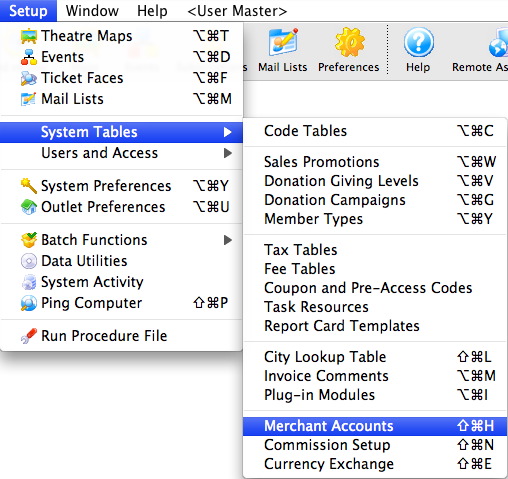
- Double click on your Merchant Account to open it.
- Select the Settlement tab.
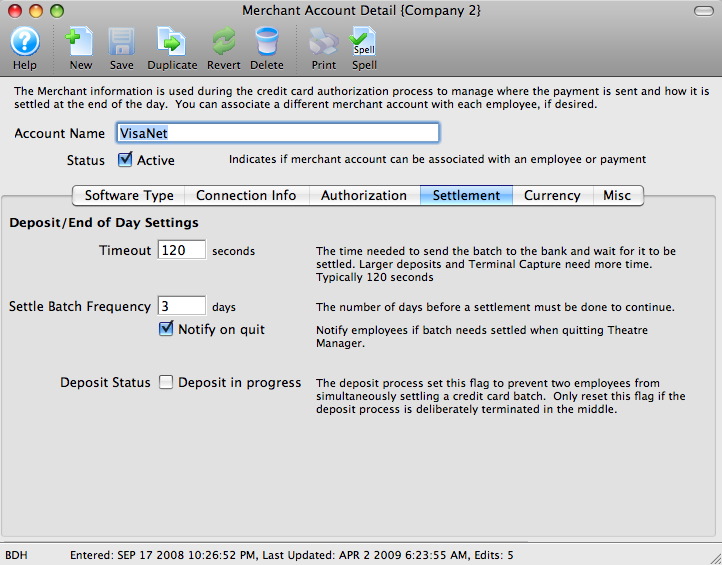
- Alter the Settle Batch Frequency field as desired.

- Click the Save button at the top of the window.
- Close the Merchant Account Detail window.
|
You may be prompted to enter contact information for your Merchant Provider prior to closing the Merchant Account Detail window. Please ensure you have a Contact Name, Phone Number and E-mail Address for your Merchant Provider ready. This is used to tell employees whom to contact if there are issues with the credit card and the phone number to call at the credit card merchant services support line. |
How do I correct an End of Day Imbalance?
If you are running into problems trying to bring the daily imbalance to zero in end-of-day, then please follow the troubleshooting steps at fixing an imbalance
How do I tell which payment method paid for a ticket and why can it only be inferred from a payment allocation report?
|
We are often asked how to find out how many tickets were paid for using various payment methods (for example: Visa, Master Card, cash, etc.). There is definitely a need to do so for many reasons:
|
There is a method to find a very very close (but approximate) answer for business purposes. You cannot find an exact answer of '1 ticket paid for by visa' for the reason illustrated in the example below. If you are trying to manage your receivables, please refer to this web page that describes the use of Accrual Accounting in Theatre Manager.
Getting a reasonable approximation
The reasonable answer can be obtained using the Revenues by Payment Method-Ticket Based report or looking at one of the royalty reports. The process for these reports are to:
- Run the 'Receivables-Based on Order Balances by Event' to see if anybody owes you money for the event. If there are any receivables, clear them out or pay them off.
- Find all the orders for the tickets you need the answer for - e.g. you want the calculation for all tickets sold at a particular show, at the end of the run, to obtain credit card discounts paid - and which can be deducted from royalty payments.
- Theatre Manager then finds all the payment methods for the orders and allocates the payment method among the tickets in the order.
- The allocation is then printed on the report. Please refer to the examples below to see how this can work.
Why can't the number be exact?
|
We will use an example of why the question being asked is not available in ANY accounting system. That is - specifically what payment method paid for an item out of inventory cannot be accomplished in accounting system. It can be inferred, but there is no way of ascertaining 'fact'. |
First, Theatre Manager uses accrual accounting. This means each payment decreases accounts receivable. Each purchase increases accounts receivable. In a perfect world of buy one ticket for $10 and pay $10 in cash, it can be inferred that 1 ticket was paid for with cash.
What if the transaction gets complicated?
Now we will use a real world example. A patron purchases a play pass for $100 and donates $50 at the same time. He is sharing the pass with a friend. You receive $50 from the friend by visa (the friend donated separately earlier in the year) and the patron pays $100 with Mastercard. Question: How many tickets were paid for using visa? Answer: It can be inferred:
- None because it is a play pass and they have not yet been used.
- In fact, if they are never used, the answer will be zero.
- A possible answer is 50/150 = 33% of the pass - as that is the exact ratio of payments made on this order and you don't know the patrons intent.
- A possible answer is 50/100, if you knew the patron's intent.
So far, there are 4 possible answers for the transactions. All, are in fact wrong. The simple answer is that when the pass was purchased, it increased receivables because something was sold from inventory and the payment decreased the receivable.
Time passes and the patrons use the pass to buy tickets. At this time, the payment method for the ticket is part of the pass and we are now a few steps removed from the original transaction. If the patron allows other patrons to use the pass things are further complicated.Finally, the patron may decide they can't use all the pass, so they turn it in for a donation receipt or you write it off to un-earned revenue.
These kinds of transactions happen with amazing regularity at any theatre company.
How do other industries do this?
They do not. If you pick any another industry - such as a lumber store where you buy some lumber, some screws, a new power tool and pay with a gift certificate you got for christmas and top it up with some cash in your pocket and then use a debit card, you could be asking the same question.
Did my gift certificate pay for my cool power tool, or did it pay for my screws? again, the answer is: YOU CANNOT PROVIDE AN EXACT ANSWER OF WHAT PAID FOR EACH INDIVIDUAL PIECE OF INVENTORY (only an approximation).
Summary
- In an inventory management system, it is never possible to clearly determine how each item is paid for that was removed from inventory.
- There is no accounting system that we know of that provides this capability in any of its reports.
- Theatre Manager recognizes that there is an advantage to being able to approximate the answer with a degree of precision and provides report to allocate payments to tickets at the end of a run for purposes of royalty deductions. These are accurate to 4 decimal places and fractions of tickets.
If you require further clarity on this concept, please consult with your accountant or auditor.
Managing or cleaning up your receivables
- there are multiple orders for same patron with offsetting balances (eg total debits minus total credits = zero), so the patron does not owe you anything
- the order is so old as to be uncollectible - and you need to write off the balance
- there is a small balance in the order (generally a fee charged or waived) that puts the order out of balance and just needs fixed without bothering the patron
- this is a true receivable - and the patron still owes you for product
- this is a true over charge and you should be refunding money to the patron or converting it to a donation
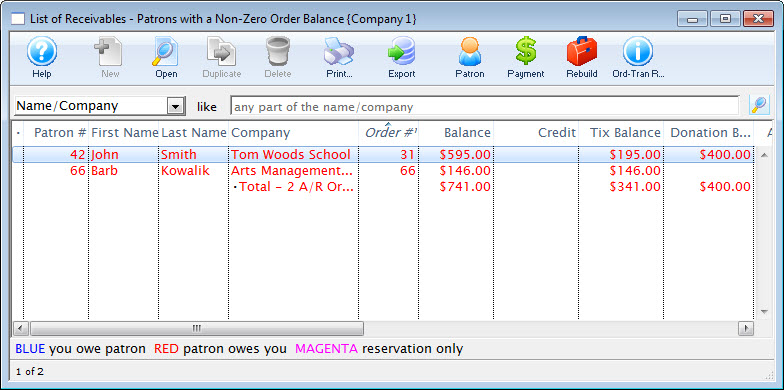
Identifying Receivables
All you need to do is:
- Look at the receivables listing using Accounting->Receivables->Receivables Listing -or-
- Look at the same data in the A/R Balance Tab in the end of day process, if that is more convenient.
- View the data on the Receviables - Based on Order Balances report which can be printed from the reports button under the Orders and Payments category , the Reports Tab on end of day, or right clicking on either of the two windows above and printing the A/R report.
Same patron with multiple offsetting orders
Offsetting orders are where the patron owes you money for an order and you owe them money for another order. This often occurs where the box office staff refunded the tickets (but not the payment) and then bought more tickets on a separate order instead of adding tickets to an existing order. In general, the patrons owes you $xx.xx and you owe them $xx.xx. Cleaning up these orders and removing them from the receivables list is as simple as:
- highlighting the appropriate orders from the list belonging to the same patron # -and-
- Applying one payment to multiple orders - using the cash payment method.
Orders that are so old as to be uncollectible
During followup training, we often see some orders that have been around for a decade or more with an unpaid balance. Unless it really is a long term receivable for a major donation, it should be written it off so that it does not clutter up the receivables listing. A messy receivables listing may lead you to ignore a true balance owing.
The steps to do this are:
- If you do not already have a payment method for write-off or uncollectible debt, you will need to make one in the Payment Methods code table. Once you have a write-off payment method set up with the correct account approved by finance -then-
- Select the order with the uncollectible amount (on any list that shows orders)
- Right click on the order from the list
- select Apply a payment to open the payment window
- use the write off payment method
Orders with a small balance
Order with a small balance generally have a recognizable amount in the order balance. For example, it might be $3.00 and that could represent an order or mailing fee that should have been charged -- or was possibly waived. If that is the case, then it is suggested to alter the order and fix the missing data by adding or removing the fee.
Use this approach when you want to ensure the correct money goes through to the appropriate order fee G/L.
To do this.
- Double click on the order.
- click on the fee button
- add or remove the fee to bring the order into balance
- Close the order window
This is a true receivable
Do nothing to the order - leave it as is.
Unless, it s for a receivable way in the future such as a group ticket sale or donation for months in the future. It is a good idea to set the expected payment date in the Contractual Notes tab in the payment.
Setting the order as a future receivable helps as it changes the age of the receivable so that it is always current, until the future date arrives. In effect, you are telling TM that you don't want to bother with this receivable for a while - and it clearly identifies it.
This is a true overcharge and you should be refunding money
If the balance indicates that you owe the patron money (and its large enough), there are three suggestions.
- If the patron wants to carry a balance, you could convert the balance to a dollar value gift certificate which you could call Store Credit. This could allow them to redeem their credit online (if it is set up that way).
- Double click on the order to open it
- Click on the gift certificate button
- Add a gift certificate to the order
- If the balance is larger, you could approach the patron and turn it into a donation
- Double click on the order to open it
- Click on the donation button
- Add a donation to the order
- You could leave the balance as is or add something to it like a fee as per above
- of, if you do need to refund the money, you can create a refund payment
NSF Cheques
Tracking NSF information is a good idea. When you put the information in Theatre Manager it will tell your accounting department what needs to be done. It will also allow for you to have a record within Theatre Manager of this patrons payment history which may be used in the future to determine if you allow this patron to continue to pay by cheque.
Some organizations charge a fee to the patron for NSF payments. This is done by setting up a new fee option in Setup >> System Tables >> Fee Tables. Click here for the steps to set up a new fee.
You will need to alter the payment on the Order. As the Payment has already been deposited in Theatre Manager you will not be able to delete it. Instead, you will need to reverse the payment. The steps are as follows:
- Open the Patron Record and choose the Order tab.
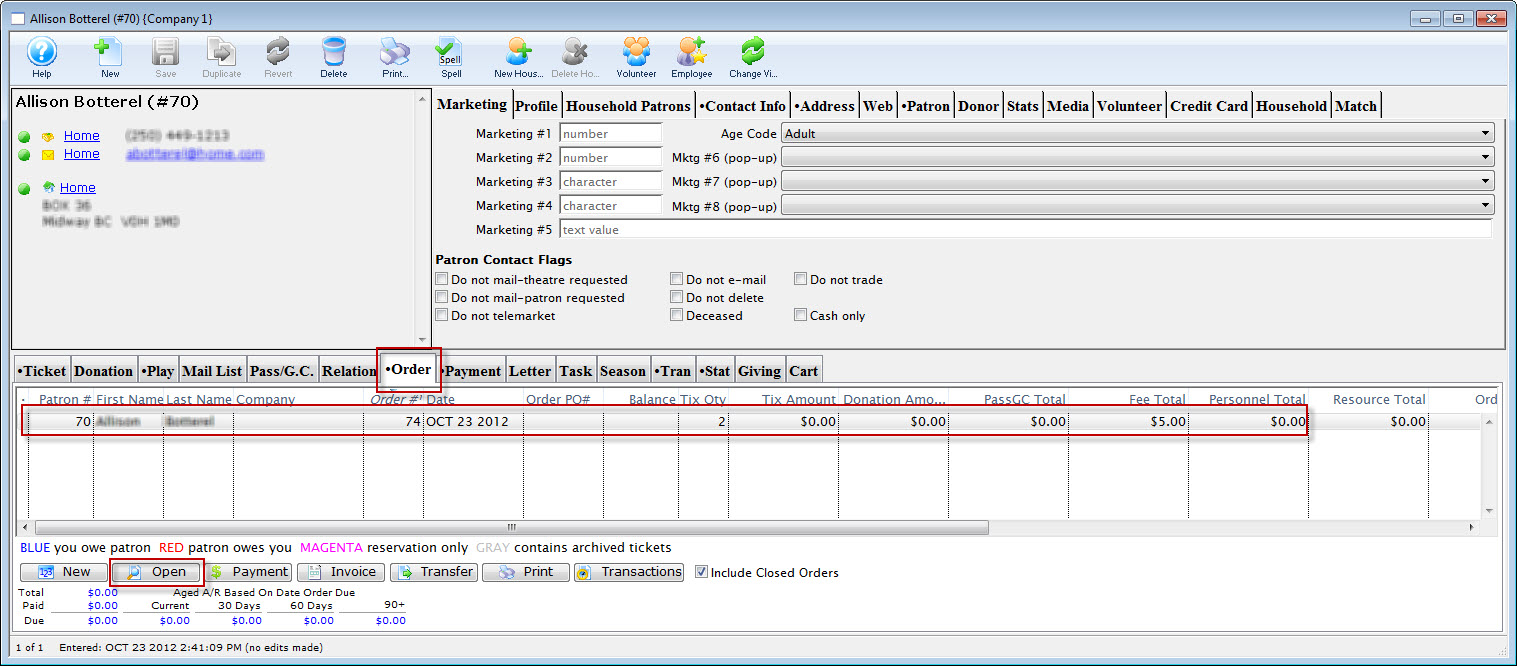
- Single click on the Order the cheque payment was for and click the Open
 button.
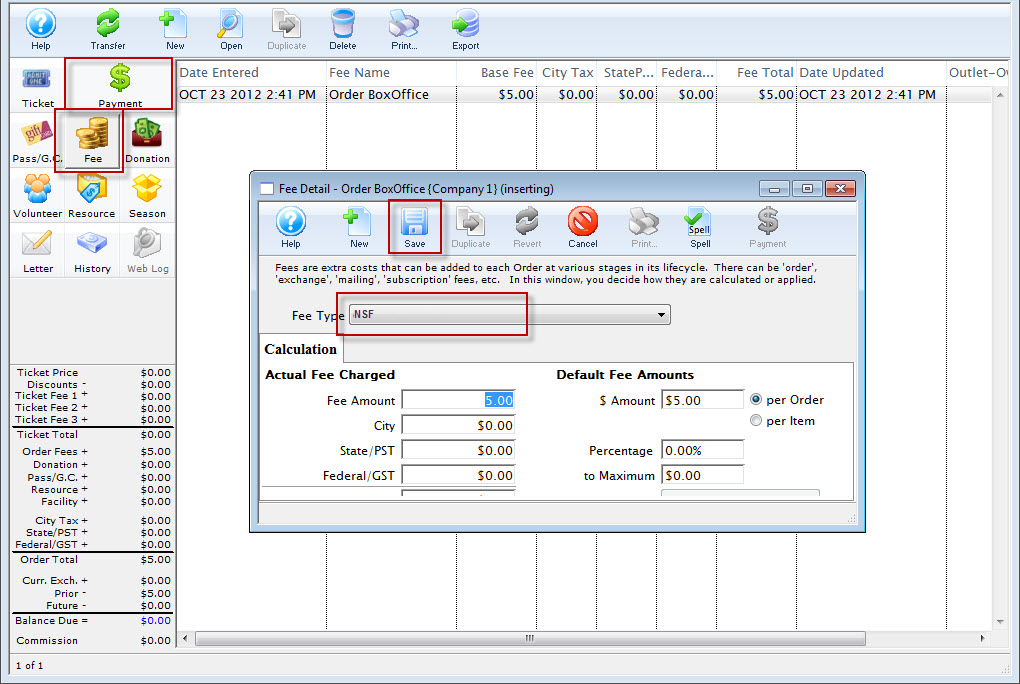
- Select the fee tab and add a fee if applicable.
- Select the Payment tab.
- Choose Cheque from the Payment Method drop down, change the Payment Amount to be the amount of the NSF cheque (plus any applicable fees) and put a minus sign in front of the Payment Amount dollar value.
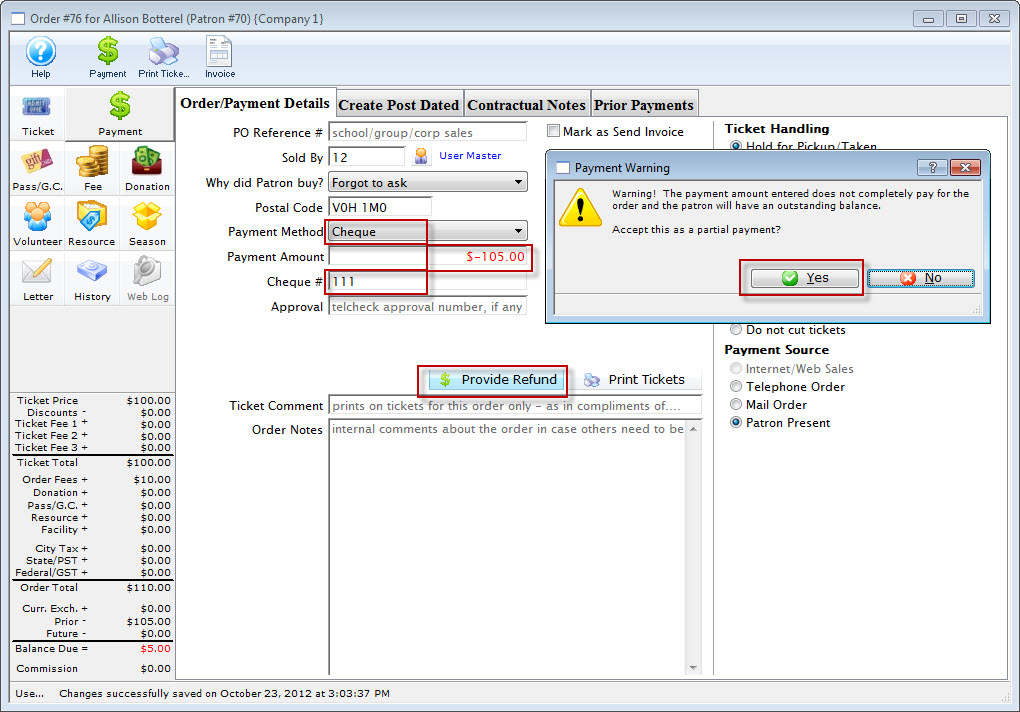
- Click Accept Payment.
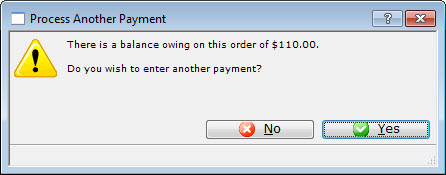
- Click Yes to add the negative payment to the Order
- Click No to indicate you do not wish to make another payment
The Order is now an Accounts Receivable. The patron can be contacted and arrangements made to collect the outstanding value.
Why Do My Credit Card Payments Not Appear In My Deposit?
Did Someone Else Complete A Deposit Recently?
Some organizations run the Deposit Funds step several times throughout the day. Others only complete a Deposit once and follow it with the remaining steps in the End of Day Wizard. If an Employee started the End of Day, ran the Deposit step and closed out of the End of Day Wizard, they may have deposited the Credit Cards without completing the End of Day. The Credit Card payments would not appear in the Deposit step the next time it is opened as they have already been deposited. The payments will still be a part of this Journal Entry when you Post to the GL but since they have already been sent to the bank they will not appear a second time.
To determine if the credit cards have already been deposited:
- Click the GL Entries button at the top of the window in Theatre Manager.
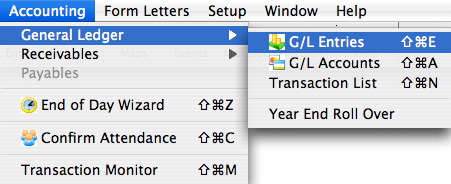
- Adjust the date/time range to after the last deposit was run.
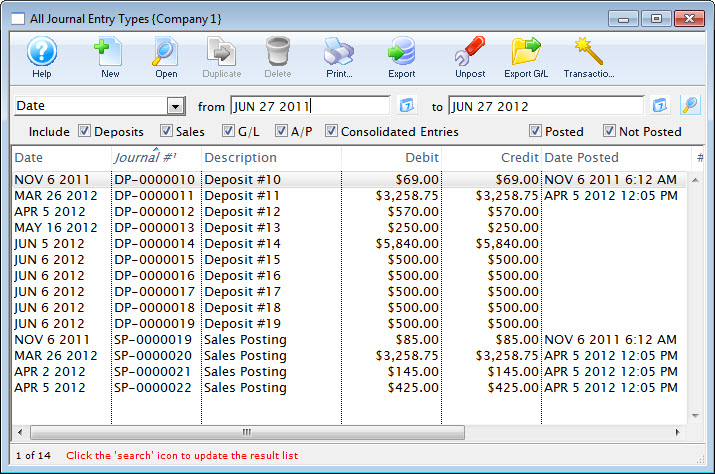
- Click the magnifying glass to the far right of the date/time search option.
- Review the listed items for any deposits.
- Double click on each deposit and review the details.
When Credit Cards are deposited they will have a Deposit Reference Number and detail the date/time the deposit was completed. If you do not see a deposit for Credit Cards and you know there are cards to be deposited, it is possible something else may be causing them to not appear.
Have You Upgraded Since The Last Deposit Was Completed?
Depending on which version of Theatre Manager you were running prior to the upgrade, it is possible that changes to Employee Access may have been made that restrict some users from depositing credit cards during the Deposit step in the End of Day. To adjust Employee Access and grant access to those who are allowed to deposit credit cards, you'll need to login to Theatre Manager as a Master User.
Once login as the Master User follow the steps below:
- Click Setup >> Users and Access >> Employee List.
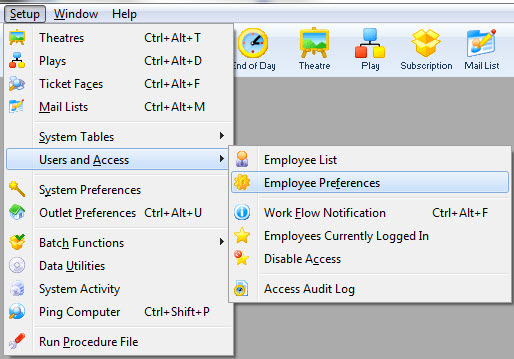
- Search for the desired employee.
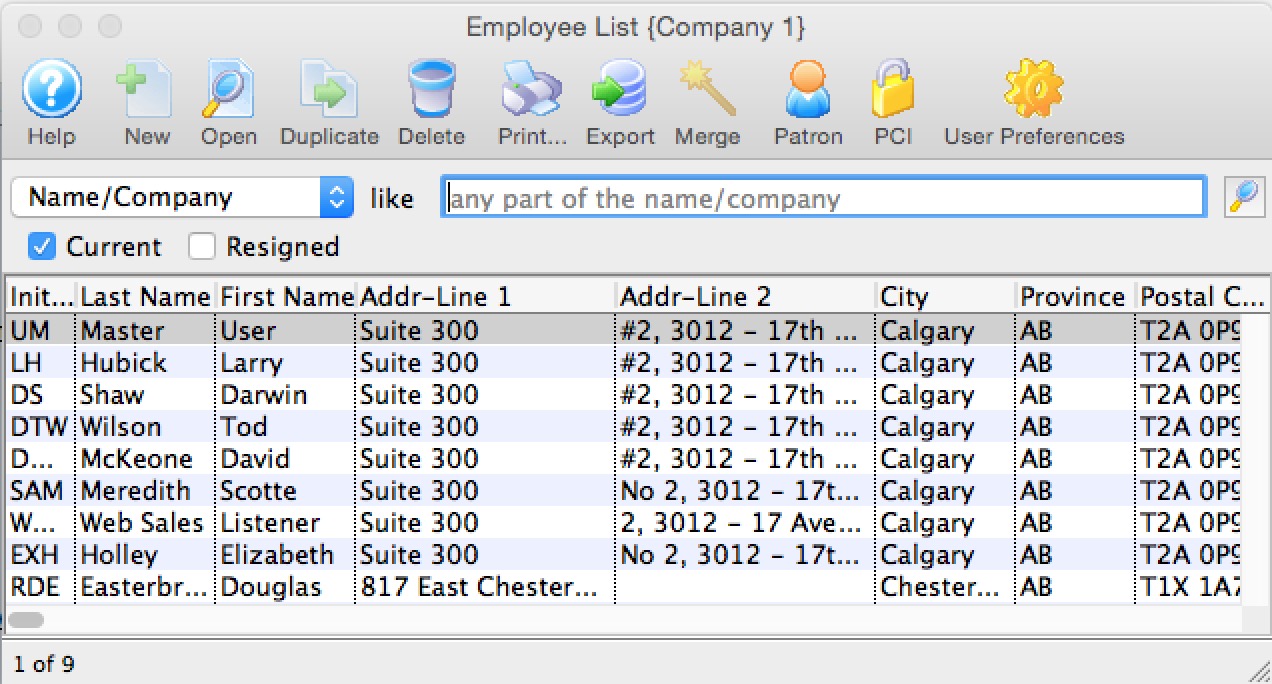
- Double click on the Employee to open their access.
- Select the Functions tab.
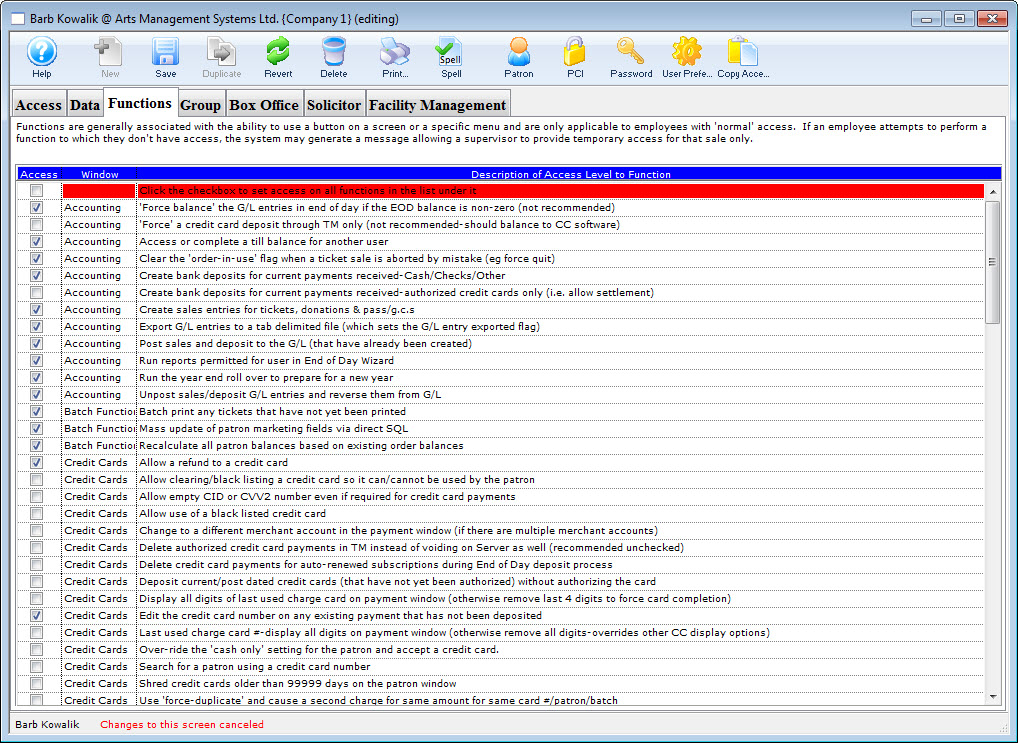
- Check the box next to Accounting >> Create bank deposits for current payments received-authorized credit cards only (i.e. allow settlement).
- Close the Employee Detail window to save the changes.
In order for the change to take effect the employee will need to log out of Theatre Manager and back in.
Did You Recently Change Merchant Providers?
During the migration from one merchant account to another, the new account is setup in Theatre Manager. A part of the setup is moving employees from the one merchant profile to the other. If this step is missed it is possible the employee may be processing Credit Cards using the old merchant profile and not the new one. If this is the case you'll need to start by logging into Theatre Manager as that Employee and completing the deposit step. This needs to be done before the Employee record is updated or these cards may not be deposited. After you are sure these Credit Cards have been deposited you can update the Employee profile wih the new Merchant Account.
To edit the Employee Merchant Account setting, use the following steps:
- Click Setup >> Users and Access >> Employee Access.
- Search for the desired employee.
- Double click on the Employee to open their access.
- Select the Box Office tab at the top of the Employee Detail window.
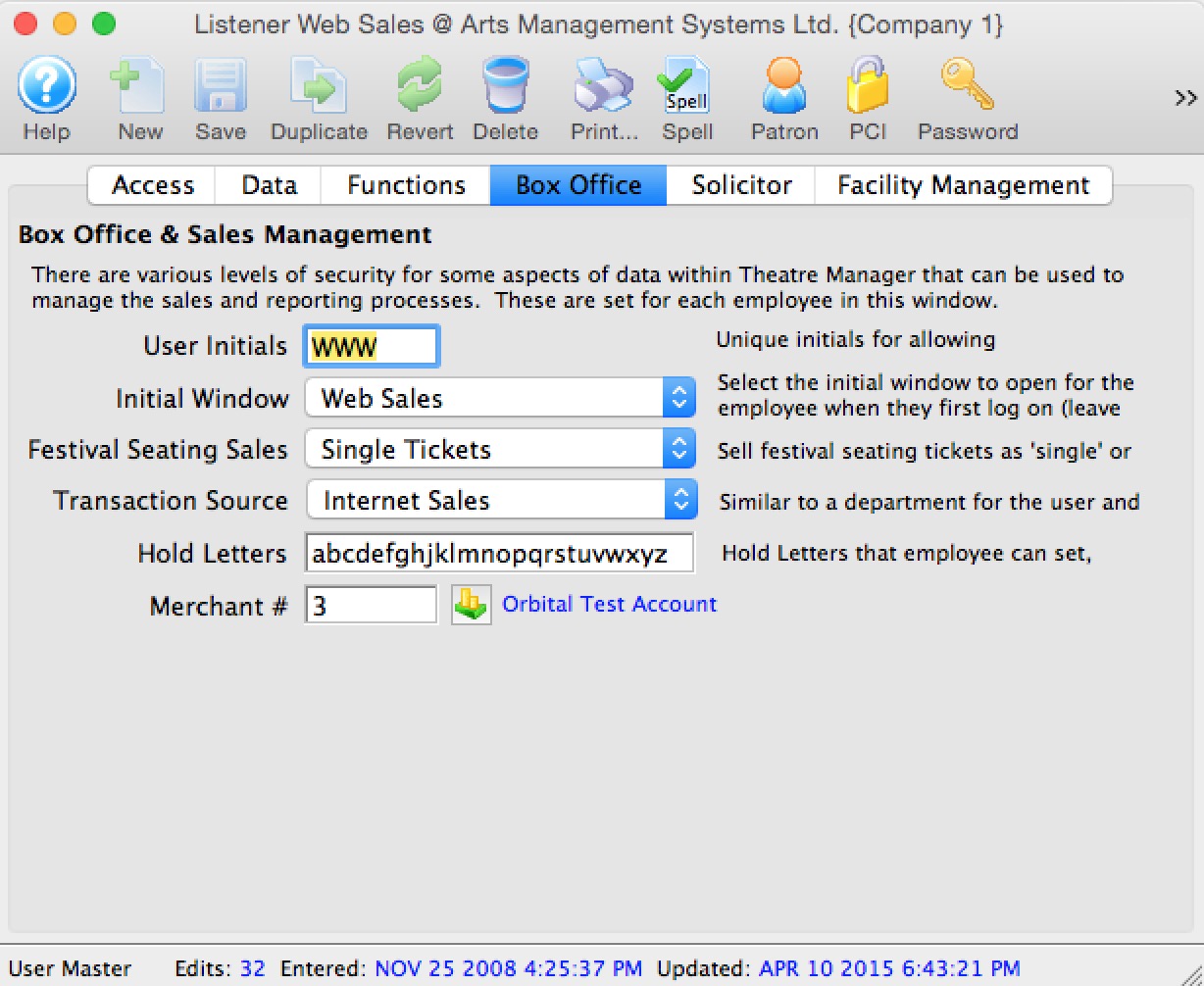
- Click the search icon next to the Merchant # field.
- Double click on the new Merchant Account.
- Close the Employee Detail window.
In order for the change to take effect, the employee will need to log out of Theatre Manager and back in. This should be done before any additional payments are processed.
Why is there only one A/R account in TM? Can we have one for donation receivables?
- uses pure accrual accounting -and-
- inventory management (eg tickets, donations, gift certificates) does not permit separate receivable accounts in any accounting system.
- The roots of double entry accounting and the early 15th century textbook by a franciscan monk Luca Pacioli, who documented the system used by the Venetians make interesting reading.
Corner Store Example
Here is a simple example of a transaction that might occur using a corner grocery store that illustrates the difficulty in the concept:
- Your partner sends you out to buy tomatoes, lettuce, cereal and you arrive at the checkout counter. The clerk scans everything through and indicates that you owe $100.00 for your groceries. Essentially, this increases the balance owing on the order.
- Then you dig through your wallet and find you have a visa card, some cash, and coupons for $1.00 off the box of cereal. You recall that you have not paid your visa bill yet and are unsure where the remaining limit is, so you give the coupon and as much cash as you have to the cashier. Then you pay the remaining $35.00 using your visa.
- Happy with your purchases, its off home only to find out that you were supposed to pick up some romaine lettuce instead of iceberg.
- back to the store to do an exchange of lettuce, but they are out of what you need, so you settle for arugula instead (after calling home to your partner to confirm)
- This costs more, but since have no more cash left, or limit on your visa, the clerk, who knows you well says Don't worry, pay the balance next time you are in!
The simple answer is that there is just one receivable. You still owe the grocer money for the balance on the order and it is really unclear, in an inventory management system, if that balance is for any particular item. To the grocer's accountant, the plain and simple answer is that you own them money. True, you could probably allocate part of the amount owing to tomatoes, cucumbers, lettuce or cereal, but as soon as you pay part of the payment next time you are in, you will alter each of those allocations - which is a lot of work and isn't something you want to do in any accrual based system.
Thats how all accounting/inventory management systems work, bar none. I do not know of one that separates out receivables on any inventory item. Yet we know that there is sometimes a need to get a good approximation for royalty purposes or renter chargebacks.
Using Tickets and Donations Instead
You can substitute tickets, subscriptions, donations, and gift certificates for any of the vegetables above and you will find that you cannot easily separate donations receivable, given the shear volume of transactions such as:
- exchanging tickets for donations
- paying for a subscription and an annual donation at the same time using post dated visa withdrawals
- entering that annual board gift as a receivable, only to be informed by the donor that the original (large amount) was to also include 2 subscriptions and the gala dinner
How to bend the rules
We know that venues like to try to identify receivables by inventory item, specifically donations. The A/R report for order shows an allocation of donation vs other receivables using the simple rule that donations are always paid for first before any other item in an order. This report provides backup to auditors at year end, or at any time you want to see the amount that could be considered to be in donation receivables.
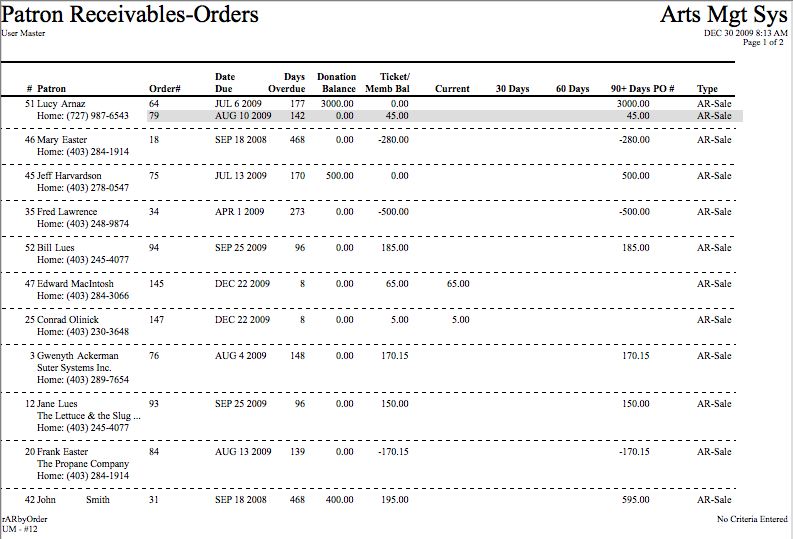
- Who owes you the money
- The due date & days overdue. Very important: this can be affected by setting the final payment due date in the 'contractual' tab on the payment window. If it s a school/group sale for tickets, or an ad sales where they wont need to pay for 6 months, then set the final payment date 6 months in the future. If you do that, then the receivable will say in the current column - so this can be VERY useful)
- It makes a darn good guess at whether the receivable is for donations or tickets using simple criteria (see donation balance and ticket/memb balance columns). If there is a donation in the order, then any payment pays for that first before paying for tickets or anything else.
- It tells you current/30/60/90+ days overdue.. and based on that, who to send reminder notices to.
- And, if you wish, there is the PO# column. This comes form the payment window at the top of the screen (above the reason to buy). Normally nothing is put there, but you could put 'Ad Sale' or some other tag there if you want.
You can also see an amount in the End-of-Day wizard under the A/R tab. These are accurate at the instant they are viewed.
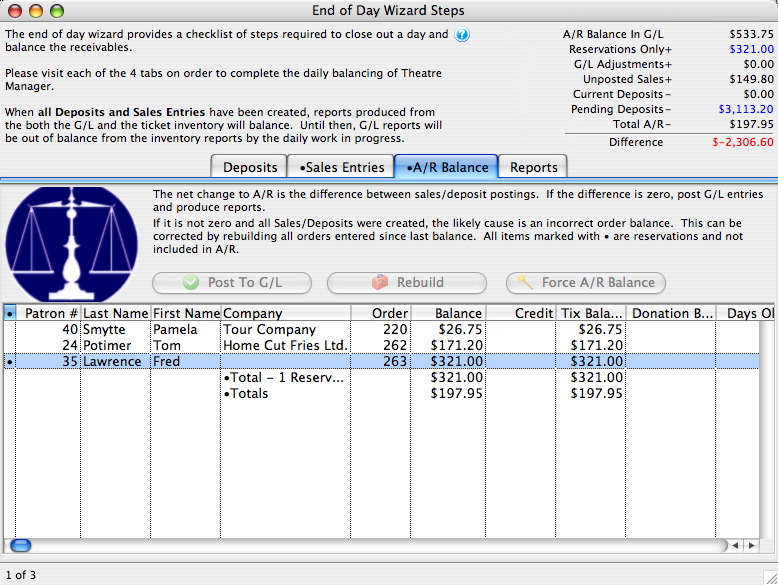
However (heavy emphasis on this), it is not wise to put this breakdown into your accounting program. Any simple ticket exchange for a donation, or conversion of a donation from a pledge to fully paid because the patron dropped off a check, or any turning in of a gift certificate for a donation simply becomes a make-work project and violates the rule of 'make G/L entries in your accounting program from TM's G/L list - exactly as is - unchanged'.
Since Theatre Manager handles it fine for you, it is not worth tracking in your accounting system. As illustrated above, the better way is to use TM as the A/R sub-ledger and produce sub-ledger reports from Theatre Manager.
In addition, you can move all future donations into a liability account using the setup in the donation fund accounts and be able to track future donations that way.
Answers to Common Questions About Gift and Membership Cards
Gift Cards first came into prominence to replace gift certificates in the 1990s to help thwart counterfeiting. A gift card may resemble a credit card or display a specific theme on a plastic card the size of a credit card. The card is identified by a specific number or code, not usually with an individual name, and thus could be used by anybody. Some gift cards can be reloaded by payment and can be used thus multiple times.
Cards may have a barcode or magnetic strip, which is read by an electronic credit card machine. When you use the cards, they have no value until they are sold, at which time you enter the amount the patron wishes to put on the card. This amount is NOT stored on the card but is instead handled in the Theatre Manager's database, which is cross-linked to the card ID.
Gift Cards: Government Regulations
Canada - In the provinces of Manitoba, Ontario, Alberta, British Columbia, Saskatchewan and Quebec, legislation has been passed to ban expiry dates and fees collected on gift cards.
United States - In the past, uniform standards concerning gift cards did not exist. This was set to change as an addendum to the Credit CARD Act of 2009 directs the federal government to create consumer-friendly standards pertaining to gift cards. Most notably, the new regulations prohibit retailers from setting expiration dates unless they are at least 5 years after the card’s date of issue or the date on which funds were last added to the card. In addition, retailers are no longer able to assess dormancy, inactivity, or service fees unless the card has been inactive for at least 12 months, and if fees are added after that period, the details of such fees must be clearly disclosed on the card. Additionally, retailers are unable to levy more than one fee per month. The new provisions took effect on August 22, 2010.
Gift Cards: How they work in Theatre Manager
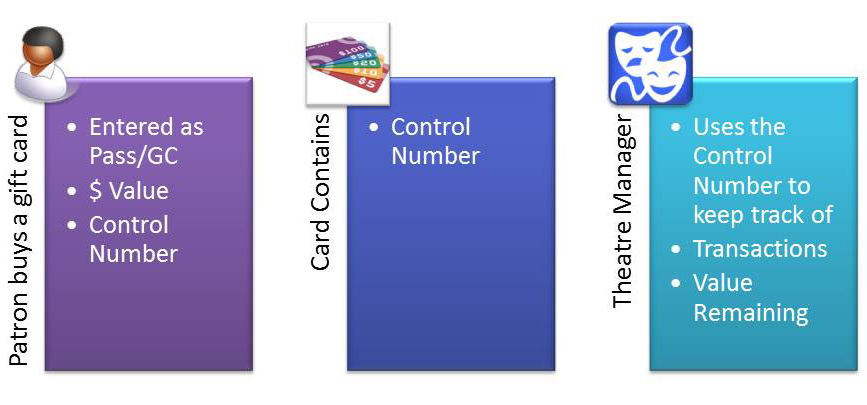
Gift Certificates are sold to a patrons within Theatre Manager and assigned a control number. That control number is then used as the Payment to redeem a gift certificate for tickets, or whatever the patron is buying.
Gift certificates can be:
- printed on cards -or-
- on ticket stock -or-
- merged as an email in a form letter -or-
- hand lettered on fancy traditional card stock -or-
- implemented using plastic credit card with a bar code/swipe - much like you'd see in a grocery store for various brands
- etc.
Using plastic credit cards as gift certificates or passes depends on a desired longevity. If the card is for a membership, you might spend more on the card (so it holds up better) and if it is a gift card, you might spend a little less. You can use any card as a rechargable card.
|
Purchasing:
Gift Certificates are:
|
|
Redemption:
A gift certificate given to another patron by the purchaser can redeemed:
|
Gift Cards: Control Numbers
All Gift Card amounts, balances and transactions are stored in Theatre Manager directly, this way a patron can redeem via telephone.
If the Card is lost, Theatre Manager would still know that account is "owned" because the control number, either pre-printed on the Gift Card (or even in the mag swipe, however the magswipe would only hold the card number and not the value remaining).
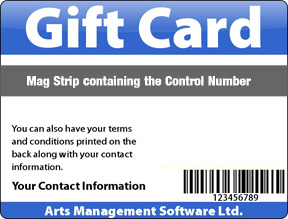
When selected to be sold, you can have one of three possibilities,
- Swipe your card through your card reader and the unique number in the mag strip registers the card to our software.
- Scan the card if you have a barcode reader and you print the cards with this unique number as a barcode on the face of the card. The barcode can be scanned in the redemption process as well.
- Finally, you can enter the number pre-printed to the face of the gift card.
Gift Cards: What about Mag Strips
|
The Magnetic Strip for cards that work with Theatre Manager have a very specific format. This is:
%TM^xxxxx^yyyyyyyyyyyy? This means:
|
|
If you use mags strips with your plastic gift card, we also suggest putting a ladder bar code an number on the front (per the image).
That way you can do one of:
|
Theatre Manager does not require magnetic strips for gift cards, but if you want to use them with your Credit Card reader, you will need to implement this feature.
Swiping the card sends the number to Theatre Manager as the control number.
When you set up a Gift Card, you use the number assigned to the card's magnetic strip as the Control Number added to Theatre Manager when the card it is sold. You swipe the plastic card through the mag swipe, and it will put the (very long) number in Theatre Manager.
Cards can be reloaded from inside of theatre Manager. Adding value to the card is a simple process in Theatre Manager, and doesn't necessarily need the card again. Patrons can add money to their card by giving you their credit card number over the phone or pay for it in person.
When paying, the card would need to be swiped into a card reader connected to a machine using Theatre Manager via USB.
In additions to the mag swipe, the unique card number be printed on the face of the card and if possible to have that number printed as a Barcode too so you can scan the bar code when registering the card to Theatre Manager.
Numbers can start at 100 on into perpetuity. When sold as an entity into our software the setting will be that the unique number - or control number as we call it - can be defined at time of purchase.
Theatre Manager can manage the value of the card, it's redemption and reload if necessary and all controlled in our software but this control number.
Cancelling An Event
It's never pleasant to have to cancel an Event. Below are a list of steps to follow that assist with the Refund or Exchange process.
Cancelling An Event
| Step | Purpose |
| Step 1 | Take the Performance(s) off sale
If the Event has cancelled, its important to make sure patrons can no longer purchase tickets to the Performance. Tickets can still be refunded when the Performance is no longer available for sale. However the Event should not be closed as this prevents financial transactions and the refund process.
|
| Step 2 | Run a Tickets Sold by Price Code and Promotion report.
Often a count of the number of tickets sold is requested after the refund process has taken place. Generating this report will provide a count and breakdown by promotion for future reference. |
| Step 3 | Run a Revenues by Payment Method-Ticket Based report.
This report will tell you the number of tickets sold based on Payment Method. If the Promoter will be charged a percentage fee on credit card transactions, this report will determine the value of tickets purchased on cards. |
| Step 4 | Any other Sales reports traditionally used for settlement.
Each organization varies in their process for completing a settlement. Generate all reports traditionally required as a part of the settlement. Once the tickets have been refunded this information is no longer available. |
| Step 5 | Run a Transaction History List report.
We recommend generating this report using the criteria Ticket Count-Times Printed. Run the report once with a count of 0 and PDF or print the resulting report. Run the report again with a count of 1 or more and PDF or print the results. This will give you a count of the number of tickets printed. If the Promoter is responsible for paying a fee per printed ticket this report will provide your count on the final page. It will also provide a list of patrons who purchased the tickets. |
| Step 6 | Generate a Mail List of patrons who purchased to the Event.
Generating a Mail List before refunding the ticket will provide a list of patrons who need to be contacted regarding the cancellation of the Event. It can also be helpful in contacting patrons should the Event book again in the future. |
| Step 7 | Contact Patrons to inform them of the cancellation.
There are several methods that can be used to contact patrons. Using the mail list above you could:
|
| Step 8 | Refund tickets and process the credit owed to patron.
There are several methods that can be used while refunding tickets to the patron. The options are listed below:
|
| Step 9 | Exchange the Tickets.
|
Refund Management
When a decision to cancel an event is made, there are lots of moving pieces to manage. The box office is focused on how to handle patrons who have purchased tickets to the cancelled event. Take a moment to decide on the best practice for the organization before starting any exchanges or refunds.
Things to consider when facing overwhelming task of managing large amount of ticket transactions for patrons:
- Is there another event in the season to exchange into?
- What is the organization policy when an event is cancelled?
- Offer Refunds in the form of:
- Convert to a donation
- Convert to a Pass/Gift Certificate
- Back to credit card
- Issue a cheque from the organization
- Are there season subscribers or single ticket buyers with multiple events remaining in the season to refund?
Refunding patrons with multiple events like season subscribers is a good place to start. These patrons can be further divided into refund sub groups for en mass refunding:
- Donation
- Gift Certificate
- Cheque Request
- Credit Card
Computer & Network Setup
These are some frequently asked questions about getting a computer setup or making network changees for Theatre Manager and it's associated applications.
Checklist when performance has degraded recently
Sometimes we are asked to identify why Theatre Manager has slowed down, or is slow after it has been installed. In almost all cases, the issue is not Theatre Manager, but some setting that has changed on the network, on the computer, or on the server. The following list contains the 'usual culprits'. Please check to see if you have been affected by one of them should you experience an abrupt change in behavior with Theatre Manager.
Finally, we are not expecting problems to occur. Usually things just run. But sometimes it is possible for things to awry and a checklist of possible culprits is useful.
Things to look at on a Workstation
- Does Theatre Manager run fine if it is the only application turned on? If so, look to other applications causing the problem and the solution might simply be a case of adding ram.
- Look at ram usage anyway and the applications that are running. If many applications are running, you may find you need a minimum of 4 gigs of ram just to smooth out performance of the workstation. This is especially important if those other applications can be chatty or active in the background. For example, if you have Theatre Manager, Word, Excel, Outlook or Mail, a browser looking for RSS feeds, youTube, music playing in the background, etc. etc. and all in use at the same time, you may just need ram. If you have windows 7 or 8, sou will need more ram.
- If you are streaming high bandwith video (like YouTube) at the same time as selling tickets, it is reasonable that it might affect performance of a machine while the streaming is going on
- Does TM receive data from the server reasonably fast, but does opening windows take a long time. If so, look to the type of processor. Theatre Manager uses the floating point processor to handle some screen interface elements. That means if you are running a Celeron, it could be slow - because Celerons do not have floating point. The minimum recommended machine is core 2 duo. Please refer to the standard machine to see if you meet those requirements
Things to look at in the Network
- if performance for all clients got bad at the same time:
- check the ethernet card and settings on the server. Make sure that you are not dropping packets and that you are always connected at the speed you expect to connect to the network at.
- Did you update virus software on the serve and neglect to exclude the database directory?
- Swap the wire from the server to the hub to see if that makes a difference
- Swap the port on the hub to another port to see if that makes a difference
- If only one workstation suddenly went slower, then check the ethernet card settings for speed and performance. It could be it is bad.
- Check the cable and change it to see if that helps
- Take the slow machine to a location where a machine runs fast, and plug it into its network port to see if that makes a difference. If so, it could indicate a problem of wiring in the wall or at the post on the router where the line terminates.
- Try switching the port on the router for the computer to see if that makes a difference
- Did you add any more network traffic? Does the performance change during the day and happen to coincide with other events. We had one University notice that tickets sales got slow each time classes got out and students used the internet. Another venue indicated that performance slowed down when all the actors were backstage using YouTube and doing mail. In both cases, the solution was to put the high bandwidth network users on a segregated (and controlled) network.
In all cases, it is important to go into troubleshooting mode to narrow down with component might be contributing to the problem. Eg:
- Turn all components off but TM to see if that makes a difference
- Try things at the server and move progressively away from the server to see if that makes a difference
- Swap wires or ports to see where that makes a difference. If swapping a wire at the server changes everything - you have your answer. If swapping a port makes the difference, then tells you there is a router issue
- Compare machines. All machines with the same issue tends to suggest the problem is at the server. One machine with the issue tends to suggest the machine of network port
- Move the problem machine to a non-problem location. That will tell you if the problem is in the machine or not
Things to look at on the Server
Virus Software on the Postgresql Server
|
If postgres is implemented on a stand alone machine (per PCI requirement 2.2.1), we recommend that you DO NOT install virus software on the PostgreSQL Server. It is the single biggest factor that can affects performance. If file sharing or user access is permitted to the database server and you install virus software, never allow virus scanner to scan the actual postgres database directories because virus scanners severely affect performance when many files are changed rapidly. Refer to this link for disabling windows 10 defender |
If you must install Virus Software, specifically exclude:
- any TCP/IP traffic on ports 5432
- anything contained in the PostGres database folders. This is generally:
- C:\Program Files\Postgresql -or-
- C:\Program Files (x86)\Postgresql -or-
- \Library\Postgresql
- Under OSX and Linux, the need for virus checking on the Postgres server is generally not required as the database server is often a stand-alone machines
- If you really must scan the database folder, it is acceptable to run a once per day scan on the database folder - but only if scheduled late at night.
Other Factors Affecting Database Performance
- Make sure auto update (Microsoft) or software update (OS-X) is completely turned off. Those features should never be run automatically. Microsoft is famous for delivering them often and restarting servers. Its just bad news. Plan your service outages and do them all - say - once a month or every second Monday. Downloads of large patches in the background might be a problem, or restarts after an upgrade may have affected Postgres's buffer pools so it needs to run a bit to get faster and determine commonly used database pages.
Windows Automatic Updates is now found in Services in Windows 10. Read the following to see how to completely disable the update process.
- Look to any service that you might have added or changed recently. For example, if you installed another program on the server, does that take resources that affect the original installation. If so, then you may need to re-configure that application, remove the application or reconfigure the postgres server. For example, Microsoft Exchange server is known to suck the resources out of a machine and it is always recommended (even by Microsoft), that it be placed on its own server.
- Check for available disk space on the server. If you have less than 20% disk space left, then you might want to get rid of some old data or backups. Postgres uses the operating system to do page swapping and if there is no space left, you will see performance degradation because you filled up the dad drive. Old database backups might simply be accumulating and you may wish to save older ones and delete them from the server
- Check the performance monitor (Windows or OSX) to see where your resources are going. If CPU is being consumed, see who is using it. If disk I/O is going crazy, that could be a clue
- It is possible that a parameter was set up incorrectly for the Macintosh or Windows server. If other items are not found to cause the problem, please contact support and we can look at the postgres database parameters for you.
- There some platform specific considerations to look at for:
Client or Interface Function Not Available
The error appears as:
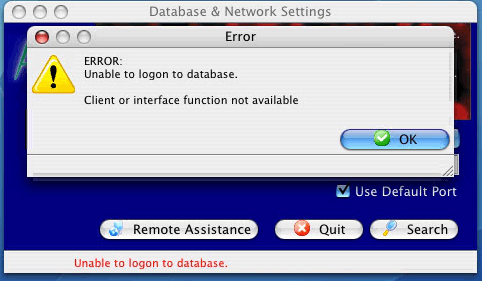
If you are using 10.6 or later, OSX might be picking up an older version of the library (or can't find it). If that is the case, use Activity Monitor and locate 'Theatre Manager'. Then double click to look at the list of open files. What we need to do is look to see which path name that the libpq.dylib file is found at -- and make sure that it is looking at a pathname internal to the Theatre Manager directory in applications. If it is not, then call support and we can help resolve the problem
Problem Resolution
You should normally never encounter an issue with Theatre Manager. If you do, then create a directory called /usr/local/lib and copy libpq.dylib into it. This will work until the TM installer is re-run on the machine.
The general steps in terminal are:
- sudo mkdir /usr/local/lib
- sudo chmod 777 /usr/local/lib
- and then either
- type in terminal:
cp /Applications/Theatre\ Manager/Contents/MacOS/libpq.dylib /usr/local/lib/ -OR- - use the Finder to copy the libpq.dylib from the Theatre Manager/Contents/MacOS folder into the >b>/usr/local/lib folder.
- type in terminal:
- Start Theatre Manager and try to connect to the database again
Alternate Solution
This generally seems to only occur on OSX machines that have gone through a few OS level upgrades. If you have this issue, walk around installs will re-introduce the problem as it takes away the link because it is deprecated. If you are having other issues with the machine, it may indicate that the machine should have a new software install ... or .. just redo the links if there is a walk around out install.
Making internal LAN ip addresses changes
- the accepted IP range in the postgres pg_hba.conf file
- internal DNS setting to find the nginx server
1. Changing the postgres pg_hba.conf file
This file is found in the postgres 'data' directory. On a PC, you can edit it with notepad. On a Mac, you might need to use 'vi' to edit the file while acting at the postgres user. You need to change (or add) a subnet range that allows people to access the database from the new IP range and/or remove the old one.
Once the subnet has been changed, you need to reload the postgres configuration. You do this by stopping and restarting the server, or if you are familiar how to do so using pgAdmin interface on the PC or the command line on the Mac, you can do it that way.
2. Changing the internal DNS server or Hosts file
For Mac listeners, there is nothing further to do. On PC networks, you many have to reset some internal DNS entries so that it points to the new computer.
For example: suppose that the setting TM is looking for is https://tickets.myvenue.org but it can't be found by machines inside the network.
- Outside the network, anybody can find https://tickets.myvenue.org because the external DNS services point it to your router.
- Inside the network, getting things to point outside can be troublesome. the internal DNS setting for https://tickets.myvenue.org needs to point to where the nginx server is at this time... at the new IP.
- You can do this in two ways:
- if you have DNS server set up on your IIS server, change the entry for tickets.myvenue.org
- if you do not have a DNS setting, you need to edit the 'hosts' file on each machine that is acting as a listener or needs access to the web listener. Typically, that is in the /windows/system32/devices/etc folder, or on the Mac, it is in /etc
|
If the hosts file was edited, and you decide to implement an internal DNS server, you will have to clear the entry out of the hosts file on each computer that it was put on. . |
Starting and Stopping Theatre Manager
Order to Start Up components
Start the various server components of Theatre Manager in the following order:
- The postgres database server and apache servers are independent of each other. You can really start them in any order you want. They must all be running before you can start Theatre Manager on any machines.
- Start Theatre Manager Server running
- Allow other Theatre Manager users to log in on their machines or to connect to terminal services if using it remotely
Order to Stop components
Generally, you stop the components of Theatre Manage in the reverse order that you start it up.
- Have all users quit Theatre Manager on all workstations
- Stop Theatre Manager Server running
- Shut down or restart postgres and apache server in any order you wish.
Complete system shut down and startup procedures
Shutdown Sequence:
- Quit Theatre Manager on all work stations
- Turn off all ticket printers
- Shut down all workstations
- Shut down Apache Server
- Stop the Theatre Manager Server service
- Shut down the Database Server
Startup Sequence:
- Start up the Database Server machine (the database server should start automatically)
- Start up the Theatre Manager Server machine (TM Server should start automatically)
- Start up the Apache Server (Apache should start automatically)
- Turn on all ticket printers
- Start up all workstations
- Staff can now login to Theatre Manager on their workstations
In the event you do not have some of those components, then just skip those steps.
Theatre Manager Application Location
The application libraries are unique to each user and is stored in the standard preferences location defined by Microsoft and Apple. These may vary depending on operating system and version that you are using.
MyUser represents the user you are logged in as. This means that each user of Theatre Manager on a shared machine will have their own preferences:
| Operating system | Generic Location | Typical Path name |
| OS-X | HOME | ~/Library/Application Support/TheatreManager
The application libraries are copied to the same location for all OSX verisons, but how to you get there? Read about Apple hiding the folder from the user. note: To access the Library file,
|
| Windows | LOCALAPPDATA | C:\Users\MyUser\AppData\Local\TheatreManager\TheatreManager
you can find the 'LOCALAPPDATA' value for the user using the dos command set |
The TheatreManager folder contains some localization data and another folder called 'TM' that contains the application. If you want to clear out everything for a user, just delete the folder and the next time Theatre Manager starts, it will put a new one in place.
Theatre Manager preference file
The preference settings text or plist file is unique to each machine and is stored in the standard preferences location defined by Microsoft and Apple. These may vary depending on operating system and version that you are using.
MyUser represents the user you are logged in as. This means that each user of Theatre Manager on a shared machine will have their own preferences:
| Operating system | Generic Location | Typical Path name |
| OS-X | HOME | ~/Library/Preferences/TheatreManager/TheatreManager.plist
The preferences files is the same location for all OSX verisons, but how to you get there? Read about Apple hiding the folder from the user. note: To access the Library file,
|
| Windows | LOCALAPPDATA | C:\Users\MyUser\AppData\Local\TheatreManager\TheatreManager.txt
you can find the 'LOCALAPPDATA' value for the user using the dos command set |
The current contents of a sample preference file is below. These may be changed upon advice from customer support. Only the bold values can be adjusted for some of the italic fields.
<?xml version='1.0' encoding='UTF-8'?>
<theatremanager>
<key>CashDrawerPort</key><int>0</int>
<key>DatabaseIP</key><char>127.0.0.1</char>
<key>DatabaseTLSRequired</key><int>1</int>
<key>DatabaseName</key><char>TheatreManagerDemo</char>
<key>DatabasePort</key><int>5432</int>
<key>LocalTimeZone</key><char>US/Mountain</char>
<key>Printer1</key><char>255/192.168.0.64@10001</char>
<key>Printer2</key><char>255/192.168.0.64@10001</char>
<key>PrinterType</key><char>31/0/20</char>
<key>PrivateCloudKey</key><char>**See Below**</char>
<key>PrivateCloudToken</key><char>xxx</char>
<key>WebPort</key><int>5111</int>
</theatremanager>
There are some parameter that you may need to edit manually and only if instructed by AMS support.
- LocalTimeZone - if the Postgres server time zone is set differently than your local time, or if you have offices that span multiple time zones, you can indicate the timezone of the local machine (IANA format) and any timestamps that are marked as time zone capable will be adjusted automatically to local time. The easiest way to update this is using the Hardware Preferences window inside Theatre Manager.
- PrivateCloudKey - if you are using the AMS private cloud server, your connection key is set up for you following the AMS Cloud Login Process
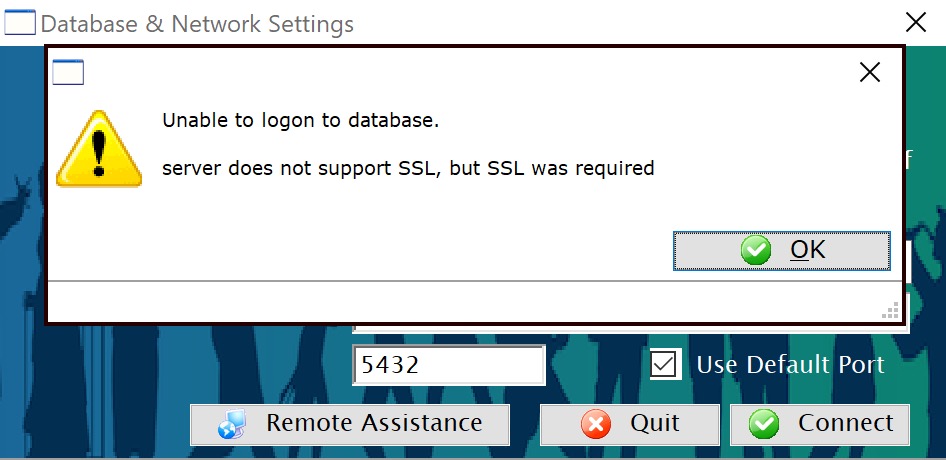 DatabaseTLSRequired - indicates if a really secure TLS 1.2/1.3 connection to the database is preferred or mandatory. Theatre Manager always attempts the most secure connection to the database server and would fallback if unable to do so. Change this setting to:
- 0 - for an optional TLS connection if instructed by AMS support because your workstation cannot connect via TLS (see sample error message to right) and you have already tried downloading and re-installing the latest TM
- 1 - for a required TLS connection which is the default for all cloud clients. All venues should use if possible.
For reference, the preferences file for the TM Second Gen Server is located via the link
Ticket Stock Warning
We are getting a warning message that we are low on ticket stock. I know we are not. How can I get rid of this error message?
To keep track of ticket stock and so your organization knows when to re-order so you dont run out of ticket stock, you perform the following steps:
Ensure you are logged in as a User Master.
- Open your Company Preferences and click on the Ticket Faces tab.
Theatre Manager subtracts 1 from the number of tickets, each time a ticket is printed. You will be notified once each login--the first time you print in that login session--if there are less tickets than the specified reorder quantity. Use this to manage your ticket stock levels.
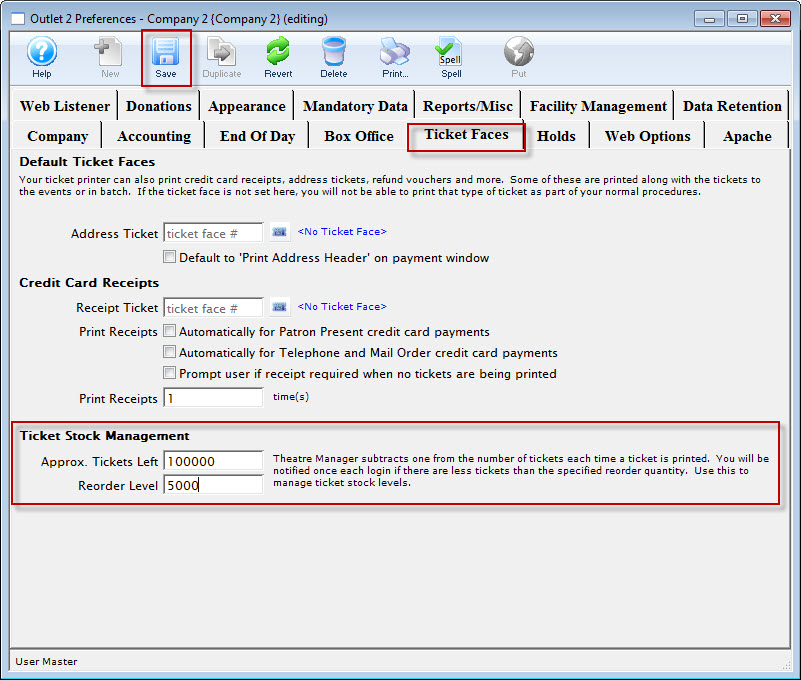
- In the Ticket Stock Management section of the tab, enter the approximate number of tickets left. In the Reorder level box, enter the number of tickets you want to be remined to order more stock.
- Click the button.
|
There are reports that can help you determine how many tickets you used. |
Unable to connect to the database or print on the ticket printer.
IP Address Analogy
IP addresses are like phone numbers. Each server and machine on the network has one. Each IP based printer also has one.
- The ones on the printers and the database server are 'fixed'. That means they should not be changed. TWe recommend putting a label on the printers inside the back of the printers to remind you what it is. You will see the one for the database server see each morning when you start theatre manager. This is at the bottom of the login screen.
- The workstations usually have 'dynamic' ip addresses. That means each morning they could be given a different one from the router. This is a good idea as it simplifies network setup and maintenance.
Everything will work well if you can 'dial' those 'fixed' phone numbers using Theatre Manager. It's like 911 and 411 - you only need to know those phone number to get help or to get directory assistance.
Every other phone number can change, but as long as those two stay the same, you can get help and find out a phone number for anybody else. In theory, as long as the network stays up, or is started normally, or is not changed, you will be able to 'dial' those phone numbers
But what If I can't Dial Those Numbers
What can get in the way of being able to 'dial' these special IP numbers from Theatre Manager.
- If the router is not up, you simply cannot make a call. That should never go down and if it does, restart it or contact your IT support person if you need them to start it for you
- If the router configuration is changed and starts giving out phone numbers with different area codes, you can no longer make a 'local' call to the printers or servers. Generally, that should never change.
- If they need to change, have changed the permanent phone numbers for the printer and server in advance of the change -AND- change the numbers inside Theatre Managers 'phone book' so that you don't have an issue
- If the power is out to any of the little routers or servers along the way - you can't complete the call
- If, for example, a rat chews a cord, then there is no wire (this really happened at a venue) and it must be replaced so you have a connection.
Those are only examples. and really, the computer network should just work with little attention. It is much like the phone system .. you can call direct anywhere in North America, Europe, and most of the world with no worry.. You should always get a dial tone.... and generally, phones just works unless there is some power issue, storm, or somebody is doing maintenance on the phone network.
Same goes for the network that Theatre Manager relies on If the network is there, then any machine should be able to dial any machine. If you cannot dial a machine or a printer, then tools at your disposal are:
- Ping to see if you can get from one machine to another.
- If ping does not work, then time to call your IT person - it is a network problem
- if ping works, then check to see that the database is started (again time to call your IT person). If the database is not started on the server, you won't be able to get to it.
General troubleshooting steps
Generally, try the following:
- Try and ping the server
- If you can, and Theatre Manager tells you that the database is not there at the server
- If everybody can use the database, except one machine, reboot the one machine
- If nobody can use the database, then reboot the server and try again at the top
- If nobody can use the printer, restart the printer
- If one person can use the printer, but another cannot, reboot the machine and go into the employee preferences in Theatre Manager and set up the printer IP address.
- Check to see that nobody turned on a firewall at the server
- Check to see that nobody turned on the Firewall on the Windows or OS-X machine to prevent outgoing connections.
If none of those work, call your IT person to see what they have to say.
If the situation is still not resolvable, then call Arts Management Systems as there may be something else at play and we'll be happy to help.
Credit Card Authorization FAQ's
Accepting Multiple Currencies
|
Accepting multiple currencies requires you to have a merchant account in each currency you wish to accept. Contact your credit card processor to set up a second account to process funds in the other currency. When you have all the account information for the second currency, you can begin the process of creating the second Merchant Account in Theatre Manager. |
The general steps for setting up Theatre Manager to accept multiple currencies are:
- Merchant Account Setup:
- Contact your bank or service provider to get a merchant account in the second currency
- Enter the merchant account information into Theatre Manager using Setup Setup -> System Tables -> Merchant Accounts
- Make sure to indicate the currency properly on the Currency Tab
- Payment Setup:
- Create additional Visa/MC/Amex/Diners and/or Discover payment methods
- Associate them with the second merchant account
- Conversion Rate Setup:
- Enter an exchange rate to indicate the equivalent cost/conversion rate for the other currency
- On an ongoing basis, add new currency exchange records when you want update the exchange rate. Theatre Manager always takes the one that is in effect as of the date of the transaction, so you can retain a history of past exchange rates.
Once you have completed the above 3 steps, you should test your setup on web site.
Testing Online Sales
On your ticketing web site:
- Log in as a patron
- Purchase some tickets
- Proceed to the checkout window where you will see the currency options (see screen shot below)
- This contains the all currencies you have set up
- Select the currency you wish to use for this order
- Changing currencies will cause the price to be re-displayed in the currency chosen
- You can change currencies as often as you want to see the price change
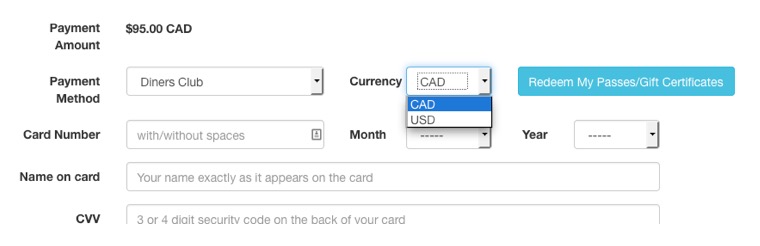
Please note: this means everyone can select any currency when purchasing online.
Example of a conversion
In the example, the site has been set up to convert Canadian dollars to American dollars. If the patron is purchasing $100 worth of tickets and the exchange rate is $1.00CAD = $0.70 USD
- The $100 purchase defaults to CAD, and the patron will pay $100 CAD
- If a patron selects USD; Theatre Manager makes the conversion, and the price will be changed to $70 USD
- After entering the card information $70 USD will now be sent through the new Merchant Account
What if the patron selects the wrong currency?
The onus is on the patron to select a currency that matches their credit card. Theatre Manager will send the amount and the currency to the merchant provider so that you are covered. If a patron selects USD on a Canadian card (or vice versa), the bank charges the right amount on their card and you will always end up with
- A fully paid order
- Multiple merchant accounts to settle for the right amount at the end of day process
- Money in your respective USD or CAD that you can transfer as needed to take advantage of exchange rates
Card On File (COF) and Customer Initiated Transactions (CIT)
- Card on File (COF)
- Purchase Return Authorizations (PRA)
|
Authorize.Net is currently in the process of implementing support for the Visa, MasterCard, and Discover Card on File (COF) for Customer Initiated Transaction (CIT) and Merchant Initiated Transaction (MIT) as well as the separate Purchase Returns Authorization (PRA) Mandates. This article will provide you with the latest, up-to-date information available as well as links to available resources for more information. |
What does this mean for Auth.net users (and potentially users of other merchant providers)
Card on file (COF) means that you, the merchant, are saving customer payment data for future reuse.
|
The vast majority of credit card authorizations in Theatre Manager result from cards entered online by patrons or typed/swiped/tapped at the box office as part of a transaction. These transactions are not the subject of this email from Authorize.net
Theatre Manager supports post dated or recurring payments for donations and other purchases which may be affected by the Visa, MasterCard, Discover rules.
|
How to influence stored credit card data in Theatre Manager
Theatre Manager enables saving card data is via settings in system preferences PCI tab:
- for self hosted - you can pick schedule D in the PCI tab (see explanations of Schedule A/B/C/D) and decide how long you want to save data, or you can pick the other two options.
- for cloud hosted - you can decide to:
- never store data (schedule C), or
- only store card data for only post dated payments (schedule D)
- For either self hosted or cloud hosted, you can enable Merchant Profile and Theatre Manager will send card data to your merchant provider to get them to store it. This:
- moves all responsibility for storing card data to your merchant provider -without-
- diminishing your ability to use this stored card data for recurring payments.
Customer Initiated Transactions (CIT) using card on file
- A Cardholder Initiated Transaction (CIT) is any transaction where the cardholder actively initiates a transaction. This can be paying online, in a store, over the phone or through a pay link/QR code, etc. In a Card on File transaction, the cardholder initiates a transaction, opting to pay using card information previously used and stored on file with the merchant.
|
Theatre Manager does NOT support any form of Customer Initiated Transactions using saved data. The customer cannot select 'use saved card' online or at the box office.
If the box office uses a card on file, it becomes a Merchant Initiated Transaction. |
Merchant Initiated Transactions (MIT) using card on file
- A Merchant Initiated Transaction (MIT) is a payment initiated by a merchant without the cardholder. To do this, the cardholder must have previously given the merchant permission to store their card details for use in certain types of future payments. This means that an MIT can only happen after a cardholder has previously completed a CIT with the merchant. MITs can be split into two kinds of transactions:
- Standing Instructions:
These are transactions that reuse the cardholder's credentials on a regular basis or after a certain event occurs. Examples of Standing Instructions are:
- Recurring Payments - transactions processed according to a fixed interval and fixed amount agreed upon by the cardholder and merchant. Recurring Transactions don't have a specified duration and can continue to be processed until the cardholder cancels the agreement
- Unscheduled Card on File Transactions - transactions processed for a fixed or variable amount that are not tied to a schedule or recurring transaction date, but to a pre-defined event. For example, when your car's EZ-Pass highway toll booth account falls below a certain minimum, your card automatically gets charged to reload the account balance
- Industry Practices
These are transactions that reuse the cardholder's credentials on an ad hoc or one-off basis, with previous consent from the cardholder. Examples of Industry Practice Transactions are:
- Resubmissions - used when the original authorization is not successfully funded to the merchant but goods or services were provided
- Reauthorizations - used to obtain a new authorization after the previous authorization has expired
- Delayed Charges - processes an additional charge after the original transaction has been completed
- No Show - used to collect penalty fees for not showing up for a reservation or cancellation in accordance with the merchant's cancellation policy
- Standing Instructions:
|
Theatre Manager supports Customer Initiated Transactions for Standing instructions only using saved data for recurring payments (eg post dated, recurring donations, and season subscription auto-renewal).
Theatre Manager does not support unscheduled card on file transactions You can do this in one of two ways. Use one of:
|
|
If you have Theatre Manager store card data (schedule D), it is a Merchant initiate TRansaction. however, the issue become mute - as Theatre Manager retrieves complete card data from the database and sends it to the merchant provider as a Card Not Present Transaction. That is exactly like the customer called you on the phone to give you the card or paid online by typing in their card. |
|
Theatre Manager does not actively implement any of the aforementioned Industry Practice Transactions that cause additional since all transactions are completed when the customer provides card data in full. |
Purchase Return Authorization (PRA)
- The Visa, MasterCard and Discover card brands are now requiring that refunds made to customers be authorized in real-time, to validate the payment data in real-time and provide a real-time response of the success or failure of the refund attempt.
|
Theatre Manager has only ever supported real-time refunds to cards. Currently, the majority of merchant providers use linked refunds which the original card is refunded to the original order, patron and card number up to the original amount.
These requirements are implemented by your merchant provider. You have to contact your provider if you want to use independent refunds which is a refund to any card for any order (not always advised). |
Credit Cards not Being Authorized Online
- look at their shopping cart and
- review the cart logs on the cart detail->log page
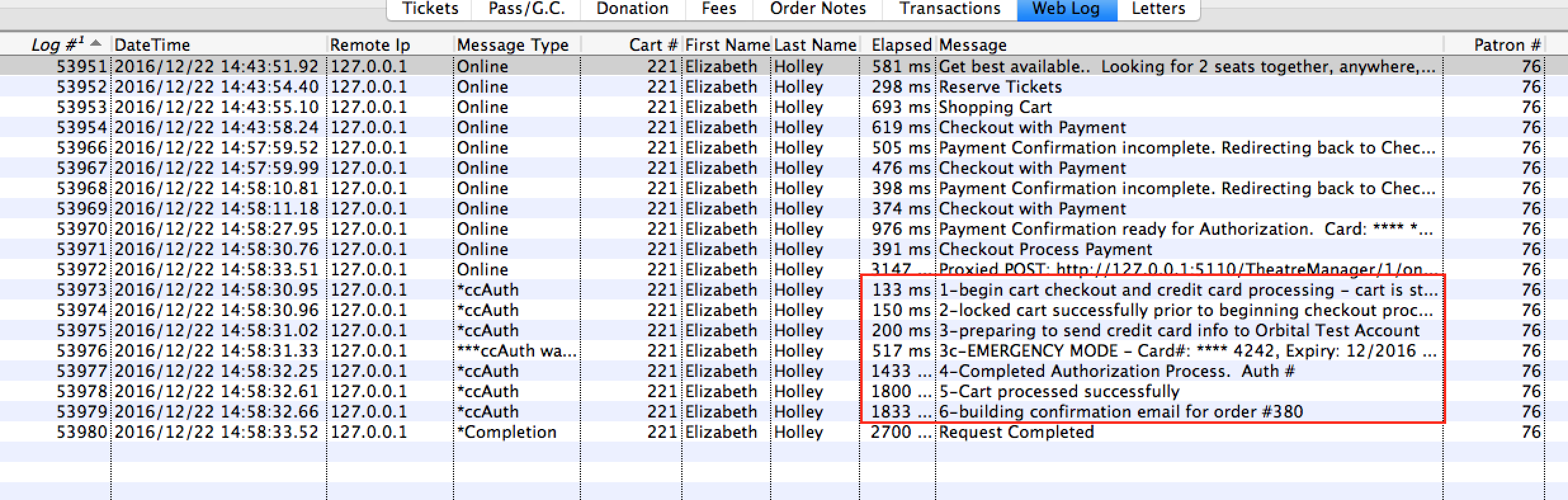
Theatre Manager only tells the patron that the card did not work - it does not tell them why their credit card was declined. Their card could have been declined for a number of reasons. The bank does pass back the messages, such as:
- Do not honor - a general message that tells you the bank wont authorize the card
- Decline - another general message that the card is not accepted
- Hold Card - may mean that the card was stolen and the merchant is being asked to keep it
- Insufficient Funds - mean what it says
- Address Verification (AVS) Error - means that zip/postal code verification was incorrect. You may have overly strict AVS settings on your merchant account - so refer to your merchant account online setup or call your merchant provider directly
- Card Verification Value (CVV) Error - means that the CVV2 number was either not entered at all or not correct - TM is not allowed display what was entered for PCI reasons.
- etc.
|
On the off-hand possibility that the card was being used by an unauthorized person, PCI recommendations for online sales are to simply state the card cant be used and not give away any further information to the bad guys. |
How to help the Patron?
If a patron calls in and tells you their card was declined, you need to look at their shopping cart, on the web logs page. The picture below shows the typical messages you would see if a card was successfully authorized. There are 6 main messages in process.
Anybody who is declined will not see the full 6 steps. -- it wlll probably stop on step 3 or 4 and have an error that you should read indicating why the card was declined.
Instead, some time after step 1, there will be a message indicating WHY the card was declined. In such as case, you can help the patron check out their shopping cart manually (see Checkout button).
If there are many declines in a day
If you received a rash of reports that cards are being declined, you can search for them en masse in the web listener logs to see if there is a trend.
PCI requirement for TLS1.2 by June 2016
 |
PCI DSS requirements state that all payment systems must disable TLS 1.0 by June 30, 2016. Under that directive, Authorize.net and Orbital have sent messages to many customers that they intend to require TLS 1.2 at a date to be determined.
Theatre Manager conforms with the PCI compliance rule ahead of that date and will connect to TLS 1.1 and/or TLS 1.2 only servers as long as you have either:
|
|
PCI DSS requires that web sites should not use low or insecure TLS encryption. Our standard NGINX installers only accept TLS 1.2 connecton. |
Also some items in the Sept 2015 Authorize.net newsletter and Orbital communique were some other items of interest, specifically:
- Auth.net Transaction ID changes for character length up to 20 and arriving in sequential order. None of these affect Theatre Manager as Theatre Manager already permits 50 character authorizations and all we do is store them for reference.
- SHA2 certificates on the authorization servers. We have tested Theatre Manager and all current versions of TM will connect to a server that uses SHA2 certificates without any changes.
- Orbital will accept only TLS 1.2 as of May 31, 2017 - and this works in the latest TM
Side note: commerce web sites are going to require TLS 1.1 or later in the near future which could affect usage if some browsers are like the older Internet Explorer
Theatre Manager and EMV credit cards
|
In Canada, Theatre Manager the following using Moneris EMV integration and Verifone P400 devices:
|
Historically
Visa/Mastercard in the USA is implementing an October 1, 2015 policy change introducing EMV (short for Europay, Mastercard and Visa -- credit cards with chips in them) to assist fraud management. EMV cards have been used throughout the rest of the world for long time. This will be a good thing for US consumers doing walk up purchases at supermarkets, large box retailers, restaurants, gas stations etc.. Responsibility does not change one iota for web, mail and phone order sales - which are deemed cart not present.
Our thoughts are below. Interestingly, after writing this, a credit card authorization vendor that wants you to buy EMV reader had very similar things to say - meaning you have to think what it means to your venue.
Theatre Manager and EMV
We've been asked a number of times if Theatre Manager and people who own EMV credit cards can work together. The short answer is YES.
How does an EMV credit card affect Card Not Present sales?
There is no impact.
90% (i.e. the vast majority) of ticket sales by arts and entertainment organizations happen in advance of the event. This is simply because people want to guarantee they have tickets before they show up at the door. Most ticket sales occur:
- by calling the box office and telling the credit card info to staff
- using online web sales and entering the credit card number in a web form
- mailing subscription renewal forms along with check or card info for payment
The credit card companies refer to these payments as Card-Not-Present. It simply means that the patron did not come to a venue and physically present their credit card.
Card-not-Present purchases will continue to work as they currently do since it is the only way to do web and phone sales using existing technology. Online site will require a card to be typed and phone sales need it spoken over the phone . Canadians have been using chip enabled cards for years at Theatre Manager venues in this exact manner.
What about EMV and Box Office Card Present sales?
The direct processing service providers integrated with Theatre Manager work with card not present. There are a couple service providers that accept Track II card swipe information - providing a card present option. None of the service proividers currently have an API to interface with an EMV reader that we are aware of.
Essentially this means that box office sales are treated as if the credit card was typed (card swipes are just keyboard devices) so any existing technology continues to work without modification.
What about Merchants being responsible for non EMV Authorizations?
Visa and Mastercard are somewhat disingenuous stating that all Card Not Present transactions will be exempted from existing fraud protection efforts after October 1, 2015 (generally web and phone sales already are eligible for chargebacks). Furthermore, since a very large proportion of ticketing sales are phone/mail/web card-not-present transactions, there is nothing that a chip on the card will do to help. This is a convenient way for the banks to move all financial onus to merchants for most sales.
The remaining 10% +/- walk up business could be covered for fraud protection if an EMV card reader was used and the card had an EMV chip - which not all cards will have initially. Therefore, merchants have two possible options for box office sales:
- Get enough EMV chip/pin readers for their box office stations
- Continue with current credit card swipes or typing card numbers into TM
What would using an EMV card reader mean to the box office?
If you rent one or more EMV card machines from a bank, the process to integrate them is quite simple.
Setup
- Add payment options to the payment code table.. When setting them up:
- make the payment type other
- use short codes for the payment methods like EMVISA, EMV-MC, etc.
- make the descriptions like 'EMV-Visa' , 'EMV-Master Card' so that they are obvious in the payment popup menu
- make the card number and authorization number fields optional.
- Note: DO NOT CHANGE the existing credit card payments or merchant accounts. These will still be used for any card you will accept online and by phone. The additional payment methods are used to track payments put through an EMV machine
Taking a payment
At the box office, if somebody:
- uses a chip and pin card, then put it through the EMV machine and then use the EMV payment method in TM
- uses a card without chip and pin, then you might want to use the existing CC payment methods and let TM authorize it.
The End of Day Process
The end of day process hardly changes at all
- Any Card-Not-Present processed through Theatre Manager for web, phone or mail order sales will work the same
- Any payment taken through the new EMVxxx payment options will in each employee till balance, just like cash and check.
- you will need to compare the EMV totals in the till balance with closing tape balance from the EMV machine
What about the cost - is it worth using EMV terminals with TM
This is a very good question. Financially, we don't think so for most venues. We do for some.
Cost
It has been suggested that EMV terminals will rent for between $60 and $120 per month per terminal (payable to the merchant service provider).
Benefit
There has been no indication of rate reduction. Historically credit card companies may discount a small amount (eg 1/4%) to give a better rate for less risk. It will be small because they like profit and can justify the enhanced security as a benefit to you. So suppose it is 1/4%. That means you would need to:
Take $24,000 to $48,000 in CC authorizations per terminal per month in walk up sales to break even.
Multiply the amount above by each terminal you need and adjust for rate savings. The math is simple:
number of terminals * monthly rental * (100/rate saving %) (eg 1 * $60 * 100/0.25 = $24,000).
We don't think EMV would do much on preventing chargebacks because most business is via web/phone and mail sales. It seems a case of paying for limited benefit. It also affects the ability to refund credit cards taken for walk up sales - because you can't refund them if you don't have the number.
What if I didn't use an EMV card reader?
Theatre Manager and your current card swipes would continue to work.
Credit card charges continue be sent to the bank as Card not present or Card Present with Track II (if your merchant provider supports it). There really isn't any change to your business, other than you may now be responsible for fraudulent walk up chargebacks. In my experience, people who see a show rarely dispute a charge. On the other hand, you may save enough money to cover the occasional problem if you don't rent terminals - its like self insuring.
Do EMV cards have any impact on PCI compliance?
Absolutely Not - EMV credit card readers are merely an additonal fraud prevention technique.
PCI compliance is simply risk management and focused on how credit card numbers are stored/managed within your venue. You can choose any retention period for cards, including never storing them (a choice dependant on your venues needs). You reduce risk by storing only the card information you think you need and making sure you implement network security, firewalls and Apache updates that we recommend in our installation instructions. Risk is mitigated by using the PCI Schedule 'C' settings, or entering a short retention period for Schedule 'D'
What might ArtsMan do in the future?
There are so many EMV devices out there, the least expensive of them are stand-alone and programable ones are more expensive to rent. Each bank uses a different/custom EMV device., many of them are from Ingenico or Verifone.
If the vendors and Banks can settle on a standard API to talk to the machines and cause them to charge credit cards (that doesn't have to change for each device), then we will write some code that can talk to them. We've been in discussions with some vendors, but the banks are all about proprietary and never about standards and easy.
This means we will take a cautious approach regarding what machines to build and interface for -- mindful that the economics of EMV machine rental are really marginal for our venues because of the ratio of Card Not Present sales to Card Present EMV walkup.
Turning Off AVS
- the patron uses a card with a different billing address than what they have put into their online account in TM -AND-
- your online merchant account settings have been set to very strict
The Online Portal for your merchant account defines the AVS settings
As expected, the banks preference is to be super-tight with AVS rules, so they usually default your online account to reject any non-matching addresses. For online sales, you can't expect the patron to make the address exactly match the bank so we suggest:
- Logging on to your bank portal. For example, if you use:
- Paymentech Orbital, log in to the Orbital Virtual Terminal that you use for managing end of day.
- Moneris e-select plus has a gateway
- as do all the other merchant providers.
- find the section in the authorization options and disable all address verification options - i.e. tell the bank to accept the card even with address mis-matches
When your account is set this way at the bank portal, if there is an AVS mismatch, the authorization will still go through. If the AVS does match, it just helps verify the patron.
|
Your merchant account support people are usually better able to help with settings and using your virtual terminal. We may be able to help find it for you, but since the banks own their software, we are not always 100% familiar with each banking interface. |
Database Size Shrinking

Donations
Correcting A Donation That Went To The WRONG Patron Account (Payment deposited)
Steps to correct the donation on WRONG patron account:
- Go to the Patron Letter Tab, remove any emails or letters attached to the donation
- Un-print Tax Receipts for the donation
- Save and close the donation record
Steps to transfer the donation on CORRECT patron account:
- Locate the donation on Order Tab of the wrong patron account and single click it to highlight the order
- With the order hightlighed, click the Transfer button follow the promopts to transfer the donation order to the correct patron
Erase a File Securely?
|
If a file contains any information that is subject to PCI (credit card numbers - whether encrypted or not) or you have other sensitive patron information or a database, then you should erase it securely per PCI-DSS standard 9.8.2. This is because any files that are erased normally can sometimes be retrieved if the file is not over-written and securely erased. |
Macintosh OSX
Securely erasing a file is quite easy to do on OSX. Simply:
- Put the file in the trash
- Go to the File menu in the Finder
- Pick 'Secure Empty Trash'
Windows
Windows does not offer a built in feature to securely empty the trash so you will need to install a small utility to do this. It has some benefits in that files put in trash can be erased on a periodic basis so the process becomes automatic.
If you have not done so, you will need to obtain the free utility called 'Eraser' and install it as follows:
- Download a tool called Eraser from 'sourceforge' and save it to your desktop
- Find the installer on your desktop and install it.
- When installed, look for Eraser in your installed programs and start it up.
- In the 'erase Schedule' window (shown below), right click and add a task so that you see the 'Task Properties' window. The current selection indicates to 'run manually', but you can change that if you want to schedule things periodically.
- Click on the 'Add Data' button at the bottom of the 'Task' screen (above) and you will see another window. On this, click recycle bin at the bottom. There are other options you can explore, but simply erasing the trash is sufficient for this example.
- Click ok to save this window and ok again to save the task.
You will see the 'Erase Schedule' window again, with a task in it.
- Right click on the 'Recycle Bin' task and run it now.
- Anything that is in the recycle bin will be securely erased.
Exporting All Patron Email Addresses
There are times when a list of all email addresses for a patron are required, even the secondary emails. The steps below outline how to pull this information from the Theatre Manager database:
- Click File >> Import/Export >> Export Data.
- Choose Patron Contact-Phone/Email/Web (Connected to Each Patron) as the Data File.
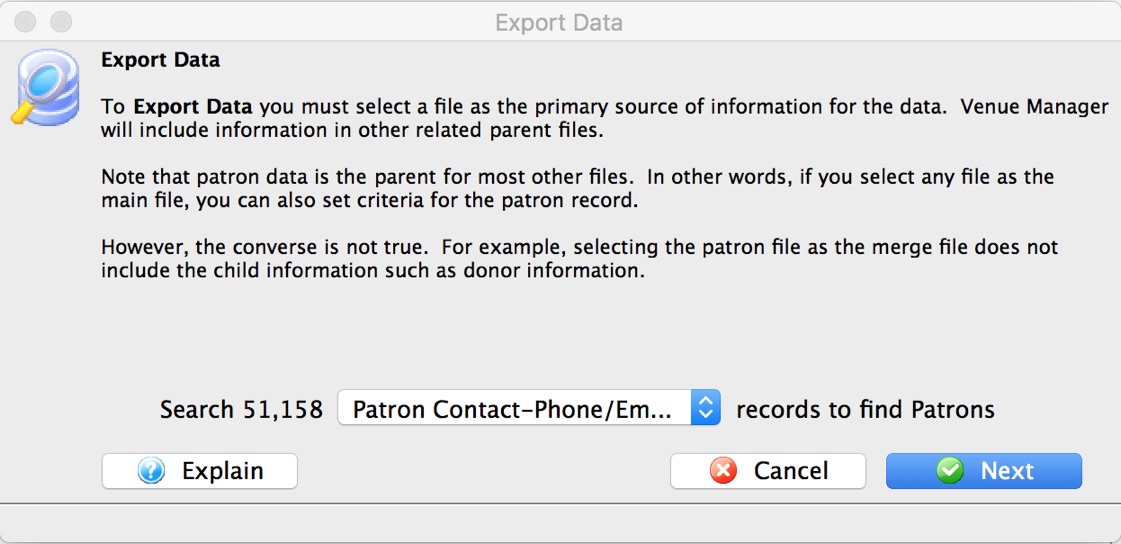
- Click the Next button.
- Enter the desired criteria.
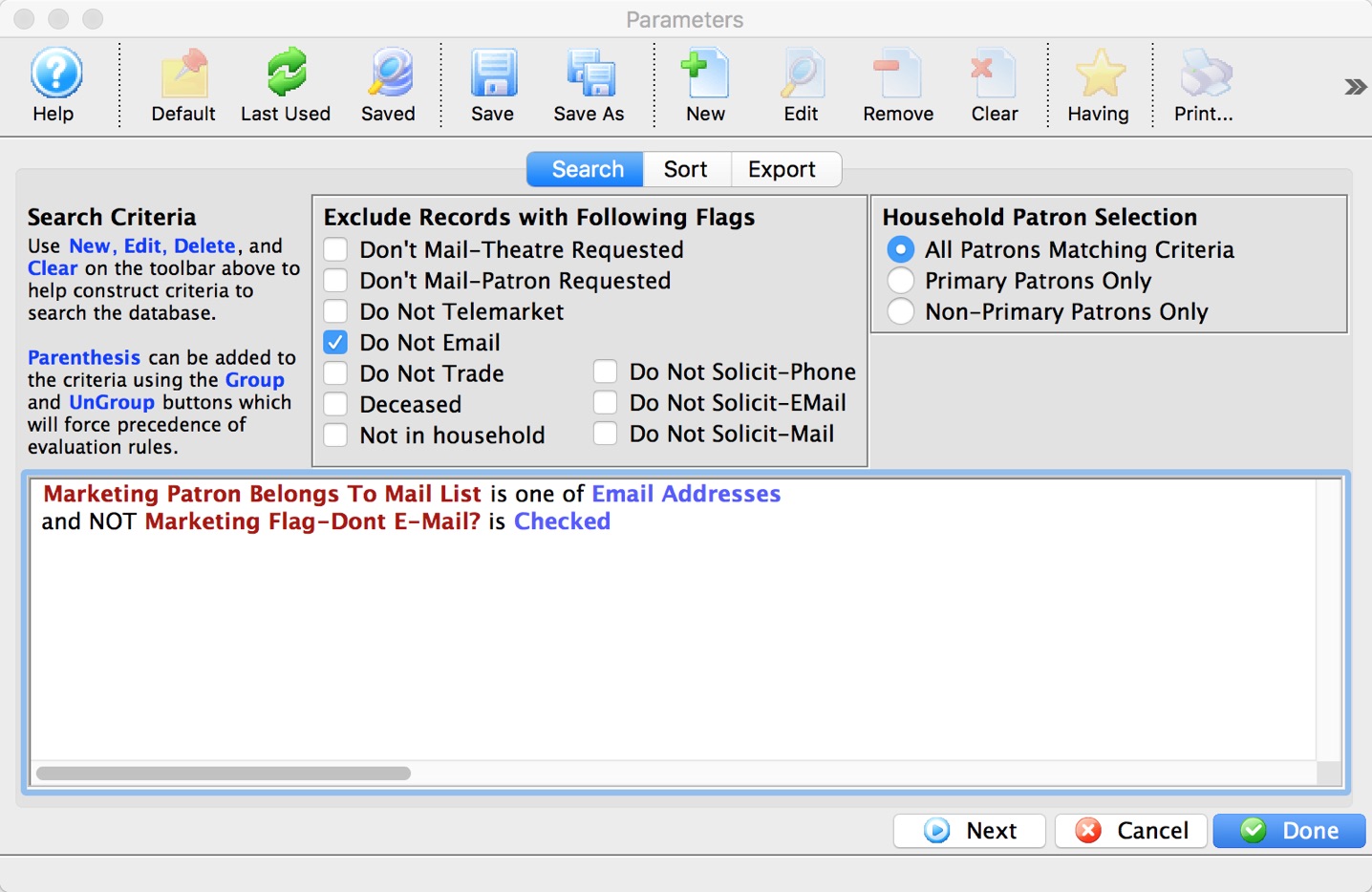
- Select the Export tab.
- Chose the desired export fields including Contact Info Location and Email Or Phone Or Website Contact Info.
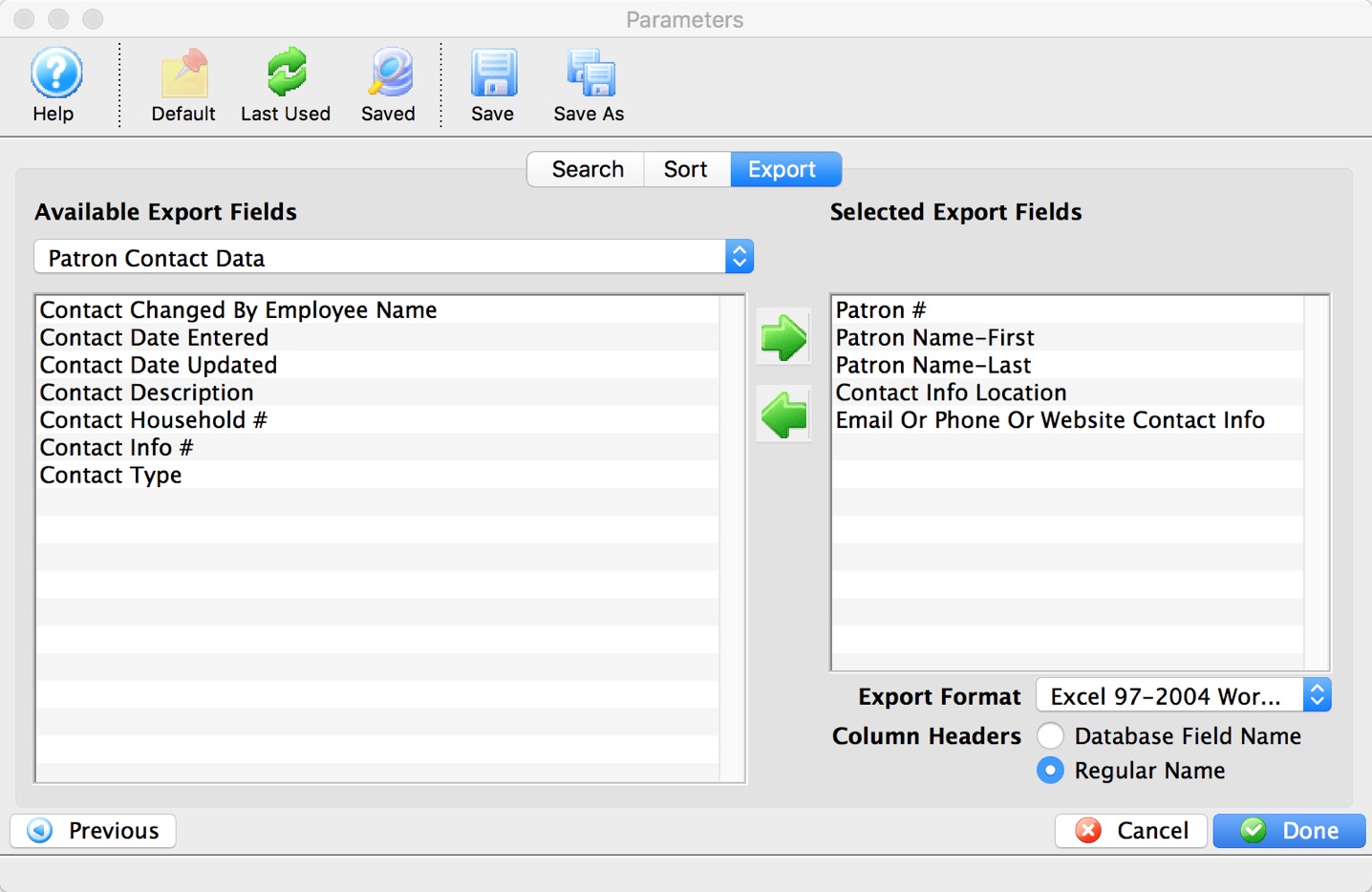
- Click the Donebutton.
- Select the location to save the Export file and click the Save button.
This will create an Export file of all contact information for the patron including Email Addresses, Phone Numbers, Fax Numbers and Websites. The file can then be opened in Excel where it can be sorted by Location and the contact information that is not email related can be removed.
Form letters, batch merges and email blasts
The form letter portion of Theatre Manager can be used for sending out letters or mass emails. With the addition of google analytics to the bottom of your page, you can gain a wealth of statistics. Click here to see an explanation of the process.
Most important, when the letter or email is sent from Theatre Manager, you get absolute tracking of the correspondence. You know when it was set, to whom it was sent, and an exact copy of what was sent is attached to the patron for later viewing.
Adding Graphic Images to Form Letters and Email Blasts
Unlike plain text, adding graphics and color to your form letters, newsletters and email adds impact to your content. In the form letter functions of Theatre Manager, you can easily add graphics. These can range from your logo to photographs to clipart. There are 3 different methods to add graphics to a form letter:
- Drag and Drop the image into a form letter.
- The menu option Edit >> Paste From File.
|
Theatre Manager expects images to use the RGB colour palette. If you have an image that is based on another colour palette like CMYK, the image may appear black and white and may not work as intended. This is to assist making sure that colours ent ot email clients or web browsers are as web-safe as possible. |
| You can download the Cheatsheet (1-2 pages) of adding a Graphic to a Form Letter. |
|

Drag and Drop
Click here, to go to the online help page.
To Drag and Drop a graphic into your form letter, you perform the following steps:
- Open the letter you want to add the graphic to.
- Highlight the existing Graphic, if there is no graphic, place your cursor at the beginning of the line for your insertion point and now drag and drop the graphic into place.
- A confirmation dialog opens.
- Click the Yes button.
- Your graphic has been added to the form letter using drag and drop.
Paste from File
Click here, to go to the online help page.
To add a graphic to a Form Letter by using paste from file, you perform the following steps:
- Open the letter you want to add the graphic to.
- With your cursor, locate the beginning of the line where you would like the graphic to appear.
- Chose the Main Menu item Edit >> Paste from File.
- The file dialog for your operating system opens.
- Find the graphic file you want to insert into your form letter. You may have to use the drop down selection to choose the appropriate file type.
- Click the Open button.
- The graphic is pasted into the Form Letter.
Creating a mail list for eblast that excludes all household members for a condition
There are some cases where a client may wish to create a mail list to merge with a letter for eblast that will include patrons in the database with email addresses, but exclude patrons and their associated household members if that patron or one household member meets a particular condition. For example, you may wish to eblast everyone in your database with an email address, except attendees to a recent event and any of that attendee's household members.
For step-by-step instructions on how to build a mail list, click here. For steps on how to create a form letter in Theatre Manager for eblast, click here. And for steps on how to merge a form letter with a mail list, click here.
The following steps will specifically arrive at a mail list for the above example. Similar steps could be used to fit other cases (exclude patrons in a household where one member has donated, or exclude patrons in a household where one member has a particular marketing flag set).
- Start by creating a new mail list. If you need steps for doing so, reference the link above for instructions.
- On the description tab, set the patron selection drop-down to "All patrons in household"
- On the Criteria Tab, ADD a group to the mail list with the following:
Marketing Primary Email Unique # is greater than or equal to 1
Make sure to check the box to exclude patrons marked "do not email" if you wish to exclude those patrons who have asked for no email contact
- Then add a REMOVE group where the
Event # is one of the event in question - The Rolling Stones
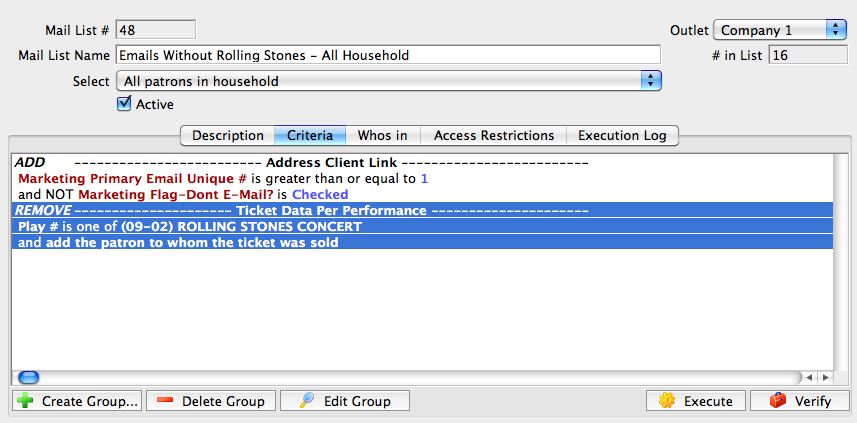
- Execute the mail list

The same instructions could be used to create any number of mail lists. The only variable you would need to change is the REMOVE group.
Eblast Sending Distribution
In Theare Manager, email letters are added to the database firstand then the web listeners will send them. You can choose to "Send Now" or "Send Later". The Web Listeners pick up the emails and send them at the indicated time. This means some of your eblasts can be sending on multiple listeners while you are still merging.
Theatre Manager performs a linear distribution in 10 minute intervals. The number of intervals extends as long as is needed to send the desired number of emails within the email blast. Please see the example below:
Mass Email Calculation Example
- The organization wishes to send out an email blast to 1,200 addresses.
- The organizations mail server setup (this is Office365, Gmail, your ISP, etc) allows for a limit of 900 emails per hour.
- Divide 900 by 60/10 for a total of 150 emails every 10 minutes.
Theatre Manager assigns the time to each email within the email blast in order to evenly distribute how each email is sent:
- at minute 0 --> the first 150 emails
- at minute 10 --> the nest 150 emails start
- at minute 20 --> the next 150 emails are scheduled to begin
- and so on till all the emails are sent.
Theatre Manager takes into consideration an email might fail to be sent. If an email is requested to by sent by the web sales, Theatre Manager factors this into the total number of emails to be sent per hour. After the first 900 emails are sent within the hour Theatre Manager will deny the remaining emails schedule to that hour. These emails are marked with an 'Error' status. These emails can be viewed in the Manage Pending/Unsent Emails section of Theatre Manager. These emails can be highlighted and sent again using the Send Now button.
When sending an email blast it's recommended to account for day to day traffic. This means if the maximum number of emails that can be sent per hour is 900 adjust the limit within the email blast to 800. This will ensure any emails sent by the web listener for day to day business will not interfere with the email blast. The limit will be distributed over all active web listeners. If there are three web listeners running and 150 emails to be sent every 10 minutes, on average each listener will send 50 emails every 10 minutes. That is 5 emails per minute.
How E-Blasts Work

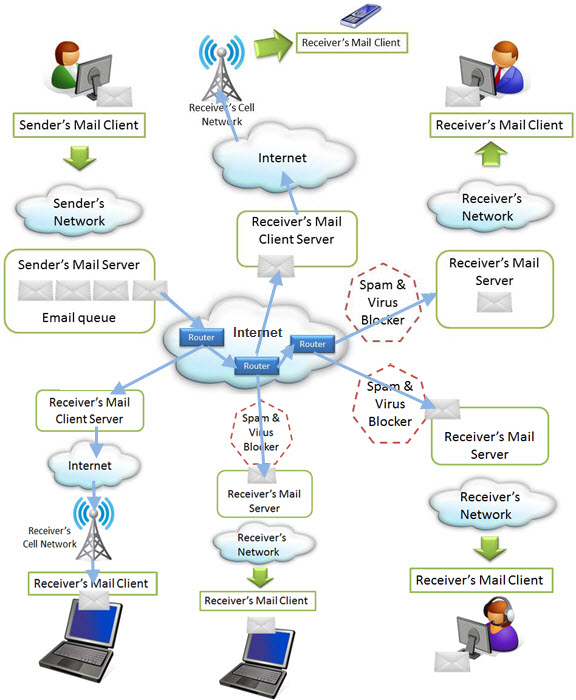
As you can see in the diagram, there are many places where an email can be blocked.
Post Office CASS certification (USA)
CASS certification is required by the US post office to obtain bulk rates and is based on the content of your data. There is a web page at USPS that explains this.
Theatre Manager provides the tools to help your database become CASS certified
- bar code printing with supplied font
- conversion of the text within the address to uppercase
- conversion of items like Road to RD and Street to ST
- export of data from TM
- import of corrections into TM
CASS certification is not actually for the software, it is for CONTENTS OF THE DATA in a database.
It means that each database of addresses needs to be CASS certified and verified annually. When that is done, you get a certificate about YOUR DATA that allows your venue to have the bulk rate for subsequent mailings. This means you can do it once a year.
The process is generally to:
- fix/merge all your current data
- export all data
- send to a mail house to get your data CASS certified
- import address corrections
and that will CASS certify your venue's data for the year (because your data was through the process)
What can I do to view html emails prior to sending
- Format the emails in Theatre Manager an send them out as is. They will be sent in 'what-you-see-is-what-you-get' format (if selected during export).
- Or you can have total control over the contents of the HTML and use and external tool to design a web page and then paste the resultant HTML into the form letter
Using externally composed HTML for an email
Alternatively, you can paste a FULL html web page into the word processor and send it as an HTML email. The rules are generally simply:
- The first part of the <html tag must be the first 5 characters of the letter. IF there are parameters to the HTML tag, they can follow after the initial <html tag
- and it must contain sufficient html tags to view as a web page. eg, something like:
<html>
<head>
</head>
<body>
your stuff goes here and can include images, tables, etc.An HTML email can also contain Theatre Manager merge fields if you wish to customize the eblast. They can only be inserted into the HTML using the form letter editing tools. ie: click on the form letter html code where you want a custom field, then right click to insert a form letter field.
<body>
</html>
There are html editing tool to help you do this.
Or, your web designer, can post the email as a web page on the internet and you can view it with internet explorer, firefox, safari of other browsers. Or they could email the HTML and if you save the file on the desktop, just drag it onto your web browser to see it.
With this, every venue has the software to view an html email it on every workstation in the office.
Before sending, make sure the images are visible.... if they are, then:
- copy and paste the text version of the HTML email into a Theatre Manager form letter
- and blast it out.
- make sure you do a test blast to yourself first to make sure its right
- ... then send it to all people on a mail list
Why the Graphics in Your Eblast are Not Displaying
In order for a Graphic to display in an email, you need to have the EXACT ADDRESS of the image. If your image link is not working, it can be due to a number of factors. Before you send, be sure to follow the instructions on this page to view your HTML email before you send it.
For example:
- Using the webpage address will result in a message that the inserted image does not exist and to use a different URL. The image URL used to reference the desired image must be for that single image and not for the entire webpage it is hosted on.
- If you have copied and pased text from a web page, an image added by using an image URL can display a red X because the URL being used is not the for that image or the entire image URL was not copied.
Designing and coding for email is hard enough just when you’re dealing with all the quirks that desktop computers and webmail clients toss your way. Introducing mobile into the mix can add a lot of time and frustration, but it’s also helpful to know where images will be blocked and where preview text is supported.
| Operating System | HTML | Images |
Preview Text |
Alt Text | Scale |
Modify Fonts |
| Blackberry | O | O |  |
|
|
 |
| iOS 4.X | |
|
|
-- | |
|
| Windows Phone 7 | |
|
|
|
|
|
| Anderoid | |
|
|
|
|
|
HTML:This column shows native HTML support on the device. Almost All most modern mobile operating systems support HTML and CSS, some even better than desktop clients! The days of worrying if your subscribers will receive a garbled text-and-code mash on their Blackberry are mostly over. As long as your recipients aren’t reading on a Blackberry that’s more than a couple years old, they’re most likely receiving either the text part of your message, or the HTML version if they’ve enabled the option on Blackberry 4.5+.
Images: While HTML support in mobile is mostly good news, the bad news is that image blocking is back in a big way. The only mobile OS that doesn’t block images by default is the iPhone/iPad. Of those devices that block images, most offer a big an easy way to turn them on. Images must, however, have the fully qualified url location for them to function.
Alt Text: Alt Text display a text description of an image if the image is not displaying (due to size or other constraints). Unfortunately, only Android will display alt-text behind a blocked image.
Preview Text: Preview text shows up right after the subject line, and pulls in the first few lines of live text from your email to give readers a “snippet” of what’s in the email. It’s a great way to pack more punch in your email, and it will show up in iOS devices as well as Windows Mobile 7.
Scale: While the iPhone zooms into your email and fits the email to the width of your screen, most other devices will display the upper left-hand corner of your email, leaving users to scroll left-and-right in addition to up-and-down to view your entire message.
Modify Fonts: Reading email on a tiny screen is hard. Every mobile OS will modify your fonts to some degree. iPhone and iPad have a 13px minimum font size and will auto-adjust anything under that size, often breaking navigation bars and other tiny text. In other devices, text can be condensed, breaking at random intervals and other unfriendly behaviors, but nothing that seemed consistent or predictable. The best course of action is to plan for unruly text behavior in your design, and learn to accept that your fonts may not be the size or shape you intended.
The below images show how the same email is displayed. The left is from Microsoft Outlook and the Right is from a Blackberry
 |
 |
If you are designing e-blasts to be read on mobile devices, you may want to consider the following for Text:
- Text-only messages, on average, yield a higher click-through rate than HTML emails.
- The email will render properly and the links will function as intended.
- You may wnat to create a new list of contacts that you know receive their emails on their phone.
For HTML:
- Keep the email simple, get to the point quickly, and make sure your brand is immediately recognizable.
- Make sure your subject line is clear and short. That may be your only opportunity to capture your mobile subscriber audience.
- Think about the screen size. Screens on a handheld are often small, so remember that you are working with a small space and a limited time to capture attention.
- Know your audience. For example, knowing what portion of your list reads their emails on a mobile device will be helpful in creating your content.
- Add a link to view as a web page.
Gala or Fundraiser Ticketing
An Event in Theatre Manager only tracks ticket revenue. Donations are entered separately from an Event. Here a few tricks to selling a full price Gala ticket that includes a portion as a donation both in the Box Office and on the Internet.
|
For this example,we will be assuming a full price Gala ticket price of $125.00, which includes a $100 donation and $25 event ticket. |
Event Setup
- Create a reserved or general admission Gala/fundraiser Event
- Price the Event with a full price ticket at $125.00
- Make two Sales Promotions:
- One with NO discount, available at the Box Office and Internet called ‘Gala Ticket’ (Example: $125.00)
- One with a discount to bring the value of the ticket to ‘event only.’ Pricing, and available at the Box Office only called ‘Gala Event’ (Example: $25.00)
Selling the Gala Ticket
| Internet |
For tickets sold on the Internet, only allow the full price gala ticket (Example - $125.00)
Box office staff will have some manual processing after - refer to the bottom of this web page. |
| Box Office |
For tickets sold at the Box Office, allow the Gala ticket and Gala event ticket (Example: $125.00, $25.00)
|
Post Processing Online Ticket Sales to assign Donation
For tickets sold online, the box office will need to convert the higher full-price ticket to:
- the normal ticket price<'li>
- and add a donation
From the Gala Event Attendance Tab
- Sort by price and then patron
- Select all ticket(s) for ONE patron sold at the higher price
- Right Click and CHANGE PRICE of the ticket(s)
- Pick the Gala event price (Example: $25.00). This will create a credit balance on the order for the patron. (Example: $100.00
- Add a donation to the order for the value of the credit (Example: $100.00)
- (optionally) Insert the Gala Event in the Event field found on the Notes Tab of the Donation.
- Repeat the above steps for each patron until all tickets are now the lower price and donations have been added.
HST Calculation and Theatre Manager
Often we receives questions concerning the calculation of taxes in Theatre Manager and that Theatre Manager's calculation doesn't always match to those calculations outside of the program. The following is an example of how Theatre Manager builds and calculates taxes, specifically related to the compound harmonized tax rate of 5% and 7%.
Theatre Manger is built to calculate tax on each entity of an order: the ticket price, ticket fee #1, ticket fee #2, ticket fee #3, membership/passes, order and exchange fees. And as a result truly a more accurate account of taxation.
Lets consider a very common ticket sale transaction which consists of 5 tickets: 2 Adult, 2 Senior and 1 Student. The tickets are priced as follow: 2 @ $15.00, 2 @ $13.00 and 1 a $12.00 to then which taxes are them applied. If one were to add that up on "paper" one would add: $15.00 + $15.00 + $13.00 + $13.00 + $12.00 to equal $68.00. Then take $68.00 x 5% = $3.40 + $68.00 x 7%= $4.76 for a grand total of $76.16. but that is not accurate.
Theatre Manager does however calculate tax as:
- 15.00 x 5% = 0.75, then 15.00 x 7% = 1.05
- 13.00 x 5% = 0.65, then 13.00 x 7% = 0.91
- 12.00 x 5% = 0.60, then 12.00 x 7% = 0.84
- 15.00 + 0.75 + 1.05 = $16.80
- 13.00 + 0.65 + 0.91 = $14.56
- 12.00 + 0.60 + 0.84 = $13.44
- 2 tickets @ $16.80 = $33.60
- 2 tickets @ $14.56 = $29.12
- 1 ticket @ $13.44 = $13.44 for a Grand Total of $76.38 * not $76.16 as calculated on the total.
It is indeed more tax but more accurate as Theatre Manager treats each ticket individually. It is necessary calculate in the manner if you have occasion to refund one of those tickets or exchange and upgrade one of those tickets in this example.
Intellegent Mail Barcode
Arts Management Systems has reviewed the new standards. They have been added to the enhancement list and will be available in future releases. Please read the version release notes for the release of this enhancement.
Additional information on the new standards can be found in the links below:
Notification Centre Messages
|
On macOS, if you enable notifications, they will use apple script to send a note to the 'notification centre'.
There is no equivalent application for Windows (yet). |
 Notification Centre is integrated with Theatre Manager on macOS with a setting on the Employee Preferences window.
- This feature can be enabled and disabled on a per employee basis.
- Notifications will always appear notification window in Theatre Manager.
- The purpose of repeating such messages to the Notification Centre helps ensure awareness. If the notification window is not open or is hidden, the user still receives the message in the notification centre.
This means that meeting reminders, task alarms and some system notifications will show in the top right part of your screen for a few seconds and then fades away.
As an extra feature, macOS Notification Centre retains a history (as far back as 7 days, unless cleared) of notifications so that they are available for a while after the alert.
 This feature allows a quick reminder to review Theatre Manager's upgrade release notes for the new features added to the application.
Preparing for Streaming Performances
Live Steaming Recap
Live Streaming has become an important alternative for organizations to help reach their audiences during COVID. It has allowed existing audiences to connect with their favourite arts organizations, while at the same time reaching new audiences, literally from around the world. It's no overstatement to say in some instances, Live Streaming has become another pillar of programming, complimenting live performance offerings well into the future.
While impossible to fully translate a live theatrical experience into a digital format, there are a few similarities worth comparing.
In person events we ask patrons to arrive 20-30 minutes prior to curtain.
- Streaming we ask viewers to login 10-15 minutes prior to the start of the show.
In person performances we anticipate last minute walk-ups and late comers
- Streaming we anticipate last minute buying, in fact, its more like last second buying
In person events usually have some sort of curtain speech
- For Streaming we see the countdown landing page, often customized to highlight sponsors and provide links for other engagement opportunities.
Understanding Streaming Demands on Hardware
Live Streaming is similar to in-person performances in that both require enough staff (and sufficient hardware) to quickly and safely get audiences into their seats. In the case of Live Streaming, significant computing resources and internet bandwidth are needed to deliver a smooth experience to your patrons.
The most critical time for any Live Stream is that split second just before the show begins. This is called peak demand, and it's the moment we've programmed the system to move hundreds, if not thousands of guests, from the lobby, and into to the 'theatre' at the very start of the performance. In terms of an in person event, it's the equivalent of asking a 500 seat venue to fill in less than 1 second.
To that end, Artsman's Data Centres in Montreal and Vancouver are optimized to help deliver almost instantaneous Peak Demand resources whenever an AMS Cloud Client starts a Live Streaming event.
Live Streaming Performance Checklist
To support your Live Streaming shows, Artsman recommends both Self-Hosted and AMS Private Cloud organizations review the following checklist before every Live Streaming performance.
First: We advise setting your organizations Session Timeout to 1 week
Okay, sure, but what is a Session Timeout and why should we update that setting?
Session Timeout is the number of minutes a patron can be idle on the web site before they are logged out. Before the advent of Live Streaming, most organizations set their Session Timeout to 15 minutes, a completely reasonable amount of time to log out an inactive patron shopping on your ticketing site.
Now imagine a patron logging in to your ticketing site 16 minutes before the start of your Live Streaming show. With the 15 minute Session Timeout in place, the ticketing site quietly logs that patron out at 15 minutes and 1 second. When the performances begins Theatre Manager only admits patrons that are currently logged in into the event. That diligent and on-time patron is now forced to log in again, appearing to the patron like they never logged in to begin with.
For this reason we are recommending Live Steaming organizations change their Session Timeout to 1 week.
You can access Session Timeout settings in Company Preferences -> Web Options.
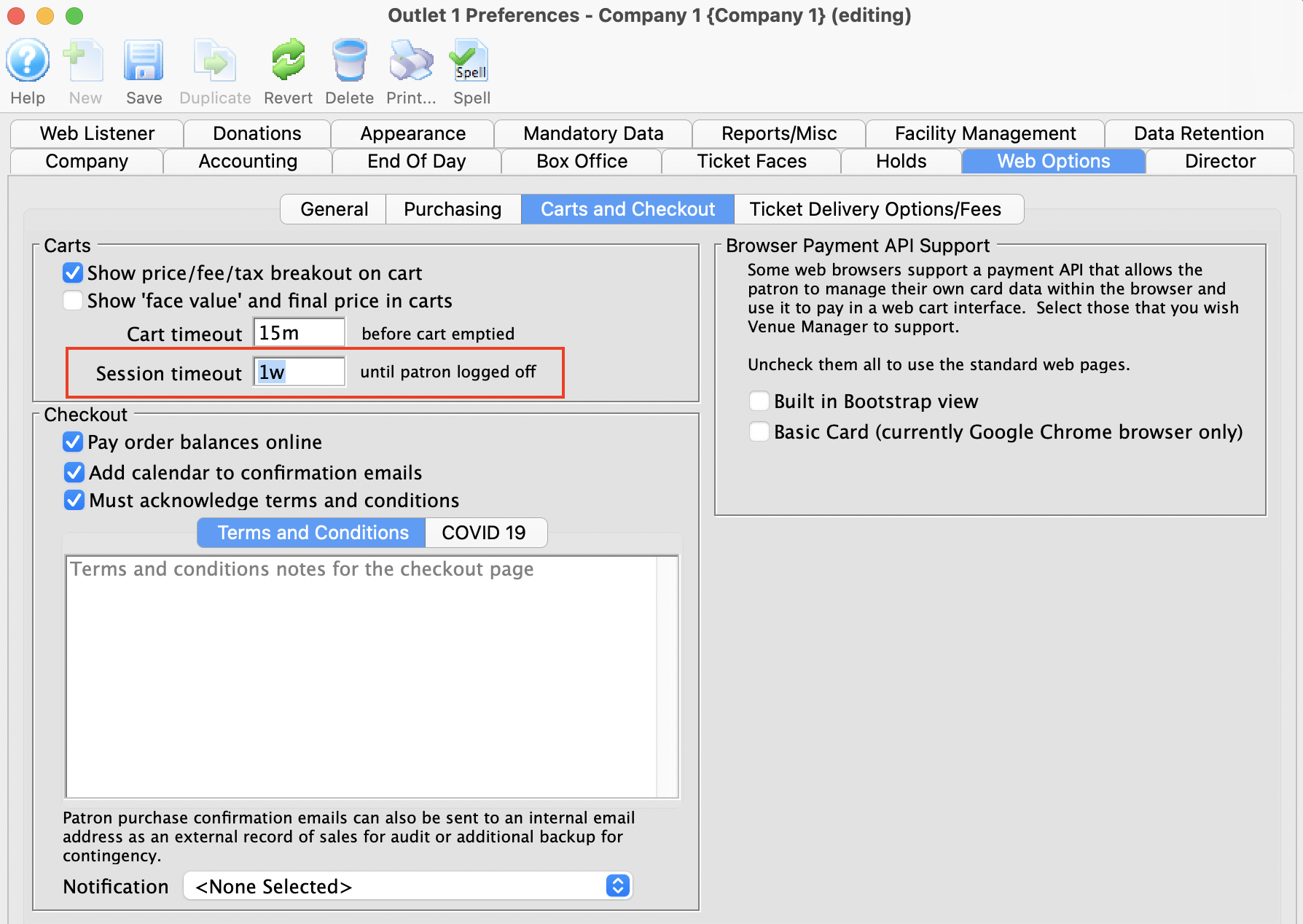
Second: Send an email to support@artsman.com 1 week in advance of your event
I've never sent a support email before, what's the advantage?
Sending this email will do two things. It will put your event's performances on the Artsman Operations Calendar, and, give Tier 2 Support an opportunity to review your Theatre Manager settings. Say for example, your Session Timeout.
Please Include in the Email
A) The name of the event
B) The date and time of the event
C) How many tickets you've sold to date, and how many more you anticipate selling.
D) How many additional streams of the event will be happening at the same time.
AMS Private Cloud clients will also have Tier 2 Support monitoring for last minute activity on the day of your performance. This lets Artsman ensure servers are running smoothly, and if needed, deploy additional server resources.
Cloud clients will also receive post on-sale and streaming web stats, to help inform your team about how your audience behaved on the day of the event.
Third: Self-Hosted Clients Will Need to Provide Access to your Web Listener Machine
Self-Hosted Organizations will need to provide access to your Web Listener machine so Tier 2 Support can make sure your Web Server settings are optimized. If anything needs to be adjusted there is at least a 1 week cushion to address any potential issues.
Read-Only user access to DB
- pgadmin,
- another external tool that can access a postgres database directly,
- using the REST API
|
Generally, the REST API should be used to provide far more controlled access to data than using the carte-blanche SQL access as described above. The REST api:
Direct SQL access can only to be provided under limited circumstances and should only be used by experienced people. |
Setting up Access
Artsman Support Staff will need access to your database to do the following steps:
- Access PGadmin using the standard manner
- Create a user account by
- Scroll down to the Login Roles and right clicking to create a new login role
- under properties, give the role a name like ReportUser
- under definition tab, set a password
- under role priveledges, only pick:
- can login and
- inherit rights from parent roles.
- save and close the role creation window
- Open up an SQL window for the specific database
- Type the command below and replace 'ReportUser' with the name of the role you created above
- GRANT SELECT ON ALL TABLES IN SCHEMA public TO "ReportUser"
- run the SQL
- Close and QUIT PGadmin
Testing Access via Pgadmin
- Open PGadmin again
- Make a new connection
- Give it a name like 'report access'
- use the database IP address
- Use 'ReportUser' as the name (or whatever you called it
- enter the password you used to create the role
- DO NOT SAVE THE PASSWORD
- Try to connect
- Try a SQL command like the following to see that data is read:
Select * from F_EMPLOYEES
Remove Black Bar in 64-bit For Windows Users

To change the effect of this bar from BLACK:
- Windows Control Panel
- Themes and Related Setting
- More Options - set to the following:

Removing Print Head For Cleaning Practical Automation Ticket Printer
- Unplug the ticket printer. Open the cabinet door the same way when changing ticket stock.
- The print head plate is covered by a metal shield. It is held in place with a green headed screw on the front side. Remove green screw. Lift up on the metal shield to remove. This will expose the print head plate. Now Lift up the green Print Lever.
- Grab your fingers around the back of the plate. Give a quick jerk to release the plate. Careful lift and pull out Print Head Plate towards the rear.
- Tip the plate at an angle. Be careful not to touch the Print Head Plate to other metal.
At this point the print head is removed and ready for [link – to cleaning page] cleaning, replacing or clearing paper jam.
Report criteria
Comparison of Donor Data as of a Specific Date
Comparison reports provide management with an opportunity to compare giving trends from specific dates from year to year and answer the question: How is my Annual Fund Campaign doing as of this date, compared to last year (and the year before and the year before.)
The reports are probably reports you already run, however the secret is in the criteria used to generate the desired results.
For Example:
- You want a report that lists all donations to the Annual Campaign up to December 1 of this year, and compare that to each year's Annual Campaign up to the same date. This allows you to see who has not come through yet this year, but was expected to by this time.
- You can extend the concept using the appropriate criteria to look at totals in a quarter or any other range of dates
The report you will use is found in Donation Reports & Receipts and is the Donor Giving Trend by Year (Fiscal) or (Program).
For more information on Reports, click here.
Create your criteria as follows:
- Campaign # is one of Annual Campaign (or select your own campaign(s)).
- AND (Donation Date is between JAN 1, 2008 and NOV 30, 2008
- OR Donation Date is between JAN 1, 2009 and NOV 30, 2009
- OR Donation Date is between JAN 1, 2010 and NOV 30, 2010)
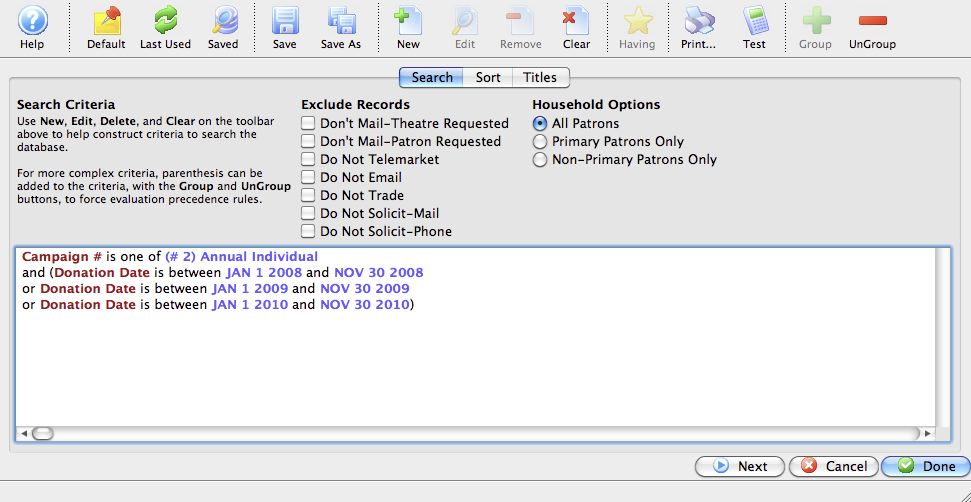
The key is in the grouping of the data. After creating the criteria (taking note of the strategic usage of AND and OR, OR, OR), GROUP all the date criteria by highlighting all of them, and clicking the GROUP  button.
The result is the standard Giving Trend By Year report, but the data is limited to your specified campaign, and only the date ranges you are interested in.
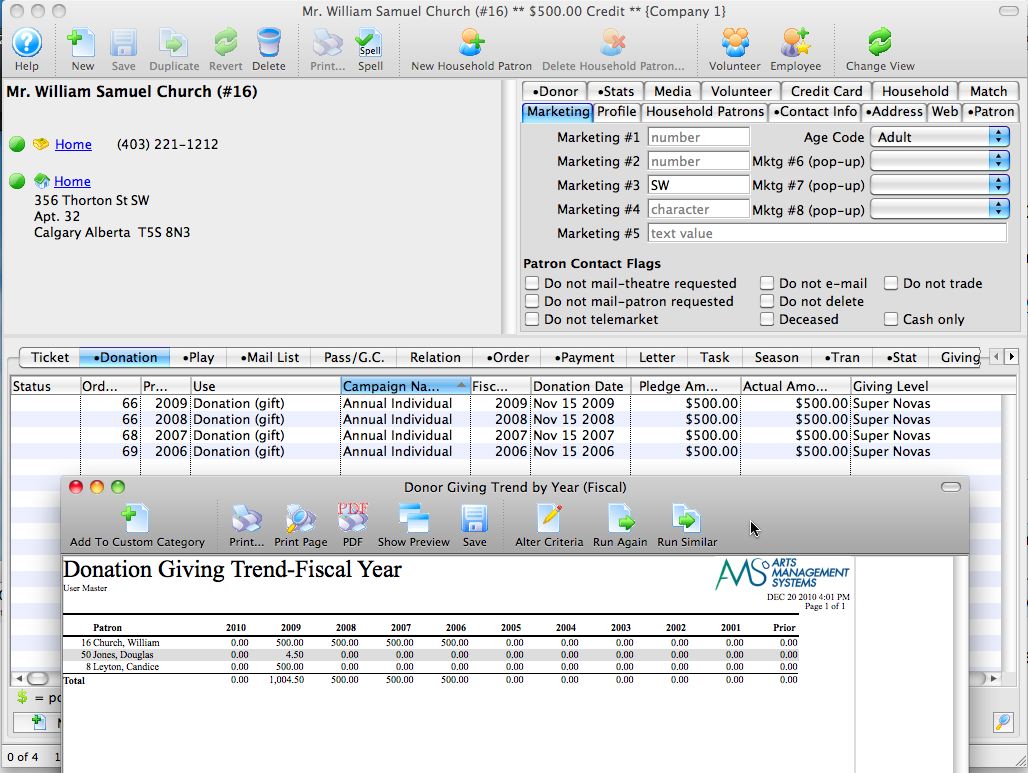
Season Subscriptions
Like regular tickets, season subscriptions sales are associated to a Patron’s record.
Season Packages are designed so patrons have the opportunity to purchase the same series of performances within a select group of events while maintaining the same seat and pricing structure.
For complete directions in defining Season Subscriptions please see the Online Help Sections below:| Setting Up Season Packages |
Covers:
|
| Selling a Season Subscription | The steps to selling using the following options:
|
| Editing a Season Package |
You can edit the following areas:
|
| Sending tickets to an outside printer | How to export the Ticket Data |
| Print Renewal Notices |
|
| Troubleshooting Season Ticket Sales | Common errors and what to do to resolve them |
| The Subscription Windows |
Overview of the following windows: |
| Adding Patrons to a Control House | Adding Patrons to a Control House |
Adding Patrons to a Control House
Every Season Package requires a Control House. The Control House is a completely separate event from the rest of the season's performances and acts as the place saver for the patrons favorite seats. It is used to track:
- The evening they will be attending.
- Where the patron prefers to sit.
- The price/promotion to use for each seat.
- If the patron renewed their seats (or not).
It is important the accuracy of the Control House be maintained, as the season is booked. By the end of the subscription process (even after partial subscriptions are sold well into the season), sales in the control house must reflect the preferred/favorite seats.
This control house is used by Theatre Manager to allocate seats to patrons for the coming season.
Building a control house is like building any other event with a couple of subtle differences. These are:
- The event cannot be sold on the internet and must be marked as use in a control house (performance tab).
- The price of each ticket is zero (price tab).
- There should only be subscription promotions enabled (promotion tab).
- There should be one control house performance for each night you have in your regular season. For example:
- If there are two weekends for a total of 6 shows
- Friday, Saturday, Sunday and Friday, Saturday, Sunday
- You make the same six performances in the control house
- The performance codes in the control house MUST match those in the rest of the season.

- Click the subscription button.
- When the subscription window opens, choose the right package from the Package list.
- If the people you want, are NOT in the Patron List, you will need to Add them, Click here for more information on Adding Patrons.
When a patron wants to take part in a season package, they need to subscribe to the package before they select favorite seats and have their season package booked.
To add a patron to a Season Package in the Season Detail window, you perform the following steps:
- Click Patron Sales >> Season Reservations >> Setup Season Packages.

The Season Package List window opens.

- Select the requested season package, Click the Open button at the top of the window.
The Season Package Detail window opens.

- Select the Patrons tab.

- Click the Add button.
The Patron Lookup List window opens.
- Search for and highlight the patron you are adding to the season package.
- Click the Select button.
If there is more than one performance series, the Season Performance Selection window opens.

- Choose the correct performance for the patron and click the select button.
You are returned to the Season Package Patron tab.
If there is more than one performance series, the Season Performance Selection window will open.
Setting up a Freebsd NAS server with Postgres
take out the existing backplate and put in the right backplate for the processor board
Set up the standoffs to match the motherboard
insert motherboard, cpu, ram, heatsink
freenas.org for disk image to put on usb key
memtest.org to get memory test for usb key.
one machine is up --run memory test
change the firmware settings. check your hard drives
get the IMPI settings in case you need the mac address
Make the Data file Install the FreeNas software from the USB onto the internal USB http://doc.freenas.org/9.3/freenas_install.html#preparing-the-media
restart and boot to freenas. It will create the diffe-helman parameters
record the mac addresses of the ethernet cards and apply any DHCP settings to router if need be.
Log into gui now
when ip address of the box is right, log into gui.
install any freeNAS updates prior to configuring jails
set password and allow SSH .
Build disk arrays
Create disk array - select all spinning disks as ZFS2. add in extra device for SSD for log (ZIL), add in extra device ssd cache (L2ARC). allow disks to be compressed. Its faster for ZFS2.
set up local machine name (eg xxxx.myserver.org)
Set up email notification
Set up Jails
go to storage, and add dataset called 'jails'. Make one for postgresql server jail
wait for the jail to be made. then highlight the jail and stop it. ssh root@192.x.x.x and sign into the main server (not the postgres ip)
enable some config for postgres: cd /mnt/[server]/jails/postgresql
vi jail-flags
allow_raw_sockets=true
allow_sysvipc=1
(quit vi)
back to freenas interface and start the jail
jls (to get the jail id of postgres) jexec -# tcsh (where # us the # of the jail)
Using ports to install postgres
read: https://www.freebsd.org/ports/
portsnap fetch extract (to get the ports)
always use latest openssl. https://mebsd.com/freebsd-security-hardening/openssl-upgrade-freebsd.html
edit /etc/make.conf
add WITH_OPEN_SSL_PORT=YES
go to /usr/ports
cd /usr/ports/ports-mgmt/pkg
make reinstall clean; rehash
cd /usr/ports/databases/postgresql94-server
make install clean; rehash
take the default install settings on the blue screen and install postgres.
Make the data folder and config Postgres
initdb postgresql.conf pg_hba.conf. edit the /etc/rc.conf to add the start postgres at reboot.
Setup for Emailing Tickets at the Box Office
Theatre Manager has the ability to send PDF Tickets to patrons who purchase to a performance. While this topic focuses on the system setup in Theatre Manager to globally enable the e-tickets feature, you can also learn more about the process for sending PDF tickets from the box office in the previous link.
System Setup For Emailing PDF Tickets
- Go to Setup >> Company Preferences >> and click on the Box Office tab
In Orders and Payments select the checkbox for "E-mail PDF tickets (if no balance due)"
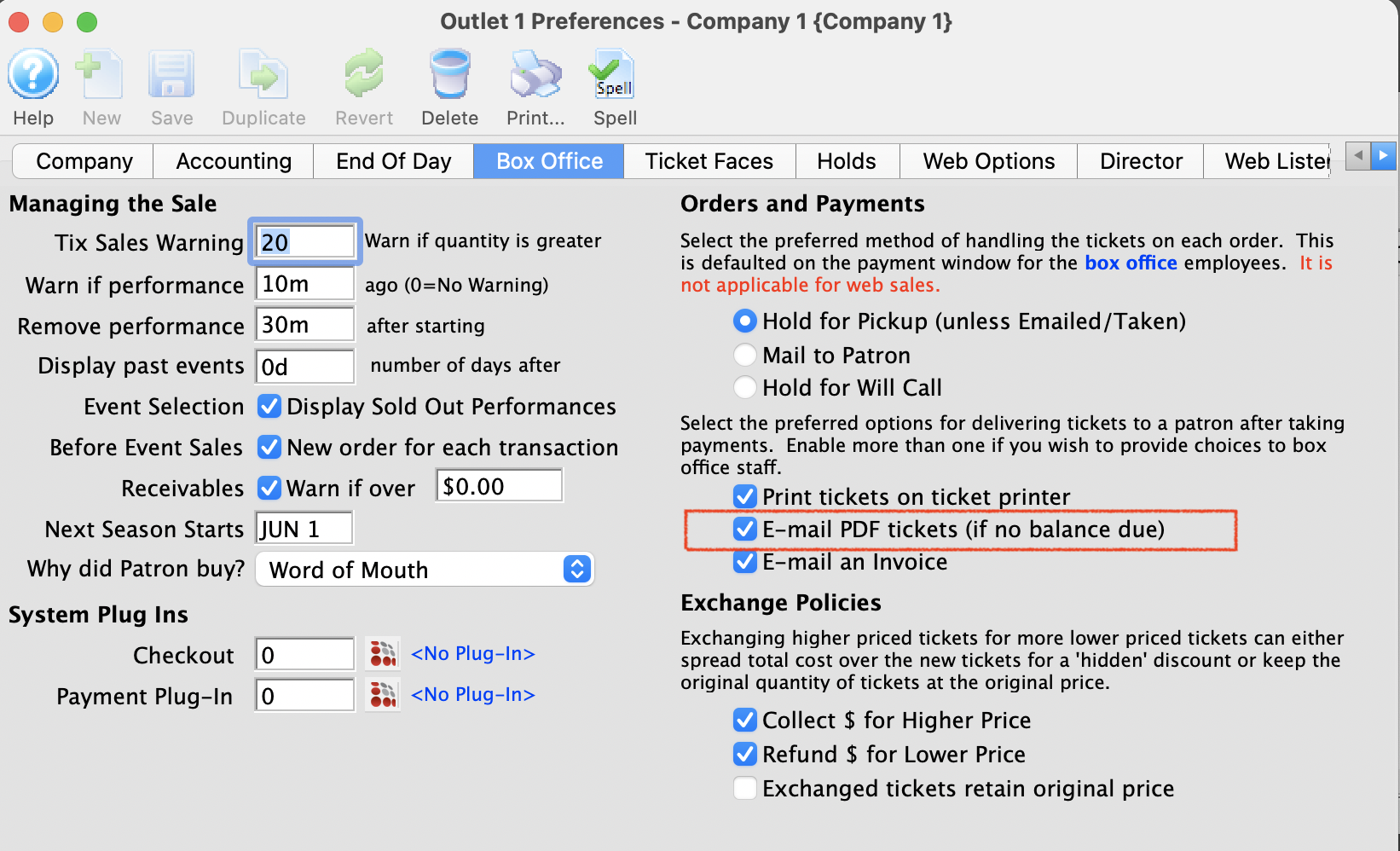
This offers the ability for staff to choose how to deliver a ticket:
- Printing a physical Ticket
- Emailing a PDF Ticket
- Sending a Ticket Confirmation Invoice
- Go to Setup >> Company Preferences >> Web Web Options and click on the Ticket Delivery Options/Fees tab in company preferences.
- Open Event Setup and look for E-Ticket Delivery Options
Select the desired
delivery option 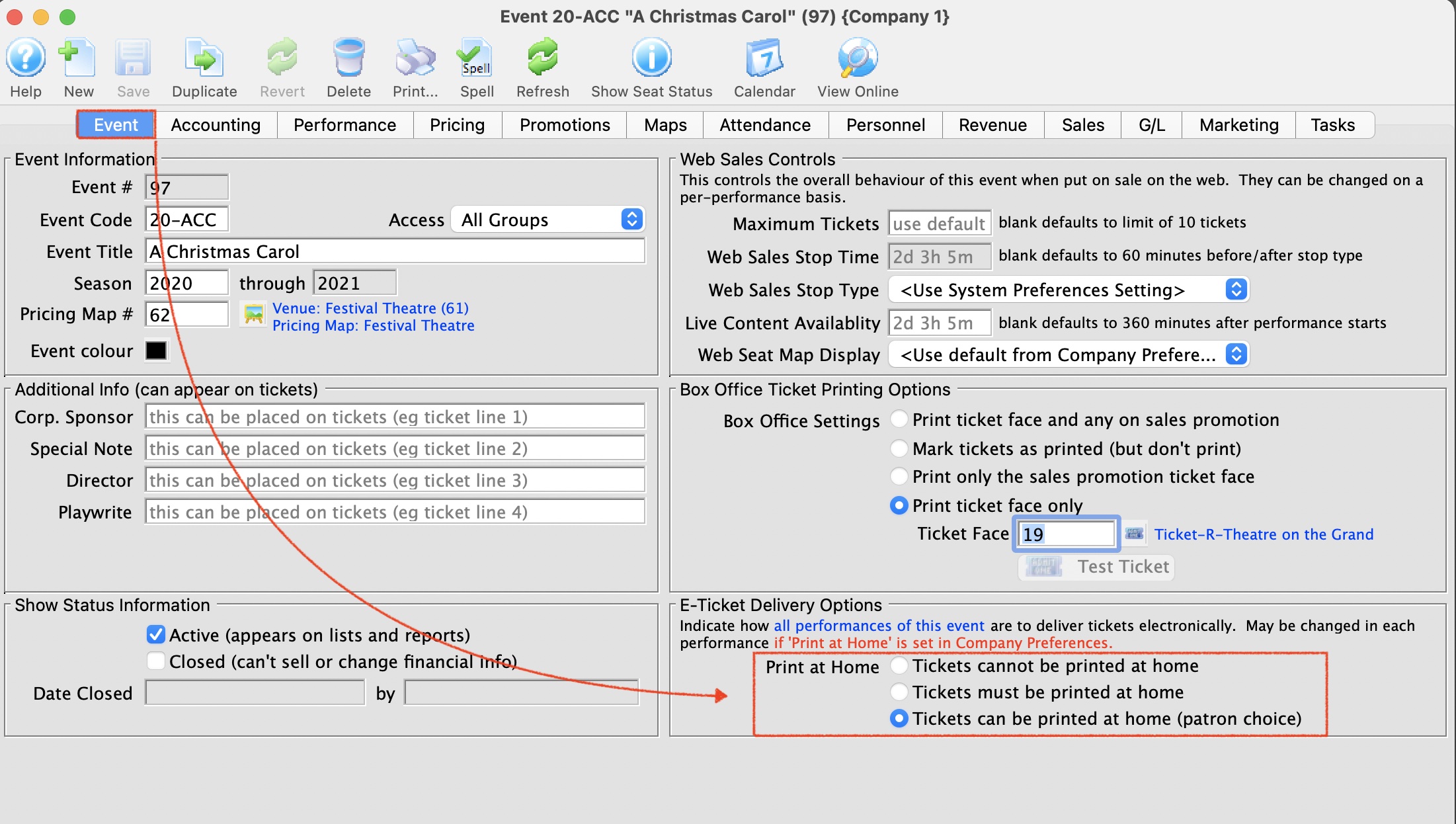
In order to send a PDF ticket from the Box Office an employee must have their e-mail setup inside Theatre Manager. Otherwise Theatre Manager will not have the necessary email information to properly send the PDF ticket. Instructions to setup up employee e-mail in Theatre Manager can be found in the link.
Click the checkbox of Print at home tickets and select the preferred scanning format.

This checkbox essentially turns on (or off) the PDF Ticket function in Theatre Manager.
Special Characters - Via Keyboard
Common characters (french, Spanish, Italian, German)
 In some cases, simply holding down a character that can be accented in some language (eg a, e, i, o, u, n, c) will show all the accented possibilities for that character in most entry fields in Theatre Manager. A sample of the popup is shown to the right.
Using any other UTF-8 characters
Some less often used characters may have to be entered manually using their UTF8 code.
The following is a table of codes to allow you to enter these special letters in the Theatre Manager Database. This is a listing of the common special characters. Something entered on the Mac should be visible on the PC and vice versa since Theatre Manager databases are set up to accept standard UTF-8 character set.
|
Note: Emoji's, Kanji, Chinese, Hebrew, Cyrillic, Arabic, etc that are part of the UTF-8 character set can be used within Theatre Manager. Text placed in various description and notes field appear online as the TM Server is also UTF8 aware. |
|
Most special characters cannot be printed on ticket printers. |
Macintosh alternate keys
Source: Washington State University
Windows alternate keys
For reference to additional special characters, click here.
TeamViewer Access
Typically, you only need to click on an item on the tool bar.
However, there may be some reasons why you can't get into Theatre Manager. The other options below are alternative ways to provide remote access.
Teamviewer from Theatre Manager Menu
- Login to Theatre Manager as yourself
Note: We may need you to have master user password available in case we need to visit parts of the application you cannot access
- Click the Remote Assistance button on the upper right of the toolbar.
This button is found on the right side of the toolbar located across the top of the Theatre Manager window.

- A new window will appear displaying an ID and Password.
It may take a few moments for the ID to populate. If the ID does not populate it may be the network security settings do not allow for communication on port 80 or 5938.
- Reply to an existing email from the Support Team for the Current Case with the ID and Password.
A new email should be avoided when sending the Session ID and Password.
Teamviewer: Using free version for remote access
If you use it for free and you use it often, you may get prompted by the software that it thinks you are using it for commercial purposes. Unless you buy a licence (like ArtsMan has), you may see time limited or restricted use. We see this message rarely, but we have seen it.
|
Teamviewer is great for remote access and work at home.
However, If you want to set up a remote box office, use a VPN, Remote Desktop, or a locally installed version of TM with a VPN in order to get ticket printing |
How to use Teamviewer
If you want to use it for remote access, you will need to:
- Download a full version of Teamviewer onto a machine in your office and install it. If you want multiple remote accesses to be available, you will need to install in on multiple machines. We suggest using WORKSTATIONS for this purpose - do not install it on your servers for ongoing remote access - it is considered a security risk
- Configure the above installation of teamviewer with a permanent password - make it longish, use special characters, numbers, letters, etc. you may, or may not want to allow file transfers.
- Record the ID and the permanent password
- Download a full version of Teamviewer onto your laptop or machine at home
- use the version from home to connect to the ID and password you recorded above
- Use Theatre Manager and the rest of the machine as you normally would
Some Notes about Teamviewer use
- Teamviewer is a great option as it does not require a configuration change to be made in your firewall appliance. You just start it, and it works
- However:
- You cannot share printers using teamviewer, so printing tickets is not possible remotely
- You cannot share disks, although you can use a file transfer tool to move files to/from one machine to the other
TeamViewer from Login Window
- Open Theatre Manager.
This can be done by double clicking on the theatre masks icon on the desktop.
- In the login screen, click the Change Data File button at the bottom of the window.
- Click the Remote Assistance button in the Select a Database window.
- A new window will appear displaying an ID and Password.
It may take a few moments for the ID to populate. If the ID does not populate it may be the network security settings do not allow for communication on port 80 or 5938.
- Reply to an existing email from the Support Team for the Current Case with the ID and Password.
A new email should not be created to send the ID and Password.
TeamViewer from Application Folder
TO ACCESS THE FILE ON A PC:
- Open My Computer.
- Navigate to C:\Program Files\Theatre Manager\Theatre Manager\Remote Support
- Double click on the AMSQuickSupport icon to start the application.
- A new window will appear displaying an ID and Password.
It may take a few moments for the ID to populate. If the ID does not populate it may be the network security settings do not allow for communication on port 80 or 5938.
- Reply to an existing email from the Support Team for the Current Case with the ID and Password.
A new email should not be created to send the ID and Password.
TO ACCESS THE FILE ON A MAC:
- Open the Applications folder
- RIGHT-click on the Theatre Manager application
- Select Show Package Contents
- Open the Content/MacOS/Remote Support folder.
- Double click on the AMSQuickSupport icon.
- A new window will appear displaying an ID and Password.
It may take a few moments for the ID to populate. If the ID does not populate it may be the network security settings do not allow for communication on port 80 or 5938.
- Reply to an existing email from the Support Team for the Current Case with the ID and Password.
A new email should not be created to send the ID and Password.
TeamViewer as a download
- Download the TeamViewer installer to the desktop using the links below:
THE INSTALLATION FILE FOR PC:
http://www2.artsman.com/Software/AMSQuickSupportPC.zipTHE INSTALLATION FILE FOR MAC:
http://www2.artsman.com/Software/AMSQuickSupportMac.zip - Extract the TeamViewer installer to the desktop.
- Open the AMSQuickSupport folder on the desktop.
- Double click on the AMSQuickSupport icon to start the application.
- A new window will appear displaying an ID and Password.
It may take a few moments for the ID to populate. If the ID does not populate it may be the network security settings do not allow for communication on port 80 or 5938.
- Reply to an existing email from the Support Team for the Current Case with the ID and Password.
A new email should not be created to send the ID and Password.
For more information on TeamViewer and how it functions please click here.
TeamViewer Permissions for Mac
In order to have full access to TeamViewer, the Mac OS requires certain system preferences to be enabled. These settings ensure the person connecting can see the desktop, move the mouse, and transfer files when needed.
Venture and Higher
- Click Open System Settings
- Select Privacy & Security in the left column
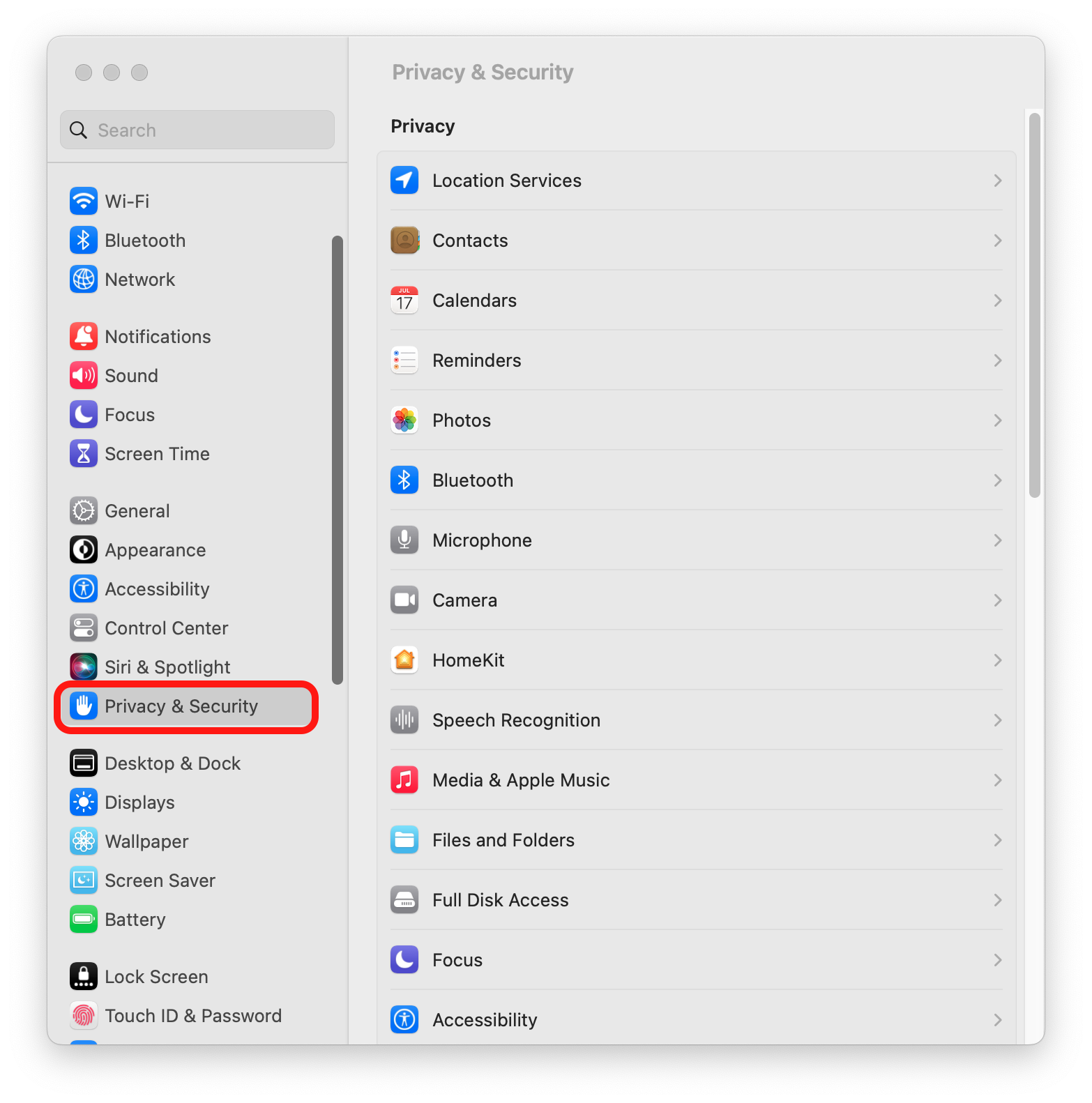
- Select Full Disk Access
- Use the + icon to add TeamViewer (if not already in the list) and move the slider to the right
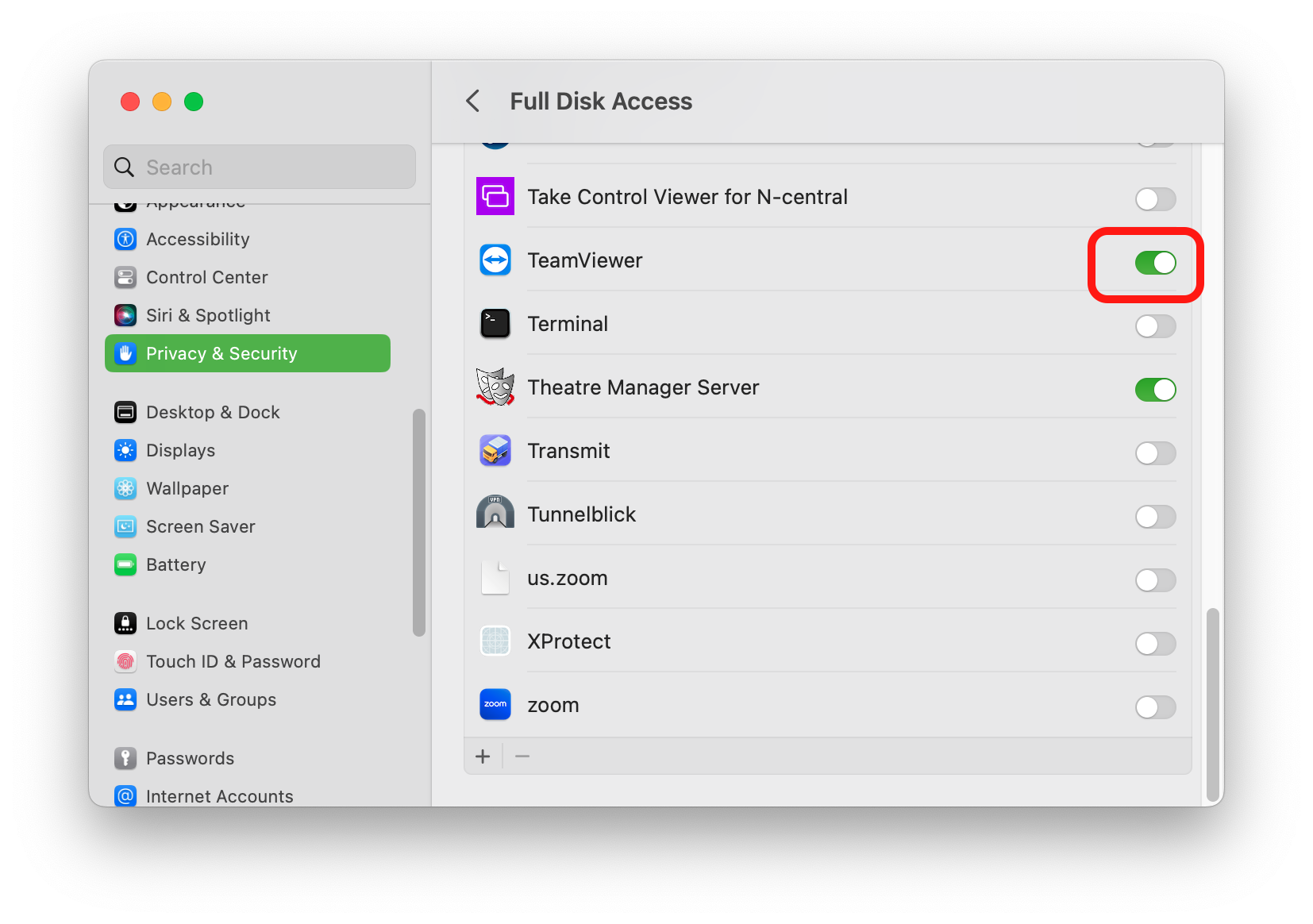
- Enter the OS User password
- Click Later
- Click the back arrow at the top of the left column
- Select Accessibility
- Use the + icon to add TeamViewer (if not already in the list) and move the slider to the right
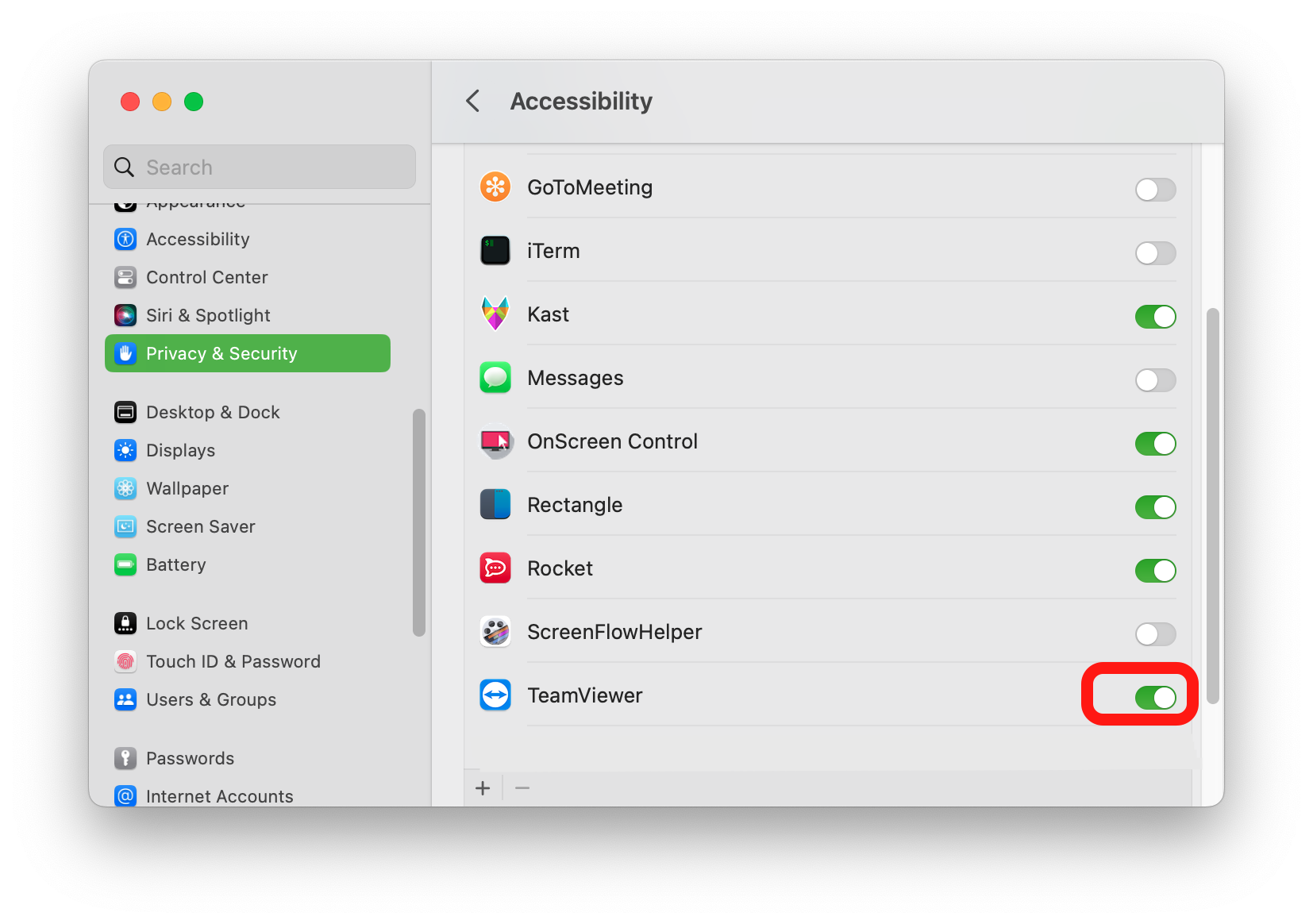
- Click the back arrow at the top of the left column
- Select Screen Recording
- Use the + icon to add TeamViewer (if not already in the list) and move the slider to the right
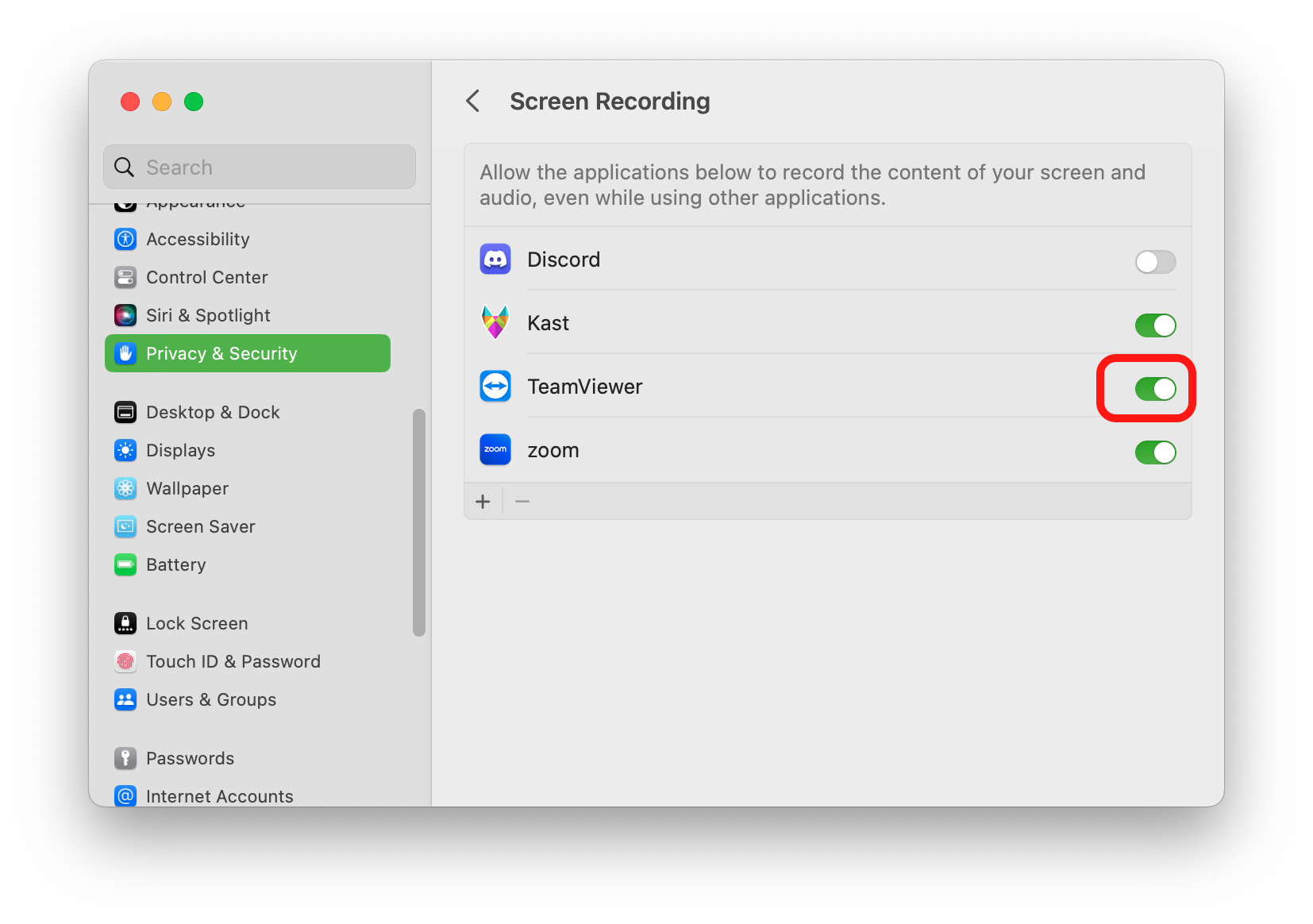
- Click the back arrow at the top of the left column
- Select General in the left column
- Select Login Items in the right column
- Under Allow in Background, move the slider next to TeamViewer to the right
- Close System Settings
Ticket Pricing Cube
|
The essence of pricing is that you decide what base price you want for a ticket for a performance in each section.
Then you use sales promotions to affect the final price, which in theory, model your marketing words |
There are many options for pricing tickets in Theatre Manager -- all of which follow a very basic model. The pricing cube metaphor provides a marketing driven design and is often in contrast to the approach used by other ticket vendors. This allows easy implementation of discounting through:
- sales promotions or
- implementation of dynamic pricing through changing a pricing map for a performance (which could change price zones)
The pricing model
In general, pricing is modelled using the cube below with the following key parameters affecting pricing. In general, you should plan on having very very few price codes and more promotions that you can enable/disable for each performance.
- Price Codes: these are BASE PRICE areas (sections) in a venue. There should be as few of these as possible -- generally only one per zone in your venue.
- They are designated using a letter code in Pricing Map Setup.
- You can change the pricing map at any time to change where the price zones
- Or you can swap to another pricing map to instantly change pricing zones (dynamic pricing), even after tickets are sold
- Performance Dates:
- Each performance can have a different BASE PRICE for the price zones in the venue (above)
- You can change the base price on each performance at any time to increase or decrease the overall price for a ticket in that section (subject to the sales promotion used
- This allows week day performances to be a different price than weekend performances, in different sections
- Sales Promotions:
- This is the base price for a section in the venue is what we would like to charge for a ticket.
- You can can make a menu of promotion discounts (or markups) which offer a DISCOUNT from the BASE PRICE and add ticket fees and taxes. Use this for things like: single, subscription, adult, youth, group, early bird, 2 for 1 pricing, etc.
- These promotions can be enabled or disabled at any time. Use this in combination with restricted sections to make a price valid or not
- Sales Promotions have rules that you can use to decide when they are applicable such as: online only, box office only, before the event or day of, valid for certain base prices of tickets, etc. These are the rules that decide how each ticket will be priced
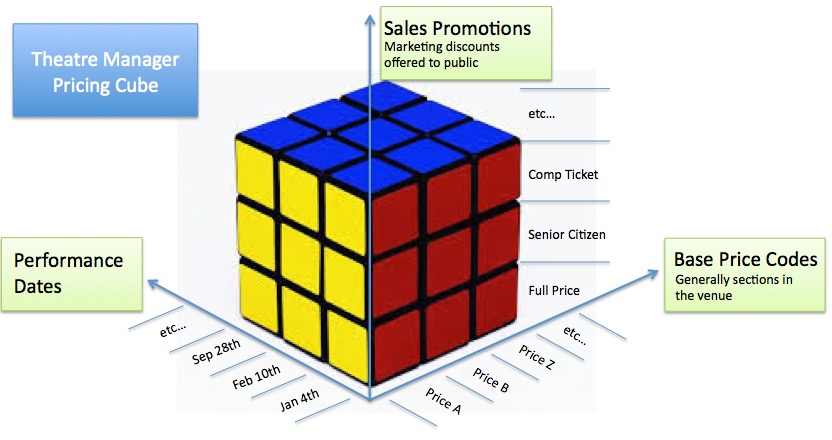
Reporting
Since all prices are theoretically derived from the base prices, you will see this in ticket inventory reporting and any lists contenting tickets, performances or events. You'll see a base price and discount, along with separate fees and taxes. This allows you to find out how much you made from subscription tickets vs single tickets vs group sales vs comps. More importantly, it clearly shows the effect of discounting on tickets - which helps setting next years prices.
Practical Ticket Pricing Example
Quick Practical Example
This example is based on the pricing cube explanation that describes the philosophy of pricing in Theatre Manager.
Suppose that:
- A venue's pricing map has 5 key base price codes/sections where you would create a letter code to represent each base price:
Base Price Code Section Sample Map A Premier Section (yellow) 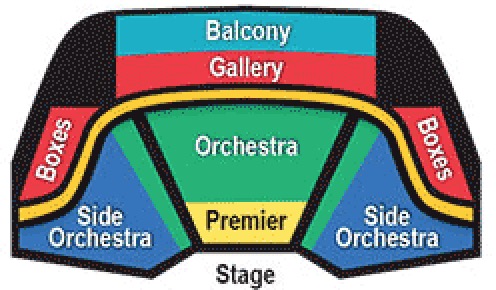
B Orchestra Centre, and some seats along the aisles (green) C Orchestra Left, Orchestra Right (blue) D Boxes and Gallery (red) E Upper Balcony (light blue) - and a week long run of performances where:
Night Price A Price B Price C Price D Price E Pricing Layout Opening Night $100 $80 $70 $60 $50 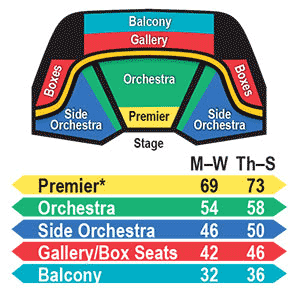
Monday-Wednesday $69 $54 $46 $42 $32 Thursday-Sunday $73 $58 $59 $46 $36 - with some sales promotions that enable discounting fees, and taxes like:
Sales Promotions Price A Price B Price C Price D Price E Full Price No Discount No Discount No Discount No Discount No Discount Senior Price $2 off $2 off $2 off $2 off $2 off Media Comp not allowed 100% off, Opening only not allowed not allowed not allowed
Ticket Selling
Adding Price Codes to a Map
Counting Tickets Printed on Printers/from Inventory
|
If you are looking at reminders to manage inventory, TM will track each ticket printed and tell you when you reach a threshold based on settings in Company preferences -> Ticket Faces. You will need to update the inventory count when you get a new batch of tickets. |
Run the reports that best fit your organization based on the types of tickets your organization prints.
How many tickets has a specific printer printed
If you are looking for how many tickets have come out of a specific printer, you can ask the ticket printer for its Print count to do this:
- Make a dummy ticket face
- Add the following code to it (the field is under the misc category and is called the internal ticket number) -and-
- Run a test ticket
The number on the ticket that is printed will have the total number of tickets that the printer has ever printed, including test tickets, real tickets, diagnostic tickets, etc.
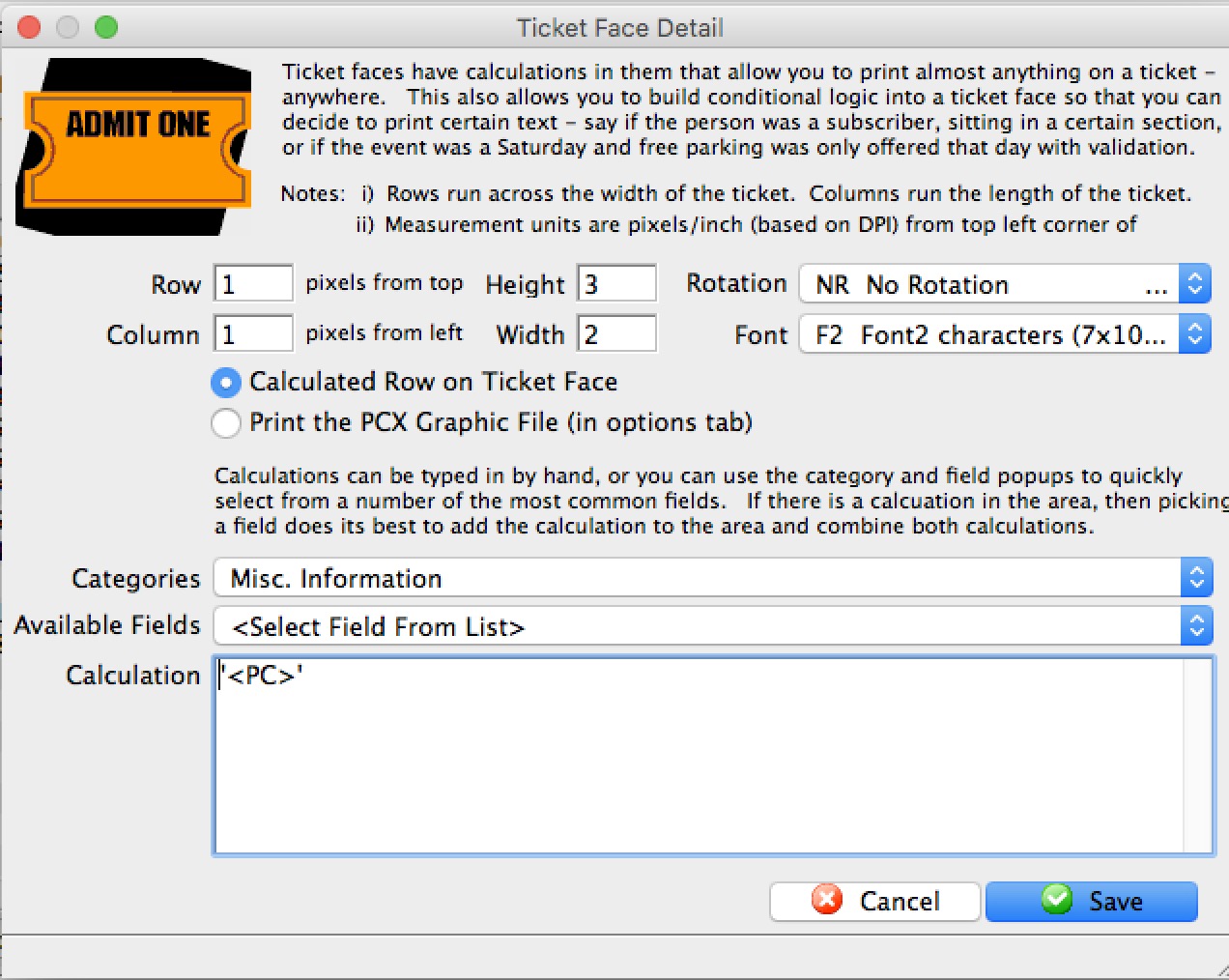
How Many EVENT Tickets Have Been “PRINTED” Over A Specific Time
| Report | Ticket Printing, Invoicing and Inventory Analysis >> Revenues by Promotion (doesn’t matter which one you choose) |
| Criteria | Ticket Data For Patron >> Ticket Date Bought >> is between (define your specific time period) AND Ticket Data For Patron >> Ticket Date-Printed is NOT EMPTY |
Using this criteria, from the report criteria window, click  – this will give you a record count, which is the number of TICKETS printed. Record this number and continue with additional reports based on the types of tickets your organization prints.
How Many EVENT Tickets Have Been “UNPRINTED” Over A Specific Time
| Report | Transaction History Reports >> Transaction History List |
| Criteria | Patron Transactions >> Tran Code is one of TU (Ticket Unprint) AND Patron Transactions >> Trans Date is between – (Critical to match this date with the Ticket Date Bought) |
Using this criteria, from the report criteria window, click – this will give you a record count, which is the number of TICKETS UNPRINTED. Record this number and continue with additional reports based on the types of tickets your organization prints.
How Many PAYMENT RECEIPT Tickets Have Been Printed Over A Specific Time
| Report | Order and Payments >> Payment Summary |
| Criteria | Payment Data >> Payment Date – Received is between (define your specific time period) AND Payment Data >> Payment Date – Receipt Printed is NOT EMPTY |
Using this criteria, from the report criteria window, click – this will give you a record count, which is the number of PAYMENT RECEIPT tickets. If your organization prints multiple credit card receipts for a payment, this will not be included in this record count. Record this number and continue with additional reports based on the types of tickets your organization prints.
How Many MEMBERSHIPS, PASSES, GIFT CERTIFICATES Tickets Have Been Printed Over A Specific Time
| Report | Report Category: Membership Reports >> Membership Summary |
| Criteria: | Membership Data >> Membership Date First Entered is between (define your specific time period) AND Membership Data >> Membership Date Card Printed is NOT EMPTY |
Using this criteria, from the report criteria window, click – this will give you a record count, which is the number of MEMBERSHIP, PASS, GIFT CERTIFICATE tickets. Record this number and continue with additional reports based on the types of tickets your organization prints.
How Many ADDRESS Tickets Have Been Printed Over A Specific Time
This data is tricky to use a report to get results. Instead of a report, we use an assumption that if you print a credit card receipt, then you probably printed an address label too. With that assumption, record the number of Payment Receipts for the number of ADDRESS tickets printed and continue with additional reports based on the types of tickets your organization prints.
If you print WILL CALL tickets in batch mode for each performance and print an address header ticket for each patron, then that will increase the overall number of tickets. This number of address header tickets will need to be estimated based on the average number of will call used for each performance, and the number of performances that occurred during the time period you are tracking the number of tickets printed.
How Many SECOND PROMOTION Tickets Have Been Printed Over A Specific Time
| Report | Ticket Printing, Invoicing and Inventory Analysis >> Revenues by Promotion |
| Criteria: | Ticket Data For Patron >> Ticket Date bought >> is between (define your specific time period) AND Ticket Data For Patron >> Ticket Date-Printed is NOT EMPTY AND Promotion Discount >> Promotion # is one of (select ALL the promotions that are set to print a second ticket if this sales promotion is selected.) |
Using this criteria, from the report criteria window, click – this will give you a record count, which is the number of SECOND PROMOTION TICKETS printed. Record this number and continue with additional reports based on the types of tickets your organization prints.
The Fudge Factor Tickets
Add in 5% +/- tickets that cannot be accounted for in the above reports. Things such as: - Test tickets, when using/developing a new ticket face
- Multiple credit card receipts
- Waste during the loading of new ticket stock
- Crumpled tickets due to improper stacking/storage over time
The Approximate Number of Ticket Stock Used
Add up the record counts from each ticket type report and add in the fudge factor. You now have a reasonable count from the database of how many tickets you have printed over a specific time period.Demand Based Pricing and Seat Selection
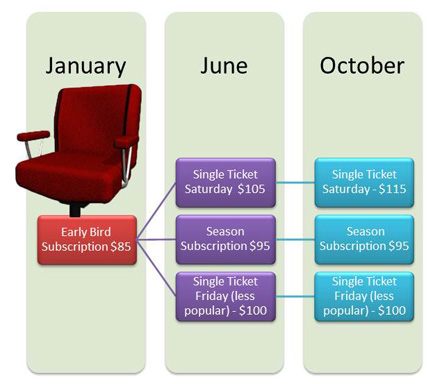
Demand based or Dynamic pricing is managed through
- Vertical Scaling - where the base prices of tickets are lowered or raised for a performance based on a fluxuation in demand -AND/OR-
- Horizontal Scaling - where more seats are made available at specific price codes within the venue. For example, you can expanding the area where 'main floor' pricing is to include the balcony or sides because the event or performance is selling well.
Some organizations choose to implement a higher price schedule when ticket sales are in high demand. Likewise, prices may need to be lowered in an effort to bring more patrons in. Demand based pricing allows you to change the Pricing map while sales are currently ongoing. There are a few Theatre Manager tools that can help you.
Vertical Scaling
To implement vertical scaling, simply change the base price of tickets for on the event set up screen for:
- one or more price codes
- on one or more performances.
Horizontal Scaling
A new pricing map lets you implement horizontal scaling very quickly - meaning changing which seats are price code A, B, C etc. If you have created multiple pricing maps in a venue, all you need do is one of the following:
- Edit the price map you are using for price code scaling and on the Graphic Map tab, simply
- Select a bunch of seats
- Right click on one of them
- Pick 'Set Price Codes...' to assign one or more new price code to the seat
- Enter the new price code
- The new price codes takes effect immediately on all venues associated with price map
- Change the price codes for specific performances in the middle of a sale to re-scale the seating sections in a venue dynamically.
- Change the pricing maps for an entire event if you want to move the event from one venue to another or to use a different map within the one venue.
- Change the methodology and order that seats are offered online based on the new pricing map. This may be useful for dinner theatre sales as the performance is sold and fewer seats are available.
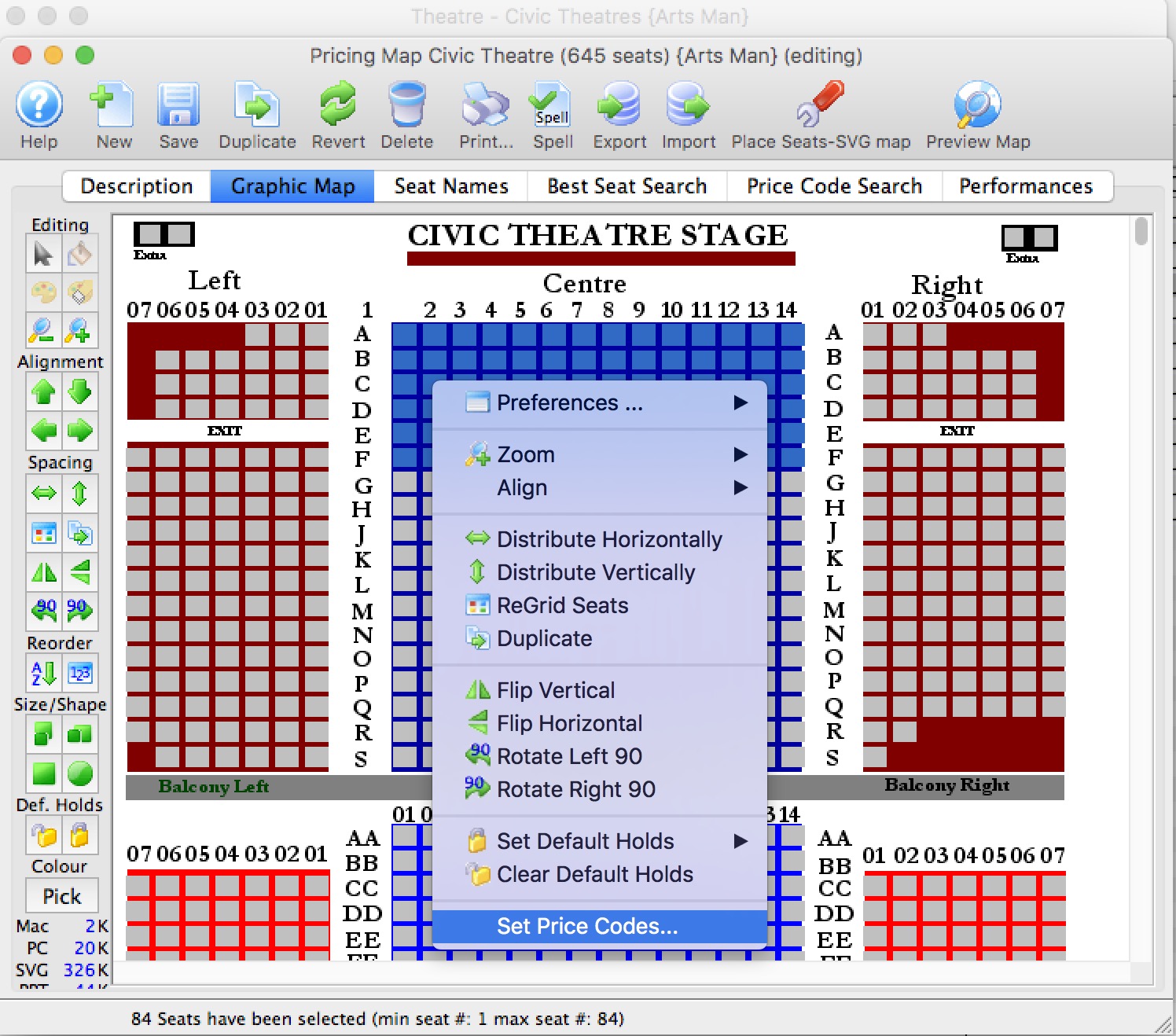
|
There are rules for switching venues or pricing maps. The new venue or pricing map must:
|
Helpful Tools
- Using the The Ticket Printing, Invoicing and Inventory Analysis - Tickets Sold/Revenues by Promotion and Price Code report, you can determine which seats have been sold and which price codes you may want to change.
- The Hot Seat Analyzer. You can use it to:
- Determine the usage frequency of seats in a venue and/or the revenue capacity of a particular seat.
- Find out if the current price zones in the venue are appropriate or if they should be allocated differently to accommodate customer preferences in your venue.
Using the tool, you may replace the typical bands of seats with different pricing on aisles or zones in the venue.
Determining when Pricing changed
- changing a promotion code discount values or tax rates on the fees
- changing some component of the underlying map such as which price codes or promotions are available for a seat or section
- using dynamic pricing to change the prices codes available in a section
- changing thebase price of a ticket for a price code
- enabling and disabling promotions
- changes to the base tax rate when moving from GST to combined HST
- and more
Because so many variables affect pricing, there is no direct record of the changes to any one component of prices, other than the person who last changed it. In addition, changes to prices, events, venues, promotions and tax rates should be limited to specific employees, reducing the need to track who changed them.
If you want an indirect audit trail or go back and see the effect of a change of any of those items, you can use the transaction list to look at ticket sales. The key fields to display in the list (and potentially export) are: dates, original price, discount, taxes, fees, final price, tax rate, promotion, price code, event, performance, venue, pricing map and who created the transaction.
Armed with that information, you can look at price changes and see the effect, plus who is mort likely to have made it, assuming that somebody tested the price change (because there should be a ticket sale and refund with an employee name on it).
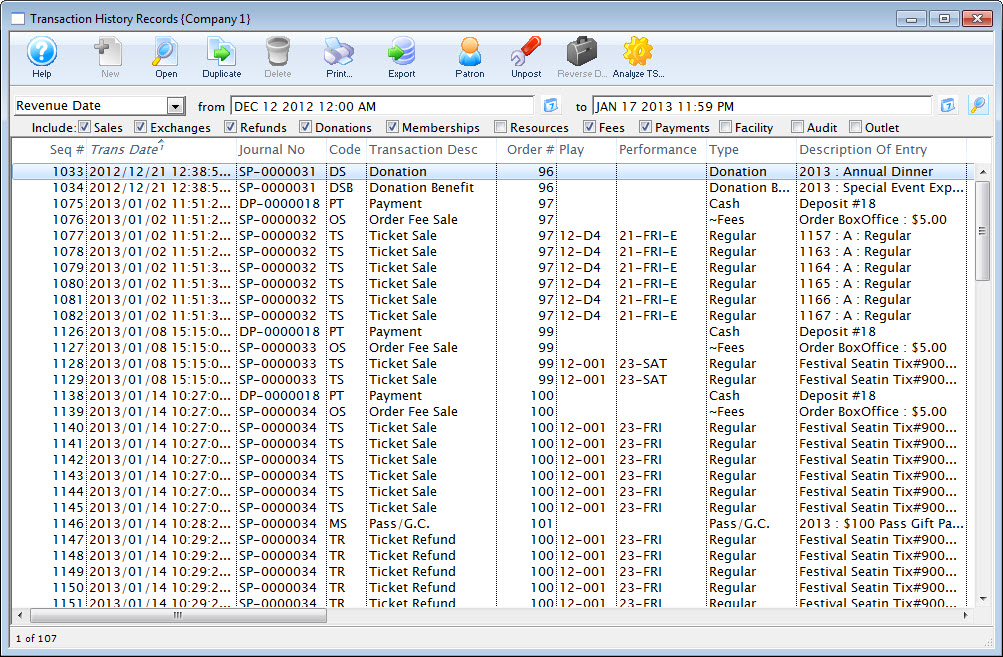
Remove Order Fee from Free Admission Gift Certificate or Pass
|
|
When the converted comp Sales Promotion used in the Sales Rule for the Free Admission Gift Certificate or Pass is set to Regular Ticket Type for G/L posting and the box office and internet order fee is also set to apply to Regular, an order fee is applied automatically to the order.
Setup to prevent the order fee from being applied to a comp Sales Promotion:
Sales Promotion Setup
On the Description Tab of a Comp Sales Promotion change the Ticket Type for G/L Posting bullet to any of the Other-Type options not currently using, like Other-Type 3. The option name selected can later be customized from Company Preferences under Appearances Tab.
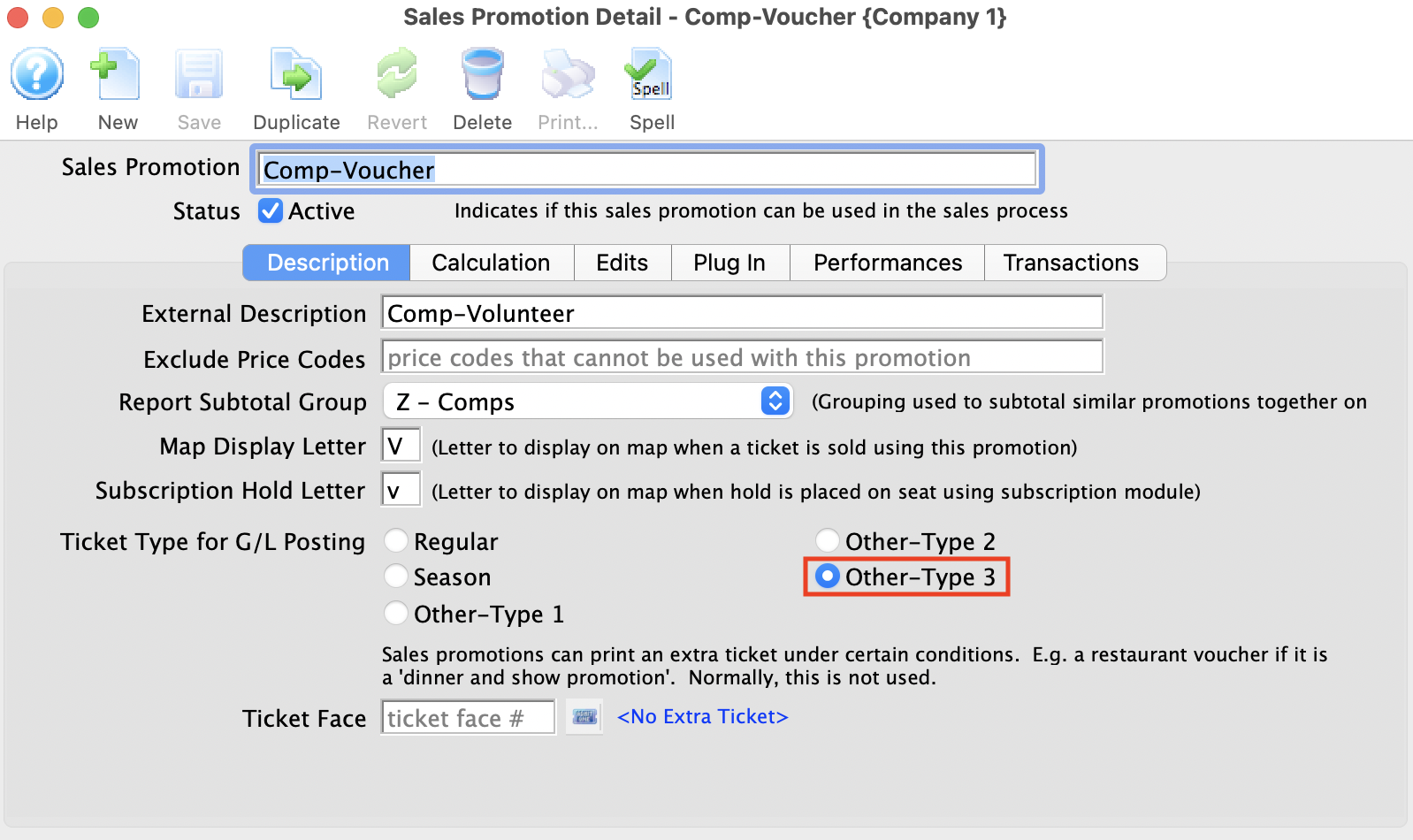
Box Office and Online Order Fee Setup
On the Edits Tab of the Fee setup, uncheck the option that corresponds to Ticket Type For G/L Posting in the comp Sales Promotion, e.g. Other-Type 3. Now the order fee is set to ignore applying this fee to the comp Sales Promotion when in an order on the Internet or from the box office.
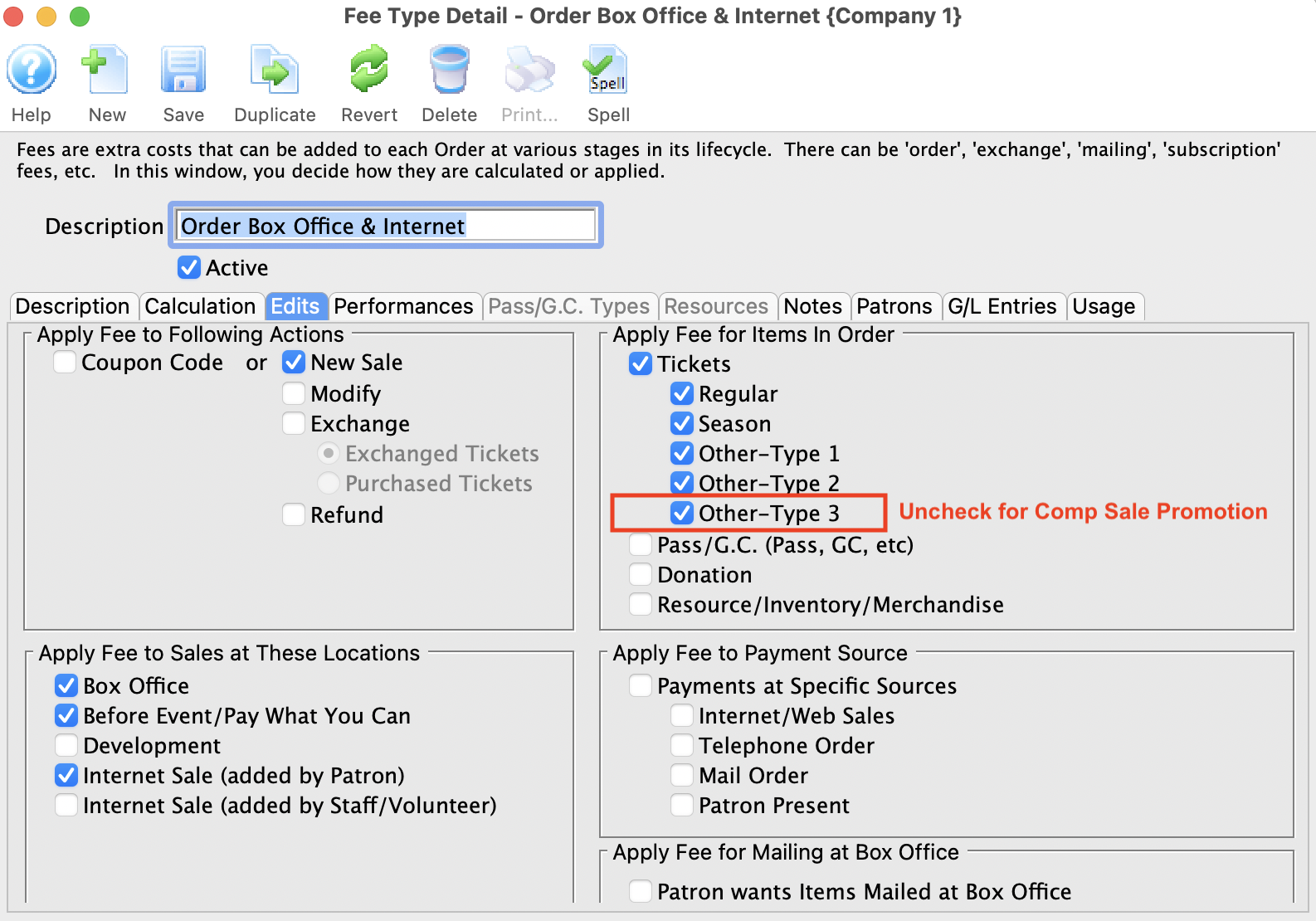
Secondary Ticket Outlet Voucher Redemption
Unlike conventional sales, the ticket buyer is not the actual patron. The patron is the Secondary Ticket Reseller and this is the person/company that we record the ticket sales against in order to manage receivables. The ticket buyer is a customer of the Secondary Ticket Reseller and we record that information, if it can be obtained, in Theatre Manager's ticket comment.
Typically, the sales and redemption process follows the picture and general steps below:
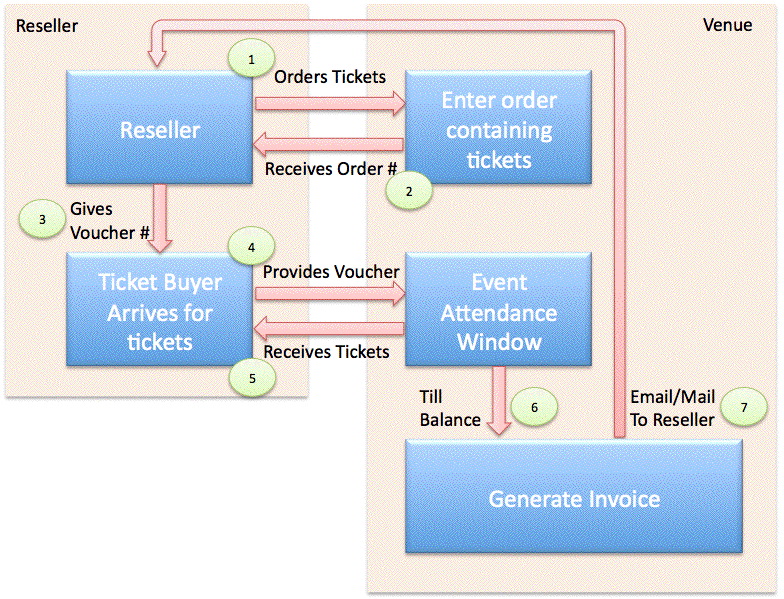
- The Secondary Ticket Reseller advertises themselves as a place where you can get tickets to all the major attractions in an area
- The ticket buyer comes to town for a visit and may stop at any one of the Secondary Ticket Resellers where they receive advice on the best 'hot shows' in town.
- When the ticket buyer selects some events, (1) the Secondary Ticket Reseller will call the venue direct (or may have a customer sections of seats set aside for them) and book some specific tickets. At this time, the Secondary Ticket Reseller may provide only an internal voucher number for the venue's reference to act as a booking number.
- At time of sale, the venue would
- Provide Theatre Manager's (2) Order Number as a reference back to the Secondary Ticket Reseller to provide to the ticket buyer for confirmation at pickup time.
- Enter any voucher number that the secondary reseller gives to the box office into the PO Field as a reference. (It may not be provided, depending on the reseller).
- Enter the ticket buyer's name into the ticket comments in Theatre Manager as a cross reference - and so that the patron could be found at will call prior to the show. Note, some venues like to stick the patron name after the PO number and keep all data in one field - placing in ticket comments allows for printing of the real patron's name on the ticket.
- It may also be advisable to adjust the ticket face so that the ticket comment prints on the ticket face if this has not already been done
- (3) The Secondary Ticket Reseller will give the ticket buyer a Promissory Note/Voucher number as proof of the financial transaction.
- The ticket buyer would then arrive at the venue prior to show time to get their tickets. At this time, they will need to (4) provide the actual promissory note/voucher from the Secondary Ticket Reseller to the venue
- At time of ticket redemption, the venue needs to:
- Enter the voucher number for tracking and future receivables purposes. Note that the ticket buyer is not actually paying for the tickets, the Secondary Ticket Reseller will do that later.
- (5) Print the tickets for the ticket buyer
- (6) Reconcile the vouchers received in the till prior to end of day to ensure money can be collected
- At time of billing the reseller, the venue will need to:
- (7) Print an invoice to the Secondary Ticket Reseller that shows the voucher numbers on it
- Use the Theatre Manager invoice/email feature to sent it to the Secondary Ticket Reseller
- Collect the money actually owed for the tickets and enter it as the true payment method to complete the A/R process
In Theatre Manager, the 'Promissory Note/Voucher' payment method can assist tracking these non-cash payments without affecting the receivables balances and provide a perfect audit trail.
Time of Sale
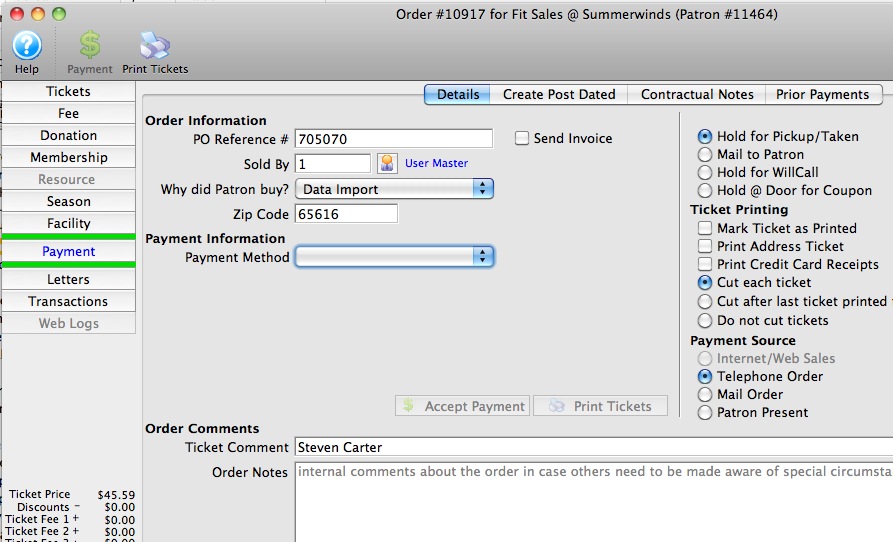 At time of sale of a ticket to a Secondary Market Reseller, it may be important to capture a few things with the purpose of:
- Being able to identify the eventual ticket buyer when they arrive. We suggest asking the Reseller for the ticket buyers name and entering it into the ticket comments in Theatre Manager as a cross reference. This should allow the box office to find that the patron at will call prior to the show when they show up to collect their tickets.
- Giving some recognizable number to the reseller to give to the ticket buyer. We suggest providing Theatre Manager's Order Number as a reference.
- Finding some way to cross reference the order back to the Reseller. If the Reseller has a voucher or a purchase order number, we suggest putting it in the PO reference number so that both reseller and venue can cross reference the order.
- Gather some statistics. We suggest asking the reseller the zip code of the ticket buyer so you can at least get some statistics based on approximate zip/postal code to find out where people are coming from.
Most Theatre Manager ticket faces print the patron name on the ticket. In this case, the actual patron is the reseller because they are buying the ticket. It may also be advisable to adjust the ticket face so that the final ticket buyer you enter into the ticket comment also prints on the ticket face.
|
In many cases, you may not be able to get the name and address of the final ticket buyer from a reseller. If not, the above should suffice for identification purposes. If you are able to get the name and address information, you may also want to also enter the ticket buyer into Theatre Manager and use the ticket gifting feature to gift the ticket from the Reseller to the Ticket Buyer as a way to have more complete marketing data for future email, mail or mail list building and reporting. |
Ticket Redemption
Step 1: Find the Buyer
If we have entered the ticket buyer's name into the ticket comment, then we can use the search at the lower left of the window to find the patron as per the example below. WE are assuming that the patron who books the ticket is the one that shows up. However, if they do not, you can find the ticket by Secondary Market Reseller name, their Voucher number, the order confirmation number you gave the Reseller or a few other search fields.
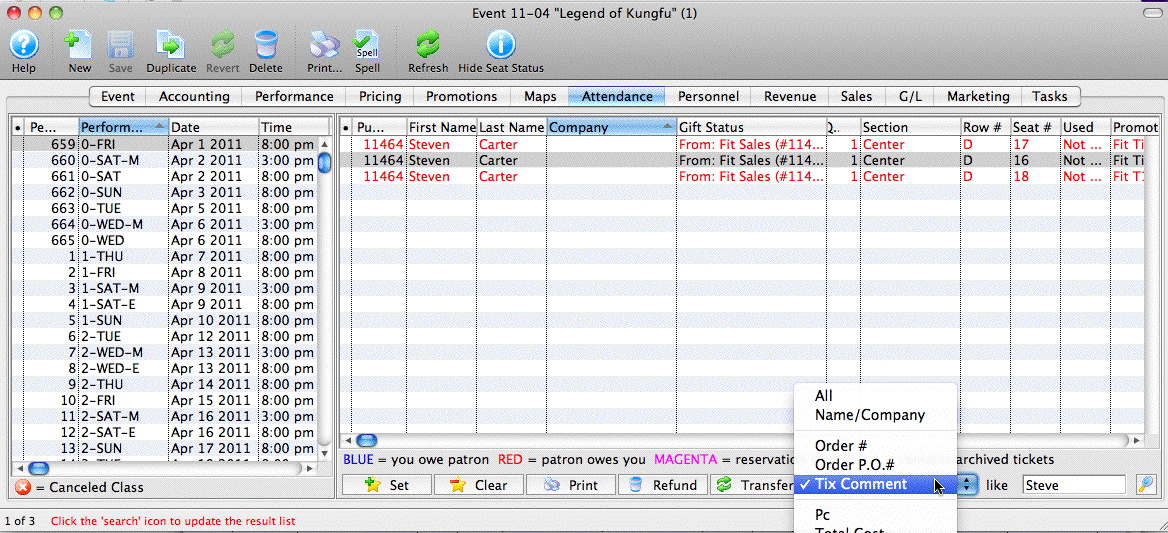
Step 2: Add the Voucher to the Order
Once the tickets/order is found, right click on the order and apply payment to the order as per the example below.
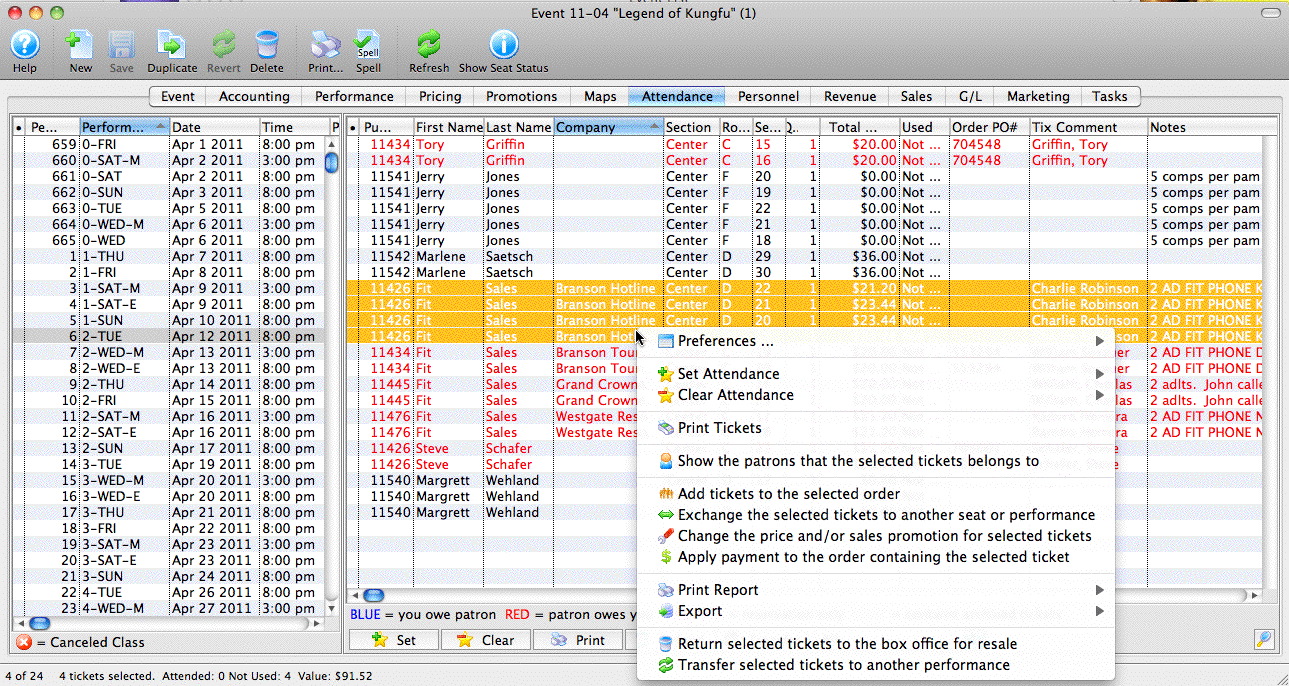
Since most Secondary Market Resellers do not pay until invoiced, we are doing this for two reasons:
- Enter the voucher number that the ticket buyer gave you which is really a Promissory Note - a promise to pay later upon presentation of the voucher. To do this:
- select the payment method called 'Promissory Note/Voucher' and enter the voucher number and accept payment. There is no payment amount because it is a future promise to pay and you do not have any money yet. (Note that the payment type may have been renamed at your venue)
- Select 'On Account' as the second payment method and click 'Print Tickets' which will print the tickets so that the patron can enter the venue and we know who has picked up their tickets. and close the payment window.
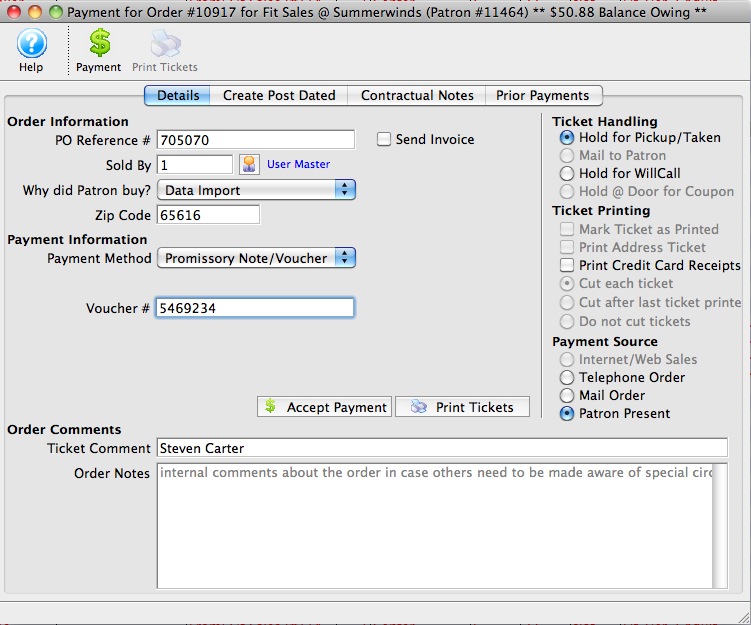
Note that the context menu in step 1 has additional options such as adding tickets to the order, exchanging tickets, changing the price - most of the actions you may need to quickly do when the ticket buyer walks up to the box office.
You can also double click on the ticket to see the ticket detail and from there proceed to the order. At that time you have a full range of capabilities of editing the order that you would anywhere else in Theatre Manager.
Step 3: Balance the Till
At the end of the day, the voucher numbers will appear in your till balance as per the picture below so that you can account for them. There is a checkbox at the bottom left of the till balance to indicate if the count of vouchers matches. However, we recommend balancing them by Secondary Reseller name one at a time for accuracy.
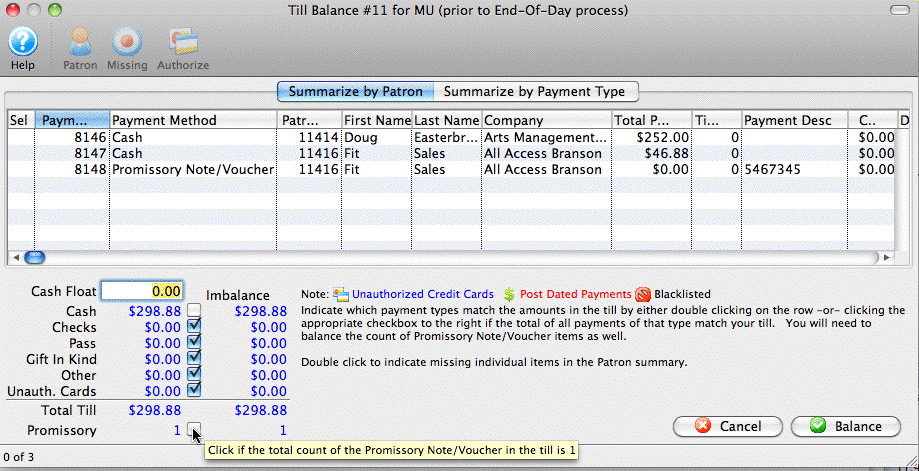
Billing the Secondary Market Reseller
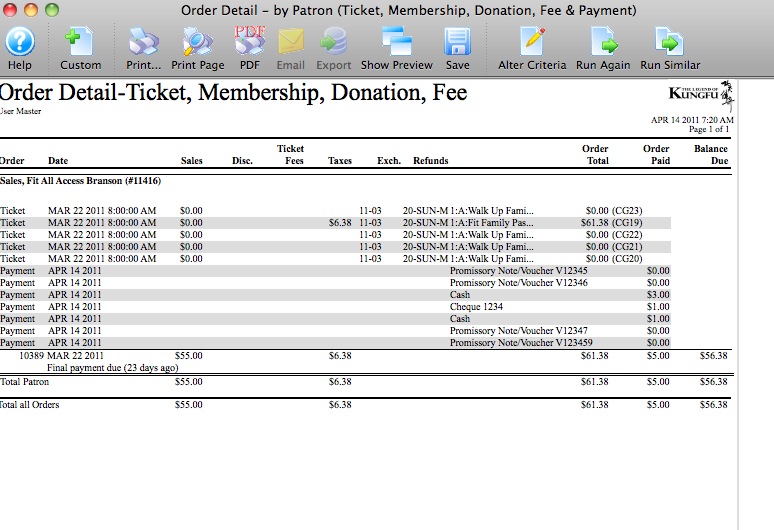 There are a some reports that are useful for managing the receivables from any Secondary Market Reseller. Typically, one would use the Accounts Receivable report to identify who owes you money. You can also use the order detail report that includes tickets and payments as per the picture on the right for a trail of all things in the order.
The invoice report on the patron window will also be helpful. If you:
- open up the patron record for the Secondary reseller
- click on the order tab to see all orders in 'red' where the reseller owes you
- uncheck the 'Include Closed Orders' checkbox at the bottom of the order list to see only the orders where you are owed money -- and then --
- select all those orders (or the appropriate ones) and click the invoice button, you will see a report like below
Once you see the invoice on the screen, you can click the 'email button to email it to the Secondary Market Reseller, or you can print it as a PDF, or you can print it and then mail it as appropriate.
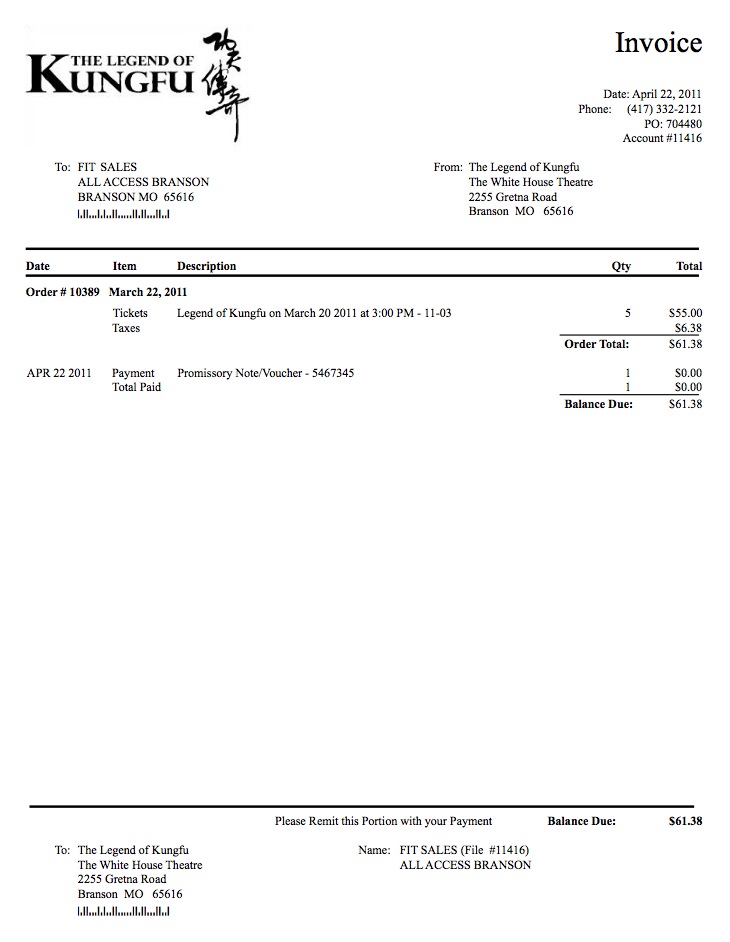
Setting up General Admission Roadhouse/Consignment Ticket Sales
If the Event is taking place at your venue you will not need to create a new map. You can use the existing Venue. However, you may need add another price code to the map to assist with tickets sold at your venue verses those taken to be sold at another location. We'll talk more about that in a moment.
If the Event is not taking place at your venue a new map will be needed. The online help link to Adding a A New Venue gives you the details on setting up a new Venue. When building the pricing map for the venue, please keep in mind it is a General Admission Event. This means you will not need to follow the steps for the Graphic Map, Seat Names or Best Available tabs. The only information required will be the Description tab.
- When entering the details for the description tab ensure you enter two letters in the Price Codes field. They can be A and B if you like. One will be for tickets sold from your venue and the other for those sold offsite.
Next you add your event(s). Click here for information on Setting up a Festival Seating Event.
Click here for setting up Reserved Seating Event.
- While setting up your event, you define your price codes. We will stick with A and B in this example. A could be the tickets that you are selling and B could be the tickets sold outside of your box office.
- Seats sold at Price Code A will have whatever markup you are taking for selling the tickets
- B will have whatever price is being collected by the Promotion/Sold Off Site.
This will be one of the methods you use to clearly indicate the tickets were issued for a value but you never received the money. Click here for more information on how to set up the price codes.
You should also set up a new sales promotion to track the off site ticket sales. That way they will be highly visible to you. Sales promotions are used during the ticket purchase process to indicate how the base ticket price is to be altered to arrive at the final ticket price. This will indicate which tickets are yours and which are not. When you sell them, you should use a promotion specifically for these tickets.
You can create a new Promo called Consignment. Click here for more information on Adding a Promotion.
You will need to sell your tickets to the Promotion/Offsite. To help you keep track of the sales and ensure you do not have debuits unaccounted for, you will need to add a New Payment Type for the Promotion/Sold Off Site.
- First, you will need to add a new GL Account. Click here for directions on adding a new GL Account.
When you add this new account, ensure it is set up as a LIABILITY.
- Then add a new Payment Type to the System Code Tables, using the new GL Account you have set up. Give it a distinctive Name such as "Consignment Sales".
Click here for directions for adding the new Payment Type.
Now you can print the tickets ahead of time at your box office for the Promotion/Sold Off Site. The process would be:
- Create a "Promoter" patron record.
- Sell tickets to the Promoter's Account, select the price code B and use Payment Method "Consignment Sales". Click here for information on selling tickets.
- Print the tickets, just like you would when selling to a regular patron, using the Payment Method "Consignment Sales".
Now you have the tickets for their sales.
You can now generate reports helpful to costs breakdowns and tickets sold. Revenue by Payment Method Ticket Basedis a break down by payment method and dollar amount - this will give you an amount to exclude when paying the Consignee (by dollar amount). Tickets Sold by Price Code and Promotion gives you a count of your sales, listing all of the tickets that came in on consignment.
To return tickets from the Promotion/Sold Offsite you refund back on same payment method. Click here for more information on refunding tickets.
Using Dictation on OSX with Theatre Manager
|
Voice dictation as a data entry feature is only available on 64 Bit Theatre Manager on mac OSX |
Recent versions of Theatre Manager support dictation when enabled, typically by hitting Fn + Fn key (twice)
Please read Apple's documentation since Dictation can do:
- Text Entry so you can place data into fields
- Navigation with commands like Next Field, Previous Field, New Paragraph
- Editing with commands like Select All, Undo That, Cut and Paste
There is ample online documentation for Dictation and samples like:
- OSX Daily dictation hints - since Mac and iOS are similar
- Apple online reference mentioned above.
Example of text entry in a field with dictation enabled
Example dictating to the word processor
Web Sales
Use this section to answer a number of common questions about web sales issues.
"Your" Venue
|
If you reached this, it means that the venue that you were trying to buy tickets from has an incorrect setting in their web services. |
If you have a moment to help the venue, please:
- Use the back button to go back to the page that was in error
- Take a screen shot -or- make a short description of the page you were on, including any error messages
- Then, contact the venue directly and describe this problem to them so that they can fix your issue going forward.
Allowing Concierges to Buy 'on account' using Passes
There are situations when an outside organization would like to book tickets through web sales as a cashless transaction. This can be achieved by creating a specialPass/Gift Certificate. The key to remember is, everything purchased through web sales requires full payment. Online payments are in the form of credit cards or Pass/Gift Certificates.
The box office can create and purchase the special Pass/Gift Certificate on the patron/organization’s patron account. When the organization logs onto their patron account on web sales, they are able to access the special Pass/Gift Certificate associated with their account to complete the ticket purchase.
The special Pass/Gift Certificate must be fully paid for before using it online. When the special Pass/Gift Certificate is purchased through the box office a post-dated payment can be applied to the order. This post-dated payment should be set in the future, past the event date so it never gets deposited. This would allow for the payment to be replaced with a real payment after the special Pass/Gift Certificate is used online.
Create special Pass/Gift Certificate for a dollar value required to cover tickets. Click here for instruction on creating a Pass/Gift Certificate.
Box office to purchase special Pass/Gift Certificate
- Purchase the special Pass/Gift Certificate on patron's account
- Pay for Pass/Gift Certificate with a post-dated payment due in the future, past the event date so it never gets deposited
Organization uses special Pass/Gift Certificate online
- Patron goes online, selects tickets to purchase and logs into their patron account
- Applies gift certificate to redeem tickets
- Checkout
Box office Reconciliation after the organization has redeemed the special Pass/Gift Certificate online
- Reduce value of gift certificate to amount used if necessary
- Print and send invoice to organization, if required
- Remove post dated payment from gift certificate
- Replace with real payment form
Clearing the Cache for Online Sales
|
The two methods described below will clear all caches on ALL WEB LISTENERS.
If the expected page changes do not appear, please check your web listener error log. It is likely that there is a page error or the actual html document is not saved as a UTF8 formatted document. |
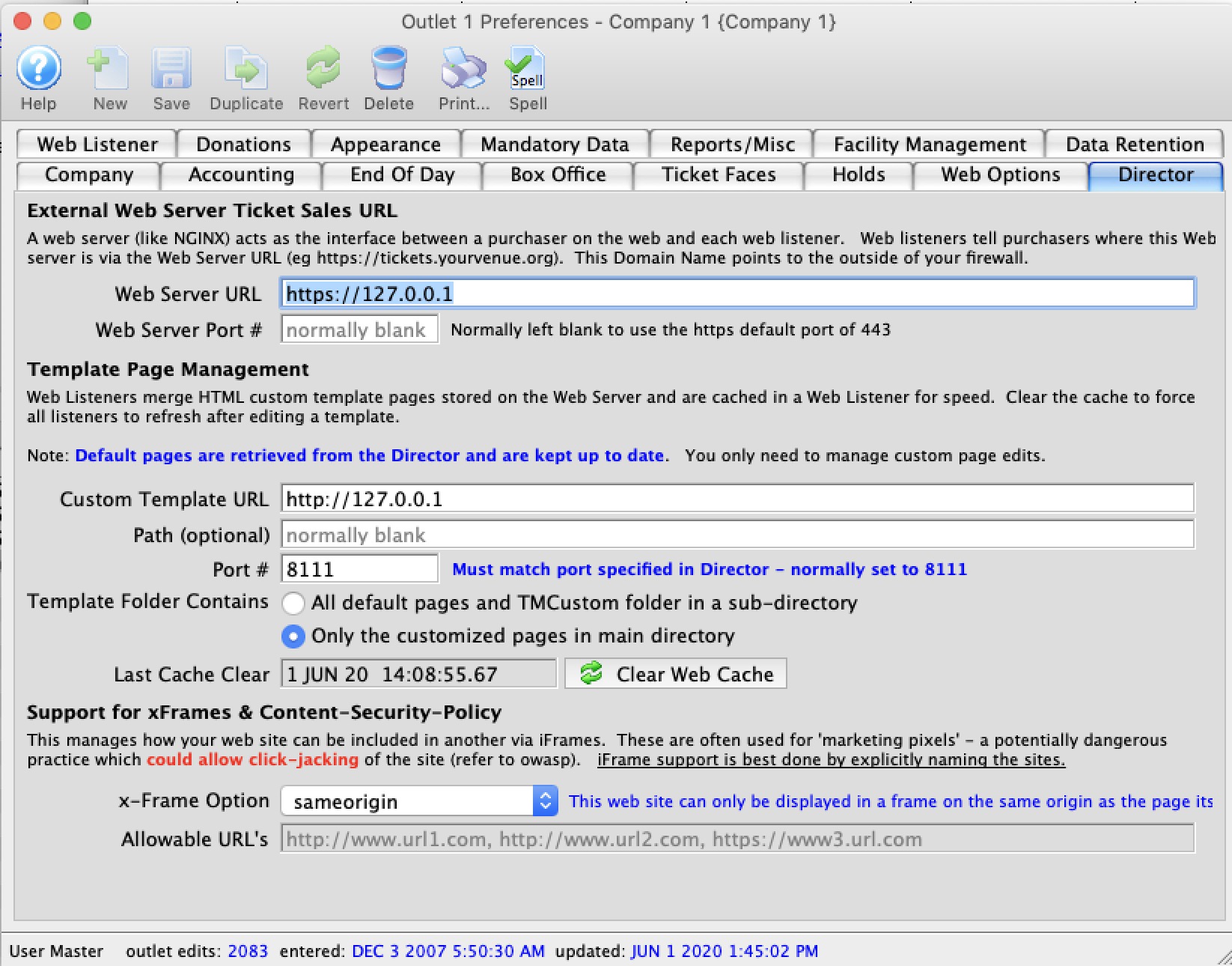
Clearing the Cache within Theatre Manager
The advantage to this method is that if you do not have direct access to the Web Listener machine, you can clear the cache from any machine running Theatre Manager.
- Click Setup >> Company Preferences.
- Select the Director Tab tab.
- Click the
 to the right of the Last Cache Clear field.
The 'Last Cache Clear' date will update with the current date and time. The web listeners will detect the change in short order and start loading the new pages
Clearing the Cache using the Director
 If you have ready access to at least one of your listeners, then you may choose to clear the cache directly from within the Web Listener itself.
- Locate the machine(s) that act as the Web Listener(s).
- Type
or click on the link if you are viewing this help on the web listener machine.
- Click the Clear Cache button
Customizing Reminder Emails
|
Email reminders must be enabled for the performances that you wish to send an automatic reminder for. |
 Theatre Manager has the ability to send automatic Reminder Emails to patrons who purchase to a performance. A generic email template tmEvents/tmLiveEventReminderEmailDefault.html is used by default.
This template can be customized by:
- Event - which will send the same custom email to all performances in the event -or-
- Performance - which supports sending a custom email to a performance
Customizing the Reminder Email by Event
|
Email reminders must be enabled for the performances that you wish to send an automatic reminder for. |
- Download a copy of the Responsive Web Pages from Artsman's public Web page repository
- Click on the link above to open your browser in the repository
- Click on the download link on the upper right of the repository as per the image below
- Select Zip as the download option
- Open the .zip folder to your desktop or location of your choosing
- Navigate to the WebPagesEN -> tmEvent folder and copy the file "tmLiveEventReminderEmailDefault.html"
- Paste the file in your WebPagesEN -> tmEvent folder on your Web Listener computer.
Be prepared for your Web Pages directory to look different than the images in this help page. Your WebPagesEN directory will only show html files your organization has previously customized. If you do not have a tmEvent folder in your WebPagesEN directory, simply create a new folder with that name. Below is an example of a customized WebPagesEN directory:
- To customize the Reminder Email for a specific Event there are 3 steps:
- Copy and Paste the file so you have a duplicate of the tmLiveEventReminderEmailDefault.html in the tmEvent folder
- Edit the duplicated file and change the end of the file name. Replace the word "Default" with the Event # you want this Reminder Email to correspond with.
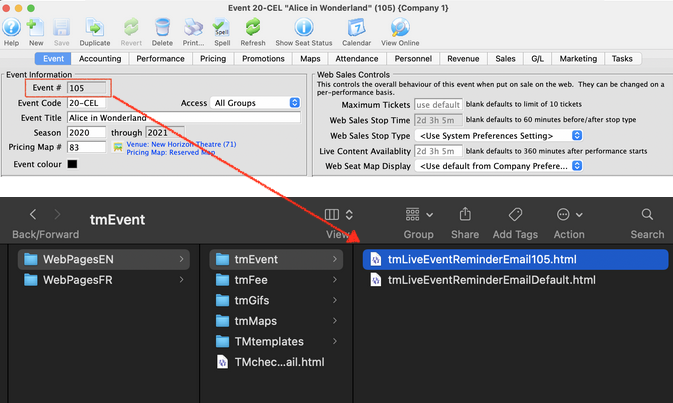
- Edit and Save your changes. Be sure to use an HTML friendly editor like Notepad ++ (PC) or BBEdit (Mac)
- Copy and Paste the file so you have a duplicate of the tmLiveEventReminderEmailDefault.html in the tmEvent folder
Theatre Manager will now look in the WebPagesEN -> tmEvent folder for any customized emails by event. If it finds none, it will send the tmLiveEventReminderDefault.html template.
Customizing the Reminder Email by Performance
|
Email reminders must be enabled for the performances that you wish to send an automatic reminder for. |
- Download a copy of the Responsive Web Pages from Artsman's public Web page repository
- Click on the link above to open your browser in the repository
- Click on the download link on the upper right of the repository as per the image below
- Select Zip as the download option
- Open the .zip folder to your desktop or location of your choosing
- Navigate to the WebPagesEN -> tmEvent folder and copy the file "tmLiveEventReminderEmailDefault.html"
- Paste the file in your WebPagesEN -> tmEvent folder on your Web Listener computer.
Be prepared for your Web Pages directory to look different than the images in this help page. Your WebPagesEN directory will only show html files your organization has previously customized. If you do not have a tmEvent folder in your WebPagesEN directory, simply create a new folder with that name. Below is an example of a customized WebPagesEN directory:
- To customize the Reminder Email for a specific Performance there are 3 steps:
- Copy and Paste the file so you have a duplicate of the tmLiveEventReminderEmailDefault.html in the tmEvent folder
- Edit the duplicated file and change the end of the file name. Replace the word "Default" with the word "Performance" followed by the Performance # from Theatre Manager you want this Reminder Email to correspond with.
An example of the final file name would look like "tmLiveEventReminderEmailPerformance536.html" where "536" equals the Performance # in Theatre Manager
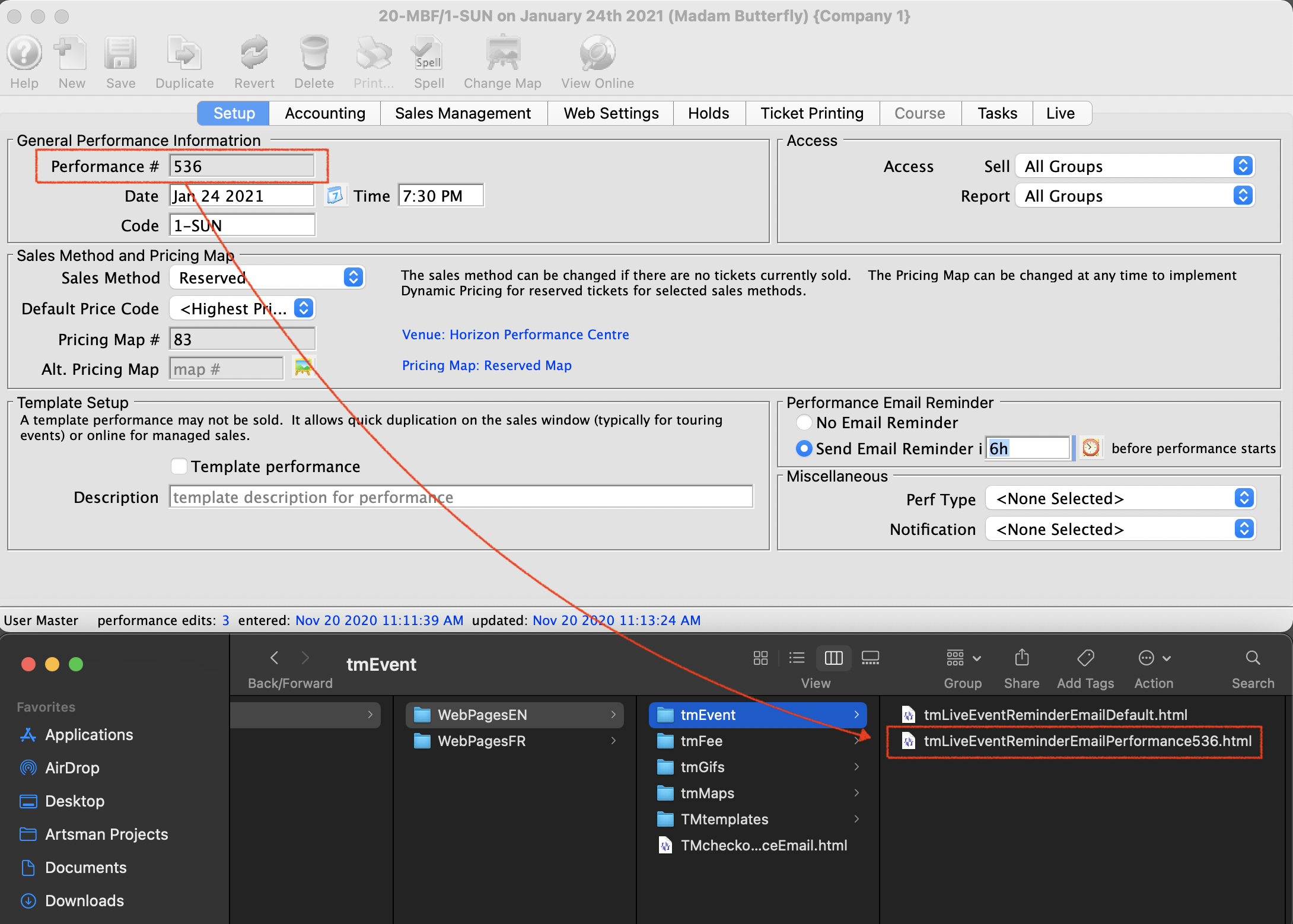
- Edit and Save your changes. Be sure to use an HTML friendly editor like Notepad ++ (PC) or BBEdit (Mac)
- Copy and Paste the file so you have a duplicate of the tmLiveEventReminderEmailDefault.html in the tmEvent folder
Theatre Manager will now look in the WebPagesEN -> tmEvent folder for any customized emails by Performance. If it finds none, it will send the tmLiveEventReminderDefault.html template.
IE and other Older Browser Peculiarities
IE and Pick Your Own Seat peculiarities
|
Starting on January 12, 2016, Microsoft will support only the most current version of Internet Explorer for each operating system. Starting on that date and for Windows 7, only Internet Explorer 11 will be supported by Microsoft for technical support and security updates.
Theatre Manager pick your own seat generally supports IE 11 and above as long as the users browser is not falling back to an earlier compatibility mode - anybody with older IE can still buy seats using the suggest next seat button. |
|
If you see some artifacts on a windows browser when accessing your web site, you will need to migrate to the nginx web server. Most venues already have this. |
We're sorry if we have to apologize for Microsoft historically not following standards yet again. Older versions of Internet explorer and soon to be extinct browsers currently hold about 4% or less of the market place and we elected to make choose your own seats for the future, knowing that these 4% of people may see some odd effects with pick your own seat.
Frankly - there is nothing we can do when IE renders things incorrectly.
Typical issues that they might have are:
- pick your own seats will not work at all - and thats because their browser does not support SVG graphics. Generally, most browsers should display a map.
- pick your own seats may display random 'trash' looking characters at the top of the map on IE 10. It may not affect functionality - it just looks awful. Sadly, some versions of IE will not properly tell you that it is IE, so putting workarounds into code to hide maps is not worth the effort.
- and if you have properly disabled TLS 1.0 protocol as per PCI compliance, they won't see the web site or other commerce sites that have also properly implemented PCI compliance.
Patrons Complain They are Not Receiving Email
- Are there any unsent/pending emails?
Click here to go to the page on managing Pending and Unsent emails.
If there are no unsent emails, then they were sent out by the web listener.
- Can you send an email to yourself?
Try adding an email to your patron record and see if it sends. The best test is if your 'test' email address is for gmail, hotmail, the phone company or some other server outside your company's email domain.
- Did the patron's check their junk mail box or do they have any email filters redirecting the emails?
You can ask them the above questions and resend the email confirmation, while they are on the phone, to see if they receive it.
To do this, you perform the following steps:
- Open up the patron window.
- Go to the Letters tab.
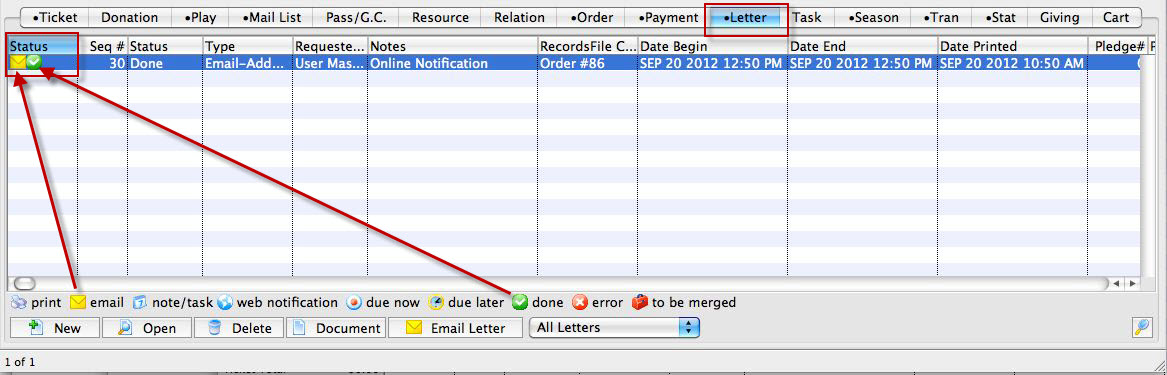
- Right-click on the order confirmation email and change the status from Done to Not Done.
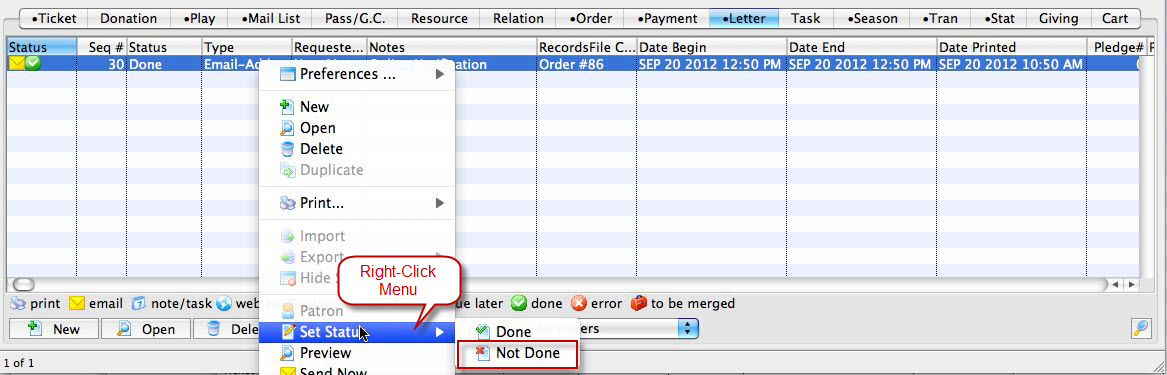
The change status confirmation dialog opens.
- Click the Yes
 button.
The letter tab shows the status has changed to Not Done.
- Close the window.
By changing the status to 'Not Done', the Web Listener will resend out the order confirmation email.
Wait for about 1 minute, then double click on the email confirmation.
- Does it say 'Done' or 'Error'?
If Done, then it was sent.
If Error, then we need to review the error message from within the window to take corrective action.
|
If gmail is your email service provider, they will rate-limit outgoing emails. This means that they only allow so many per day and then they may halt them. So the first thing to check is traffic volume, especially if some go and some do not. There are some other service providers that may do the same thing. |
Port 80 Already In Use
It's possible for a network to be setup in such a way that Port 443 is forwarded to the Apache machine for online sales and Port 80 is not. Often Port 80 is in use by another application within the network. The online sales will run however this can impact the patrons ability to access the online sales.
The Patron can click on a direct link to the website (https://tickets.yourvenue.org) and reach the online sales site. However, if they try to type tickets.yourvenue.org in the address bar by default the browser will take them to http://tickets.yourvenue.org.
Notice there is no S after the http. The http uses Port 80 to connect to Apache. Apache then redirects the site to httpS://tickets.yourvenue.org/TheatreManager/1/login which then hands the connection over to Port 443 since the link is now using httpS.
It is recommend that Port 80 is also forwarded so that when someone tries to type the address of the online sales site into their browser they are more likely to get to the ticketing site rather then experience errors indicating the site may not be working.
Options for working around a network where Port 80 is already in use are listed below:
- Change the exchange server settings to use a port other than 80. This becomes a case of what is more important, that end customers can reach web sales on a standard HTTP port, or staff use an alternate port when using exchange from home. Arts Management Systems believes the customers and standard should prevail and so the answer is change Port 80 for exchange to something else.
- Get another external IP dedicated to the exchange server so that both can use Port 80. One will be through tickets.yourvenue.org:80, the other will be a different external ip.
- Do some HTTP magic on the IIS server to redirect the path. On apache, there is a module called mod-rewrite, or you can create proxy settings so that anything with /TheatreManager/..... in the http path name in it gets sent off to Port 80 on the web listener. There should be something similar in IIS.
- Don't serve exchange on the outside so that its not a problem any more and leave Port 80 on the single IP for customer web purchases
Preparing for a Big Onsale
If an Organization is expecting a large 'on sale' for a popular event, it is important to be prepared if the expected sales volume or pattern online might be very different than normal.
Onsale Preparation
| Step | Purpose |
| Step 1 | Check Pricing At The Box Office.
It's important to ensure pricing - both at the box office and online - are correct prior to the onsale date. To check pricing at the box office, sell a ticket to a patron record. The ticket does not need to be paid for. Use the Ticket Review tab to ensure the final price is accurate. The ticket can then be released by going back to the Seat Selection tab and clicking the Release All button. If there are multiple ticket prices or performances, each should be selected and reviewed. |
| Step 2 | Check Pricing For Online Sales.
Pricing for online sales should be reviewed in advance of the actual on sale date for the performances. The best way to do this without offering the event to the general public is to setup a pre access coupon code. This will allow you to purchase tickets online without making the event available to the public. |
| Step 3 | Set Performance Onsale Date and Time.
The date and time the performance should be available for sale can be set in advance. This allows Theatre Manager to make the performances available at the box office and/or online without someone having to turn them on. The option for the box office can be different than online if needed. To set the onsale date and time:
Theatre Manager will make the performance available on the date and at the time entered. |
| Step 4 | Hold Tickets For Sale at Box Office.
Some organizations are concerned tickets will sell too quickly on the web and seats will not be available for those patrons who wish to purchase tickets in person at the box office on the day of the on sale. The web listener will sell any available ticket not sold or held. To ensure tickets are available for sale to patrons at the box office tickets can be held in the map with a select hold letter. Employee Permissions in the Box Office tab of Employee setup can be altered to only allow access to this select hold letter during the on sale. Box Office staff can sell these held seats to patrons in person as needed. |
| Step 5 | Contact Arts Management Systems.
Contact Arts Management Systems to review any additional setup, recommendations or upgrade requirements. Arts Management Systems can test the current setup for load and make any necessary arrangements for temporary licensing. |
| Step 6 | Set Up Additional Web Listeners.
One or two web listeners may be enough to handle the traditional day-to-day activity of online sales. However, as the demand increases, so will the need for more listeners. Most organizations will run one Web Listener and two Classic Listeners per work station. Depending on the resources available on the machine, the number of Web Listeners and Classic Listeners can in increased. The larger the anticipated on sale the greater the number of listeners that will be needed. To ensure enough listeners are running additional computers may need to be used. This requires installing and configuring the Theatre Manager Server. Arts Management systems is happy to help with this process. |
| Step 7 | Turn Off Marketing Images Online.
Turning off the marketing images will speed up the web sales process. The Web Listener will not need to spend resource sending the image and the page will load more quickly. To turn off the images in Theatre Manager:
|
| Step 8 | Check Phone System.
Check to ensure the phone system can handle the demand of the pending onsale. If the phone system goes down patrons will not be able to reach the box office to purchase tickets. Speak with your telephone service provider and review the setup to make sure the office is prepared. Update hold or wait messages to reflect the reason for possible delay in response times for those patrons who do not directly reach the box office. Update hold or wait messages for the main office number in the event patrons try to gain access to tickets through this phone number as well. |
| Step 9 | Advertise.
Advertise the correct location for patrons arriving in person to purchase tickets. Add signs on the exterior of the building if needed to help patrons form lines in the correct locations. Include in your advertising the correct phone number for patrons to call. This will help prevent patrons from dialing administration telephone numbers in an effort to find tickets. Add a direct link to purchase tickets to the Event on the main web site. This will help patrons access the performances they want quickly and with less confusion. |
| Step 10 | Prepare the Box Office Space.
Ensure extra staff are scheduled as needed. Stock work stations with additional supplies such as pens, envelopes or ticket stock if needed. Check floats and make sure additional rolls of coin are available if needed. |
| Step 11 | Prepare the Lobby or Waiting Area.
Put out stanchions to form lines if available. Provide waiting patrons coffee and play music in the waiting space to help make the waiting process more enjoyable. |
Setting a Performance Stop Sales Time
The purchase availability of a performance can be defined for online sales using the stop time settings in Theatre Manager. These settings are controlled at three levels. They consist of:
- System Preferences
- Event (overrides System Preferences)
- Performance (overrides Event)
The web sales module reads these setting in a hierarchy looking first to the Web Settings tab in the Performance Detail window. If performance settings are not defined it then looks to the Event tab of the Event setup and finally to Web & Reporting tab of System Preferences. In other words Theatre Manager looks to the System Preferences first. If you make changes to an Event then it uses the Event settings in place of the System Preferences. If you customize the Performance it uses those settings instead of the Event.
|
The web sales stop time affects emailing of PDF tickets
You cannot email tickets from the box office if the performance is no longer onsale online. This would be after the start time plus/minus any 'web sales stop time'. |
|
Refer to a more complete list of reasons preventing tickets being emailed and some places to look |
System Preferences
System Preferences is accessible by logging into Theatre Manager as the Master User. In the Web & Reports tab there are options listed for Web Sales Stop Time and Web Sales Stop Type. These two settings will define the default performance stop time for Theatre Manager.
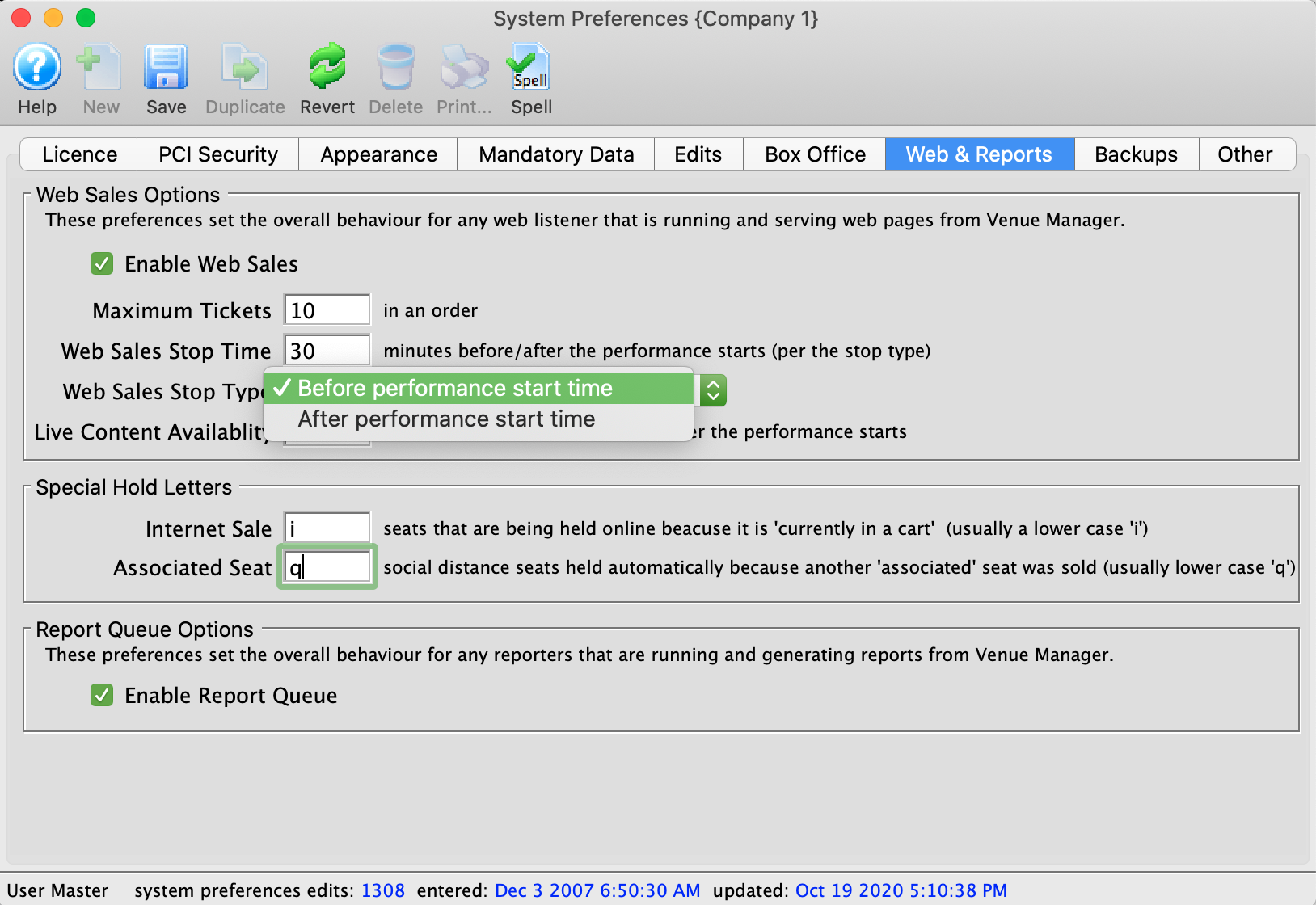
| Web Sales Stop Time | The number of minutes before/after the start time of the performance that it will be displayed online for purchase. |
| Web Sales Stop Type | Indicates if the performance stop time for online sales will be before or after the start time of the performance.
Before performance start time: online sale are available for up to the allocated number of minutes in the Web Sales Stop Time field prior to the date/time of the performances. This cutoff prevents sales from happening the defined number of minutes prior to the performance. After performance start time: the performance will be available for sale following the performance date/time and will continue to be available for sale up to the number of minutes defined in the Web Sales Stop Time. |
Event
A traditional theatre experience may have a sales cutoff time 30 minutes prior to the performance to allow for printing and preparing will call tickets. However, there are times when a performance may continue to be available past the performance start date/time. Some examples include:
- All Day Events - where you want online sales to be available after the gates open
- Courses - where you may want to allow late registration, say up until the the second class
- On Demand Streaming - where a video streamed through the ticketing site can be purchased after the original start date/time
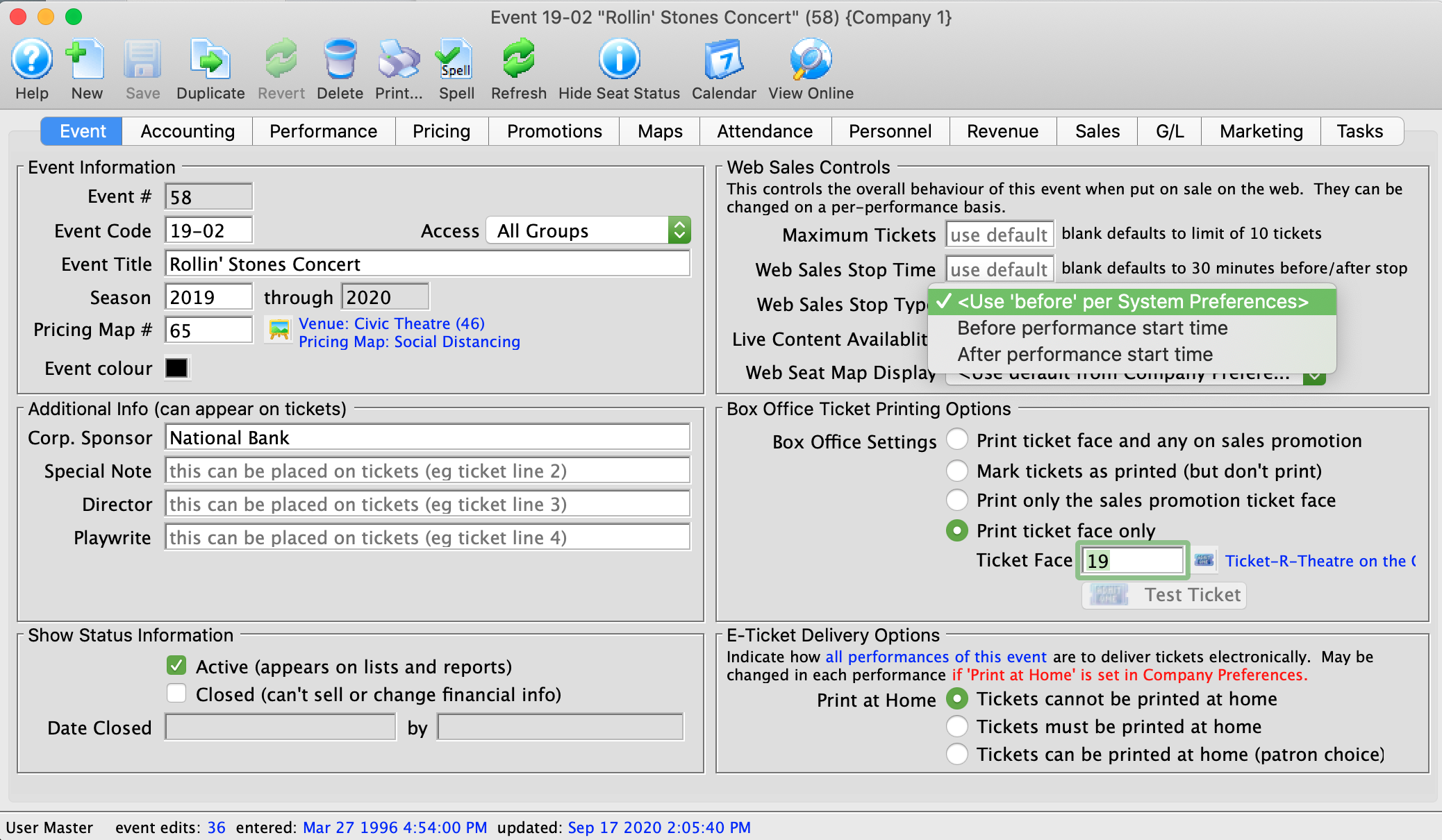
| Web Sales Stop Time | The number of minutes before/after the start time of the performance that it will be displayed online for purchase. |
| Web Sales Stop Type | Indicates if the performance stop time for online sales will be before or after the start time of the performance.
<Use System Preferences Setting>: uses the default option for System Preferences. Before performance start time: online sale are available for up to the allocated number of minutes in the Web Sales Stop Time field prior to the date/time of the performances. This cutoff prevents sales from happening the defined number of minutes prior to the performance. After performance start time: the performance will be available for sale following the performance date/time and will continue to be available for sale up to the number of minutes defined in the Web Sales Stop Time. |
Performance
In an Event where one performance is setup for patrons physically attending the venue and another for live streaming, the sales approach may be different. The ticket sales for those attending in person may stop 30 minutes in advance of the show to allow for printing tickets at will call. Where the live streaming performance may be available for sale following the start time of the performance allowing patrons to purchase and join the event even after it's complete.
The Web Settings tab is located in the Performance Detail window. This is accessed by double clicking on a Performance anywhere in the Event setup.
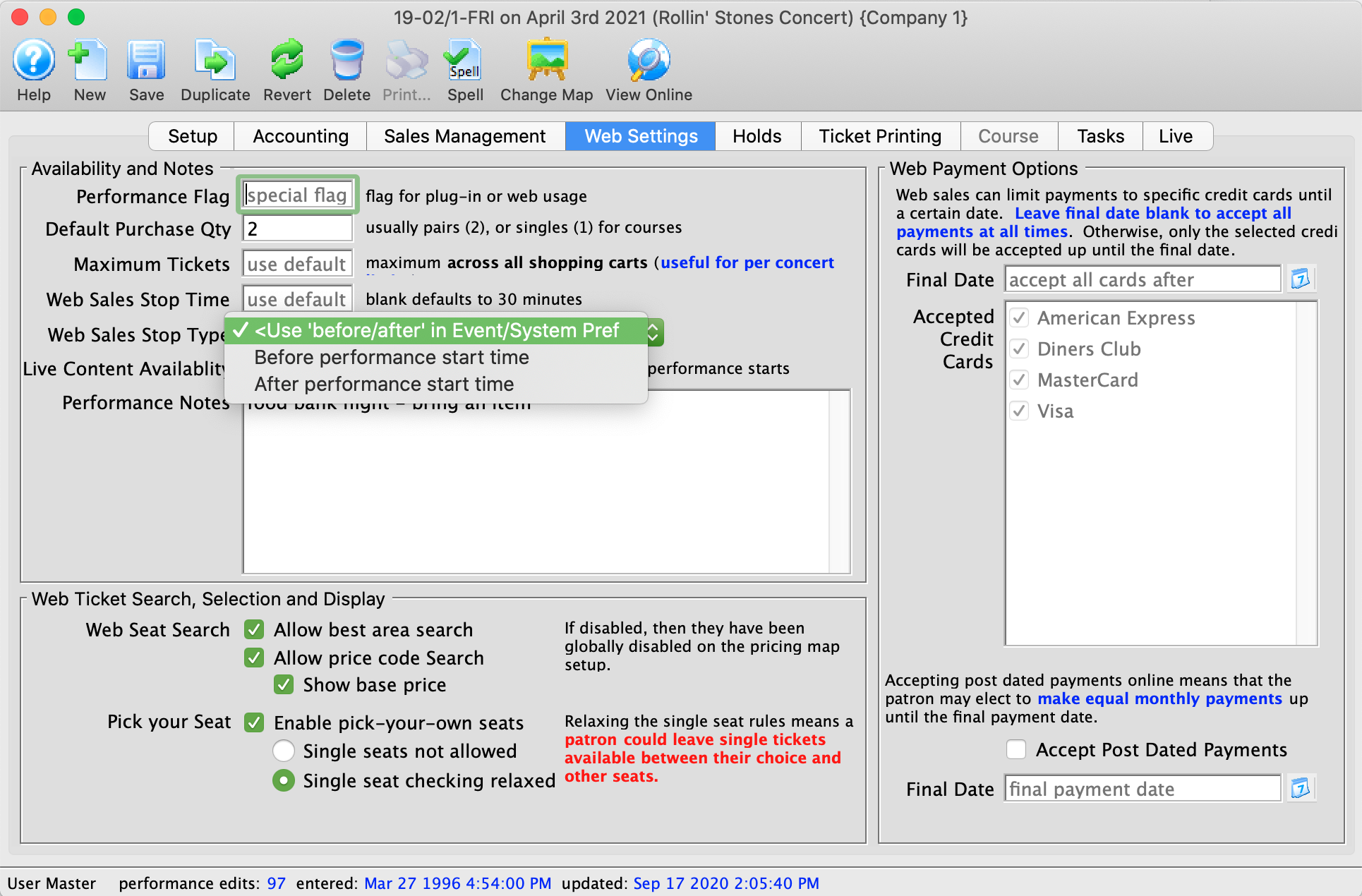
| Web Sales Stop Time | The number of minutes before/after the start time of the performance that it will be displayed online for purchase. |
| Web Sales Stop Type | Indicates if the performance stop time for online sales will be before or after the start time of the performance.
<Use Event Setting>: uses the setting in the Event. The Event may be set to use the default setting in System Preferences. Before performance start time: online sale are available for up to the allocated number of minutes in the Web Sales Stop Time field prior to the date/time of the performances. This cutoff prevents sales from happening the defined number of minutes prior to the performance. After performance start time: the performance will be available for sale following the performance date/time and will continue to be available for sale up to the number of minutes defined in the Web Sales Stop Time. |
Factors That Prevent Tickets from being emailed
 You may receive a message that eliminated tickets from being emailed from the box office that looks similar to the one on the right.
If tickets cannot be emailed to people, typical reasons are:
- The tickets are for a performance in the past. You can look at the performance date and time on the patron's ticket list to determine if this was the reason and if the performance dates are wrong, change them in event setup
- A live event which can no longer be viewed or attended or sold. This means that the viewing time for a live performance is over, or it cannot be sold online. Refer to this web page.
- An order with a balance owing. If people owe you money for tickets, Theatre Manager will not allow them to be emailed as a control feature. Pay off the balance of the order and then send the tickets. These tickets will appear red on the patron's ticket list
- A subscription control house. Subscription control houses are performances which are holders for patrons favourite seats. These are not real tickets and cannot be printed. You can verify this on the event setup in the performance list.
- An event that is archived. If you have archived the event, meaning no more changes or sales to it, you cannot print tickets for it. Normally, events are archived after the run is over, so this would not normally happen to anybody. Verify the archived status in the event setup at he bottom left of the window.
- An event that is postponed or not on sale. If you have set the status of the performance to postponed or cancelled, the event or inactivated it or made it not on sale at box office or online for any reason, you cannot email tickets for it
Other setup Issues that might cause tickets to not print
- The performance does not permit print at home tickets. Print at home tickets feature needs to be enabled for the performance that the tickets are for, otherwise you cannot email them.
- Price Code for the ticket cannot be found if you try to print a ticket for a performance and the price code for the ticket in patron's ticket list cannot be found in the performance price table, you can't print the tickets. Normally, this should never happen. You may want to look at the price code on the ticket, and the pricing setup in events and dates to make sure the ticket has an existing price code and it is enabled.
- The sales promotion cannot be found. Every ticket is sold with a sales promotion and these cannot be deleted if used on a ticket or a transactions. This condition should never happen. If the sales promotion is blank in the patron's ticket list, contact AMS support.
- The Venue cannot be found. Every ticket must be in a venue. This condition should never happen. If the venue in the patron's ticket list is blank, contact AMS support.
- The pricing map cannot be found. Every ticket must be associated with a pricing map. This condition should never happen. If the venue/pricing map in the patron's ticket list is blank, contact AMS support.
Using Emergency Mode Setting - Merchant Account Setup
 |
Only use the 'Emergency Mode' option if your merchant provider appears offline or unreachable and does not provide card authorizations.
Turn off 'Emergency Mode' as soon as credit card servers become available/reachableagain. |
Should your credit card service provider become unavailable (a very very rare case indeed), you can switch the merchant into emergency mode. Theatre Manager web sales will then verify the credit card and expiry date for format and other appropriate edits and then allow all web sales to continue. The cards payments are marked as post dated so that they are immediately visible in the next end of day where they can be authorized. The intent is to allow any large on sales to continue in the unforeseen circumstance that the service provider is down with a level of risk management that a venue may be comfortable with.
|
In emergency mode, the card has not been authorized yet, however, the customer generally does not have any tickets from phone or web orders. If a card cannot be authorized in end of day, you still have time to cancel the order or cancel the tickets.
For walk up sales, this may represent a risk of a card that cant be authorized in the future, yet the customer may have the tickets -- you will need to evaluate if it would be acceptable amount of risk to accept (or tell the customer you'll email the tickets once the card is approved). |
To set up emergency mode, you perform the following steps:
- Choose Setup >> System Tables >> Merchant Accounts.
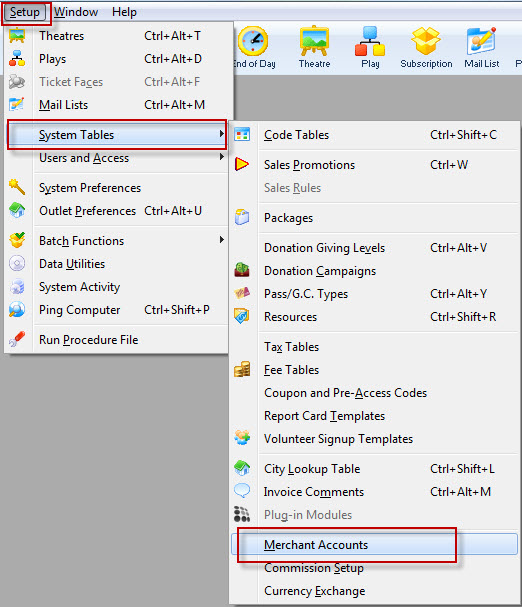
The Merchant Account List opens.
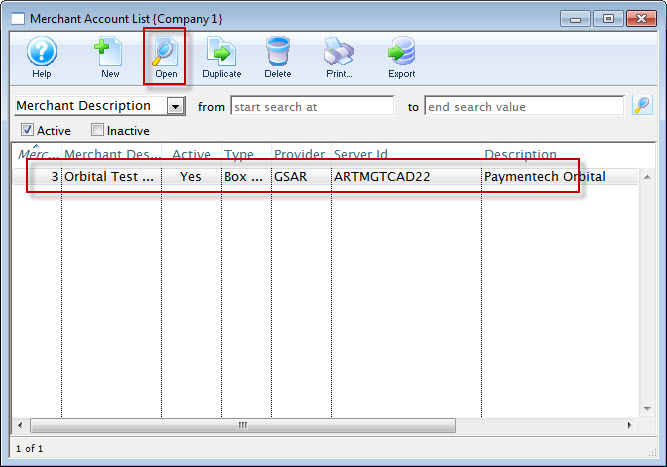
- Click the Open
 button.
The Merchant Account window for the selected account opens.
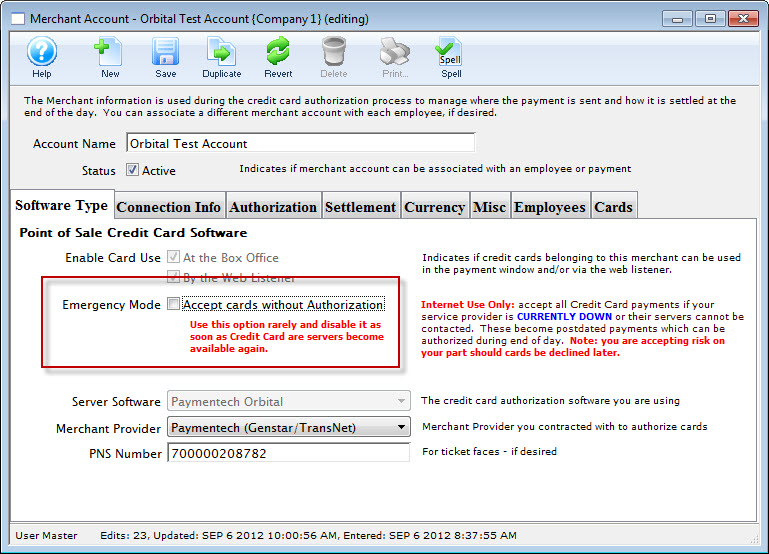
- To enable Emergency Mode, click the check box.
A confirmation dialog opens.
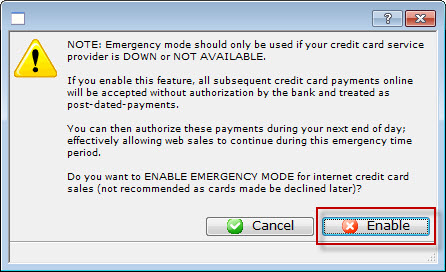
- The dialog states:
- Emergency mode should only be used if your credit card service provider is DOWN or NOT AVAILABLE.
- If you enable this feature, all subsequent credit card payments online will be accepted without authorization by the bank and treated as post-dated-payments.
- You can then authorize these payments during your next end of day; effectively allowing web sales to continue during this emergency time period.
- Do you want to ENABLE EMERGENCY MODE for internet credit card sales (not recommended as cards made be declined later)?
- To enable Emergency Mode, choose the Enable
 button.
You are returned to the Merchant Account window.
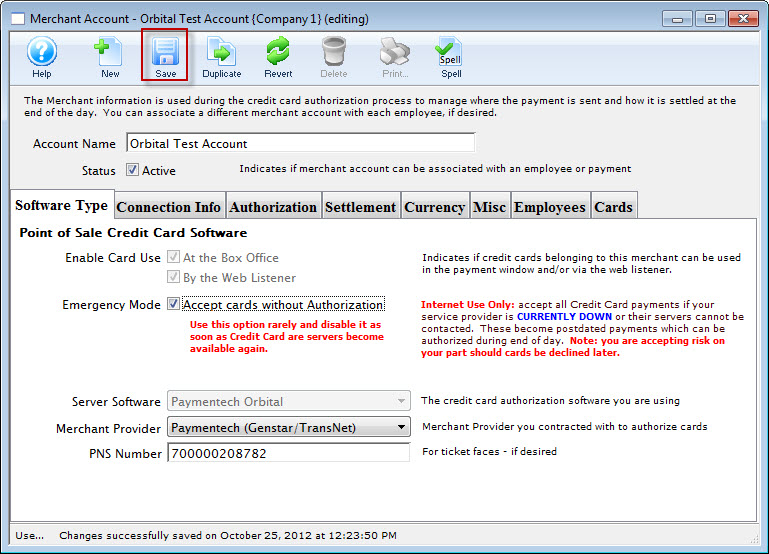
- Click the Save button.
How To Troubleshoot Ticket Printer Offline Message
Things to Look at for when Troubleshooting Ticket Printer Offline Message
- Does the printer have power or is it turned on:
The power cable might not be connected securely or the printer might not be powered on.
- Is the ethernet cable connected to the network:
Ensure that the printer is connected properly to the network via an ethernet cable.
- Has the printers IP address changed:
Print the built in test ticket from the printer to see what IP address is assigned and compare it with the Device Detail settings in Theatre Manager.
To print the built in test ticket showing printer settings on a Practical Automation Printer:
- power down the ticket printer
- hold the F0 button while powering up the printer, and
- keep holding the button until the test ticket prints.
Microcom Printer
- press the Print button on the display.
Ticket printers must have Fixed IP addresses. If your network is setup to use DHCP, you will need to reserve this fixed IP address for a ticket printer.
- Does another Printer have the same IP:
It could be possible that a laser or inkjet printer was recently added to the network and it was given the same fixed IP address as the ticket printer. IF both have the same IP address, then one won't work.
- Are the IP and Port entered correctly in Theatre Manager:
Ensure that the IP and Port are entered correctly, go Setup >> System Tables >> Devices and open the Device Detail settings in Theatre Manager If the IP address matches what's in Theatre Manager, move onto the next step. If the IP address doesn't match what's in Theatre Manager, the printer configuration may need to be updated. Changing the IP address is different for a Practical Autmoation printer verses a Microcom printer.
- Did the printer stop printing part way through a batch:
Issues related to the number of tickets printed during a batch print and its built in memory limitations, could cause a printer to go offline. You might need to increase the print delay or set limits to batch sizes.