Main menu
You are here
Post Dated Payments

- To delete Post Dated Payments, click here.
- To run a Cash Flow Report of Post Dated payments, click here.
- To see the criteria to use on any payment report to only see post dated payments, refer to this link
To create Post Dated payments, you perform the following steps:
- Open the Payment window.
Click here to learn how to access the payment window.
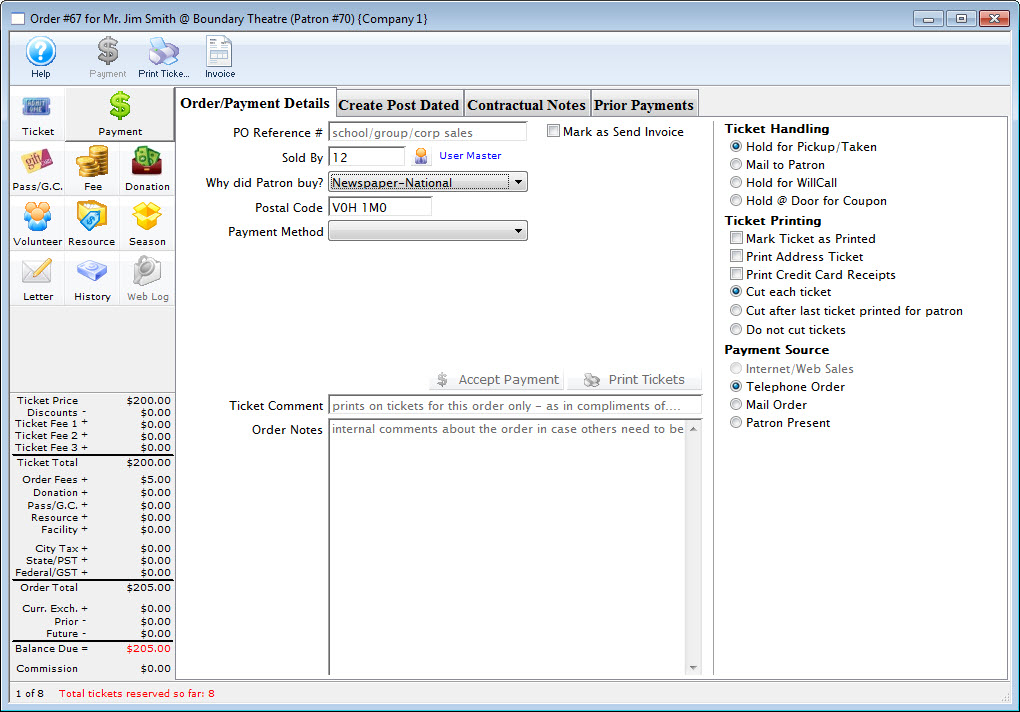
Click here for a detailed description of this window and it's functions.
- Click on the Create Post Dated
 tab.
tab.
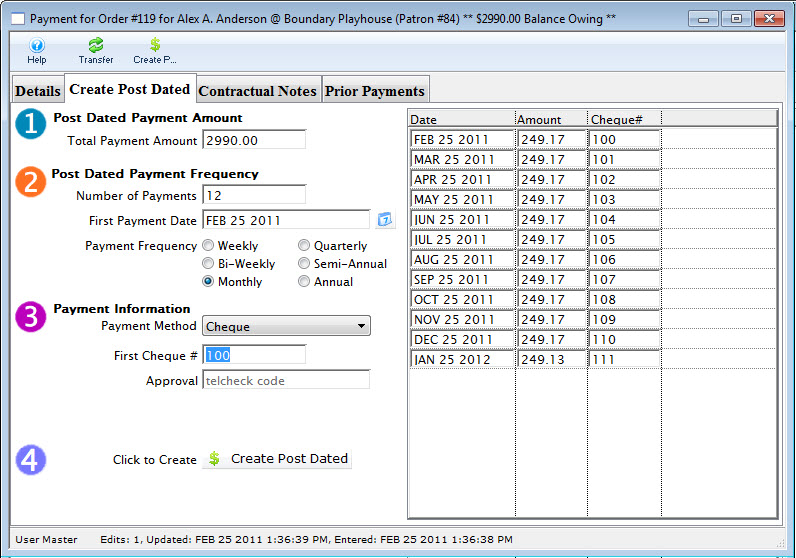
- Change the total payment amount as required.

- Enter the number of payments which will be made.
- Enter the first payment date.
Type the first payment date or click the Calendar
 button to search the calendar.
- Select the frequency of the payments.


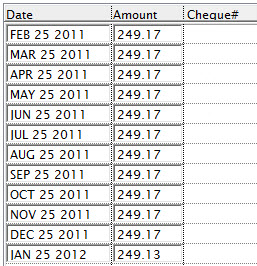
You can now change any of the suggested dates or the suggested amounts to create a customized payment plan. All you have to ensure is that the total of the amounts match the total of the post dated payments.
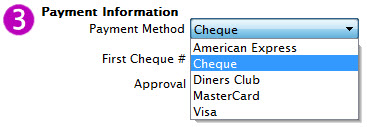
- Select the Payment Method.
- Enter either the credit card number and expiry date or the cheque numbers next to the payment dates.
- Click the Create Post Dated
 button to accept the payments.
The balance on the order becomes zero. The payment window can now be closed.

Once you have entered the number of payments and moved the cursor from the field the schedule of payments will be created.
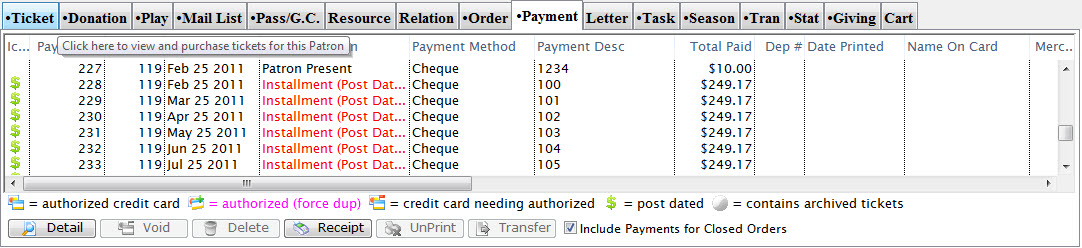
 tab on the Patron window.
Notice that the Srce is labeled as PD(post-dated) and the deposit number is blank. This shows that they are future payments to be made by the patron.