
Main menu
You are here
Pricing - Price Codes

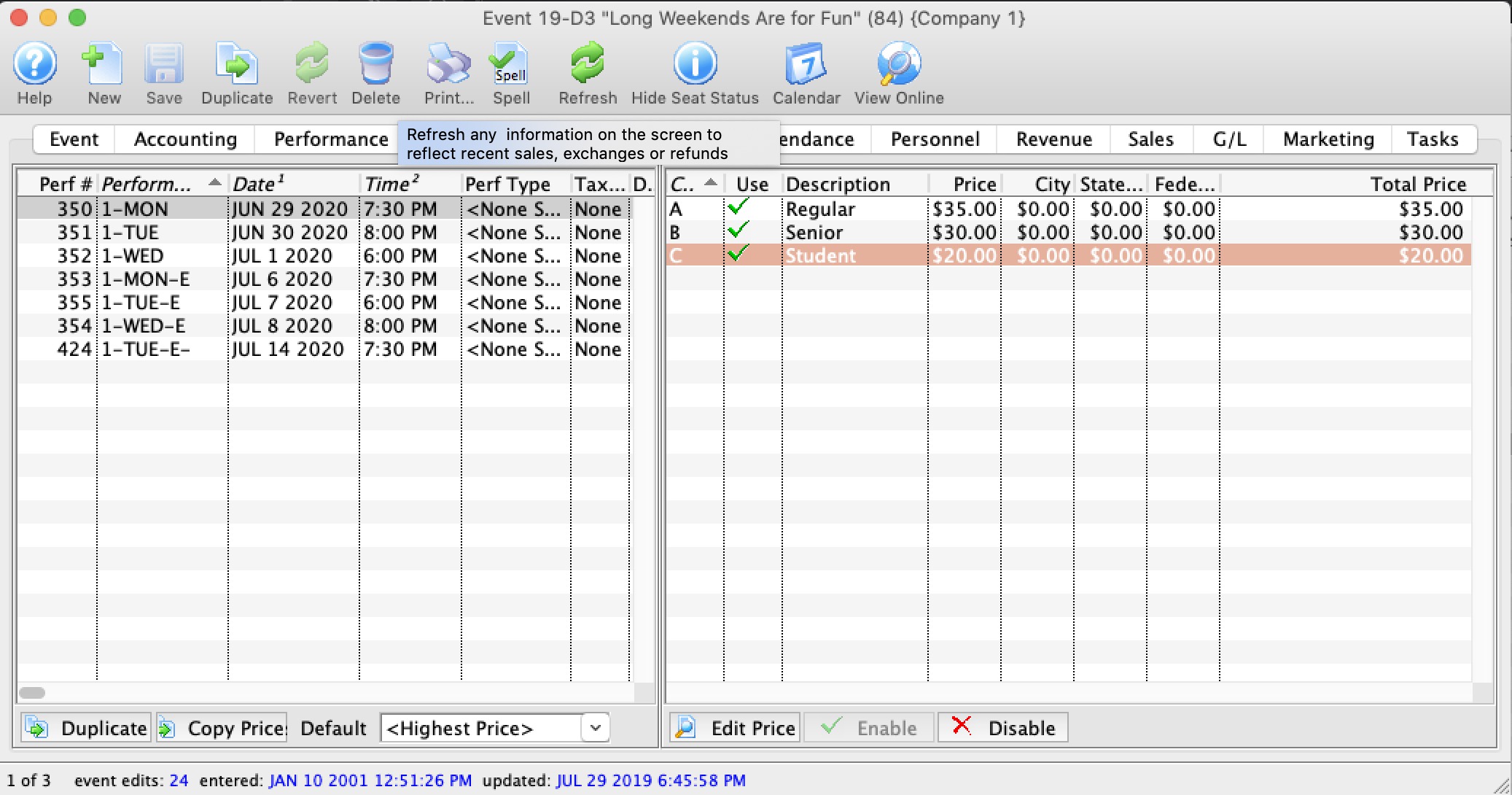
On the Play/Event Setup Window, price codes are displayed on the right side and are for the currently selected (highlighted) performance. Clicking on the different performances will change the prices seen.
This section is:
- a description of the Price List,
- Setting a Default Price Code for a performance (box office only)
- Copying Prices from one performance to all selected. This is useful for making each weekend performance the same price as another.
- Duplicating Prices which copies prices and promotions from another event for all the matching series codes. This is useful once you have set up the first event of a season and want to make all the other the same -and-
- Editing Prices
Pricing Information
 Pricing information for the selected performance on the left side displays the price list on the right side of the window. When you click on different performances on the lest, the price list will change to reflect that performance.
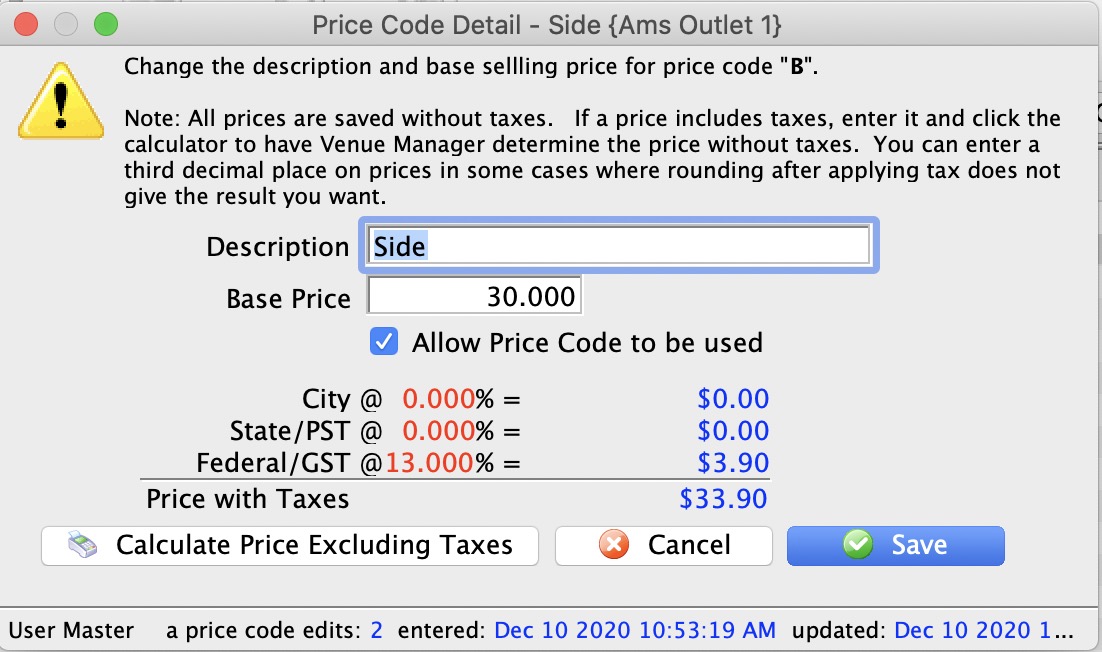
If you want to change one of the prices for the performance, the just double click on it. to see the edit window on the right. Make any changes, including activating/inactivating it and save.
 |
If you calculate price excluding taxes and the newly calculated based price does not return the full price you want, try enter a fractional price. eg, instead of a price of $12.65, you might try adding almost half a cent to see if $12.654 works, |
In the list, from left to right the price list displays:
| Code | Displays the single character code that is associated with this price. This character was assigned in the Price Code field in the Venue Map window. |
| Use? | Check box field. If the box is checked then the price code is available for use by the performance that is highlighted in the performance list. |
| Description | The description you give to easily identify the price code. For example, Adult, Child, Senior, Student. Or alternatively: Front, Mezzanine, Loge, Balcony. |
| Price | Displays the dollar value of the price code. For example, $10.00, 15.00... etc. |
| City | Displays the amount of city tax charged on the price code. |
| State/PST | Displays the amount of provincial / state tax that is charged on the price code. |
| Federal/GST | Displays the amount of Federal tax charged on the price code. |
| Price + Tax | Displays the total price of the price code with all taxes included. |
| Enable | Enable the selected price codes all at one time (you can use context menu as well, or edit them one at a time) |
| Disable | Disable the selected price codes all at one time (you can use context menu as well, or edit them one at a time) |
Diataxis: