Main menu
You are here
Closing Events / Plays

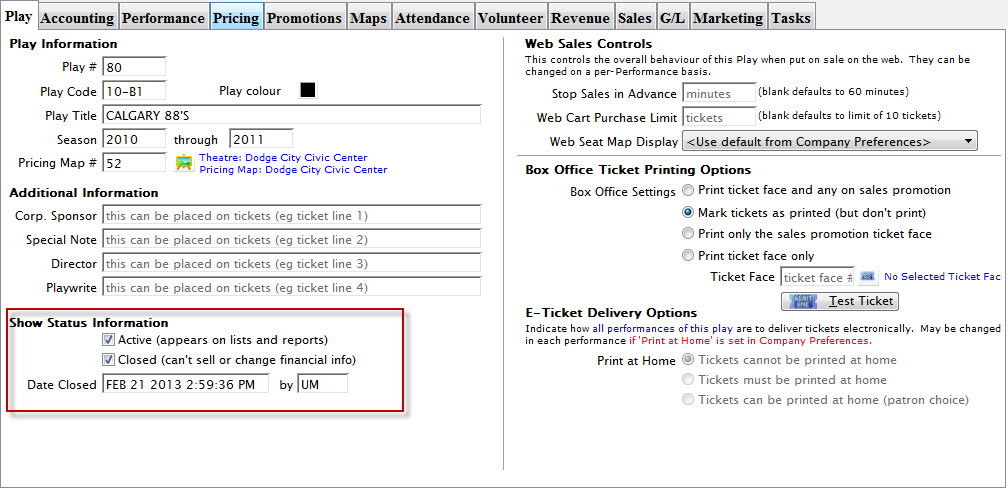
"Closing" an event / play in the Event / Play Tab removes the ability to sell tickets or change financial information for that event. A "Closed" event can still be included in reports on as long as it is still marked "Active".
An event marked "Closed" that is not marked "Active" will not appear in the Play List, report or mail list selections, and cannot have further sales or changes in financial information. Key events / plays (such as your main stage series) should always remain "Active."
In general, you should close an event / play:
- After verifying that the event tickets and revenue balance
- When you are finished paying royalties and run your royalty reports
- When you want to prevent exchanges from old events / plays (such as for subscribers)
- When you no longer want to see them in mail list criteria and reports - perhaps after a number of years
- If they are past rentals that are not pertinent to your general business operations.
Options to close An Event / Play
You can do this one of three ways:
- Perform the steps that follow to close an individual event
- Close all events for past years using an option during year end rollover
- Select a number of events in the event list, right click and close them
Closing a Single Event Manually
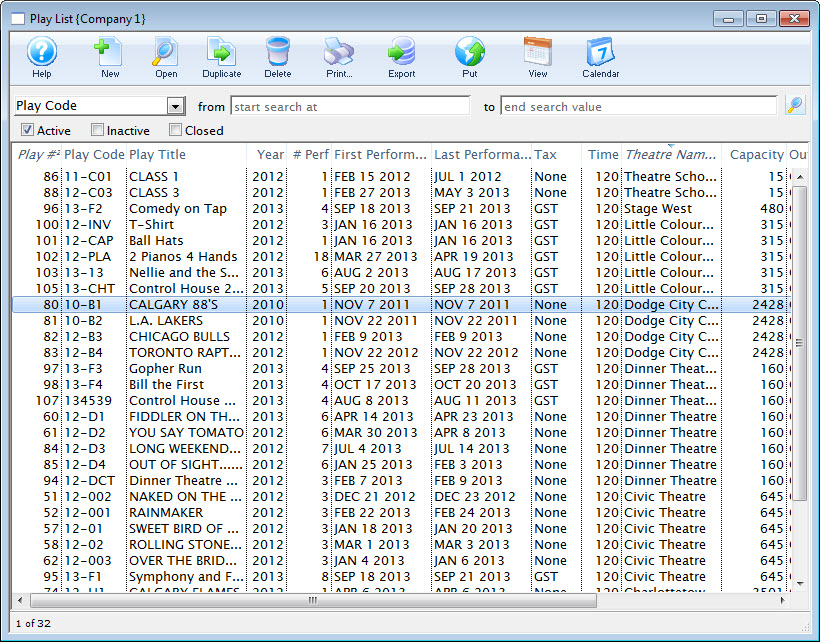
- Find the event / play you want to close.
Click here to learn how to find an event / play.
- Open the event / play and locate the status selections in the Event / Play tab of the Events & Dates window.
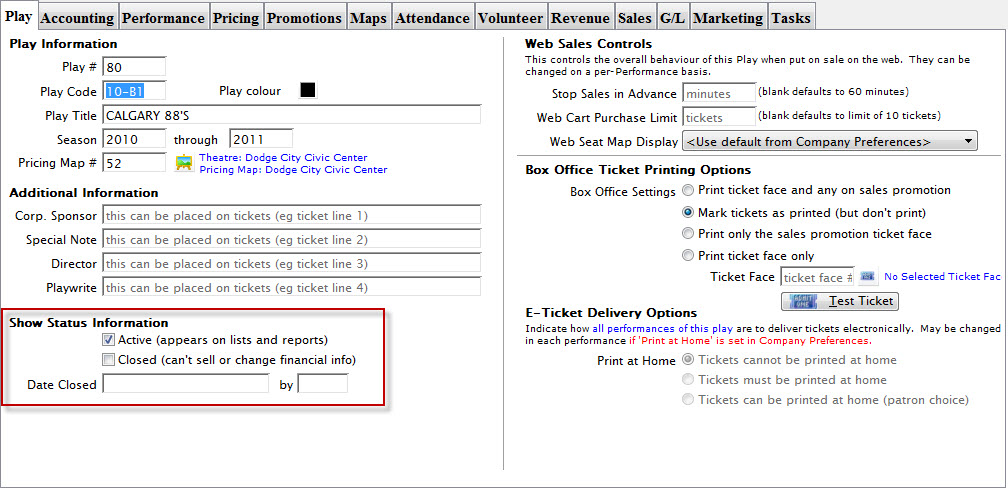
- Check the box next to Closed. A Close the Play dialog opens, asking you to verify closing the event / play.
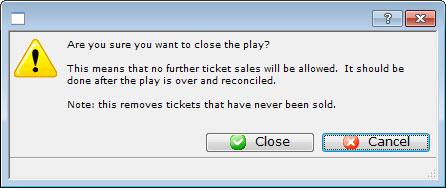
- Click the Closed
 button to mark the event / play closed.
|
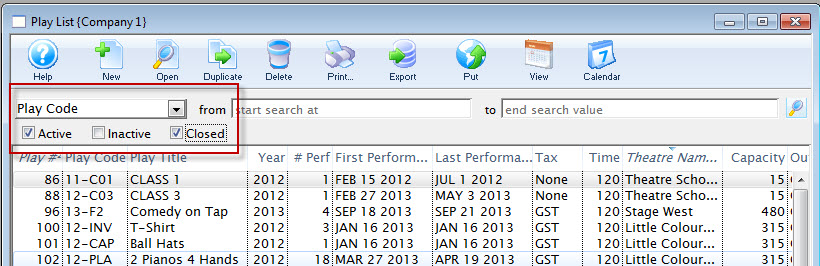
You can search for Closed events / plays in the Event / Play List by clicking the Closed box in the Event / Play List Window before entering search parameters. Then you can open a closed event and remove the check from the Closed Status box to re-open that event / play. |