
Main menu
You are here
Print Notices from the Manage Favorite Seats Window

Notices can be printed directly from the Manage Favorite Seats window. To start, you perform the following steps:
- Click the Subscription
 button in the Theatre Manager ribbon bar.
The Manage Favorite Seats window opens.
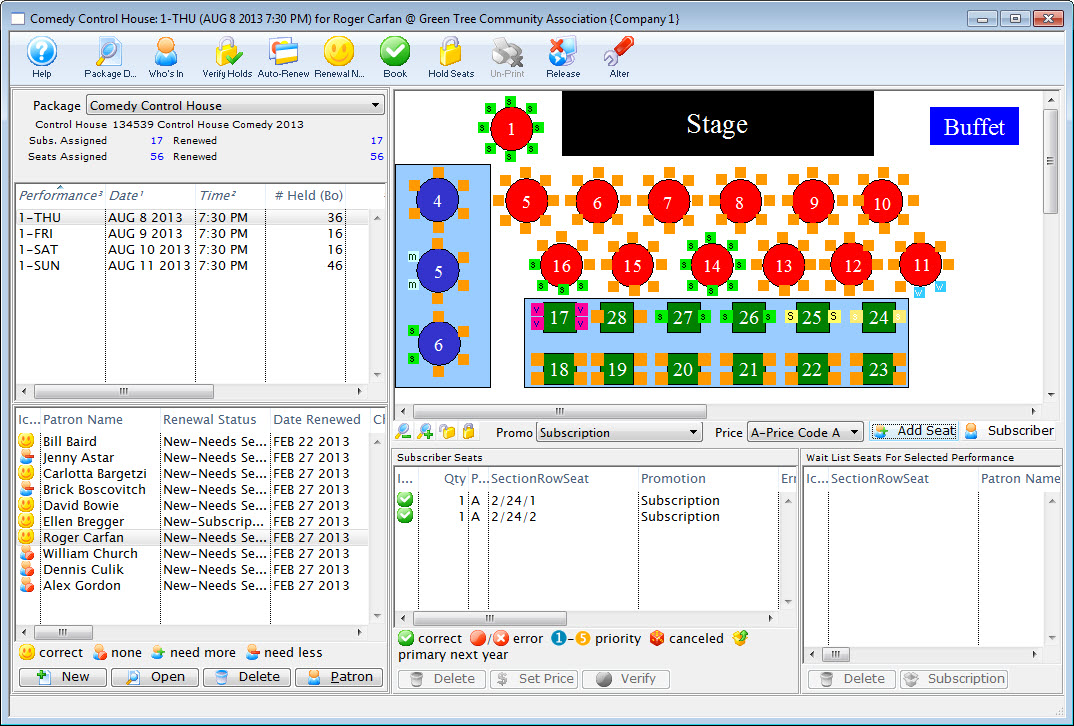
- Highlight the patron to print the notices for and click the Renewal Notice
 button.
The Season Ticket Renewal Notice Criteria window opens.
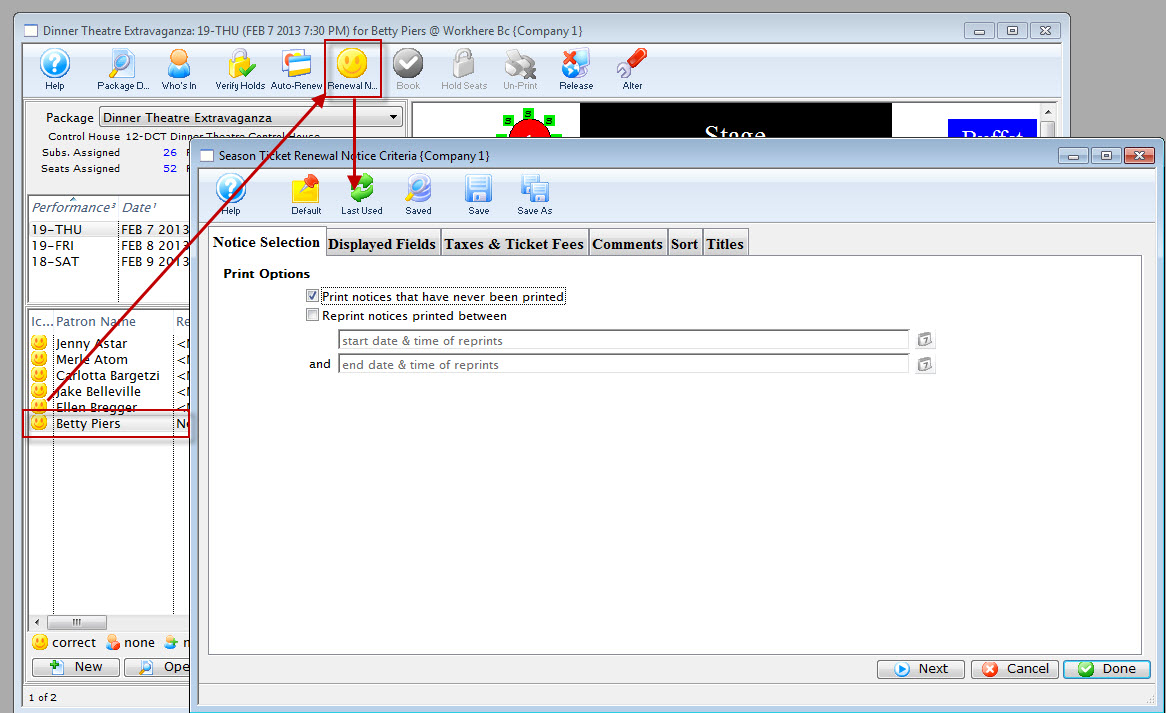
- Choose the Options you want to print.
To reprint notices previously printed, use the reprint option.
Click here for more information on the Notice Selection tab.
- Then click the Next
 button.
The Displayed Fields tab of the window opens.
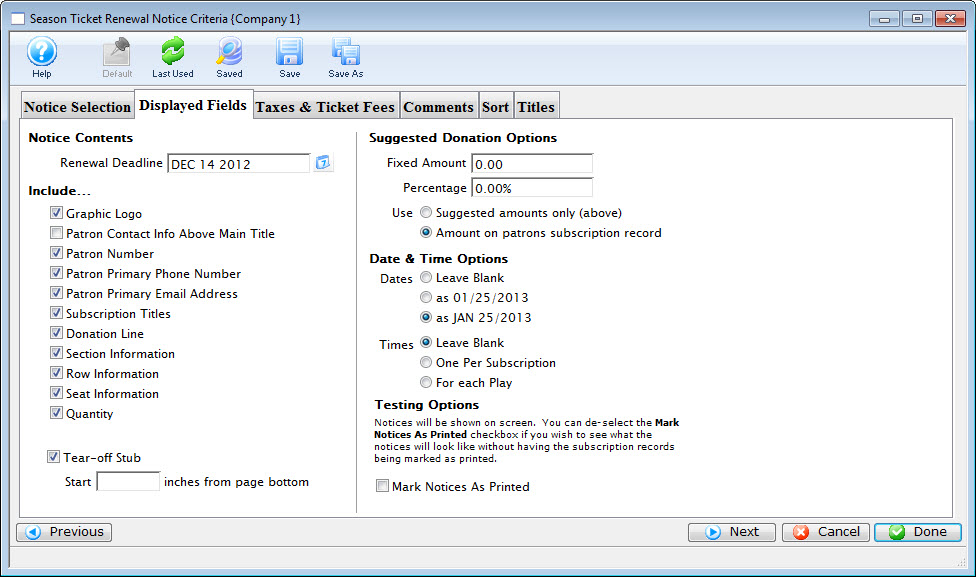
- Select the fields you want to have printed on the renewal notices. Then click the Next button.
Click here for more information on the Display Fields tab.
The Taxes & Ticket Fees tab of the window opens.
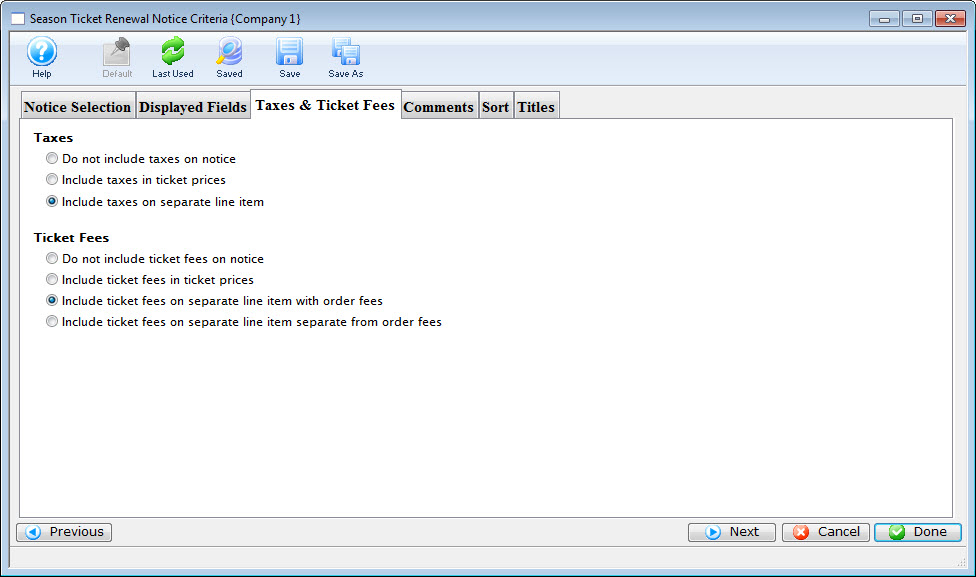
Click here for more information on the Taxes & Ticket Fees tab.
- Make the appropriate selections. Then click the Next button.
The Comments tab opens.
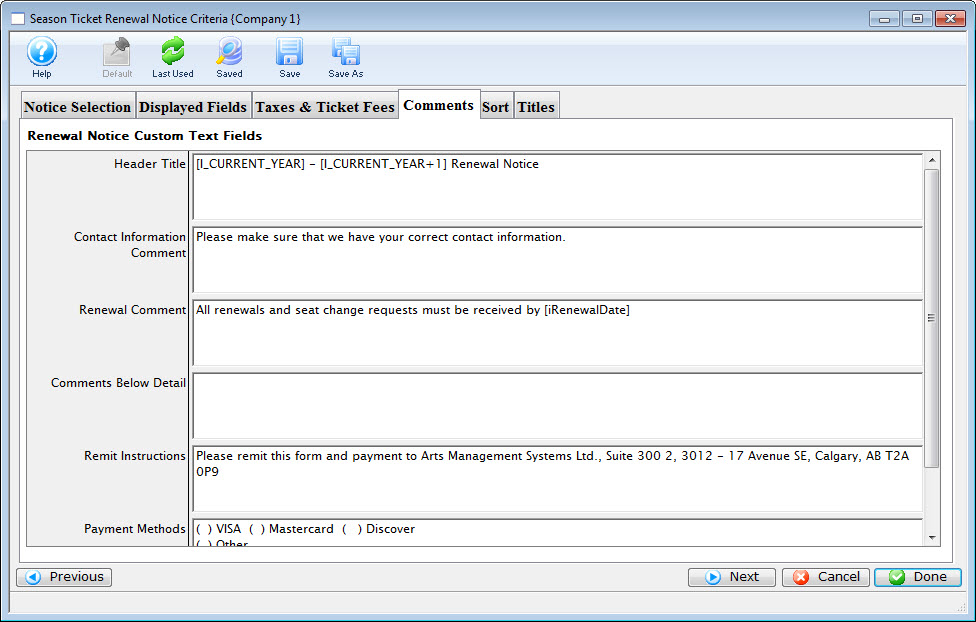
Click here for more information on the Comments tab.
- Edit the comment fields on the notice. Then click the Next button.
The Sort tab opens.
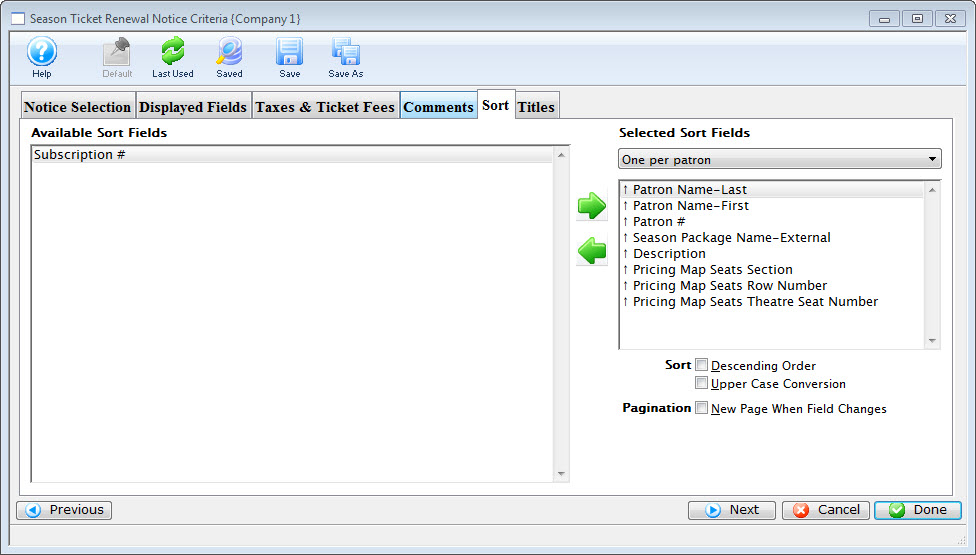
Click here for more information on the Sort tab.
- Make the appropriate selections. Then click the Next button.
The Title tab opens.
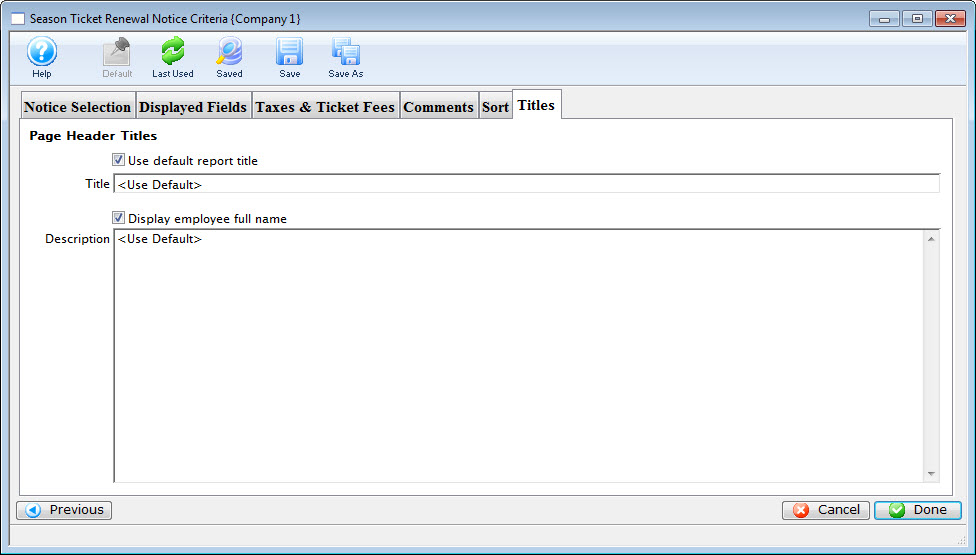
- You can enter a a new title and description and click the Done
 button.
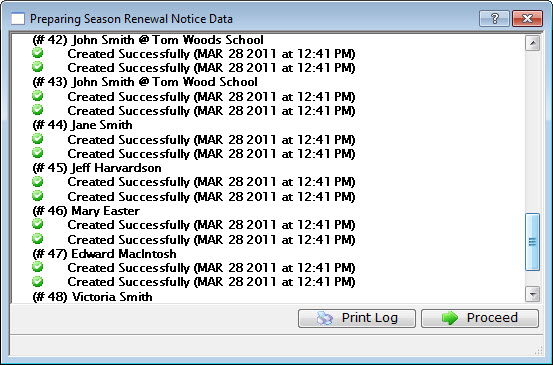
- Click the Proceed
 button to see a preview of the completed notices.
The Print
 button will print the notices without previewing them. To make changes before previewing the notices, simply close the Renewal Notices Data window.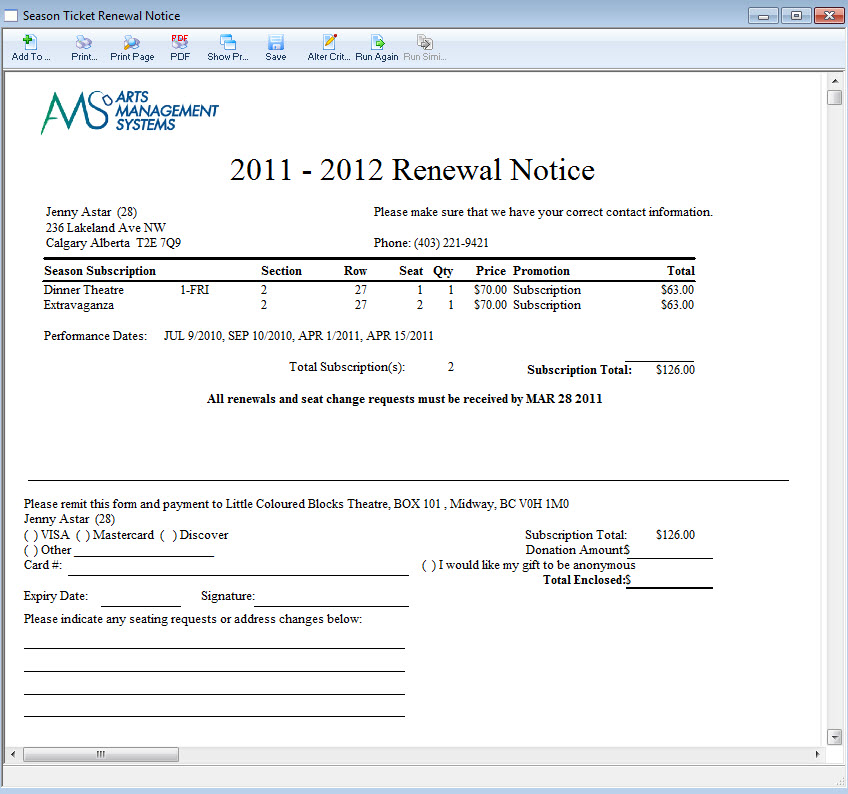
Click here for information on the Finished Report window.
You can now print the documents to a printer, or pdf (for emailing).