
Main menu
You are here
Creating a New Season Package

Season Packages are designed to providing patrons the opportunity to purchase the same series of performances within a select group of events while maintaining the same seat and pricing structure.
This help page is designed to be used if you have not done Season Subscriptions through Theatre manager in the past. If you are rolling over a previous season package, please visit the Season Rollover help page.
To create a new Season Package, you perform the following steps:
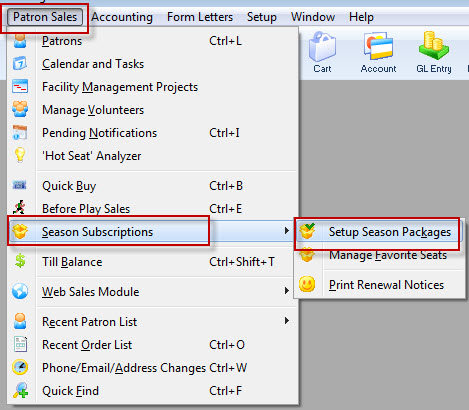
- Click Patron Sales >> Season Reservations >> Setup Season Packages.
The Season Package List window opens.
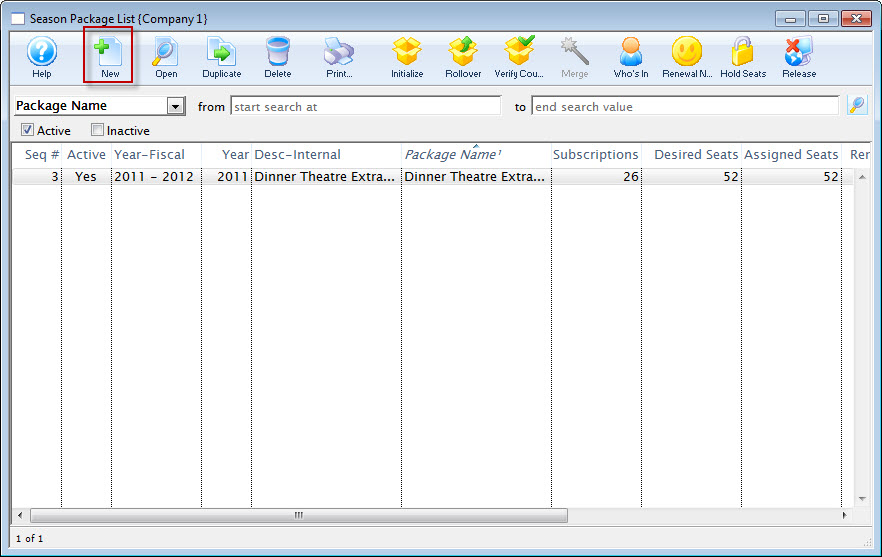
For more information on the Season Package List window, click here.
- Click on the New
 button at the top
of the page. The Season Package Detail window opens.
button at the top
of the page. The Season Package Detail window opens.
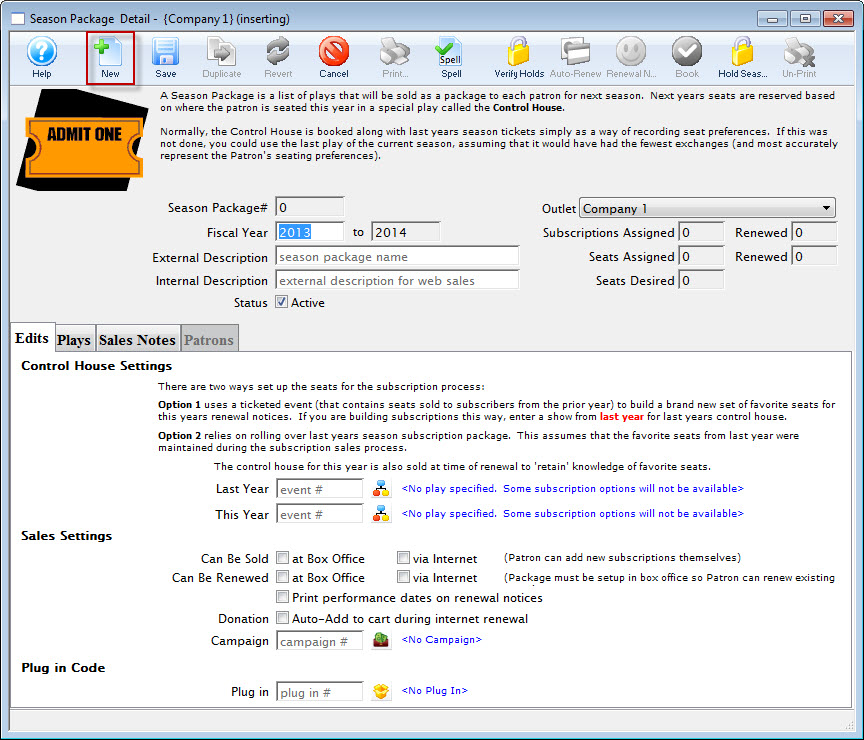
For more information on the Season Package Detail window, click here.
- Enter Fiscal Year, External Description and Internal Description for the season package.
The Fiscal Year To field will update when the Fiscal Year is altered. The External Description can be displayed in the online ticketing module, ticket faces and in the renewal notices.
- Enter the Control House number in the This Year field.

The Control House needs to be created before the season package can be built. The Event Lookup
 icon can be used to locate the Control House. The Control House can not be an event from the previous year. It must be an event specific to the season package.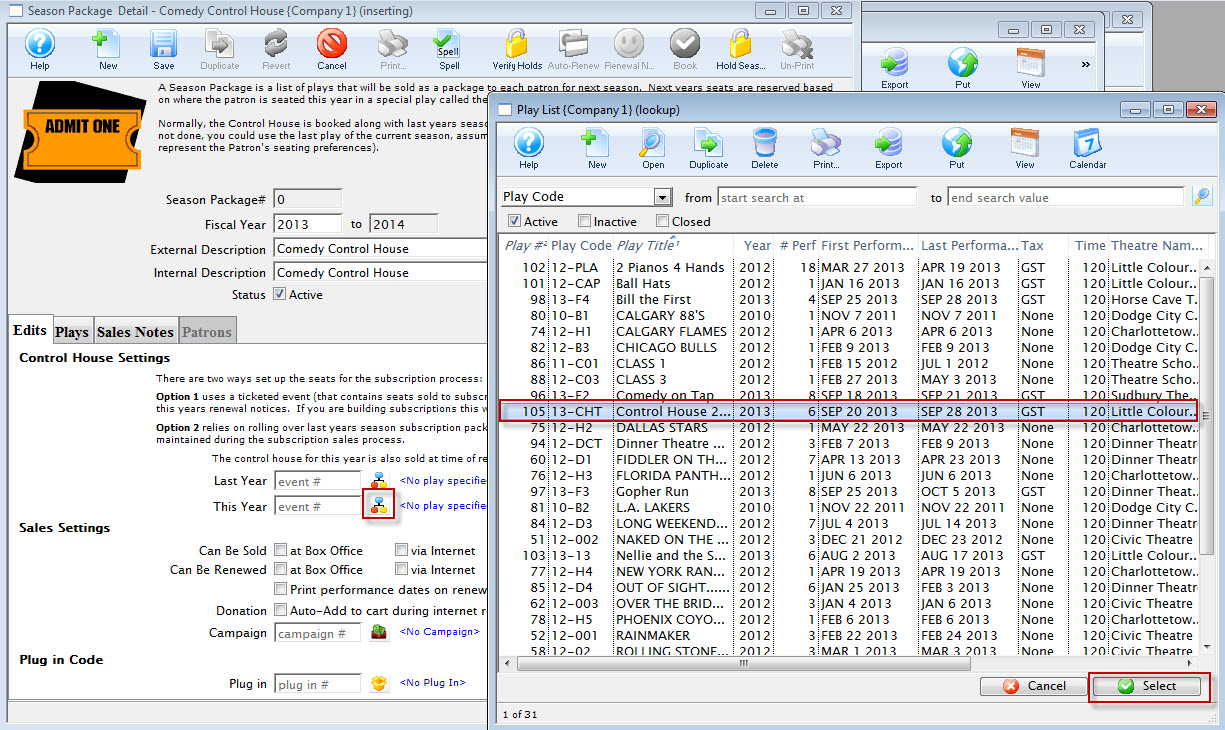
- Check off the desired Sales Settings options depending on where the season can be sold and renewed.

It is not recommended the season be available on the web until all setup has been confirmed and the season package is tested for accuracy.

- If required, check off the option to Print Performance Dates on Renewal Notices.
- Clicking the to enable the Donation Auto-Add to cart during renewal allows you to specify the suggested donation for that subscription.
There are now multiple ways to ask for a donation on the season renewal form: As in previous versions of Theatre Manager, you could enter a fixed amount and/or percentage of the subscription value to suggest a donation for the patron.
- You can now call up each subscription and enter a specific amount on an individual basis.
- From the manage favourite seats window, you can select some subscribers and suggest a donation for them all.
- You can select seats on the map and suggest a donation for all people in a specific area.

- Select the Events
 tab.
tab.
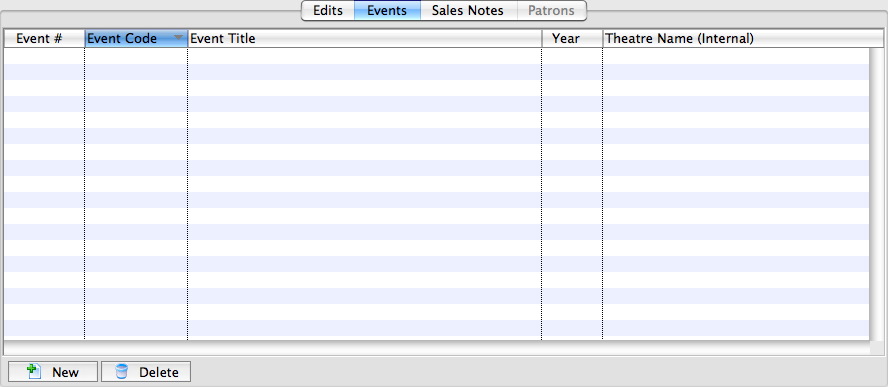
- Click the New
 button.
The Event List window opens.
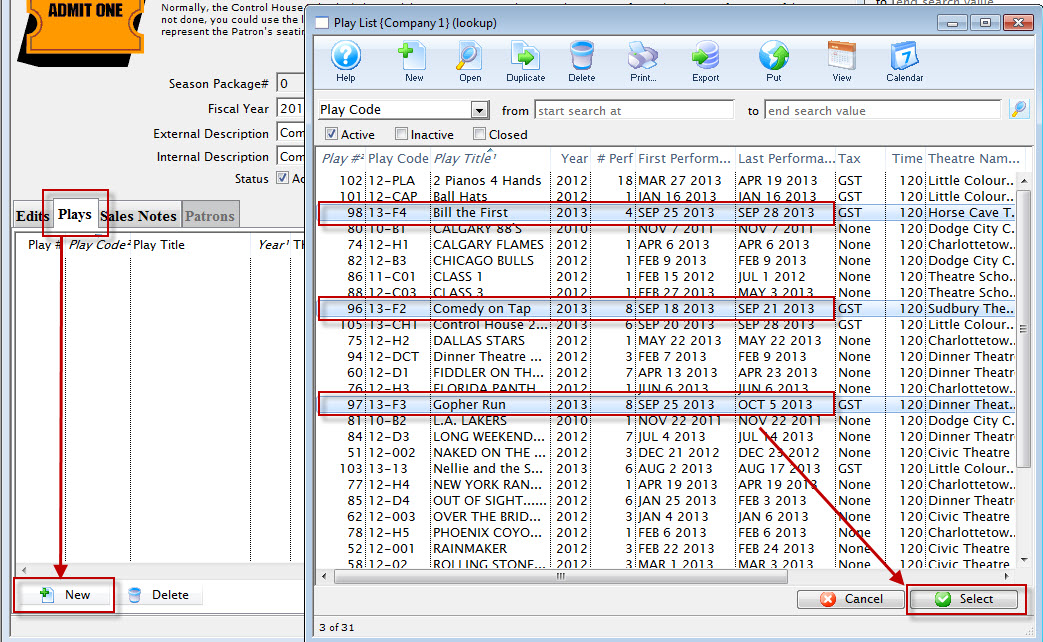
For more information on the Event Lookup List window, Click here.
- Select the events to be added to the Season Package.
- Click the Select
 button.
The Events for the coming season will populate into the Events tab.
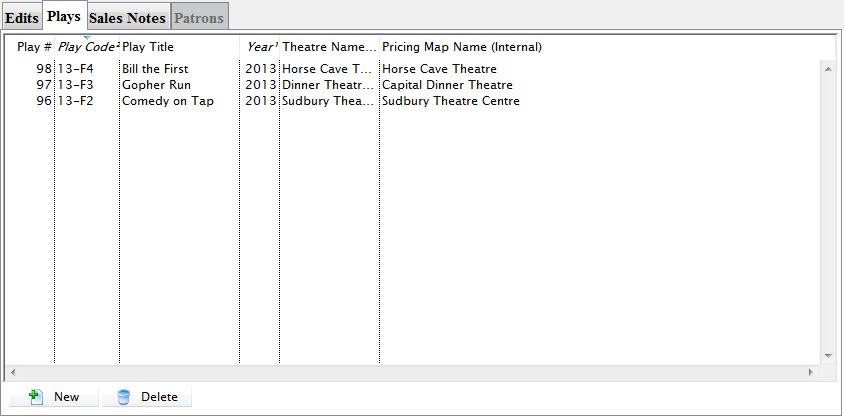
- Select on the Sales Notes
 tab.
tab.
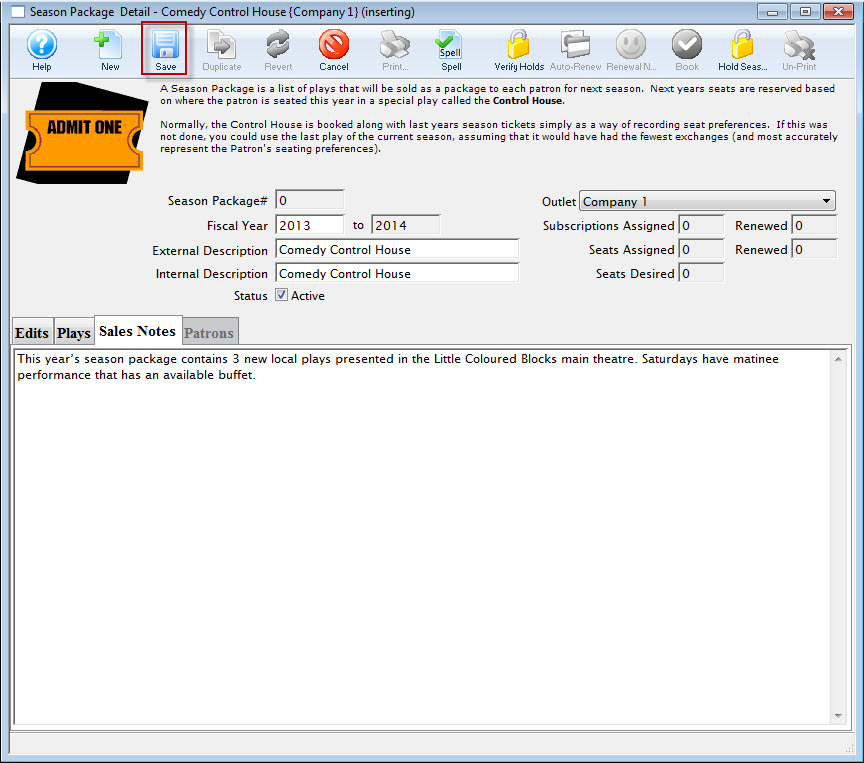
- Enter detailed notes for the season package.
- Click the Save
 button.
Theatre Manager will save the Season Package to the database and give it a unique Season Package #. The Season Package can now be used for the coming season.
Patrons can be added to the season package, seats assigned and subscriptions renewed.