Code Table Options
Code Table Options
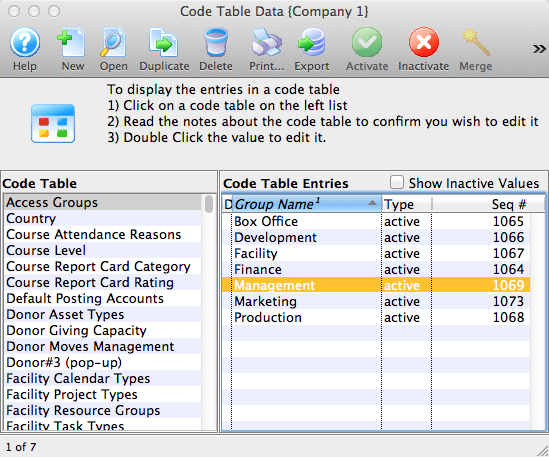
Access groups
Access groups
- As broad as a department
- As specific as a person or two
To use this feature, you need to do three things:
- Create a list of departments of access groups to suit your needs in this code table
- Assign an employee to one or more access groups
- Assign a specific record to one or more groups using the access field on each record. If the employee matches any one of the groups, they will be able to see the data. This applies to:
- Donation records
- Ticket Sales
- Ticket Reporting
- Tasks
- Mail Lists
- Donation Campaigns
- Play Access
- Performance Access
- Volunteer Activities
- and more
Using Access Groups
Using Access Groups
When you click on the popup, there are 3 options to choose from and which are explained below. These security access groupings are defined in code tables and need to be assigned to an employee.
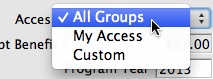
| All Groups | If you have access to all groups (form employee prefernces) or if the current record allows access by all employees, you will be able to set that 'all groups' have access.
This setting means that anybody may view or edit this particular record. |
| My Access | The setting allows you to change the access of the current record to provide at least the same access that you have.
You cannot remove groups that you do not have access to, so that means if you only are assigned the box office and finance groups, and the existing record has box office and marketing, marketing will still have access. |
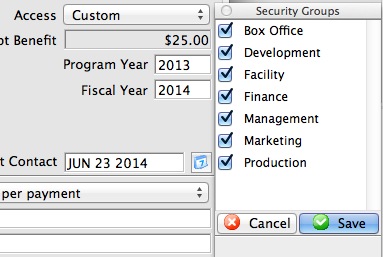
| Custom | If you select this option, you will see a floating window like the image below. You will only see groups to which you are assigned and you can indicate which ones other employees will need to access the record.
If there are groups to which you do not belong and that are part of the security for this record, you will neither see them, nor be able to change them and they will always be put back onto the security string. This means you can
|
Country
Country
The Countries in the code table list appear in the Country drop down list in the Patron window, Default Data, Maps, Web Sales, and other places using the Country drop down list in Theatre Manager.
You can shorten the list by setting countries to inactivate, or if a country is not a 'System' country, it can be deleted from the code table. If a country is not in the Code Table, it can be added.
For 'System' countries, Theatre Manager has built in controls for phone numbers, postal codes, and more. Currently these are:
- Canada
- USA
- Australia
- New Zealand Depending on the region, defaults can be set. For more information on setting a country as a default in the Company Defaults, click here.
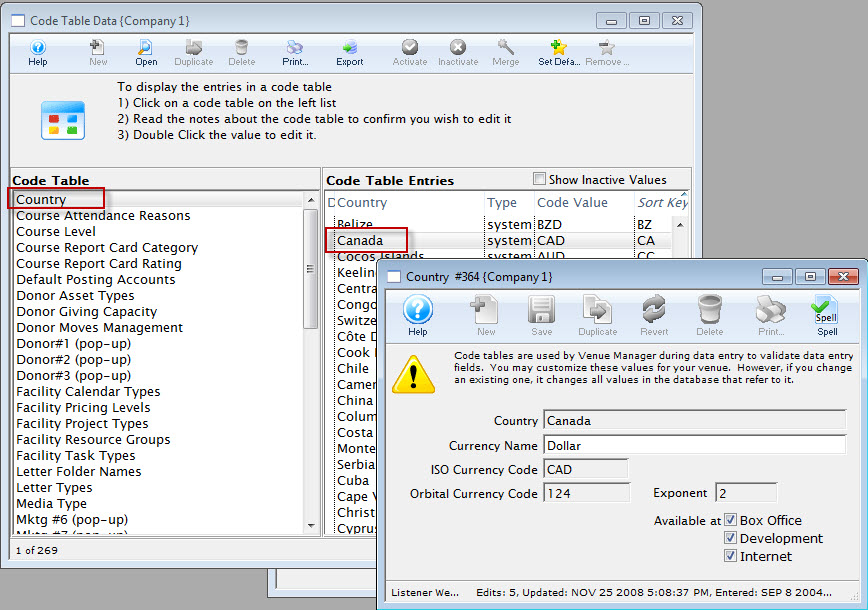
For more information on how to access the Country table click here.
For information about editing values in Code Tables, click here.
Course Attendance Reasons
Course Attendance Reasons
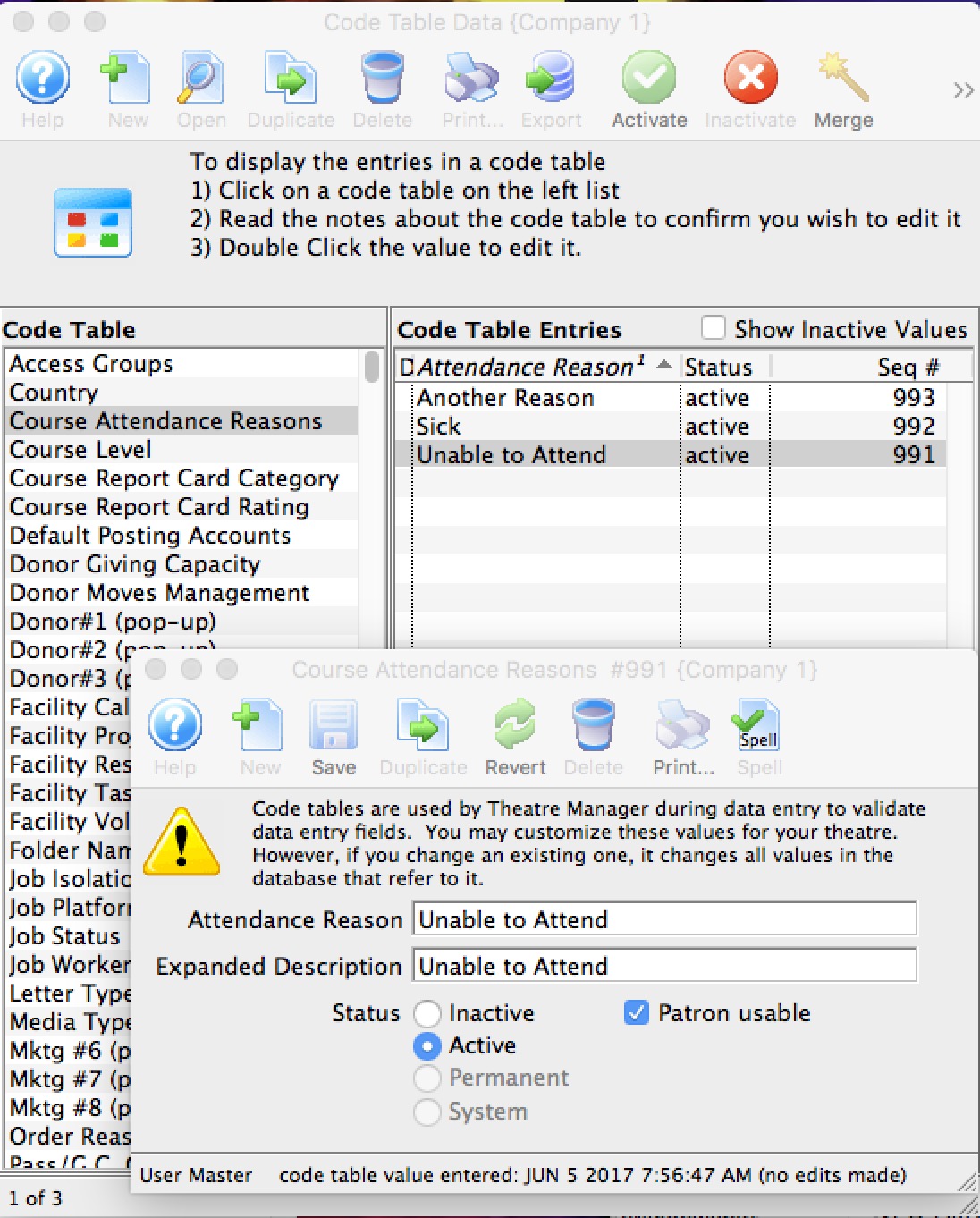
The field settings are:
- Attendance Reason - this is a short description to appear online in the patrons' attendance record. Examples: 'away' or 'sick'
- Expanded Description - is a longer description for lists for the attendance reason. Examples:
- 'cannot attend - personal reason' or
- 'caught the current flu going around'
- set the status to be active or in active
- indicate that the attendance reason as being patron usable. If this flag is set, then a patron can use this excuse to set their own attendance to a class within a course using the online module. For example, if a student could not attend one day in a drama class, ballet class, swim class or pilates session they can indicate why they cannot come so that the instructor knows who will be present that day.
 |
Staff can use all reasons that are active, including those that are marked not patron usable |
For information about editing values in Code Tables, click here.
To see where and how Course Attendance Reason is used in Courses, click here.
Course Level
Course Level
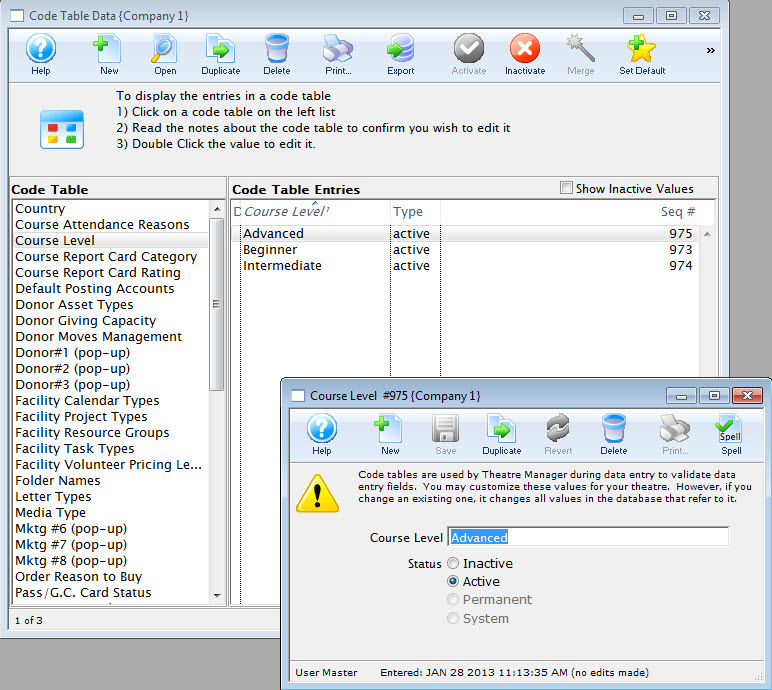
For information about editing values in Code Tables, click here.
Course Report Card Categories
Course Report Card Categories
Report Card Categories also have to be setup before Report Cards can be used. Go to Setup>>System Tables>>Code Tables to find Report Card Categories and assign values to it.
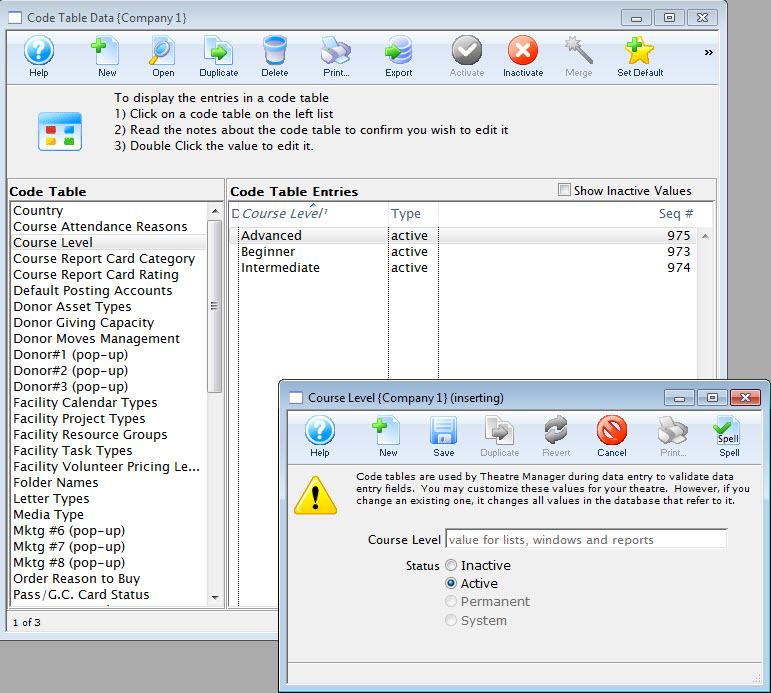
For information about editing values in Code Tables, click here.
Course Report Card Ratings
Course Report Card Ratings
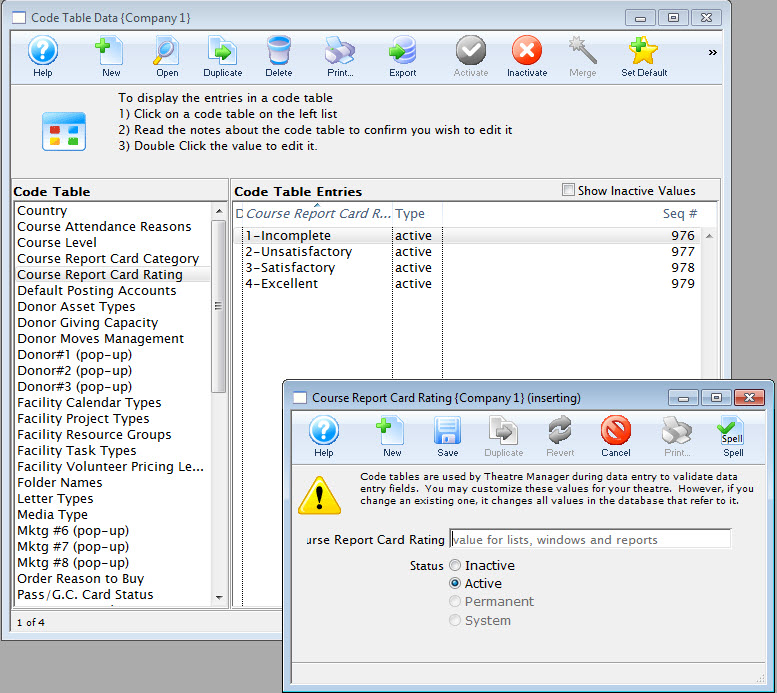
Just like Categories, Report Card Ratings have to be defined in Code Tables before they can be used. Go to Setup>>System Tables>>Code Tables to find Report Card Ratings and assign values to it.
Default Posting Accounts
Default Posting Accounts
Specific general ledger asset and income accounts are required to be defined prior to Creating Sales Entries and performing Deposits.
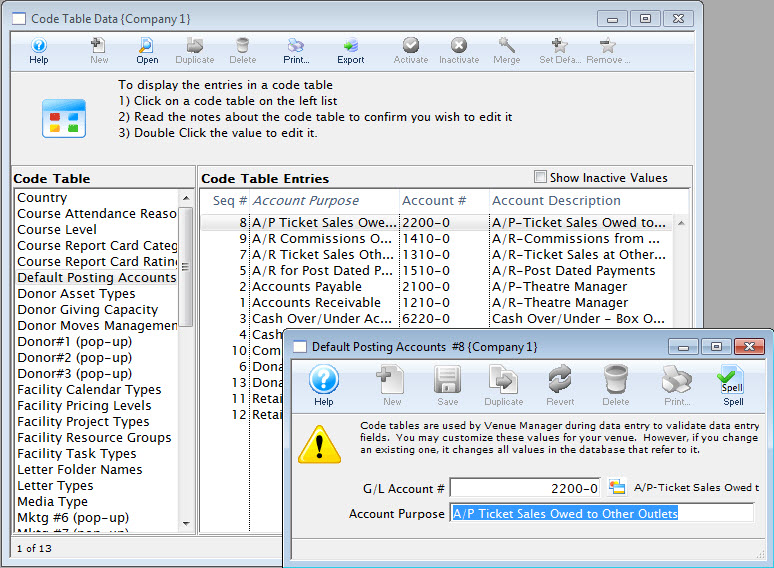
- Refer to the section General Ledger Accounts to create the account
information. Click here for more information.
For information about editing values in Code Tables, click here.
- For example: Once you have an accounts receivable account, that account will only be used as an accounts receivable account.
Because these code table values are defaulted, you may not insert a new default account or delete an existing account, however, you can edit an existing account. The result values are the types of default accounts that must be set up in Theatre Manager.
You must assign a General Ledger Account number to each of the defaulted values. The general ledger accounts you use must be created to carry out the sole purpose of the default value.
|
Note: The donation main bank account and the transfer bank account have special meaning cannot be the same.
Refer to the help on setting up Restricted Donation Accounts for more information. |
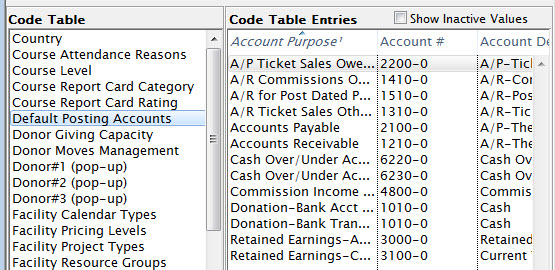
Editing a Default Account
The default accounts should not need to be edited or changed very often. There may be times which you need to.
For example: When upgrading Theatre Manager, sometimes new default accounts are added, or you may desire to change the account numbers on a yearly basis. Before editing a default account ensure that there is a general ledger account number that is set up.
Refer to Creating General Ledger Accounts for more information.
- Double click on the account to be edited.
The Entry of Account Description Window opens.
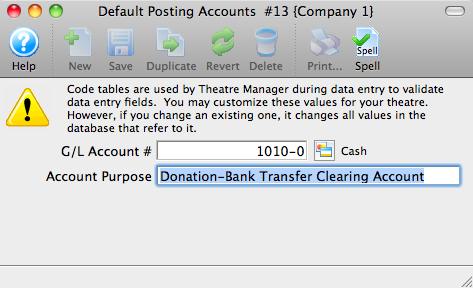
- Enter the G/L account number.
If you do not already have a general ledger account number setup in G/L accounts do so now. Entering a G/L Account number here, will assign a general ledger account to the default account in code tables.
- For example: The default account "Exchange Fees" is assigned the G/L Account # 4 - 2000 - 200. Therefore all revenue generated from exchange fees will be posted to that account number.
- Enter an account purpose (or description).
This field should be already filled in. You may change the name if you like, but it is not recommended.
- Click Save

The changes have now been saved.
Special accounts for Outlet Setup
Special accounts for Outlet Setup
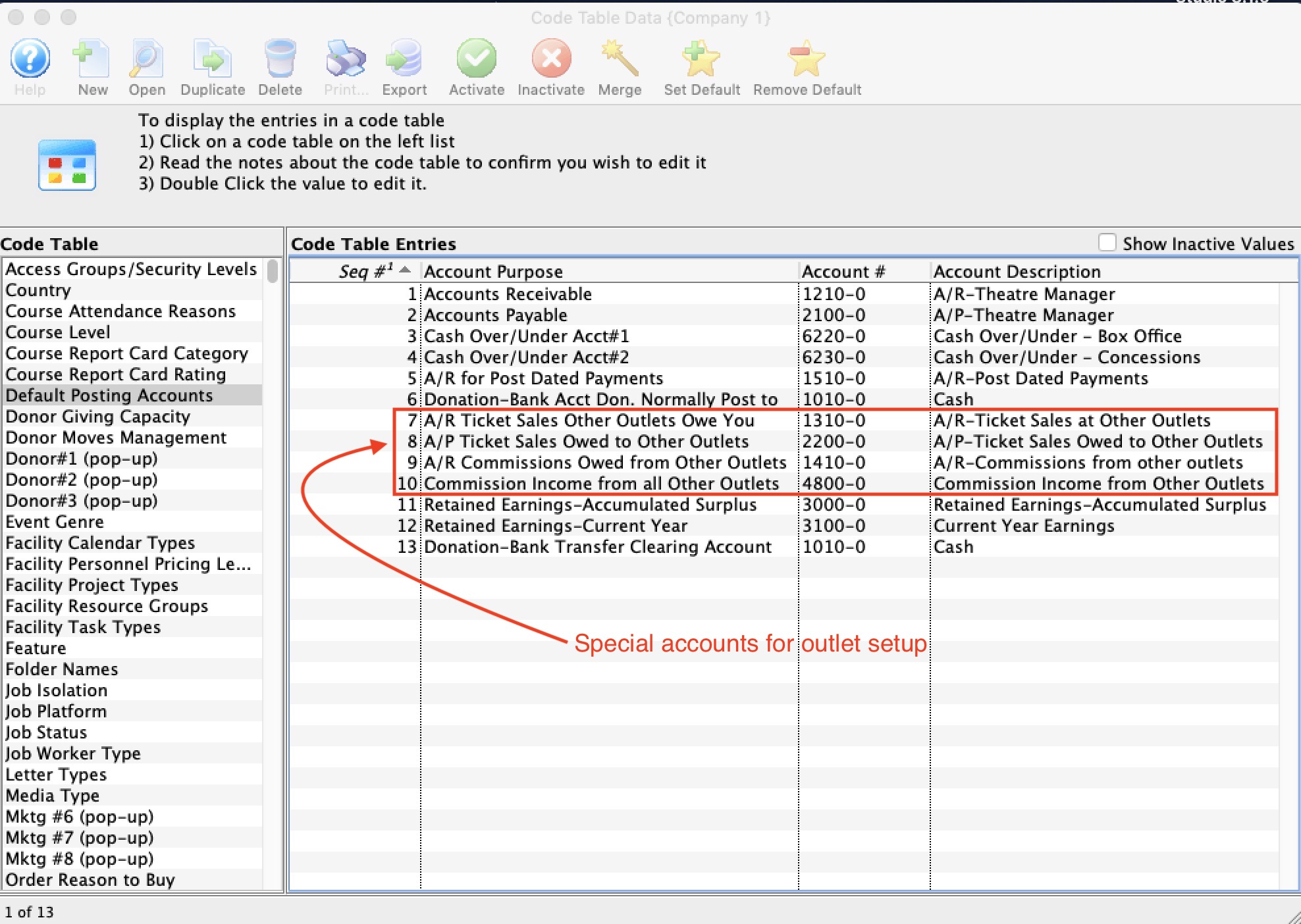
|
Please take care setting up the accounts below. They are design to act like 'revolving accounts' for sales an receivables. If set up properly, the periodic outlet balancing process should be relatively straight forward. |
| Account Purpose | Account Type | Description and what happens in your outlet | What happens in the other outlet |
| A/R Ticket Sales Other Outlets Owe You | Asset |
If you allow another outlet to sell your tickets, an entry will be made to this account for the amount that they owe you. This is why it is normally an Asset account (receivables)
The offset account for the tickets will be the accounts in the accounting tab of the event setup window |
The other outlet will have taken the payment for the tickets and they will owe you money.
|
| A/R Commissions owed from other outlets | Asset |
When you sell tickets for another outlet, you can receive a commission for the sale (if they set one up in Commission Setup
The amount that the other outlet owes you
|
Commission setup has an accounting tab.
When a commission is owed to an outlet, the accounts in the commission tab are used for the outlet:
|
| A/P Ticket Sales owed to other outlets | Liability |
This is the account used to track money you owe to the other outlet after selling one of their tickets. It is the reverse of the description of the 'A/R Tickets sales other outlets owe you' under the last column - what happens in the other outlet. Essentially, your outlet:
|
This is also the reverse of the description of the 'A/R Tickets sales other outlets owe you' under the third column - what happens in your outlet other outlet. |
| Commission Income from all other outlets | Income | When you sell a ticket for another outlet, any commission due to you is offset into this account. (see 'A/R Commissions owed from other outlets - fourth column') | When another outlet sells your ticket, the commission payable is placed into the account in the commission setup. (see 'A/R Commissions owed from other outlets - third column') |
Donation Campaign Category
Donation Campaign Category
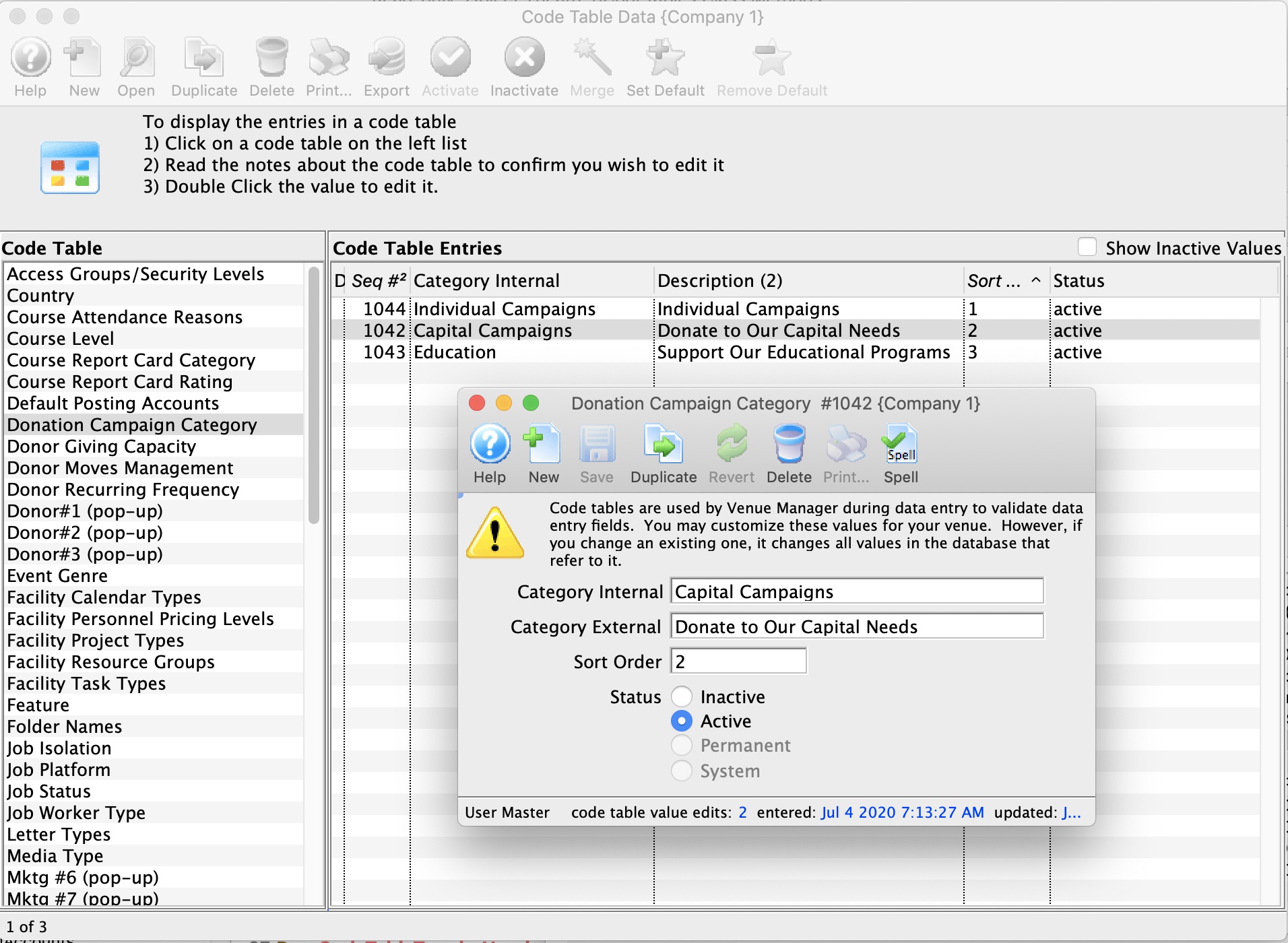
items appear online in the sort order (alphabetical) and the external name is used to categorize and provide headers for each group. You can access various categories online using direct links in emails or web pages
Suggested values to enter into this code table for external name are:
- Gifts to Capital Campaign
- Donations to Individual Campaigns
- Support our Educational outreach
There are 3 fields:
- External Name - see above
- Internal Name - which can be the same as external name, or if you prefer a different set of names, for internal use, enter them instead
- Sort order - which is the order in which the categories will be displayed online. You may want this to be different than the alphabetical sort order of the names for marketing purposes. Eg, Individual Donations are in the middle of the alphabet, but you may want them to be first in the online web page, so make the sort order for this a a '1' and for Gift Certificates, make that a 2 or a 3, etc.
For information about editing values in Code Tables, click here.
Donor Asset Types
Donor Asset Types
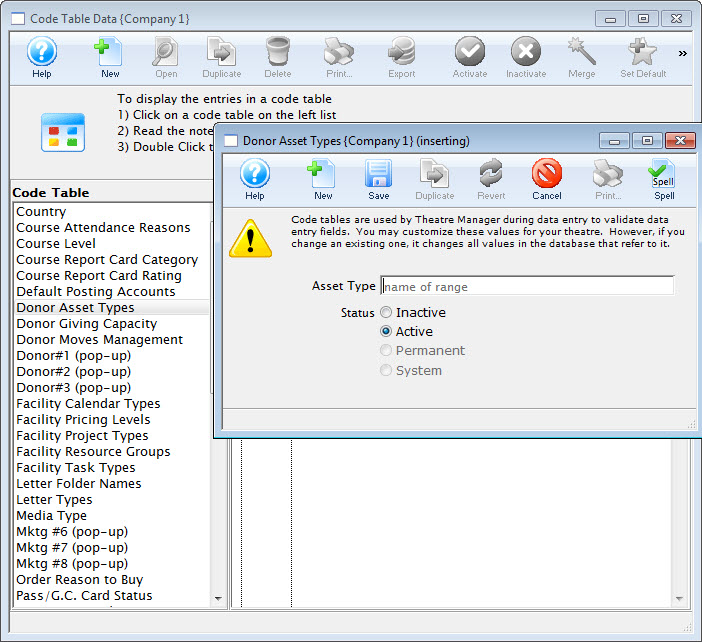
For information about editing values in Code Tables, click here.
Donor Giving Capacity
Donor Giving Capacity
The Donor Giving Capacity values are displayed on the Donor Tab on the Patron Window. Click here for more information on the Donor Tab.
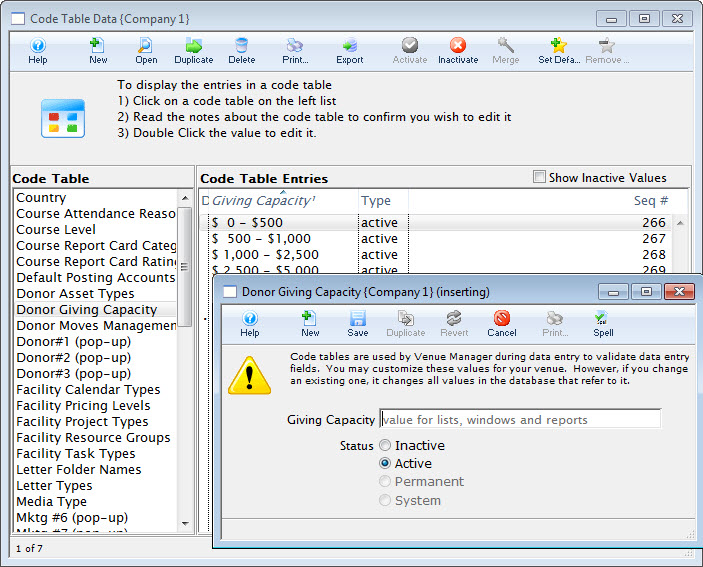
For information about editing values in Code Tables, click here.
Donor Moves Management
Donor Moves Management
The Code Table Moves Management is used to track interactions with Donors and Potential Donors. Moves Management can be used to track Patrons as relationships are built, donations given and contributions increase.
Click here for more information on the Donor Tab.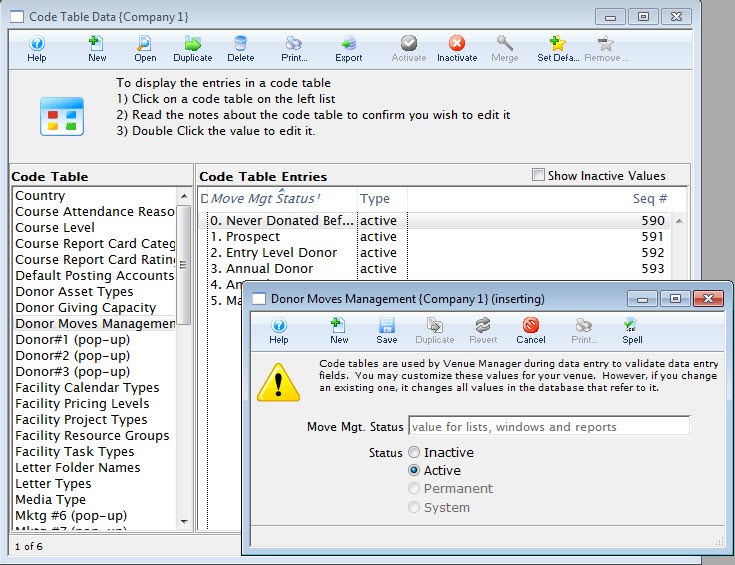
For information about editing values in Code Tables, click here.
Donor#1 Popup Field
Donor#1 Popup Field
The Donor 1,2,3 pop-up code tables represent the values under the Notes Tab of Donation Details.
These fields can be made manditory fields through the Mandatory Data Tab in Company Preferences. You can also change their names in the Appearance Tab of Company Preferences. This way you to customize Theatre Manager to your venue's requirements.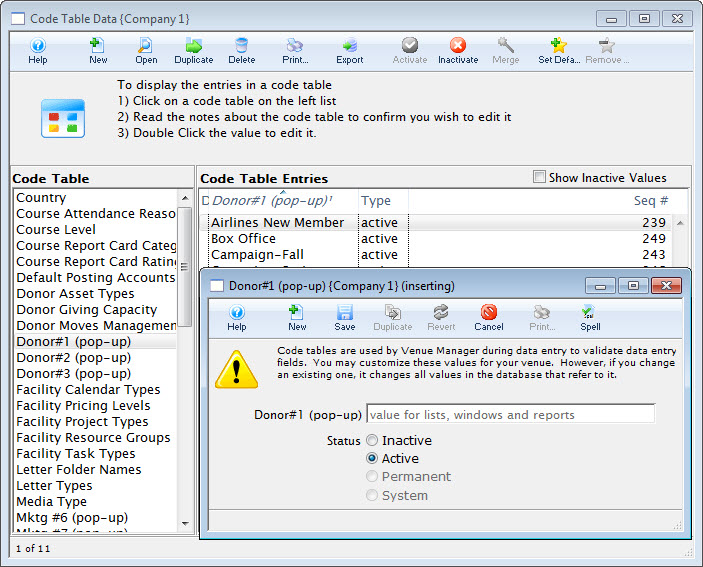
For information about editing values in Code Tables, click here.
Donor#2 Popup Field
Donor#2 Popup Field
The Donor 1,2,3 pop-up code tables represent the values under the Notes Tab of Donation Details.
These fields can be made manditory fields through the Mandatory Data Tab in Company Preferences. You can also change their names in the Appearance Tab of Company Preferences. This way you to customize Theatre Manager to your venue's requirements.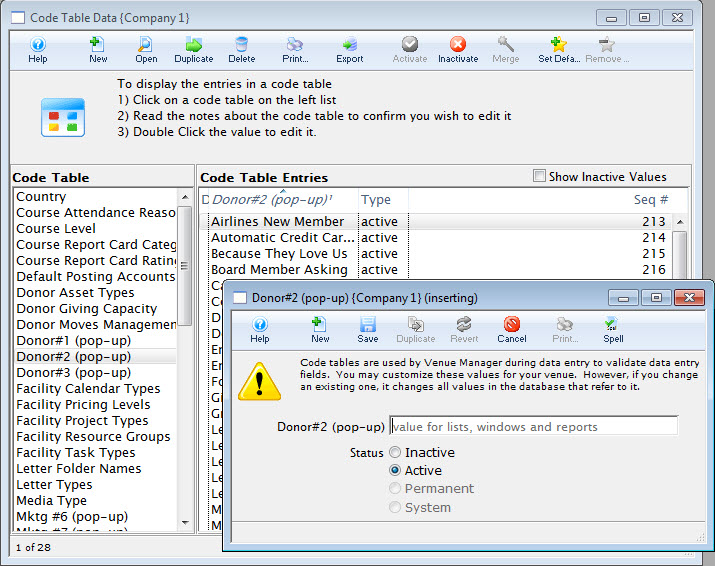
For information about editing values in Code Tables, click here.
Donor#3 Popup Field
Donor#3 Popup Field
The Donor 1,2,3 pop-up code tables represent the values under the Notes Tab of Donation Details. They can also be made manditory fields through the Mandatory Data Tab in Company Preferences and their names can be changed in the Appearance Tab of Company Preferences. This allows you to customize Theatre Manager to your venue's requirements.
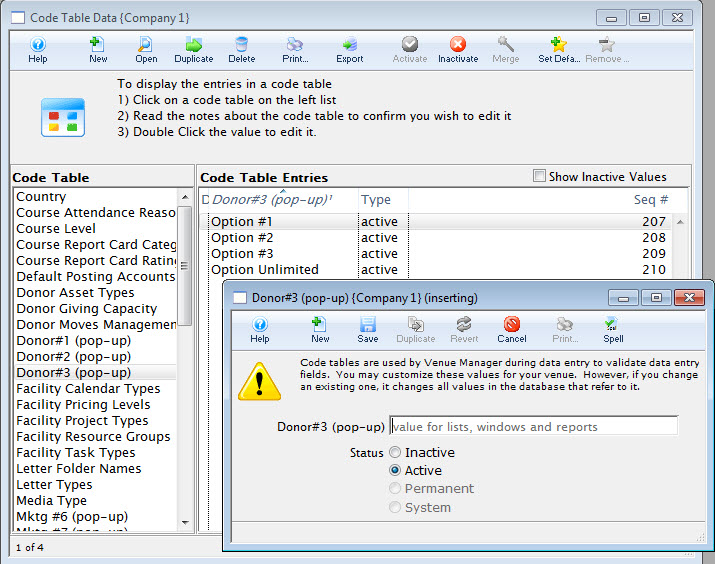 click here.
Facility Calendar Types
Facility Calendar Types
Calendar Types are set in new Tasks as they are inserted into the Calendar in Facility Managment. There are "permanent" system Calendar Types built into Theatre Manager.
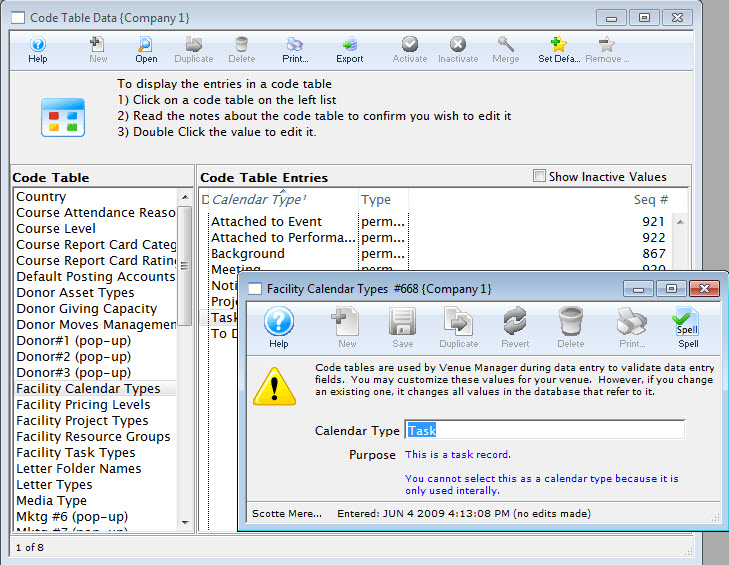
Facility Calendar Types are built-in codes you do not have to set up. While you cannot change the meaning of each of these, you can change the description to something more meaningful to your organization.
These are used as the general types for the Facility Task Types you will use to define the type of each task.
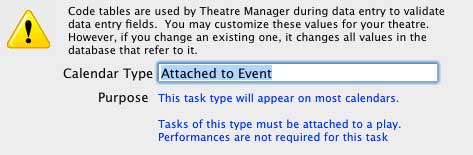
Click here, to learn more about Calendars.
Facility Project Types
Facility Project Types
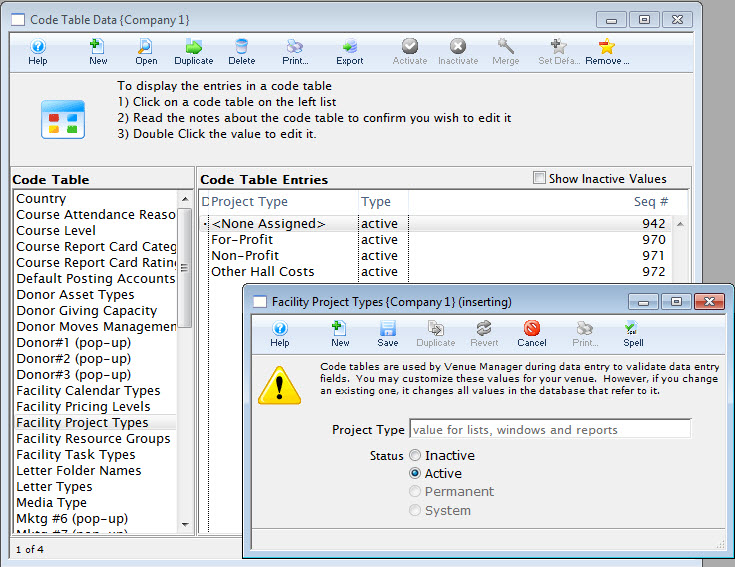
For information about editing values in Code Tables, click here.
Facility Resource Groups
Facility Resource Groups
Click for more information about Resources, Resources, Inventory and Merchandise.
The default setting in Theatre Manager is the Generic group. Other groups can be added as needed.
Groups might be for internal resources and those sold on line. Examples might be:
- Typical internal resource groups
- Light devices
- Sound equipment
- Rooms
- Resource groups that might also be sold online could be
- Merchandise
- CD's and Music
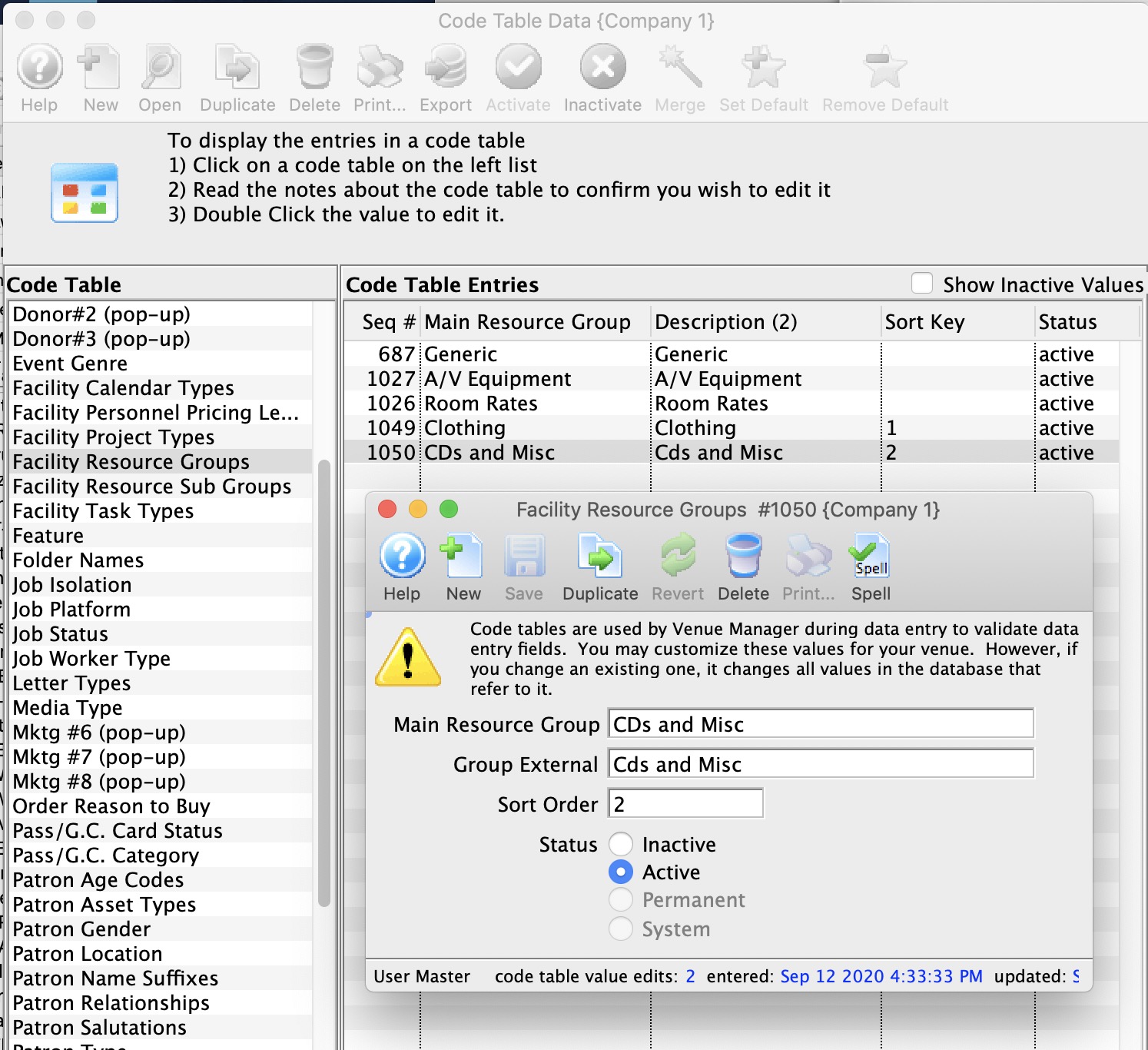
For information about editing values in Code Tables, click here.
Facility Resource Sub Groups
Facility Resource Sub Groups
Click for more information about Resources, Resources, Inventory and Merchandise. The default setting in Theatre Manager is the Generic group. Other groups can be added as needed.
Resource Sub Groups are intended to be sub-classification within a resource group when items are sold online. For example, a resource group of Merchandise might have subgroups like
- Men's t-shirts
- Womens t-shirts
- Hat's
i.e. there is one Men's t-shirts with a bunch of sizes/colours on the web pages.
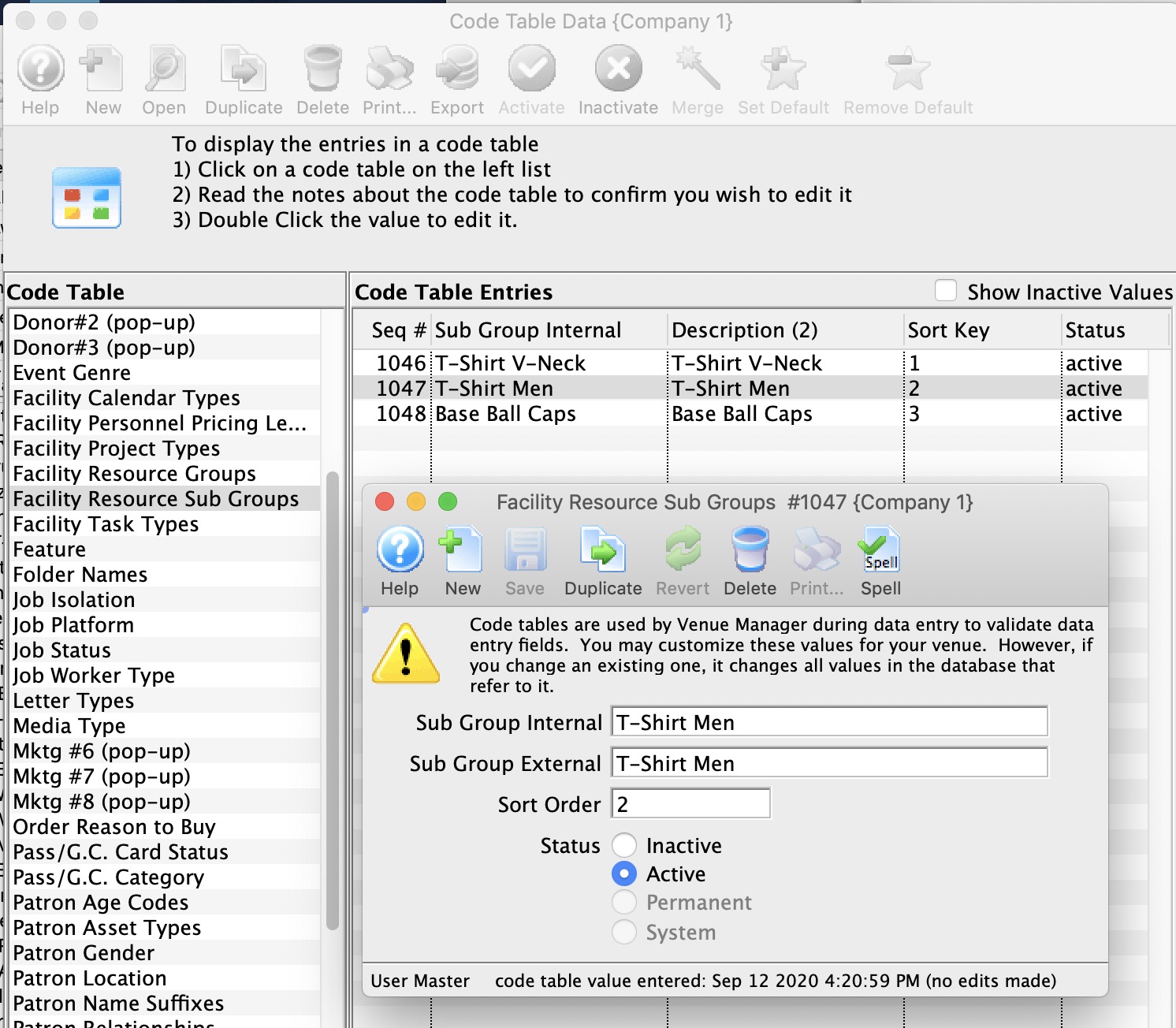
For information about editing values in Code Tables, click here.
Facility Task Types
Facility Task Types
The Facility Task Types are those that appear in the Task Information Window, Task Type drop down.
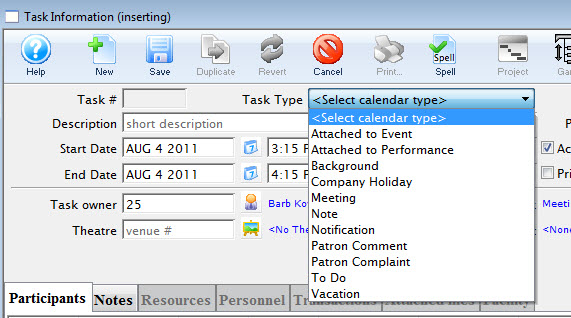
- To enter a new task type, click the new button.
The Task Type Add window opens.
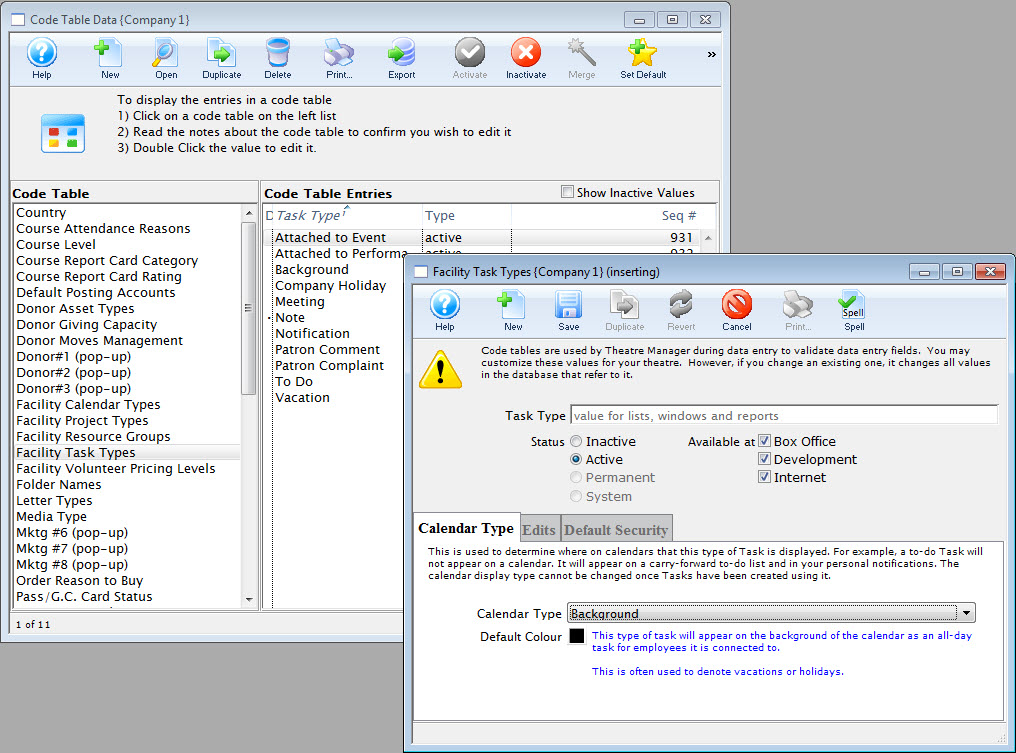
- In the Calendar Type tab, select the Calendar Type the task is to be associated with, from the drop down list.
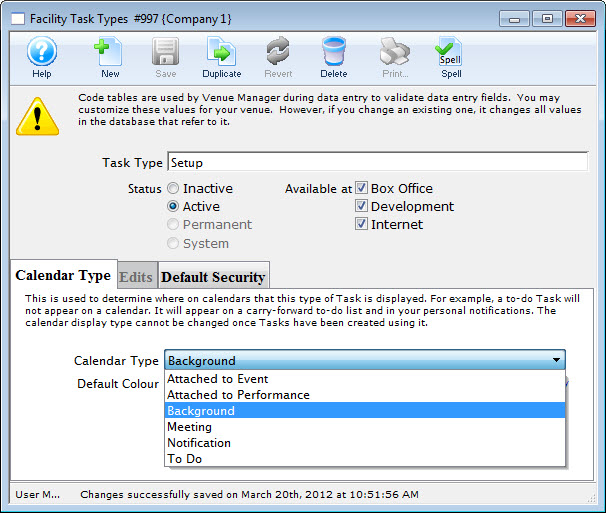
You can also choose a color for the task on a calendar.
- Click the Save button.
The Default Security tab is now available.
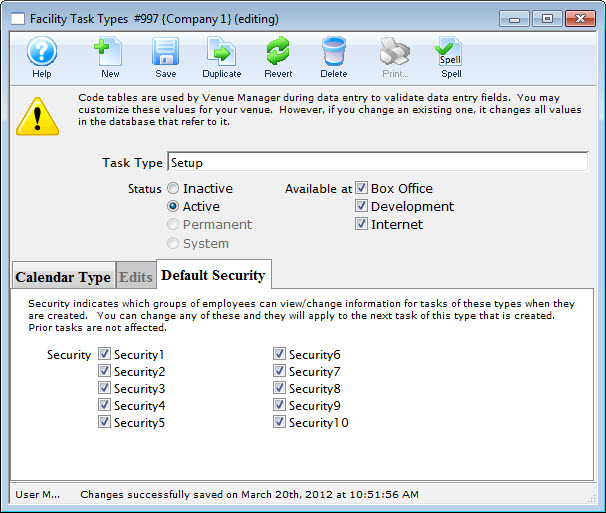
You can now choose a security level. Security indicates which groups of employees can view/change information for tasks of these types when they are created. You can change any of these and they will apply to the next task of this type created. Prior tasks are not affected.
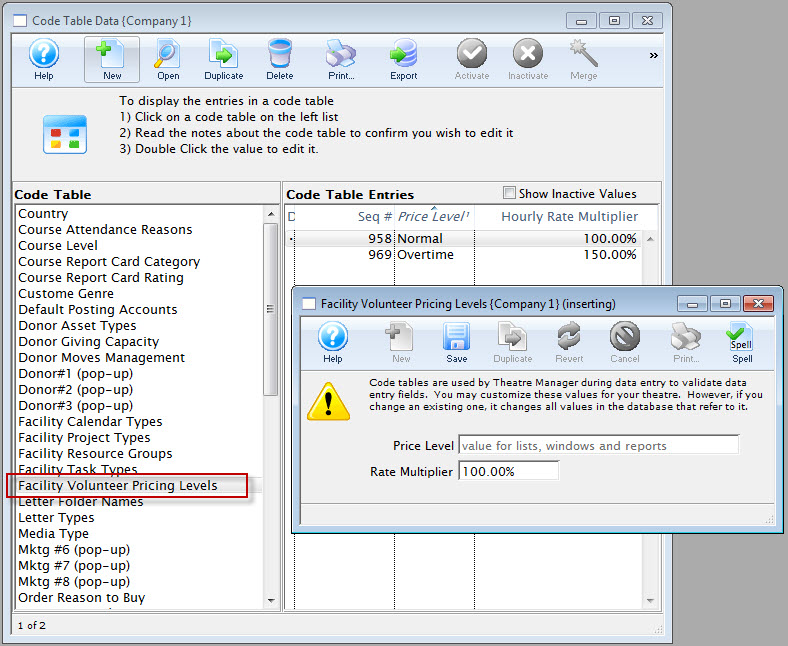
Facility Volunteer/Personnel Pricing Levels
Facility Volunteer/Personnel Pricing Levels
The types of activities your organization's volunteers engage can not only be set up, assigned and tracked inside Theatre Manager but if you have the Facility Module, Pricing Levels can be established and changed to reflect things like Overtime and Stat Holidays. You define pricing levels for the volunteer on the Facility Billing tab of a Volunteer's Activity window.
- Click here for more information on the Facility Billing tab.
- For more information on volunteer management inside Theatre Manager click here.
- For information about editing values in Code Tables, click here.
Folder Names
Folder Names
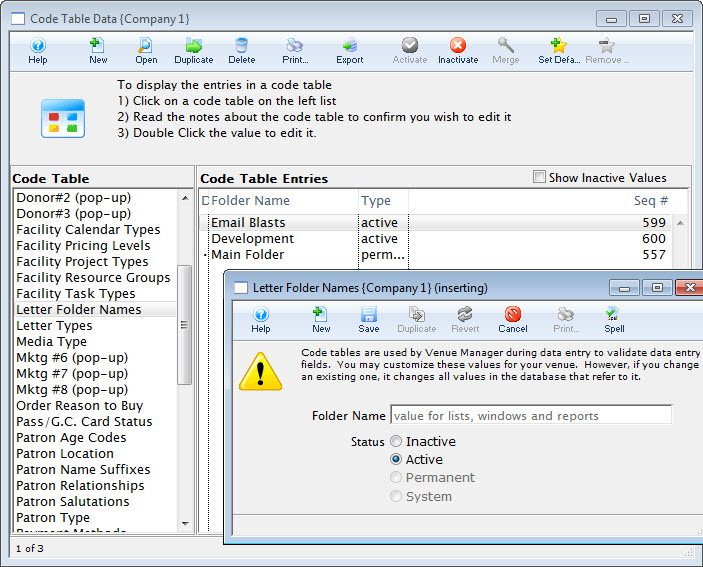
The Code Table Folder Name is used to categorize and organize Folders within Theatre Manager. At the current time, these Folders can be found when saving Form Letters or Mail Lists
You can create folders where you can store Form Letters and Mail Lists. It makes it handy to separate them by department, for example. You could have a Development folder and a Box Office folder. The Box Office would store all their Mail Lists in the Box Office folder - then when the Development staff go looking for a Mail List, they don't have to wade through all the Box Office Mail Lists to find their own. Folders can be used as search options in the Form Letter List and Mail List windows to ease the search time for the desired Form Letter or mail List.
The folders can be divided by department or person, or any other division you want.
For information about editing values in Code Tables, click here.
Gender
Gender
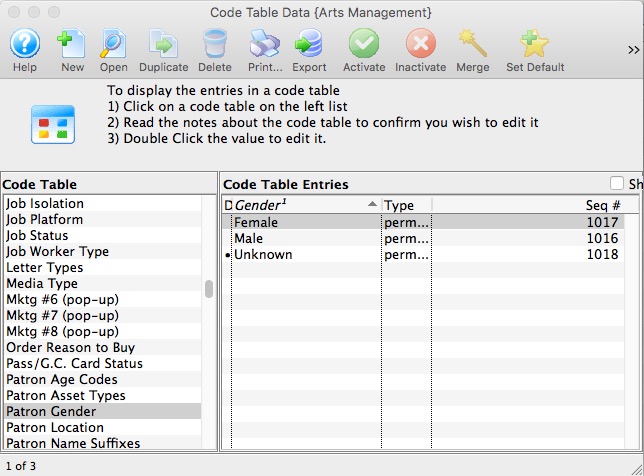
The Gender code table is also linked to the salutation table. If people pick a salutation, you can indicate the gender that is to be associated with the salutation. For example, Mr. generally translates to 'Male'. If a patron picks that as a salutation, Tm will help by setting their gender to Male, if it is set to the default of 'Unknown'
For information about editing values in Code Tables, click here.
Letter Types
Letter Types
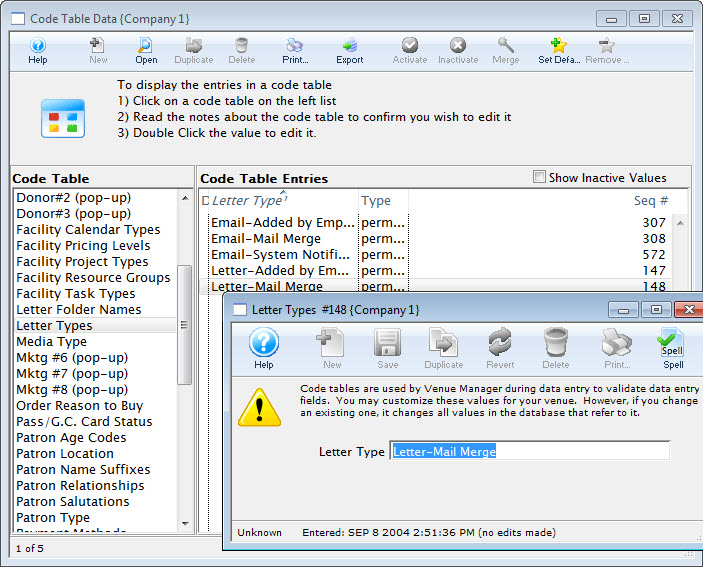
Letter types are displayed in the Form Letters Window accessable through the Letters Tab.
 |
Types allow you classify the types of letters that can be created and sent to patrons |
For information about editing values in Code Tables, click here.
Media Types
Media Types
The Media Types are used to maintain the type of press for members of the media.
Click Here to view the help on Media Management.
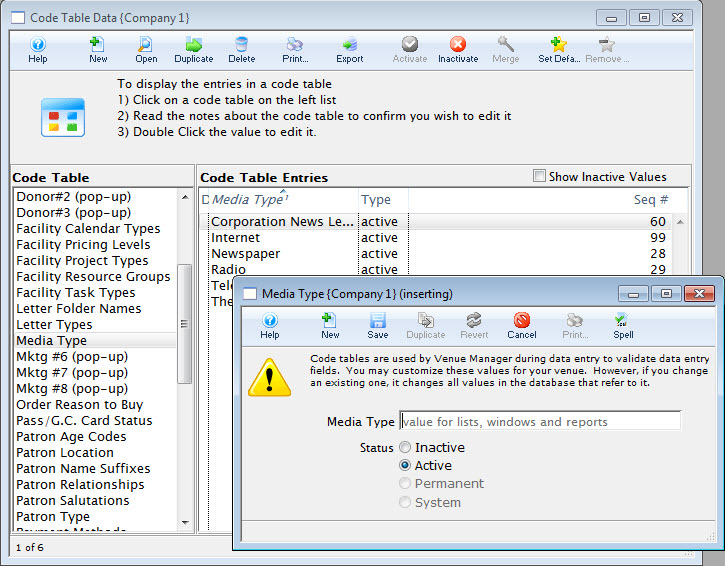
For information about editing values in Code Tables, click here.
Member, Pass and Gift Certificate Categories
Member, Pass and Gift Certificate Categories
items appear online in the following sort order:
- Alphabetical by the 'sort order' of the category (multiple categories can have the same sort order), then by
- External name used to categorize and provide headers for each group, then by
- The actual pass/gift certificate name within the category
Suggested values to enter into this code table for external name are:
- Gift Certificates
- Memberships
- Subscriptions
- Passes
There are 3 fields:
- External Name - see above
- Internal Name - which can be the same as external name, or if you prefer a different set of names, for internal use, enter them instead
- Sort order - which is the order in which the categories will be displayed online. You may want this to be different than the alphabetical sort order of the names for marketing purposes. Eg, Subscription Passes fall towards the end of the alphabet, but you may want them to be first in the online web page, so make the sort order for this a a '1' and for Gift Certificates, make that a 2 or a 3, etc.
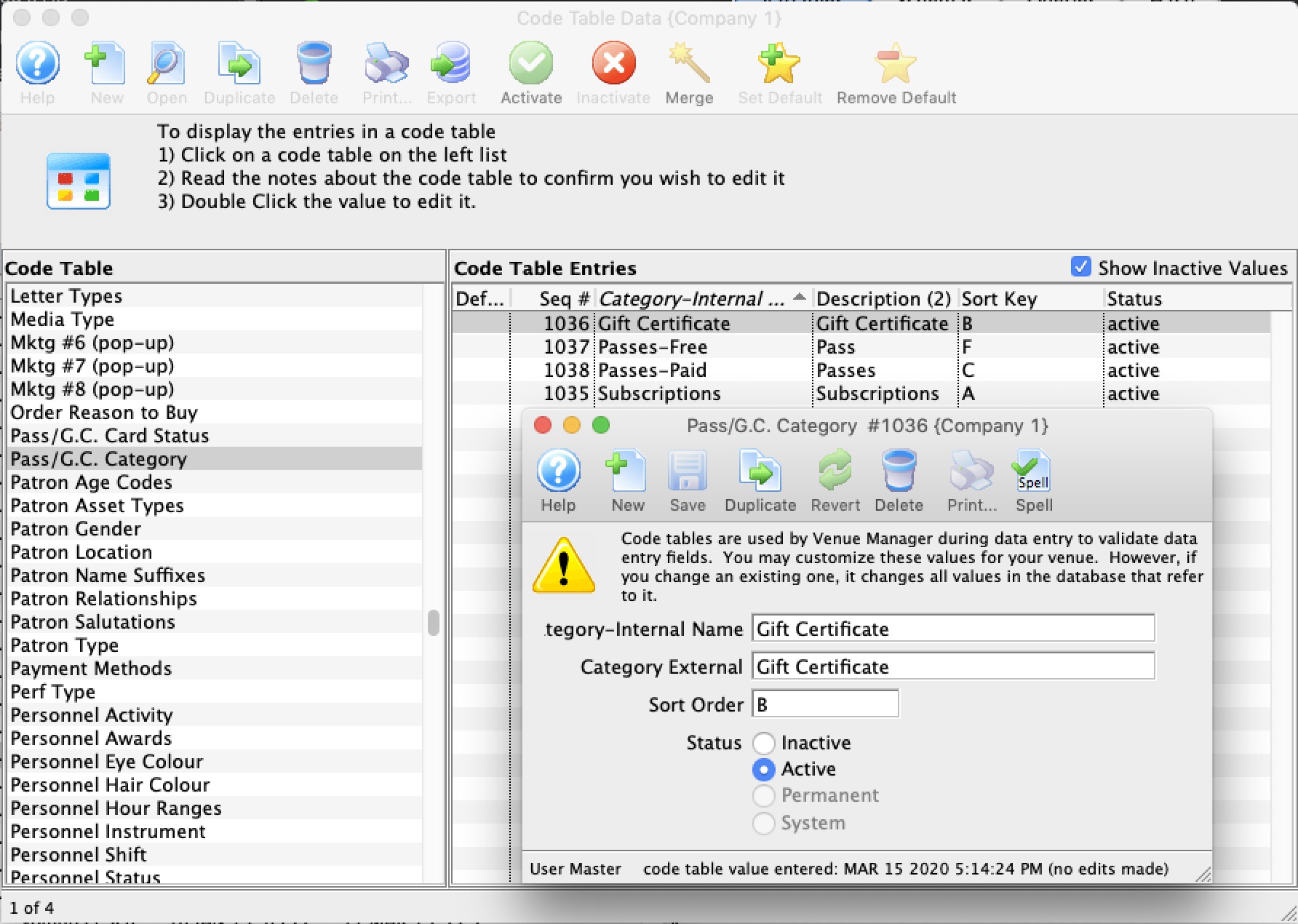
For information about editing values in Code Tables, click here.
Mktg Field #6
Mktg Field #6
The Marketing Code Table values are displayed in the Marketing Tab on the Patron Window. They can also be made manditory fields through the Mandatory Data Tab and their names can be changed in the Appearance Tab of Company Preferences. This allows you to customize Theatre Manager to your own venue's requirements.
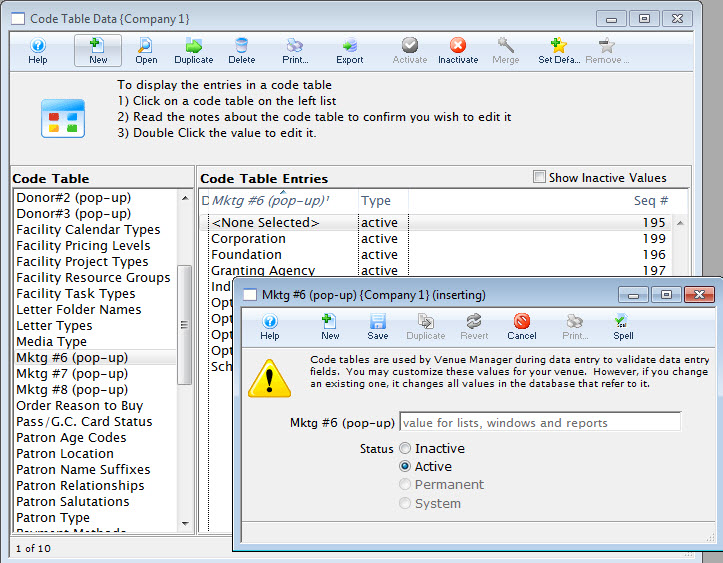
For information about editing values in Code Tables, click here.
Mktg Field #7
Mktg Field #7
The Marketing Code Table values are displayed in the Marketing Tab on the Patron Window. They can also be made manditory fields through the Mandatory Data Tab and their names can be changed in the Appearance Tab of Company Preferences. This allows you to customize Theatre Manager to your own venue's requirements.
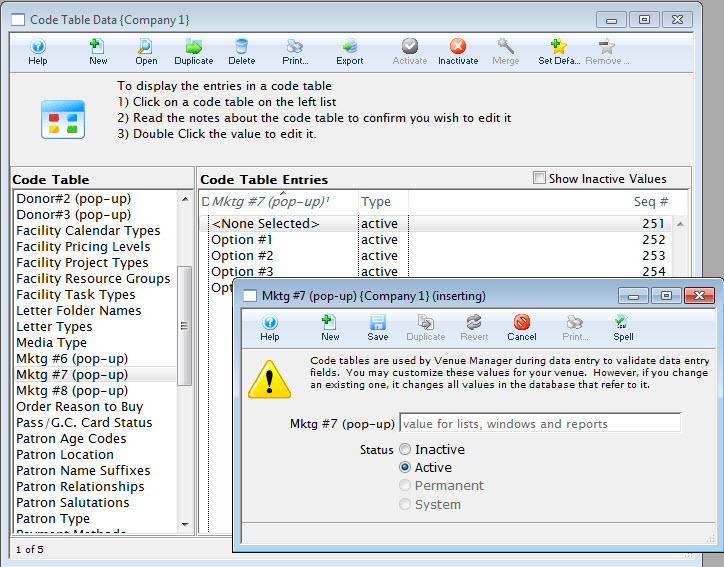
For information about editing values in Code Tables, click here.
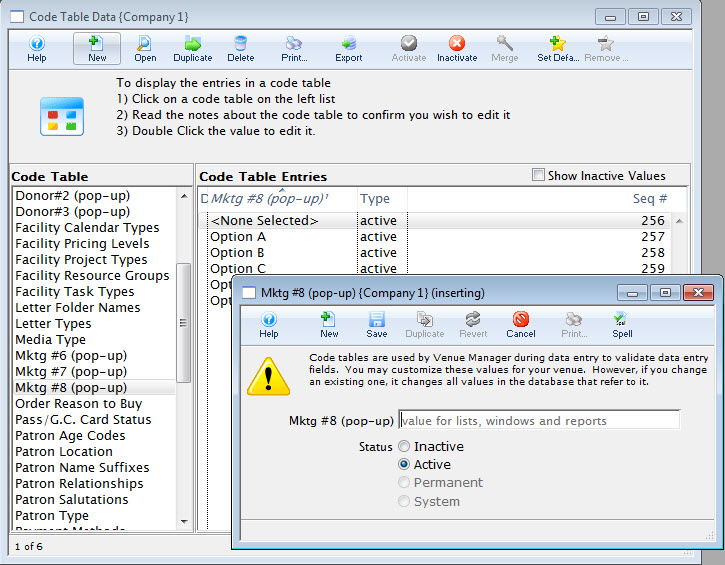
Mktg Field #8
Mktg Field #8
The Marketing Code Table values are displayed in the Marketing Tab on the Patron Window. They can also be made manditory fields through the Mandatory Data Tab and their names can be changed in the Appearance Tab of Company Preferences. This allows you to customize Theatre Manager to your own venue's requirements.
For information about editing values in Code Tables, click here.
Order Reasons to Buy
Order Reasons to Buy
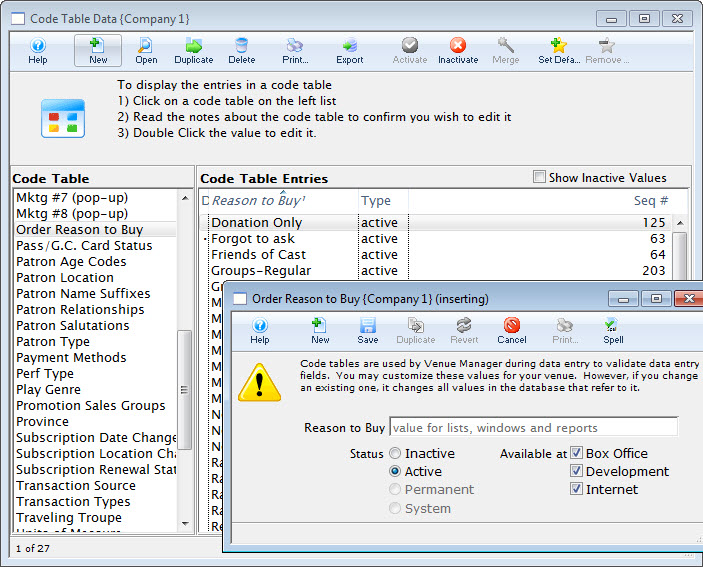
It is recommended that this code table be somewhat specific and contain between 10 and 25 key possible reasons for why patrons buy from your organization. Examples might be:
- some newspaper sources
- some social media sources
- some sources based on annual activities like subscriptions, fundraiser, or donation
- some sources based on referrals like friends
The Revenues by Why Did Patron Buy report is a great way to summarize this data for relevant events and periods of time.
|
You can make collection of this data mandatory for all orders by enabling the reason to buy option in System Preferences. |
|
For all values in this table, you will want to take care in where you make them available.
|
|
For online donations, you will want a code table entry that:
|
For information about editing values in Code Tables, click here.
Pass/G.C. Card Status
Pass/G.C. Card Status
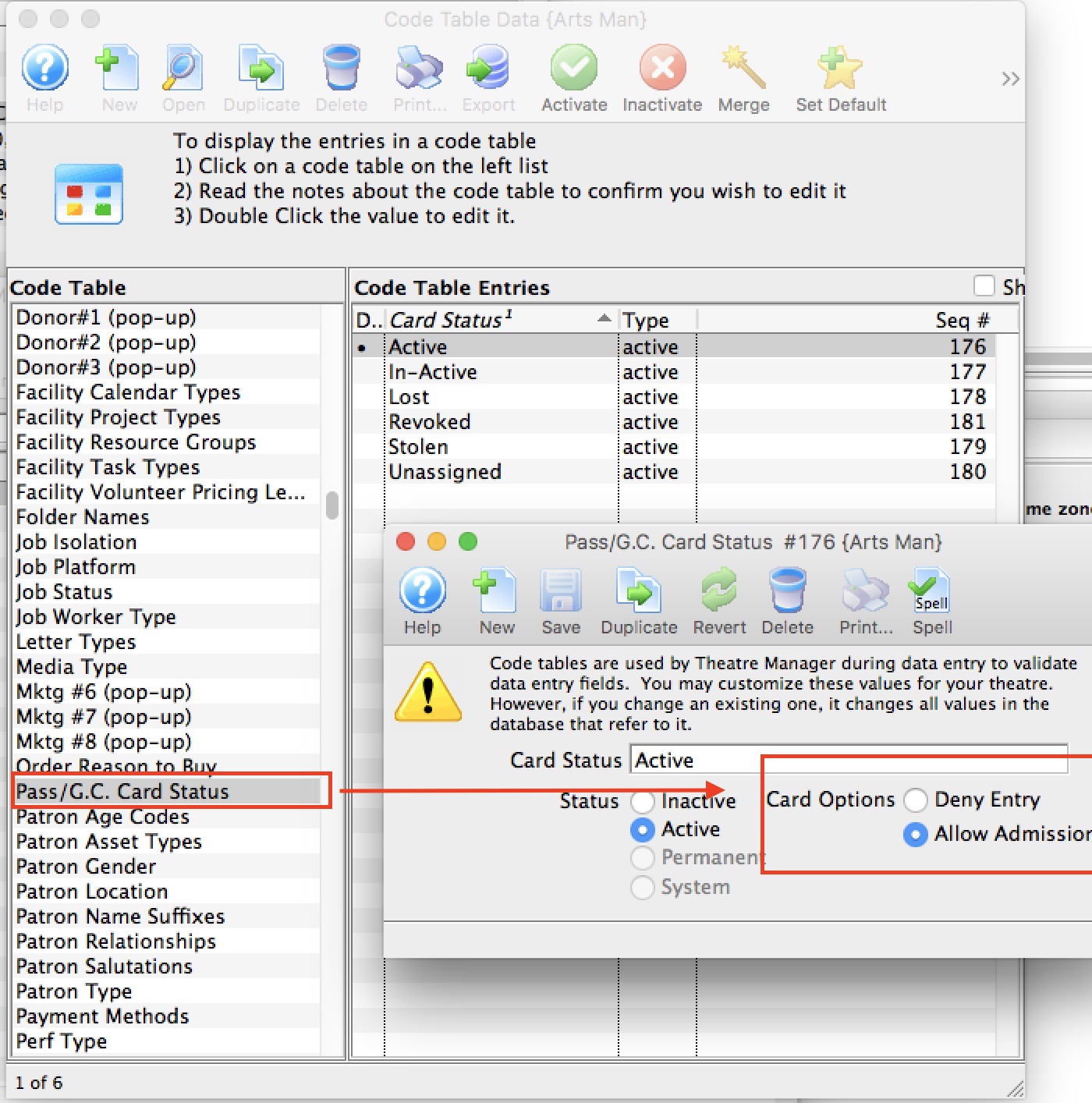
The member card status codes are displayed on the Member Card Window. They are used as a reference as to the status of the card. Each card status may be set as 'active' or 'inactive'. Inactive card types do not count towards the maximum access card limit for a pass/Gift certificate setup-> edits tab.
Click here for more information on the Member Card window.
For information about editing values in Code Tables, click here.
Patron Age Codes
Patron Age Codes
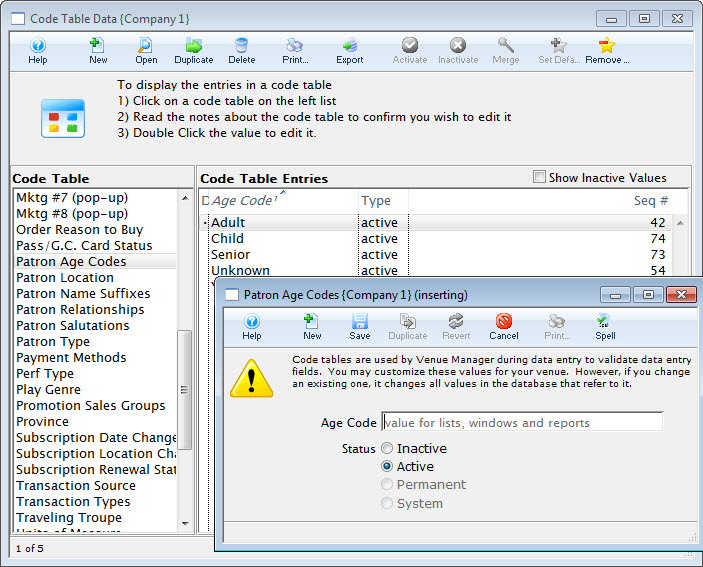
The Code Table Age Codes is used to categorize personnel and/or volunteers into particular age ranges. If the age is unknown, then an age code Unknown may be useful. Age codes could also be specific birth years if required.
For information about editing values in Code Tables, click here.
Patron Location
Patron Location
- phone numbers
- addresses
- e-mail addresses
- web site addresses
|
Note: for addresses, you can indicate if 'Company/Title' should be printed on the address label or form letter address. This field would be checked for 'work' addresses, and not for 'home'. If the company name is not marked to be printed on an address (in codetables), it never will for labels or form letters |
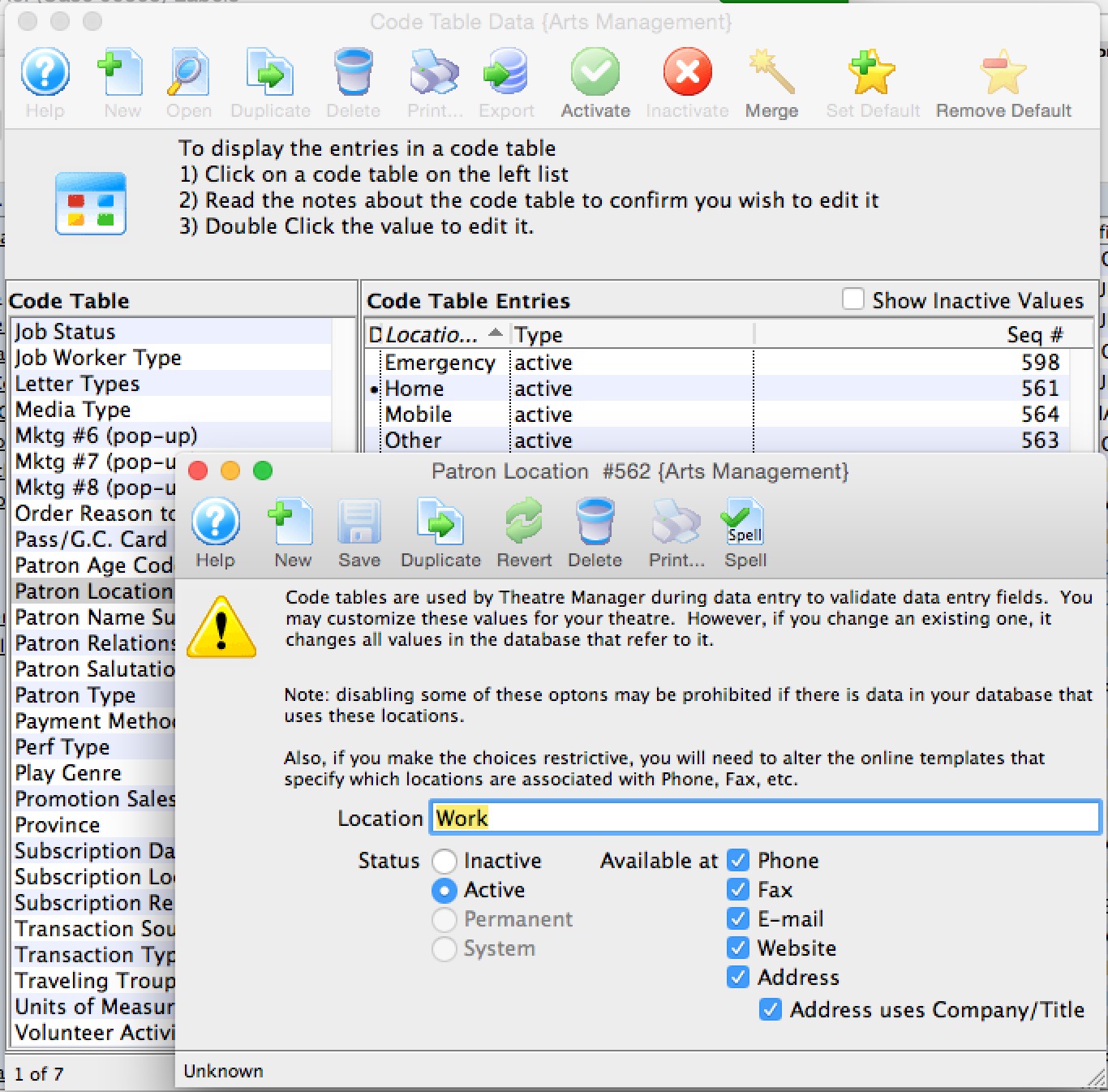
For information about editing values in Code Tables, click here.
Default Locations used at the Box Office
Every code table can have a default value indicated by the '•' at the left of the code table entry. This is important to set for the Location table as it affects which location is used by default. In the example below:
- Home is the default location, so it will appear in the new patron entry screen.
- Home is allowed to be used for:
- Phone numbers so the default for all phone numbers entered at the box office is 'home'. If you don't want that for a specific phone number, you much change it on the patron window
- E-mail - which is shown as the default for email entry
- Web site - which is shown as the default for web sites
- Address - which is shown as the default for addresses
- Home is not allowed for fax in this example. The default for fax will be one of other locations that allows fax numbers
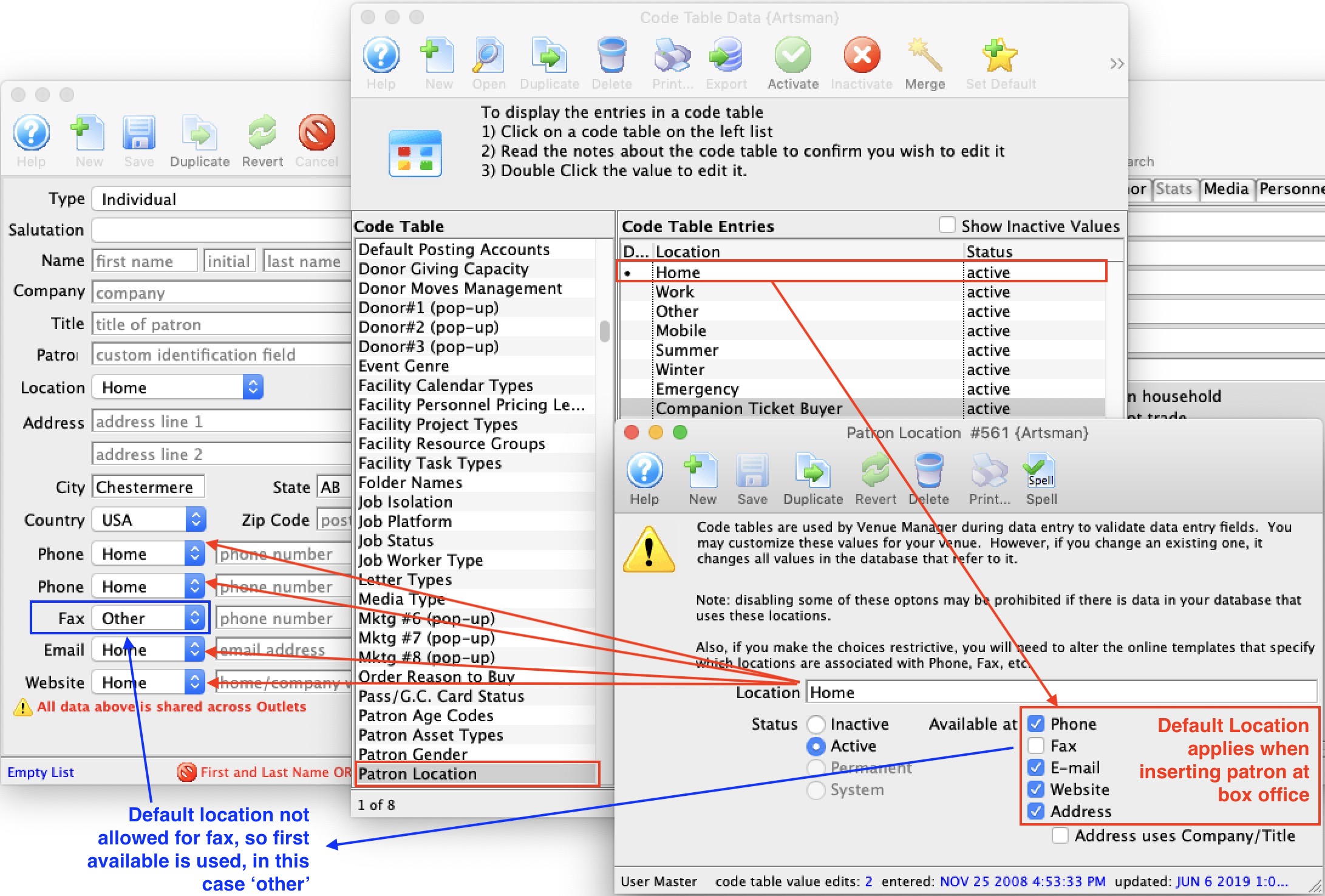
Default Locations used on the web Site (for new patrons)
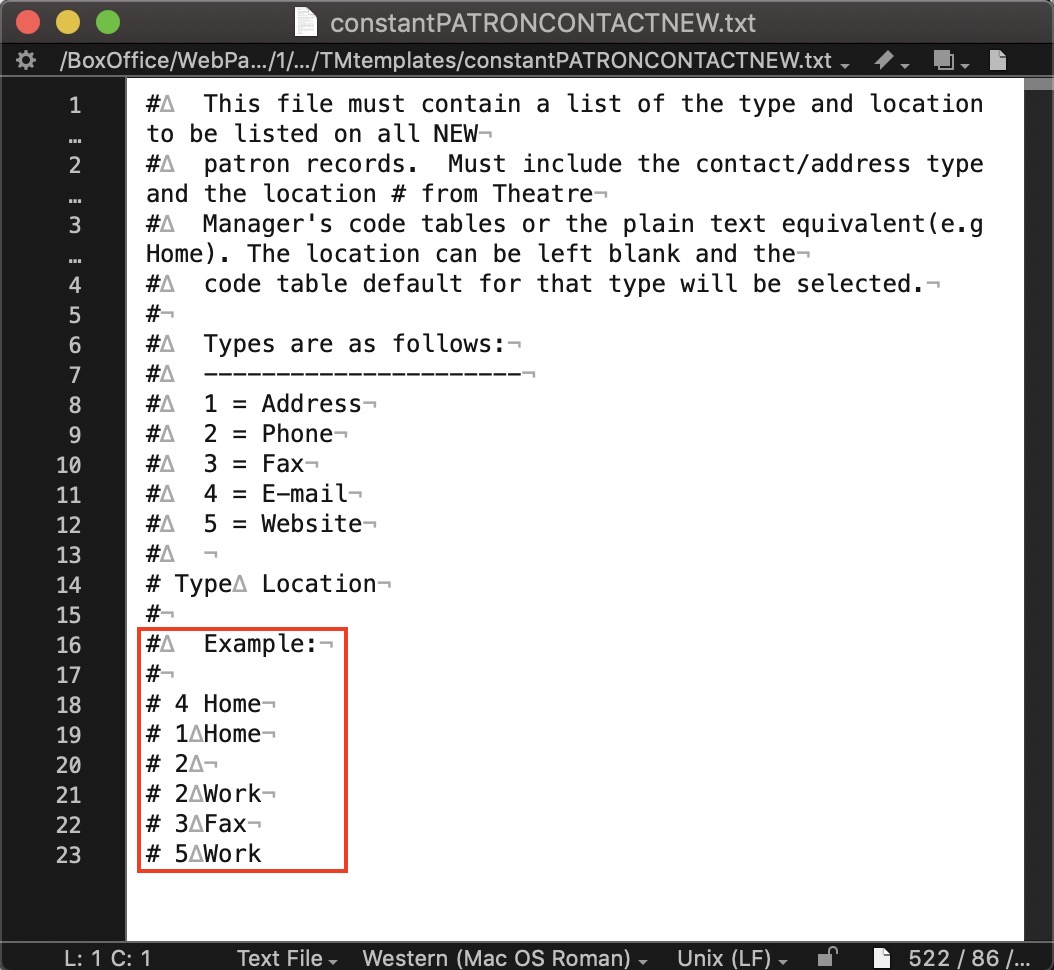 Locations on the web are a bit more granular and refer to the code tables for values, but do not use the code tables for position of usage.
For example, on the web you may want to:
- Only allow certain items to be entered
- duplicate some of them (like allow entry of multiple phone number)
- Change the order in which they are presented
to do this, you edit the file called constantPATRONCONTACTNEW.txt that is in the tmTemplates folder. In that file, you would have a number followed by a tab, followed by the name of the location from the code table. The number reflects the meaning of the contact data. Always put Email first. The following is an example:
4 tab Home where
- 4 means email per the legend -and-
- Home is the value to use which must exist in code tables and be valid for that entry
so a reasonable list of entries are:
| Number | Value | Description |
| 4 | Home | the default email address is 'home' it does at the top opf the new patron web page |
| 1 | Home | the default mailing address is also 'home' which goes in the address section of the web page. If you put a second address in this table, you could allow patrons to enter a work address or leave it blank. |
| 2 | blank | A blank entry means take the default location for a phone from the code tables. In the example of the code table above, it would also be 'home' |
| 2 | Work | means add a second entry field for another phone number and label it 'Work' |
| 2 | Cottage | means add a third entry field for another number and label it 'Cottage'
The above table do not have any entry for 3 (faxes) or 5 (web sites), so those options will not be presented to the user. |
Default Locations used on the web Site (for existing patrons)
There is a similar file called constantPATRONCONTACTEXISTING.txt with the same rules for existing patrons. Theatre Manager will always show all the data in the patron record and no more. If you want to have some empty fields for additional data, you can add more to the template.
For example, if you want to allow up to 3 phone numbers, then you might have a table of
- 2 tab Home
- 2 tab Work
- 2 tab Mobile
Default Locations used on the web Site (for existing patrons)
There is a similar file called constantPATRONCONTACTLIMITED.txt with the same rules if you are using limited profile patrons to specify what those phone or emails will be called when a patron fills them in.
Patron Name Suffixes
Patron Name Suffixes
Name Suffixes are chosen from the Patron window. These can be included when sending letters to patrons.
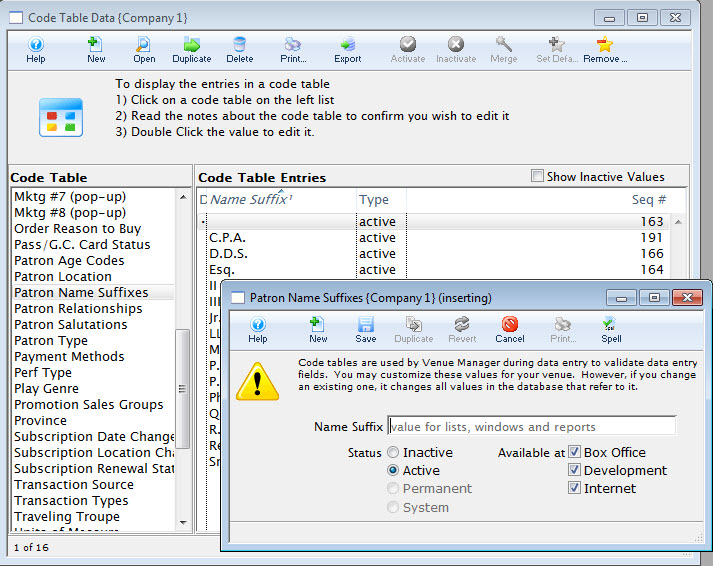
For information about editing values in Code Tables, click here.
Patron Relationships
Patron Relationships
The example below provides some ideas for the relationship code table that you can enhance to suit your business and CRM requirements.
Making a relationship entry under one patron automatically makes an entry under the other patron. The code table allows you to create terminology that clearly defines both sides of the relationship. For example:
- in a family relationship you could use Parent/Child to show who is the parent in the relationship and who is the child.
- a work relationship could be supervisor/employee.
- some relationships might use the same words like coworker/coworker.
- some political relationships could be Knows the Mayor/Is known by the Mayor
Use any pair of words that helps you define the relationship.
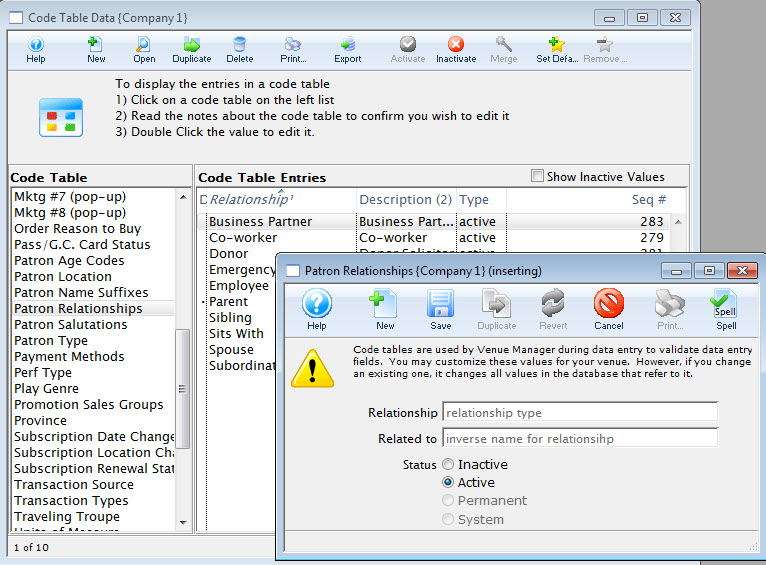
For information about editing values in Code Tables, click here.
Patron Salutations
Patron Salutations
The Patron Salutations code table is used to maintain the salutations on the patron and employee windows.
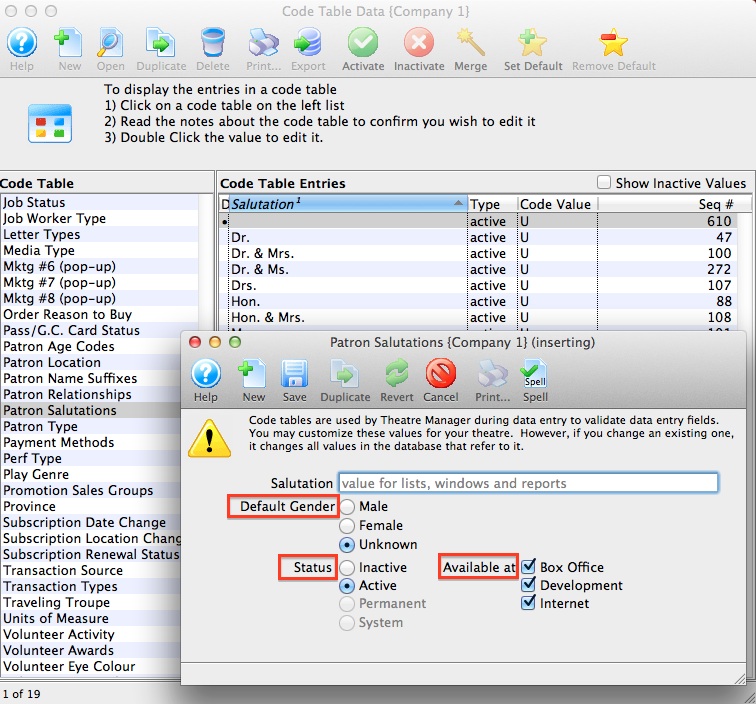
| Default Gender | Setting the gender allows the gender to be automatically tagged in the patron's record when a salutation is applied to a patron's record. Then there is no guessing as to who you are talking with. Gender can be used in search criteria for reports, exporting and mail lists and are created in the gender table. |
| Status | Allows the salutation be changed between Inactive or Active. Some salutations are not changeable and are marked as Permanent or System. This field is searchable. |
| Available At | Select areas where the salutation can be used in the Box Office, Development, or Internet. More than one choice can be used. This field is searchable. |
For information about editing values in Code Tables, click here.
Setting Patron Salutation As Mandatory On Patron Insert
Setting Patron Salutation As Mandatory On Patron Insert
- Go to Setup >> System Tables >> Code Tables.
- Scroll to Patron Salutation.
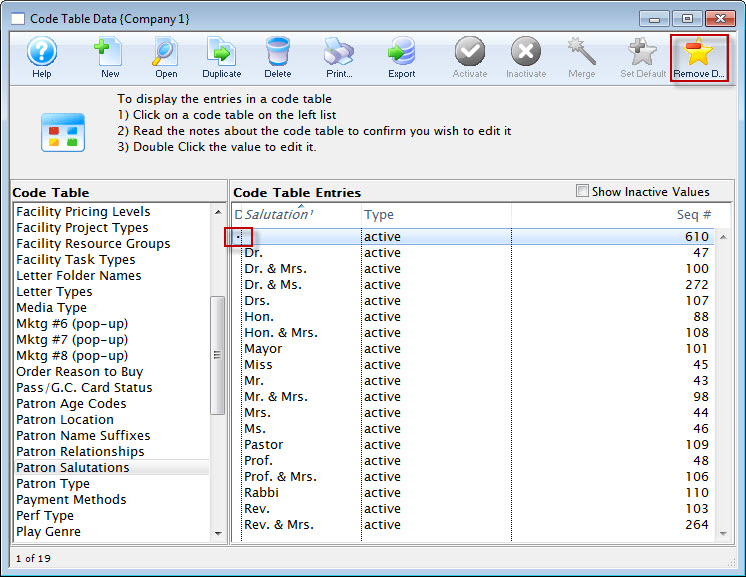
A blank salutation is set as a default by Theatre Manager. The default value in a code table is marked with a dot to the left of the entry.
- Highlight that blank salutation and click the Remove Default
 button.
This removes the blank default salutation.
- Remove the blank salutation using the Delete
 button.
If it has been used in a patron record, you will not be able to remove it. Mark it inactive.
- To mark a value inactive, follow instructions found here.
Patron Type
Patron Type
The Code Table Patron Type is used to sort patrons records into categories. This information is used for Patron Records.
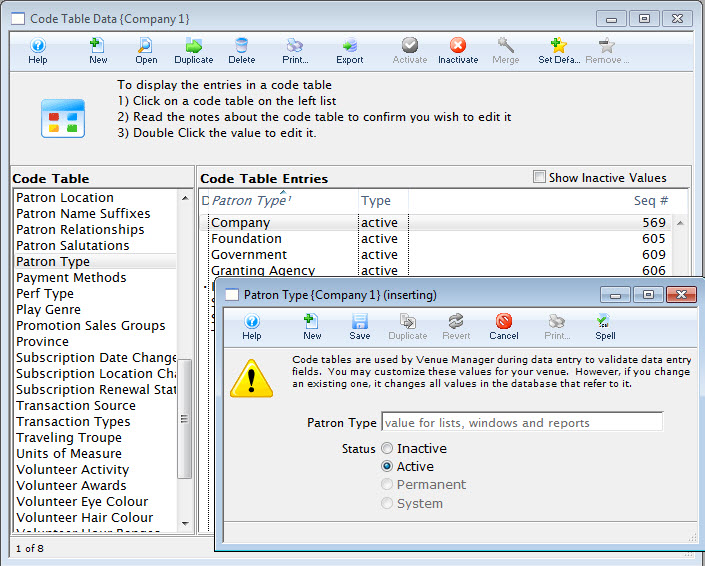
For information about editing values in Code Tables, click here.
Payment Methods
Payment Methods
- The payment Code is the abbreviated form that is found throughout Theatre Manager.
- The Payment Method is the full description of the payment type that appears online and at the box office.
- Security Group Access provides
- Ability to set which groups of people can use the payment method. It means you can set access to some of the custom payments to certain people. Eg. There may be some different ones for education, development, group sales or inter departmental transfer payment types.
- Security cannot be use for the 7 built in payment methods below (eg ~CASH, ~CHECK ,etc)
- The G/L account column displays the GL asset account that a particular payment is posted to.
- The Sort Order allows you to organize the payment method display order where paymetns are listed online and at the box office. this way you can put your commonly used items at the top of the list. Sort order is 10 characters, alphabetic
- Payment types are one of:
- Credit Card - can be used with merchant providers or EMV devices to authorize cards. You must have contracted with your merchant provider to use each card type you want to accept.
There are some specific values for the payment code if the payment type is 'Credit Card'. These are:
- VISA - for Visa
- MCARD - for Mastercard
- DISC - for Discover
- DCCB - for Diners Club
- INTRAC - for Interac (debit) in Canada
- currently only supported for Moneris EMV cards.
- You cannot accept INTRAC without using an EMV device.
- This method is removed from the payment list when doing refunds -- but it can be used for EMV refunds since the choice of refund method is then based on the card the patron actually uses.
- JCB - for JCB cards
- UPAY - for Union Pay (Chinese branded)
This will ensure that Theatre Manager validates for the required number of digits for each card type, and have the correct numeric algorithm. An error message is displayed if the numbers are not entered correctly, to assist card entry.
Before changing the merchant provider for a credit card payment method, please read about the ramifications
- Credit Card - can be used with merchant providers or EMV devices to authorize cards. You must have contracted with your merchant provider to use each card type you want to accept.
There are some specific values for the payment code if the payment type is 'Credit Card'. These are:
- EFT - (Electronic Funds Transfer) can be used, amongst other things, for post dated payments and produce an export file during end of day. The export file is formatted to your bank and will cause funds to be transferred from patrons to your account.
-
System - are 7 special built in system payments that cannot be deleted (only inactivated) like cash, check, voucher, pass/gift certificate redemption and gift in kind. They cause Theatre Manager to behave in a distinct way and ask for special data to be entered for that payment method.
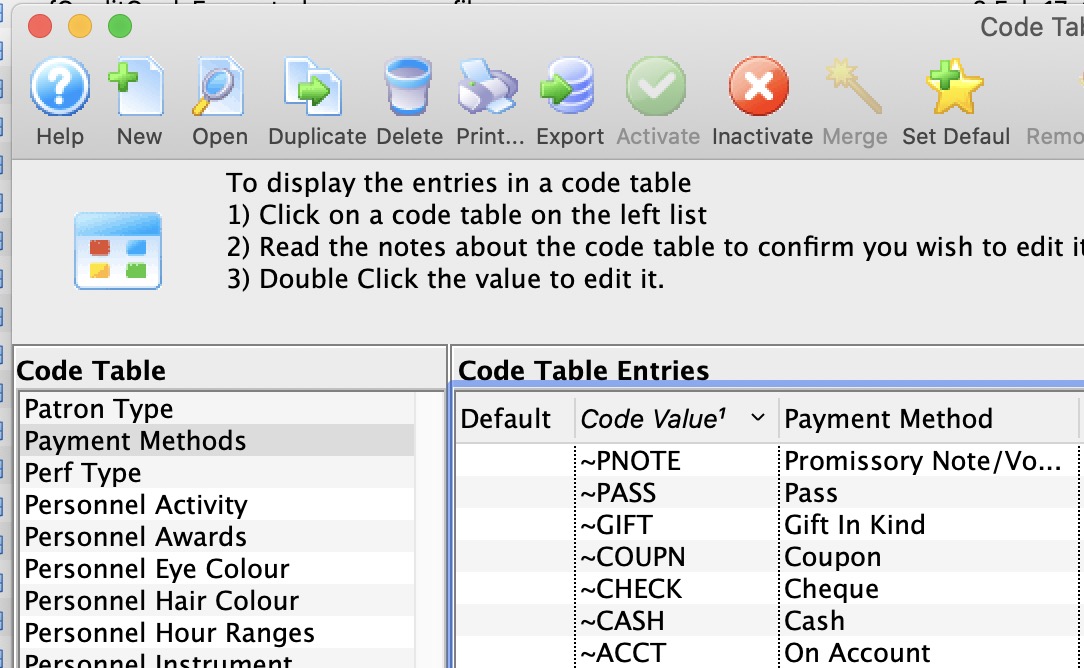 These built in payment methods are:
- ~CASH which is typically called 'cash' and is used for all cash payments..
In Canada, make sure to set it for rounding to nearest $0.05
- ~CHECK which is typically called 'check' or 'cheque' and is used for all check payments
- ~GIFT which is for gift in kind payments to supply data as required by CRA for tax receipts.
- ~COUPN which is used to add coupons to an order that might cause a discount to happen
- ~ACCT which is used to indicate no payment on an order - and leave a balance on account
- ~PASS which is used to add a gift certificate or pass payment to an order. A pass might alter the cost of the tickets to create a discount.
- ~PNOTE which is used to add a voucher payment number to an order - suitable for printing on invoices to customers.
- ~CASH which is typically called 'cash' and is used for all cash payments..
- Other - can be used for any other payment methods such as intra-campus PO's or payment entered in another system and recorded in TM - those which cannot be accommodated in the standard payment methods
|
Please refer to Rounding of Cash Payments if you are in Canada or another country that requires rounding of certain payment methods.
While this features is typically used for cash, you can use on any payment method |
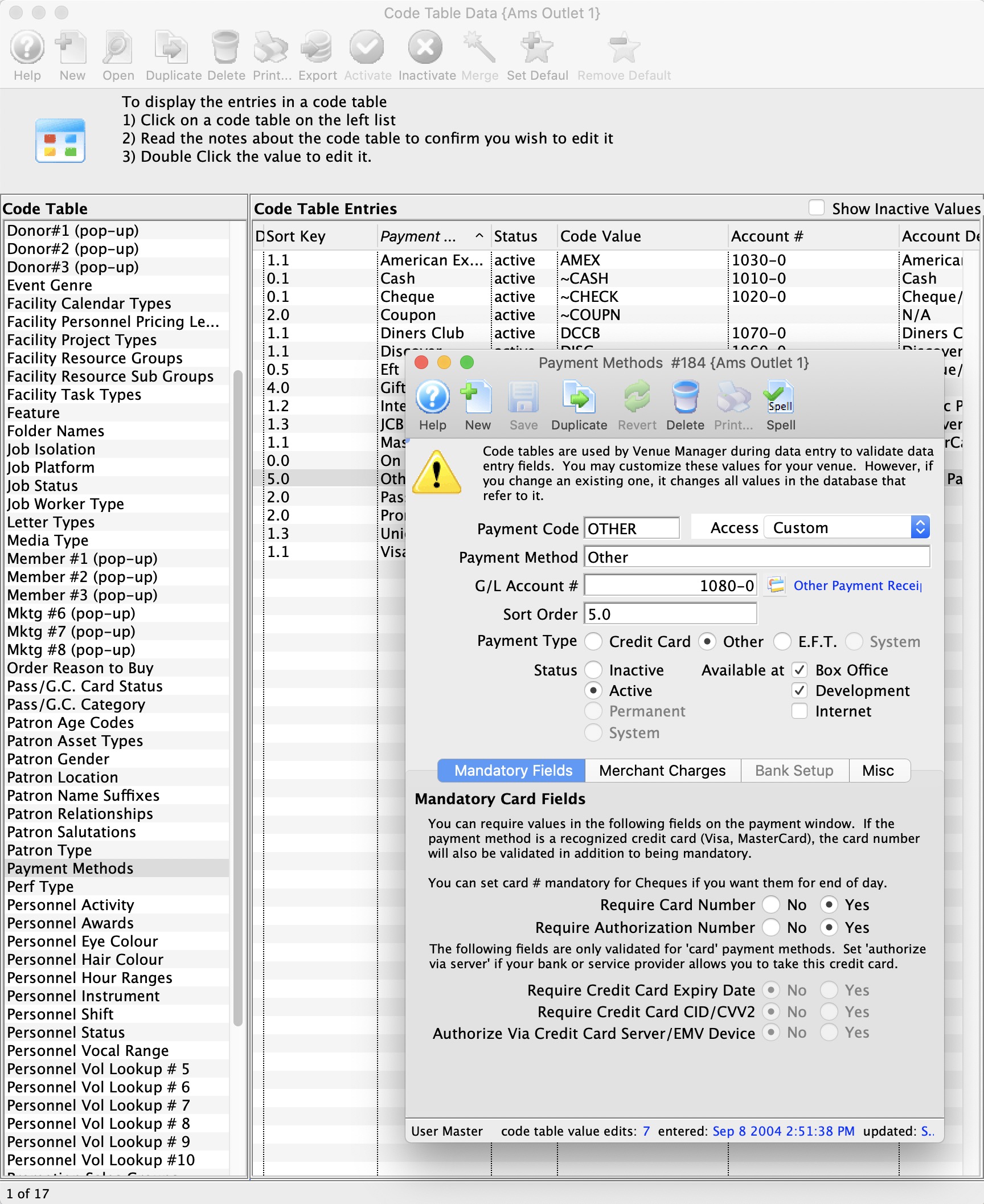
For information on how to access the payment method table click here.
For information about editing values in Code Tables, click here.
Inserting a New Payment Type
Inserting a New Payment Type
Inserting a New Payment Type is used to add options to the Payment Methods category.
- Create a general ledger account number.
Entering a new payment type in Code Tables requires entering a General Ledger Account number for the card type in the Chart of Accounts.
- Open Code Tables.
Click Here to learn how to access the Code Tables Window.
- Click on Payment Method.
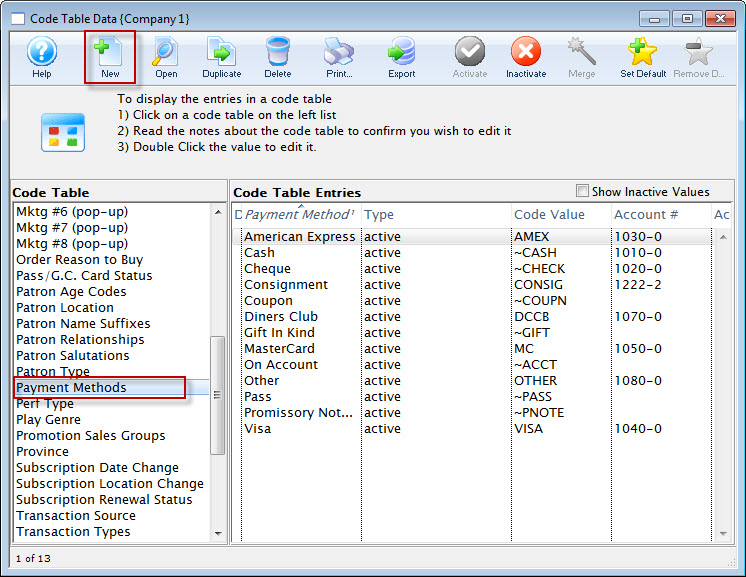
- Click the New
 button.
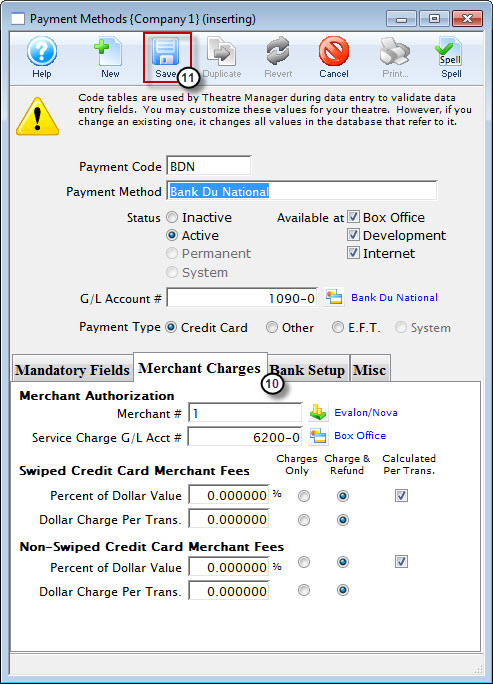
The Payment Methods Insert Window opens.
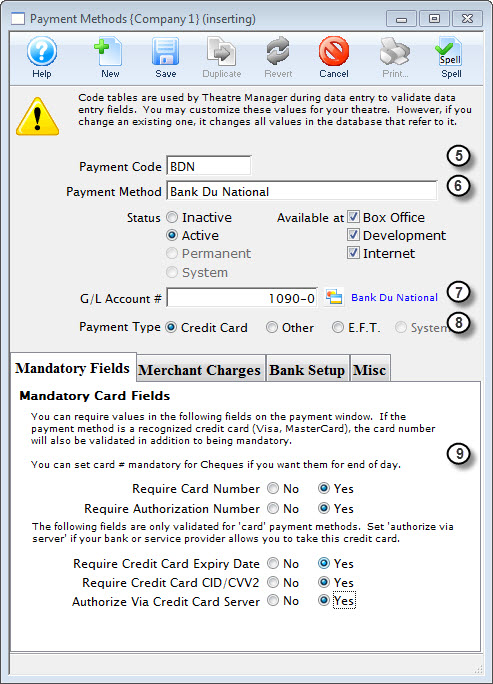
- Enter the payment code.
This is the short form of the payment description. This text appears as the code table lookup value.
- Enter the payment description.
This is the full description of the type of payment that you are creating. This text appears as the code table result value.
- Enter the GL account number.
This is the GL number that you created in step one. Type in the full 8 digit account number or use the drop down list on the right side of this field to manually select the account number.
- Select the payment type.
Click on the radio button that best describes the type of payment method you are inserting.
- Select mandatory fields.
If a customer is paying via credit card, you must decide which credit card fields must be entered before payment can be accepted. The fields you may make mandatory are credit card number, credit card expiry date, credit card authorization number, and process card via credit card server. The last selection is available using Theatre Manager's Credit Card Authorization.
Selecting yes for any of these fields makes them mandatory fields.
- Select the Merchant Charges tab.
For Credit Card processing a Merchant #, Service Charge G/L Account Number and Percent of Dollar Value or Dollar Charge Per Transaction are required.
- Click the Save button.
The new payment type has now been created and is ready for use.
Changing Credit Card Provider
Changing Credit Card Provider
|
Before changing the merchant provider for a credit card payment method, please about
|
Generally there are two aproaches:
- Create new credit card payment methods for the new merchant provider and migrate all post dated and recurring donation payments to the new provider. This is the best choice because
- It preserves history of which merchant did which payment
- Allows you to reactivate old merchant account if you need to do linked refunds for past payments (such as occurred during Covid and mass cancellations, but could just as easily occur for a cancelled concert at any time
- It sets up future post dated credit card payments to use the new merchant
- Move all existing and historical credit card payment methods to the new provider so that they no longer exist under the old provider. This is rarely used:
- It sets up future post dated credit card payments to use the new merchant
- All historical data is also migrated, so future linked credit card refunds will not work, since they are for the incorrect merchant provider.
Impact on Merchant Profiles
In both cases, moving to a new merchant provider means any Merchant Profiles established for patrons will become useless.
The patron merchant profiles will be recreated under the new merchant account as each patron purchases in the future. They cannot be transferred from one merchant provider to another.
Rounding Cash Payments
Rounding Cash Payments
- Go to Setup>>System Tables>>Code Tables
- Select Payment Methods
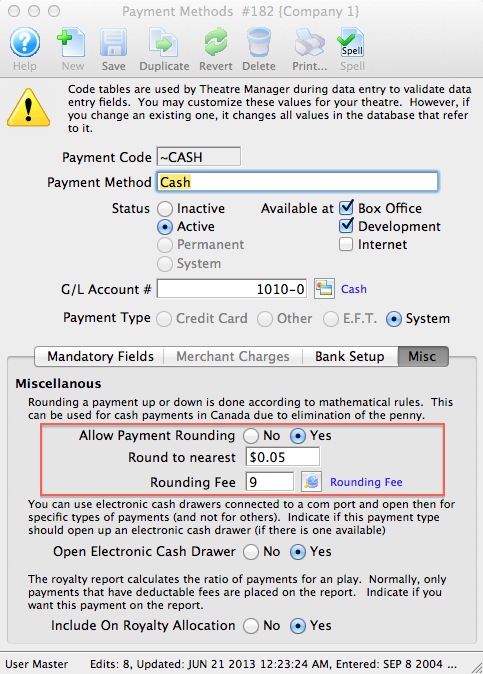
- Double click on the payment method you wish to setup for rounding on the right. If you are rounding the Cash payment method, then find the system ~CASH payment explicitly per the image below.
- click on the 'Misc' Tab for the payment method and set 'Allow Payment Rounding' on
- indicate the amount of rounding you want.
- Normally, this rounding amount would be $0.05 to round to the nearest nickel.
- You can have TM round to the nearest dime, quarter or any value you place into this field.
- Provide a fee type that will be used to track any rounded amounts -or-create one if you do not have a rounding fee account
- you will need a G/L code in your chart of accounts to post the fee to.
- the fee should not have any tax associated with it as you are just tracking the amount of cash that you gain or lose to rounding the payment. If your payments are evenly distributed (i.e. half are rounded up, half are rounded down), the total amount in this account will approximate zero.
Example: How does the process work?
Lets say the value of the ticket you sell is $29.46. Any tax is calculated by Theatre Manager is purely on on the price of the ticket (not the payment) and this is what is posted to the sales accounts and all reports.
- if the person pays by any method other than cash, you receive $29.46 in the asset account
- if the patrons pays by cash, the order total is still $29.46 and the cash payment that is requested is rounded down to $29.45. The payment windows does this for you automatically.
-
When the person gives you cash for $29.45
- the ticket is still allocated the full price of $29.46 (which includes per ticket fees and taxes)
- the bank account for cash payments is only allocated $29.45 because that is what you received.
- the fee account is allocated -$0.01 as a write off
Deleting a Payment Type
Deleting a Payment Type
|
If a payment type has been used, it cannot be deleted. |
If you wish to discontinue a payment type, disable it. Click here to learn how.
To delete an unused payment type:
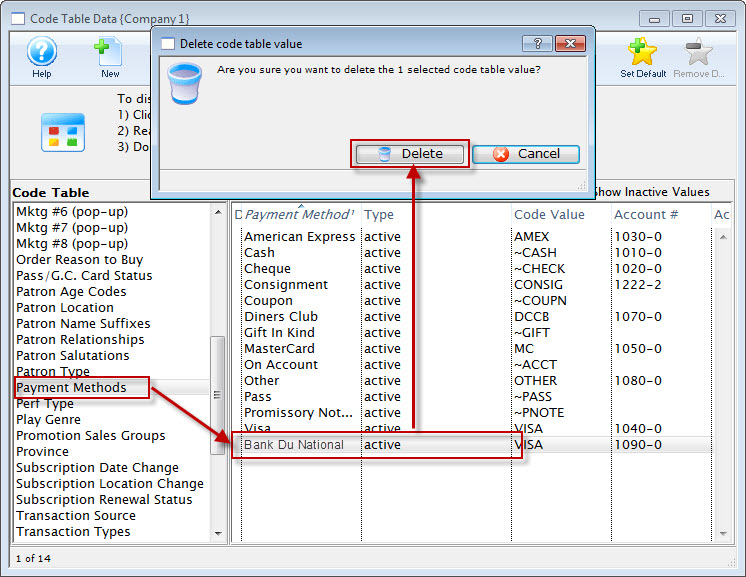
- Select the payment type that will be deleted.
- Click the Delete
 button.
The Delete codtable confirmation opens.
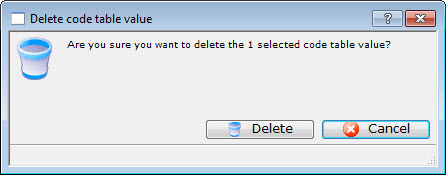
- Click the Delete
 button.
The payment type is now deleted. Clicking the Cancel
 button will abort the deletion.
Performance Type
Performance Type
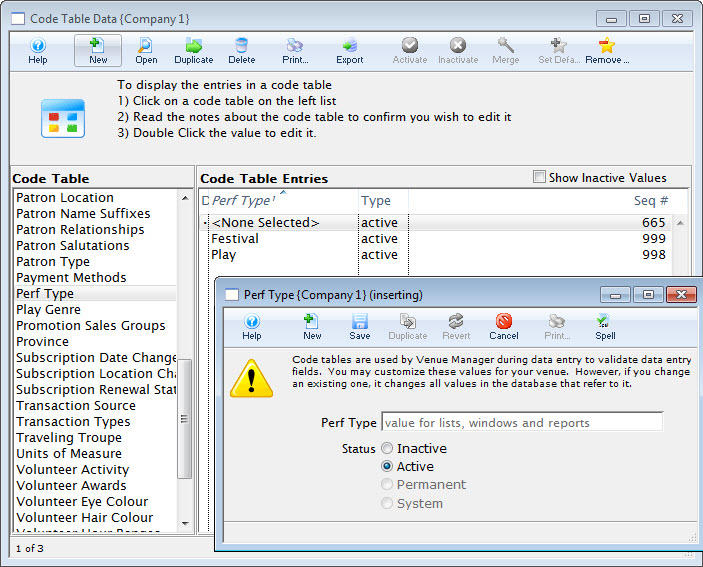
This is a versitile, customizable code table field you can use to flag specific performances. You can use it for display on the web and it can also be used like the Genre flag for TicketTrove. It can also be used for reports to narrow down searching for specific performances.
Using this field, you can also search for specific performances during the Ticket Sales.
If you are using this field for courses, Click here for more information.
For information about editing values in code tables, click here.
Play / Event Genre
Play / Event Genre
|
Genre is a general classification for events that is common to all Theatre Manager customers.
You cannot edit the Genre Table |
Currently, there are about 70 classifications which are used in the TicketTrove iPhone/iPad app to help customers find entertainment to their liking as well as on the event search window on the web.
- For Example: Customers can look for drama, hockey games, musicals, symphonies, ballet, etc.
Specifying a genre for an event is required.
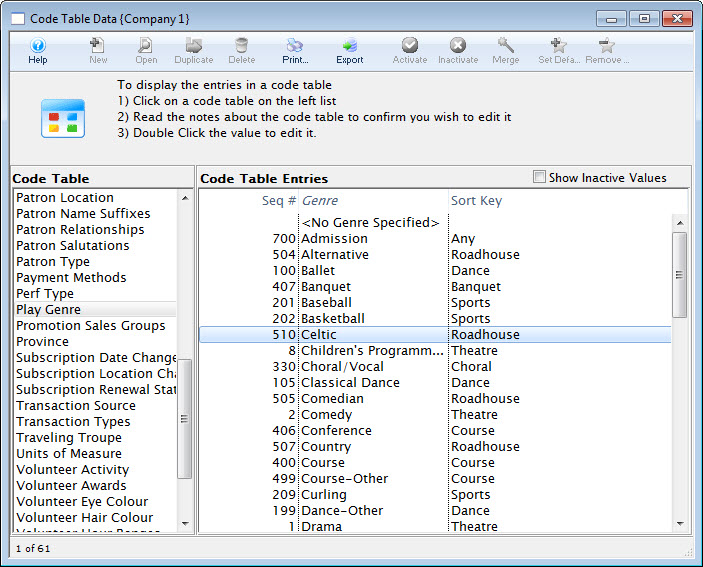
You will need to update the genre setting for each future event on the Events and Dates Marketing tab to help users search for specific types of events in their interest area.
Click here for more information on the Events and Dates Marketing tab.
For information about editing values in Code Tables, click here.
Promotion Sales Groups
Promotion Sales Groups
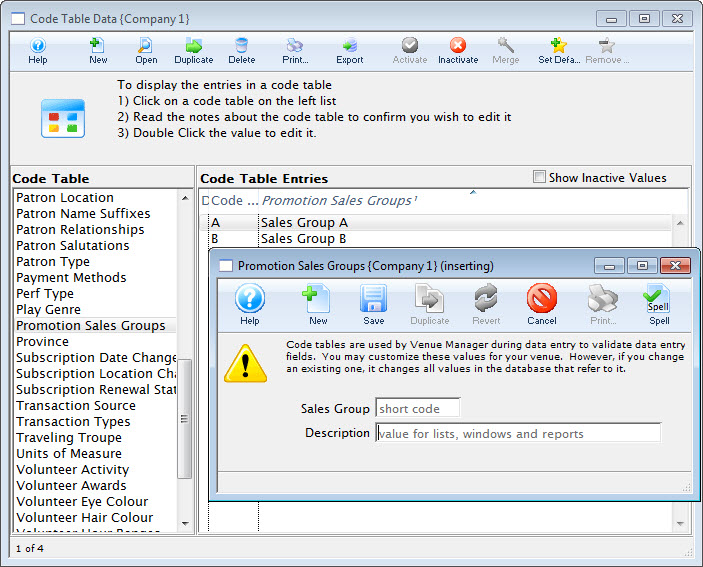
Sales Promotions are able to be grouped into letter codes to help make them easier to read on a report. By assigning a letter to a group of Sales Promotions, you can categorize them in a report by their similarities. For example, you can use the letter 'S' to indicate all the Season Sales Promotions (Early Bird, Season, Flex Season) into one category. Then when running reports, you can run them based on Report Subtotal Group 'S', rather than selecting the promotions one by one. In addition, when running full reports on an event, you can subtotal all your
- A - Single Ticket Sales (regular, 2 for 1, General Admission).
- D - Special Benefit Promotions (Dinner, Opening Gala, Development Events).
- G - Group Tickets (Senior homes, Brownies).
- M - Media Tickets (Critics, Editors).
- S - Season Tickets (Earlybird, Season).
- Z - Comp Tickets (Listed with a 'Z' so they appear last in reports)
Or any categorization you choose.
You can set names for these categories so they are more meaningful to your organization in the Code Table setup for Promotion Sales Group.
For information about editing values in code tables, click here.
Province/State Code
Province/State Code
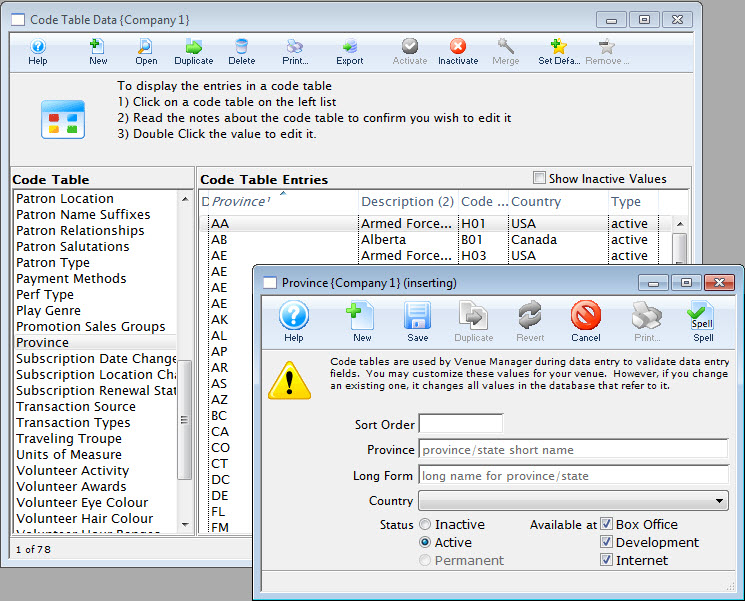
The Province/State Code Table is a list of Provinces and States in North America and recognized American states throughout the world. This list is primarily used for Web Sales.
The name Province can be changed to State (and vice versa) in the Appearance tab of Company Preferences. For more information on changing the title click here. Altering the Sort Value allows you to determine whether Provinces or States appear at the top of the list. They are assigned to Groups which sorted alphabetically. Each Province/State is then sorted numerically within the group.
For example, Provinces might be in Group 'A', and States in group 'B'. Within the Group, you would assign the Provinces A01, A02, A03, etc. The States would be given Sort Values of B01, B02, B03, etc. Since A comes before B, the Provinces would come above the States in the list. American users would do the opposite.
Depending on the region a default can be set. For more information on setting a Province or State as default click here.
For information about editing values in Code Tables, click here.
Subscription Date Change
Subscription Date Change
The values from this table are displayed on the Season Subscription Detail Window. They reflect if a patron changed the date which they were attending plays for their subscription. They also allow for better marketing records to be kept and provide another value which can be used in reports and form letters.
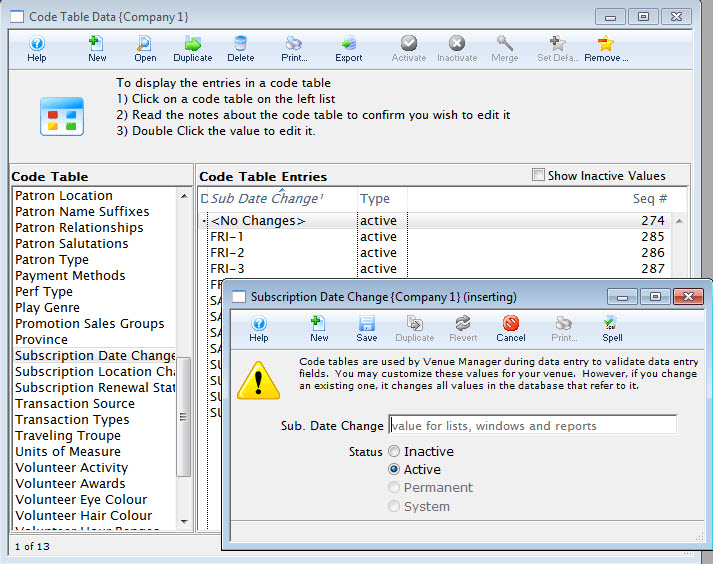
For information about editing values in Code Tables, click here.
Subscription Location Change
Subscription Location Change
The values from this table are displayed on the Season Subscription Detail Window. When the patron is renewing, you can record if they changed their season seats and where in the theatre they moved to.
This means better marketing records can be kept and provide another value which can be used in reports and form letters.
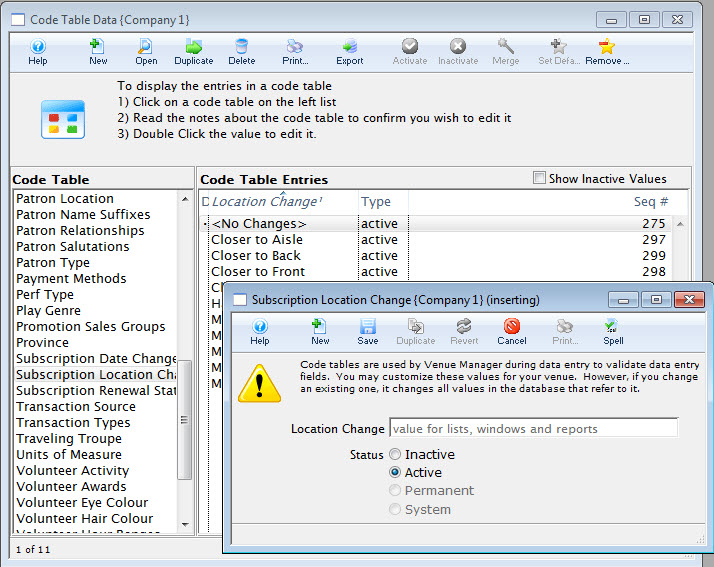
For information about editing values in Code Tables, click here.
Subscription Renewal Status
Subscription Renewal Status
The values from this table are displayed on the Season Subscription Detail Window. They allow for better marketing records to be kept and provide another value which can be used in reports and form letters.
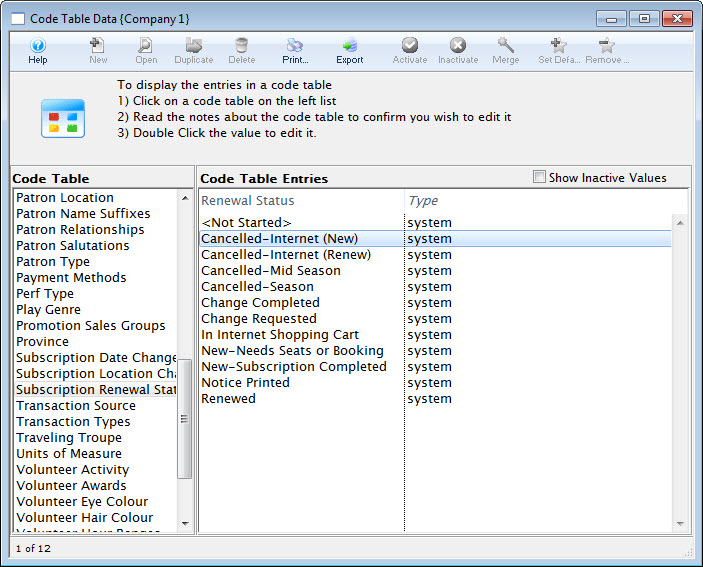
For information about editing values in Code Tables, click here.
Tag Groups
Tag Groups
Tag groups are ways to conveniently group a number of different tags that you want to associate with records.
|
Tag Types allow you group or classify the tags in the tag setup tables |
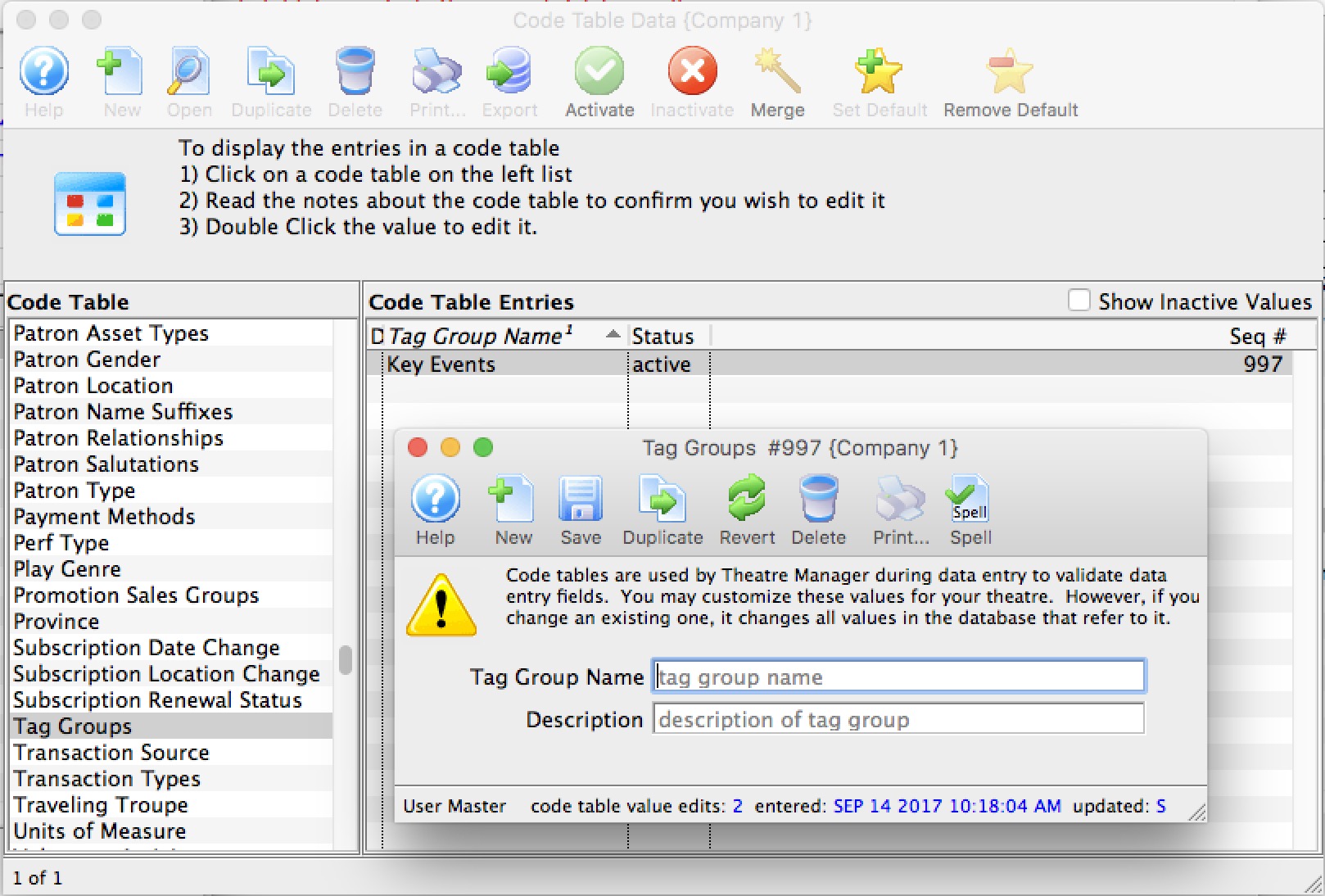
For information about editing values in Code Tables, click here.
Transaction Source
Transaction Source
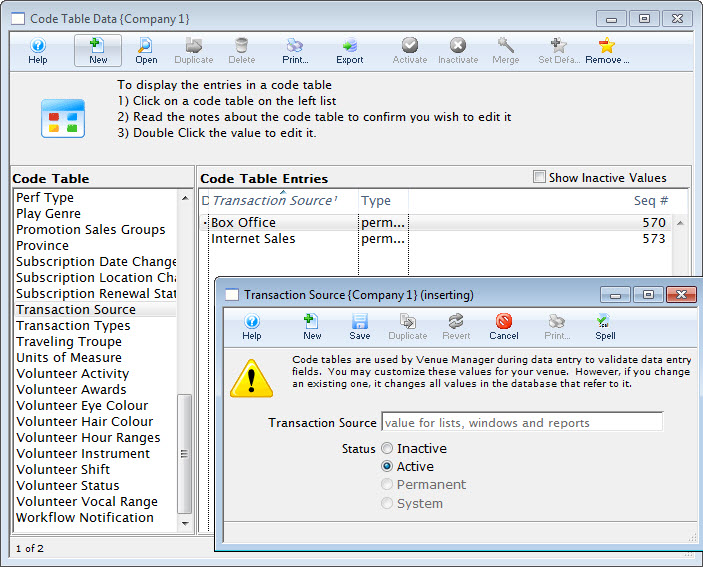
For information about editing values in Code Tables, click here.
Transaction Types
Transaction Types
The Transaction Types Code Table is a system table and cannot be changed. The values found here are a list of all the possible types of transactions that can be created and found in Theatre Manager. The result value is the actual transaction name, while the lookup value is a short form that is usually found on transaction reports, or inside the patron transaction tab. If you come across a transaction lookup value that you don't recognize, visit this code table to find its definition.
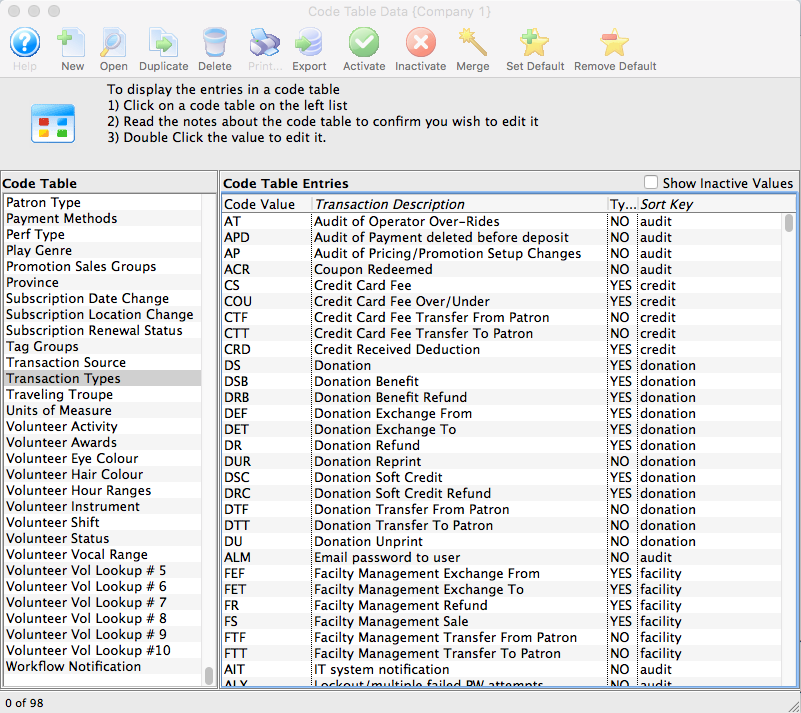
The Transaction type Values are:
| Code Value | Transaction Description | Type | Sort Key |
PATRON or AUDIT |
|||
| AC | Patron Card Viewed by Authorized User | N | audit | ACR | Coupon Redeemed | N | audit |
| AEI | Patron Change-Internet | N | patron |
| AIT | IT system notification | N | audit |
| ALI | User logged in | N | audit |
| ALM | Email password to user | N | audit |
| ALO | User logged out | N | audit |
| ALX | Lockout/multiple failed PW attempts | N | audit |
| AM | Patron Merged | N | patron |
| AP | Audit of Pricing/Promotion Setup Changes | N | audit |
| APD | Audit of non deposited payment deleted | N | audit |
| AS | Patron Added | N | patron |
| ASI | Patron Added-Internet | N | patron |
| AT | Audit of Operator Over-Rides | N | audit |
CREDIT CARD (No longer supported after Version 6) |
|||
| COU | Credit Card Fee Over/Under | Y | credit |
| CRD | Credit Received Deduction | Y | credit |
| CS | Credit Card Fee | Y | credit |
| CTF | Credit Card Fee Transfer From Patron | N | credit |
| CTT | Credit Card Fee Transfer To Patron | N | credit |
DONATION |
|||
| DEF | Donation Exchange From | Y | donation |
| DET | Donation Exchange To | Y | donation |
| DR | Donation Refund | Y | donation |
| DRB | Donation Benefit Refund | Y | donation |
| DRC | Donation Soft Credit Refund | Y | donation |
| DS | Donation | Y | donation |
| DSB | Donation Benefit | Y | donation |
| DSC | Donation Soft Credit | Y | donation |
| DTF | Donation Transfer From Patron | N | donation |
| DTT | Donation Transfer To Patron | N | donation |
| DU | Donation Unprint | N | donation |
| DUR | Donation Reprint | N | donation |
FACILITIY |
|||
| FEF | Facility Management Exchange From | Y | facility |
| FET | Facility Management Exchange To | Y | facility |
| FR | Facility Management Refund | Y | facility |
| FS | Facility Management Sale | Y | facility |
| FTF | Facility Management Transfer From Patron | N | facility |
| FTT | Facility Management Transfer To Patron | N | facility |
MEMBERSHIP |
|||
| MEF | Pass/G.C. Exchange From | Y | membership |
| MET | Pass/G.C. Exchange To | Y | membership |
| MR | Pass/G.C. Refund | Y | membership |
| MRB | Pass/G.C. Benefit | Y | membership |
| MRR | Pass/G.C. Manual Redemption | Y | membership |
| MS | Pass/G.C | Y | membership |
| MSR | Pass/G.C. Redeemed For | Y | membership |
| MTF | Pass/G.C. Transfer From Patron | N | membership |
| MTT | Pass/G.C. Transfer To Patron | N | membership |
FEES |
|||
| OEF | Order Fee Exchange From | Y | fees |
| OET | Order Fee Exchange To | Y | fees |
| OR | Order Fee Refund | Y | fees |
| OS | Order Fee Sale | Y | fees |
| OTF | Order Fee Transfer From Patron | N | fees |
| OTT | Order Fee Transfer To Patron | N | fees |
PAYMENTS |
|||
| PD | Payment Post Dated | Y | payments |
| PDD | Payment Post Dated Deposited | Y | payments |
| PDR | Payment Post Dated Refund | Y | payments |
| POF | Payment Move From Order | Y | payments |
| POT | Payment Move To Order | Y | payments |
| POU | Payment Over/Under | Y | payments |
| PT | Payment | Y | payments |
| PTF | Payment Transfer From Patron | N | payments |
| PTT | Payment Transfer To Patron | N | payments |
INVENTORY |
|||
| RIAD | Resource Inventory Adjustment | N | inventory |
| RICI | Resource Inventory Check In | N | inventory |
| RICO | Resource Inventory Check Out | N | inventory |
| RIEN | Resource Inventory Tracking Ended | N | inventory |
| RIH | Resource Inventory Held | N | inventory |
| RIPR | Resource Received by patron | N | inventory |
| RIR | Resource Inventory Released | N | inventory |
| RIST | Resource Inventory Tracking Started | N | inventory |
RESOURCES |
|||
| REF | Resource Exchange From | Y | resources |
| RET | Resource Exchange To | Y | resources |
| RR | Resource Refund | Y | resources |
| RS | Resource Sale | Y | resources |
| RTF | Resource Transfer From Patron | N | resources |
| RTT | Resource Transfer To Patron | N | resources |
EXCHANGES |
|||
| TEF | Ticket Exchange From | Y | exchanges |
| TET | Ticket Exchange To | Y | exchanges |
REFUNDS |
|||
| TR | Ticket Refund | Y | refunds |
SALES |
|||
| TS | Ticket Sale | Y | sales |
MISC |
|||
| ACR | Coupon Redeemed | N | misc |
| TTF | Ticket Transfer From Patron | N | misc |
| TTT | Ticket Transfer To Patron | N | misc |
| TU | Ticket Unprint | N | misc |
OUTLET |
|||
| XR | Outlet-Donation refunded for another Outlet | Y | outlet |
| XS | Outlet-Donation sold for another Outlet | Y | outlet |
| YR | Outlet-Pass/G.C. refunded for another Outlet | Y | outlet |
| YS | Outlet-Pass/G.C. sold for another Outlet | Y | outlet |
| ZEF | Outlet-Ticket exchange from for ticket own | Y | outlet |
| ZET | Outlet-Ticket exchange to for ticket own | Y | outlet |
| ZR | Outlet-Ticket refund for ticket owned by | Y | outlet |
| ZRC | Outlet-Commission Payables to Other Outlet | Y | outlet |
| ZRS | Outlet-Sales Payable to Other Outlet | Y | outlet |
| ZS | Outlet-Ticket sale on behalf of another | Y | outlet |
| ZSC | Outlet-Commission A/R from Other Outlet | Y | outlet |
| ZSS | Outlet-Sales A/R from Another Outlet | Y | outlet |
 Click here to download a PDF of the Transaction Types Codes List
Traveling Troupe
Traveling Troupe
The Traveling Troupe code table affects the Traveling Troupe buy window. The result values are listed on the troupe buy window in the order you would like them to be displayed (Lookup Value). The Result values are important "times" for the traveling troupe. A call time is assigned to each value in the buy window. This is so a troupe manager can print a daily report of the troupes activities for the members of its troupe.
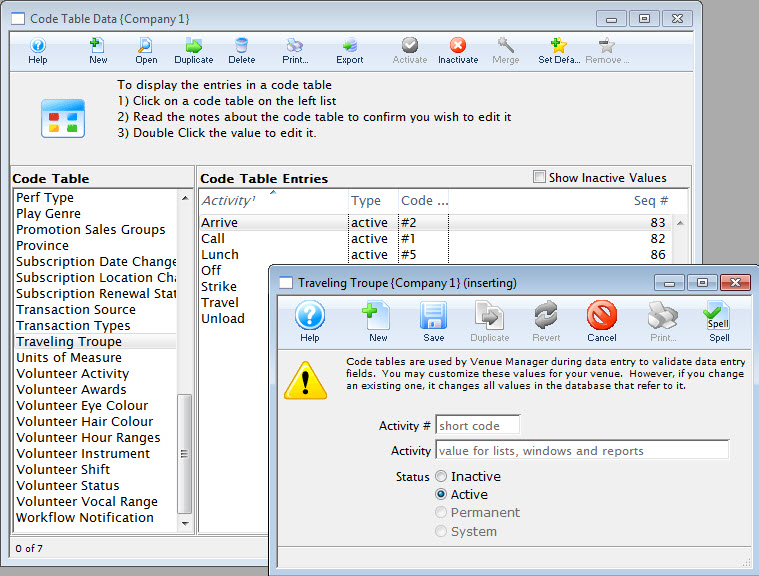
For information about editing values in Code Tables, click here.
Units of Measure
Units of Measure
This is a listing of the various units of measure recognized by the program. They are "permanent" system values built into Theatre Manager and cannot be edited or amended.
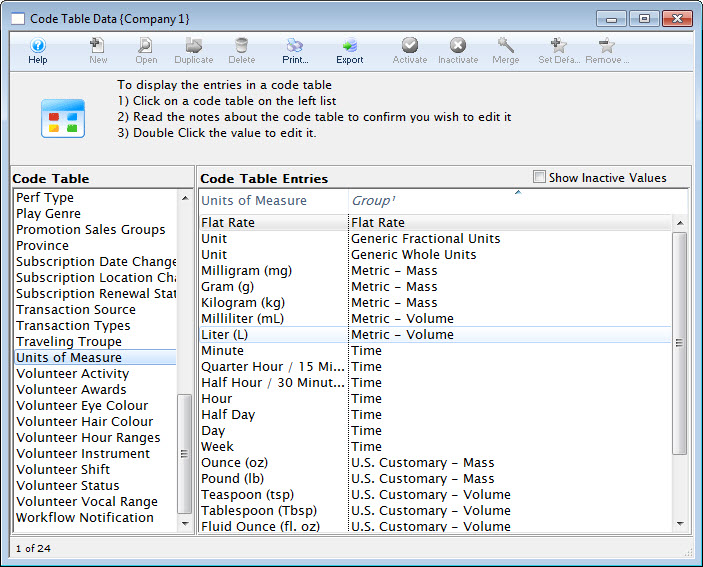
Volunteer Activity
Volunteer Activity
The types of activities your organization's volunteers engage in can be set up, assigned and tracked by Theatre Manager. This page shows you how to set up those activity types.
|
Refer to the video help on volunteer management for more information. |
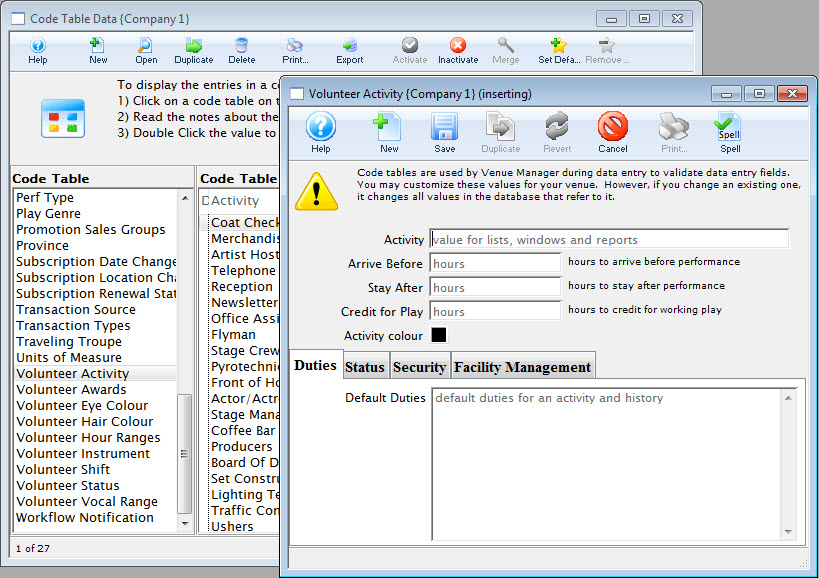
Click here, for more information on setting up Volunteer Activities.
Adding Volunteer Duties
Adding Volunteer Duties
- Go to Setup >> System Tables >> Code Tables and scroll down to select Volunteer Activity.
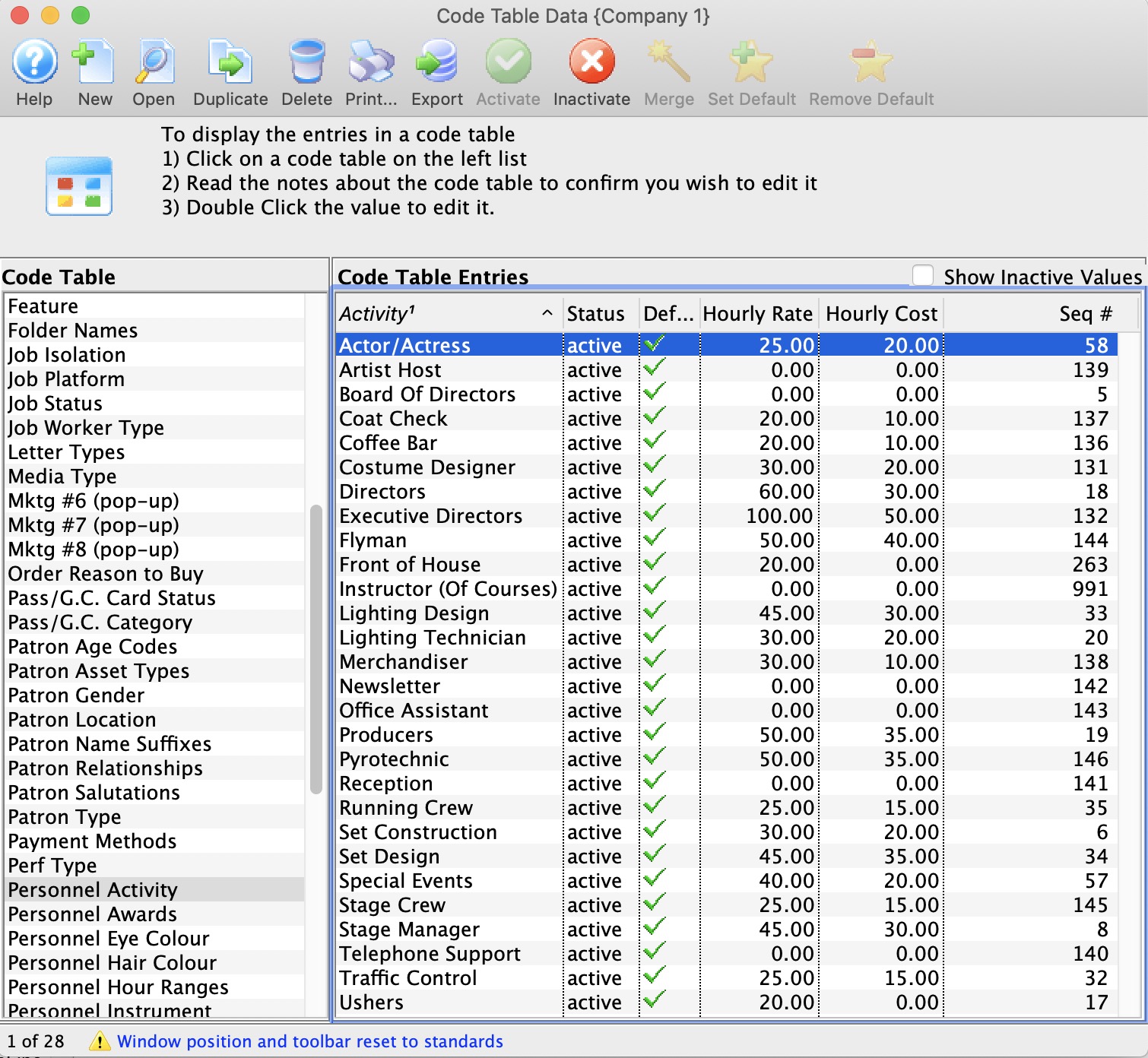
- Click the New button to open the Volunteer Activity Insert window.
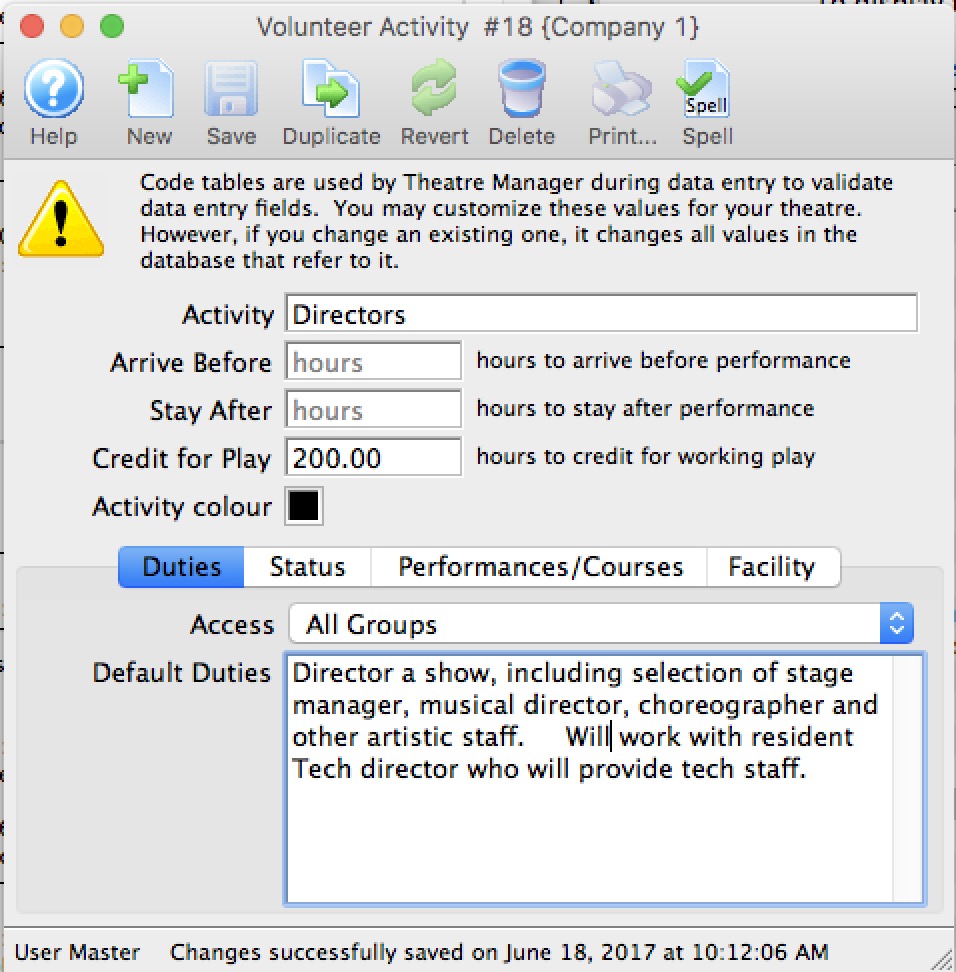
- Give the new activity a specific name so anyone will be able to decipher its purpose. It will also appear on reports and search criteria.
- Optionally, if tracking hours or if hours do not match the task or performance it is associated with
- Enter the number of hours before and after the performance that the volunteer is expected to be there. For example, if the performance starts at 7:30 pm, you might expect an usher to arrive 1 hour before and stay a half hour afterwards. If these two fields are set, they add extra time to the volunteer record before event start and duration of performance. Thus a 2 hour performance might result in a time credit of 2 + 1 before and 0.5 after, or 3.5 hours. This will show on the calendar in Facility Management.
- Alternatively, you can specify a fixed number of hours to credit to the staff/volunteer for doing this activity. This approach is more suitable for things like directors, actors or volunteer office staff who might be given a time allotment, regardless of the duration of the event.
- If either of the above are provided, they become defaults during data entry. If not provided, the setup can specify the total time if you want the time to be fixed, rather than based on calendar input.
- If you want this activity to have special colouring on the calendar, select a color other than black.
- On the Duties tab, enter any default duties for this position.
Volunteer Activity Status
Volunteer Activity Status
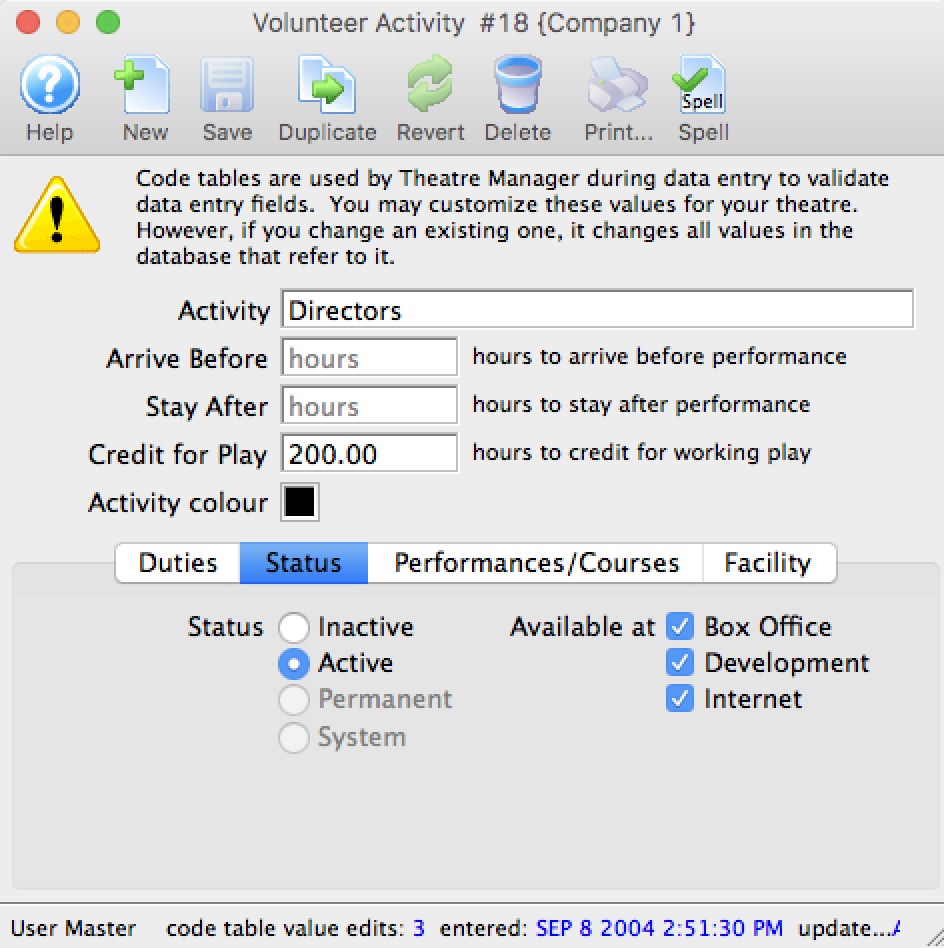
The Status tab is used to indicate if the volunteer/personnel activity code is active or inactive as well as where it might be used.
Web Permissions for Personnel Activity
Web Permissions for Personnel Activity
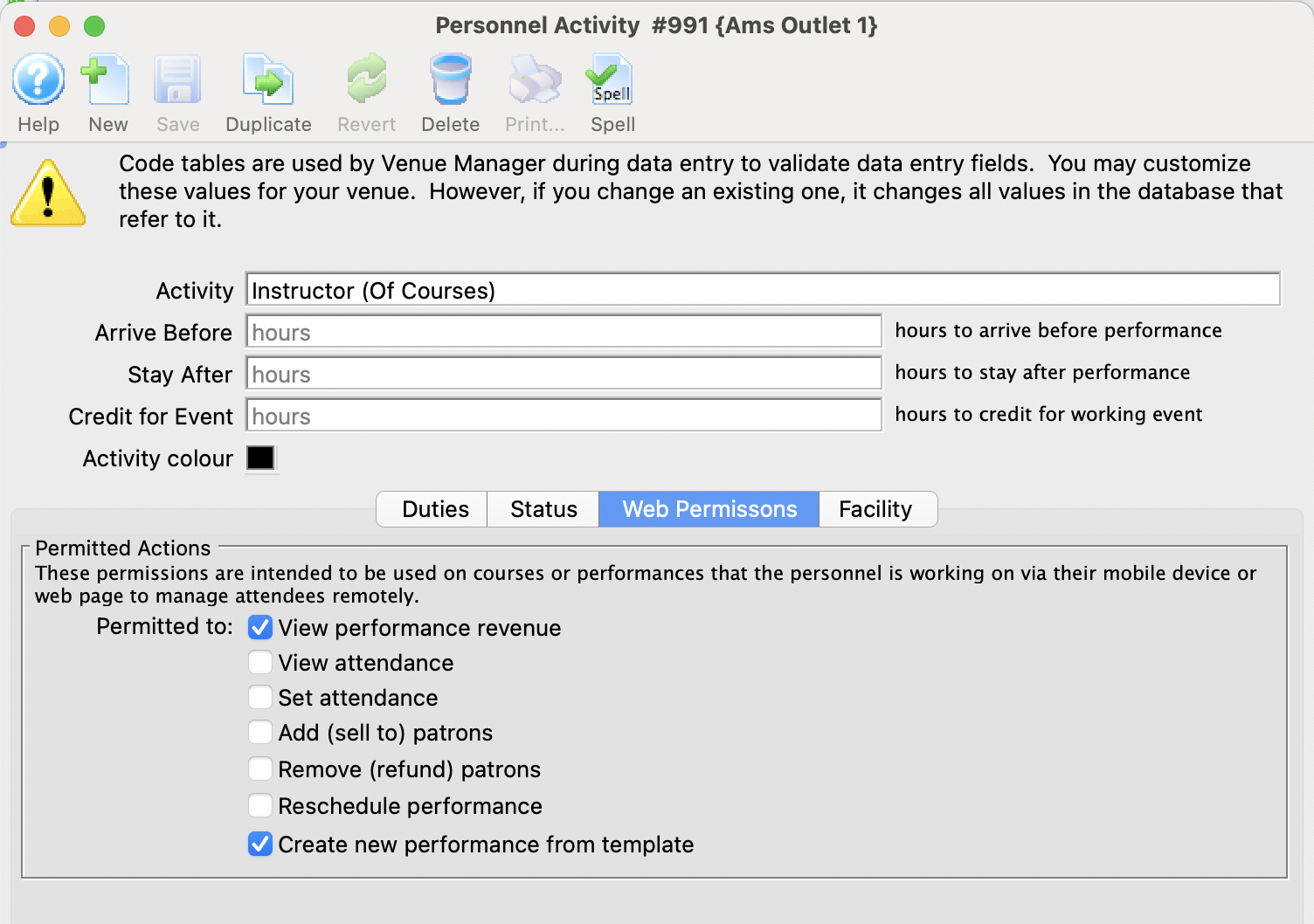 This feature is designed to work in conjunction with the Web Services to give a permission Staff member/volunteer to accomplish various tasks within the web module -AND/OR- Producers (regular Patrons) the ability to see and export sales and attendance information.
The permissions will allow:
- An employee managing a course/class to set attendance, add participants on the fly, refund a class, reschedule a class or add a new class. See example permission for a course instructor
- A Producer to see the sales and attendance for specific events or performances that they have been assigned to in the Event setup. See example permission for Producer/Promoter
If this activity code is associated with the person for a particular event, the following indicates what they can do online. The employee/volunteer will need to pull up the event/performance online in a web browser.
| Permission | Meaning |
| View performance Revenue | Allows the Producer or Promoter of an event to view performance revenue for the event that they are assigned to |
| View attendance | This means that the Volunteer/Employee/Promoter can view the patron information for people who have purchased to the event o the course. |
| Set attendance | This means that the employee/volunteer can set or clear attendance reasons for the patron for each class or event using a tablet or computer. This is not meant for high volume attendance tracking - more for courses and really small events. |
| Add (sell to) patrons | If enabled, the employee/volunteer can add NEW patrons to the course. It is designed for those kinds of classes where people can just show up - and then be enrolled by the instructor. |
| Remove (refund) patrons | If enabled, the employee/volunteer can remove people from the course/class and issue a refund to the patron in form of a credit (eg pass/gift certificate). |
| Reschedule performance | Allows the employee/volunteer to change the date and time of a class within the course |
| Duplicate performance | Allows the employee/volunteer to add extra classes to the course. |
Course Management - web access
Course Management - web access
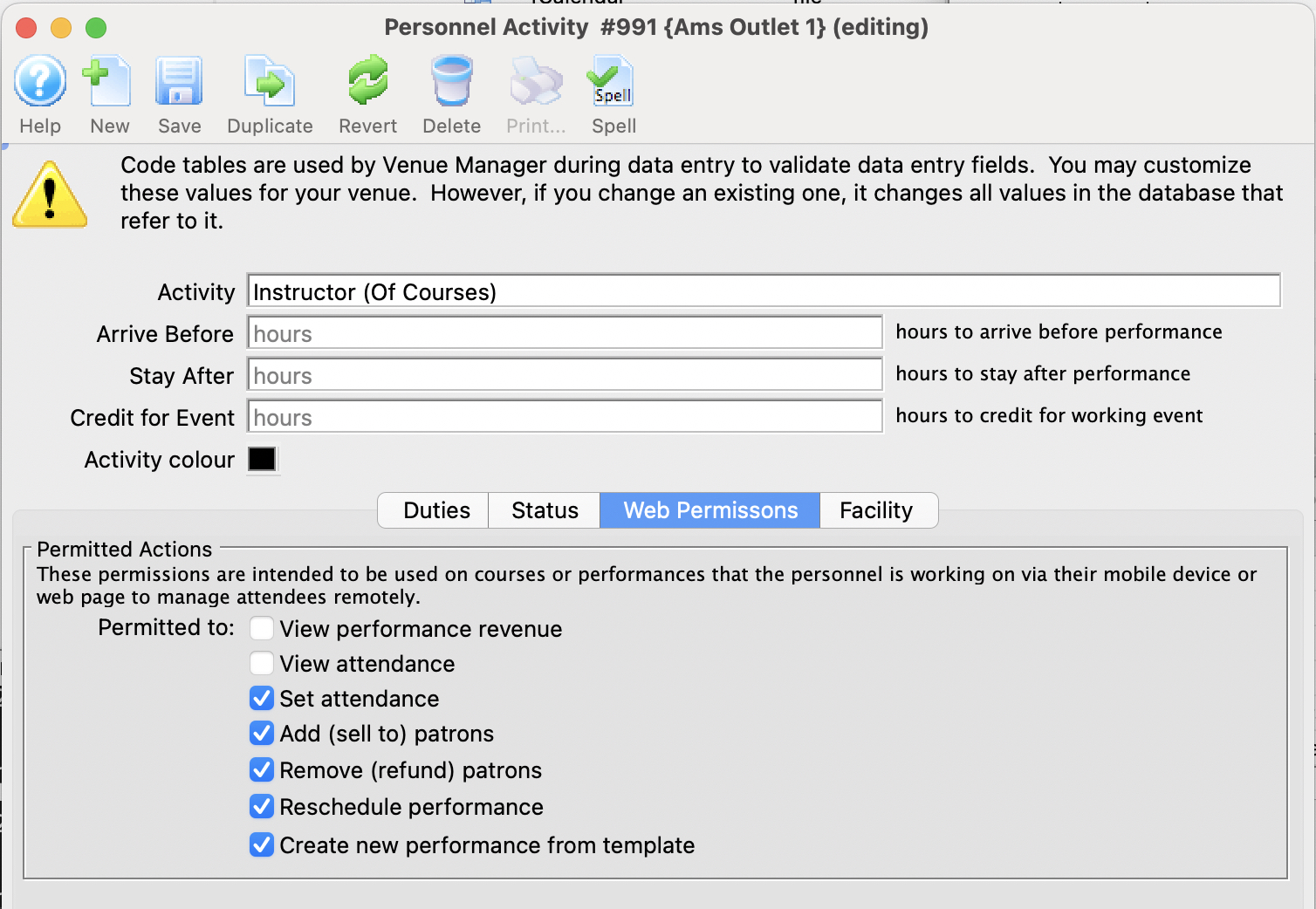 The typical setup for web access for instructors of courses is illustrated to the right. Typically, they will be one or more of:
- Set Attendance
- Add (sell to ) patrons
- Remove (refund) patrons
- Reschedule Performance - which is important of its a course which means they can change the date of the performance
- Create New Performance - which lets them add a new date for a course
The web permissions are described more fully in the Web Permission Page.
If you create this type of activity and add it to a patron, you can:
- assign it to a course (or any event and/or performance for that matter) -AND-
- they will be able to manage it online to do the activities you have assigned above
Event Producer/Promoter - Web Access
Event Producer/Promoter - Web Access
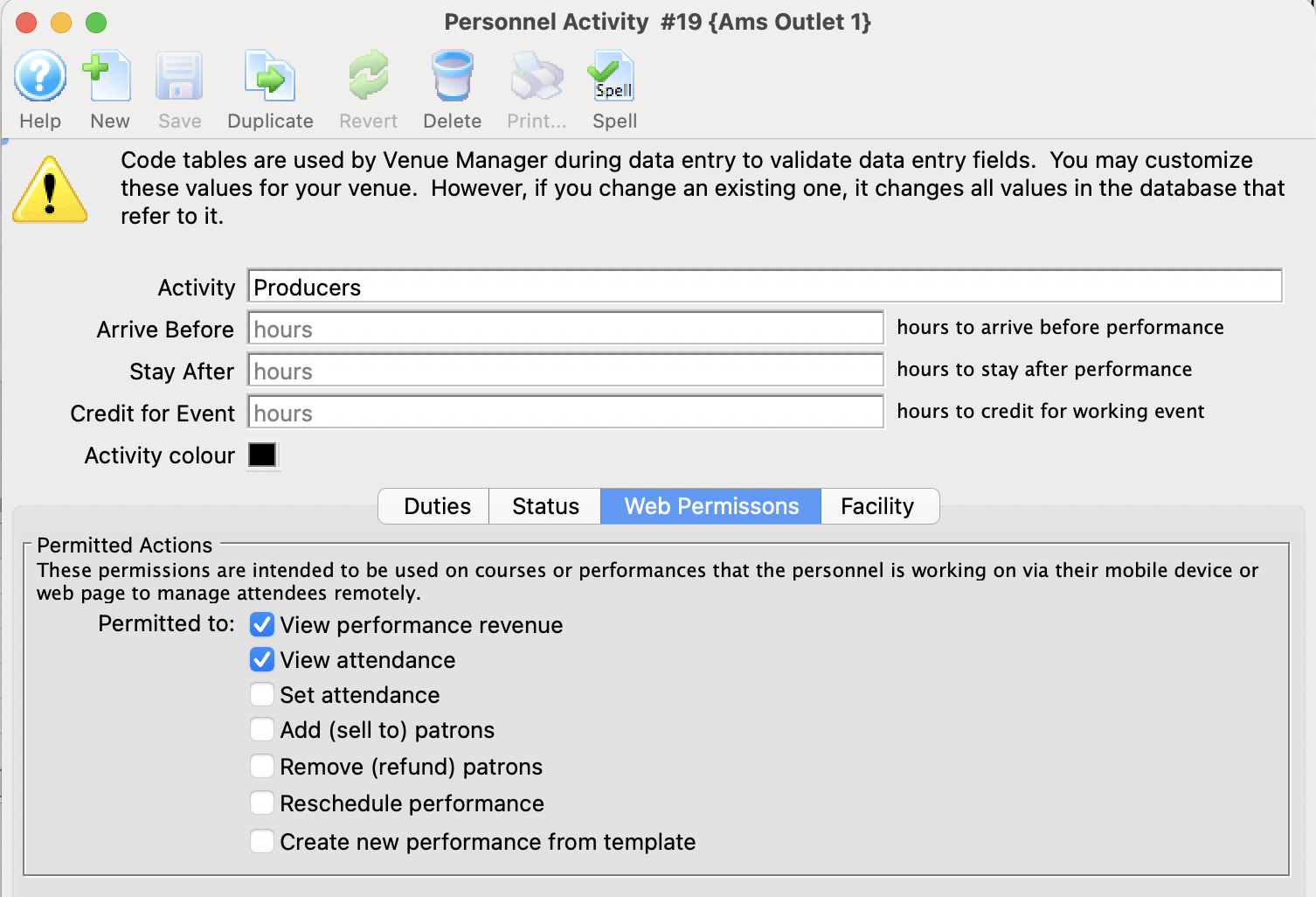 The typical setup for web access for the producer or promoter is illustrated to the right. Typically, they will be one or more of:
- View Performance Revenue
- View Attendance
The web permissions are described more fully in the Web Permission Page.
If you create this type of activity and assign it to a patron, you can:
- assign them to an event (or performance) -AND-
- they will be able to, at any time, view or download:
- the revenues for the event (or performance) -AND/OR-
- retrieve limited information about the patrons who are attending the event
You can even track which events they have viewed and how often by looking at web logs.
Volunteer Activity Facility Setup
Volunteer Activity Facility Setup
- Default billing rate - which is what we wish to bill the person out at to the renters.
- Default hourly cost - which is the default hourly cost of using the person in this volunteer activity. It can be overridden by setting pay rates on the employee facility set up window
- Sales Tax Code - which is used to add taxes to the expenses and income
- Use deferred accounts if set, then any facility project marked as using deferred accounts will use the deferred account entered below. If neither the project, nor the activity uses deferred accounts, then only the earned accounts need to be specified.
- Accounts
- Deferred Expense Account - the deferred account into which future expenses will be placed if using deferred accounting for the project. This is typically a liability account
- Earned Expense/Cost of Goods Account - the earned account for expenses This is typically either an expense of cost of goods account. When the project ends, this is where the expenses will be rolled over into.
- Deferred Income Account - the deferred account into which future income will be placed if using deferred accounting for the project. This is typically an asset account
- Earned Income Account - the earned account for income. When the project ends, this is where the invomce will be rolled over into.
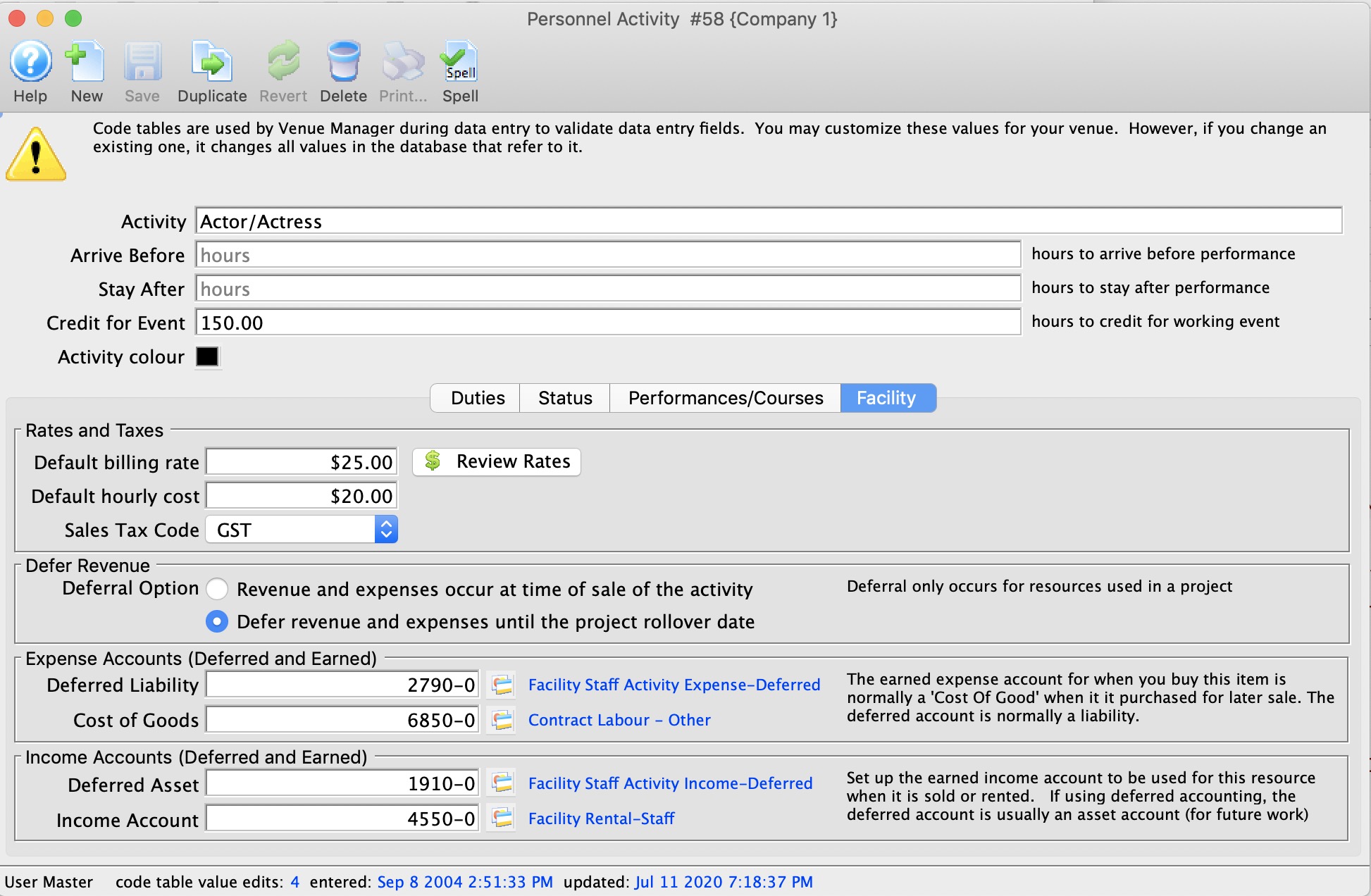
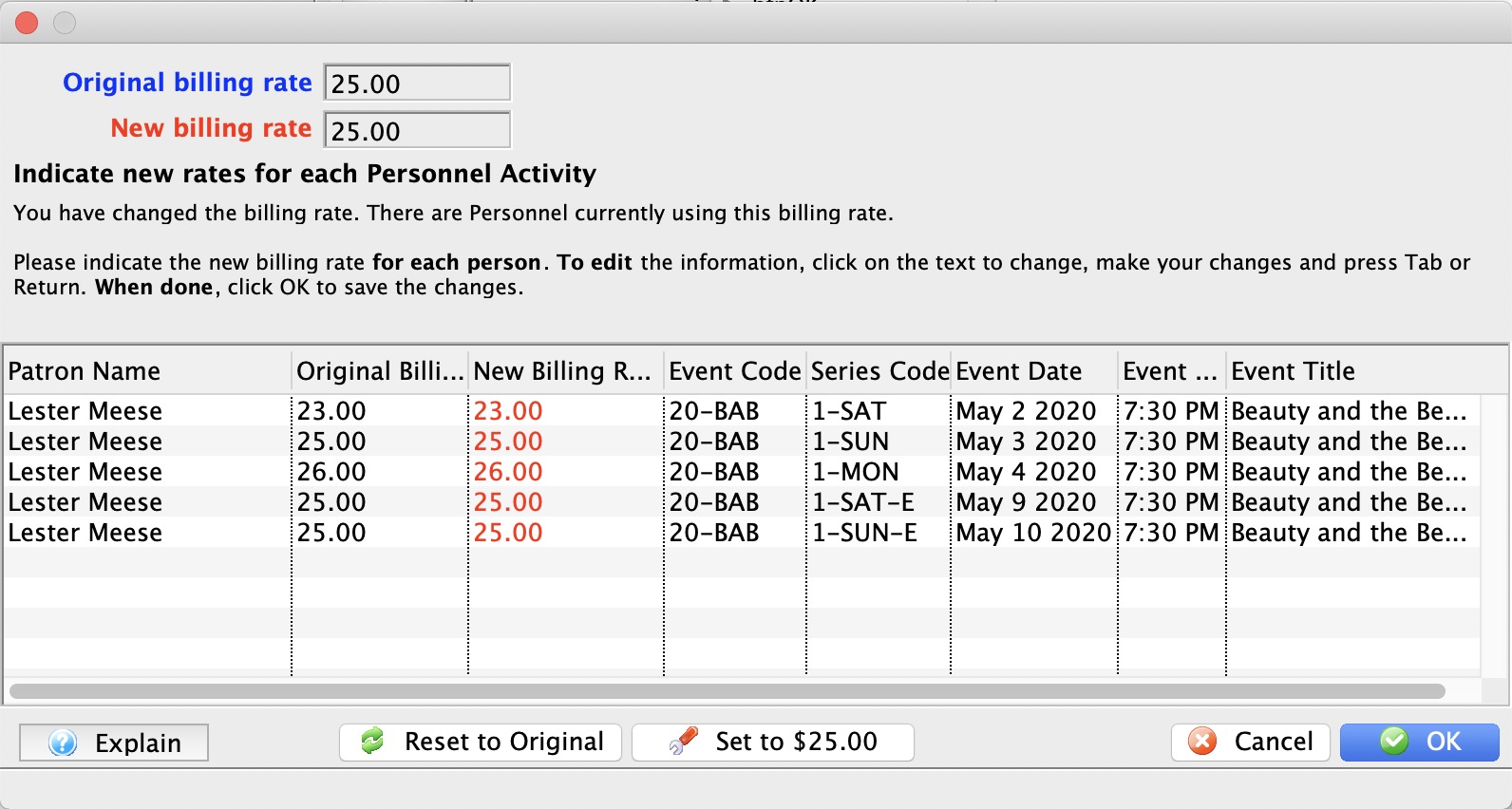
Review Rates
To see current billing rates for anyone already associated with this activity, click the Review Rates button. The same window will pop up if you change the default billing rate, giving you an opportunity to change or leave alone the billing rate for anyone associated with the activity.
Volunteer Awards
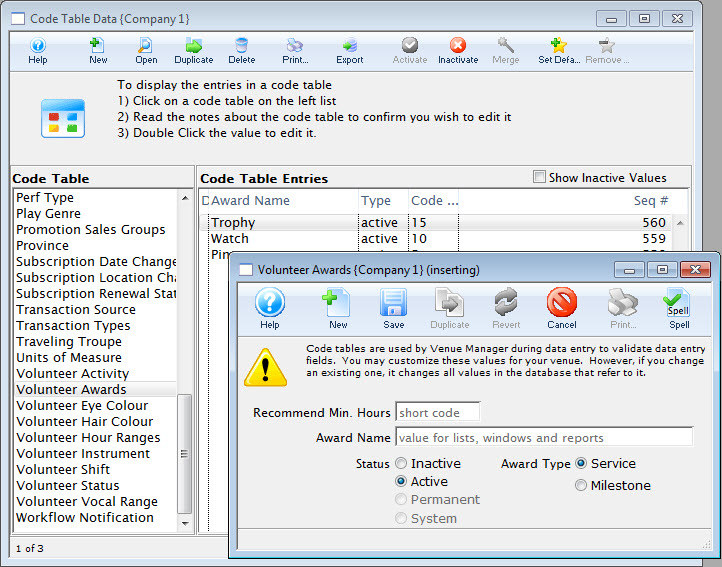
Volunteer Awards
Personalizing your volunteer recognition component of your program is the best form of showing appreciation for the contribution of volunteers. In this code table, you add the details for your awards.
For information about editing values in Code Tables, click here.

Volunteer Custom Field 1
Volunteer Custom Field 1
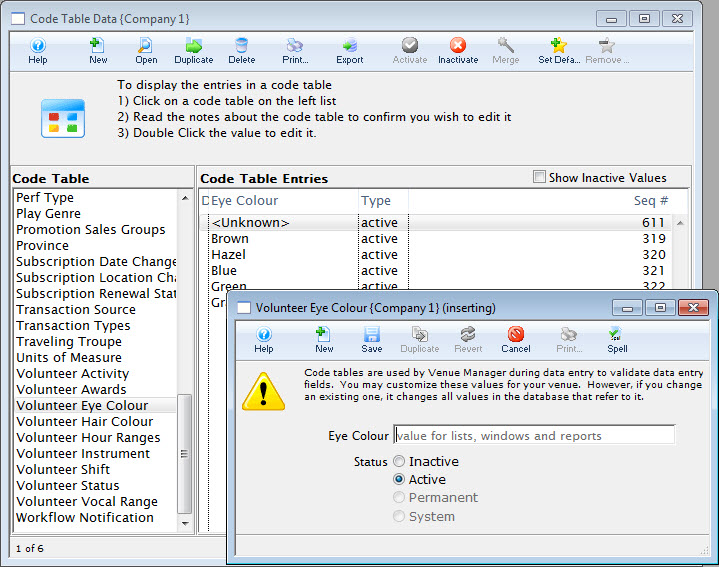
The Custom Volunteer Field 1 (Volunteer Eye Color) field can be customized to suit client needs. The field can be renamed and drop down options edited to reflect client needs. This drop down field is found in Patron Records and Personnel Management.
For information about editing values in Code Tables, click here.
Volunteer Custom Field 2
Volunteer Custom Field 2
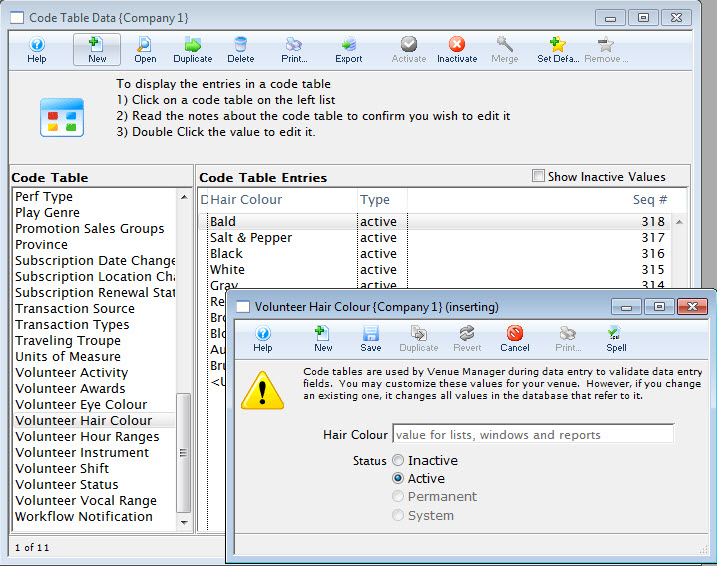
The Custom Volunteer Field 2 (Volunteer Hair Colour) field can be customized to suit client needs. The field can be renamed and drop down options edited to reflect client needs. This drop down field is found in Patron Records and Personnel Management.
For information about editing values in Code Tables, click here.
Volunteer Custom Field 3
Volunteer Custom Field 3
The Custom Volunteer Field 3 (Volunteer Instrument) can be customized to suit client needs. The field can be renamed and drop down options edited to reflect client needs. This drop down field is found in Patron Records and Personnel Management.
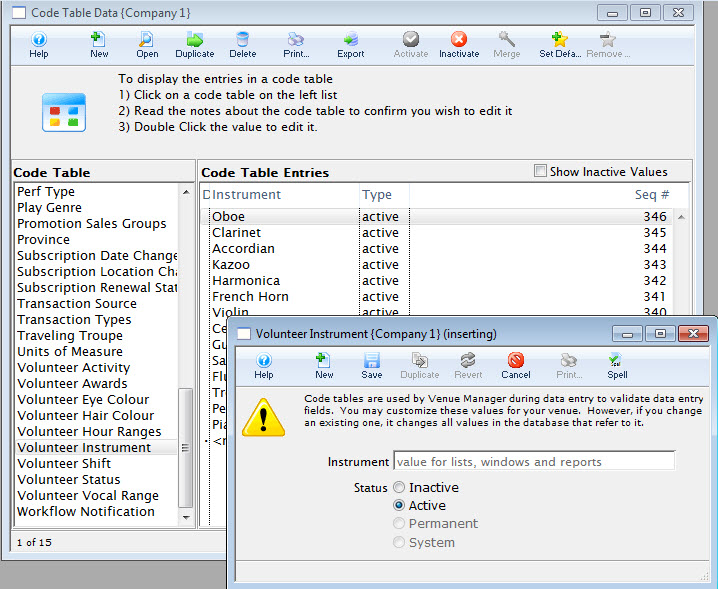
For information about editing values in Code Tables, click here.
Volunteer Custom Field 4
Volunteer Custom Field 4
The Custom Field #4 (Volunteer Vocal range) code table can be customized to suit client needs. The field can be renamed and drop down options edited to reflect client needs. This drop down field is found in Patron Records and Personnel Management.
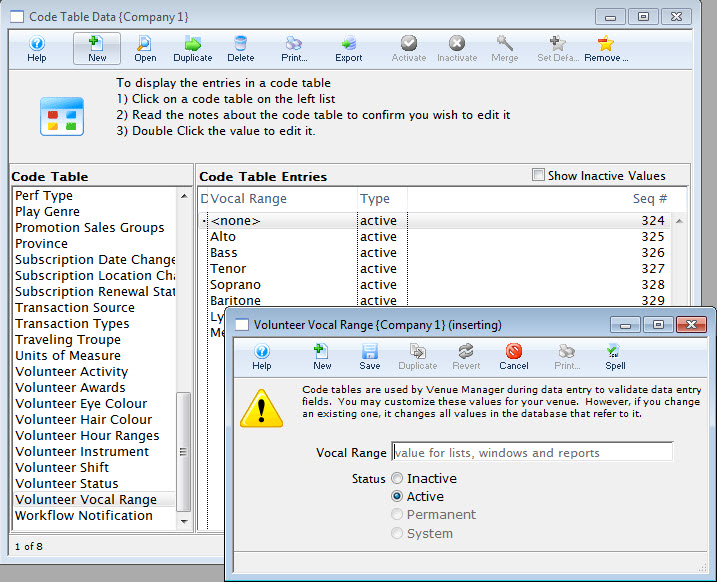
For information about editing values in Code Tables, click here.
Volunteer Hour Ranges
Volunteer Hour Ranges
The Volunteer Hour Ranges code table Used to summarize volunteer hours in the Volunteer Hour Summary Report.
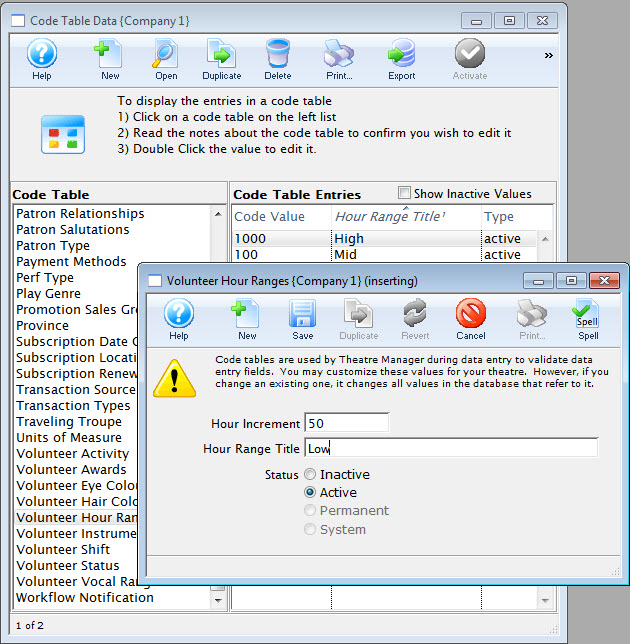
For information about editing values in Code Tables, click here.
Volunteer Shift
Volunteer Shift
The Volunteer Shift code table can be customized to suit client needs. The field can be renamed and drop down options edited to reflect client needs. This drop down field is found in Patron Records and Personnel Management.
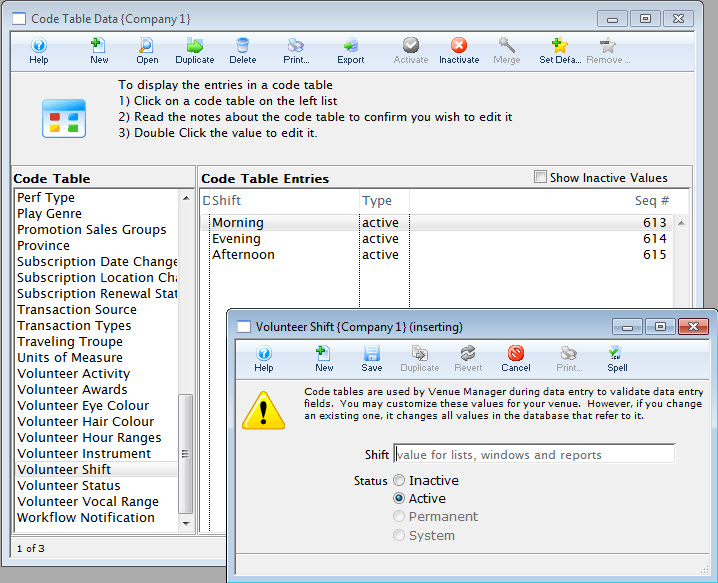
For information about editing values in Code Tables, click here.
Volunteer Status
Volunteer Status
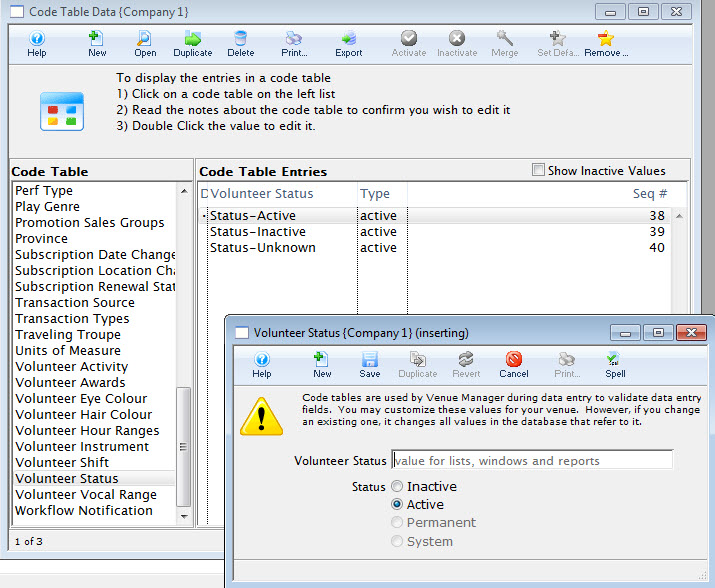
The Volunteer Status can be customized to suit client needs. The field can be renamed and drop down options edited to reflect client needs. This drop down field is found in Patron Records and Personnel Management.
For information about editing values in Code Tables, click here.
Workflow Notifications
Workflow Notifications
The Workflow tab allows you to create and manage different notification types for Internet and Box Office Sales.
Click here for more information on WorkFlow Notifications.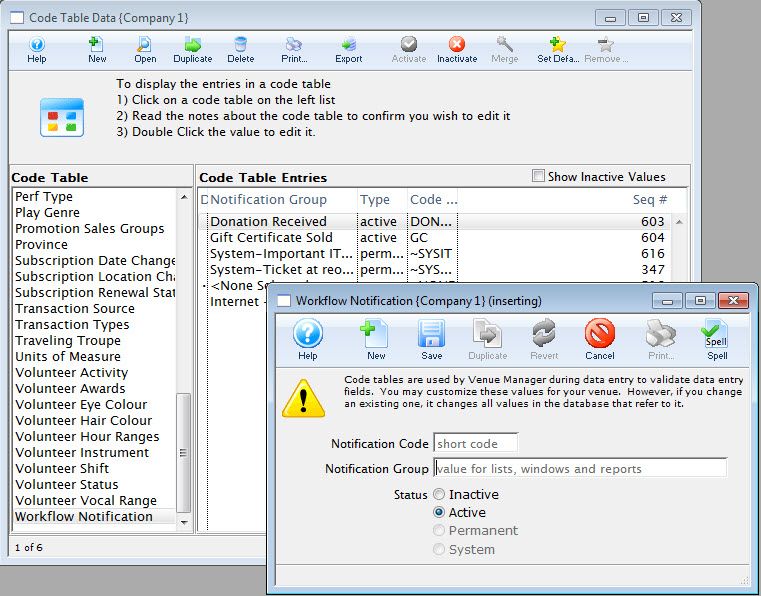
For information about editing values in Code Tables, click here.