List of Available Reports
List of Available Reports
By using criteria, reports are able to be generated with specific information from the database.
Attendance and Front of House Reports
Attendance and Front of House Reports
Graphic Map by Performance
Graphic Map by Performance
The Graphic Map by Performance report is found under the Attendance for House and Calendar Reports category.
Click here for information on generating a report. Click here for information on the Finished Report window.
Purpose of the Report
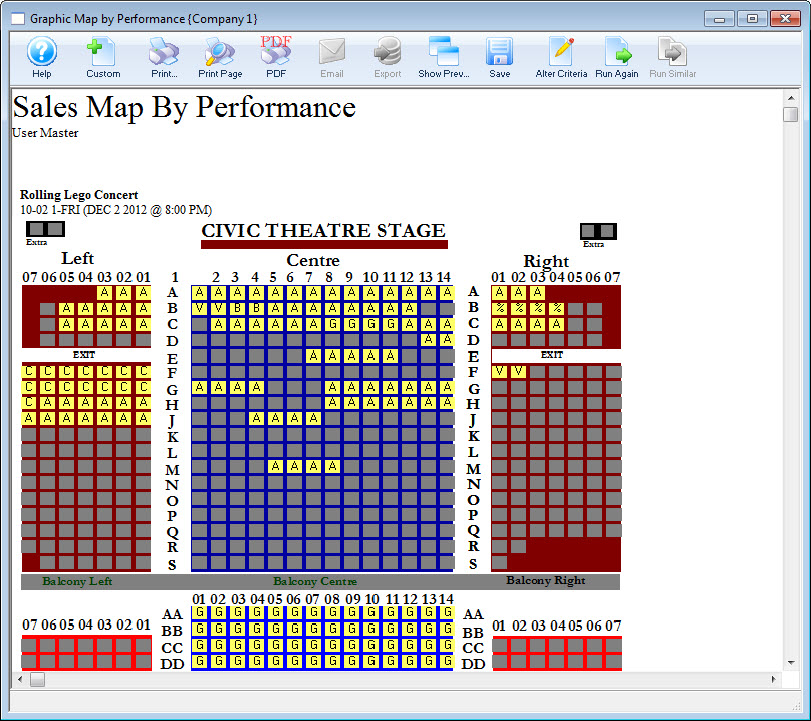
This report generates a graphical map of a reserved performance showing sold seats for ALL tickets, held, and unsold seats. Sold seats are denoted by either Price Code or Promotion depending on system setup.
Departments Who Benefit From This Report
| Box Office | This report can help Front of House allocate Seats on a last minute rush basis. |
| House Management | Use this report to see the empty seats in the theatre and assign patrons properly. |
| Marketing | Use this report to see areas of the venue that need more patrons and adjust marketing accordingly. |
| Stage Management | Use this report to let actors know where the heavy concentrations of audience members will be for the performance. |
Criteria Hints
It is recommended that this report be run using only one performance as the criteria.
| Parameter Field | Condition | Value |
| Event # | is one of | (Event Title) |
| Performance Date | = | (Date) |
| Performance Time | = | (Time) |
Print Graphic Map by Performance Report from Event
Print Graphic Map by Performance Report from Event
This report is most commonly printed from within the Play / Event.
To run this report from a Play / Event, you perform the following steps:
- From the main Theatre Manager toolbar / ribbon bar, click the Play
 button.
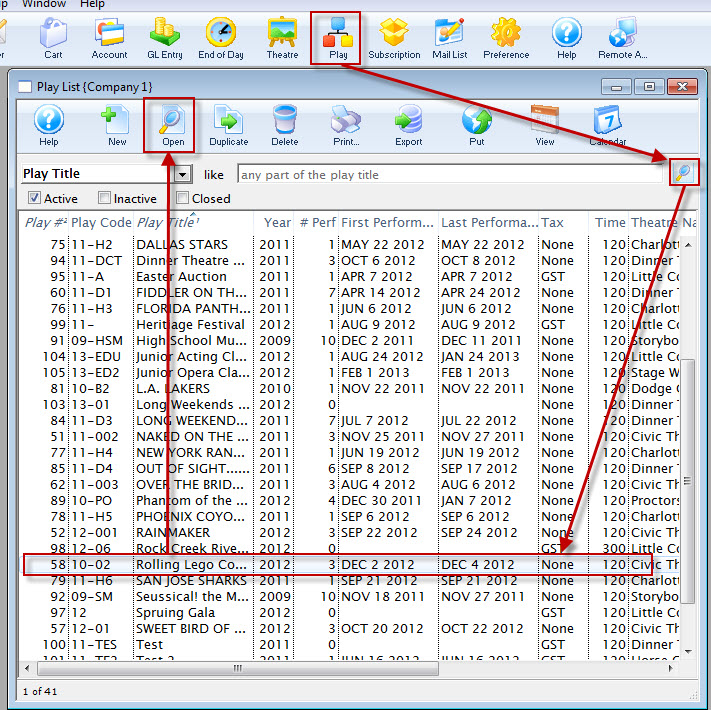
The Play List window opens.
- Open the Play / Event.
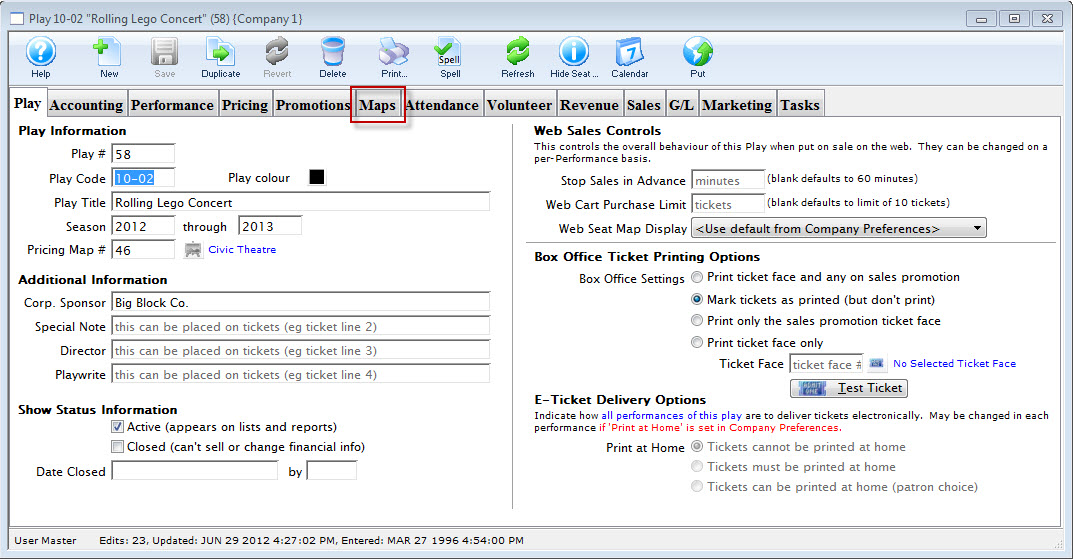
Click here for more information on Finding Events.
- Select the Map tab.
- Single click on the performance.
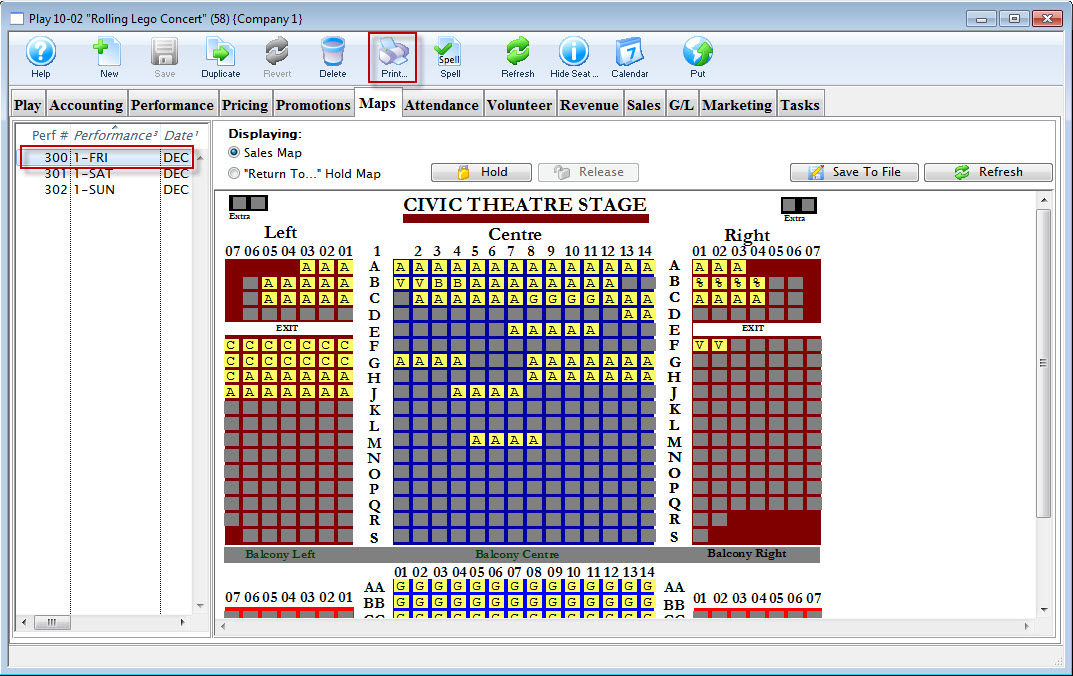
- Click the Print
 button.
The Graphic Map by Performance prints.
Graphic Map by Ticket
Graphic Map by Ticket
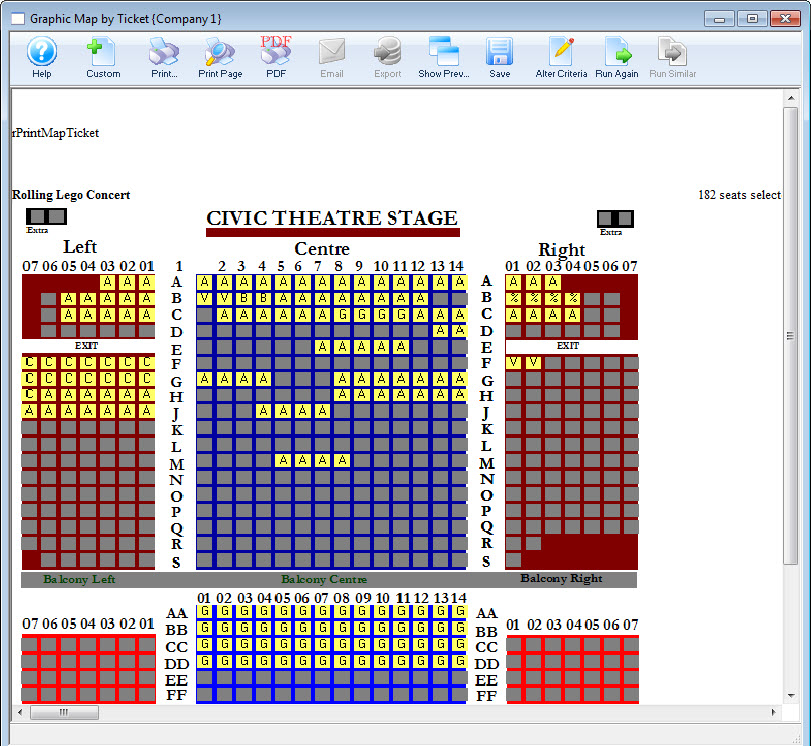
The Graphic Map by Ticket can be found under the Attendance for House and Calendar category. Below the image are detailed notes to help you in using the report.
Click here for information on generating a report. Click here for information on the Finished Report window.
Purposeof the Report
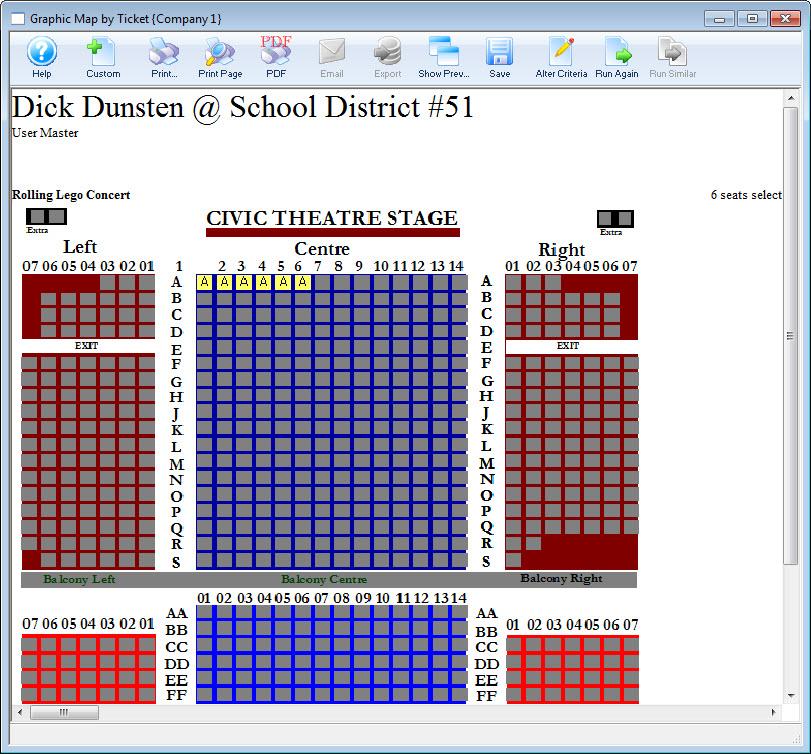
This report generates a graphical map ofa reserved performance showing all sold, held, and unsold seats. Sold seats are denoted by either Price Code or Promotion depending on system setup.
Departments Who Benefit From This Report
| Box Office | Use this report to assist with placing patrons to properly "dress" the house. |
| House Management | Use this report to see the heavily seated areas of the theatre and assign ushers properly. |
| Marketing | Use this report to see areas of the venue that need more patrons and adjust marketing accordingly. |
| Stage Management | Use this report to let actors know where the heavy concentrations of audience members will be for the performance. |
Criteria Hints
It is recommended that this report be run using only one performance as the criteria.
| Parameter Field | Condition | Value |
| Event # | is one of | (Event Title) |
| Performance Date | = | (Date) |
| Performance Time | = | (Time) |
Print Graphic Map by Ticket
Print Graphic Map by Ticket
You can easly print a Graphic Map by Ticket from the Patron Record.
You perform the following steps:
- Open the patron record.
There are a number of different methods to open a patron record from a number of different places inside Theatre Manager
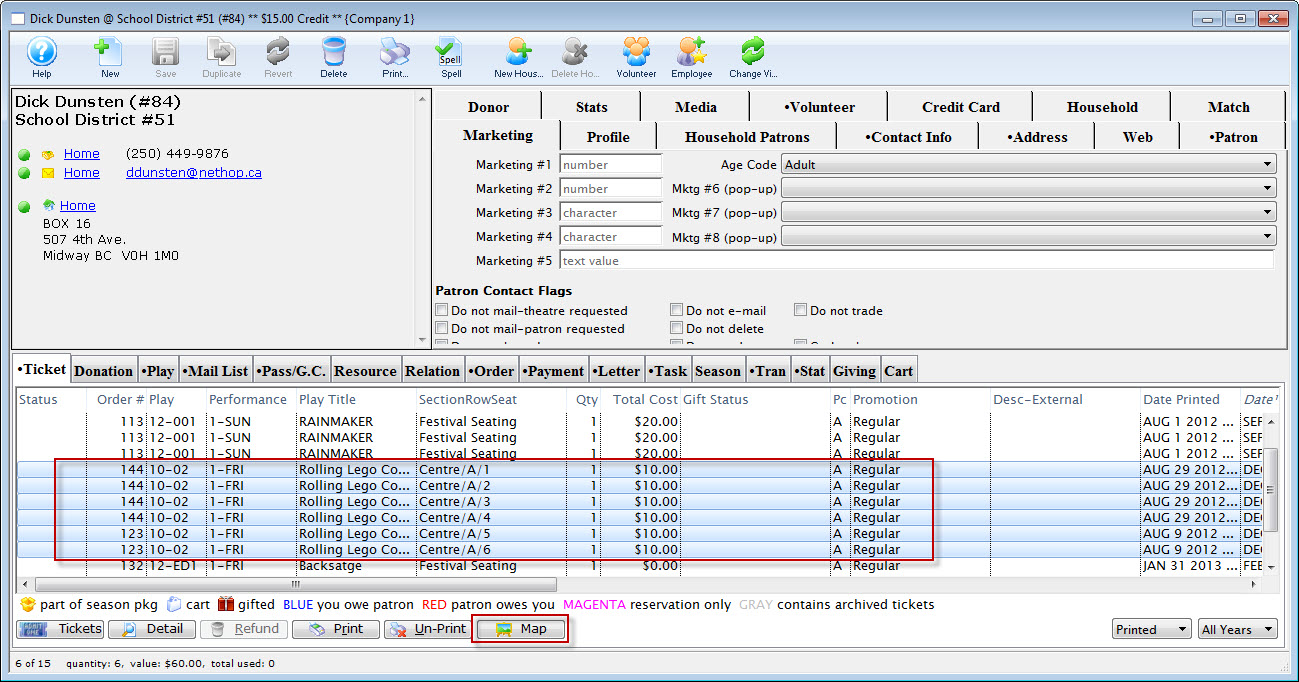
- Highlight the tickets you want to have printed on the map.
- Click the Map
 button.
The Report opens.
House Report - Available Seats
House Report - Available Seats
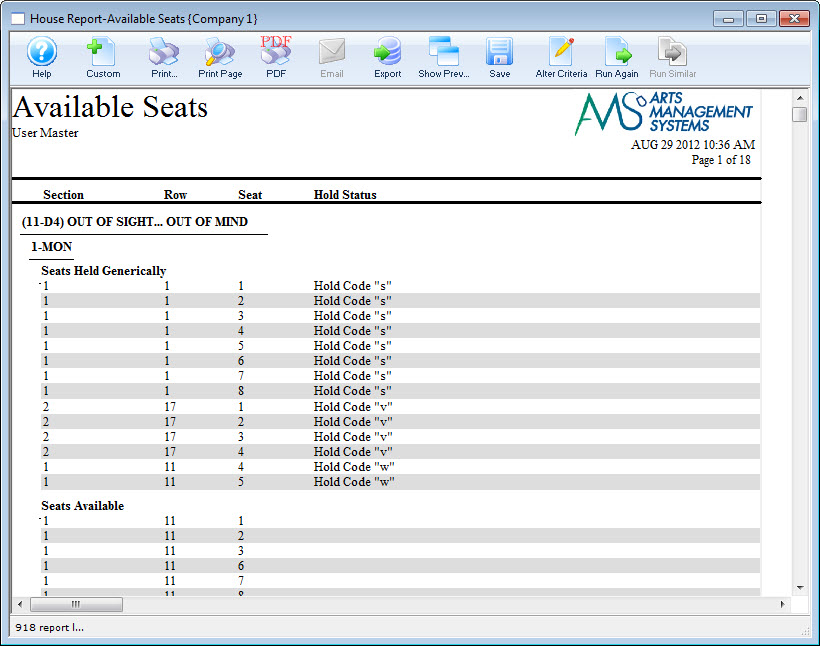
The House Report - Available Seats can be found under the Attendance for House and Calendar category. Below the image are detailed notes to help you in using the report.
Click here for information on generating a report. Click here for information on the Finished Report window.
Purpose of the Report
You use the House Report - Available Seats to print a list of seats available for reserved seating performances. This can be printed by seat assignment to help front of house.
Departments Who Benefit From This Report
| Box Office | |
| House Management | |
| Marketing | |
| Stage Management |
Criteria Hints
It is recommended that this report be run using .
| Parameter Field | Condition | Value |
House Report - By Order (With Mailing Address and Notes)
House Report - By Order (With Mailing Address and Notes)
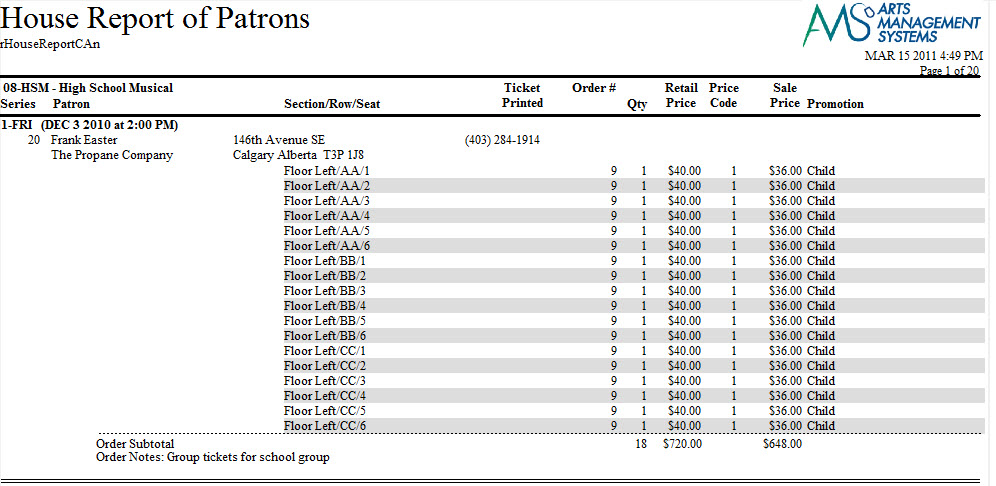
The House Report - By Order (With Mailing Address and Notes) can be found under the Attendance for House and Calendar category. Below the image are detailed notes to help you in using the report.
- Click here for information on generating a report.
- Click here for information on the Finished Report window.
Purpose of the Report
This report is a detailed listing of patrons attending a performance of an event separated by order. It includes address information, details about the order the patron placed and notes for both the order and patron.
Departments Who Benefit From This Report
| Box Office | Use this report to check on order balances for a performance. Orders with balances will not batch print tickets. |
| House Management | Use this report to see a listing of patrons attending a performance along with a detail of tickets purchased and notes for the patron. This includes special needs notes. |
Criteria Hints
It is recommended that this report be run using only one performance as the criteria.
| Parameter Field | Condition | Value |
| Event # | is one of | (Event Title) |
| Performance Date | = | (Date) |
| Performance Time | = | (Time) |
House Report - By Order (With Mailing Address)
House Report - By Order (With Mailing Address)

- Click here for information on generating a report.
- Click here for information on the Finished Report window.
Purpose of the Report
This report is a detailed listing of patrons attending a performance of an event separated by order. It includes shipping address information (instead iof primary address), details about the order the patron placed and notes for both the order and patron.
Departments Who Benefit From This Report
| Box Office | Use this report to check on order balances for a performance. Orders with balances will not batch print tickets. |
| House Management | Use this report to see a listing of patrons attending a performance along with a detail of tickets purchased and notes for the patron. This includes special needs notes. |
Criteria Hints
It is recommended that this report be run using only one performance as the criteria.
| Parameter Field | Condition | Value |
| Event # | is one of | (Event Title) |
| Performance Date | = | (Date) |
| Performance Time | = | (Time) |
House Report - By Order (With Primary Address and without Notes)
House Report - By Order (With Primary Address and without Notes)
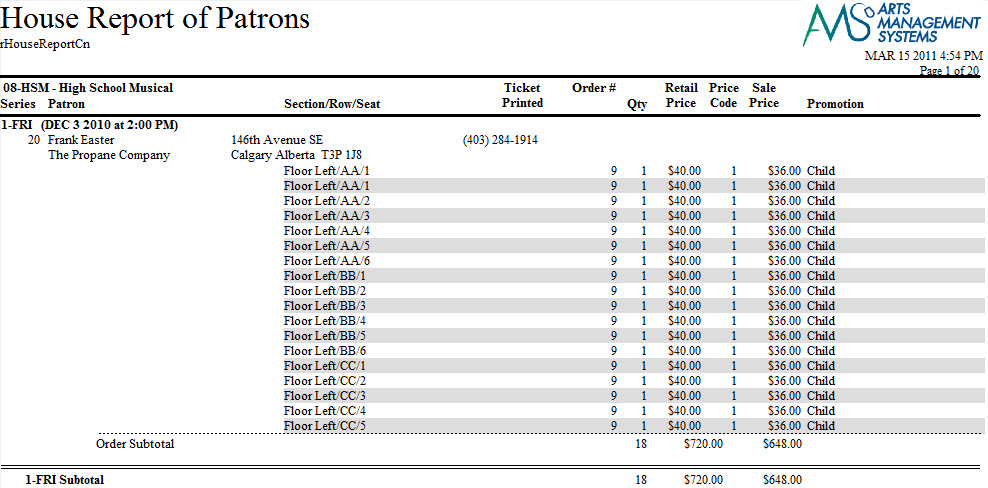
The House Report - By Order (With Address) can be found under the Attendance for House and Calendar category. Below the image are detailed notes to help you in using the report.
- Click here for information on generating a report.
- Click here for information on the Finished Report window.
Purpose of the Report
This report is a detailed listing of patrons attending a performance of an event separated by order. It includes address information and details about the order the patron placed.
Departments Who Benefit From This Report
| Box Office | Use this report to check on order balances for a performance. Orders with balances will not batch print tickets. |
| House Management | Use this report to see a listing of patrons attending a performance along with a detail of tickets purchased. |
Criteria Hints
It is recommended that this report be run using only one performance as the criteria.
| Parameter Field | Condition | Value |
| Event # | is one of | (Event Title) |
| Performance Date | = | (Date) |
| Performance Time | = | (Time) |
House Report - By Order (With Shipping Address and without Notes)
House Report - By Order (With Shipping Address and without Notes)

- Click here for information on generating a report.
- Click here for information on the Finished Report window.
Purpose of the Report
This report is a detailed listing of patrons attending a performance of an event separated by order. It includes shipping address information and details about the order the patron placed.
Departments Who Benefit From This Report
| Box Office | Use this report to check on order balances for a performance. Orders with balances will not batch print tickets. |
| House Management | Use this report to see a listing of patrons attending a performance along with a detail of tickets purchased. |
Criteria Hints
It is recommended that this report be run using only one performance as the criteria.
| Parameter Field | Condition | Value |
| Event # | is one of | (Event Title) |
| Performance Date | = | (Date) |
| Performance Time | = | (Time) |
House Report - By Order (Without Notes)
House Report - By Order (Without Notes)
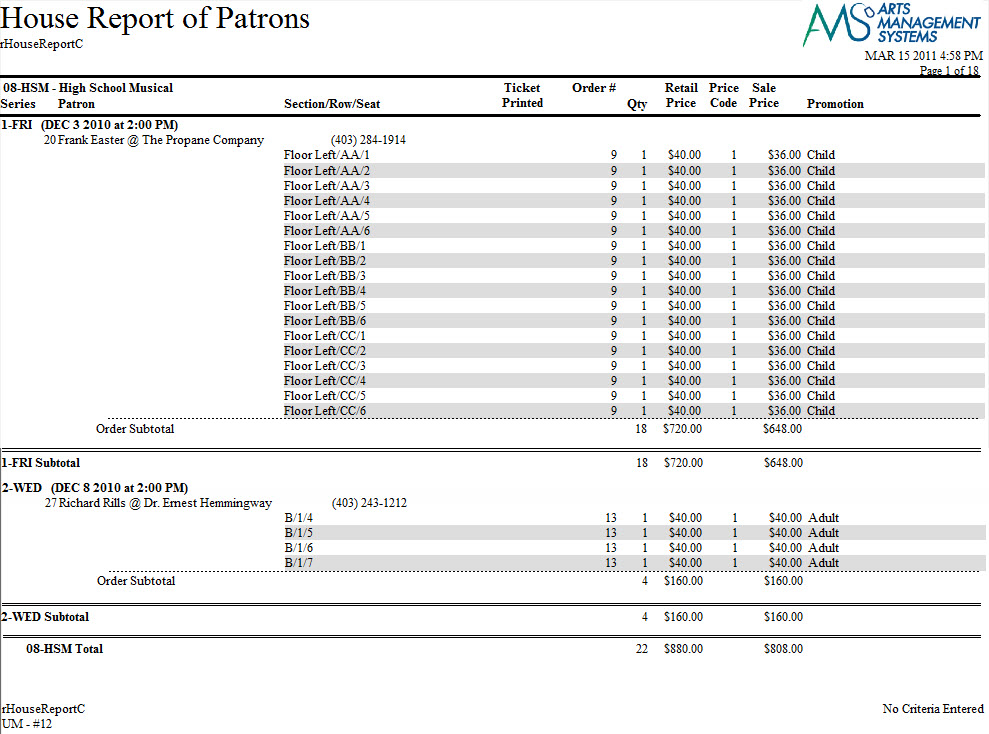
The House Report - By Order (Without Notes) can be found under the Attendance for House and Calendar category. Below the image are detailed notes to help you in using the report.
Click here for information on generating a report. Click here for information on the Finished Report window.
Purposeof the Report
This report is a detailed listing of patrons attending a performance of an event separated by order. It includes details about the order the patron placed.
Departments Who Benefit From This Report
| Box Office | Use this report to check on order balances for a performance. Orders with balances will not batch print tickets. |
| House Management | Use this report to see a listing of patrons attending a performance along with a detail of tickets purchased. |
Criteria Hints
It is recommended that this report be run using only one performance as the criteria.
| Parameter Field | Condition | Value |
| Event # | is one of | (Event Title) |
| Performance Date | = | (Date) |
| Performance Time | = | (Time) |
House Report - By Patron (With Notes)
House Report - By Patron (With Notes)
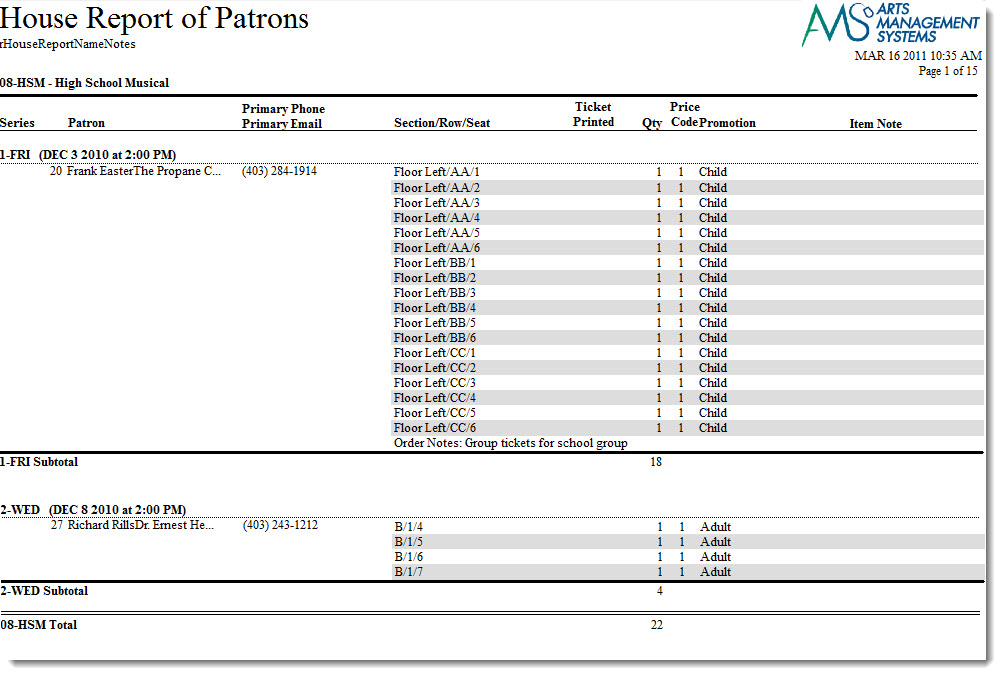
The House Report - By Patron (With Notes) can be found under the Attendance for House and Calendar category. Below the image are detailed notes to help you in using the report.
Click here for information on generating a report. Click here for information on the Finished Report window.
Purpose of the Report
This report is a detailed listing of patrons attending a performance of an event. It includes a listing of the tickets the patron purchased for the event and order notes.
Departments Who Benefit From This Report
| Box Office | Use this report to see a listing of all patrons attending a performance along with a detail of the tickets they have purchased and order notes. Orders with an outstanding balance will not print with batch tickets. |
| House Management | Use this report to see a listing of all patrons attending a performance along with a detail of the tickets that they have purchased and order notes. |
Criteria Hints
It is recommended that this report be run using only one performance as the criteria.
| Parameter Field | Condition | Value |
| Event # | is one of | (Event Title) |
| Performance Date | = | (Date) |
| Performance Time | = | (Time) |
House Report - By Patron (Without Notes)
House Report - By Patron (Without Notes)
The House Report - By Patron (Without Notes) can be found under the Attendance for House and Calendar category. Below the image are detailed notes to help you in using the report.
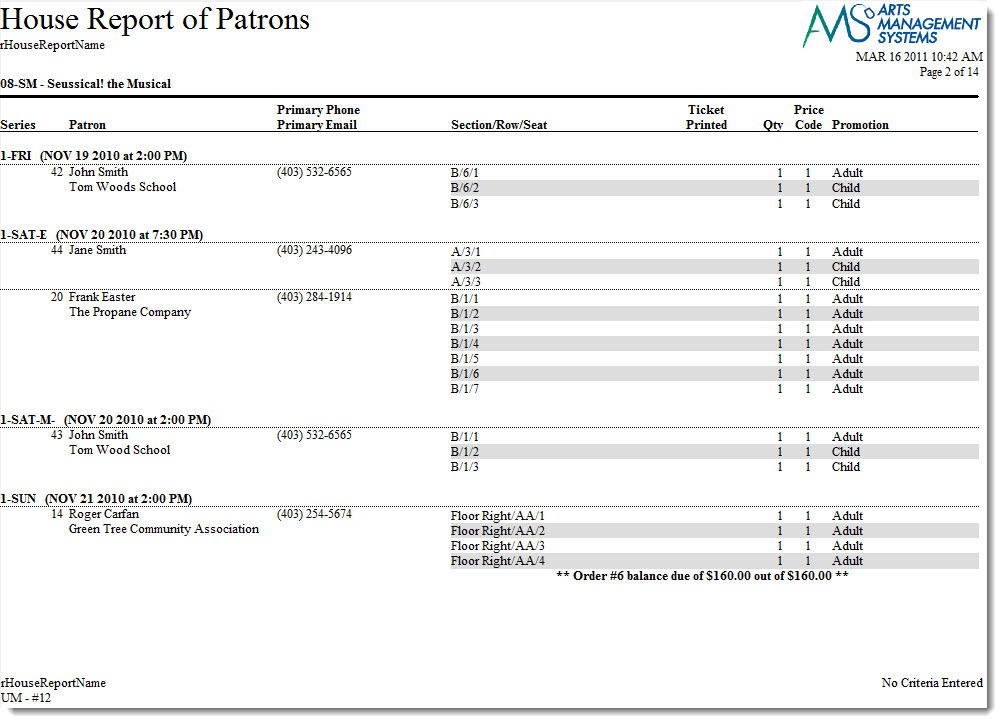
Click here for information on generating a report. Click here for information on the Finished Report window.
Purposeof the Report
This report is a detailed listing of patrons attending a performance of an event. It includes a listing of the tickets the patron purchased for the event.
Departments Who Benefit From This Report
| Box Office | Use this report to see a listing of all patrons attending a performance along with a detail of the tickets they have purchased. |
| House Management | Use this report to see a listing of all patrons attending a performance along with a detail of the tickets that they have purchased. |
Criteria Hints
It is recommended that this report be run using only one performance as the criteria.
| Parameter Field | Condition | Value |
| Event # | is one of | (Event Title) |
| Performance Date | = | (Date) |
| Performance Time | = | (Time) |
House Report - By Ticket (With Notes)
House Report - By Ticket (With Notes)
The House Report - By Ticket (With Notes) can be found under the Attendance for House and Calendar category. Below the image are detailed notes to help you in using the report.
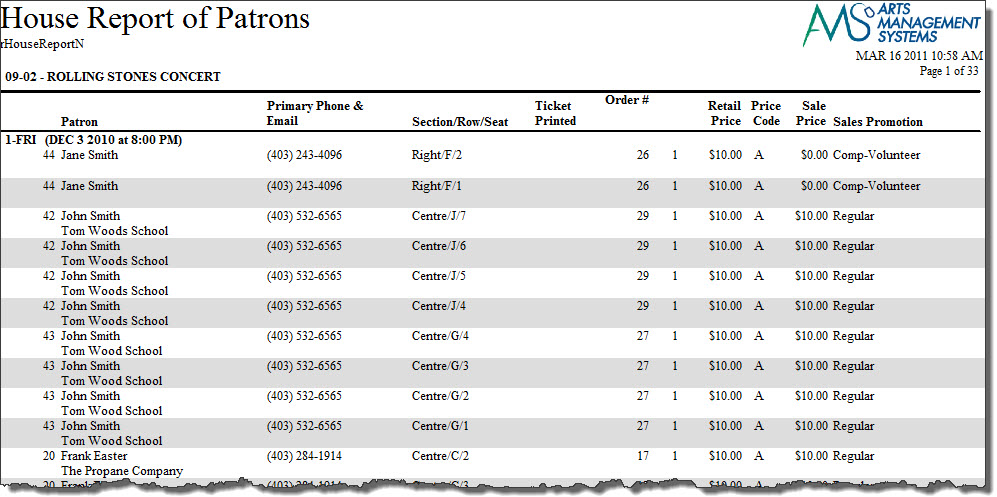
Click here for information on generating a report. Click here for information on the Finished Report window.
Purpose of the Report
This report is a detailed listing of tickets for the performance and includes patron and order information and notes.
Departments Who Benefit From This Report
| Box Office | Use this report to see a listing of all tickets for a performance along with patron, order information and order notes. Orders with an outstanding balance will not print with batch tickets. |
| House Management | Use this report to see a listing of all tickets for a performance along with patron, order information and order notes. |
Criteria Hints
It is recommended that this report be run using only one performance as the criteria.
| Parameter Field | Condition | Value |
| Event # | is one of | (Event Title) |
| Performance Date | = | (Date) |
| Performance Time | = | (Time) |
House Report - By Ticket (Without Notes)
House Report - By Ticket (Without Notes)
The House Report - By Ticket (Without Notes) can be found under the Attendance for House and Calendar category. Below the image are detailed notes to help you in using the report.
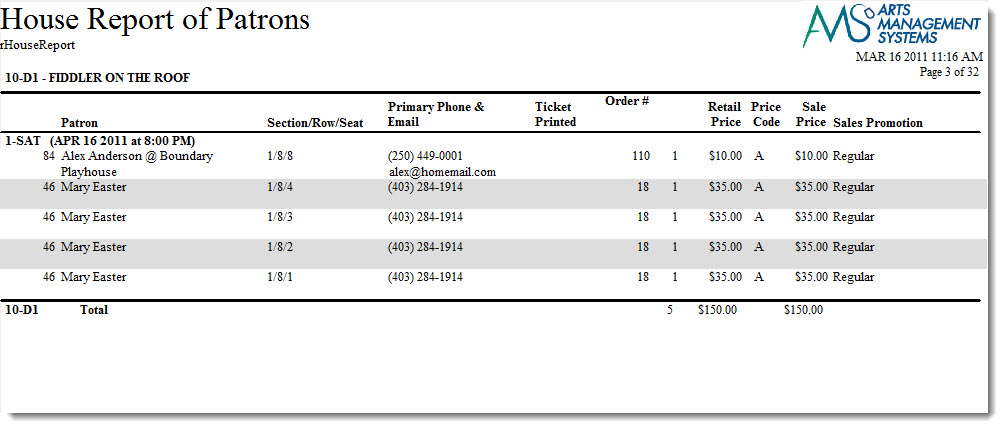
Click here for information on generating a report. Click here for information on the Finished Report window.
Purpose of the Report
This report is a detailed listing of tickets for the performance and includes patron information.
Departments Who Benefit From This Report
| Box Office | Use this report to see a listing of all tickets for a performance along with patron information. |
| House Management | Use this report to see a listing of all tickets for a performance along with patron information. |
Criteria Hints
It is recommended that this report be run using only one performance as the criteria.
| Parameter Field | Condition | Value |
| Event # | is one of | (Event Title) |
| Performance Date | = | (Date) |
| Performance Time | = | (Time) |
House Report - Dinner Table Tents
House Report - Dinner Table Tents
The House Report - Dinner Table Tents can be found under the Attendance for House and Calendar category. Below the image are detailed notes to help you in using the report.
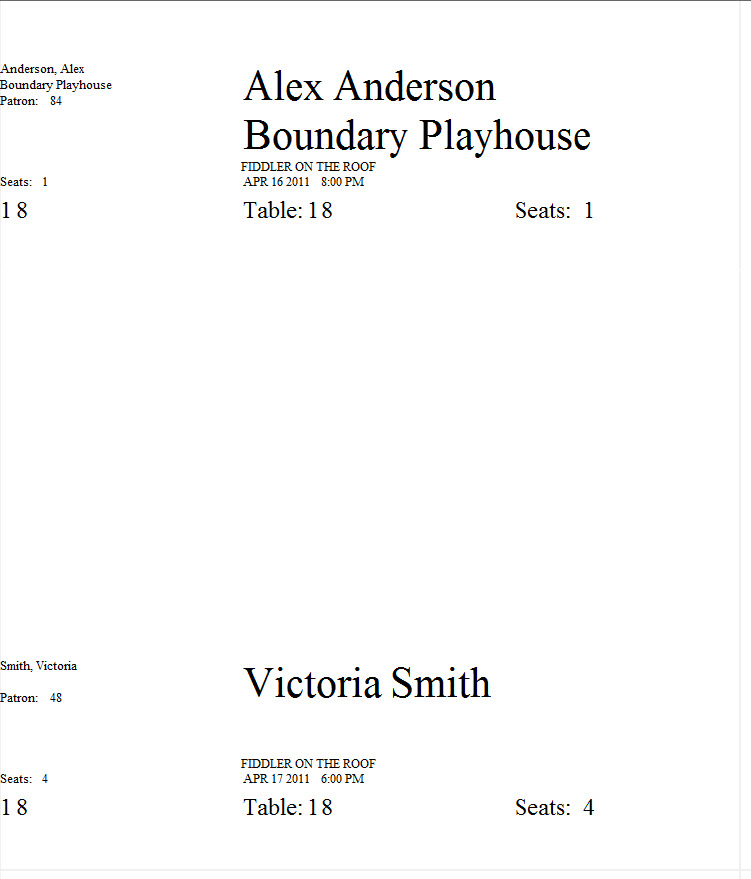
Click here for information on generating a report. Click here for information on the Finished Report window.
Purposeof the Report
This report generates a listing of patrons attending the performance in a format that can be printed, separated, and placed on a dinner table as a marker.
Departments Who Benefit From This Report
| House Management | Use this report to create placeholders for dinner tables so patrons can easily locate their seats. |
Criteria Hints
It is recommended that this report be run using only one performance as the criteria.
| Parameter Field | Condition | Value |
| Event # | is one of | (Event Title) |
| Performance Date | = | (Date) |
| Performance Time | = | (Time) |
House Report - Reservation List (With Notes)
House Report - Reservation List (With Notes)
The House Report - Reservation List (With Notes) can be found under the Attendance for House and Calendar category. Below the image are detailed notes to help you in using the report.
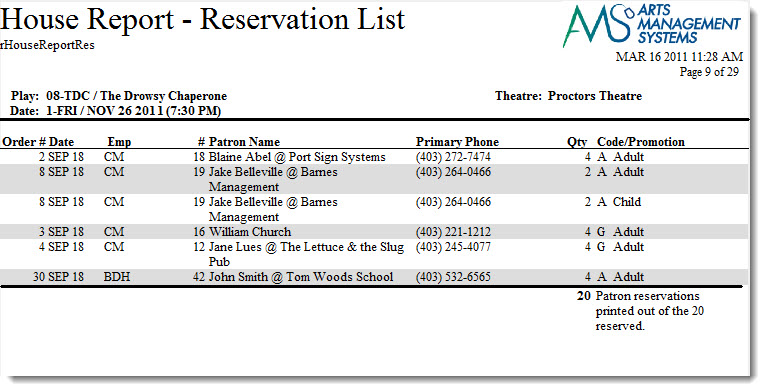
Click here for information on generating a report. Click here for information on the Finished Report window.
Purpose of the Report
This report shows a summary of all order reservations for the performance along with ticket quantity, patron notes and order notes. All reservations are included in this report along with confirmed orders.
Departments Who Benefit From This Report
| Box Office | Use this report for a quick summary of all reservations for the performance and to check for order notes. Orders with outstanding balances will not print with batch tickets. |
| House Management | Use this report for a quick summary of all reservations for the performance and to check order and patron notes. This includes special needs notes. |
Criteria Hints
It is recommended that this report be run using only one performance as the criteria.
| Parameter Field | Condition | Value |
| Event # | is one of | (Event Title) |
| Performance Date | = | (Date) |
| Performance Time | = | (Time) |
House Report - Reservation List (With Order Balance)
House Report - Reservation List (With Order Balance)
The House Report - Reservation List (With Order Balance) can be found under the Attendance for House and Calendar category. Below the image are detailed notes to help you in using the report.
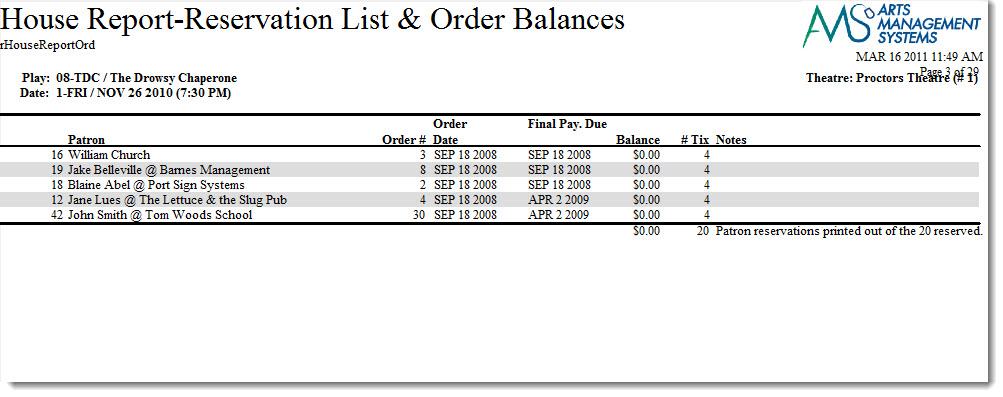
Click here for information on generating a report. Click here for information on the Finished Report window.
Purpose of the Report
This report shows a summary of all order reservations for the performance along with balance information. All reservations are included in this report along with confirmed orders.
Departments Who Benefit From This Report
| Box Office | Use this report for a quick summary of all reservations for the performance and to check outstanding order balances. Orders with outstanding balances will not print with batch tickets. |
Criteria Hints
It is recommended that this report be run using only one performance as the criteria.
| Parameter Field | Condition | Value |
| Event # | is one of | (Event Title) |
| Performance Date | = | (Date) |
| Performance Time | = | (Time) |
House Report - Reservation List (Without Notes)
House Report - Reservation List (Without Notes)
The House Report - Reservation List (Without Notes) can be found under the Attendance for House and Calendar category. Below the image are detailed notes to help you in using the report.
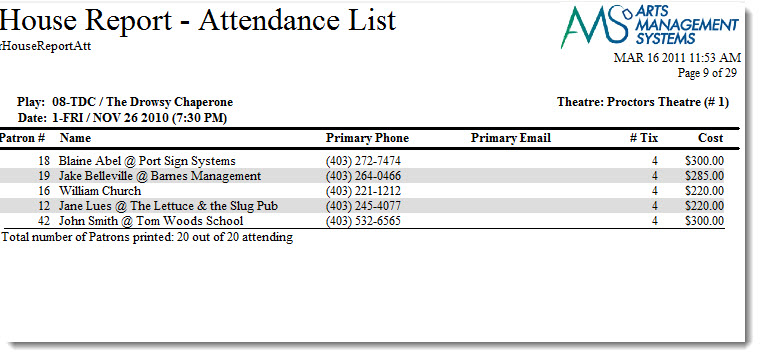
Click here for information on generating a report. Click here for information on the Finished Report window.
Purpose of the Report
This report shows a summary of all order reservations for the performance along with ticket quantity, patron notes and order totals. All reservations are included in this report along with confirmed orders.
Departments Who Benefit From This Report
| Box Office | Use this report for a quick summary of all reservations for the performance and to check for order totals. |
Criteria Hints
It is recommended that this report be run using only one performance as the criteria.
| Parameter Field | Condition | Value |
| Event # | is one of | (Event Title) |
| Performance Date | = | (Date) |
| Performance Time | = | (Time) |
House Report - Reservation List by Order (With Notes)
House Report - Reservation List by Order (With Notes)
The House Report - Reservation List by Order (With Notes) can be found under the Attendance for House and Calendar category. Below the image are detailed notes to help you in using the report.
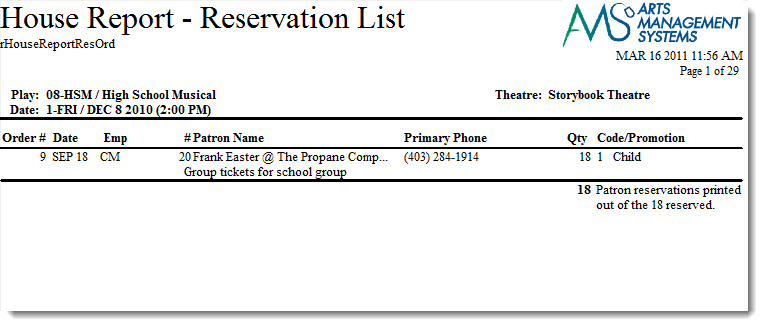
Click here for information on generating a report. Click here for information on the Finished Report window.
Purposeof the Report
This report shows a summary of all ordersfor the performance along with ticket quantity, patron notes and order notes.
Departments Who Benefit From This Report
| Box Office | Use this report for a quick summary of all reservations for the performance and to check for order notes. Orders with outstanding balances will not print with batch tickets. |
| House Management | Use this report for a quick summary of all reservations for the performance and to check order and patron notes. This includes special needs notes. |
Criteria Hints
It is recommended that this report be run using only one performance as the criteria.
| Parameter Field | Condition | Value |
| Event # | is one of | (Event Title) |
| Performance Date | = | (Date) |
| Performance Time | = | (Time) |
House Report - Reservation List by Order (Without Notes)
House Report - Reservation List by Order (Without Notes)
The House Report - Reservation List by Order (Without Notes) can be found under the Attendance for House and Calendar category. Below the image are detailed notes to help you in using the report.
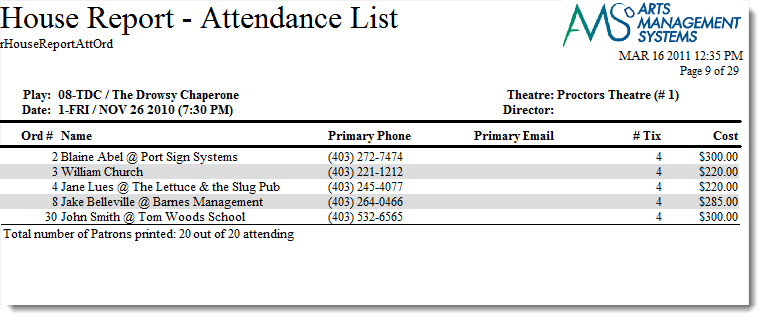
Click here for information on generating a report. Click here for information on the Finished Report window.
Purposeof the Report
This report shows a summary of all orders for the performance along with ticket quantity, patron notes and order totals.
Departments Who Benefit From This Report
| Box Office | Use this report for a quick summary of all reservations for the performance and to check for order totals. |
Criteria Hints
It is recommended that this report be run using only one performance as the criteria.
| Parameter Field | Condition | Value |
| Event # | is one of | (Event Title) |
| Performance Date | = | (Date) |
| Performance Time | = | (Time) |
House Report - Revenues by Patron
House Report - Revenues by Patron
The House Report - Revenues by Patron can be found under the Attendance for House and Calendar category. Below the image are detailed notes to help you in using the report.
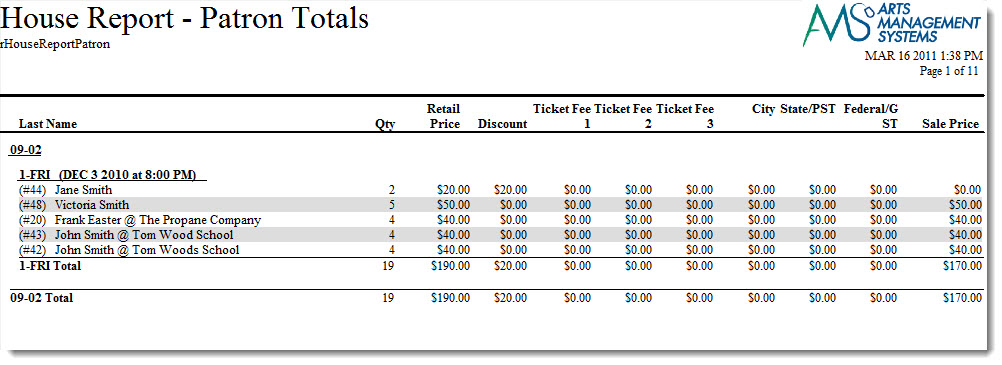
Click here for information on generating a report. Click here for information on the Finished Report window.
Purposeof the Report
This report shows a breakdown of the revenue for each order attached to a performance of an event.
Departments Who Benefit From This Report
| Box Office | Use this report for a detail of the revenue generated by each order. |
| General Manager | Use this report for a detail of the revenue generated by each order. |
Criteria Hints
It is recommended that this report be run using only one performance as the criteria.
| Parameter Field | Condition | Value |
| Event # | is one of | (Event Title) |
| Performance Date | = | (Date) |
| Performance Time | = | (Time) |
Play Detail
Play Detail
The Play Detail can be found under the Attendance for House and Calendar category. Below the image are detailed notes to help you in using the report.
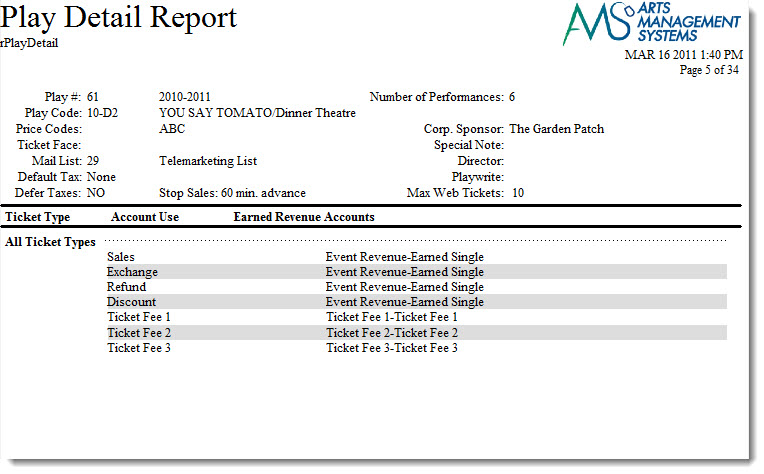
Click here for information on generating a report. Click here for information on the Finished Report window.
Purpose of the Report
This report generates a detailed listing of an event including the G/L accounts assigned to the event.
Departments Who Benefit From This Report
| Box Office | Use this report to verify that all details have been set properly prior to the event going on sale. |
| Accounting | Use this report to verify that all G/L accounts have been properly assigned to the event. |
| General Manager | Use this report to verify that all details have been set properly prior to the event going on sale. |
Criteria Hints
It is recommended that this report be run using only one event as the criteria.
| Parameter Field | Condition | Value |
| Event # | is one of | (Event Title) |
Play List (With Notes)
Play List (With Notes)
The Event List (With Notes) can be found under the Attendance for House and Calendar category. Below the image are detailed notes to help you in using the report.
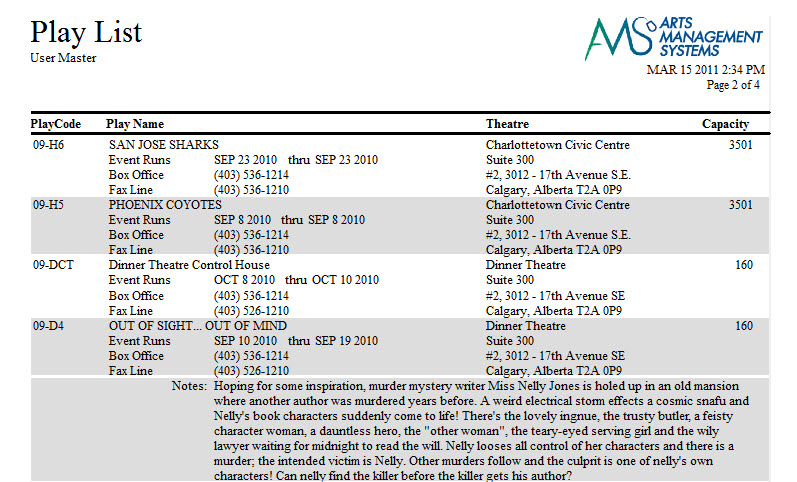
Click here for information on generating a report. Click here for information on the Finished Report window.
Purpose of the Report
This report lists the events selected in a more detailed format than the Event List report. Additional contact information and event notes are included on the report.
Departments Who Benefit From This Report
| Every Department | Use this report as a quick guide to upcoming events and detailed information in regards to performance dates, venues, ticket purchasing, and event notes. |
Criteria Hints
It is recommended that this report be run using only one season as the criteria.
| Parameter Field | Condition | Value |
| Event # | is one of | (Event Title) or (Event Title) or (Event Title) |
Use the SHIFT key to select a series of events, or the OPTION key (Mac) or CTRL key (Windows) to select multiple individual events.
Play List
Play List
The Play List can be found under the Attendance for House and Calendar category. Below the image are detailed notes to help you in using the report.
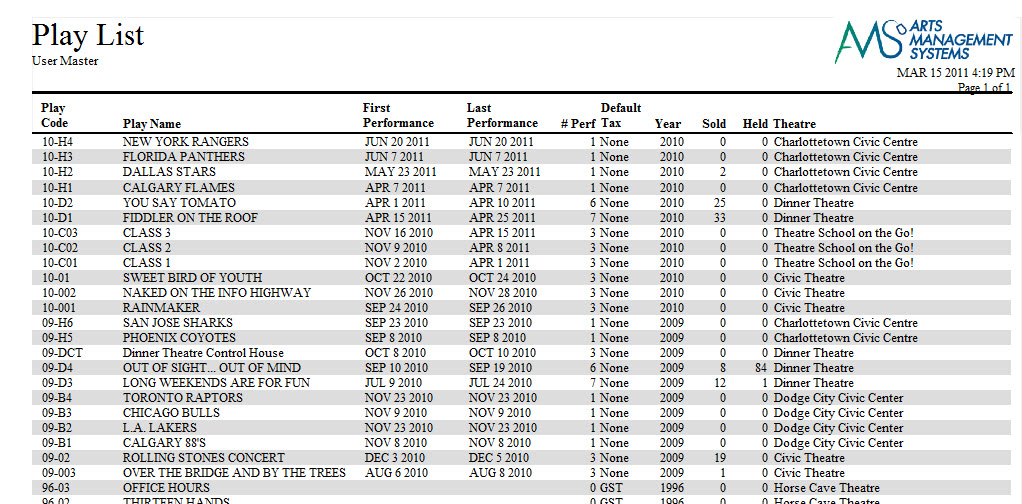
Click here for information on generating a report. Click here for information on the Finished Report window.
Purpose of the Report
This report creates a listing of events with a quick view of details for the event.
Departments Who Benefit From This Report
| Every Department | Use this report as a quick guide to upcoming events and basic information in regards to performance dates and venues. |
Criteria Hints
It is recommended that this report be run using only one season as the criteria.
| Parameter Field | Condition | Value |
| Event # | is one of | (Event Title) or (Event Title) or (Event Title) |
Use the SHIFT key to select a series of events, or the OPTION key (Mac) or CTRL key (Windows) to select multiple individual events.
Play Price Codes
Play Price Codes
The Event Price Codes can be found under the Attendance for House and Calendar category. Below the image are detailed notes to help you in using the report.
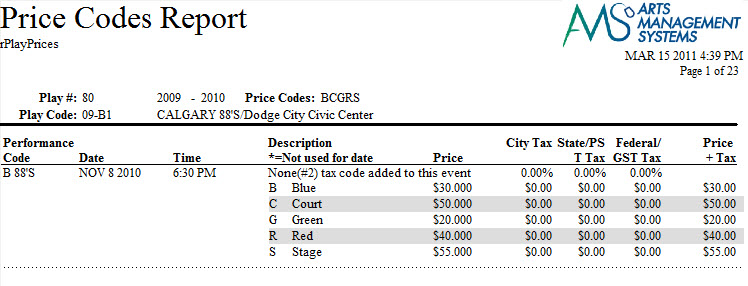
Click here for information on generating a report. Click here for information on the Finished Report window.
Purposeof the Report
This report lists a price code detail for each performance of an event.
Departments Who Benefit From This Report
| Box Office | Use this report to verify that the price codes for each performance of an event have properly been entered prior to going on sale. |
| Marketing | Use this report to view all price codes for each performance of an event. |
| General Manager | Use this report to verify that the price codes for each performance of an event have properly been entered prior to going on sale. |
Criteria Hints
It is recommended that this report be run using only one event as the criteria.
| Parameter Field | Condition | Value |
| Event # | is one of | (Event Title) |
Play and Series List
Play and Series List
The Play and Series List can be found under the Attendance for House and Calendar category. Below the image are detailed notes to help you in using the report.
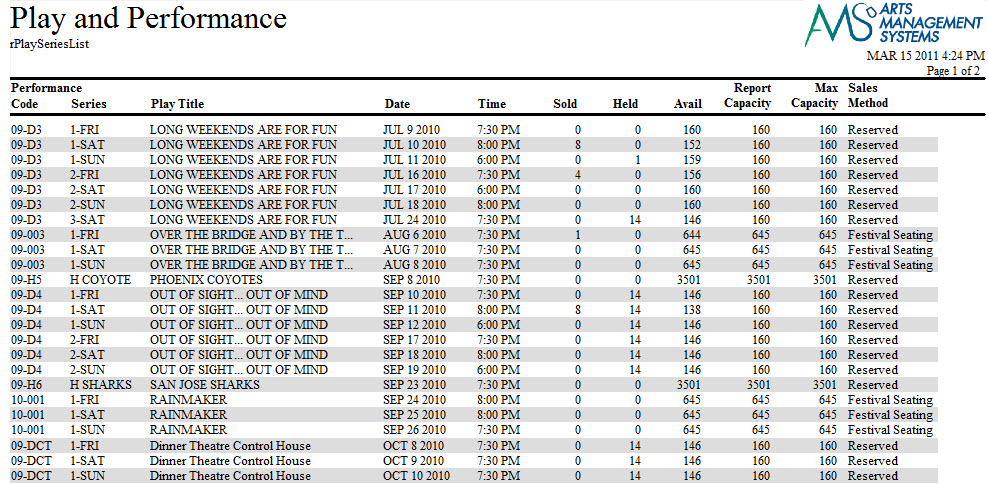
Click here for information on generating a report. Click here for information on the Finished Report window.
Purpose of the Report
This report provides a detail of all performances for an event and includes information in regards to sales method and venue.
Departments Who Benefit From This Report
| Box Office> | Use this report to verify that all performances are entered correctly for an event prior to going on sale.> |
| Marketing | Use this report to view a detail of all performance for an event. |
| General Manager | >Use this report to verify that all performances are entered correctly for an event prior to going on sale. |
| Every Department | >Use this report as a hardcopy of information on all performances of an event or for the season. |
Criteria Hints
It is recommended that this report be run using only one season or event as the criteria.
| Parameter Field | Condition | Value |
| Event #> | is one of> | (Event Title) or (Event Title) or (Event Title)> |
Use the SHIFT key to select a series of events, or the OPTION key (Mac) or CTRL key (Windows) to select multiple individual events.
Box Office Statistics
Ticket Purchase Times
Ticket Purchase Times
The Ticket Purchase Times report is found under the Box Office Statistics category. It provides an hourly breakdown of when tickets are purchased on a daily basis. This report also has additional Time Parameter and Sort & Subtotals. Click here for more information about the Time Paramaeters Tab. Click here for more information about the Sort & Sub total Tab. Below the image are detailed notes to help you in using the report.

Click here for information on generating a report. Click here for information on the Finished Report window.
Purposeof the Report
This report generates an hourly breakdown of when tickets are purchased throughout a specified time parameter.
Departments Who Benefit From This Report
| Box Office | Use this report to verify when the largest number of tickets are sold. |
Criteria Hints
It is recommended that this report be run using only one date as the criteria.
| Parameter Field | Condition | Value |
| Hour Start | = | (Time) |
| Hour Stop | = | (Time) |
Ticket Sales - by Employee
Ticket Sales - by Employee
The Ticket Sales - by Employee can be found under the Box Office Statistics category. Below the image are detailed notes to help you in using the report.

Click here for information on generating a report. Click here for information on the Finished Report window.
Purpose of the Report
This report generates a detailed listing of the ticket sales by each employee for a specific date.
Departments Who Benefit From This Report
| Box Office | Use this report to verify sales that have been done during the day. |
Criteria Hints
It is recommended that this report be run using only one date or range of dates as the criteria.
| Parameter Field | Condition | Value |
| Order Date | = | (Date) |
Ticket Sales - by Employee by Price Code
Ticket Sales - by Employee by Price Code
The Ticket Sales - by Employee by Price Code can be found under the Box Office Statistics category. Below the image are detailed notes to help you in using the report.

Click here for information on generating a report. Click here for information on the Finished Report window.
Purpose of the Report
This report generates a detailed listing of the ticket sales by price code for each employee for a specific date.
Departments Who Benefit From This Report
| Box Office | Use this report to verify sales that have been done during the day. |
Criteria Hints
It is recommended that this report be run using only one date or range of dates as the criteria.
| Parameter Field | Condition | Value |
| Order Date | = | (Date) |
Ticket Sales - by Employee by Promotion
Ticket Sales - by Employee by Promotion
The Ticket Sales - by Employee by Promotion can be found under the Box Office Statistics category. Below the image are detailed notes to help you in using the report.

Click here for information on generating a report. Click here for information on the Finished Report window.
Purpose of the Report
This report generates a detailed listing of the ticket sales by promotion for each employee for a specific date.
Departments Who Benefit From This Report
| Box Office | Use this report to verify sales that have been done during the day. |
Criteria Hints
It is recommended that this report be run using only one date or range of dates as the criteria.
| Parameter Field | Condition | Value |
| Order Date | = | (Date) |
Ticket Sales - by Order Solicitor - Detail
Ticket Sales - by Order Solicitor - Detail
The Ticket Sales - by Order Solicitor - Detail can be found under the Box Office Statistics category. Below the image are detailed notes to help you in using the report.

Click here for information on generating a report. Click here for information on the Finished Report window.
Purpose of the Report
This report generates a detailed listing of the orders for each employee.
Departments Who Benefit From This Report
| Box Office | Use this report to verify orders that have been done by an employee. |
Criteria Hints
It is recommended that this report be run using only one date or range of dates, and/or one employee as the criteria.
| Parameter Field | Condition | Value |
| Order Date | = | (Date) |
| Employee # | is one of | (Employee) |
Use the SHIFT key to select a series of employees, or the OPTION key (Mac) or CTRL key (Windows) to select multiple individual employees.
Ticket Sales - by Order Solicitor - Summary
Ticket Sales - by Order Solicitor - Summary
The Ticket Sales - by Order Solicitor - Summary can be found under the Box Office Statistics category. Below the image are detailed notes to help you in using the report.

Click here for information on generating a report. Click here for information on the Finished Report window.
Purpose of the Report
This report generates a summary listing of the orders for each employee.
Departments Who Benefit From This Report
| Box Office | Use this report to verify orders that have been done by an employee. |
Criteria Hints
It is recommended that this report be run using only one date or range of dates, and/or one employee as the criteria.
| Parameter Field | Condition | Value |
| Order Date | = | (Date) |
| Employee # | is one of | (Employee) |
Use the SHIFT key to select a series of employees, or the OPTION key (Mac) or CTRL key (Windows) to select multiple individual employees.
Tickets Printed More Than Once
Tickets Printed More Than Once
The Tickets Printed More Than Once can be found under the Box Office Statistics category. Below the image are detailed notes to help you in using the report.

Click here for information on generating a report. Click here for information on the Finished Report window.
Purpose of the Report
This report contains a listing of tickets that have been printed multiple times.
Departments Who Benefit From This Report
| Box Office | Use this report to look for problems with ticket printers and also as a means of inventory control. |
Criteria Hints
It is recommended that this report be run using only one date or range of dates as the criteria.
| Parameter Field | Condition | Value |
| Ticket Date-Printed | = | (Date) |
Calendar and Facility Management
Calendar of Events - Daily View
Calendar of Events - Daily View

Click here for information on generating a report. Click here for information on the Finished Report window.
Purpose of the Report
You use the "Calendar of Events - Daily View" to display the travelling troupe/touring sales on a daily basis. Since this report also displays timing, accomodation and contact information, it may be useful for the tour manager or stage manager.
Departments Who Benefit From This Report
| Box Office | |
| House Management | |
| Marketing | |
| Stage Management |
Criteria Hints
It is recommended that this report be run using touring events that are for the future.
| Parameter Field | Condition | Value |
| Performance Date | >= | [today's date] |
Contact Audit Listing
Contact Audit Listing
The Contact Audit Listing report can be found under the Patron Notes and Contact History category. This report has additional criteria options. Click here for more information about the Sort & Subtotal tab. Click here for more information about the Formatting tab. Below the image are detailed notes to help you in using the report.

Click here for information on generating a report. Click here for information on the Finished Report window.
Purpose of the Report
This report generates a listing of all notes that have been added to a patron record under the Letter tab.
Departments Who Benefit From This Report
Box Office |
Use this report to view and verify notes that have been added to a patron's record. |
Criteria Hints
It is recommended that this report be run with a single patron or range of patrons as the criteria.
Parameter Field |
Condition |
Value |
Patron Name-Last |
between |
(Last Name) and (Last Name) |
Contact Detail for a Patron - 1 Per Page
Contact Detail for a Patron - 1 Per Page
The Contact Detail for a Patron - 1 Per Page report can be found under the Patron Notes and Contact History category. Below the image are detailed notes to help you in using the report.

Click here for information on generating a report. Click here for information on the Finished Report window.
Purpose of the Report
This report generates a listing of each patron with notes and contact information.
Departments Who Benefit From This Report
Box Office |
Use this report as a checklist for following up on patron notes. |
Criteria Hints
It is recommended that this report be run with a single patron or range of patrons as the criteria.
Parameter Field |
Condition |
Value |
Patron Name-Last |
between |
(Last Name) and (Last Name) |
Contact Detail for a Patron - Condensed
Contact Detail for a Patron - Condensed
The Contact Detail for a Patron - Condensed report can be found under the Patron Notes and Contact History category. Below the image are detailed notes to help you in using the report.

Click here for information on generating a report. Click here for information on the Finished Report window.
Purpose of the Report
This report generates a listing of all patrons with notes and contact information.
Departments Who Benefit From This Report
Box Office |
Use this report as a checklist for following up on patron notes. |
Criteria Hints
It is recommended that this report be run with a single patron or range of patrons as the criteria.
Parameter Field |
Condition |
Value |
Patron Name-Last |
between |
(Last Name) and (Last Name) |
Daily Action Items by Employee
Daily Action Items by Employee

Click here for information on generating a report. Click here for information on the Finished Report window.
Purpose of the Report
This report generates a listing of all patrons with notes and contact information.
Departments Who Benefit From This Report
| Box Office |
Criteria Hints
It is recommended that this report be run with a single patron or range of patrons as the criteria.
| Parameter Field | Condition | Value |
Task List Report

Traveling Troupe Itinerary-List Format
Traveling Troupe Itinerary-List Format
The Traveling Troupe Itinerary can be found under the Calendar and Facility Management category. Below the image are detailed notes to help you in using the report.

Click here for information on generating a report. Click here for information on the Finished Report window.
Purpose of the Report
This report contains an itinerary of a Traveling Troupe performance as it entered into Theatre Manager. Information in regards to call times, travel times, and performance are all listed.
Departments Who Benefit From This Report
| Box Office | Use this report to view and verify a copy of the itinerary for a Traveling Troupe performance. |
| Education | Use this report to view and verify a copy of the itinerary for a Traveling Troupe performance. |
| Stage Management | Use this report to view and verify a copy of the itinerary for a Traveling Troupe performance. |
Criteria Hints
It is recommended that this report be run using only one performance as the criteria.
| Parameter Field | Condition | Value |
| Event # | is one of | (Event Title) |
| Performance Date | = | (Date) |
| Performance Time | = | (Time) |
Course Reports
Course Reports
Course Attendance Sheet
Course Attendance Sheet
The Course Attendance Sheets can be found under the Course Reports category. Below the image are detailed notes to help you in using the report.
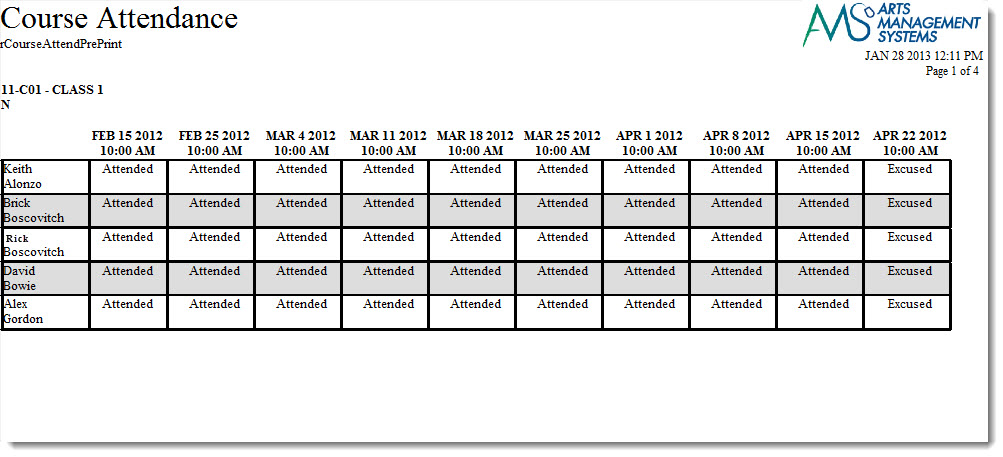
Click here for information on generating a report. Click here for information on the Finished Report window.
Purpose of the Report
You use the Course Attendance Sheet ti generate a sheet to be used for attendance.
Purpose of the Report
You use the Course Attendance Sheet ti generate a sheet to be used for attendance. As attendance is entered into theatre amanger, the results can be printed using this report.
Departments Who Benefit From This Report
| Instructors | To print the donations in order of Fiscal Year
Use this report to track attendance. |
Criteria Hints
It is recommended that this report be run using:
| Parameter Field | Condition | Value |
| Preformance | = | Desired Class |
| Donation Date | is | Date Entered |
Course Report Card Summary
Course Roster
Course Roster
The Course Roster report can be found under the Course Reports category. Below the image are detailed notes to help you in using the report.
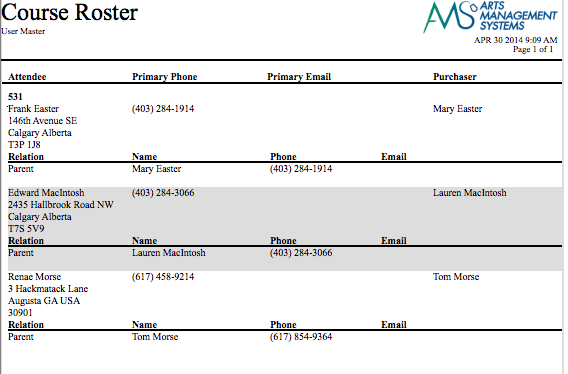
Click here for information on generating a report. Click here for information on the Finished Report window.
Purpose of the Report
You use the Course Roster report to print a list of of patrons who are attending a class or course, along with their relationships to other patrons such as a parent or teacher.
Departments Who Benefit From This Report
| Education | Managing the Course Roster and Emergency Contacts |
| Marketing | Cross selling other classes and courses to the parents |
| Box Office | To provide a list of who is in the building to fire personnel |
Criteria Hints
It is recommended that this report be run using:
| Parameter Field | Condition | Value |
| Event # | is one of | Desired Class or Course |
| Performance Series Code | contains | Day of the week for the class (if appropriate) |
Course Report Cards
Course Report Cards
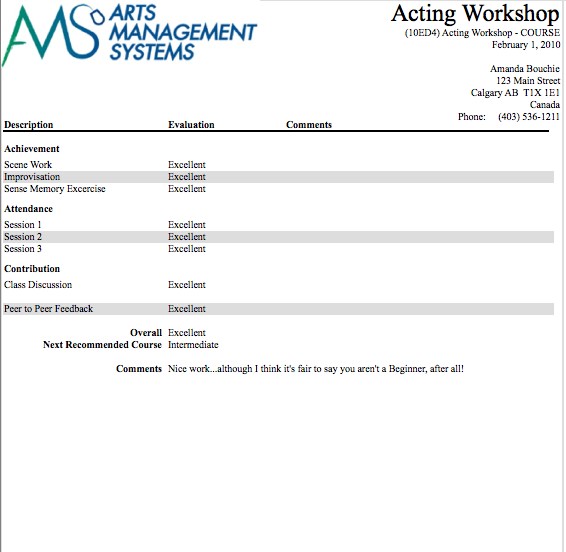
Being able to create, assign, and print report cards is part of the Courses module. Before report cards can be used, you need to set up the following in the Setup >> System Tables >>code tables:
- Report Card Templates, click here for more information,
- Course levels, to assign different levels or grades of classes, click here for more information,
- Report Card Categories for different areas to assess students, click here for more information,
- Report Card Ratings, to describe your system of assessment, click here for more information.
Donation Reports & Receipts
Donation Reports & Receipts
Audit List Receipts
Audit List Receipts

Click here for information on generating a report. Click here for information on the Finished Report window.
Purpose of the Report
You use the Audit List Receipts to print a list of receipts and the Donor who received them.
Purpose of the Report
Departments Who Benefit From This Report
| Development | To print the donations in order of Fiscal Year
Use this report to see donation receipts that have been printed and ones waiting to be printed. |
Criteria Hints
It is recommended that this report be run using:
| Parameter Field | Condition | Value |
| Donation Year | = | Desired Year |
| Donation Date | is | Date Entered |
| Campaign # | is one of | desired campaign |
Audit Trail - Donor & Pledge Daily Audit
Audit Trail - Donor & Pledge Daily Audit
The Audit Trail - Donor & Pledge Daily Audit can be found under the Donation Reports & Receipts category. Below the image are detailed notes to help you in using the report.

Click here for information on generating a report. Click here for information on the Finished Report window.
Purpose of the Report
You use the Audit Trail - Donor Pledge & Daily Audit to tally data within a given time period (usually daily) based on the donations and payments recveived within a specified time frame. It is best run after the end of day wizard has been finished, because this is when all the sales postings have been finalized for the prior day and all payments have been deposited. This report can be run for a date range that is more than one day, for part of a day, or a time period that crosses two days.
Departments Who Benefit From This Report
| Development | To print a list of donations and pledges received and evaluate the need to respond in a particular way to the donor.p>
Use this report as a means of keeping an audit trail of donation transactions. |
| Accounting | Use this report as supporting information for bookkeeping or auditors. |
Criteria Hints
It is recommended that this report be run using:
| Parameter Field | Condition | Value |
| Donation Year | = | Desired Year |
| Donation Date | is | Date Entered |
| Campaign # | is one of | desired campaign |
Audit Trail - Donor & Receipt Summary - Patron
Audit Trail - Donor & Receipt Summary - Patron
The Audit Trail - Donor & Receipt Summary - Patron can be found under the Donation Reports & Receipts category. Below the image are detailed notes to help you in using the report.
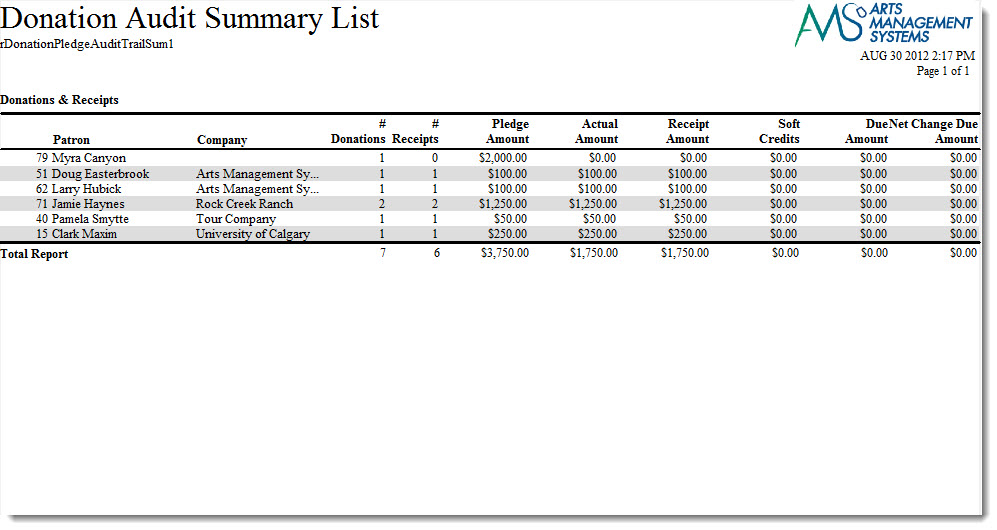
Click here for information on generating a report. Click here for information on the Finished Report window.
Purpose of the Report
You use the Donor Detail - Year (Program) to tally data within a given time period (usually daily) based on the donations and payments recveived within a specified time frame. It is best run after the end of day wizard has been finished, because this is when all the sales postings have been finalized for the prior day and all payments have been deposited. This report can be run for a date range that is more than one day, for part of a day, or a time period that crosses two days.
Departments Who Benefit From This Report
| Development | To print the donations in order of fiscal year. A complete summary is printed, even notes and comments |
Criteria Hints
It is recommended that this report be run using:
| Parameter Field | Condition | Value |
| Donation Year | = | Desired Year |
| Donation Date | is | Date Entered |
| Campaign # | is one of | desired campaign |
Audit Trail - Donor & Receipt Summary Campaign
Audit Trail - Donor & Receipt Summary Campaign
The Audit Trail - Donor & Receipt Summary Campaign can be found under the Donation Reports & Receipts category. Below the image are detailed notes to help you in using the report.

Click here for information on generating a report. Click here for information on the Finished Report window.
Purpose of the Report
You use the Audit Trail - Donor & Receipt Summary Campaign to tally data within a given time period (usually daily) based on the donations and payments received within a specified time frame. It is best run after the end of day wizard has been finished, because this is when all the sales postings have been finalized for the prior day and all payments have been deposited. This report can be run for a date range that is more than one day, for part of a day, or a time period that crosses two days. This report gives you a quick summary of donation campaigns over time
Departments Who Benefit From This Report
| Development | To evaluate the fluctuations in a campaign |
| General Manager | Use this report as a quick summary of donation campaigns over a time period. |
Criteria Hints
It is recommended that this report be run using:
| Parameter Field | Condition | Value |
| Donation Year | = | Desired Year |
| Donation Date | is | Date Entered |
| Campaign # | is one of | desired campaign |
Campaign List
Campaign List
The Campaign List can be found under the Donation Reports & Receipts category. Below the image are detailed notes to help you in using the report.

Click here for information on generating a report. Click here for information on the Finished Report window.
Purpose of the Report
You use the Campaign List to print a list of Donation Campaigns.
Departments Who Benefit From This Report
| Development | Provides a list of Donation Campaigns and can use this report to verify donation campaigns are set up correctly. |
| Accounting | Use this report to verify that donation campaigns and G/L accounts are setup properly. |
| General manager | Use this report to verify that donation campaigns and G/L accounts are setup properly. |
Criteria Hints
It is recommended that this report be run using:
| Parameter Field | Condition | Value |
| Donation Year | = | Desired Year |
| Donation Date | is | Date Entered |
| Campaign # | is one of | desired campaign |
Charitable Receipts for Donor (Annual Statement Style)
Charitable Receipts for Donor (Annual Statement Style)
 The Charitable Receipts for Donor (Annual) can be found under the Donation Reports & Receipts category.
An example of the report is to the right and some notes about the report follow.
Please be aware of the Rules for a receipt to print described at the bottom of the web page.
- Click here for information on generating a report.
- Click here for information on the Finished Report window.
- This report has some custom parameters to control wording and settings on it
Purpose of the Report
You use the The Charitable Receipts for Donor (Annual) to print annual donation receipt summaries.
 |
Donation receipt options can be set for each individual donation. Only payments for donations needing an annual donation tax receipt will print.
Note: you can change the receipt type for many donations on the donation list for each campaign |
|
The Annual Statement Style tax receipt limits to 500 records to avoid memory issues. After printing a batch of receipts, run the report process again to print the next batch. |
|
Be sure to set some default values in the donation tab in Company Preferences for:
|
Departments Who Benefit From This Report
| Development | Print Donation receipts on a preprinted form according for those requiring annual receipts |
Criteria Hints
It is recommended that this report be run using:
| Parameter Field | Condition | Value |
| Calendar Year | and | The calendar year that you want the Annual statement receipt for |
| Campaign | is | All campaigns or a specific campaign |
| Name/Company | like | everybody or some portion of the name and/or company if looking for individuals. |
In addition to the quick criteria above, you can also use the search tab if you want to create some more elaborate search criteria such as multiple campaigns, patron number range, date ranges, donation types, etc.
Rules for a Receipt to Print
|
There are very specific criteria to retrieve data for printing. ALL of the following must be true before an annual style receipt can be printed. |
- Donation receipt option must be the annual statement style
- Donation Group Security - You must be permitted access to the donation
- Campaign Group Security - you must be in the access group permitted to access the campaign
- Receipt Year - the receipt date for the payment must be in the calendar year specified. This means payments that cross calendar year boundaries will appear in the appropriate year's receipt.
- Name/Company - (optional) if specified, the patrons name must contain the value entered. If you see the patron on the patron list using this search, you will find them for donations
- Campaign - (optional) if specified, only this campaign will be included. otherwise all campaigns will be included.
- Donation Type - cannot be soft credit, prospect or hard pledge
- Receipt required must satisfy both cases:
- The Campaign must allow printing of receipts and donation amount must be greater than minimum receiptable amount
- The Donation Receipt itself must be marked required
- Payment Receipts can be from payments that are wither:
- post-dated - the payment MUST be deposited to avoid generating receipts for credit card payments that are declined
- not post-dated - doesn't matter if the payment is deposited or not
- Not Receipted yet - there must be AT LEAST ONE payment NOT RECEIPTED otherwise you cannot print an overall receipt with receipt number. If none of the payments have been receipted, then all payments in the annual receipt get the same receipt number. You can reissue receipts if you un-print a prior receipt, which creates an audit trail as required by Revenue Canada.
Charitable Receipts for Donor (One Per payment)
Charitable Receipts for Donor (One Per payment)
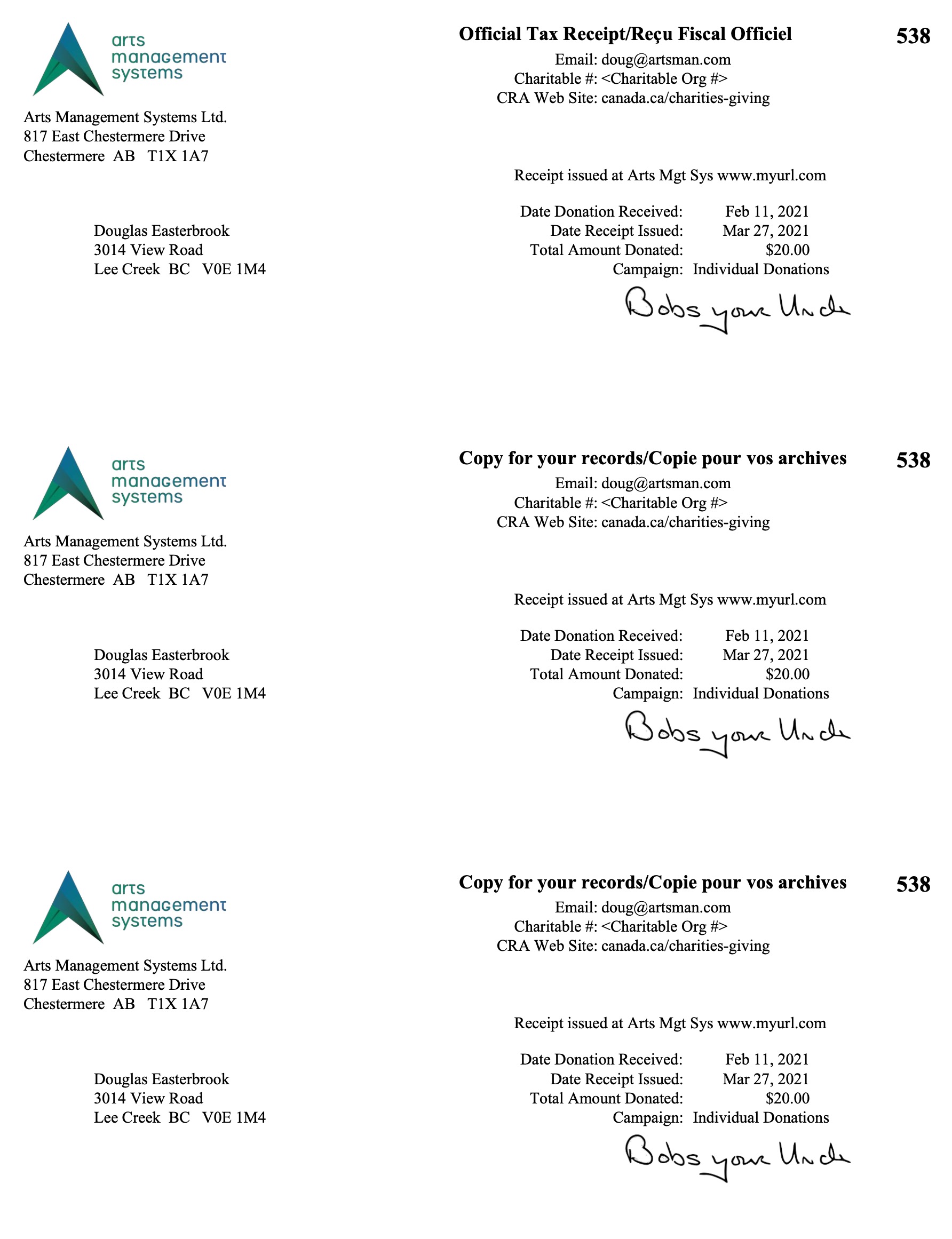 The Charitable Receipts for Donor can be found under the Donation Reports & Receipts category.
An example of the report is to the right and some notes about the report follow. Please be aware of the Rules for a receipt to print described at the bottom of the web page.
- Click here for information on generating a report.
- Click here for information on the Finished Report window.
- This report has some custom parameters to control wording and settings on it
- Click here for a Charitable Receipts example.
- One Receipt per payment can be used for automatic receipt generation for online purchases when enabled in the campaign setup.
Purpose of the Report
You use the Charitable Receipts for Donor to print Donation receipts on a preprinted form according to the preferences on each donation. Theatre Manager prints previously unprinted receipts and updates them with the next receipt number. Receipts only print if payment is received, the print option requires one and the campaign allows it.
|
Donation receipt options can be set for each individual donation. Only payments for donations needing a one receipt per payment will print on this tax receipt.
Note: you can change the receipt type for many donations on the donation list for each campaign |
|
The One Receipt per Payment tax receipt limits to 250 records per printing to avoid memory issues. After printing a batch of receipts, run the report again to print the next batch. |
|
Be sure to set some default values in the donation tab in Company Preferences for:
|
|
There will be TWO dates on the tax receipt if the date of payment for the donation is different than the date tat the receipt was printed. This is a Revenue Canada requirement for official tax receipts |
Departments Who Benefit From This Report
| Development | Print Donation receipts on a preprinted form according to the preferences on each donation. |
Criteria Hints
It is recommended that this report be run using:
| Parameter Field | Condition | Value |
| Calendar Year | and | (optional) The calendar year that you want to select receipt dates from. If left blank, then any pending receipts will be selected. |
| Campaign | is | All campaigns or a specific campaign |
| Name/Company | like | everybody or some portion of the name and/or company if looking for individuals. |
In addition to the quick criteria above, you can also use the search tab if you want to create some more elaborate search criteria such as multiple campaigns, patron number range, date ranges, donation types, etc.
Rules for a Receipt to Print
|
There are very specific criteria to get a tax receipt to print. ALL of the following must be true before a tax receipt for a payment can be printed. |
- Donation receipt option must be one receipt per payment
- Donation Group Security - You must be permitted access to the donation
- Campaign Group Security - you must be in the access group permitted to access the campaign
- Receipt Year (optional) the receipt date for the payment must be in the calendar year specified.
- Name/Company - (optional) if specified, the patron's name must contain the value entered. If you see the patron on the patron list using this search, you will find them for donations
- Campaign - (optional) if specified, only this campaign will be included. otherwise all campaigns will be included.
- Donation Type - cannot be soft credit, prospect or hard pledge
- Receipt required must satisfy both cases:
- The Campaign must allow printing of receipts and donation amount must be greater than minimum receiptable amount
- The Donation Receipt itself must be marked required
- Payment Receipts can be from payments that are either:
- post-dated - the payment MUST be deposited to avoid generating receipts for credit card payments that are declined
- not post-dated - doesn't matter if the payment is deposited or not
- Not Receipted yet - the payment cannot have a donation receipt issued for it yet. You can reissue receipts if you un-print a prior receipt, which creates an audit trail as required by Revenue Canada.
Donation Cash Flow
Donation Cash Flow
The Donation Cash Flow can be found under the Donation Reports & Receipts category. Below the image are detailed notes to help you in using the report.

Click here for information on generating a report. Click here for information on the Finished Report window.
Purpose of the Report
You use the Donation Cash Flow to print a a chart for the amount of time elapsed between donation date to payment date.
Purpose of the Report
You use the Donor Detail - Year (Program) to print the donations in order of fiscal year. A complete summary is printed, even notes and comments.
Departments Who Benefit From This Report
| Development | Campaign payment types through the weeks of the campaign |
Criteria Hints
It is recommended that this report be run using:
| Parameter Field | Condition | Value |
| Donation Year | = | Desired Year |
| Donation Date | is | Date Entered |
| Campaign # | is one of | desired campaign |
Donor & Pledge Summary with Payments
Donor & Pledge Summary with Payments
- contact information, company, address, and phone number
- when a donation and its corresponding payments were given
- Balance due on the donation, if any
- the campaign
- donor receipt name
- fiscal and program year
Below the image are detailed notes to help you in using the report.

Click here for information on generating a report. Click here for information on the Finished Report window.
Purpose of the Report
You use the Donor & Pledge Summary with Payments to print a list of of patrons with a donation summary and the payments. This can manage donation receivables.
Departments Who Benefit From This Report
| Development | Managing donation receivables |
Criteria Hints
It is recommended that this report be run using:
| Parameter Field | Condition | Value |
| Donation Year | = | Desired Year |
| Donation Date | is | Date Entered |
| Campaign # | is one of | desired campaign |
Donor Detail - Campaign & Year (Fiscal)
Donor Detail - Campaign & Year (Fiscal)
The Donor Detail - Campaign & Year (Fiscal) can be found under the Donation Reports & Receipts category. Below the image are detailed notes to help you in using the report.

Click here for information on generating a report. Click here for information on the Finished Report window.
Purpose of the Report
You use the Donor Detail - Year (Program) to print the donations in order of fiscal year. A complete summary is printed, even notes and comments.
Departments Who Benefit From This Report
| Development | Use this report for a detailed listing of pledges to a campaign and patrons who gave. The patron's contact information and next contact date are also included. |
Criteria Hints
It is recommended that this report be run using:
| Parameter Field | Condition | Value |
| Donation Year - Fiscal | = | Desired Year |
| Donation Date | is | Date Entered |
| Campaign Seq # | is one of | desired campaign |
Donor Detail - Campaign & Year (Program)
Donor Detail - Campaign & Year (Program)
The Donor Detail - Campaign & Year (Program) can be found under the Donation Reports & Receipts category. Below the image are detailed notes to help you in using the report.
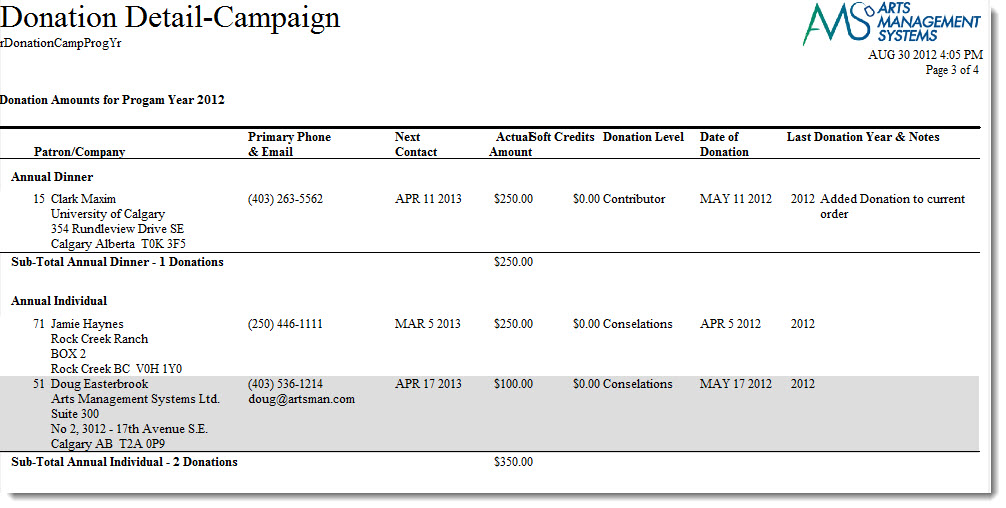
Click here for information on generating a report. Click here for information on the Finished Report window.
Purpose of the Report
You use the Donor Detail - Year (Program) to print the donations in order of fiscal year. A complete summary is printed, even notes and comments.
Departments Who Benefit From This Report
| Development | Use this report to |
| Marketing | Use this report to |
Criteria Hints
It is recommended that this report be run for the program year as the criteria.
| Parameter Field | Condition | Value |
| Donation Year - Program | = | (Program Year) |
Donor Detail - Donor & Pledge
Donor Detail - Donor & Pledge
The Donor Detail - Donor & Pledge can be found under the Donation Reports & Receipts category. Below the image are detailed notes to help you in using the report.

Click here for information on generating a report. Click here for information on the Finished Report window.
Purpose of the Report
You use the Donor Detail - Donor & Pledge to print a list a complete summary of the donation history for each patron including notes and comments. This report is sorted by donor.
Departments Who Benefit From This Report
| Development | Use this report to lookup a patron's donation history. |
Criteria Hints
It is recommended that this report be run for the program year as the criteria.
| Parameter Field | Condition | Value |
| Patron Name-Last | between | (Last Name) and (Last Name) |
Donor Detail - Giving Level
Donor Detail - Giving Level
The Donor Detail - Giving Level can be found under the Donation Reports & Receipts category. Below the image are detailed notes to help you in using the report.

Click here for information on generating a report. Click here for information on the Finished Report window.
Purpose of the Report
You use the Donor Detail - Year (Program) to print the donations in order of fiscal year. A complete summary is printed, even notes and comments.
Departments Who Benefit From This Report
| Developemnt | Use this report to lookup all pledge from patrons by giving level. |
Criteria Hints
It is recommended that this report be run using .
| Parameter Field | Condition | Value |
| Giving Level Matrix | is one of | (Giving Level Matrix) |
Use the SHIFT key to select a series of campaigns, or the OPTION key (Mac) or CTRL key (Windows) to select multiple individual campaigns.
Donor Detail - Pledge History with Custom Fields (Fiscal)
Donor Detail - Pledge History with Custom Fields (Fiscal)
The Donor Detail - Pledge History with Custom Fields (Fiscal) report can be found under the Donation Reports & Receipts category. Below the image are detailed notes to help you in using the report.

Click here for information on generating a report. Click here for information on the Finished Report window.
Purpose of the Report
You use the Donor Detail - Year (Program) to print the donations in order of fiscal year. A complete summary is printed, including notes, comments and soft pledges.
Departments Who Benefit From This Report
| Development | Use this report to look at a patron's pledge history including custom donation field information. |
Criteria Hints
It is recommended that this report be run using .
| Parameter Field | Condition | Value |
| Patron Name Last | between | (Last Name) and (Last Name) |
Donor Detail - Pledge History with Custom Fields (Program)
Donor Detail - Pledge History with Custom Fields (Program)
The Donor Detail - Pledge History with Custom Fields (Fiscal) report can be found under the Donation Reports & Receipts category. Below the image are detailed notes to help you in using the report.

Click here for information on generating a report. Click here for information on the Finished Report window.
Purpose of the Report
You use the Donor Detail - Year (Program) to print the donations in order of fiscal year. A complete summary is printed, even notes and comments.
Departments Who Benefit From This Report
| Accounting | |
| House Management | |
| Marketing |
Criteria Hints
It is recommended that this report be run using .
| Parameter Field | Condition | Value |
Donor Detail - Receipt
Donor Detail - Receipt
The Donor Detail - Receipt can be found under the Donation Reports & Receipts category. Below the image are detailed notes to help you in using the report.

Click here for information on generating a report. Click here for information on the Finished Report window.
Purpose of the Report
You use the Donor Detail - Year (Program) to print the donations in order of fiscal year. This report creates a detailed listing of all donations by a patron and associated receipt information.
Departments Who Benefit From This Report
| Development | Use this report to check a patron's donation and receipt history. |
Criteria Hints
It is recommended that this report be run using .
| Parameter Field | Condition | Value |
| Patron Name-Last | between | (Last Name) and (Last Name) |
Donor Detail - Year (Fiscal)
Donor Detail - Year (Fiscal)
The Donor Detail - Year (Fiscal) report can be found under the Donation Reports & Receipts category. Below the image are detailed notes to help you in using the report.

Click here for information on generating a report. Click here for information on the Finished Report window.
Purpose of the Report
You use the Donor Detail - Year (Program) to print the donations in order of fiscal year. A complete summary is printed, even notes and comments.
Departments Who Benefit From This Report
| Development | Use this report to see all donations based on a fiscal year. |
Criteria Hints
It is recommended that this report be run for the program year as the criteria.
| Parameter Field | Condition | Value |
| Donation Year - Fiscal | = | (Fiscal Year) |
Donor Detail - Year (Program)
Donor Detail - Year (Program)
The Donor Detail - Year (Program) can be found under the Donation Reports & Receipts category. Below the image are detailed notes to help you in using the report.

Click here for information on generating a report. Click here for information on the Finished Report window.
Purpose of the Report
You use the Donor Detail - Year (Program) to print the donations in order of fiscal year. A complete summary is printed, even notes and comments.
Departments Who Benefit From This Report
| Development | Use this report to see all donations based on a program year. |
Criteria Hints
It is recommended that this report be run for the program year as the criteria.
| Parameter Field | Condition | Value |
| Donation Year - Program | = | (Program Year) |
Donor Email/Letter Correspondence Listing
Donor Email/Letter Correspondence Listing
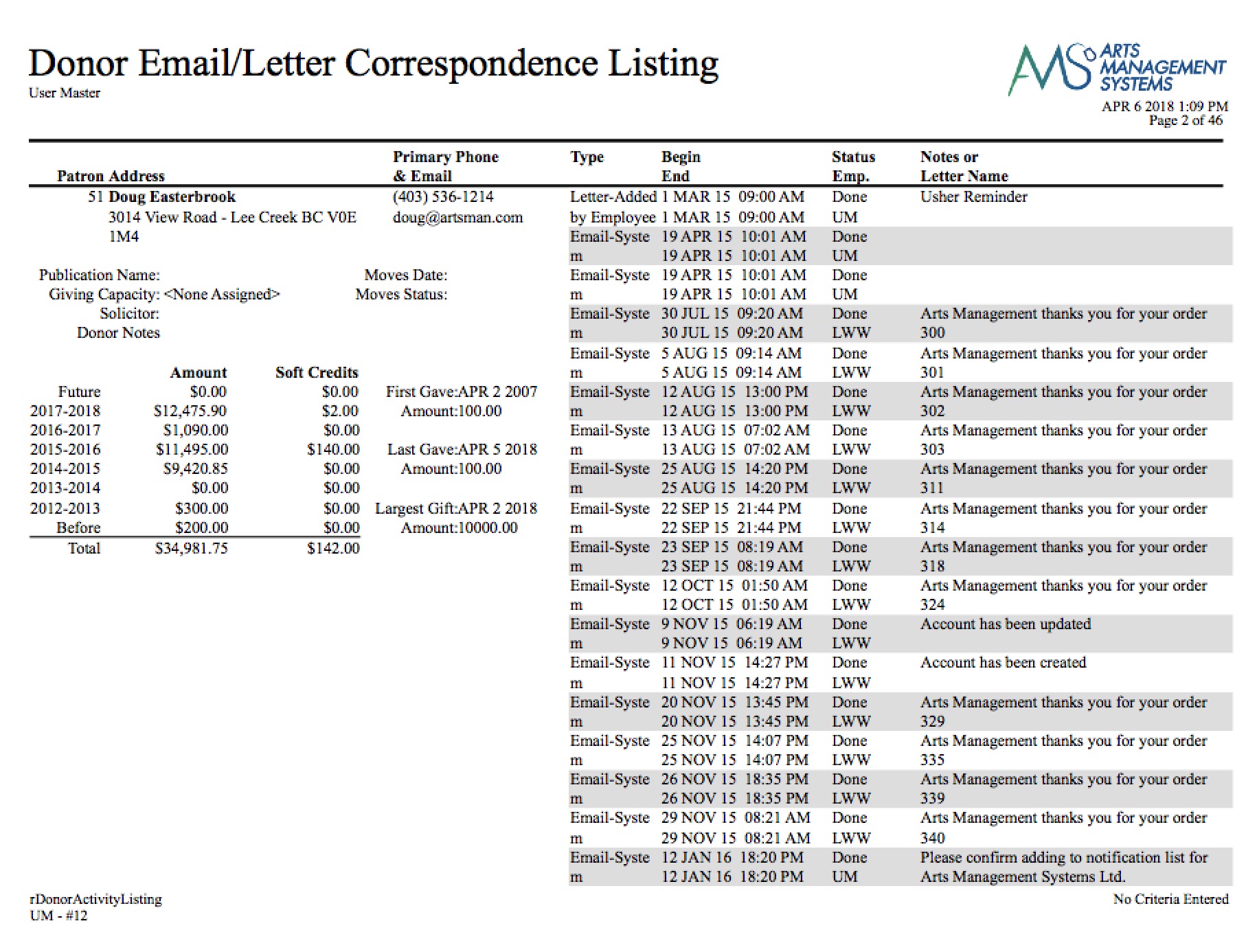
- Click here for information on generating a report.
- Click here for information on the Finished Report window.
Purpose of the Report
You use the Donor Email/Letter Correspondence Listing for a listing of emails or letters for a given patron.
Departments Who Benefit From This Report
| All | Print letters associated with a patron according to the criteria. They are not necessarily donation letters |
Criteria Hints
It is recommended that this report be run using:.
| Parameter Field | Condition | Value |
| Last Name (or any other patron field) | Between | And |
| Date on Letter/Email | Between | And |
|
Warning: This report only selects emails/letters connected to the criteria you enter. For example:
|
Donor Giving Trend by Year (Fiscal)
Donor Giving Trend by Year (Fiscal)
- Patron,
- Household,
- Campaign, or
- combinations of the above.
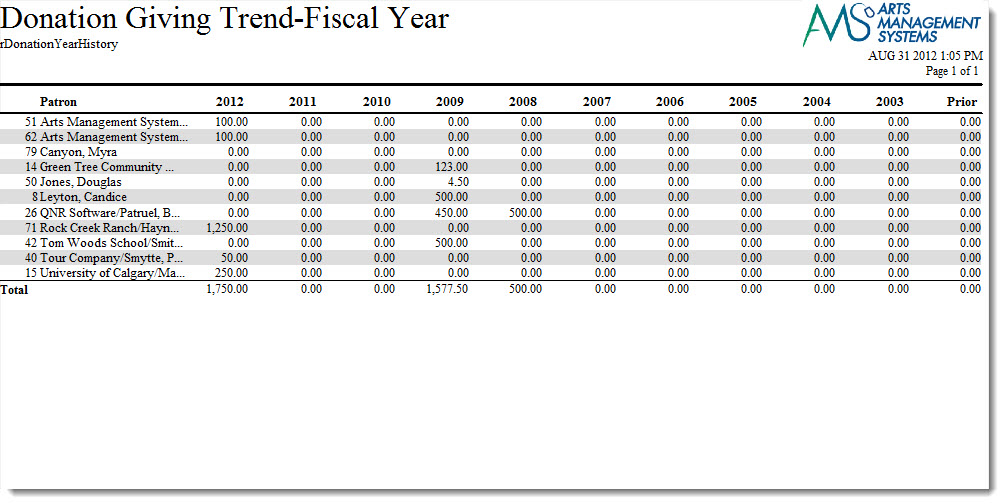
- Click here for information on generating a report.
- Click here for information on the Finished Report window.
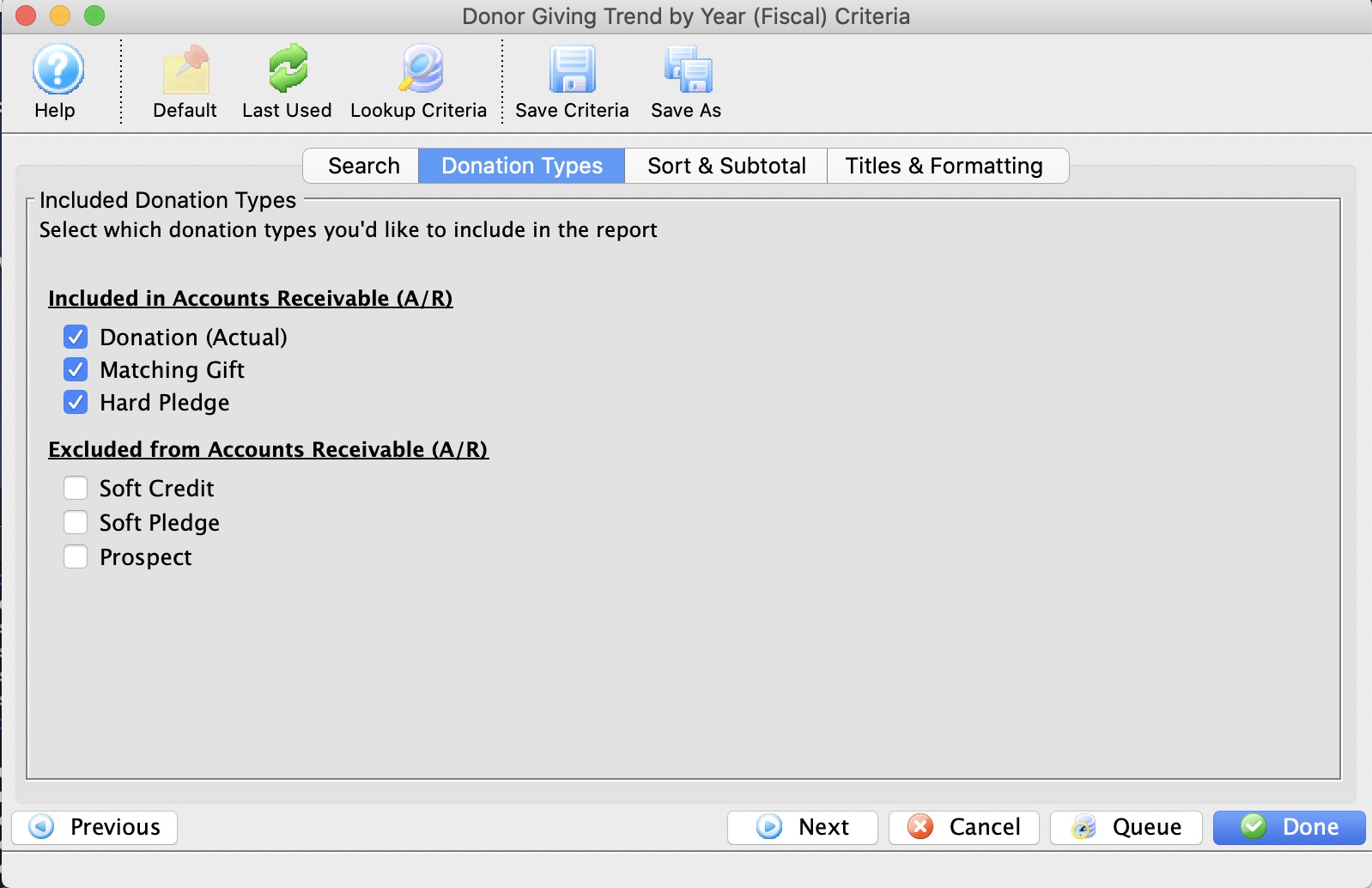
Fields to include on the report
You can include or exclude the various donation types such as:
- Real monetary donations
- donations marked as 'gift'
- those marked as 'hard pledge'
- Matching Gifts that are associated with either of the above donation types
- Not yet realized donations
- soft pledge - those marked as potential donations
- prospects - also marked as potential donations in their own category
- soft credits - which given as a 'match' against real donations in the style of 'give or get'. usually applied to solicitors or board member campaigns.
Purpose of the Report
You use the Donor Giving Trend by Year (Fiscal) to print an annual fiscal year donation total across the page for each patron. This indicates the giving trends for a donor.
Departments Who Benefit From This Report
| Development | Use this report to look for trends in donor giving each fiscal year and assist with projecting future donations. |
| General Manager | Use this report to look for trends in donor giving each fiscal year and assist with projecting future donations. |
Criteria Hints
It is recommended that this report be run without criteria or using a group of patrons for larger databases as the criteria.
| Parameter Field | Condition | Value |
| Patron Name-Last | between | (Last Name) and (Last Name) |
Donor Giving Trend by Year (Program)
Donor Giving Trend by Year (Program)
- Patron,
- Household,
- Campaign, or
- combinations of the above.

- Click here for information on generating a report.
- Click here for information on the Finished Report window.
Fields to include on the report
You can include or exclude the various donation types such as:
- Real monetary donations
- donations marked as 'gift'
- those marked as 'hard pledge'
- Matching Gifts that are associated with either of the above donation types
- Not yet realized donations
- soft pledge - those marked as potential donations
- prospects - also marked as potential donations in their own category
- soft credits - which given as a 'match' against real donations in the style of 'give or get'. usually applied to solicitors or board member campaigns.
Purpose of the Report
You use the Donor Giving Trend by Year (Program) to print an annual program Donation total across thepage for each patron. This indicates the giving trends for a donor.
Departments Who Benefit From This Report
| Development | Use this report to look for trends in donor giving each program year and assist with projecting future donations. |
| General Manager | Use this report to look for trends in donor giving each program year and assist with projecting future donations. |
Criteria Hints
It is recommended that this report be run without criteria or using a group of patrons for larger databases as the criteria.
| Parameter Field | Condition | Value |
| Patron Name-Last | between | (Last Name) and (Last Name) |
Donor History - Combined Giving Listing
Donor History - Combined Giving Listing
The Donor History - Combined Giving Listing can be found under the Donation Reports & Receipts category. Below the image are detailed notes to help you in using the report.
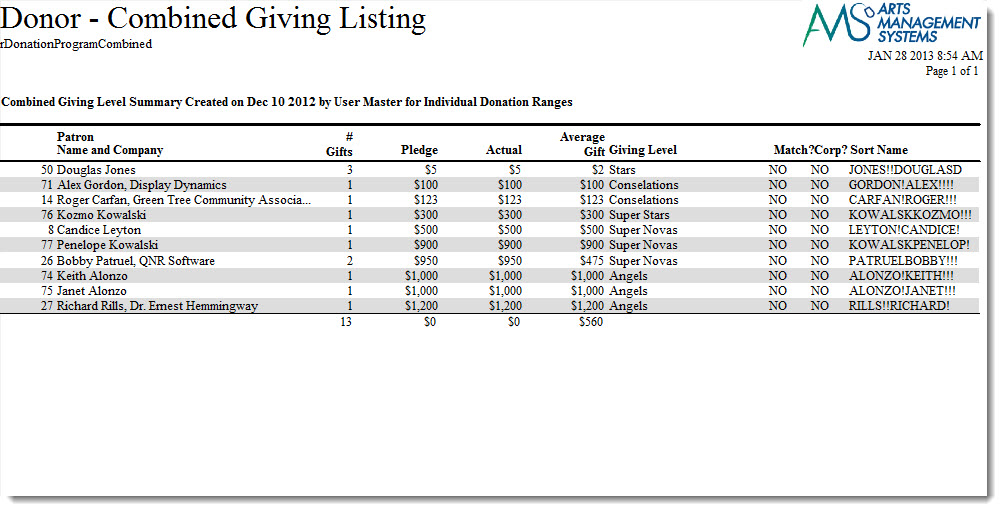
Click here for information on generating a report. Click here for information on the Finished Report window.
Purpose of the Report
You use the Donor History - Combined Giving Listing to pint a list of receipts and the Donor who recieved them.
Purpose of the Report
You use the Donor Detail - Year (Program) to print the number of gifts and pledges, the actual amount, the average gift and the giving level for the selected range of donors.
Departments Who Benefit From This Report
| Development | Use this report to create a program insert of patrons by giving level. |
| Marketing | Use this report to create a program insert of patrons by giving level. |
Criteria Hints
It is recommended that this report be run for the program year as the criteria.
| Parameter Field | Condition | Value |
| Donation Year - Program | = | (Program Year) |
Donor Program Insert - Giving Level
Donor Program Insert - Giving Level
The Donor Program Insert - Giving Level can be found under the Donation Reports & Receipts category. The criteria panels for this report contain additional options. Below the image are notes to help you in using the report.
|
Make sure to set summarization options in the Insert Summary tab to aggregate all donations by donor, household etc. before creating the PlayBill |

|
|
Once this report is printed to screen, its is helpful to Copy/Paste it to MS-Word (or similar tool). Then all you need do is reformat the pasted text in the way you like your playbill to look by:
|
|
|
Program Insert reports are always printed in this following order:
|
|

- Click here for information on generating a report.
- Click here for information on the Finished Report window.
Purpose of the Report
You use the Donor Program Insert - Giving Level to view donor summary was previously created by previously running either one of the program listing by giving level reports. It prints by corporate/individual flag and giving level.
Purpose of the Report
You use the Donor Detail - Year (Program) to print the donations in order of fiscal year. A complete summary is printed, even notes and comments.
Departments Who Benefit From This Report
| Development | Use this report to create a program insert of patrons by giving level. |
| Marketing | Use this report to create a program insert of patrons by giving level. |
Criteria Hints
It is recommended that this report be run for the program year as the criteria.
| Parameter Field | Condition | Value |
| Donation Year - Program | = | (Program Year) |
Donor Program Insert - Giving Level with $$$
Donor Program Insert - Giving Level with $$$
|
Make sure to set summarization options in the Insert Summary tab to aggregate all donations by donor, household etv before creating the PlayBill |
|
|
Once this report is printed to screen, its is helpful to Copy/Paste it to MS-Word (or similar tool). Then all you need do is reformat the pasted text in the way you like your playbill to look by:
|
|
|
When copying this report to word, you may wish to avoid selecting the column with the donation totals - it is for referenced only. |

Click here for information on generating a report.
Purpose of the Report
This report creates a listing of patrons in each giving level of a matrix that can be used as a front of house program insert. It also includes the dollar totals for the patron.
Departments Who Benefit From This Report
| Development | Use this report to look for trends in donor giving each fiscal year and assist with projecting future donations. |
| General Manager | Use this report to look for trends in donor giving each fiscal year and assist with projecting future donations. |
| Marketing | Used to prepare the Playbill insert for Donor recognition. |
Criteria Hints
It is recommended that this report be run without criteria or using a specific campaign or date range.
| Parameter Field | Condition | Value |
| Campaign # | is one of | Choose your Campaign |
| Donation Date | is between | Choose your Dates |
Donor Summary - Campaign & Giving Level (Program)
Donor Summary - Campaign & Giving Level (Program)
The Donor Summary - Campaign & Giving Level (Program) can be found under the Donation Reports & Receipts category. Below the image are detailed notes to help you in using the report.

Click here for information on generating a report. Click here for information on the Finished Report window.
Purpose of the Report
You use the Donor Summary - Campaign & Giving Level (Program) to summarize the total donations amd print totals by program year, campaign and giving level..
Departments Who Benefit From This Report
| Development | Use this report to evaluate the donation campaigns over the course of a number of program years. |
Criteria Hints
It is recommended that this report be run either without criteria or for a specific campaign as the criteria.
| Parameter Field | Condition | Value |
| Campaign Seq # | is one of | (Campaign) |
Use the SHIFT key to select a series of campaigns, or the OPTION key (Mac) or CTRL key (Windows) to select multiple individual campaigns.
Donor Summary - Campaign & Year (Fiscal)
Donor Summary - Campaign & Year (Fiscal)
The Donor Summary - Campaign & Year (Fiscal) can be found under the Donation Reports & Receipts category. Below the image are detailed notes to help you in using the report.

Click here for information on generating a report. Click here for information on the Finished Report window.
Purpose of the Report
You use the Donor Summary - Campaign & Year (Fiscal) to print a list of receipts and the Donor who received them.
Purpose of the Report
This report creates a summary of each campaign by fiscal year.
Departments Who Benefit From This Report
| Development | Use this report to evaluate donation campaigns over the course of a number of fiscal years. |
Criteria Hints
It is recommended that this report be run either without criteria or for a specific campaign as the criteria.
| Parameter Field | Condition | Value |
| Campaign Seq # | is one of | (Campaign) |
Use the SHIFT key to select a series of campaigns, or the OPTION key (Mac) or CTRL key (Windows) to select multiple individual campaigns.
Donor Summary - Campaign & Year (Program)
Donor Summary - Campaign & Year (Program)
The Donor Summary - Campaign & Year (Program) can be found under the Donation Reports & Receipts category. Below the image are detailed notes to help you in using the report.
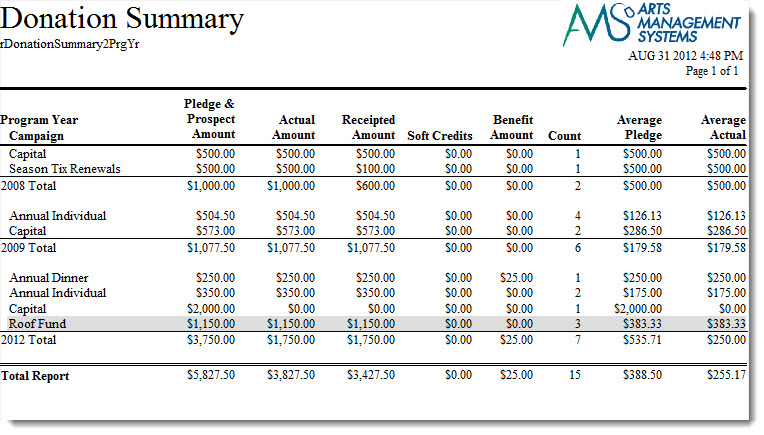
Click here for information on generating a report. Click here for information on the Finished Report window.
Purpose of the Report
You use the Donor Summary - Campaign & Year (Program) to summarize the total donations and print the totals by program year and donation campaign.
Departments Who Benefit From This Report
| Development | Use this report to evaluate donation campaigns over the course of a number of program years. |
Criteria Hints
It is recommended that this report be run for the program year as the criteria.
| Parameter Field | Condition | Value |
| Campaign Seq # | is one of | (Campaign) |
Use the SHIFT key to select a series of campaigns, or the OPTION key (Mac) or CTRL key (Windows) to select multiple individual campaigns.
Donor Summary - Donor (Fiscal)
Donor Summary - Donor (Fiscal)
The Donor Summary - Donor (Fiscal) can be found under the Donation Reports & Receipts category. Below the image are detailed notes to help you in using the report.

Click here for information on generating a report. Click here for information on the Finished Report window.
Purpose of the Report
You use the Donor Summary - Donor (Fiscal) to print a list of receipts and the Donor who received them.
Purpose of the Report
This report creates a listing of each patron's donor history by fiscal year.
Departments Who Benefit From This Report
| Development | Use this report to look at patron's donation history by fiscal year. |
| General Manager | Use this report to look at patron's donation history by fiscal year and ticket buying. |
Criteria Hints
It is recommended that this report be run either without criteria or for a group of patrons for larger databases as the criteria.
| Parameter Field | Condition | Value |
| Patron Name-Last | between | (Last Name) and (Last Name) |
Donor Summary - Donor (Program)
Donor Summary - Donor (Program)
The Donor Summary - Donor (Program) can be found under the Donation Reports & Receipts category. Below the image are detailed notes to help you in using the report.

Click here for information on generating a report. Click here for information on the Finished Report window.
Purpose of the Report
You use the Donor Summary - Donor (Program) to print a quick synpsis of the Donations for each patron who has given. Phone numbers and addresses are printed, making this useful for telemarketing.
Purpose of the Report
This report creates a listing of each patron's donor history by fiscal year.
Departments Who Benefit From This Report
| Development | Use this report to look at patron's donation history by fiscal year. |
| General Manager | Use this report to look at patron's donation history by fiscal year and ticket buying. |
Criteria Hints
It is recommended that this report be run either without criteria or for a group of patrons for larger databases as the criteria.
| Parameter Field | Condition | Value |
| Patron Name-Last | between | (Last Name) and (Last Name) |
Donor Summary - Giving Level & Year (Fiscal)
Donor Summary - Giving Level & Year (Fiscal)
The Donor Summary - Giving Level & Year (Fiscal) can be found under the Donation Reports & Receipts category. Below the image are detailed notes to help you in using the report.

Click here for information on generating a report. Click here for information on the Finished Report window.
Purpose of the Report
You use the Donor Summary - Giving Level & Year (Fiscal) to summarize the total donations and print the totals by fiscal year and giving level.
Departments Who Benefit From This Report
| Development | Use this report to see a summary of giving levels for each program year of a campaign. |
Criteria Hints
It is recommended that this report be run either without criteria or for specific campaign as the criteria.
| Parameter Field | Condition | Value |
| Campaign Seq # | is one of | (Campaign) |
Use the SHIFT key to select a series of campaigns, or the OPTION key (Mac) or CTRL key (Windows) to select multiple individual campaigns.
Donor Summary - Giving Level & Year (Program)
Donor Summary - Giving Level & Year (Program)
The Donor Summary - Giving Level & Year (Program) can be found under the Donation Reports & Receipts category. Below the image are detailed notes to help you in using the report.

Click here for information on generating a report. Click here for information on the Finished Report window.
Purpose of the Report
You use the Donor Summary - Giving Level & Year (Program) to summarize the total donations and print the totals by program year and giving level.
Departments Who Benefit From This Report
| Development | Use this report to see a summary of giving levels for each program year of a campaign. |
Criteria Hints
It is recommended that this report be run either without criteria or for specific campaign as the criteria.
| Parameter Field | Condition | Value |
| Campaign Seq # | is one of | (Campaign) |
Use the SHIFT key to select a series of campaigns, or the OPTION key (Mac) or CTRL key (Windows) to select multiple individual campaigns.
Donor Summary
Donor Summary
The Donor Summary can be found under the Donation Reports & Receipts category. Below the image are detailed notes to help you in using the report.
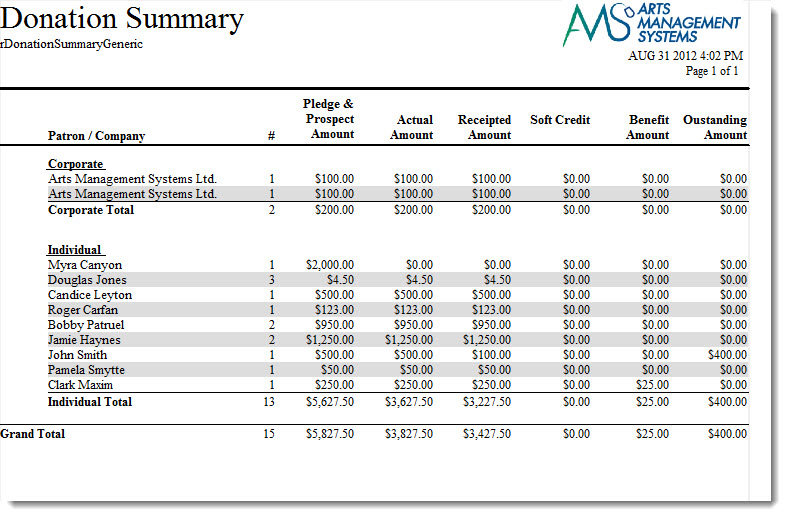
Click here for information on generating a report. Click here for information on the Finished Report window.
Purpose of the Report
You use the Donor Summary to print a quick synopsis of the donations for each Patron who has given.
Purpose of the Report
You use the Donor Detail - Year (Program) to print the donations in order of fiscal year. A complete summary is printed, even notes and comments.
Departments Who Benefit From This Report
| Development | Use this report as a quick listing of all patrons that have given to your organization. |
Criteria Hints
It is recommended that this report be run with the fiscal year as the criteria.
| Parameter Field | Condition | Value |
| Donation Year - Fiscal | = | (Fiscal Year) |
Donor with Balance Due
Donor with Balance Due
The Donor with Balance Due can be found under the Donation Reports & Receipts category. Below the image are detailed notes to help you in using the report.

Click here for information on generating a report. Click here for information on the Finished Report window.
Purpose of the Report
You use the Donor with Balance Due to print a list of Patrons with a donation summary that have an outstanding balance due. This is used to manage all donation receiveables, including incomplete pledges (whether on schedule or not).
Departments Who Benefit From This Report
| Development | Use this report to check on donations that have not been paid yet. |
Criteria Hints
It is recommended that this report be run either without criteria.
Donors Behind in Their Pledge Payments
Donors Behind in Their Pledge Payments
The Donor Behind in Their Pledge Payments report can be found under the Donation Reports & Receipts category. Below the image are detailed notes to help you in using the report.

- Click here for information on generating a report.
- Click here for information on the Finished Report window.
Purpose of the Report
You use Donor Behind in Their Pledge Payments to print a list of people who have committed to donated using the typical pledge process; where:
- You have Created a Pledge Schedule for the patron containing correspondence to be sent to them
- You print and send the outstanding reminder letters (emails are sent automatically) indicating that their pledge payment is due.
- The donor may (or may not) pay on the appropriate pledge due date. When they pay on their pledge balance:
- the balance on the donation is reduced, which may result in a remaining balance, if not fully paid
- the tax receipt can now be printed for the above payment, unless you are intending on doing one for end of year and indicated the appropriate receipt option when creating the donation.
- This report will show people who are behind in the pledge payments. This is people who have not yet paid based on outstanding reminders
|
This report is NOT intended for patrons who:
|
Departments Who Benefit From This Report
| Development | Prints a listing of patrons behind in their donation payments and how far behind they are. |
Criteria Hints
It is recommended that this report be run using:
| Parameter Field | Condition | Value |
| Donation Year | = | Desired Year |
| Donation Date | is | Date Entered |
| Campaign # | is one of | desired campaign |
Giving Level Matrix
Giving Level Matrix
The Giving Level Matrix can be found under the Donation Reports & Receipts category. Below the image are detailed notes to help you in using the report.

Click here for information on generating a report. Click here for information on the Finished Report window.
Purpose of the Report
You use the Giving Level Matrix to print giving level matricies.
Departments Who Benefit From This Report
| Development | Use this report to verify that all Giving Level matrices have been created properly. |
Criteria Hints
It is recommended that this report be run either without criteria or for a specific Giving Level matrix.
| Parameter Field | Condition | Value |
| Giving Level Matrix | is one of | (Giving Level Matrix) |
Use the SHIFT key to select a series of campaigns, or the OPTION key (Mac) or CTRL key (Windows) to select multiple individual campaigns.
Reports - Donor Detail - Campaign & Year (Program)
Reports - Donor Detail - Campaign & Year (Program)
Donor Detail - Campaign & Year (Program)
The Donor Detail - Campaign & Year (Program) can be found under the Donation Reports & Receipts category. Below the image are detailed notes in regards to uses for the report.

Click here for information on generating a report. Click here for information on the Finished Report window.
Purpose of the Report
This report creates a detailed listing of all patrons and credits given to a campaign by program year.
Departments Who Benefit From This Report
Development |
Use this report for a detailed listing of pledges to a campaign and patrons who gave. The patron's contact information and next contact date are also included. |
Criteria Hints
It is recommended that this report be run using a single campaign and year as the criteria.
Parameter Field |
Condition |
Value |
Campaign Seq # |
is one of |
(Campaign) |
Donation Year - Program |
= |
(Program Year) |
Solicitor Summary
Solicitor Summary
The Solicitor Summary can be found under the Donation Reports & Receipts category. Below the image are detailed notes to help you in using the report.

Click here for information on generating a report. Click here for information on the Finished Report window.
Purpose of the Report
You use the Solicitor Summary to print a list of receipts and the Donor who received them.
Purpose of the Report
This report creates a summary of each solicitor's pledges and donations that have been received.
Departments Who Benefit From This Report
| Development | Use this report to see how much money has been received for pledges and donations from each solicitor. |
| General Manager | Use this report to see how much money has been received for pledges and donations from each solicitor. |
Criteria Hints
It is recommended that this report be run either without criteria or for a specific solicitor.
| Parameter Field | Condition | Value |
| Employee # | is one of | (Employee) |
Use the SHIFT key to select a series of campaigns, or the OPTION key (Mac) or CTRL key (Windows) to select multiple individual campaigns.
Exporting, Labels & Record Counts
Exporting Data To Excel
Exporting Data To Excel
- Tab Delimited (txt)
- Comma Delimited (csv)
- Excel 97-2004 Workbook (.xls)
- Excel 2008 and higher (.xlsx)
- Open the Reports window by clicking on the Reports
 button.
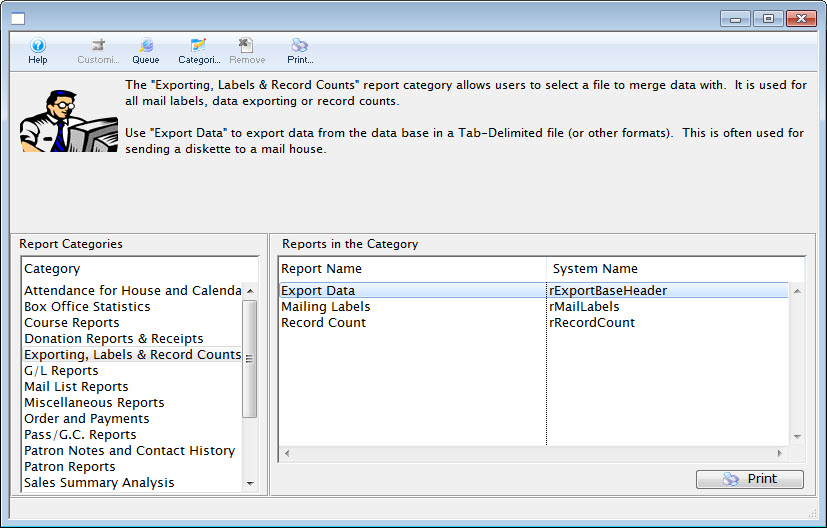
Click here for more information on the Reports window.
- Click on the Form Letters, Labels, Exporting & Record Counts category on the left hand side, then double click on the Export Data category on the right hand side.
The Export Data window opens.
- Use the drop down menu to select a set of parent files to use.
Remember, in Theatre Manager, data is contained in different areas. Make sure the information being exported does not cross two different sets of parent files.
- Click the Next
 button.
This will open the Parameters window with default criteria in the Search tab.
Click here for more information on the Parameters window.
- Make adjustments to the criteria as needed.
Click here for more information on adding criteria.
To change the Marketing Flag options, adjust the boxes under Exclude Records.
- Click the Next
 button.
The Sort tab will now display on the Parameters window.
- Select the fields to sort by.
Click here for more information on the Sort tab.
- Click the Next button.
The Export tab will now display on the Parameters window.
Click here for more information on the Export tab.
- Select the fields to be used in the data export.
Double click on the field name to move it to the Selected Export Fields box.
- Click the Done
 button.
This will open the Save dialog for the user's operating system.
- Set a file name for the data export, adjust the save location, and click the Save button.
The file will now be created in the location specified and a confirmation message will appear.
|
You can download a Screencast of Exporting Data by clicking on the icon. |
Flash Video |
MP4 Video |


Mailing Labels
Mailing Labels
The Mailing Labels function is found under the Form Letters, Labels, Exporting & Record Counts category. This function is used for creating mailing labels for patrons in the database.
To print address labels while printing letters, click here.
- Open the Reports window by clicking on the Reports button.
Click here for more information on the Reports window.
- Click the category Form Letters, Labels, Exporting & Record Counts, on the left side, and then double click on the Mailing Labels category
on the right hand side.
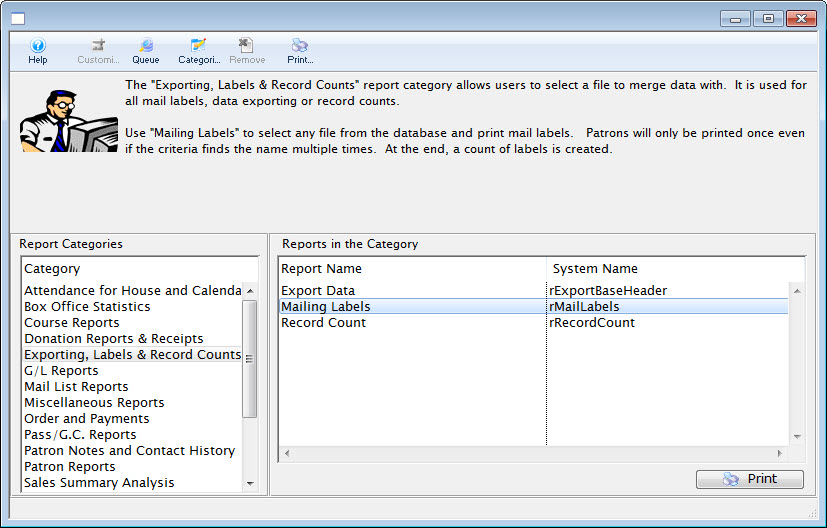
The Mail List window opens.
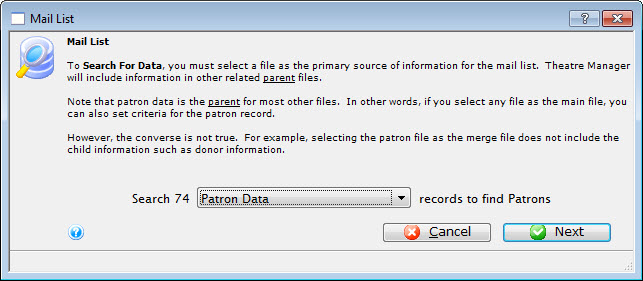
- Use the drop down menu to select a set of parent files for your desired labels.
In this example, Patrons Data has been selected as the parent file. Remember, in Theatre Manager, data is contained in different areas so make sure the information being exported does not cross two different sets of parent files.
- Click the Next button.
The Parameters window opens.
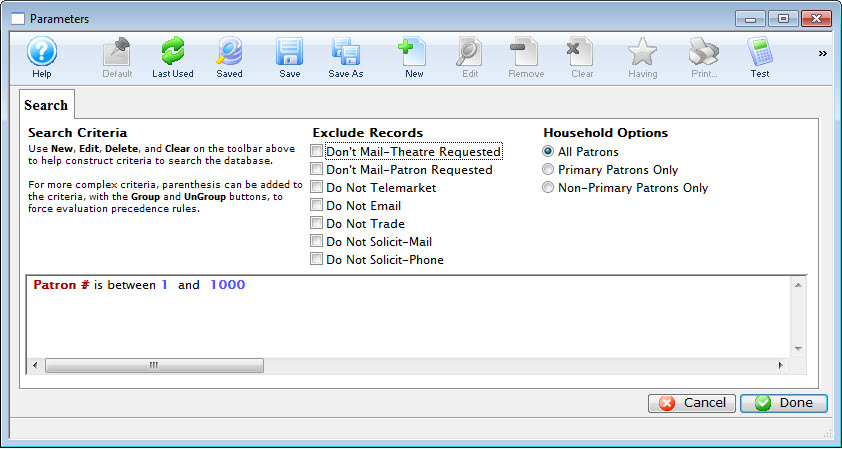
Click here for more information on the Parameters window.
- Make adjustments to the criteria as needed.
Click here for more information on adding criteria.
To change the Marketing Flag options, simply adjust the boxes under Exclude Records.
- Click the Done button.
The Patron Address Labels window will open.
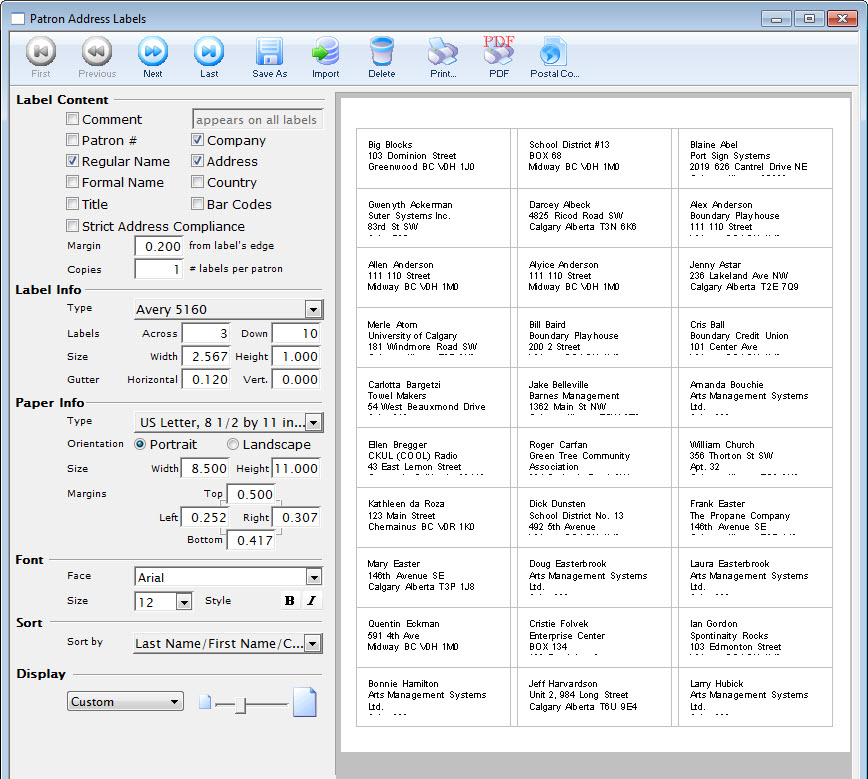
Click here for more information on the Patron Address Labels window.
- Make adjustments to the labels as necessary.
- Click the Print button.
The print dialog for the user's operating system will open.
- When printing is completed, the window will close.
Record Count
Record Count
You use the Record Count to create a demographic profile of your data. This can be used with census information to understand market relationships or to determine the cost of postage in advance of a mailout.
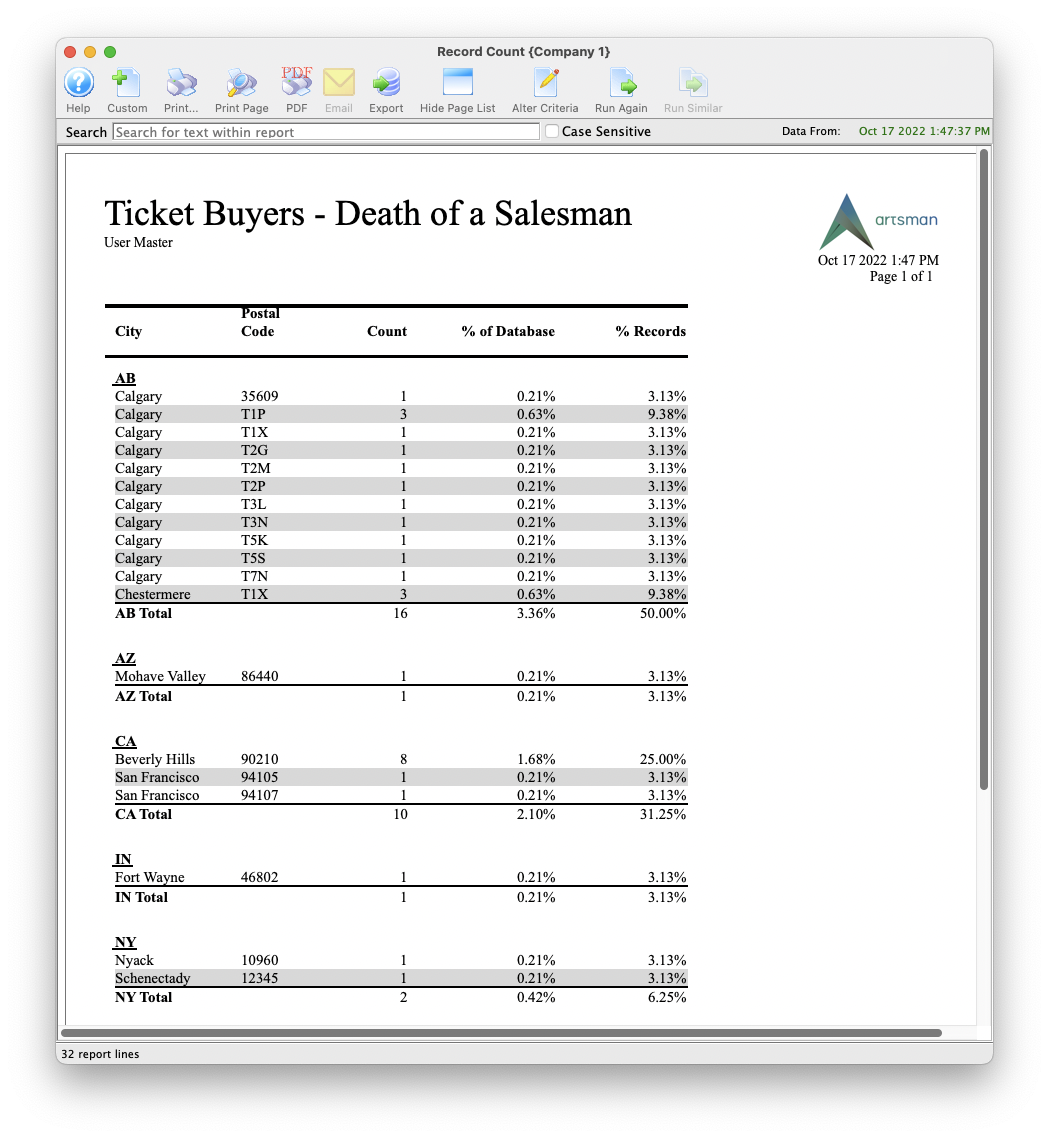
- Open the Reports window by clicking on the Reports button.
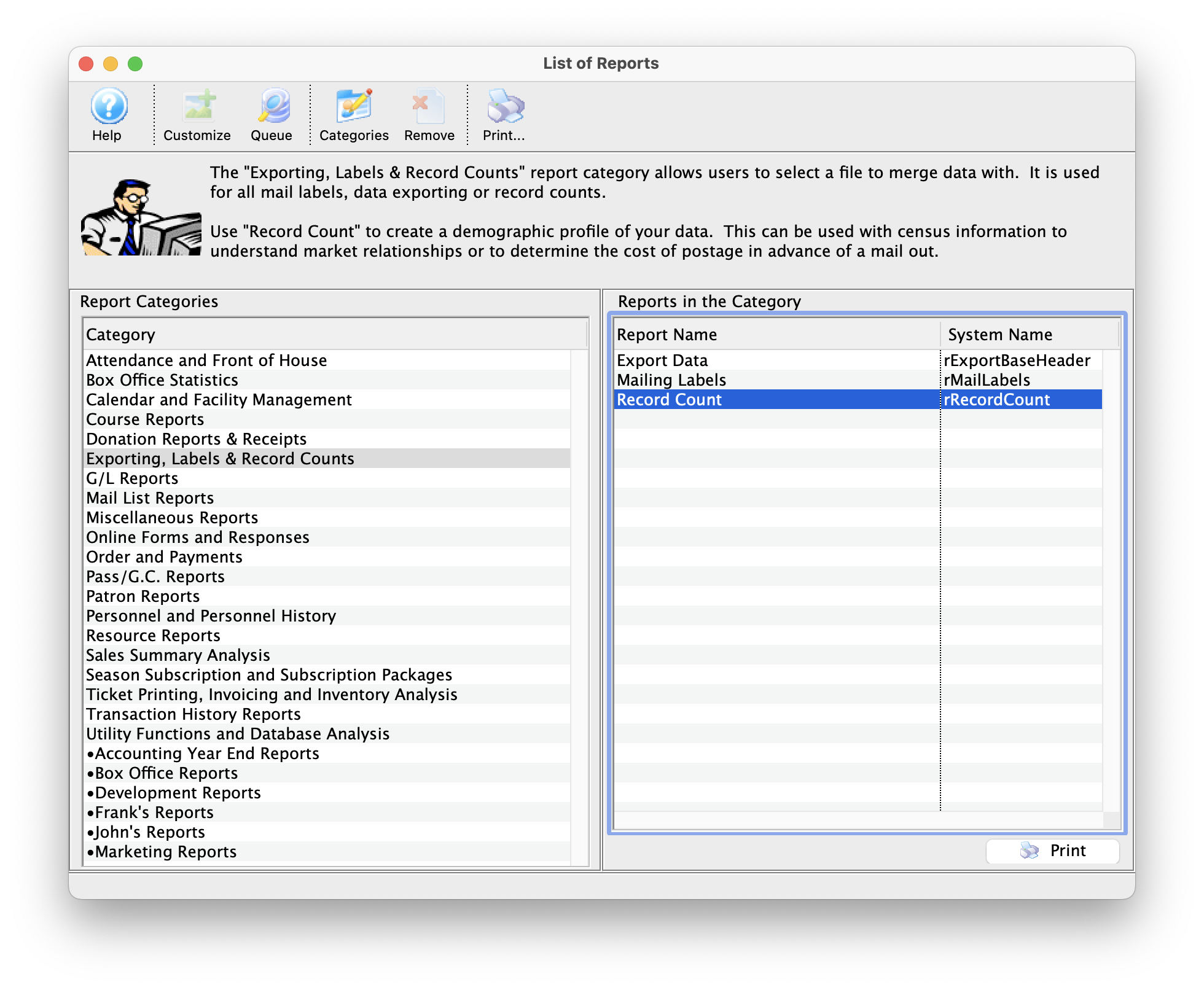
Click here for more information on the Reports window.
- Click on the Form Letters, Labels, Exporting & Record Counts category on the left hand side, then double click on the Record Count report on the right hand side.
- Click the Print
 button.
- Use the drop down menu to select a set of parent files to use.
Remember, in Theatre Manager, data is contained in different areas. Make sure the information being counted does not cross two different sets of parent files.
- Click the Next button.
The Parameters window opens to the Search tab.
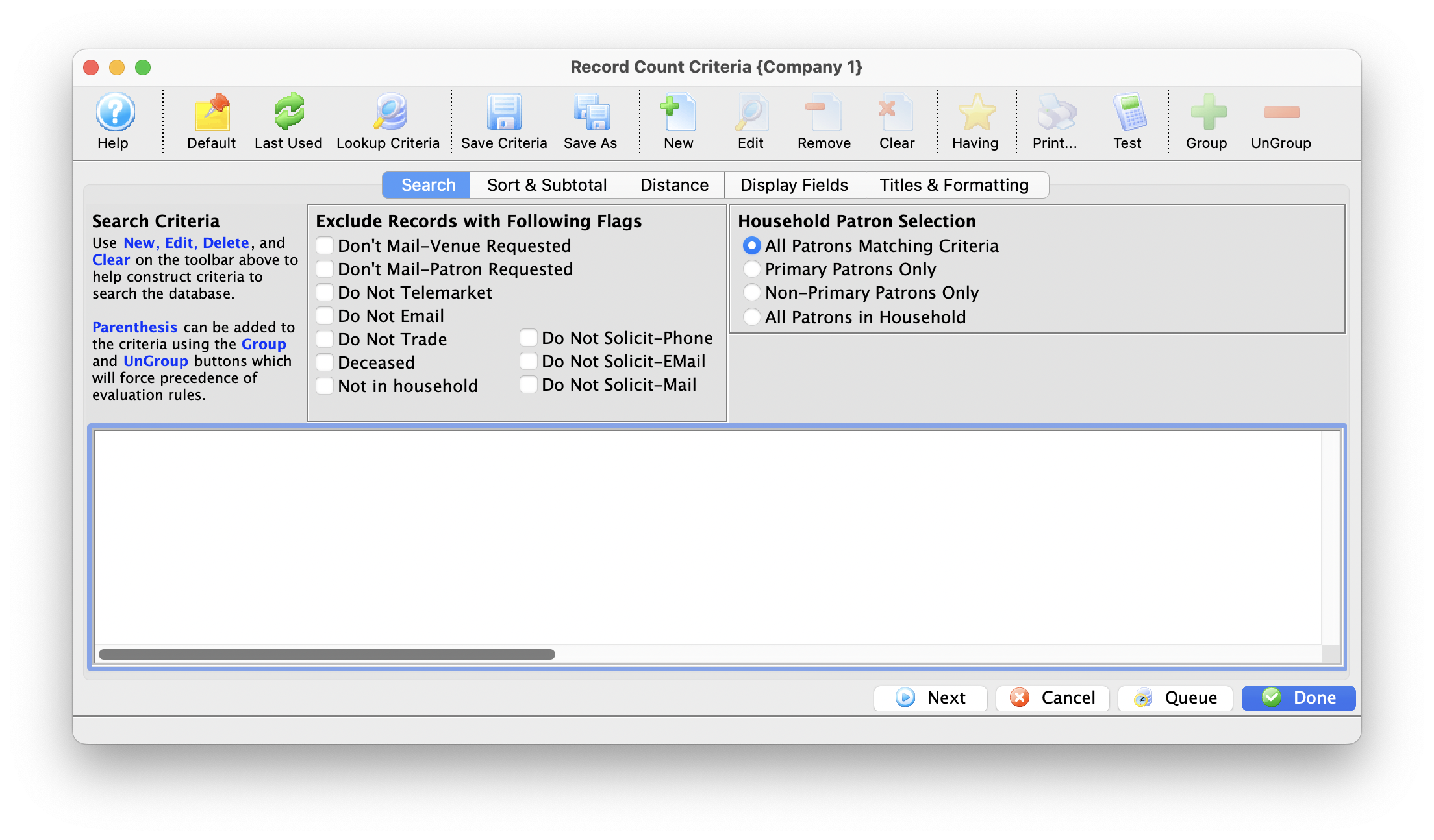
Click here for more information on the Parameters window.
- Add any Criteria as needed.
Click here for more information on adding criteria.
To change the Marketing Flag options, adjust the boxes under Exclude Records.
- Click the Next button.
The Sort tab will now display on the Parameters window.
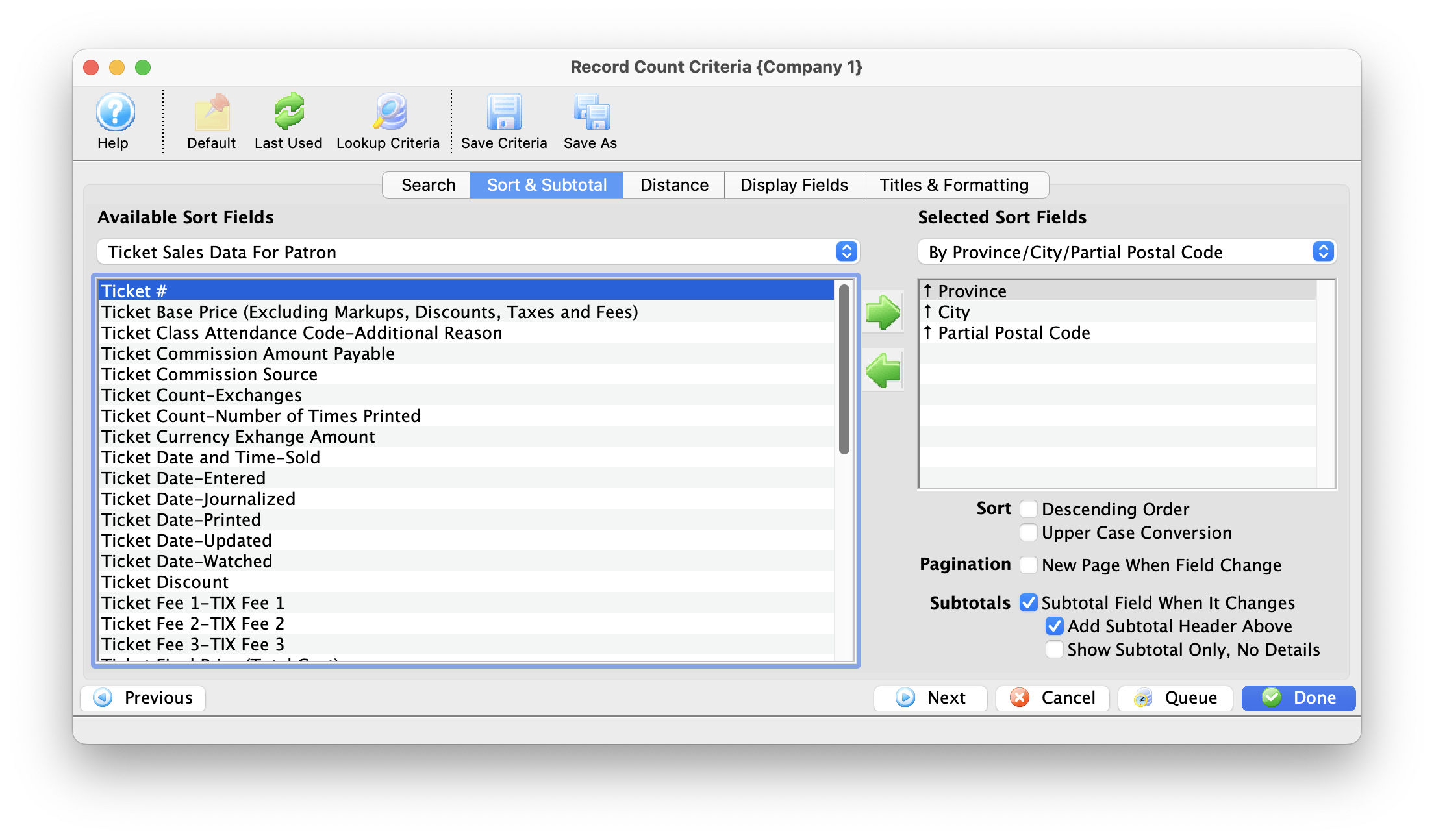
- Select the fields to sort by.
To enable the Distance Tab, add the Distance or Household Primary Distance fields from the Patron Address Category.
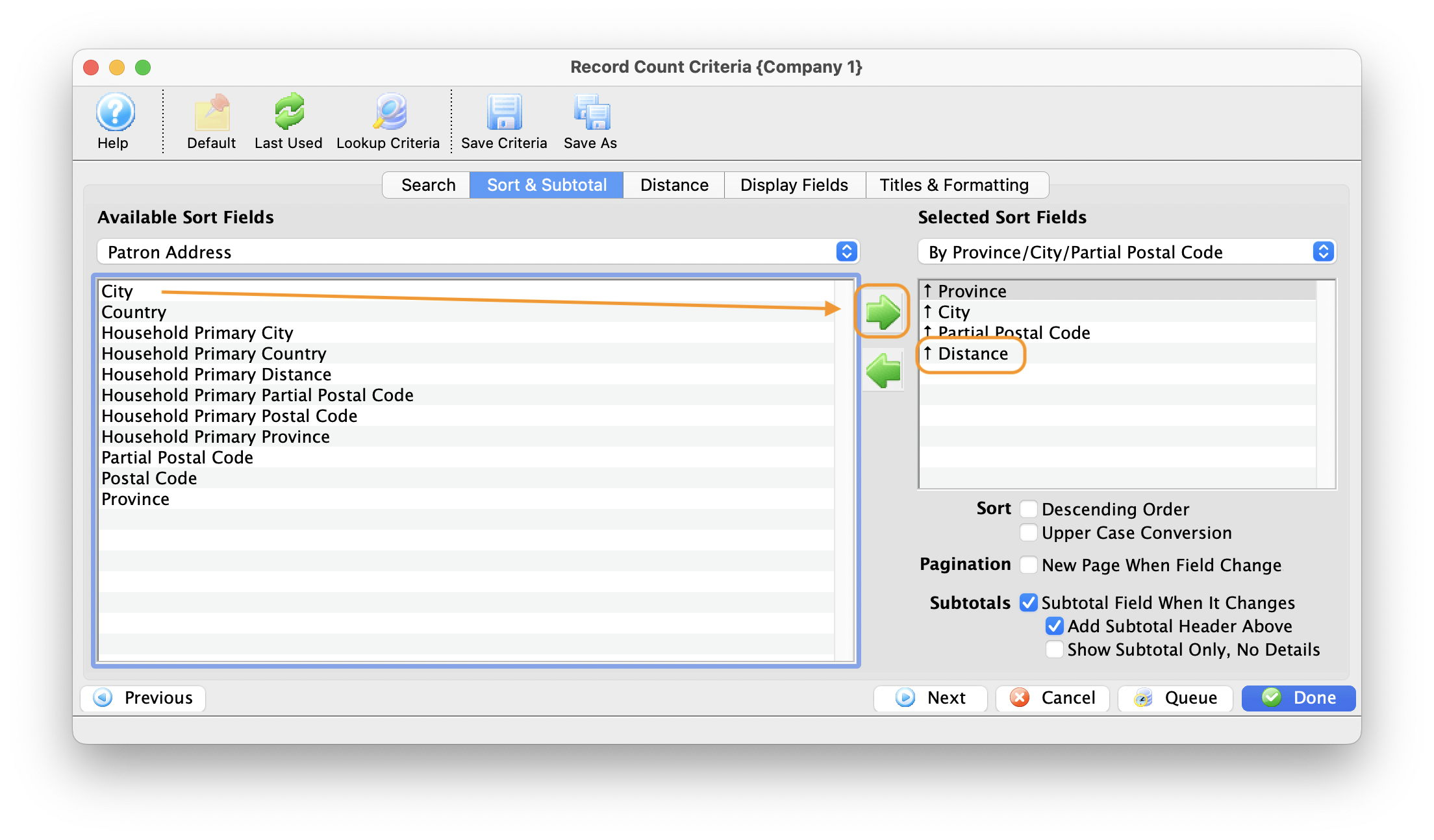
Click here for more information on the Sort tab.
- Click the Next button.
The Distance tab opens. This tab is used in conjunction with sort and sub-total to control how the Distance and household pprimary distance fields are displayed.
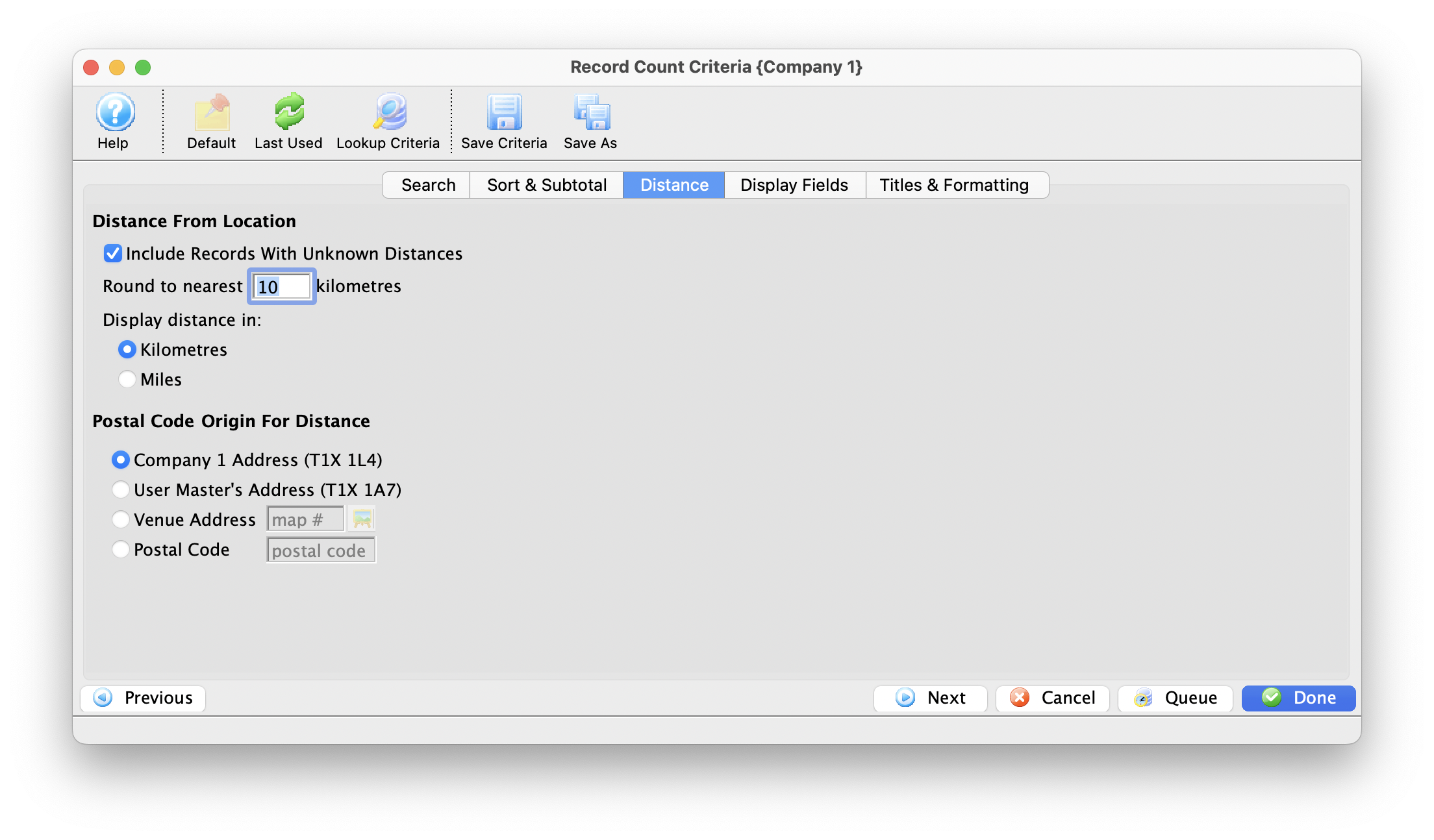
- Make the appropriate changes and click the Next button.
The Display Fields tab displays in the Parameters window.
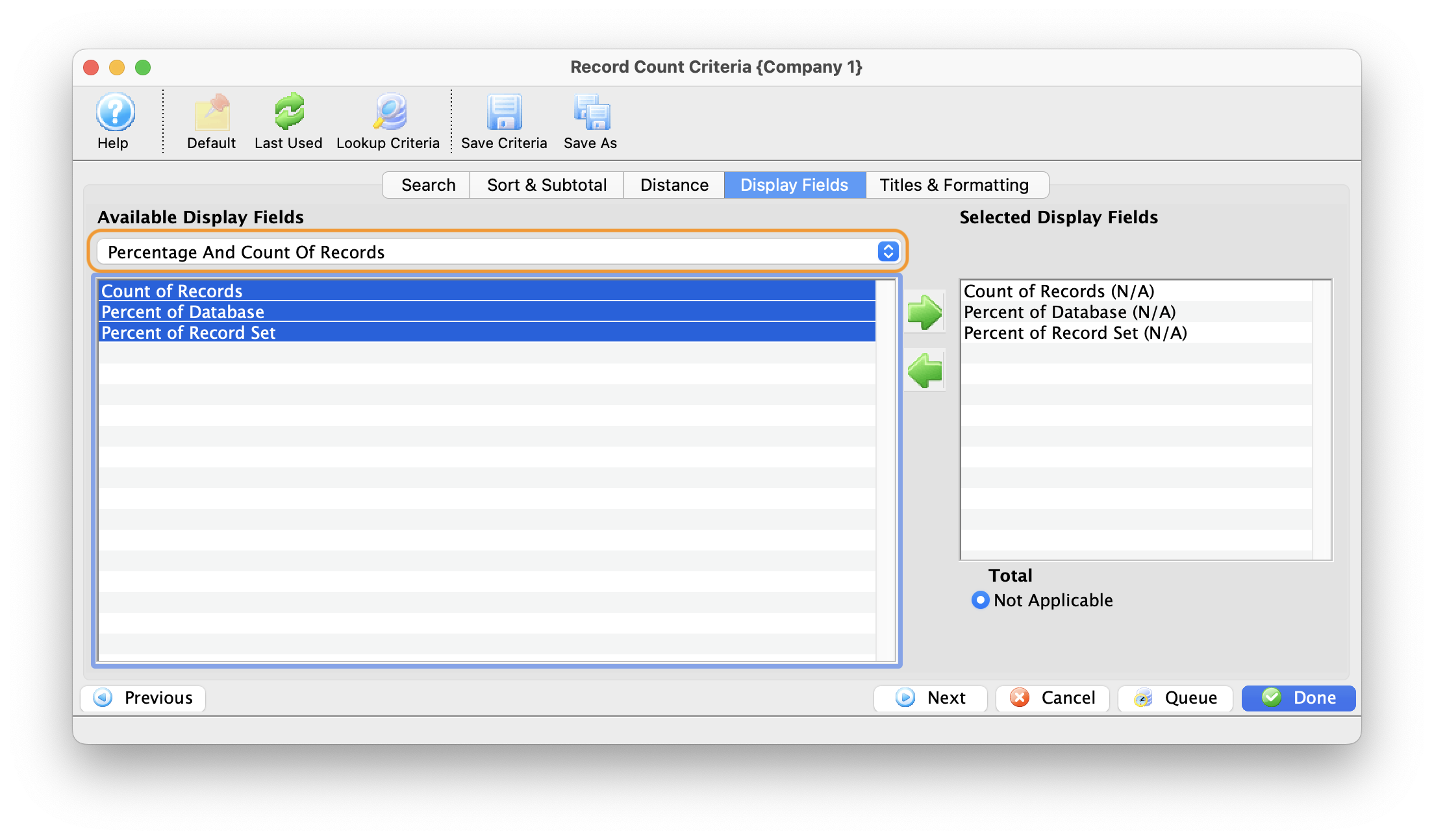
The Display Fields tab has the option to change the Available Display Fields.
- Select the fields to be used in the data export.
- Click the Next button.
The Titles and Formatting tab opens. Click here for more information on the titles and Formatting tab.
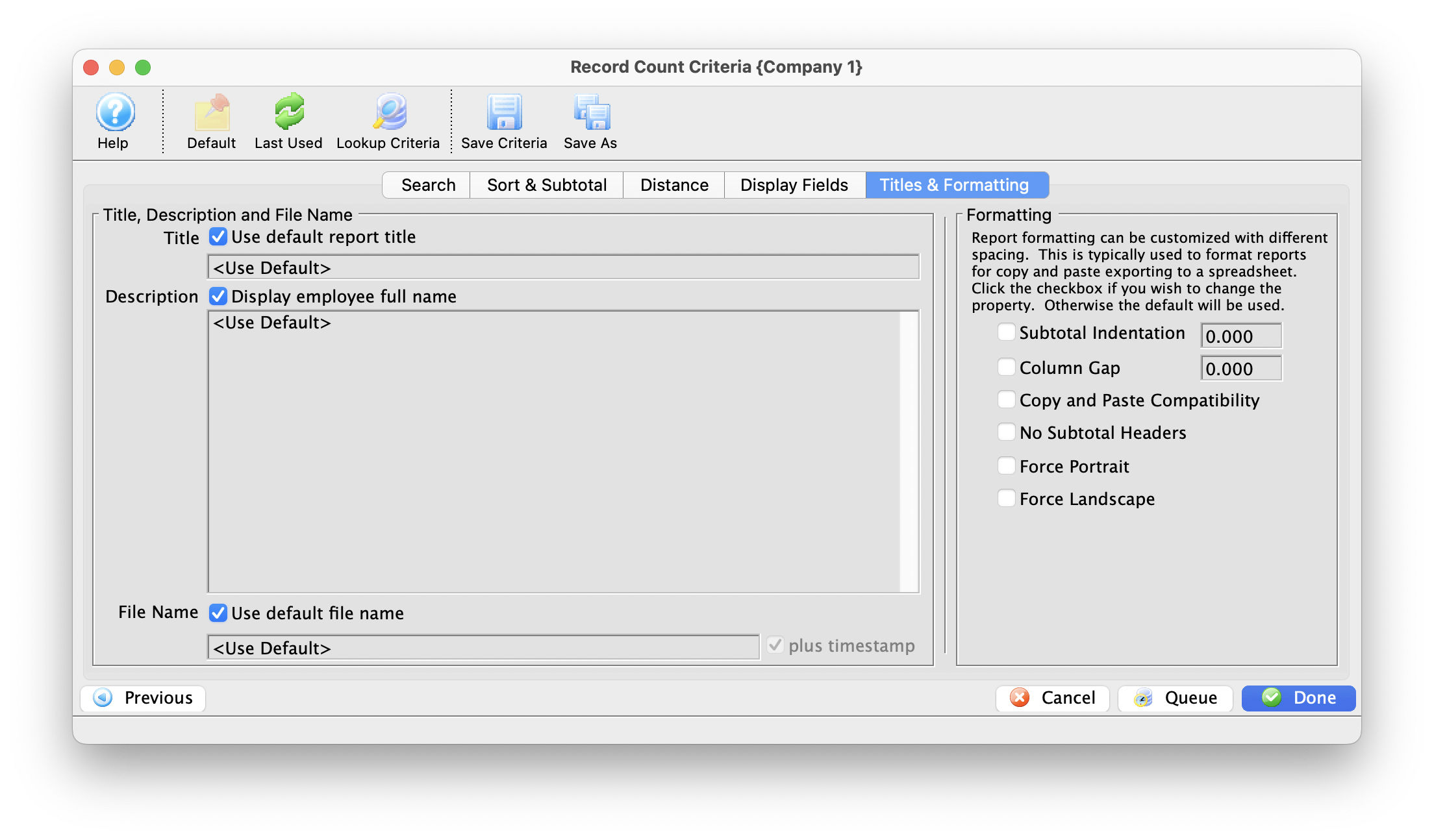
- Click the Done button.
Click here for more information on the Finished Report Window..
The Count of Records window opens.
Double click on the field name to move it to the Selected Export Fields box.
G/L Reports
G/L Reports
 |
The G/L Entries can only be exported once a day. The G/L entry is flagged as being exported when it is exported via the End-Of-Day Wizard to avoid exporting it twice by mistake. |
|
G/L entry reports are based on all financial transactions and are summarized into G/L posting accounts. Depending on the report you choose, they invariably show the sales, exchanges and refunds of the following - aggregated by account number
|
|
These reports should match the daily sales summary reports when compared using the DAILY SALES DATE with the G/L HEADER DATE - JOURNAL ENTRY (not G/L Header Date - Posted). |
Balance Sheet Detail - 5 Year Comparison
Balance Sheet Detail - 5 Year Comparison
The Balance Sheet Detail - 5 Year Comparison report can be found under the G/L Reports category. Below the image are detailed notes to help you in using the report.
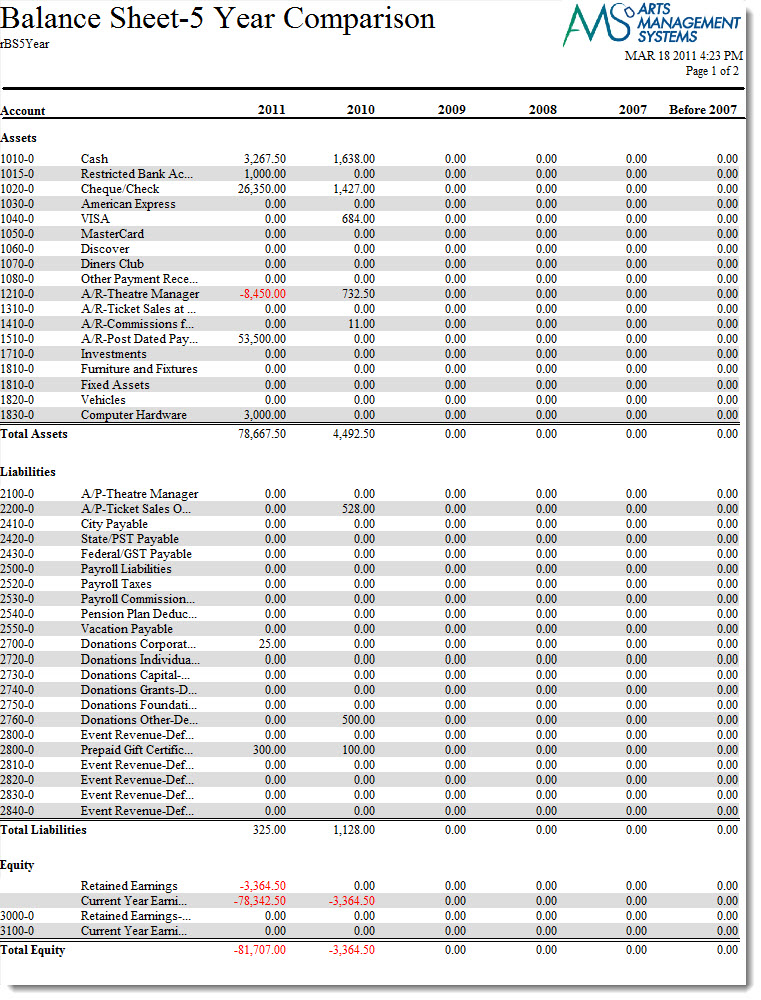
Purpose of the Report
This report generates a summary listing of all G/L account totals for the past five years by year. There is also a summary of all years beyond the past five years.
Departments Who Benefit From This Report
| Accounting | Use this report as a quick comparison of totals by G/L account for the past five years. |
| General Manager | Use this report as a quick comparison of totals by G/L account for the past five years. |
Criteria Hints
It is recommended that this report be run using no parameters or for a range of G/L accounts as the criteria.
| Parameter Field | Condition | Value |
| Account # | is one of | (G/L Account) |
Use the SHIFT key to select a series of accounts, or the OPTION key (Mac) or CTRL key (Windows) to select multiple individual accounts.
Balance Sheet Detail - Monthly for Current Year
Balance Sheet Detail - Monthly for Current Year
The Balance Sheet Detail - Monthly for Current Year report can be found under the G/L Reports category. Below the image are detailed notes in regards to uses for the report.
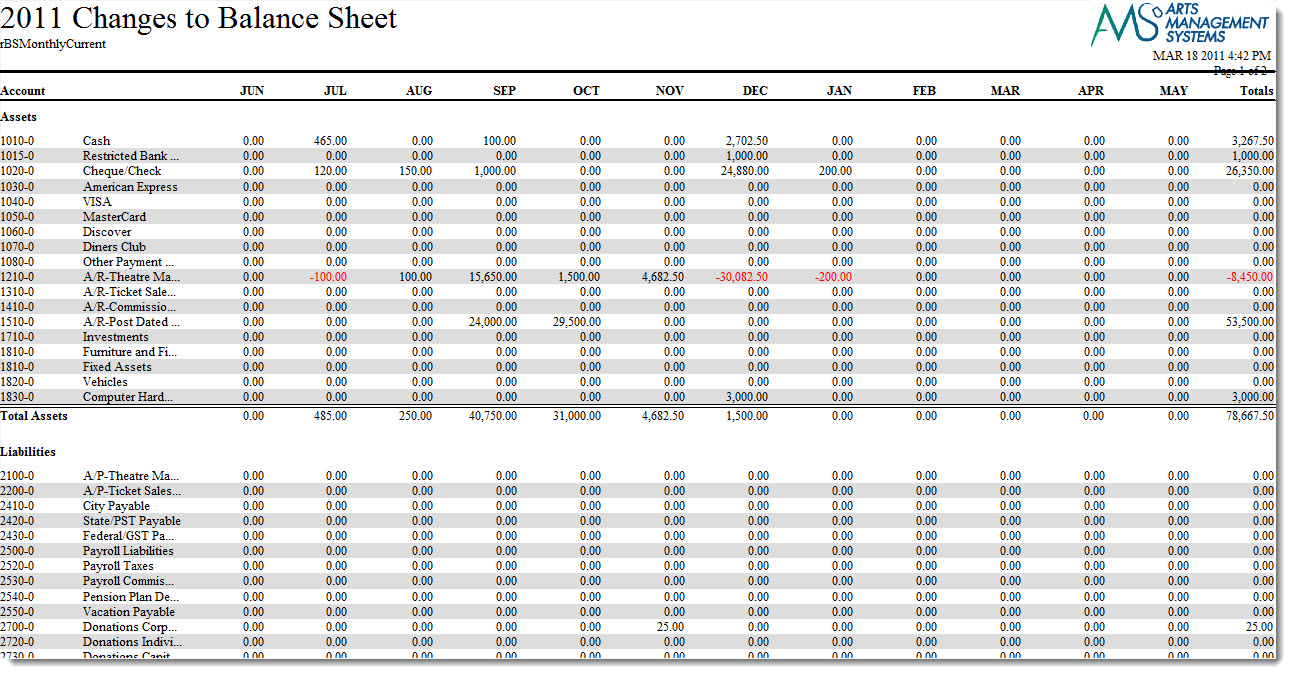
Click here for information on generating a report. Click here for information on the Finished Report window.
Purpose of the Report
This report generates a listing by month of the G/L account balances for the current fiscal year.
Departments Who Benefit From This Report
| Accounting | Use this report to see how G/L accounts were affected over the course of the fiscal year. |
| General Manager | Use this report to see how G/L accounts were affected over the course of the fiscal year. |
Criteria Hints
It is recommended that this report be run using no parameters or for a range of G/L accountsas the criteria.
| Parameter Field | Condition | Value |
| Account # | is one of | (G/L Account) |
Use the SHIFT key to select a series of accounts, or the OPTION key (Mac) or CTRL key (Windows) to select multiple individual accounts.
Balance Sheet Detail - Monthly for Prior Year
Balance Sheet Detail - Monthly for Prior Year
The Balance Sheet Detail - Monthly for Current Year report can be found under the G/L Reports category. Below the image are detailed notes in regards to uses for the report.
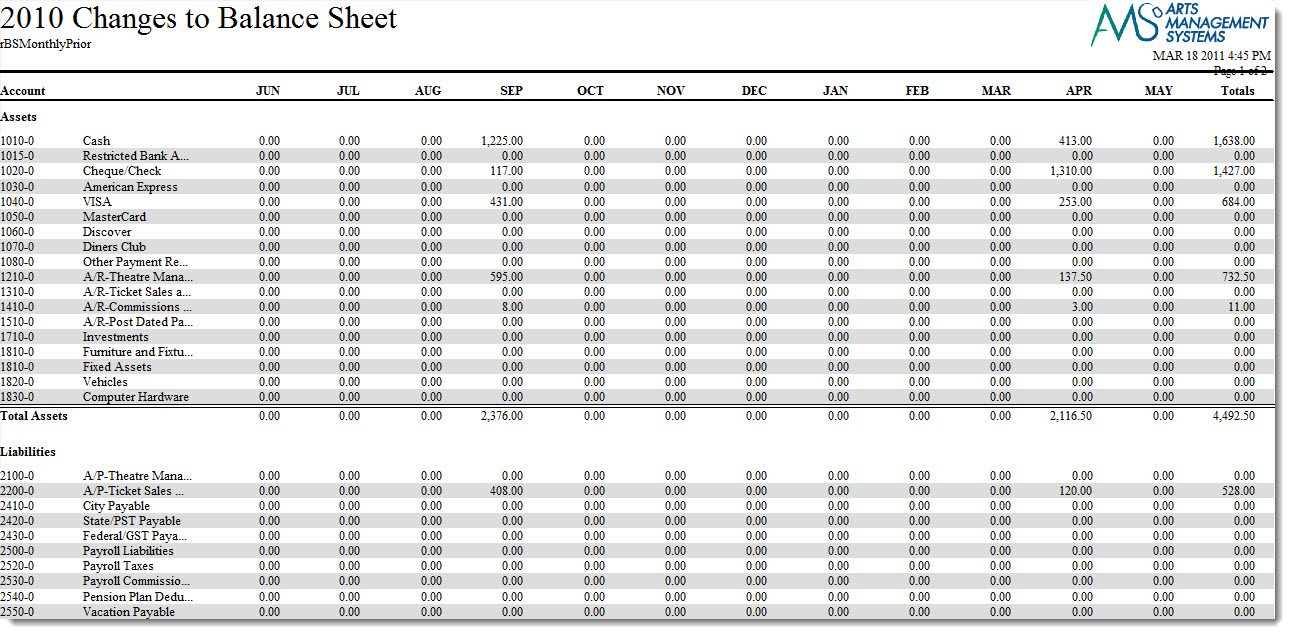
Click here for information on generating a report. Click here for information on the Finished Report window.
Purpose of the Report
This report generates a listing by month of the G/L account balances for the prior fiscal year.
Departments Who Benefit From This Report
| Accounting | Use this report to see how G/L accounts were affected over the course of the prior fiscal year. |
| General Manager | Use this report to see how G/L accounts were affected over the course of the prior fiscal year. |
Criteria Hints
It is recommended that this report be run using no parameters or for a range of G/L accountsas the criteria.
| Parameter Field | Condition | Value |
| Account # | is one of | (G/L Account) |
Use the SHIFT key to select a series of accounts, or the OPTION key (Mac) or CTRL key (Windows) to select multiple individual accounts.
Financial Statements - Balance Sheet
Financial Statements - Balance Sheet
The Financial Statements - Balance Sheet report can be found under the G/L Reports category. This report has additional criteria than most reports. Click here for more information on the Set Day As 'Today' tab. Below the image are detailed notes in regards to uses for the report.
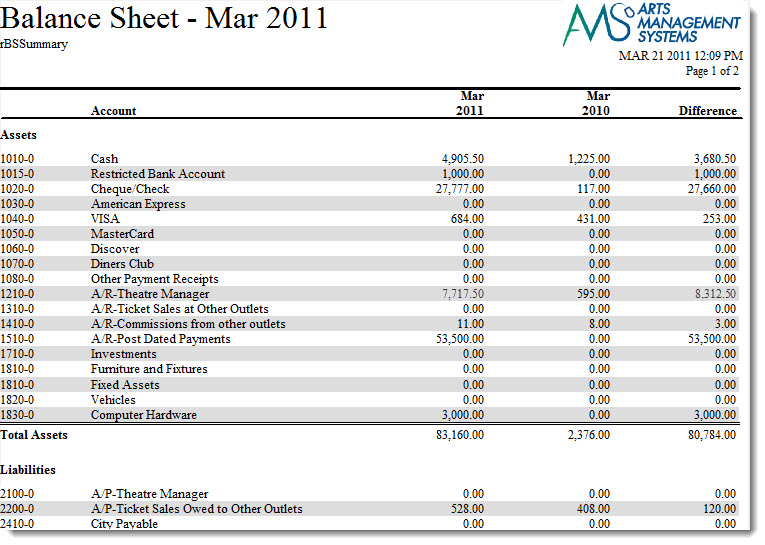
Click here for information on generating a report. Click here for information on the Finished Report window.
Purpose of the Report
This report generates a comparison of G/L accounts from the current fiscal year to the previous fiscal year based on the date set.
Departments Who Benefit From This Report
| Accounting | Use this report to compare that status of G/L accounts with the prior fiscal year. |
| General Manager | Use this report to compare that status of G/L accounts with the prior fiscal year. |
Criteria Hints
It is recommended that this report be run using no parameters or for a range of G/L accountsas the criteria. Also, remember to adjust the Set Date As 'Today' tab based on the end date for the report.
| Parameter Field | Condition | Value |
| Account # | is one of | (G/L Account) |
Use the SHIFT key to select a series of accounts, or the OPTION key (Mac) or CTRL key (Windows) to select multiple individual accounts.
Financial Statements - Profit/Loss
Financial Statements - Profit/Loss
The Financial Statements - Profit/Loss report can be found under the G/L Reports category. This report has additional criteria than most reports. Click here for more information on the Set Day As 'Today' tab. Below the image are detailed notes in regards to uses for the report.
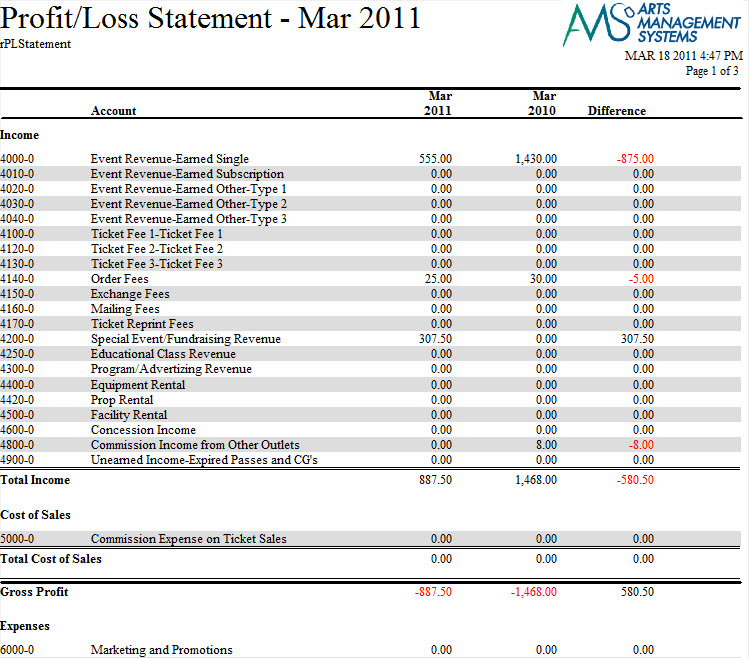
Click here for information on generating a report. Click here for information on the Finished Report window.
Purpose of the Report
This report generates a comparison of income and expense accounts between the current fiscal year and the prior fiscal year to determine profit and loss.
Departments Who Benefit From This Report
| Accounting | Use this report to see the difference in a G/L account between the current fiscal year and the prior fiscal year. |
| General Manager | Use this report to see the difference in a G/L account between the current fiscal year and the prior fiscal year. |
Criteria Hints
It is recommended that this report be run using no parameters or for a range of G/L accountsas the criteria. Also, remember to adjust the Set Date As 'Today' tab based on the end date for the report.
| Parameter Field | Condition | Value |
| Account # | is one of | (G/L Account) |
Use the SHIFT key to select a series of accounts, or the OPTION key (Mac) or CTRL key (Windows) to select multiple individual accounts.
G/L Budget
G/L Budgets vs Actual
G/L Budgets vs Actual
G/L Chart of Accounts
G/L Chart of Accounts
The G/L Chart of Accounts report can be found under the G/L Reports category. Below the image are detailed notes in regards to uses for the report.
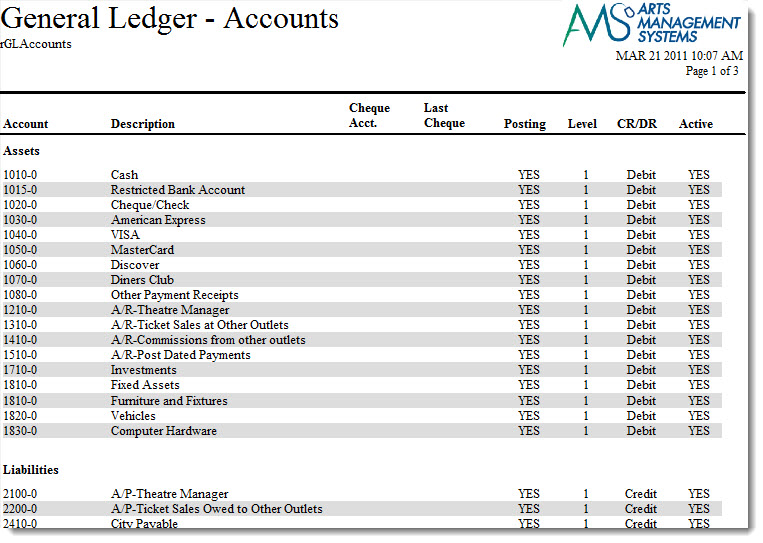
Click here for information on generating a report. Click here for information on the Finished Report window.
Purpose of the Report
This report generates a detailed listing of all G/L Accounts setup in Theatre Manager.
Departments Who Benefit From This Report
| Box Office | Use this report to verify that all G/L accounts have been setup properly and as a handy reference listing. |
| Accounting | Use this report to verify that all G/L accounts have been setup properly and as a handy reference listing. |
| General Manager | Use this report to verify that all G/L accounts have been setup properly and as a handy reference listing. |
Criteria Hints
It is recommended that this report be run using no parameters or for a range of G/L accountsas the criteria.
| Parameter Field | Condition | Value |
| Account # | is one of | (G/L Account) |
Use the SHIFT key to select a series of accounts, or the OPTION key (Mac) or CTRL key (Windows) to select multiple individual accounts.
G/L Journal Entry Detail - By Account
G/L Journal Entry Detail - By Account
The G/L Journal Entry Detail - By Account report can be found under the G/L Reports category. Below the image are detailed notes in regards to uses for the report.
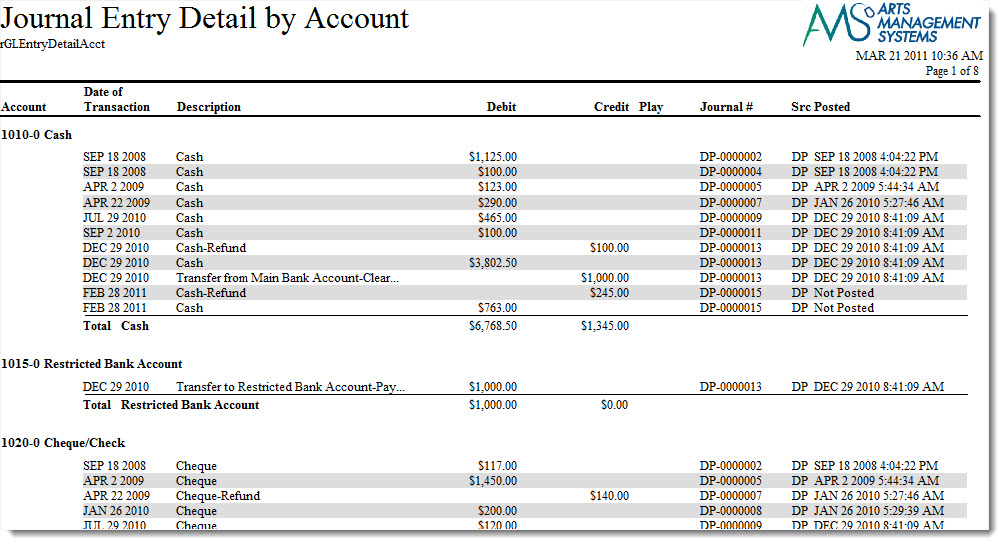
Click here for information on generating a report. Click here for information on the Finished Report window.
Purpose of the Report
This report generates a listing of all journal entries for an account.
Departments Who Benefit From This Report
| Box Office | Use this report to review transactions that have occurred in the general ledger. |
| Accounting | Use this report to review transactions that have occurred in the general ledger. |
Criteria Hints
It is recommended that this report be run using a single G/L account or date range as the criteria.
| Parameter Field | Condition | Value |
| Account # | is one of | (Account) |
| G/L Header Date - Posted | between | (Date) and (Date) |
Use the SHIFT key to select a series of accounts, or the OPTION key (Mac) or CTRL key (Windows) to select multiple individual accounts.
G/L Journal Entry Detail - By Posting
G/L Journal Entry Detail - By Posting
The G/L Journal Entry Detail - By Posting report can be found under the G/L Reports category. Below the image are detailed notes in regards to uses for the report.
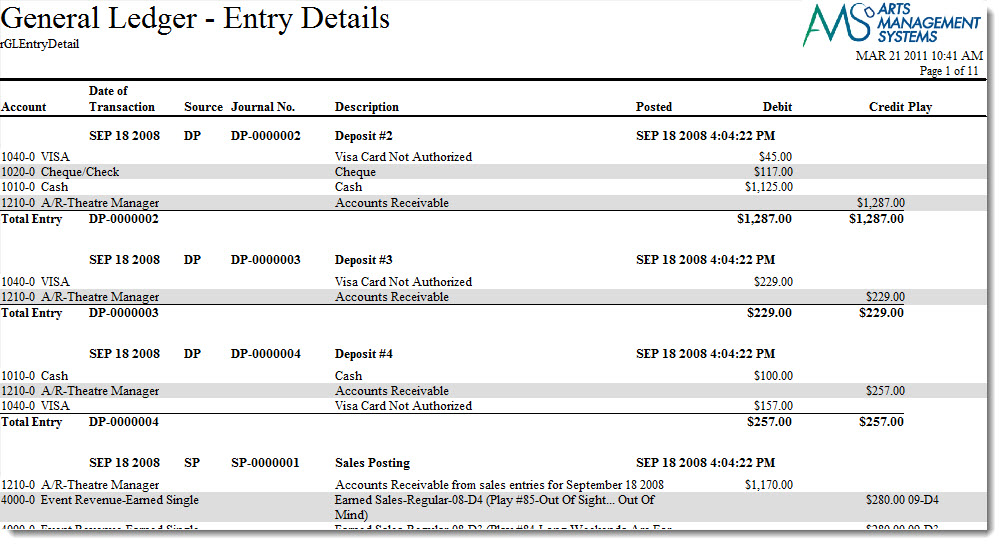
Click here for information on generating a report. Click here for information on the Finished Report window.
Purpose of the Report
This report generates a listing of all journal entries that occurred arranged by posting.
Departments Who Benefit From This Report
| Box Office | Use this report to review journal postings that occurred. |
| Accounting | Use this report to review journal postings that occurred. |
Criteria Hints
It is recommended that this report be run using a date range as the criteria.
| Parameter Field | Condition | Value |
| G/L Header Date - Posted | between | (Date) and (Date) |
G/L Journal Entry Listing
G/L Journal Entry Listing
The G/L Journal Entry Listing report can be found under the G/L Reports category. Below the image are detailed notes in regards to uses for the report.
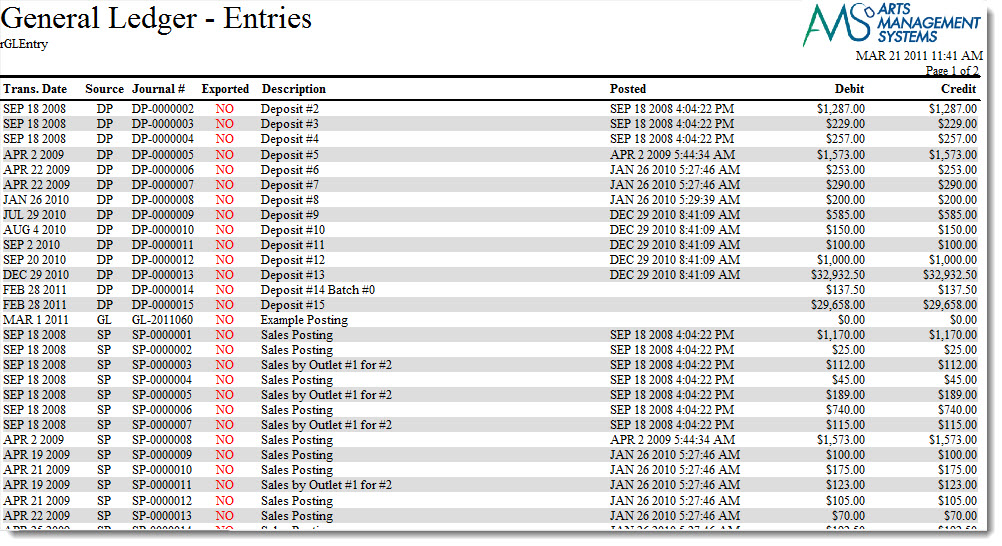
Click here for information on generating a report. Click here for information on the Finished Report window.
Purpose of the Report
This report generates a summarized listing of all general ledger postings.
Departments Who Benefit From This Report
| Box Office | Use this report as a quick summary of journal postings or to locate a specific posting. |
| Accounting | Use this report as a quick summary of journal postings or to locate a specific posting. |
Criteria Hints
It is recommended that this report be run using a date range as the criteria.
| Parameter Field | Condition | Value |
| G/L Header Date - Posted | between | (Date) and (Date) |
G/L Journal Entry Summary - By Account & Memo Description
G/L Journal Entry Summary - By Account & Memo Description
The G/L Journal Entry Summary - By Account & Memo report can be found under the G/L Reports category. Below the image are detailed notes in regards to uses for the report.
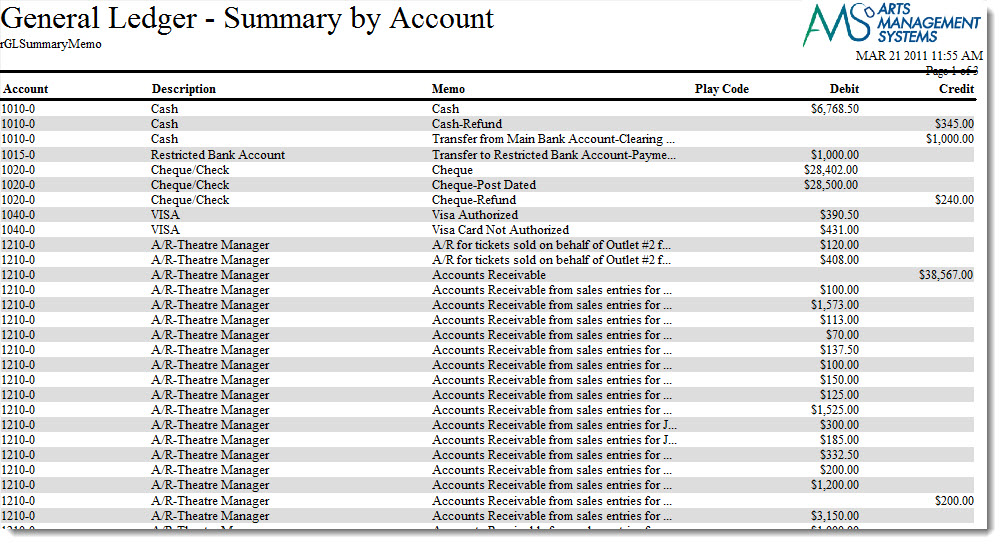
Click here for information on generating a report. Click here for information on the Finished Report window.
Purpose of the Report
This report generates a summarized listing of all general ledger accounts that have a balance and includes the memos from the postings.
Departments Who Benefit From This Report
| Box Office | Use this report as a quick summary to see general ledger accounts that have a balance and see the memos attached to the postings. |
| Accounting | Use this report as a quick summary to see general ledger accounts that have a balance and see the memos attached to the postings. |
Criteria Hints
It is recommended that this report be run using a date range as the criteria.
| Parameter Field | Condition | Value |
| G/L Header Date - Posted | between | (Date) and (Date) |
G/L Journal Entry Summary - By Account
G/L Journal Entry Summary - By Account
The G/L Journal Entry Summary - By Account report can be found under the G/L Reports category. Below the image are detailed notes in regards to uses for the report.
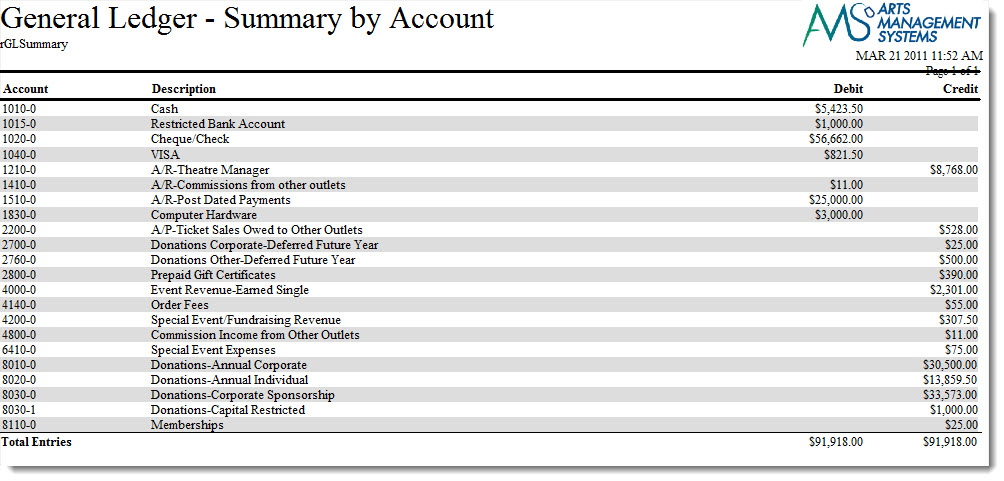
Click here for information on generating a report. Click here for information on the Finished Report window.
Purpose of the Report
This report generates a summarized listing of all general ledger accounts that have a balance.
Departments Who Benefit From This Report
| Box Office | Use this report as a quick summary to see general ledger accounts that have a balance. |
| Accounting | Use this report as a quick summary to see general ledger accounts that have a balance. |
Criteria Hints
It is recommended that this report be run using a date range as the criteria.
| Parameter Field | Condition | Value |
| G/L Header Date - Posted | between | (Date) and (Date) |
G/L Journal Entry Summary - By Date/Time Posted
G/L Journal Entry Summary - By Date/Time Posted
The G/L Journal Entry Summary - By Date/Time Posted report can be found under the G/L Reports category. Below the image are detailed notes in regards to uses for the report.
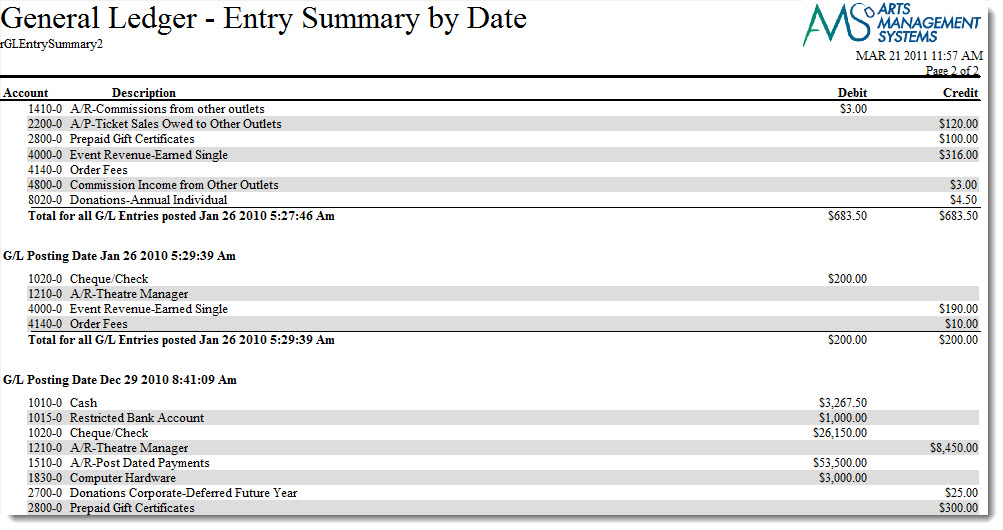
Click here for information on generating a report. Click here for information on the Finished Report window.
Purpose of the Report
This report generates a summarized listing of all postings and the general ledger accounts affected.
Departments Who Benefit From This Report
| Box Office | Use this report to see a quick summary of how a posting affected the general ledger. |
| Accounting | Use this report to see a quick summary of how a posting affected the general ledger. |
Criteria Hints
It is recommended that this report be run using a date range as the criteria.
| Parameter Field | Condition | Value |
| G/L Header Date - Posted | between | (Date) and (Date) |
G/L Journal Entry Summary - By Play
G/L Journal Entry Summary - By Play
The G/L Journal Entry Summary - By Event report can be found under the G/L Reports category. Below the image are detailed notes in regards to uses for the report.
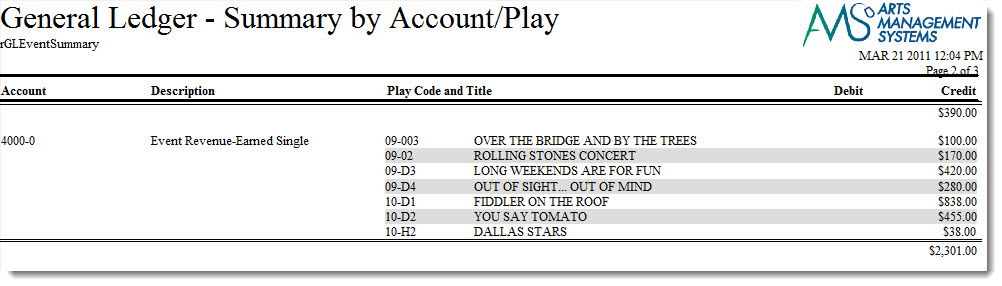
Click here for information on generating a report. Click here for information on the Finished Report window.
Purpose of the Report
This report generates a summary of each event that affected a general ledger account.
Departments Who Benefit From This Report
| Box Office | Use this report to see which events affected a general ledger account number. |
| Accounting | Use this report to see which events affected a general ledger account number. |
Criteria Hints
It is recommended that this report be run using a range of accounts or an event as the criteria.
| Parameter Field | Condition | Value |
| Account # | is one of | (Account) |
| Event # | is one of | (Event) |
Use the SHIFT key to select a series of accounts or events, or the OPTION key (Mac) or CTRL key (Windows) to select multiple individual accounts or events.
G/L Journal Entry Summary - By Play and Posting
G/L Journal Entry Summary - By Play and Posting
The G/L Journal Entry Summary - By Play and Posting Report can be found under the G/L Reports category. Below the image are detailed notes in regards to uses for the report.
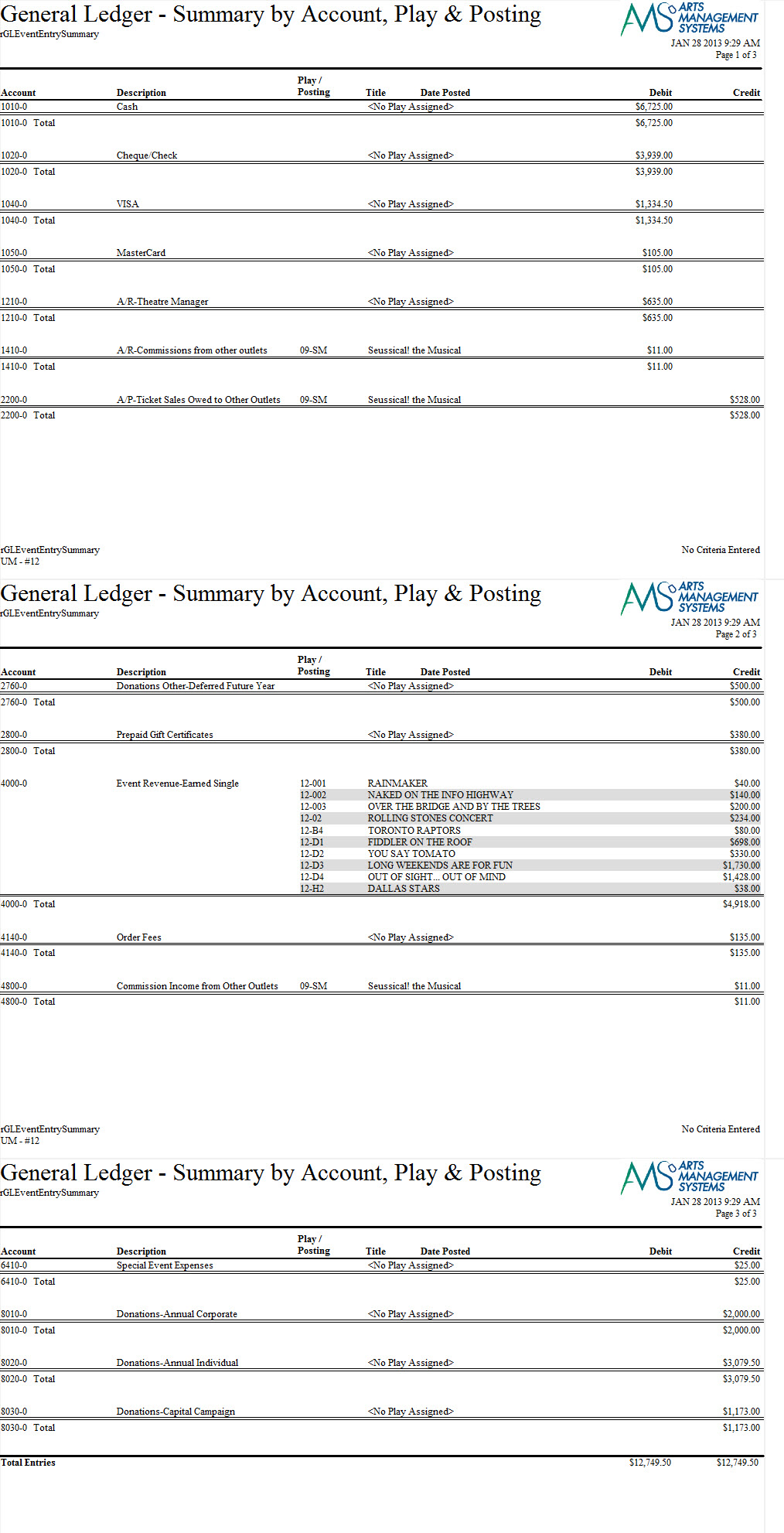
Click here for information on generating a report. Click here for information on the Finished Report window.
Purpose of the Report
You use the "G/L Journal Entry Summary - By Play and Posting " to total many journal entries and the accounts the funds are allocated to and summarize by Play, including a subtotal for journal number. This is useful for transferring lump sums to another accounting program.
Departments Who Benefit From This Report
| Box Office | Use this report to see which events affected a general ledger account number. |
| Accounting | Use this report to see which events affected a general ledger account number. |
Criteria Hints
It is recommended that this report be run using a range of accounts or an event as the criteria.
| Parameter Field | Condition | Value |
| Account # | is one of | (Account) |
| Event # | is one of | (Event) |
Use the SHIFT key to select a series of accounts or events, or the OPTION key (Mac) or CTRL key (Windows) to select multiple individual accounts or events.
G/L Journal Entry Summary - By Posting
G/L Journal Entry Summary - By Posting
The G/L Journal Entry Summary - By Posting report can be found under the G/L Reports category. Below the image are detailed notes in regards to uses for the report.
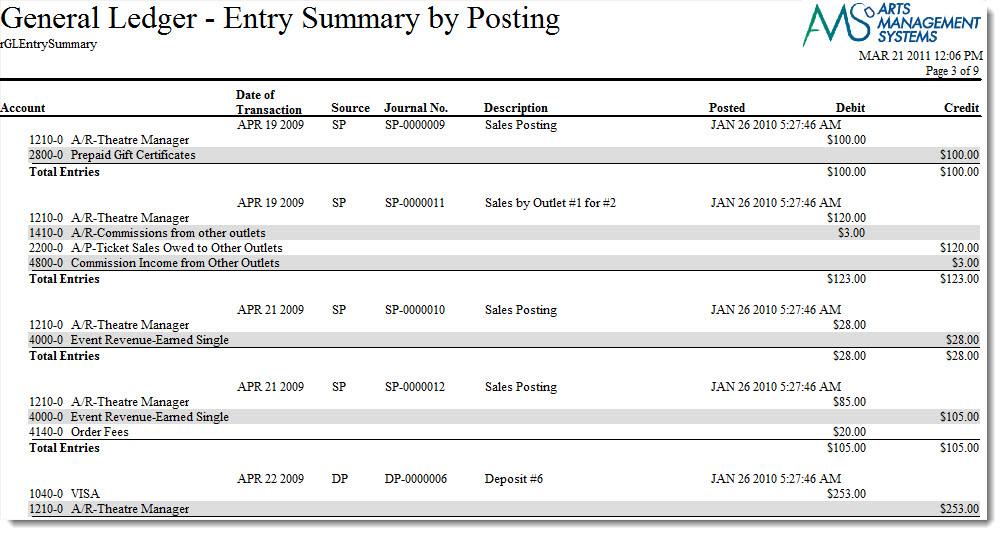
Click here for information on generating a report. Click here for information on the Finished Report window.
Purpose of the Report
This report generates a summary of each posting that affected a general ledger account.
Departments Who Benefit From This Report
| Box Office | Use this report to see which postings affected a general ledger account number. |
| Accounting | Use this report to see which postings affected a general ledger account number. |
Criteria Hints
It is recommended that this report be run using a range of accounts or date range as the criteria.
| Parameter Field | Condition | Value |
| Account # | is one of | (Account) |
| G/L Header Date - Posted | between | (Date) and (Date) |
Use the SHIFT key to select a series of accounts, or the OPTION key (Mac) or CTRL key (Windows) to select multiple individual accounts.
G/L Play Revenue Allocated to Type of Ticket
G/L Play Revenue Allocated to Type of Ticket
The G/L Event Revenue by Type of Ticket report can be found under the G/L Reports category. Below the image are detailed notes in regards to uses for the report.
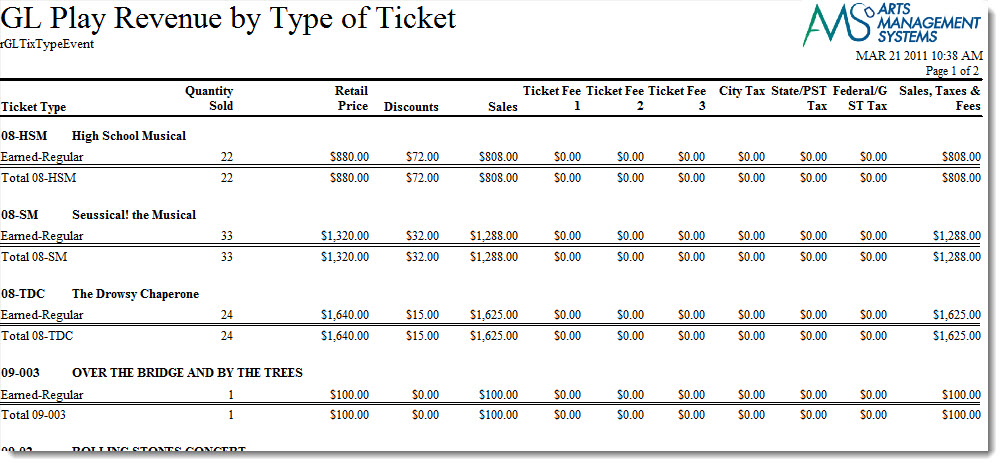
Click here for information on generating a report. Click here for information on the Finished Report window.
Purpose of the Report
This report generates a breakdown of ticket sales for each event.
Departments Who Benefit From This Report
| Box Office | Use this report to review how money was split for ticket sales for an event. |
| Accounting | Use this report to review how money was split for ticket sales for an event. |
Criteria Hints
It is recommended that this report be run using a fiscal year or event as the criteria.
| Parameter Field | Condition | Value |
| Event Season Start | between | (Year) and (Year) |
| Event # | is one of | (Event) |
Use the SHIFT key to select a series of events, or the OPTION key (Mac) or CTRL key (Windows) to select multiple individual events.
G/L Totals - 5 Year Comparison
G/L Totals - 5 Year Comparison
The G/L Totals - 5 Year Comparison report can be found under the G/L Reports category. Below the image are detailed notes in regards to uses for the report.
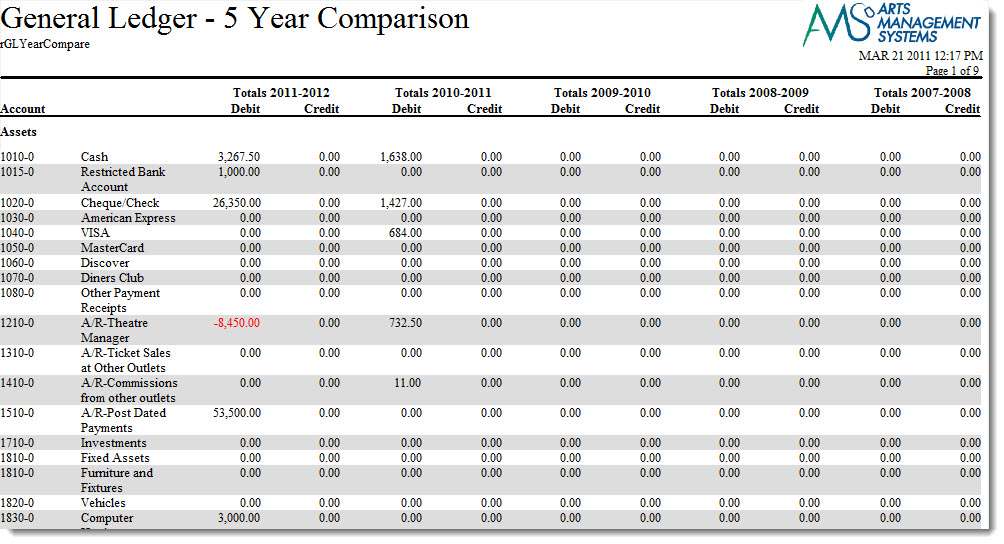
Click here for information on generating a report. Click here for information on the Finished Report window.
Purpose of the Report
This report generates a comparison of each general ledger account against the previous five years.
Departments Who Benefit From This Report
| Accounting | Use this report to benchmark general ledger accounts against previous years. |
| General Manager | Use this report to benchmark general ledger accounts against previous years. |
Criteria Hints
It is recommended that this report be run without criteria or for an account range as the criteria.
| Parameter Field | Condition | Value |
| Account # | is one of | (Account) |
Use the SHIFT key to select a series of accounts, or the OPTION key (Mac) or CTRL key (Windows) to select multiple individual accounts.
G/L Trial Balance
G/L Trial Balance
The G/L Trial Balance report can be found under the G/L Reports category. Below the image are detailed notes in regards to uses for the report.
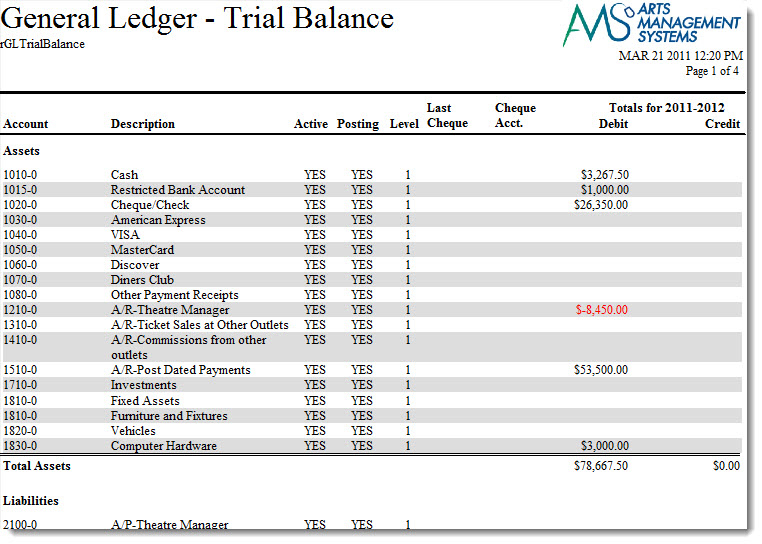
Click here for information on generating a report. Click here for information on the Finished Report window.
Purpose of the Report
This report generates a trial balance of the general ledger.
Departments Who Benefit From This Report
| Accounting | Use this report to run a trial balance of the general ledger to look for discrepancies. |
| General Manager | Use this report to run a trial balance of the general ledger to look for discrepancies. |
Criteria Hints
It is recommended that this report be run without criteria.
Job Cost - Play Journal Entry Detail
Job Cost - Play Journal Entry Detail
The Job Cost - Event Journal Entry Details report can be found under the G/L Reports category. Below the image are detailed notes in regards to uses for the report.
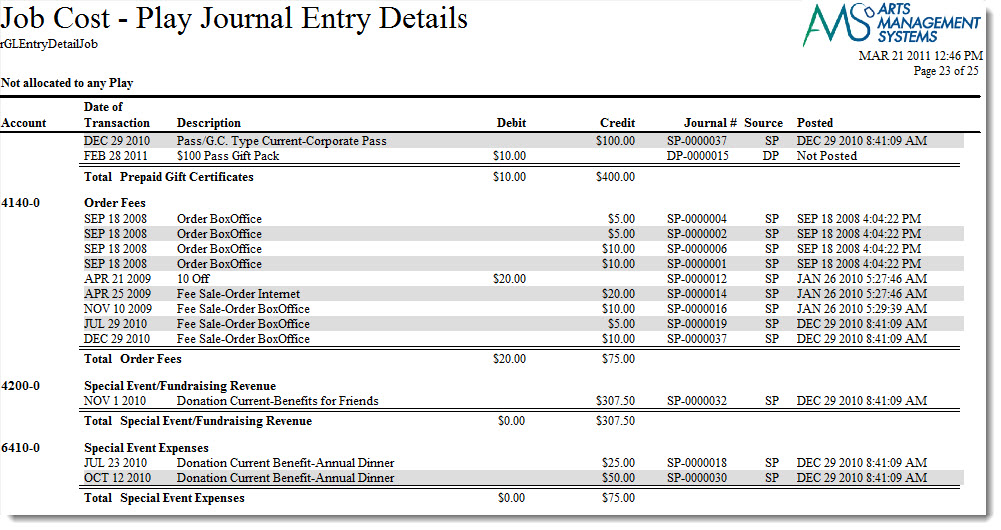
Click here for information on generating a report. Click here for information on the Finished Report window.
Purpose of the Report
This report shows the costs associated with an event.
Departments Who Benefit From This Report
| Box Office | Use this report to evaluate the income and expense for an event. |
| Accounting | Use this report to evaluate the income and expense for an event. |
| General Manager | Use this report to evaluate the income and expense for an event. |
Criteria Hints
It is recommended that this report be run for a season or for specific events as the criteria.
| Parameter Field | Condition | Value |
| Event # | is one of | (Event) |
Use the SHIFT key to select a series of events, or the OPTION key (Mac) or CTRL key (Windows) to select multiple individual events.
Profit/Loss Detail - 5 Year Comparison
Profit/Loss Detail - 5 Year Comparison
The Profit/Loss - 5 Year Comparison report can be found under the G/L Reports category. Below the image are detailed notes in regards to uses for the report.
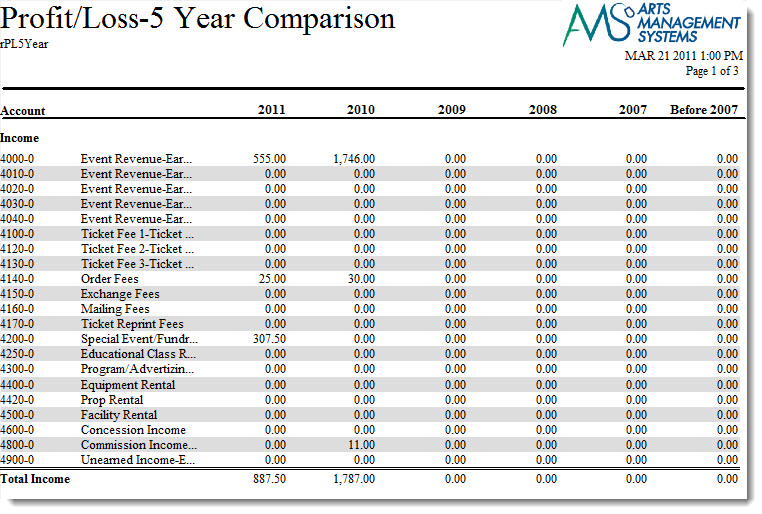
Click here for information on generating a report. Click here for information on the Finished Report window.
Purpose of the Report
This report generates a profit and loss listing comparison for the past five fiscal years.
Departments Who Benefit From This Report
| Accounting | Use this report as a quick summary comparison of the profit and loss for each account for the past five years. |
| General Manager | Use this report as a quick summary comparison of the profit and loss for each account for the past five years. |
Criteria Hints
It is recommended that this report be run without criteria.
Profit/Loss Detail - Monthly for Current Year
Profit/Loss Detail - Monthly for Current Year
The Profit/Loss Detail - Monthly for Current Year report can be found under the G/L Reports category. Below the image are detailed notes in regards to uses for the report.
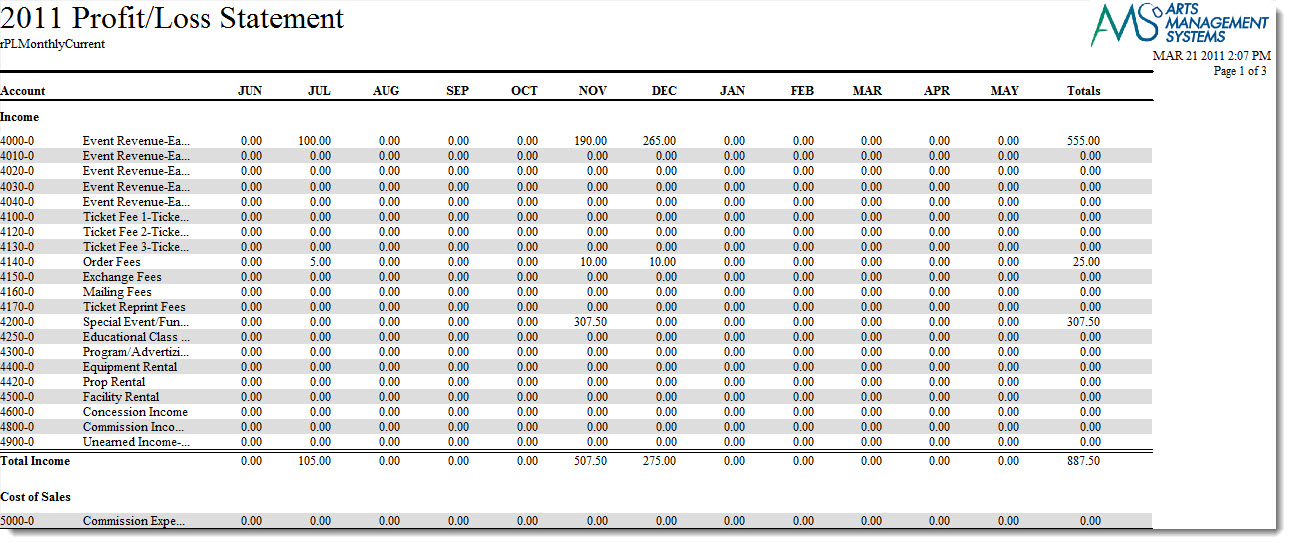
Click here for information on generating a report. Click here for information on the Finished Report window.
Purpose of the Report
This report generates a listing by month of the profit and loss for each general ledger account for the current fiscal year.
Departments Who Benefit From This Report
| Accounting | Use this report to review the profit and loss for each account on a monthly basis for the current fiscal year. |
| General Manager | Use this report to review the profit and loss for each account on a monthly basis for the current fiscal year. |
Criteria Hints
It is recommended that this report be run without criteria.
Profit/Loss Detail - Monthly for Prior Year
Profit/Loss Detail - Monthly for Prior Year
The Profit/Loss Detail - Monthly for Prior Year report can be found under the G/L Reports category. Below the image are detailed notes in regards to uses for the report.

Click here for information on generating a report. Click here for information on the Finished Report window.
Purpose of the Report
This report generates a listing by month of the profit and loss for each general ledger account for the prior fiscal year.
Departments Who Benefit From This Report
| Accounting | Use this report to review the profit and loss for each account on a monthly basis for the prior fiscal year. |
| General Manager | Use this report to review the profit and loss for each account on a monthly basis for the prior fiscal year. |
Criteria Hints
It is recommended that this report be run without criteria.
Mail List Reports
List of Mail Lists
List of Mail Lists
The List of Mail Lists report can be found under the Mail List Reports category. The Mail List# column of this report provides an interactive tooltip. A user can click the blue link to open a specific Mail List directly. Below the image are detailed notes to help you in using the report.
Click here for information on generating a report. Click here for information on the Finished Report window.
Purpose of the Report
This report generates a listing of all Mail Lists currently setup in Theatre Manager.
Departments Who Benefit From This Report
| Box Office | Use this report to view and verify all Mail Lists in Theatre Manager. |
| Marketing | Use this report to view and verify all Mail Lists in Theatre Manager. |
| Development | Use this report to view and verify all Mail Lists in Theatre Manager. |
Criteria Hints
It is recommended that this report be run without criteria.
Mail List Contact Report
Mail List Contact Report
The Mail List Contact report can be found under the Mail Lists Reports category. Below the image are detailed notes to help you in using the report.
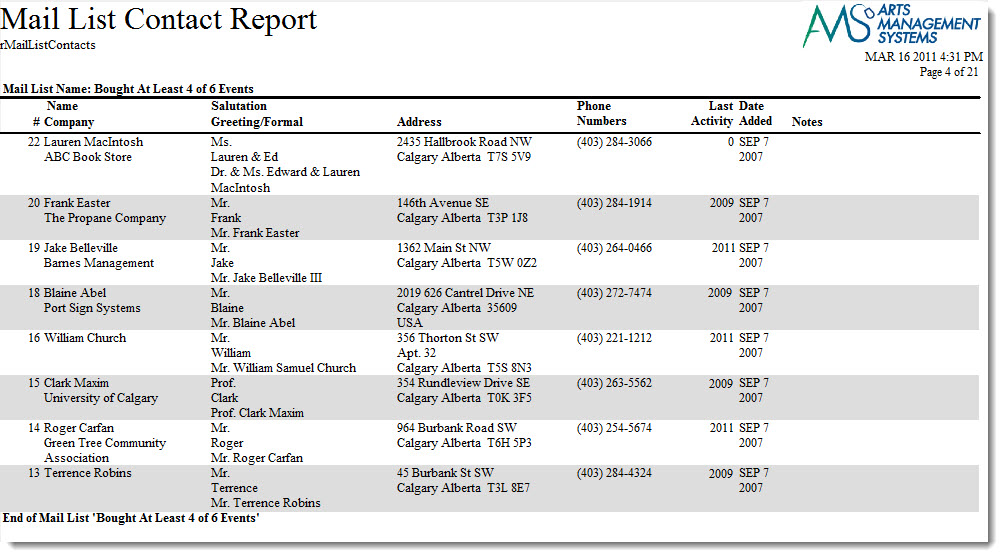
Click here for information on generating a report. Click here for information on the Finished Report window.
Purpose of the Report
This report generates a listing of all patrons in a mail lists and their contact information.
Departments Who Benefit From This Report
| Box Office | Use this report to see all contact information for patrons in a mail list. |
| Marketing | Use this report to see all contact information for patrons in a mail list. |
| Development | Use this report to see all contact information for patrons in a mail list. |
Criteria Hints
It is recommended that this report be run with a single or group of mail lists as the criteria.
| Parameter Field | Condition | Value |
| Mail List # | is one of | (Mail List) |
Use the SHIFT key to select a series of mail lists, or the OPTION key (Mac) or CTRL key (Windows) to select multiple individual mail lists.
Mail List Criteria
Mail List Criteria
The Mail List Criteria report can be found under the Mail Lists Reports category. Below the image are detailed notes to help you in using the report.
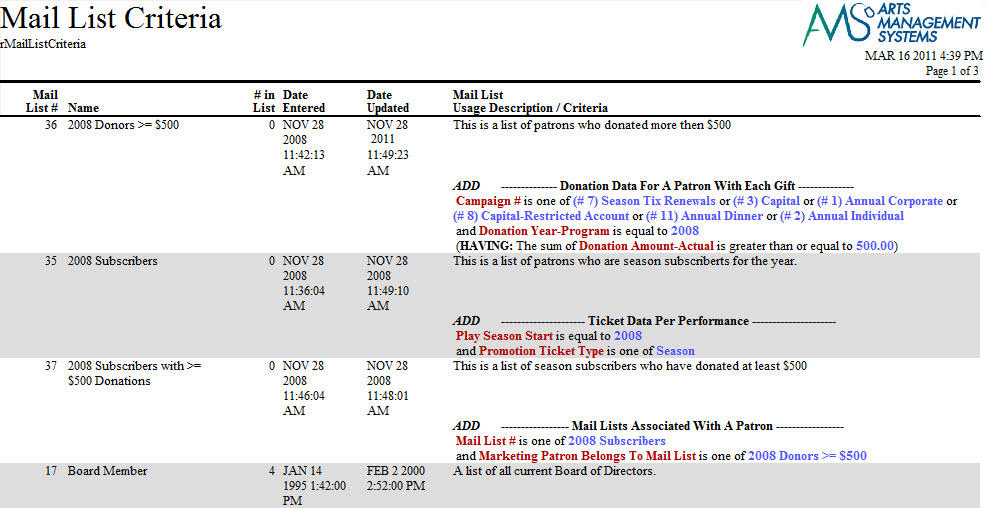
Click here for information on generating a report. Click here for information on the Finished Report window.
Purpose of the Report
This report generates a listing of all criteria used to generate a mail list.
Departments Who Benefit From This Report
| Box Office | Use this report as a quick overview of the criteria used in each mail list. |
| Marketing | Use this report as a quick overview of the criteria used in each mail list. |
| Development | Use this report as a quick overview of the criteria used in each mail list. |
Criteria Hints
It is recommended that this report be run with a single or group of mail lists as the criteria.
| Parameter Field | Condition | Value |
| Mail List # | is one of | (Mail List) |
Use the SHIFT key to select a series of mail lists, or the OPTION key (Mac) or CTRL key (Windows) to select multiple individual mail lists.
Mail List Telemarketing Report
Mail List Telemarketing Report
The Mail List Telemarketing report can be found under the Mail Lists Reports category. Below the image are detailed notes to help you in using the report.
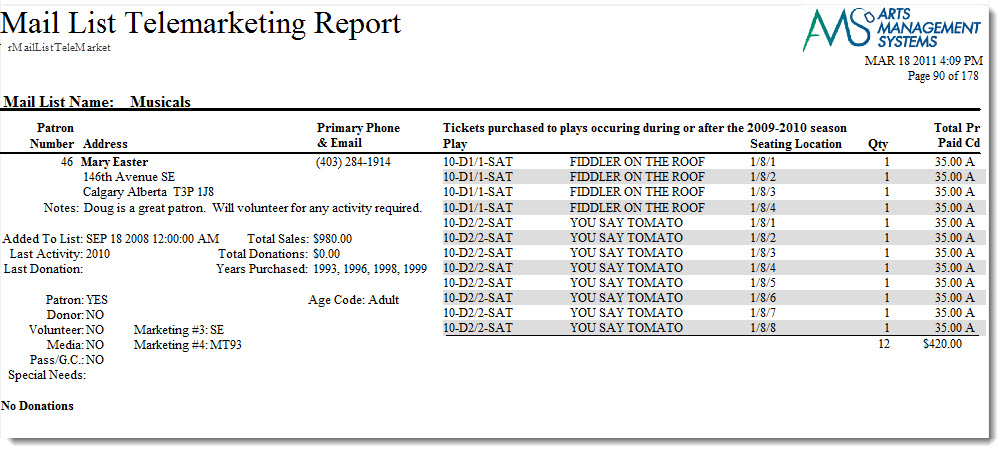
Click here for information on generating a report. Click here for information on the Finished Report window.
Purpose of the Report
This report generates a detailed listing for each patron in a mail list that can be used for telemarketing purposes.
Departments Who Benefit From This Report
| Box Office | Use this report to give to your telemarketers prior to contacting a patron. |
| Marketing | Use this report to give to your telemarketers prior to contacting a patron. |
| Development | Use this report to give to your telemarketers prior to contacting a patron. |
Criteria Hints
It is recommended that this report be run with a single or group of mail lists as the criteria.
| Parameter Field | Condition | Value |
| Mail List # | is one of | (Mail List) |
Use the SHIFT key to select a series of mail lists, or the OPTION key (Mac) or CTRL key (Windows) to select multiple individual mail lists.
Miscellaneous Reports
City Codes List
City Codes List
The City Codes List report can be found under the Miscellaneous Reports category. Below the image are detailed notes to help you in using the report.
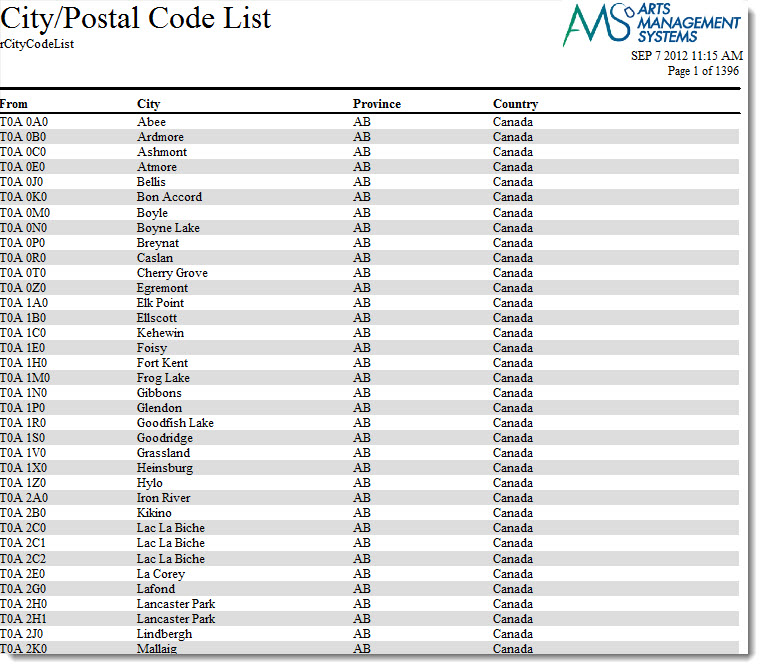
Click here for information on generating a report. Click here for information on the Finished Report window.
Purpose of the Report
This report generates a listing of all information contained in the City Table for Theatre Manager.
Departments Who Benefit From This Report
| Box Office | Use this report to view and verify the information in Code Tables. |
Criteria Hints
It is recommended that this report be run with criteria, such as a City or a Range of Codes.
|
If you run this report without criteria, it will take an extremely long time to run. |
Code Tables Data
Code Tables Data
The Code Tables Data report can be found under the Miscellaneous Reports category. Below the image are detailed notes to help you in using the report.
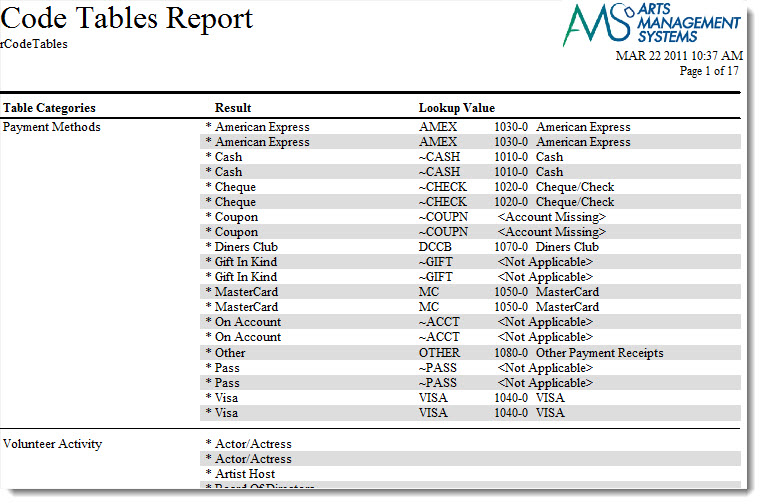
Click here for information on generating a report. Click here for information on the Finished Report window.
Purpose of the Report
This report generates a listing of all information contained in Code Tables for Theatre Manager.
Departments Who Benefit From This Report
| Box Office | Use this report to view and verify the information in Code Tables. |
Criteria Hints
It is recommended that this report be run without criteria.
Commission Listing
Commission Listing
The Commission Listing report can be found under the Miscellaneous Reports category. Below the image are detailed notes to help you in using the report.
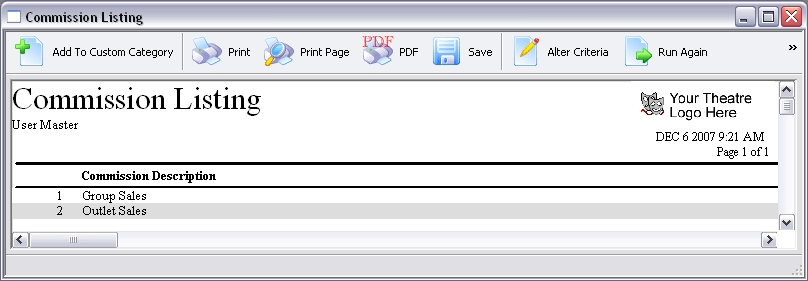
Click here for information on generating a report. Click here for information on the Finished Report window.
Purpose of the Report
This report generates a listing of all commission listings setup in Theatre Manager.
Departments Who Benefit From This Report
| Box Office | Use this report to view and verify the information in Commission Setup. |
Criteria Hints
It is recommended that this report be run without criteria.
Default Data
Default Data
The Default Data report can be found under the Miscellaneous Reports category. Below the image are detailed notes to help you in using the report.
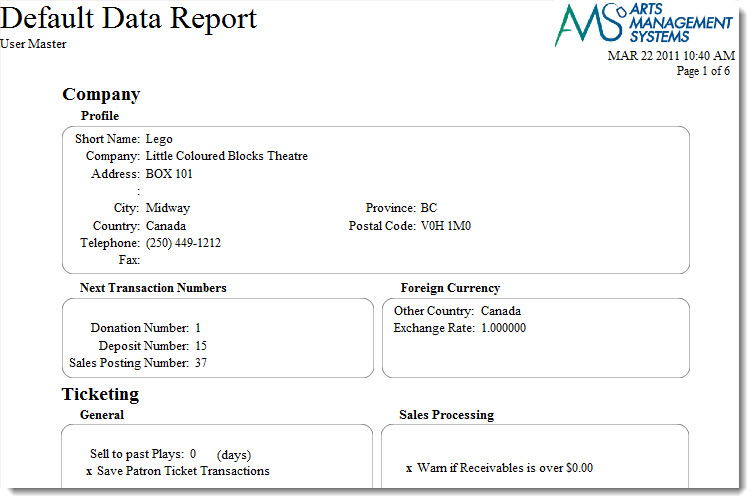
Click here for information on generating a report. Click here for information on the Finished Report window.
Purpose of the Report
This report generates a copy of all information setup in Theatre Manager under Company (Outlet) Preferences.
Departments Who Benefit From This Report
| Box Office | Use this report to view and verify the information in Company Preferences. This is also useful for sending to Arts Management Support if there are questions about the setup. |
Criteria Hints
It is recommended that this report be run without criteria.
Employee Contact List
Employee Contact List
The Employee Contact List report can be found under the Miscellaneous Reports category. Below the image are detailed notes to help you in using the report.
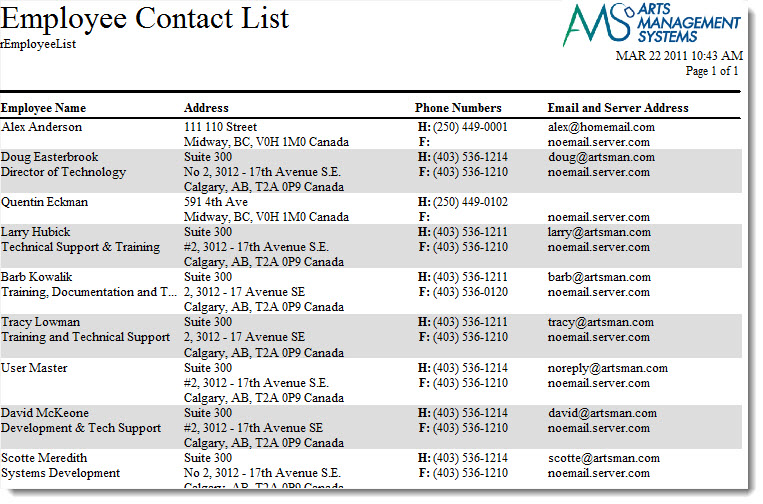
Click here for information on generating a report. Click here for information on the Finished Report window.
Purpose of the Report
This report generates a listing of all employee contact information from Theatre Manager.
Departments Who Benefit From This Report
| Box Office | Use this report as a printable contact list for the organization's staff. |
Criteria Hints
It is recommended that this report be run without criteria.
Employee Data & Access Rights
Employee Data & Access Rights
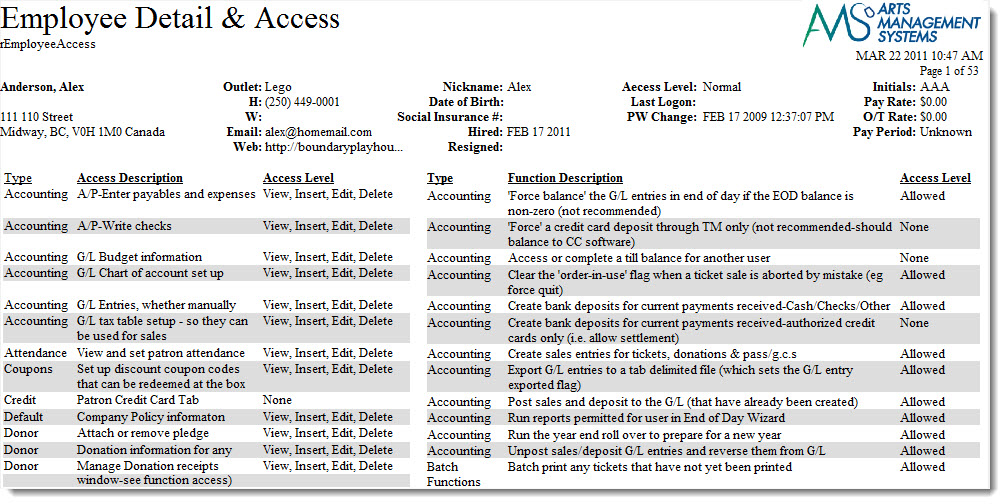
Click here for information on generating a report. Click here for information on the Finished Report window.
Purpose of the Report
This report generates a detail for each employee setup in Theatre Manager. It includes their information along with their security settings.
Departments Who Benefit From This Report
| Box Office | Use this report to view and verify the setup of an employee. |
Criteria Hints
It is recommended that this report be run for a single employee or with a range of employees as the criteria.
| Parameter Field | Condition | Value |
| Employee # | is one of | (Employee) |
Use the SHIFT key to select a series of employees, or the OPTION key (Mac) or CTRL key (Windows) to select multiple individual employees.
Form Letter List
Form Letter List
The Form Letters List report can be found under the Miscellaneous Reports category. Below the image are detailed notes to help you in using the report.
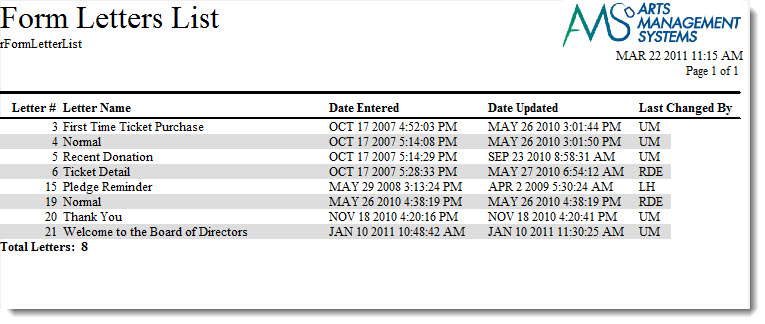
Click here for information on generating a report. Click here for information on the Finished Report window.
Purpose of the Report
This report generates a listing of all Form Letters setup in Theatre Manager.
Departments Who Benefit From This Report
| Box Office | Use this report to view and verify the Form Letters setup. |
Criteria Hints
It is recommended that this report be run without criteria.
Plug-In List
Plug-In List
The Plug-In List report can be found under the Miscellaneous Reports category. Below the image of the sort criteria are notes to help you in using the report.
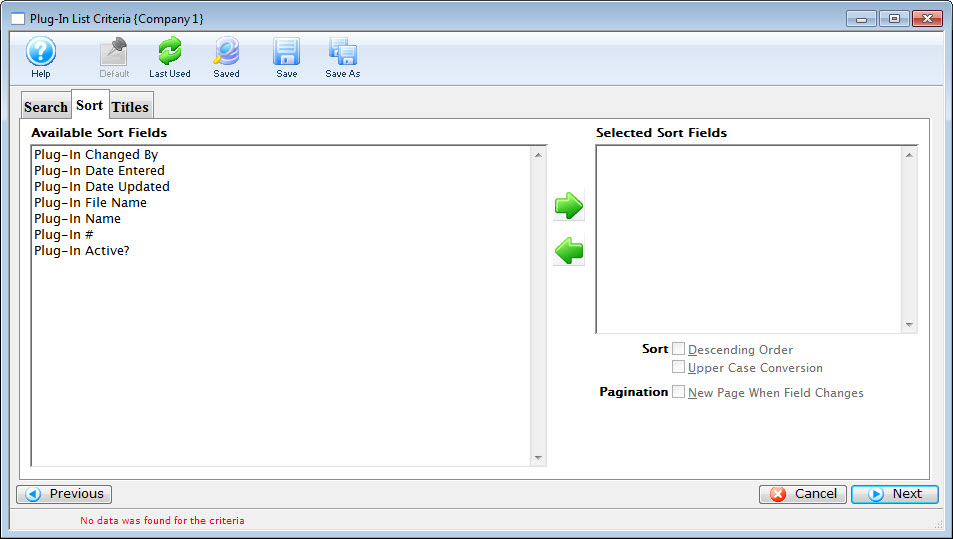
Click here for information on generating a report. Click here for information on the Finished Report window.
Purpose of the Report
This report generates a list of the plu-ins your organization has purchased from Arts Management Ltd. and installed in Theatre Manager.
Criteria Hints
It is recommended that this report be run with no criteria selected.
Pricing Map Graphic List
Pricing Map Graphic List
The Theatre Map Graphic List report can be found under the Miscellaneous Reports category. Below the image are detailed notes to help you in using the report.
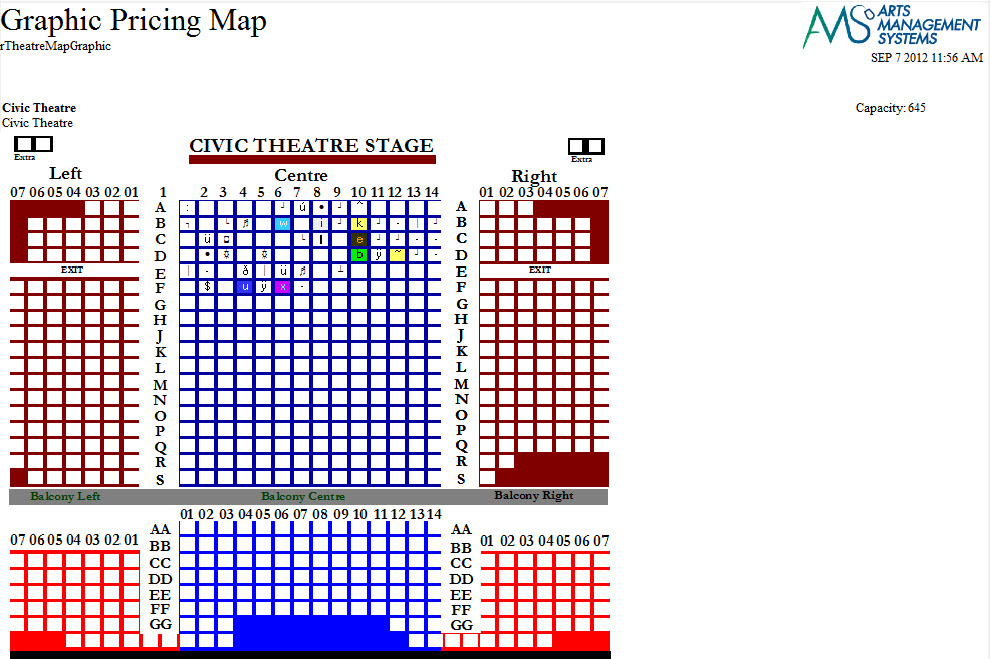
Click here for information on generating a report. Click here for information on the Finished Report window.
Purpose of the Report
This report allows you to view the graphic map you have created.
Departments Who Benefit From This Report
| Box Office | Use this report to view and verify the information in the Theatre Pricing Maps. |
Criteria Hints
It is recommended that this report be run without criteria.
Promotion Code List
Promotion Code List
The Promotion Code List report can be found under the Miscellaneous Reports category. Below the image are detailed notes to help you in using the report.
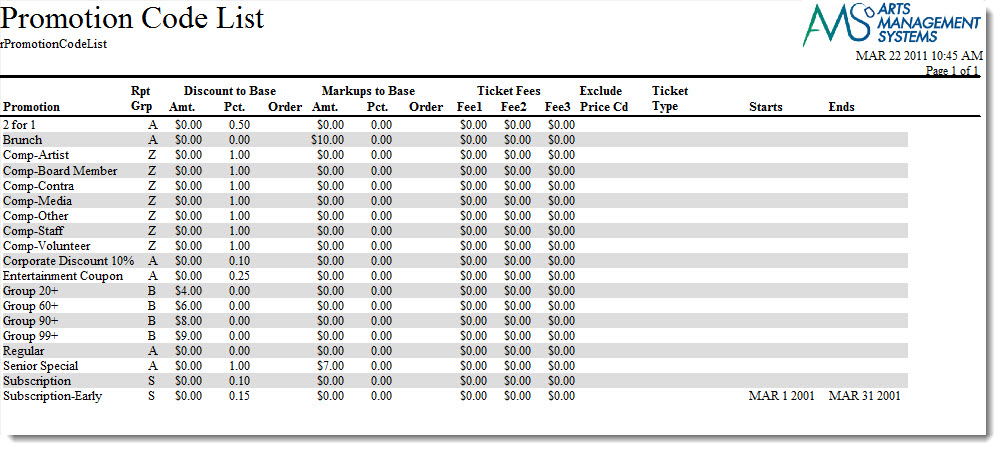
Click here for information on generating a report. Click here for information on the Finished Report window.
Purpose of the Report
This report generates a listing of all promotion codes setup in Theatre Manager.
Departments Who Benefit From This Report
| Box Office | Use this report to view and verify the Promotion Codes. |
Criteria Hints
It is recommended that this report be run without criteria.
Promotion Price Worksheet
Promotion Price Worksheet
Below the image are detailed notes to help you in using the report.
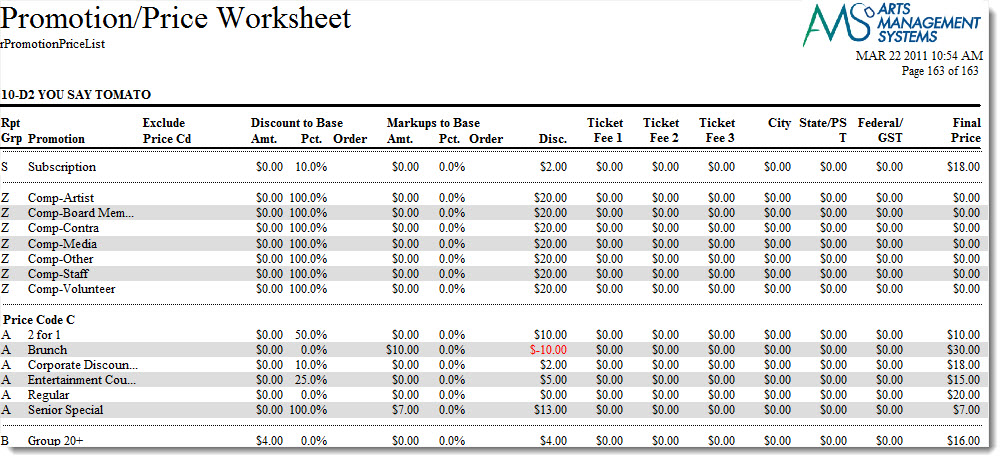
- Click here for information on generating a report.
- Click here for information on the Finished Report window.
Purpose of the Report
This report generates a listing of how each promotion will affect each price code of a performance.
Departments Who Benefit From This Report
| Box Office | Use this report to review how promotions will affect the final ticket price of each price code for a performance. |
Criteria Hints
It is highly recommended that this report be run for a single performance or event as the criteria.
| Parameter Field | Condition | Value |
| Event # | is one of | (Event) |
| Performance Date | = | (Date) |
Use the SHIFT key to select a series of events, or the OPTION key (Mac) or CTRL key (Windows) to select multiple individual events.
Standard Comments List
Standard Comments List
The Standard Comments List report can be found under the Miscellaneous Reports category. Below the image are detailed notes to help you in using the report.
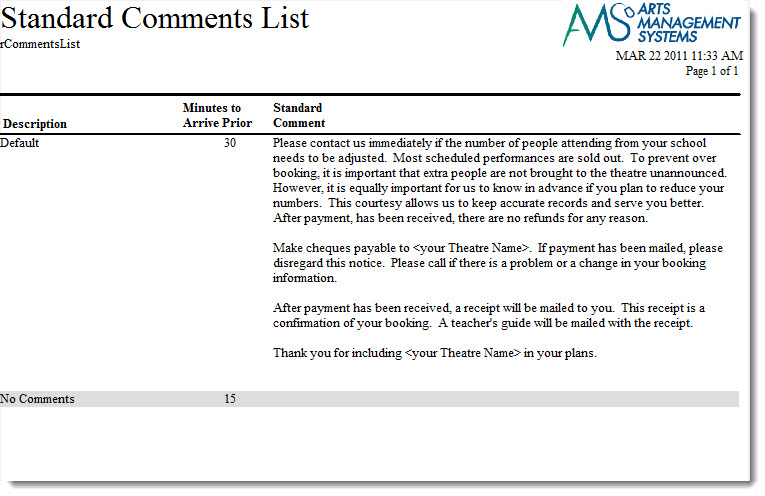
Click here for information on generating a report. Click here for information on the Finished Report window.
Purpose of the Report
This report generates a listing of Invoice Comments setup in Theatre Manager.
Departments Who Benefit From This Report
| Box Office | Use this report to view and verify all Invoice Comments setup. |
Criteria Hints
It is recommended that this report be run without criteria.
Tax Rates List
Tax Rates List
The Tax Rates List report can be found under the G/L Reports category. Below the image are detailed notes to help you in using the report.
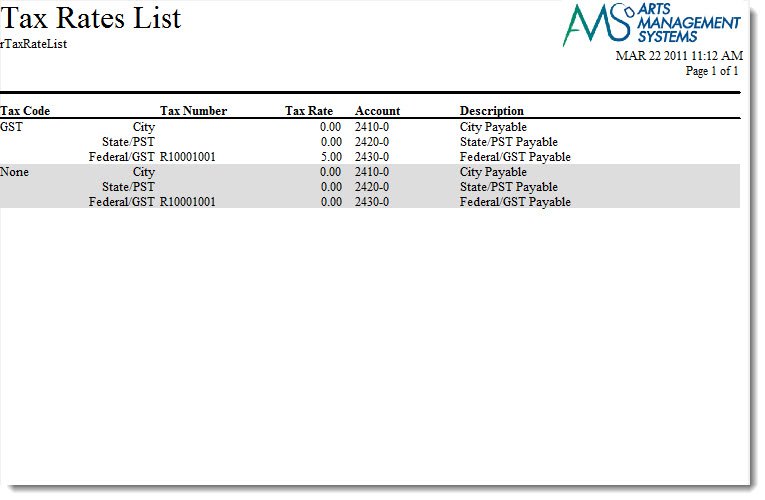
Click here for information on generating a report. Click here for information on the Finished Report window.
Purpose of the Report
This report generates a listing of all tax rates currently in Theatre Manager.
Departments Who Benefit From This Report
| Box Office | Use this report to verify that all tax rates have been setup properly. |
| Accounting | Use this report to verify that all tax rates have been setup properly. |
| General Manager | Use this report to verify that all tax rates have been setup properly. |
Criteria Hints
It is recommended that this report be run without criteria.
Theatre Map List
Theatre Map List
The Theatre Map List report can be found under the Miscellaneous Reports category. Below the image are detailed notes to help you in using the report.
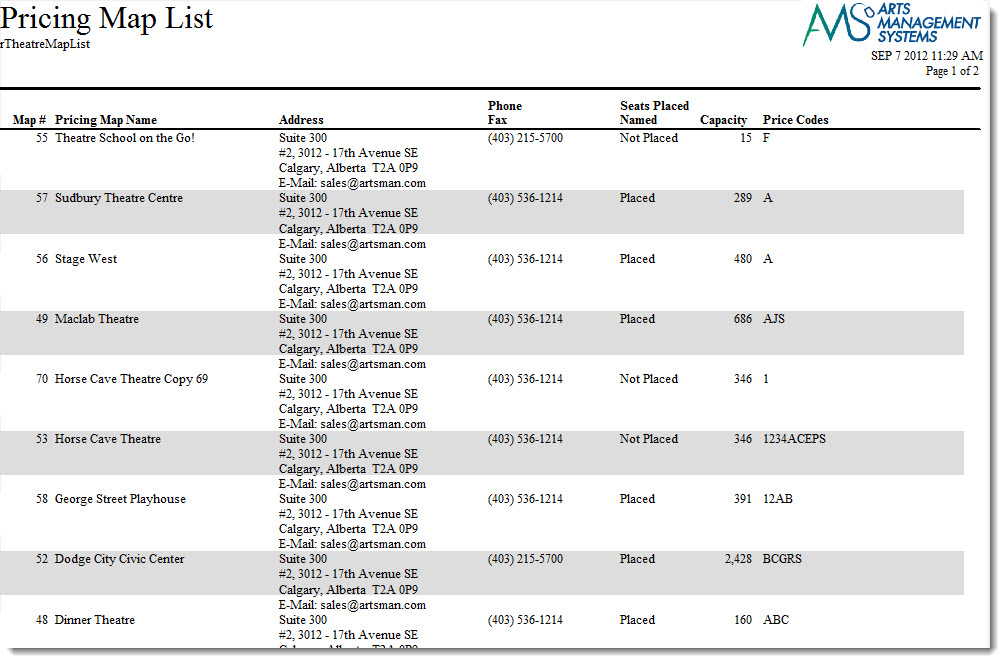
Click here for information on generating a report. Click here for information on the Finished Report window.
Purpose of the Report
This report allows you to view the Pricing Maps you have created, if the seats have been named and the price codes used.
Departments Who Benefit From This Report
| Box Office | Use this report to view and verify the information in the Theatre Pricing Maps. |
Criteria Hints
It is recommended that this report be run without criteria.
Theatre Maps Seat List
Theatre Maps Seat List
The Theatre Maps Seat List report can be found under the Membership Reports category. Below Below the image are detailed notes to help you in using the report.
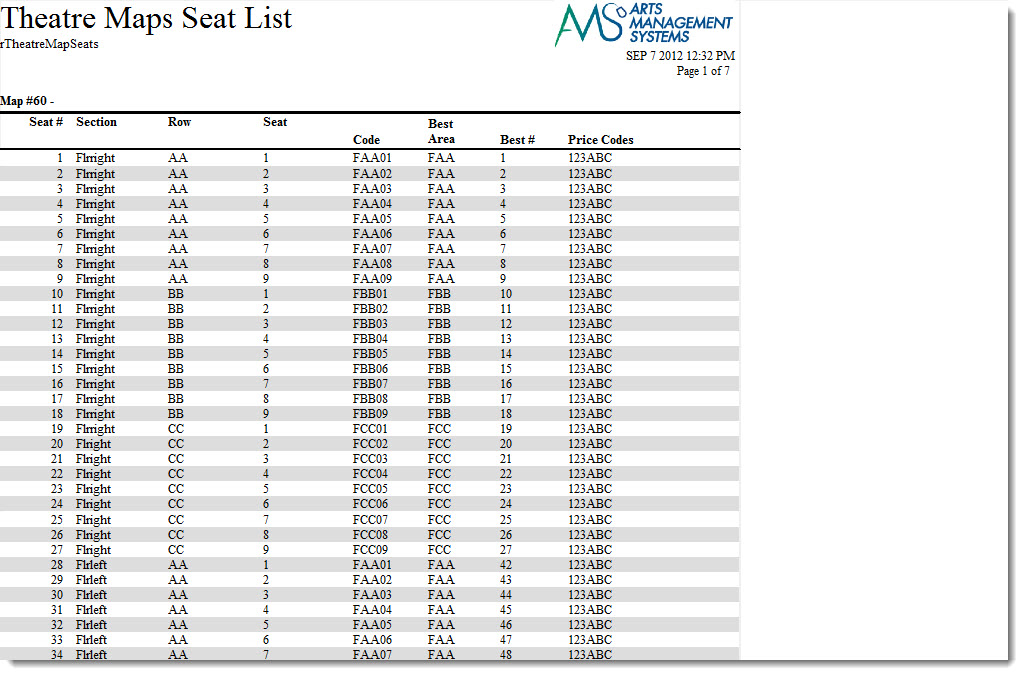
Click here for information on generating a report. Click here for information on the Finished Report window.
Purpose of the Report
This report generates the seat codes and descriptions for each seat in the theatre.
Departments Who Benefit From This Report
| Box Office | Use this report to view and verify the names seats file for a venue map. This is also useful for sending to Arts Management Support if there is a problem with the named seats for a venue. |
Criteria Hints
It is recommended that this report be run with a single venue map as the criteria.
| Parameter Field | Condition | Value |
| Venue Map # | is one of | (Venue Map) |
Ticket Face Detail
Ticket Face Detail
The Ticket Face Detail report can be found under the Miscellaneous Reports category. Below the image are detailed notes to help you in using the report.
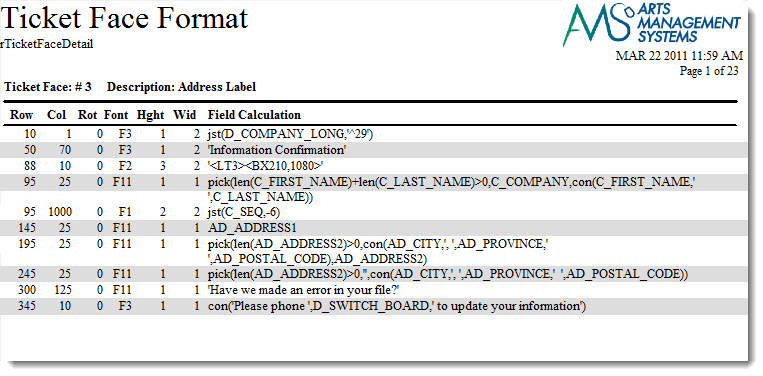
Click here for information on generating a report. Click here for information on the Finished Report window.
Purpose of the Report
This report generates a detail for each ticket face setup in Theatre Manager.
Departments Who Benefit From This Report
| Box Office | Use this report to view and verify the ticket faces setup. This is also useful for sending to Arts Management Support if there are problems with a ticket face. |
Criteria Hints
It is recommended that this report be run with a single venue map as the criteria.
| Parameter Field | Condition | Value |
| Ticket Face Number | = | (Ticket Face) |
Ticket Face List
Ticket Face List
The Ticket Face List report can be found under the Miscellaneous Reports category. Below the image are detailed notes to help you in using the report.
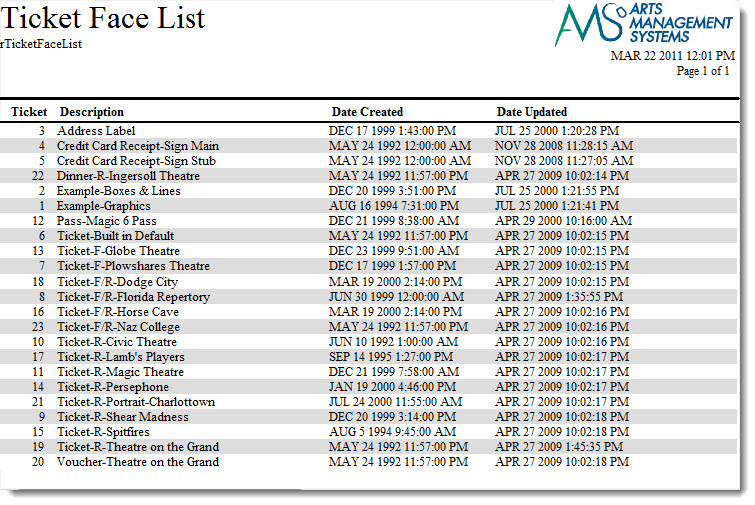
Click here for information on generating a report. Click here for information on the Finished Report window.
Purpose of the Report
This report generates a listing of all ticket faces currently setup in Theatre Manager.
Departments Who Benefit From This Report
| Box Office | Use this report to view and verify the ticket faces that are setup. |
Criteria Hints
It is recommended that this report be run without criteria.
Workflow/Notification E-mail List
Workflow/Notification E-mail List
The Workflow/Notification E-mail List report can be found under the Miscellaneous Reports category. Below the image are detailed notes to help you in using the report.
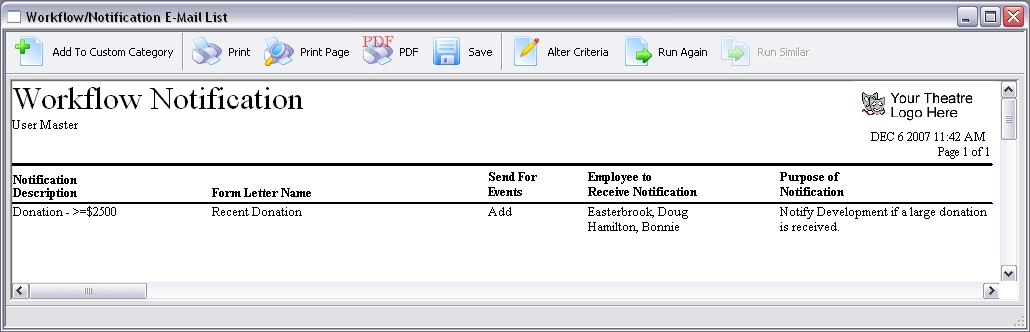
Click here for information on generating a report. Click here for information on the Finished Report window.
Purpose of the Report
This report generates a listing of all workflow notifications currently setup in Theatre Manager.
Departments Who Benefit From This Report
| Box Office | Use this report to view and verify all workflow notifications. |
Criteria Hints
It is recommended that this report be run without criteria.
Online Forms and Responses
Online Forms and Responses
Form List

Form List (with Notes)

Form List (with Questions)


Form Responses (Consent)
Form Responses (Consent)

|
Forms cross multiple events and performances. If somebody fills out a form for one class, its entirely possible that is is valid for the other class and TM will not ask the user to fill it out twice.
TM will make sure the form is not expired though. So, if you want to see if a form is in force for the patron who bought online for a course, then use bought for events as one of the criteria for this report |
Form Responses (Questionnaire)
Form Responses (Questionnaire)

|
Forms cross multiple events and performances. If somebody fills out a form for one class, its entirely possible that is is valid for the other class and TM will not ask the user to fill it out twice.
TM will make sure the form is not expired though. So, if you want to see if a form is in force for the patron who bought online for a course, then use bought for events as one of the criteria for this report |
Order and Payments
Bank Deposit - Totals
Bank Deposit - Totals
The Bank Deposit - Totals report can be found under the Order and Payments category. Below the image are detailed notes to help you in using the report.

Click here for information on generating a report. Click here for information on the Finished Report window.
Purpose of the Report
This report generates a summary of current and past bank deposits.
Departments Who Benefit From This Report
| Box Office | Use this report to see a summary of the deposits for the bank that are outstanding or in the past. |
| Accounting | Use this report to see a summary of the deposits for the bank that are outstanding or in the past. |
Criteria Hints
It is recommended that this report be run with for a single date or with a range of dates as the criteria.
| Parameter Field | Condition | Value |
| G/L Header Date - Posted | between | (Date) and (Date) |
Bank Deposit Check Listing
Bank Deposit Check Listing
The Bank Deposit Check Listing report can be found under the Order and Payments category. Below the image are detailed notes to help you in using the report.

Click here for information on generating a report. Click here for information on the Finished Report window.
Purpose of the Report
This report generates a detailed listing of past bank deposits and the checks that were part of the deposit.
Departments Who Benefit From This Report
| Box Office | Use this report to review deposits that have previously been taken to the bank. |
| Accounting | Use this report to review deposits that have previously been taken to the bank. |
Criteria Hints
It is recommended that this report be run with for a single date or with a range of dates as the criteria.
| Parameter Field | Condition | Value |
| G/L Header Date - Posted | between | (Date) and (Date) |
Cash Flow - Post Dated Payment Analysis
Cash Flow - Post Dated Payment Analysis
The Cash Flow - Post Dated Payment Analysis report can be found under the Order and Payments category. This reports has additional criteria than other reports. Click here for more information on the Subtotal Options tab. Below the image are detailed notes to help you in using the report.
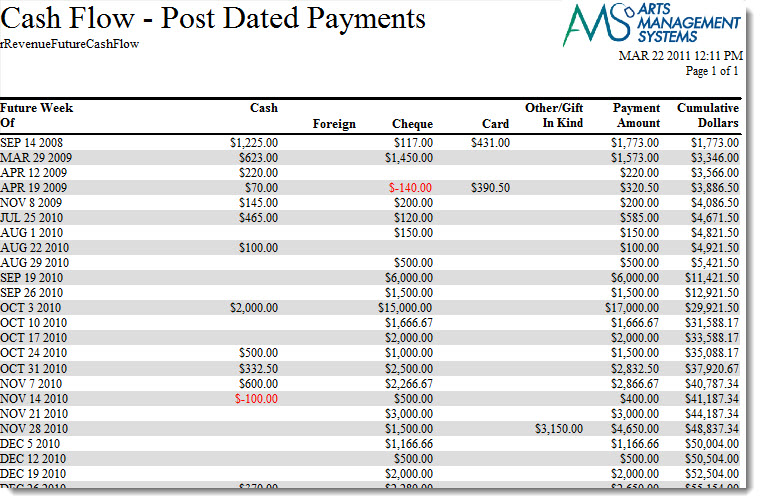
Click here for information on generating a report. Click here for information on the Finished Report window.
Purpose of the Report
This report generates a summary of cash flow into the organization, including future cash flow based on post dated payments.
Departments Who Benefit From This Report
| Box Office | Use this report to review past and future cash flow for the organization. |
| Accounting | Use this report to review past and future cash flow for the organization. |
Criteria Hints
It is recommended that this report be run without criteria.
Check Request
Check Request
The Check Request report can be found under the Order and Payments category. Below the image are detailed notes to help you in using the report.

Click here for information on generating a report. Click here for information on the Finished Report window.
Purpose of the Report
This report generates a listing of refunds owed to a patron that are to be disbursed by check.
Departments Who Benefit From This Report
| Box Office | Use this report to see a listing of all refunds owed to a patron that need a check issued. |
| Accounting | Use this report to see a listing of all refunds owed to a patron that need a check issued. |
Criteria Hints
It is recommended that this report be run without criteria.
Credit Card Verification Responses
Credit Card Verification Responses
The Credit Card Verification Responses report can be found under the Order and Payments category. Below the image are detailed notes to help you in using the report.

Click here for information on generating a report. Click here for information on the Finished Report window.
Purpose of the Report
This report generates a listing of the responses received during payment verification.
Departments Who Benefit From This Report
| Box Office | Use this report to review the responses received during payment verification to look for any problems. |
Criteria Hints
It is recommended that this report be run with for a range of dates and with a payment method as the criteria.
| Parameter Field | Condition | Value |
| G/L Header Date - Posted | between | (Date) and (Date) |
| Payment Method | is one of | (Payment Method) |
Use the SHIFT key to select a series of payment methods, or the OPTION key (Mac) or CTRL key (Windows) to select multiple individual payment methods.
Daily Change in A/R
Daily Change in A/R
The Daily Change in A/R report can be found under the Order and Payments category. This report has additional criteria options. Click here for more information about the Sort & Subtotal tab. Click here for more information about the Formatting tab. Below the image are detailed notes to help you in using the report.

Click here for information on generating a report. Click here for information on the Finished Report window.
Purpose of the Report
This report generates a summary of the changes that occurred in Accounts Receivable.
Departments Who Benefit From This Report
| Box Office | Use this report to see a summary of the changes to the A/R account. |
| Accounting | Use this report to see a summary of the changes to the A/R account. |
Criteria Hints
It is recommended that this report be run with for a range of datesas the criteria.
| Parameter Field | Condition | Value |
| G/L Header Date - Posted | between | (Date) and (Date) |
Deposit Detail - by Employee
Deposit Detail - by Employee
The Deposit Detail - by Employee report can be found under the Order and Payments category. Below the image are detailed notes to help you in using the report.

Click here for information on generating a report. Click here for information on the Finished Report window.
Purpose of the Report
This report generates a detailed listing of current and past deposits by employee.
Departments Who Benefit From This Report
| Box Office | Use this report for a detailed view of current and past deposits by employee. |
| Accounting | Use this report for a detailed view of current and past deposits by employee. |
Criteria Hints
It is recommended that this report be run with for a specific employee with a range of dates as the criteria.
| Parameter Field | Condition | Value |
| Payment Received By | is one of | (Employee) |
| G/L Header Date - Posted | between | (Date) and (Date) |
Use the SHIFT key to select a series of employees, or the OPTION key (Mac) or CTRL key (Windows) to select multiple individual employees.
Deposit Detail
Deposit Detail
The Deposit Detail report can be found under the Order and Payments category. Below the image are detailed notes to help you in using the report.

Click here for information on generating a report. Click here for information on the Finished Report window.
Purpose of the Report
This report generates a detailed listing of current and past deposits.
Departments Who Benefit From This Report
| Box Office | Use this report for a detailed view of current and past deposits. |
| Accounting | Use this report for a detailed view of current and past deposits. |
Criteria Hints
It is recommended that this report be run with for a range of dates as the criteria.
| Parameter Field | Condition | Value |
| G/L Header Date - Posted | between | (Date) and (Date) |
Deposit Summary - by Employee
Deposit Summary - by Employee
The Deposit Summary - by Employee report can be found under the Order and Payments category. Below the image are detailed notes to help you in using the report.

Click here for information on generating a report. Click here for information on the Finished Report window.
Purpose of the Report
This report generates a summary of the current and past deposits by employee in Theatre Manager.
Departments Who Benefit From This Report
| Box Office | Use this report to view a summary of the current and past deposits by employee. |
| Accounting | Use this report to view a summary of the current and past deposits by employee. |
Criteria Hints
It is recommended that this report be run with a specificrange of dates as the criteria.
| Parameter Field | Condition | Value |
| G/L Header Date - Posted | between | (Date) and (Date) |
Deposit Summary
Deposit Summary
The Deposit Summary report can be found under the Order and Payments category. Below the image are detailed notes to help you in using the report.

Click here for information on generating a report. Click here for information on the Finished Report window.
Purpose of the Report
This report generates a summary of the current and past deposits in Theatre Manager.
Departments Who Benefit From This Report
| Box Office | Use this report to view a summary of the current and past deposits. |
| Accounting | Use this report to view a summary of the current and past deposits. |
Criteria Hints
It is recommended that this report be run with a specificrange of dates as the criteria.
| Parameter Field | Condition | Value |
| G/L Header Date - Posted | between | (Date) and (Date) |
Order Detail - by Date (Tickets Only)
Order Detail - by Date (Tickets Only)
The Order Detail - by Date (Tickets Only) report can be found under the Order and Payments category. Below the image are detailed notes to help you in using the report.

Click here for information on generating a report. Click here for information on the Finished Report window.
Purpose of the Report
This report generates a detailed listing of orders by date for tickets that have been purchased.
Departments Who Benefit From This Report
| Box Office | Use this report to review orders by date for ticket sales. |
Criteria Hints
It is recommended that this report be run with a specificrange of dates as the criteria.
| Parameter Field | Condition | Value |
| Order Date | between | (Date) and (Date) |
Order Detail - by Employee, by Patron (Tickets Only)
Order Detail - by Employee, by Patron (Tickets Only)
The Order Detail - by Employee, by Patron (Tickets Only) report can be found under the Order and Payments category. Below the image are detailed notes to help you in using the report.
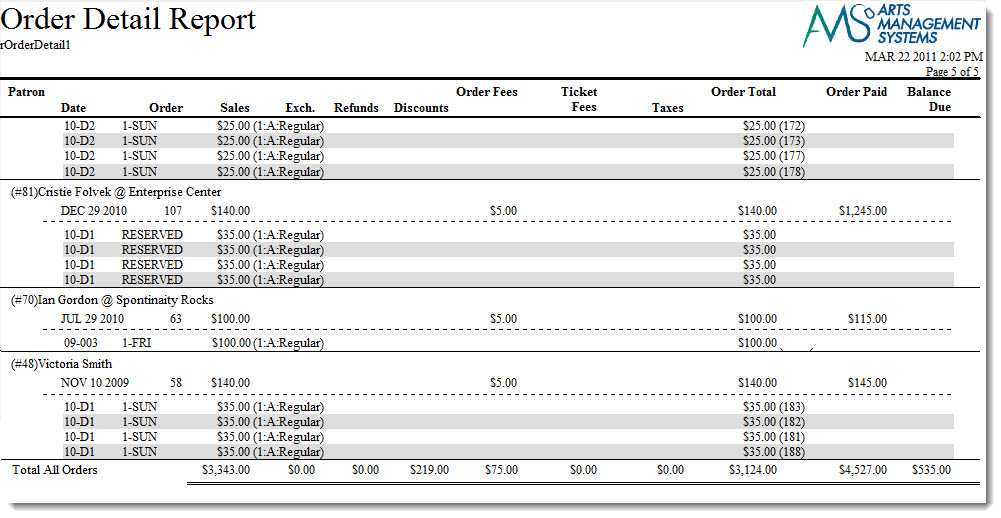
Click here for information on generating a report. Click here for information on the Finished Report window.
Purpose of the Report
This report generates a detailed listing of orders for each employee by patron for tickets sales.
Departments Who Benefit From This Report
| Box Office | Use this report to review orders by employee for ticket sales. |
Criteria Hints
It is recommended that this report be run with a specificrange of dates and/or employee as the criteria.
| Parameter Field | Condition | Value |
| Order Date | between | (Date) and (Date) |
| Employee # | is one of | (Employee) |
Use the SHIFT key to select a series of employees, or the OPTION key (Mac) or CTRL key (Windows) to select multiple individual employees.
Order Detail - by Patron (Ticket, Pass/G.C., Donation, Resource, Fee & Payment)
Order Detail - by Patron (Ticket, Pass/G.C., Donation, Resource, Fee & Payment)
The Order Detail - by Patron (Ticket, Membership, Donation, Fee & Payment) report can be found under the Order and Payments category. Below the image are detailed notes to help you in using the report.

Click here for information on generating a report. Click here for information on the Finished Report window.
Purpose of the Report
This report generates a detailed listing of each patron's orders and all the detail that is in it.
Departments Who Benefit From This Report
| Box Office | Use this report to review patron's orders. |
Criteria Hints
- It is recommended that this report be run with a specific range of patrons as the criteria.
- If you are looking to see for a specific performance, or donation campaign, how people paid and what else was in the order, then build a mail list of 'people who bought for an event' or 'people who donated to..', then use that mail list as the criteria for this report.
| Parameter Field | Condition | Value |
| Patron Name-Last | between | (Last Name) and (Last Name) |
| Parameter Field | Condition | Value |
| Patron Belongs to mail list | is one of | Mail list of ticket buyers |
Order Detail - by Patron (Tickets Only)
Order Detail - by Patron (Tickets Only)
The Order Detail - by Patron (Tickets Only) report can be found under the Order and Payments category. Below the image are detailed notes to help you in using the report.

Click here for information on generating a report. Click here for information on the Finished Report window.
Purpose of the Report
This report generates a detailed listing of each patron's orders for tickets.
Departments Who Benefit From This Report
| Box Office | Use this report to review patron's orders for tickets. |
Criteria Hints
It is recommended that this report be run with a specific range of patrons as the criteria.
| Parameter Field | Condition | Value |
| Patron Name-Last | between | (Last Name) and (Last Name) |
Order Summary
Order Summary
The Order Summary report is found in the Order and Payments category. This report has additional criteria options. Click here for more information about the Sort & Subtotal tab. Click here for more information about the Formatting tab. Below the image are detailed notes to help you in using the report.
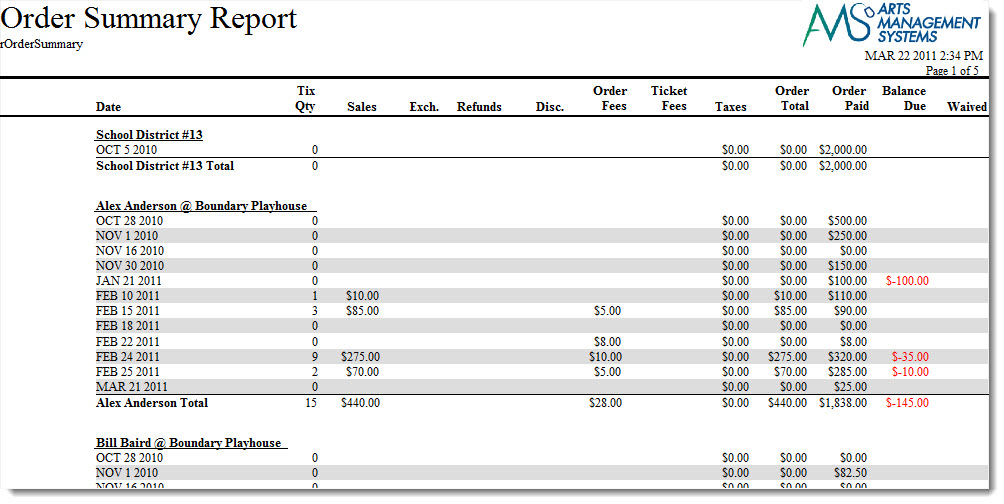
Click here for information on generating a report. Click here for information on the Finished Report window.
Purpose of the Report
This report generates a summary of each order attached to a patron.
Departments Who Benefit From This Report
| Box Office | Use this report to review the orders for a patron. |
Criteria Hints
It is recommended that this report be run with a specific range of patrons as the criteria.
| Parameter Field | Condition | Value |
| Patron Name-Last | between | (Last Name) and (Last Name) |
Payment Detail by Deposit
Payment Detail by Deposit
The Payment Detail by Deposit report can be found under the Order and Payments category. Below the image are detailed notes for helping you in using this report.

Click here for information on generating a report. Click here for information on the Finished Report window.
Purpose of the Report
This report generates a listing of current and past payments as they are associated with a deposit.
Departments Who Benefit From This Report
| Box Office | Use this report to look at the payments associated with a deposit. |
Criteria Hints
It is recommended that this report be run with a specific date range as the criteria.
| Parameter Field | Condition | Value |
| G/L Header Date - Posted | between | (Date) and (Date) |
Payment Detail by Employee
Payment Detail by Employee
The Payment Detail by Employee report can be found under the Order and Payments category. Below the image are detailed notes to help you use the report.

Click here for information on generating a report. Click here for information on the Finished Report window.
Purpose of the Report
This report generates a listing of current and past payments by the employee and date they were handled.
Departments Who Benefit From This Report
| Box Office | Use this report to look at the payments handled by an employee by date. |
Criteria Hints
It is recommended that this report be run with a specific date range and employee as the criteria.
| Parameter Field | Condition | Value |
| Employee # | is one of | (Employee) |
| G/L Header Date - Posted | between | (Date) and (Date) |
Use the SHIFT key to select a series of employees, or the OPTION key (Mac) or CTRL key (Windows) to select multiple individual employees.
Payment Detail by Patron
Payment Detail by Patron
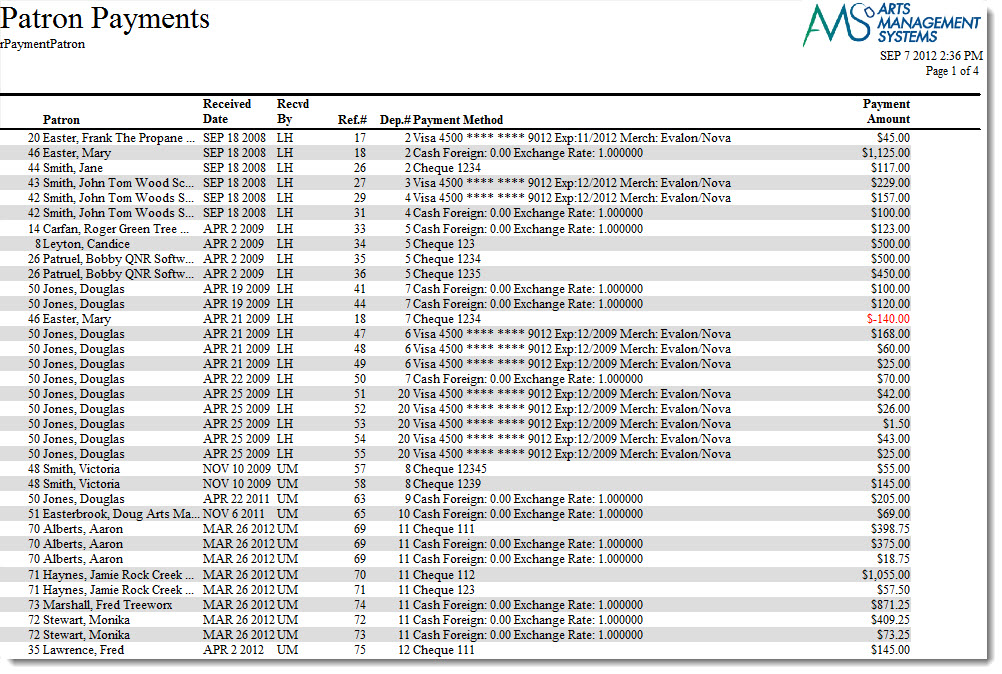
Click here for information on generating a report. Click here for information on the Finished Report window.
Purpose of the Report
This report generates a listing of all payments by a patron.
Departments Who Benefit From This Report
| Box Office | Use this report to look at payments that have been made by a patron. |
Criteria Hints
It is recommended that this report be run with a specific date range and range of patrons as the criteria.
| Parameter Field | Condition | Value |
| Patron Name-Last | between | (Last Name) and (Last Name) |
| G/L Header Date - Posted | between | (Date) and (Date) |
| Post Dated Payments | Please refer to the description of post dated payment report criteria to limit this report to only post dated payments | |
Payment Summary - Sales Transaction Allocation
Payment Summary - Sales Transaction Allocation
The Payment Summary - Sales Transaction Allocation report can be found under the Order and Payments category. This report has additional criteria options. Click here for more information about the Sort & Subtotal tab. Click here for more information about the Formatting tab. Below the image are detailed notes to help you in using the report.

Click here for information on generating a report. Click here for information on the Finished Report window.
Purpose of the Report
You use the Payment Summary - Sales Transaction Allocation to allocate how much was paid by credit card, cash, checks, etc. based on transactions. This is best done on a dialy basis AFTER the End Of Day Wizard.
Departments Who Benefit From This Report
| Accounting | Use this report to see a total of all payments for a specific day. |
Criteria Hints
It is recommended that this report be run with a specific date rangeas the criteria.
| Parameter Field | Condition | Value |
| G/L Header Date - Posted | between | (Date) and (Date) |
Payment Summary
Payment Summary
The Payment Summary report can be found under the Order and Payments category. This report has additional criteria options. Click here for more information about the Sort & Subtotal tab. Click here for more information about the Formatting tab. Below the image are detailed notes to help you in using the report.
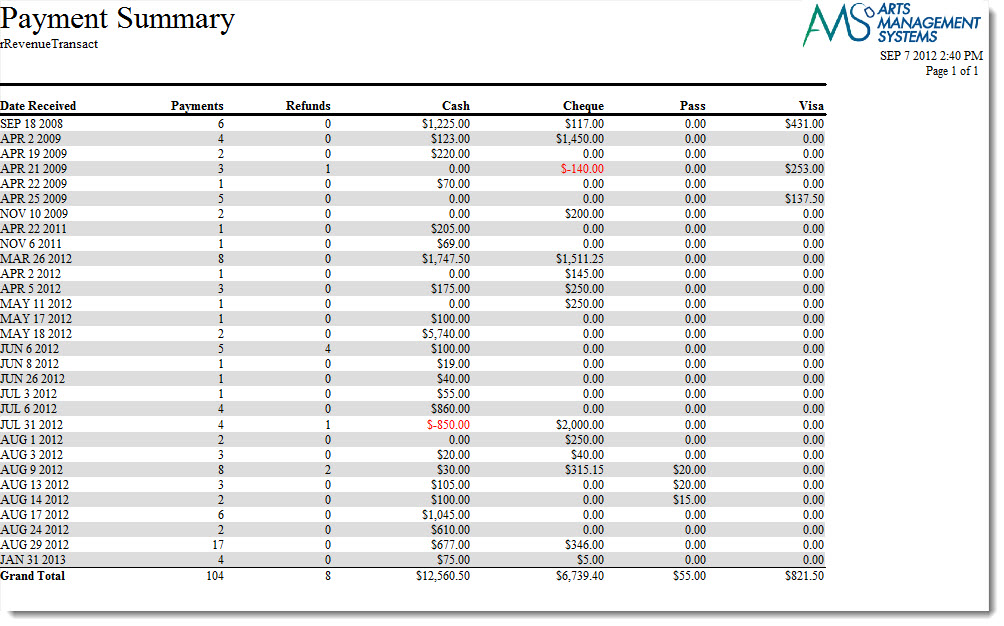
Click here for information on generating a report. Click here for information on the Finished Report window.
Purpose of the Report
This report generates a quick listing of all payment totals for a date.
Departments Who Benefit From This Report
| Box Office | Use this report to see a total of all payments for a specific day. |
Criteria Hints
It is recommended that this report be run with a specific date rangeas the criteria.
| Parameter Field | Condition | Value |
| G/L Header Date - Posted | between | (Date) and (Date) |
Receivables - As Of Specific Date
Receivables - As Of Specific Date
The Receivables - As Of Specific Date report can be found under the Order and Payments category. Below the image are detailed notes to help you in using the report.
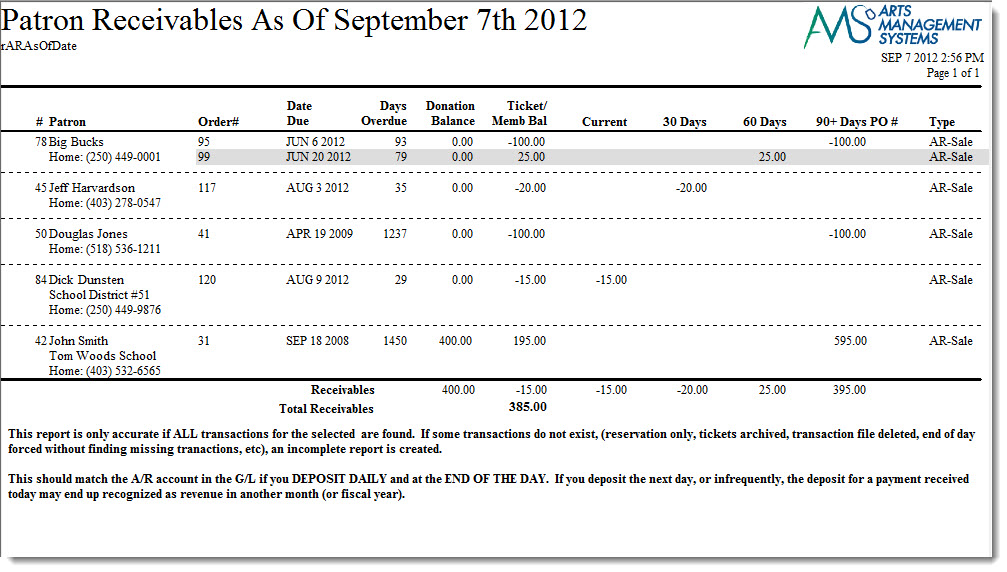
Click here for information on generating a report. Click here for information on the Finished Report window.
Purpose of the Report
You use the Receivables - As Of Specific Date to compute the A/R as of a specific date (e.g. Year End) by reading the transaction history and ignoring transactions after the specified date.
|
This report may be inaccurate if transactions are missing or dated incorrectly around the date in question. Most venues delay creation of transactions for web purchases till the next EOD - so if the date in question is over a weekend and and EOD was not done daily, you may see some orders displayed which reflect the delay in posting. |
Departments Who Benefit From This Report
| Box Office | Use this report to see which orders currently have outstanding balances and the aging of those balances. |
Criteria Hints
It is recommended that this report be run with only the receivables date as criteria.
Receivables - Based on Order Balances
Receivables - Based on Order Balances
The Receivables Based on Order Balances report can be found under the Order and Payments category. Below the image are detailed notes to help you in using the report.
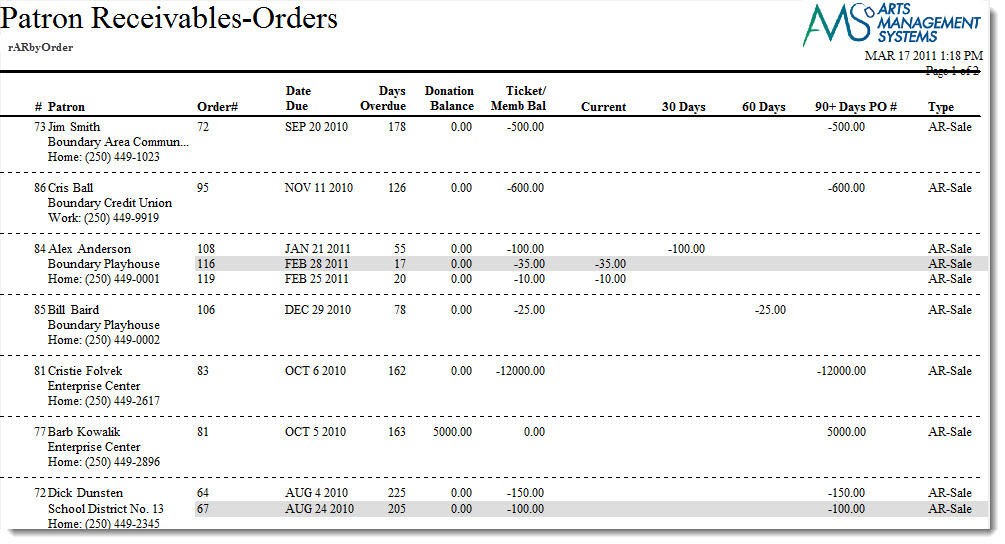
Click here for information on generating a report. Click here for information on the Finished Report window.
Purpose of the Report
This report generates a listing of all orders that have outstanding balances.
Departments Who Benefit From This Report
| Box Office | Use this report to see which orders currently have outstanding balances and the aging of those balances. |
Criteria Hints
It is recommended that this report be run without criteria.
Receivables - Based on Order Balances by Play
Receivables - Based on Order Balances by Play
The Receivables - Based on Order Balances by Play report can be found under the Order and Payments category. Below the image are detailed notes to help you in using the report.
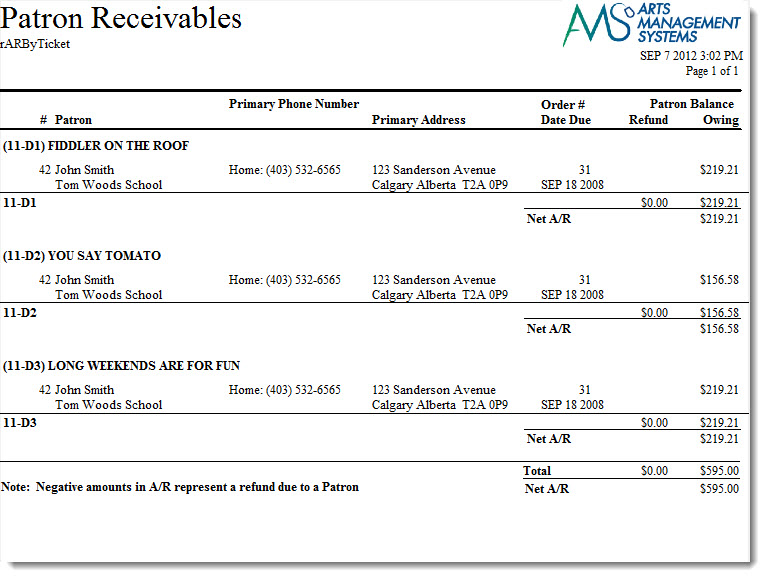
Click here for information on generating a report. Click here for information on the Finished Report window.
Purpose of the Report
This report generates a listing of all orders that have outstanding balances by event.
Departments Who Benefit From This Report
| Box Office | Use this report to see outstanding order balances by each event along with contact information on the patron. |
Criteria Hints
It is recommended that this report be run without criteria or for a specific event.
| Parameter Field | Condition | Value |
| Event # | is one of | (Event) |
Use the SHIFT key to select a series of events, or the OPTION key (Mac) or CTRL key (Windows) to select multiple individual events.
Receivables - Based on Patron Balances
Receivables - Based on Patron Balances
The Receivables - Based on Patron Balances report can be found under the Order and Payments category. Below the image are detailed notes to help you in using the report.
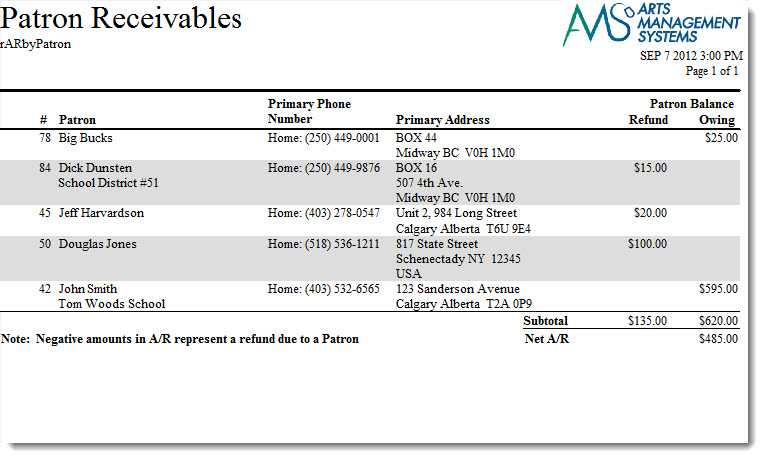
Click here for information on generating a report. Click here for information on the Finished Report window.
Purpose of the Report
This report generates a listing of all patrons that have an outstanding balance and the accumulated totals.
Departments Who Benefit From This Report
| Box Office | Use this report to see all patrons that have an outstanding balance and the accumulated total for the balance. |
Criteria Hints
It is recommended that this report be run without criteria.
Pass G.C. Reports
Pass G.C. Reports
| >Member Cards> | >A report used for printing a list of member cards and the patron they are attached to. Click here for more information on the Member Cards report.> |
| >Member Detail - Complete Information> | >A detail report showing each member and associated information. Click here for more information on the Member Detail - Complete Information report.> |
| >Member Detail - Member> | >A report showing a membership summary by patron. Click here for more information on the Member Detail - Member report.> |
| >Member Detail - Type> | >A report showing a membership summary by membership type. Click here for more information on the Member Detail - Type report.> |
| >Member Detail - Type Remaining> | >A report showing remaining memberships sorted by membership type. Click here for more information on the Member Detail - Type Remaining report.> |
| >Member Detail - Year> | >A report showing memberships purchased by fiscal year. Click here for more information on the Member Detail - Year report.> |
| >Member Summary> | >A report listing a summary of memberships by membership type and year. Click here for more information on the Member Summary report.> |
| >Member Summary - Remaining> | >A report listing a summary of memberships by membership type and year and includes the remaining amounts for each membership type. Click here for more information on the Member Summary - Remaining report.> |
| >Member Type List> | >A listing of all membership types setup in Theatre Manager. Click here for more information on the Member Type List report.> |
Pass/G.C. Cards
Pass/G.C. Cards
The Pass/G.C. report can be found under the Membership Reports category. Below the image are detailed notes to help you in using the report..
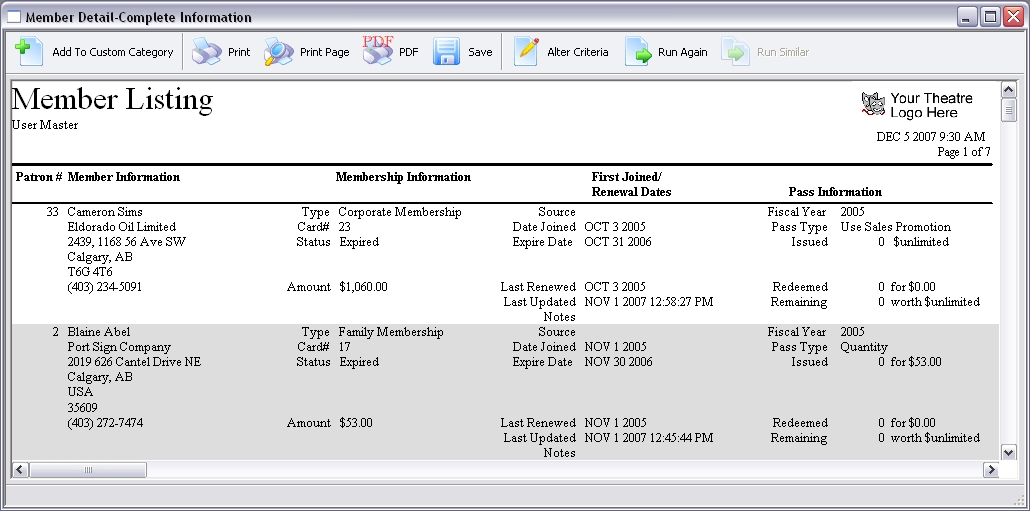
Click here for information on generating a report. Click here for information on the Finished Report window.
Purpose of the Report
You use the Pass/G.C. Cards to print the card number and the name for each patron.
Departments Who Benefit From This Report
| Box Office | Use this report to see the card number for each patron. |
Criteria Hints
It is recommended that this report be run with a single membership type or range of patrons as the criteria.
| Parameter Field | Condition | Value |
| Member Type Seq # | is one of | (Membership) |
| Patron Name-Last | between | (Name) and (Name) |
Use the SHIFT key to select a series of memberships, or the OPTION key (Mac) or CTRL key (Windows) to select multiple individual memberships.
Pass/G.C. Detail - Complete Information
Pass/G.C. Detail - Complete Information
The Pass/G.C. Detail - Complete Information report can be found under the Membership Reports category. Below the image are detailed notes to help you in using the report.
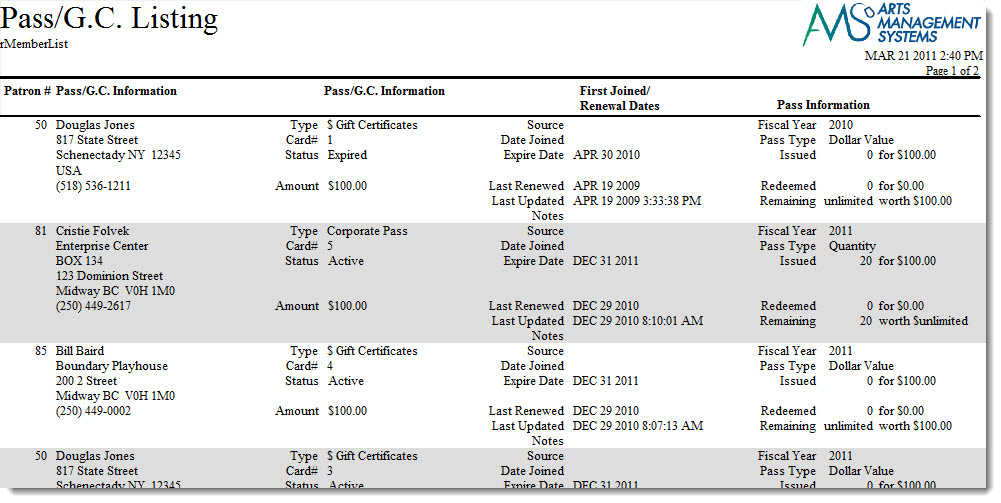
Click here for information on generating a report. Click here for information on the Finished Report window.
Purpose of the Report
This report generates a detailed listing for each membership that has been purchased by a patron.
Departments Who Benefit From This Report
| Box Office | Use this report to see information about memberships and the patrons that have purchased them. |
Criteria Hints
It is recommended that this report be run with a single membership type or range of patrons as the criteria.
| Parameter Field | Condition | Value |
| Member Type Seq # | is one of | (Membership) |
| Patron Name-Last | between | (Name) and (Name) |
Use the SHIFT key to select a series of memberships, or the OPTION key (Mac) or CTRL key (Windows) to select multiple individual memberships.
Pass/G.C. Detail - Pass/G.C.
Pass/G.C. Detail - Pass/G.C.
The Pass/G.C. Detail - Pass/G.C. report can be found under the Membership Reports category. Below the image are detailed notes to help you in using the report.
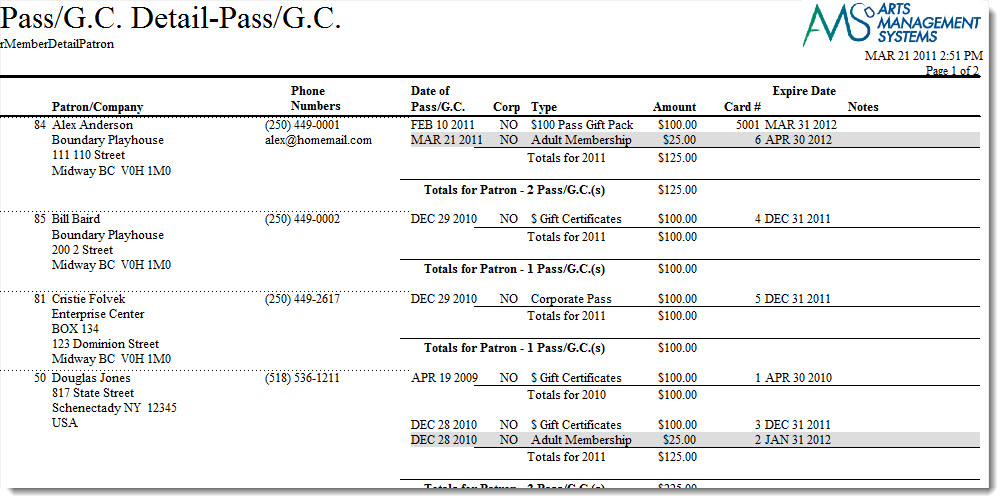
Click here for information on generating a report. Click here for information on the Finished Report window.
Purpose of the Report
This report generates a detailed listing for each patron that has purchased a membership.
Departments Who Benefit From This Report
| Box Office | Use this report to look up a patron and the memberships that have been purchased. |
Criteria Hints
It is recommended that this report be run with a range of patrons as the criteria.
| Parameter Field | Condition | Value |
| Patron Name-Last | between | (Name) and (Name) |
Pass/G.C. Detail - Type
Pass/G.C. Detail - Type
The Pass/G.C. Detail - Type report can be found under the Membership Reports category. Below the image are detailed notes to help you in using the report.
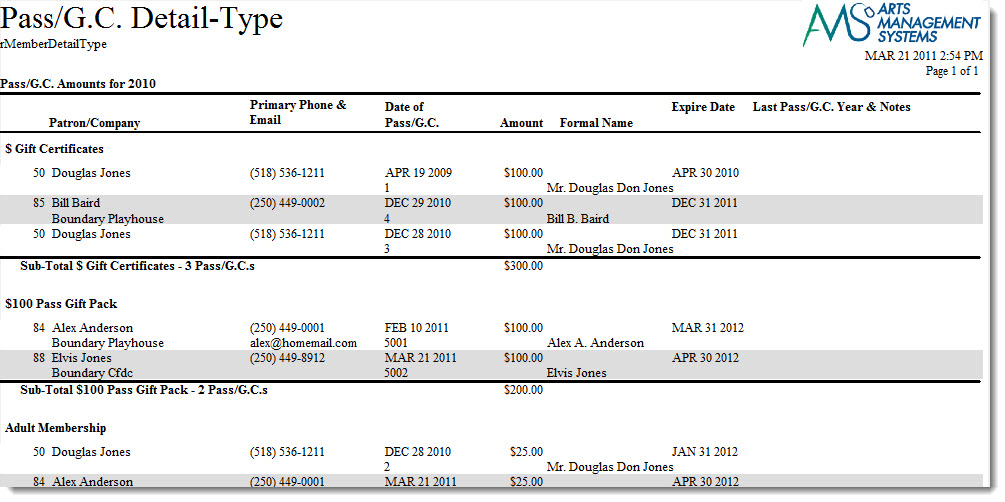
Click here for information on generating a report. Click here for information on the Finished Report window.
Purpose of the Report
This report generates a detailed listing of memberships purchased by type of membership.
Departments Who Benefit From This Report
| Box Office | Use this report to see how many patrons have purchased each membership. |
| General Manager | Use this report to see how many patrons have purchased each membership. |
Criteria Hints
It is recommended that this report be run for a specific fiscal year and/or with a specific group of memberships as the criteria.
| Parameter Field | Condition | Value |
| Membership Fiscal Year | = | (Fiscal Year) |
| Member Type Seq # | is one of | (Membership) |
Use the SHIFT key to select a series of memberships, or the OPTION key (Mac) or CTRL key (Windows) to select multiple individual memberships.
Pass/G.C. Detail - Type Remaining
Pass/G.C. Detail - Type Remaining
The Pass/G.C. Detail - Type Remaining report can be found under the Membership Reports category. Below the image are detailed notes to help you in using the report.
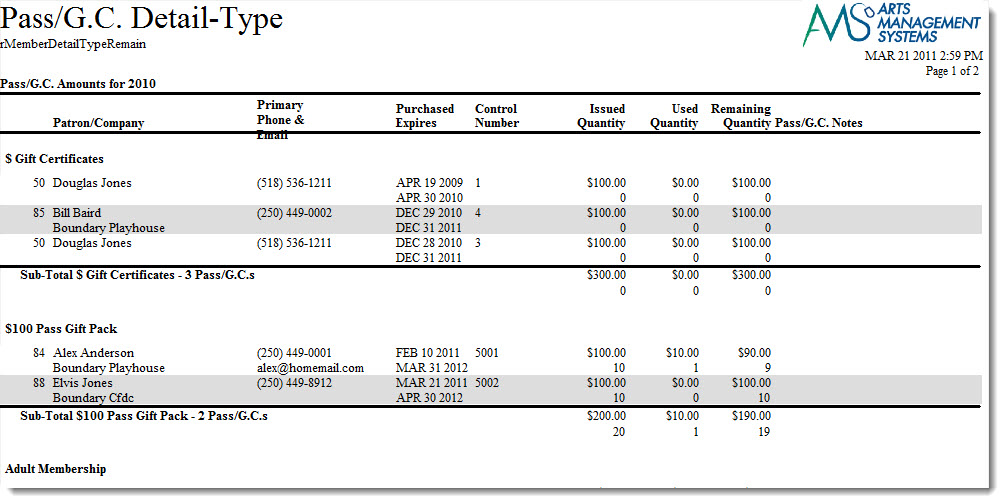
Click here for information on generating a report. Click here for information on the Finished Report window.
Purpose of the Report
This report generates a detailed listing of memberships purchased by type of membership and the amount left on the membership.
Departments Who Benefit From This Report
| Box Office | Use this report to see how many patrons have purchased each membership and have remaining balances. This is useful if memberships need to be written off after a certain time frame. |
Criteria Hints
It is recommended that this report be run for a specific fiscal year and/or with a specific group of memberships as the criteria.
| Parameter Field | Condition | Value |
| Membership Fiscal Year | = | (Fiscal Year) |
| Member Type Seq # | is one of | (Membership) |
| Membership Remaining - $ Amount | is greater than | 0 |
Use the SHIFT key to select a series of memberships, or the OPTION key (Mac) or CTRL key (Windows) to select multiple individual memberships.
Pass/G.C. Detail - Year
Pass/G.C. Detail - Year
The Pass/G.C. Detail - Year report can be found under the Membership Reports category. Below the image are detailed notes to help you in using the report.
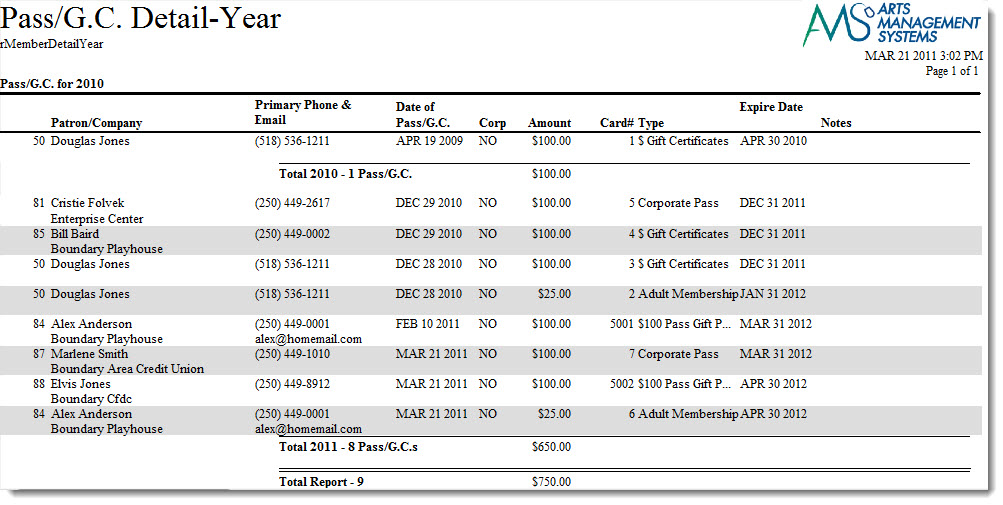
Click here for information on generating a report. Click here for information on the Finished Report window.
Purpose of the Report
This report generates a summary listing of patrons with memberships by fiscal year.
Departments Who Benefit From This Report
| Box Office | Use this report as a quick view of the patrons who purchased membershipsduring a fiscal year. |
Criteria Hints
It is recommended that this report be run for a specific fiscal yearas the criteria.
| Parameter Field | Condition | Value |
| Membership Fiscal Year | = | (Fiscal Year) |
Pass/G.C. Summary - Remaining
Pass/G.C. Summary - Remaining
The Pass/G.C. Summary - Remaining report can be found under the Membership Reports category. Below the image are detailed notes to help you in using the report.
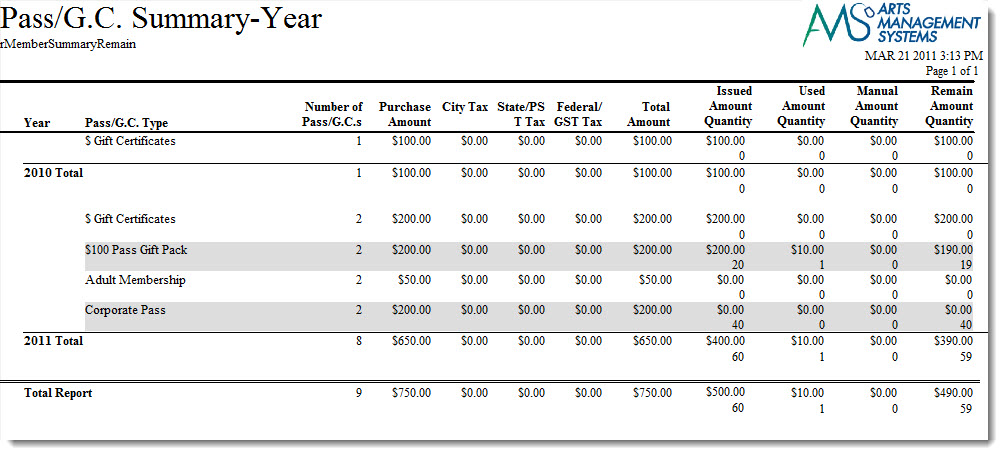
Click here for information on generating a report. Click here for information on the Finished Report window.
Purpose of the Report
This report generates a summary of all memberships by fiscal year and the remaining balances.
Departments Who Benefit From This Report
| Box Office | Use this report to see remaining balances for all memberships in a fiscal year. This is useful if memberships needed to be written off after a certain time frame. |
Criteria Hints
It is recommended that this report be run for a specific fiscal yearas the criteria.
| Parameter Field | Condition | Value |
| Membership Fiscal Year | = | (Fiscal Year) |
Pass/G.C. Summary
Pass/G.C. Summary
The Pass/G.C. Summary report can be found under the Membership Reports category. Below the image are detailed notes to help you in using the report..
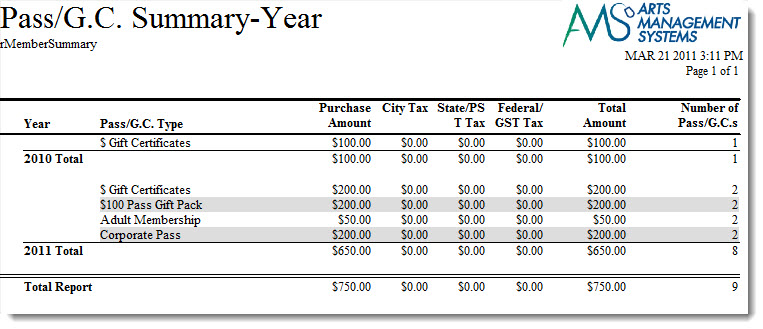
Click here for information on generating a report. Click here for information on the Finished Report window.
Purpose of the Report
This report generates a summary of all memberships by fiscal year.
Departments Who Benefit From This Report
| Box Office | Use this report as a quick view of the memberships purchased during a fiscal year. |
Criteria Hints
It is recommended that this report be run for a specific fiscal yearas the criteria.
| Parameter Field | Condition | Value |
| Membership Fiscal Year | = | (Fiscal Year) |
Pass/G.C. Type List
Pass/G.C. Type List
The Pass/G.C. Type List report can be found under the Membership Reports category. Below the image are detailed notes to help you in using the report.
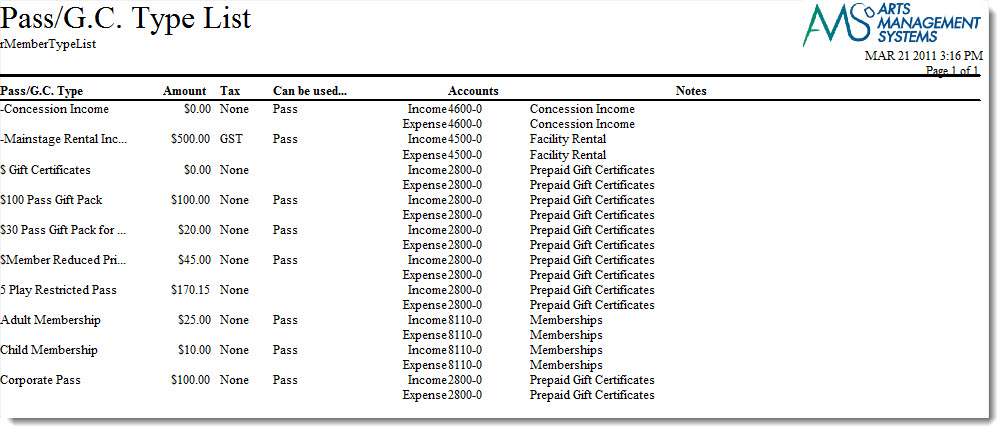
Click here for information on generating a report. Click here for information on the Finished Report window.
Purpose of the Report
This report generates a listing of all memberships currently setup in Theatre Manager
Departments Who Benefit From This Report
| Use this report to view and verify all membership types. |
Criteria Hints
It is recommended that this report be run without criteria.
Patron Reports
Media Detail
Media Detail
The Media Detail report can be found under the Patron Reports category.

Click here for information on generating a report. Click here for information on the Finished Report window.
Purpose of the Report
This report generates a listing of all patrons with media information attached to their patron record.
Departments Who Benefit From This Report
| Box Office | Use this report to view and verify all media patrons. |
| Marketing | Use this report to view and verify all media patrons. |
Criteria Hints
It is recommended that this report be run without criteria.
Patron List - Email Addresses
Patron List - Email Addresses
The Patron List Email Addresses report can be found under the Patron Reports category. Below the image are detailed notes to help you in using the report.

Click here for information on generating a report. Click here for information on the Finished Report window.
Purpose of the Report
This report generates a listing of all patrons along with contact information and other useful notes.
Departments Who Benefit From This Report
| Box Office | Use this report as a reference for the patrons in the database. |
| Marketing | Use this report as a reference for the patrons in the database. |
Criteria Hints
It is recommended that this report be run witha single patron or range of patrons as the criteria.
| Parameter Field | Condition | Value |
| Patron Name-Last | between | (Last Name) and (Last Name) |
Patron List - Greeting & Formal Names
Patron List - Greeting & Formal Names
The Patron List - Greeting & Formal Names report can be found under the Patron Reports category. Below the image are detailed notes to help you in using the report.

Click here for information on generating a report. Click here for information on the Finished Report window.
Purpose of the Report
This report generates a listing of all patrons with their Greeting and Formal names.
Departments Who Benefit From This Report
| Box Office | Use this report as a quick reference for patron's Greeting and Formal names. |
| Marketing | Use this report as a quick reference for patron's Greeting and Formal names. |
Criteria Hints
It is recommended that this report be run witha single patron or range of patrons as the criteria.
| Parameter Field | Condition | Value |
| Patron Name-Last | between | (Last Name) and (Last Name) |
Patron List - Marketing Fields
Patron List - Marketing Fields
The Patron List - Marketing Fields report can be found under the Patron Reports category.
Click here for information on generating a report. Click here for information on the Finished Report window.

Click here for information on generating a report. Click here for information on the Finished Report window.
Purpose of the Report
This report generates a listing of all patrons along with information from the Marketing tab of the Patron record.
Departments Who Benefit From This Report
| Box Office | Use this report to view and verify the marketing information for patrons. |
| Marketing | Use this report to view and verify the marketing information for patrons. |
Criteria Hints
It is recommended that this report be run witha single patron or range of patrons as the criteria.
| Parameter Field | Condition | Value |
| Patron Name-Last | between | (Last Name) and (Last Name) |
Patron List
Patron List

Click here for information on generating a report. Click here for information on the Finished Report window.
Purpose
This report will give you the patron #, the patron's name, phone #, address, last activity year, notes, and status flags (personnel, donor, media, member, patron).
Benefits
A good report to produce a hard copy of current patrons.
Criteria Hints
The default criteria uses patrons which are merged with a mail list. If you wish to print all patrons do not insert any criteria.
When to Print
When you would like a hard copy of patron data or whe you wish to view the details of patrons who are merged with a specific form letter.
Patron Web Usage Statistics
Patron Web Usage Statistics
The Patron Web Usage Statistics report can be found under the Patron Reports category.
Click here for information on generating a report. Click here for information on the Finished Report window.

Click here for information on generating a report. Click here for information on the Finished Report window.
Purpose of the Report
This report generates a listing of all patrons along with information from the Marketing tab of the Patron record.
Departments Who Benefit From This Report
| Box Office | Use this report to view and verify the marketing information for patrons. |
| Marketing | Use this report to view and verify the marketing information for patrons. |
Criteria Hints
It is recommended that this report be run witha single patron or range of patrons as the criteria.
| Parameter Field | Condition | Value |
| Patron Name-Last | between | (Last Name) and (Last Name) |
Resource Reports
Resource Reports
| Resource Shipping Manifest - Patron | A shipping manifest report, grouped by patron, that breaks out what patron purchased what item(s) and the mailing address to ship the item to. |
| Resource Shipping Manifest - Resource | A shipping manifest report, grouped by resource, that breaks out what resource item has been purchased the patron's mailing address to ship the item to. |
| Resources Sold - Patron | A financial sales report, grouped by patron, that breaks out how much each patron has spent, including a list of what items they have purchased. |
| Resources Sold - Resource | A financial sales report, grouped by resource, that breaks out how much revenue each resource has generated, including a list of patrons who have have purchased that item. |
Resource Shipping Manifest - Patron
Resource Shipping Manifest - Patron
The Resource Shipping Manifest - Patron can be found under the Resource Report category. Below the image are detailed notes to help you in using the report.

Purpose of the Report
This report shows a summary of all resource sales, grouped by patron, to help track and ship items to patrons.
Departments Who Benefit From This Report
- Box Office
- Development
- Administration
Criteria Hints
It is recommended that this report be run using date range. Possible options include:
- Order Date Updated is between Date X, Date Y
- Order Date is between Date X, Date Y
Resource Shipping Manifest - Resource
Resource Shipping Manifest - Resource
The Resource Shipping Manifest - Resource can be found under the Resource Report category. Below the image are detailed notes to help you in using the report.

Purpose of the Report
This report shows a summary of all resource sales, grouped by resource, to help track and ship items to patrons.
Departments Who Benefit From This Report
- Box Office
- Development
- Administration
Criteria Hints
It is recommended that this report be run using date range. Possible options include:
- Order Date Updated is between Date X, Date Y
- Order Date is between Date X, Date Y
Resources Sold - Patron
Resources Sold - Patron
The Resource Sales - Patron can be found under the Resource Report category. Below the image are detailed notes to help you in using the report.

Purpose of the Report
This report shows a financial summary of all resource sales, grouped by patron, to help inform what patrons have purchased what item, including the patrons total spend during a given time period.
Departments Who Benefit From This Report
- Box Office
- Development
- Administration
Criteria Hints
It is recommended that this report be run using date range. Possible options include:
- Order Date Updated is between Date X, Date Y
- Order Date is between Date X, Date Y
Resources Sold - Resource
Resources Sold - Resource
The Resource Sales - Resource can be found under the Resource Report category. Below the image are detailed notes to help you in using the report.

Purpose of the Report
This report shows a financial summary of all resource sales, grouped by resource, to help inform what resource items have purchased, including a list of patrons who have purchased that item.
Departments Who Benefit From This Report
- Box Office
- Development
- Administration
Criteria Hints
It is recommended that this report be run using date range. Possible options include:
- Order Date Updated is between Date X, Date Y
- Order Date is between Date X, Date Y
Sales Summary Analysis (Daily)
Sales Summary Analysis (Daily)
|
Daily Sales summary reports are simply a summarization of all financial transactions aggregated on a daily basis. They show a summary breakdown of sales, exchanges and refunds for:
|
|
These reports should match GL reports when compared using the DAILY SALES DATE with the G/L HEADER DATE - JOURNAL DATE (not G/L Header Date - Posted). |
Sales Detail - Y.T.D. Comparison
Sales Detail - Y.T.D. Comparison
The Sales Detail - Y.T.D. Comparison report can be found under the Sales Summary Analysis category.
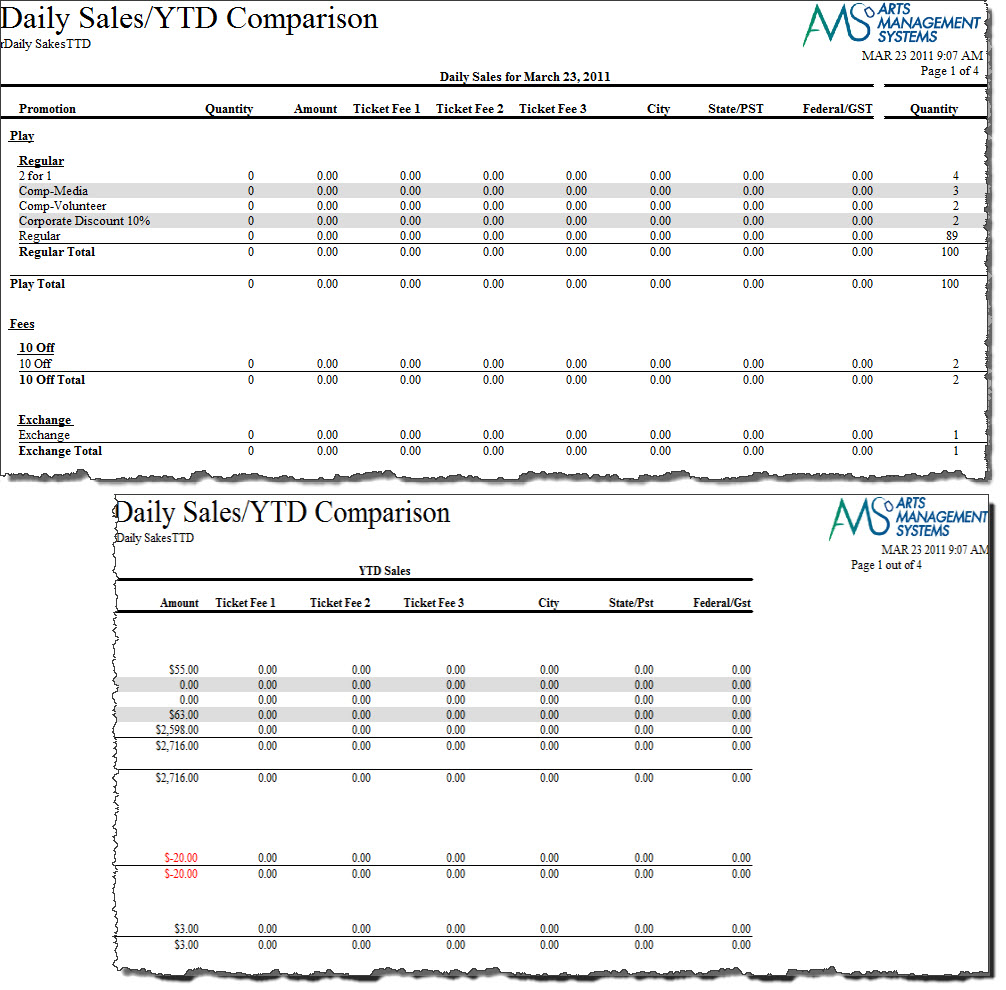
- Click here for information on generating a report.
- Click here for information on the Finished Report window. This report has additional criteria options.
- Click here for more information about the Parameters tab.
One of the tabs is the report parameters - and the key information is the date range at the bottom which signifies the current range for the report to compare to the YTD range.
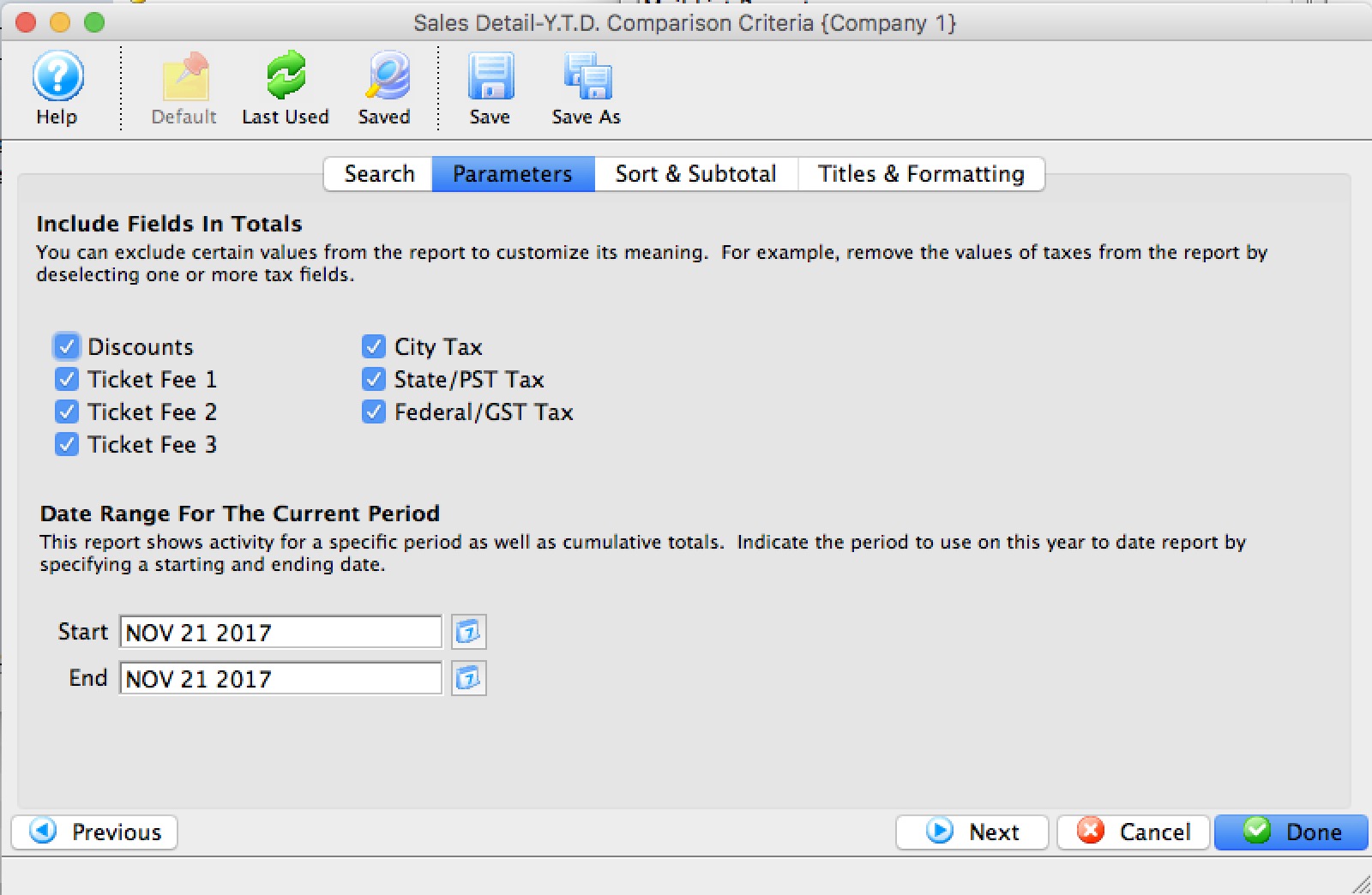
- Click here for more information about the Sort & Subtotal tab.
- Click here for more information about the Formatting tab.
Purpose of the Report
This report generates a comparison listing between sales for the given fiscal years.
Departments Who Benefit From This Report
| Box Office | Use this report to see how types of sales are doing compared to the same time frame last year. |
| Marketing | Use this report to see how types of sales are doing compared to the same time frame last year. |
| General Manager | Use this report to see how types of sales are doing compared to the same time frame last year. |
Criteria Hints
It is recommended that this report use the date range settings on the Parameters tab of the Add Criteria window.
Sales Detail
Sales Detail
The Sales Detail by Date report can be found under the Sales Summary Analysis category. Below the image are detailed notes to help you in using the report.
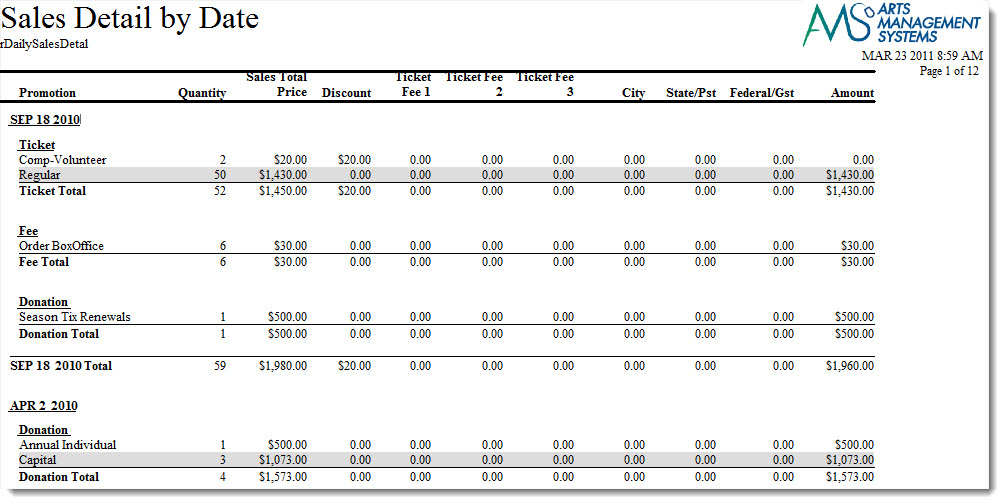
Click here for information on generating a report. Click here for information on the Finished Report window.
This report has additional criteria options. Click here for more information about the Parameters tab. Click here for more information about the Sort & Subtotal tab. Click here for more information about the Formatting tab.Purpose of the Report
This report generates a listing of sales for a given day by type and promotion.
Departments Who Benefit From This Report
| Box Office | Use this report to review that types of sales that were done on a certain date. |
Criteria Hints
It is recommended that this report be run witha date or range of dates as the criteria.
| Parameter Field | Condition | Value |
| Daily Sales Date | between | (Date) and (Date) |
Sales/Exchanges/Refunds - Y.T.D. Comparison
Sales/Exchanges/Refunds - Y.T.D. Comparison
The Sales/Exchanges/Refunds - Y.T.D. Comparison report can be found under the Sales Summary Analysis category. Below the image are detailed notes to help you in using the report.
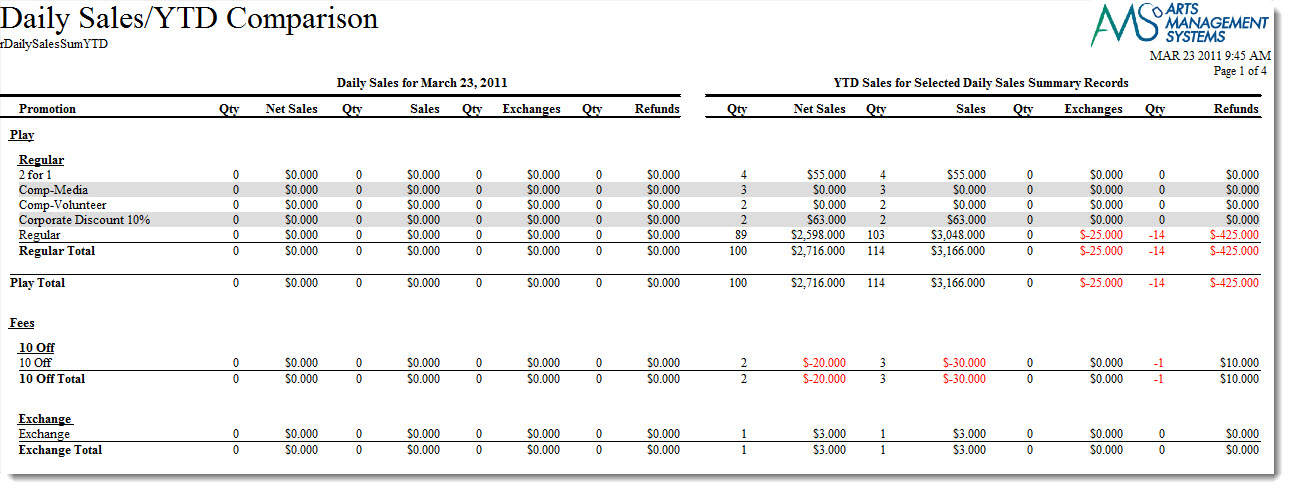
- Click here for information on generating a report.
- Click here for information on the Finished Report window. This report has additional criteria options.
- Click here for more information about the Parameters tab.
One of the tabs is the report parameters - and the key information is the date range at the bottom which signifies the current range for the report to compare to the YTD range.
- Click here for more information about the Sort & Subtotal tab.
- Click here for more information about the Formatting tab.
Purpose of the Report
This report generates a comparison listing between sales, exchanges, and refunds for the given fiscal years.
Departments Who Benefit From This Report
| Box Office | Use this report to see how types of sales are doing compared to the same time frame last year. |
| Marketing | Use this report to see how types of sales are doing compared to the same time frame last year. |
| General Manager | Use this report to see how types of sales are doing compared to the same time frame last year. |
Criteria Hints
It is recommended that this report use the date range settings on the Parameters tab of the Add Criteria window.
Sales/Exchanges/Refunds
Sales/Exchanges/Refunds
The Sales/Exchanges/Refunds by Date report can be found under the Sales Summary Analysis category. Below the image are detailed notes to help you in using the report.
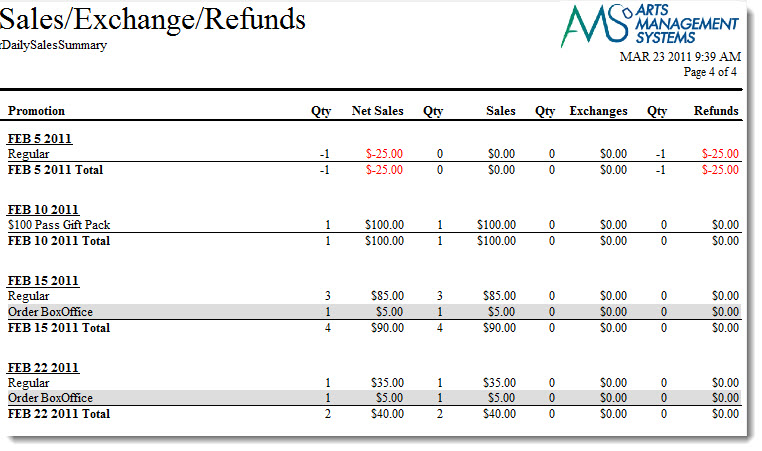
Click here for information on generating a report. Click here for information on the Finished Report window.
This report has additional criteria options. Click here for more information about the Parameters tab. Click here for more information about the Sort & Subtotal tab. Click here for more information about the Formatting tab.
Purpose of the Report
This report generates a listing of sales, exchanges, and refunds for a given day by type and promotion.
Examples of when to use this Report
This report is most helpful when cancelling an event that requires refunds or exchanges of tickets into another event. The report can be used as an overview of the organizations cashflow. There are various means to sort the data by:
- Promotion
- Promotion Type
- Play/Event
- Play/Event Promotion
- Play/Event Promotion Type
- Sales Summary Category
- Date of Sale
Departments Who Benefit From This Report
| Box Office | Use this report to review that types of sales, exchanges, and refunds that were done on a certain date. |
Criteria Hints
It is recommended that this report be run with a date or range of dates as the criteria.
| Parameter Field | Condition | Value |
| Daily Sales Date | between | (Date) and (Date) |
Season Subscription and Subscription Packages
Season Subscription and Subscription Packages
You use the Season Reservation module to creating season packages and to subscribe patrons to those packages. For more information on pre-planning for season packages, click here.
To start, you perform the following steps:
- Choose Patron Sales>> Season Reservations >> Setup Season Packages.
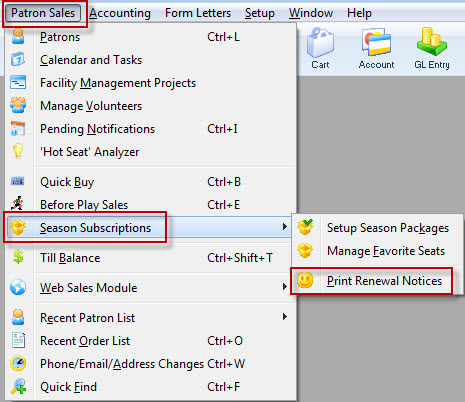
The Season Package List window opens.
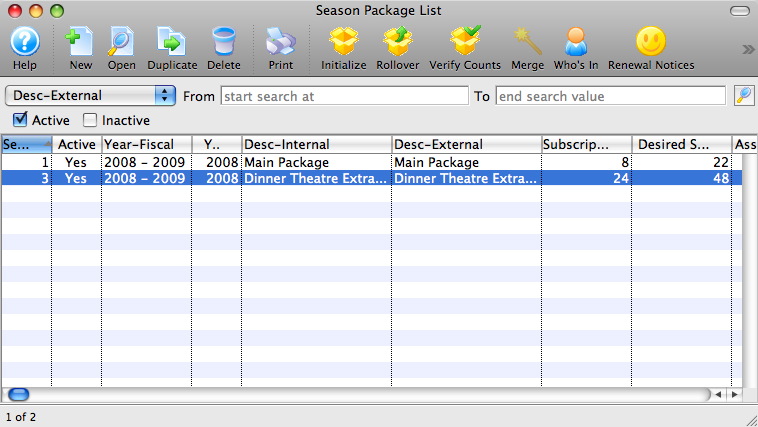
For more information on the Season Package List window and to continue, click here.
Favorite Seat List
Favorite Seat List
The Favorite Seat List report can be found under the Season Subscription and Subscription Packages category. BeBelow the image are detailed notes to help you in using the report.

Click here for information on generating a report. Click here for information on the Finished Report window.
Purpose of the Report
This report generates a listing of all patrons with season subscriptions and their favorite seats.
Departments Who Benefit From This Report
| Box Office | Use this report to view and verify patron's favorite subscription seats. |
Criteria Hints
It is recommended that this report be run without criteria or for a range of patrons as the criteria.
| Parameter Field | Condition | Value |
| Patron Name - Last | between | (Last Name) and (Last Name) |
Favorite Seat List with Address
Favorite Seat List with Address
The Favorite Seat List with Address report can be found under the Season Subscription and Subscription Packages category. Below the image are detailed notes to help you in using the report.

Click here for information on generating a report. Click here for information on the Finished Report window.
Purpose of the Report
This report generates a listing of all patrons with season subscriptions and their favorite seats along with address information.
Departments Who Benefit From This Report
| Box Office | Use this report to view and verify patron's favorite subscription seats. |
Criteria Hints
It is recommended that this report be run without criteria or for a range of patrons as the criteria.
| Parameter Field | Condition | Value |
| Patron Name - Last | between | (Last Name) and (Last Name) |
Season Package - Play Listing
Season Package - Play Listing
The Season Package - Event Listing report can be found under the Season Subscription and Subscription Packages category. Below the image are detailed notes to help you in using the report.

Click here for information on generating a report. Click here for information on the Finished Report window.
Purpose of the Report
This report generates a listing of all season packages setup in Theatre Manager.
Departments Who Benefit From This Report
| Box Office | Use this report to view and verify the season packages. |
Criteria Hints
It is recommended that this report be run without criteria.
Season Package - Renewal Progress Statistics by seat
Season Package - Renewal Progress Statistics by seat
Season Package - Renewal Progress Statistics by sub
Season Package - Renewal Progress Statistics by sub
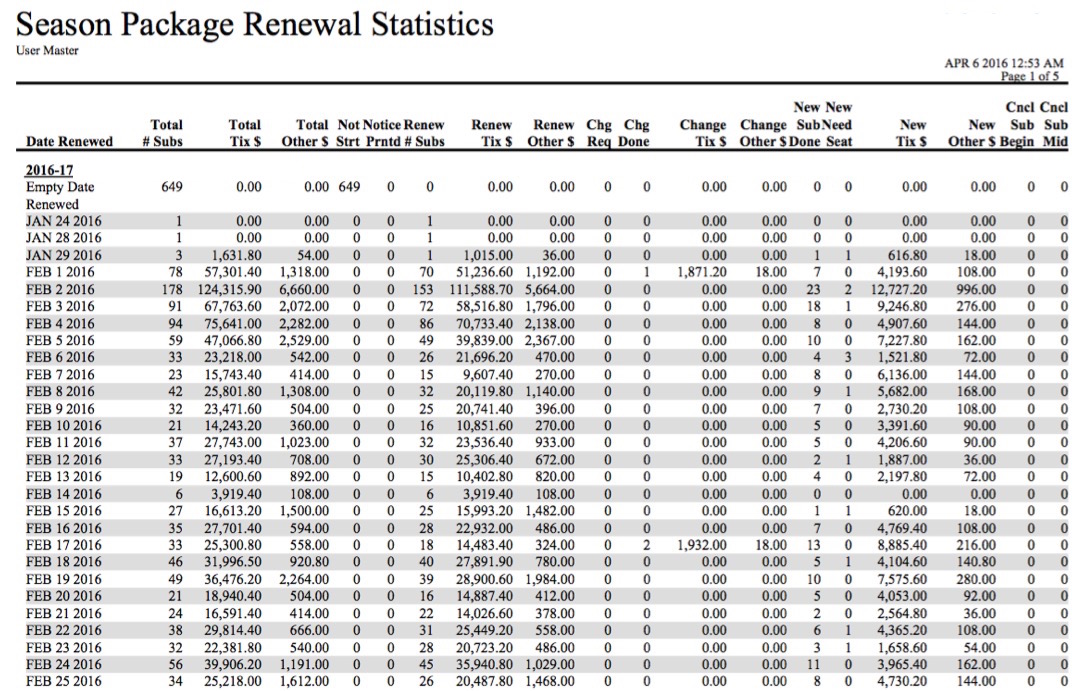
- Normally people run it for a season package showing the totals in each night of the control house
- You can also sort and subtotal by 'date renewed' to see when the subscription money came in. An 'Empty Date Renewed in the first line indicates the number of subscribers that have not yet renewed.
| Field | Meaning |
|---|---|
| First column | Shows what you have sorted the report by - the example shows date renewed, but it could be subscription night or some other fields. |
| Total # Subs | the number of individual subscriptions that are assigned to the package. A subscription usually has one of more preferred seats in it |
| Total Tix $ | The net amount of money for tickets in the subscription. This is amount paid, less discounts, plus the 3 per ticket fees in the orders relating to the new/renewed subscriptions for ANY TICKET, regardless if it a s subscription ticket or an add-on to a subscription package (or an opt out). The total does not include taxes. | Total Other $ | The amount of money in subscriptions orders that are not tickets. This will include order fees, donations, gift certificates, taxes and/or any facility management fees. |
| Not Strt | The number of subscriptions sitting in the 'Not Started' classification. These have not had the renewal notice sent to the patorn |
| Notice Prntd | The number of subscriptions that have been marked as printed because the notice has been sent to the patron. |
| Renew # Subs | The number of subscriptions that have been renewed, typically without changes. This could have occurred online or at the box office. |
| Renew Ticket $ | The value of tickets in any order that is marked renewed. It includes changes that reflect ADD-ON's and OPT-OUTS. |
| Renew Other $ | The value of anything else in the subscription order that is not a ticket or ticket fee. Includes donations, gift certificates, order fees, etc. |
| Chg Req | Indicates the number of subscriptions where the user has requested a change from their original subscription seats. The request sits as a change request until the change is completed or rejected to become a simple renewal. |
| Chg Done | Indicates subscriptions that were wanting for a change -- and that change has been completed, with no more action to occur on it. |
| Change Tix $ | The value of all tickets in an order that needed some form of change to occur to the subscription. If the change is not yet completed, it would refer to the original tickets. If the change is completed, it is the value of the new location that the patron is seated.
It gives an idea of the amount of money involved in 'movements'. If there isn't a lot of money in movements, then people are relatively happy where they were. if there is a lot of money in movements instead of renewals -- then it may mean something like changing demographics your subscriptions. |
| Change Other $ | The value of other things in a subscription order which is marked for some form of change.. |
| New Sub Done | is the count of subscriptions that are for new subscribers -- and have been completed |
| New Need Seat | is the count of subscriptions that are for new subscribers -- where the subscriber has not yet been assigned their final seats and/or has not yet been booked. |
| New Tix $ | The value of all tickets in an order that for a new subscriber. If the ratio of new to renew is small, then its mostly existing subscribers that bought |
| New Other $ | The value of other things in a subscription order which is for a new subscriber. | Cncl Sub Begin | The count of subscriptions that have been cancelled by 'renewing' subscribers at the beginning of the season. |
| Cncl Sub Mid | The count of subscriptions that have been cancelled in the middle of the season by a subscriber that cannot come to the rest of the season for some reason. While rare, there is probably some sort of refund involved. |
Click here for information on generating a report. Click here for information on the Finished Report window.
This report has additional criteria options.
Click here for more information about the Parameters tab. Click here for more information about the Sort & Subtotal tab. Click here for more information about the Formatting tab.
Purpose of the Report
This report generates a summary of the status of all season subscription renewals.
Departments Who Benefit From This Report
| Box Office | Use this report to see a summary of the progress of season subscription renewals. |
Criteria Hints
It is recommended that this report be run without criteria.
Season Package - Summary Listing
Season Package - Summary Listing
Below the image are detailed notes to help you in using the report.
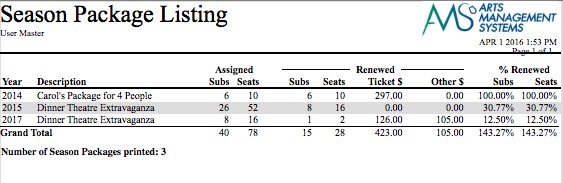
| Field | Meaning |
|---|---|
| Assigned Subs | the number of individual subscriptions that are assigned to the package. A subscription usually has one of more preferred seats in it |
| Assigned Seats | the total number of seats assigned to all subscriptions as favourite seats |
| Renewed Subs | the total number of subscriptions that have in one of the new or renewal status codes. This will be less than the assigned subs. |
| Renewed Seats | the total number of seats in the subscriptions that have been renewed or are new completed subscriptions |
| Ticket $ | The net amount of money for tickets in the subscription. This is amount paid, less discounts, plus the 3 per ticket fees in the orders relating to the new/renewed subscriptions for ANY TICKET, regardless if it a s subscription ticket or an add-on to a subscription package (or an opt out). The total does not include taxes. |
| Other $ | The amount of money in subscriptions orders that are not tickets. This will include order fees, donations, gift certificates, taxes and any facility management fees. |
| % Renewed Subs | The percentage of the total subscriptions that are new or renewed status. |
| % Renewed Seats | The percentage of the total subscription seats that are new or renewed status. |
Click here for information on generating a report. Click here for information on the Finished Report window.
This report has additional criteria options.
Click here for more information about the Parameters tab. Click here for more information about the Sort & Subtotal tab. Click here for more information about the Formatting tab.
Purpose of the Report
This report generates a summary of the status of all subscription packages.
Departments Who Benefit From This Report
| Box Office | Use this report to see a summary of the progress of season subscription sales. |
Criteria Hints
It is recommended that this report be run without criteria.
Season Renewal statistics - by seat
Season Subscription - Auto Renew Payment Methods
Season Subscription - Auto Renew Payment Methods
The Season Subscription - Auto Renew Payment Methods report can be found under the Season Subscription and Subscription Packages category. Below the image are detailed notes to help you in using the report.

Click here for information on generating a report. Click here for information on the Finished Report window.
Purpose of the Report
This report generates a listing of all patrons with season subscriptions and the renewal methods assigned.
Departments Who Benefit From This Report
| Box Office | Use this report to see a listing of all patrons with season subscriptions and the renewal methods assigned. This is useful for seeing especially the patrons who will need to be manually renewed. |
Criteria Hints
It is recommended that this report be run without criteria.
Season Subscription - Change Requests
Season Subscription - Change Requests
The Season Subscription - Change Requests report can be found under the Season Subscription and Subscription Packages category. Below the image are detailed notes to help you in using the report.

Click here for information on generating a report. Click here for information on the Finished Report window.
Purpose of the Report
The Season Subscription - Change Requests prints any subscription change requests asked for by the patron.
Departments Who Benefit From This Report
| Box Office | Use this report to view and verify the season packages. |
Criteria Hints
It is recommended that this report be run without criteria.
Season Ticket Renewal Notice
Season Ticket Renewal Notice
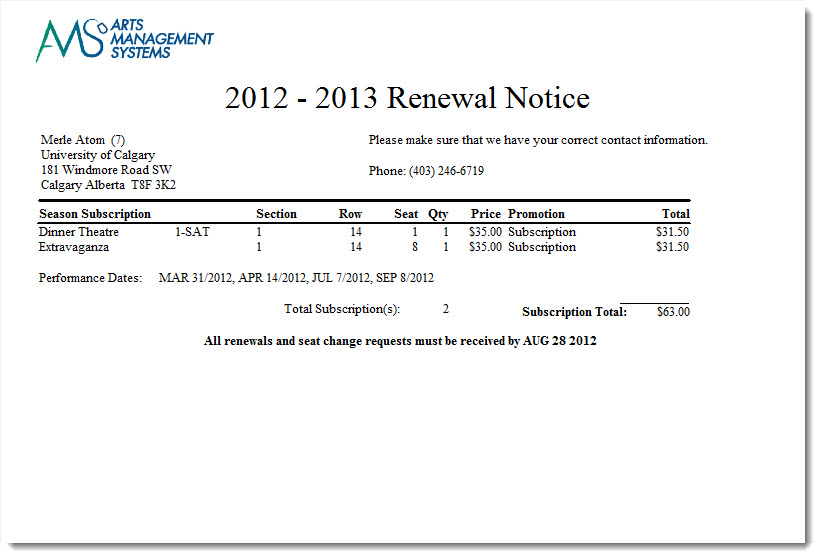
- Click here for information on generating a report.
- Click here for information on the Finished Report window
Purpose of the Report
The Season Ticket Renewal Notice can be used to configure and print the Season Renewal noices for a range of patrons or season packages. These become a renewal invoice for the patron when sent with the marketing brochure.
For more information on printing notices and the different tabs, click here.
Departments Who Benefit From This Report
| Box Office | Use this report to send season subscription renewals. |
Running the Report
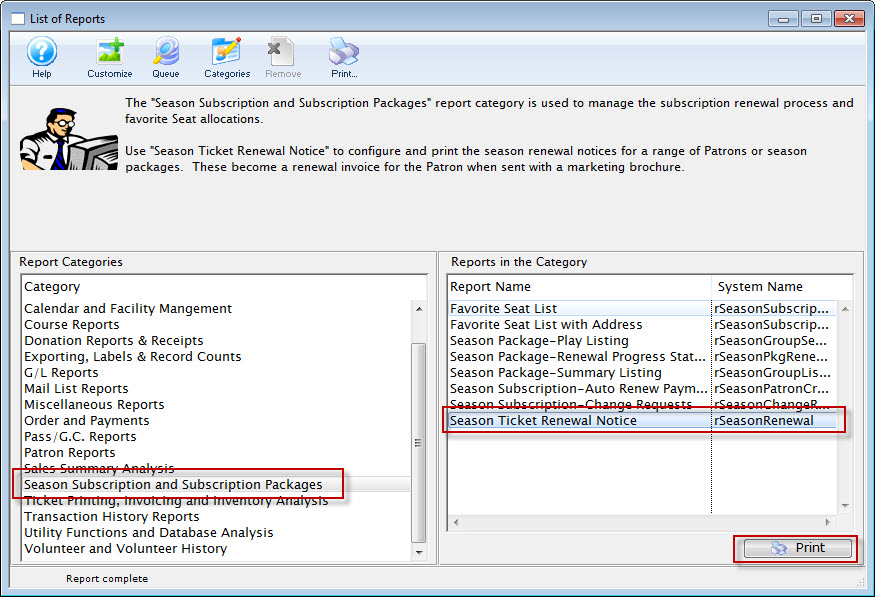
In the Report Categories, select Season Subscription and Subscription packages, choose Season Ticket Renewal Notice.
The Notice Selection tab is displayed.
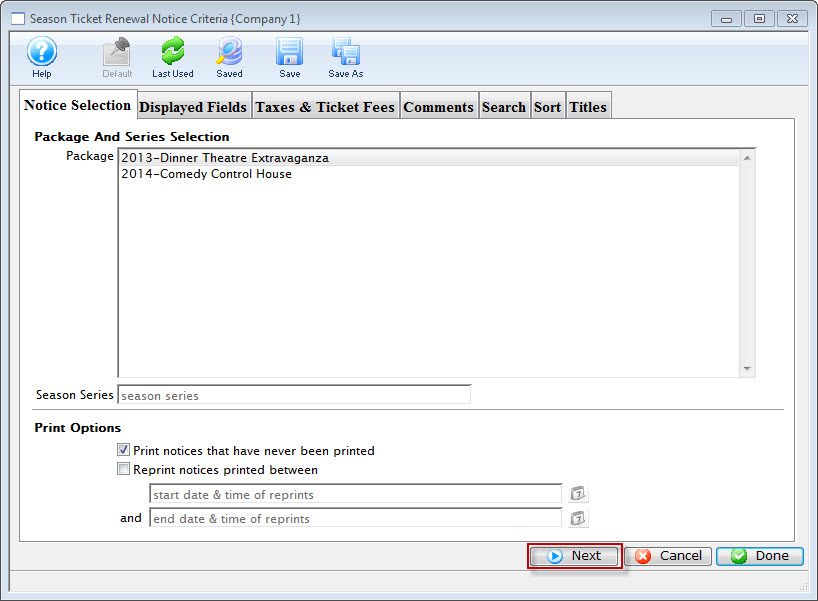
Click here for more information on the Notice Selection tab.
Click the Next button.
The displayed fields tab opens.
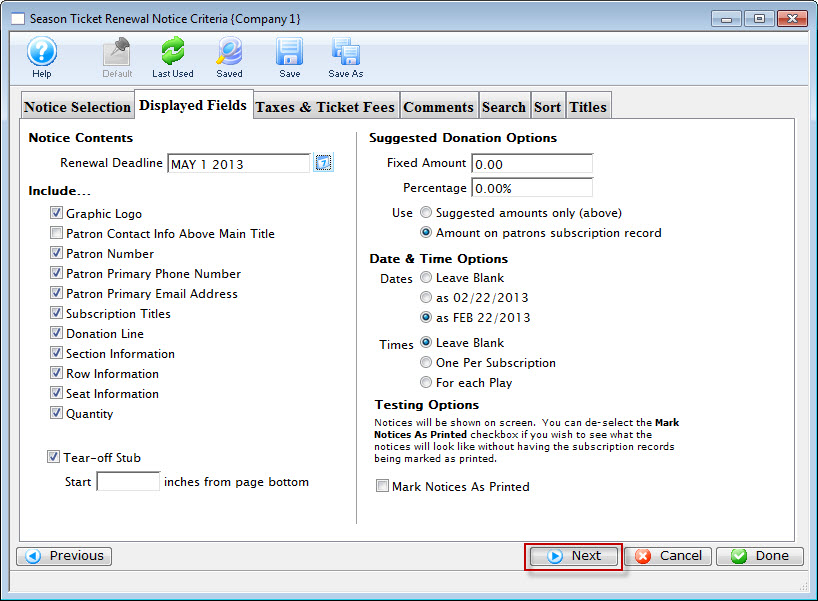
Click here for more information on the Display Fields tab.
Click the Next button.
The Taxes & Ticket Fees tab opens.
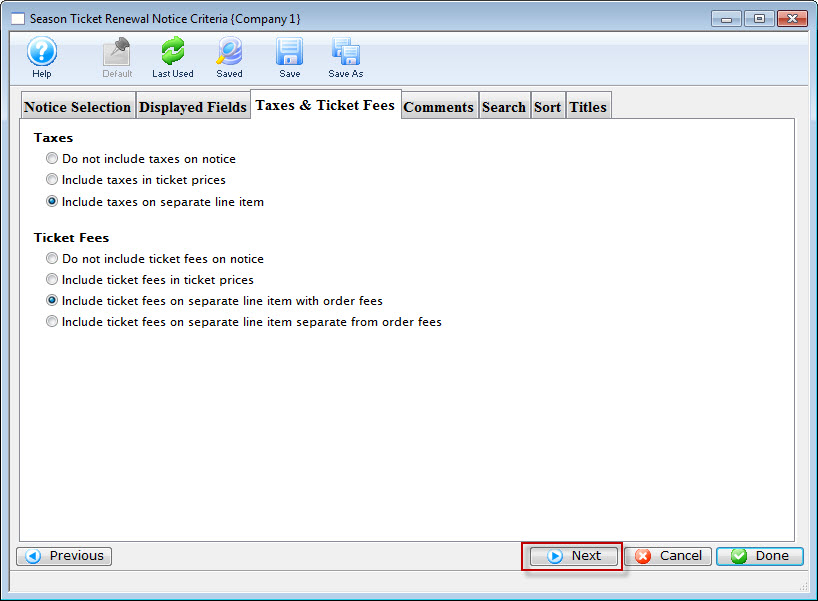
Click here for more information on the Taxed & Ticket Fees tab.
Click the Next button.
The Comments window opens.
Click here for more information on the Comments tab.
Click the Next button.
The Search Critria tab is displayed.
Click here for more information on the Criteria tab.
Click the Next button.
The Sort tab is displayed.
Click here for more information on the Sort tab.
Click the Next button.
The Titles tab is displayed.
Click the Done button.
The preparing Season Renewal Noice Data window displays the progress of the data merge.
When complete, click the Proceed button to pint the Renewal Notices.
Ticket Printing, Invoicing and Ticket Analysis
Cash Flow - Ticket Inventory Analysis
Cash Flow - Ticket Inventory Analysis
- Day
- Week
- Month
- ... or some custom sort and sub totals that you prefer for yourself
**in its current state means that when the report is run on your sold inventory, it can only consider the sold tickets as of right now. An ticket that was sold and refunded will not appear in the report. Any ticket that is sold, refunded and then sold again will have the most recent sale date on it. If you need to see the sales progress with the ebb and flow of sales and refunds, you will need to look at the daily sales summary reports or the transaction based reports.
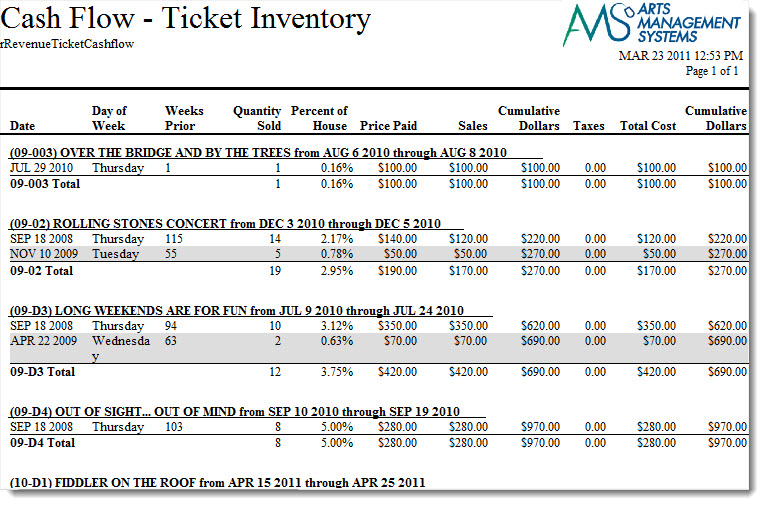
Click for more information on
Purpose of the Report
This report generates a listing of the sales for each event and performance.
Departments Who Benefit From This Report
| Box Office | Use this report to see how much money will be received from a particular performance or event. |
| Accounting | Use this report to see how much money will be received from a particular performance or event. |
| General Manager | Use this report to see how much money will be received from a particular performance or event. |
Criteria Hints
It is recommended that this report be run with a specific event or events as the criteria.
| Parameter Field | Condition | Value |
| Event # | is one of | (Event) |
Use the SHIFT key to select a series of events, or the OPTION key (Mac) or CTRL key (Windows) to select multiple individual events.
Cash Flow - Transaction Analysis
Cash Flow - Transaction Analysis
The Cash Flow - Transaction Analysis report can be found under the Ticket Printing, Invoicing and Inventory Analysis category. This report has additional criteria options. Click for more information about:
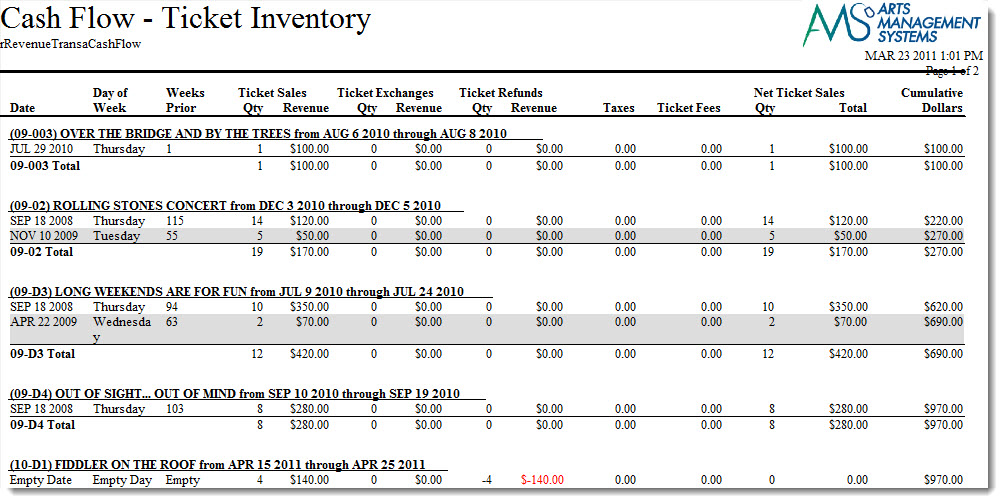
Purpose of the Report
This report generates a listing of the sales, exchanges, and refunds for each event and performance.
Departments Who Benefit From This Report
| Box Office | Use this report to see how much money will be received from a particular performance or event. |
| Accounting | Use this report to see how much money will be received from a particular performance or event. |
| General Manager | Use this report to see how much money will be received from a particular performance or event. |
Criteria Hints
It is recommended that this report be run with a specific event or events as the criteria.
| Parameter Field | Condition | Value |
| Event # | is one of | (Event) |
Use the SHIFT key to select a series of events, or the OPTION key (Mac) or CTRL key (Windows) to select multiple individual events.
Potential Revenue From Unsold Tickets
Potential Revenue From Unsold Tickets
The Potential Revenue From Unsold Tickets report can be found under the Ticket Printing, Invoicing and Inventory Analysis category. This report has additional criteria options. Click for more information about:
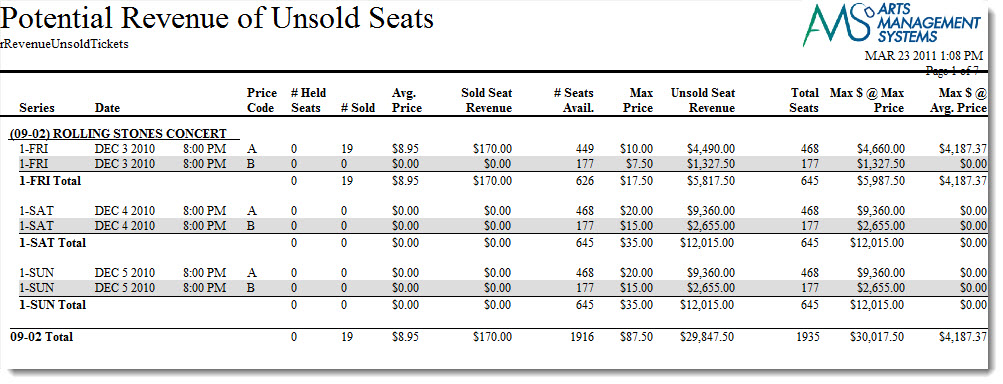
Purpose of the Report
This report generates a listing of the potential revenue based on the price code structure and the number of seats available.
|
In all cases, you will need to factor in your expected sales percentage. For example, if you typically only sell 80% of a house, then multiply any of the revenue figures in the report by 80% to determine expected revenue or attendance.
If you know this event will be sold out, then you can use the figures as printed. |
The meaning of the columns are:
| Price Code |
This is the price code for the section of the venue representing the base price. Most venues have one price code per section. Some have two that may represent base pice regular priced tickets and base price for subscriptions.
If there are multiple price codes for a seat, then the one with the highest base price is used (since it represents the highest possible sale price) and any price code with a lower base price is ignored (since the projected price wold be lower). This report helps predict best if your pricing is based on fewer price codes and more promotions to discount tickets in a section. |
| # Held Seats | This count indicates the number of seats that are marked as 'held' in that pricing zone. |
| # Sold | This count indicates the number of seats that are already sold in this pricing zone. Sold seats help determine the average price that people are willing to pay to sit in that section. And since they are sold, already dictate the maximum revenue for those specific seats. |
| Average Price |
The average price is the total sold seat revenue (see next column) for the event in that section divided by the number of seats sold. The average price is used as one of the predictors for maximum revenue.
Traditionally, subscriptions are sold first. That lowers the average revenue. Then single tickets come on sale which starts to nudge the average revenue upwards (over the sales cycle). |
| Sold Seat Revenue | Sold Seat Revenue is the total revenue for the seats sold so far for all promotions/discounts. |
| # Seats Available | The seats available are the number of seats in that price code/section that can still be sold. These seats are the foundation onto calculating the maximum possible revenue. |
| Max Price | The Maximum price is the highest possible price that can be paid for seats in that price zone. |
| Unsold Seat Revenue | This is the number of unsold seats times the highest base price that the seat can be sold for. It represents the maximum that you revenue that you can get if you sold all remaining seats at this maximum price. |
| Total Seats | Total seats is number of seats that cold used this price code (including current solds and helds). For a performance, the total should be the same as the number of seats in the venue. |
| Max $ at Max Price |
Maximum $ at max price is calculated as:
Current sold seat revenue + all remaining seats sold at maximum price. you will likely never reach this revenue total unless:
|
| Max $ at Average Price |
Current sold seat revenue + all remaining seats sold at the average price.
As the sales cycle progresses more tickets are sold, this becomes the most likely predictor of future revenue. |
Departments Who Benefit From This Report
| Box Office | Use this report to see how much money can be earned for a performance and is still to be earned. |
| Accounting | Use this report to see how much money can be earned for a performance and is still to be earned. |
| General Manager | Use this report to see how much money can be earned for a performance and is still to be earned. |
Criteria Hints
It is highly recommended that this report be run with a specific event or events as the criteria.
| Parameter Field | Condition | Value |
| Event # | is one of | (Event) |
Use the SHIFT key to select a series of events, or the OPTION key (Mac) or CTRL key (Windows) to select multiple individual events.
Print Invoices
Print Invoices
|
When you print multiple orders for the same patron, they will appear on a single invoice if they have the same billing and shipping addresses.
However, it there are two different billing or shipping addresses, they will create two separate invoices. |

Click here for information on generating a report. Click here for information on the Finished Report window.
Purpose of the Report
This report generates an invoice for each patron's account.
Departments Who Benefit From This Report
| Box Office | Use this report to generate invoices for all orders. |
Criteria Hints
It is recommended that this report be run with a specific order or orders as the criteria.
| Parameter Field | Condition | Value |
| Order # | between | (Order) and (Order) |
Printing Raffle Tickets
Printing Raffle Tickets
- Select the File >> Reports Menu or click the Reports Button in the main Theatre Manager toolbar / ribbon bar.
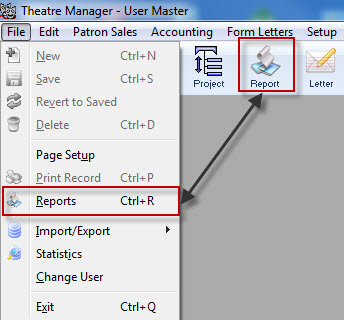
The Reports Window opens.
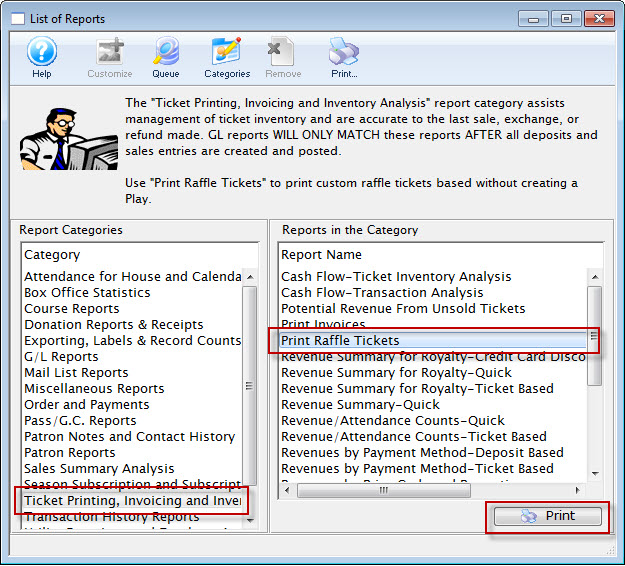
- Select Ticket Printing, Invoicing and Inventory Analysis Section and then Print Raffle Tickets Report.
- Click Print
The Parameters for Raffle Tickets Window opens.
- You must pick a ticket face that is based on tickets and has ticket information on it
- The ticket number that will print is the ticket number field on the ticket face
- Only the fields that are shown below will substitute on the ticket face. Any other specialized information must be hard coded on the ticket face
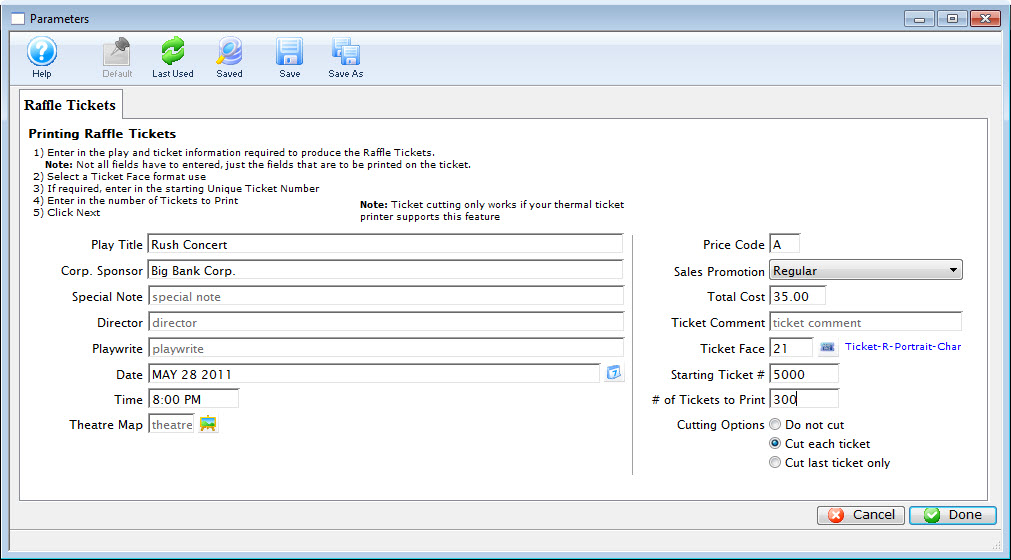
- Enter all of the applicable information.
- When complete, click the Done button.
- Confirm your Printer Setup,
Click Here for more information.
- Click OK/Print on your Printer setup Window.
The Raffle Tickets will be printed.
Promoter Revenue Audit
Promoter Revenue Audit
|
There is also an online version of this report that promoters can obtain for themselves if they are set up as a promoter for the event. |
- Base Price - which shows that the highest price could be in a section.
- Sales - which shows what is sold by promotion and subtotalled by the sales grouping category on the sales promotion screen
- Capacity - which mixes the number of seats held, the open (unsold) seats, and repeats the subtotals from the sales section. The hold allocation for a section is automatically assigned to the highest price that can be found in a section for any night. For example, if a map has two possible bases prices for a seat -- and it is held, then Theatre Manager allocates the hole to the highest possible price code.
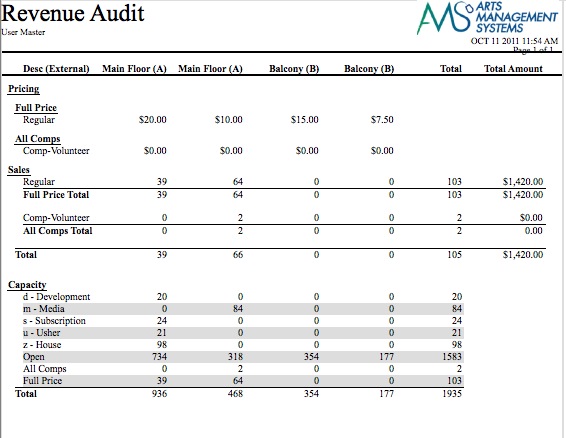
Note: A new section heading is generated across the top of the report in Theatre Manager for each unique price code, price, description and tax rate. That means if you are doing a report for an 8 day run, then you need to either:
- make sure that the base prices, price code description, and tax rate for each price code are the same for each performance if you want to generate one report for the entire run -or-
- generate the same report for each night -or-
- if there are two prices in a section for any reason, explain why they are different or segregate them by sales group description on the promotion setup. For example, ADA requirement was that seats could be purchased in the wheelchair area in prices proportional to the number of seats in the venue for able bodied people. That means those seats could have multiple price codes. Similarly, you may have two base prices - one for regular and one for subscriptions. If the regular and subscription tickets are in a different report subtotal group then you will see the two sections across the top and the totals segregated down the side by sales group and promotion
The above indicates a sample report with 3 sections. In this sample:
- there are two different base prices in main floor and two in balcony (because it is a multi-night event with different weekday prices)
- there are two sales promotions because only regular and comp-volunteer tickets were sold
- and there are two subtotal sections in the sales area (carried into the capacity area) based on the sales promotions.
The subtotal groups are given a description in code tables as per the following picture
Revenue Summary - Quick
Revenue Summary - Quick
The Revenue Summary - Quick report can be found under the Ticket Printing, Invoicing and Inventory Analysis category. This report has additional criteria options. Click for more information about:
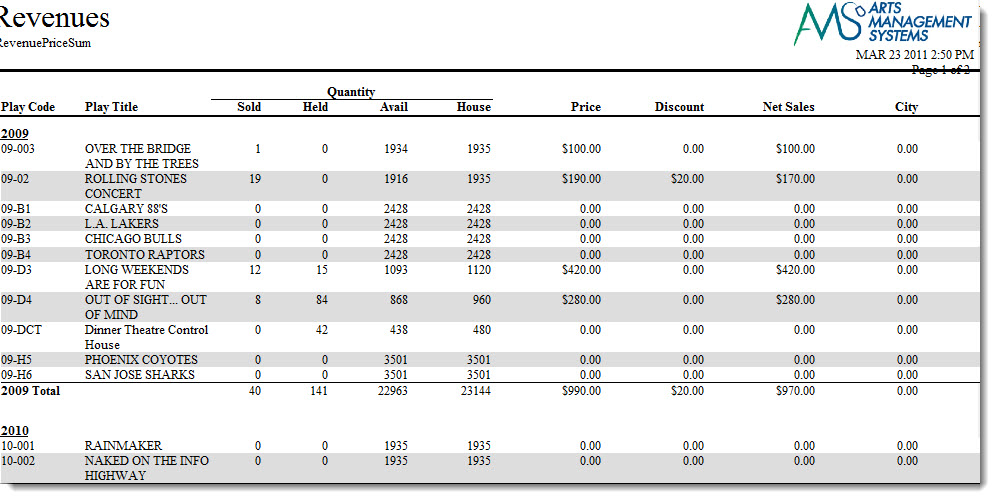
Purpose of the Report
This report generates a summary of the ticket sales for each performance of an event and the taxes and ticket fees associated.
Departments Who Benefit From This Report
| Box Office | Use this report for a quick way to view the total sales for each performance with extended information. |
| Accounting | Use this report for a quick way to view the total sales for each performance with extended information. |
Criteria Hints
It is recommended that this report be run with a specific event or events as the criteria.
| Parameter Field | Condition | Value |
| Event # | is one of | (Event) |
Use the SHIFT key to select a series of events, or the OPTION key (Mac) or CTRL key (Windows) to select multiple individual events.
Revenue Summary Reports - Parameters
Revenue Summary Reports - Parameters
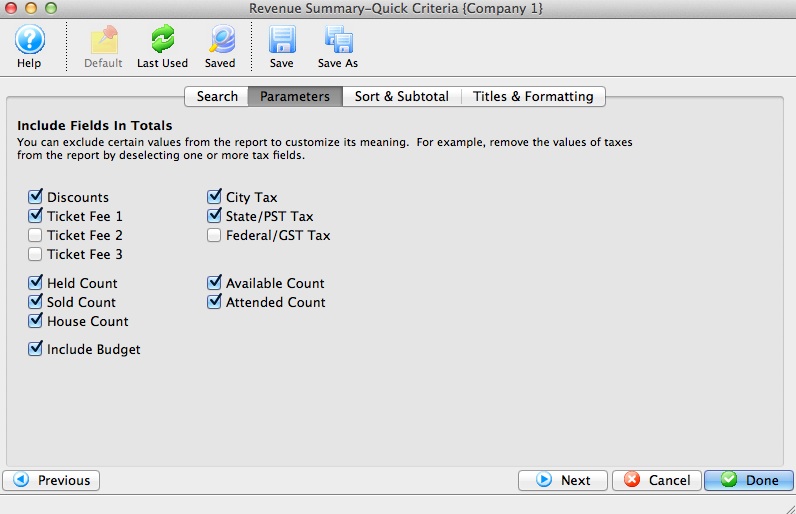
| Discounts | Includes Promotion Discounts in the report totals |
| Ticket Fee 1 through 3 | Includes Ticket Fee 1, 2, 3 in the report totals |
| Held Count | Includes the number of seats currently held for an event or performance in the report totals |
| Sold Count | Includes the number of seats currently sold for a performance in the report totals |
| House Count | Includes the reporting capacity of a performance in the report totals |
| Include Budget | Includes the sales target number setup on the Event Performance tab in the report totals |
| City Tax | Includes CITY tax in the report totals |
| State/PST Tax | Includes State/PST tax in the report totals |
| Federal/GST Tax | Includes Federal/GST tax in the report totals |
| Available Count | Includes the number of available seats in the performance in the report totals |
| Attended Count | Includes the number of patron who attend the performance in the report totals |
Revenue Summary for Royalties - Credit Card Discounts
Revenue Summary for Royalties - Credit Card Discounts
 |
The report may display Accounts Receivable. Receivables should be resolved or removed from the report to ensure correct totals. If Receivables are not removed they will be included in the totals and could result in over paying royalties. |
|
The revenues by payment method report provides similar information and shows the fee and tax breakdown. |

Purpose of the Report
This report generates a listing of the payment types used for an event and shows the credit card fees that were charged for payment.
Departments Who Benefit From This Report
| Box Office | Use this report to show how much money was charged in credit cards fees from the sales for an event. |
| Accounting | Use this report to show how much money was charged in credit cards fees from the sales for an event. |
Criteria Hints
It is recommended that this report be run with a specific event or events as the criteria.
| Parameter Field | Condition | Value |
| Event # | is one of | (Event) |
Use the SHIFT key to select a series of events, or the OPTION key (Mac) or CTRL key (Windows) to select multiple individual events.
Revenue Summary for Royalty - Quick
Revenue Summary for Royalty - Quick
The Revenue Summary for Royalty - Quick report can be found under the Ticket Printing, Invoicing and Inventory Analysis category. This report has additional criteria options. Click for more information about:
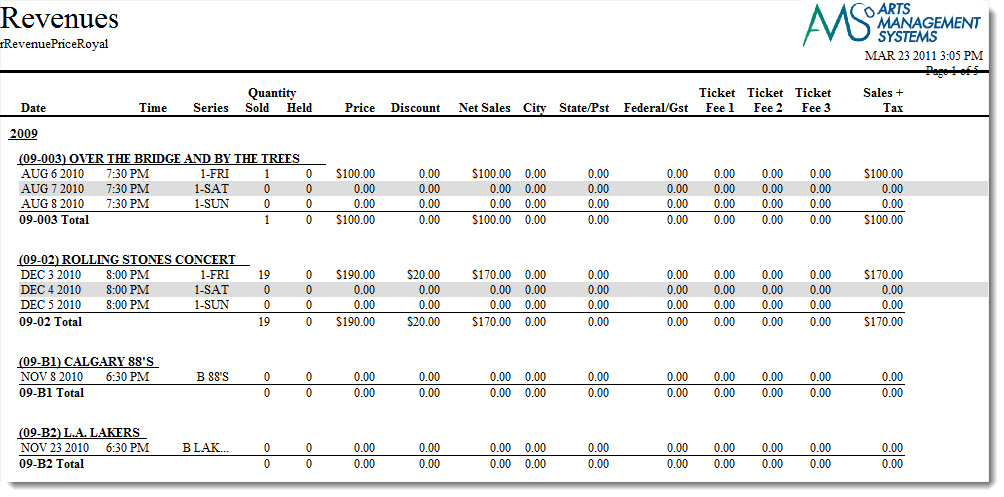
Purpose of the Report
This report generates a summary of the ticket sales for each performance of an event and the taxes and ticket fees associated.
Departments Who Benefit From This Report
| Box Office | Use this report for a quick way to view the total sales for each performance with extended information. |
| Accounting | Use this report for a quick way to view the total sales for each performance with extended information. |
Criteria Hints
It is recommended that this report be run with a specific event or events as the criteria.
| Parameter Field | Condition | Value |
| Event # | is one of | (Event) |
Use the SHIFT key to select a series of events, or the OPTION key (Mac) or CTRL key (Windows) to select multiple individual events.
Revenue Summary for Royalty - Ticket Based
Revenue Summary for Royalty - Ticket Based
The Revenue Summary for Royalty - Ticket Based report can be found under the Ticket Printing, Invoicing and Inventory Analysis category. This report has additional criteria options. Click for more information about:

Purpose of the Report
This report generates a summary of the ticket sales for an event by promotion type.
Departments Who Benefit From This Report
| Box Office | Use this report to see the total tickets sales for an event by promotion type. |
| Accounting | Use this report to see the total tickets sales for an event by promotion type. |
Criteria Hints
It is recommended that this report be run with a specific event as the criteria. The report will summarize multiple events.
| Parameter Field | Condition | Value |
| Event # | is one of | (Event) |
Revenue/Attendance Counts - Quick
Revenue/Attendance Counts - Quick
The Revenue/Attendance Counts - Quick report can be found under the Ticket Printing, Invoicing and Inventory Analysis category. This report has additional criteria options. Click for more information about:
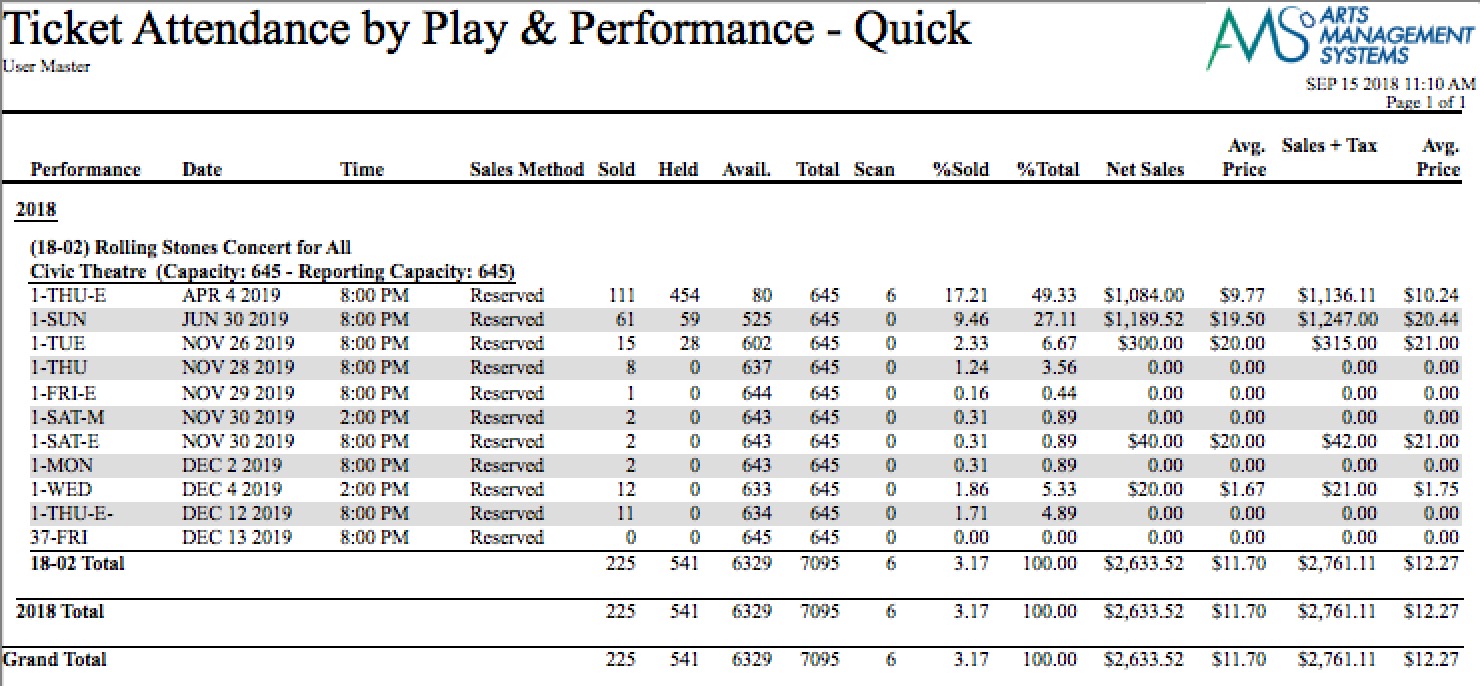
Purpose of the Report
This report generates a summary by performance of the attendance and revenue for the performance.
Departments Who Benefit From This Report
| Box Office | Use this report as a quick view of how sales are doing for each performance. |
| Accounting | Use this report as a quick view of how sales are doing for each performance. |
| Marketing | Use this report as a quick view of how sales are doing for each performance. |
Criteria Hints
It is recommended that this report be run with a specific event or events as the criteria.
| Parameter Field | Condition | Value |
| Event # | is one of | (Event) |
Use the SHIFT key to select a series of events, or the OPTION key (Mac) or CTRL key (Windows) to select multiple individual events.
Revenue/Attendance Counts - Ticket Based
Revenue/Attendance Counts - Ticket Based
The Revenue/Attendance Counts - Ticket Based report can be found under the Ticket Printing, Invoicing and Inventory Analysis category. This report has additional criteria options. Click for more information about:

Purpose of the Report
This report generates a summary by performance of the attendance and revenue for performances with tickets sold.
Departments Who Benefit From This Report
| Box Office | Use this report as a quick view of how sales are doing for each performance with tickets sold. |
| Accounting | Use this report as a quick view of how sales are doing for each performance with tickets sold. |
| Marketing | Use this report as a quick view of how sales are doing for each performance with tickets sold. |
Criteria Hints
It is recommended that this report be run with a specific event or events as the criteria.
| Parameter Field | Condition | Value |
| Event # | is one of | (Event) |
Use the SHIFT key to select a series of events, or the OPTION key (Mac) or CTRL key (Windows) to select multiple individual events.
Revenues by Payment Method - Deposit Based
Revenues by Payment Method - Deposit Based
The Revenues by Payment Method - Deposit Based report can be found under the Ticket Printing, Invoicing and Inventory Analysis category. This report has additional criteria options. Click for more information about:

Purpose of the Report
This report generates a summary by payment method of the ticket sales for each performance with money that has been deposited.
Departments Who Benefit From This Report
| Box Office | Use this report to see the ticket sales for performances by payment method. |
| Accounting | Use this report to see the ticket sales for performances by payment method. |
Criteria Hints
It is recommended that this report be run with a specific event or events as the criteria.
| Parameter Field | Condition | Value |
| Event # | is one of | (Event) |
Use the SHIFT key to select a series of events, or the OPTION key (Mac) or CTRL key (Windows) to select multiple individual events.
Revenues by Payment Method - Ticket Based
Revenues by Payment Method - Ticket Based
The Revenues by Payment Method - Ticket Based report can be found under the Ticket Printing, Invoicing and Inventory Analysis category. This report has additional criteria options. Click for more information about:
|
This report does an allocation of payment methods to tickets. It should not be used for accounting purposes - read the link for an explanation |
|
You can include receivables for events on the report which will show totals compatible with the Event A/R tab and other inventory reports..
Excluding receivable for the event will report lower sales to the event for the purposes of this report. Some promoters prefer to only see fully paid for tickets. |
|
The Royalty Report may be another useful report to determine credit card discounts for charging renters or discounting royalties. |

Purpose of the Report
This report generates a summary by payment method of the ticket sales for each performance.
Departments Who Benefit From This Report
| Box Office | Use this report to see the ticket sales for performances by payment method. |
| Accounting | Use this report to see the ticket sales for performances by payment method. |
Criteria Hints
It is recommended that this report be run with a specific event or events as the criteria.
| Parameter Field | Condition | Value |
| Event # | is one of | (Event) |
Use the SHIFT key to select a series of events, or the OPTION key (Mac) or CTRL key (Windows) to select multiple individual events.
Revenues by Price Code and Promotion
Revenues by Price Code and Promotion
The Revenues by Price Code and Promotion report can be found under the Ticket Printing, Invoicing and Inventory Analysis category. This report has additional criteria options. Click for more information about:

Purpose of the Report
This report generates a summary of each promotion used extended across price codes for a performance.
Departments Who Benefit From This Report
| Box Office | Use this report to see the how money was split between promotions and price codes for a performance. |
| General Manager | Use this report to see the how money was split between promotions and price codes for a performance. |
Criteria Hints
It is recommended that this report be run with a specific event or events as the criteria.
| Parameter Field | Condition | Value |
| Event # | is one of | (Event) |
Use the SHIFT key to select a series of events, or the OPTION key (Mac) or CTRL key (Windows) to select multiple individual events.
Revenues by Promotion (Average Ticket Price)
Revenues by Promotion (Average Ticket Price)
The Revenues by Promotion (Average Ticket Price) report can be found under the Ticket Printing, Invoicing and Inventory Analysis category. This report has additional criteria options. Click for more information about:

Purpose of the Report
This report generates a summary by promotion for each performance and also calculates the average ticket price based on that promotion.
Departments Who Benefit From This Report
| Box Office | Use this report to see the average price per ticket based on a promotion. |
Criteria Hints
It is recommended that this report be run with a specific event or events as the criteria.
| Parameter Field | Condition | Value |
| Event # | is one of | (Event)> |
Use the SHIFT key to select a series of events, or the OPTION key (Mac) or CTRL key (Windows) to select multiple individual events.
Revenues by Promotion (Detailed Breakdown)
Revenues by Promotion (Detailed Breakdown)
The Revenues by Promotion (Detailed Breakdown) report can be found under the Ticket Printing, Invoicing and Inventory Analysis category. This report has additional criteria options. Click for more information about:

Purpose of the Report
This report generates a summary by promotion for each performance and shows detailed information.
Departments Who Benefit From This Report
| Box Office | Use this report to see detailed information about each promotion used for a performance. |
Criteria Hints
It is recommended that this report be run with a specific event or events as the criteria.
| Parameter Field | Condition | Value |
| Event # | is one of | (Event) |
Use the SHIFT key to select a series of events, or the OPTION key (Mac) or CTRL key (Windows) to select multiple individual events.
Ticket Held Seat Detail
Ticket Held Seat Detail
The Ticket Held Seat Detail report can be found under the Ticket Printing, Invoicing and Inventory Analysis category. This report has additional criteria options. Click for more information about:

Purpose of the Report
This report generates a listing of all seats held for an event.
Departments Who Benefit From This Report
| Box Office | Use this report to view and verify held seats for an event. It will also show seats that have been held for a patron. |
Criteria Hints
It is recommended that this report be run with a specific event as the criteria. The report will summarize multiple events.
| Parameter Field | Condition | Value |
| Event # | is one of | (Event) |
Tips and Tricks
Perhaps you want to find the seats that just have one code letter, in this example f.
- In the Edit Report Parameters, chose Ticket Data for Patron >> Ticket Price Code.

The key is in the Condition you select. Between or Equal searches always capitalize, however CONTAIN does not.
- Choose the condition Contain, and enter f. Click Save.
- Run the Report.

Ticket Hold Counts - Quick
Ticket Hold Counts - Quick
The Ticket Hold Counts - Quick report can be found under the Ticket Printing, Invoicing and Inventory Analysis category. This report has additional criteria options. Click here for more information about the Hold Code Options tab. Click for more information about:

Purpose of the Report
This report generates a summary of the held seats for each performance along with the number in each hold code.
Departments Who Benefit From This Report
| Box Office | Use this report to view and verify held seats for an event. |
Criteria Hints
It is recommended that this report be run with a specific event or group of events as the criteria.
| Parameter Field | Condition | Value |
| Event # | is one of | (Event) |
Use the SHIFT key to select a series of events, or the OPTION key (Mac) or CTRL key (Windows) to select multiple individual events.
Tickets Sold by Price Code
Tickets Sold by Price Code
The Tickets Sold by Price Code report can be found under the Ticket Printing, Invoicing and Inventory Analysis category. This report has additional criteria options. Click here for more information about the Price Code Options tab. Click for more information about:
- Generating a report
- Finished Report window
- Price Code Options tab
- Sort & Subtotal tab
- Formatting tab

Purpose of the Report
This report generates a summary of the tickets sold for each performance and to which price codes.
Departments Who Benefit From This Report
| Box Office | Use this report to see an overview of the price codes used for ticket sales to a performance. |
Criteria Hints
It is recommended that this report be run with a specific event or group of events as the criteria.
| Parameter Field | Condition | Value |
| Event # | is one of | (Event) |
Use the SHIFT key to select a series of events, or the OPTION key (Mac) or CTRL key (Windows) to select multiple individual events.
Tickets Sold by Price Code and Promotion
Tickets Sold by Price Code and Promotion
The Tickets Sold by Price Code and Promotion report can be found under the Ticket Printing, Invoicing and Inventory Analysis category. This report has additional criteria options. Click here for more information about the Price Code Options tab. Click for more information about:
- Generating a report
- Finished Report window
- Price Code Options tab
- Sort & Subtotal tab
- Formatting tab

Purpose of the Report
This report generates a summary of the tickets sold for each performance and to which promotions and price codes.
Departments Who Benefit From This Report
| Box Office | Use this report to see an overview of the promotions and price codes used for ticket sales to a performance. |
Criteria Hints
It is recommended that this report be run with a specific event or group of events as the criteria.
| Parameter Field | Condition | Value |
| Event # | is one of | (Event) |
Use the SHIFT key to select a series of events, or the OPTION key (Mac) or CTRL key (Windows) to select multiple individual events.
Tickets Sold/Revenue by Why Did Patron Buy?
Tickets Sold/Revenue by Why Did Patron Buy?
This report has additional criteria options. Click for more information about:
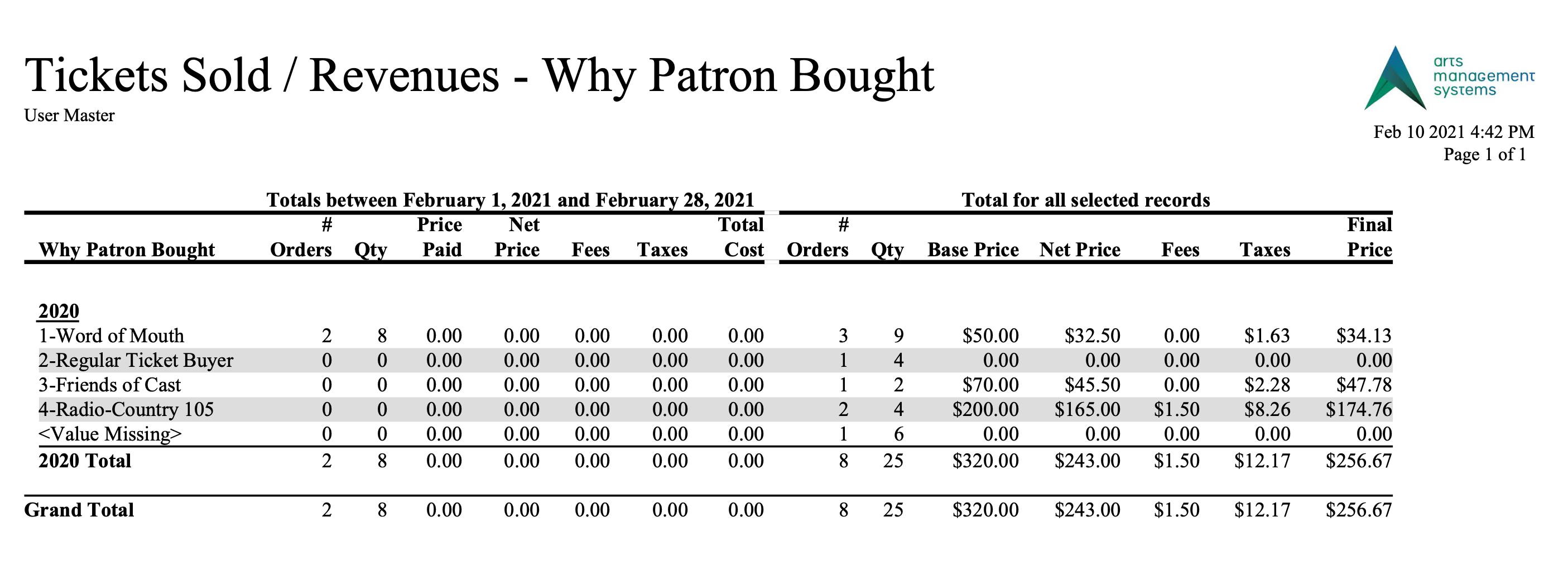
Purpose of the Report
This report generates a summary of the tickets and revenue earned by the Why Did Patron Buy? field. It shows both the daily sales and total sales.
Departments Who Benefit From This Report
| Box Office | Use this report as an overview of the tickets sold and revenue earned by the Why Did Patron Buy? field. |
| Marketing | Use this report as an overview of the tickets sold and revenue earned by the Why Did Patron Buy? field. |
Criteria Hints
It is recommended that this report be run with a specific event or group of events as the criteria.
| Parameter Field | Condition | Value |
| Event # | is one of | (Event) |
Use the SHIFT key to select a series of events, or the OPTION key (Mac) or CTRL key (Windows) to select multiple individual events.
Tickets Sold/Revenues by Promotion & Price Code
Tickets Sold/Revenues by Promotion & Price Code
The Tickets Sold/Revenues by Promotion & Price Code report can be found under the Ticket Printing, Invoicing and Inventory Analysis category. This report has additional criteria options. Click for more information about:
- Generating a report
- Finished Report window
- Parameters tab
- Price Code Options tab
- Sort & Subtotal tab
- Formatting tab

Purpose of the Report
This report generates a summary of the tickets and revenue earned by promotion and price code.
Departments Who Benefit From This Report
| Box Office | Use this report as an overview of the tickets sold and revenue earned by promotion and price code. |
| Accounting | Use this report as an overview of the tickets sold and revenue earned by promotion and price code. |
| General Manager | Use this report as an overview of the tickets sold and revenue earned by promotion and price code. |
Criteria Hints
It is recommended that this report be run with a specific event or group of events as the criteria.
| Parameter Field | Condition | Value |
| Event # | is one of | (Event) |
Use the SHIFT key to select a series of events, or the OPTION key (Mac) or CTRL key (Windows) to select multiple individual events.
Transaction History Reports
Transaction History Reports
Transaction History - By Employee (Totals Only)
Transaction History - By Employee (Totals Only)
The Transaction History - By Employee (Totals Only) report can be found under the Transaction History Reports category. Below the image are detailed notes to help you in using the report.
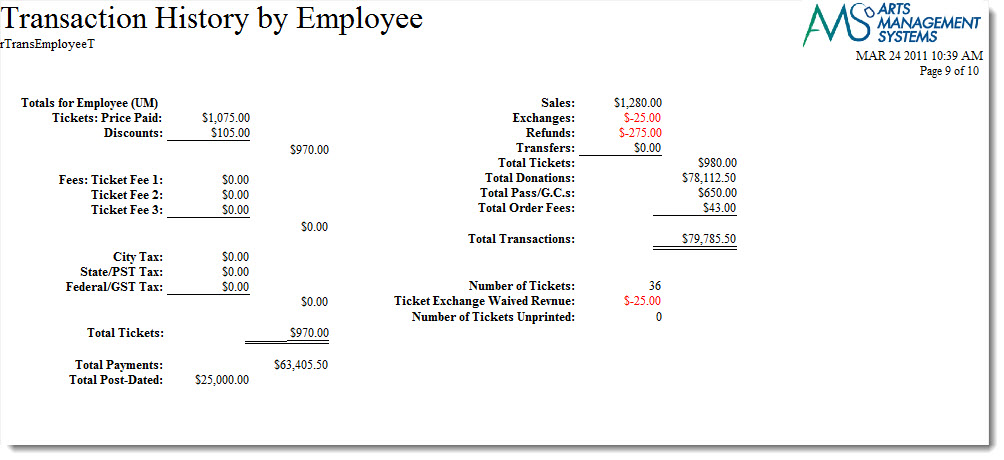
Click here for information on generating a report. Click here for information on the Finished Report window.
Purpose of the Report
This report generates a summary of transactions that occurred in conjunction with an order by employee.
Departments Who Benefit From This Report
| Box Office | Use this report to review a summary of transactions by an employee for an order. |
Criteria Hints
It is recommended that this report be run with a date or date range as the criteria.
| Parameter Field | Condition | Value |
| G/L Header Date - Posted | between | (Date) and (Date) |
| Order Changed By | is one of | (Employee) |
Use the SHIFT key to select a series of employees, or the OPTION key (Mac) or CTRL key (Windows) to select multiple individual employees.
Transaction History - By Employee
Transaction History - By Employee
The Transaction History - By Employee report can be found under the Transaction History Reports category. This report has additional criteria options. Click here for more information about the Parameters tab. Click here for more information about the Sort & Subtotal tab. Click here for more information about the Formatting tab. Below the image are detailed notes to help you in using the report.
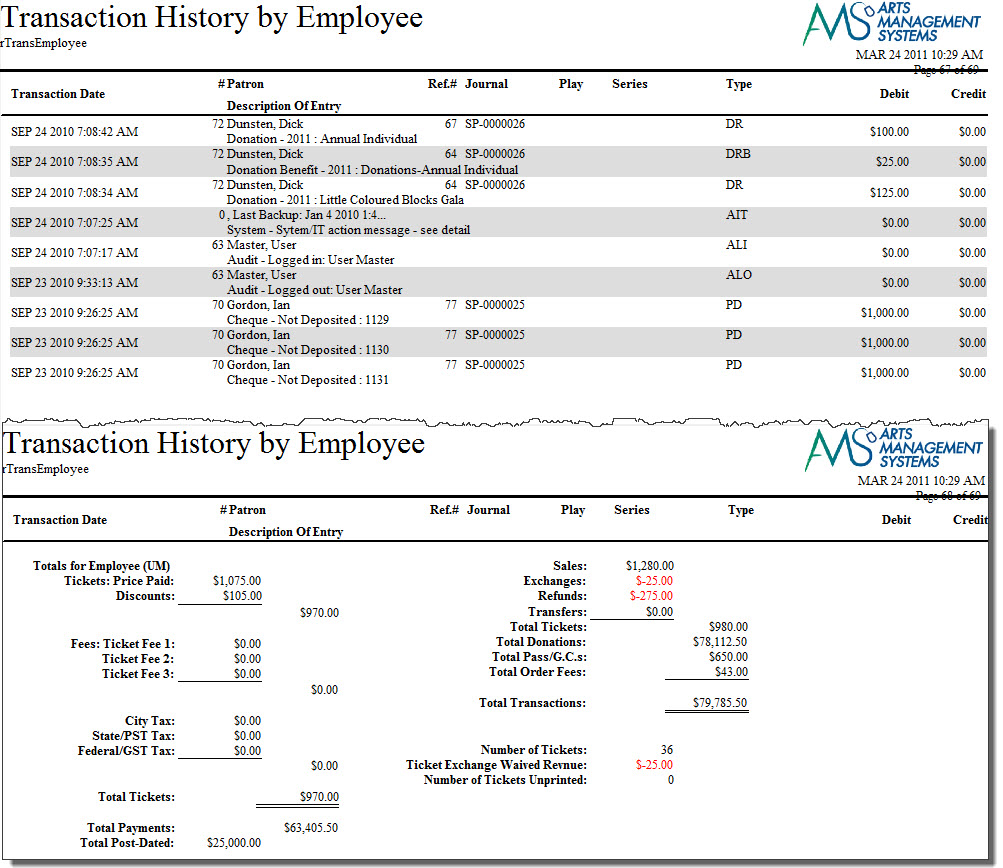
Click here for information on generating a report. Click here for information on the Finished Report window.
Purpose of the Report
This report generates a listing of transactions that occurred in conjunction with an order by employee.
Departments Who Benefit From This Report
| Box Office | Use this report to review transactions by an employee for an order. |
Criteria Hints
It is recommended that this report be run with a date or date range as the criteria.
| Parameter Field | Condition | Value |
| G/L Header Date - Posted | between | (Date) and (Date) |
| Order Changed By | is one of | (Employee) |
Use the SHIFT key to select a series of employees, or the OPTION key (Mac) or CTRL key (Windows) to select multiple individual employees.
Transaction History - By G/L Journal # (Totals Only)
Transaction History - By G/L Journal # (Totals Only)
The Transaction History - By G/L Journal # (Totals Only) report can be found under the Transaction History Reports category. Below the image are detailed notes to help you in using the report.
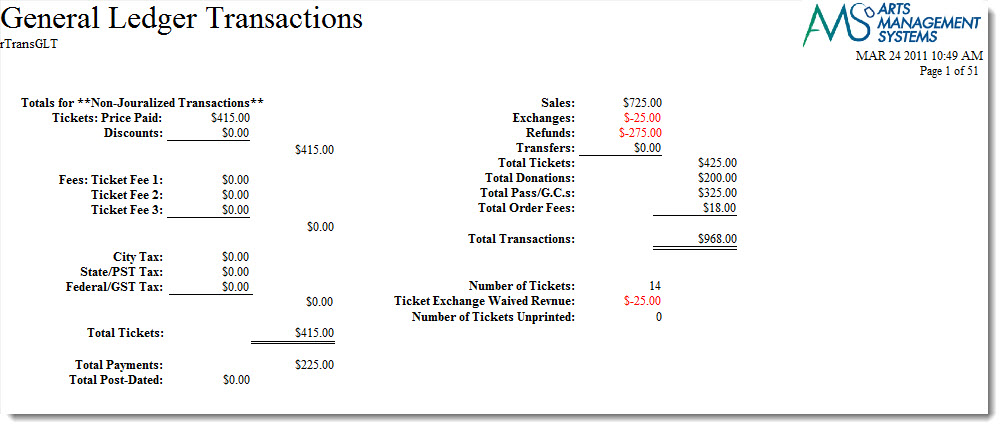
Click here for information on generating a report. Click here for information on the Finished Report window.
Purpose of the Report
This report generates a summary of transactions that occurred in conjunction with the General Ledger.
Departments Who Benefit From This Report
| Box Office | Use this report to review a summary of transactions that occurred that affected the General Ledger. |
| Accounting | Use this report to review a summary of transactions that occurred that affected the General Ledger. |
Criteria Hints
It is recommended that this report be run with an account or range of accounts as the criteria.
| Parameter Field | Condition | Value |
| Account # | is one of | (Account) |
Use the SHIFT key to select a series of accounts, or the OPTION key (Mac) or CTRL key (Windows) to select multiple individual accounts.
Transaction History - By G/L Journal #
Transaction History - By G/L Journal #
The Transaction History - By G/L Journal # report can be found under the Transaction History Reports category. This report has additional criteria options. Click here for more information about the Parameters tab. Click here for more information about the Sort & Subtotal tab. Click here for more information about the Formatting tab. Below the image are detailed notes to help you in using the report.
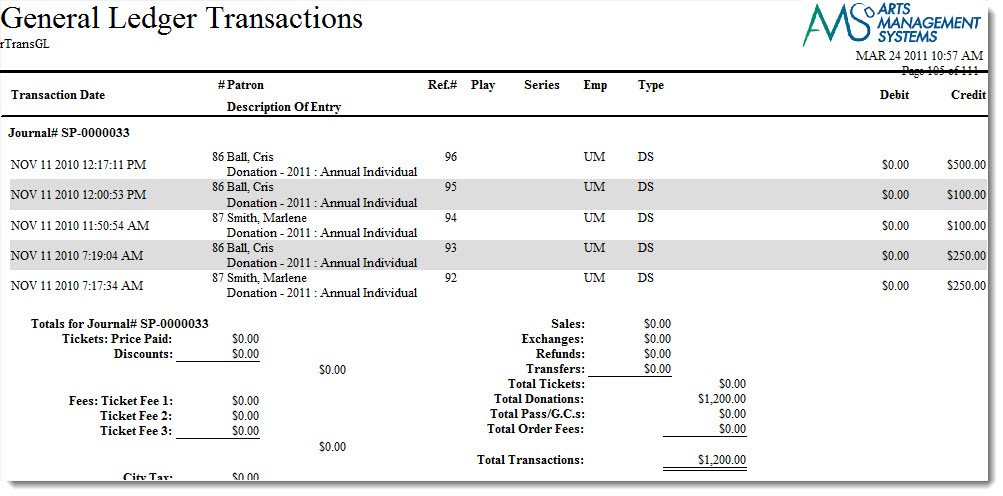
Click here for information on generating a report. Click here for information on the Finished Report window.
Purpose of the Report
This report generates a listing of transactions that occurred in conjunction with the General Ledger.
Departments Who Benefit From This Report
| Box Office | Use this report to review transactions that occurred that affected the General Ledger. |
| Accounting | Use this report to review transactions that occurred that affected the General Ledger. |
Criteria Hints
It is recommended that this report be run with an account or range of accounts as the criteria.
| Parameter Field | Condition | Value |
| Account # | is one of | (Account) |
Use the SHIFT key to select a series of accounts, or the OPTION key (Mac) or CTRL key (Windows) to select multiple individual accounts.
Transaction History - By Order (Totals Only)
Transaction History - By Order (Totals Only)
The Transaction History - By Patron (Totals Only) report can be found under the Transaction History Reports category. Below the image are detailed notes to help you in using the report.
Click here for information on generating a report. Click here for information on the Finished Report window.
Purpose of the Report
This report generates a listing of transactions that occurred by order.
Departments Who Benefit From This Report
| Accounting | Use this report to review transactions that occurred by order to track where sales, refunds, exchanges and transfers occur within an order |
Transaction History - By Order
Transaction History - By Order
The Transaction History - By Order report can be found under the Transaction History Reports category. This report has additional criteria options. Click here for more information about the Parameters tab. Click here for more information about the Sort & Subtotal tab. Click here for more information about the Formatting tab. Below the image are detailed notes to help you in using the report.
Click here for information on generating a report. Click here for information on the Finished Report window.
Purpose of the Report
This report generates a listing of transactions that occurred by order.
Departments Who Benefit From This Report
| Accounting | Use this report to review transactions that occurred by order to track where sales, refunds, exchanges and transfers occur within an order |
Transaction History - By Patron (Totals Only)
Transaction History - By Patron (Totals Only)
The Transaction History - By Patron (Totals Only) report can be found under the Transaction History Reports category. Below the image are detailed notes to help you in using the report.
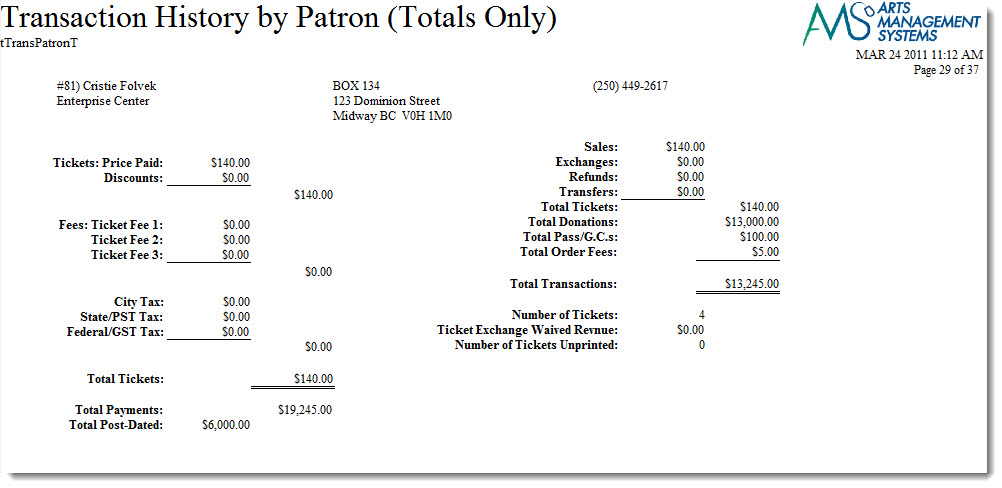
Click here for information on generating a report. Click here for information on the Finished Report window.
Purpose of the Report
This report generates a summary of transactions that occurred by patron.
Departments Who Benefit From This Report
| Box Office | Use this report to review a summary of transactions that occurred by patron. |
Criteria Hints
It is recommended that this report be run with a patron or range of patrons as the criteria.
| Parameter Field | Condition | Value |
| Patron Name - Last | between | (Last Name) and (Last Name) |
Transaction History - By Patron
Transaction History - By Patron
The Transaction History - By Patron report can be found under the Transaction History Reports category. This report has additional criteria options. Click here for more information about the Parameters tab. Click here for more information about the Sort & Subtotal tab. Click here for more information about the Formatting tab. Below the image are detailed notes to help you in using the report.
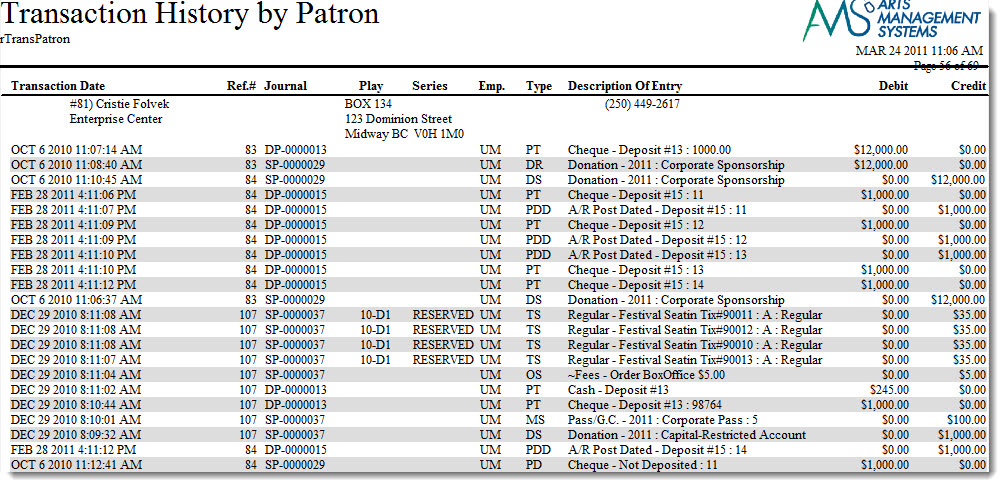
Click here for information on generating a report. Click here for information on the Finished Report window.
Purpose of the Report
This report generates a listing of transactions that occurred by patron.
Departments Who Benefit From This Report
| Box Office | Use this report to review transactions that occurred by patron. |
Criteria Hints
It is recommended that this report be run with a patron or range of patrons as the criteria.
| Parameter Field | Condition | Value |
| Patron Name - Last | between | (Last Name) and (Last Name) |
Transaction History - By Play (Totals Only)
Transaction History - By Play (Totals Only)
The Transaction History - By Event (Totals Only) report can be found under the Transaction History Reports category. Below the image are detailed notes to help you in using the report.
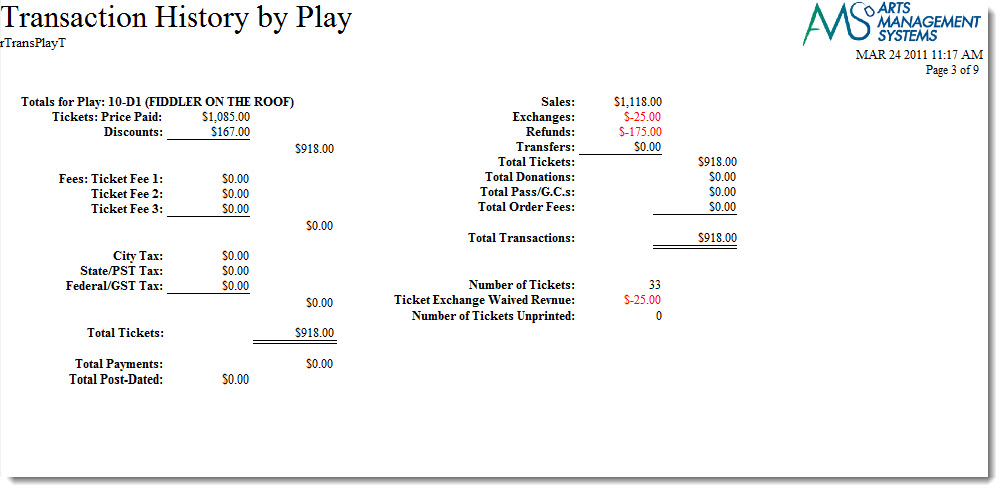
Click here for information on generating a report. Click here for information on the Finished Report window.
Purpose of the Report
This report generates a summary of transactions that occurred in conjunction with an order for an event.
Departments Who Benefit From This Report
| Box Office | Use this report to review a summary of transactions for an order by an event. |
Criteria Hints
It is recommended that this report be run with an event or range of events as the criteria.
| Parameter Field | Condition | Value |
| Event # | is one of | (Event) |
Use the SHIFT key to select a series of events, or the OPTION key (Mac) or CTRL key (Windows) to select multiple individual events.
Transaction History - By Play
Transaction History - By Play
The Transaction History - By Event report can be found under the Transaction History Reports category. This report has additional criteria options. Click here for more information about the Parameters tab. Click here for more information about the Sort & Subtotal tab. Click here for more information about the Formatting tab. Below the image are detailed notes to help you in using the report.
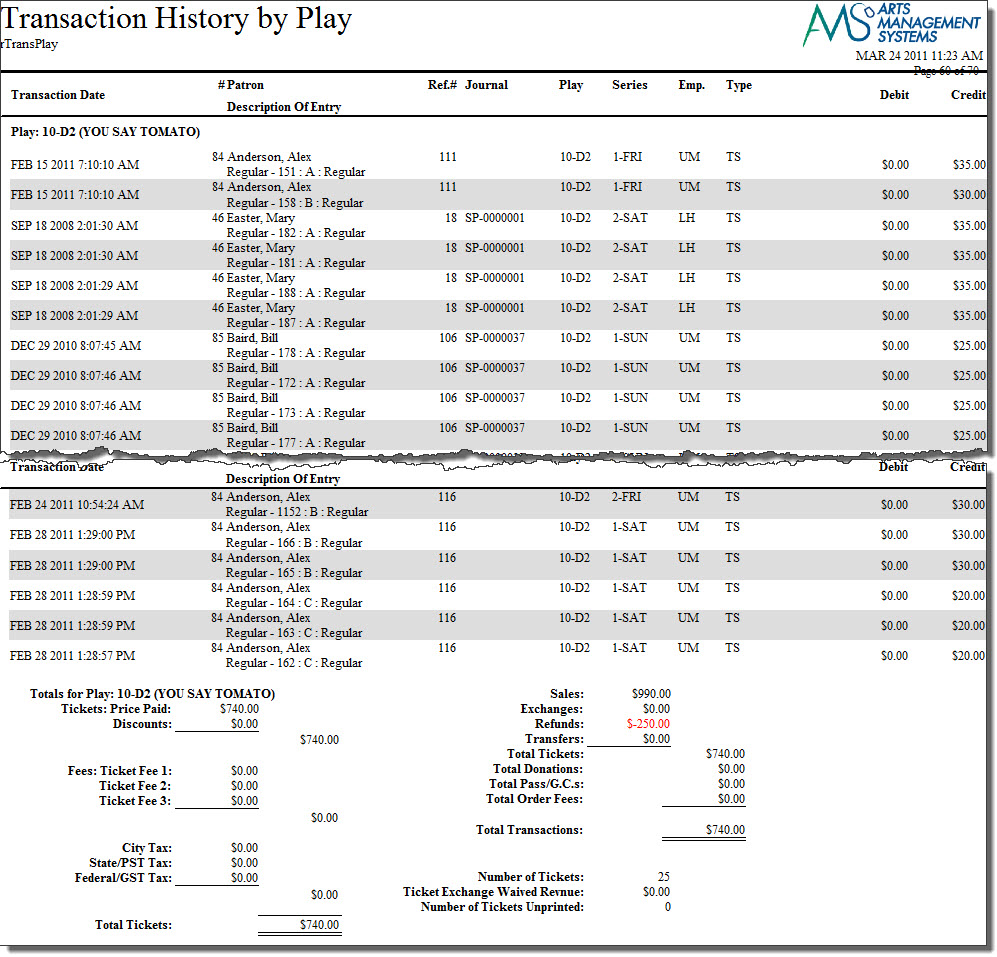
Purpose of the Report
This report generates a listing of transactions that occurred in conjunction with an order for an event.
Departments Who Benefit From This Report
| Box Office | Use this report to review transactions for an order by an event. |
Criteria Hints
It is recommended that this report be run with an event or range of events as the criteria.
| Parameter Field | Condition | Value |
| Event # | is one of | (Event) |
Use the SHIFT key to select a series of events, or the OPTION key (Mac) or CTRL key (Windows) to select multiple individual events.
Transaction History - By Play, By Price Code (Totals Only)
Transaction History - By Play, By Price Code (Totals Only)
The Transaction History - By Play, By Price Code (Totals Only) report can be found under the Transaction History Reports category. Below the image are detailed notes to help you in using the report.
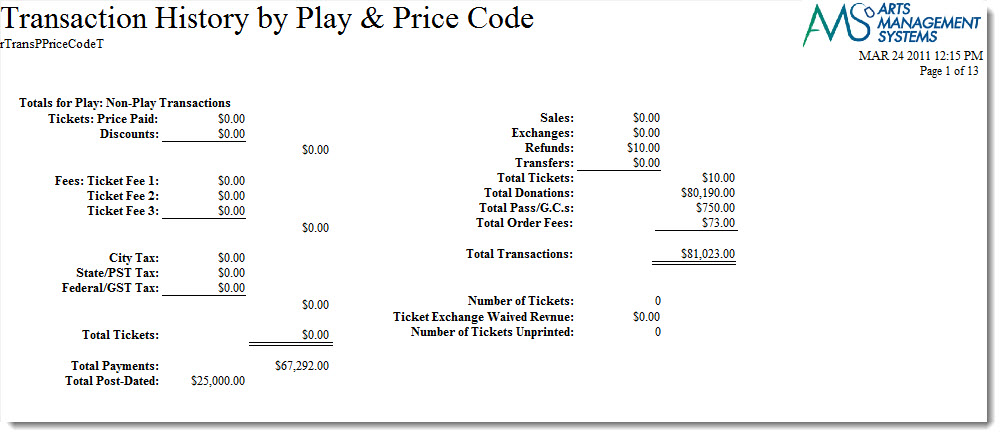
Click here for information on generating a report. Click here for information on the Finished Report window.
Purpose of the Report
This report generates a summary of transactions that occurred in conjunction with an order for an event by price code.
Departments Who Benefit From This Report
| Box Office | Use this report to review a summary of transactions for an order by an event and price code. |
Criteria Hints
It is recommended that this report be run with an event or range of events as the criteria.
| Parameter Field | Condition | Value |
| Event # | is one of | (Event) |
Use the SHIFT key to select a series of events, or the OPTION key (Mac) or CTRL key (Windows) to select multiple individual events.
Transaction History - By Play, By Price Code
Transaction History - By Play, By Price Code
The Transaction History - By Play, By Price Code report can be found under the Transaction History Reports category. This report has additional criteria options. Click here for more information about the Parameters tab. Click here for more information about the Sort & Subtotal tab. Click here for more information about the Formatting tab. Below the image are detailed notes to help you in using the report.
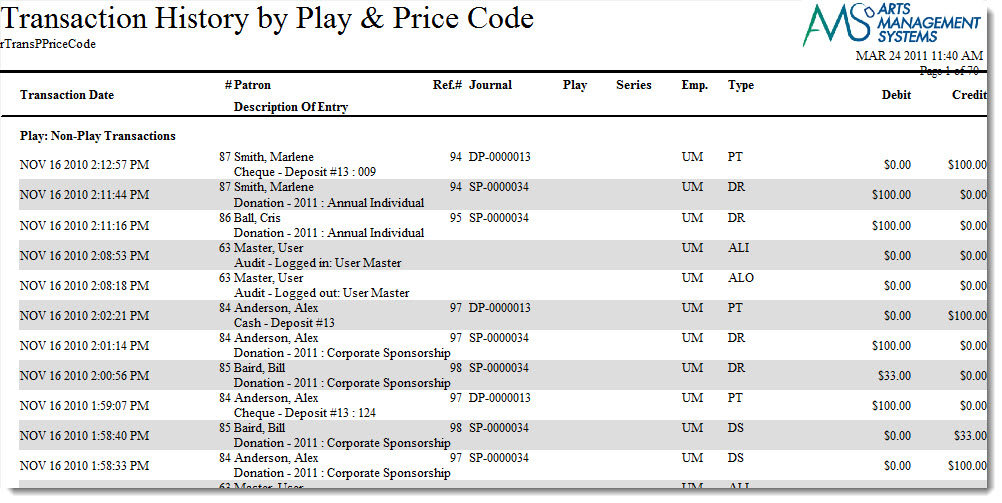
Click here for information on generating a report. Click here for information on the Finished Report window.
Purpose of the Report
This report generates a listing of transactions that occurred in conjunction with an order for an event by price code.
Departments Who Benefit From This Report
| Box Office | Use this report to review transactions for an order by an event and price code. |
Criteria Hints
It is recommended that this report be run with an event or range of events as the criteria.
| Parameter Field | Condition | Value |
| Event # | is one of | (Event) |
Use the SHIFT key to select a series of events, or the OPTION key (Mac) or CTRL key (Windows) to select multiple individual events.
Transaction History - By Sales Promotion Group (Totals Only)
Transaction History - By Sales Promotion Group (Totals Only)
The Transaction History - By Sales Promotion Group (Totals Only) report can be found under the Transaction History Reports category. Below the image are detailed notes to help you in using the report.
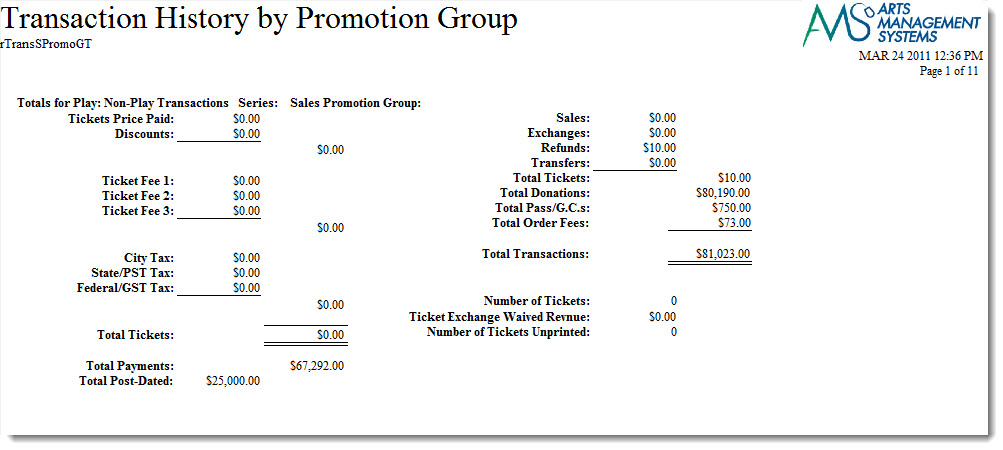
Click here for information on generating a report. Click here for information on the Finished Report window.
Purpose of the Report
This report generates a summary of transactions that occurred by sales promotion groupings.
Departments Who Benefit From This Report
| Box Office | Use this report to review a summary of transactions that occurred by sales promotion groupings. |
Criteria Hints
It is recommended that this report be run with an account or range of accounts as the criteria.
| Parameter Field | Condition | Value |
| Account # | is one of | (Account) |
Use the SHIFT key to select a series of accounts, or the OPTION key (Mac) or CTRL key (Windows) to select multiple individual accounts.
Transaction History - By Sales Promotion Group
Transaction History - By Sales Promotion Group
The Transaction History - By Sales Promotion Group report can be found under the Transaction History Reports category. This report has additional criteria options. Click here for more information about the Parameters tab. Click here for more information about the Sort & Subtotal tab. Click here for more information about the Formatting tab. Below the image are detailed notes to help you in using the report.
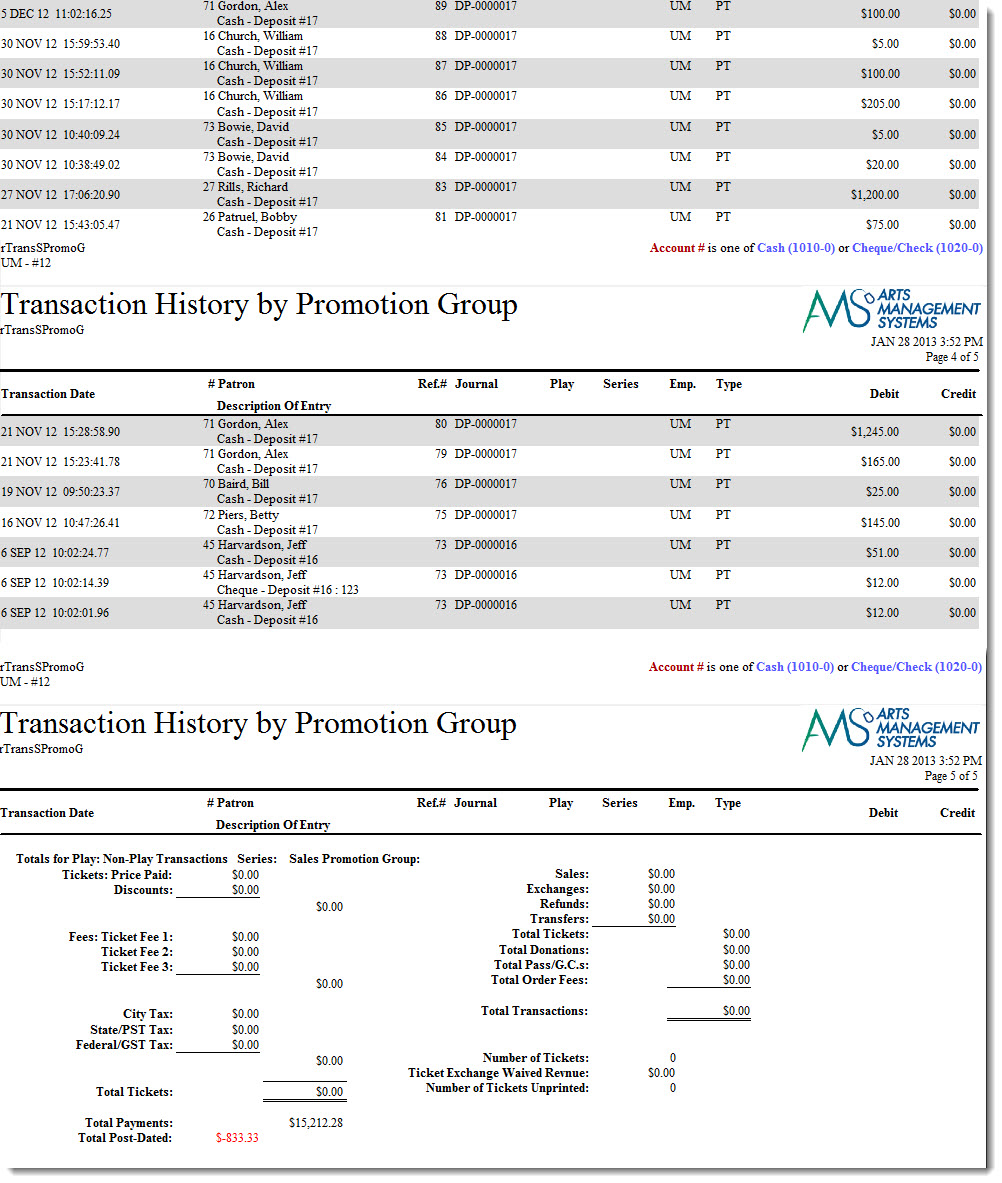
Click here for information on generating a report. Click here for information on the Finished Report window.
Purpose of the Report
This report generates a listing of transactions that occurred by sales promotion groupings.
Departments Who Benefit From This Report
| Box Office | Use this report to review transactions that occurred by sales promotion groupings. |
Criteria Hints
It is recommended that this report be run with an account or range of accounts as the criteria.
| Parameter Field | Condition | Value |
| Account # | is one of | (Account) |
Use the SHIFT key to select a series of accounts, or the OPTION key (Mac) or CTRL key (Windows) to select multiple individual accounts.
Transaction History - By Series, By Promotion (Totals Only)
Transaction History - By Series, By Promotion (Totals Only)
The Transaction History - By Series, By Promotion (Totals Only) report can be found under the Transaction History Reports category. Below the image are detailed notes to help you in using the report.
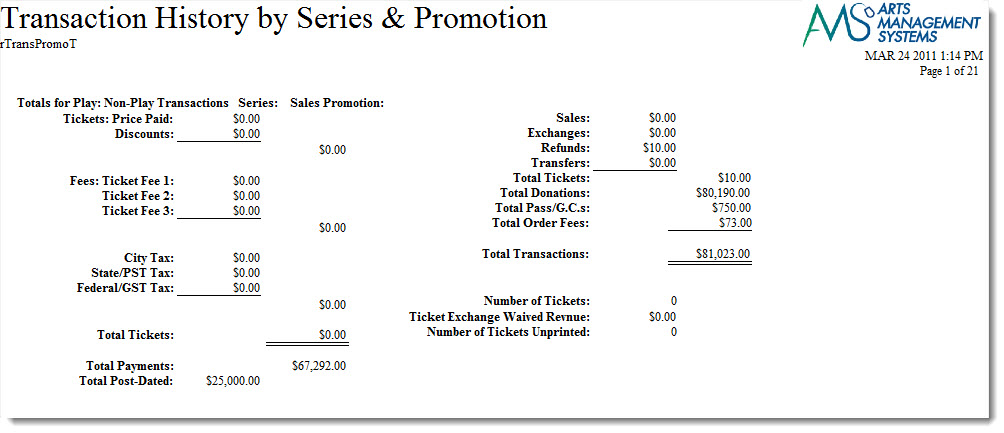
Click here for information on generating a report. Click here for information on the Finished Report window.
Purpose of the Report
This report generates a summary of transactions that occurred by series and promotion
Departments Who Benefit From This Report
| Box Office | Use this report to review a summary of transactions that occurred by series and promotion. |
Criteria Hints
It is recommended that this report be run with an event or range of events as the criteria.
| Parameter Field | Condition | Value |
| Event # | is one of | (Event) |
Use the SHIFT key to select a series of events, or the OPTION key (Mac) or CTRL key (Windows) to select multiple individual events.
Transaction History - By Series, By Promotion
Transaction History - By Series, By Promotion
The Transaction History - By Series, By Promotion report can be found under the Transaction History Reports category. This report has additional criteria options. Click here for more information about the Parameters tab. Click here for more information about the Sort & Subtotal tab. Click here for more information about the Formatting tab. Below the image are detailed notes to help you in using the report.
Click here for information on generating a report. Click here for information on the Finished Report window.
Purpose of the Report
This report generates a listing of transactions that occurred by series and promotion
Departments Who Benefit From This Report
| Box Office | Use this report to review transactions that occurred by series and promotion. |
Criteria Hints
It is recommended that this report be run with an event or range of events as the criteria.
| Parameter Field | Condition | Value |
| Event # | is one of | (Event) |
Use the SHIFT key to select a series of events, or the OPTION key (Mac) or CTRL key (Windows) to select multiple individual events.
Transaction History List (Totals Only)
Transaction History List (Totals Only)
The Transaction History List (Totals Only) report can be found under the Transaction History Reports category. Below the image are detailed notes to help you in using the report.
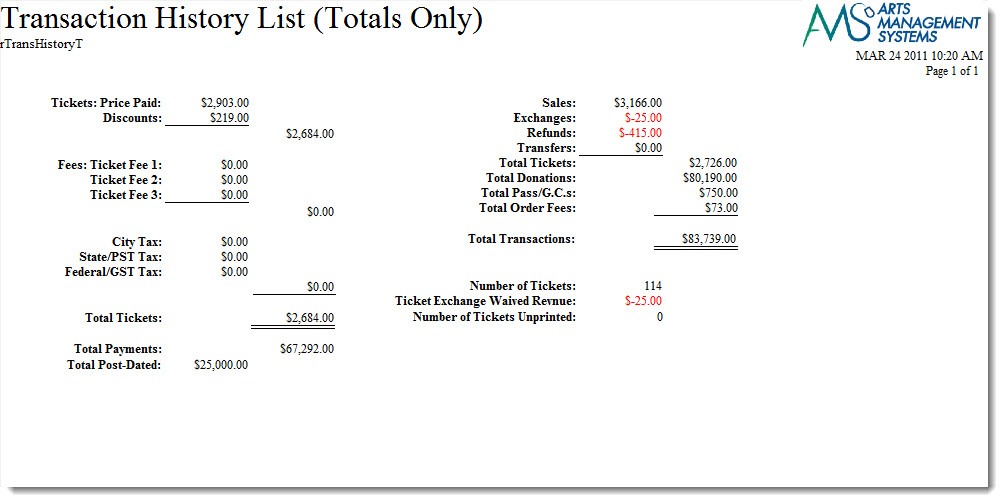
Click here for information on generating a report. Click here for information on the Finished Report window.
Purpose of the Report
This report generates a summary of transactions that occurred during an order.
Departments Who Benefit From This Report
| Box Office | Use this report to review a summary of transactions that took place during an order. |
Criteria Hints
It is recommended that this report be run with a date or date range as the criteria.
| Parameter Field | Condition | Value |
| G/L Header Date - Posted | between | (Date) and (Date) |
Transaction History List
Transaction History List
The Transaction History List report can be found under the Transaction History Reports category. Below the image are detailed notes to help you in using the report.
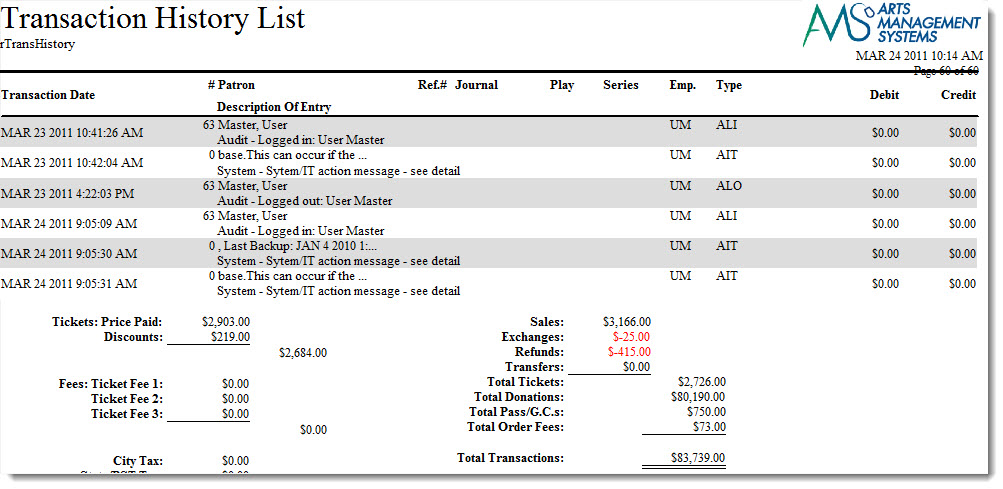
Click here for information on generating a report. Click here for information on the Finished Report window.
Purpose of the Report
This report generates a listing of transactions that occurred during an order.
Departments Who Benefit From This Report
| Box Office | Use this report to review transactions that took place during an order. |
Criteria Hints
It is recommended that this report be run with a date or date range as the criteria.
| Parameter Field | Condition | Value |
| G/L Header Date - Posted | between | (Date) and (Date) |
Transaction Revenues
Transaction Revenues
TheTransaction Revenues report can be found under the Transaction History Reports category.
Use Transaction Revenues to print ticket sales revenue from the transactions. This should match inventory if no transactions are deleted. Use this to analyse the revenues for a sales posting.
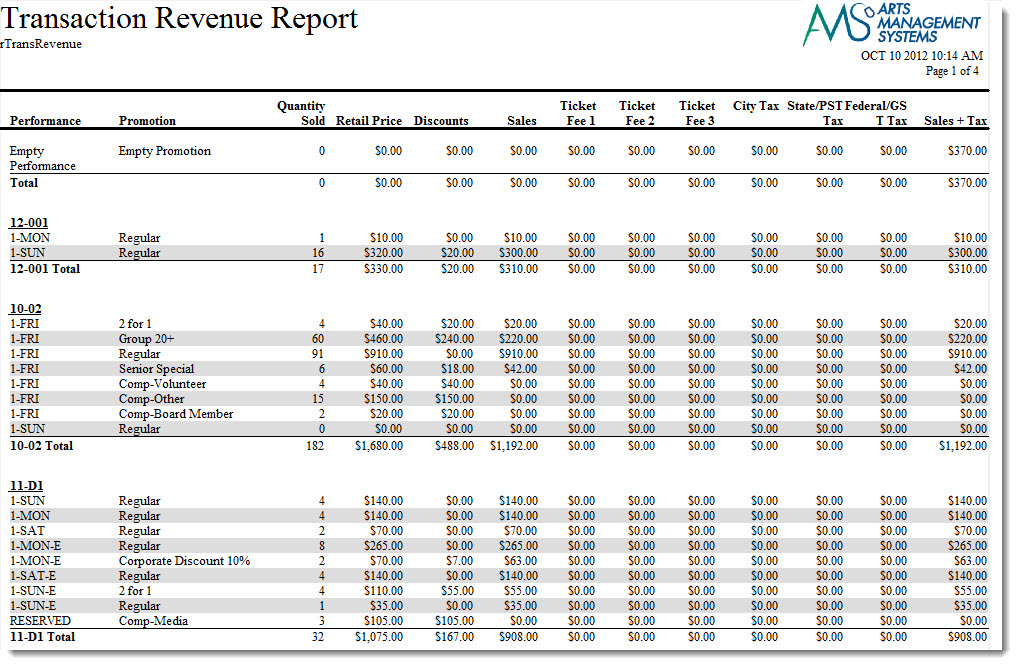
The criteria selections for this report contain additional options.
Click here for more information on the Insert Summary tab. Below the image are detailed notes to help you in using the report.Purpose of the Report
Use this to analyse the revenues for sales.
Departments Who Benefit From This Report
| Accounting | Use this report to review Fee, Taxes and Discount for an event by type of ticket sold. |
Criteria Hints
It is recommended that this report be run using criteria for:
- an event or range of events -or-
- for a specific date/timestamp range to check allocation of revenue -or-
- for specific GL codes and/or date posted if you want to see the transactions that make up some end of day entries
| Parameter Field | Condition | Value |
| Event # | is one of | (Event) |
Utility Functions and Database Analysis
Check Order and Transaction Balances
Check Order and Transaction Balances
The Check Order and Transaction Balances report can be found under the Ticket Printing, Invoicing and Inventory Analysis category. This report has additional criteria options. Click here for more information about the Sort & Subtotal tab. Click here for more information about the Formatting tab. Below the image are detailed notes to help you in using the report.
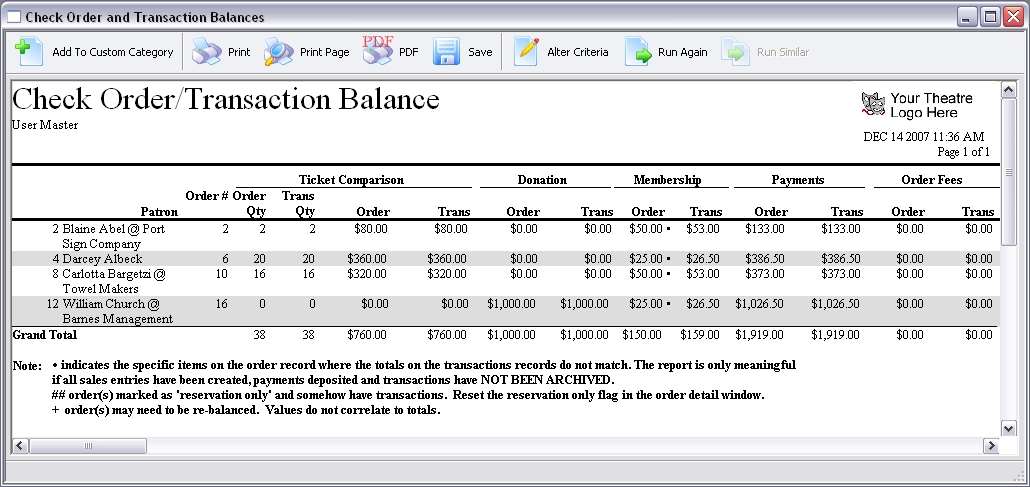
 After the report runs, if there are any out of balance orders, you can now get all the patrons who own the orders added to a mail list.
Click here for information on generating a report. Click here for information on the Finished Report window.
Purpose of the Report
This report generates a listing of orders and the balance between the transaction and the order. This report should be run when deposits and sales entries have been done in the End of Day Wizard, and the amounts are out of balance.
Departments Who Benefit From This Report
| Box Office | Use this report to find problems with the balance between the deposit and the sales entries in the End of Day Wizard. |
Criteria Hints
It is recommended that this report be run with the date that the End of Day is being run for as the criteria.
| Parameter Field | Condition | Value |
| Order Date Updated | >= | (Date) |
Check Seat Transaction Balance by Perfomance
Check Seat Transaction Balance by Perfomance

- Click here for information on generating a report.
- Click here for information on the Finished Report window.
Purpose of the Report
You use the Check Seat Transaction Balance by Perfomance to compare Performance and Play totals with transaction totals. This is used to identify specific seats where total transactions do not match the current seat balances.
Departments Who Benefit From This Report
| Box Office | Use this report to find problems between the performance and Play totals and the transaction totals. It can identify the specifc seats where the totals do not match. |
Criteria Hints
It is recommended that this report be run with the date that the End of Day is being run for as the criteria.
| Parameter Field | Condition | Value |
| Order Date Updated | = | (Date) |
Check Ticket Transaction Balances
Check Ticket Transaction Balances

- Click here for information on generating a report.
- Click here for information on the Finished Report window.
Purpose of the Report
This report generates a listing of compare performance and event ticket totals with transaction totals. This report should be run if you need to prove that totals for transactions, events and performances all match up.
|
If you are using the RESERVATION ONLY feature in Theatre Manager, the transactions will disagree based onthe number of tickets that were sold in orders that are reservation only.
RESERVATION ONLY is never recommended because it hides sales from accounting if there is no payment and under counts sales. Sadly, some external presenters don't like to see dales and refunds as they occur naturally - just sales; all of which works against GAAP. |
Departments Who Benefit From This Report
| Box Office | Use this report to find events where transaction and performance totals don't match. It is an indication of use of reservation only ticket sales (not recommended) or if TM Servers are not running for the database. |
Criteria Hints
It is recommended that this report be run for a list of selected events is being run for as the criteria.
| Parameter Field | Condition | Value |
| Event | is one of | Pick some events |
Check Transactions and G/L Entry Balances
Check Transactions and G/L Entry Balances
The Check Transaction and G/L Entry Balances report can be found under the Ticket Printing, Invoicing and Inventory Analysis category. This report has additional criteria options. Click here for more information about the Sort & Subtotal tab. Click here for more information about the Formatting tab. Below the image are detailed notes to help you in using the report.
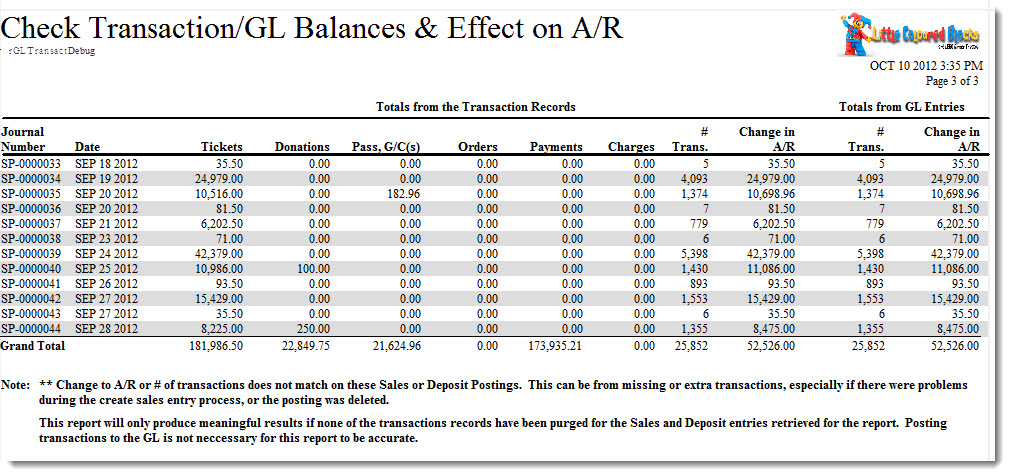
Click here for information on generating a report. Click here for information on the Finished Report window.
Purpose of the Report
This report generates a summary of the A/R and balances the transactions affecting it.
Departments Who Benefit From This Report
| Box Office | Use this report to find problems between transactions and the G/L. |
Criteria Hints
It is recommended that this report be run with a specific date as the criteria.
| Parameter Field | Condition | Value |
| Order Date Updated | = | (Date) |
Check Web Cart and Final Order Status
Check Web Cart and Final Order Status
The Check Web Cart and Final Order Status report can be found under the Ticket Printing, Invoicing and Inventory Analysis category. Below the image are detailed notes to help you in using the report.
Click here for information on generating a report. Click here for information on the Finished Report window.
Purpose of the Report
This report generates a listing of web sales orders that may not have completed correctly. This report should be run when deposits and sales entries have been done in the End of Day Wizard, and the amounts are out of balance.
Departments Who Benefit From This Report
| Box Office | Use this report to find problems with the balance between the deposit and the sales entries in the End of Day Wizard. |
Criteria Hints
It is recommended that this report be run with the date that the End of Day is being run for as the criteria.
| Parameter Field | Condition | Value |
| Order Date Updated | = | (Date) |
Volunteer and Volunteer History
Volunteer and Volunteer History
Volunteer and Volunteer History
| Cast & Crew Listing | A report listing the cast and crew with full contact information. Click here for more information on the Cast & Crew Listing report. |
| Cast & Crew Listing (Without Addresses) | A report listing the cast and crew with only phone and email contact information. Click here for more information on the Cast & Crew Listing (Without Addresses) report. |
| Cast & Crew Program Insert | A report listing of the cast and crew that can be exported for the program. Click here for more information on the Cast & Crew Program Insert report. |
| Volunteer Code List - Detail by Patron | A report listing volunteer codes, patrons and notes. Click here for more information on the Volunteer Code List - Detail by Patron report. |
| Volunteer Code List - Summary by Patron | A report listing patrons and the volunteer codes they are interested in. Click here for more information on the Volunteer Code List - Summary by Patron report. |
| Volunteer Code List - Volunteer in Each Code | A report listing volunteer codes and the patrons in each code. Click here for more information on the Volunteer Code List - Volunteer in Each Code report. |
| Volunteer Detail for a Patron | A report listing each patron along with contact information and detailed volunteer information. Click here for more information on the Volunteer Detail for a Patron report. |
| Volunteer History List - Activity & Comments by Patron | A report listing volunteer activities a patron is interested in along with prior volunteer history. Click here for more information on the Volunteer History List - Activity & Comments by Patron report. |
| Volunteer Schedule by Patron | A report listing a patron's volunteer schedule based on activities entered in Theatre Manager. Click here for more information on the Volunteer Schedule by Patron report. |
| Volunteer Schedule by Performance | A report listing volunteers scheduled for a performance. Click here for more information on the Volunteer Schedule by Performance report. |
| Volunteer Statistics | A report summarizing volunteer statistics for a time frame. Click here for more information on the Volunteer Statistics report. |
| Volunteer Time Availability - by Patron | A report listing each patron with the time available for volunteer activities. Click here for more information on the Volunteer Time Availability - by Patron report. |
Cast & Crew Listing (Without Addresses)
Cast & Crew Listing (Without Addresses)
The Cast & Crew Listing (Without Addresses) report can be found under the Volunteer and Volunteer History category. Below the image are detailed notes to help you in using the report.

Click here for information on generating a report. Click here for information on the Finished Report window.
Purpose of the Report
This report generates a listing of the cast and crew for an event based on information entered through the volunteer module.
Departments Who Benefit From This Report
| Volunteer Coordinator | Use this report to create a short contact list without address information. |
| Stage Management | Use this report to create a short contact list without address information. |
Criteria Hints
It is recommended that this report be run with an event as the criteria.
| Parameter Field | Condition | Value |
| Event # | is one of | (Event) |
Cast & Crew Listing
Cast & Crew Listing
The Cast & Crew List report can be found under the Volunteer and Volunteer History category. Below the image are detailed notes to help you in using the report.

Click here for information on generating a report. Click here for information on the Finished Report window.
Purpose of the Report
This report generates a listing of the cast and crew for an event based on information entered through the volunteer module.
Departments Who Benefit From This Report
| Volunteer Coordinator | Use this report to create a contact list for the cast and crew of an event. |
| Stage Management | Use this report to create a contact list for the cast and crew of an event. |
Criteria Hints
It is recommended that this report be run with an event as the criteria.
| Parameter Field | Condition | Value |
| Event # | is one of | (Event) |
Cast & Crew Program Insert
Cast & Crew Program Insert
The Cast & Crew Program Insert report can be found under the Volunteer and Volunteer History category. Below the image are detailed notes to help you in using the report

Click here for information on generating a report. Click here for information on the Finished Report window.
Purpose of the Report
This report generates a listing of the cast and crew for an event based on information entered through the volunteer module.
Departments Who Benefit From This Report
| Volunteer Coordinator | Use this report to create a cast and crew listing for the program insert. This report can be exported into another application. |
| Marketing | Use this report to create a cast and crew listing for the program insert. This report can be exported into another application. |
Criteria Hints
It is recommended that this report be run with an event as the criteria.
| Parameter Field | Condition | Value |
| Event # | is one of | (Event) |
Volunteer - Hours Worked by Performance Type
Volunteer - Hours Worked by Performance Type
The Volunteer - Hours Worked by Performance Type report can be found under the Volunteer and Volunteer History category. This report has additional criteria options. Click here for more information about the Parameters tab. Click here for more information about the Sort & Subtotal tab. Click here for more information about the Formatting tab. Below the image are detailed notes to help you in using the report.

Click here for information on generating a report. Click here for information on the Finished Report window.
Purpose of the Report
You use the Volunteer Hours Summary to print a report for each volunteer with selectable detail fields and a summary of what hour range the volunteer falls in for the selected criteria.
Departments Who Benefit From This Report
| Volunteer Coordinator | Use this report to determine which volunteers should be used for a specific event. |
Criteria Hints
| Parameter Field | Condition | Value |
| Patron # | is one of | (Patrons) |
| Perf Type | is one of | Selected Performances |
Use the SHIFT key to select a series of events, or the OPTION key (Mac) or CTRL key (Windows) to select multiple individual events.
Volunteer Award Detail
Volunteer Award Detail
The Volunteer Award Detail report can be found under the Volunteer and Volunteer History category. Click here for more information about the Parameters tab. Click here for more information about the Sort & Subtotal tab. Click here for more information about the Formatting tab. Below the image are detailed notes to help you in using the report.

Click here for information on generating a report. Click here for information on the Finished Report window.
Purpose of the Report
You use the Volunteer Award Detail to print a report for each Volunteer detailing the awards received, the total hours of activity and the total number of years the Patron has been a Volunteer within the criteria specifid.
Departments Who Benefit From This Report
| Volunteer Coordinator | Use this report to see the details for each volunteer. |
Criteria Hints
| Parameter Field | Condition | Value |
| Patron # | is one of | (Patrons) |
Use the SHIFT key to select a series of events, or the OPTION key (Mac) or CTRL key (Windows) to select multiple individual events.
Volunteer Code List-Detail by Patron
Volunteer Code List-Detail by Patron
The Volunteer Code List - Detail by Patron report can be found under the Volunteer and Volunteer History category. Below the image are detailed notes to help you in using the report.

Click here for information on generating a report. Click here for information on the Finished Report window.
Purpose of the Report
This report generates a listing of patrons and the volunteer codes assigned to them in the volunteer module along with detailed information.
Departments Who Benefit From This Report
| Volunteer Coordinator | Use this report to review the volunteer codes assigned to each patron. |
Criteria Hints
It is recommended that this report be run without criteria or for a range of patrons as the criteria.
| Parameter Field | Condition | Value |
| Patron Name - Last | between | (Last Name) and (Last Name) |
Volunteer Code List-Summary by Patron
Volunteer Code List-Summary by Patron
The Volunteer Code List - Summary by Patron report can be found under the Volunteer and Volunteer History category. Below the image are detailed notes to help you in using the report.

Click here for information on generating a report. Click here for information on the Finished Report window.
Purpose of the Report
This report generates a listing of patrons with a summary of the volunteer codes assigned to them.
Departments Who Benefit From This Report
| Volunteer Coordinator | Use this report to review the volunteer codes assigned to each patron. |
Criteria Hints
It is recommended that this report be run without criteria or for a range of patrons as the criteria.
| Parameter Field | Condition | Value |
| Patron Name - Last | between | (Last Name) and (Last Name) |
Volunteer Code List-Volunteer in Each Code
Volunteer Code List-Volunteer in Each Code
The Volunteer Code List - Volunteer in Each Code report can be found under the Volunteer and Volunteer History category. Below the image are detailed notes to help you in using the report.

Click here for information on generating a report. Click here for information on the Finished Report window.
Purpose of the Report
This report generates a listing of volunteer codes along with the patrons with that volunteer code assigned to them.
Departments Who Benefit From This Report
| Volunteer Coordinator | Use this report to review the volunteer codes assigned to each patron. |
Criteria Hints
It is recommended that this report be run without criteria or with specific volunteer codes as the criteria.
| Parameter Field | Condition | Value |
| Volunteer Code # | is one of | (Volunteer Code) |
Use the SHIFT key to select a series of volunteer codes, or the OPTION key (Mac) or CTRL key (Windows) to select multiple individual volunteer codes.
Volunteer Detail for a Patron
Volunteer Detail for a Patron
The Volunteer Detail for a Patron report can be found under the Volunteer and Volunteer History category. This report has additional criteria options. Click here for more information about the Parameters tab. Click here for more information about the Sort & Subtotal tab. Click here for more information about the Formatting tab. Below the image are detailed notes to help you in using the report.

Click here for information on generating a report. Click here for information on the Finished Report window.
Purpose of the Report
This report generates a listing of the volunteer record for a patron.
Departments Who Benefit From This Report
| Volunteer Coordinator | Use this report to view and verify the volunteer setup for a patron. |
Criteria Hints
It is recommended that this report be run with a specific patron or range of patrons as the criteria.
| Parameter Field | Condition | Value |
| Patron Name - Last | between | (Last Name) and (Last Name) |
Volunteer History List - Activity & Comments by Patron
Volunteer History List - Activity & Comments by Patron
The Volunteer History List - Activity & Comments by Patron report can be found under the Volunteer and Volunteer History category. This report has additional criteria options. Click here for more information about the Parameters tab. Click here for more information about the Formatting tab. Below the image are detailed notes in regards to uses for the report.
 Click here for information on generating
a report. Click
here for information on the Finished Report window.
Purpose of the Report
This report generates a listing of the volunteer history and evaluations for each patron.
Departments Who Benefit From This Report
| Volunteer Coordinator | Use this report to review a patron's volunteer history and critiques. |
Criteria Hints
It is recommended that this report be run with a specific patron or range of patrons as the criteria.
| Parameter Field | Condition | Value |
| Patron Name - Last | between | (Last Name) and (Last Name) |
Volunteer Hours Summary
Volunteer Hours Summary
The Volunteer and Volunteer History report can be found under the Volunteer and Volunteer History Reports category. This report has additional criteria options. Click here for more information about the Volunteer Hour Ranges Code Table used to summarize the hours. Click here for more information about the Sort & Subtotal tab. Click here for more information about the Columns tab. Below the image are detailed notes to help you in using the report.

Click here for information on generating a report. Click here for information on the Finished Report window.
Purpose of the Report
This report generates a listing of Volunteers, the specified information and the mnumber of hours they have volunteered.
Departments Who Benefit From This Report
| Box Office | You use the Volunteer Hours Summary to print a report for each Volunteer with selectable detail fields and a summary range of what hour range the Volunteer falls in for the selected criteria. |
Criteria Hints
.
| Parameter Field | Condition | Value |
| Volunteer Hours Summary |
Volunteer Schedule by Patron
Volunteer Schedule by Patron
The Volunteer Schedule for a Patron report can be found under the Volunteer and Volunteer History category. This report has additional criteria options. Click here for more information about the Parameters tab. Click here for more information about the Sort & Subtotal tab. Click here for more information about the Formatting tab. Below the image are detailed notes to help you in using the report.

Click here for information on generating a report. Click here for information on the Finished Report window.
Purpose of the Report
This report generates a listing of the schedule for a volunteer.
Departments Who Benefit From This Report
Volunteer Coordinator |
Use this report to see the schedule for a volunteer. This report can also be given to the volunteer or emailed as a reminder of the times they will be working. |
Criteria Hints
It is recommended that this report be run with a specific patron or range of patrons as the criteria.
Parameter Field |
Condition |
Value |
Patron Name - Last |
between |
(Last Name) and (Last Name) |
Volunteer Schedule by Performance
Volunteer Schedule by Performance
The Volunteer Schedule by Performance report can be found under the Volunteer and Volunteer History category. This report has additional criteria options. Click here for more information about the Parameters tab. Click here for more information about the Sort & Subtotal tab. Click here for more information about the Formatting tab. Below the image are detailed notes to help you in using the report.

Click here for information on generating a report. Click here for information on the Finished Report window.
Purpose of the Report
This report generates a listing of the schedule for volunteers for a particular event. The volunteers are sorted by the performance(s) that they are assigned to.
Departments Who Benefit From This Report
| Volunteer Coordinator | Use this report to see the schedule for volunteers for a specific event. |
Criteria Hints
It is recommended that this report be run with a specific event or range of event as the criteria.
| Parameter Field | Condition | Value |
| Event # | is one of | (Event) |
Use the SHIFT key to select a series of events, or the OPTION key (Mac) or CTRL key (Windows) to select multiple individual events.
Volunteer Statistics
Volunteer Statistics
The Volunteer Statistics report can be found under the Volunteer and Volunteer History category. This report has additional criteria options. Click here for more information about the Parameters tab. Click here for more information about the Sort & Subtotal tab. Click here for more information about the Formatting tab. Below the image are detailed notes to help you in using the report.

Click here for information on generating a report. Click here for information on the Finished Report window.
Purpose of the Report
This report generates a summary of the volunteer statistics by volunteer code.
Departments Who Benefit From This Report
| Volunteer Coordinator | Use this report as an overview of the volunteers for the year and the total hours volunteered. |
Criteria Hints
It is recommended that this report be run without criteria or with a specific range of events as the criteria.
| Parameter Field | Condition | Value |
| Event # | is one of | (Event) |
Use the SHIFT key to select a series of events, or the OPTION key (Mac) or CTRL key (Windows) to select multiple individual events.
Volunteer Time Availability by Patron
Volunteer Time Availability by Patron
The Volunteer Time Availability by Patron report can be found under the Volunteer and Volunteer History category. This report has additional criteria options. Click here for more information about the Parameters tab. Click here for more information about the Sort & Subtotal tab. Click here for more information about the Formatting tab. Below the image are detailed notes to help you in using the report.

Click here for information on generating a report. Click here for information on the Finished Report window.
Purpose of the Report
This report generates a listing of each volunteer and their availability.
Departments Who Benefit From This Report
| Volunteer Coordinator | Use this report to review the availability of a patron. It can also be given to a patron to confirm the times with. |
Criteria Hints
It is recommended that this report be run with a specific patron or range of patrons as the criteria.
| Parameter Field | Condition | Value |
| Patron Name - Last | between | (Last Name) and (Last Name) |