Payment Method Variations
Payment Method Variations
refer to the following sub windows to see how things changed for some key payment methods
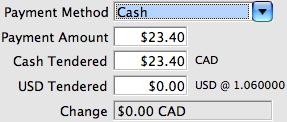
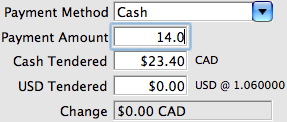
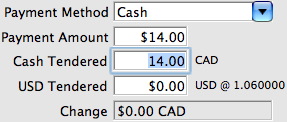
- Cash
- Check or Cheque if in Canada
- Credit Cards
- If typed by hand or using a USB swipe
- If entered using an EMV pin pad. Only Moneris is supported at this time
- Coupons that might be applied to create a discount (like a 50% off coupon)
- Electronic Funds Transfer which helps setup up a special file to send to banks to cause direct deposit.
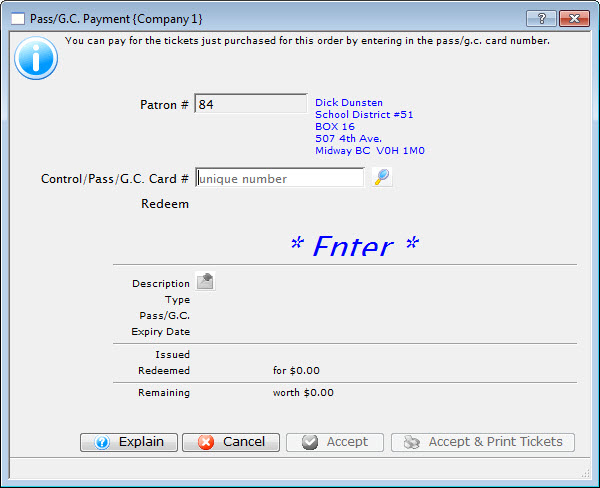
- Passes, Gift Certificates, or Membership Redemptions. This payment method is used to redeem Passes and Gift Certificates that have been sold to other patrons in the past and have been presented for redemption at the box office (or online).
- Gift In Kind which means that the patron is paying for their order using an item like a desk, advertising, sheep, donuts, lunch credits, etc - anything that the bank will not process
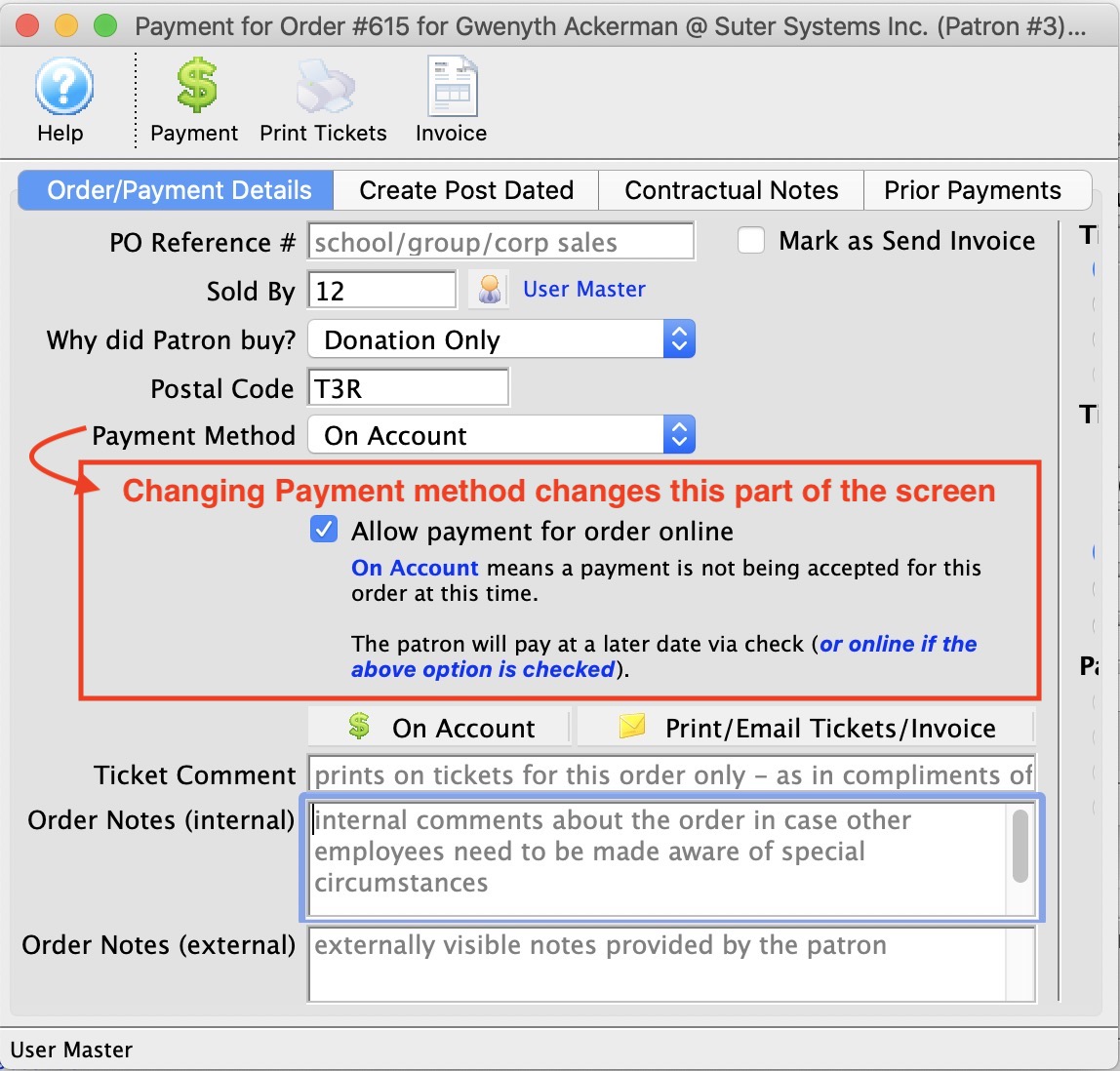
- On account which means no payment method is being taken now - it will be applied later
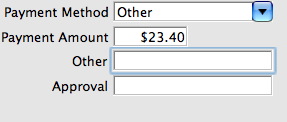
- Other which is representative of
- any of the other 'custom' payment methods you may have created in your payment method code table.
- Promissory Note is used to mark an order with a payment flag indicating that you have received a copy of a voucher promising payment from a customer and may have to refer to that in a future billing. Could be used for concierge orders from hotels
- The word 'other' might be replaced by your choice of words like Purchase Order, Stock Gift, etc
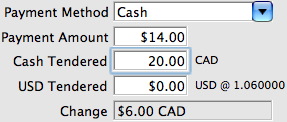
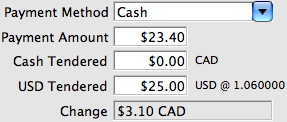
Payment Method Cash
Payment Method Cash
| Payment Method | Description and instructions on use |
| Cash |
|
Payment Method Check/Cheque
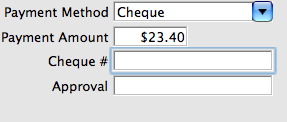
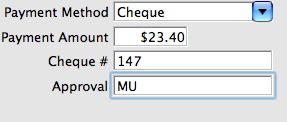
Payment Method Check/Cheque
| Payment Method | Description and instructions on use |
| Cheque |
|
Payment Method Credit Card (EMV Pin Pad)
Payment Method Credit Card (EMV Pin Pad)
 |
EMV Pin Pads are only valid for Moneris at this time. |
|
You can verify the correct communication steps are occurring with the pin pad device by looking at the web listener log for EMV devices |
|
If you expect to do a lot of manual card entries into the pin pad machine from phone sales, then please make sure your Authorization Timeout is 90 seconds - or at least sufficiently long enough to handle the process of manually putting the card number into the pinpad and getting an authorization. |
|
Moneris does not allow voiding payments taken via a pin pad. Instead, you must create a REFUND payment |
| Payment Method | Description and instructions on use |
| Credit Card (EMV Pin Pad) |
|
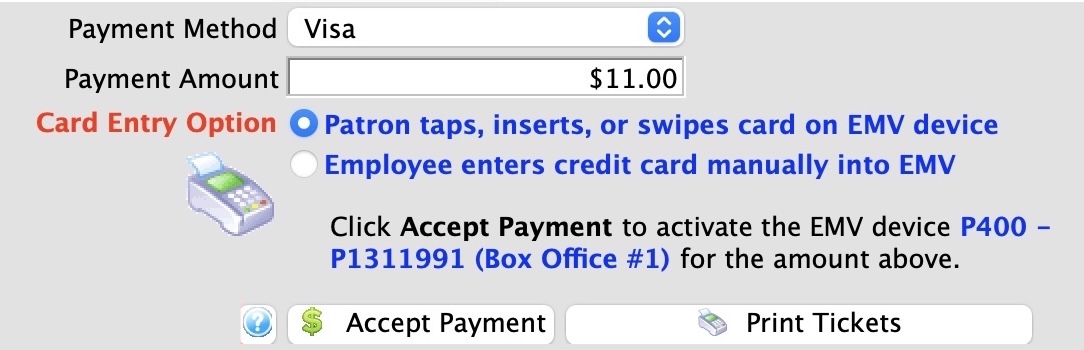
|
You many see a button on the lower left that says Type Card if you have been given permission to bypass use of the EMV device for manual card entry in employee security setup
This feature allows you to type the card, expiry, cvv2 into Theatre Manager and select a billing address. Payments taken this way allow future linked refunds, yet increase your PCI audit scope to Schedule 'C' or 'D' |
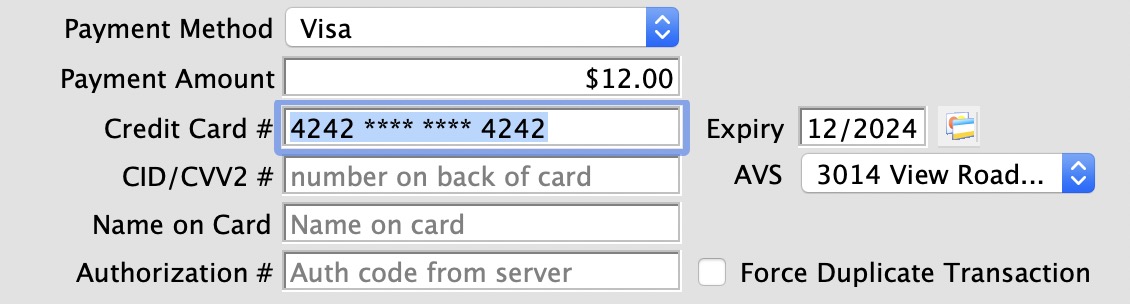
Payment Method Credit Card (USB SWIPE or Manual)
Payment Method Credit Card (USB SWIPE or Manual)
| Payment Method | Description and instructions on use | ||
| Credit Card (manually entered or USB Swipe) |
|


Payment Method EFT (Electronic Funds Transfer)
Payment Method EFT (Electronic Funds Transfer)
|
Using EFT for direct deposit on the payment window is described in detail.
You must have set up a merchant account for your EFT details along with creating the payment in the code tables. |
Payment Method Credit Card (Linked Refund)
Payment Method Credit Card (Linked Refund)
There are two types of credit refunds:
- Linked Refunds: preferred by credit card providers to avert fraud as it only refunds to the card used on the original order
- Independent Refunds: return money to any card you wish. You may need permission from the credit card provider to use this type
Linked Refunds - Always attempt these First
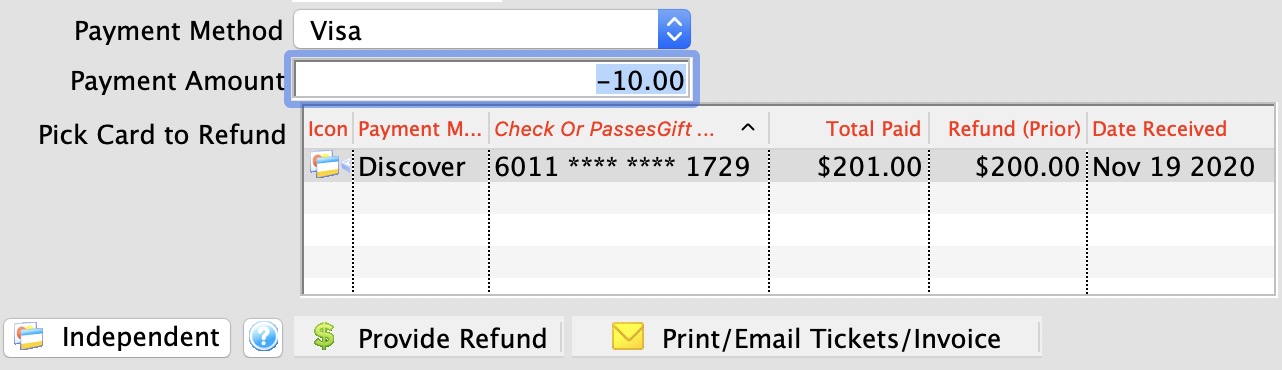
The system assumes that all credit card refunds are linked. The process of doing a refund occurs when the payment amount for a credit card is negative. Theatre Manager:
- displays the list of prior cards showing original authorized amount and refunded amount so far
- allows you to select a card for the refund. The amount you refund should be no more than the original authorization less any prior refunds. For example, if the original authorization is $100 and there are cumulative refunds of $75, then the maximum refund should be $25 for that card
- allows you to pick another card or another authorization to refund if there is more than one card option
Independent Refunds - Attempt Last
What if you need to refund to a completely different card from one in the list? If your merchant provider setup allows independent refunds, then the Independent Refund Button appears.
Click the button, the screen will change, and you will be able to refund to any card that you enter, or if using EMV device, put into the system.
|
Only credit cards authorized within the TIME limit set in your merchant setup will show up in the list.
The time limit should match that given by your credit card provider (typically between 120 and 400 days, depending on provider). Only extend the limit to see older cards after contacting your merchant provider. |
|
If you are working in an outlet situation, you cannot do linked refund to a credit acrd taken at another outlet. You can only refund to credit cards your outlet has taken |
|
If the Refund Payment is disabled, check the error message at the bottom of the window. Likely the card has not been deposited yet. That means you must either:
|
|
If you get a weird message from your merchant provider or still cannot refund after contacting them to adjust the limit, you can:
|
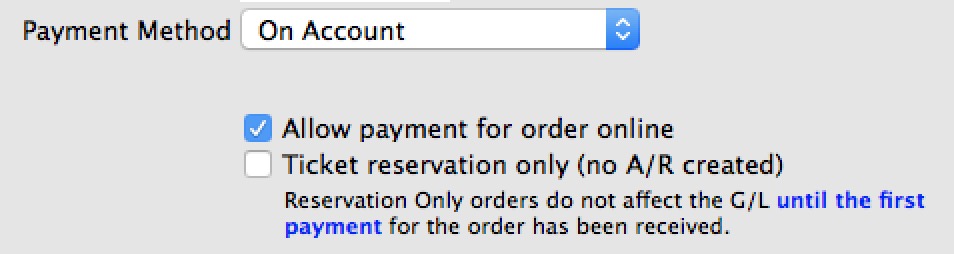
Payment Method On Account
Payment Method On Account
| Payment Method | Description and instructions on use |
| On Account |
|
|
If you enable the payment of the balance online, we suggest entering a useful comment in the order's external notes. eg. Course registration for 'Bob' or 'fundraising trip to London for Meg & Harry'. or 'subscriptions for the entire family'. |
Payment Method Other
Payment Method Other
| Payment Method | Description and instructions on use |
| Other |
|
Payment Method Pass/Gift Certificate/Membership
Payment Method Pass/Gift Certificate/Membership
|
Passes, Gift Certificates and membership payments are described in more detail in the section the describes all aspects of selling and redeeming them. |
Payment Method Promissory Note / Voucher
Payment Method Promissory Note / Voucher
A Promissory Note/Voucher is a payment method used to record a voucher or pass purchased elsewhere, another outlet, another Vendor or sold not using Theatre Manager's Membership/Pass system.
To add a Promissory Note/Voucher payment you would perform the following steps:
- Selecting the Payment
 button in the Order window.
The order window can be accessed through the Orders Tab or when Purchasing tickets. Click here for a detailed description of this window and it's functions.
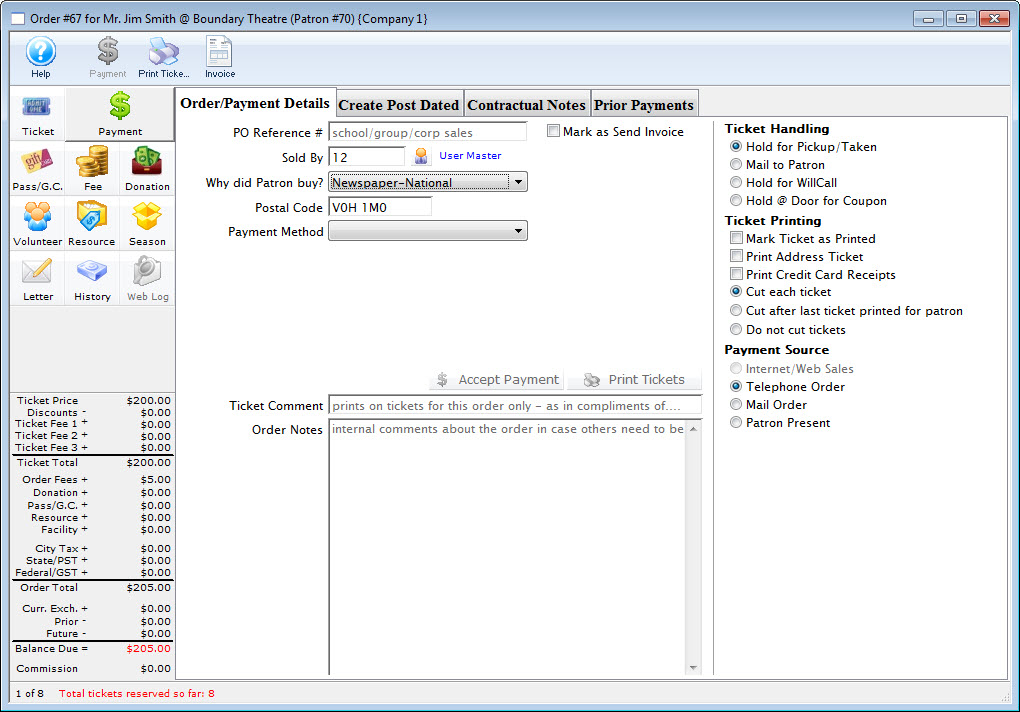
- Select Promissory Note/Voucher from the Payment Method drop down list.
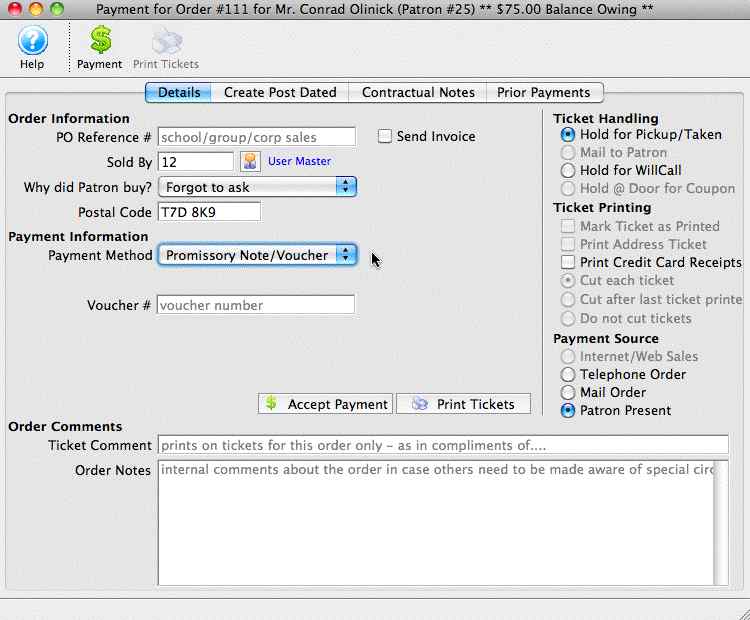
- Fill in the Voucher Number or reference.
This can be a number or text or a combination up to 16 Characters including spaces.
- Fill in an order note to reference the origin of the Promissory Note/ Voucher.
This note is referenced on reports generated based on orders.
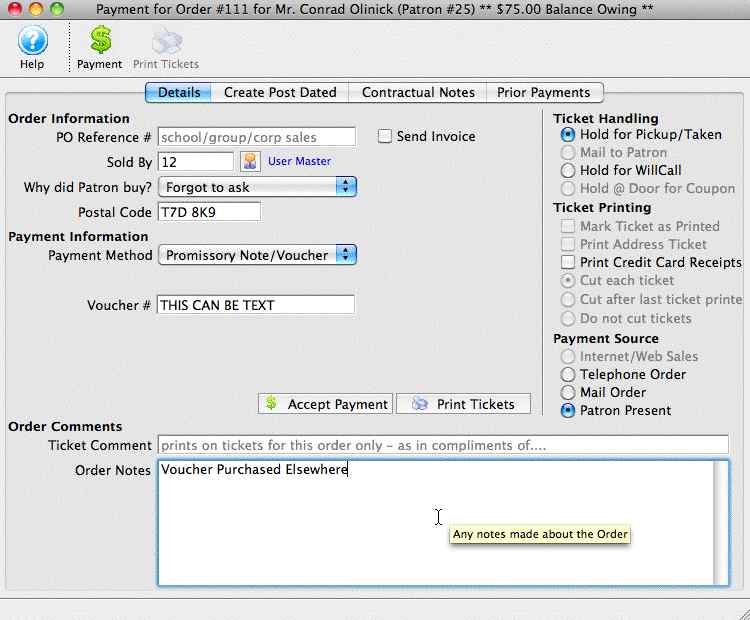
- Click the Accept Payment
 button to complete the payment.
|
This does not pay for the order, you will be prompted for another payment. Respond No. The order balance will be on account as a receivable. |
Payment Method Gift In Kind
Payment Method Gift In Kind
|
Gift In Kind payments have some variations that are described in more detail.
It is especially important to fill all fields the Gift in Kind payment is for a donation since the data prints on tax receipts |
|
A gift in kind payment is used when you receive a material item ( i.e. non cash/card/check payments) like a donated desk, advertising, etc that needs to be allocated to a specific GL account. In all cases, you will need to provide a description, appraiser and address. |
|
A gift in kind payment is a specialty payment method. It ALWAYS exists in the database (like cash or check). if you don't see it in your payment list, please enable it in code tables. It's short code will be ~GIFT. |
| Payment Method | Description and instructions on use |
| Gift In Kind |
|
Gift In Kind Payment
Gift In Kind Payment
|
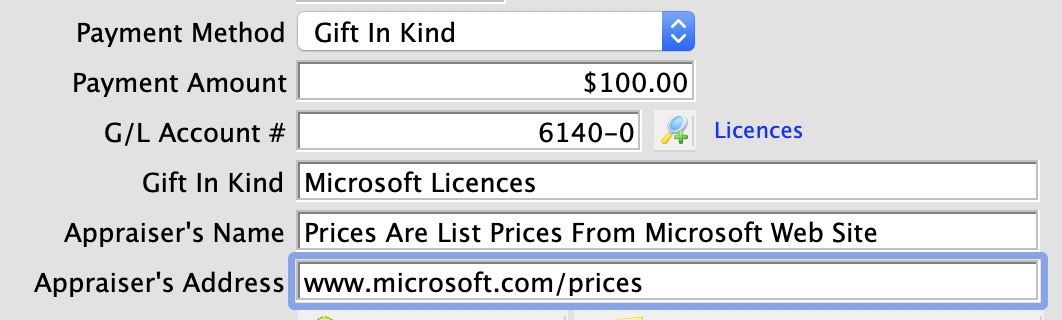
A gift in kind payment is used when you receive a material item ( i.e. non cash/card/check payments) like a donated desk, advertising, etc that needs to be allocated to a specific GL account. In all cases, you will need to provide a description, appraiser and address.
If a Gift in Kind payment is used to pay for a donation, it is important to fill out the description and appraiser because they will appear on the tax receipts. Refer to your tax accountant/government rules as to appraiser requirements. Some places allow self appraisal and others only allow that to a certain dollar amount. In some cases cash receipt or internet page showing current price is valid. |
To add a Gift In Kind payment, you perform the following steps:
- Selecting the Payment button in the Order window.
The Order window can be accessed through the Orders Tab or when Purchasing tickets. Click here for a detailed description of this window and it's functions.
- Select Gift in Kind from the Payment Method pull down menu.
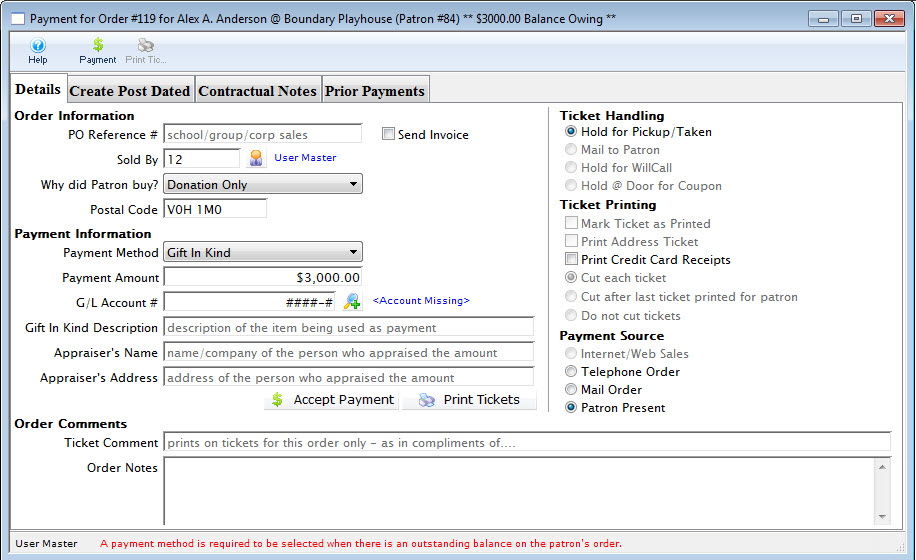
- Fill in the Gift in Kind field with a brief description of what the gift is.
- Select the G/L account you wish to charge the item to.
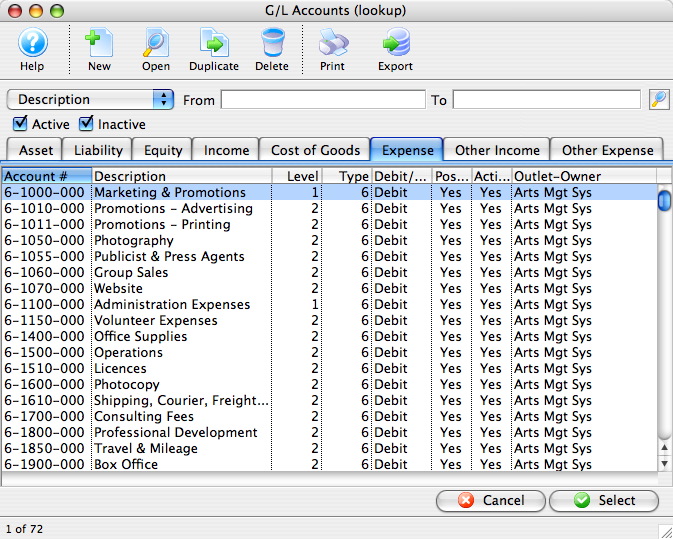
A G/L number can be typed directly into the field or the Account Lookup
 button to select the account from the list of GL accounts. Double click the account or click the Select
 button to accept the account.
- Fill in the appraiser's name.
This may be required for audit purposes or for printing on tax receipts if the payment is for a donation.
- Click the Accept Payment
 button to complete the payment.
| For Quick Reference Information on Gifts In Kind, You can download a Screencast (online video demonstrations of the functions with narration). |
Flash ScreenCast |
MP4 ScreenCast |


Payment Method Coupon
Payment Method Coupon
|
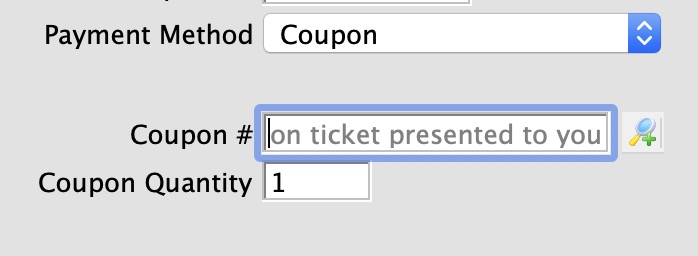
Coupon codes are described in detail in coupon setup.
Please refer that section to see how payments are applied. |