Moneris EMV Devices for Box office
Moneris EMV Devices for Box office
- Verifone P400 (the only recommended device - no others work)
 |
Be sure to READ THE PRO's AND CON's of using the P400 before deciding to use them and ordering them from Moneris. |
Refer to accepting a payment on the payment window for EMV Pin Pad credit cards to see how the process works and how similar it is to other payment methods. When using pinpads, you do not receive the credit card data for TM - so you cannot use this method for post dated payments and recurring sales.
Please refer to Moneris EMV PinPad Setup Steps to see how to integrate with Theatre Manager.
|
EMV devices must be set up as a pin pad device and then must be associated with a workstation using Theatre Manager. Multiple workstations can use the same EMV device is you wish. |
|
Pin Pads are settled during end of day. if you receive any message about an imbalance on a pin pad, please refer to the Moneris Pin Pad End Of Day troubleshooting tips. |
|
If an EMV device is assigned to the workstation, the user simply selects any one of the credit card types as payment during the payment process, and Theatre Manager will activate the EMV device. |
|
You may need to import a new ticket face for payments to satisfy Moneris signature & receipt requirements. |
|
You CANNOT VOID a pin pad authorization. You must add a payment to the order and make it a REFUND (Moneris' rules) |
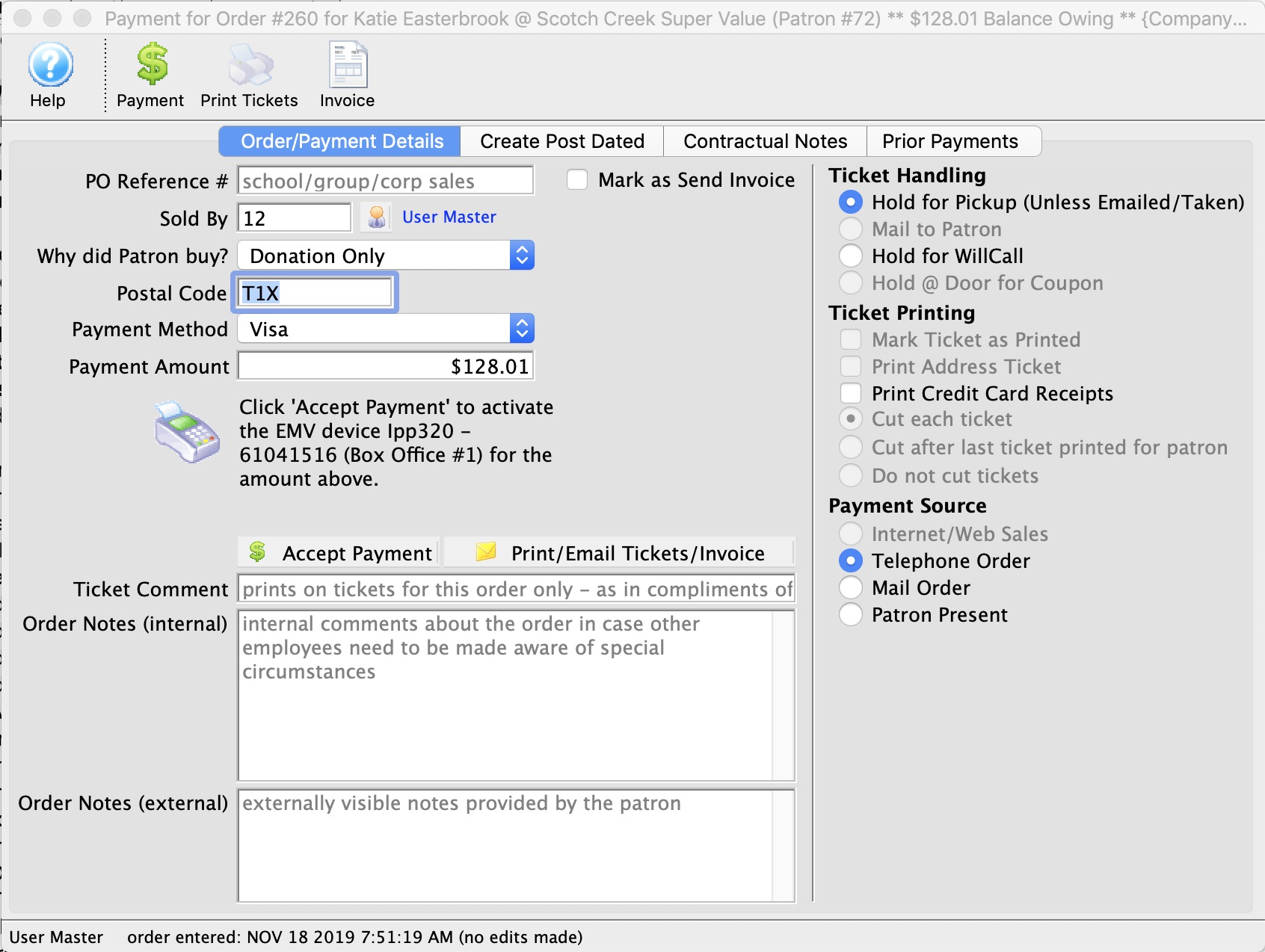
Pro & Con of using Moneris Pin Pads
Pro & Con of using Moneris Pin Pads
On the whole, the P400 helps for new sales, INTERAC and tapping for payment. It slows the mass refund process when a show is cancelled because it requires calling each person who bought at the box office to get their card and enter it manually.
| Pro | Con | ||
|
|
Moneris Pin Pad Setup Steps
Moneris Pin Pad Setup Steps
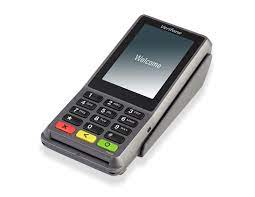 The following is the general list of steps you have to follow to get the Moneris EMV pin pad to work with Theatre Manager at the box office or for other departments.
Theatre Manager is designed that the EMV devices can be shared between workstations. However, you probably want one for each box office window and one for the rest of the office to manually enter cards.
|
You can use Moneris EMV devices, even if you still want to use your existing provider. You just need to set up an EMV only merchant account in Theatre Manager. |
|
Note: check the firmware version of your pinpad. Version 19.05 works. 19.06 is known to be broken. Contact Moneris if you need to ask them to fix it. |
Pre-Preparation Steps (with Moneris) for CLOUD EMV DEVICES (P400)
You will need a Moneris E-Select+ account. You need to contact Moneris for this - Arts Management cannot arrange one.
- If you DO NOT HAVE an E-Select+ account, contact Moneris. It might involve changing you merchant provider - and you might want to talk to the support team about:
- pro's/con's of changing completely to Moneris and/or
- feature comparison of Moneris to other providers and/or
- OR (if you want), you can keep your existing merchant provider and only use Moneris for EMV pin pad authorizations.
- If you have an E-select+ Account
- Contact your Moneris representative to arrange for the number of P400 cloud connected device you think you need.
- You must tell Moneris that you are using it with Theatre Manger
- Moneris must provision it with their software, so get them to confirm they will do that to work with Theatre Manager
- Theatre Manager can share EMV devices amongst workstations. However, you probably want:
- one for each box office window and
- maybe also one for the rest of the office to manually enter cards.
|
Very Important: DO NOT allow Moneris to settle the EMV devices automatically at a preset time each day. Theatre Manager will settle the devices during end of day to make accounting far more straightforward. |
Theatre Manager Setup Steps (after you have your EMV devices)
Once you have your Moneris information and pin pads, follow these steps in Theatre Manager:
| Step | Item | General Instructions | ||
| 1 | Turn off Power saving |
The pin pad requires a constant connection to the database while the authorization is occurring. there are two things to do:
|
||
| 2 | Plug in the Pin Pad |
Download this abridged version of the Moneris P400 installation instructions and follow it until the steps say come back to this web page to do the remainder of the steps
|
||
| 3 | Moneris Merchant Account |
Make sure you have a Moneris Merchant Account set up in Theatre Manager. I you already have a moneris account for hosted payments or web sales, you likely should use the same one.
On the authorization tab in the pin-pad area of the Theatre Manager merchant setup, please:
|
||
| 4 | Plug in EMV Devices |
Physically plug the EMV devices in, power them up and connect them to your ethernet network.
Place the devices where you think they will be best used for your box office and administration areas. The EMV devices will go through a startup process and should eventually show a screen with a pairing number on them. |
||
| 5 | Create Device Records |
In Theatre Manager, open the Device List. For each pin pad that you have:
If pairing does not occur:
|
||
| 6 | Edit Hardware Preferences |
After pairing all devices in as above, you will need to go to each workstation and decide which EMV device is associated with the workstation.
| ||
| 7 | Payment Receipts | You will need to import a new payment receipt ticket face designed specifically to satisfy Moneris signature & receipt requirements | ||
| 8 | Setting up Payment Methods |
|
||
| 9 | Restart Theatre Manager |
|
||
| 10 | Optional tests |
|
||
| 11 | Debugging |
If you are having trouble with getting pinpad authorization to work, there are some troubleshooting tips:
|
Moneris Receipt Ticket Faces
Moneris Receipt Ticket Faces
|
Payment receipts are optional and can be printed on demand. However, if you have customers who request a receipt, Moneris has specific requirements if the payment was made using EMV devices.
We have created one you can download and import that meets Moneris requirements and is designed specifically for the P400. |
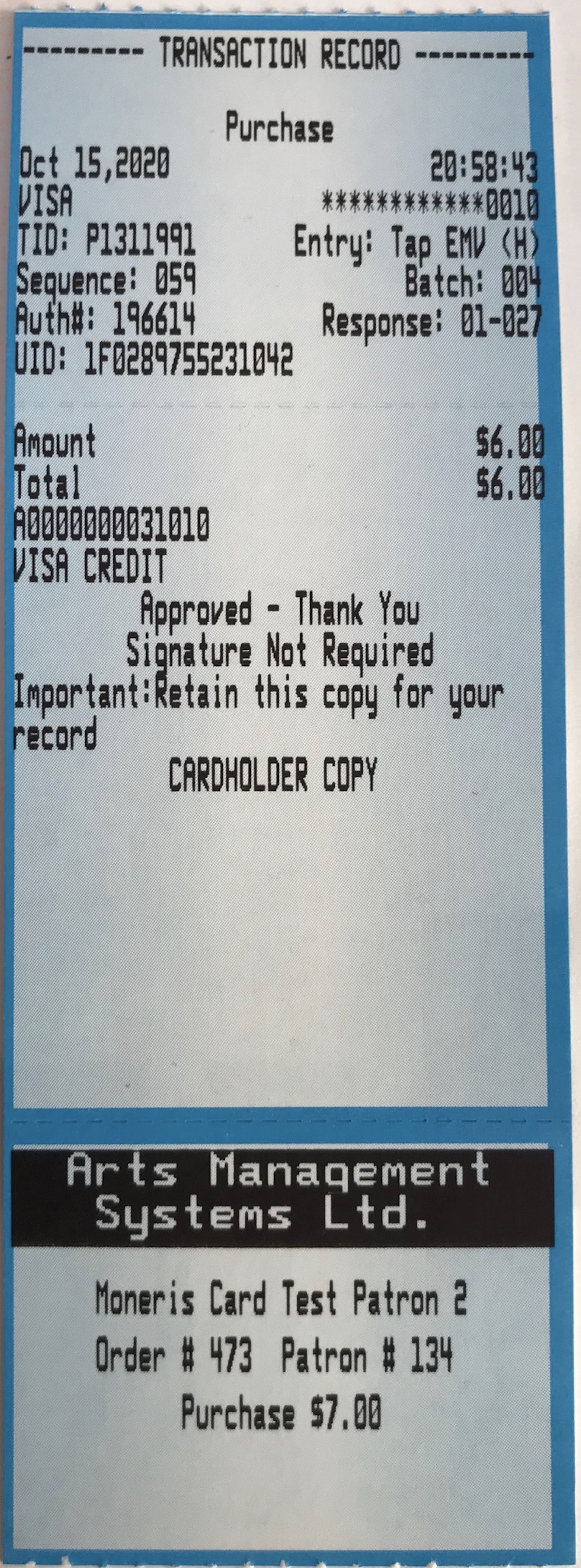 If you need to print receipts for Moneris Pin Pad authorizations, you will need to set up your ticket faces as follows:
- Download a template Moneris EMV ticket face from the ArtsMan web site
- Unzip the file so that you see the MonerisEMVTicketFace.tmf file on your desktop
- Open the list of Ticket Faces window which should look similar to the image to the right.
- Click the Import button at the top of the window
- look for the file called MonerisEMVTicketFace.tmf on your desktop and import it
- after importing the new ticket face, it will appear in the list of ticket faces. Look for the ticket face number of this Moneris EMV ticket face in the list. It will be used in the next step
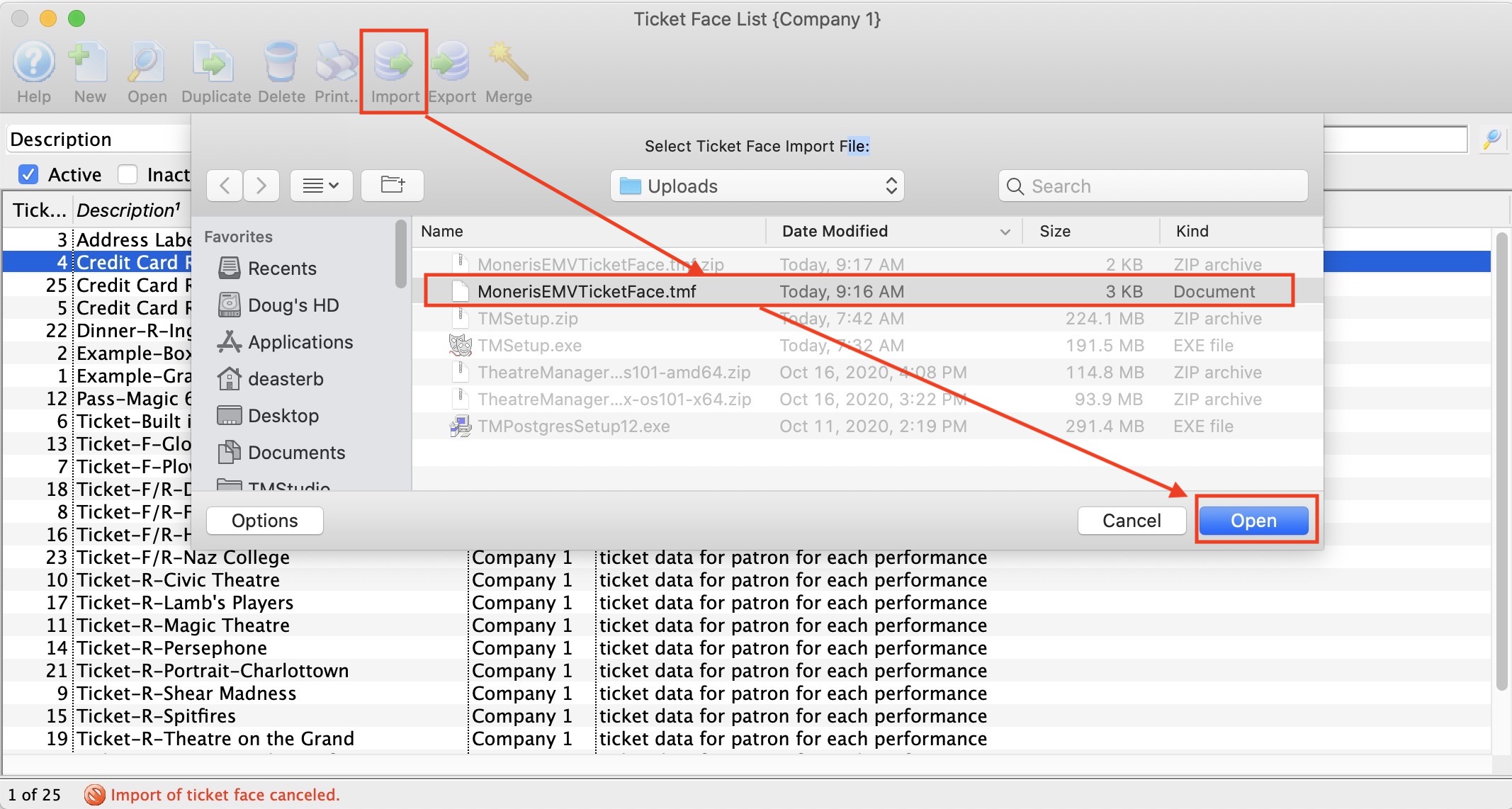
You have now imported a ticket face file. You can now edit this ticket face if you want to make any additional customized changes to the receipt layout based on any possible ticket face background images you may have preprinted on the ticket stock.
Additional Steps to implement the ticket face
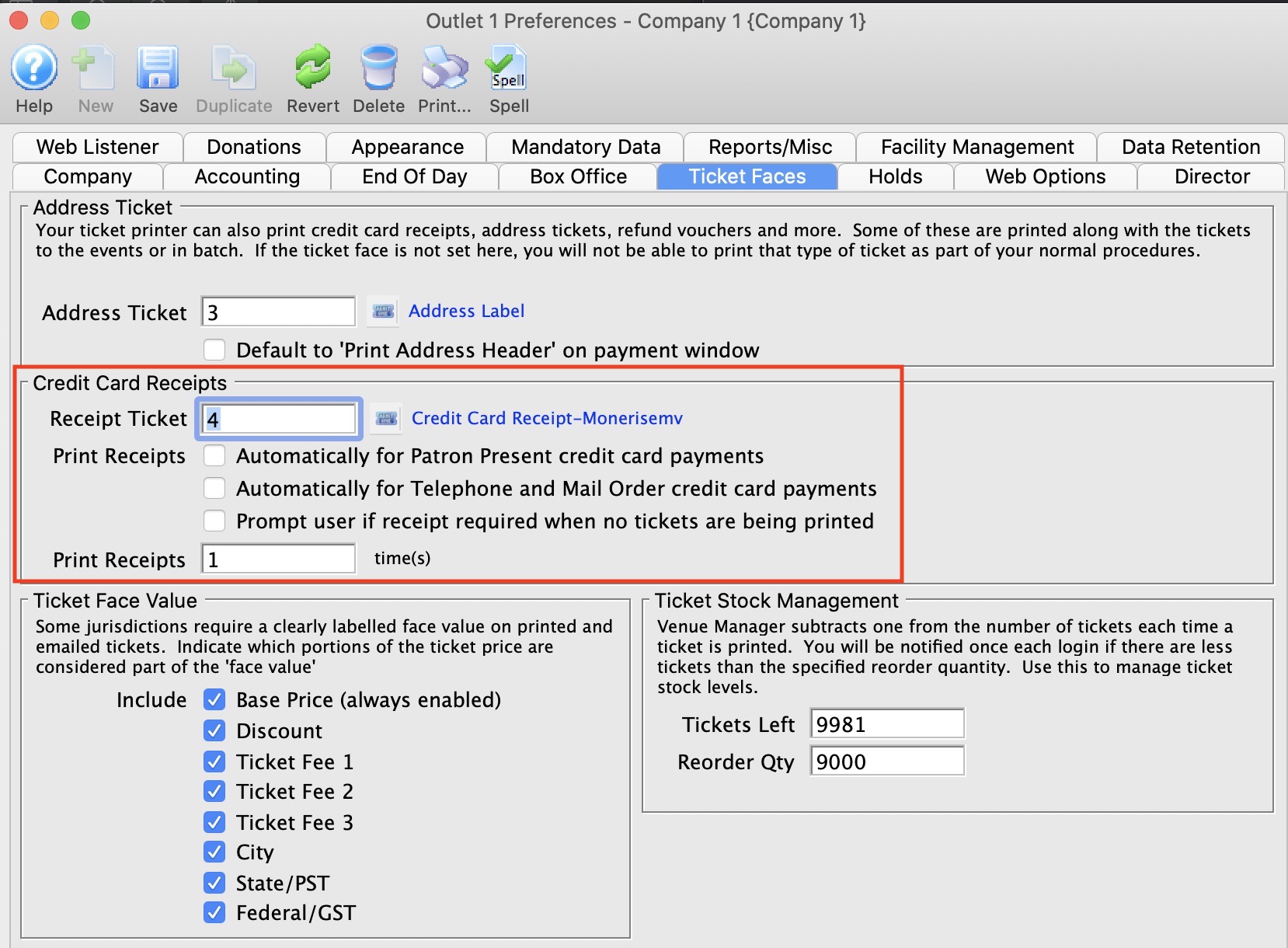 After importing the ticket face, you will have to decide a few things on the company preferences Ticket Faces Tab under the section Credit Card Receipts. All the fields/options in this area may need adjustment.
- Receipt Ticket - Change the ticket face number there to be the one you recorded above
- Print Receipts - has 3 options to consider:
- Automatically for Patron Present. Moneris give you the option of always printing a receipt, or only printing a receipt on demand. We recommend only printing a receipt on demand. Uncheck this option unless you always want to print are receipt of the ticket printer for any credit card payment.
- Automatically for Telephone and Mail Order. Moneris may require a signature for card numbers typed into the EMV machine for payments taken over the phone since the card is not present. Check this option if you wish, although we recommend not. The better alternative is to batch print the receipt along with tickets if emailing or holding at will call. The receipt should automatically include a signature line.
- Prompt User if receipt required If you are unsure if you want to print receipts for tapped in chip/pin authorizations, but you want to give the patron the choice, you can check this option.
- We recommend not to since this adds an extra prompt you have to agree to when selling payments at the box office.
- If you don't print the receipt you can go to the payment window and print a receipt if asked.
- For years, most people have neither asked for nor requireda reeipt. This is even more true these days of social distancing.
- again, receipts can always be batch printed for will call or mail to patron tickets.
- Print Receipts xx times. This is designed for situations where you, the merchant, want a receipt copy as well as the customer. It you always, print for the customer, enter 1. If you want one for yourself as well, enter 2.
Moneris does not require you to print one for yourself if they are stored electronically and can be reprinted. Theatre Manager stores all payments and Moneris EMV responses precisely for this purpose so you can reprint later if need be. We suggest not printing a merchant copy in this electronic age.