
Main menu
You are here
Inserting a Donation

It is important to recognize that donations can be entered from more then one place in Theatre Manager. You can enter a donation from the donation tab or from the orders window while a patron is purchasing tickets.
Open the Patron Record.
For details on locating a Patron Record click here.
- Click the Donation
 tab.
tab.
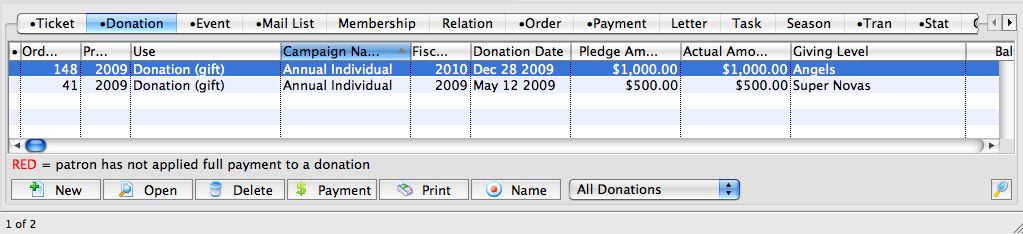
- Click the New
 button. The Donation Detail window opens.
Alternatively
To add a Donation to an existing order, or while creating an order, you would:
- In the Orders window, click the Donations
 button.
 - Click the New button in the Order >> Donations toolbar / ribbon bar.
The Donation Detail window opens.
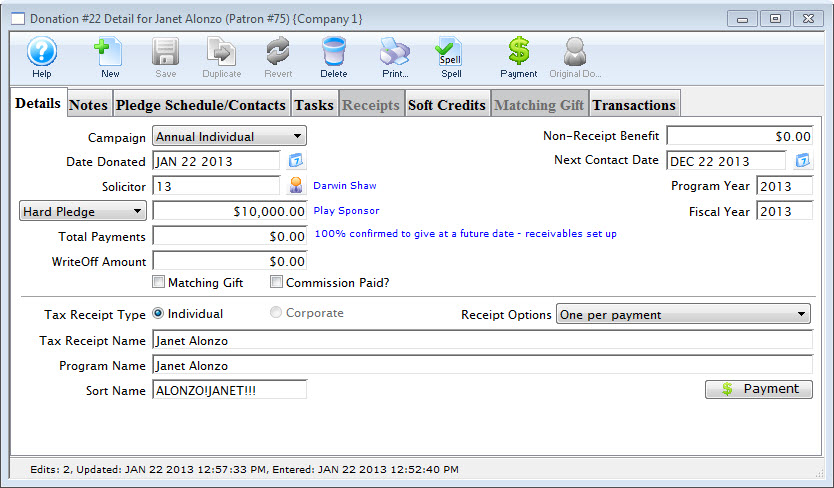
Campaign The drop down list contains the possible donation campaign to give the donation to. Date Donated Enter the date that donation was made. If the donation date differs from the default computer date, you can back date the donation by up to 3 months into a prior calendar year for tax purposes. Donations always appear on tax receipts according to the year on the donation date.
Note that Revenue Canada has stated:
- that the donation date and date entered into the system must both be displayed on a receipt if they are different to deal with year end issues and
- checks entered after actual year end but which are for the prior year.
Solicitor Select the person responsible for receiving the donation from the drop down. This person must exist in the Employee table (see Setting up an Employee) Donation (gift) Click in to the amount field and enter the donation amount. Depending on the selection in the popup to the left, this sets up an as a receivable in Theatre Manager so that the system knows to expect a payment for this amount. It could be one payment or it could be post dated payments. 
In the popup to the left of the amount, the typical choices are listed below. The affect how money is reported to finance to create a receivable.
- Categories that do not report to finance
- Prospect - Indicates that the donation is not real and will not be reported to finance. Use this designation to track key major donations, bequests, likely grants, or other possible funding sources. Amounts can be raised or lowered without affecting financial reports
- Soft Pledge - Similar to prospect. The intention of this category is to indicate that you have verbal (but not written) commitment for a large donation.
- Categories that cause G/L entries to be created
- hard pledge - When you receive any signed paperwork for a pledge that is considered legally binding, use this option. Generally it means people are paying over time. on the odd occasion, you may need to switch a Prospect or Soft Pledge (not reported to finance) over to a Hard Pledge or Donation when all the hard work has been completed and a prospective donation becomes reality.
- Donation (gift) - Generally used for most donations where a check arrives or when advised that a grant proposal has been accepted and money is on the way.
- Donation Refund for Ticket - an option to delineate when refunding tickets and the donation was for the refunded ticket.
Total Payment Amount of money received for the donation. A donation may be made in the form of a Stock and the payment amount may be more of less then the donation amount. For information on Stock gifts click here. There are a number of rules for USA 503c registered charities that may affect the amount entered.
WriteOff Amount The unpaid difference between the Donation and the Total Payment. Matching Gift Select the Matching Gift if you wish to link this donation to another patron who will also donate as a result of this patron giving a new donation. Click Here for more information. Commission Check the Commission Paid box to indicate if a commission was paid to a third party to procure this gift. Theatre Manager will enter the date that the commission was paid. Non-Receipt Benefit The amount deducted from the donation receipt to cover taxable benefits received by making the donation such as a dinner or a show. You will not be able to enter a receiptable benefit unless you have set it up in the donation campaign setup. You may also have to indicate standard benefit amounts at each donation range in the giving level matrix. Next Contact By default, the Next Contact Date is eleven months from the date of the donation. This date can be changed should you require a different date from the default. Use it in reports to print a list of donors that need contacted at that time to ensure that they give on a regular basis. Program Year The Program Year defines the time frame the donation will be recognized in published material. Use it in reports to print a list of Program Names within the Program Year. Fiscal Year The Fiscal Year is selected from the fiscal year set up in default settings. Refer to Accounting for more information Tax Receipt Name This field is used to record the name of the individual who will receive the tax deductible receipt. Theatre Manager prints a receipt for tax purposes in the name of the individual recorded here, which could differ from the individual giving the donation. 
While you can put anything into the tax receipt name, there are some legal implications. Please refer to this page on the true donor as explained in a Government Of Canada document. If you cannot ascertain the true donor with certainty, you'll need to ask them for any correction. If you still cannot, then you should mark their donation receipt option as No Receipt Required so that the system will not print one. Program Name This field is used to record how the patron would like to be recognized on your program listings. The default name is populated into the program recognition field in the order that follows: - If there is a default donor publication name in the donor tab of the patron window, this will ALWAYS be used as the default publication name.
- If there is 'COMPANY' name in the patron record, then the donation will be set to corporate and the company name will populate in this field. You can easily change it by clicking on individual to set the patron's name in the field
- If the above two options do not apply, then the default is the patron's name, in the format specified in the company preferences
- You can then Change the recognition name manually For example:
- if the Donor wishes to remain anonymous this field should read "anonymous". Click here for more information on making the donation anonymous.
- Or if the name is 'in memoriam' or 'in honor of', then simply change the program name to state 'In Memory of .....'
Sort Name The sort name is suggested by Theatre Manager and is used to DETERMINE THE SORT ORDER of patrons (within a giving level) on the donor program insert reports. It is initially based on the last name or company, depending on how the default donor name is selected and it may be changed. The sort name is used to position the donor's name in the program. For example, if the Program Name is 'Anonymous', the sort name could still be 'Smith'. This would cause the program to creating a listing for 'Anonymous' under S.
In order to maintain a reasonable alphabetic sort order, the sort name starts out with either:
- For individual donations:
- the first 7 characters of the last name (padded with ! if need be)
- the first 7 characters of the first name (padded with ! if need be)
- The first character of the middle name (or a single ! if no middle name)
- -OR- the company name without spaces (for corporate donations)
The sort name is designed so that you can alter the natural sort order of patrons. For example:: - Anonymous typically falls under 'A', but you can force it to appear where the patron's last name would fall, or change sort name to ZZZZ to make it fall at the end
- In Memory of Spot the Family Dog can be made to fall under Spot if you make the sort name Spot or under Family if you make the sort name Family
- Normally, you would not change the sort name, this just gives some extra capability for extraordinary situations like 'In Memoriam' or 'Anonymous' or 'on behalf of' gifts.
Tax Receipt Options 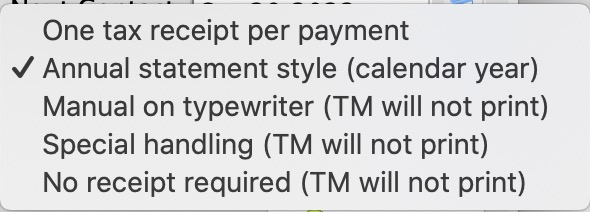 There are a number of options for printing tax receipts, some of which Theatre Manager will handle for you. Please refer to the explanation on what each receipt option means and how the system processes them.
Please read very carefully about Revenue Canada's Policies on issuing tax receipts.. Improper receipting can result in heavy fines. - Enter the Donation Details.
- Proceed to the
 tab if required.
- Click the Payment
 button.
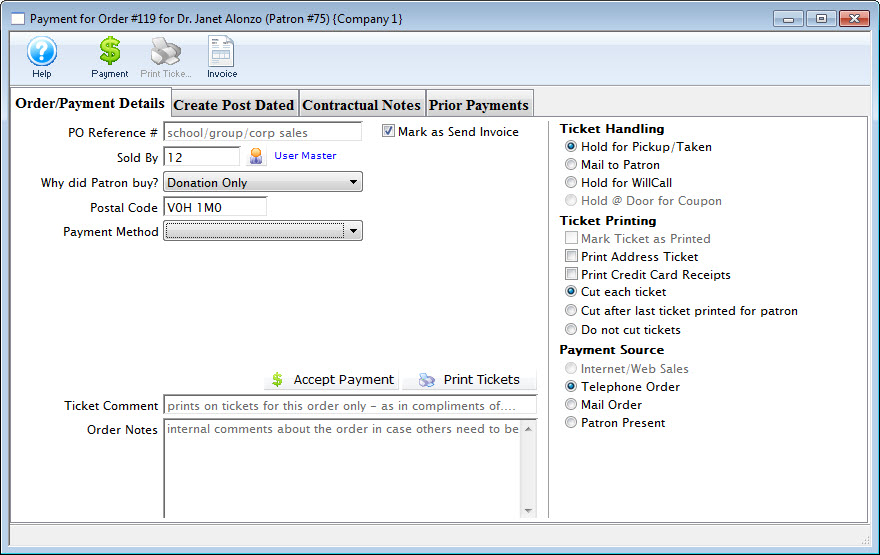
- Pay for the donation.
Click Payment for additional information.
| Quick reference information Donations Overview |
|
|

