
Main menu
You are here
Printing Receipts from Batch Functions

Donation receipt can be printed from the Donation Detail window individually or on mass through Batch Functions.
The actual process of printing the receipts is quite similar between the three locations. The main difference is that the Donation Receipts in the Reports Window and the Donation Receipts in Batch Functions print all receipts that have the number Zero as the receipt number. Whereas the Receipts that print from Donation List Window are only printed for selected donations. Creating a manual receipt for a patron can be accomplished using the Recording a Manual Receipt. Many of the data defaults for receipt printing are defined in Default Data.
If you choose to print tax receipts from within Theatre Manager you may need to arrange for customized tax receipt paper. Theatre Manager prints the Recipients Name and Address, the name of the Organization issuing the receipt, the Date of the Donation, the Date of Receipt, the Donation Amount and the Donation Campaign. If Federal or State law requires your receipt to include your organizations address or a government website you may wish to include these on your preprinted tax receipt paper. Please ensure you are aware of all necessary requirements for your tax receipts prior to printing receipts in Theatre Manager.
- Open Setup >> Batch Functions.
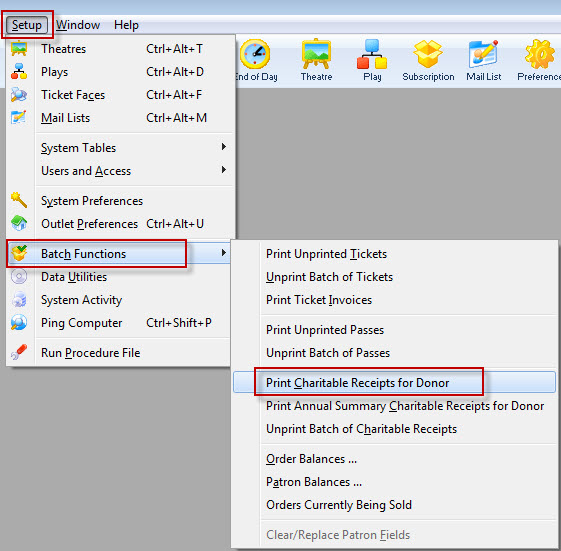
- Select Print Charitable Receipts for Donor.
The Print Charitable Receipts for Donor Criteria window opens.
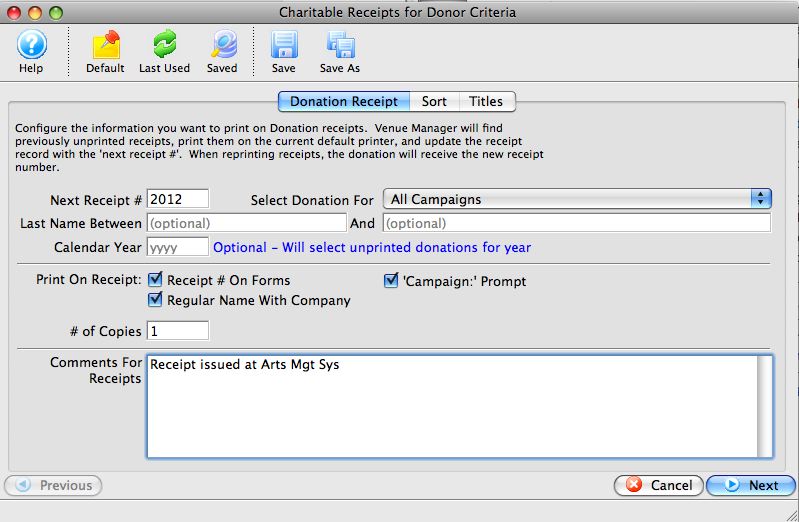
- Adjust the Next Receipt number if necessary.
Next Receipt # defaults to the next receipt number that is set up in the Donation Tab of Company Preferences. You can set this number to any value you desire. If you override this value, it will not update the next available receipt number in Company Preferences.
- Select the campaign you wish to print receipts for - if necessary.
By default, this is set to All Campaigns. However, if you wish to only batch print receipts for a specific campaign, you may choose it here.
- Select Name Between search parameters.
Select the last name of the patron to search the data base. Left blank, Theatre Manager assumes all records.
- Select the Fiscal Year (optional).
Enter the fiscal year that you wish to print the Donation Receipts for.
- Select your print options.
Print Receipt number on Forms Checking this box will print the receipt number on the receipt. Regular Name with Company Checking this box will print either the Patron name if the donation is made by a Corporation and the patron record does NOT include a Company name, or the Company name and the patron name if the donation is made by a corporation and the patron record DOES contain a Company name. 'Campaign:' prompt Checking this box will print the prompt - Select the number of copies you wish to print..
You may wish to print one for the donor and one for your files.
- Include Receipt Comments.
When printing donation receipts you have the option to include a personalized messaged from your organization / company to all of your receipt recipients. All you have to do is type a message into the Comments box and the message will print on the receipt.
- Click the Next
 button.
- Review the Sort option.
- Click the Next button.
- Edit any of the default report titles or 'printed by' options.
- Click the Done
 button.
The receipts will now begin to print to the default printer. Clicking the Cancel
 button will cancel the receipt printing process.