
Main menu
You are here
Re-Authorizing a Credit Card Payment

If Theatre Manager has recorded a credit card payment as authorized but your credit card authorization software has no record of it you will need to re-authorize the payment.
- Open the Patron Payment Window
Click the
 Payment Tab on the Patron Window.
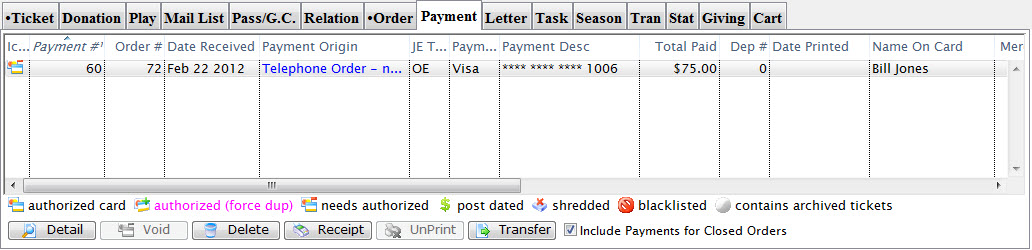
Click here for a detailed description of this window and it's functions.
- Select a credit card payment and click Detail
 or double click the entry
The Payment Detail Window opens.
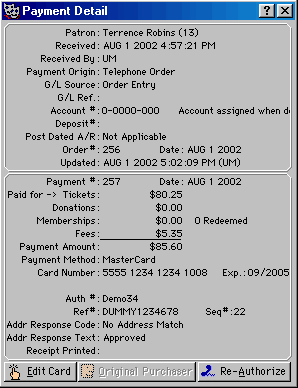
- Click the Re-Authorize Button

A Warning Window opens. Read the details of this window and only continue if you are completly sure the payment was never charged to the patron's card to avoid double billing.
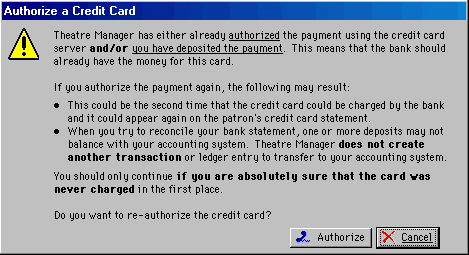
- Click the Authorize Button

A Confirmation Window opens reminding you to complete this operation only if you are sure the card has not been billed.
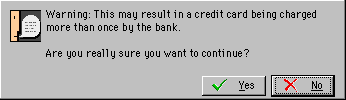
- Click Yes

The card information will be sent to your merchant provider and a window will appear confirming the authorization
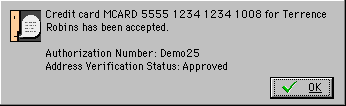
- Click OK
 to finish the process
|
If you are re-authorizing a credit card that has already been deposited your re-authorization will not appear in Theatre Manager's Deposit Window. The rre-athorization will only be recorded by the credit card authorization software. Thus a force deposit may be required if Theatre Manager's credit card totals do not match the records of the authorization software. Click here for more information on Force Depositing |
