Subscription Windows
The following describe the different areas in the subscription module and what they are used for.
Manage Favorite Seats Window
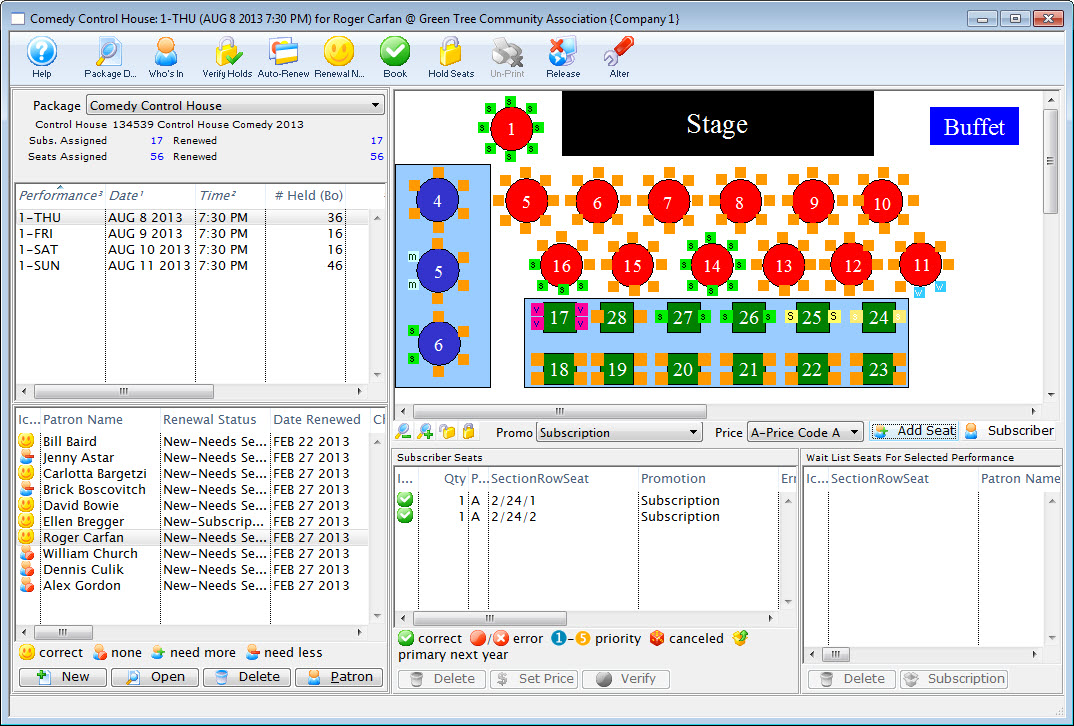
Parts of the Manage Favorite Seats Window
 |
Opens the Package Detail window. Click here for more information on the Package Detail window. |
 |
Opens the Package Subscription List window showing all patrons that are currently subscribed to the season package. Click here for more details on the Who's In button. |
 |
Reviews the season subscriptions within the season package and validates the seats.Click here for details on how to Verify Holds. |
 |
Renews the selected season packages on mass. Click here for more information on the Renewal Notices. |
 |
Begins the process for issuing renewal notices for the selected season package. Click here for more information on the Renewal Notices. |
 |
Renews the patrons favorite seats for the events within the season package. Click here for more information on booking a patron's subscription. |
 |
Holds all favorite seats for the performances in the selected season package.Click here for step by step instructions on how to use the Held Season Seats. |  |
Removes the Notice Printed status for the selected season package for the purpose of reprinting the renewal notices. |
 |
Alters the Price and Promotion structure from Last Year's Control House to meet the requirements for the coming year. Click here for more information on the Alter Subscriptions process. |
| Season Package Section | The Season Package section of the window allows for switching between season packages. Click here for more information on the Season Package section. |
| Seat Management and Pricing Map Section | Seat Management and Pricing Map Section of the window displays the pricing map for the season. It allows for the price and promotion of the tickets to be altered and indicates errors in the seating. It can also be used to remove seats from the season package. Click here for more information on the Pricing section. |
| Patron Section | The Patron section of the window shows the patrons currently in the Season package. It allows for adding, removing and editing of the patrons season package. Click here for more information on the Patron section. |
| Seat Section | The Seat section of the window displays the wait list for seats. Any patrons who have been allocated a priority, other then first, for seats will appear in this area. Click here for more information on the Seating section of the window. |
Package Management Section
You use the Package Management Section to select the package patrons are being added, edited or updated to.
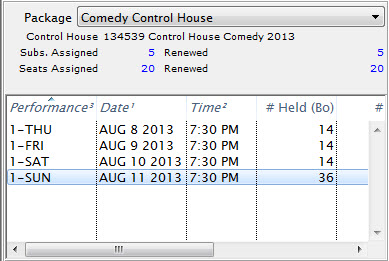
Parts of the Package Management Section
| Package | A drop down menu for selecting the active season package to alter. |
| Subs. Assigned | The number of subscriptions currently assigned to the package. |
| Renewed | The number of subscriptions currently renewed in the package. |
| Seats Assigned | The number of seats currently assigned in the package. |
| Renewed | The number of seats that have been renewed, as part of the package. This counts seats that are actually booked. |
| Performance | The performance code for the control house being used. |
| Date | The date of the performance for the control house. |
| Time | The time of the performance for the control house. |
| # Held (BO) | The number of seats currently being held by the box office in the control house. |
Seat Management Patron Section
You use the Seat Management Patron Section to add or edit patrons subscribed to the season package.
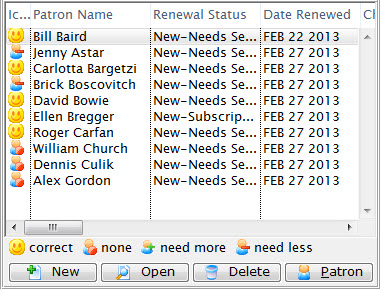
Parts of the Seat Management Patron Section
| Patron Name | Name of the subscriber. |
| Renewal Status | The current status of the patron's subscription. |
| Date Renewed | The last date the patron renewed their subscription |
| Change Date | The last date a seating change was requested. |
| Change Location | The location of the seating change that was requested. |
| Performance | The performance code for the control house they are part of. |
| Seats Since | The date that the subscriber first subscribed. |
| Seat Count - Current | The number of seats currently held as part of the subscription. |
| Seat Count - Desired | The number of seats the subscriber would like to have. |
| Seating Request Comments | Any comment added for a seating request. |
| Priority of Seating | The priority given to the seating change request. |
| Patron # | The patron's record number. |
| First Name | The first name of the patron. |
| Last Name | The last name of the patron. |
| Company | The company the patron works for. |
 |
Adds a new patron to the season package. For more information on adding a patron to a season package, click here. |
 |
Opens the patron's subscription record. Click here for more information on the Patron Subscription Detail window. |
 |
Deleted the patron from the season package. If the patron already has booked seats, the tickets will need to be refunded also. |
 |
Opens the patron window for the selected patron. Click here for more information on the patron window. |
Set Suggested Donation
 There are a four ways to set a suggested donation for patrons when sending out the subscription renewal notices. You can set:
- a specific suggested donation for all subscriptions - for example $100.00, which is set as an option when printing renewal notices
- a suggestion that is a percentage value of the total subscription - for example 15%, which is set as an option when printing renewal notices
- a different suggested amount for each patron - which is entered directly on the favourite seats subscription window.
- a custom value for each donor based on a calculation from prior donation history (which is described below)
Or, a variation on the above 4 options where you:
- assign something based on past history.
- then look at the bands of suggested donations (eg 100-125, 200-250) .. and then re-assign some donors a new specific donation that is a manual round-up or to the next giving level.
This would mean:
- running the process once to set the initial amount
- then re-running it for selected patrons to set specific amounts as much as you want.
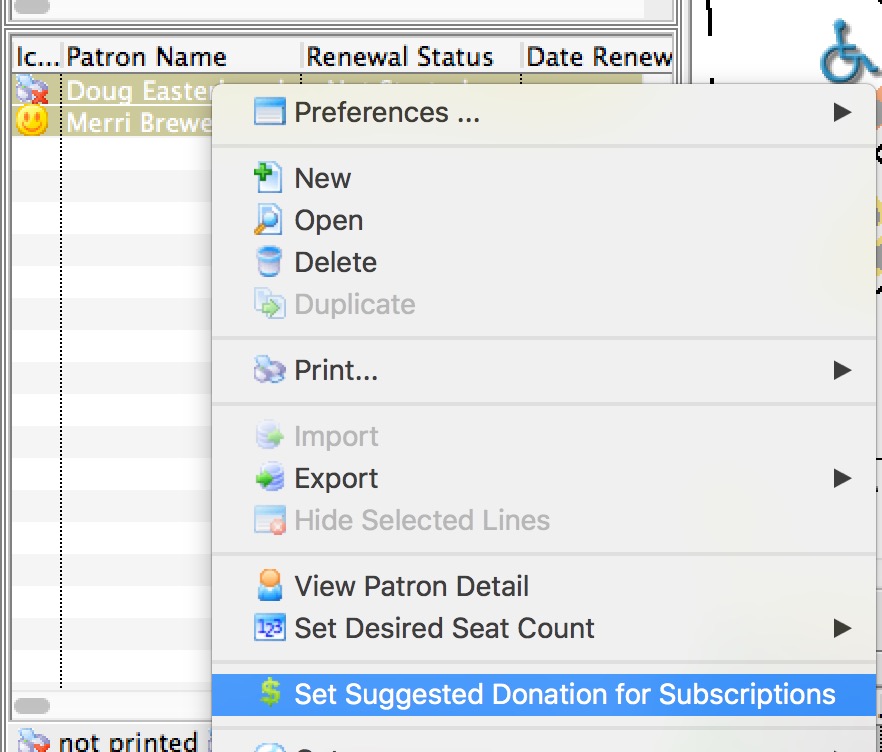
Setting a suggestion based on Historical Giving
Option 4 allows you to select one or more subscriptions and calculate a custom amount based on past giving history. You can use this feature:
- as many times as you want to recalculate or replace any existing suggested donation
- differently for groups of subscribers so that opening night subscribers might use different set of criteria than the rest of the run
- to over-ride some previous settings for one or more patrons
To use the feature:
- Open the window to manage patron subscriptions
- On the bottom left corner, select one or more subscriptions
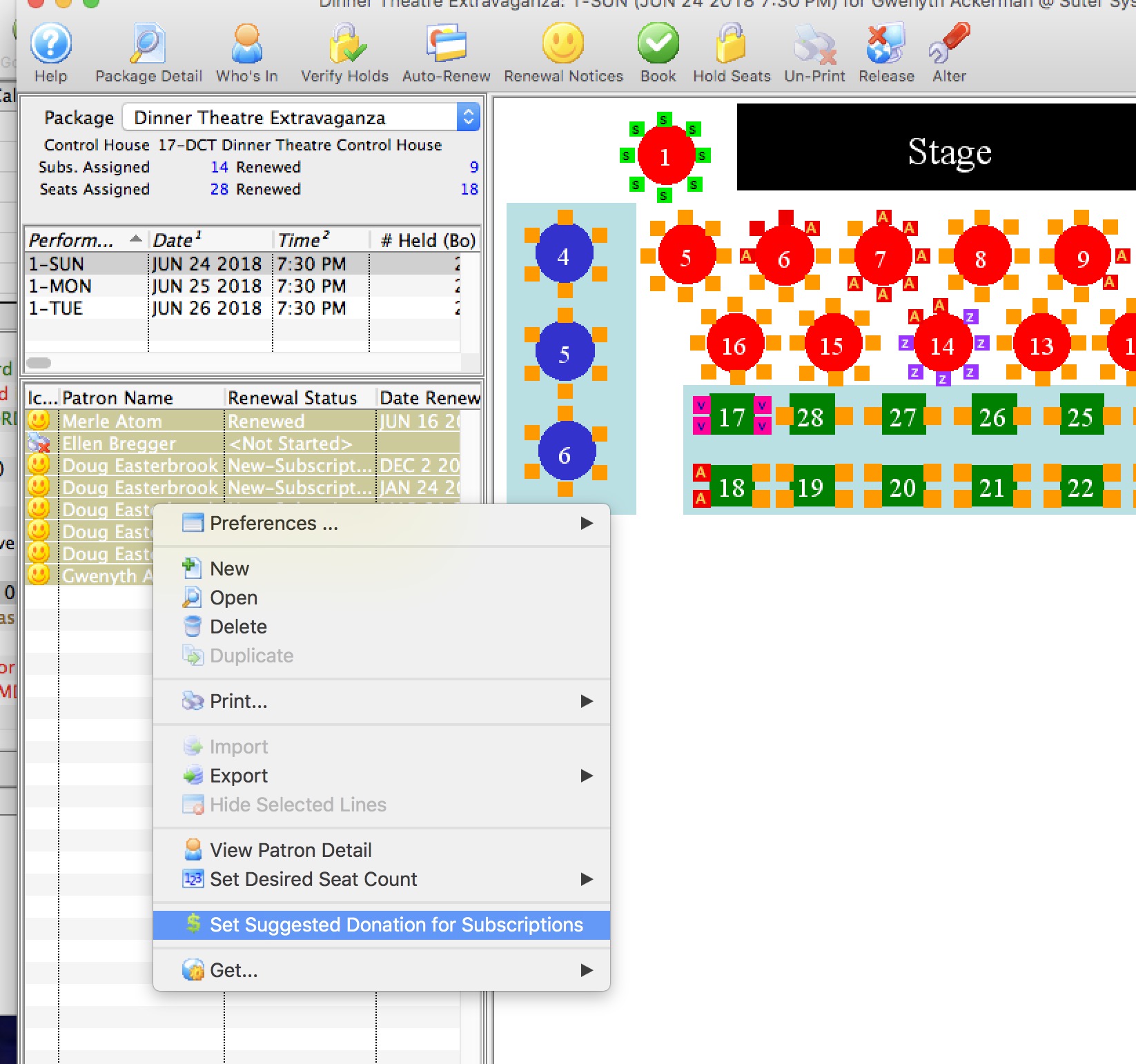
- Right-click to see the context menu.
- Select 'Select Suggested Donation for Subscriptions' from the menu
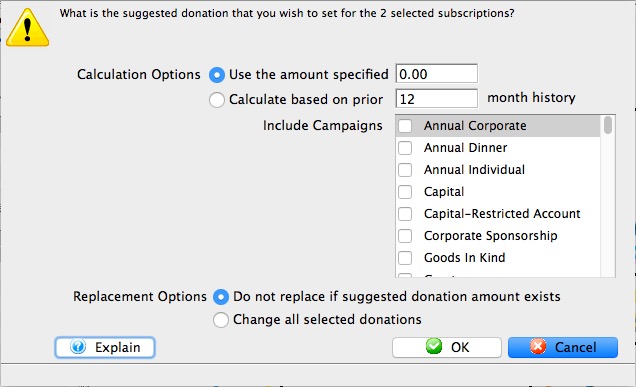
- The window that appears below will appear
- Make your choices as to how to calculate the suggested donation for the patron
- Click Proceed
Seat Management Seating Section
You use the Seat Management Seating Section to add or alter the seats the patron is subscribed or wait listed for.
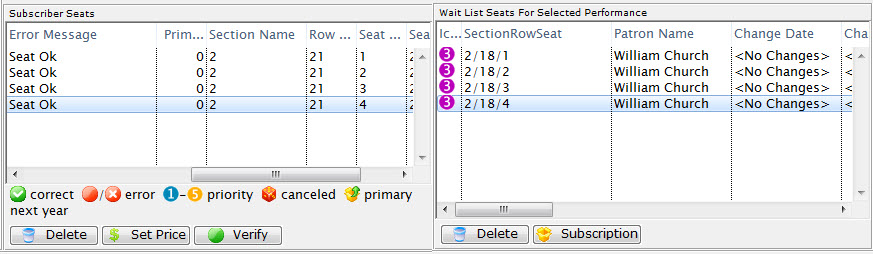
Parts of the Seat Management Patron Section
Subscriber Seats |
|
| Icon |  |
| Quantity | The number of seats that patron has. |
| Price Code | The price code used for the seats. |
| Section/Row/Seat | The section, row and seat for the seats the subscriber has. |
| Promotion | The promotion for the seats the subscriber has. |
| Error Message | Any error messages in regards to subscribing a patron to these seats. |
| Primary Seat | The primary seat of the patron. |
| Section | The section of the seat. |
| Row # | The row number of the seat. |
| Seat # | The seat number of the seat. |
| Seat Code | The seat code for the seat. |
|
Deletes the selected seat. |
 |
Change the subscription Price/Promotion of the selected seats in the package. |
 |
Verify the selected primary seats to ensure they have the correct status. |
Wait List Seats for Selected |
|
| Section/Row/Seat | The section, row and seat number for the wait listed seats. |
| Patron Name | The patron who is on the wait list for the seats. |
| Change Date | The date the patron on the wait list requested the seating change. |
| Change Location | The location the patron on the wait list requested. |
| Priority of Seating | The priority of the patron in the seating change request. |
| Seating Request Comments | Any comments in conjunction with the seating request change. |
| Promotion | The promotion for the seats. |
| Renewal Status | The renewal status of the patron on the wait list for the seats. |
| Primary Seats | The primary seats for the patron. |
| Section | The section of the seats. |
| Row # | The row number of the seats. |
| Seat # | The seat number of the seats. |
| Price Code | The price code for the seats. |
| Last Name | The last name of the patron on the wait list for the seats. |
| First Name | The first name of the patron on the wait list for the seats. |
| Company | The name of the company of the patron on the wait list for the seats. |
| Quantity | The quantity of seats the patron is requesting. |
|
This button is unavailable in this section. |
 |
Shows the subscription package for the selected seat. |
Seat Management and Pricing Map Section
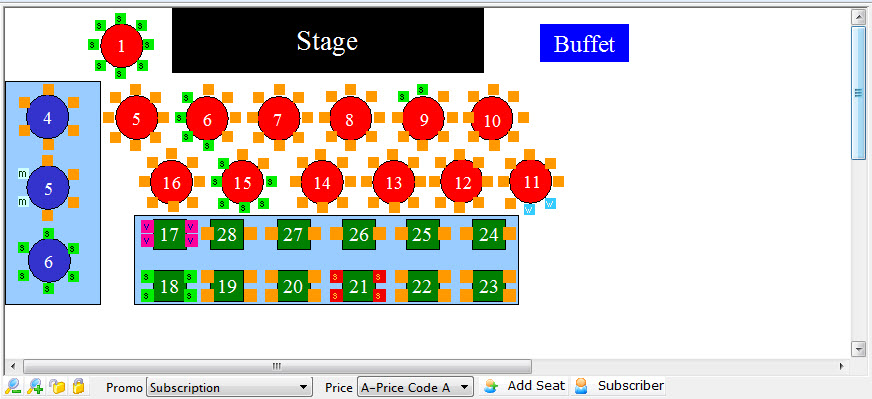
Parts of the Seat Management Section
| The Pricing Map |
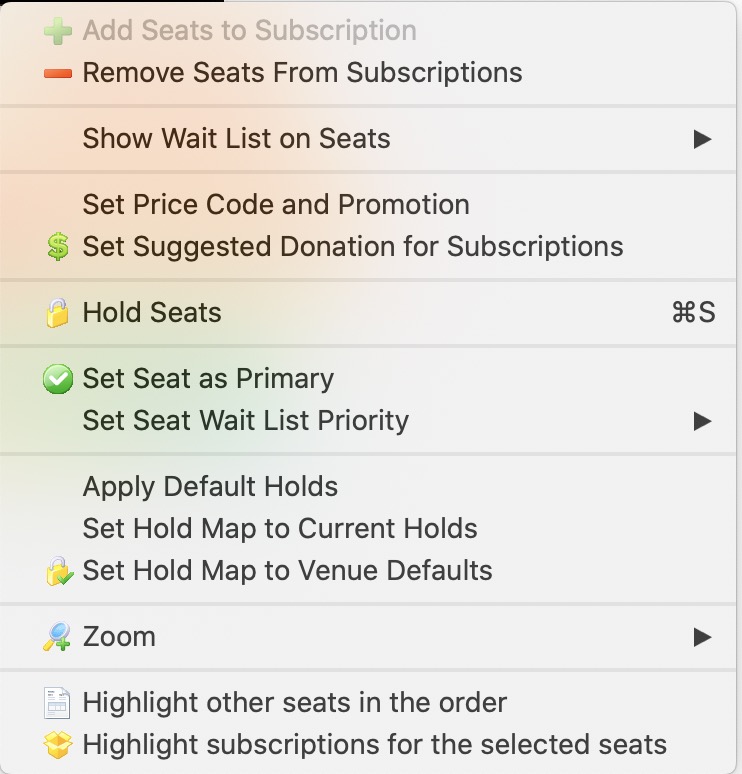 The Pricing Map for the Season Venue. Here you can:
You can use the Context menu to access some additional features. |
 |
Zoom in on the Map. |
 |
Zoom out on the map. |
 |
When a seat is selected, clicking the un-lock button releases it for sale. |
 |
Allows you to put a hold on a seat using the selected letter. |
 |
A drop down menu to select from the available promotions. |
 |
The price code to use for the seats being subscribed. |
 |
Adds the Seat to the selected subscribers favorites. |
 |
Shows the Subscribers that have those seats, either primary or secondary. |
| Highlight Subscriptions | If you select a number of seats in an area, this menue item will let you highlight the subscribers with those seats. |
Subscription Patron Detail Window
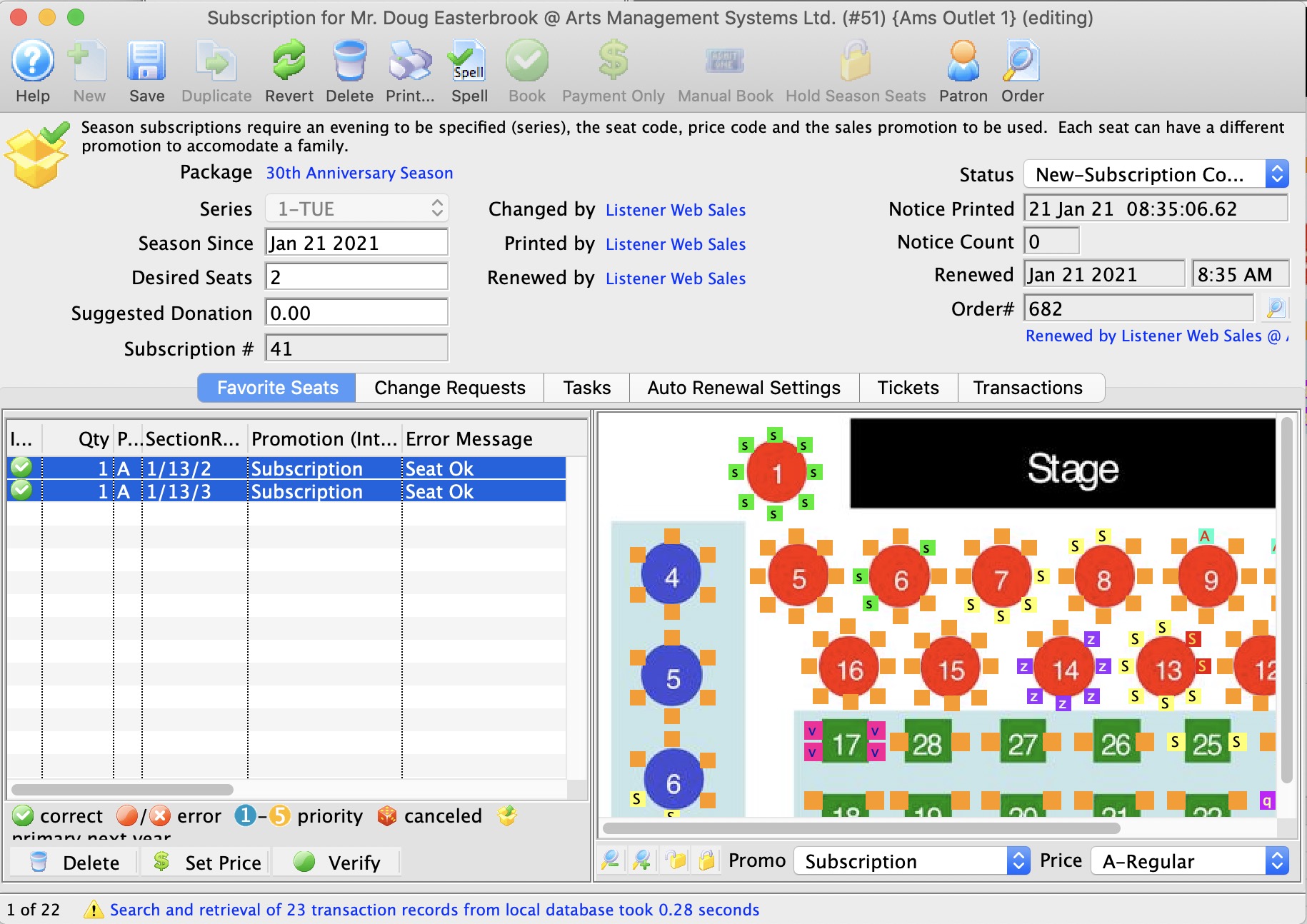
Parts of the Subscription Window
 |
This button is unavailable in this window. Patrons can have one SubscriptionDetail per season package. Additional Season packages are added through the Season tab in the patron window, the Season tab in the Order window or the Manage Favourite Seats window. | ||||||||||||||||||||||||||||||||||||||||||||||||||||||||||||||||||||||||||||||
 |
Saves the changed information in the Subscription Patron Detail window. | ||||||||||||||||||||||||||||||||||||||||||||||||||||||||||||||||||||||||||||||
 |
This button is unavailable in this window as patrons can only have one Subscription Detail per season package. | ||||||||||||||||||||||||||||||||||||||||||||||||||||||||||||||||||||||||||||||
 |
Alters the information in the Subscription Patron Detail window back to the last time it was saved or opened. | ||||||||||||||||||||||||||||||||||||||||||||||||||||||||||||||||||||||||||||||
 |
Deletes the Subscription for the patron removing them from the season package all together. | ||||||||||||||||||||||||||||||||||||||||||||||||||||||||||||||||||||||||||||||
 |
Generates a report of the patrons favorite seats for the season subscription package. | ||||||||||||||||||||||||||||||||||||||||||||||||||||||||||||||||||||||||||||||
 |
Checks the spelling for all text fields in the Subscription Patron Detail window. | ||||||||||||||||||||||||||||||||||||||||||||||||||||||||||||||||||||||||||||||
|
Begins the order process by adding all seats in the package to an order, changing the status of the package and take the user to the payment window to complete the sales process. Click here for more information on booking tickets. | ||||||||||||||||||||||||||||||||||||||||||||||||||||||||||||||||||||||||||||||
 |
Can indicate a patron has intends to renew but does not wish to renew in the current location. Creates an Order with a Payment for a value entered at the time of processing while updating the status of the package to Change Requested but not booking seats for the patron. Can be used to collect deposits towards renewal requests. | ||||||||||||||||||||||||||||||||||||||||||||||||||||||||||||||||||||||||||||||
 |
Opens an Order window to allow for individual selection of performances for the season package. This feature can be used when a new subscriber books after the season renewal deadline. Seats can be chosen per performance based on availability. | ||||||||||||||||||||||||||||||||||||||||||||||||||||||||||||||||||||||||||||||
|
Holds the seats for each performance within the season package to prevent selling. A payment is not required to hold the seats. | ||||||||||||||||||||||||||||||||||||||||||||||||||||||||||||||||||||||||||||||
 |
Opens the patron detail window for the selected patron. | ||||||||||||||||||||||||||||||||||||||||||||||||||||||||||||||||||||||||||||||
 |
Opens the Order to veiw, select or change its contents. | ||||||||||||||||||||||||||||||||||||||||||||||||||||||||||||||||||||||||||||||
| Package | Displays the title of the package the patron is subscribed to. | ||||||||||||||||||||||||||||||||||||||||||||||||||||||||||||||||||||||||||||||
| Series | The Performance Code for the day that the patron will be attending. Use the drop down menu to change the performance code if necessary. | ||||||||||||||||||||||||||||||||||||||||||||||||||||||||||||||||||||||||||||||
| Season Since | The date the patron was first added to the season package. | ||||||||||||||||||||||||||||||||||||||||||||||||||||||||||||||||||||||||||||||
| Suggested Donation | The field allows you to specify the suggested donation for that subscription. This amount can be optionally automatically added to the shopping cart during an online subscription renewal. The patron still has the option to remove the suggested donation from their shopping cart prior to payment. This suggested donation can also be printed on season renewal notices to encourage a patron to donate. The suggested donation amount does not get automatically added to orders processed as manually booked season renewals or as auto-renew season renewals processed by the box office. During the process of renewing the subscription via the box office, the suggested amount is used purely as reference guideline as a starting amount to donate. Direct discussion with the patron will determine if donation should be added to the order and at what amount. | ||||||||||||||||||||||||||||||||||||||||||||||||||||||||||||||||||||||||||||||
| Subscription # | The Season Subscriptions reference number. | ||||||||||||||||||||||||||||||||||||||||||||||||||||||||||||||||||||||||||||||
| Status | The status of the subscription package. The drop down menu allows for manual changes to the status of the subscription. These can be displayed on subscription reports
Valid values and meanings are:
|
||||||||||||||||||||||||||||||||||||||||||||||||||||||||||||||||||||||||||||||
| Notice Printed | The date the renewal notice was last printed for the patron. | ||||||||||||||||||||||||||||||||||||||||||||||||||||||||||||||||||||||||||||||
| Renewed | The date the patron renewed their subscription to the season package. | ||||||||||||||||||||||||||||||||||||||||||||||||||||||||||||||||||||||||||||||
| Order # | The order number of subscription was renewed in. | ||||||||||||||||||||||||||||||||||||||||||||||||||||||||||||||||||||||||||||||
 |
This tab is used for setting the patron's favorite seats as part of the season package. Click here for more information on the Favorite Seats tab. | ||||||||||||||||||||||||||||||||||||||||||||||||||||||||||||||||||||||||||||||
 |
This tab is used to manage seating change requests for the patron. Click here for more information on the Change Requests tab. | ||||||||||||||||||||||||||||||||||||||||||||||||||||||||||||||||||||||||||||||
 |
This tab is used for managing the patron's auto-renewal of their subscription to the season package. Click here for more information on the Auto Renewal Settings tab. | ||||||||||||||||||||||||||||||||||||||||||||||||||||||||||||||||||||||||||||||
 |
This tab lists the tickets that have been booked as a part of the season package. Click here for more information on the Favorite Seats tab. | ||||||||||||||||||||||||||||||||||||||||||||||||||||||||||||||||||||||||||||||
 |
This tab indicates the transaction details for the season subscription. Click here for more information on the Favorite Seats tab. |
Subscription Favorite Seats Tab
You use the Subscription Favorite Seats tab to select the seats for the patron's subscription to the season package.
Parts of the Subscription Favorite Seats Tab
|
You use this tab to manage seating change requests for the patron. Click here for more information on the Change Requests tab. |
|
You use this tab to manage the patron's auto-renewal of their subscription to the season package. Click here for more information on the Auto Renewal Settings tab. |
|
You use this drop down list to select the appropriate price code for the subscription. |
|
You use this drop down list to select the appropriate promotion for the subscription. |
|
Adds the Seat to the selected subscribers favorites. |
| Status Icon | These icons show the status of the seats in the subscription. |
| Quantity | The number of seats. |
| Price Code | The price code used for the seat. |
| Section/Row/Seat | The section, row and seat number of the seat. |
| Promotion | The promotion used for the seat. |
| Error Message | Any messages in regards to booking the seat for the subscription. |
| Primary Seat | The primary seat in the subscription. |
| Section | The section of the seat. |
| Row | The row of the seat. |
| Seat | The seat number of the seat. |
| Seat Code | The seat code for the seat. |
| Price Map | The graphic map is used for selecting the seats for the subscription. It works similarly to the Order window graphic map, however, once the seats are highlighted, double click on one of the seats to add them to the subscription. Alternately, double click on each seat to add them to the subscription. |
|
This button is unavailable in this window. |
|
Changes the subscription price/promotion of the selected seats in the package. |
|
Verify the selected primary seats to ensure they have the correct status. |
Subscription Change Requests Tab
You use the Subscription Change Requests tab for tracking outstanding seating change requests for the patron.
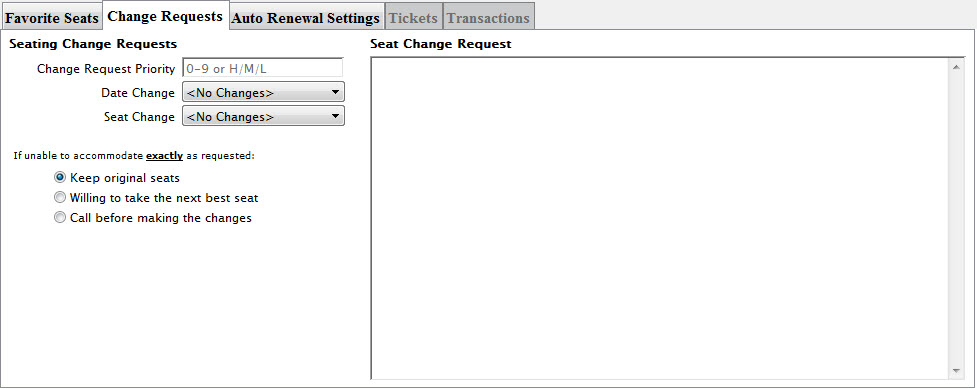
Parts of the Subscription Change Requests Tab
Seating Change Requests |
|
| Change Request Priority | The number of the priority level given to this change request between 1-9 or H/M/L. |
| Date Change | A drop down menu listing the available date changes for the season package. The list of dates are adjustable by the organization in the Subscription Date Change System Tables >> Code Tables data. |
| Seat Change | A drop down menu listing the available seat changes for the season package. The list of seat change options are adjustable by the organization in the Subscription Location Change System Table >> Code Tables data. |
| Keep original seats | When denoted, if the seat change request is not able to be exactly matched, the patron will retain their existing seats. |
| Willing to take the next best seat | When denoted, if the seat change request is not able to be exactly matched, the patron will take the next best seats available. |
| Call before making the changes | When denoted, if the seat change request is not able to be exactly matched, the patron should be called before making any changes. |
Seat Change Request |
|
| An area for notes related to the patron's seating change request. | |
Subscriptions Auto Renewal Settings Tab
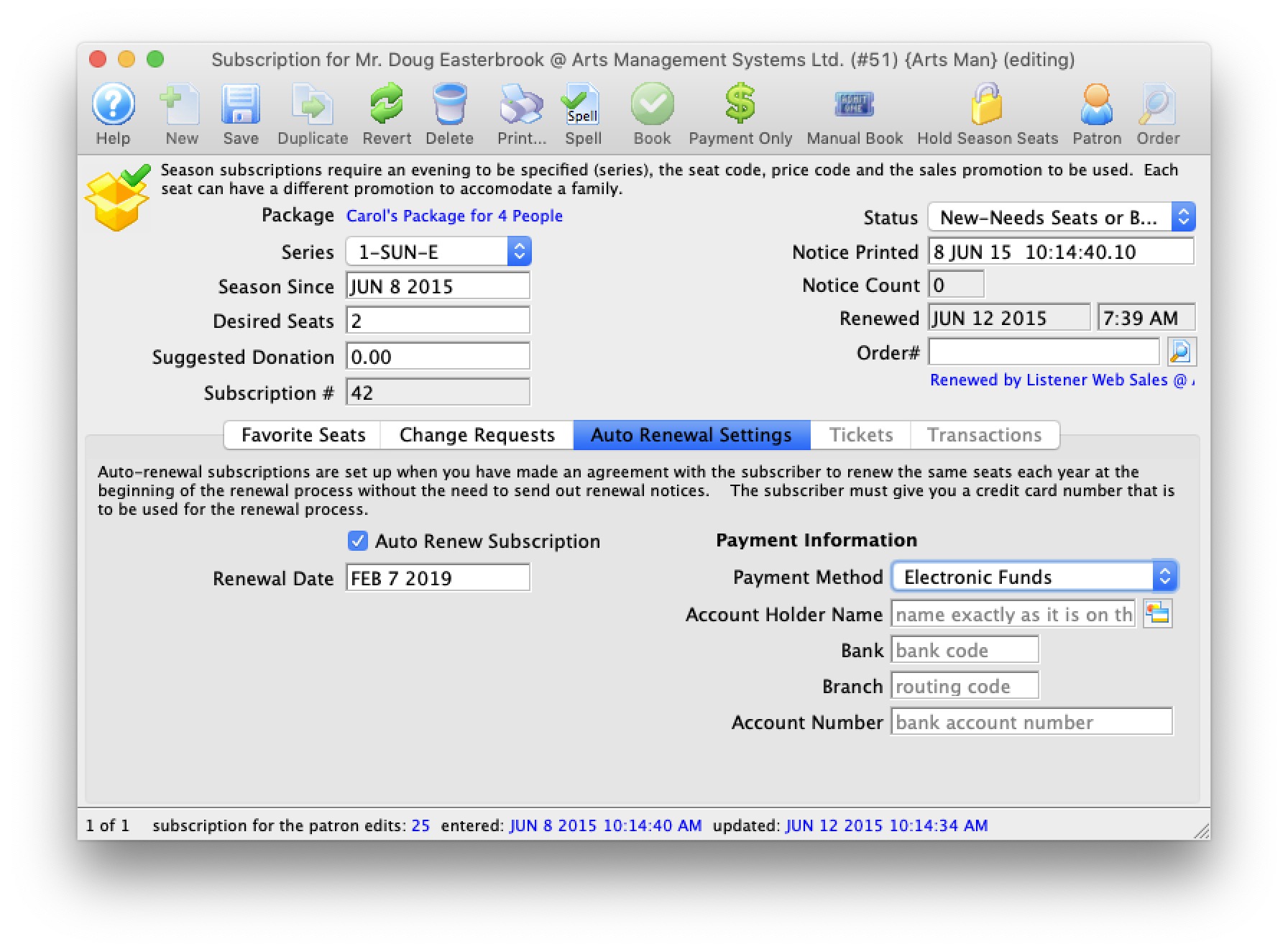
Parts of the Subscription Auto Renewal Settings Tab
| Auto Renew Subscription | When checked, the subscription is set to be automatically renewed and to use the payment information listed below. |
| Renewal Date | The date that the auto-renew option for this subscription package was enabled. |
| Payment Method | 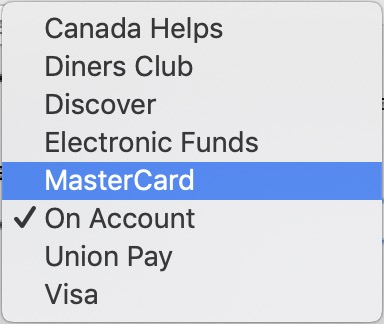 You can select payment methods from one of the following:
|
 |
For Credit Cards, opens the Credit Card Lookup List window to find credit cards attached to this patron. A new card can also be added from this window. |
Season Subscription Tasks
Subscriptions Tickets Tab
This tab becomes available when the patron's tickets are renewed.
You use the Subscription Tickets tab to review and change ticketing information for the patron.
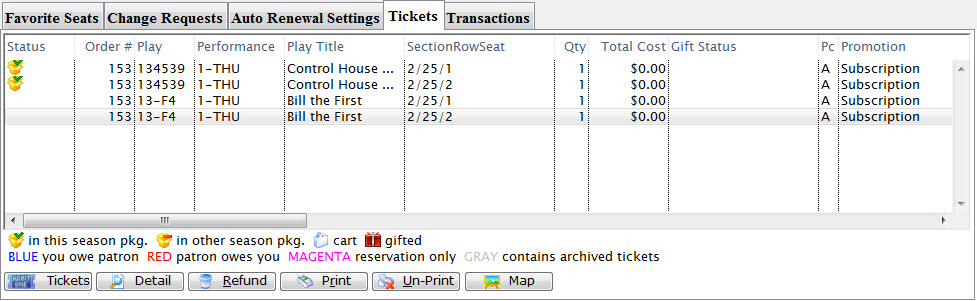
Parts of the Subscription Tickets Tab
| Status |  . . |
| Order # | The number of the order associate with the tickets. |
| Play | The unique play number generated by Theatre Manager. |
| Performance | A quick reference for the performance. |
| Play Title | The title of the play associated with the tickets. |
| Section/Row/Seat | The section, row and seat for the seats the subscriber. |
| Quantity | The number of seats that patron has. |
| Total Cost | Displays the amount paid for the ticket. |
| Gift Status | If the ticket was given or received as a gift. |
| Promotion | The promotion for the seats.. |
 |
Opens the tickets sub menu to change the tickets for the selected order. |
 |
Opens the Ticket Data window containing detailed information for the selected ticket. |
 |
Returns the selected ticket to the box office for resale. If they have not been printed or posted they will be deleted and not refunded. This process also clears the printed flag. |
 |
Prints the selected rows if they have not been printed. |
 |
Sets the selected tickets to Un-Printed status so they can be printed again. |
 |
Prints the map report showing the location of the selected tickets in the theatre. |
Subscription Transaction Tab

The Transaction Tab shows all the transactions that have occurred for the patron.
Parts of the Transaction Tab
| Seq# | A unique number used to track the transaction |
| Trans Date | Date and time the transaction took place. |
| Journal No | A unique journal number for tracking the transaction line. |
| Code | The transaction code used to describe the type of transaction. |
| Transaction Desc | Description of the transaction. |
| Order # | The order number for the transaction. This number can be used to track the transaction by order. |
| Play Code | Play code is only displayed if the transaction effects and event. |
| Performance Code | Performance code is only displayed if the transaction effects a performance. |
| Type | The type of transaction. |
| Description of Entry | Detail on the the purpose of the transaction. |
|
Can be used to manually enter a transaction. |
|
Opens the detail window of the transaction. |
|
Deletes the selected transaction. |
 |
Used to search for specific transactions. |
Searching Transactions
- Open the Transaction
 tab.
tab.
The Transaction tab is located on the Patron Window.
- Select a search field from the menu.
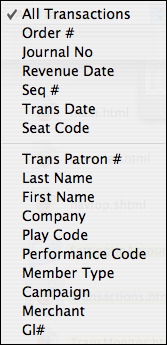
- Fill the To and From fields with the parameters to
search.

- Click the Search
 button.
The results of the search will be displayed in the table.
Season Package Detail Window
The Season Package Detail window displays the components of the package. It highlights the Control House, the Events within the package and where the package is available for sale.
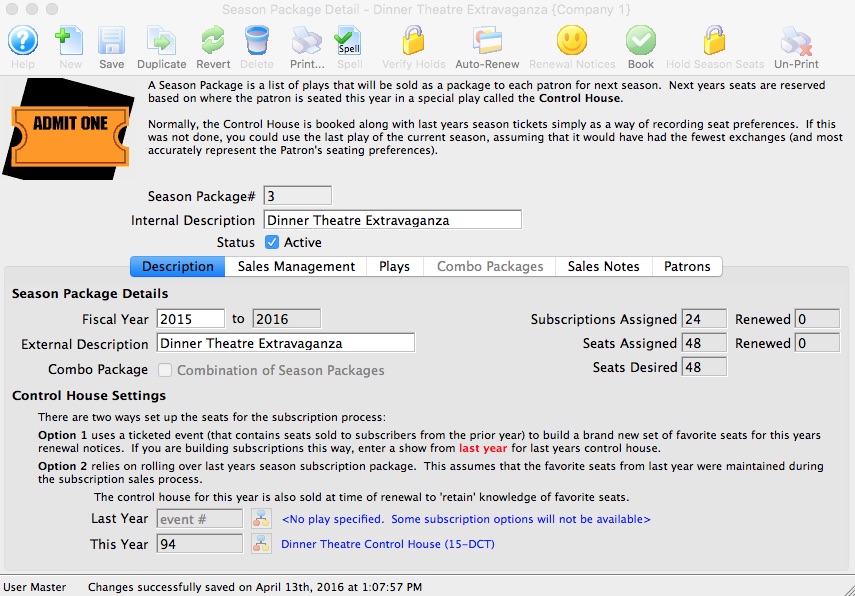
Parts of the Season Package Detail Window
Window Toolbar Icons |
|
|
Opens a new Season Package Detail window to setup a new Season Package. |
|
Saves the changes made to the existing Season Package Detail window. |
|
Reverses any changes or updates to the Season Package Detail window back to the last time changes were saved. |
|
Deletes the current open season package. |
|
Generates a report when columns are present based on the information selected. |
|
Reviews the fields currently displayed within the Season Package Detail window and displays any spelling errors. |
 |
Checks, clears, sets, and Verify Holds on reserved seating performances within the Control House's Season Package. |
|
Automatically Renews Selected Season Subscriptions for Patrons within the Package and places balances on account. |
|
Prints Season Subscription Renewal Notices for the Selected Patrons or all Patrons within the Season Package. |
|
Books all available seats within the Season Package for the selected patrons. This button is only active when one or more patrons are selected under the Patrons tab of the Season Package Detail window. |
|
Holds season seats for each Performance in the Season Package for the selected patrons. This button is only active when one or more patrons are selected under the Patrons tab of the Season Package Detail window. |
|
Changes the selected patrons season subscriptions status from Notice Printed to Not Started and removes the previous Season Renewal Notices. This button is only active when one or more patrons are selected under the Patrons tab of the Season Package Detail window. |
Window Tabs |
|
 |
The Description Setup for the Season Package. |
 |
The Sales Management details on the Season Package. |
 |
The Events that will be booked as a part of the Season Package. |
 |
The combination of different Season Packages grouped together to form a single Combined Season Package. |
 |
Detailed Sales Notes about the Season Package that can be displayed in the web sales pages. |
 |
List of Patrons that have a subscribed to the Season Package. |
The Season Package Detail Description Tab
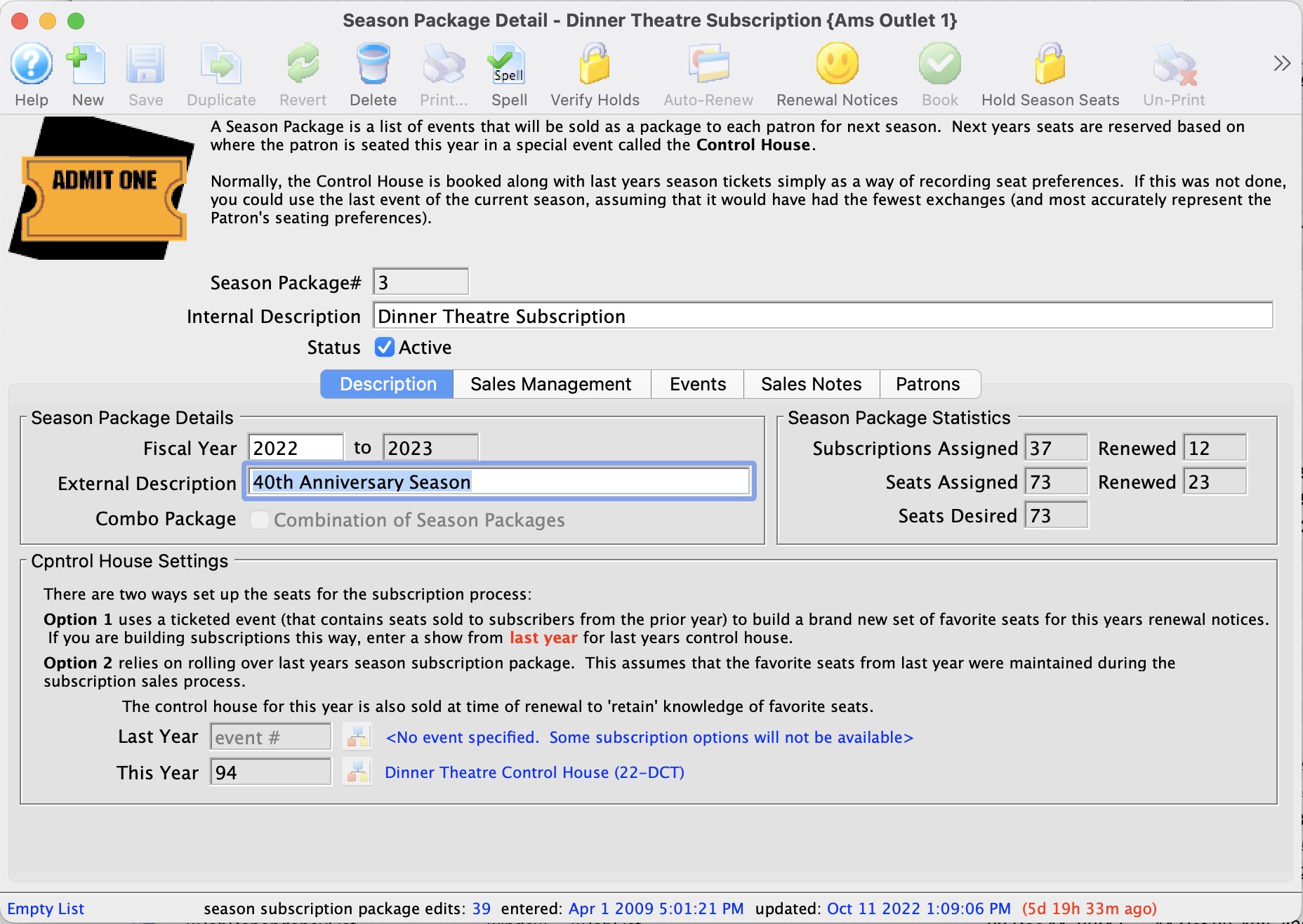
Parts of the Season Package Detail Description Tab
Season Package Details |
|
| Internal Description | The internal description given to the season package suitable for use within Theatre Manager. |
| Status | Indicates if the season package is available for use. |
| Fiscal Year | The season renewal year that the season package is for. |
| External Description | The external description given to the season package suitable for use on the web site and season renewal notices. |
| Combo Package | Indicates that this season package is an combo (or umbrella package) made up of one or more other season packages. The other season packages have the favourite seats for each venue - which allows selling or renewing a subscription that is in multiple venues. For example:
Note: if you do not want the individual package to be purchased, do not make them for sale online - only make the combo package for sale online. |
| Subscriptions Assigned | The number of subscriptions that have been assigned within this season package. |
| Subscriptions Renewed | The number of subscriptions that have renewed their season package. |
| Seats Assigned | The number of seats that have been assigned to this season package. |
| Seats Renewed | The number of seats that have been renewed to this season package. |
| Seats Desired | The number of desired seats in the subscription package. This is what patrons have asked for and is not necessarily the same as the primary/secondary seat count. |
Control House Settings |
|
| Last Year | The control house from last years subscription package that was used to rollover the confirmed subscriptions into this years package. |
 |
Opens the Play Lookup List window to choose the Control House. |
| This Year | The event that will contain and control the favorite seat map for this years subscriptions sales. |
The Season Package Detail Sales Management Tab
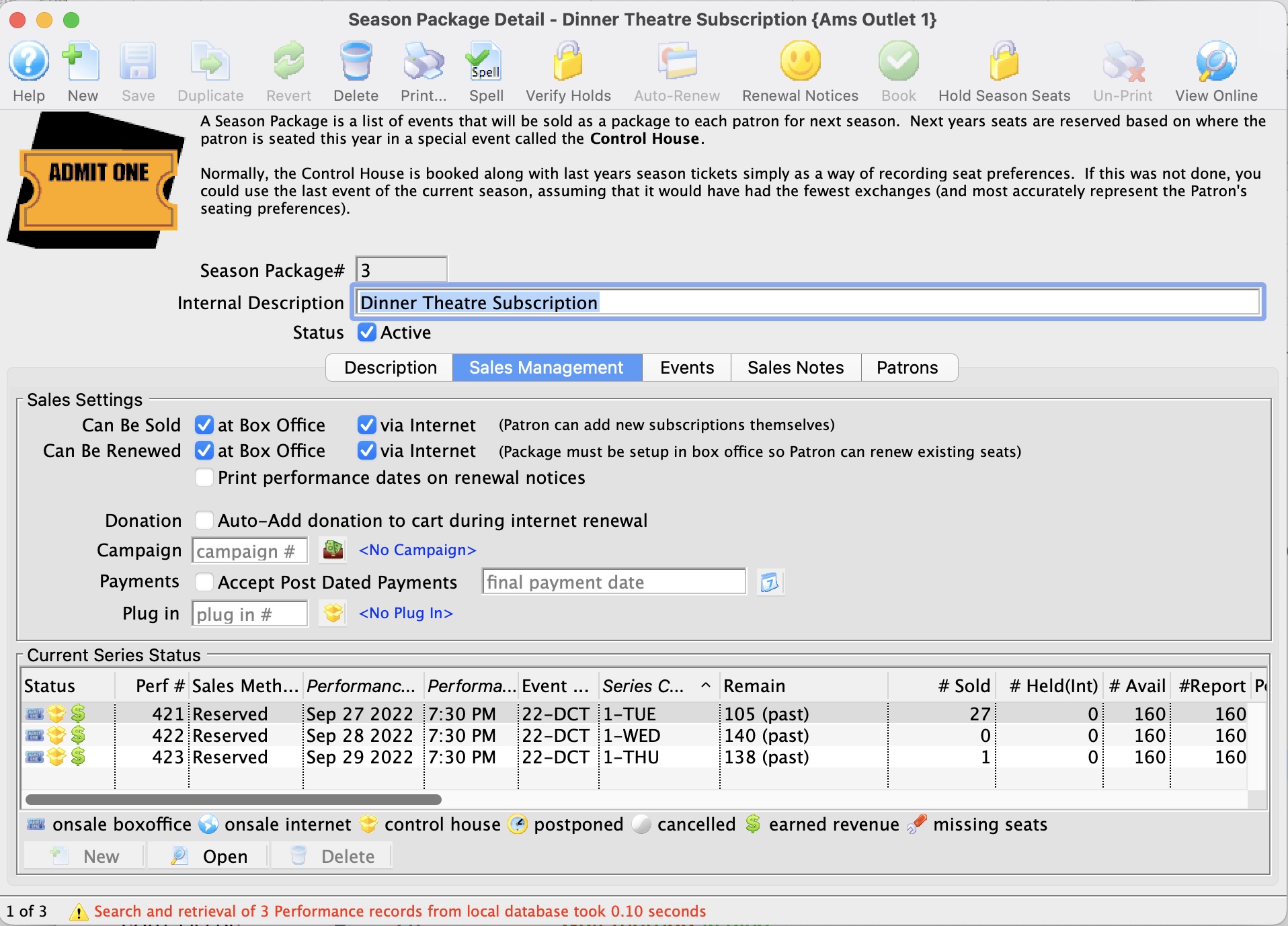
Parts of the Season Package Detail Sales Management Tab
Sales Settings |
|
| Can Be Sold at Box Office | When checked, allows the season package to be sold at the Box Office. |
| Can Be Sold via Internet | When checked, allows the season package to be sold on the internet. |
| Can Be Renewed at Box Office | When checked, allows a season subscriber to renew their package(s) at the Box Office. |
| Can Be Renewed via Internet | When checked, allows a season subscriber to renew their packages(s) via the internet. |
| Print Performance Dates on Renewal Notices | The performance dates for the new season will be printed on the renewal notices. This is helpful in the situation where you may want to print renewal notices but have not determined the final set of performance dates. |
| Donation - Auto-Ddd to Cart | Auto adds a suggested donation amount to the shopping cart when renewing an online subscription. |
| Campaign | The Donation Campaign to use if a donation is to be auto-added when the patron renews their online subscription. |
 |
Clicking the icon, opens the Campaign List window to choose the donation campaign to be auto-added to the cart when the subscription is renewed online and 'Auto-Add to Cart' has been enabled. |
| Accept Post Dated Payments | Indicates that this season package can have post dated payments created as a form of payment when renewing an online subscription. |
| Final Payment Date | The final date that a post dated payment for this season package can be applied on when renewing an online subscription. |
Plug In Code |
|
| Plug In | The number of the customized Plug-In Module that is being used for this season package. |
 |
Clicking the icon, opens the Plug-In List window to choose the customized plug-in for this season package. |
The Season Package Detail Events / Plays Tab
The Season Package Detail Event / Plays tab is used for adding events to a season package.

Parts of the Season Package Detail Event Tab
Custom Package |
|
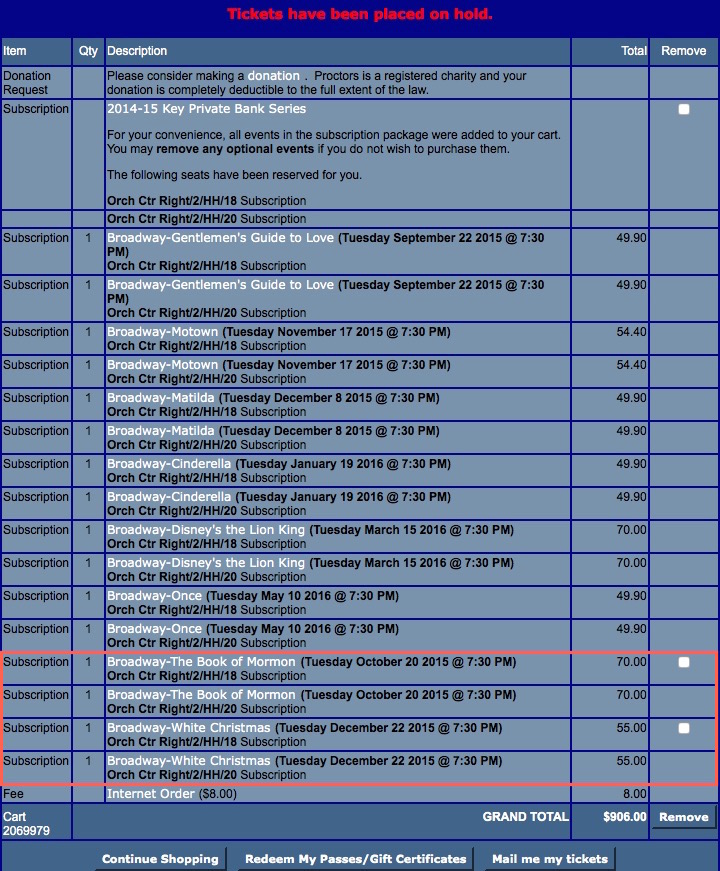
| Allow Event Removal | Indicates if the patron is allowed to remove optional events from the season package during the online subscription checkout process. |
Event Set Counts |
|
| Select Number of Events | Select the number of events or sets of event counts required for online subscription checkout |
Event List Columns |
|
| Status | Indicates if the event is a mandatory event or optional event within the season package. |
| Event # | The sequence number of the event. |
| Event Code | The event code for the event. |
| Event Title | The title of the event. |
| Year | The season year that the event falls under. |
| Theatre Name (Internal) | The internal name of the venue that the event takes place in. |
| Pricing Map Name (Internal) | The internal name of the venue's pricing map that the event takes place in. |
|
Adds an event to the list of events in the season package. |
 |
You can indicate which events are optional as far as the package goes. When the event is optional, the patron can remove that event online if they choose to.
Note:
|
|
Removes the selected event from the season package. This only removes the event from within the season package and doesn't delete the event. |
The following is an example of an online season subscription with optional events, highlighted in red. In the 'Remove' column, the optional events have the option to be removed from the shopping cart prior to checkout.
The Season Package Detail Combo Packages Tab
 |
When selling a NEW season package online using the combo package, the patron will be asked for favourite seats in each package as part of the process. |
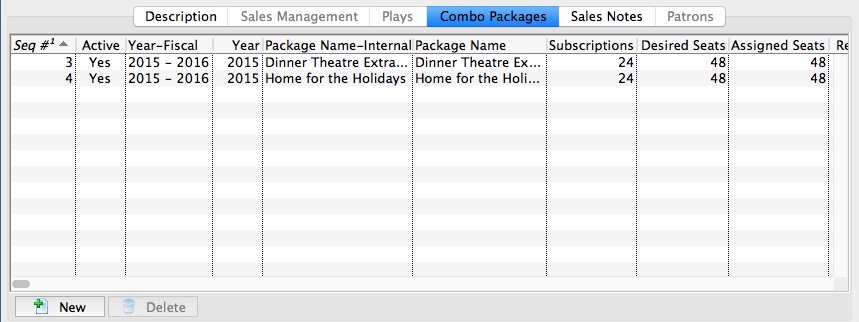
Parts of the Season Package Detail Combo Packages Tab
Season Package List Columns |
|
| Seq # | The sequence number for the season package. |
| Active | Shows whether the season package is active or not. |
| Year-Fiscal | The fiscal year to which the season package is currently set. |
| Year | The season year to which the season package is currently set. |
| Package Name-Internal | The internal description given to the season package. |
| Package Name | The external description given to the season package suitable for use on the web site and season renewal notices. |
| Subscriptions | The total number of subscriptions in the season package. |
| Desired Seats | The number of favorite seats that were desired by patrons for the season package. |
| Assigned Seats | The number of favorite seats that were able to be fulfilled for patrons in the season package. |
| Renewed Subs | The number of subscriptions that are renewals from the previous fiscal year. |
| Renewed Seats | The number of seats that were renewals from the previous fiscal year. |
| Combo | Indicates that this season package is made up of other season packages. |
| Pricing Map Name-Internal | The name of the venue's pricing map that the season package is a part of. |
|
Adds a different season package to the set of linked/combined season packages. |
|
Removes the selected season package from the linked/combined season package list. This only removes the season package from within this set of linked/combined season packages and doesn't delete the season package. |
The Season Package Detail Sales Notes Tab
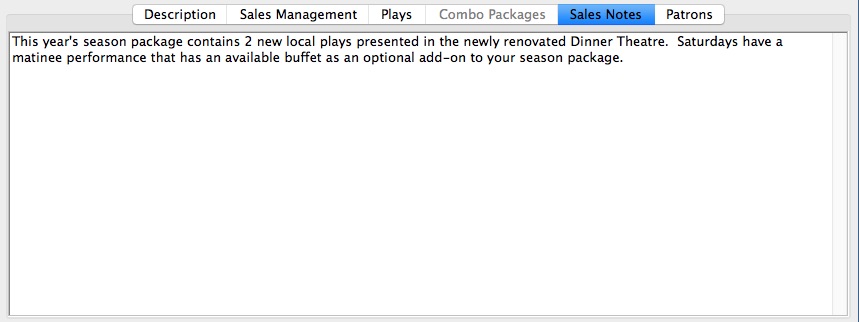
The Season Package Detail Sales Notes tab is used for entering any sales notes about the season package. These notes are viewable by patrons when selling online season packages.
Parts of the Season Package Detail Sales Notes Tab
| Text Field | Area to enter detailed sales notes pertaining to the season package for display during the online subscription process. |
The Season Package Detail Patrons Tab
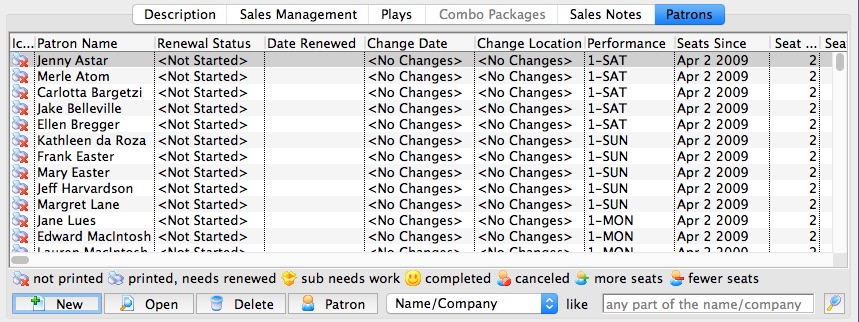
The Season Package Detail Patron tab lists the patrons currently within the Season Package. Patron's season packages can be managed from this window.
Parts of the Season Package Detail Patron Tab
Columns |
|
| Icon |  |
| Patron Name | Name of the patron the Season Subscription is booked under. |
| Renewal Status | Current state of the Patron's Season Subscription within this package |
| Date Renewed | Date the patron renewed their season subscription. This field is blank if the patron has not yet renewed. |
| Change Date | Series date within the Season Package the patron wishes to relocate to. |
| Change Location | Desired location the patron wishes to relocate to. |
| Performance | Current series code the patron is booked into. |
| Seats Since | Date the patron first became a Season Subscriber |
| Seat Count-Current | Number of seats currently assigned in the patron's Season Package. |
| Seat Count-Desired | Number of seats the patron wished to have for the Season Package. |
|
Adds patrons to the season package. |
|
Opens the patron's subscription detail record. |
|
Deleted the patron from the season package. If the patron already has booked seats, the tickets will need to be refunded from the patron window. |
|
Opens the patron window for the selected patron. |
 |
Search option drop down option for viewing patrons within the season package. |
 |
Searches the Season Package using the desired search option. |
Season Package List Window
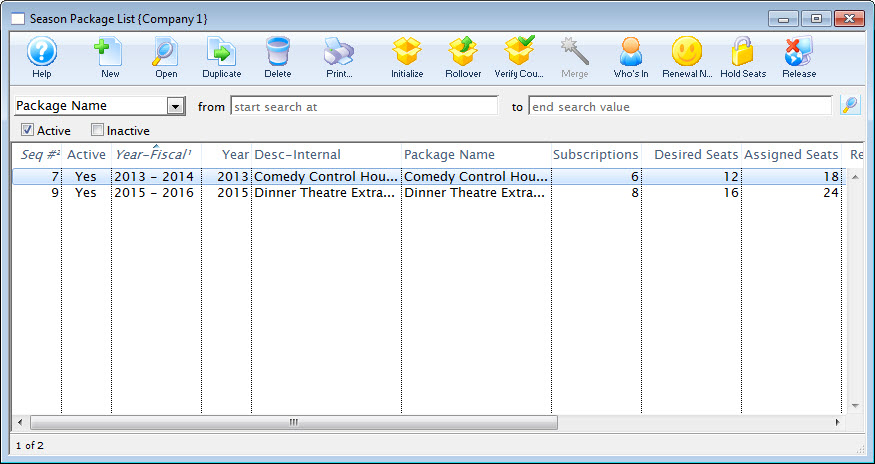
The Season Package List window provides a detailed list of current and historical season packages.
Parts of the Season Package List Window
Window Toolbar Icons |
|
|
Opens the Season Package Detail window in order to create a new Season Package. |
 |
Opens the selected season package for the purpose of editing in the Season Package Detail window. |
|
Creates a duplicate of the selected season package. |
|
Deletes the selected season package. |
|
Prints the season packages in the Season Package List window. |
 |
Initializes the selected season package by clearing all patrons from the package. |
 |
Performs a Season Package Rollover the selected season package to the current year. |
 |
Verifies the selected season package to ensure that all counts are correct. |
 |
Merges the selected season packages together. All records will also be merged together. |
|
Shows a listing of which patrons are part of the selected season package. |
|
Begins the process for issuing Season Renewal Notices for the selected season package. |
|
Holds all favorite seats for the performances in the selected season package. |
 |
Makes any seats for subscriptions released on the internet into secondary seats so they are available for other patrons to choose from when purchasing a new season subscription. |
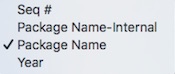 |
A drop down menu listing the available ways to search for a season package. |
|
The Search button to begin a search for a season package. |
| Active | Indicates to search for 'active' season packages. |
| Inactive | Indicates to search for 'inactive' season packages. |
List Columns |
|
| Seq # | The sequence number for the season package. |
| Active | Shows whether the season package is active or not. |
| Year-Fiscal | The fiscal year to which the season package is currently set. |
| Year | The season year to which the season package is currently set. |
| Package Name-Internal | The internal description given to the season package. |
| Package Name | The external description given to the season package suitable for use on the web site and season renewal notices. |
| Subscriptions | The total number of subscriptions in the season package. |
| Desired Seats | The number of favorite seats that were desired by patrons for the season package. |
| Assigned Seats | The number of favorite seats that were able to be fulfilled for patrons in the season package. |
| Renewed Subs | The number of subscriptions that are renewals from the previous fiscal year. |
| Renewed Seats | The number of seats that were renewals from the previous fiscal year. |
| Combo | Indicates that this season package is made up of other season packages. |
| Pricing Map Name-Internal | The name of the venue's pricing map that the season package is a part of. |
Book Season Subscription Options
You use the Book Season Subscription Options window to hold Season Subscription Seats within the Events of the Season Package. This is determined by the details of the window.
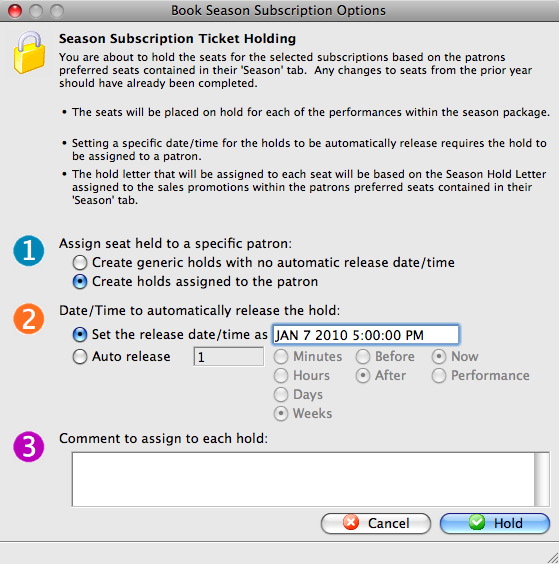
For more information on how to access the Book Season Subscription Options window click here.
Parts of the Season Package List Window
 |
Choose the assignment option.
You can choose to create a generic hold with no release data and time or create a hold assigned to the patron. |
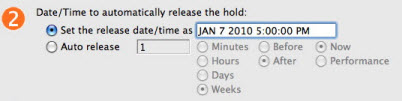 |
Determine the Date and Time the seats are released.
Theatre Managerautomatically releases the holds on the date and at the time entered or at the set Auto Release time. |
 |
Enter any comments about the holds. |
Season Subscription Auto-Renewal Window
The Book Season Subscription Options
The Season Subscription Auto-Renewal window renews selected season subscriptions where the status of the subscription is Not Started or Notice Printed. For more information on how to access the Season Subscription Auto-Renewal window click here.
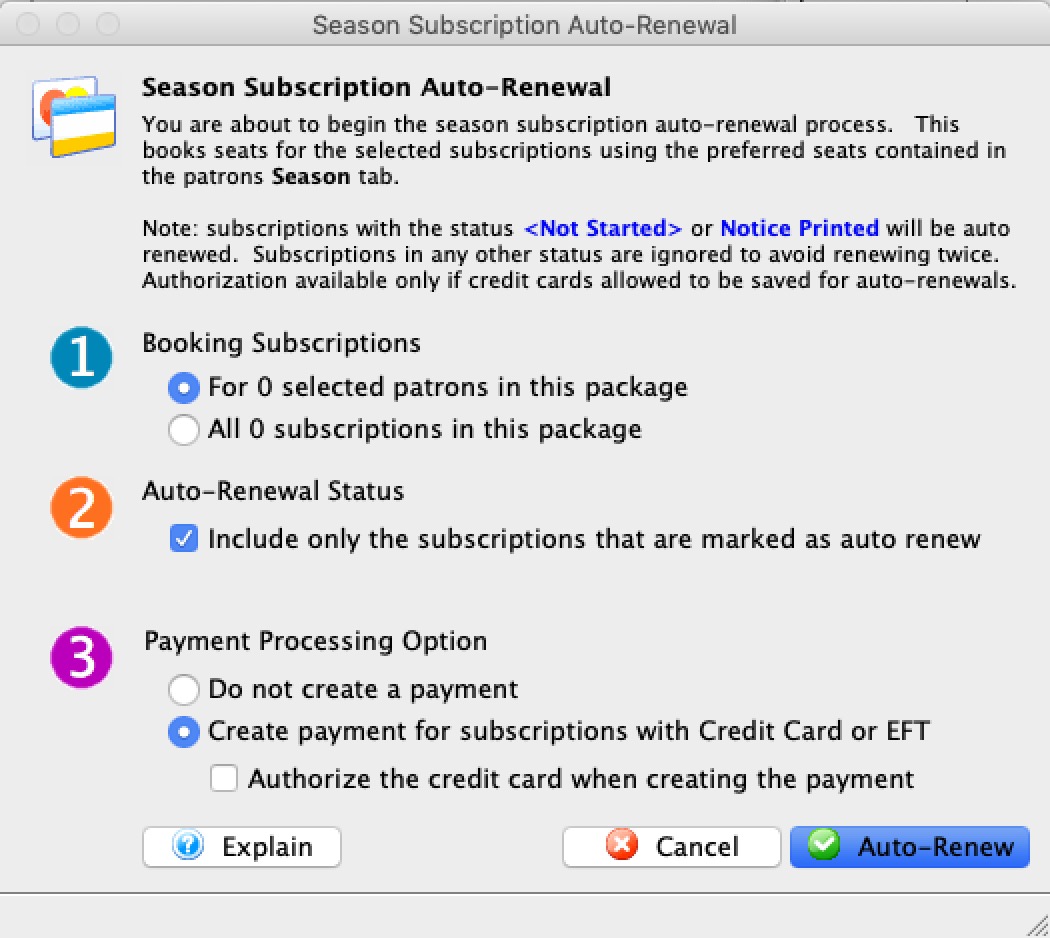
 |
You can mark an individual subscription as auto-renew in the patrons subscription detail window - auto renew tab |
|
Only subscriptions with the status Not Started or Notice Printed can be auto-renewed. Subscriptions in any other status are ignored so that you can not renew the same subscription twice. |
Parts of the Season Subscription Auto-Renewal
 |
Make your selection for some or all tje patrons in a package. |
 |
Auto-Renewal Choose to include all (un-checked box) or only those subscriptions marked as auto renew (checked). |
 |
Make your selection from the list.
If the payment method on the individual subscription for the patron is:
|