
Main menu
You are here
Employee Prefs: Patron Tab

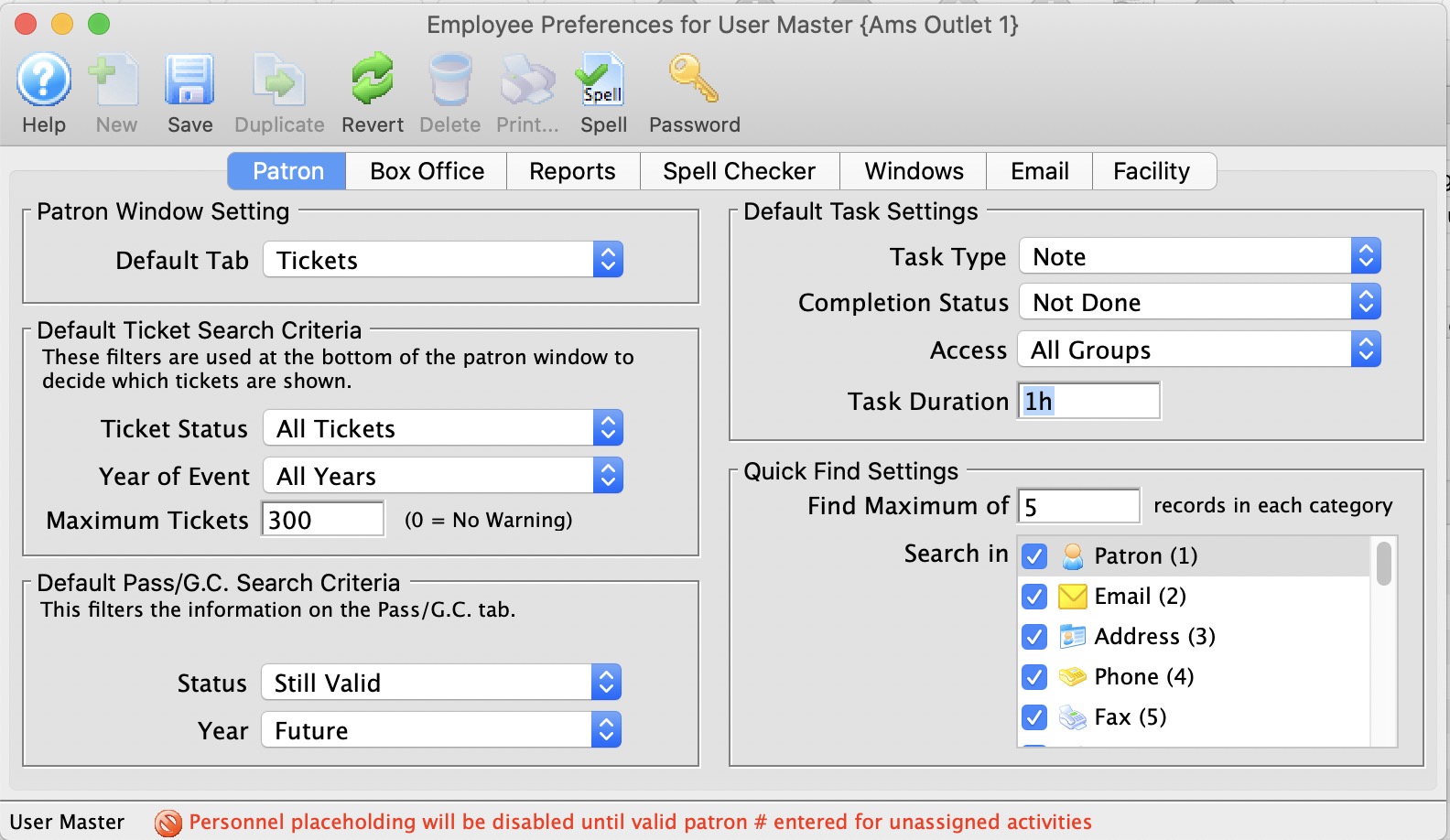
Parts of the Patron Tab
Patron Window Setting |
|
| Default Tab | You can choose which tab on the lower half of the patron window you want to land on when opening a patron window to suit your work flow best |
Default Ticket Search Criteria |
|
| Ticket Status | Choose the types of tickets to be displayed in the ticket tab. There are three choices: All Tickets, Printed Tickets, and Unprinted Tickets. If Printed Tickets was selected then all tickets displayed would be tickets that have already been printed, or marked as printed. |
| Year of Play | Choose the year of the tickets to be displayed in the ticket tab. There are 6 choices: The future year, the current year, previous year, two years prior, Current Year and All Years. If the current year was selected then all tickets displayed would be for events that take place in the current year. |
| Maximum Tickets | The maximum number of ticket to be displayed in the patron window when the patron record is loading. If a patron has more tickets than the number specified in this field, in this case 300, then a message will appear when you open that patron record informing you that 300 tickets have been found would you like to add 300 more. Clicking yes will display another 300 tickets, if there are that many more. If there are less then 300 it will just display the remainder of the tickets. By clicking no, then only the first 300 tickets will be displayed. |
Default Pass /G.C. Search Criteria |
|
| Status | Choose the types of membership to be displayed in the membership tab. There are three choices: All Memberships, Invalid, and Valid. If Valid was selected then all memberships displayed would be active and not yet expired. |
| Year | Choose the year of the memberships to be displayed in the membership tab. There are 6 choices: The future year, the current year, previous year, two years prior, Current Year and All Years. If the current year was selected then all memberships for the current year would be displayed. | Default Task Settings |
| Task Type | Select which task you would like as your default when creating a new one |
| Completion Status | Indicate if you would like new tasks set to 'Not Done', 'In Progress', or 'Done' |
| Access | The default access to be set on a task when creating new tasks |
| Duration | how long should your default task be? Durations are set in text format so that you can express many things. eg:
|
Default Quick Find Sort Order |
|
| Find a Maximum of | Determines the maximum number of values displayed in each of the categories you wish Theatre Manager to search for the quick find. |
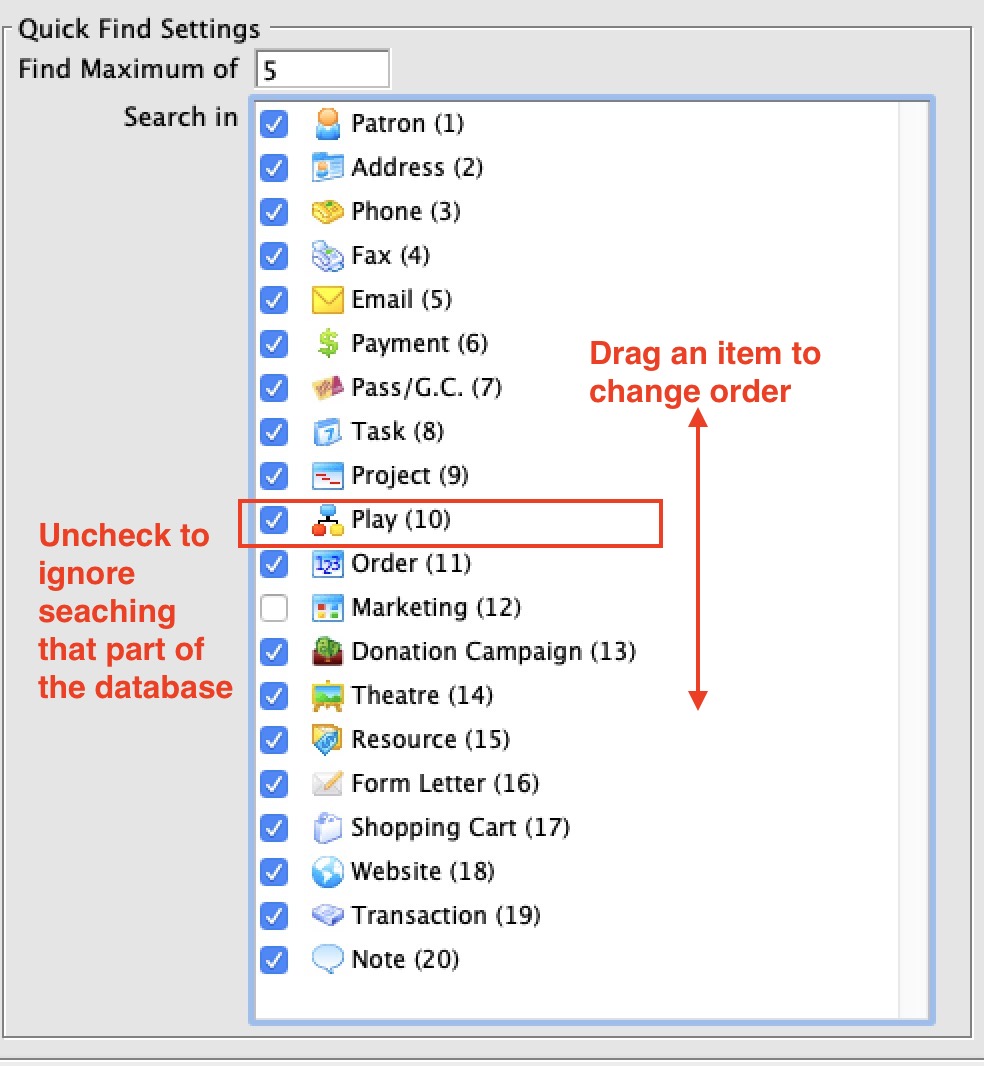
| Search in |
Allows the employee to choose what values are shown when using Quick Find, and in what order they are displayed (drag and drop the listings to change their sort order).
 |
Diataxis: