
Main menu
You are here
Adding Volunteer Duties

To set up volunteer activities, you perform the following steps:
- Go to Setup >> System Tables >> Code Tables and scroll down to select Volunteer Activity.
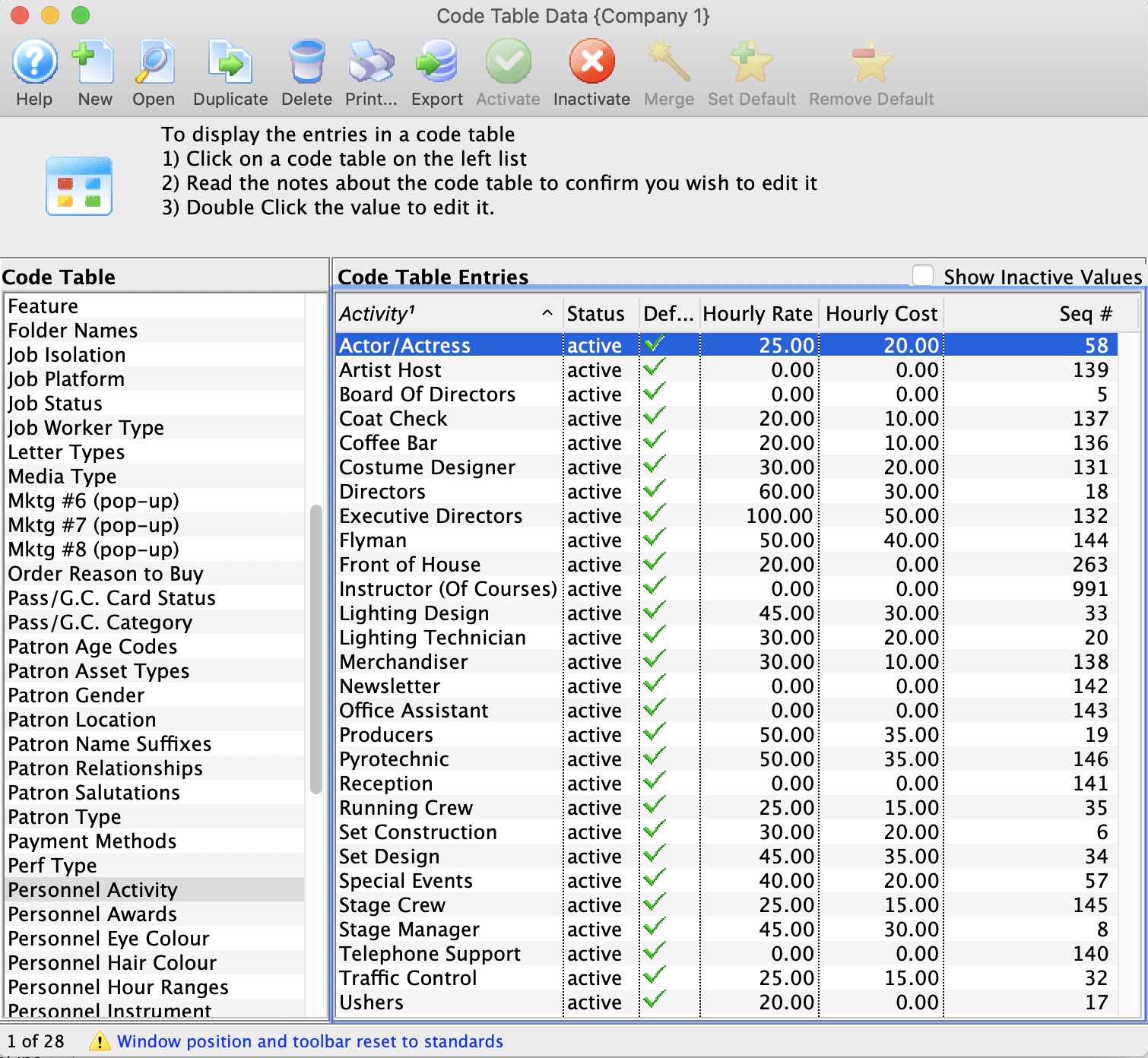
- Click the New button
 to open the Volunteer Activity Insert window.
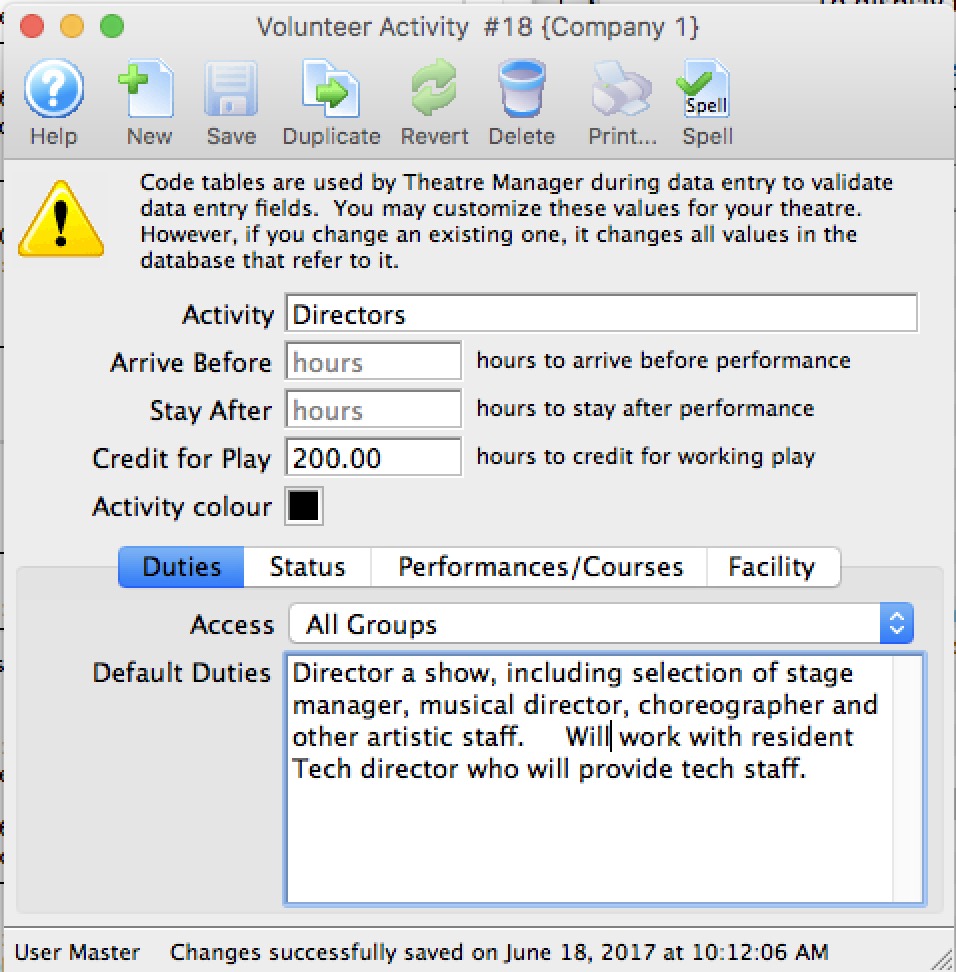
- Give the new activity a specific name so anyone will be able to decipher its purpose. It will also appear on reports and search criteria.
- Optionally, if tracking hours or if hours do not match the task or performance it is associated with
- Enter the number of hours before and after the performance that the volunteer is expected to be there. For example, if the performance starts at 7:30 pm, you might expect an usher to arrive 1 hour before and stay a half hour afterwards. If these two fields are set, they add extra time to the volunteer record before event start and duration of performance. Thus a 2 hour performance might result in a time credit of 2 + 1 before and 0.5 after, or 3.5 hours. This will show on the calendar in Facility Management.
- Alternatively, you can specify a fixed number of hours to credit to the staff/volunteer for doing this activity. This approach is more suitable for things like directors, actors or volunteer office staff who might be given a time allotment, regardless of the duration of the event.
- If either of the above are provided, they become defaults during data entry. If not provided, the setup can specify the total time if you want the time to be fixed, rather than based on calendar input.
- If you want this activity to have special colouring on the calendar, select a color other than black.
- On the Duties tab, enter any default duties for this position.
Diataxis: