End of Day Wizard and Daily Balancing
The End of Day wizard should be run at the end of each business day (or first thing the next morning) to create deposit and sales entries. To segregate daily business, the entries should be created prior to entering new sales and payments (corrections excepted). Creating the journal entries prior to entering new sales and recording payments, prevents combining deposits and sales for two periods in the same general ledger entry.
All ticketing and payment corrections and errors should be completed prior to creating a deposit or a sales entry.
To simplify analysis of the sales and deposit entries, create the minimum number of as sales and deposit entries as necessary in any given day. If you create more than one, you must remember to combine everything for that day in your search criteria before analyzing them.
The End of Day Wizard is accessed through the Accounting >> End of Day Wizard menu.
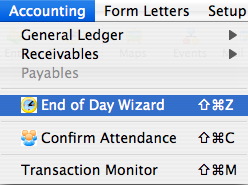
This will open the End of Day Wizard Window allowing you to clear up the business transactions for the day all in one location.
For more information on using the End of Day Wizard, click here.
Timing for Creating Deposit and Sales Entries
Deposit and sales entries can be created at any time. You can create them any number of times per day. If you want to balance the A/R in Theatre Manager, both the deposits and sales should be created at the same time period and at the same time. The End of Day Wizard takes you through the process and identifies if you are out of balance. If you wish, you can also do it manually using the various menu items under the accounting menu. To simplify revenue analysis, the sales entry should be created immediately after the deposit entry.
Normally:
- The deposit and sales entry should be created daily.
- only one sales entry is created for the same time period covering the deposit.
However, a sales entry is automatically created for each revenue date since the last sales entry was created. Should you decide not to create sales entries for a week, running the process will create a Sales Posting for each day that sales occurred in that week period.
Time Stamps on Transactions
Reviewing transactions for any time period is made possible by the date and time stamps that are placed on each transaction when it is created.
Time stamps are attached to transactions -- ticket sales, refunds, exchanges, and payments -- and are created at the time the transaction was entered into Theatre Manager. Time stamps identify the date and time that the transaction occurred and enable reports to summarize transactions for specific time periods.
Transactions created to "correct errors" are dated for the time they occurred. Orders, payments, refunds, or exchanges created today to correct yesterdays errors are date and time stamped today. Any amounts included in the transaction are included in the deposit and sales entries created today. Any transactions required to correct yesterdays transactions should be journalized in a sales and deposit entry prior to new sales being created. These transactions should be included in yesterdays "Deposit and Sales Analysis". Refer to the section Date & Time Stamps for more information.
Employee Till Balancing
The Till Balance feature allows you to have all employees balance their own tills at the end of each shift. This speeds up the End of Day and removes the room for error when employees may have already left for the day.
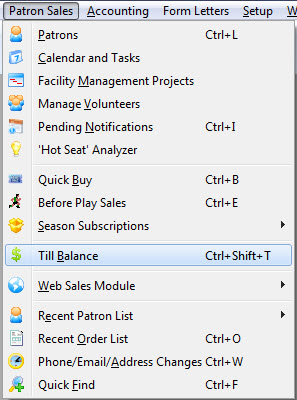
- Open the Till Balance window.
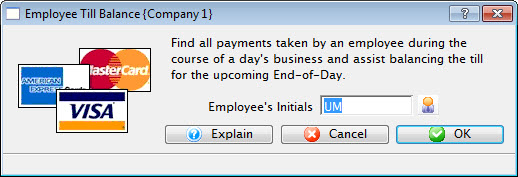
- If this employee has had one or more shifts since the payments have
been deposited, the following window will appear (if not, proceed to step
4).
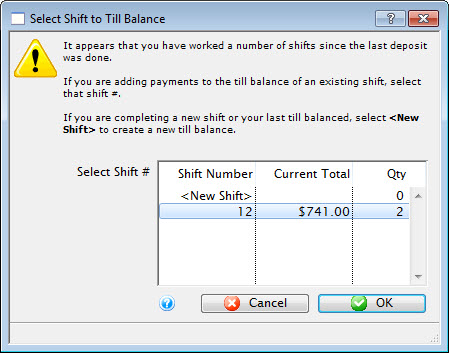
When a shift's till is created, it is assigned a unique number. If the employee has entered one or more payments since the last time they balanced a till, and the payments have not been posted in the end of day process, the employee has the option to:
- Assign the payments to the same till as they previously balanced. This means that all money taken across a number of days is simply being lumped together into one till #.
- Create a new shift till for the unbalanced payments. This means you are putting new money into a new till #.
- A combination of the above by putting some money into an existing till and the rest into a new till. You can do this by
- selecting the existing till
- removing all but the 'new' payments you want to add to that existing till
- indicate that the till now balances with the selected payments.
- Anything not balanced in one till will be left to the balance in another till.
- Anything marked as not balanced in an existing till will be taken out of that till. It can then be put into another till (new or otherwise), effectively providing at way to move money between employee till numbers.
-
Select the Shift # and click the OK
 button.
The Till Balance window opens. For more information on the Till Balance window, click here.
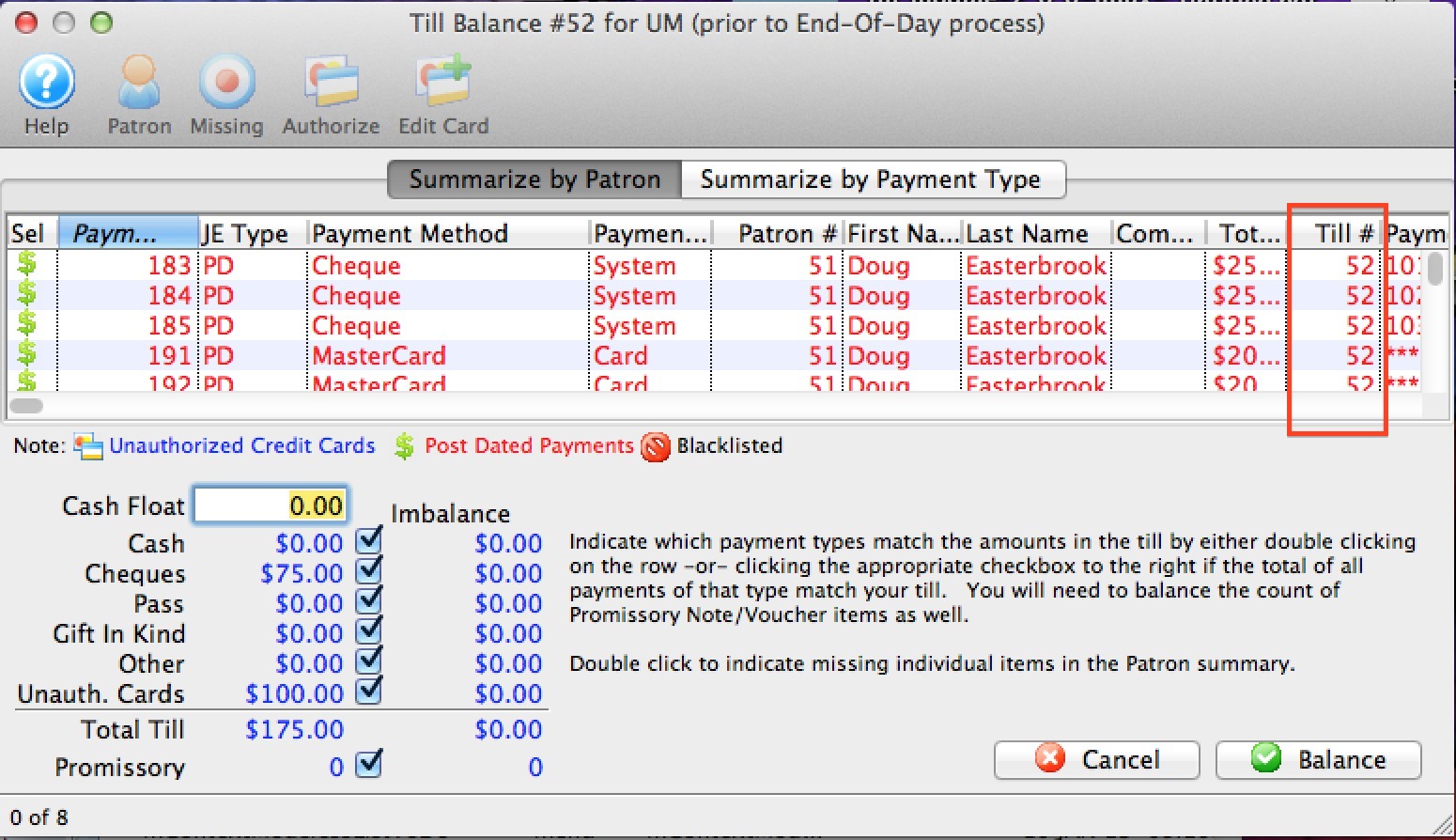
- Once all payments are marked as being in the till a number should appear under the Till # column. The Imbalance column at bottom left will also have $0.00 for each item.
- Click the Balance
 button.
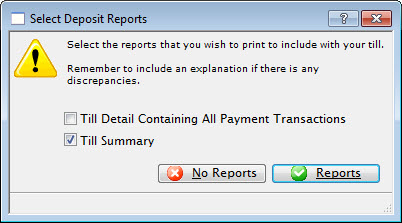
- Mark which report to print and click the Reports
 button.
The Till Summary is suggested.
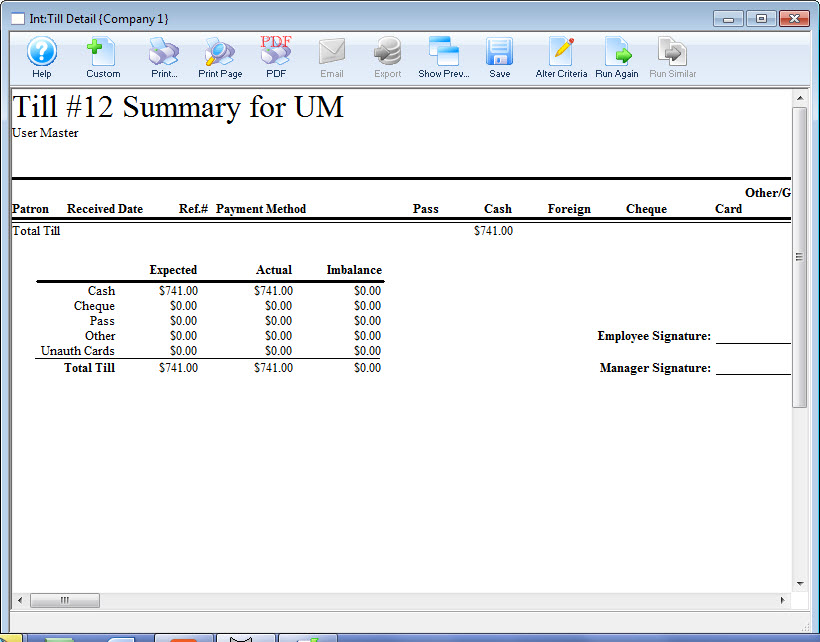
- Bundle the Till Report with the monies that were received by the employee until the time that the deposit is run.
Till Balance Window
 |
Only physical payment methods where this is a chance of discrepancy appear in till balance. This includes Cash, Check, Pass/GC, and other payment methods. The reason is that a manual tally of these payments may point out instances where the value on the check and the value entered into Theatre Manager may be different. It gives a chance of correction at source.
Credit Card payments processed through your merchant account will NEVER show in the till balance window because they can never be for the wrong amount. (The system created the amount and sent to the bank, so there is no possible discrepancy in amount in the system). Post dated credit cards may appear as a convenience to allow the user to authorize them (although this is usually done in end of day). It may be useful if emergency mode was enabled for part of the day.
|
Parts of the Till Balance Window
 |
Opens the online Help for this window. |
 |
Opens the selected Patron |
 |
If enabled, marks the selected payments as missing. |
 |
If available, authorizes the selected credit card. |
 |
If available, allows you to change the card that a post dated payment is being changed to. |
 |
Displays the summary table by patron. |
 |
Displays the summary by the type of payment |
| Patron # | The patron number for that patron that this payment is assigned to |
| First Name | First name of the patron this payment is assigned to |
| Last Name | Last name of the patron this payment is assigned to |
| Company | Company name of the patron this payment is assigned to |
| Total Paid | Amount paid by the patron, using this payment method |
| Till # | Has this payment been marked as being in the till? The default is blank, which will change to the till number once the payments are marked manually as being in the till |
| Card Number | The card number/ check number of this payment |
| Payment types | Where you mark (using the check boxes) the payments as being physically in the till. Any payments that are not in the till should be marked as such. You can batch mark payments of a certain type as being in the till, then double click specific payments to remove them |
End of Day What to Expect
It is important to close out the daily transactions and balance Theatre Manager on a frequent basis. If this occurs 365 days each year and the GL entry created by Theatre Manager is posted to the organization's accounting system, there should be no problems with the annual audit. This is based on making the GL entries in the accounting software exactly the same as TM creates them.
 |
Theatre Manager is an accrual accounting system!
The Accounts Receivable account (A/R) is a revolving account to manage sales and payments. Each sale (ticket, donation or pass) increases the sales account for that item AND increases the A/R account. When the payment is received, the asset account for that payment is increased while A/R is decreased. If everything is paid for, then the net change to A/R on a daily basis will be zero. If an item is not paid for (i.e. pledge, group ticket sale, or reservation), there will be an increase in A/R on that day. At some subsequent day, once the order is paid for, there will be a decrease in A/R. |
Typical GL Entries Seen at End of Day
| Posting Type | Debit | Credit | GL Entry Type |
| Sales of Items | |||
| Ticket Sale | A/R | Deferred Revenue for Event | Sales Posting (SP-xxxxxx) |
| Donation | A/R | Earned Income for Donation Campaign | Sales Posting (SP-xxxxxx) |
| Pass or Gift Certificate Sale | A/R | Liability for unused Passes | Sales Posting (SP-xxxxxx) |
| Membership Sale | A/R | Earned Income for Membership | Sales Posting (SP-xxxxxx) |
| Payments | |||
| Credit Card, Check or Cash Payment | Visa, MCard or Bank account | A/R | Deposit (DP-xxxxxx) |
| Redemption of Pass | Liability for unused Passes | A/R |
Deposit (DP-xxxxxx) |
| Transfer to Restricted Account | Asset Account for restricted donation campaigns | Main Bank Account | Deposit (DP-xxxxxx) |
| Automatically Generated Postings | |||
| On day after event, transfer from deferred to earned revenue | Deferred Revenue for Event | Earned Income for Event | Sales Posting (SP-xxxxxx) |
| On year end Rollover | Deferred income for donations dated in a future fiscal year | Earned Income for the campaign | Sales Posting (SP-xxxxxx) |
| Manual GL Adjustments | |||
| Adjustments to GL | Any Account, usually not A/R | Any Account, usually not A/R | GL-xxxxxx |
End of Day Wizard Window
Since Theatre Manager treats sales and payments as separate items, the user needs to do four steps each day to balance. We recommend completing all steps by the end of the day -or- next morning prior to the day's sales.
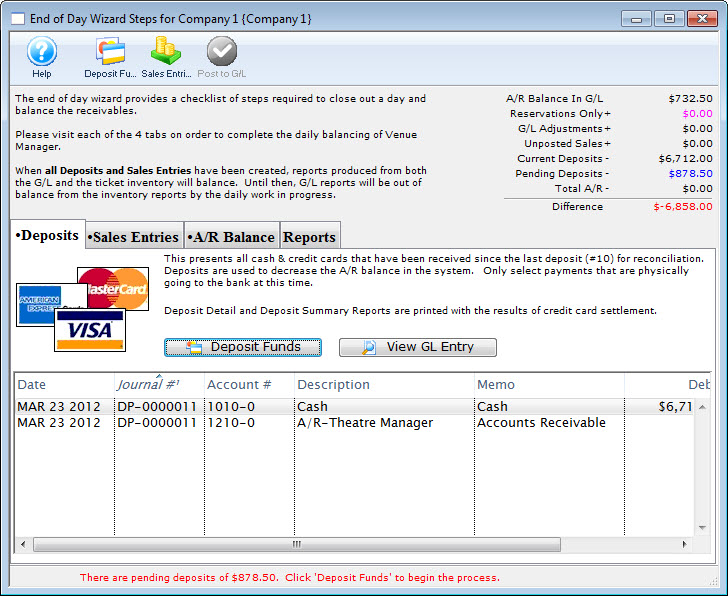
Parts of the End of Day Wizard Window
Toolbar/Ribbon Bar

|
Help - Opens the online help. |
 |
Deposit Funds - Selects all undeposited payments by payment date and creates a bank deposit |
 |
Sales Entries - Creates G/L entries based on all new sales transaction in Venue Manager |
 |
Post to G/L - Posts the G/L Entries that comprise the 'end of day' totals to the ledger |
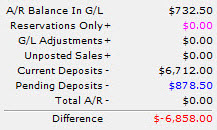 |
The calculator located in the upper right hand corner of the window is used to track where the balance stands as the user progresses through the End of Day process. |
 |
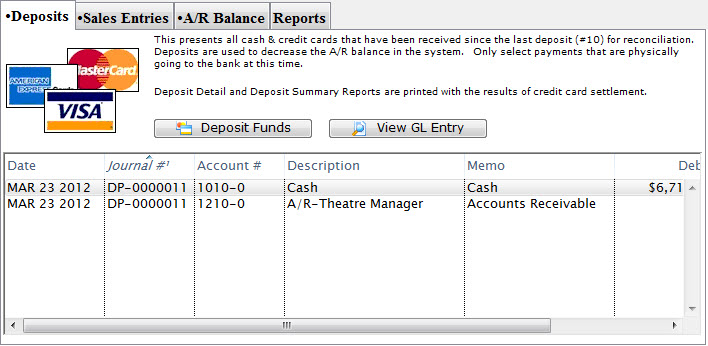
The Deposits tab is used for creating deposits to send to the bank. For more information on the Deposits tab, click here. |
 |
The Sales Entries tab is used to journalize all sales entries to the General Ledger. For more information on the the Sales Entries tab, click here. |
 |
The A/R Balance tab is used to journalize all outstanding A/R to the General Ledger. For more information on the A/R Balance tab, click here. |
 |
The Reports tab is used for printing reports when the End of Day process is complete. For more information on the Reports tab, click here. |
Deposit Tab
Parts of the Deposit Tab
|
The Sales Entries tab is used to journalize all sales entries to the General Ledger. For more information on the the Sales Entries tab, click here. |
|
The A/R Balance tab is used to journalize all outstanding A/R to the General Ledger. For more information on the A/R Balance tab, click here. |
|
The Reports tab is used for printing reports when the End of Day process is complete. For more information on the Reports tab, click here. |
| Date | The date the journal was created. |
| Journal # | The journal to which the payment(s) was posted. |
| Account # | The unique account number for the payment type. |
| Description | A description of the account. |
| Memo | A detailed description of the journal. |
| Debit | Deposits will debit their corresponding account number for the payment type. |
| Credit | All deposits will credit Accounts Receivable in the General Ledger. |
 |
Deposits outstanding funds. For more information on using the Deposits tab, click here. |
 |
Opens the Transaction History window with information on the payments received. |
Step 1: Deposit Detail Window
- is used to identify payments made since the last deposit that can be taken to the bank or settled in a credit card batch
- Remove any post dated credit card payments that cannot be authorized or checks that cannot be found.
- Replace the credit card number or expiry date on a post dated credit card payment to allow it to be authorized
- aggregate them into a 'batch' to take to the bank and create a deposit posting/GL entry (DP-xxxxxxxx) that can be used by the end of day process.
|
The deposit window is designed to match exactly the money put into your bank account -- so that it make it easy to reconcile your bank statement with your accounting program. If you cannot authorize (or find) a post dated payment, or do not want to take specific payment to the bank, REMOVE it from the deposit so that the deposit list matches exactly what will be put into the bank in a single deposit. |
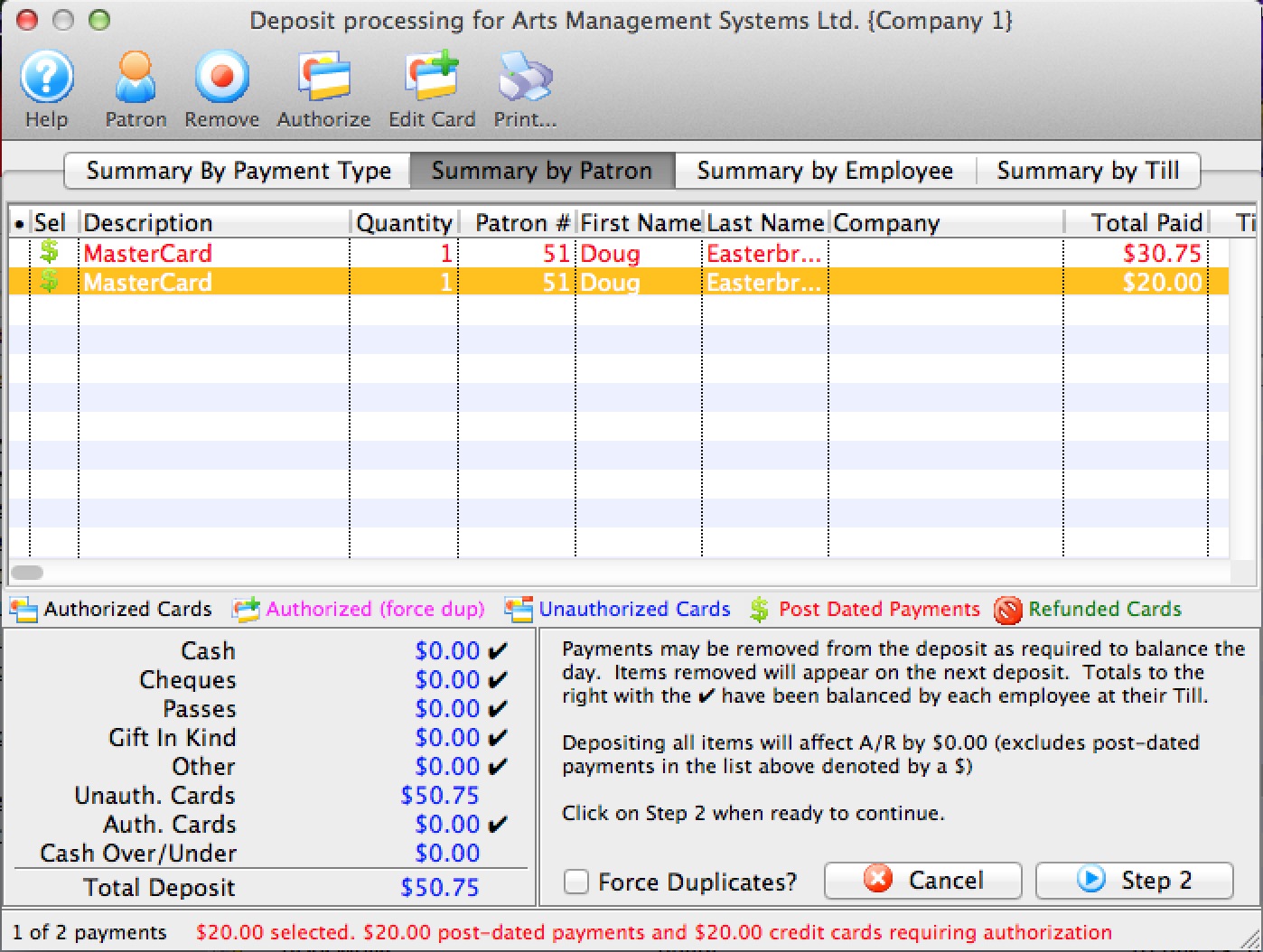
Parts of the Deposit Window
|
Opens the online Help. |
|
Opens the Patron record for the associated payment. Only valid on Summary by Patron tab. |  |
Removes the selected payments from the deposit. This only removes (not delete) a post dated credit card payment from a deposit. Once a payment is removed, the deposit total will be smaller. The removed payment will re-appear the next time you run the deposit window. Hopefully in that time frame, you will have a replacement credit card or the customer will have topped up the balance on the card so it can be authorized.
While valid on all tabs, the effect is a little different, depending on the tab you are on:
|
|
Authorizes the selected payments through the credit card server if necessary. Valid on all tabs for credit cards |
|
Allows you to change the card that a post dated payment was being charged to - in case of a decline and the patron provides a replacement credit card for the purchase.
This option is only valid on the Summary by Patron tab where you can select the individual payment that you want to change. |
 |
Prints a list of the payment in the Deposit window. |
|
Summarizes the payments in the deposit by payment type. |
 |
Summarizes the payments in the deposit by patron. |
 |
Summarizes the payments in the deposit by the employee who received them. |
 |
Summarizes the payments in the deposit by the till they were associated with. |
| Description | A description of the payment. |
| Quantity | The number of payments. |
| Patron # | The patron number of the patron the payment is associated with. |
| First Name | The first name of the patron associated with the payment. |
| Last Name | The last name of the patron associated with the payment. |
| Company | The company associated with the payment. |
| Received By | The employee who received the payment. |
| Total Paid | The total amount of the payment. |
| Till # | The till number the payment is associated with. |
| Payment Desc | A description of the payment. |
| Date Received | The date the payment was received. |
| Merchant | The merchant used to process the payment. |
| Date Updated | The last date the payment was updated. |
| Troutid | |
| Auth. # | The authorization number of the payment if it was a credit card. |
| Credit Card | The credit card number used to make the payment. |
| Payment # | The payment number. |
| Cash | The amount of cash received with the payment. |
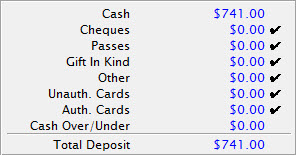 |
The breakdown of all the deposits received and the total deposit amount. |
| Force Duplicates? | If there are similar transactions that seem like duplicates and need to be authorized, this will force the transactions through on the credit card server. Duplicate transactions are rejected by default. |
 |
Cancels the Deposit window. |
 |
Moves to Step Two of the deposit process. |
Change Post Dated Credit Card
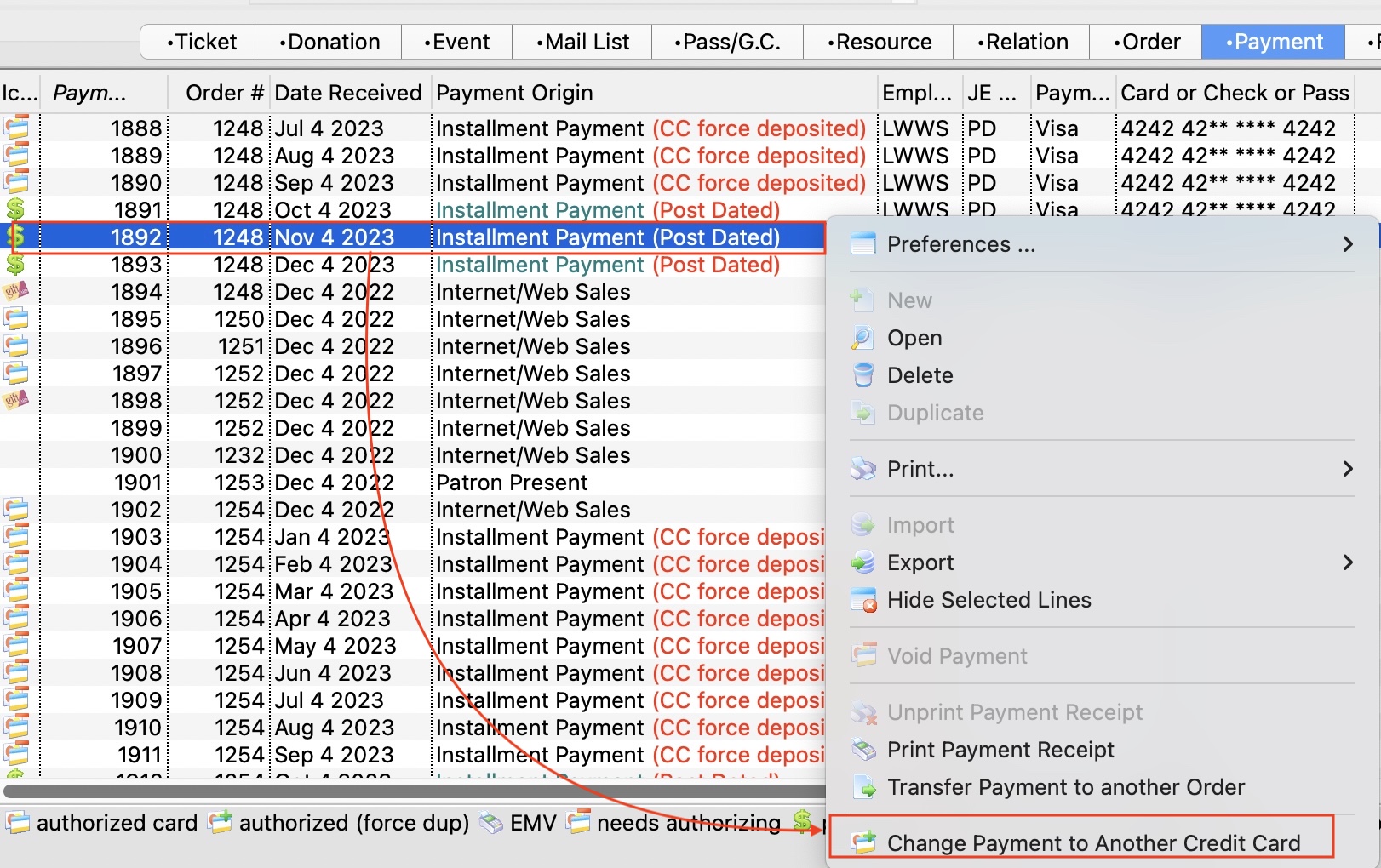
 If a credit card has not yet been authorized because
- it is a post dated payment or
- you were operating using emergency mode
- 'Summary by Patron' tab of the Deposit window
- 'Summary by Patron' tab on the Till balance List
- Payment list on the patron window
- Prior payment list on the Order window -or-
- If the card is used for recurring donations:
- you need to change it on the recurring donation window in the payment section PRIOR to the next recurring donation being created.
- If the recurring donation was created and the card wont authorize, change the card number in the Deposit window (item #1 above)
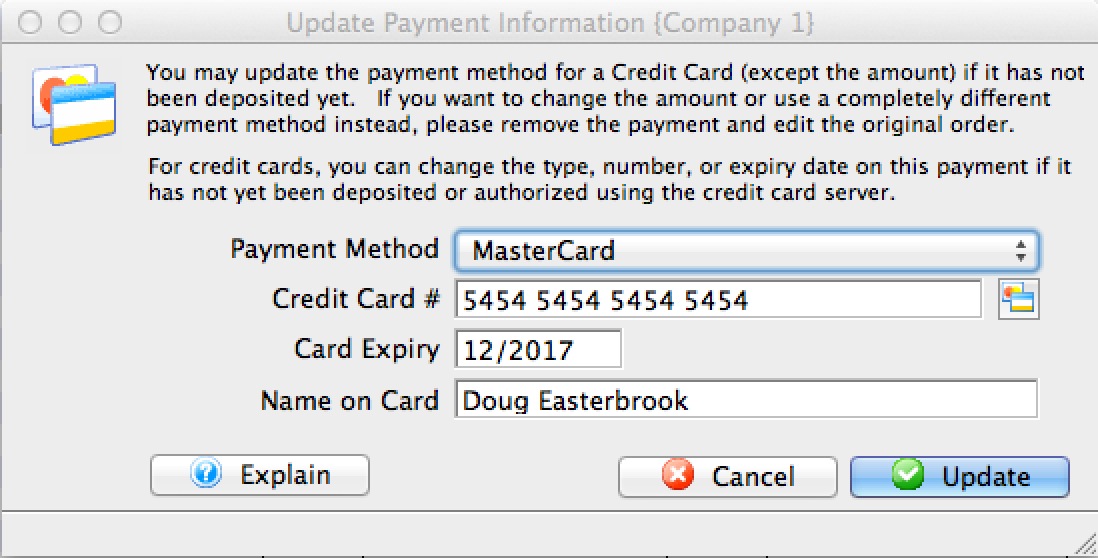
 Simply:
- select one or more unauthorized credit cards in the list of payments
- make sure that they are for the same patron
- Right click to edit it using a context menu. (The deposit and till balance windows also have an icon at the top of the window).
- You will see a window that lets you put in the credit card details similar to the one above right.
- Type in (or swipe) a new credit card, expiry, and name on card.
- Alternatively, use the lookup to select a prior existing card from the patron's list of credit cards
- When you update the payment, it will replace the new card on all the existing, selected, not-yet-authorized payments.
|
When you next to end of day and need to authorize the payments, they will authorize using the replacement credit card. |
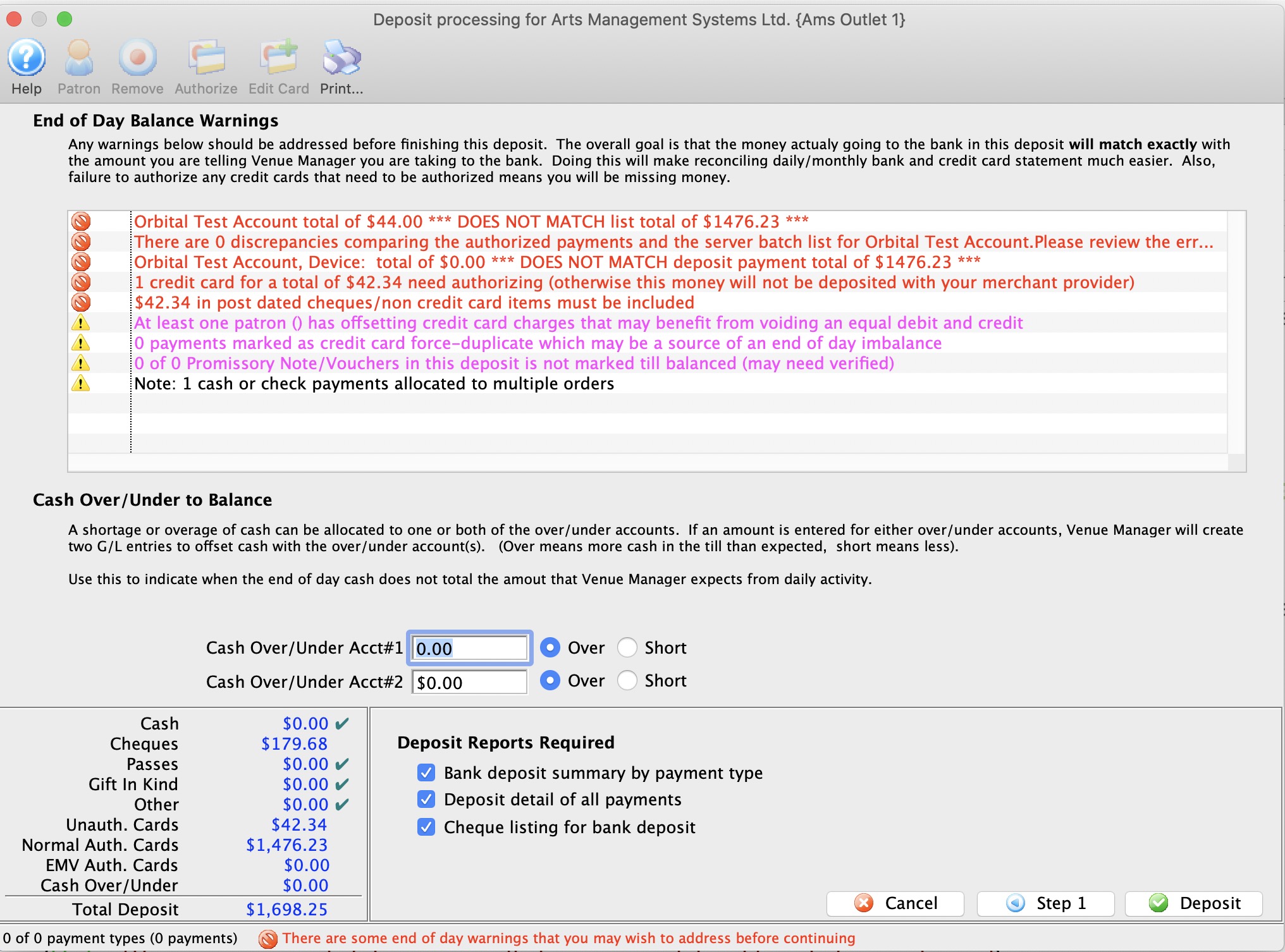
Step 2: Confirming the Deposit
End of Day Balance Warnings
Step 2 of the deposit process shows possible issues
- balancing credit cards through web sales
- balancing credit cards accepted through an EMV Devices
- with outstanding/unprocessed post dated payments that may need to be found and
- Authorized if they are credit cards (or removed if they will not authorize)
- found in your safe if they are checks and confirmed for value and date so you can take them to the bank
- where debit/credit offsets for credit cards that could be cancelled and save credit card fees
- in authorize.net end if somebody forced a prior end of day
- etc.
Cash Over Under
If you find cash in emplioyee tills to be over/under, you can enter the amounts here and a GL entry will be created for your over/under balancing account. This is used to bring A/R into line.
Deposit Reports
Click to indicate which deposit reports you want printed. Normally, the pertinent one is the check listing. All of them can be recreated at any time in the future
Sales Entry Tab
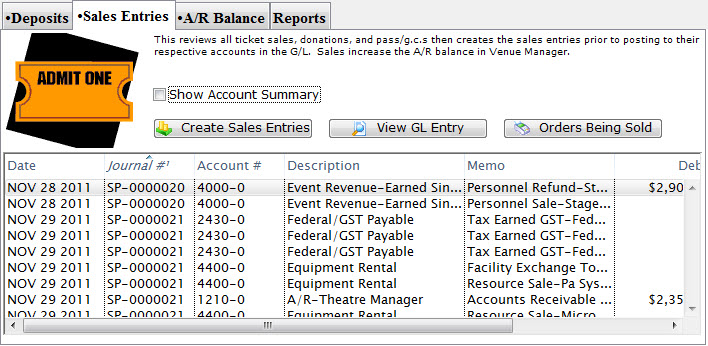
Parts of the Sales Entries Tab
|
The Deposits tab is used for creating deposits to send to the bank. For more information on the Deposits tab, click here. |
|
The A/R Balance tab is used to journalize all outstanding A/R to the General Ledger. For more information on the A/R Balance tab, click here. |
|
The Reports tab is used for printing reports when the End of Day process is complete. For more information on the Reports tab, click here. |
| Date | The date the journal was created. |
| Journal # | The journal to which the payment(s) were posted. |
| Account # | The unique account number for the payment type. |
| Description | A description of the account. |
| Memo | A detailed description of the journal. |
| Debit | Debits will be created for there corresponding account number in the G/L. |
| Credit | Credits will be created for there corresponding account number in the G/L. |
| Play Code | Event the sales entry is associated with. |
 |
Enable the checkbox to summarize the data by account number. |
 |
Begins the process of journalizing the sales entries to the General Ledger. For more information on the Sales Entry Creation process, click here. |
| |
Opens the G/L entry associated with the selected items. |  |
Opens a window to view any orders currently in the process of being sold which may affect the End of Day balance. |
A/R Balance Tab
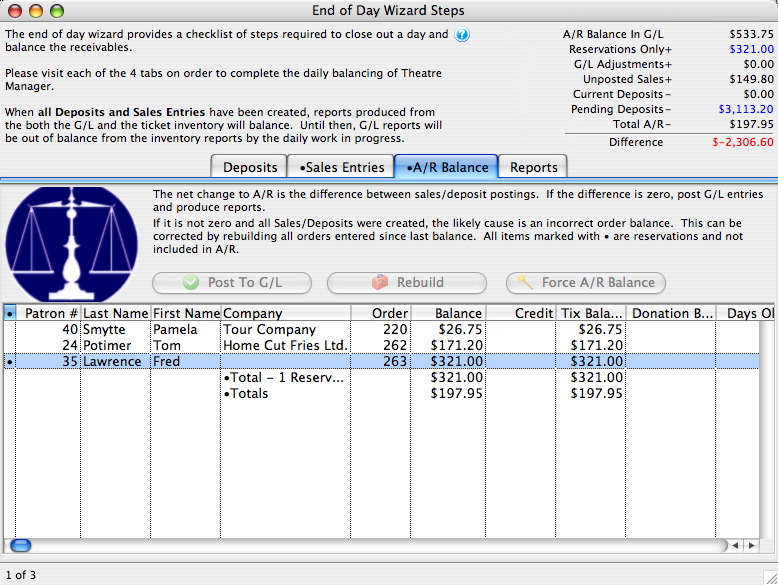
Parts of the A/R Balance Tab
|
The Deposits tab is used for creating deposits to send to the bank. For more information on the Deposits tab, click here. |
|
The Sales Entries tab is used to journalize all sales entries to the General Ledger. For more information on the the Sales Entries tab, click here. |
|
The Reports tab is used for printing reports when the End of Day process is complete. For more information on the Reports tab, click here. |
| Patron # | The number of the patron who made the order. |
| Last Name | The patron's last name. |
| First Name | The patron's first name. |
| Company | The patron's company if applicable. |
| Order | The order number. |
| Balance | Outstanding balance on the order. |
| Debit | The patron account is debited for purchase of tickets, memberships, etc.. |
| Credit | The patron account is credited for refunds and returns. |
| Tix Balance | The amount of the total which is due for tickets. |
| Donation Balance | The amount of the total which is due for donations. |
 |
Post the accounts receivable to the General Ledger. For more information on the Post to G/L process, click here. |
 |
Rebuilds the balances of the orders. |
 |
Creates a balancing entry in the GL for a Box Office write-off. |
End of Day Wizard Reports Tab
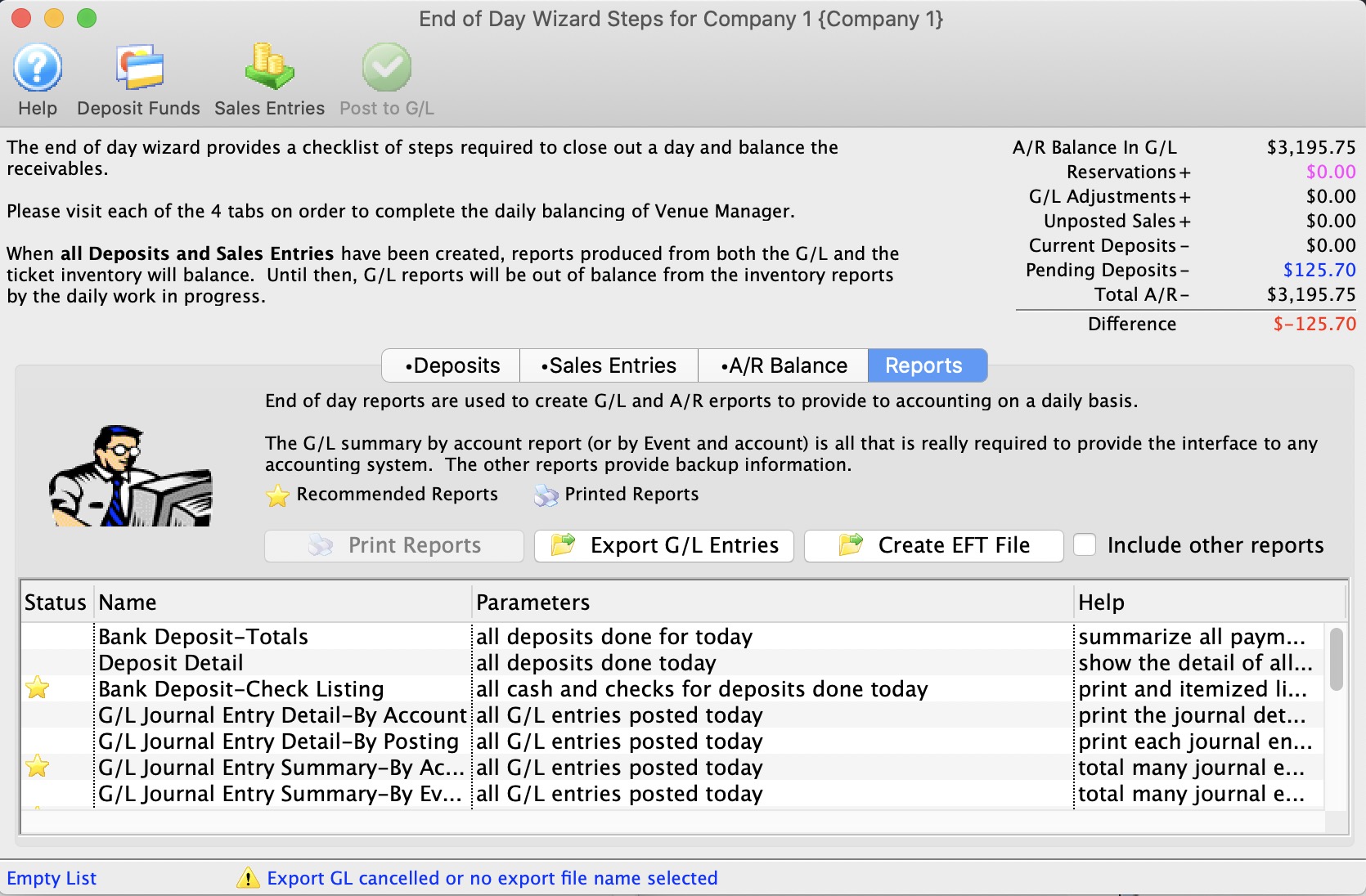
Parts of the Reports Tab
|
The Deposits tab is used for creating deposits to send to the bank. For more information on the Deposits tab, click here. |
|
The Sales Entries tab is used to journalize all sales entries to the General Ledger. For more information on the the Sales Entries tab, click here. |
|
The A/R Balance tab is used to journalize all outstanding A/R to the General Ledger. For more information on the A/R Balance tab, click here. |
 |
Prints the selected report to the screen. |
 |
Exports all not-yet-exported general ledger entries to disk for use in another program. If you do not export one day, this button ensures the files are created the next time it is used for all past (not-yet-exported) GL entries. If you:
|
| Create EFT File | If you are using EFT within your organization and have set the EFT Merchant Account, you can export your EFT data, ready to upload to your bank. |
| Printed | Denotes whether the report has been printed. A 'Yes' will appear when it has. |
| Report Description | A description of the report. |
| Report Parameters | The parameters that are used for the report. |
| Report Help | A lengthier description of the report. |
Multiple End of Days/Reports on the Same Day
The reason for only producing the reports once per day (after the LAST posting for the day) is that the default criteria in the reports at end of day default the criteria to be everything for that day out of convenience to you. Meaning, if you post three times in one day, the end of day reports produce an aggregate of the 3 postings.
If you wish to separate the postings into parts of a day, you can:
- access the same reports under Theatre Managers Reporting system (General Ledger section) and put criteria into separate the day into parts. For example, use criteria in the reports for GL DATE POSTED between midnight and noon. Or from Noon to 4 pm.
- or when looking at a finished report in the end of day, click the criteria button and change the criteria to reflect only the part of the day you are interested in
Using the End of Day Wizard
The End of Day wizard is simple to use. It allows you to process all necessary accounting transactions from one location. There are three steps in using the End of Day wizard:
Once the above steps are run the Reports tab can be used to generate the desired reports for entering details in the accounting software. The most commonly generated reports are indicated with stars next to them.
Deposit In The End Of Day
 |
Recurring donations are created during end of day deposit automatically on the date that they are next due. |
- Open the End of Day Wizard window.
For more information on the End of Day Wizard window, click here.
- Start with the Deposits tab (which will be blank). Click the Deposit Funds button.
The Bank Deposits window opens.
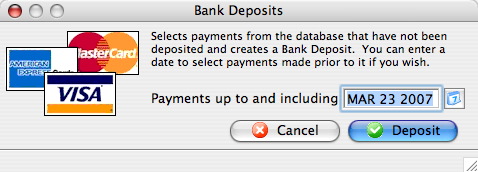
- Enter the date up to including the date you want to make the deposit.
- Click the Deposit
 button.
The Deposit window opens.
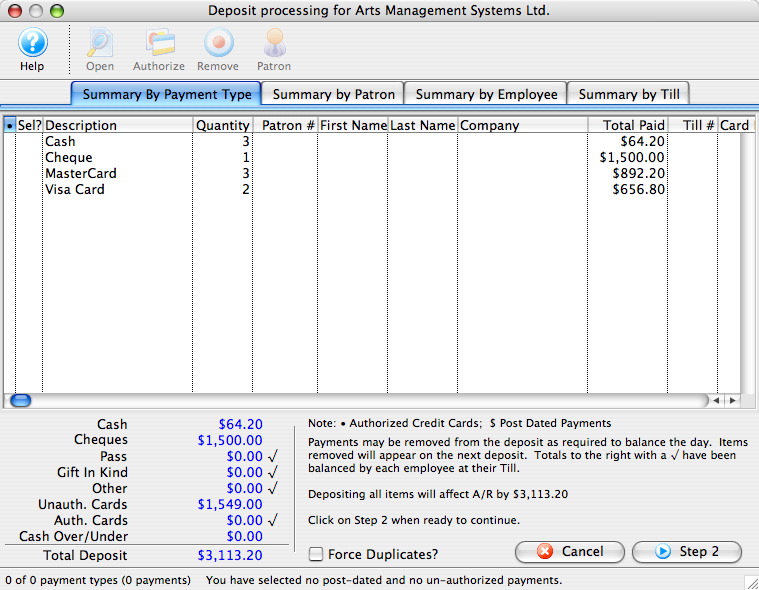
For more information about the Deposits window, click here.
- Click the Step 2 button to continue with the deposit.
The Confirm Deposit window opens.
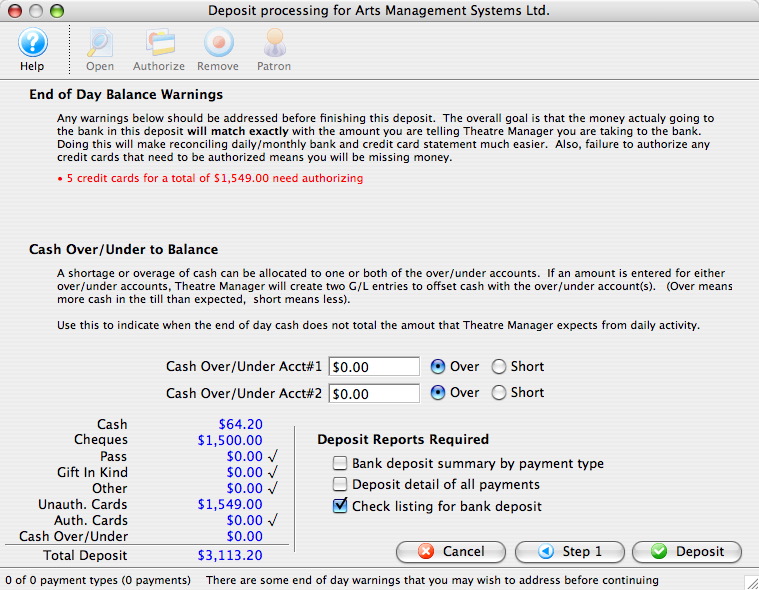
If the Box Office or Concession tills have an overage or shortage, fill the fields with the correct amount to show it as over or short.
- Click the Deposit button to continue with the transaction.
The Deposit Confirmation opens.
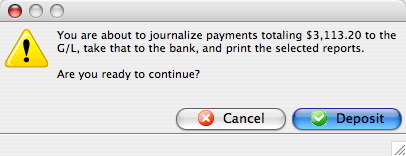
- Click the Deposit button to continue.
Any reports selected are generated to the screen for printing. You are returned to the End of Day Wizard window with the deposits displayed.
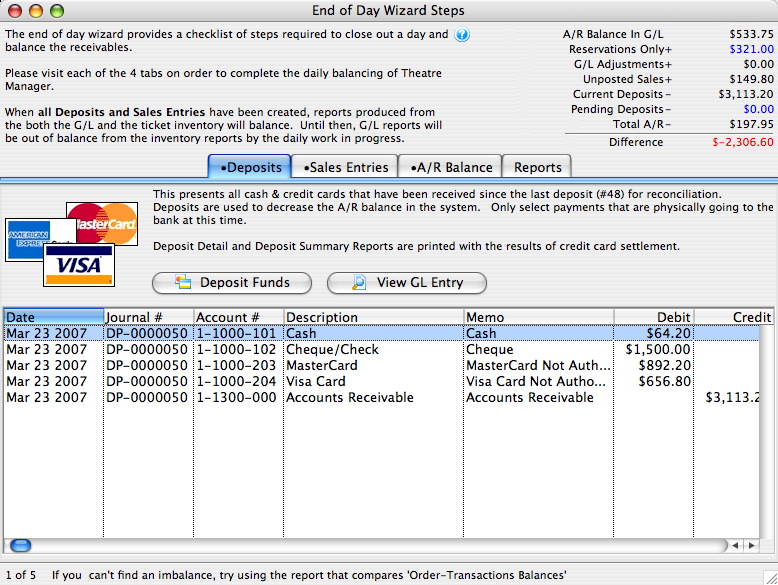
To continue the End of Day process with adding Sales Entries, click here.
Using the End of Day Wizard with Paymentech Orbital
-
Completing the End of Day when setup using Paymentech Orbital is exactly the same as completing the standard End of Day as outline in the previous page. There is however one new step which requires logging into the Orbital Account, retrieving the credit card batch summary and entering the values into Theatre Manager. Access to your Orbital Account is defined in Step #5 below.
- Open the End of Day Wizard window. Click
 button from the main Theatre Manager Toolbar / Ribbon Bar.
For more information on accessing the End of Day wizard, click here.
- Start at the Deposits tab which will be blank. Click the Deposit Funds
 button.
The Bank Deposits window opens.
- Enter the date up to which the user would like to make the deposits.
Traditionally, accept the current default date to deposit all payments up to the moment.
- Click the Deposit
 button.
The Deposit window with the Orbital feature window opens.
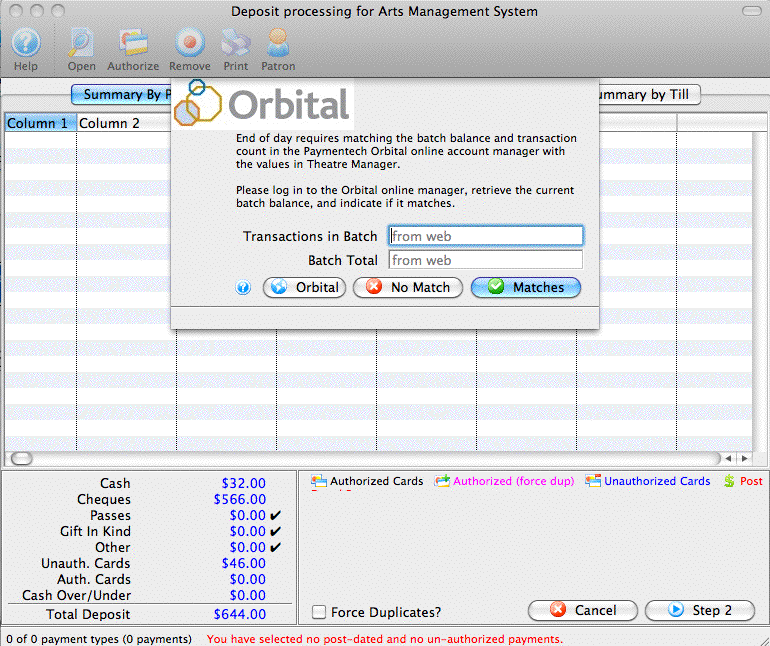
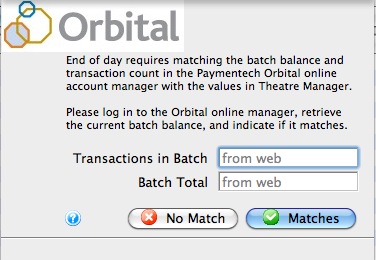
- Click the Orbital
 button to access your Orbital Virtual Server account, obtain your transaction count and total. Enter the number of Transactions in Batch and the value for the Batch Total obtained from your Virtual Server Account.
For more information about the Orbital Virtual Server window, click here.
- Click the Matches
 button to continue.
- Click the Step 2 button to continue with the deposit.
The Confirm Deposit window opens.
If the Box Office or Concession tills have an overage or shortage, fill the fields with the correct amount to show it as over or short.
- Click Deposit to continue with the transaction.
The Deposit Confirmation window opens.
- Click the Deposit button to continue.
Any reports selected will be generated to the screen for printing. The user will be returned to the End of Day Wizard window with the deposits displayed.
To continue the End of Day process with adding Sales Entries, click here.
Finding the Paymentech Orbital Balance
|
Theatre Manager assumes you have turned off auto-settle in the admin settings and that Theatre Manager will do the settlement. Do not settle the batch using the Orbital interface. |
To find the batch total, you will need to:
- log into the Orbital Virtual Server for your merchant account with your user id and password.
- Click on the 'Open Batch' link at the top of the web page and you will see the page below
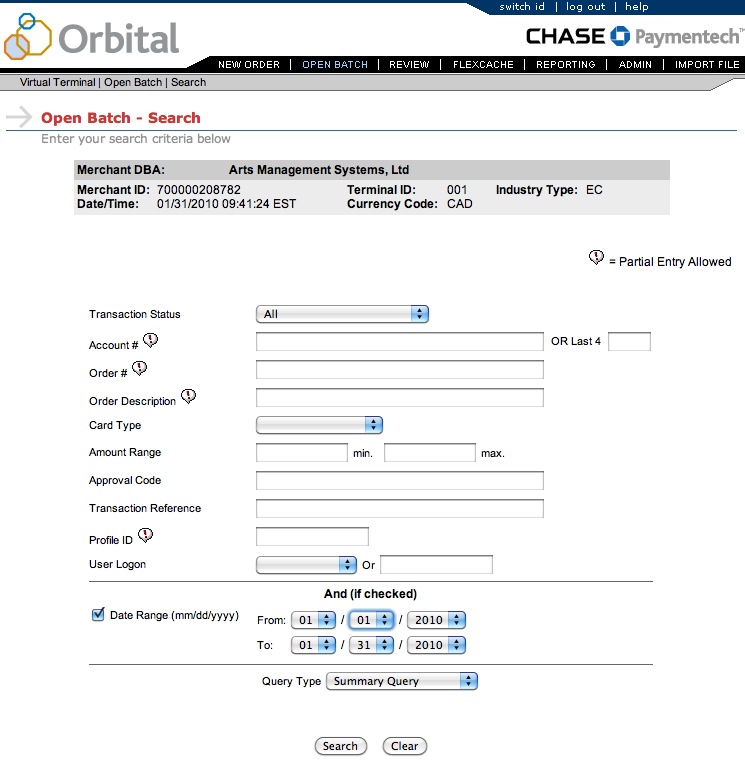
- On the 'Open Batch - Search' window, change the following search parameters. Others should be blank.
- Remove the check next to Date Range.
- Set the Query Type to be Summary Query
- Click the Search button
- When the screen below is shown, look for the values in the middle of the screen called
- Total Count in the 2nd last column of the second table. In this example it is 1 and represents the number of transactions
- Net Amount in the last column of the second table. In this example it is 2.00 and represents the total value of the current batch that has not yet been settled. You will want these total which include any refunds that may have been purchased
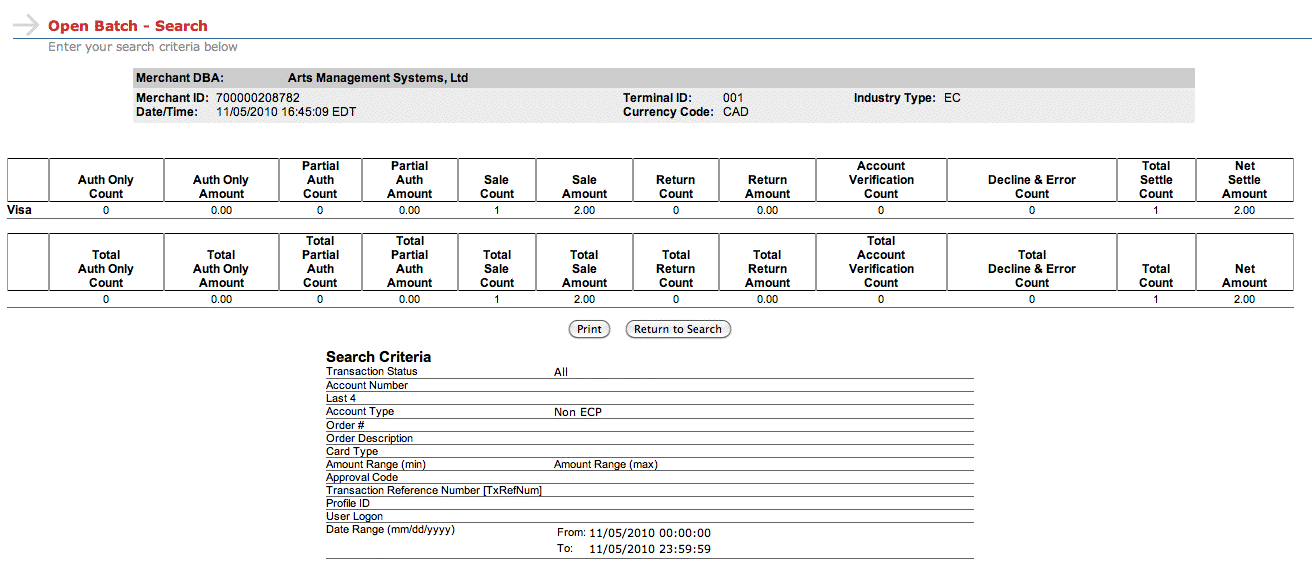
- When you have both those values, place them into the dialog window of the Theatre Manager Deposit process in the window show below and click Matches.
These values may be zero if there are no credit cards waiting to be settled.
If you do not know the balances or have already forced settled a batch, click No Match (this is not the normal practice).
Authorize.Net End Of Day Process
End of day in Authorize.net is similar to any other merchant provider. You follow the basic end of day process outlined previously. However, Authorize.Net operates with one little (but important to know) difference compared to the other credit card service providers.
Most providers allow you to authorize cards, get a batch total, and then settle the batch. Each 'settlement' results in a batch being flushed to your bank. If you settle twice a day, you will likely have two entries in your bank account.
Authorize.net allows one batch per day. You can settle in Theatre Manager as many times as you want and all of them will be aggregated into one single batch that appears on your bank statement. That single batch is 'swept' into your bank account at a time of your choosing (set by each merchant in the online interface in authorize.net and can be changed at any time). We recommend that you set the batch sweep to be approximately 12 hours after the time you regularly do your end of day processing. For instructions on setting the sweep time, click here. For example:
- If you do your end of day in at 8 in the morning, then setting the automatic sweep to between evening and midnight would allow sufficient time for correction.
- If you typically do your end of day before going home for the evening, then a sweep of all settled cards at 4 am would be a good idea.
The following describes how Authorize.net differs (slightly) as it may be important to understand the effects if you need to create more than 1000 transactions between each end of day. (This is a very large number of transactions and is rarely exceeded - even by large venues and onsale dates).
|
Authorize.net also has an online Merchant Login where you can view your current charges at any time -and- review current unsettled transactions and past batches. |
|
Your Authorize.net account must have permission to call the Transaction Details API in order to settle. It is a permission your service provider must give you. |
Authorize.net Authorization
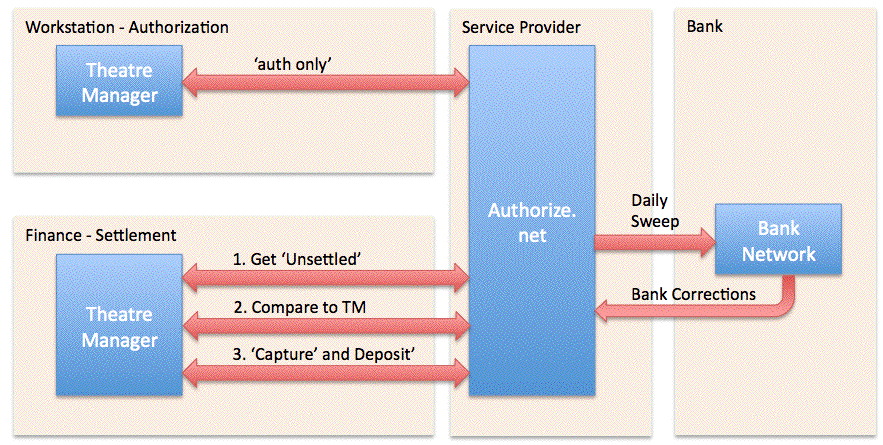
To enable the level of End-of-Day reconciliation that Theatre Manager users have come to expect, the authorization in Authorize.net is done a little differently.
- Each authorization is sent using a mode called 'auth only'. This gives you an authorization number and a guaranteed hold on the patrons credit card - just like a full authorization - for up to 30 days, or until released. The situation where you would personally experience 'auth only' is when checking into a hotel where a hold is put on your card for the duration of your stay.
- In Theatre Manager, the amount 'held' is the exact amount of the sale (it is never more, nor less). Refer to the top part of the diagram above - Theatre Manager simply asks Authorize.net to guarantee a hold on the right amount of funds.
Authorize.net Settlement
There is a quick additional setup step inside the Authorize.net online interface to allow settlement from within Theatre Manager. Click here for instructions. The Authorize.net settlement process is also a little different because of the authorization process, yet provides some interesting benefits. In general, when you decide to settle your batch:
- Theatre Manager retrieves all the unsettled 'auth only' transactions from Authorize.net. However, Authorize.net will only send the most recent 1000 transactions back to Theatre Manager. This should be perfectly fine for almost every venue almost every day.
-
Theatre Manager compares those transactions on a one-by-one basis to the payments that have not yet been deposited. In theory, they should match exactly. If they do, Theatre Manager goes on to the next step. If the transactions do not match exactly, then a short list of discrepancies is shown that can only be:
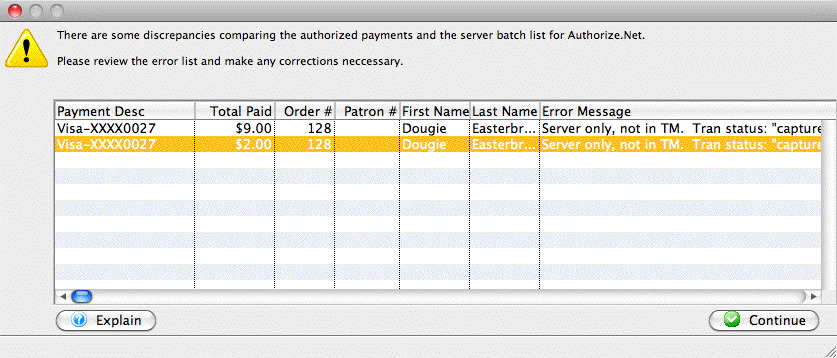
Very important - please read the error message column to see if: - The transaction is in Authorize.net and not in Theatre Manager -OR-
- The transaction is in Theatre Manager and not authorize.net
- Payments in Authorize.net that are not in Theatre Manager.
This might happen if
- You settled the match in Authorize.net manually the previous day and did not settle TM. If this is the case, you will see multiple lines in the list .. and the total should match prior days deposit plus today's business
- a user logs in to the Authorize.net online interface using their web browser and authorizes a card independently of Theatre Manager (this in itself is a no-no). In other words, something that should never happen.
- there is a communication error after Theatre Manager sends the authorization - and before Authorize.net can send on back. If these happen, then you will probably already know about it and need only void the card in Authorize.net to make both balance.
- There is some sort of communication error during end of day and TM settles the batch, but they payments were not marked as 'capture' in Authorize.net. If that happens, you will have a continuing out of balance that is constant day-after-day. To fix it:
- find the payments in Authorize.net that were part of the batch that had the problem. Conveniently, the eod of day will provide an audit list for you (it things they are missing in TM, but they are not).
- mark them captured manually in Authorize.net so that the same payments are both captured in auth.net and already previously deposited in TM.
- there is a chargeback from visa - in which case it might show up as a discrepancy. The advantage is that you will know about these when they happen and can correct it in Theatre Manager immediately.
- Payments in Theatre Manager that are not in Authorize.net.
The only reasons where this would occur is:
- refunds processed after end of day and before the daily sweep. (Which you should avoid).
- If you have turned on auto-settle in the online authorize.net interface -- which would never be set up that way during the install and you should change Authorize.net to self settle.
- Once you are satisfied that the payment matches the Authorize.Net batch, you settle Theatre Manager by clicking on the final deposit button on the end of day deposit window. Theatre Manager has to do the EOD a little differently than simply settle:
- Theatre Manager will go through each of the payments that match from the step above and tell Authorize.net to 'capture' the card. Capturing the card means that the hold is removed and instantly replaced with a binding authorization
- These 'captured' cards sit in the batch at Authorize.net and are 'swept' once a day to move them all into the bank, just like other authorization software.
Balancing audit Messages in Authorize.net end of day
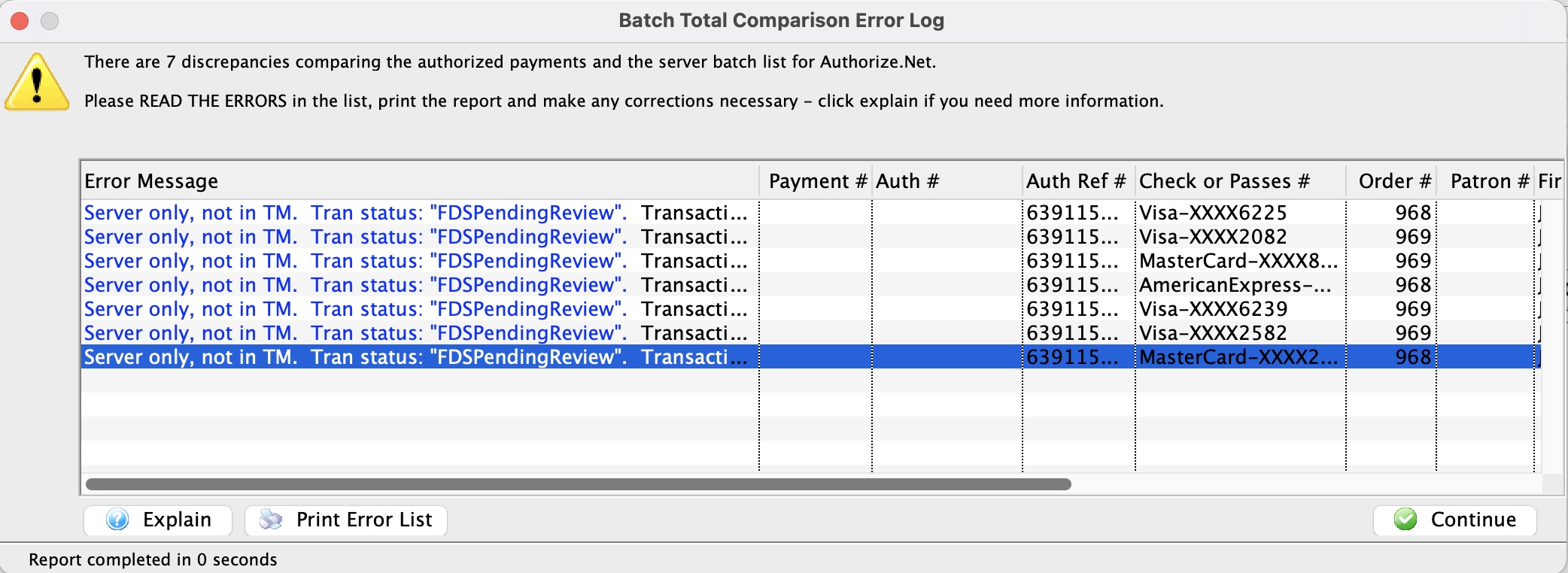
When you see this window:
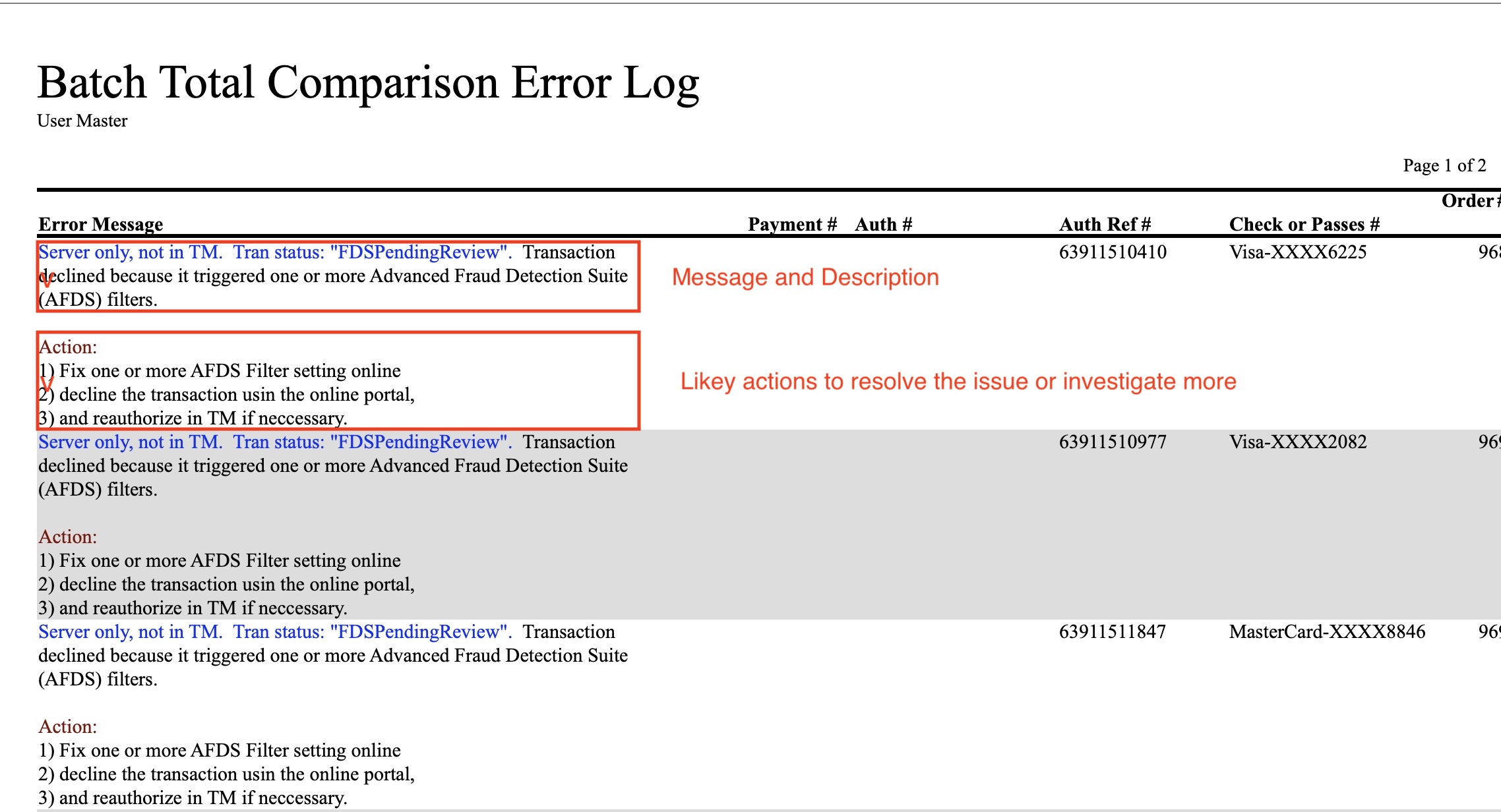
- Make the error column wider as it may give you enough information to help you diagnose the issues
- Click 'Print Error List' to see actions that you might take to solve the problem which is included with the message description. See a sample report below.
- Contact support if you need further explanation of the message and what to do.
Special Note on Authorize.net refund processing
|
Refunds are processed immediately by Authorize.net.
If you do a lot of refunds before the sweep time and settle end of day after the sweep time, you may be told that you are out of balance by what seems to be the total amount of your refunds.
See explanation why Authorize.net processes refunds right away. |
Implications of the Authorize.net EOD approach
|
Refunds are processed immediately by Authorize.net. YOU CANNOT VOID A REFUND.
If you fail to settle a batch containing a refund before the authorize.net sweep time, you will receive a warning during the end of day that the batch may be out of balance (even if it is not). Your balance will appear be out by the total amount of refunds you processed before the sweep time. You will see this every time you:
|
|
Set your sweep time (in authorze.net settings on their web page) to be about an hour after you normally do your end of day to minimize the messages about refunds. |
There are a few subtle implications of the way Authorize.net works that you may encounter in your reconciliation. Most venues should not see them, but in case you do, these are:
- Multiple Ends-Of-Day: If you do an end of day more than once per day, you will still only see one deposit to your bank because the batch is never closed. Authorize.net 'sweeps' all 'captured' cards once per day and moves them into your bank. This may be useful as Theatre Manager can aggregate EOD into one posting if desired.
- Running End-Of-Day during the Sweep: The Authorize.net bank sweep should be set to run 6 hours after typical end of day. We recommend avoiding doing an end of day in Theatre Manager when the 'sweep' normally occurs otherwise part of a TM batch might be 'swept' to the bank on one day and the rest on the net day - resulting in a split batch. All a 'split batch' does is require you to use a calculator two add two numbers on a bank statement together to compare to your accounting system.
- Setting the Sweep Time: is dependant on when you typically do end of day because of how REFUNDS in a batch are dealt with (see below). We suggest setting the sweep time to 6 hours after the time that you normally do end of day to give the best chance of a refund falling into the current day business. For example, if you do end of day:
- each night, then 2:00 am is a good choice for the sweep time.
- each morning, then we suggest 2:00pm for the sweep time.
- Refunds in the batch. There is a difference between a VOID and a refund. A void cancels out an existing charge and there will be no issues during EOD because of voids. However, if a credit card charge is DEPOSITED in theatre manager and you want to refund that money some days or months later, the only way to do so with the independent refund feature in Authorize.net. You must explicitly enable this feature and if you do so:
- you SHOULD limit who can provide refunds -and-
- you MUST DO END OF DAY TO SETTLE YOUR TM BATCH in the same day that you did the REFUND in order to see it in the end of day BEFORE THE SWEEP TIME HAS OCCURRED.
Authorize.net automatically 'captures' refunds immediately (we wish it didn't) so if you don't settle before the sweep, it will appear like you are out of balance and have an additional refund transaction in TM that does not seem to be in Authorize.net. In reality, you are most likely in balance because the refund just got placed in the previous day's batch. You will need to look in the previous day's batch for the refund to make sure you don't refund twice.
Addressing Auth.net refund process if it gets deposited before you get a chance to do end of day:
- Start the end of day deposit.
- You will get a discrepancy doing end of day. TM will say the batch doesn't match and provide the edit log.
- Read the description in each line of log to see if it gives additional info.
- If the errors in the log are all refunds from the prior day and they are in the settled batch on auth.net's online portal, then they are already in auth.net -- so just settle the batch
- If the errors are new authorizations, contact support. it means you'll need to check yesterdays settlement to see if somebody forced it.
- Voids in Batch are when you authorize a charge and then void it before settlement. Authorize.net will leave a transaction on their size for ZERO dollars. This may result in TM showing the 'void' in the audit list at the end of the day. Please verify that the amount is zero. It is also for your protection to ensure that somebody did not authorize then void without anybody in finance knowing about it.
- More that 1000 authorizations between End Of Day: It is very rare that ay venue will have 1000 distinct transactions in any one day - and likely only on a heavy on-sale day. 1000 authorizations might reflect well over $0.5M per day. On the rare day that you may have more than 1000 authorizations, you may wish to plan your day and:
- Run an end of day when you are nearing 1000 transactions. This is because Authorize.net will retrieve only the most recent 1000 transactions and doing an end of day approximately every 1000 transactions means that the standard settlement process will run normally, providing a good edit list if possible mistakes.
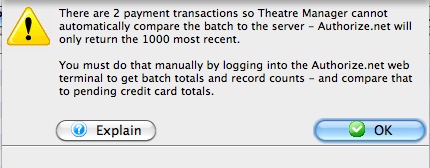 On a really busy day, you can simply use the methodology for large batches and settle everything after all goes quiet for the day. If Theatre Manager cannot do the normal settlement process for Authorize.net, you will get a message similar to the one at right informing you. At that point you will need to get a batch total from the online interface -- and compare it manually to the Theatre Manager total. When both agree, simply close the batch and settle as normal. TM will avoid the payment balancing step (due to the Authorize.net 1000 transaction download limitation) and set all cards to 'capture'. The bank sweep will get them the next day and move them to your bank as normal.
Totals for Large Authorize.net Batches
This should only be required when there are more than 1000 transactions in a batch. This is due to a limitation on the Authorize.net servers which only returns the 1000 most recent transactions (suitable for most days business). If you are in a day with more than 1000 transactions, use the batch total and transaction count to compare to the totals in theatre manager and then force settle. TM will then change all cards to 'capture' them.
If there are less than 1000 transactions in the batch, Theatre Manager should identify discrepancies automatically.
Please note that a batch may appear out of balance if there are refunds in a batch, which is affected by your choice of sweep time. Check for voided payments in the Theatre Manager edit list -> error message column and make sure that they are expected.
|
Theatre Manager assumes you have turned off auto-settle in the admin settings and that Theatre Manager will do the settlement. Do not settle the batch using the Authorize.net interface. |
To find the batch total, you will need to:
- log into the Authorize.net Merchant Login window and enter your user id and password for your merchant account.
- Click on the 'Reports' link at the top of the web page and you will see the page below
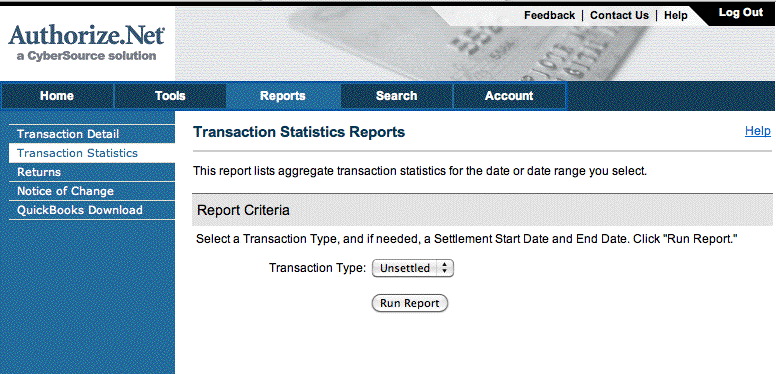
- Click on the 'Transaction Statistics' on the left side.
- Set the Transaction Type to Unsettled.
- Click the Run Report button
- When the screen below is shown, look for the values in the right side of the screen near the bottom:
- Total Count in the last column. In this example it is 11 and represents the number of transactions
- Net Amount in the last column. In this example it is 1,053.27 and represents the total value of the current batch that has not yet been settled.
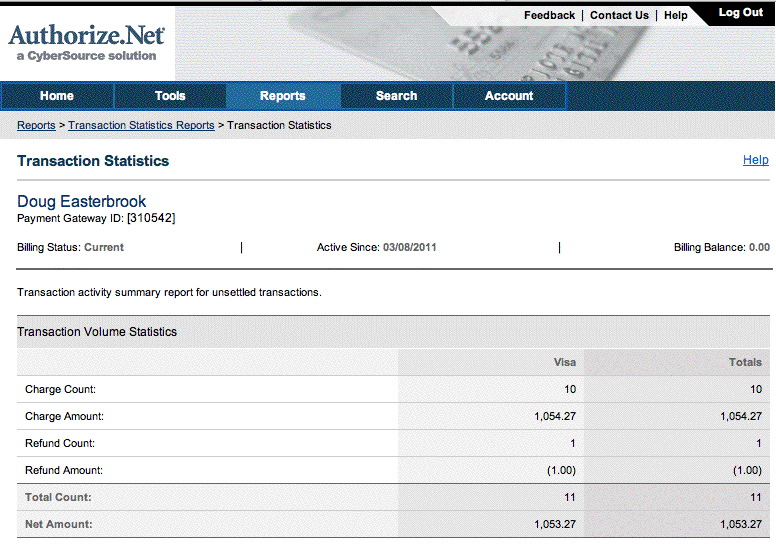
- When you have both those values, compare them to the credit card total for that batch in Theatre Manager and continue if in balance. If not in balance, then you will need to compare the payment list in TM with the transaction audit list on the server.
Elavon End of Day
-
Completing the End of Day when setup using Elavon is exactly the same as completing the standard End of Day as outline in the previous page. There is however one new step which requires logging into the Elavon Account, retrieving the credit card batch summary and entering the values into Theatre Manager. Access to your Orbital Account is defined in Step #5 below.
- Open the End of Day Wizard window. Click button from the main Theatre Manager Toolbar / Ribbon Bar.
For more information on accessing the End of Day wizard, click here.
- Start at the Deposits tab which will be blank. Click the Deposit Funds button.
The Bank Deposits window opens.
- Enter the date up to which the user would like to make the deposits.
Traditionally, accept the current default date to deposit all payments up to the moment.
- Click the Deposit button.
The Deposit window with the Elavon feature window opens.
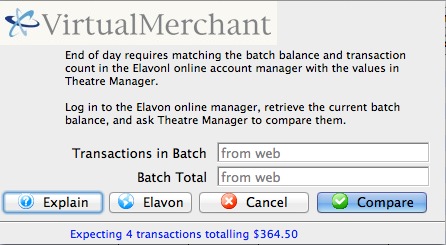
- Click the Orbital
 button to access your Elavon VirtualMerchant account, obtain your transaction count and total. Enter the number of Transactions in Batch and the value for the Batch Total obtained from your VirtualMerchant Account.
For more information about the Elavon VirtualMerchant window, click here.
- Click the Matches button to continue.
- Click the Step 2 button to continue with the deposit.
The Confirm Deposit window opens.
If the Box Office or Concession tills have an overage or shortage, fill the fields with the correct amount to show it as over or short.
- Click Deposit to continue with the transaction.
The Deposit Confirmation window opens.
- Click the Deposit button to continue.
Any reports selected will be generated to the screen for printing. The user will be returned to the End of Day Wizard window with the deposits displayed.
To continue the End of Day process with adding Sales Entries, click here.
Finding the Elavon Balance
|
Theatre Manager assumes you have turned off auto-settle in the admin settings and that Theatre Manager will do the settlement. Do not settle the batch using the Elavon interface. |
To find the batch total, you will need to:
- log into the Elavon VirtualMerchant for your merchant account with your user id and password.
- Click on the Current Batches link at the left of the web page
- Click on the Main link (you may see info here, but if there are returns, they do not appear until you click 'Credit Card')
- Click on the Credit Card link and you will see a page like below showing the 'Current Batches: Credit Card' page
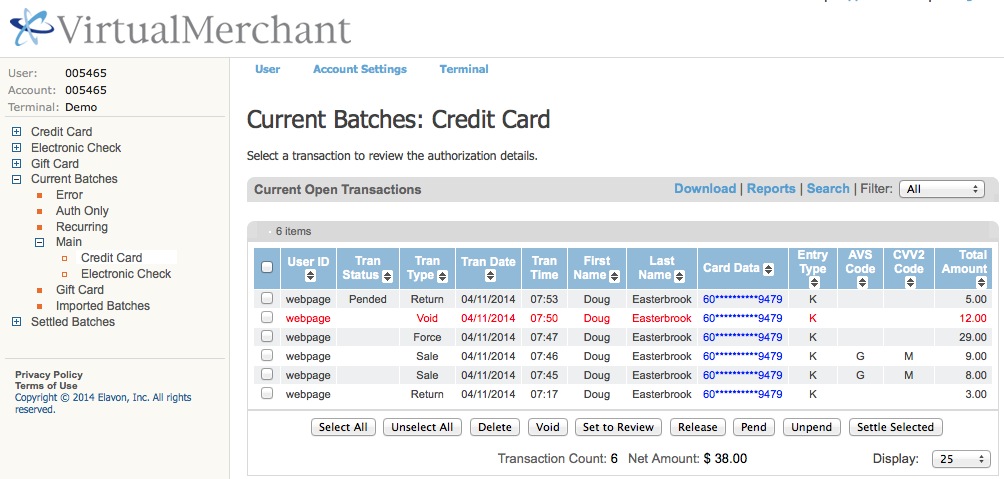
|
Elavon may have some items in the list above marked as pending or set to review in the 'Tran Status' column, especially for returns.
You should:
|
- Look at the bottom of the screen. You may (or may not) wish to alter the number of lines to display at the bottom right.
At the bottom centre, look for the following information:
- Transaction count - in the example it says 6. However, there is one VOID in the list that Theatre Manager will no longer know about. Subtract the voids from the total and enter that as the transactions count.
Example 6 (total) - 1 (voids) = 5 (net transactions)
- Net Amount - in the example, it is $38.00
- Transaction count - in the example it says 6. However, there is one VOID in the list that Theatre Manager will no longer know about. Subtract the voids from the total and enter that as the transactions count.
- When you have both those values, place them into the dialog window of the Theatre Manager Deposit process in the window show below and click Matches.
These values may be zero if there are no credit cards waiting to be settled.
If you do not know the balances or have already forced settled a batch, click No Match (this is not the normal practice).
Past Elavon Batches
To do so, you will need to:
- log into the Elavon VirtualMerchant for your merchant account with your user id and password.
- Click on the Settled Batches link at the left of the web page
- Click on the Main link and you will see a page like below showing the 'Settled Activity' page
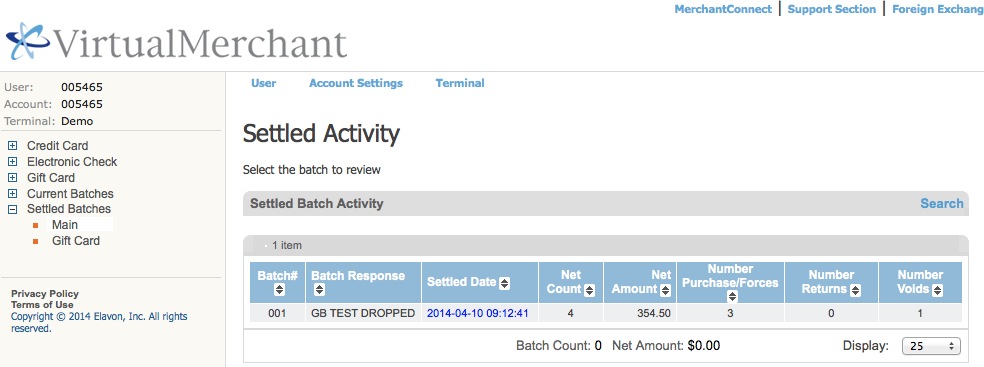
- you can double click on a 'blue' batch number under the 'settled date' column to see the detail in it
- you can also use the search functions.
- For more information or assistance, please refer to the virtual merchant user manual or call Elavon
Moneris Pinpad End of Day
End of day pin pad settlement
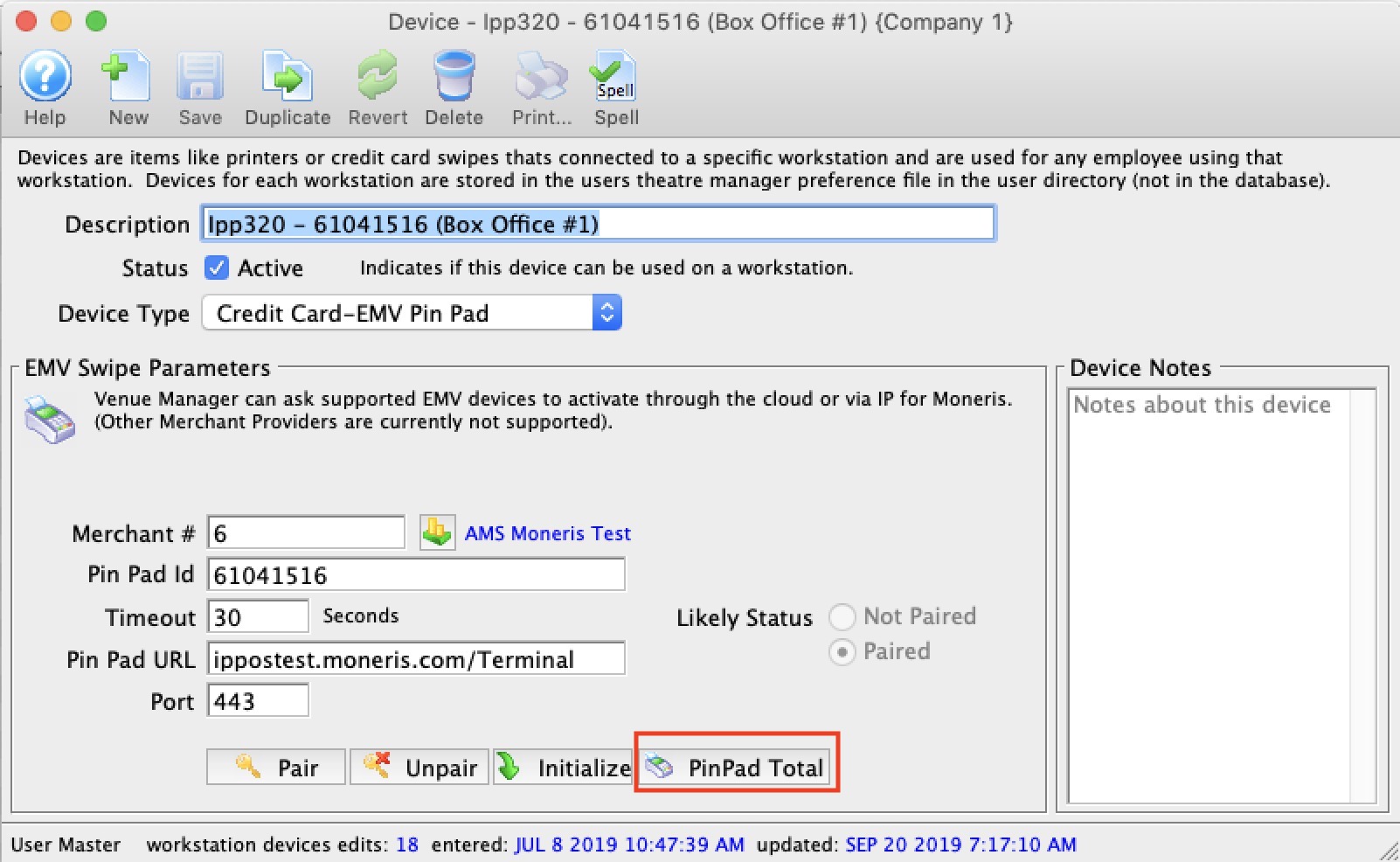
If you are using Moneris Pin Pads for authorizing credit cards at the box office, Theatre Manager will:
- set the proper amount on the device for each authorization or refund
- Capture the partial credit card and token to create the payment record in Theatre Manager
- Interrogate the machine totals during end of day to make sure they match - and-
- Settle each pin pad that has a balance on it when you do the end of day that includes cards processed on it
|
Normally, there should be no imbalances. However, if you do get one, it may look like the message below that tells you
|
Out Of Balance Correction
If you receive an imbalance it will tell you whether the discrepancy is in the totals and/or the number of transactions. You may have to go to the device batch totals and find out which credit card charges should not be there and remove them from Theatre Manager and/or the device to make things balance.
The message will identify what Theatre Manager thinks is out of balance (money, and/or # transactions, and pin pad)
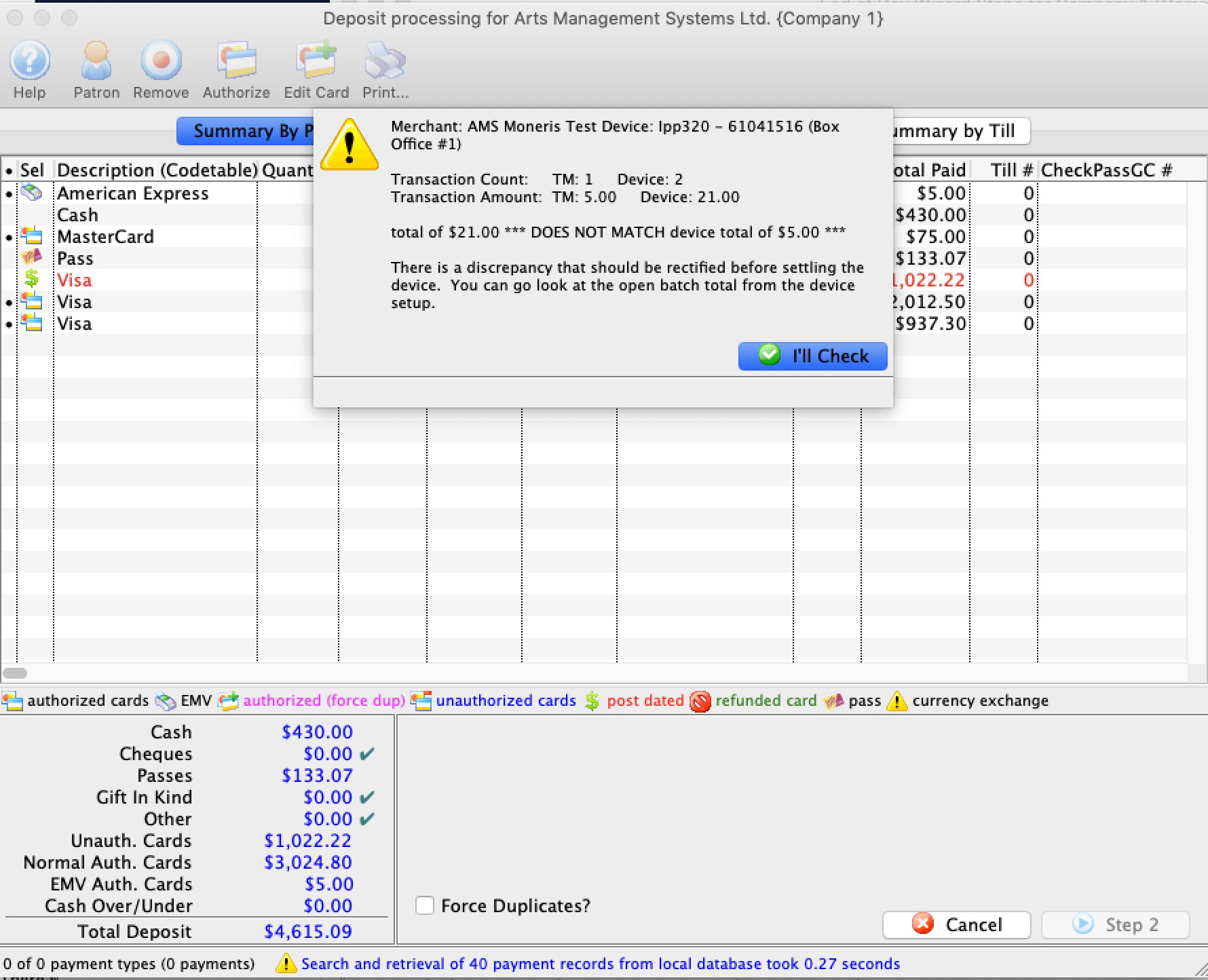
Who to contact first depends depends on who thinks they have more transactions
Use the following to determine who to contact:
- Please look at the Batch Total on the device setup identified as being out of balance (see image for the button)
- COMPARE that to the Payment Request List for the pin pad for the appropriate time span (since last pin pad settlement)
- if TM thinks there are:
- fewer transactions than Moneris - see if there are some request(s) that was not processed by TM. This can likely be addressed by contacting Artsman support.
- more transactions than Moneris then contact Moneris, using the Payment Request List as your audit log. They should be able to see everything you see and they can explain the discrepancy.
You will need Moneris's assistance removing them from the device if that is needed to balance to Theatre Manager.
Creating Sales Entries
The purpose of creating sales entries is to:
- Create sales transactions for sales that occurred on the web
- Take all sales transactions (tickets, donations, gift certificates, etc) and create G/L entries that aggregate the sales since the last time this process was run.
- Find all ticketed events eligible for rolling over revenues from deferred to earned and make G/L entries for those sales
- Run some daily clean up activities such as:
- removing patrons from double opt-in mail lists if they have not responded within the limit in company preferences.
- Deleting old shopping carts per the retention periods in company preferences
- Deleting old eblasts and letter correspendance per the retention periods in company preferences
- Click the Sales Entries tab.
- Click the Create Sales Entries button.
This will open the Create Sales Entry Window allowing the user to journalize the Accounts Receivable. Depending on settings in company preferences->accounting tab, you may also want to select conversion of some orders from reservation only to earned income, especially if the performance has just occurred.
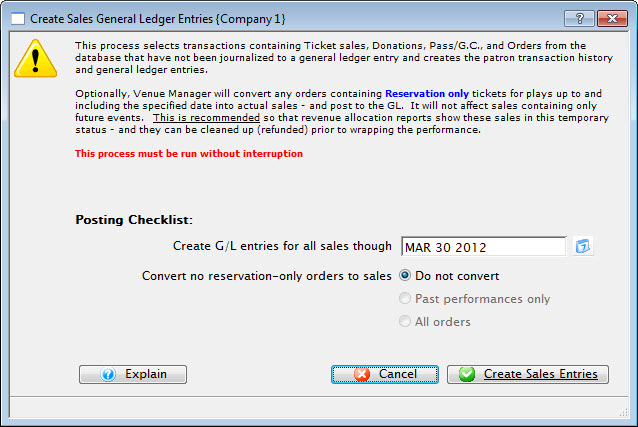
- Enter the date up to which Theatre Manager should journalize the A/R.
- Click the Create Sales Entries
 button.
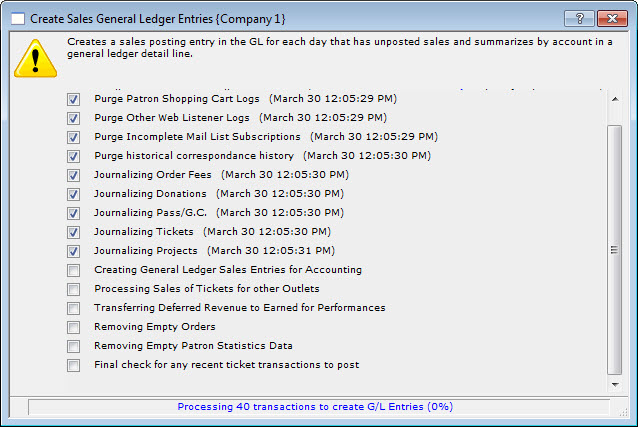
A window displays the progress.
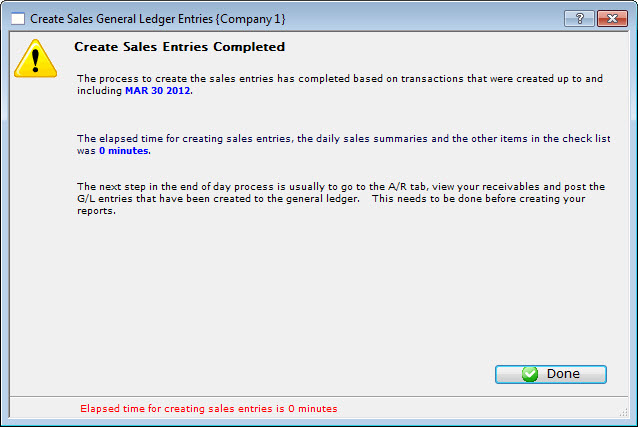
- Click the Done
 button.
The Sales Entry process is completed and you return to the Sales Entry tab.
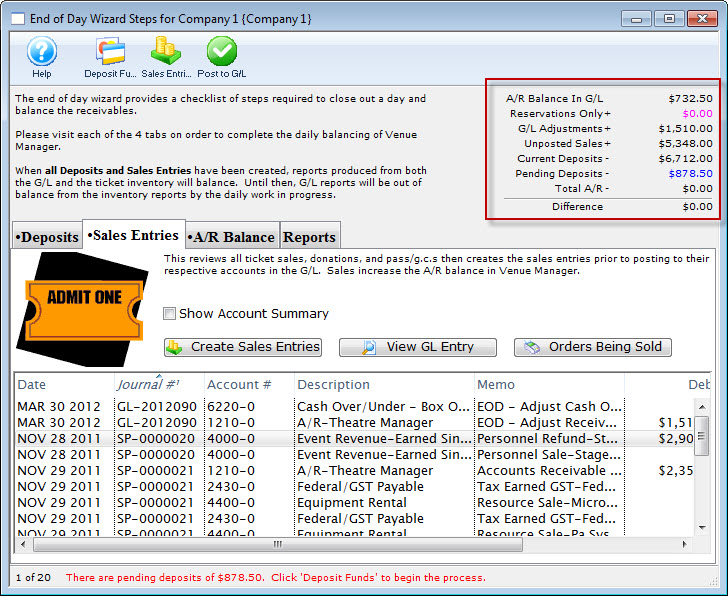
All the Sales Entries will be displayed under the Sales Entries tab.
In the upper right hand corner of the End of Day wizard, the amount should be zero to show that the Deposits and Sales Entries are in balance. If they are not, then research will need to be done to determine where the problem is. For more information on finding the imbalance, click here.
The unposted sales and deposits must now be posted to the GL. For more information on posting to the General Ledger, click here.
Posting To The GL
When payment has not been received for goods or services, the balance is recorded under Accounts Receivable.
- Click the A/R Balance Tab on the End of Day wizard.
- Click the Post to GL button.
The confirmation window opens.
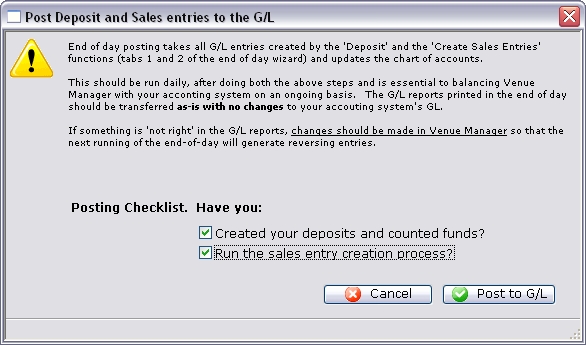
- Answer both questions by checking the box, then click the Post to GL button.
The unposted sales are added to the A/R Balance in the General Ledger and balance with the Patron A/R.
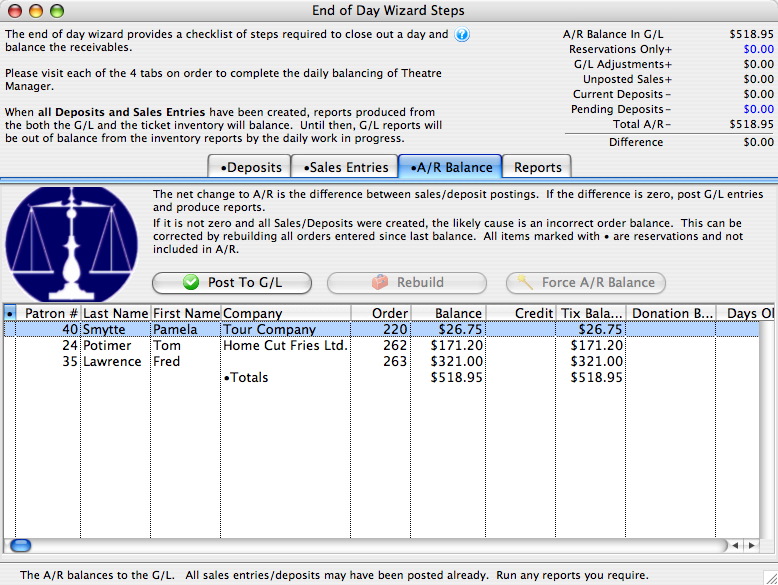
The upper right hand corner of the End of Day wizard should still be zero. If it is not, click here for more information on finding the problem.
A variety of reports can be printed based on the new General Ledger entries by using the Reports Tab. For more information on printing reports, click here.
Force A/R Balance
You are presented with a message, similar to the one below, indicates the amount of the imbalance and asks if you want to create a balancing entry against the cash over/under account.
Before continuing, please make sure you have done all steps to determine the source of a possible imbalance BEFORE using the 'Force A/R Balance' function. If you cannot "find" your error, please contact the support team prior to completing this action. Forcing an EOD imbalance and writing it off is a last resort activity and you should have at least tried redoing the end of day and checking order/transaction balances.
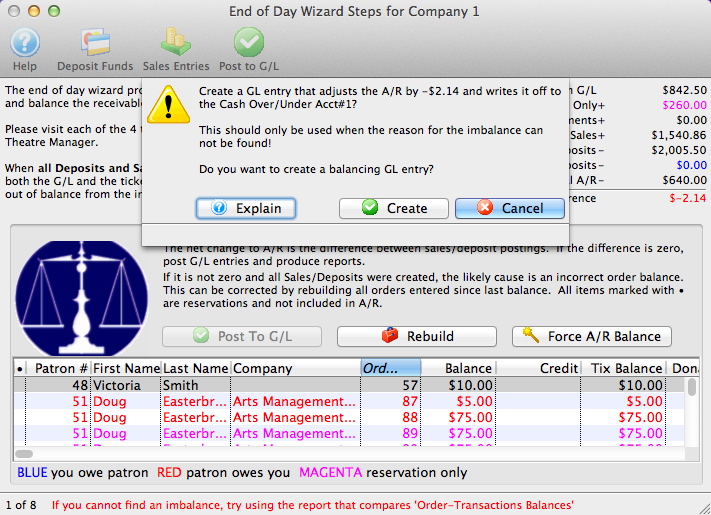
The End of Day Balance Reports
|
The recommended end of day reports for transferring data to your accounting system are highlighted in red. Both the highlighted reports provide a G/L listing with Debits and credits for easy entry to your accounting package. Most people use the first one and the purposes are::
|
|
We highly recommend using the Export GL button to create a file that you can import into your accounting system.
Please refer to Supported Formats which is selected in company setup accounting tab. |
- Click the Reports tab in the End of Day wizard.
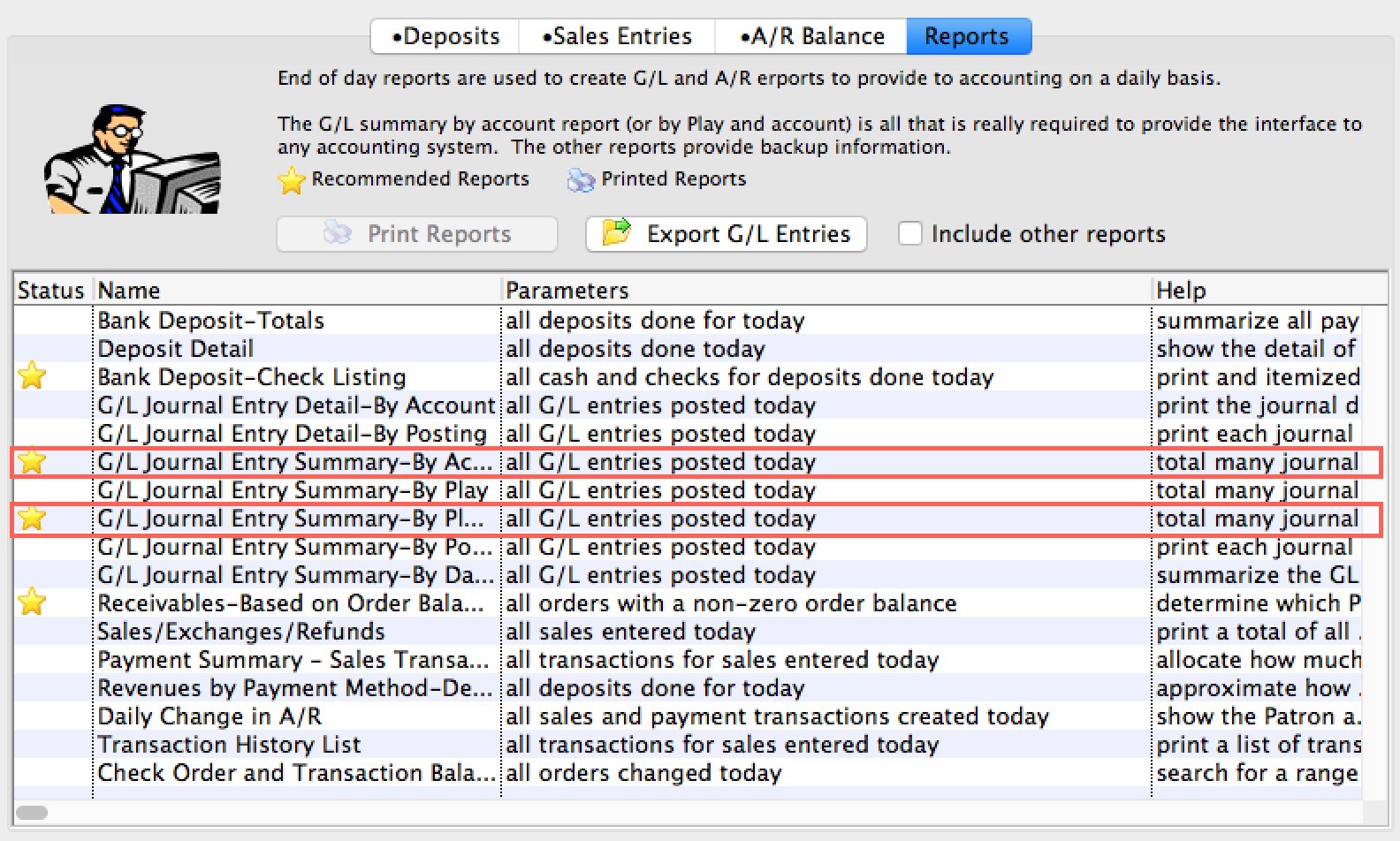
- Double click on the report(s) to be printed.
If you are printing a report to transfer to the accounting system, you should probably use one of the two highlighted because they help you comply with the general intent of:
- the law Sarbanes–Oxley Act to make sure you are less likely to be doing off the balance sheet transactions
- very helpful in fulfilling IRS requirements and rules of reporting (examples reasons are)
- generally revenue is reported at time of sale, even if you are only taking taking deposits for tickets such as group sales
- also applied to donations where you have not yet received any cash or payment al all - because if you have anything that resembles a contract ... it needs to go into the books.
- GAAP/FASB requirements
- CCRA financial tracking
The reports selected are generated on the screen.
- Click the Print button on any reports you want paper copies of.
Once all reports have been printed, and there is no imbalance, the End of Day process is complete. Congratulations!
Troubleshooting End of Day Wizard Problems
Also, note the 'Create Sales Entries' process in the End of Day wizard actually takes two passes at checking for an imbalance. If your venue is not busy, this will handle most end of day issues automatically. However, if it does not -AND- you are having an extra busy day, then re-running the 'Create Sales Entries' can catch any sales that straggle in and counts them.
Problem |
Action |
| You received a deposit in process message when attempting to use the End of Day: |
|
| Matching a deposit to your Merchant Account: |
Please refer to the following to make sure you've looked at your batch totals and/or settled the batches
If your merchant batch total is different than Theatre Manager, it means one of two things:
|
| Making the end of day balance go to zero so you can post: | Please refer to correcting an imbalance to resolve the problem. |
| You receive a message indicating that there are orders currently being sold: |
Some orders may currently be in the process of having tickets sold to them or taking payments. You might need to
|
| The inability to post to the general ledger after balancing: | Please refer to cannot post to the General Ledger |
| If the payments can not be seen in the deposit process window: |
|
| You just ran the first End of Day after Year End Rollover and found an issue | Please refer to End of Day Imbalance after Year End Rollover |
Correcting an Imbalance in the End of Day Wizard
An imbalance can be caused by a variety of things such as:
- A power outage in the middle of a transaction
- A power outage in the middle of the the End Of Day
- A misapplied fee or refund during the sales process
- A manual GL Entry that was incorrectly applied
- A GL entry with no detail lines
- An EMV (pinpad) authorization initiated by Theatre Manager in which there was a time out or failure
- Other reasons
There are several steps you can take to correct an imbalance in the End Of Day prior to contacting Support.
The first step is easy: don't panic.
|
There are two important things to remember about an imbalance in the End Of Day:
|
| 1 | First, verify no users are in the middle of selling tickets, donations, or passes. The End of Day wizard excludes any order in the process of being modified (i.e. tickets being sold) and does not journalize them.
|
| 2 | Re-run the End of Day process again to see if any new sales show up.
|
| 3 | Run the report called Utility Functions and Database Analysis Reports >> Check Order and Transaction Balances.
|
| 4 | Run a Transaction History >> Transaction History List report.
|
| 5 | Run Setup >> Batch Functions >> Order Balances
|
| 6 | Go into Accounting -> General Ledger -> G/L Entries. Are there any manual G/L entries since last time balanced?
|
| 7 | Did the system crash in the middle of creating sales entry? If so make sure G/L entries are not out of balance.
|
| 8 | Did the system crash in the middle of a deposit? The deposit entries will need to be fixed in order to balance.
|
| 9 | Has anybody gone into a Patron's transactions and either duplicated or reversed debits and credits in an attempt to fix something? If so:
|
| 10 | Run a Utility Functions and Database Analysis Reports >> Check Order and Transaction Balances report again.
|
| 11 | Have TM Support run a query to find any transactions that are posted but are not connected to a a GL entry
The general form of the query is below and will need modified depending on what is found.
select * from f_transaction where T_GL_SEQ not in (select GL_SEQ from F_GL_HEADER) |
| 12 | Look to see if there are any gift cards or passes that were sold/refunded/adjusted and are not in GL entries. |
| 13 | Did you just complete the first year end rollover since Jan 1 2018 and are users TM for a long time? The new rollover process recalculates all account balances from inception of the database and this could be a leftover imbalance from before version 6. Please contact AMS support if this is the case. In the end, a one-time-only manual adjustment will be necessary by forcing the end of day balance that should be noted and ignored in the accounting program.
AMS team will need to:
|
| 14 | Force the A/R Balance.
If you have:
|
Cannot Post to the General Ledger
Problem |
Action |
| Has the End of Day been completed? | If not, complete an End of Day. |
| Is it in balance? | If not, review the instructions above on finding and fixing an imbalance. |
| Are account numbers missing? | Check to make sure that all account numbers are entered in deposit and sales entry windows in End of Day. |
| >Are any GL entries unbalanced? | Go into Accounting >> General Ledger >> G/L Entries, and make sure that all debits and credits are equal for each entry. |
| Is it a new fiscal year? | If the organization is at or past year end, a Year End Roll Over needs to be completed. If the organization has not done a year end rollover, it will not be able possible to post GL entries in the new fiscal year. For more information on handling a Year End Roll Over, click here. |
| Are there any posting dates in the future? | Check sales posting dates - are any in the future? Future dates cannot be posted. |
| Does the user have permission? | Does the user have authorization/permission in the user ID permissions in the system to post? If not, the user will need to obtain permission. |
| Is your Merchant Provider different than TM? | It is possible that Theatre Manager got a timeout sending a credit card, and if it was sent again with a force duplciate, you would expect this. Compare TM edit list with the authorization detail online at your merchant account and then void the extra in your online merchant account. If the deposit doesn't match, them please refer to solving merchant account Imbalance |
Deposit In Progress Flag
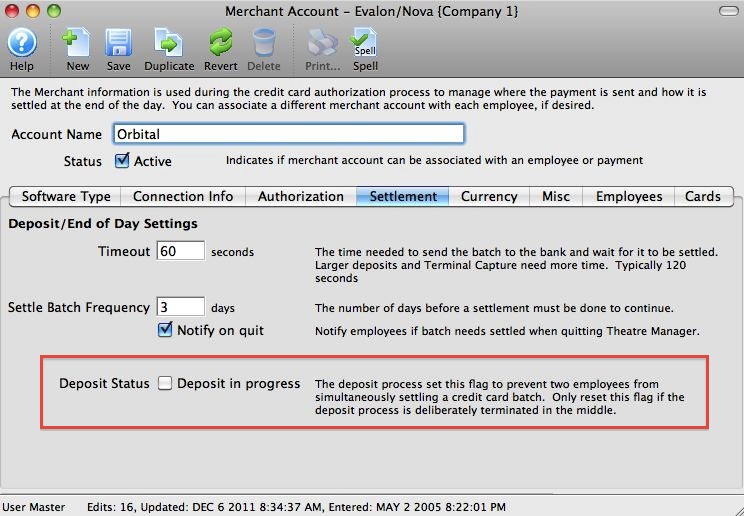
If you experience an interruption of power or connection to the database server during the End Of Day, when you attempt the End Of Day again, Theatre Manager may respond with a message that a 'Deposit is In Progress,' indicating that it believes the End Of Day Wizard is still active and is currently depositing credit card funds through your merchant processor.
The resolution for this is simple, and you can get back to running your End of Day in seconds by unchecking the 'Deposit In Progress' box in the Merchant Account setup. You cannot check this box, you can only uncheck it. Only do so if you are 100% sure there is no settlement occurring for this merchant account (i.e. nobody has End Of Day open). Unchecking it, resets the End Of Day and allows a settlement to happen.
To reset the Deposit in Progress Flag, you perform the following steps:
- Ensure that no one is currently doing the End Of Day.
- Log on as the Master User.
- Select the Setup>>System Tables>>Merchant Account menu.
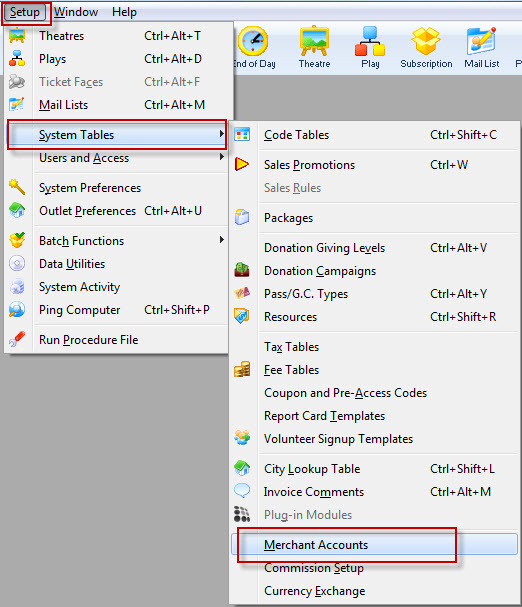
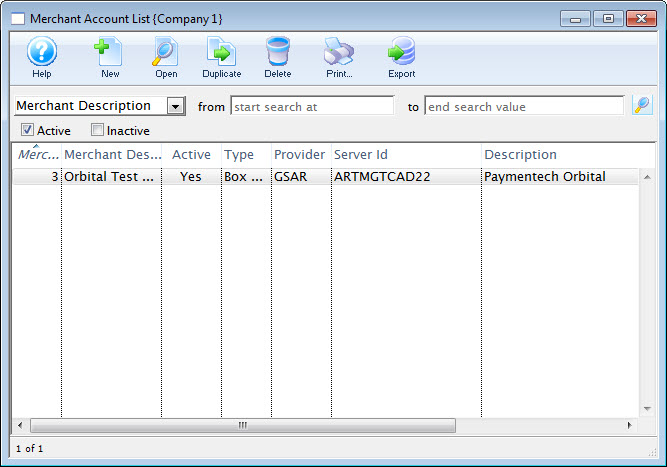
- Select your Merchant account from the list.
Double click on the Merchant account to open it.
- Click the
 tab.
tab.
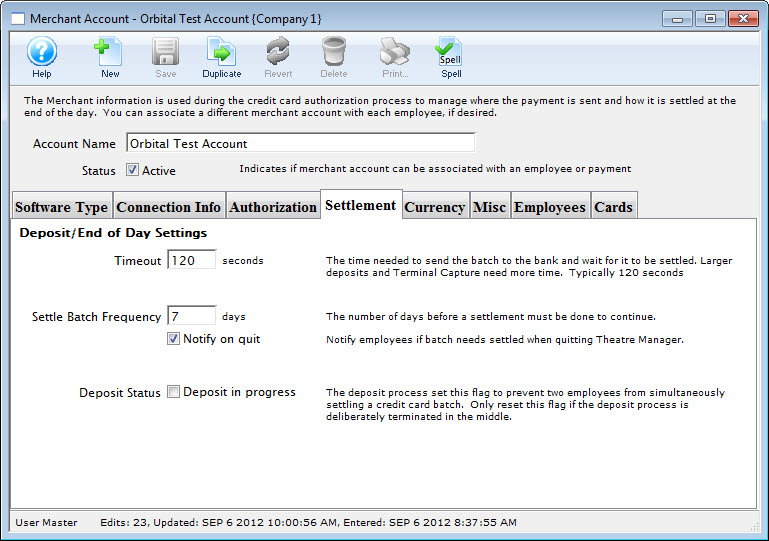
- Uncheck the 'Deposit Status' box.
- logon using your Employee account.
- Restart and proceed with the End Of Day.
Balancing Outlet Sales
- Daily Basis - run the end of day wizard and post to your G/L
- Periodically - reconcile the 4 receivables and payable accounts with each outlet and pay each other.
Periodically Balancing Outlets
|
Balancing outlets and what you owe to each other assumes you have set up the outlet accounts (in each outlet) as per the instructions in setting up outlet posting accounts |
The general process is that on a daily, weekly, biweekly or monthly period, as agreed to by each outlet, you should reconcile the special accounts for posting outlet receivables and payables. This is done as follows:
- Each outlet completes their end of day and posts to the GL on the anointed date
- Each outlet runs the G/L Journal Detail by Account report with criteria that specifies the three accounts for their outlet that represent and a date range. EG:
- A/R Ticket sales other outlets owe you
- A/R Commissions owed from other outlets
- A/P Tickets sales owed to other outlets
- And the same transaction date range - eg if you are doing for a month, then specify the month in the criteria
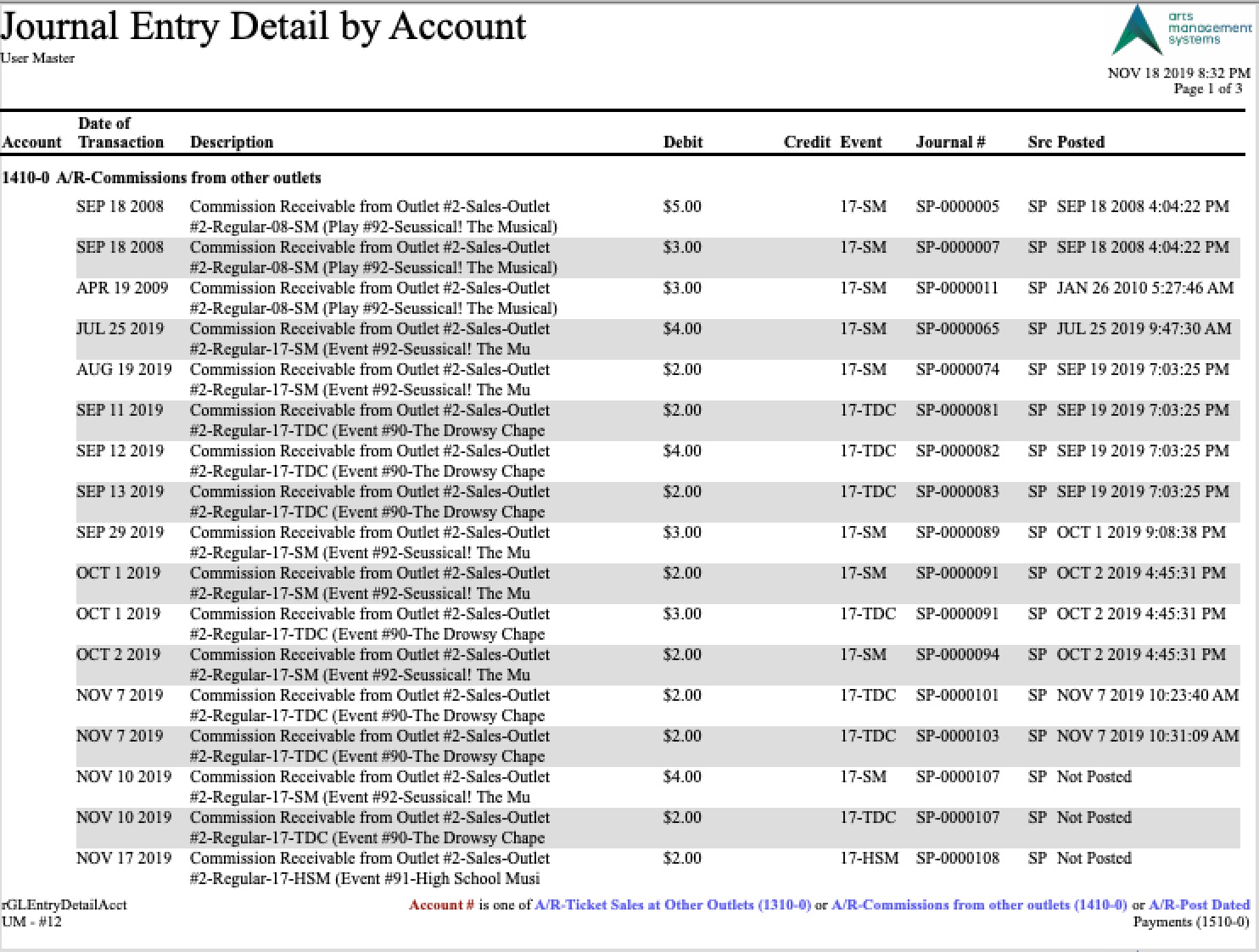
- The text in the journal description indicates which outlet owes whom for commissions and sales and receivables. Add them up so that:
- Your receivables (from each outlet) or ticket sales and commissions
- LESS your payables to each outlet
- -----------------------
- Result in WHAT YOU OWE EACH OTHER
- Write and checks to each other as required
- Repeat after the next period is over
Optionally - Make a Clearing entry in TheatreManager
Once you know what each outlet owes you and you owe them, we highly recommend making a manual GL clearing entry for the above 3 accounts indicating that things have been paid (i.e. create GL entries to set the balances to zero and offset the bank account with the income received or check paid). That way you will see the manual GL entry with the appropriate date on it and can see the settlement dates.
Other places with financial data
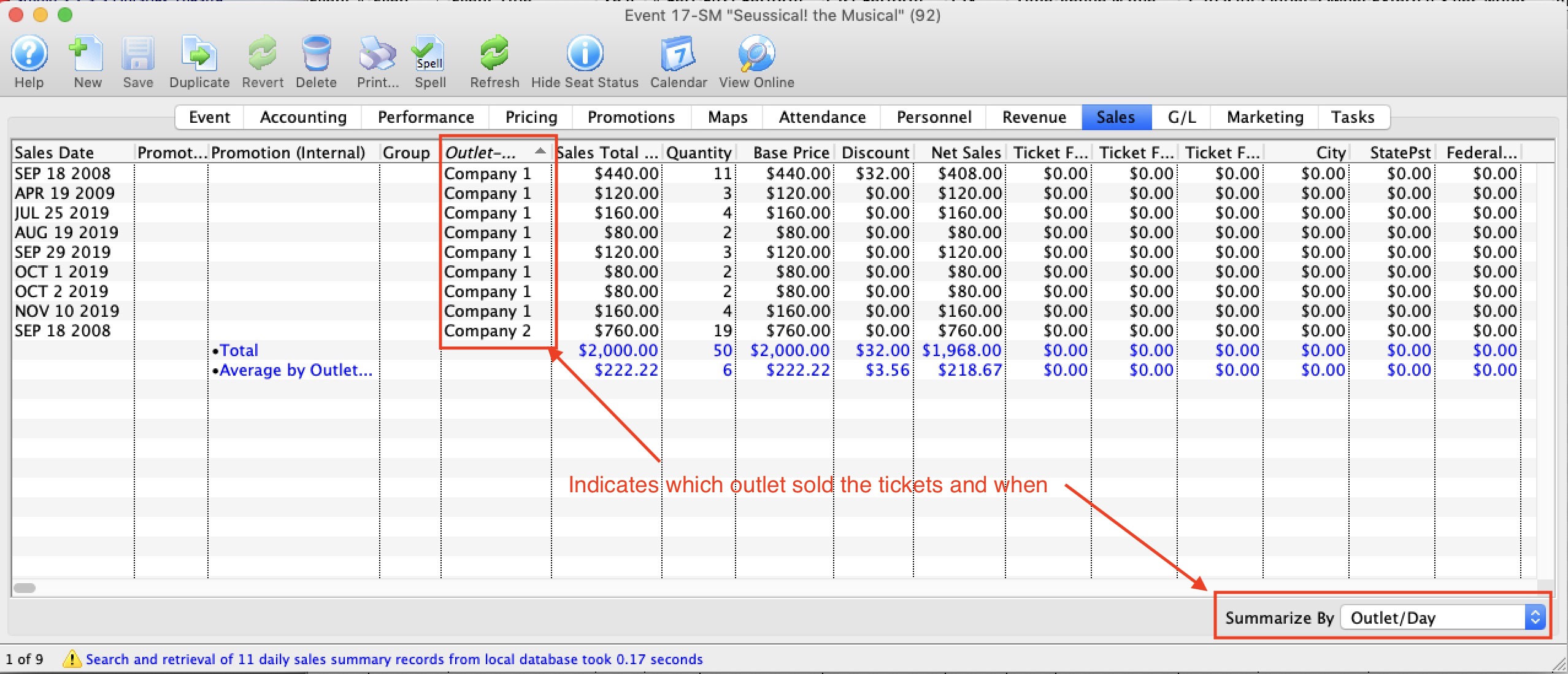
While the above is the sole process for dealing with outlet reconciliation, you can also look at events to see who's been selling them for you.
On the Sales tab, you can see the current state of affairs. Note: tickets can be refunded from other outlets so there may be days with negative numbers. And since this data can be reported on, you could use a daily sales report to see across events.
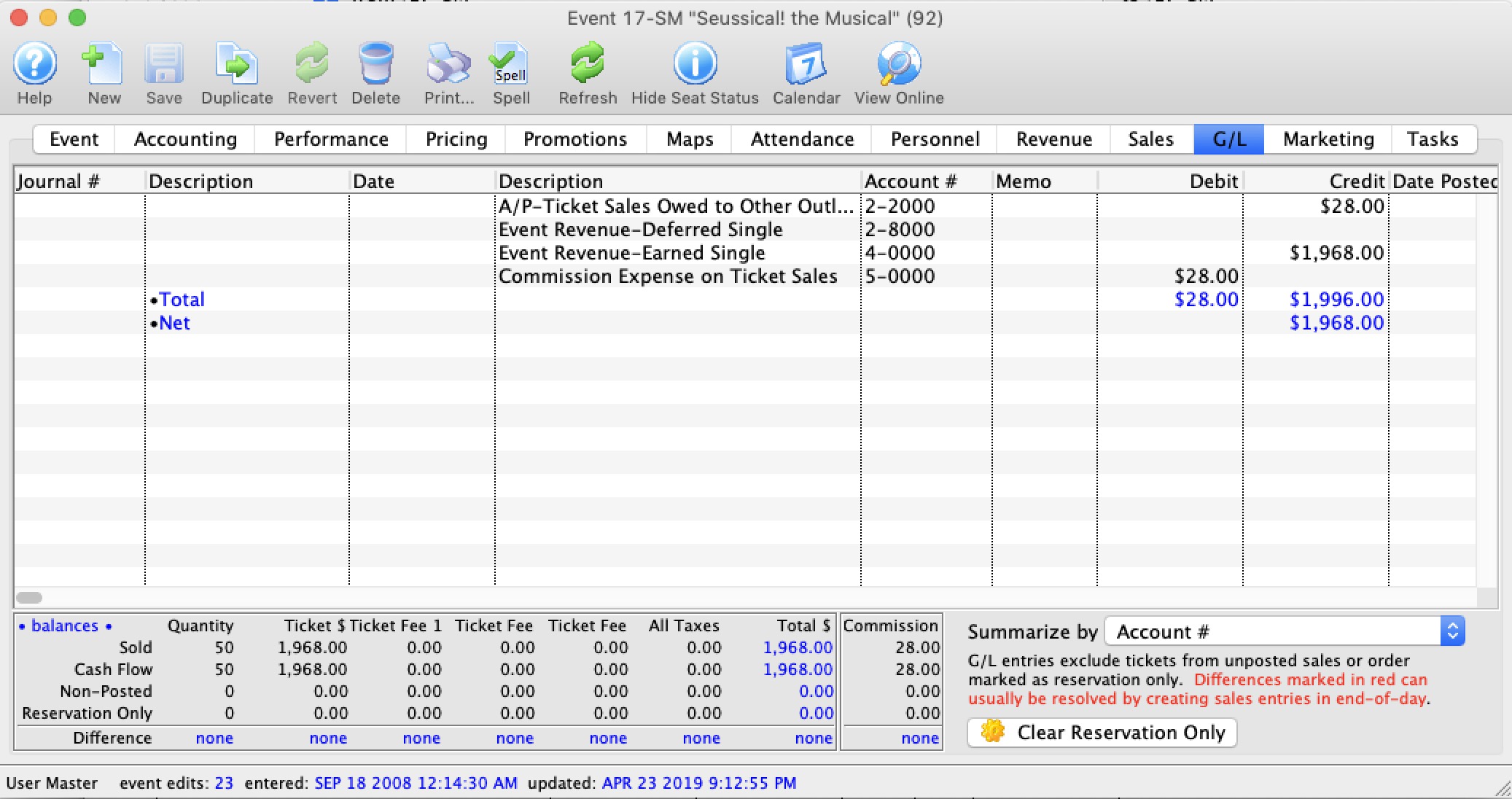
On the Revenue Tab:
Daily Change in A/R and the End Of Day
There are two reports you can be compared while performing the End Of Day to determine which event / play(s) and/or payments caused an A/R Balance to show in the End-Of-Day process,however, you need to take special care when comparing the reports and you need an understanding of their meaning.
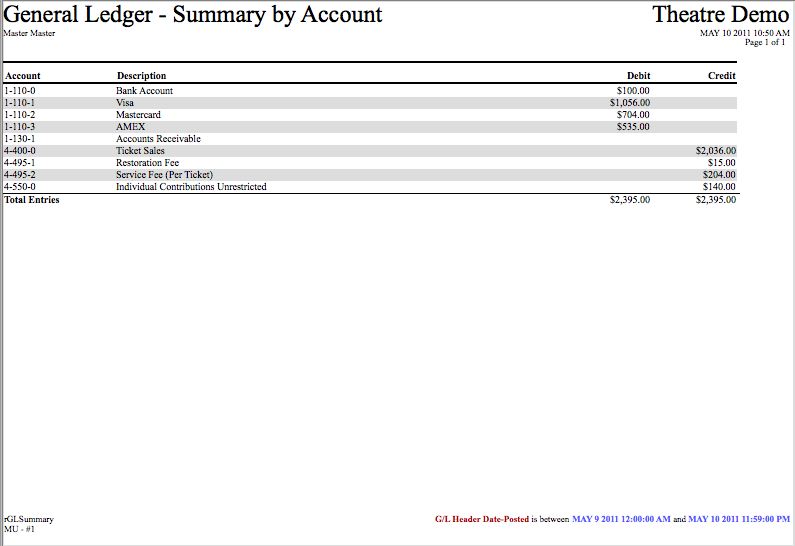
- The first is the GL Journal Entry Summary By Account. We recommend all venues run this report on a daily basis to inform the Accounting department of the GL Transactions made by Theatre Manager. It is a complete account of all sales and payment activity entered into Theatre Manager for a period of time. An example of a GL Journal Entry Summary By Account report appears below:
- The other report you can use is the Payment Summary - Sales Transaction Allocation report. The AR amount on the Sales Transaction report fluctuates as the days progress, as tickets are sold and payments are received. Tickets sold, but not paid for, payments taken for tickets sold previously, ticket exchanges/upgrades/downgrades, or ticket refunds affect the Daily Change in AR. Therefore the Sales Transaction Allocation report cannot be used as an accurate measuring stick for allocating sales revenue to an event / play based on the payments received. An example of the Sales Transaction Allocation report appears below:
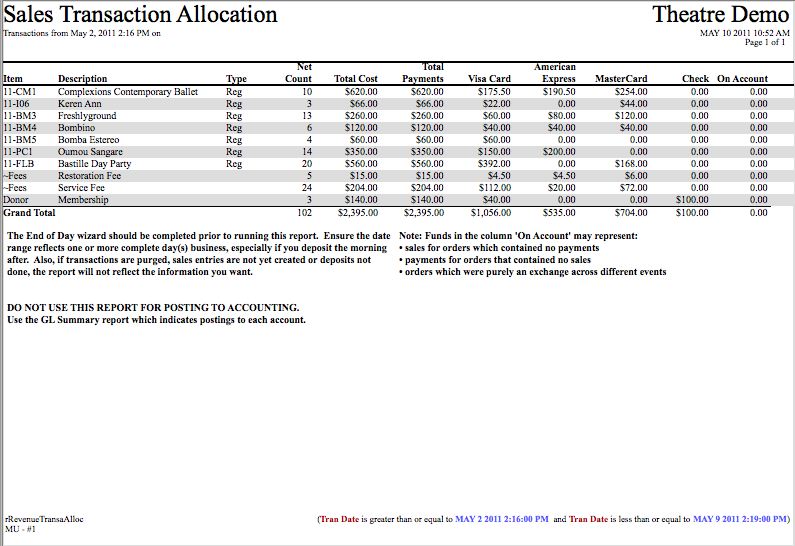
The critical piece to compare is the date - and time - range of the two reports. To do this, you need to look at the General Ledger postings to find when the last posting in the previous End of Day occurred.
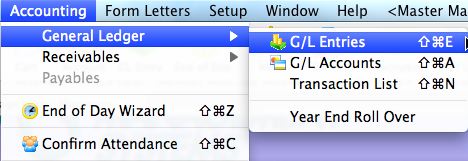
- Go to the Accounting>>General Ledger>>GL Entries menu.
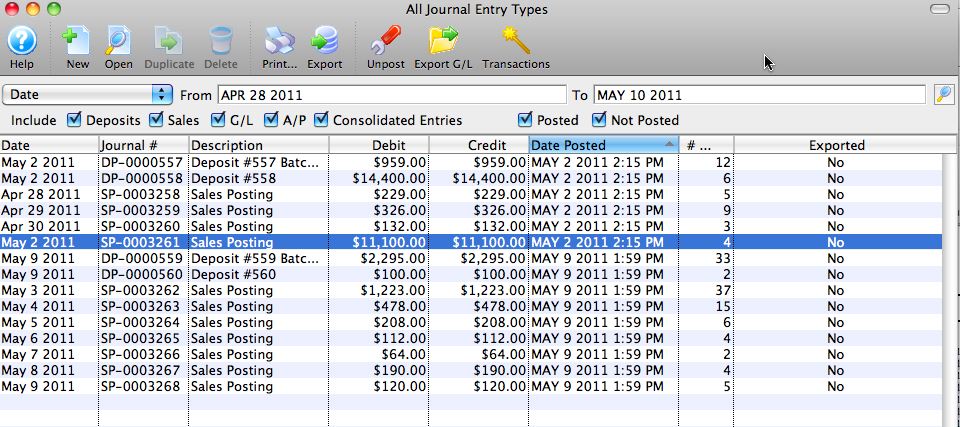
- Search for the Journal entries for a week or so prior to the last End Of Day.

- Sort the report by the Date Posted column.
Sorting will group the transactions in the order they were posted (matching each End-Of-Day process).
The listing shows the last posting of the previous End Of Day was on May 2, 2011 at 2:15 PM. The Sales Transaction report will need to start at least one minute after the last posting (2:16 PM).
- Open the Sales Transaction Allocation report.
Enter criteria to obtain transactions from 2:16 PM (one minute AFTER the previous End Of Day).
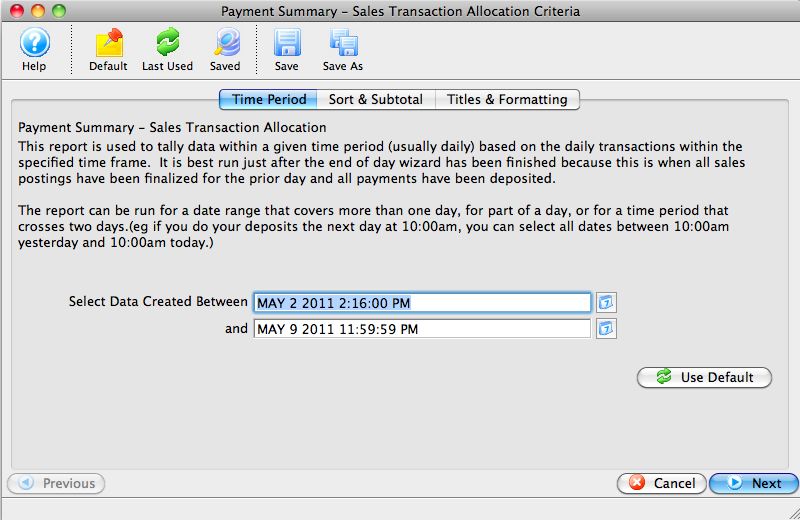
- Run the Sales Transaction Allocation report.
The Sales Transaction Allocation report will now match the GL Journal Entry Summary by Account report.