
Main menu
You are here
Order Window

The Order window displays all information about an Order. The buttons on the left of the window change the view. When a button is clicked the view changes but the order stays the same. This allows for the purchase of tickets, donations and memberships in one order. Once an order is complete it can be opened to view, edit or add payments, purchases, taxes and more.
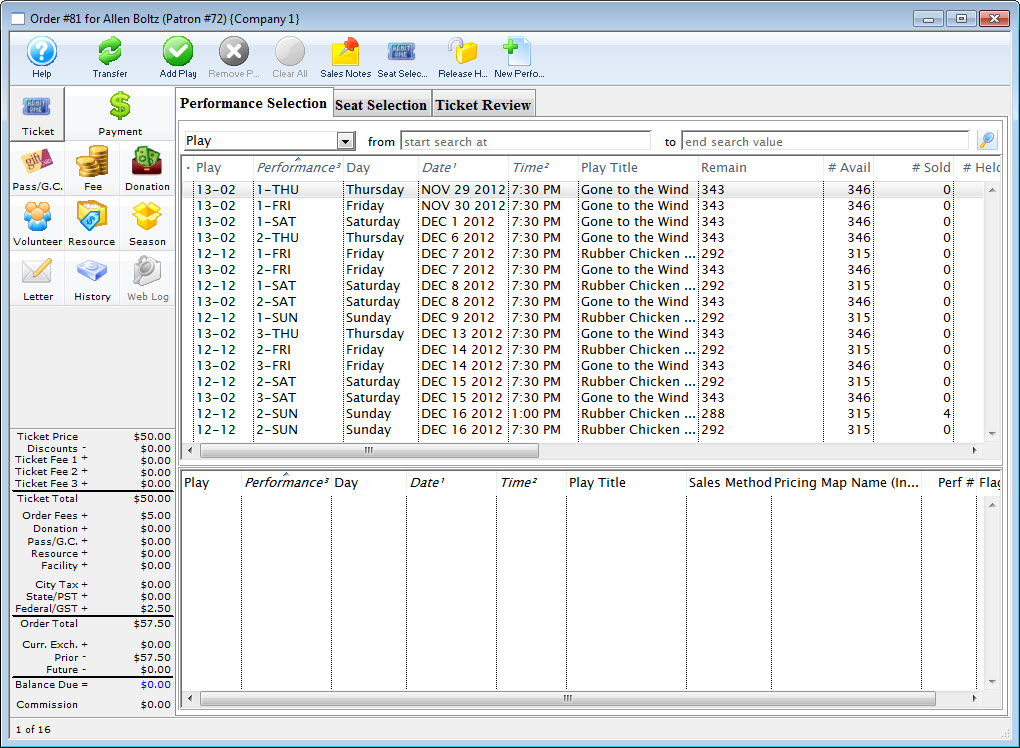
Parts of the Order Window
 |
Ribbon Bar. The selection icons in the ribbon bar change depending on the button selected on the left side of the order window. See each section for more information on the buttons available. |
 |
Buy, exchange or refund tickets in the order. For more information on the Orders Tickets window, click here. To Add tickets to an existing order, click here. For more information on Ticket Management, click here. |
 |
Makes payments for the balance of the order. For more information on the Payments window, click here. |
 |
Edit any pass or gift certificate in the order. For more information on the Orders Passes G.C. window, click here. | To go to Season Subscription Management, click here.
 |
Edit any fees associated with the order. For more information on the Orders Fees window, click here. To Add fees to an existing order, click here. For more information on the Fees Tables, click here. |
 |
Edit any donation in the order. For more information on the Orders Donation window, click here. To go to Donation Management, click here. |
 |
Allows you to enter the labor portion of any order. |
 |
Edit any resource in the order. Click here for more information on Resources. |
 |
Edit and or book tickets for any subscription packages in the order. For more information on the Orders Season window, click here. To go to Subscription Management, click here. |
 |
View the notes and letters associated with the order. Click here for more information on form letters. |
 |
View any transaction history of the order. Click here for more information on the Transaction History window. |
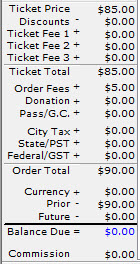 |
Displays the current balance on the order. |