Donation Reports & Receipts
Donation Reports & Receipts

Audit List Receipts
Audit List Receipts

Click here for information on generating a report. Click here for information on the Finished Report window.
Purpose of the Report
You use the Audit List Receipts to print a list of receipts and the Donor who received them.
Purpose of the Report
Departments Who Benefit From This Report
| Development | To print the donations in order of Fiscal Year
Use this report to see donation receipts that have been printed and ones waiting to be printed. |
Criteria Hints
It is recommended that this report be run using:
| Parameter Field | Condition | Value |
| Donation Year | = | Desired Year |
| Donation Date | is | Date Entered |
| Campaign # | is one of | desired campaign |
Audit Trail - Donor & Pledge Daily Audit
Audit Trail - Donor & Pledge Daily Audit
The Audit Trail - Donor & Pledge Daily Audit can be found under the Donation Reports & Receipts category. Below the image are detailed notes to help you in using the report.

Click here for information on generating a report. Click here for information on the Finished Report window.
Purpose of the Report
You use the Audit Trail - Donor Pledge & Daily Audit to tally data within a given time period (usually daily) based on the donations and payments recveived within a specified time frame. It is best run after the end of day wizard has been finished, because this is when all the sales postings have been finalized for the prior day and all payments have been deposited. This report can be run for a date range that is more than one day, for part of a day, or a time period that crosses two days.
Departments Who Benefit From This Report
| Development | To print a list of donations and pledges received and evaluate the need to respond in a particular way to the donor.p>
Use this report as a means of keeping an audit trail of donation transactions. |
| Accounting | Use this report as supporting information for bookkeeping or auditors. |
Criteria Hints
It is recommended that this report be run using:
| Parameter Field | Condition | Value |
| Donation Year | = | Desired Year |
| Donation Date | is | Date Entered |
| Campaign # | is one of | desired campaign |
Audit Trail - Donor & Receipt Summary - Patron
Audit Trail - Donor & Receipt Summary - Patron
The Audit Trail - Donor & Receipt Summary - Patron can be found under the Donation Reports & Receipts category. Below the image are detailed notes to help you in using the report.
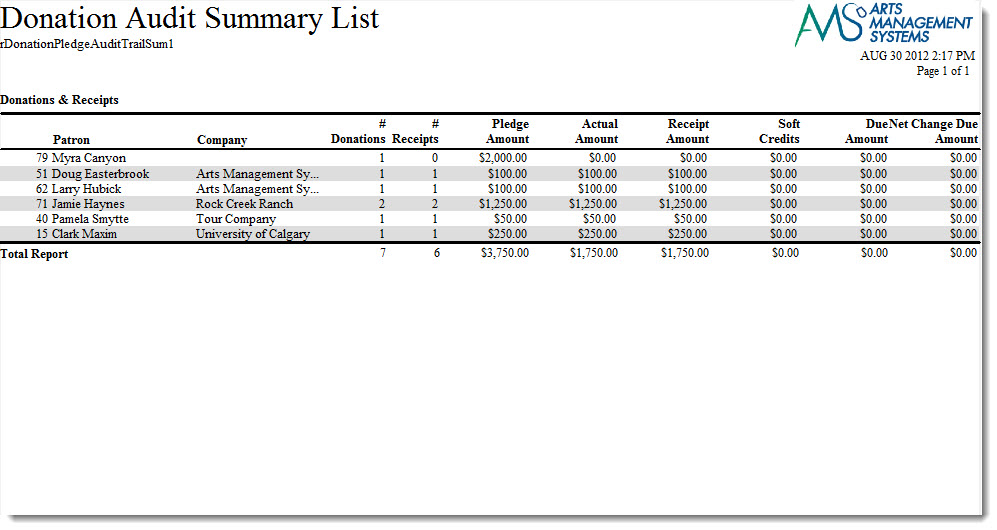
Click here for information on generating a report. Click here for information on the Finished Report window.
Purpose of the Report
You use the Donor Detail - Year (Program) to tally data within a given time period (usually daily) based on the donations and payments recveived within a specified time frame. It is best run after the end of day wizard has been finished, because this is when all the sales postings have been finalized for the prior day and all payments have been deposited. This report can be run for a date range that is more than one day, for part of a day, or a time period that crosses two days.
Departments Who Benefit From This Report
| Development | To print the donations in order of fiscal year. A complete summary is printed, even notes and comments |
Criteria Hints
It is recommended that this report be run using:
| Parameter Field | Condition | Value |
| Donation Year | = | Desired Year |
| Donation Date | is | Date Entered |
| Campaign # | is one of | desired campaign |
Audit Trail - Donor & Receipt Summary Campaign
Audit Trail - Donor & Receipt Summary Campaign
The Audit Trail - Donor & Receipt Summary Campaign can be found under the Donation Reports & Receipts category. Below the image are detailed notes to help you in using the report.

Click here for information on generating a report. Click here for information on the Finished Report window.
Purpose of the Report
You use the Audit Trail - Donor & Receipt Summary Campaign to tally data within a given time period (usually daily) based on the donations and payments received within a specified time frame. It is best run after the end of day wizard has been finished, because this is when all the sales postings have been finalized for the prior day and all payments have been deposited. This report can be run for a date range that is more than one day, for part of a day, or a time period that crosses two days. This report gives you a quick summary of donation campaigns over time
Departments Who Benefit From This Report
| Development | To evaluate the fluctuations in a campaign |
| General Manager | Use this report as a quick summary of donation campaigns over a time period. |
Criteria Hints
It is recommended that this report be run using:
| Parameter Field | Condition | Value |
| Donation Year | = | Desired Year |
| Donation Date | is | Date Entered |
| Campaign # | is one of | desired campaign |
Campaign List
Campaign List
The Campaign List can be found under the Donation Reports & Receipts category. Below the image are detailed notes to help you in using the report.

Click here for information on generating a report. Click here for information on the Finished Report window.
Purpose of the Report
You use the Campaign List to print a list of Donation Campaigns.
Departments Who Benefit From This Report
| Development | Provides a list of Donation Campaigns and can use this report to verify donation campaigns are set up correctly. |
| Accounting | Use this report to verify that donation campaigns and G/L accounts are setup properly. |
| General manager | Use this report to verify that donation campaigns and G/L accounts are setup properly. |
Criteria Hints
It is recommended that this report be run using:
| Parameter Field | Condition | Value |
| Donation Year | = | Desired Year |
| Donation Date | is | Date Entered |
| Campaign # | is one of | desired campaign |
Charitable Receipts for Donor (Annual Statement Style)
Charitable Receipts for Donor (Annual Statement Style)
 The Charitable Receipts for Donor (Annual) can be found under the Donation Reports & Receipts category.
An example of the report is to the right and some notes about the report follow.
Please be aware of the Rules for a receipt to print described at the bottom of the web page.
- Click here for information on generating a report.
- Click here for information on the Finished Report window.
- This report has some custom parameters to control wording and settings on it
Purpose of the Report
You use the The Charitable Receipts for Donor (Annual) to print annual donation receipt summaries.
 |
Donation receipt options can be set for each individual donation. Only payments for donations needing an annual donation tax receipt will print.
Note: you can change the receipt type for many donations on the donation list for each campaign |
|
The Annual Statement Style tax receipt limits to 500 records to avoid memory issues. After printing a batch of receipts, run the report process again to print the next batch. |
|
Be sure to set some default values in the donation tab in Company Preferences for:
|
Departments Who Benefit From This Report
| Development | Print Donation receipts on a preprinted form according for those requiring annual receipts |
Criteria Hints
It is recommended that this report be run using:
| Parameter Field | Condition | Value |
| Calendar Year | and | The calendar year that you want the Annual statement receipt for |
| Campaign | is | All campaigns or a specific campaign |
| Name/Company | like | everybody or some portion of the name and/or company if looking for individuals. |
In addition to the quick criteria above, you can also use the search tab if you want to create some more elaborate search criteria such as multiple campaigns, patron number range, date ranges, donation types, etc.
Rules for a Receipt to Print
|
There are very specific criteria to retrieve data for printing. ALL of the following must be true before an annual style receipt can be printed. |
- Donation receipt option must be the annual statement style
- Donation Group Security - You must be permitted access to the donation
- Campaign Group Security - you must be in the access group permitted to access the campaign
- Receipt Year - the receipt date for the payment must be in the calendar year specified. This means payments that cross calendar year boundaries will appear in the appropriate year's receipt.
- Name/Company - (optional) if specified, the patrons name must contain the value entered. If you see the patron on the patron list using this search, you will find them for donations
- Campaign - (optional) if specified, only this campaign will be included. otherwise all campaigns will be included.
- Donation Type - cannot be soft credit, prospect or hard pledge
- Receipt required must satisfy both cases:
- The Campaign must allow printing of receipts and donation amount must be greater than minimum receiptable amount
- The Donation Receipt itself must be marked required
- Payment Receipts can be from payments that are wither:
- post-dated - the payment MUST be deposited to avoid generating receipts for credit card payments that are declined
- not post-dated - doesn't matter if the payment is deposited or not
- Not Receipted yet - there must be AT LEAST ONE payment NOT RECEIPTED otherwise you cannot print an overall receipt with receipt number. If none of the payments have been receipted, then all payments in the annual receipt get the same receipt number. You can reissue receipts if you un-print a prior receipt, which creates an audit trail as required by Revenue Canada.
Charitable Receipts for Donor (One Per payment)
Charitable Receipts for Donor (One Per payment)
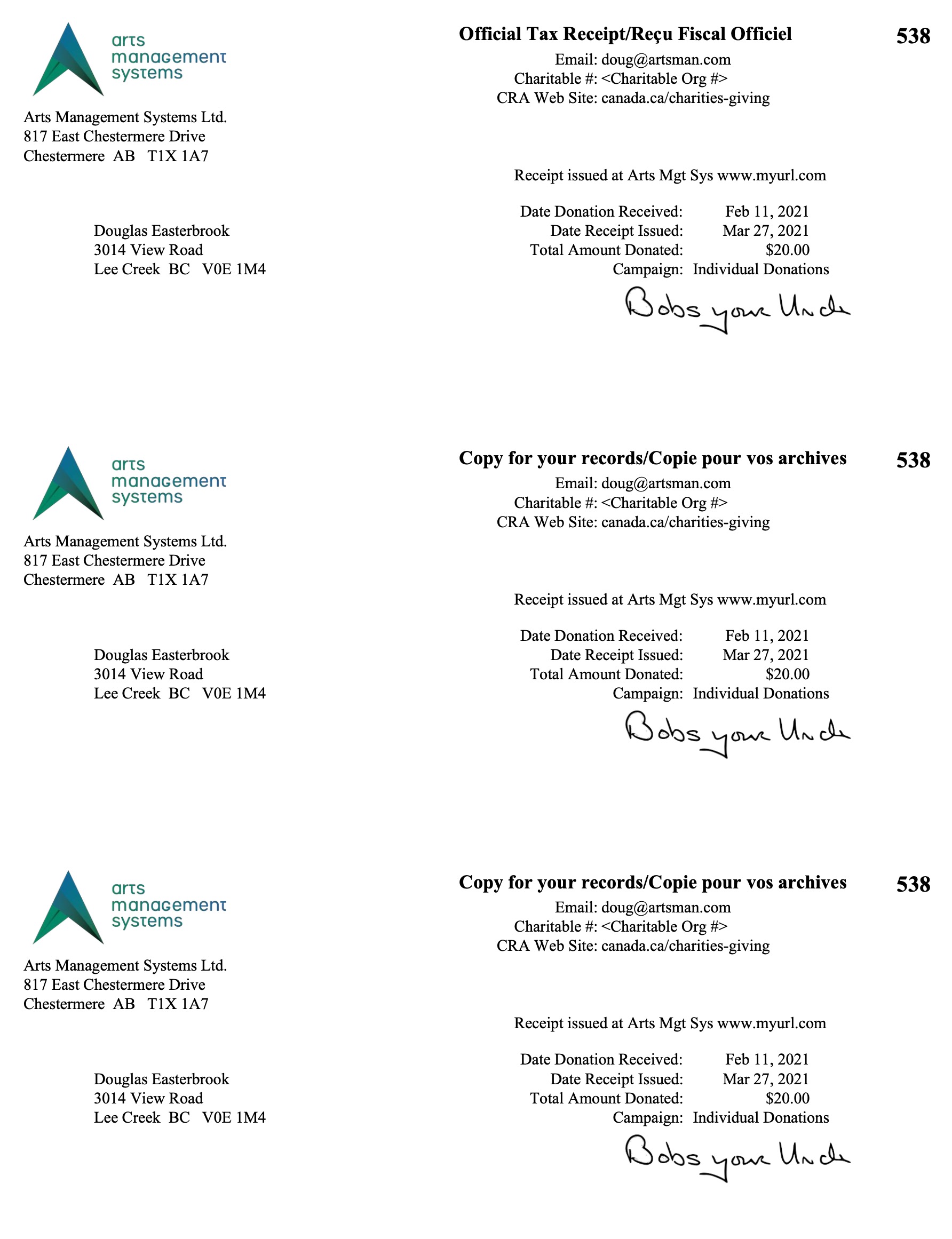 The Charitable Receipts for Donor can be found under the Donation Reports & Receipts category.
An example of the report is to the right and some notes about the report follow. Please be aware of the Rules for a receipt to print described at the bottom of the web page.
- Click here for information on generating a report.
- Click here for information on the Finished Report window.
- This report has some custom parameters to control wording and settings on it
- Click here for a Charitable Receipts example.
- One Receipt per payment can be used for automatic receipt generation for online purchases when enabled in the campaign setup.
Purpose of the Report
You use the Charitable Receipts for Donor to print Donation receipts on a preprinted form according to the preferences on each donation. Theatre Manager prints previously unprinted receipts and updates them with the next receipt number. Receipts only print if payment is received, the print option requires one and the campaign allows it.
|
Donation receipt options can be set for each individual donation. Only payments for donations needing a one receipt per payment will print on this tax receipt.
Note: you can change the receipt type for many donations on the donation list for each campaign |
|
The One Receipt per Payment tax receipt limits to 250 records per printing to avoid memory issues. After printing a batch of receipts, run the report again to print the next batch. |
|
Be sure to set some default values in the donation tab in Company Preferences for:
|
|
There will be TWO dates on the tax receipt if the date of payment for the donation is different than the date tat the receipt was printed. This is a Revenue Canada requirement for official tax receipts |
Departments Who Benefit From This Report
| Development | Print Donation receipts on a preprinted form according to the preferences on each donation. |
Criteria Hints
It is recommended that this report be run using:
| Parameter Field | Condition | Value |
| Calendar Year | and | (optional) The calendar year that you want to select receipt dates from. If left blank, then any pending receipts will be selected. |
| Campaign | is | All campaigns or a specific campaign |
| Name/Company | like | everybody or some portion of the name and/or company if looking for individuals. |
In addition to the quick criteria above, you can also use the search tab if you want to create some more elaborate search criteria such as multiple campaigns, patron number range, date ranges, donation types, etc.
Rules for a Receipt to Print
|
There are very specific criteria to get a tax receipt to print. ALL of the following must be true before a tax receipt for a payment can be printed. |
- Donation receipt option must be one receipt per payment
- Donation Group Security - You must be permitted access to the donation
- Campaign Group Security - you must be in the access group permitted to access the campaign
- Receipt Year (optional) the receipt date for the payment must be in the calendar year specified.
- Name/Company - (optional) if specified, the patron's name must contain the value entered. If you see the patron on the patron list using this search, you will find them for donations
- Campaign - (optional) if specified, only this campaign will be included. otherwise all campaigns will be included.
- Donation Type - cannot be soft credit, prospect or hard pledge
- Receipt required must satisfy both cases:
- The Campaign must allow printing of receipts and donation amount must be greater than minimum receiptable amount
- The Donation Receipt itself must be marked required
- Payment Receipts can be from payments that are either:
- post-dated - the payment MUST be deposited to avoid generating receipts for credit card payments that are declined
- not post-dated - doesn't matter if the payment is deposited or not
- Not Receipted yet - the payment cannot have a donation receipt issued for it yet. You can reissue receipts if you un-print a prior receipt, which creates an audit trail as required by Revenue Canada.
Donation Cash Flow
Donation Cash Flow
The Donation Cash Flow can be found under the Donation Reports & Receipts category. Below the image are detailed notes to help you in using the report.

Click here for information on generating a report. Click here for information on the Finished Report window.
Purpose of the Report
You use the Donation Cash Flow to print a a chart for the amount of time elapsed between donation date to payment date.
Purpose of the Report
You use the Donor Detail - Year (Program) to print the donations in order of fiscal year. A complete summary is printed, even notes and comments.
Departments Who Benefit From This Report
| Development | Campaign payment types through the weeks of the campaign |
Criteria Hints
It is recommended that this report be run using:
| Parameter Field | Condition | Value |
| Donation Year | = | Desired Year |
| Donation Date | is | Date Entered |
| Campaign # | is one of | desired campaign |
Donor & Pledge Summary with Payments
Donor & Pledge Summary with Payments
- contact information, company, address, and phone number
- when a donation and its corresponding payments were given
- Balance due on the donation, if any
- the campaign
- donor receipt name
- fiscal and program year
Below the image are detailed notes to help you in using the report.

Click here for information on generating a report. Click here for information on the Finished Report window.
Purpose of the Report
You use the Donor & Pledge Summary with Payments to print a list of of patrons with a donation summary and the payments. This can manage donation receivables.
Departments Who Benefit From This Report
| Development | Managing donation receivables |
Criteria Hints
It is recommended that this report be run using:
| Parameter Field | Condition | Value |
| Donation Year | = | Desired Year |
| Donation Date | is | Date Entered |
| Campaign # | is one of | desired campaign |
Donor Detail - Campaign & Year (Fiscal)
Donor Detail - Campaign & Year (Fiscal)
The Donor Detail - Campaign & Year (Fiscal) can be found under the Donation Reports & Receipts category. Below the image are detailed notes to help you in using the report.

Click here for information on generating a report. Click here for information on the Finished Report window.
Purpose of the Report
You use the Donor Detail - Year (Program) to print the donations in order of fiscal year. A complete summary is printed, even notes and comments.
Departments Who Benefit From This Report
| Development | Use this report for a detailed listing of pledges to a campaign and patrons who gave. The patron's contact information and next contact date are also included. |
Criteria Hints
It is recommended that this report be run using:
| Parameter Field | Condition | Value |
| Donation Year - Fiscal | = | Desired Year |
| Donation Date | is | Date Entered |
| Campaign Seq # | is one of | desired campaign |
Donor Detail - Campaign & Year (Program)
Donor Detail - Campaign & Year (Program)
The Donor Detail - Campaign & Year (Program) can be found under the Donation Reports & Receipts category. Below the image are detailed notes to help you in using the report.
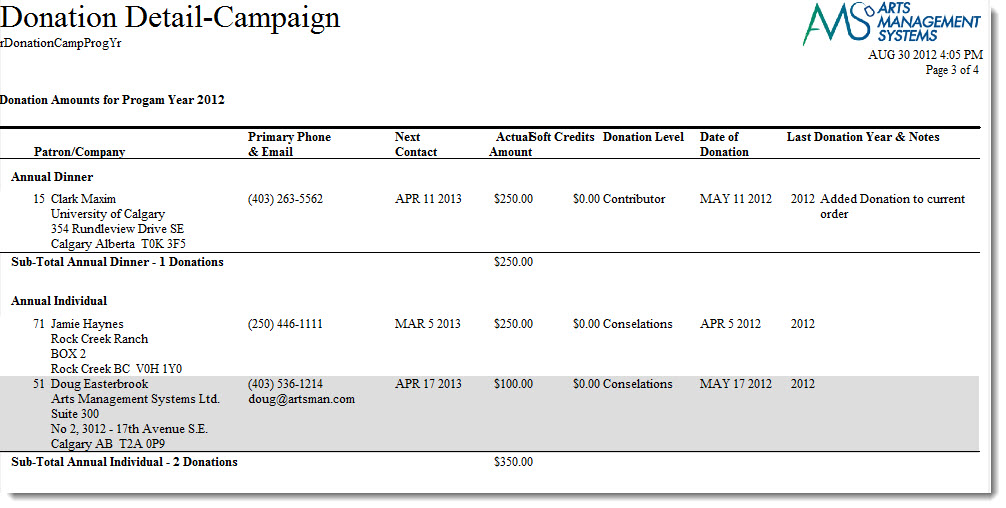
Click here for information on generating a report. Click here for information on the Finished Report window.
Purpose of the Report
You use the Donor Detail - Year (Program) to print the donations in order of fiscal year. A complete summary is printed, even notes and comments.
Departments Who Benefit From This Report
| Development | Use this report to |
| Marketing | Use this report to |
Criteria Hints
It is recommended that this report be run for the program year as the criteria.
| Parameter Field | Condition | Value |
| Donation Year - Program | = | (Program Year) |
Donor Detail - Donor & Pledge
Donor Detail - Donor & Pledge
The Donor Detail - Donor & Pledge can be found under the Donation Reports & Receipts category. Below the image are detailed notes to help you in using the report.

Click here for information on generating a report. Click here for information on the Finished Report window.
Purpose of the Report
You use the Donor Detail - Donor & Pledge to print a list a complete summary of the donation history for each patron including notes and comments. This report is sorted by donor.
Departments Who Benefit From This Report
| Development | Use this report to lookup a patron's donation history. |
Criteria Hints
It is recommended that this report be run for the program year as the criteria.
| Parameter Field | Condition | Value |
| Patron Name-Last | between | (Last Name) and (Last Name) |
Donor Detail - Giving Level
Donor Detail - Giving Level
The Donor Detail - Giving Level can be found under the Donation Reports & Receipts category. Below the image are detailed notes to help you in using the report.

Click here for information on generating a report. Click here for information on the Finished Report window.
Purpose of the Report
You use the Donor Detail - Year (Program) to print the donations in order of fiscal year. A complete summary is printed, even notes and comments.
Departments Who Benefit From This Report
| Developemnt | Use this report to lookup all pledge from patrons by giving level. |
Criteria Hints
It is recommended that this report be run using .
| Parameter Field | Condition | Value |
| Giving Level Matrix | is one of | (Giving Level Matrix) |
Use the SHIFT key to select a series of campaigns, or the OPTION key (Mac) or CTRL key (Windows) to select multiple individual campaigns.
Donor Detail - Pledge History with Custom Fields (Fiscal)
Donor Detail - Pledge History with Custom Fields (Fiscal)
The Donor Detail - Pledge History with Custom Fields (Fiscal) report can be found under the Donation Reports & Receipts category. Below the image are detailed notes to help you in using the report.

Click here for information on generating a report. Click here for information on the Finished Report window.
Purpose of the Report
You use the Donor Detail - Year (Program) to print the donations in order of fiscal year. A complete summary is printed, including notes, comments and soft pledges.
Departments Who Benefit From This Report
| Development | Use this report to look at a patron's pledge history including custom donation field information. |
Criteria Hints
It is recommended that this report be run using .
| Parameter Field | Condition | Value |
| Patron Name Last | between | (Last Name) and (Last Name) |
Donor Detail - Pledge History with Custom Fields (Program)
Donor Detail - Pledge History with Custom Fields (Program)
The Donor Detail - Pledge History with Custom Fields (Fiscal) report can be found under the Donation Reports & Receipts category. Below the image are detailed notes to help you in using the report.

Click here for information on generating a report. Click here for information on the Finished Report window.
Purpose of the Report
You use the Donor Detail - Year (Program) to print the donations in order of fiscal year. A complete summary is printed, even notes and comments.
Departments Who Benefit From This Report
| Accounting | |
| House Management | |
| Marketing |
Criteria Hints
It is recommended that this report be run using .
| Parameter Field | Condition | Value |
Donor Detail - Receipt
Donor Detail - Receipt
The Donor Detail - Receipt can be found under the Donation Reports & Receipts category. Below the image are detailed notes to help you in using the report.

Click here for information on generating a report. Click here for information on the Finished Report window.
Purpose of the Report
You use the Donor Detail - Year (Program) to print the donations in order of fiscal year. This report creates a detailed listing of all donations by a patron and associated receipt information.
Departments Who Benefit From This Report
| Development | Use this report to check a patron's donation and receipt history. |
Criteria Hints
It is recommended that this report be run using .
| Parameter Field | Condition | Value |
| Patron Name-Last | between | (Last Name) and (Last Name) |
Donor Detail - Year (Fiscal)
Donor Detail - Year (Fiscal)
The Donor Detail - Year (Fiscal) report can be found under the Donation Reports & Receipts category. Below the image are detailed notes to help you in using the report.

Click here for information on generating a report. Click here for information on the Finished Report window.
Purpose of the Report
You use the Donor Detail - Year (Program) to print the donations in order of fiscal year. A complete summary is printed, even notes and comments.
Departments Who Benefit From This Report
| Development | Use this report to see all donations based on a fiscal year. |
Criteria Hints
It is recommended that this report be run for the program year as the criteria.
| Parameter Field | Condition | Value |
| Donation Year - Fiscal | = | (Fiscal Year) |
Donor Detail - Year (Program)
Donor Detail - Year (Program)
The Donor Detail - Year (Program) can be found under the Donation Reports & Receipts category. Below the image are detailed notes to help you in using the report.

Click here for information on generating a report. Click here for information on the Finished Report window.
Purpose of the Report
You use the Donor Detail - Year (Program) to print the donations in order of fiscal year. A complete summary is printed, even notes and comments.
Departments Who Benefit From This Report
| Development | Use this report to see all donations based on a program year. |
Criteria Hints
It is recommended that this report be run for the program year as the criteria.
| Parameter Field | Condition | Value |
| Donation Year - Program | = | (Program Year) |
Donor Email/Letter Correspondence Listing
Donor Email/Letter Correspondence Listing
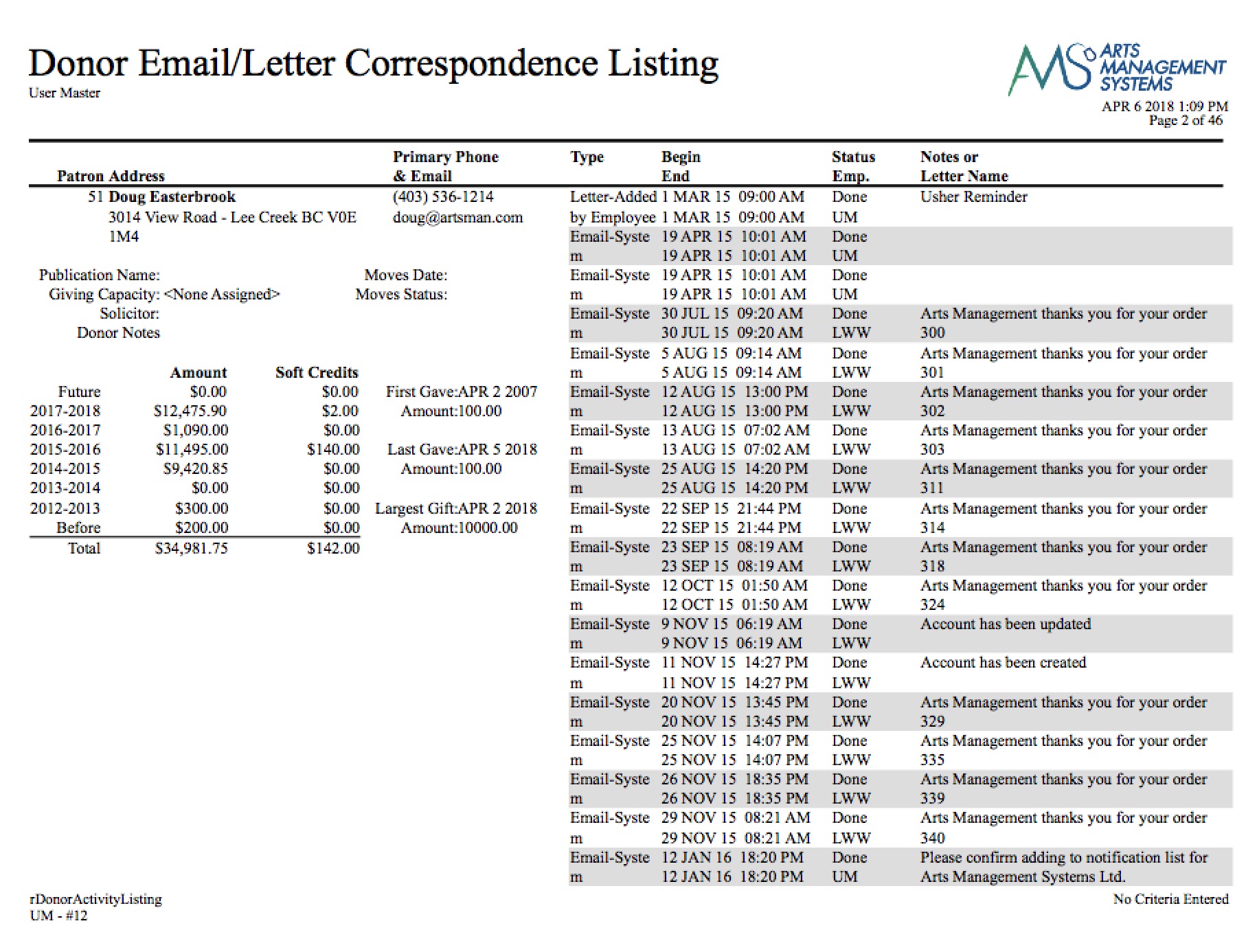
- Click here for information on generating a report.
- Click here for information on the Finished Report window.
Purpose of the Report
You use the Donor Email/Letter Correspondence Listing for a listing of emails or letters for a given patron.
Departments Who Benefit From This Report
| All | Print letters associated with a patron according to the criteria. They are not necessarily donation letters |
Criteria Hints
It is recommended that this report be run using:.
| Parameter Field | Condition | Value |
| Last Name (or any other patron field) | Between | And |
| Date on Letter/Email | Between | And |
|
Warning: This report only selects emails/letters connected to the criteria you enter. For example:
|
Donor Giving Trend by Year (Fiscal)
Donor Giving Trend by Year (Fiscal)
- Patron,
- Household,
- Campaign, or
- combinations of the above.
- Click here for information on generating a report.
- Click here for information on the Finished Report window.
Fields to include on the report
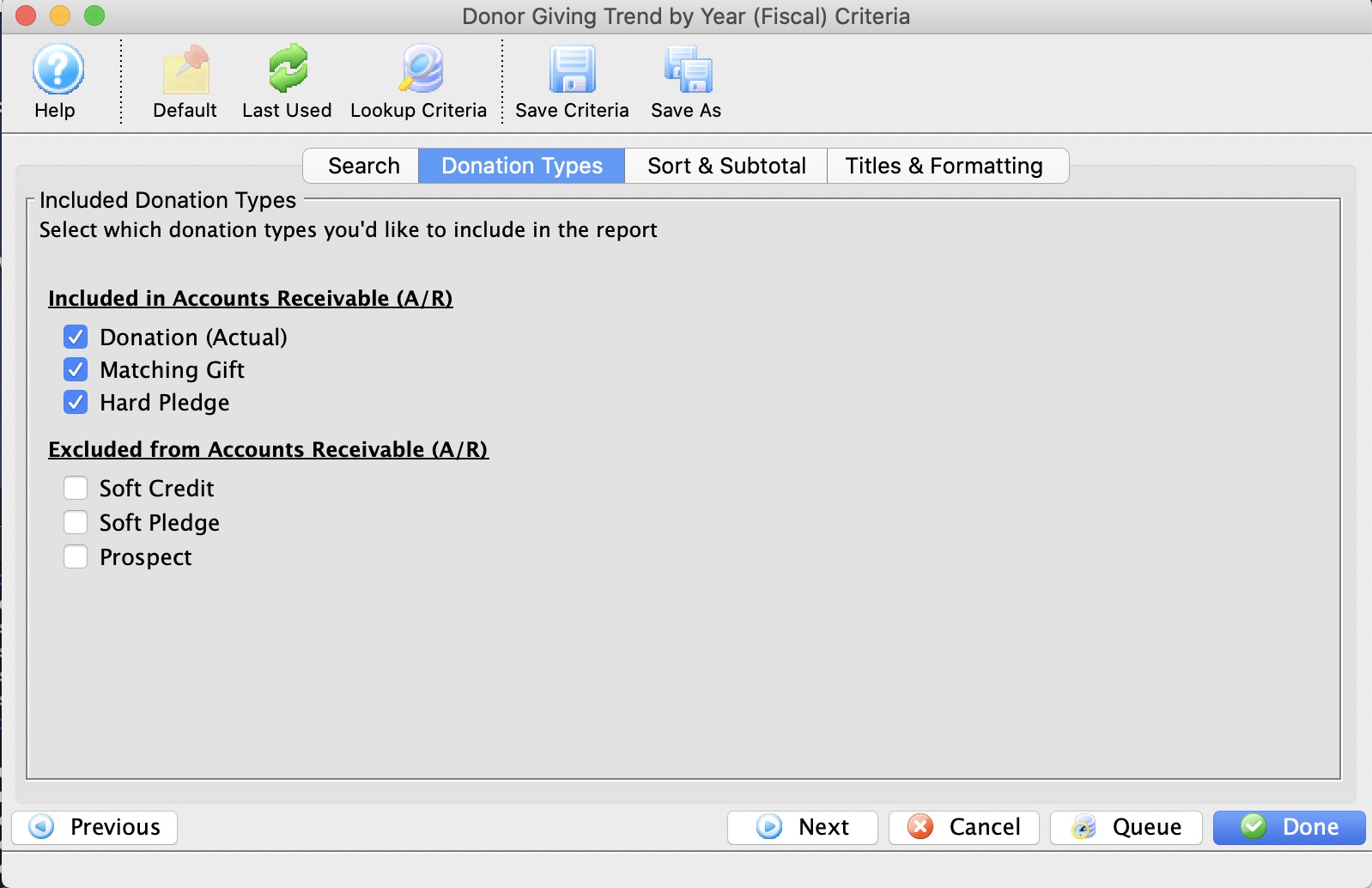
You can include or exclude the various donation types such as:
- Real monetary donations
- donations marked as 'gift'
- those marked as 'hard pledge'
- Matching Gifts that are associated with either of the above donation types
- Not yet realized donations
- soft pledge - those marked as potential donations
- prospects - also marked as potential donations in their own category
- soft credits - which given as a 'match' against real donations in the style of 'give or get'. usually applied to solicitors or board member campaigns.
Purpose of the Report
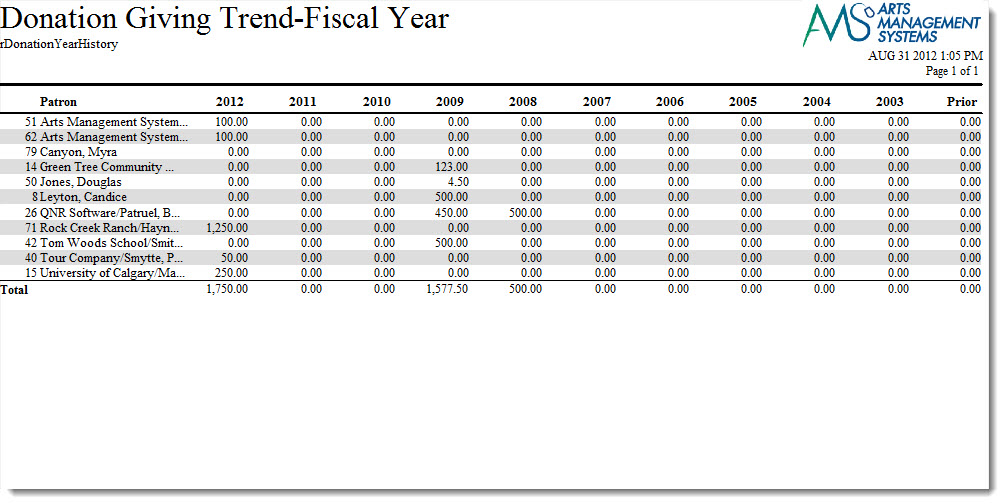
You use the Donor Giving Trend by Year (Fiscal) to print an annual fiscal year donation total across the page for each patron. This indicates the giving trends for a donor.
Departments Who Benefit From This Report
| Development | Use this report to look for trends in donor giving each fiscal year and assist with projecting future donations. |
| General Manager | Use this report to look for trends in donor giving each fiscal year and assist with projecting future donations. |
Criteria Hints
It is recommended that this report be run without criteria or using a group of patrons for larger databases as the criteria.
| Parameter Field | Condition | Value |
| Patron Name-Last | between | (Last Name) and (Last Name) |
Donor Giving Trend by Year (Program)
Donor Giving Trend by Year (Program)
- Patron,
- Household,
- Campaign, or
- combinations of the above.

- Click here for information on generating a report.
- Click here for information on the Finished Report window.
Fields to include on the report
You can include or exclude the various donation types such as:
- Real monetary donations
- donations marked as 'gift'
- those marked as 'hard pledge'
- Matching Gifts that are associated with either of the above donation types
- Not yet realized donations
- soft pledge - those marked as potential donations
- prospects - also marked as potential donations in their own category
- soft credits - which given as a 'match' against real donations in the style of 'give or get'. usually applied to solicitors or board member campaigns.
Purpose of the Report
You use the Donor Giving Trend by Year (Program) to print an annual program Donation total across thepage for each patron. This indicates the giving trends for a donor.
Departments Who Benefit From This Report
| Development | Use this report to look for trends in donor giving each program year and assist with projecting future donations. |
| General Manager | Use this report to look for trends in donor giving each program year and assist with projecting future donations. |
Criteria Hints
It is recommended that this report be run without criteria or using a group of patrons for larger databases as the criteria.
| Parameter Field | Condition | Value |
| Patron Name-Last | between | (Last Name) and (Last Name) |
Donor History - Combined Giving Listing
Donor History - Combined Giving Listing
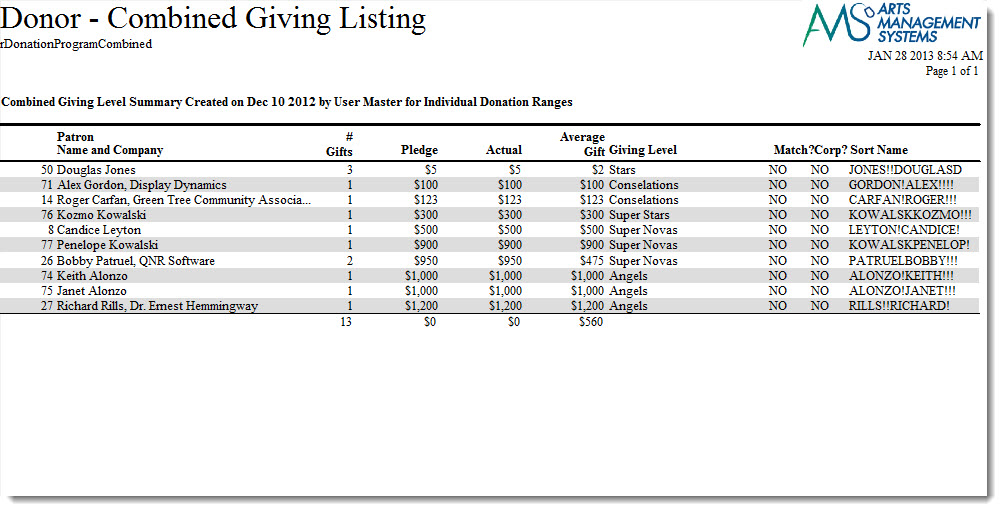
The Donor History - Combined Giving Listing can be found under the Donation Reports & Receipts category. Below the image are detailed notes to help you in using the report.
Click here for information on generating a report. Click here for information on the Finished Report window.
Purpose of the Report
You use the Donor History - Combined Giving Listing to pint a list of receipts and the Donor who recieved them.
Purpose of the Report
You use the Donor Detail - Year (Program) to print the number of gifts and pledges, the actual amount, the average gift and the giving level for the selected range of donors.
Departments Who Benefit From This Report
| Development | Use this report to create a program insert of patrons by giving level. |
| Marketing | Use this report to create a program insert of patrons by giving level. |
Criteria Hints
It is recommended that this report be run for the program year as the criteria.
| Parameter Field | Condition | Value |
| Donation Year - Program | = | (Program Year) |
Donor Program Insert - Giving Level
Donor Program Insert - Giving Level
The Donor Program Insert - Giving Level can be found under the Donation Reports & Receipts category. The criteria panels for this report contain additional options. Below the image are notes to help you in using the report.
|
Make sure to set summarization options in the Insert Summary tab to aggregate all donations by donor, household etc. before creating the PlayBill |

|
|
Once this report is printed to screen, its is helpful to Copy/Paste it to MS-Word (or similar tool). Then all you need do is reformat the pasted text in the way you like your playbill to look by:
|
|
|
Program Insert reports are always printed in this following order:
|
|

- Click here for information on generating a report.
- Click here for information on the Finished Report window.
Purpose of the Report
You use the Donor Program Insert - Giving Level to view donor summary was previously created by previously running either one of the program listing by giving level reports. It prints by corporate/individual flag and giving level.
Purpose of the Report
You use the Donor Detail - Year (Program) to print the donations in order of fiscal year. A complete summary is printed, even notes and comments.
Departments Who Benefit From This Report
| Development | Use this report to create a program insert of patrons by giving level. |
| Marketing | Use this report to create a program insert of patrons by giving level. |
Criteria Hints
It is recommended that this report be run for the program year as the criteria.
| Parameter Field | Condition | Value |
| Donation Year - Program | = | (Program Year) |
Donor Program Insert - Giving Level with $$$
Donor Program Insert - Giving Level with $$$
|
Make sure to set summarization options in the Insert Summary tab to aggregate all donations by donor, household etv before creating the PlayBill |
|
|
Once this report is printed to screen, its is helpful to Copy/Paste it to MS-Word (or similar tool). Then all you need do is reformat the pasted text in the way you like your playbill to look by:
|
|
|
When copying this report to word, you may wish to avoid selecting the column with the donation totals - it is for referenced only. |

Click here for information on generating a report.
Purpose of the Report
This report creates a listing of patrons in each giving level of a matrix that can be used as a front of house program insert. It also includes the dollar totals for the patron.
Departments Who Benefit From This Report
| Development | Use this report to look for trends in donor giving each fiscal year and assist with projecting future donations. |
| General Manager | Use this report to look for trends in donor giving each fiscal year and assist with projecting future donations. |
| Marketing | Used to prepare the Playbill insert for Donor recognition. |
Criteria Hints
It is recommended that this report be run without criteria or using a specific campaign or date range.
| Parameter Field | Condition | Value |
| Campaign # | is one of | Choose your Campaign |
| Donation Date | is between | Choose your Dates |
Donor Summary - Campaign & Giving Level (Program)
Donor Summary - Campaign & Giving Level (Program)
The Donor Summary - Campaign & Giving Level (Program) can be found under the Donation Reports & Receipts category. Below the image are detailed notes to help you in using the report.

Click here for information on generating a report. Click here for information on the Finished Report window.
Purpose of the Report
You use the Donor Summary - Campaign & Giving Level (Program) to summarize the total donations amd print totals by program year, campaign and giving level..
Departments Who Benefit From This Report
| Development | Use this report to evaluate the donation campaigns over the course of a number of program years. |
Criteria Hints
It is recommended that this report be run either without criteria or for a specific campaign as the criteria.
| Parameter Field | Condition | Value |
| Campaign Seq # | is one of | (Campaign) |
Use the SHIFT key to select a series of campaigns, or the OPTION key (Mac) or CTRL key (Windows) to select multiple individual campaigns.
Donor Summary - Campaign & Year (Fiscal)
Donor Summary - Campaign & Year (Fiscal)
The Donor Summary - Campaign & Year (Fiscal) can be found under the Donation Reports & Receipts category. Below the image are detailed notes to help you in using the report.

Click here for information on generating a report. Click here for information on the Finished Report window.
Purpose of the Report
You use the Donor Summary - Campaign & Year (Fiscal) to print a list of receipts and the Donor who received them.
Purpose of the Report
This report creates a summary of each campaign by fiscal year.
Departments Who Benefit From This Report
| Development | Use this report to evaluate donation campaigns over the course of a number of fiscal years. |
Criteria Hints
It is recommended that this report be run either without criteria or for a specific campaign as the criteria.
| Parameter Field | Condition | Value |
| Campaign Seq # | is one of | (Campaign) |
Use the SHIFT key to select a series of campaigns, or the OPTION key (Mac) or CTRL key (Windows) to select multiple individual campaigns.
Donor Summary - Campaign & Year (Program)
Donor Summary - Campaign & Year (Program)
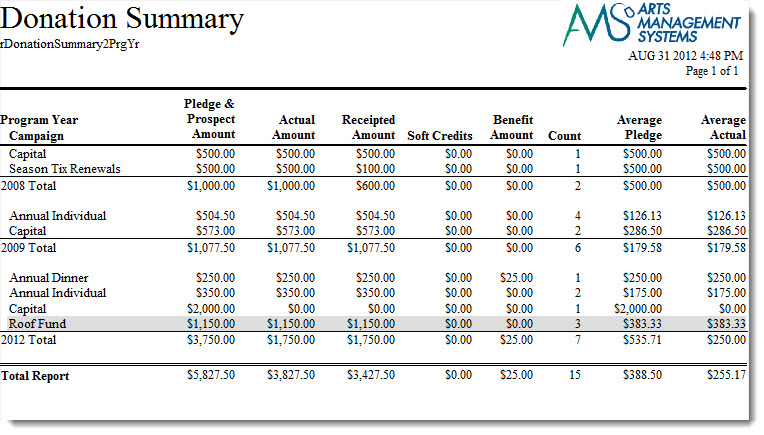
The Donor Summary - Campaign & Year (Program) can be found under the Donation Reports & Receipts category. Below the image are detailed notes to help you in using the report.
Click here for information on generating a report. Click here for information on the Finished Report window.
Purpose of the Report
You use the Donor Summary - Campaign & Year (Program) to summarize the total donations and print the totals by program year and donation campaign.
Departments Who Benefit From This Report
| Development | Use this report to evaluate donation campaigns over the course of a number of program years. |
Criteria Hints
It is recommended that this report be run for the program year as the criteria.
| Parameter Field | Condition | Value |
| Campaign Seq # | is one of | (Campaign) |
Use the SHIFT key to select a series of campaigns, or the OPTION key (Mac) or CTRL key (Windows) to select multiple individual campaigns.
Donor Summary - Donor (Fiscal)
Donor Summary - Donor (Fiscal)
The Donor Summary - Donor (Fiscal) can be found under the Donation Reports & Receipts category. Below the image are detailed notes to help you in using the report.

Click here for information on generating a report. Click here for information on the Finished Report window.
Purpose of the Report
You use the Donor Summary - Donor (Fiscal) to print a list of receipts and the Donor who received them.
Purpose of the Report
This report creates a listing of each patron's donor history by fiscal year.
Departments Who Benefit From This Report
| Development | Use this report to look at patron's donation history by fiscal year. |
| General Manager | Use this report to look at patron's donation history by fiscal year and ticket buying. |
Criteria Hints
It is recommended that this report be run either without criteria or for a group of patrons for larger databases as the criteria.
| Parameter Field | Condition | Value |
| Patron Name-Last | between | (Last Name) and (Last Name) |
Donor Summary - Donor (Program)
Donor Summary - Donor (Program)
The Donor Summary - Donor (Program) can be found under the Donation Reports & Receipts category. Below the image are detailed notes to help you in using the report.

Click here for information on generating a report. Click here for information on the Finished Report window.
Purpose of the Report
You use the Donor Summary - Donor (Program) to print a quick synpsis of the Donations for each patron who has given. Phone numbers and addresses are printed, making this useful for telemarketing.
Purpose of the Report
This report creates a listing of each patron's donor history by fiscal year.
Departments Who Benefit From This Report
| Development | Use this report to look at patron's donation history by fiscal year. |
| General Manager | Use this report to look at patron's donation history by fiscal year and ticket buying. |
Criteria Hints
It is recommended that this report be run either without criteria or for a group of patrons for larger databases as the criteria.
| Parameter Field | Condition | Value |
| Patron Name-Last | between | (Last Name) and (Last Name) |
Donor Summary - Giving Level & Year (Fiscal)
Donor Summary - Giving Level & Year (Fiscal)
The Donor Summary - Giving Level & Year (Fiscal) can be found under the Donation Reports & Receipts category. Below the image are detailed notes to help you in using the report.

Click here for information on generating a report. Click here for information on the Finished Report window.
Purpose of the Report
You use the Donor Summary - Giving Level & Year (Fiscal) to summarize the total donations and print the totals by fiscal year and giving level.
Departments Who Benefit From This Report
| Development | Use this report to see a summary of giving levels for each program year of a campaign. |
Criteria Hints
It is recommended that this report be run either without criteria or for specific campaign as the criteria.
| Parameter Field | Condition | Value |
| Campaign Seq # | is one of | (Campaign) |
Use the SHIFT key to select a series of campaigns, or the OPTION key (Mac) or CTRL key (Windows) to select multiple individual campaigns.
Donor Summary - Giving Level & Year (Program)
Donor Summary - Giving Level & Year (Program)
The Donor Summary - Giving Level & Year (Program) can be found under the Donation Reports & Receipts category. Below the image are detailed notes to help you in using the report.

Click here for information on generating a report. Click here for information on the Finished Report window.
Purpose of the Report
You use the Donor Summary - Giving Level & Year (Program) to summarize the total donations and print the totals by program year and giving level.
Departments Who Benefit From This Report
| Development | Use this report to see a summary of giving levels for each program year of a campaign. |
Criteria Hints
It is recommended that this report be run either without criteria or for specific campaign as the criteria.
| Parameter Field | Condition | Value |
| Campaign Seq # | is one of | (Campaign) |
Use the SHIFT key to select a series of campaigns, or the OPTION key (Mac) or CTRL key (Windows) to select multiple individual campaigns.
Donor Summary
Donor Summary
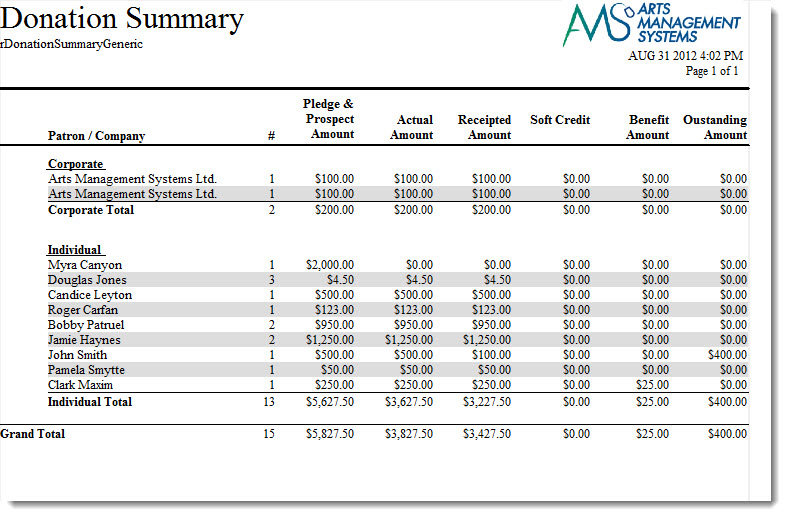
The Donor Summary can be found under the Donation Reports & Receipts category. Below the image are detailed notes to help you in using the report.
Click here for information on generating a report. Click here for information on the Finished Report window.
Purpose of the Report
You use the Donor Summary to print a quick synopsis of the donations for each Patron who has given.
Purpose of the Report
You use the Donor Detail - Year (Program) to print the donations in order of fiscal year. A complete summary is printed, even notes and comments.
Departments Who Benefit From This Report
| Development | Use this report as a quick listing of all patrons that have given to your organization. |
Criteria Hints
It is recommended that this report be run with the fiscal year as the criteria.
| Parameter Field | Condition | Value |
| Donation Year - Fiscal | = | (Fiscal Year) |
Donor with Balance Due
Donor with Balance Due
The Donor with Balance Due can be found under the Donation Reports & Receipts category. Below the image are detailed notes to help you in using the report.

Click here for information on generating a report. Click here for information on the Finished Report window.
Purpose of the Report
You use the Donor with Balance Due to print a list of Patrons with a donation summary that have an outstanding balance due. This is used to manage all donation receiveables, including incomplete pledges (whether on schedule or not).
Departments Who Benefit From This Report
| Development | Use this report to check on donations that have not been paid yet. |
Criteria Hints
It is recommended that this report be run either without criteria.
Donors Behind in Their Pledge Payments
Donors Behind in Their Pledge Payments
The Donor Behind in Their Pledge Payments report can be found under the Donation Reports & Receipts category. Below the image are detailed notes to help you in using the report.

- Click here for information on generating a report.
- Click here for information on the Finished Report window.
Purpose of the Report
You use Donor Behind in Their Pledge Payments to print a list of people who have committed to donated using the typical pledge process; where:
- You have Created a Pledge Schedule for the patron containing correspondence to be sent to them
- You print and send the outstanding reminder letters (emails are sent automatically) indicating that their pledge payment is due.
- The donor may (or may not) pay on the appropriate pledge due date. When they pay on their pledge balance:
- the balance on the donation is reduced, which may result in a remaining balance, if not fully paid
- the tax receipt can now be printed for the above payment, unless you are intending on doing one for end of year and indicated the appropriate receipt option when creating the donation.
- This report will show people who are behind in the pledge payments. This is people who have not yet paid based on outstanding reminders
|
This report is NOT intended for patrons who:
|
Departments Who Benefit From This Report
| Development | Prints a listing of patrons behind in their donation payments and how far behind they are. |
Criteria Hints
It is recommended that this report be run using:
| Parameter Field | Condition | Value |
| Donation Year | = | Desired Year |
| Donation Date | is | Date Entered |
| Campaign # | is one of | desired campaign |
Giving Level Matrix
Giving Level Matrix
The Giving Level Matrix can be found under the Donation Reports & Receipts category. Below the image are detailed notes to help you in using the report.

Click here for information on generating a report. Click here for information on the Finished Report window.
Purpose of the Report
You use the Giving Level Matrix to print giving level matricies.
Departments Who Benefit From This Report
| Development | Use this report to verify that all Giving Level matrices have been created properly. |
Criteria Hints
It is recommended that this report be run either without criteria or for a specific Giving Level matrix.
| Parameter Field | Condition | Value |
| Giving Level Matrix | is one of | (Giving Level Matrix) |
Use the SHIFT key to select a series of campaigns, or the OPTION key (Mac) or CTRL key (Windows) to select multiple individual campaigns.
Reports - Donor Detail - Campaign & Year (Program)
Reports - Donor Detail - Campaign & Year (Program)
Donor Detail - Campaign & Year (Program)
The Donor Detail - Campaign & Year (Program) can be found under the Donation Reports & Receipts category. Below the image are detailed notes in regards to uses for the report.

Click here for information on generating a report. Click here for information on the Finished Report window.
Purpose of the Report
This report creates a detailed listing of all patrons and credits given to a campaign by program year.
Departments Who Benefit From This Report
Development |
Use this report for a detailed listing of pledges to a campaign and patrons who gave. The patron's contact information and next contact date are also included. |
Criteria Hints
It is recommended that this report be run using a single campaign and year as the criteria.
Parameter Field |
Condition |
Value |
Campaign Seq # |
is one of |
(Campaign) |
Donation Year - Program |
= |
(Program Year) |
Solicitor Summary
Solicitor Summary
The Solicitor Summary can be found under the Donation Reports & Receipts category. Below the image are detailed notes to help you in using the report.

Click here for information on generating a report. Click here for information on the Finished Report window.
Purpose of the Report
You use the Solicitor Summary to print a list of receipts and the Donor who received them.
Purpose of the Report
This report creates a summary of each solicitor's pledges and donations that have been received.
Departments Who Benefit From This Report
| Development | Use this report to see how much money has been received for pledges and donations from each solicitor. |
| General Manager | Use this report to see how much money has been received for pledges and donations from each solicitor. |
Criteria Hints
It is recommended that this report be run either without criteria or for a specific solicitor.
| Parameter Field | Condition | Value |
| Employee # | is one of | (Employee) |
Use the SHIFT key to select a series of campaigns, or the OPTION key (Mac) or CTRL key (Windows) to select multiple individual campaigns.