
Main menu
You are here
Creating a Notification

|
You must have purchased the Web Sales Module to use Work Flow Notifications. |

Using Work Flow Notifications, you cab take common situations, such as donations being sold or changed, or patrons creating records via the internet, and send notification emails to certain employees who will be responsible for tracking changes to the database.
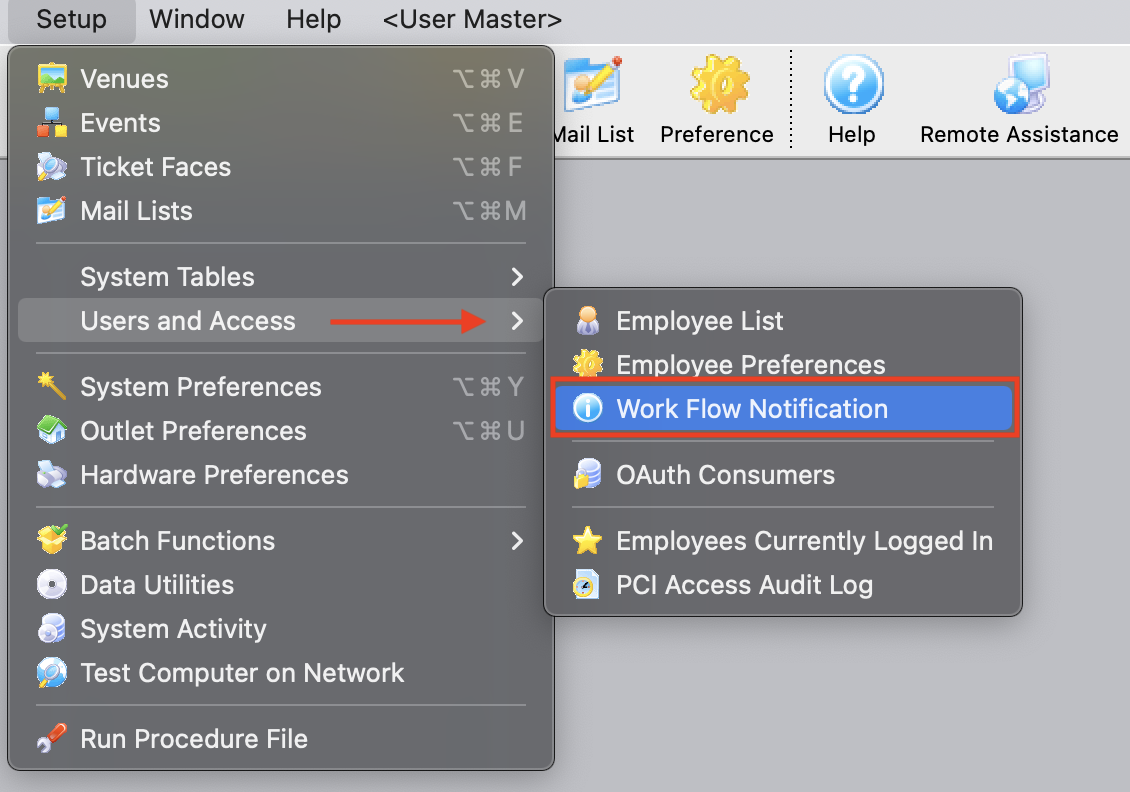
To create a new workflow notification, you perform the following steps:- Open the Work Flow Notification by choosing Setup >> Users and Access >> Work Flow Notification.
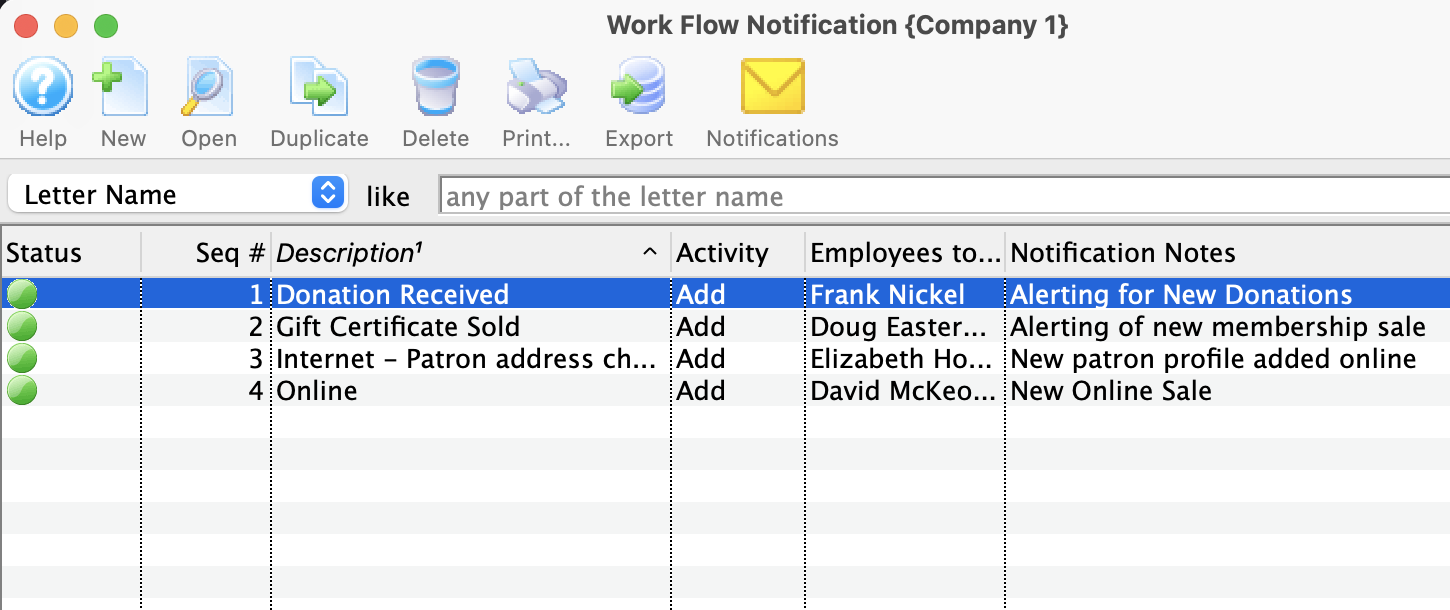
The Workflow notification list window opens.
- Click the New

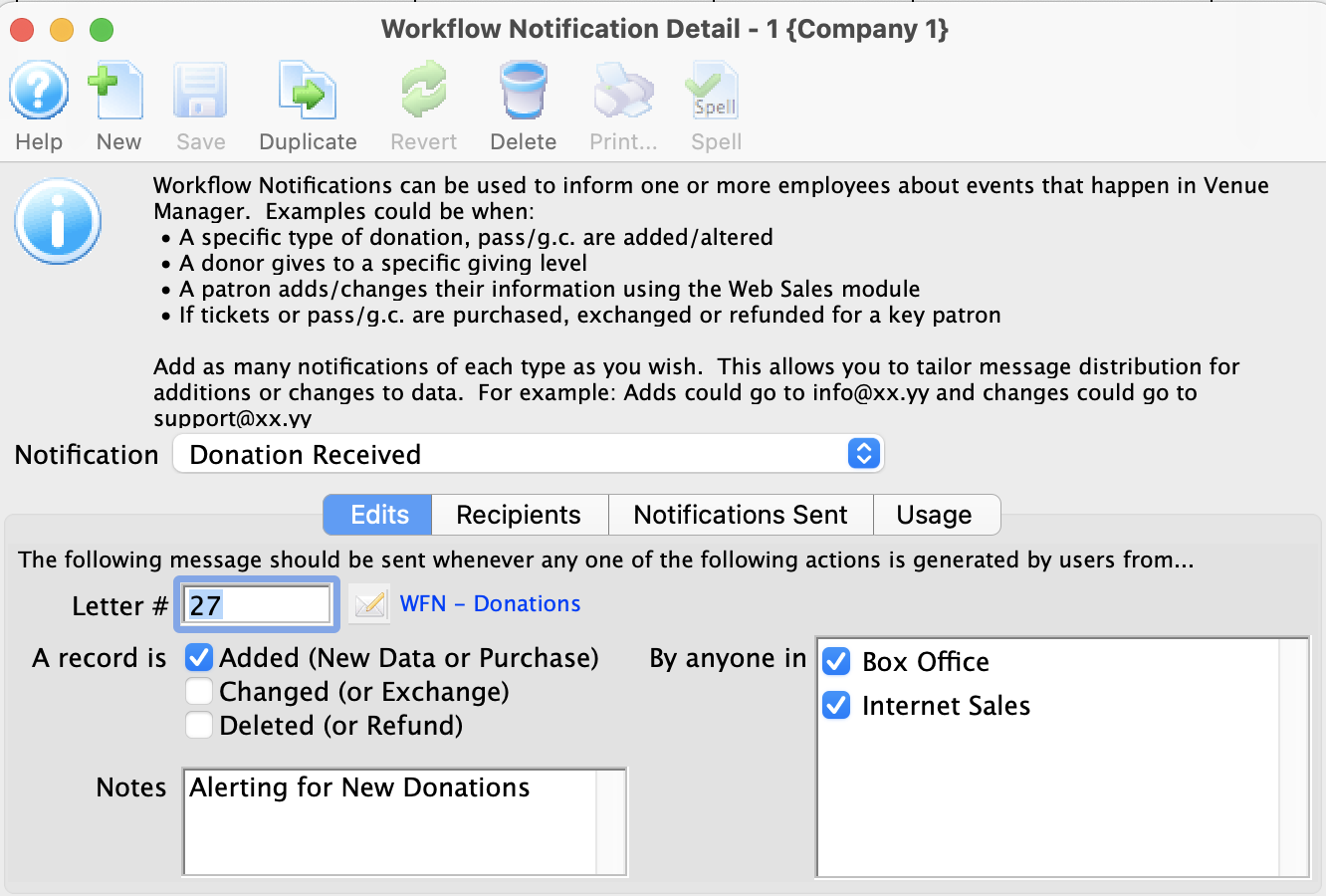
- Select the Notification Type from the drop down list.
These Notifications are defined in the system table Workflow Notifications. Click here for more information on adding new notification types in code tables. They must exist first before you can use it here.
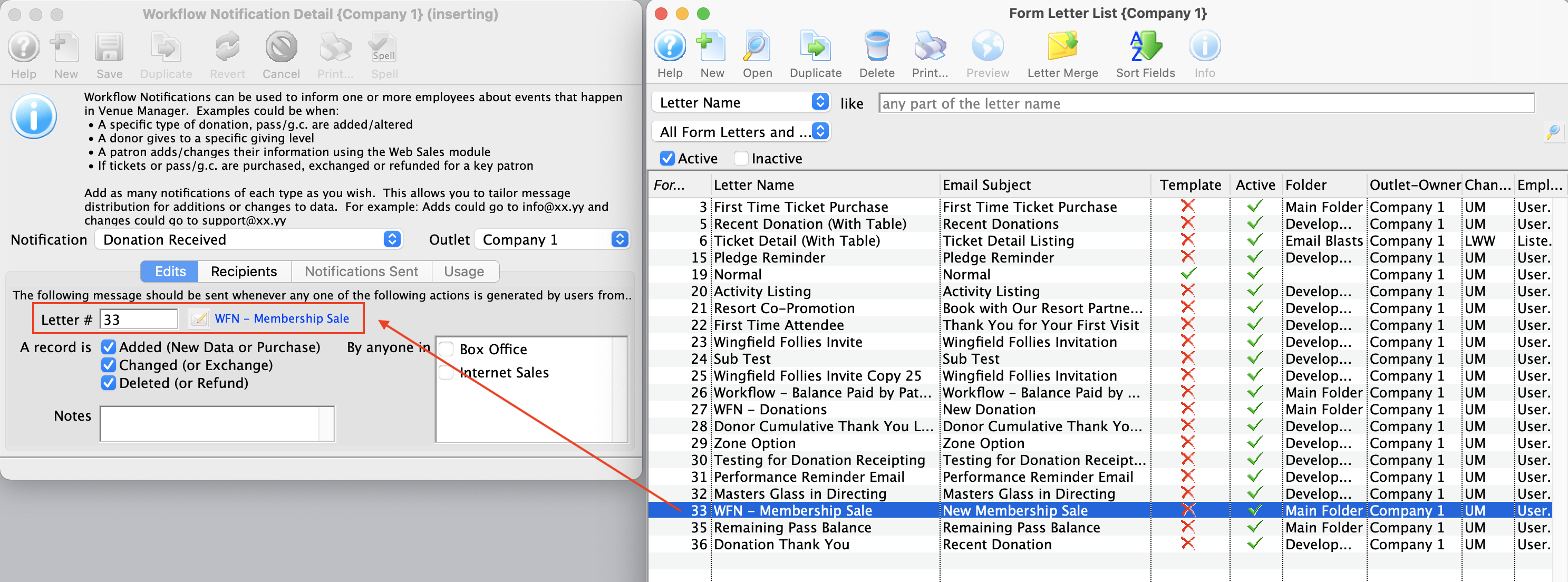
- Select an Form Letter to use for this notification by clicking the Letter Search button
For more information about Form Letters, click here.
- Select the Form Letter that corresponds to the notification that you are setting up.
- Click the Select
 button.
The Letter/email is now attached to the Notification.
- Enable the appropriate check boxes so the notification is sent when the event is added, changed or deleted.
These options allow you to set up and send emails to different employees for different situations. For example, not all employees will need to be notified if a donation is changed, but more will be on the list for donations being added.
- Enter notes to describe what this notification is used for.
- Choose if the notification will be sent for Box Office, Internet Sales, or both.
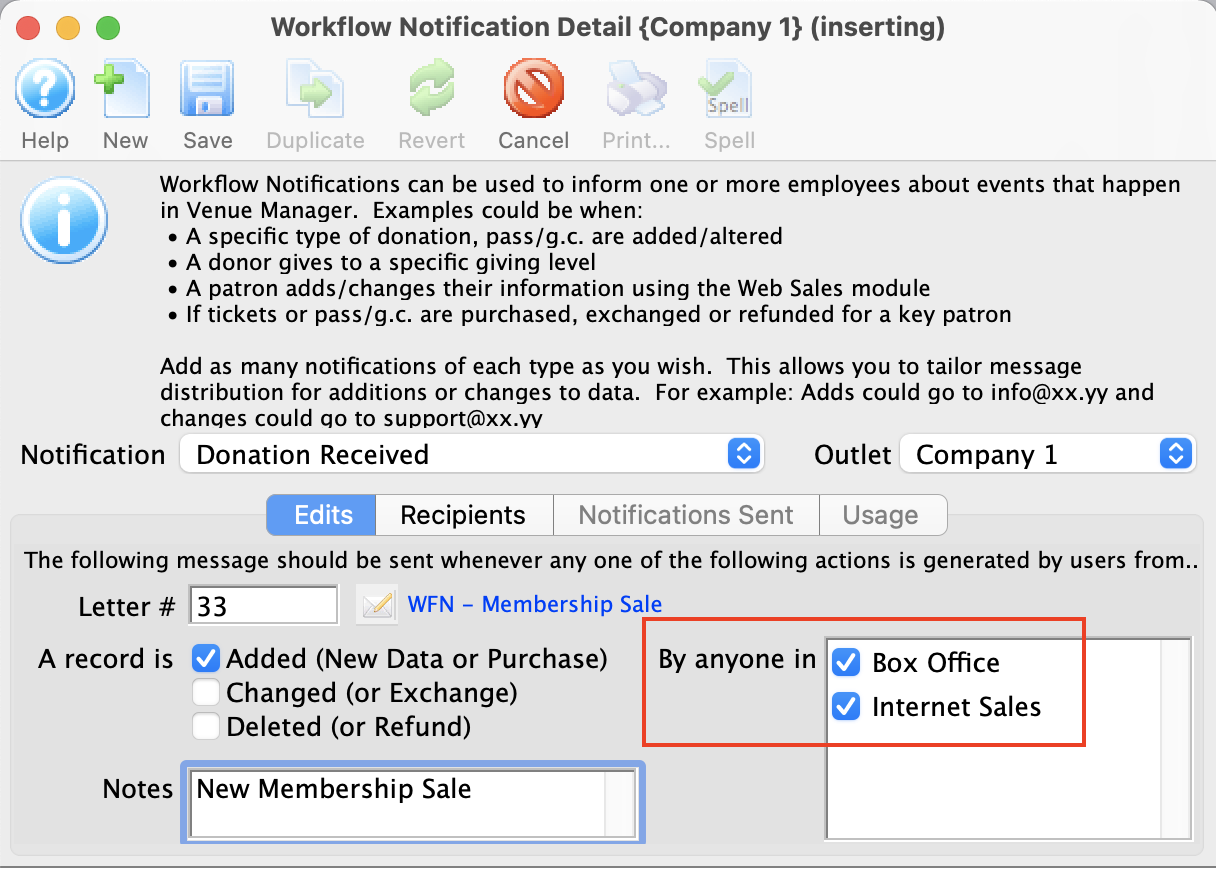
- Click the Recipients tab
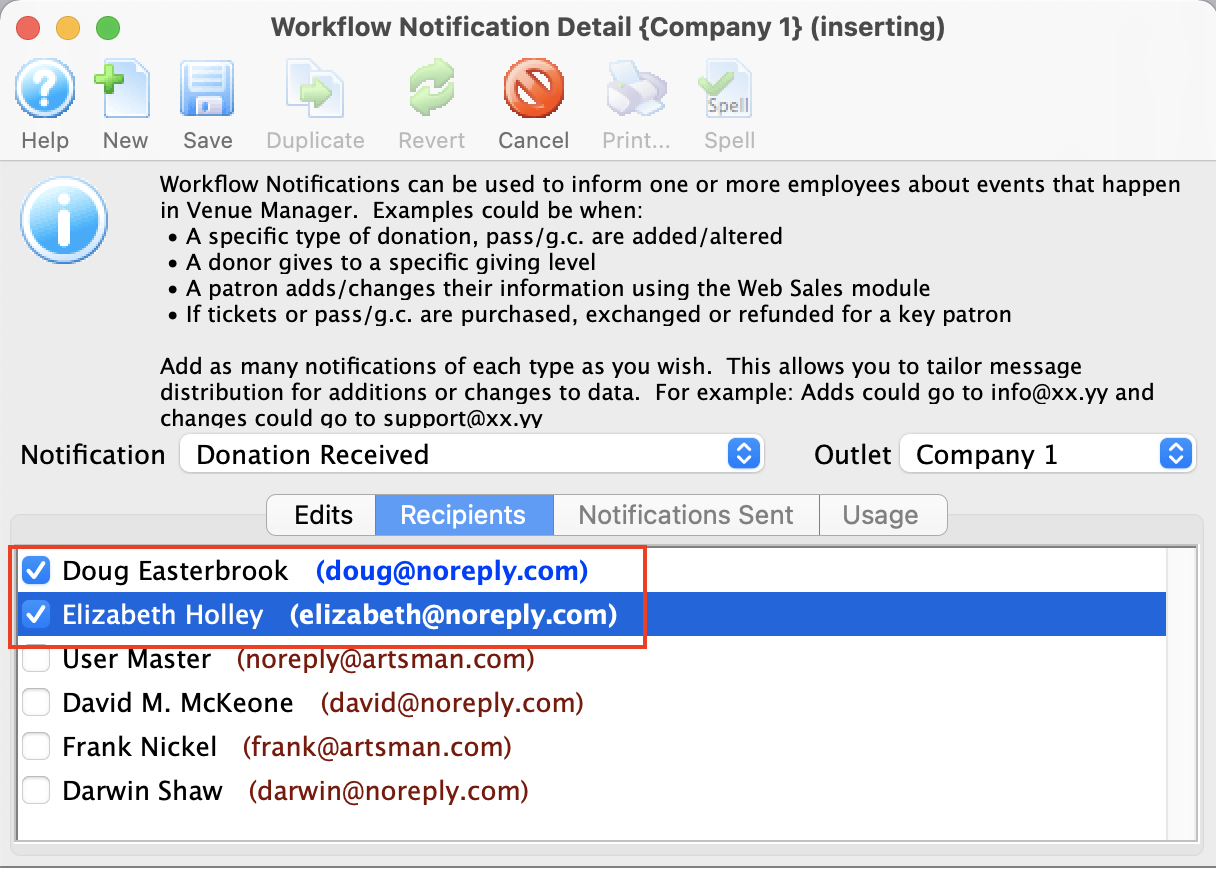
- Choose the employees to receive this notification.
If an employee does not have an email address, you will need to enter one for them to be added to a notification. Click here for Employee Setup.
- Click the Save
 button.
You should now check your notifications are being sent.
To test the notification, set a ticket sale notification to be triggered only at the Box Office. Then sell the ticket/membership in the Box Office, and lastly check your inbox. The notification should be sent by the system within 30 seconds.
If the notification is for online sales only, you have one more step to check. Web transactions will trigger the notification as soon as the online sale or donation has finished the checkout.
|
If the notification is not in the INBOX -- check your junk mail box. |
