
Main menu
You are here
Creating the Graphic for the Map - Step 1

Click here, for quick reference information for Venues and Maps
Theatre map graphics or pictures are not required if the venue is used for festival (General Admission) or Traveling Troupe ticket sales. If the intention is to sell reserved seats visually, a graphic representation of the theatre will need to be drawn in a graphic application and then placed into Theatre Manager. At this time, Arts Management recommends using a PowerPoint slide to draw the graphic image as it allows for small file size, and images can be saved in the correct format for both PC and Mac use.
|
If you intend to use the Select Your own Seats Online feature, your map will also need to be converted into an SVG file. You will need to have a PowerPoint or .emf file to start with, then convert it to SVG using OpenOffice |

Optimizing Graphic Map Size
|
Use vector based graphics (lines, squares, circles, letters, colour, etc) on your maps and do not use picture/image files (jpegs, tiffs, bitmaps, etc) or high bit depth (shadings and transparency) in order to minimize the size of the final graphic. Think simple - the graphic map that sits behind the seat squares does not need to be an elaborate representation of the venue. The purpose is to allow Box Office staff and online patrons to easily visualize the sections/zones within the venue. |

You can do a fantastic map with lines circles and colour using vector graphics and the file size will be 50K +/-. Adding a picture can jump the size to a megabyte without trying. Smaller file sizes result in faster performance transferring the maps from the database and building the suggested seat graphics for the web. Theatre Manager limits the graphic map file size to less than 500kb for PC's, less than 200kb for Mac's. Less is more.
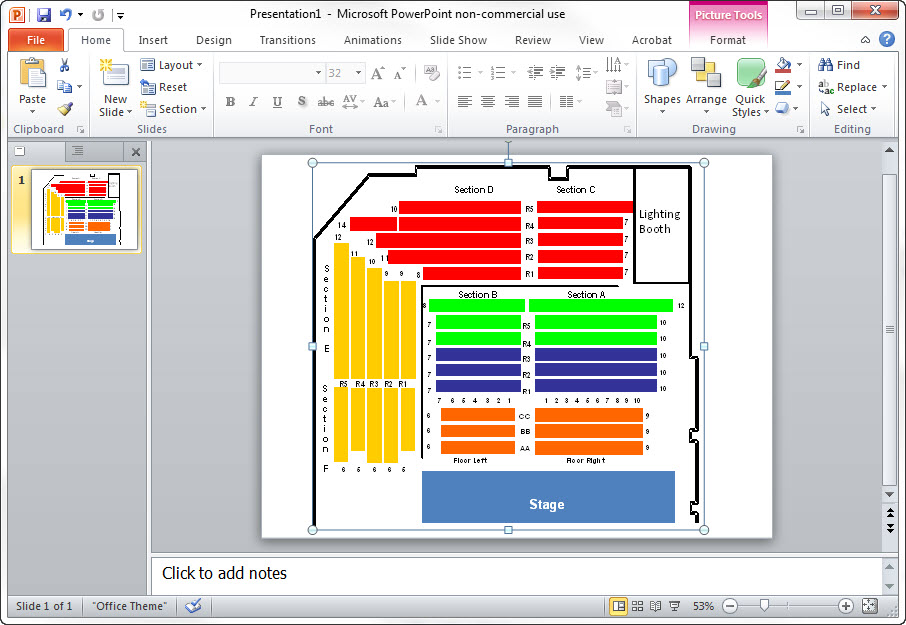
Once you have created the graphic in PowerPoint, you can save it - as well as the SVG map - directly within the pricing map setup in Theatre Manager.