Downloading an Installer
Downloading an Installer
 |
When downloading any update for Theatre Manager, please make sure your personal firewall is turned on per PCI requirement 1.4 |
 |
We recommend updating to the latest 64 bit MacOS or Windows 10 version available for security patches (since it is free). |
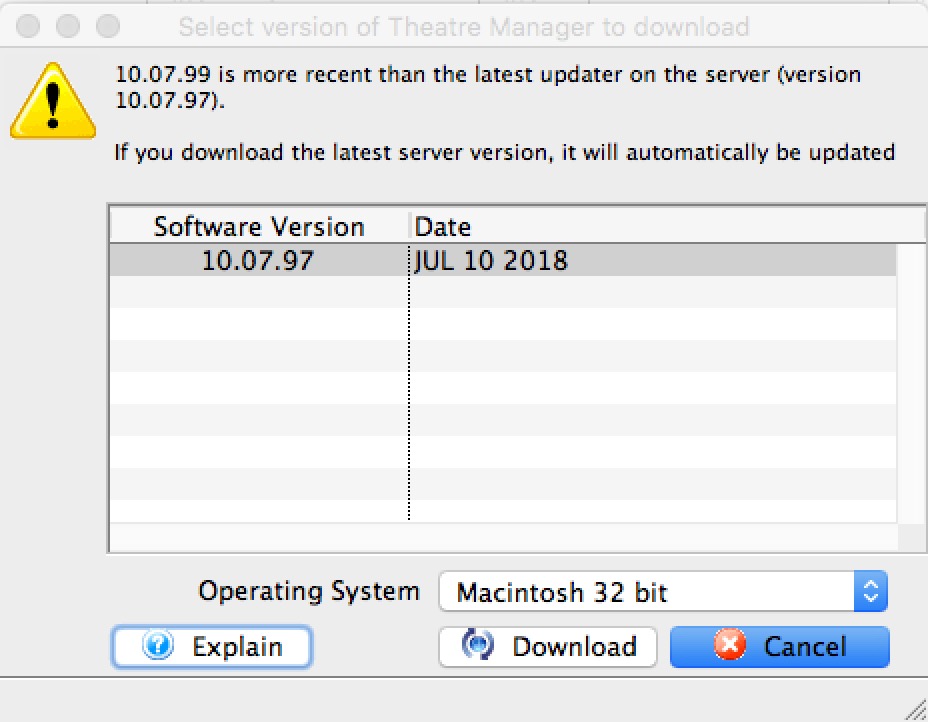 The correct procedure for downloading any update or checking to see is one is available is to:
- Go to the Help menu in Theatre Manager
- Pick the Check for update menu option
- Theatre Manager defaults to download the current version for the operating system you are using. If you have multiple platforms within your organization, select the appropriate one from popup to get an updater for an alternate platform prior to beginning the upgrade process.. Valid platforms are:
- Macintosh
- use for Monterey or later
- Theatre Manager may work on earlier versions of OSX but this is not guaranteed. OSX updates are free and Apple generally supports these updates on older machines for at least 10 years.
- Windows (64 bit only)
- Windows 10.
- Windows 8.1 Note: The upgrade to Windows 10 is free.
- Theatre Manager may still work on Windows 7.
- Macintosh
- Once you decide to download an updater, it will download in your browser and be placed in your download folder. From there, you can run the installer.
Running Theatre Manager Installer
Running Theatre Manager Installer
Walk-Around Install: a required update to Theatre Manager
This step is only necessary if you have a version of Theatre Manager that has NEWER components than any version in use (eg an update to the word processor). These updates are:
- downloaded in the background and
- require the reinstallation of Theatre Manager at the workstation.
|
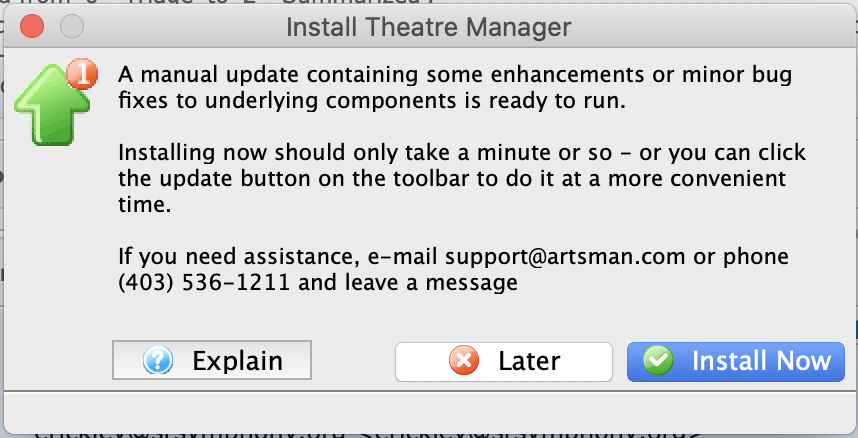 If you are asked to get an install the update before you log in, then simply click the Install Now button. If you click the later button, you will see an Update TM icon on the toolbar after logging in - so you can update at your leisure. |
|
When doing a manual upgrade from an older to a newer version of Theatre Manager, it might be easier to:
|
Downloading and Installing
| For Windows computers | For OSX computers |
|
|
After running the Theatre Manager Installer:
- Start Theatre Manager
- After logging in on you workstation, repeat at other workstations requiring the update
Theatre Manager incompatibility with the Database Schema Version
Theatre Manager incompatibility with the Database Schema Version
 You may receive a message similar to the one on the right that indicates:
- the database version is older than the application
- the database must be updated before you can continue
When you see this message, you will need to check that the TM Server has finished the auto-update process. Basically, it means you got a newer version of Theatre Manager before the TM Server was finished adding some new database fields to the database.
Updating the database may involve one of the following:
- Making sure that the TM Server is set to auto update
- Opening the TM server to start an update
- Restarting the TM Server if it happens to be stuck in the middle of the auto update
- or calling Arts Management if none of the above work
|
If you receive this message for a training database, it probably means that your have no TM server setup for your training database.
You may wish to put a TM server on a spare workstation to keep a training database up to date. |
Installing Theatre Manager on a New Workstation and serializing
Installing Theatre Manager on a New Workstation and serializing
Download and install Theatre Manager
Follow the appropriate instructions below
- If you already are using Theatre Manager at your venue on any machine:
- Get the appropriate version using Theatre Manager 'check for updates' feature
- OR if you are installing TM for the very first time:
Starting Theatre Manager on a New Workstation
- Start the Theatre Manager application
- If you are presented with the "Theatre Manager Demo Login Window, click "Change Data File" in the lower left hand corner of the Login Window
- Enter in the IP address of your server and hit tab
- Select the database name from the popup
- Click Connect