Create Social Distance Maps
Create Social Distance Maps
- Ticket sales. There are two ways to do this in theatre manager:
 Using automatic holds - where if a patron buys at the boxoffice or online, a 'cocoon' of seats will be placed around the purchase automatically. Next best seats will show that cocoon moving with the patron's seat choice'.
This method automatically adjusts the holds depending on what the patron buys - and is the recommended approach - but it requires a bit more venue setup to make it automatic.
A very important feature of the automatic method is that you can use reporting capacity for the price map to limit the total overall seats sold for a performance to meet governmental limits - the reporting capacity can be set to ignore social distance holds. This makes it very easy to limit sales to a specific number when sold online. (Box office is allowed to ignore limits if need be)
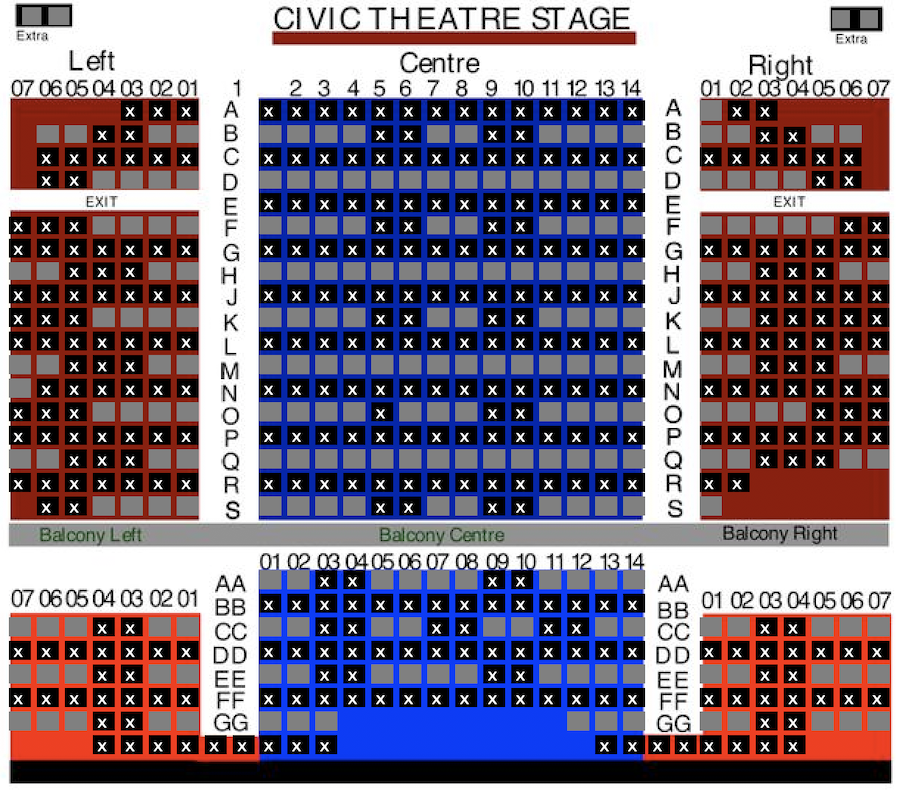 Using manual holds - where you pre-specify the holds in the venue and all other seats are held manually.
This also requires setup, and does not guarantee that people will have a safety barrier if the box office releases some seats inadvertently. It can be set up more quickly - and might be used as a stop gap until you build an automatic social distance map.
- On the night of the performance, entering into the venue in a managed way by calling people in by Zone Number that you set up in the pricing map
 |
You can use the zone number entry process for reserved seating whether you are using social distancing sales process or not. |
Social Distance Maps using Automatic Holds
Social Distance Maps using Automatic Holds
|
Automatic social distance holds has been a feature of Theatre Manager for quite a while - primarily for use for dinner theatres and ADA seating. You may even be using this feature on some of your maps. |
|
NOTE: If you have permanent house helds (eg for light board), DO NOT set social distance seats for permanent holds. Instead, set the rest of your social distance seating as if those seats never existed. If you want to make permanent holds look like they are blocked online, set the hold letter to 'q'. |
In the context of social distance sales and COVID19, you can create an empty seat barrier around each seat. If you do:
- when seats are bought online and/or sold at the box office or over the phone,
- theatre manager will put a social distance ring of held seats around the seats that were sold.
Implementing Automatic Social Distance Sales
The following is a recommended process for doing social distance seating:
- Select and edit a venue you want to implement social distancing for
- Select the pricing map that you currently use and right-Click to duplicate it
- After duplicating the pricing map:
- edit the pricing map and:
- Change the internal name of the map to indicate it is for social distancing. eg you might change it from
My Main Venue to something indicator to the patrons like My Main Venue with automatic social distance
- Alter any price codes if you want to offer fewer
- Change the internal name of the map to indicate it is for social distancing. eg you might change it from
- Click on the Graphic Map tab and
- On the description tab, a very important feature of the automatic method is to set the reporting capacity. It should be set to limit the total overall seats sold for a performance to meet governmental limits while ignore social distance holds.
For example: this lets you set an absolute limit of 100 sold seats in a venue, regardless of how many social distance seats are required to make that happen.
- edit the pricing map and:
- Edit your ticket face and add the zone number to the ticket face in some prominent way
- Find the events in the future and change the pricing map to the new one you just edited
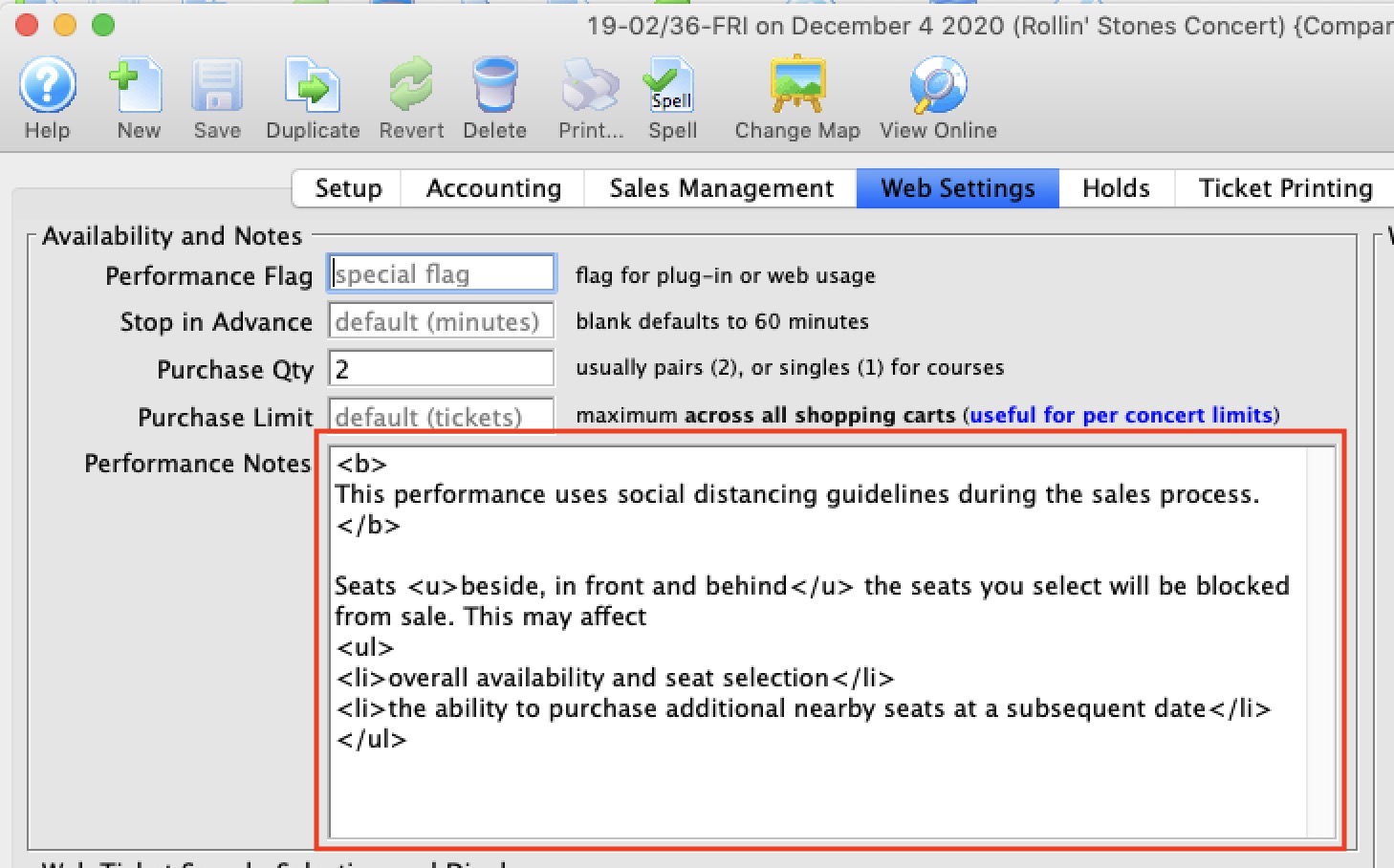
- Add some performance notes similar per the image below to give the patrons some assurance, or customize your ticket event list to indicate that the performance is sold with social distance in mind.
What does the Social Distance Map look like online?
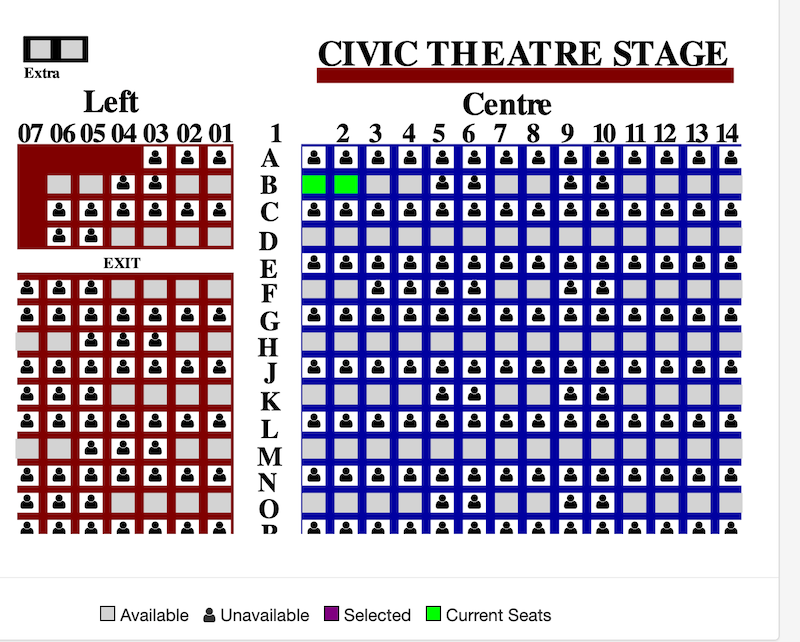
There are two icons, one for each of
- sold seats (or manual holds by box office) - the person in the seat
- social distance hold seats - a 'do not use' icon representing the socially held seats which will be shown as a 'q' in the box office.
Social Distancing Maps using Manual Holds
Social Distancing Maps using Manual Holds
|
This technique can be used to reduce venue size down to government mandated levels by adding enough mandatory holds.
We recommend the automated social distancing approach as it handles spacing automatically - but it may not be for every venue. |
|
You might start out with a pattern of seats that create distance .. and as the performance fills in, you can re-adjust the holds based on purchased seats |
Distance between Seats
Some clients may be continuing with events and implementing Social Distancing within the Theatre. One approach to this process is holding seats within the venue to not only limit the number of patrons who can attend but also offer more space between seats for those attending. Local officials will determine the recommended distance between patrons and seats.
Distance between patrons in a performance can be created by holding seats. Depending on where you are in the process the options below outline how to create holds:
- in the setup of a map to ensure the seats are held when building future event
- in the maps tab for a performance for an event
- through the Order window for individual performances
Changing Maps
An organization may decide to create a Social Distancing map. This map would contain held seats to meet the regulations outlined by officials for group gatherings. Upcoming events can be altered to use this map. When capacity regulations are lifted the map can be updates once more to return to the original configuration or holds can be released within the performances themselves. The process for implementing a Social Distancing map would be:
- duplicate the existing map
- hold seats on the map
- change the map on an existing event
- update the holds for the performance to use the default holds for the new map
Some organizations may choose to move from Reserved Seating to General Admission / Festival Seating to allow patrons the option to create distance between themselves and others attending a performance. Click the Changing a Performance from Reserved to General Admission Seating link for details steps.
Updating Web Pages
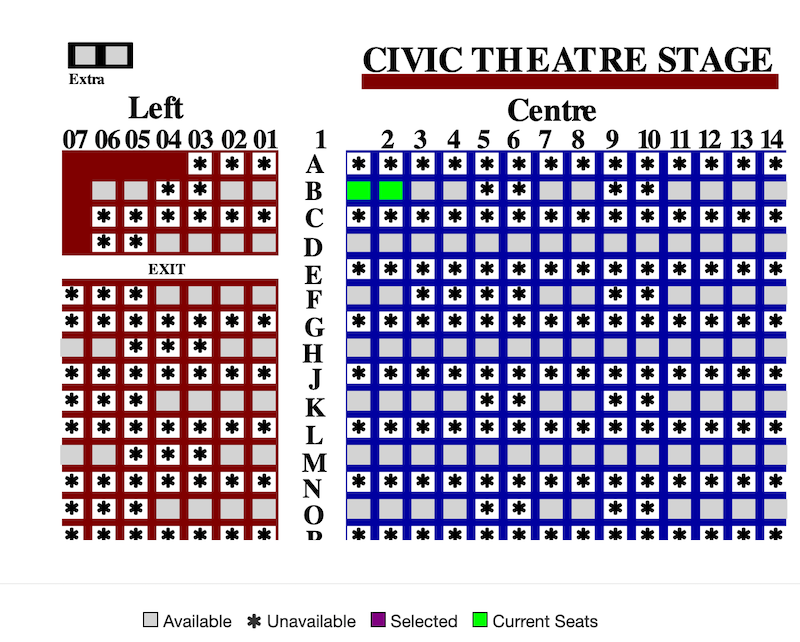
By default Theatre Manager displays unavailable seats on the map using a Font Awesome icon that appears in the shape of a person. This icon is used for both sold and held seats. The default icon works well under traditional circumstances where we are holding seats to manage how the house fills, to block off sections or to be booked at a later date using complimentary tickets. However, when implementing social distancing the icon may create the illusion of sitting next to another person when in fact the seats will remain empty. For this reason we recommend editing the web pages and changing the icon for seats that are currently unavailable.
The web pages to edit may not currently be customized for your organization. If this is the case you'll need to download the most recent default pages and copy the pages into the WebPagesEN/tmMaps folder on your Primary Web Listener computer. Once the pages are in place you can then make changes to the content. The pages and edits are outlined below:
- WebPagesXX/tmMaps/tmChangePerformanceMap.html
- Change unavailable_text= - on Line 3
- Change unavailable_text= - on Line 4
- WebPagesXX/tmMaps/tmPickYourSeatMapDisplay.html
- Change unavailable_text= - on Line 42
- Change fa-user - on Line 56
The icon currently displayed on the page can be updated to any of the available options on the Font Awesome website. In this example the default icon is replaced with an asterisk. The values for an asterisk are  and fa-asterisk. Once replaced, Clear Web Cache in one of two ways:
- Clear Web Cache button in System Preferences on the Director tab -or-
- go to each of the web listeners, start the Director and clear the cache on the 'status' page
If your organization has implemented steps for Social Distancing not listed above we would love to hear about them. Please contact the support team and let us know what you are doing to help limit risk.