Donation Module Features
Theatre Manager can be used to enter and manage donations for your:
- Annual Fund
- Capital Campaign
- Recurring donations
- Donations on a payment plan, or
- Simple Ticket Round-up donation online
- Campaigns with progress bars and suggested donations online
- Special fundraising events, silent and live auctions including raffles, cash advances and checkouts
- Aggregating donations for recognition across campaigns
- Gifts in kind, matching gifts, soft credits
- and almost any scenario
 |
For more information on the features of the donation module, you may wish to refer to a number of cheatsheet and videos or the sample data entry scenarios. |
Features Overview
|
For more information on the features of the donation module, you may wish to refer to a number of cheatsheet and videos or the sample data entry scenarios. |
The Development/ Fundraising/ Donation module of Theatre Manager has long been a major portion of the system with a long list of extensive features such as:
- Prospect tracking, including all correspondence and meetings as part of the CRM
- Pledge Schedules & Sending of Payment Reminders (as letters or Emails).
- To-Do's and Contact Notes specific to each donation.
- Allowing multiple Soft Credits per donation.
- Matching Gifts & automatic setup of Matching Gift receivables.
- Modification of the Donation Receipt fields.
- Program Years versus Fiscal Year versus Calendar Year.
- Choice of allowing each donation receipt preference.
- Automatic maintaining of Financial Year for past, current, and future years.
- Maintaining Solicitors, and if they received a commission for getting the donation.
- Allowing Program Giving Levels to be calculated on donations, soft credits, and/or matching gifts or a combination of them all.
- Customized donation specific Marketing Fields.
- Defaults and customization of Program Names.
- Printing of tax receipts based on 7 different printing options.
- Maintains the next contact date for this patron so the patron can become an annual donor.
- Easy creation of Recurring Donations for a donors either in the box office or via online web sales.
- Easy setting of Relationships between the donors, ticket buyers, and volunteers.
- Easy maintenance of who your Matching Gift companies are.
- Specific donor contact marketing flags.
- At a glance overview of donors giving history for the past 8 years, averages, maximums and minimums.
- History tracking of each pledge letter, donation thank you, contact note, and donation tax receipt sent to this patron.
- Direct access to DonorSearch Analytics to immediately access the important and critical information on your existing and potential donors.
- Vast security access and options available that can be defined for each employee determining what they can and cannot do.
Plus the numerous donation detail, summary, giving trends, giving level, reports geared towards telemarketers, board members, development staff, and management.
Sample Donation Scenarios and how to enter them
|
For more information on the features of the donation module, you may wish to refer to a number of cheatsheet and videos. |
What are some sample Donation Scenarios?
| Single donation PAID at time of entry with one payment |
A single donation is one that is entered, paid for and receipted at one time. You would:
|
| Single donation with PAID with multiple post dated payments |
A single donation is one that is entered, with a payment plan for and receipted later. You would:
|
| Single donation where patron PLEDGED to send checks in later on |
A single donation is one that is entered but there is no payment plan. The customer would be sending the checks later in response to as reminder to pay an instalment. You would:
|
| Recurring Donation that repeats forever |
A donation that repeats forever needs to be entered once and then set up to recur. The next donation is automatically generated on the appropriate date. Any existing donation can be turned into recurring. The suggested steps are:
|
| Donation with a non receiptable benefit amount |
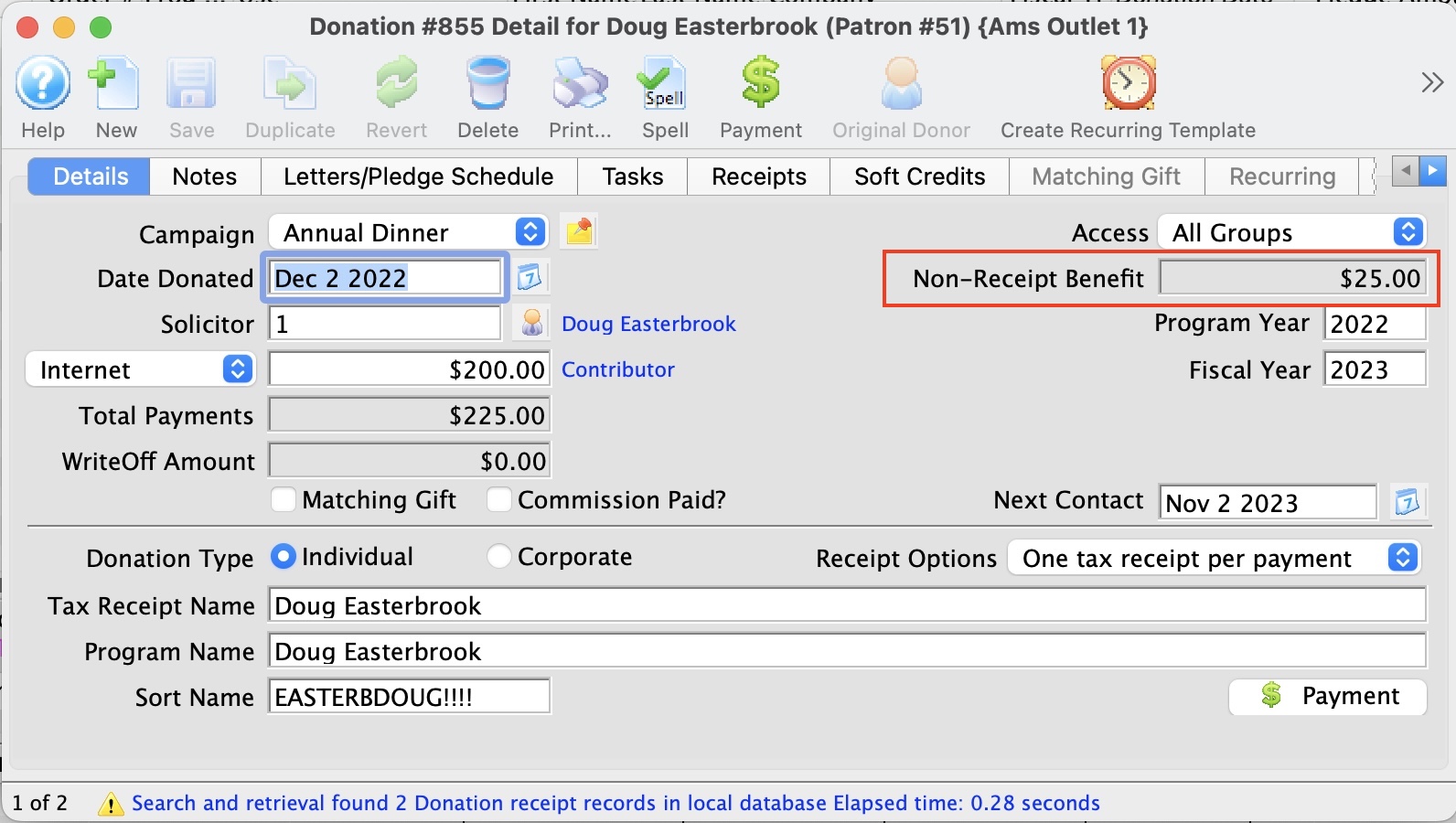 A donation with a benefit amount is entered and paid for like any other donation. The only difference is that the campaign allocated to the donation
Donations with a benefit will show that on the tax receipts for IRS or CRA purposes, while allowing the donation to be recognized within the venue at full value. The tax receipt will effectively indicate: Thanks for your donation of $xxx.xx of which $y.yy is a non receipt-able benefit. It is most often used for special events with dinners, or where there are material benefits conferred or costs incurred by the venue as part of receiving the donation. |
| Prospects, Grants and Foundations |
A government grant or foundation gift is the same as a single donation. Simply enter it. You may want to do the following:
|
| Restricted Donations, Capital Campaigns and Gaming Revenue |
Generally, restricted donations are those that can only be used for a specific purpose or are required to be put into a separate bank account (or tracked appropriately in the GL).
In some locations, funds MUST be placed into a separate account (eg gaming revenue). These are handled as follows
|
| Gifts to multiple campaigns |
Some donations are split amongst two or more campaigns. To do this:
|
| Gifts to multiple years |
Some donations are pledged and split amongst multiple years for ongoing large donations. Eg, a patron might pledge $3000 a year to the virtuoso fund for a 5 year period. If you want the recognition for the total amount of $15,000 for all 5 years, you would handle this as follows:
|
| Pledges Over Multiple Years |
Scenario: a patron that would like to give a total of $10,000.00
over 5 years ($2,000.00 each year). We don't want to record the $10,000
pledge upfront into our General Ledger, creating a large Accounts Payable entry. However we would like to keep
track of the total amount and the progress of the $10,000.00 as it decreases with future payments. What is the best practice in this scenario?
|
| Buy a Seat |
If you are doing a seat naming campaign, the best way to handle it is:
|
List Window
There are two ways to access the donation list window. The Donation Tab window will let you access other functions of the Donation Module. For instance you can Insert a New Donation from this window or you may access the Donation Detail window from here.
- Open the Patron Record.
For details on locating a Patron Record click here.
- Click the Donation
 tab.
tab.
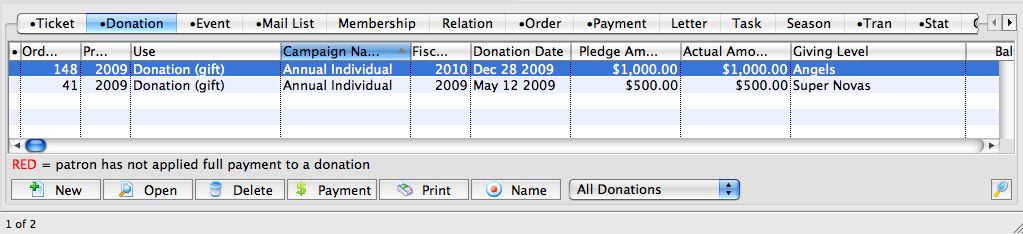
Parts of the Donation Tab
| Order # | Unique number assigned to the order for tracking within Theatre Manager. |
|
Program Year |
The Program Year defines the time frame the donation will be recognized in published material. Use it in reports to print a list of Program Names within the Program Year. |
| Use | The type of donation received. |
| Campaign | Campaign the donation was assigned to. |
| Fiscal Year | The financial year the donation was made within. | Donation Date | Date the donation was recorded in Theatre Manager for. |
| Pledge | The amount the donation was originally entered as. |
| Actual | Amount of money received for the donation. A donation may be made in the form of a Stock and the payment amount may be more of less then the donation amount. For information on Stock gifts click here. |
| Donation Balance | The unpaid difference between the Donation and the Total Payment |
| Donation Amount of Receipt | The amount of the donation that receipts have been issued for. |
 |
Inserts a new donation. For more information on inserting donations click here. |
 |
Opens the selected donation for editing. For more information on editing donations click here. |
 |
Deletes a donation when the tax receipt and prior payments have been removed. For more information on deleting donations click here. |
 |
Opens the donation payment window. For more information on making payments Click here. |
 |
Prints the donation on a ticket if a default ticket face has been associated with the donation. For information on setting up donation campaigns click here. |
Details Window
- When Inserting Donations the Donation Detail Window is accessed through the donation module or the order window.
- To access a Patron's Donation Detail Window after the donation has been inserted, you can open the patron's Donation tab and the previous donation from there. Double click on any donation line and the Donation Detail Window will appear.
To access the Donation Detail window, you perform the following steps:
- Open the Patron Record.
For details on locating a Patron Record click here.
- Click the Donation tab.
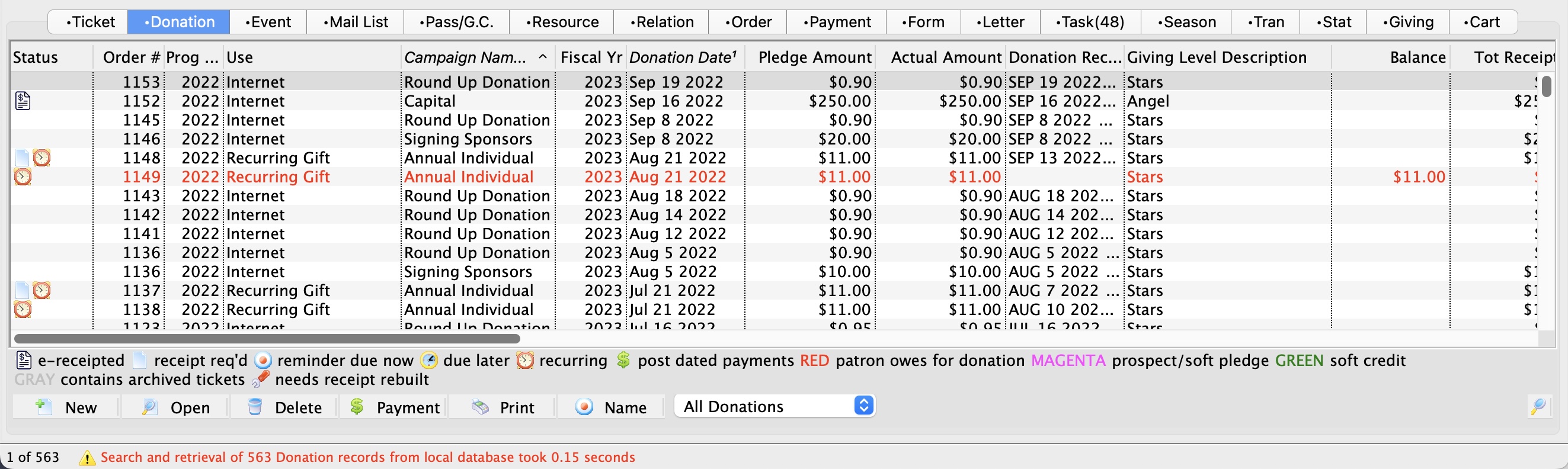
- Click the New button.
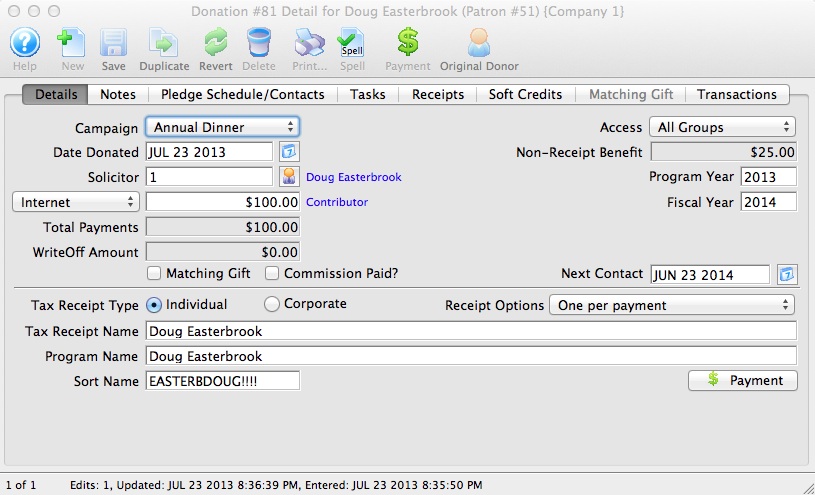
Parts of the Detail Window
 |
Inserts a new donation. For more information on inserting donations click here. |
 |
Saved changes made to the current donation. |
 |
Reverts changes made to the donation back to the last saved point. |
 |
Deletes a donation once the donation receipt and payment have been removed. For more information on deleting donations click here. |
 |
Generates a report displaying the donation details. |
 |
Checks the spelling within the data entry fields. |
 |
Adds a payment to the order. For more information on adding payments click here. |
| Campaign | The drop down list contains the possible donation campaign to give the donation to. |
| Date Donated | Enter the date a donation was made or if the donation differ from the default computer date the date can be back dated into a prior calendar year for tax purposes. |
| Solicitor | Select the person responsible for receiving the donation from the drop down. This person must exist in the Employee table (see Setting up an Employee) |
| Donation (gift) |
There are two parts to the actual donation amount:
This amount is normally set up a receivable in Theatre Manager so that the system knows to expect a payment for this amount. It could be one payment or it could be post dated payments. However, the choice in the popup affects whether the GL is informed about the gift. There are generally 4 choices when entering a new gift:
|
| Total Payment | Amount of money received for the donation. A donation may be made in the form of a Stock and the payment amount may be more of less then the donation amount. For information on Stock gifts click here. | WriteOff Amount | The unpaid difference between the Donation and the Total Payment. |
| Matching Gift | Select the Matching Gift if you wish to link this donation to another patron who will also donate as a result of this patron giving a new donation. Click Here for more information. | Commission | Select Commisssion if the employee responsable for the donation receives a persentage of the sale. |
| Access | You can specify the groups of people who can access this donation if you wish to put some sort of restrictions on the record. |
| Non-Receipt Benefit | The amount deducted from the donation receipt to cover taxable benefits received by making the donation. |
| Next Contact | By default, the Next Contact Date is eleven months from the date of the donation. This date can be changed should you require a different date from the default. Use it in reports to print a list of donors that need contacted at that time to ensure that they give on a regular basis. |
| Fiscal Year |
The Fiscal Year defaults from the
|
| Program Year |
The Program Year generally tracks the fiscal year - meaning it is the same. However, you can make the program year an arbitrary year in the future or in the past -- so that you can track totals differently than fiscal year. Changing program year has no effect on financial data. It can be used as selection criteria for creating the program listing.
The allows your FISCAL YEAR to track IRS and CRA reporting/accounting requirements while program year can track your own reporting requirements It defaults to:
|
| Tax Receipt Name |
This field is used to record the name of the individual
who will receive the tax deductible receipt. Theatre Manager prints
a receipt for tax purposes in the name of the individual recorded
here, which could differ from the individual giving the donation.
Please refer to Tax Receipt Name Considerations when entering this field - there are some legal implications. |
| Program Name | This field is used to record how the patron would like to be recognized on the program. Theatre Manager generates a donor recognition report that ensures your donation list is complete and up-to-date. If the Donor wishes to remain anonymous this field should read "anonymous". Click here for more information on making the donation anonymous. |
| Sort Name | The sort name is suggested by Theatre Manager. It is initially based on the last name or company, depending on how the default donor name is selected and it may be changed. The sort name is used to position the donor's name in the program. For example, if the Program Name is 'Anonymous', the sort name could still be 'Smith'. This would cause the program to creating a listing for 'Anonymous' under S. |
| Receipt Options | Choose how and when receipts should be Printed. The options are described on this web page. |
 |
Click here for details on the Notes tab. |
 |
Click here for details on the Pledge Schedule tab. |
 |
Click here for details on the Receipt tab. |
 |
Click here for details on the Soft Credit tab. |
 |
Click here for details on the Matching Gift tab. |
 |
Click here for details on the Transaction tab. |

Note Tab
The Notes Tab allows you to select specific donors and event / plays and enter Notes about the selected donation.
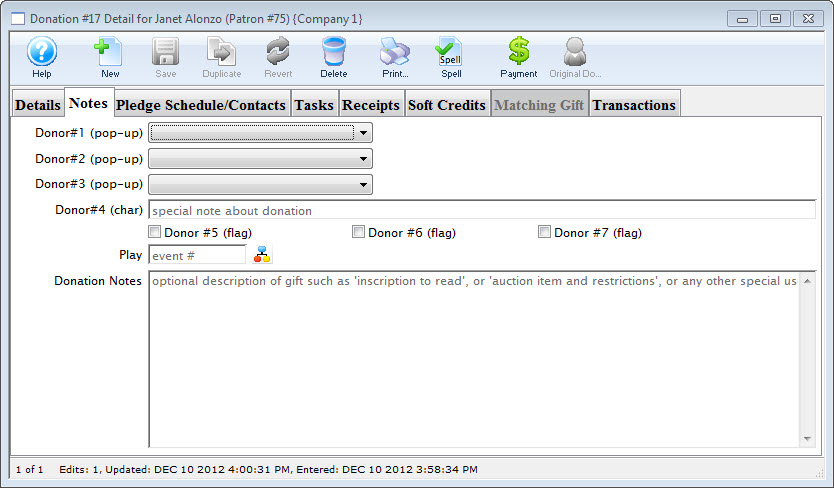
Parts of the Notes Tab
| Donor #1 (pop-up) | A customizable pop-up field edited through the code tables. This pop-up can be made a mandatory field in Company Preferences. |
| Donor #2 (pop-up) | A customizable pop-up field edited through the code tables. This pop-up can be made a mandatory field in Company Preferences. |
| Donor #3 (pop-up) | A customizable pop-up field edited through the code tables. This pop-up can be made a mandatory field in Company Preferences. |
| Donor #4 (char) | A customizable character field. This field can be made a mandatory in Company Preferences. |
| Donor #5 (flag) | A customizable Check Box. |
| Donor #6 (flag) | A customizable Check Box. |
| Donor #7 (flag) | A customizable Check Box. |
| Play | Allows you to attach a play to this donation. Use the Event / Play Lookup  button to choose from a list of events / plays. button to choose from a list of events / plays. |
| Donation Notes | Any addition notes to be added to the donation. If the donation was a matching gift, notes to that effect will be automatically placed here. |
|
If any of the customized fields are made mandatory, you will need to edit the TMdonation.html web page in order to successfully accept donations online. |

Pledge Schedule & Contacts Tab
This tab can be used to add Pledge Schedules and track all donation Contacts.
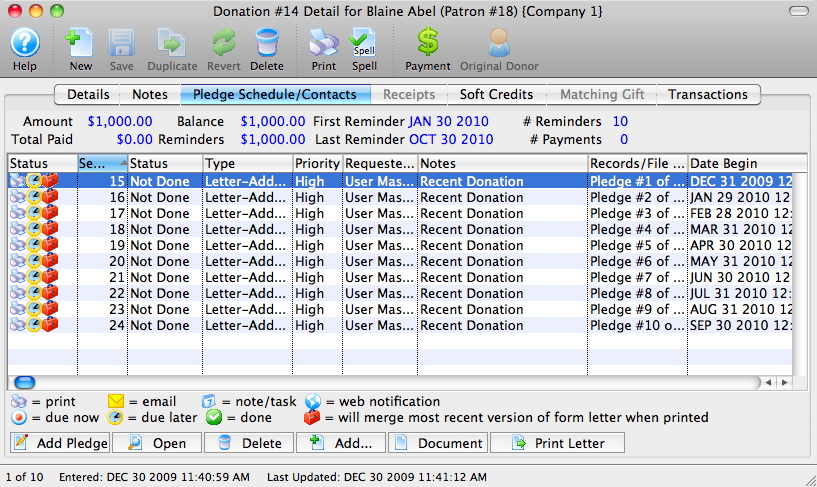
Parts of the Pledge Schedule / Contacts Tab
| Status | Pictorial progress of the letter, pledge or email. |
| Seq # | Sequence number of the letter, pledge or email. |
| Status | Verbal progress of the letter, pledge or email. |
| Type | Type of contact detail. |
| Priority | Rating of priority. |
| Requested By | Employee who added the letter, pledge or email. |
| Notes | Name of the letter or email. |
| Records/File Connected to Correspondence | Details of the attached letter, pledge or email. |
| Date Begin | Date the correspondence is set to begin. |
 |
Adds a scheduled pledge reminded to the donation. For more information on scheduled pledges click here. |
|
Opens the selected letter, pledge or email. |
|
Deletes the selected letter, pledge or email. |
 |
Adds a new letter or email to the donation. |
 |
Opens the document that corresponds to the selected pledge, letter or email. |
 |
Prints the selected letter. |
Tasks Tab
Calendars show tasks to be done in a variety of formats. Gantt charts (part of Projects) show tasks associated with each other and the relationships between the various pieces. Invoices use tasks and the associated people and resources as line items in an invoice to bill clients.
You can associate tasks with any number of people who are responsible for making sure the task gets completed. Tasks can be reminders to yourself about upcoming deadlines. Tasks can be used to schedule your time. Tasks can have physical resources assigned to them that may be billed or not.
Notifications or reminders can be set up for tasks so you don't miss a meeting or appointment.
To learn more about tasks and how to add them click here.
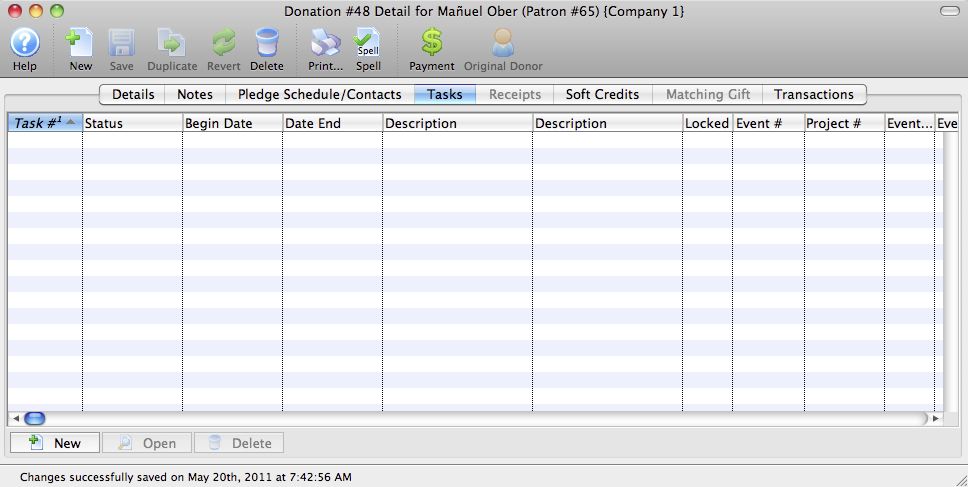
Parts of the Tasks tab
| Task # | The sequence number assigned by the database to the task. |
| Status | The current status of the task (Done, Not Done, In Progress, Cancelled). |
| Begin Date | Date the task is set to begin. |
| Date End | Projected completion date of the task. |
| Description | The description of the task. |
| Event Title | The title of the event / play associated with the task (if any). |
| Event Code | The event / play code associated with the task (if any). |
| Perf # | The Performance number associated with the task (if any). |
| Date | The date of the event associated with the task (if any). |
| Time | The time of the performance associated with the task (if any). |
Receipt Tab
|
Please refer to receipt options to see how your choices of when and how receipts should be printed for the donation by Theatre Manager. |
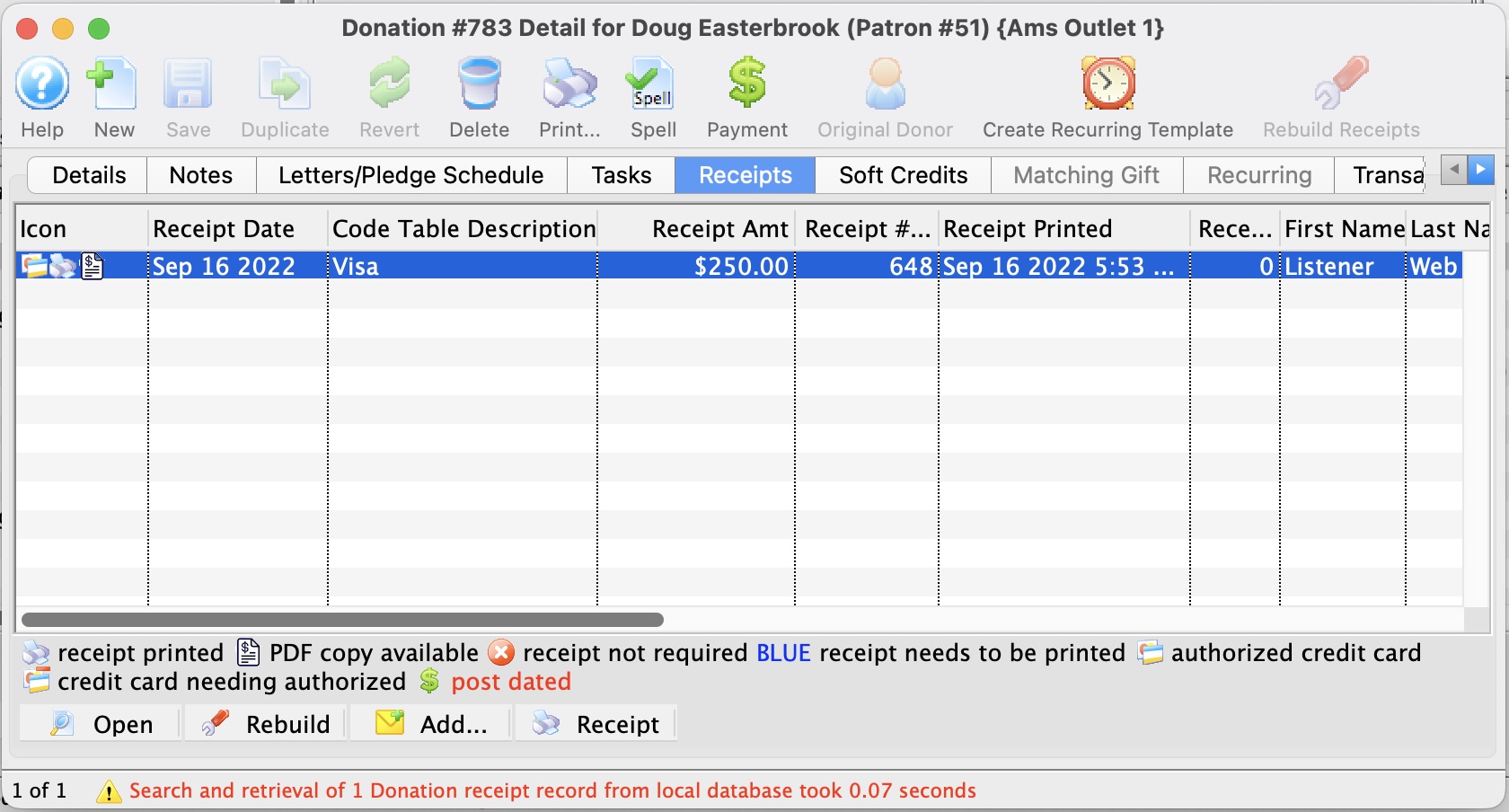
Parts of the Receipt Tab
| Receipt Date | The Date the Receipt was created i.e. The day the payment was received. |
| Description | Method of payment received. |
| Receipt Amount | Amount the receipt was issued for. |
| Receipt # | The number of the receipt. This number is setup in Company Preferences under the Donation Receipts tab. |
| Receipt Printed Date | Date the receipt was printed. |
| Receipt Print Count | Number of times the receipt has been printed. |
|
Opens the Edit Manual Receipt detail window. |
|
Deletes the selected receipt. If after the receipt is deleted the total donation is greater than the receipted amount Theatre Manager will rebuild the order and recreate the receipts. |
|
Adds a form letter to the selected payment. |
 |
Prints a ticket receipt for the selected payment. |
Soft Credit Tab
A Soft Credit is used to attach a patron other then the donor to the donation. The purpose is to recognize a patron for the value of the contributions they helped raise.
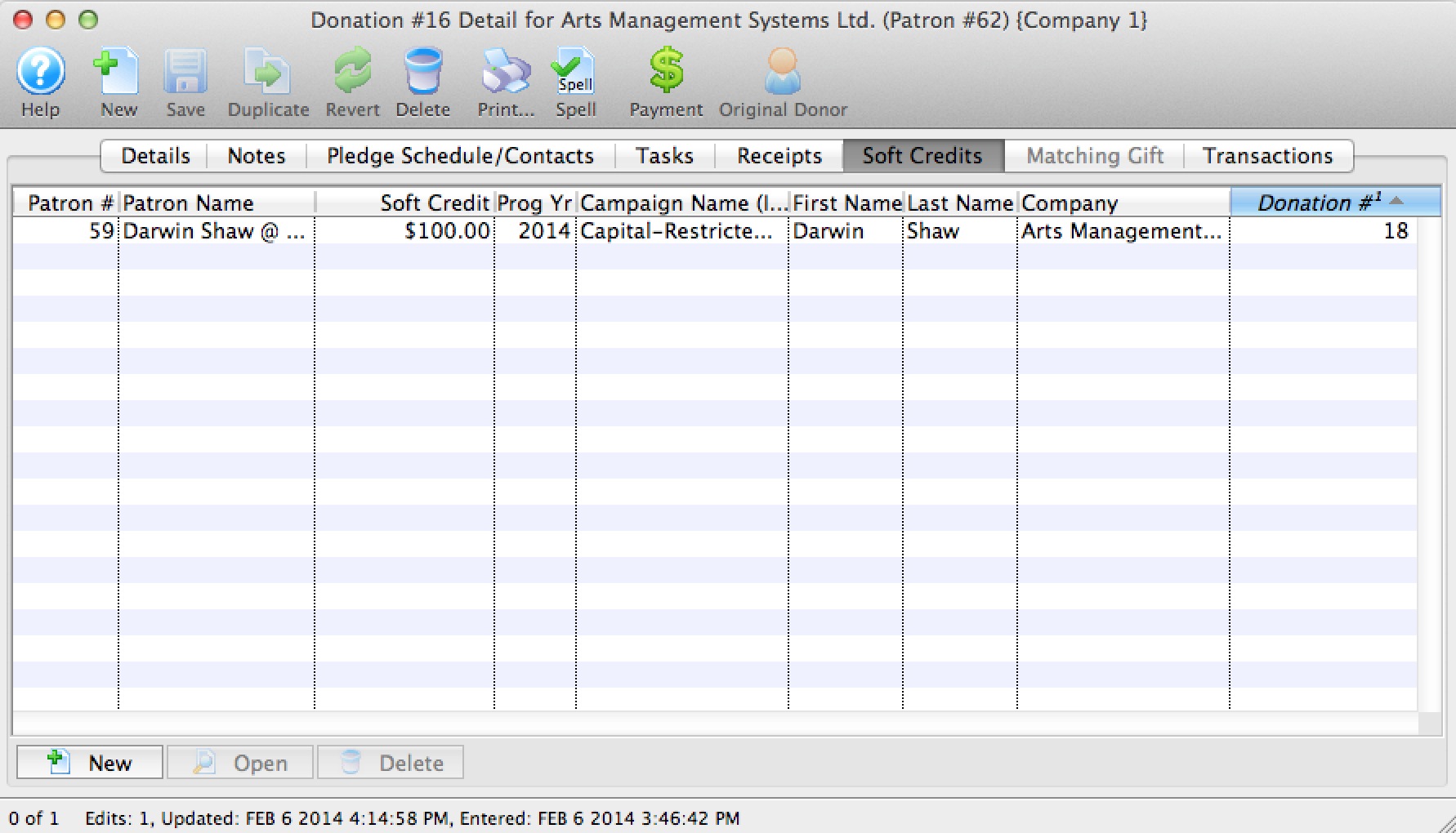
Parts of the Soft Credit Tab
| Patron # | Reference number for the patron associated by the soft credit. |
| Patron Name | First and last name of the patron. |
| Soft Credit | Amount of the donation the patron is to be recognized for. |
| Program Year | The year in which the patron should be recognized in publications. |
| Campaign Name | Campaign the donation was contributed to. |
| First Name | First name of the patron. |
| Last Name | Last name of the patron. |
| Company | Company the patron works for. |
|
|
Inserts a new soft credit. For more information on creating soft credits click here. |
|
Opens the selected soft credit for editing. |
|
Deletes the selected soft credit. |
Matching Gift Tab
For details on inserting matching gifts click here.
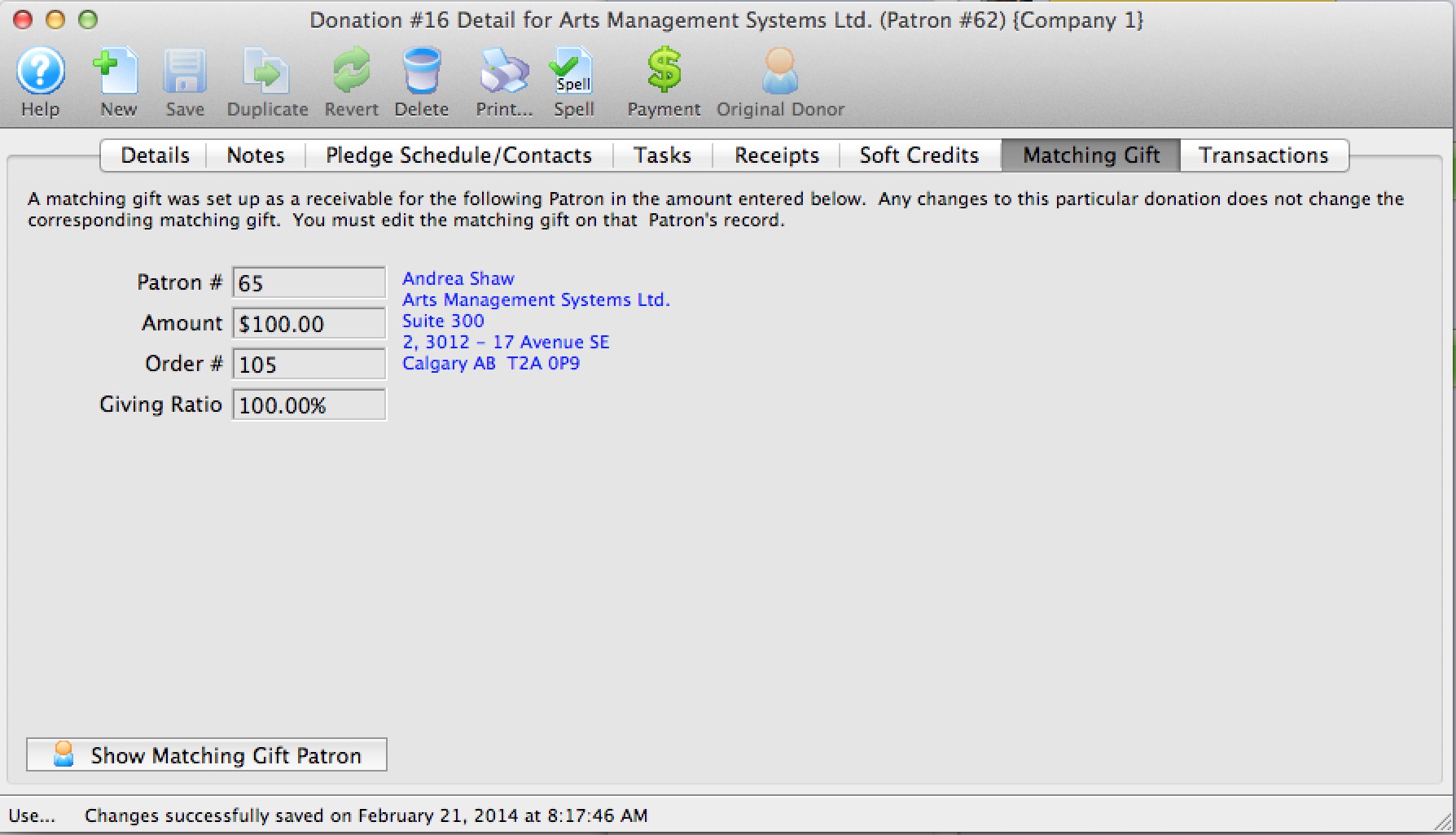
Parts of Matching Gift Tab
| Patron | Patron number for the matching gift patron. |
| Amount | Value of the donation the matching gift patron will make. |
| Order # | The order number in the matching gift patrons file. |
| Giving Ratio | The percentage the matching gift patron's donation is in relation to the original donation |
 |
Opens the patron record for the matching gift patron. |
Quick reference Information for Matching Gifts
|
Quick reference information for Setting up the Gifter |


Transaction Tab
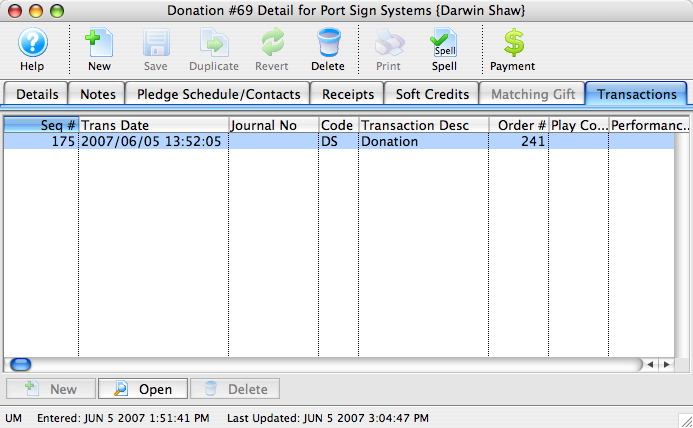
Parts of the Transactions Tab
| Seq # | The transaction reference number. |
| Trans Date | Date the transaction took place. |
| Journal No | Journal Entry reference number. |
| Code | Theatre Manager reference code used to determine the type of transaction. |
| Transaction Desc | Brief description of what the transaction was. |
| Order # | Reference number used to tract the components of the order. |
| Play Code | Play code reference the donation is associated with. |
| Performance Code | Performance code reference the donation is associated with. |
 |
Opens the selected transaction displaying the transaction details window. |