
Main menu
You are here
Description Tab

The Description tab of the Theatre Map window is where you enter Contact Information, Theatre Icons for the web and Notes.
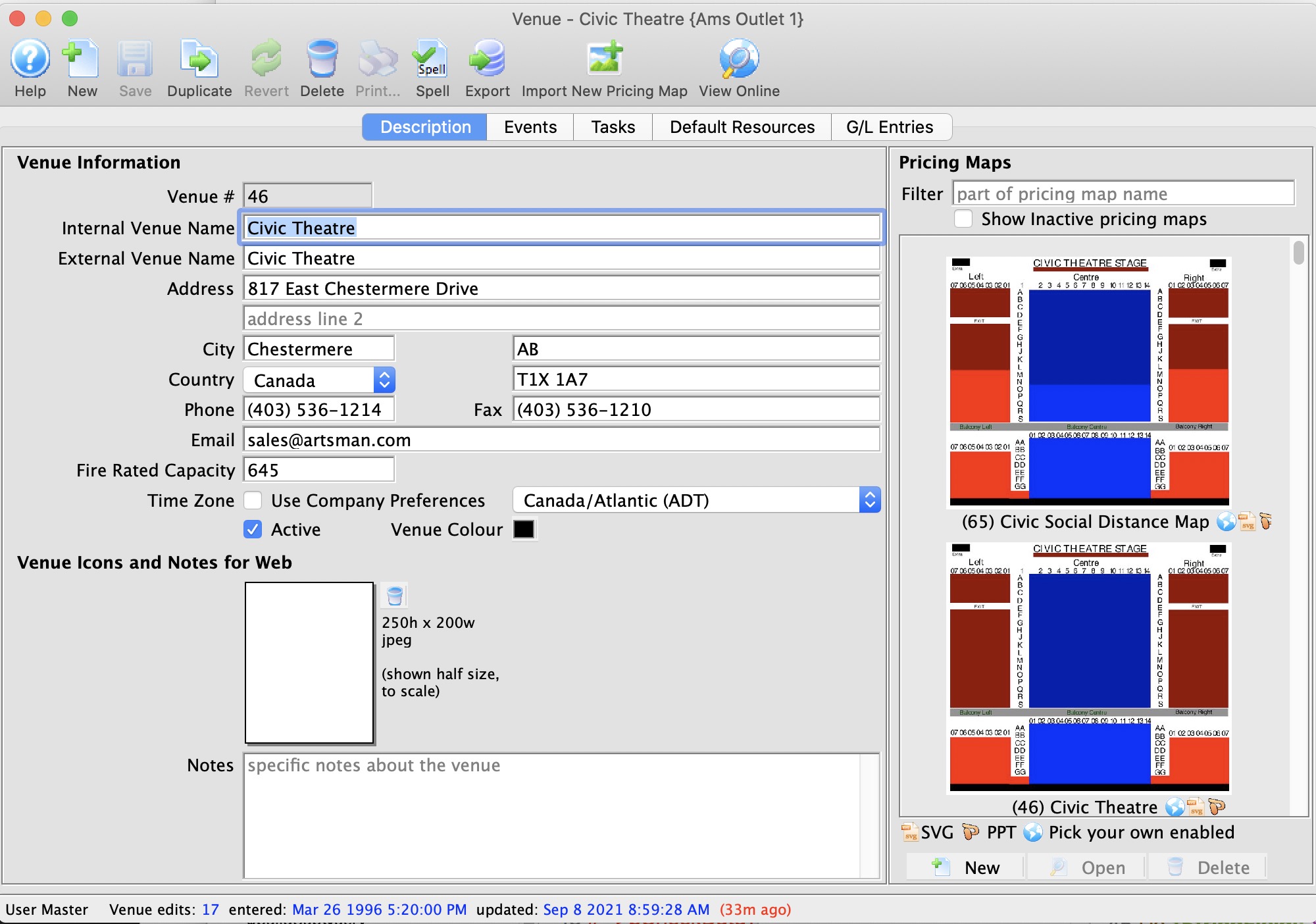
Parts of the Description Tab
Contact Information |
|||
| Venue (or "Theatre") Map # | Unique number of the map automatically assigned by Theatre Manager. | ||
| Internal Venue Name | The internal name of the venue that is used on the sales window. | ||
| External Venue Name | The external name of the venue used in web sales and for ticket faces. | ||
| Address | Address of the venue. | ||
| City | City in which the venue is located. | ||
| Province / State | Province / State where the venue is located. | ||
| Country | Country where the venue is located. | ||
| Postal Code / Zip Code | Postal code / zip code of the venue. | ||
| Phone | Phone number of the venue. | ||
| Fax | Fax number of the venue. | ||
| E-mail address for the box office. | |||
| Fire Rated Capacity | Maximum number of people allowed in the venue by the Fire Marshall. | ||
| Time Zone | The default is that all events in this venue all occur in the same time zone as company preferences. If you wish to change that, you can uncheck and then set a different timezone for all events in the venue.
|
||
| Active | Indicates if the Theatre is to be shown in reports for selection on reports in the pop-up lists. | ||
| Venue Colour | You can override the normal play/task colour displayed on the calendar by selecting a different colour for this venue from the colour palette. | ||

Venue Icons for the Web |
|
| Icon | Here you can add a 250x200 pixel jpeg that the iPhone application will use as a thumbnail to identify your venue as a thumbnail. If no Play picture is provided, this will be the default for any play in that venue. Click here, for information on adding a jpeg. |
 |
Removes the mobile app jpeg from the database. |
Notes |
|
| Notes | Any additional notes about the venue. These notes will appear on the internet for web sales. |
Pricing Map |
|
| Venue Image | Displays a Thumbnail of the graphic map. Click the image to Open the Pricing Map window to edit the map. |
 |
Icons to indicate what versions have been saved for each Pricing Map. |
 |
Opens a New Pricing Map window to enter a new map for the venue. Click here for more information on adding a New Pricing Map. |
 |
Opens the selected Pricing Map for editing. Click here for more information on editing a Pricing Map. |
 |
Deletes the selected Pricing Map. |
Diataxis: