Accounting Tab
Accounting Tab
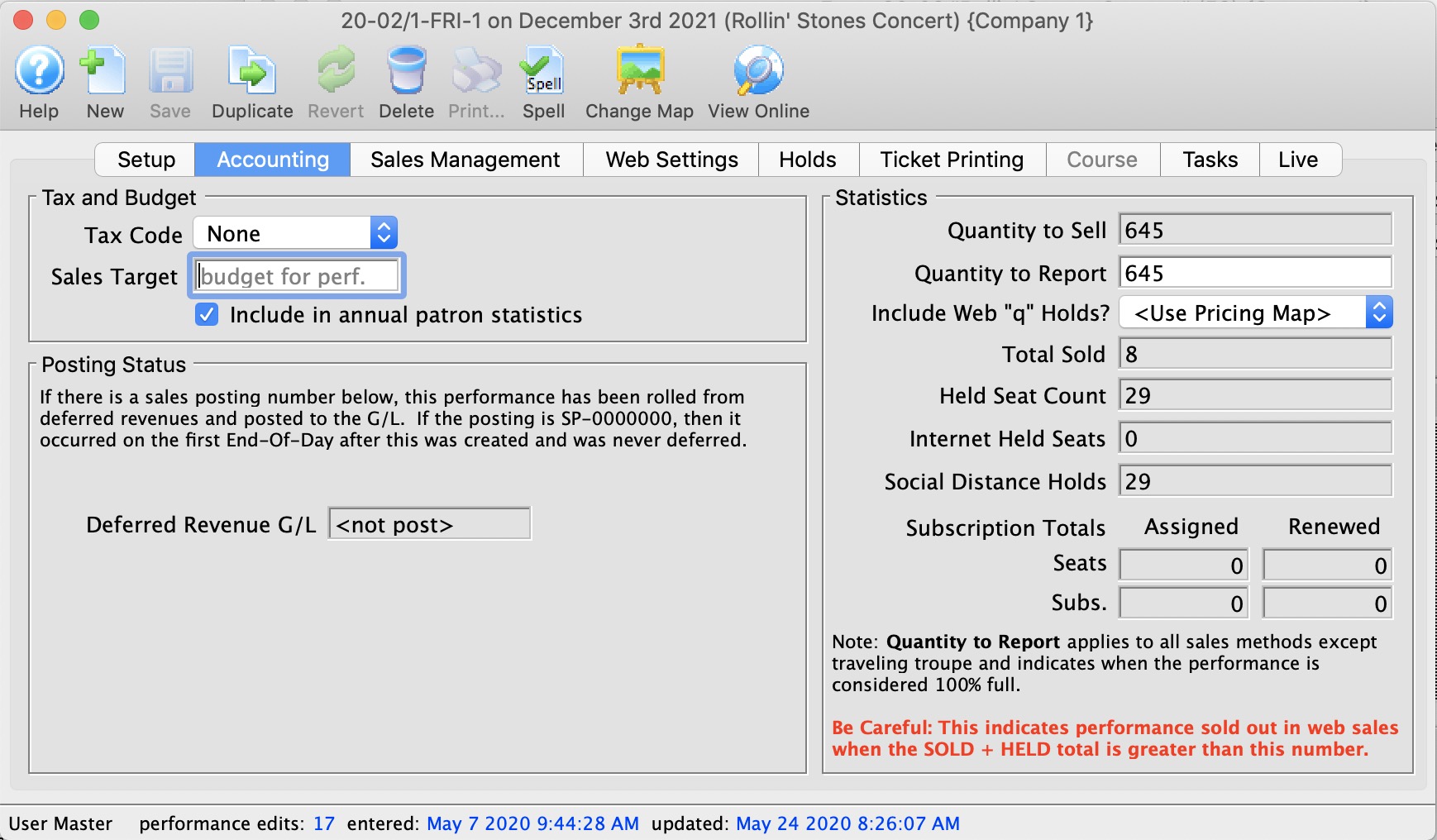
Tax and Budget | |||||
| Tax Code | A unique tax code applicable to this performance only. Click here for more information on the Tax Tables. | ||||
| Sales Target | The budgeted amount this performance is planned to bring in. This is a 'static' field and is not used in reporting. | ||||
| Include in Annual Patron Statistics | Enable the check box to include the performance in the patron statistics tab summary that is calculated for each patron and shown on the patron window.
if you change this setting and:
|
||||
Statistics | |||||
| Quantity To Sell | The number of tickets available for sale. | ||||
| Quantity To Report | The number to be used when the venue is considered 100% sold out. It is normally always the same as the Quantity to Sell.
When might it be different? The feature is intended to be used if you have a scaled house for actor equity purposes and equity lets you sell your venue at a lower size. You would be holding these 'standing room' tickets -- which equity has allowed you to have for overflow crowds only. If you need the extra seats, you then pay actor equity rates for the expanded venue site to use all seats for that performance. Online Availability is affected by this number
If you have a general admission venue where you should only have 300 seats, then you can set the available capacity at 350 and the reporting capacity at 300. This will limit online sales to 300. However, at the box office, you can 'oversell' the event - like airlines - based on your own calculated no-show factor. |
||||
| Include Web 'q' Holds? | Indicates how the social distance holds are to be included in the quantity to report online (refer to quantity to report above). You can:
|
||||
| Total Sold | A running count of the total sales for this performance. | ||||
| Held Seat Count | This is the number of seats currently being held. For Festival seating you can input a new number to raise or lower the number of holds. For Reserved seating you will need to change the holds on the Venue Map. | ||||
| Internet Held Seats | Additional seats that are being withheld from sale on the Internet. | ||||
| Social Distance Holds | The is the current count of the seats held with the social distance hold letter. This special hold code is specified in System Preferences as the associated seat hold code. | ||||
Posting Status | |||||
| Accounting Posting - Deferred Revenue G/L | If the performance has occured, then the posting account for the sales will be listed here. A sales posting of
|
||||
| Convert Earned Revenue Back to Deferred |
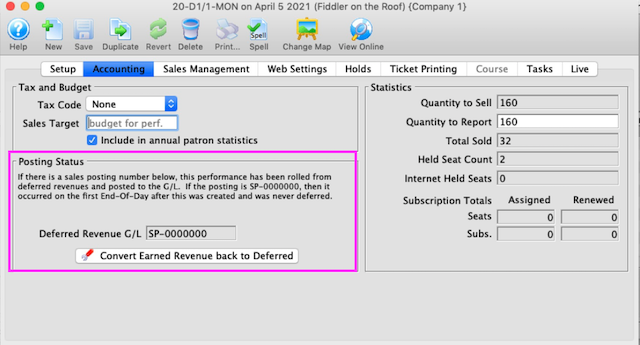 You will only see the Convert Earned Revenue Back to Deferred button if you are:
|
||||

Converting Earned to Deferred Revenue
Converting Earned to Deferred Revenue
This can be done from two places
- From the performance detail window as shown below. Use this if you want to do just one performance
- From the performance setup list on the play tab using the context menu. Use this if you want to roll back a number of performances for an event.
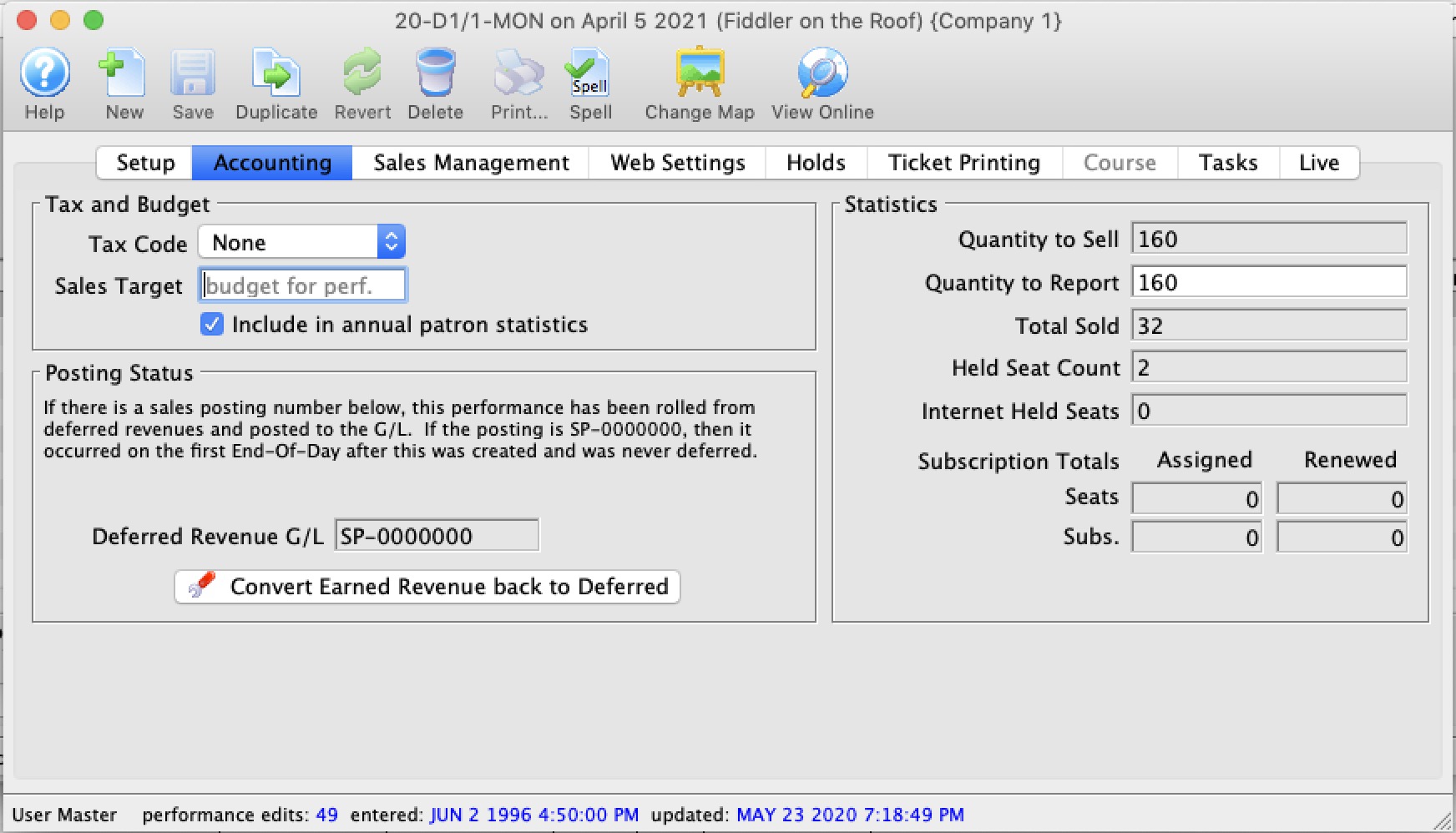
You will see the Convert Earned Revenue Back To Deferred button under the following conditions:
- You are logged in as a Master User or Outlet Administrator
- The performance has a GL number that indicates it is rolled over to earned revenue (or was always using earned revenue). This is indicated by the Sales Posting Number which can look like:
- SP-xxxxxxx. This indicates the performance has has been rolled from deferred revenues and posted to the G/L in sales posting SP-xxxxxxx
- SP-0000000. This indicates that the performance was never posted to deferred revenue and was marked as only using earned revenue when the first End-Of-Day was run after the performance was created.
- The Performance date and time must be in the future. You cannot roll back the earned revenue to deferred if the performance is in the past
 |
Before attempting to do this process for the first time, you may wish to get advice from support and see one in action. |
 |
Create sales entries if you have made any recent sales to the performances.
-and then- Do not run the create sales entry process during end of day while rolling back from earned to deferred. |
|
You can continue selling tickets at the box office or online for the performances you are intending to rollback. |
To create GL entry that will Rollback Earned to Deferred
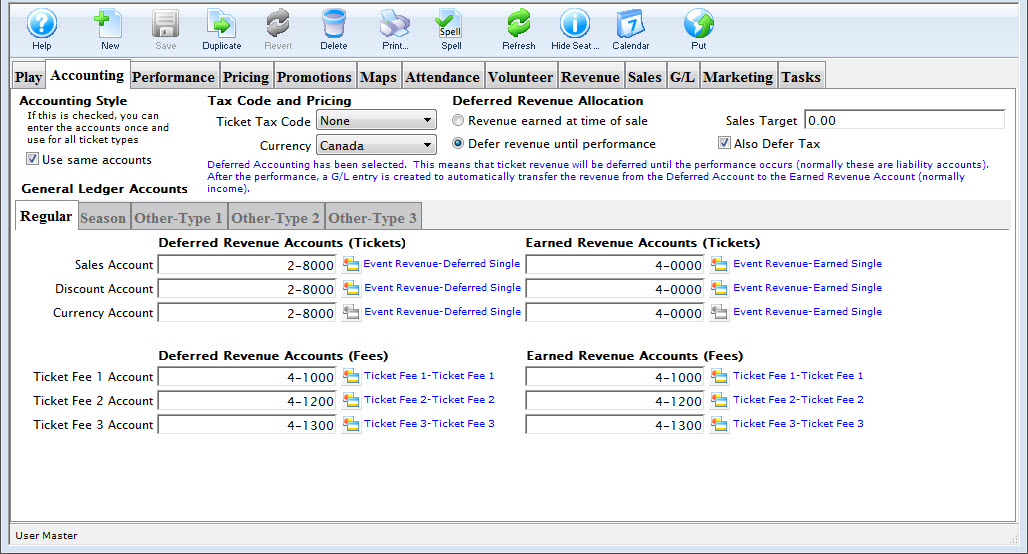 Be very careful with editing or setting up the accounts. If you do not adhere to the steps, money will get rolled back, but maybe not to the place you expect.
- OPTIONAL STEP
Note: only adjust the accounts if they were never right in the first place. If the accounts are right and the event was rolled over by mistake, skip to step 2.
On the Accounting Tab, you may need to make the following changes:
- Deferred Revenue Allocation: Change this option from 'Revenue earned at time of sale' to Defer until .. after performance. If the option is already marked deferred, no change is required.
- Only change the following settings if you are rolling back ALL FUTURE PERFORMANCES. Otherwise to not change the following:
- Also defer Taxes: changing this setting makes it possible to put taxes into a deferred account.
- Accounting Style: changing this setting allows you to split out regular, season and other ticket types into separate deferred accounts.
- Accounting tabs: you can change the accounts that you want to roll back the deferred income to. You will need to set up the accounts first if they do not exist.
- If you didn't change any of the above on the accounting window, and the sole reason that you are rolling back revenue is because you had to post pone the event and simply moved the date forward, then you can click the Convert Earned Revenue back to Deferred without much worry.
if you have made accounting setup changes, take a Screenshot of your G/L tab before clicking the button so you can compare the values before and after
- Close the performance detail window.
- On the Event window, click the Refresh button on the tool bar and then go to the G/L entry tab. Review that the account totals are where you expect them to be.
If they are not, please contact support for assistance.