
Main menu
You are here
Generating a Report

You use reports to organize database information in a format which gives you a clear picture of where the organization stands. This page gives the general outline of how to run any report. Alternatively, you can refer to the Quick Reference Guides on creating a report for a tutorial to see how this works. The bottom of this help page has exact topic links.
The generic steps are:
- Open the reports window
- Click a report category on the left side
- Select a report on the right side that matches your needs
- Read about what the report will do in the area at the top of the window beside the 'computer man' on the report window.
- Click the 'Print' button if this report looks like it will do what you want
- Follow each of the tabs in the report parameters window, starting with entering criteria to limit the data that will appear on the report
- When you click 'Done' at the end of the reporting parameter window, Theatre Manager will find the data matching your criteria and display it on your report
Example of running a report
- To start, click on the Reports
 button
on the Theatre Manager ribbon bar.
button
on the Theatre Manager ribbon bar.
The Reports window opens.
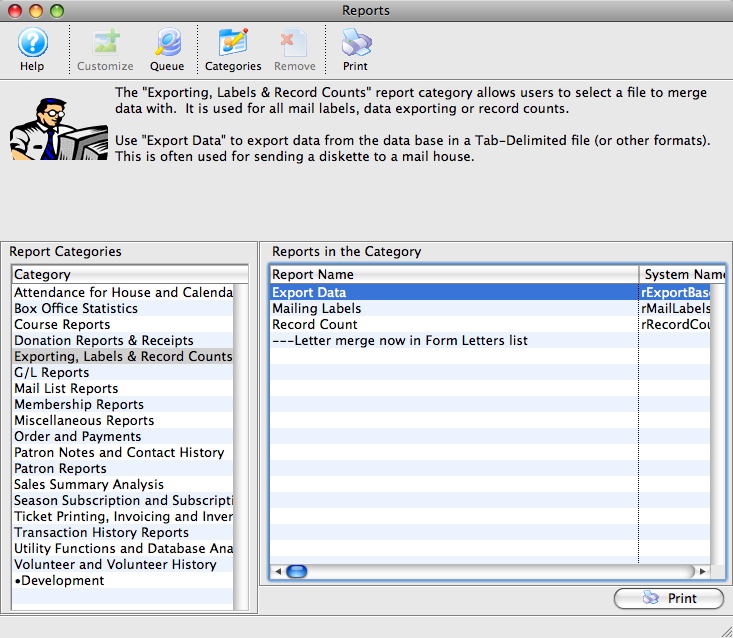
Click here for more information on the Reports window.
- Select the category and then report to be used.
- Click on the Print
 button.
The Criteria window opens.
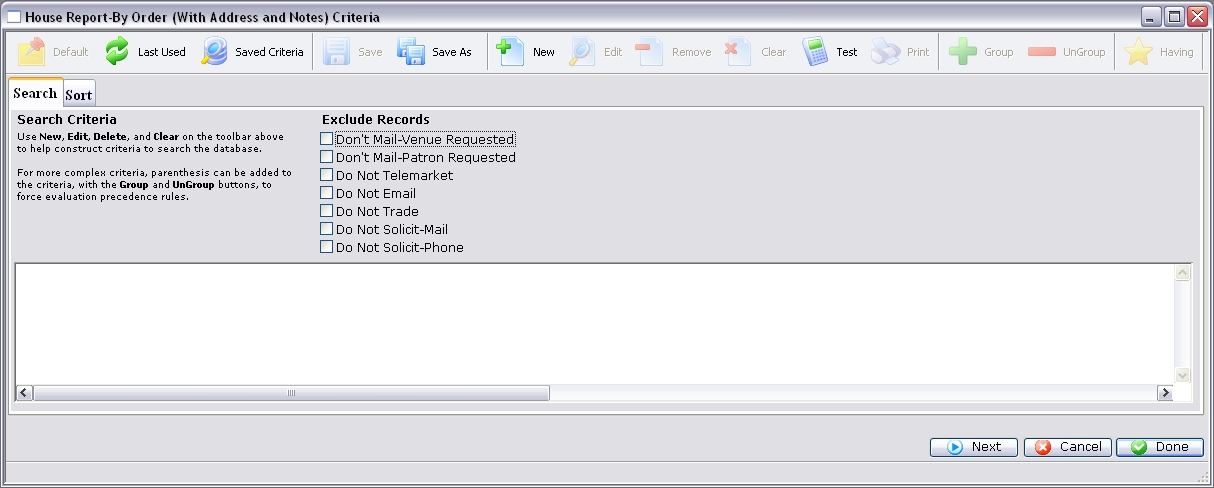
Click here for more information on the Criteria window.
- Add criteria to the report.
- Click the Done
 button.
This generates the selected report and opens the Finished Report window.
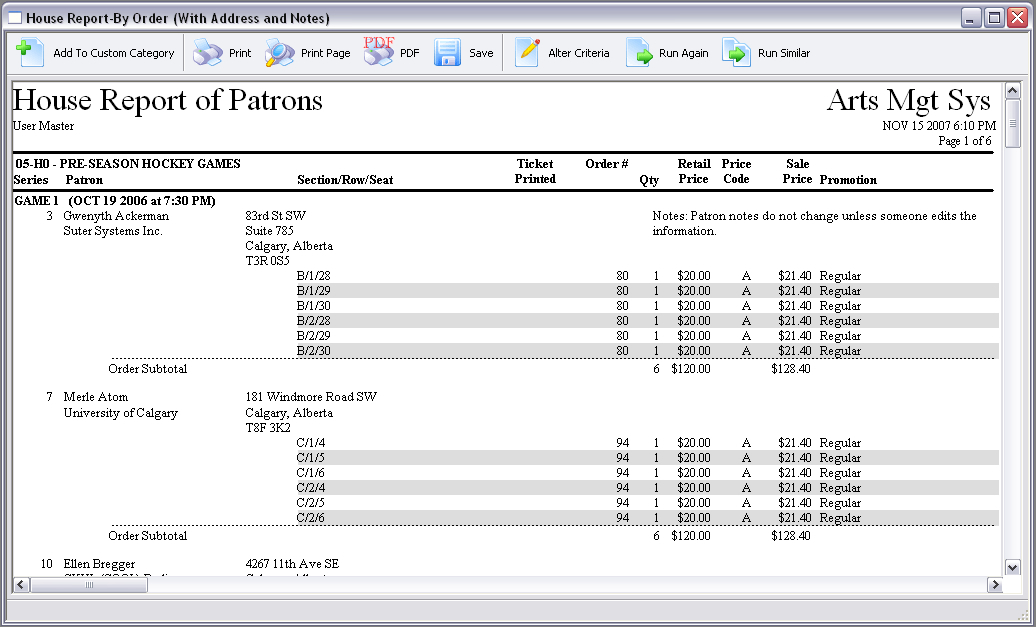
Click here for more information on the Finished Reports window.
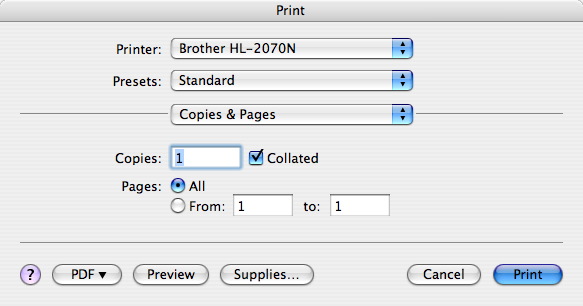
- Select the correct printer.
- Select the number of copies and page range.
- Click the Print
 button.
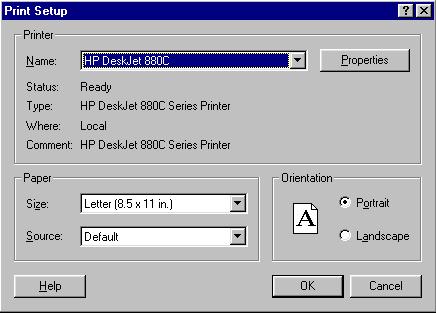
- Select the Printer Name.
- Select the paper size and orientation.
- Click the OK
 button.
|
The print parameters must be setup on the machine (a default printer must be selected) in order to print reports, either to the screen or to actual paper. By default, Theatre Manager will print the report to the screen first, so you can verify that the final report is what you actually want, before committing paper to the output. Printer ConfigurationMacintosh (Laser Printer)
Windows Control Panel Printers
|

Click here to view the Quick Reference information for Reports.
Diataxis: