
Main menu
You are here
Patron Address Labels Window

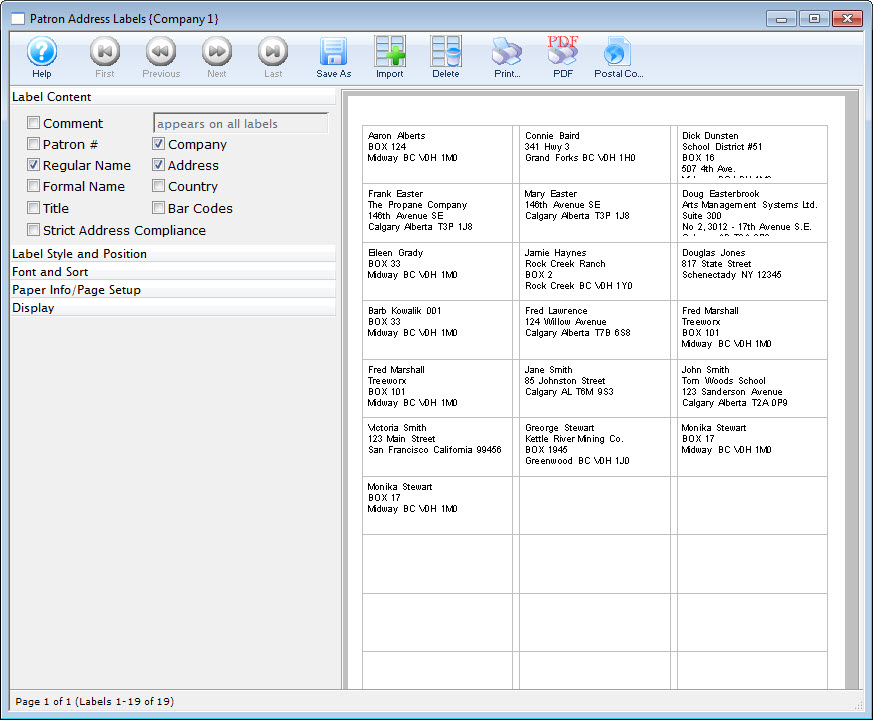
Parts of the Patron Address Label Window

 |
Changes the view to the first page of labels. |
 |
Changes the view to the previous page of labels. |
 |
Changes the view to the next page of labels. |
 |
Changes the view to the last page of labels. |
 |
Saves a copy of the current label details under a different name. |
 |
Import a RTF document containing a label template. Normally these are obtained from the Avery Website. Click here for more information on importing an RTF file. |
 |
Deletes the current label details from the list of templates. Click here for more information on deleting templates. |
 |
Prints all labels. |
 |
Prints all labels to a PDF file. |
 |
Prints a Postal Code Count report. Click here for more information on the Postal Code Record Count Criteria report |
Label Content Check Boxes
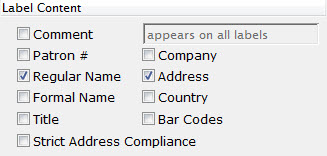
| Comment
|
When this is checked, a comment may be entered into the field on the right to be printed on the labels. |
| Patron # | When this box is checked, the patron number will be added to the label. |
| Regular Name | When this box is checked, the regular name (first name, last name) of the patron will be used. |
| Formal Name | When this box is checked, the formal name (salutation, first name, last name) of the patron will be used. This will override the regular name. |
| Title | When this box is checked, the patron's title will be added to the label - but only if the address type in the location code table is marked to print company/title |
| Company | When this box is checked, the patron's company name will be added to the label - but only if the address type in the location code table is marked to print company/title |
| Address | When this box is checked, the patron's address (address, city, state, zip) will be added to the label. |
| Country | When this box is checked, the patron's country will be added to the label. |
| Bar Codes | When this box is checked, a postal bar code will be added to the label based on the zip or postal code. |
| Strict Address Compliance | Standardized address information enhances the processing and delivery of mail. |

Label Style and Positions
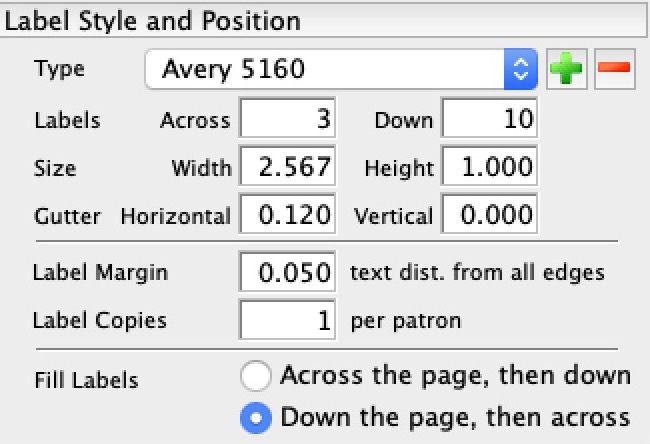
| Type | Drop Down listing of the Label templates. You can add or remove templates using the:
Add Delete |
| Labels | Across - allows you to specify the number of labels to print across the page
Down - allows you to specify the number of labels to print down the page. |
| Size | Width - allows you to specify the width (in inches) of the labels
Height - allows you to specify the height (in inches) of the labels. |
| Gutter | Horizontal - allows you to specify the height (in inches) of the gutter between rows of labels
Vertical - allows you to specify the width (in inches) of the gutter between the coulmns of labels. |
| Label Margin | Allows you to specify the width (in inches) of the margin between the labels and the edge of the page. |
| Label Copies | The number of copies of the label that you would like printed. |
| Fill Labels | 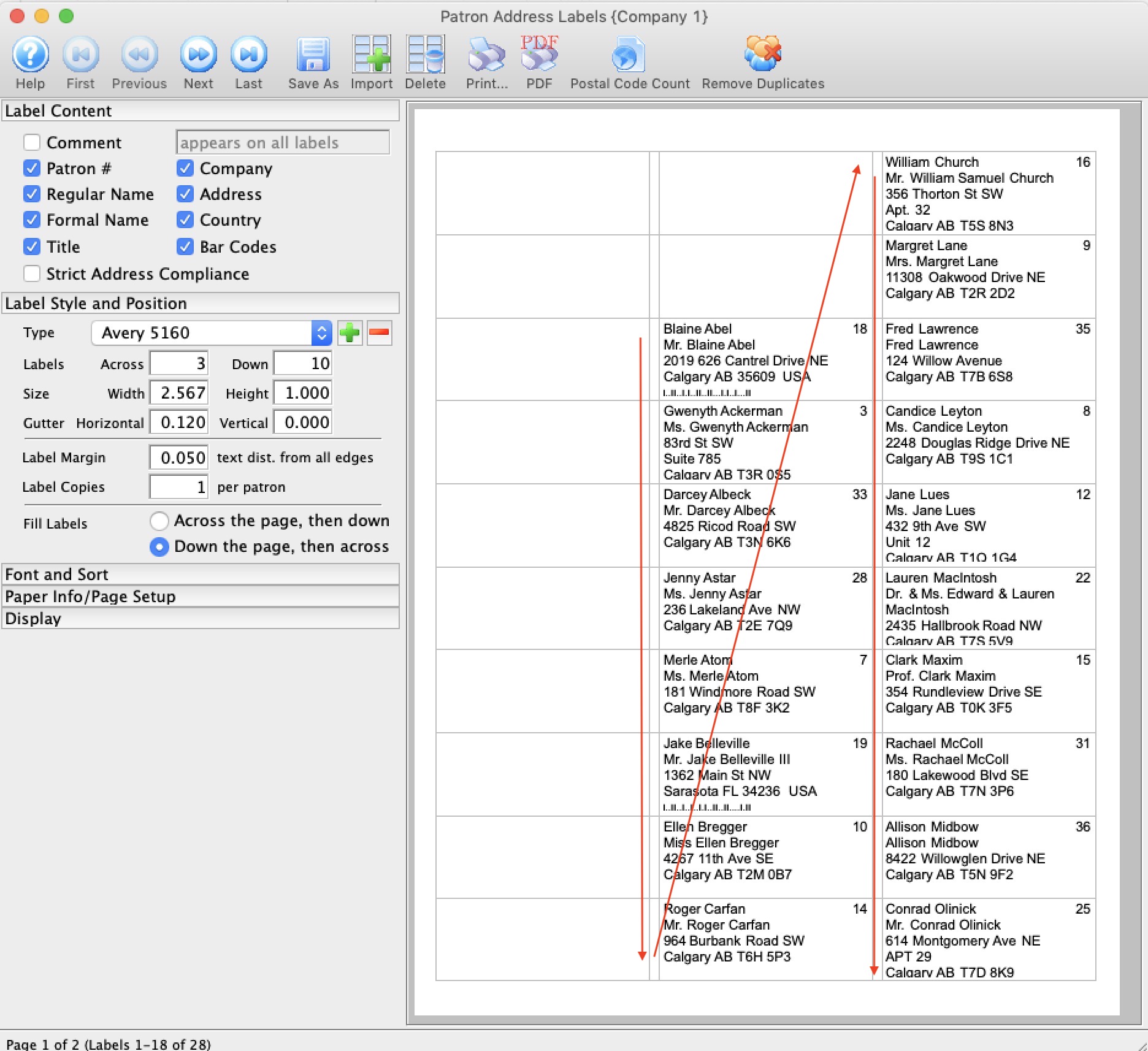 There is a choice to print the labels across the page (the default) or to print them down the page. The image to the right shows them printing down the page (then across) where as the image at the top of the page shows them printing across the page (then down).
Printing down the page may help those who find it easier to work down the label page when transferring them to envelopes. |
 button,
  button,
 Font and Sort
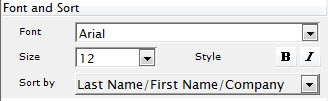
| Font | Drop Down list of the Fonts available on your system. Changes the Font of the lettering on the labels. |
| Size | Changes the size (in points) of the font on the labels. |
| Style | Allows you to bold or italicize the font on the label. This only applies if the font used allows Bolding and Italicizing |
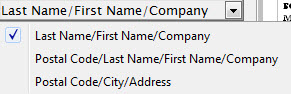
| Sort By
|
Allows you to Sort your labels. Choices are:
Last Name/First Name/Company Postal Code/Last Name/First Name/Company Postal Code/City/Address |
Paper Info/Page Setup
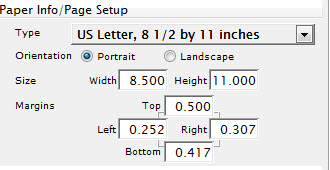
| Type | The drop down menu contains a list of standard paper sizes. It also has a custom option if the paper being used is not found on the list. |
| Orientation | The orientation of the paper is either portrait or landscape. |
| Size | If a default paper size is used, the size will appear here. If a custom paper size is used, then the width and height can be adjusted. |
| Margins | Allows for setting the top, left, right, and bottom margins for the paper size being used. |
Display

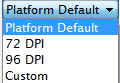 |
Selecting from the drop down list allows you to change the display of the labels so you can better see for editing. |
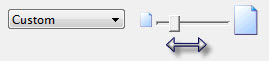 |
Allows you to change the display of the labels by movong the box from left to right so you can better see for editing. |
Right Click Context Menu
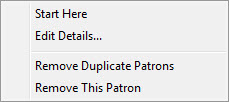
| Start Here | When this option is selected, the labels will adjust to start at the current position. This is used for when a few labels have been used on the page. All labels will adjust from this position. |
| Edit Details | When selected, the details window will open allowing for adjustments to be made to the label. |
| Remove Duplicate Patrons | Sets Theatre Manager to go through the labels and remove any duplicate labels. |
| Remove This Patron | Removes the current label from the page. |