
Main menu
You are here
Creating a New Form Letter

Form letters can be created for many different purposes. They can be used to send information to patrons, donors, volunteers, employees, and members of the media. A new form letter can be created from the Form Letter List Window.
- From the Form Letter List window, click the New
 button.
The New Form Letter window and the Word Processor with a new blank page open.
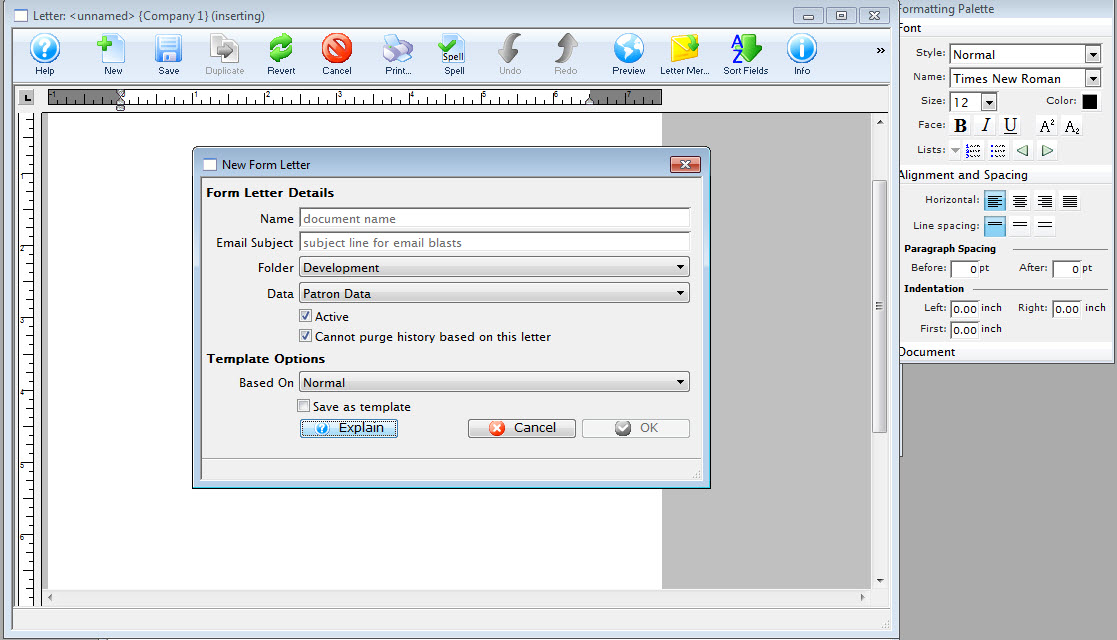
Click here for more information on the Form Letter List window.
Click here for more information on the Version 8 Word Processor.
- Enter the Form Letter Name and the Subject line for email blasts and chose a folder to store the letter.
- Choose the merge data for this letter.
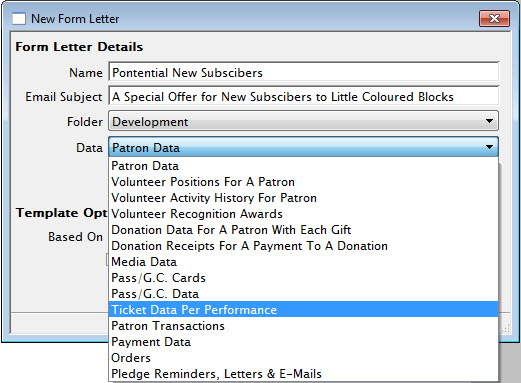
Patron data is a parent for most other files. If other merge criteria is selected the patron record details will also be available as criteria. Due to the relationship of data within Theatre Manager some items can not be merged together.
Click here for more information on the Form Letter Window.
- Select the Template for use in this letter. The Normal Template is the default template.
- Click the Ok
 button.
- Click the Save
 button.
You have now saved the base parameters for the new letter.
- Enter the text for the base letter.
- Using the right-click context menu, add merge fields to the Form Letter.
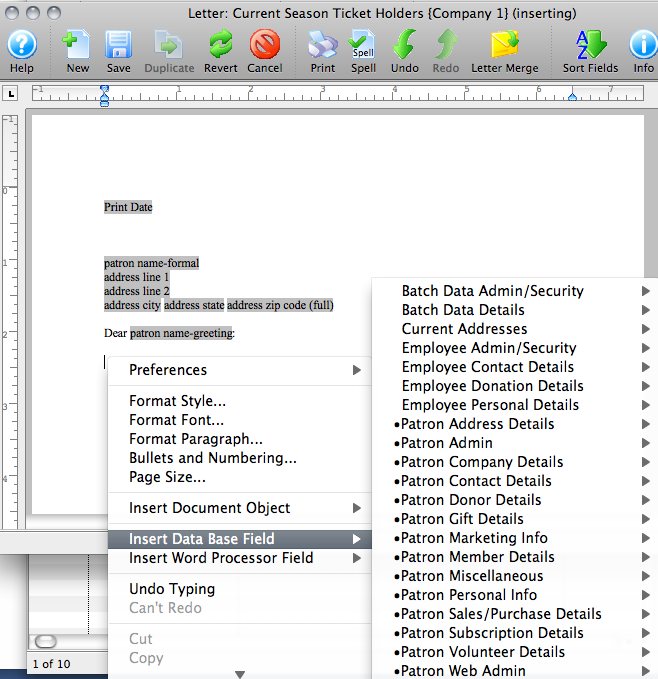
To enter a merge field, right-click (or control-click on a Mac) in the area of your document you'd like the field to appear, then simply find and select the field you'd like to use in the context menu (fields with patron data and details are in Data Base Fields). Click here for more information on adding merge fields to the letter.
- Click the Save button to finalize the Form Letter.
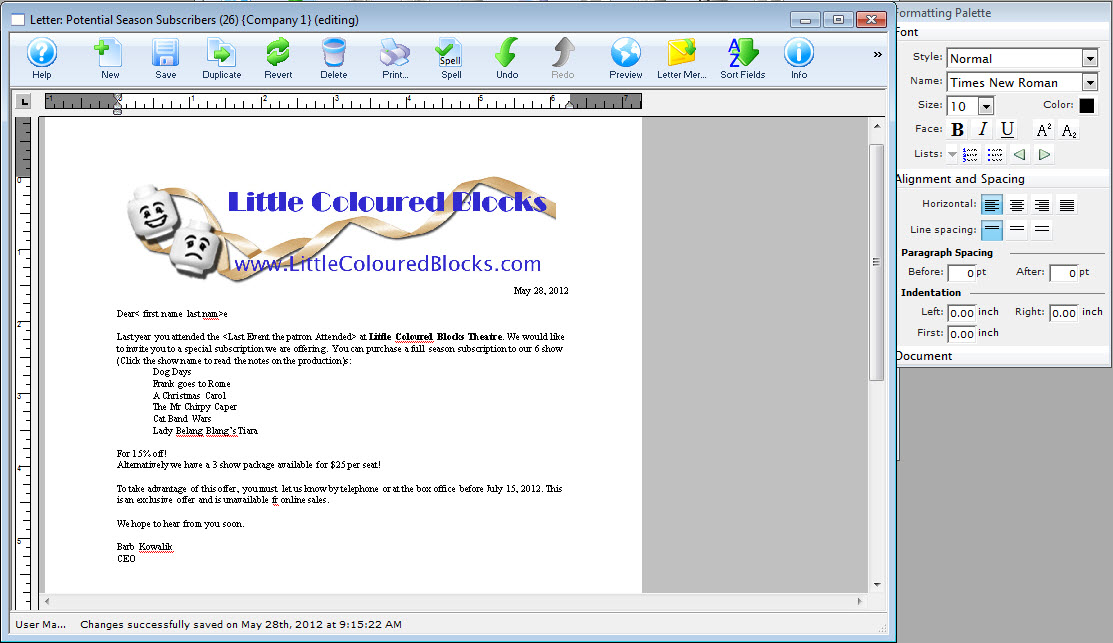
Click here to learn how to do a mail merge with the Form Letter.
| You can download quick reference information on Creating Form Letters by clicking on the icon. |
Cheatsheet |
Flash |
Mp4 |


