Steps for Printing an Invoice
Steps for Printing an Invoice
The Print Invoices report can be found under the Ticket Printing, Invoicing and Inventory Analysis category. This report is used to print invoices for an order(s) that has been completed in Theatre Manager.
- Access the Print Invoices report by double clicking on it in the report window.
The Add Criteria window opens.
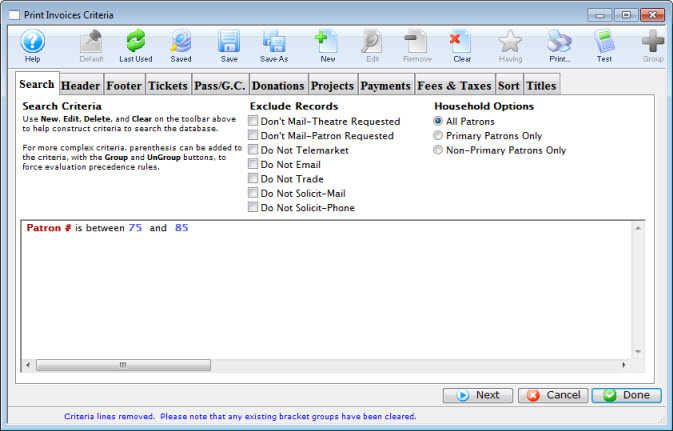
- Select criteria to be used in finding the invoices to be printed.
Order # or Account # would be the recommended criteria.
- Click the Next
 button to move to the Header
 tab.
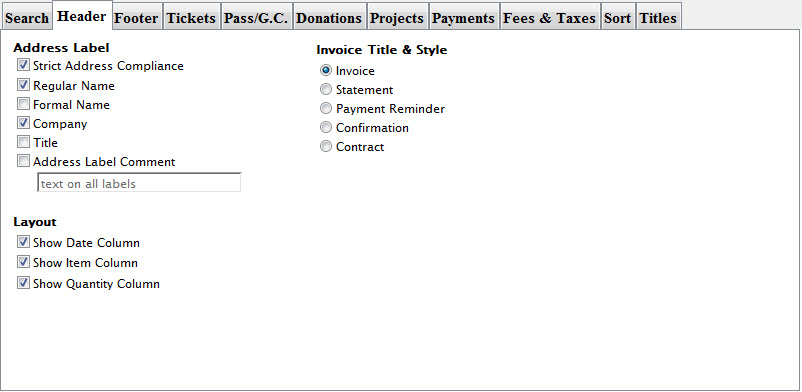
Click here for more information on the Header tab.
- Make adjustments as necessary and then click the Next button to move to the Footer
 tab.
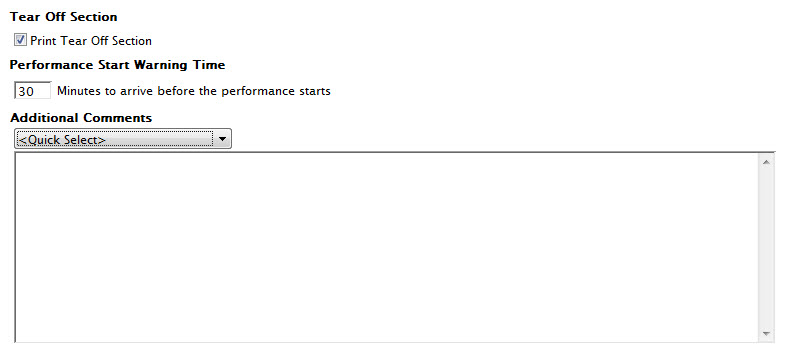
Click here for more information about the Footer tab.
- Make adjustments as necessary and then click the Next button to move to the Tickets
 tab.
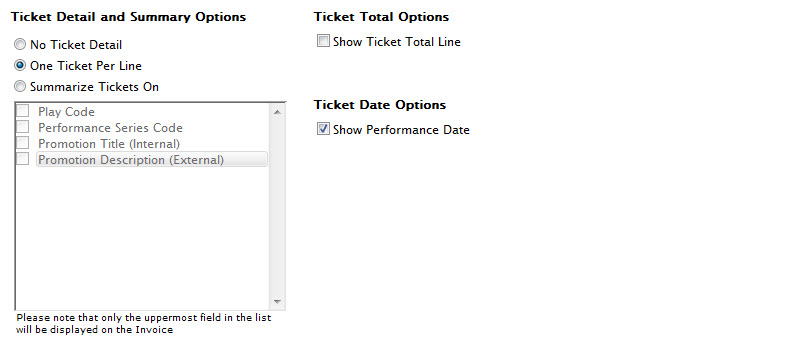
Click here for more information on the Tickets tab.
- Make adjustments as necessary and then click the Next button to move to the Pass/G.C.
 tab.
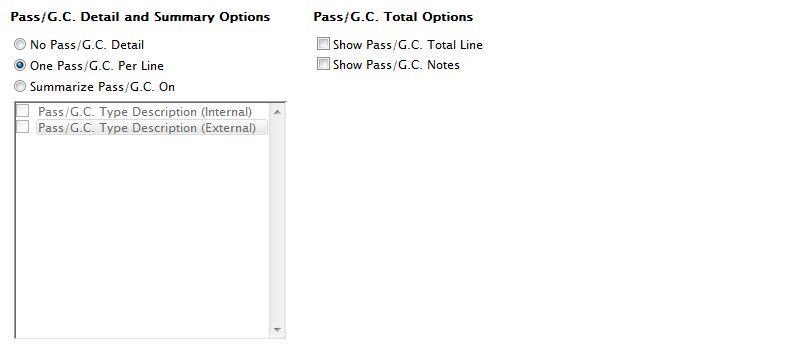
Click here for more information on the Membership tab.
- Make adjustments as necessary and then click on the Next button to move
to the Donations
 tab.
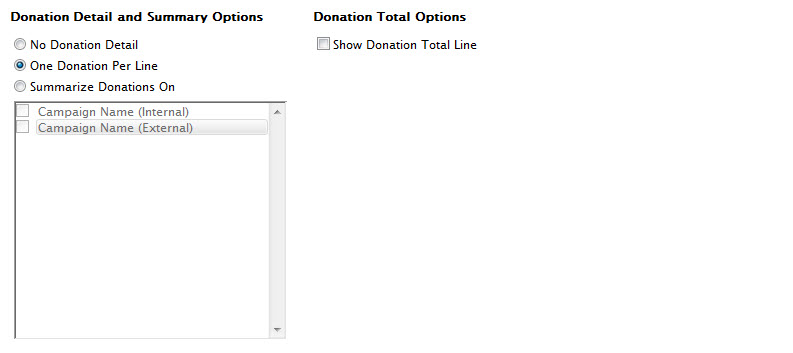
Click here for more information on the Donations tab.
- Make adjustments as necessary and then click the Next button to move to the Payments
 tab.
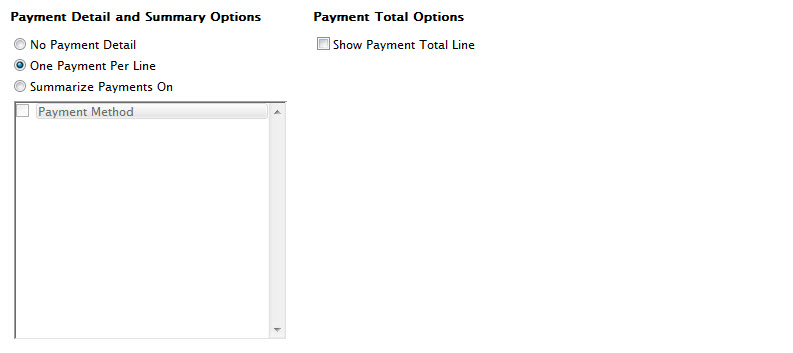
Click here for more information about the Payments tab.
- Make adjustments as necessary and the click the Next button to move to the Fees & Taxes
 tab.
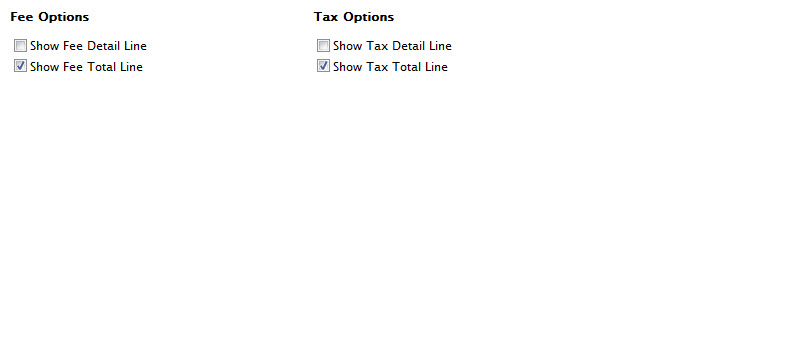
Click here for more information about the Fees & Taxes tab.
- Make adjustments as necessary and the click the Next button
to move to the Sort
 tab.
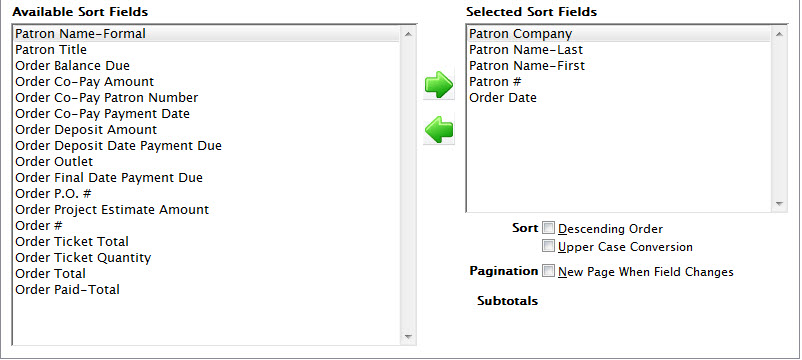
Click here for more information on the Sort tab.
- Make adjustments as necessary and the click the Next button
to move to the Sort
 tab.
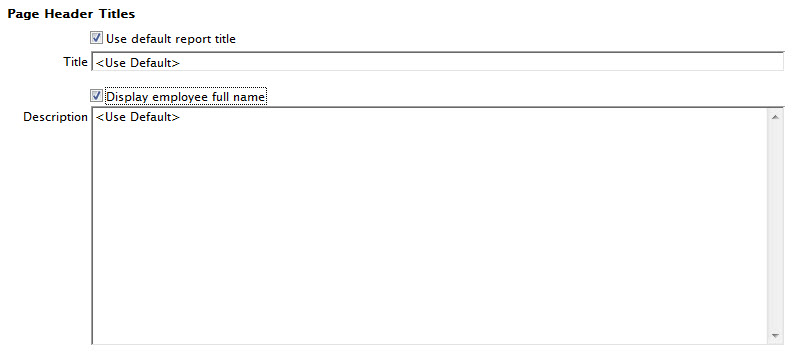
Click here for more information on the Titles tab.
- Make adjustments as necessary and the click the Done
 button to generate the report.

Click here for more information on the Finished Report window.
- To print the invoices, click the Print
 button at the top of the Finished Reports window.
Alternatively the Invoice can be emailed directly to the patron. To learn more about emailing invoices click here.