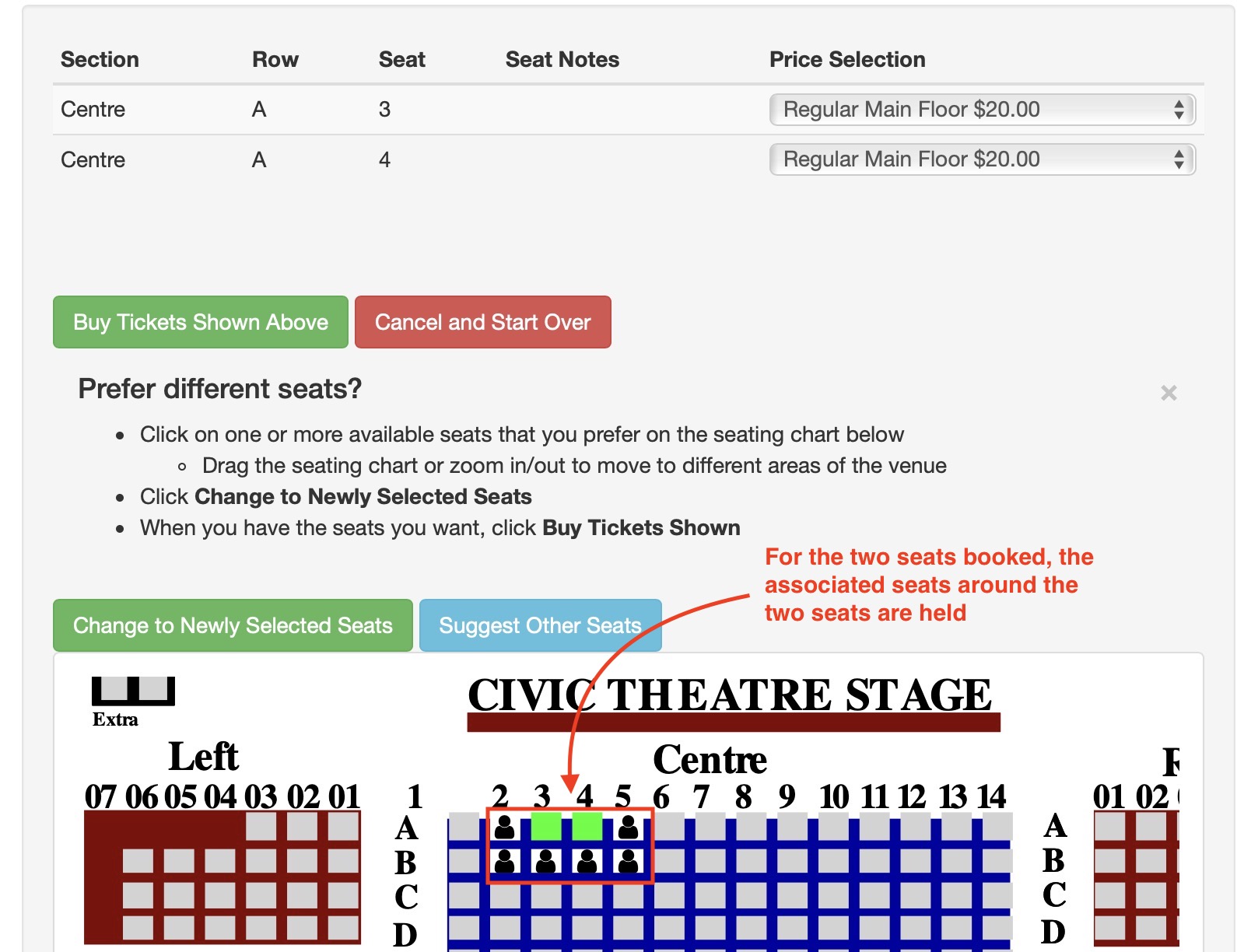
Using Associated Seats For Social Distancing
Using Associated Seats For Social Distancing
 |
Normally you would use the Social Distance Map feature to create these graphically within Theatre Manager.
However, if you like excel formulas and want to create an initial social distance map for later tweaking, you can also set the associated social distance seats an import them. |
|
You will need to decide how many seats you want to hold around the one being sold. It could be that:
|
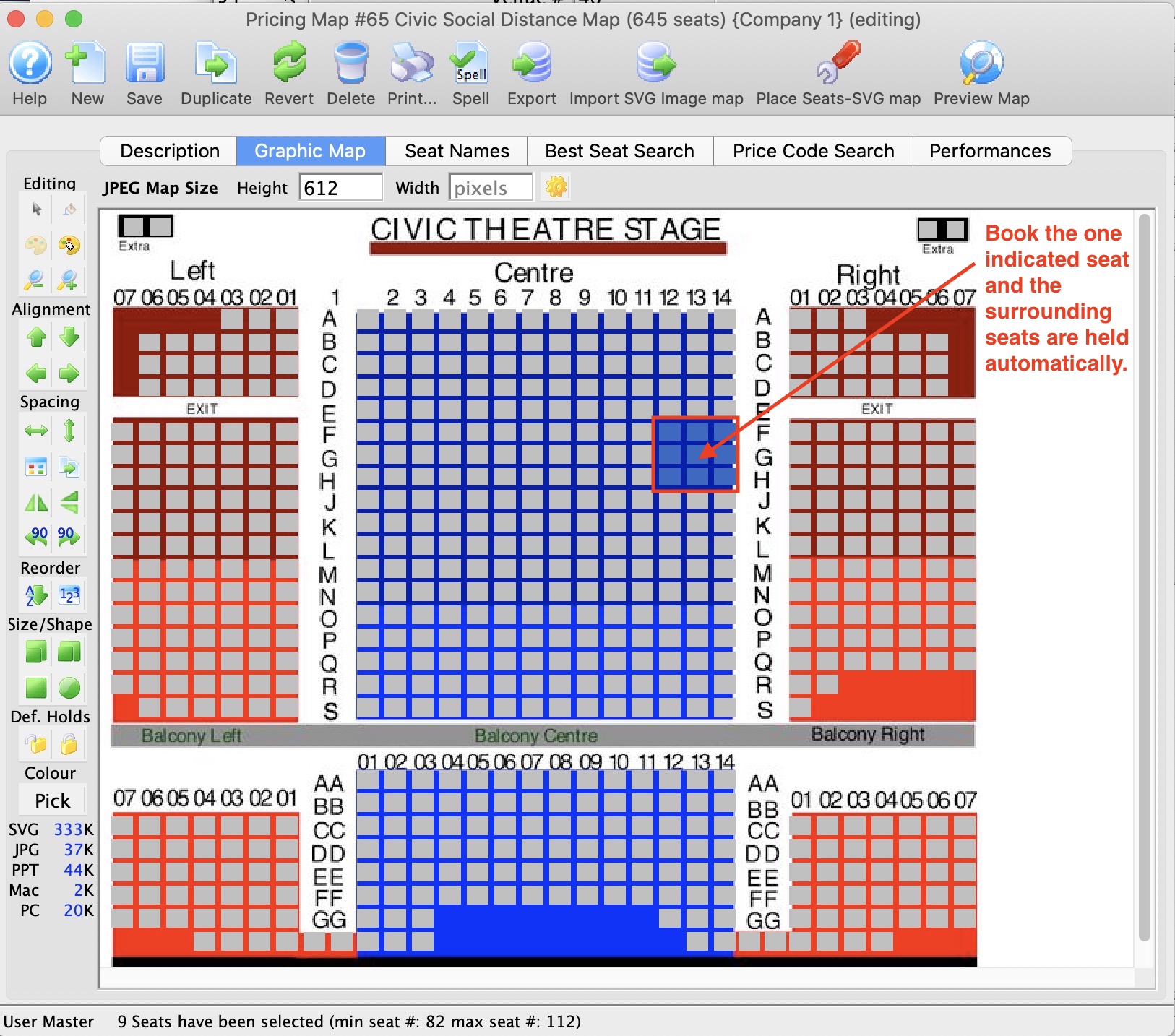
It is possible to create a social distancing sales map using associated seats with purpose of:
- You sell a seat and the specified seats around the one you just sold are taken off sale
- If you release that seat, it will release the seats around it.
General steps to set up a social distancing sales map
The following is a recommended process for setting up social distance seating:
- Select and edit a venue you want to implement social distancing for
- Select the pricing map that you currently use and right-Click to duplicate it
- After duplicating the pricing map:
- edit the pricing map and:
- Change the internal name of the map to indicate it is for social distancing
- Alter any price codes if you want to offer fewer
- Click on the Graphic Map tab and
- edit the pricing map and:
- Edit your ticket face and add the zone number to the ticket face in some prominent way
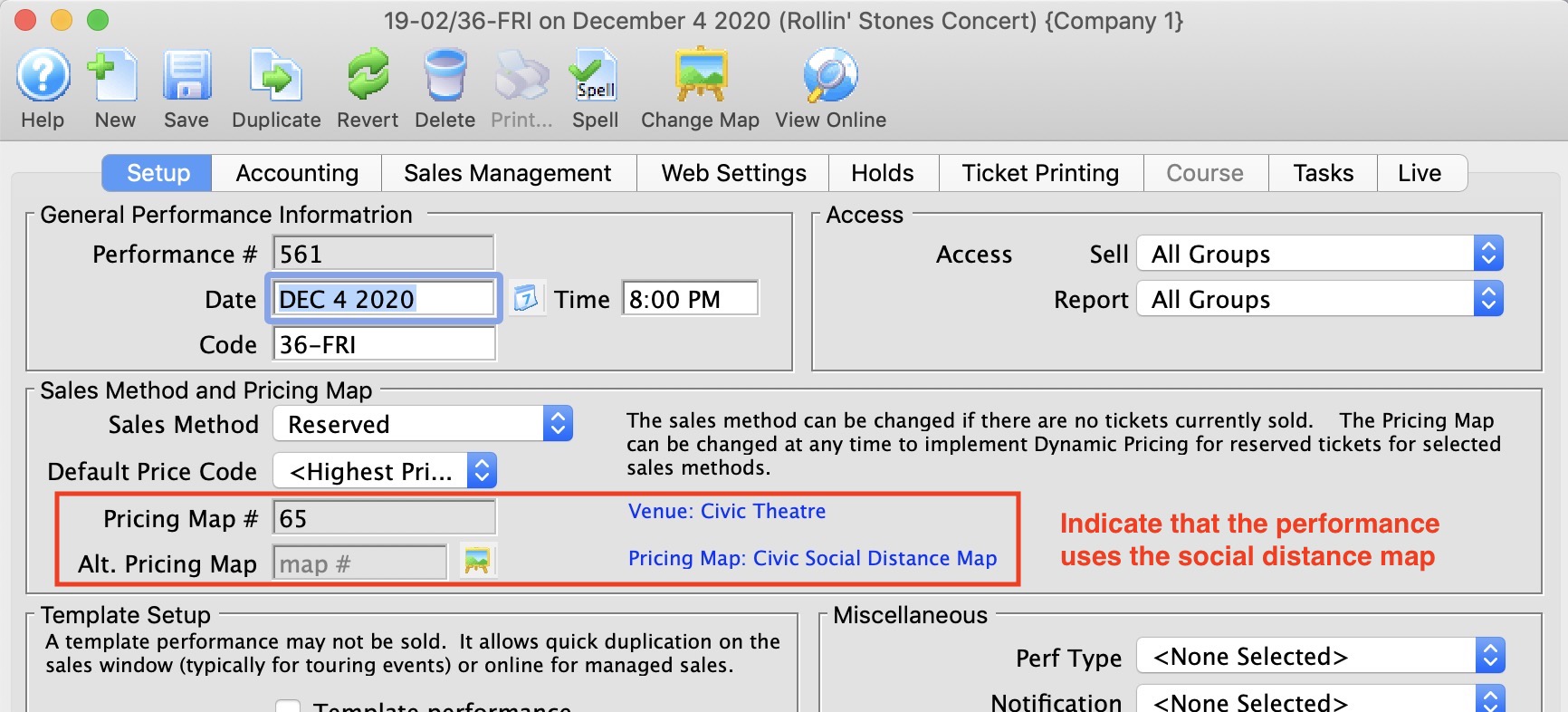
- Find the events in the future and change the pricing map to the new one you just edited.
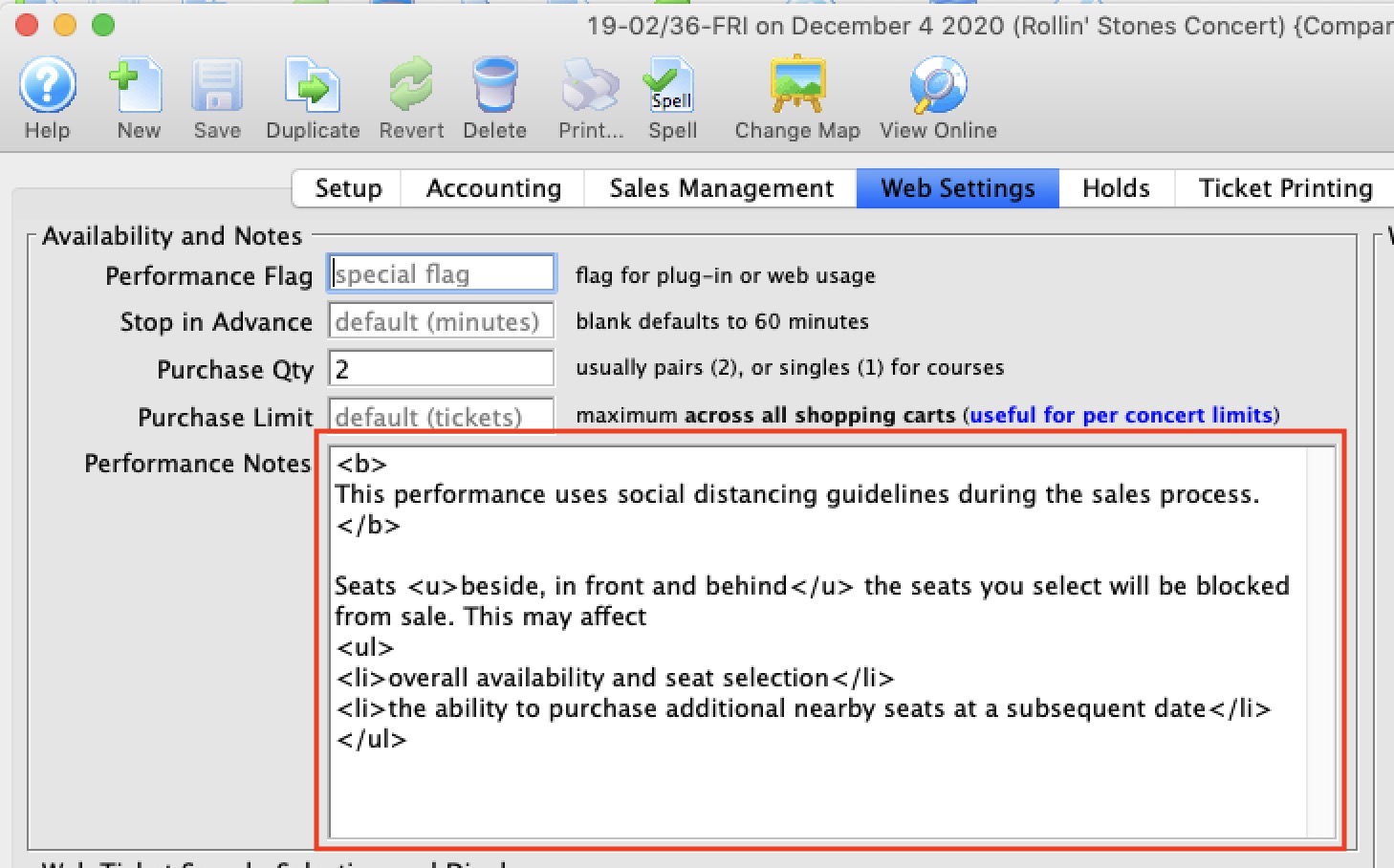
- Add some performance notes similar per the image below to give the patrons some assurance, or customize your ticket event list to indicate that the performance is sold with social distance in mind.
What does the Social Distance Map look like online?