Accessing Calendars From Web Site
Accessing Calendars From Web Site
- All events that are currently in the future
- Events that a patron has purchased tickets to - which is restricted to the patron who purchased the tickets
- Volunteer/Staff Activities that a patron has been assigned to
 |
ICS files are convenient ways to share calendar information and can be done in two ways:
|
Subscribing to External Calendars
The following links may assist you to link or subscribe to a Theatre Manager ICS calendar using you calendar. IF the links are not correct or ut of date, please use Google to search for Subscribing to calendars with ... to see if it helps.
Wikipedia publishes a list of calendar applications with ICS support. This might be helpful getting started with calendar integration.
|
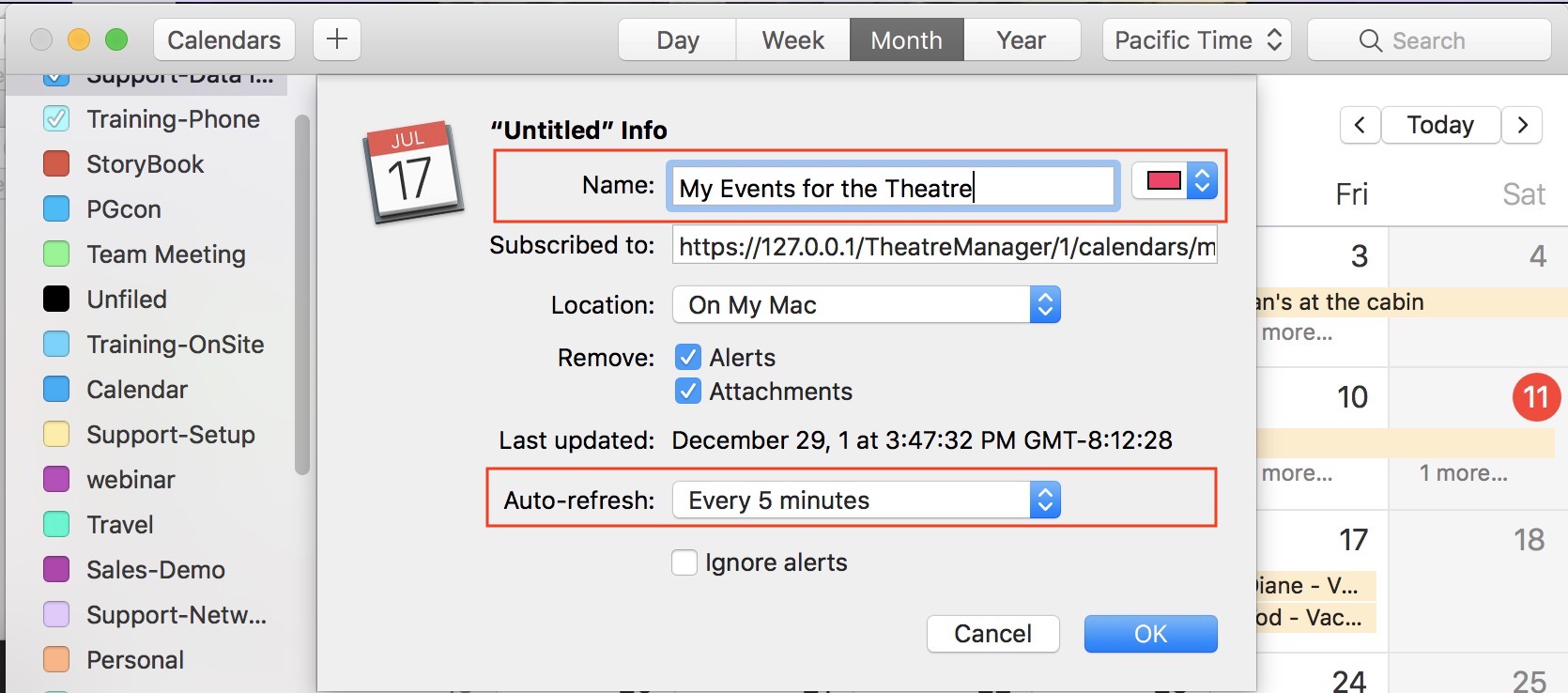
The subscriber to a calendar may have to set the refresh time in the calendar - See iCal example |
All Events in the Database
All Events in the Database
These include:
- ICS format - which can be imported into a web object that understands importing ICS files
https://tickets.yourvenue.org/TheatreManager/1/calendars/upcoming_events.ics
- full interactive web page - which might suitable for embedding in another web site or on your commerce web site
https://tickets.yourvenue.org/TheatreManager/1/calendars/upcoming_events?view=month&start=2018-07-01
The parameters are optional:
- view= can be one of: month (the default), week or list
- start=, if provided, should be in yyyy-mm-dd format. the default is this month.
- You can use a pseudo XML export format using the Export Events URL
- You can also use an event list export using the REST api. This is the only query that requires an API login since sales information could also be accessed
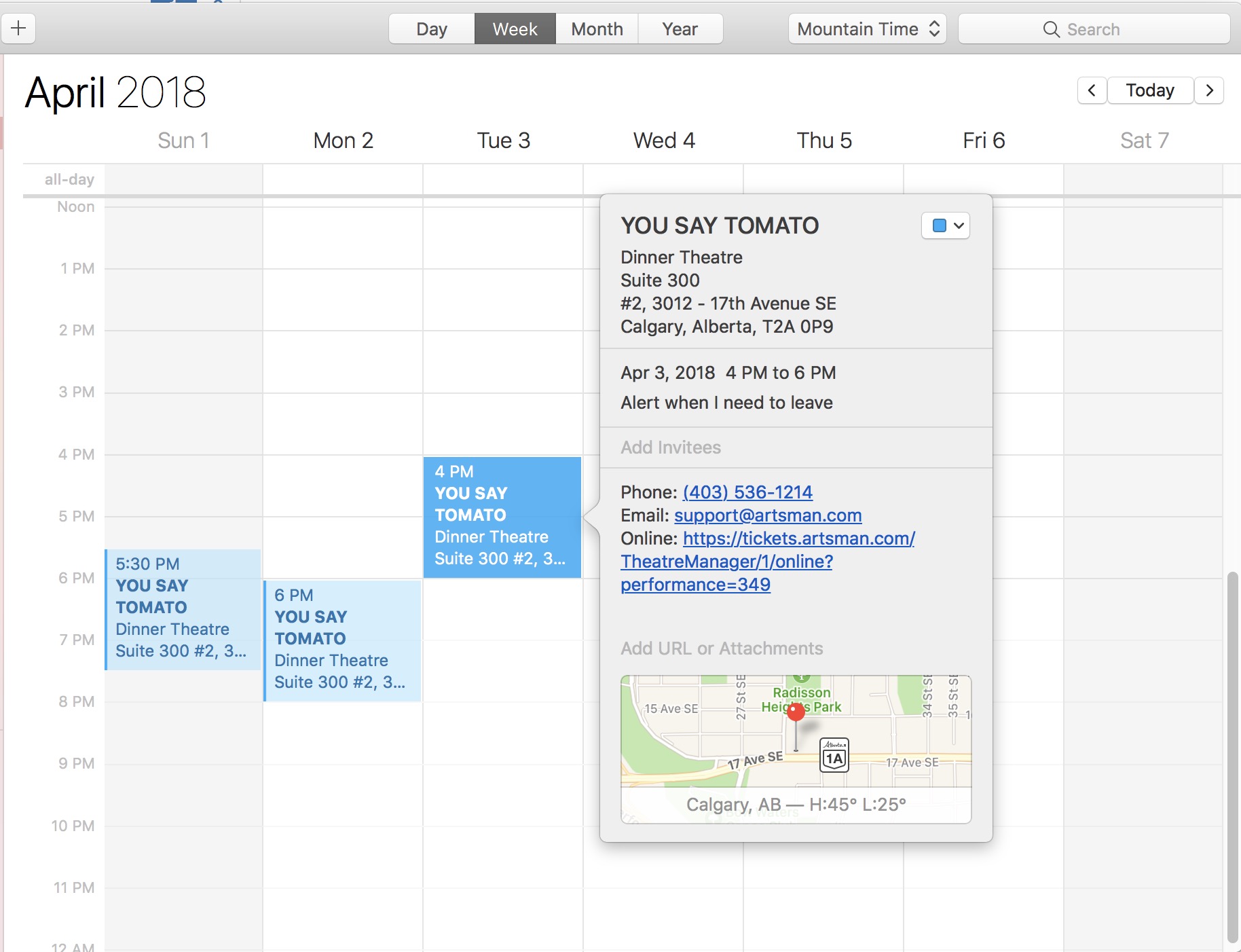
The sample calendar was pulled from our test database as an ICS file. It was opened in iCal to show the content:
- The date of the event
- The time that the event starts
- The duration of the event, based on the duration set in event setup->Marketing tab
- and in the detail, the person who downloaded the calendar can see the location, contact information, and a link to buy a ticket
Exporting Event Information for a marketing web site
Exporting Event Information for a marketing web site
|
Please refer to the REST API introduced in Dec 2016. The REST API replaces this feature while providing more control over who can access data.
However, while exportevents still works on TM 10.07.xx, its use may be deprecated in the future depending on use. |
Exporting event lists
This feature (we suggest using the REST API going forward) can be used to export event details using an https request exportevents if you are using Theatre Manager's online sales. Online sales are a central location of data displaying details for upcoming events.
|
This data can be used to feed web pages specific information, such as titles, dates, times and ticket availability (e.g. good, limited, sold out, etc.) of events. The data is presented in an XML style layout and can be customized so the tags are compatible with how you want them exported.
You can use the extracted information to publish data from TM into a custom calendar object and automate creation of buy now links. |
The address used to view the export is:
https://tickets.yourvenue.org/TheatreManager/1/exportevents (** deprecated)
NOTE: Refer to the REST API equivalent showing event id, name and sales notes.
where:- tickets.yourvenue.org is the name of your ticketing web site
is required - 1 is the outlet number at the site you normally use
- exportevents is the function you want the TM server to do
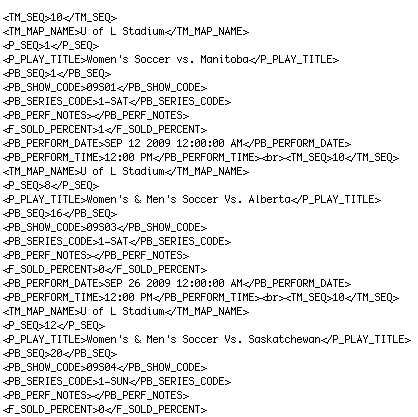
You can preview this information in a browser prior to programming a custom interface. To review the data, right click on the displayed list and select View Source. This will display the beginning and ending XML tags for each field and a <br> tag after each set of record rows. A sample of the data is below:
Formatting an Export
You can reformat data to appear in a different order. Fields can be removed or additional event and performance related fields added. Calculations can be set based on existing data to provide required information for customized fields. Some of the field references are:
TM_SEQ - Map Number
TM_MAP_NAME - Map Name
P_SEQ - Event Number
P_PLAY_TITLE - Event Title
PB_SEQ - Performance Number
PB_SHOW_CODE - Event Code
PB_SERIES_CODE - Performance Code
PB_PERF_NOTE - Performance Notes
F_SOLD_PERCENT - Percent of Seats Sold for this Performance
PB_PERFORMANCE_DATE - Performance Date
PB_PERFORMANCE_TIME - Performance Time
To alter the information exported, you need to edit rowTicketEventExportCustom.html
You can have have several variations of this page to be used for different exports. When a desired format is required, the page names can be altered so the required export is using the name rowTicketEventExportCustom.html.
The rowTicketEventExportCustom.html page is referenced by the TMticketsExportCustom.html page.
Customizing an Export
The export address can be altered to include or exclude certain information.
For example:
This export address will export only information for Event number 246 if it takes place in venue 18, is in the year 2012 and is available for sale online.
Additional options that can be added to the address are listed below:
&year=YYYY - displays the performances for the specific year where YYYY is the desired year
&event=X - displays the performances for the specific event where X is the event sequence number from Theatre Manager
&venue=Z - displays the performances for the indicated venue only, where Z is the venue sequence number from Theatre Manager
&abletosell=1 - displays ONLY the events available for sale online (this is the default if not supplied)
&abletosell=0 - displays events that are available for sale and/or those events that are not yet available for sale online
Events that a patron has purchased
Events that a patron has purchased
https://tickets.yourvenue.org/TheatreManager/1/calendars/my_upcoming_events.ics?t=token
This shows events that a patron has purchased a part of their web checkout. It requires an authentication token to be created if you want to subscribe to it. Otherwise, it can be viewed online if the patron is logged in.
Volunteer/Staff activities assigned to a Patron
Volunteer/Staff activities assigned to a Patron
This shows this list of volunteer or staff activities assigned to a patron. it can be accessed as:
- a downloadable ICS file
https://tickets.yourvenue.org/TheatreManager/1/calendars/my_upcoming_activities.ics
- as a web page (the patron has to log in) using
https://tickets.artsman.com/TheatreManager/1/calendars/my_upcoming_activities?view=month&start=2018-07-01
The parameters are optional:
- view= can be one of: month (the default), week or list
- start=, if provided, should be in yyyy-mm-dd format. the default is this month.
Subscribing to Calendars
Subscribing to Calendars
For example:
- I can be assigned to usher, work backstage, attend various rehearsals, or be part of a committee. Activities assigned to me can appear on my iPhone.
- Single or Subscription tickets that I purchase can appear with the performance dates and times on my computer calendar and my tablet
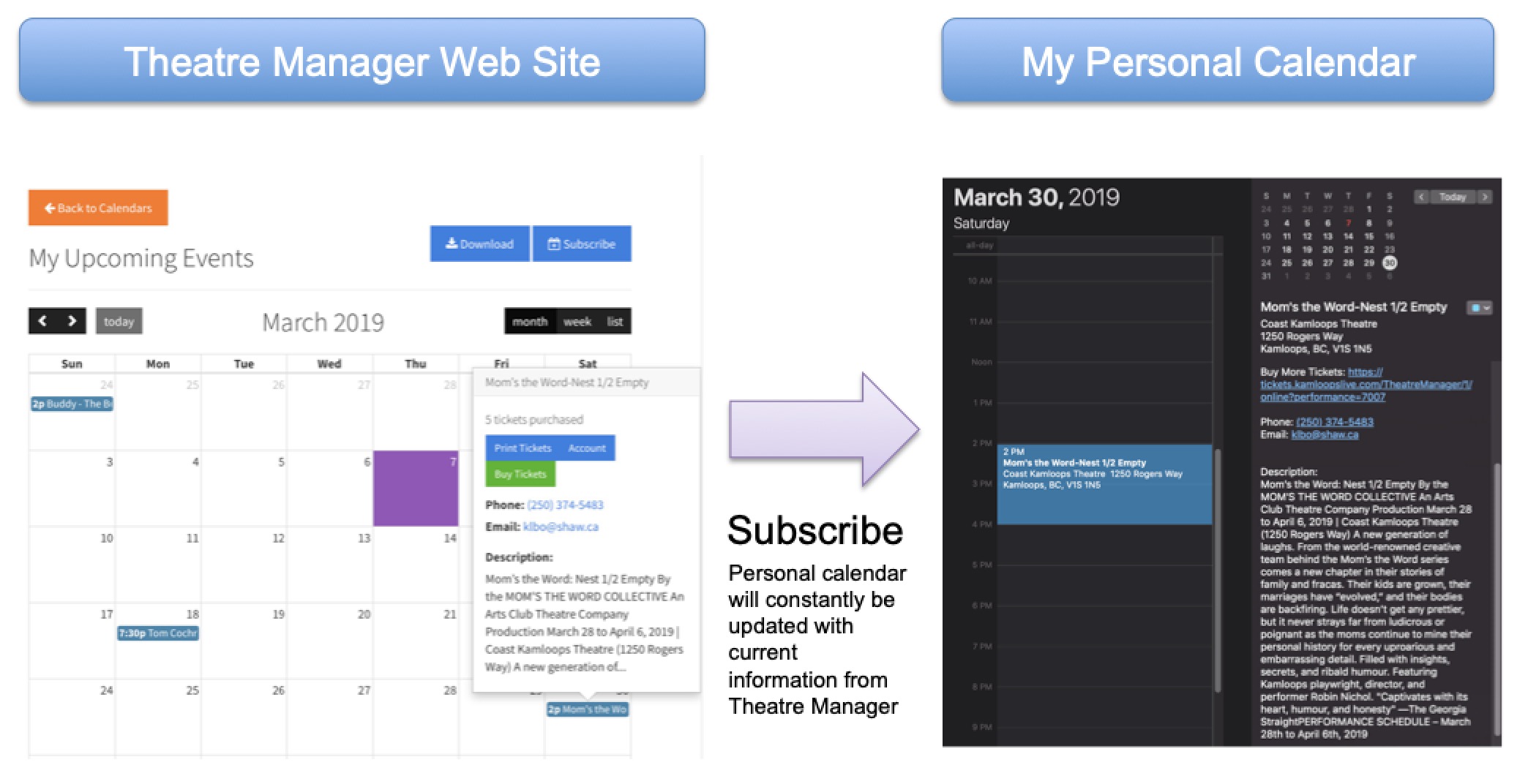
The Key is Subscribing to a Calendar from the Web Site
This feature is available to anybody involved with your venue and who can log into the website.
To keep a private calendar up to date in your tool of choice (eg iCal, Outlook, calendar on a phone), you will need to do the following three stems one time only:
- Log into the web site using your patron email address.
- Create a calendar Access Token (you can reset it periodically if you want to change your security token - but doing so means you will need to resubscribe to the calendar)
- add the calendar to your personal calendar by one of two methods:
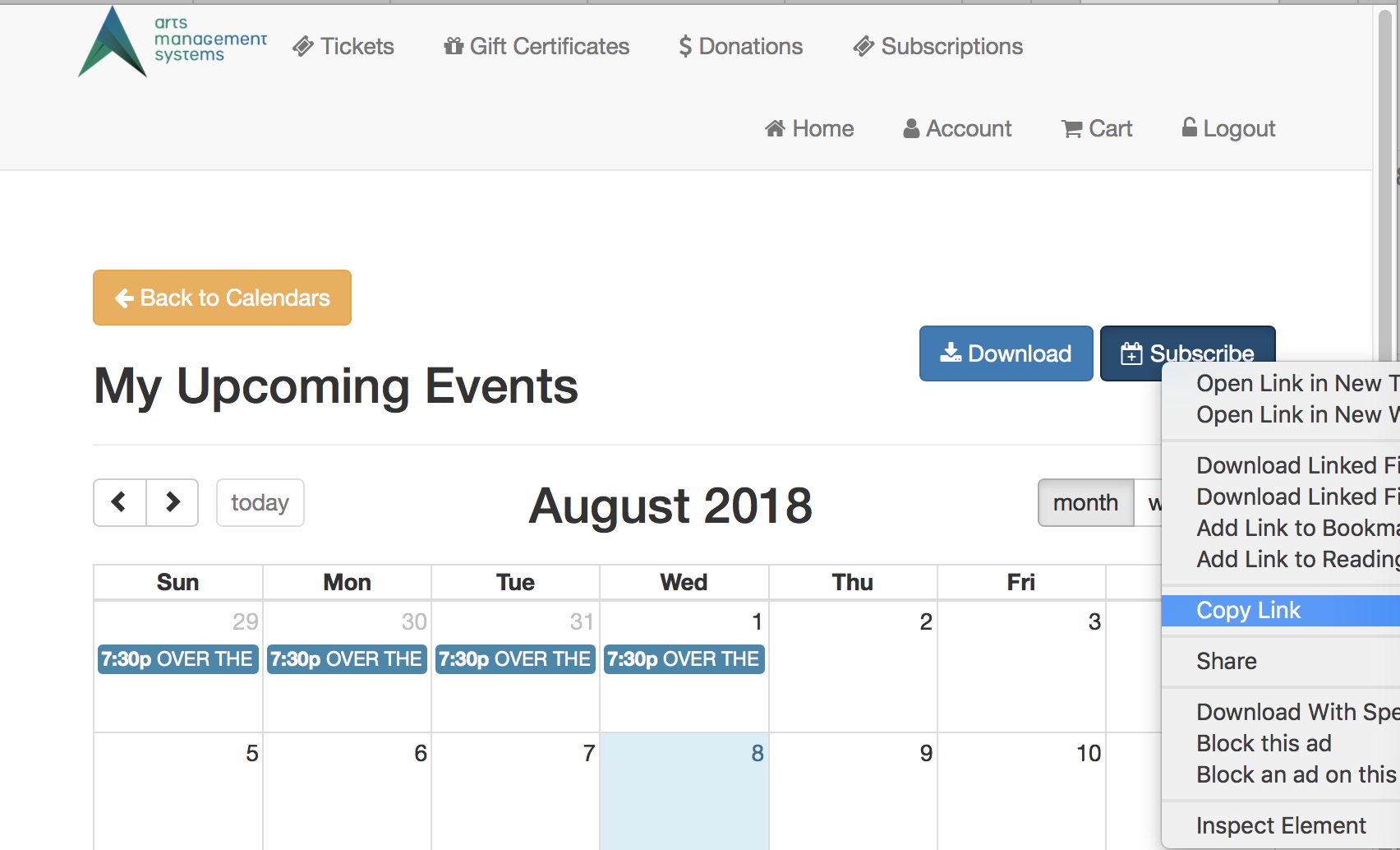
- Easy: click the subscribe button on the calendar (upper right of the web page) which should automatically add a link to this calendar into your preferred calendar tool set up on the current device -OR-
- If your personal device cannot process the click; obtain the url to the calendar and manually open your tool of choice to use their Subscribe feature -OR-
- If you want it on a different device than you are looking at, copy the link and email it to yourself. Then open the email on the other device.
Alternatively, you can Download and Import a Calendar
If you do not want your calendar linked to Theatre Manager and receive automatic updates, you can get the calendar data into your device by:
- Looking at the calendar and download it (or receive it in a ticket email confirmation)
- double click the ICS file on your device to add it to your calendar.
Making a Calendar Access Token
Making a Calendar Access Token
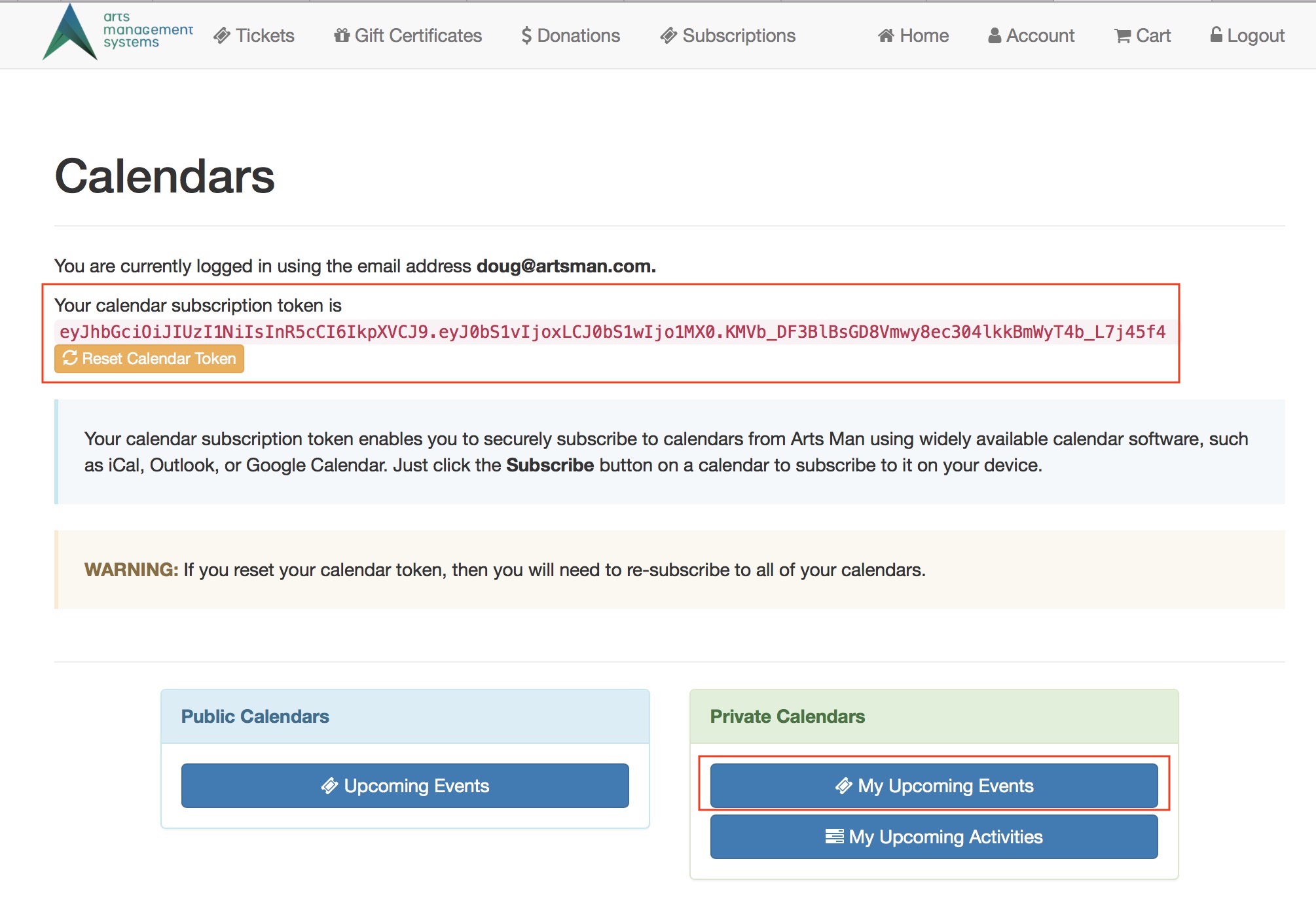 the person wishing to subscribe to a specific calendar will need to:
- Log in to the ticketing web site
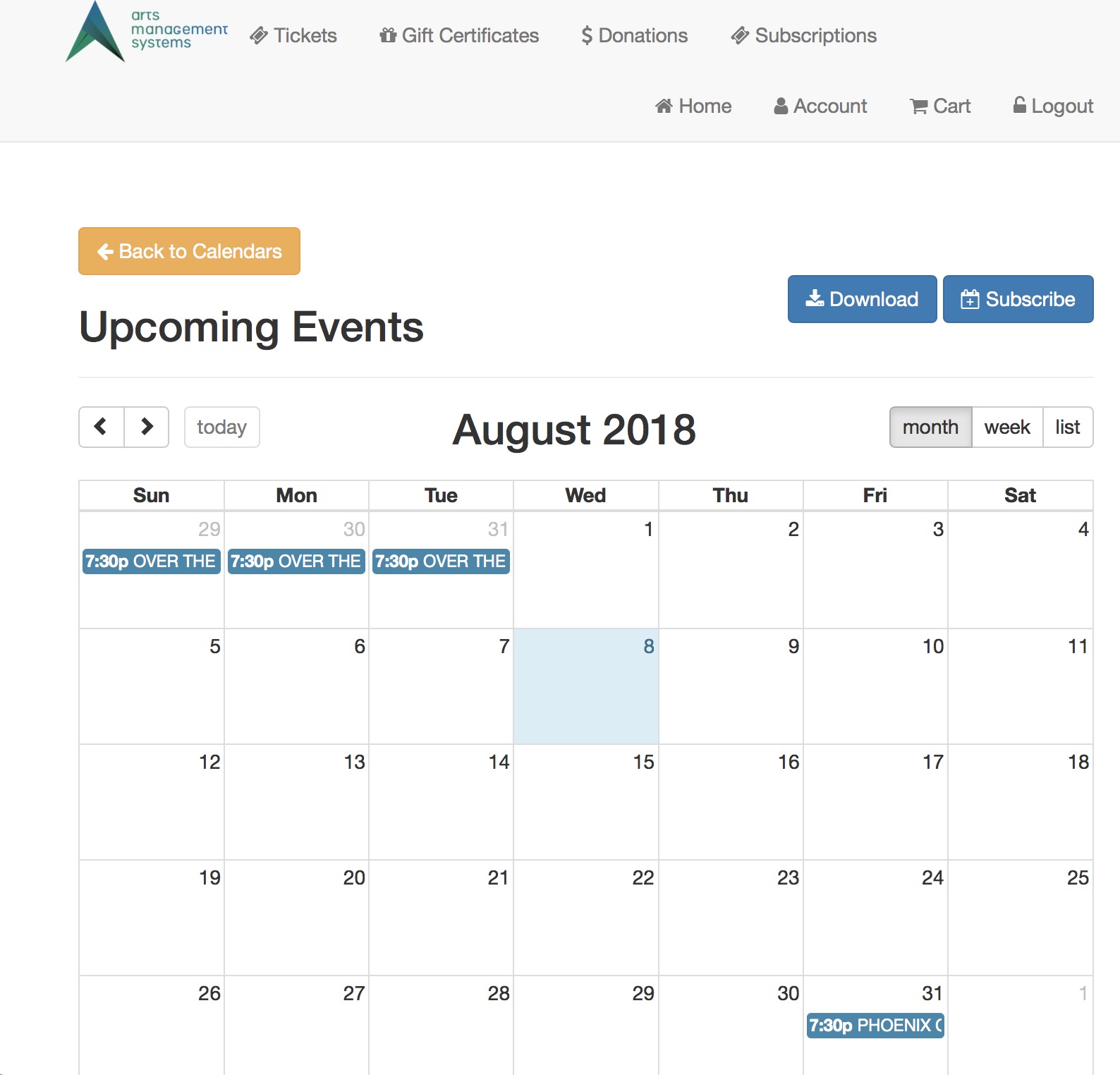
- Go to the Home Page->Calendars part of the web page (see example image above)
- Obtain a Calendar Token:
- Make their first Calendar token if one does not exist. You cannot subscribe to a calendar unless you have a token unique to your login id
- If desired, the Calendar Token can be reset by the patron (ie. person logged int) periodically for security -- and if this is done, you will need to set up your personal calendar(s) again.
- The Calendar Token is displayed on the web page as shown in the example -- it is a long string at the top of the page and you can copy it for use in your calendar tool of choice.
 There are two ways to subscribe to the calendar:
- When viewing any specific Calendar, there is a Subscribe button on the upper right of the web page that should automatically add the calendar to your calendar Tool of choice. For example, on MacOS, this will generally add it to your iCal calendar.
- If an automatic subscribe does not happen, or you want to add the calendar to another device or another calendar, you can manually add the URL specific to the Calendar you are viewing.
iCal: Easy Subscribing Example
iCal: Easy Subscribing Example
Subscribing takes three steps:
- Find the calendar you want to subscribe to
- Click the Subscribe button that is usually to the upper right of the calendar, as highlighted in the image below.
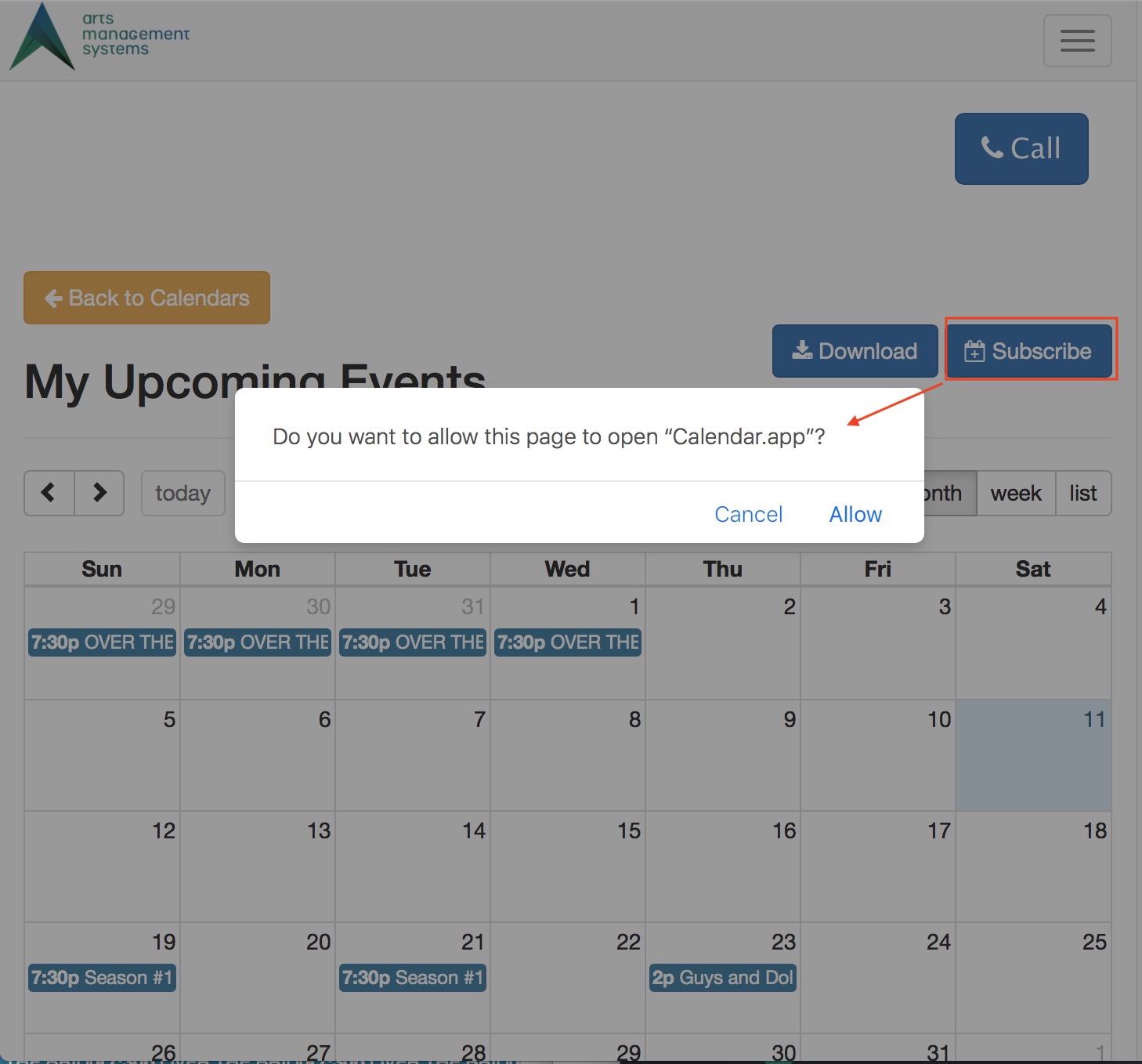
- You will be prompted to add it to your calendar. If not, see example for manually adding the link
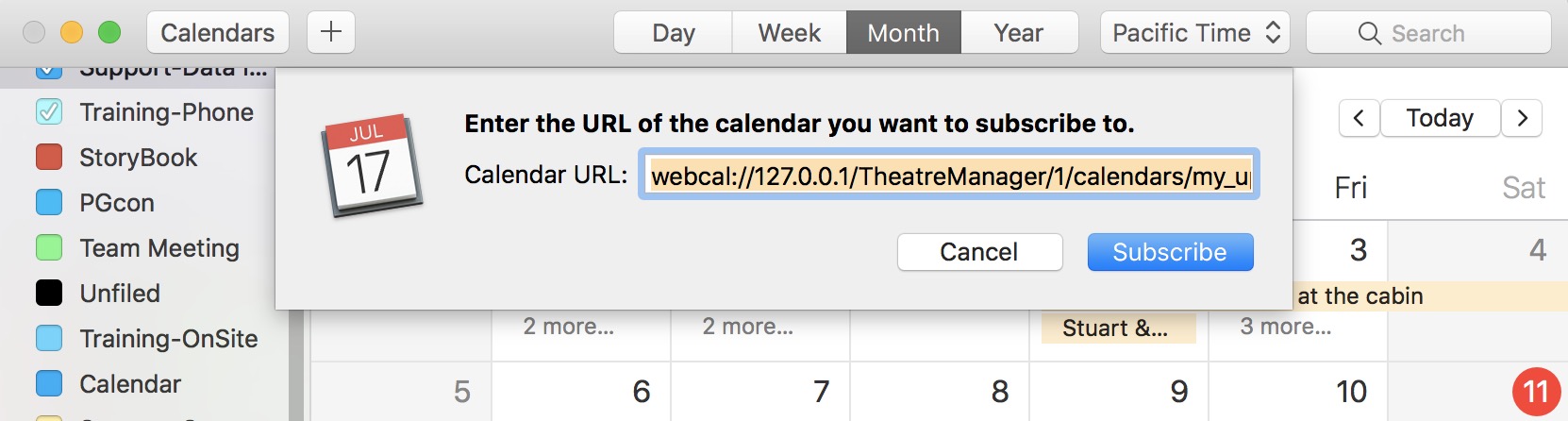
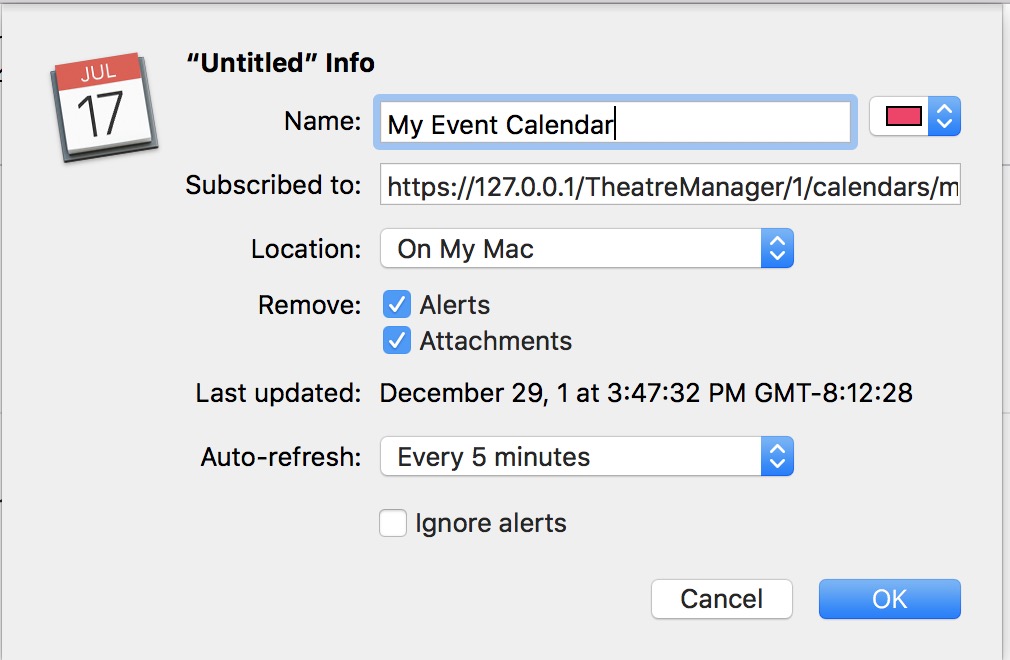
- You will need give the calendar a title and should probably change the refresh rate on the calendar to be more frequent than once per week.
iCal: Subscribing using the URL
iCal: Subscribing using the URL
When your calendar program does not automatically open from the Subscribe link
On some devices (and operating systems), subscribing to a calendar may take a few manual steps. This example shows how to do these steps with iCal. If you are using a different calendar program like outlook, or an older android device, you may have to do these steps manually.
- First, find the calendar that you want to subscribe to and click the subscribe link (upper right). You computer should automatically add it to your calendar, or it may download the ICS file containing the calendar data.
- If the calendar was downloaded, right click on the subscribe button and chose copy link
-
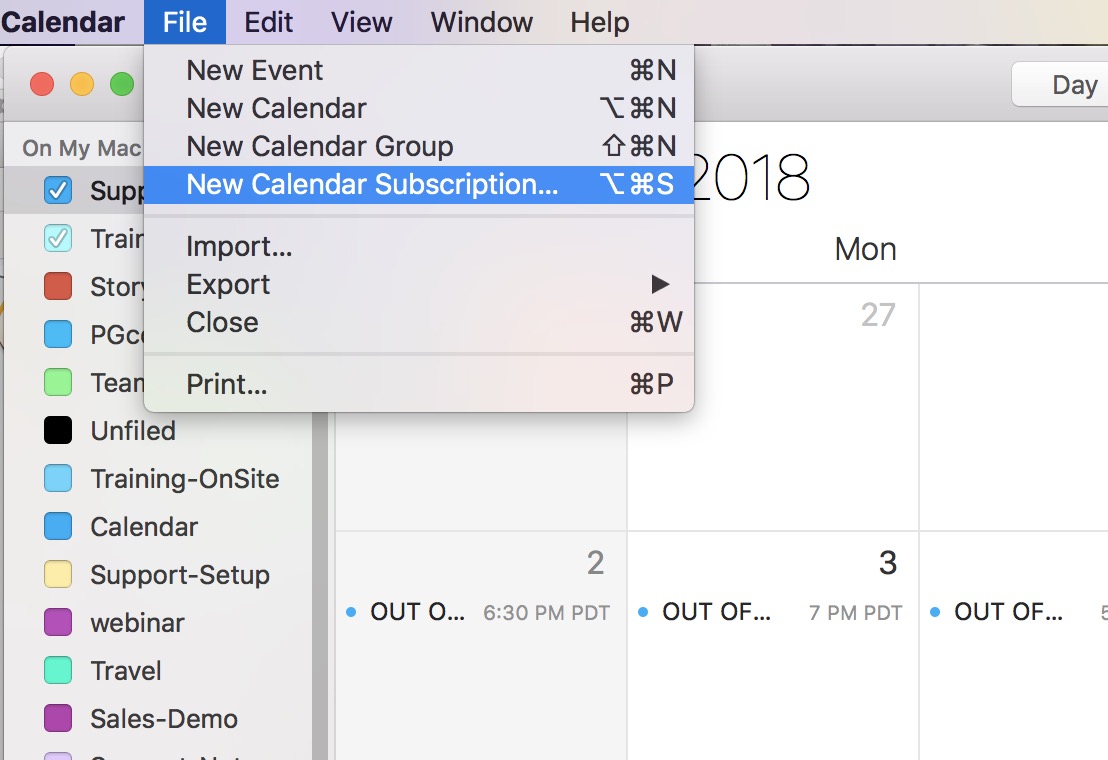
Open iCal and select File->New Calendar Subscription
-
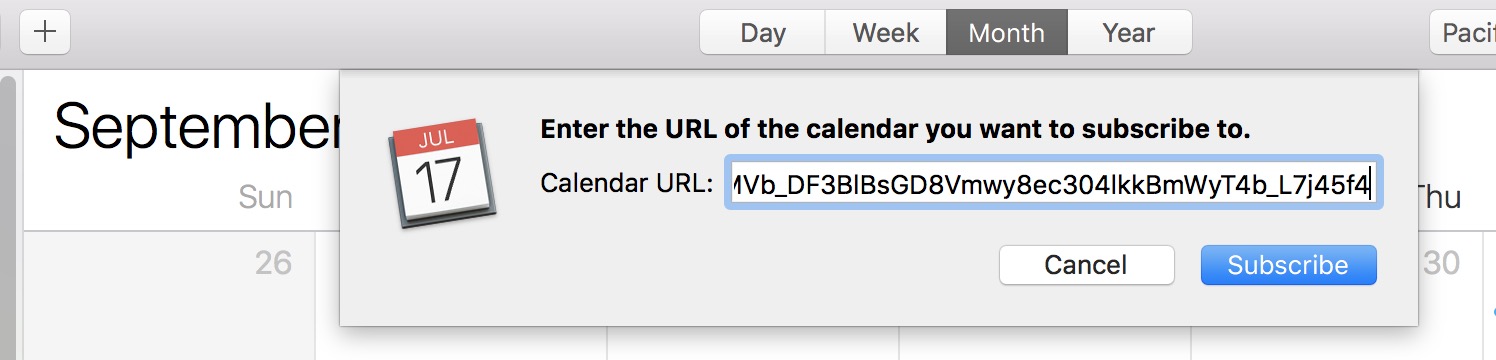
Paste in the URL. In general, it looks like:
tickets.yourvenue.org/TheatreManager/1/calendars/my_upcoming_events.ics?t=personal_token
where:
- my_upcoming_events.ics is the name of the calendar - and is found on the URL of the web browser
- t=personal_token is your personal identity token which generally looks like t=eyJhbGciOiJIUzI1NiIsInR5cCI6... and comes from making the calendar access token.
-
Name the Calendar and paste in the link
By default, a new calendar that you subscribe to in iCal will update itself weekly, so change that to 5 minutes. If you make a mistake and do not set the calendar frequency to 5 minutes, you can change it later by clicking on the calendar on the right side of iCal, and doing a right click-get info.