Entering a Prospect or Soft Pledge Donation
Entering a Prospect or Soft Pledge Donation
A prospective donor's name may come from discussions at a Development or Staff meeting, or noticing a donor on another venue's Donor Wall that isn't in your current donor list. it might also be for the purpose of Planned Giving
As soon as you identify a prospective donor, you should start a Prospect Donation in Theatre Manager. This way, you can track the progress of moving the potential donor towards an actual gift.
 |
A Prospect Gift or Soft Pledge will not affect your financials in any way. Entering a Prospect Gift is simply a way of tracking a potential gift without creating any Receivables. |
Entering a Prospect Donation
- Start by opening the Patron Record of the prospective donor. For details on locating a Patron Record click here.
- Click the Donation
 tab.
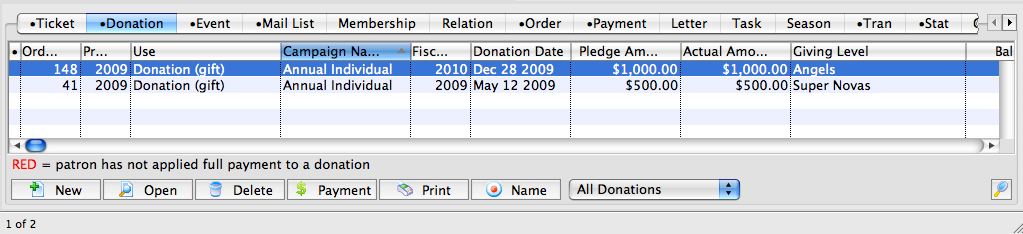
- Click the New
 button. The Donation Detail window opens.
- On the left-hand side of the Donation Detail window, you will see a drop down for:
- Prospect
- Soft Pledge
- Hard Pledge
- Donation (gift)
Select "Prospect"
- Complete the remainder of the fields for the prospective gift.
- Click the SAVE button at the top of the Donation Detail window.
|
Alternatively, refer to Enter Donations on the Order Window when already within an order. |
The Donation Detail window opens.
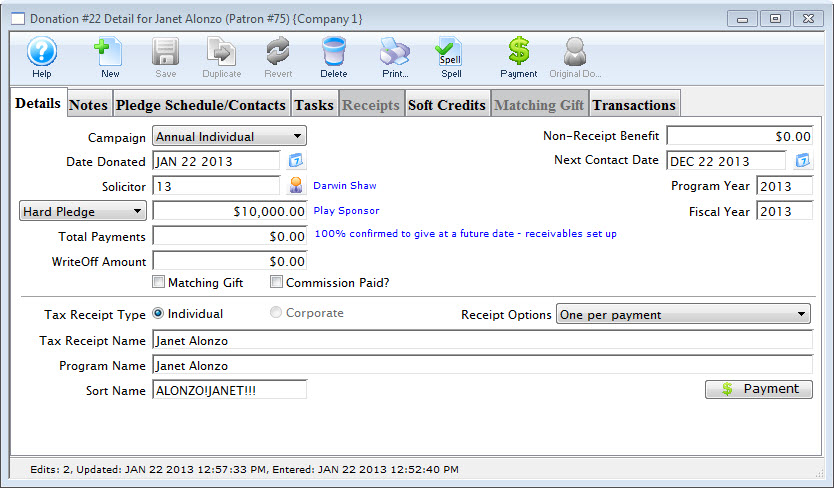
You will also note a change in the blue text to the right of the field. It now says:
Long term prospect who may give if nurtured appropriately. Receivables/accounting entries ARE NOT created until this is converted to a gift.
Some prospect gifts will remain as prospect gifts for a long time - perhaps even forever. They will always be recorded in the Patron Record so you can see what work has been done with this particular Donor.
Using Prospect for Planned Giving
Using Prospect for Planned Giving
|
A Prospect Gift or Soft Pledge will not affect your financials in any way. Entering a Prospect Gift is simply a way of tracking a potential gift without creating any Receivables. This gives you a place to track all interactions with the patron during the planned giving process. |
Setup and Data Entry
To handle these in Theatre Manager:
- Make a donation campaign, if it is deemed best to have a different one for tracking purposes
- Indicate that the donation be set up as a PROSPECT
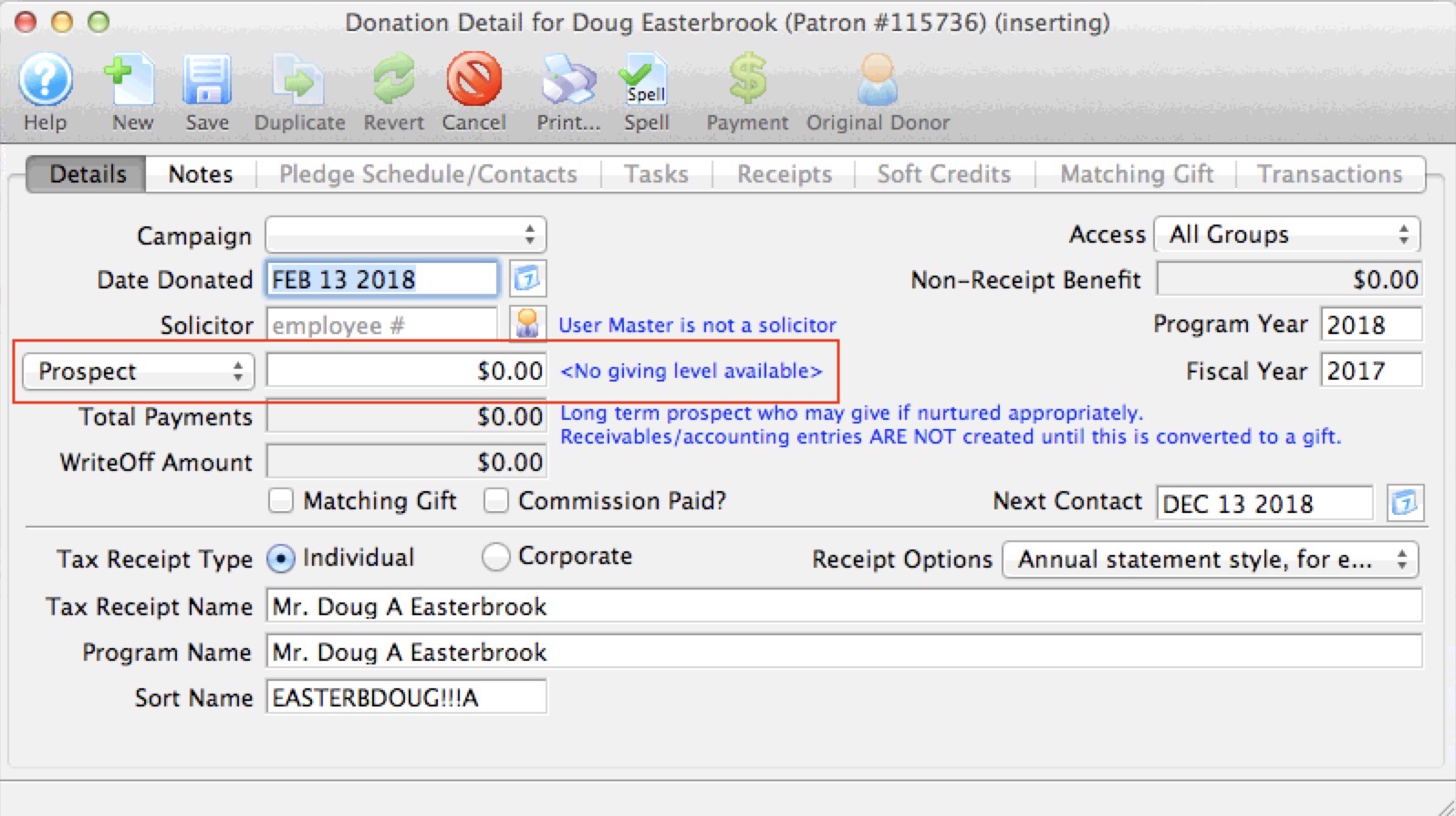
- Enter the potential value of the planned gift
- put something in the notes about what the planned gift is for or how you will receive it
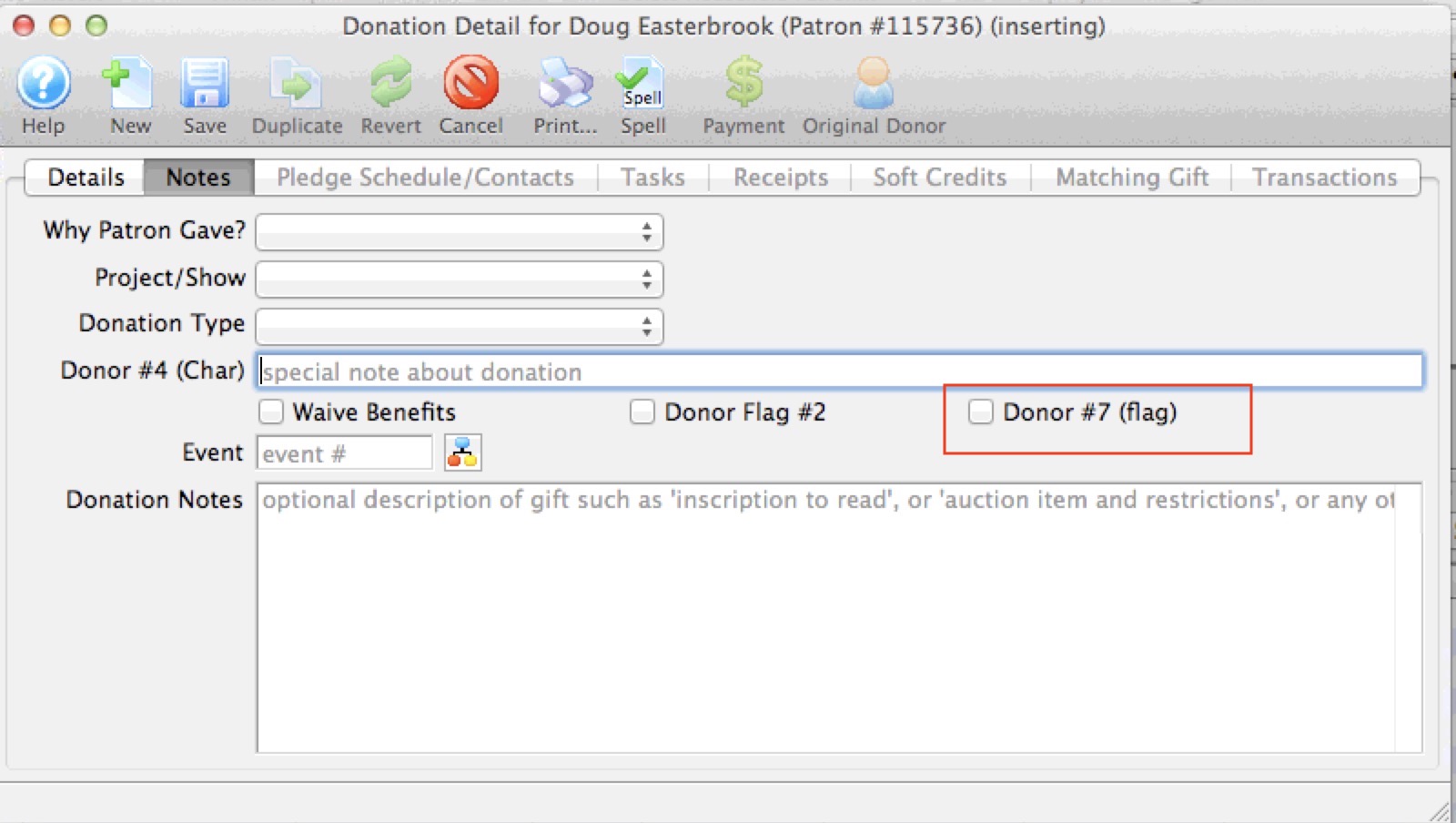
- optionally, use one of the custom donation fields for an additional identifier. This image shows that flag #7 is not taken, so you might rename that as 'planned gift' in company preferences if an additional marker is required to simplify pulling some reports.
What to do before you actually receive the Planned Gift
Before you actually receive the planned gift, there will undoubtably be changes to the information, discussions, reporting, etc. You can:
- Use the TASK tab to track meetings , to-do's or such with the potential donor
- In one of the tasks, if you get documentation from the donor, stick it into the attached files tab of the task
- Track any letters you send specific to the planned gift in the pledge Schedule/Contacts tab
- This gives you a central source of all interactions about this specific planned gift with the patron.
What changes when you get the planned gift?
- Change the PROSPECT marker to GIFT - this initiates the financial data to be sent to finance for the GL
- enter the true amount of the planned gift, if it has changed from what you thought
- Enter full payment or any sort of payment plan that the planned gift species -- just like any other donation
- Prepare a tax receipt, any custom acknowledgement for this kind of gift, or any required government forms - which you can also track in the attached files tab of a task
In the end, a planned gift is just like any other donation ..... except it starts its life as a PROSPECT before being converted to an actual gift.