Time or Timezone on Computer Differs
Time or Timezone on Computer Differs
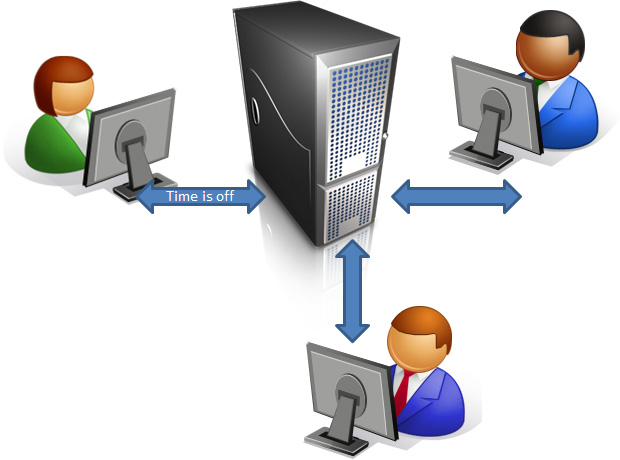 You log into Theatre Manager and you get the following message:
Your computer date/time (MMDDYYYY 00:00:00) differs from the date (MMDDYYYY 00:00:00) at the timezone by more than 30 seconds.
Theatre Manager checks the time between the application at the specified timezone and the Postgres Database Server time and timezone is important in journalizing accounting.
The main things to check are:
- your computer's date and time
- the timezone setting of the local computer system settings
- the timezone setting in Theatre Manager's Hardware Preferences to make sure that all three agree.
|
If only one workstation is affected, it is likely a timezone setting or date/time on the specific machine. It is probably ok to proceed with work but you should address the time discrepancy as soon as possible. Check the workstation clock If all workstations are getting the error, please resolve the issue. Check the time or timezone on the database server and in Theatre Manager. The timezone at the every server should be set to 'UTC'. |

Why does the time deviate?
It is a well established fact that computers don't keep time very well. They do a darn good job, but the time is generally based on the oscillation of crystals which are based on the frequency in the line voltage. If line voltage frequency varies from the normal +/- 60 cycles per second, it means clocks don't run true and they will never match the accuracy of an atomic clock.
Computer time can change on a particular machine for a number of reasons:
- sometimes it is the battery, or
- in older machines, it is not calculating the daylight savings time changes properly.
- Or your computer is in a different timezone than the database and needs an explicit offset
Microsoft even states that they expect the clock on the CPU to vary a minute a day up to an hour.
Time differs by a few minutes
Time differs by a few minutes
- Update the workstation clock and timezone to match the Server.
- In Theatre Manager you can check time zone setting in Setup >> Company Prefs >> Reports/Misc tab
- Set up time synchronization on your computer and server.
Time differs by an hourly increment.
Time differs by an hourly increment.
- Verify that the computer time and timezone is correct for the locale you are in.
- Verify that the timezone setting in the postgresql.conf file is correct.
- Verify that the workstation clock time and timezone match the Server. If they do not, you have two options:
- If the workstation should be in the same timezone, fix the timezone in the clock preferences
- If the office is in a different timezone than the server, you can set the workstation timezone in the Theatre Manager Preferences file for that workstation
- If it still persists, check that the postgresql.conf has the correct 'Log_timezone' setting and "timezone" setting for the local area and match the timezone on the server. This is typically 'UTC', and if not, then set it to that. There are instructions for editing on an OSX or Windows Server
- Typical values are:
- US/Eastern, US/Central, US/Mountain, US/Pacific, US/Alaska, US/Hawaii, US/Michigan, US/East-Indiana, US/Indiana-Starke
- Canada/Newfoundland, Canada/Atlantic, Canada/Eastern, Canada/Eastern, Canada/Saskatchewan, Canada/East-Saskatchewan, Canada/Central, Canada/Mountain, Canada/Yukon or Canada/Pacific
- The valid timezone list can be found in Setup >> Company Prefs >> Reports/Misc tab
Using Computer Time Synchronization
Using Computer Time Synchronization
- On OSX, it is a matter of going to the system preferences and telling the Date&Time preference to 'Set Date and Time Automatically'
- On Windows:
- you can follow these instructions to set the time sync in control panels. But note, that windows does this sync once a week, so it is still possible for your clocks to drift during the week.
- If you want to actually force a time sync daily (or more often) you make a task that and follow the instructions in this help page