Invoice Comments
Invoice Comments
Invoice Comments are printed at the bottom of invoices for statements, payment reminders, and confirmation notices.
You access the Invoice Comments Window through Setup>>System Tables>>Invoice Comments Menu.
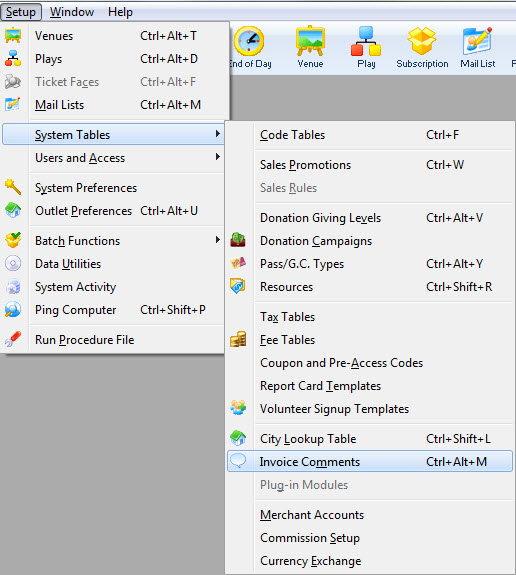
The Invoice Comments window opens.
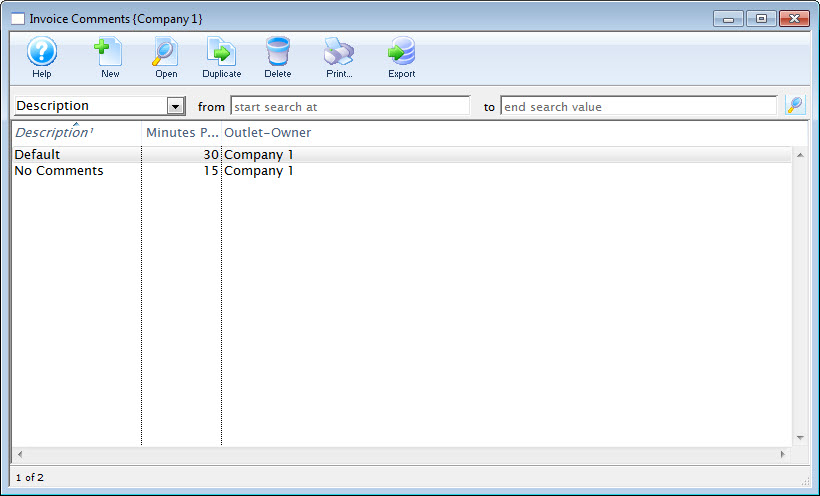
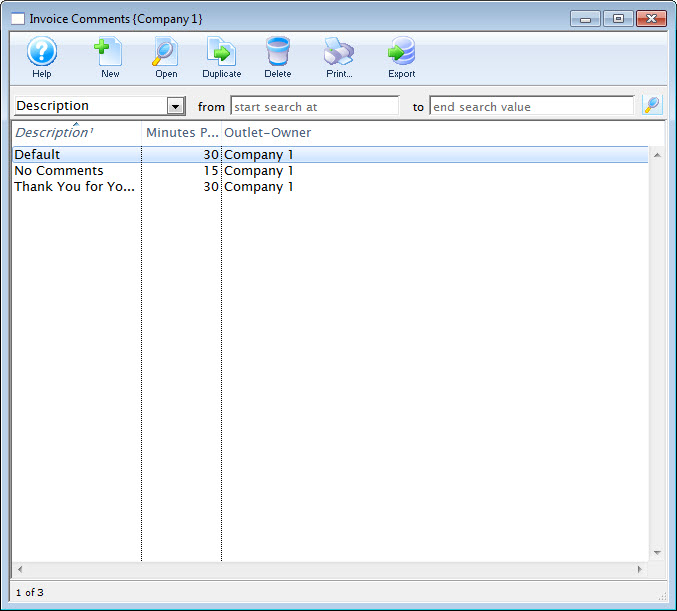
Invoice Comments List Window
Invoice Comments List Window
The parts of the window are as follows:
 |
Inserts a New comment through the Comment Detail Window. For more information on inserting comments click here. |
 |
Opens a window to edit a comment through the Comment Detail Window. For more information on editing comments click here. |
 |
Deletes a comment. For more information on deleting comments click here. |
 |
Generates a report displaying the list of comments to the screen or default print location. |
 |
Exports the selected invoice comments in text tab-delimited format. |
| Description | Search options for locating comments. |
| From | Starting range to search by. |
| To | Ending range to search by. |
| Description | Description of the comment. |
| Minutes Prior | Time prior to the event to arrive. |
| Outlet Owner | Outlet responsible for the comment. |
| Changed By | User initials of the last employee to edit the comment. |
Invoice Comments Detail Window
Invoice Comments Detail Window
Standard comments can be maintained for the various types of invoices, statements, payment reminders and confirmation notices that are sent to patrons.
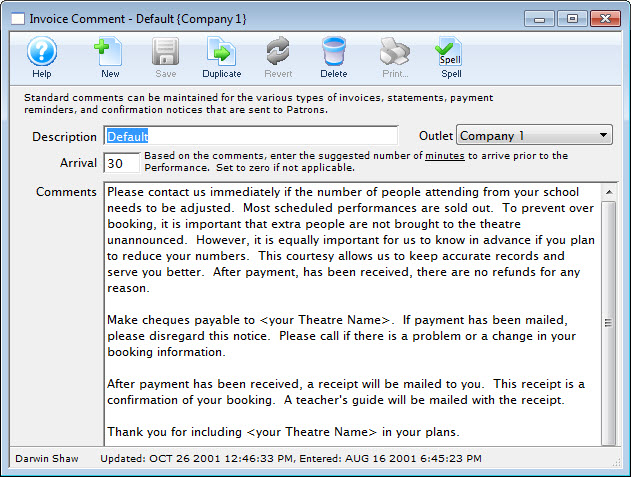
Parts of the Invoice Comment Window
|
Insert a New comment through the Comment Detail Window. For more information on inserting comments click here . |
 |
Saves comments when edited in the Comment Detail Window. For more information on editing comments click here. |
 |
Creates a copy of the current comment. |
 |
Undoes changes to the last saved point. |
|
Deletes a comment. For more information on deleting comments click here. |
 |
Checks the comment for spelling errors. |
| Description | Brief description of the nature of the comment. |
| Arrival | Special field. If it is >0 then a default arrival time will show on invoices that are printed. if is = 0 then no message will arrive. The Message cannot be chaged based on arrival time. |
| Comment | The comments. |
Adding Invoice Comments
Adding Invoice Comments
- Open the Invoice Comments window.
Click here to learn how to access this window.
- Click the New button.
The Invoice Comment Detail window opens.
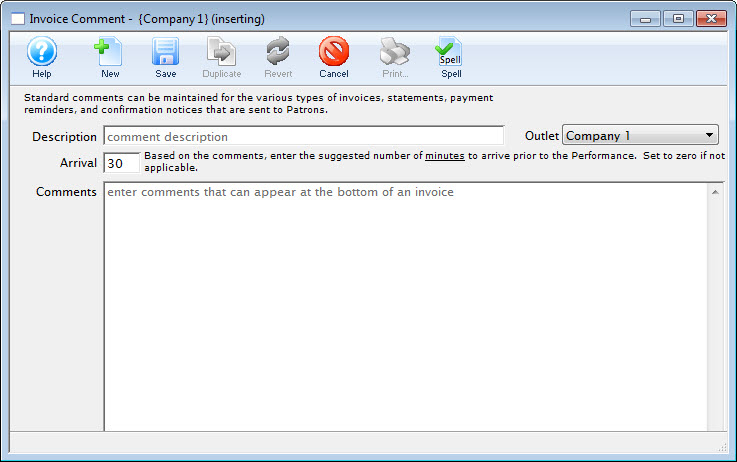
- Enter a name for your comment in the description field.
- Enter the details of the comment.
- If applicable, enter the number of minutes to arrive before the performance.
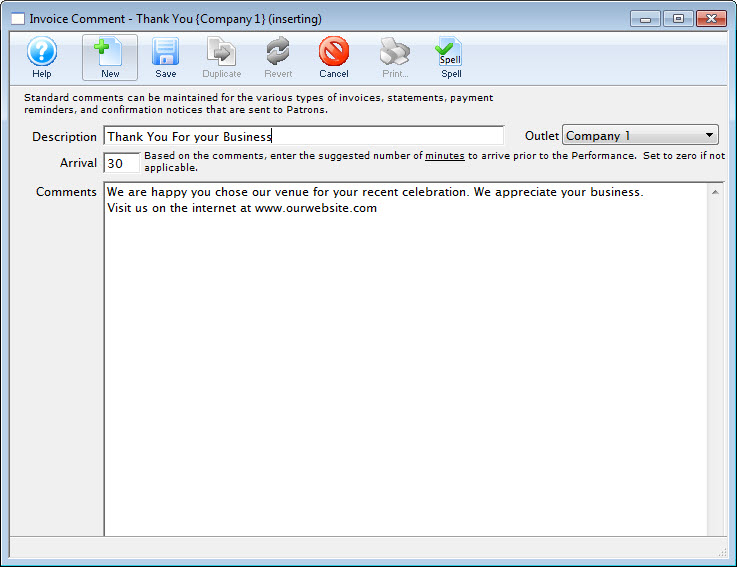
- Click the Save button to save the comment.
The comment is saved and added to the Invoice Comment window.
Editing Invoice Comments
Editing Invoice Comments
- Open the Invoice Comments window.
Click here to learn how to access this window.
- Select the comment you wish to edit.
Single click on a comment to select it.
- Click the Open button.
The Invoice Comment Detail window opens.
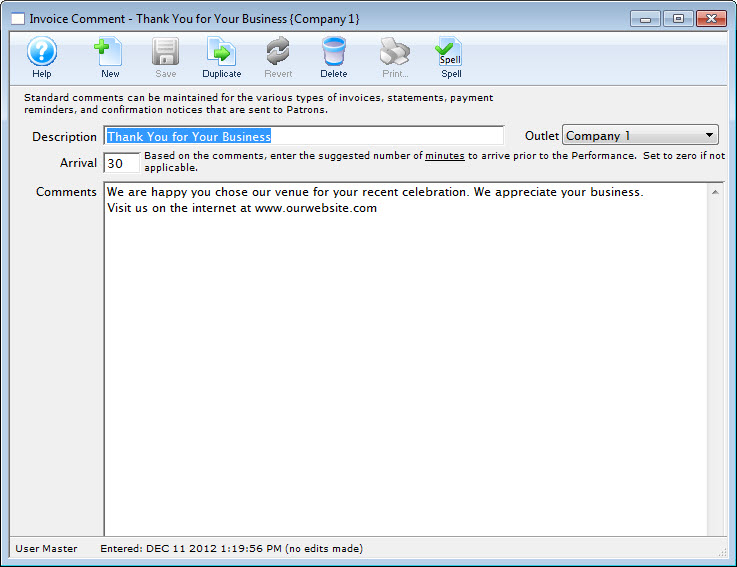
- Change data as needed.
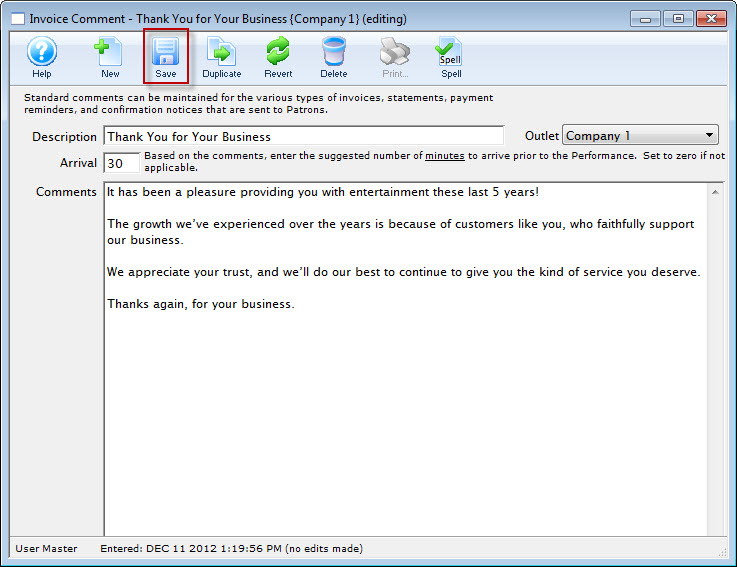
- Click the Save button to save the changes.
Printing an Invoice and Adding the Comments
Printing an Invoice and Adding the Comments
To print an invoice, you perform the following steps:
- In the Patron Window, click the Order
 tab.
For more information on opening Patron records, click here.
For more information on the Order tab, click here.
- Highlight the Order you want to print the invoice for, and click the Invoice
 button.
The Print Invoice Criteria window opens.
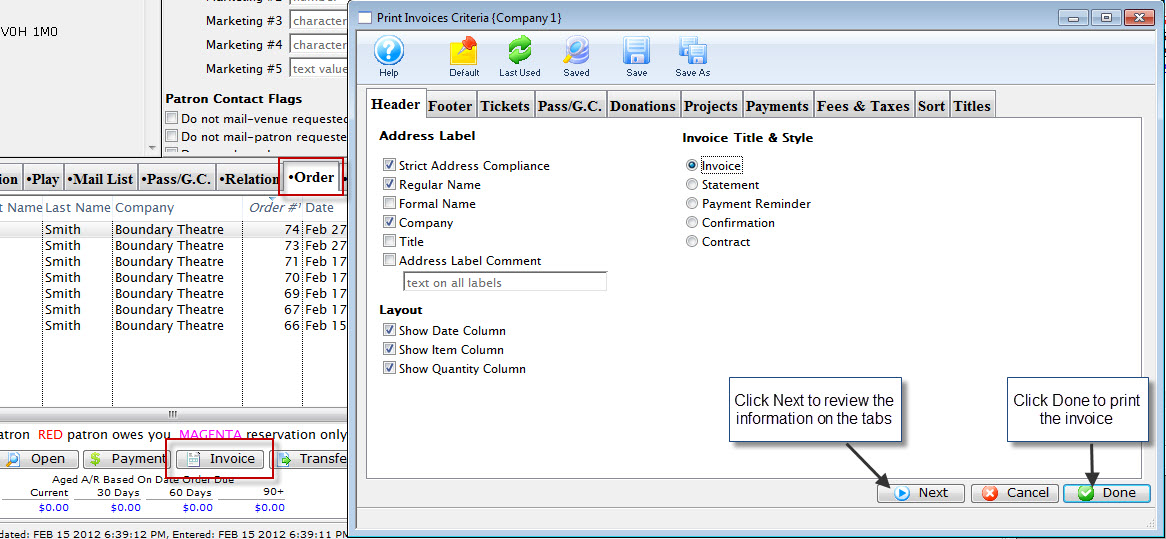
You have the option to page through the criteria using the tabs, or the Next
 button.
- To add the Invoice Comments, Click the Next button to navigate to the Footer
 tab.
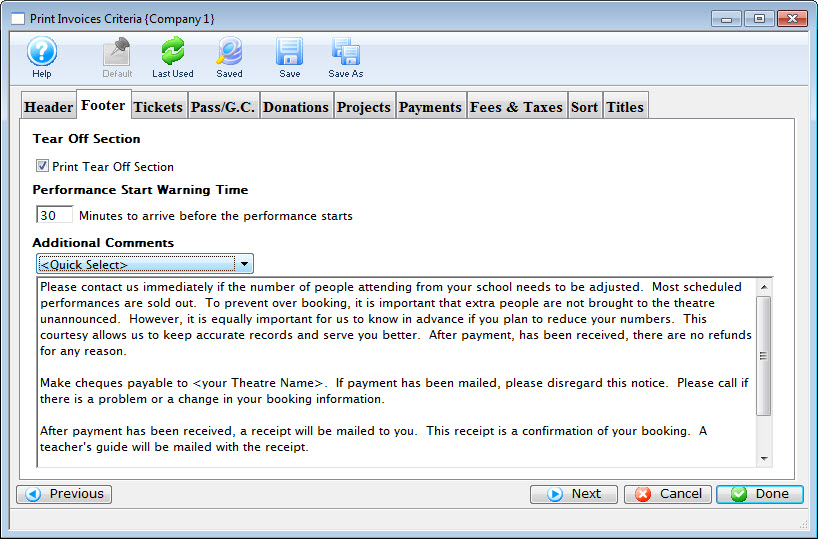
- To have the comments print, enable the Print tear off section check box.
- Enter a Performance Start warning time, if applicable.
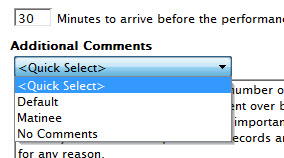
- From the Additional Comments drop down list, choose the comment you want to have printed on the invoice.
- When you have determined all the criteria for your invoice is correct, click the Done
 button.
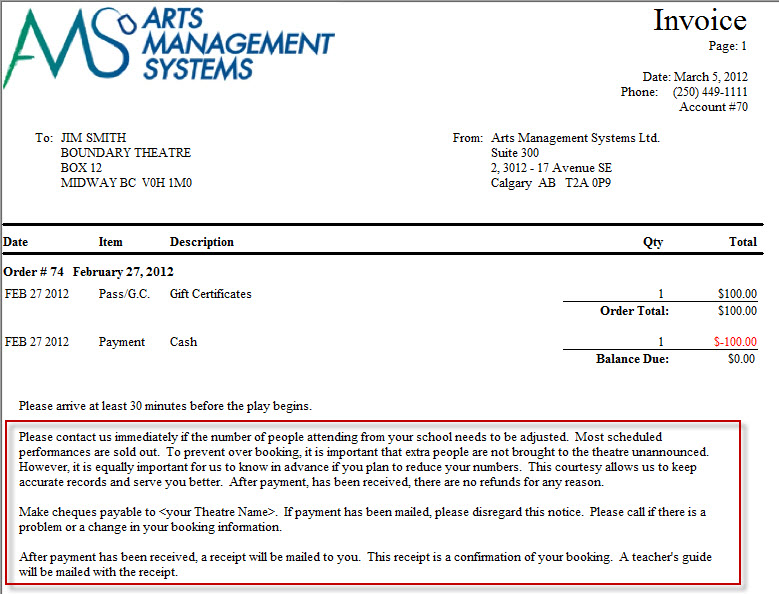
Your invoice prints.
|
The Invoice comments print on the bottom of the invoice. |

Deleting Invoice Comments
Deleting Invoice Comments
- Open the Invoice Comments window.
Click here to learn how to access this window.
- Select the comment to delete.
Single click on a comment to select it.
- Click the Delete button.
A Delete confirmation dialog opens.
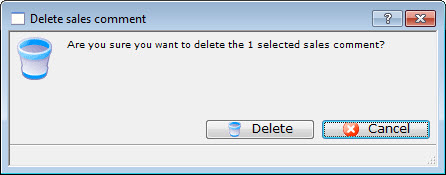
- Click the Delete
 button.