Volunteer Activity
Volunteer Activity
The types of activities your organization's volunteers engage in can be set up, assigned and tracked by Theatre Manager. This page shows you how to set up those activity types.
 |
Refer to the video help on volunteer management for more information. |
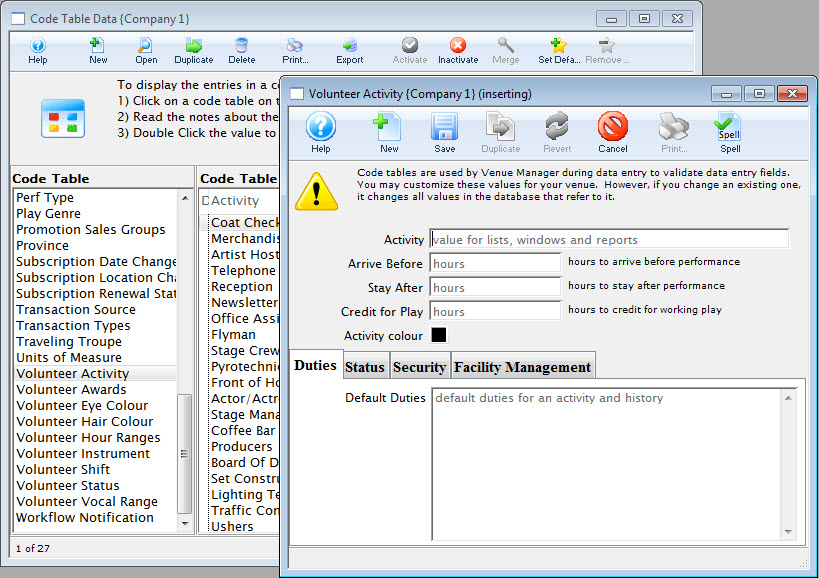
Click here, for more information on setting up Volunteer Activities.
Adding Volunteer Duties
Adding Volunteer Duties
- Go to Setup >> System Tables >> Code Tables and scroll down to select Volunteer Activity.
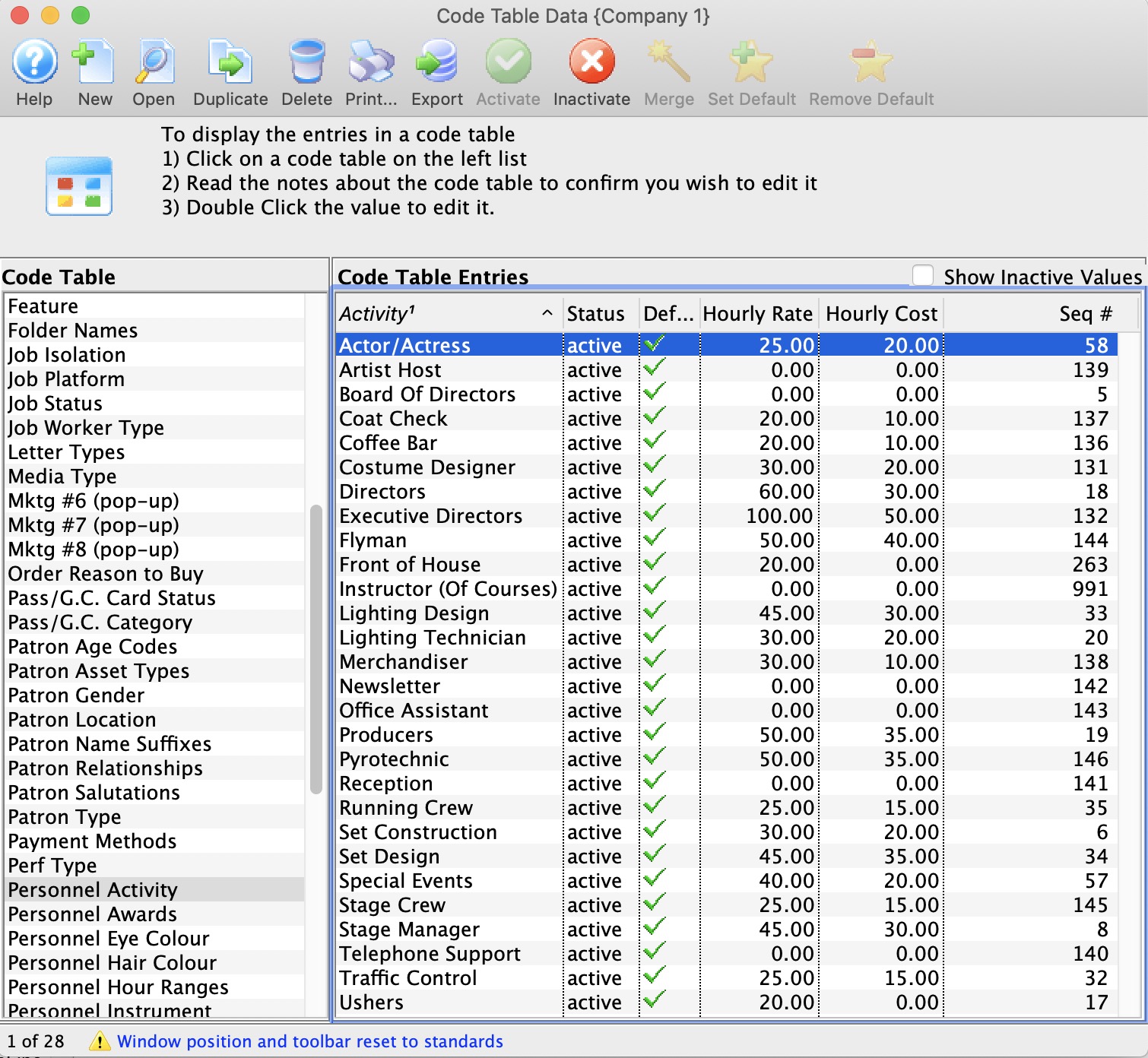
- Click the New button
 to open the Volunteer Activity Insert window.
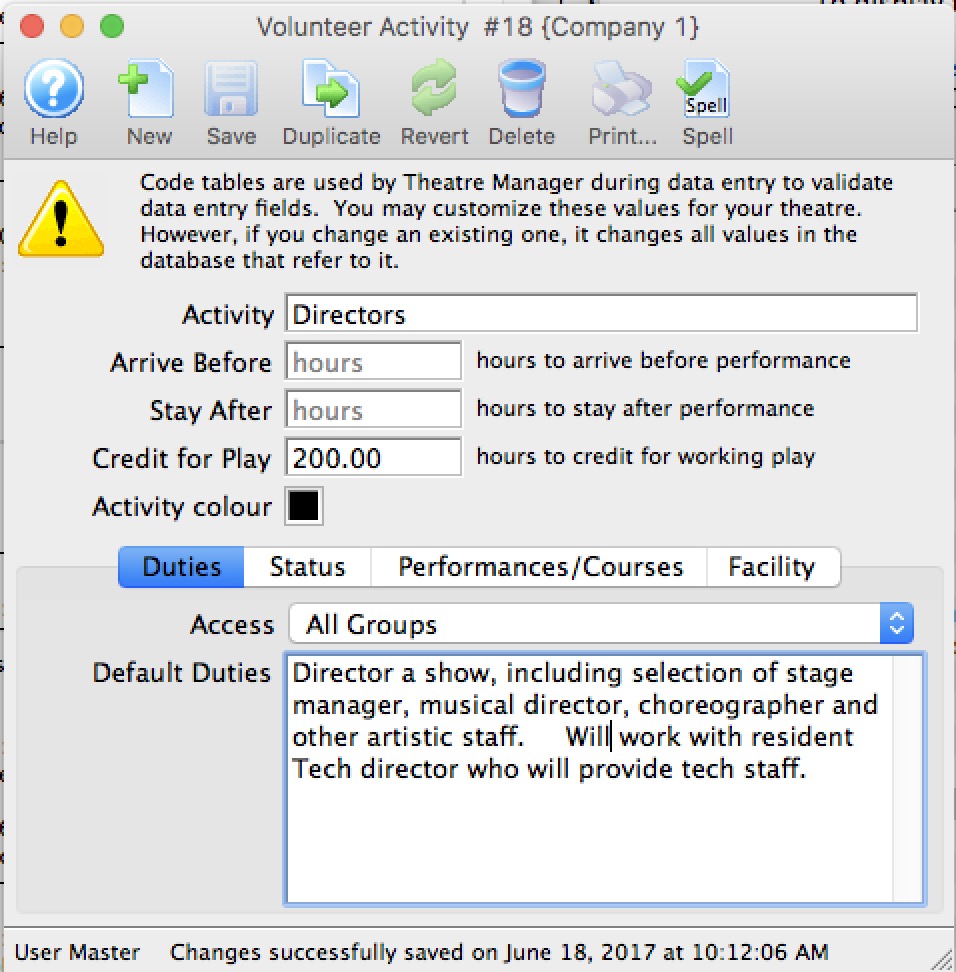
- Give the new activity a specific name so anyone will be able to decipher its purpose. It will also appear on reports and search criteria.
- Optionally, if tracking hours or if hours do not match the task or performance it is associated with
- Enter the number of hours before and after the performance that the volunteer is expected to be there. For example, if the performance starts at 7:30 pm, you might expect an usher to arrive 1 hour before and stay a half hour afterwards. If these two fields are set, they add extra time to the volunteer record before event start and duration of performance. Thus a 2 hour performance might result in a time credit of 2 + 1 before and 0.5 after, or 3.5 hours. This will show on the calendar in Facility Management.
- Alternatively, you can specify a fixed number of hours to credit to the staff/volunteer for doing this activity. This approach is more suitable for things like directors, actors or volunteer office staff who might be given a time allotment, regardless of the duration of the event.
- If either of the above are provided, they become defaults during data entry. If not provided, the setup can specify the total time if you want the time to be fixed, rather than based on calendar input.
- If you want this activity to have special colouring on the calendar, select a color other than black.
- On the Duties tab, enter any default duties for this position.
Volunteer Activity Status
Volunteer Activity Status
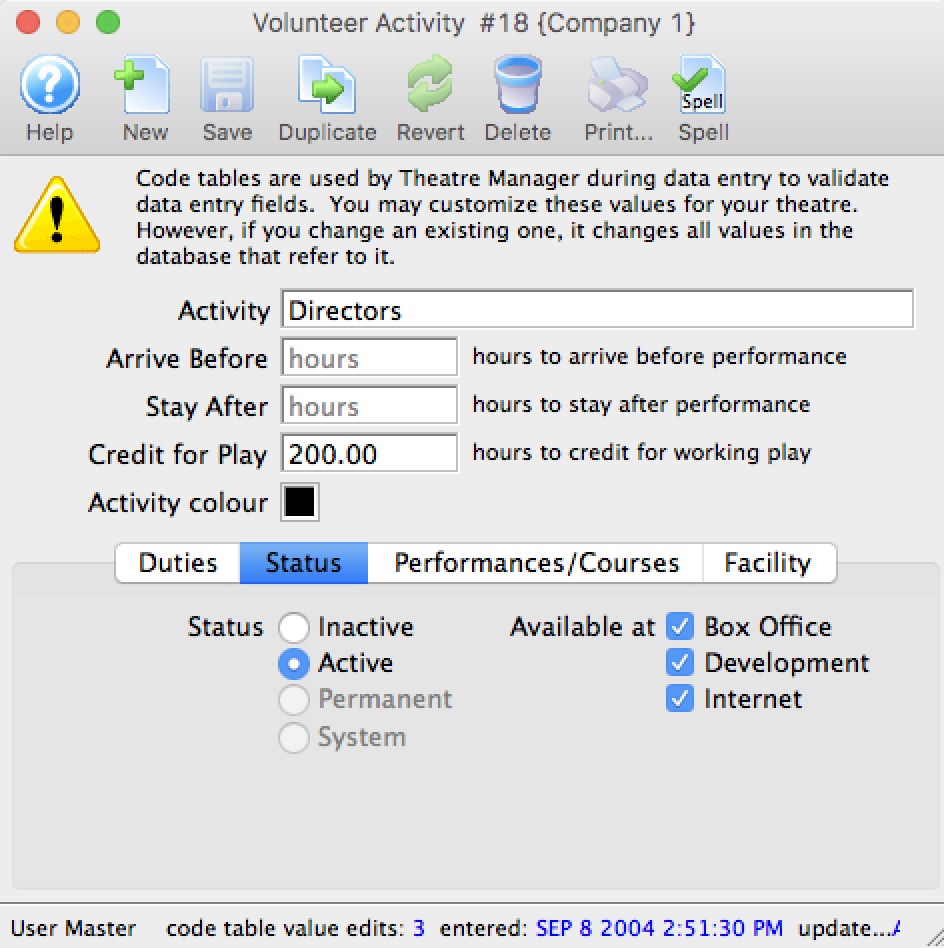
The Status tab is used to indicate if the volunteer/personnel activity code is active or inactive as well as where it might be used.
Web Permissions for Personnel Activity
Web Permissions for Personnel Activity
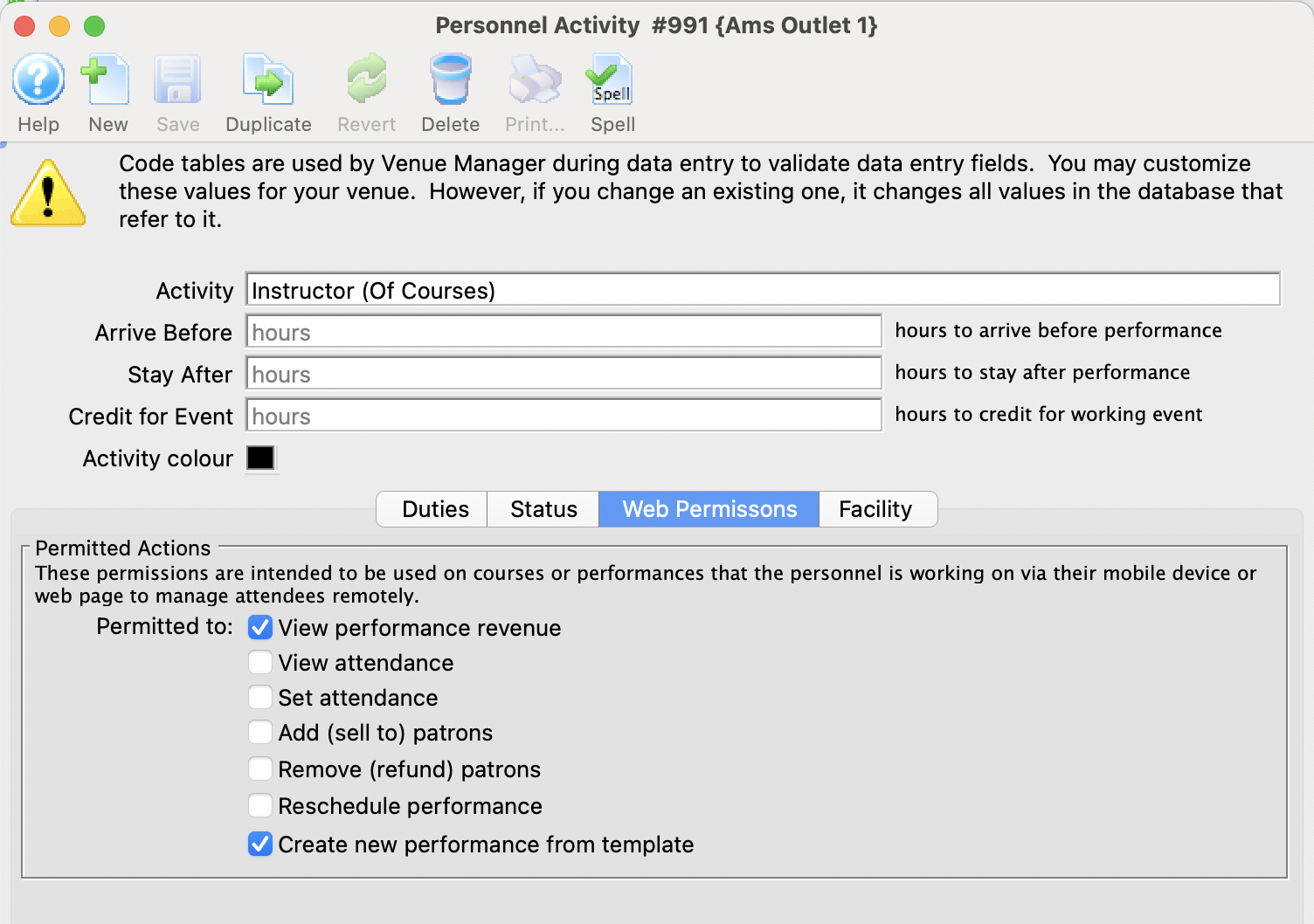 This feature is designed to work in conjunction with the Web Services to give a permission Staff member/volunteer to accomplish various tasks within the web module -AND/OR- Producers (regular Patrons) the ability to see and export sales and attendance information.
The permissions will allow:
- An employee managing a course/class to set attendance, add participants on the fly, refund a class, reschedule a class or add a new class. See example permission for a course instructor
- A Producer to see the sales and attendance for specific events or performances that they have been assigned to in the Event setup. See example permission for Producer/Promoter
If this activity code is associated with the person for a particular event, the following indicates what they can do online. The employee/volunteer will need to pull up the event/performance online in a web browser.
| Permission | Meaning |
| View performance Revenue | Allows the Producer or Promoter of an event to view performance revenue for the event that they are assigned to |
| View attendance | This means that the Volunteer/Employee/Promoter can view the patron information for people who have purchased to the event o the course. |
| Set attendance | This means that the employee/volunteer can set or clear attendance reasons for the patron for each class or event using a tablet or computer. This is not meant for high volume attendance tracking - more for courses and really small events. |
| Add (sell to) patrons | If enabled, the employee/volunteer can add NEW patrons to the course. It is designed for those kinds of classes where people can just show up - and then be enrolled by the instructor. |
| Remove (refund) patrons | If enabled, the employee/volunteer can remove people from the course/class and issue a refund to the patron in form of a credit (eg pass/gift certificate). |
| Reschedule performance | Allows the employee/volunteer to change the date and time of a class within the course |
| Duplicate performance | Allows the employee/volunteer to add extra classes to the course. |
Course Management - web access
Course Management - web access
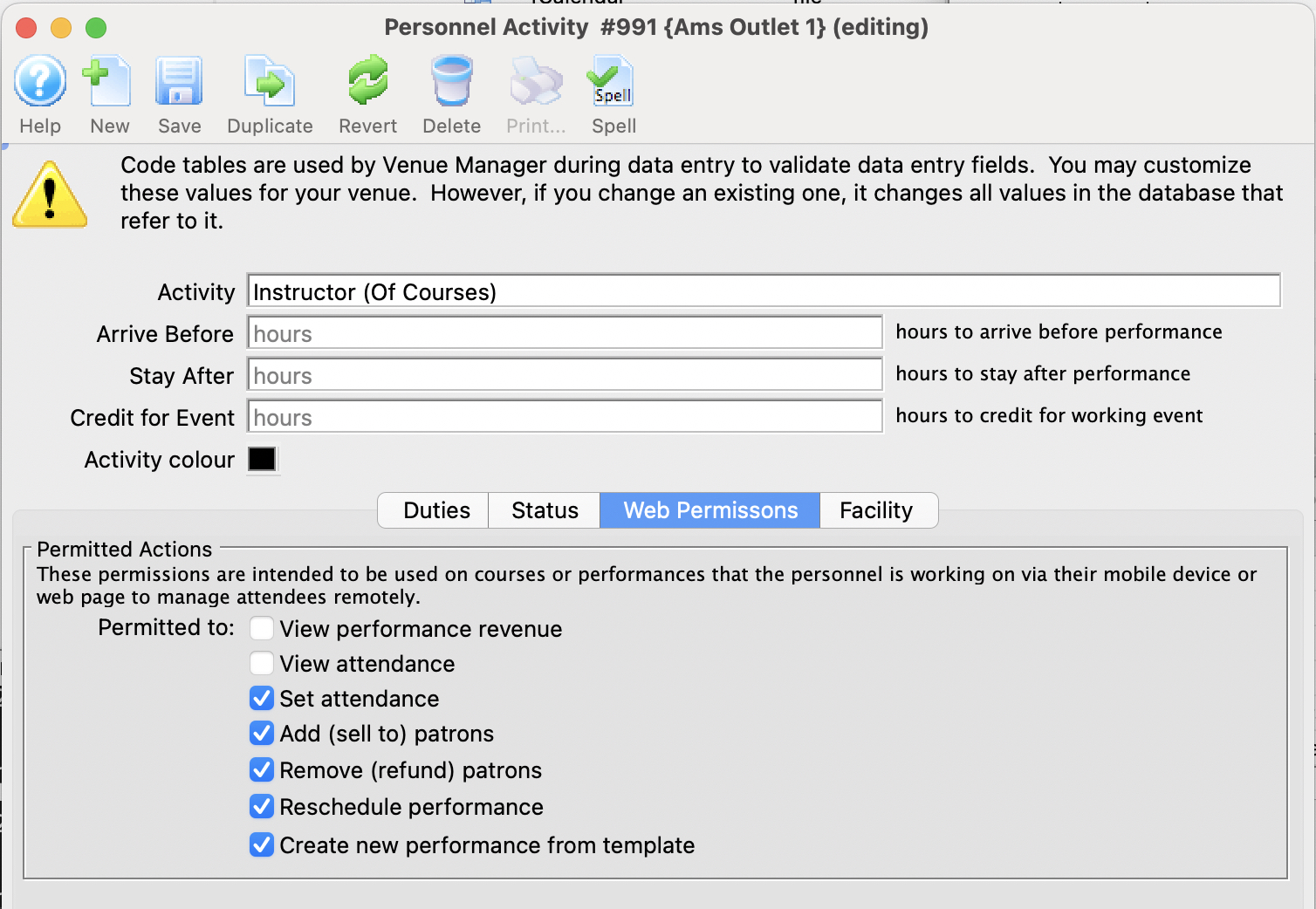 The typical setup for web access for instructors of courses is illustrated to the right. Typically, they will be one or more of:
- Set Attendance
- Add (sell to ) patrons
- Remove (refund) patrons
- Reschedule Performance - which is important of its a course which means they can change the date of the performance
- Create New Performance - which lets them add a new date for a course
The web permissions are described more fully in the Web Permission Page.
If you create this type of activity and add it to a patron, you can:
- assign it to a course (or any event and/or performance for that matter) -AND-
- they will be able to manage it online to do the activities you have assigned above
Event Producer/Promoter - Web Access
Event Producer/Promoter - Web Access
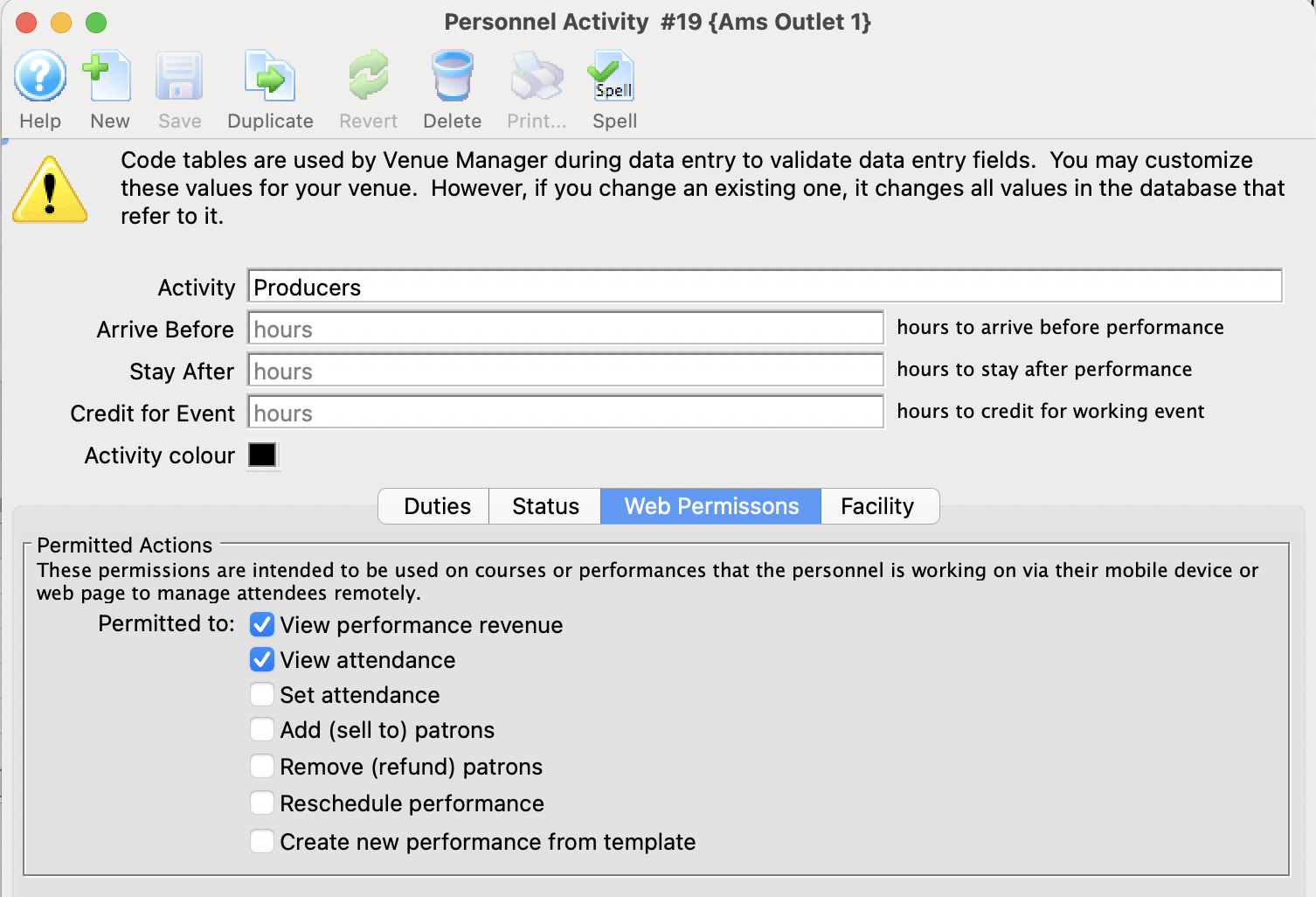 The typical setup for web access for the producer or promoter is illustrated to the right. Typically, they will be one or more of:
- View Performance Revenue
- View Attendance
The web permissions are described more fully in the Web Permission Page.
If you create this type of activity and assign it to a patron, you can:
- assign them to an event (or performance) -AND-
- they will be able to, at any time, view or download:
- the revenues for the event (or performance) -AND/OR-
- retrieve limited information about the patrons who are attending the event
You can even track which events they have viewed and how often by looking at web logs.
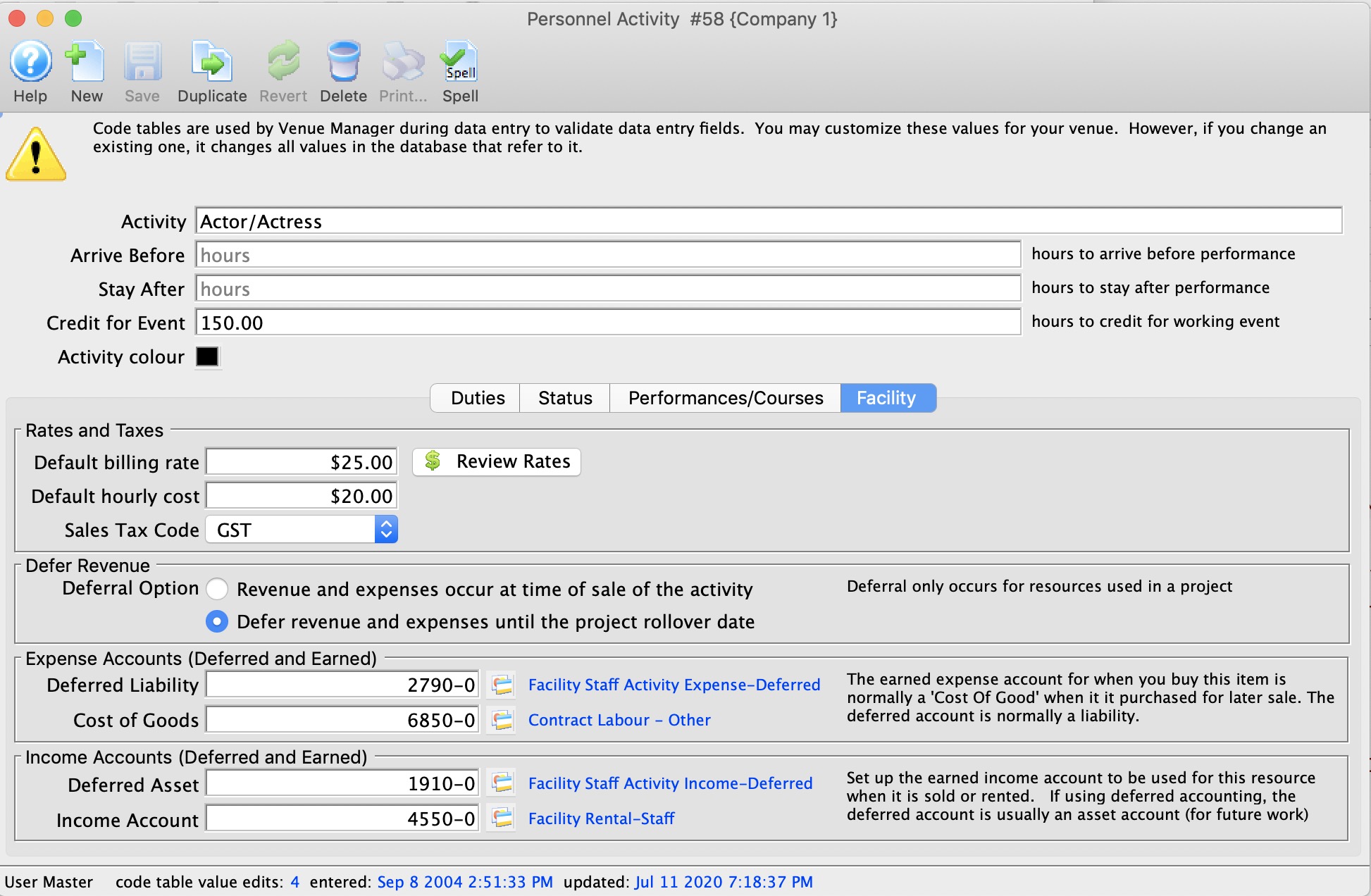
Volunteer Activity Facility Setup
Volunteer Activity Facility Setup
- Default billing rate - which is what we wish to bill the person out at to the renters.
- Default hourly cost - which is the default hourly cost of using the person in this volunteer activity. It can be overridden by setting pay rates on the employee facility set up window
- Sales Tax Code - which is used to add taxes to the expenses and income
- Use deferred accounts if set, then any facility project marked as using deferred accounts will use the deferred account entered below. If neither the project, nor the activity uses deferred accounts, then only the earned accounts need to be specified.
- Accounts
- Deferred Expense Account - the deferred account into which future expenses will be placed if using deferred accounting for the project. This is typically a liability account
- Earned Expense/Cost of Goods Account - the earned account for expenses This is typically either an expense of cost of goods account. When the project ends, this is where the expenses will be rolled over into.
- Deferred Income Account - the deferred account into which future income will be placed if using deferred accounting for the project. This is typically an asset account
- Earned Income Account - the earned account for income. When the project ends, this is where the invomce will be rolled over into.
Review Rates
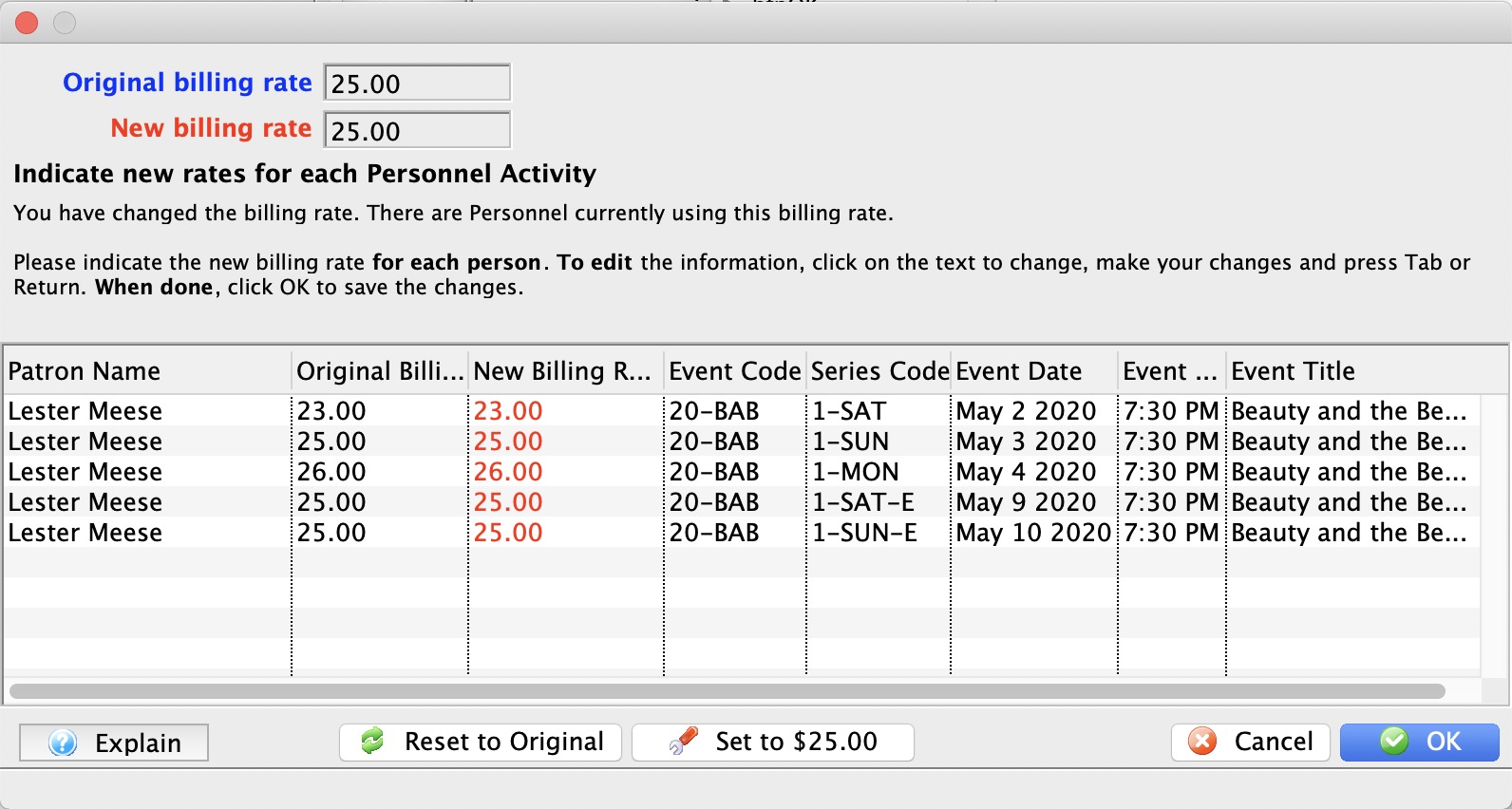
To see current billing rates for anyone already associated with this activity, click the Review Rates button. The same window will pop up if you change the default billing rate, giving you an opportunity to change or leave alone the billing rate for anyone associated with the activity.