Adding Employees
Adding Employees
- Login to Theatre Manager as a Master User, or Outlet Administrator where applicable.
- Create a patron record for the employee.
Click here to learn how to create patron records.
- Highlight the employee's patron record from the patron window
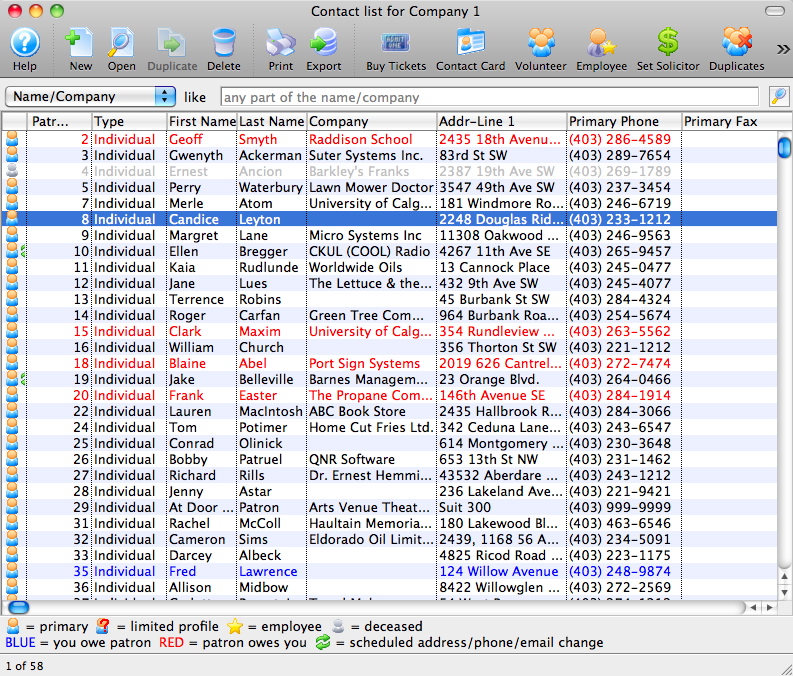
- Click the Employee
 button.
A confirmation dialog opens.
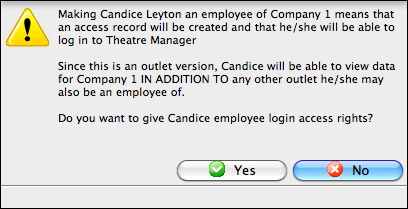
- Click the Yes
 button.
The employee data window opens.
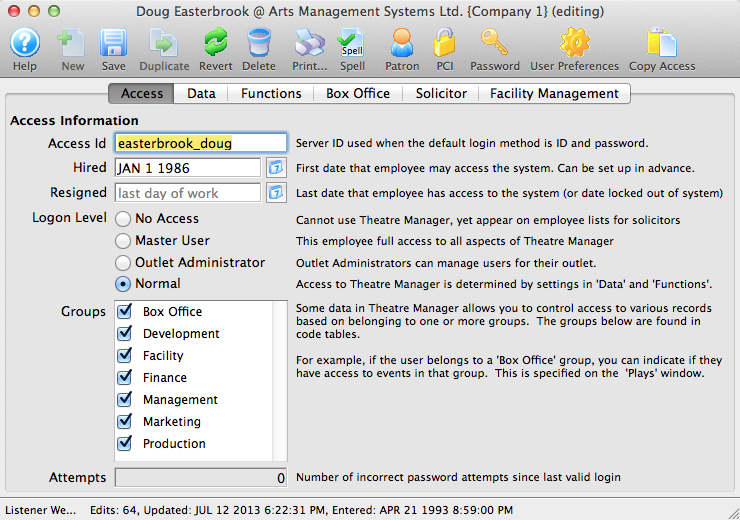
- Click the Password
 button to set a password for the employee.
For more information on setting an employee password, click here.
- Click the Preferences
 button to set the employee preferences.
For more information on setting employee preferences, click here.
- Make any required changes to the Access
 tab.
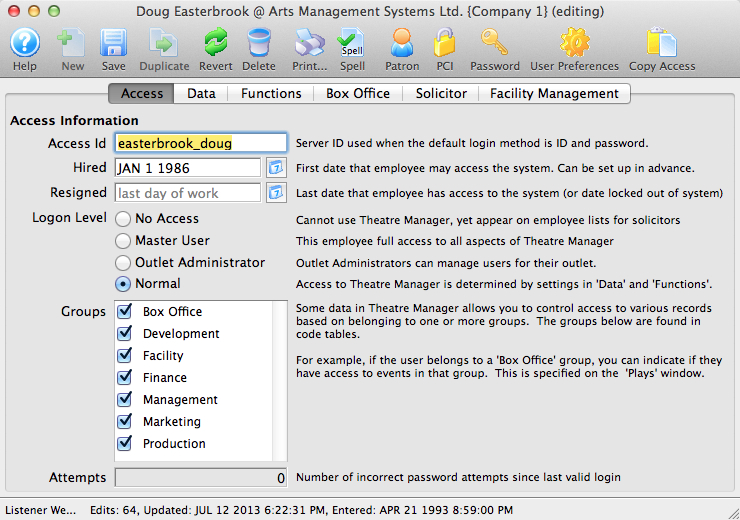
For more information about the Access tab, click here.
- Make any required changes to the Data
 tab.
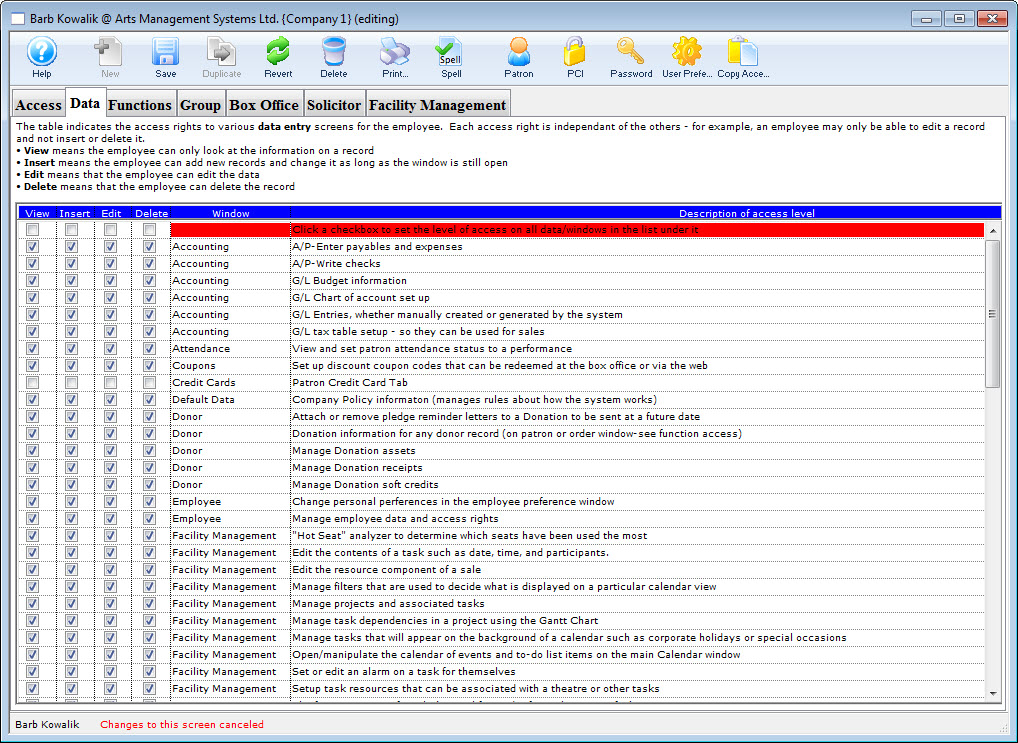
For more information about the Data tab, click here.
- Make any required changes to the Functions
 tab.
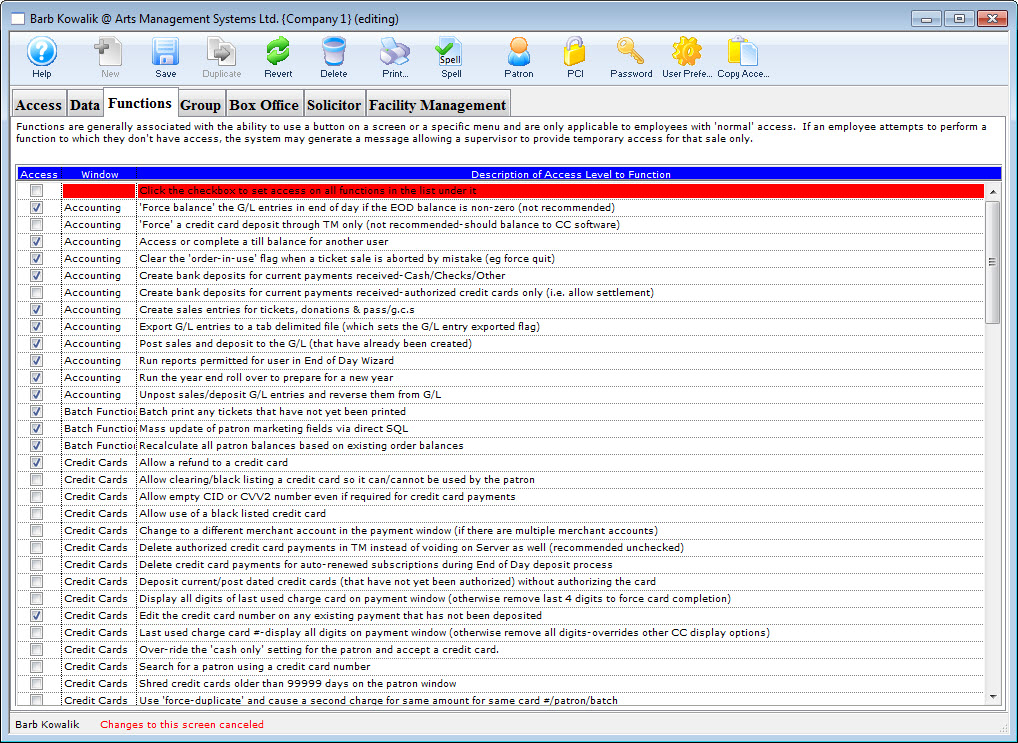
For more information about the Functions tab, click here.
- Make any required changes to the Group
 tab.
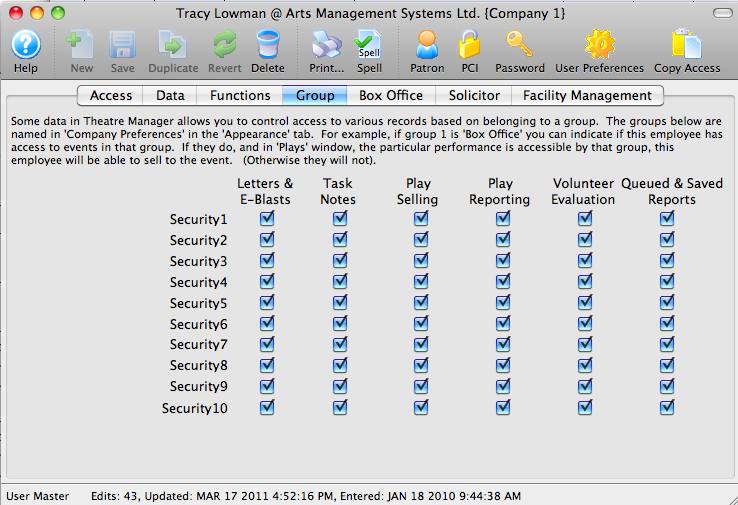
For more information about the Group tab, click here.
- Make any required changes to the Box Office
 tab.
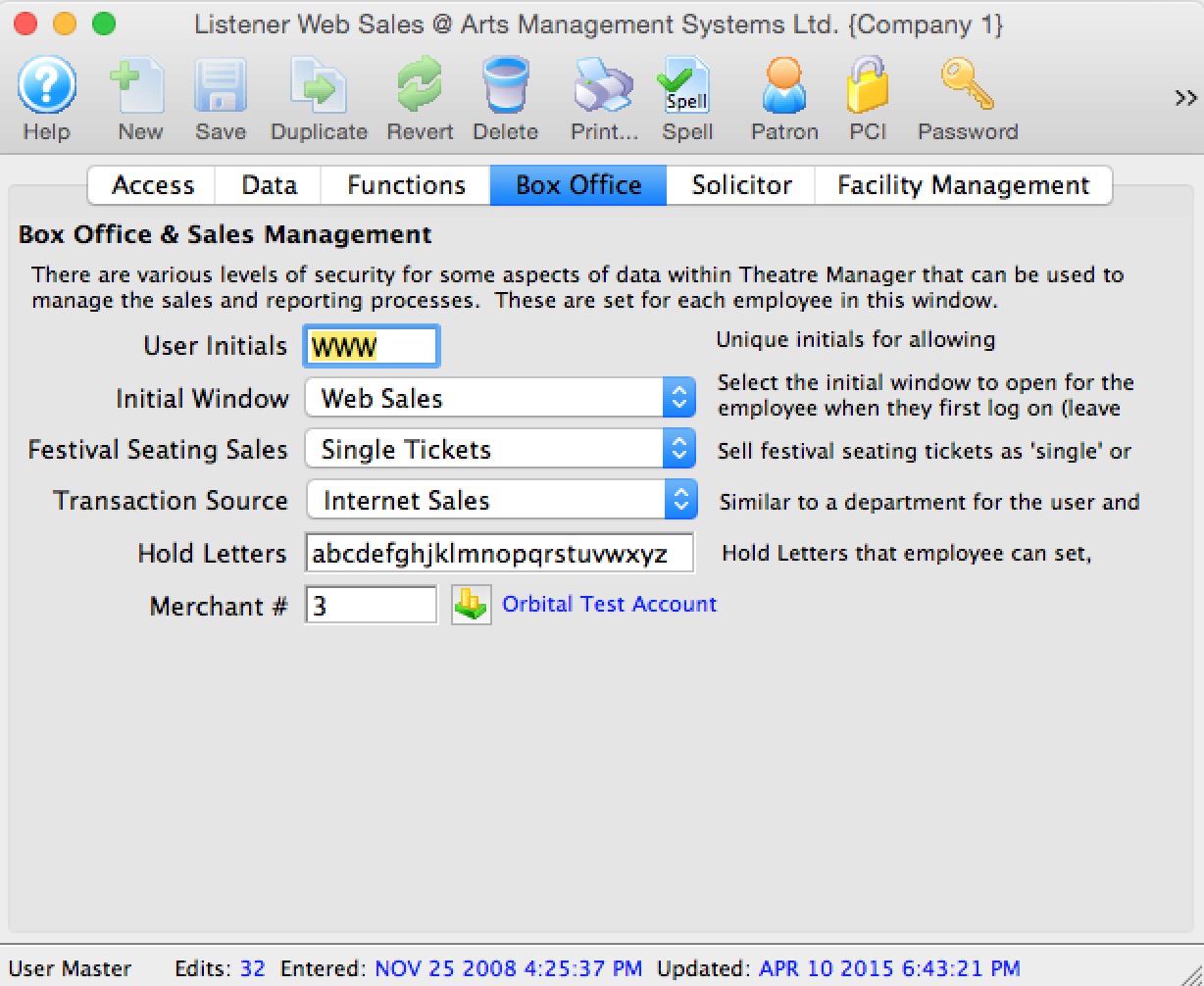
For more information about the Box Office tab, click here.
- Enter the information on the Solicitor
 tab.
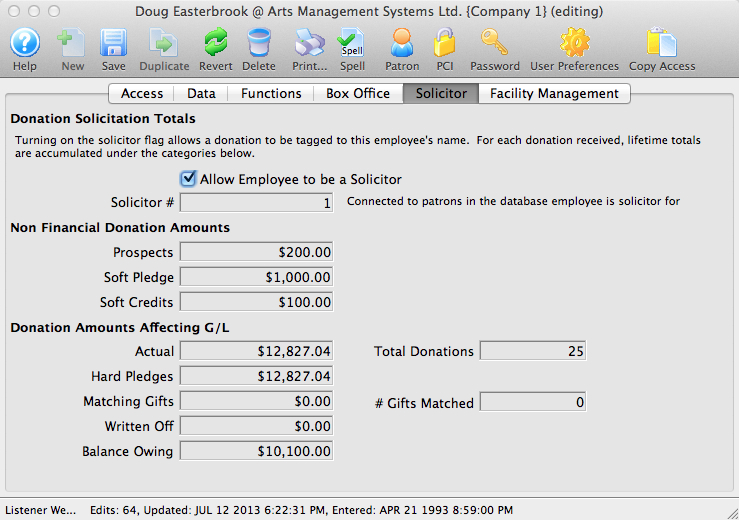
For more information about the Solicitor tab, click here.
- Enter the information on the Facility Management
 tab.
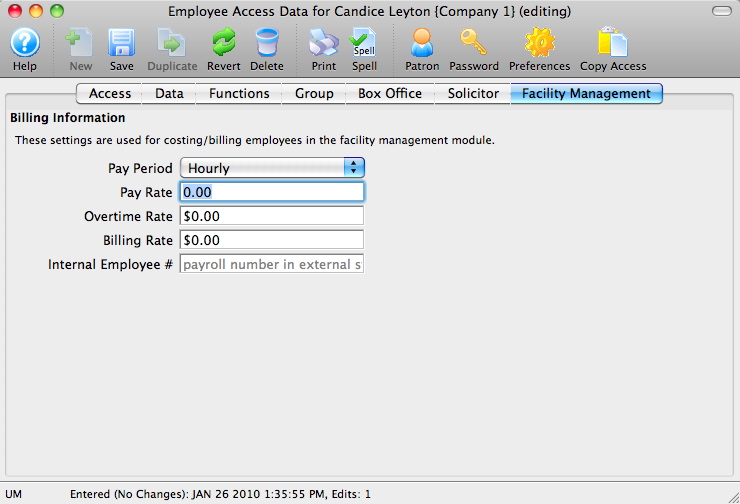
For more information about the Facility Management tab, click here.
 |
Sites set up with the Outlet Edition of Theatre Manager must have their Outlet Administrator perform employee setup functions. The Master User in the Outlet Edition is only intended for use in setting up the Outlet Administrator Employees. |