Selling Season Subscriptions
Favorite Seats Window
A season subscription is a ticket package which allows you to lock in the same seats and performance nights for each show in venue's season. Patrons can attend performances on on the same night and in the same seats.
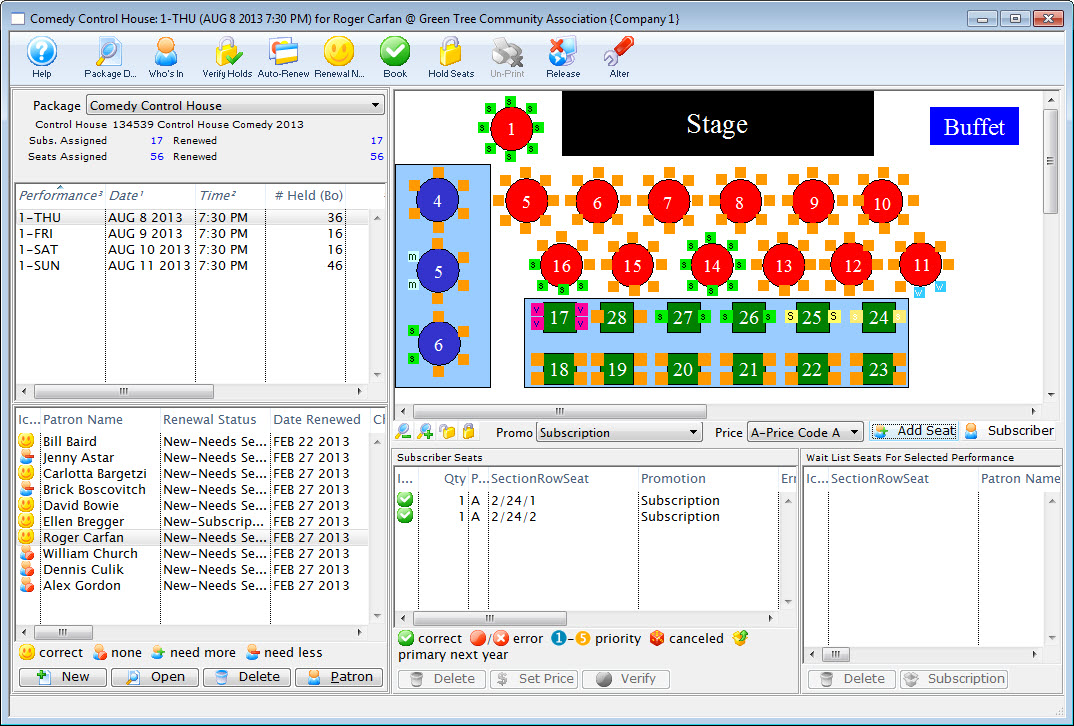
Below are the options in selling a Season Subscription in the Favorite Seats window.
Adding Patrons to a Season Package
Patrons can be added directly to a season package through the Manage Favorite Seats window. This gives you the ability to manage patrons within the season package, on mass, or individually.
To add patrons to a season subscription Package using the Manage Favorite Seats window, you perform the following steps:
- Click the Subscription
 button in the main Theatre Manager toolbar / ribbon bar.
The Manage Favorite Seats window opens.
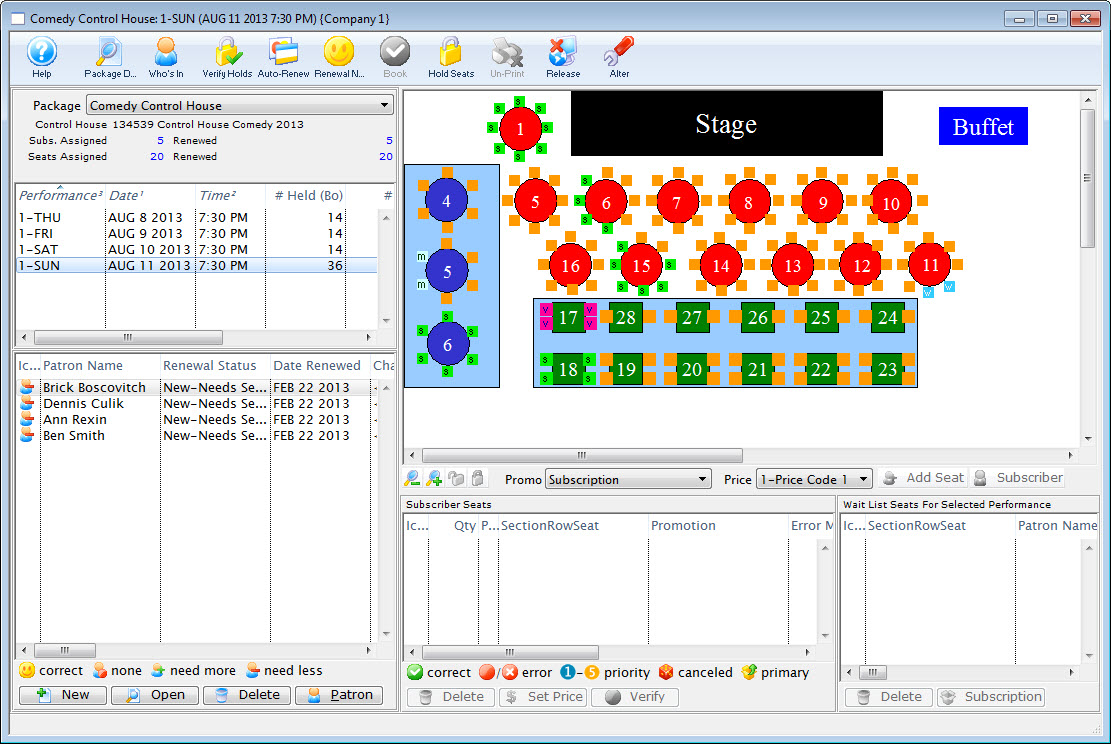
For more information on the Manage Favorite Seats window click here.
- Click the Add
 button in the lower left corner.
The Contact List opens.
For more information on the Contact List click here.
- Search for the patron to be added to the season.
Single click on a patron to select their record. To select multiple patrons, use the <SHIFT> key, or the <CTRL> key (Windows) or the <OPTION> key (Mac) to select multiple individuals.
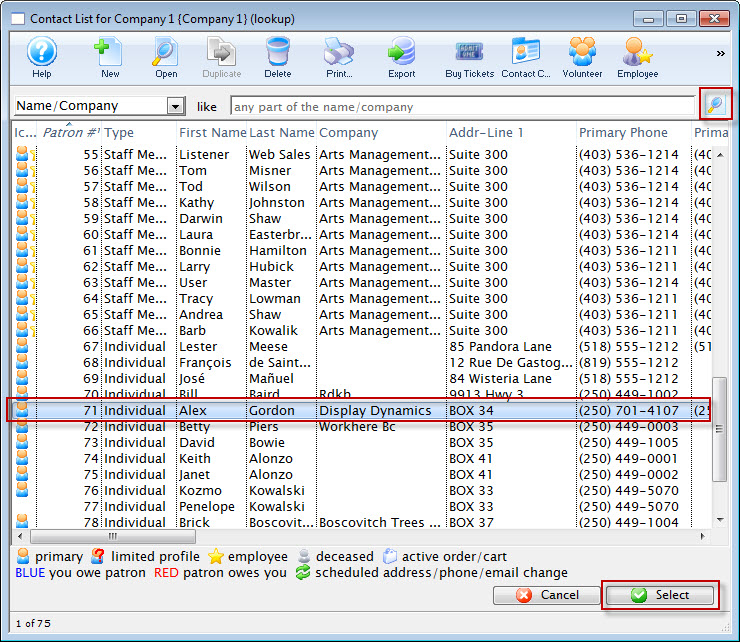
- Click the Select
 button.
The patrons are added to the Patron List in the lower left corner of the Manage Favorite Seats window.
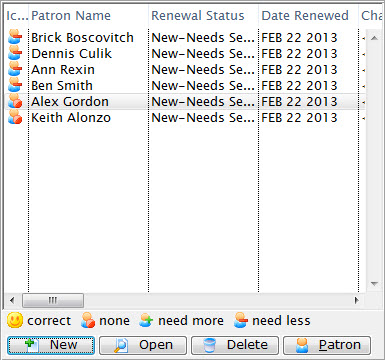
For more information on the Patron List area click here.
The Patrons are now added to the Season Package. Patrons can also be added from a Mail List by dragging and dropping the selected names into the Patron List area of the Manage Favorite Seats window. Once added to the season package the patrons are ready to be issued favorite seats.
Adding Favorite Seats in the Manage Favorite Seats Window
Each patron is assigned Favorite Seats in the season package. These seats determine where Theatre Manager will book the patron in the season, as well as, which performance and pricing structure will be used for the seats booked. For a patron's Favorite Seats to be selected, they must first be a part of the season package. For information on subscribing a patron to a Season Package, click here.
To selecting a patron's favorite seats in the Manage Favorite Seats window, you perform the following steps:
- Click the Subscription button in the main Theatre Manager toolbar / ribbon bar.
The Manage Favorite Seats window opens.
For more information on the Manage Favorite Seats window click here.
- Choose the required Season Package and Performance.
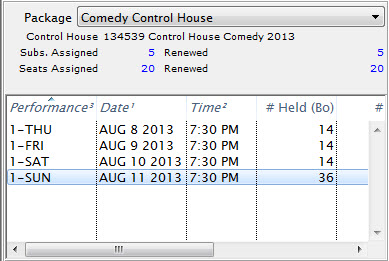
For more information on the Package and Performance list area click here.
- Single click the patron to add favorite seats for from the Patron List area.
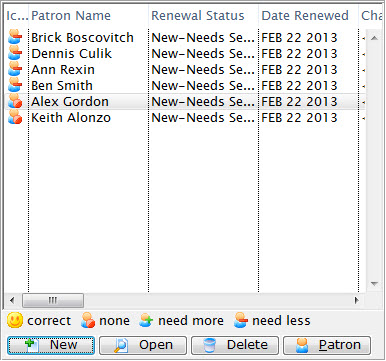
For more information on the Patron List area click here.
- Highlight the desired seats for the Subscription.
Seats can be selected by using the mouse to drag a box over the preferred seats, or by holding the <SHIFT> key and clicking each seat.
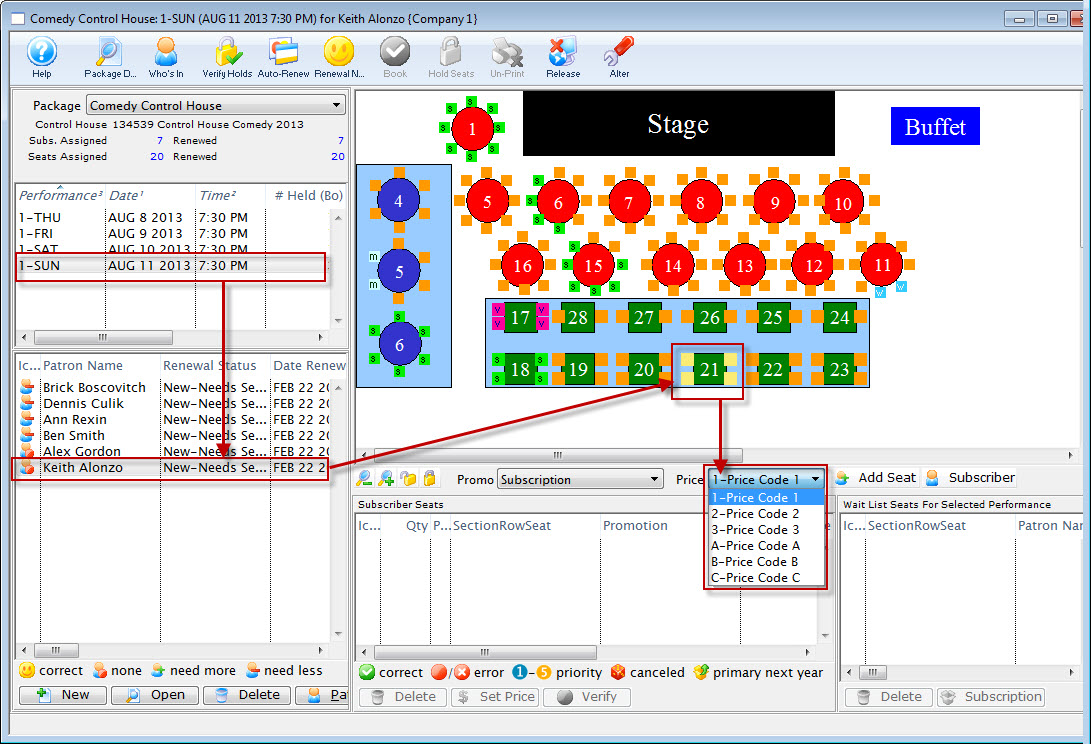
- Select the correct Promotion and Price Code for the subscription located under the map.
- Click the Add Seat
 button.
The seats are added to the Seat Selection area of the Patron Subscription Detail window.
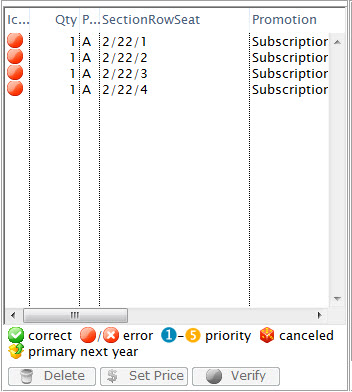
For more information on the Seat List area click here.
The patron now has their favorite seats set up in the control house. The seats can be seen at the bottom of the Manage Favorite Seats window. The seats are also indicated on the map represented by a lower case s. As seats are booked they appear on the map. The patron is now ready to book their season subscription.
Using Manage Favorite Seats to Book Subscriptions
- Click Subscription button in the main Theatre Manager toolbar / ribbon bar.
The Manage Favorite Seats window opens.
For more information on the Manage Favorite Seats window click here.
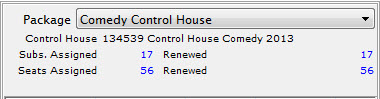
- Select the season from the Season Package drop down in the upper left corner of the Manage Favorite Seats window.
- Choose the performance from the Performance List.
This is found to the left of the Manage Favorite Seats window.
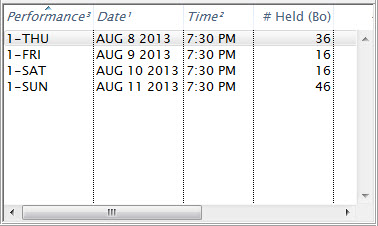
For more information on the Season Package and Performance list area click here.
- In the Patron list, find the patron you want to manage the seats for.
The list is found in the lower left corner of the Manage Favorite Seats window.
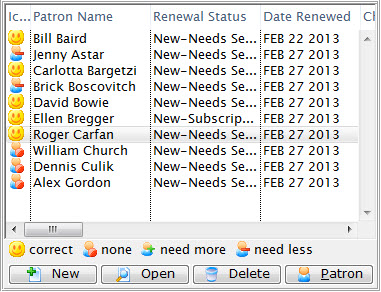
For more information on the Patron List area click here.
- Select the patron by single clicking on their name.
- Then, click the Book
 button at the top of the window.
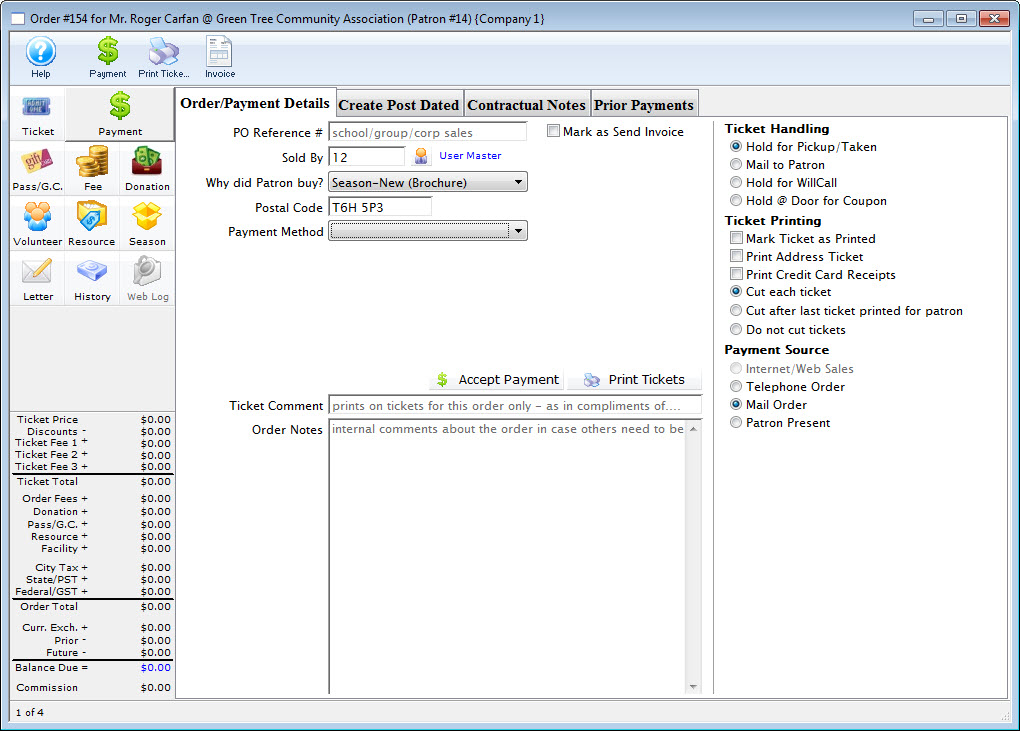
The Order opens to the Payment window.
- Choose the type of payment from the Payment Method drop down list and enter the payment details and accept the payment.

If the tickets are to be printed immediately, select Print Tickets. If the tickets will be Batch Printed later, select the Accept Payment button.
- The payment window closes and the Manage Favorite Seats window opens.
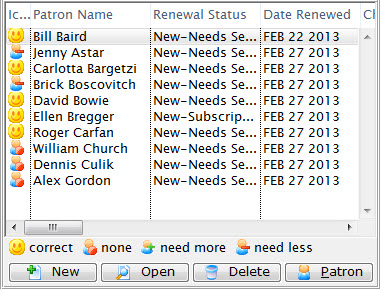
The patron status, in the season package automatically updates.
For more information on the Payment window click here.
The patrons tickets have now been booked and the patrons Favorite Seats Detail window reflects the changes.
Wait Listing Seats for a Patron
When patrons want to select seats that have already been chosen by another patron, you will need to create a wait list for the seats. Then, when the original patron releases those seats, they are available to the next patron on the wait list.
To start, here is a picture of the color coding on the graphic venue map when selecting a patron's Favorite Seats.

- Seats with a red background are those the currently selected patron has set as their Favorite Seats.
- Seats with a blue background are those another patron has selected as their Favorite Seats.
- Seats with a yellow background are those which are currently selected but not assigned to a patron yet.
To start, you perform the following steps:
- Click the Subscription button in the Main Theatre Manager toolbar / ribbon bar.
The Manage Favorite Seats window opens.
For more information on the Manage Favorite Seats window click here.
- In the upper left corner of the window, select the season from the Package drop down.
- Select the performance from the Performance List to the left of the Manage Favorite Seats window.
For more information on the Package and Performance list area click here.
- Find the patron in the Patron List
This is found in the lower left corner of the Manage Favorite Seats window.
For more information on the Patron List area click here.
- Single click on the patron, and choose the desired seats - currently being held by another patron.

- Click the Add Seat button.
The Wait List warning message opens.
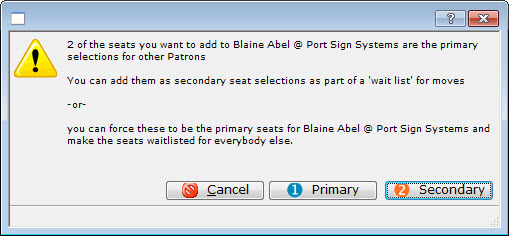
- Click the Secondary
 button.
The seats will be added to the Seat List area.

If the Primary
 button is selected, you will give the selected seats to the patron instead of being wait listed. The seats will be listed as Primary in their Season Package. The patron who previously held the seats will be moved down in priority and be added to the wait list.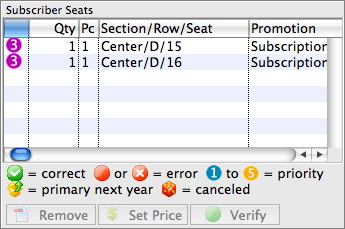
For more information on the Seat List area click here.
The patron is now on the Wait List for the desired seats. All patrons who are currently on the wait list can be seen in the Wail List area of the Manage Favorite Seats window located in the lower right corner. For more information on making a patron the primary on a set of seats, click here.
Selling Season Subscriptions From the Patron Record
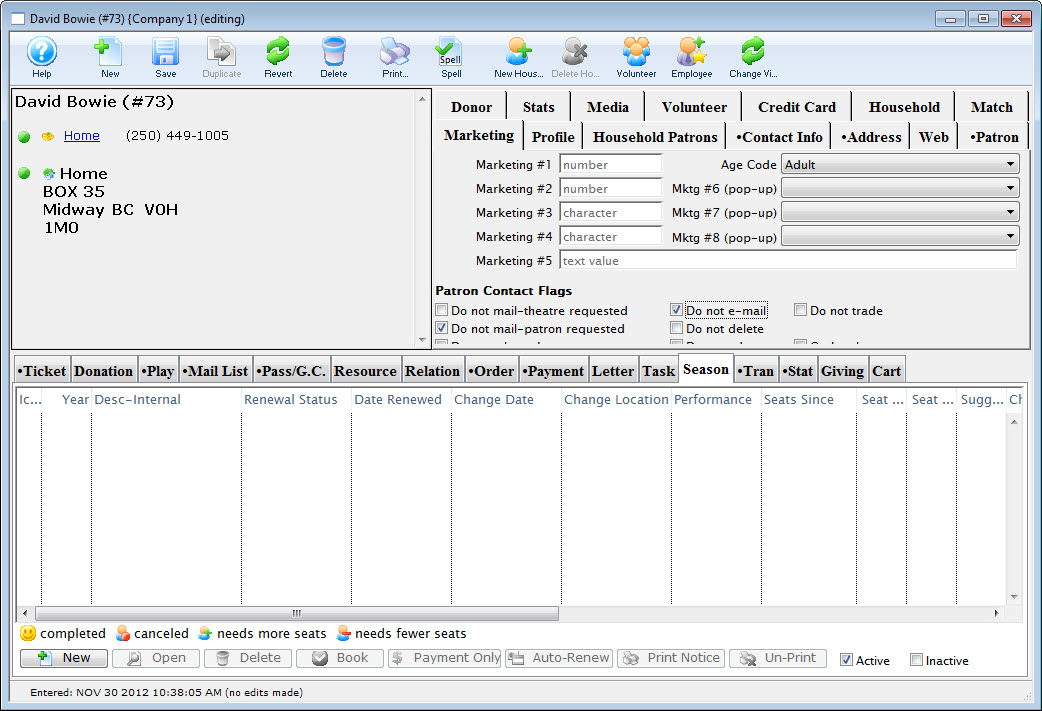
Adding Patrons to a Season Package
You can add patrons to a season package in the Patron Window. Employee access can be altered to allow employees access to subscribing patrons to the season package specifically from the Patron Window.
To start, you perform the following steps:
- Open the Patron Window.
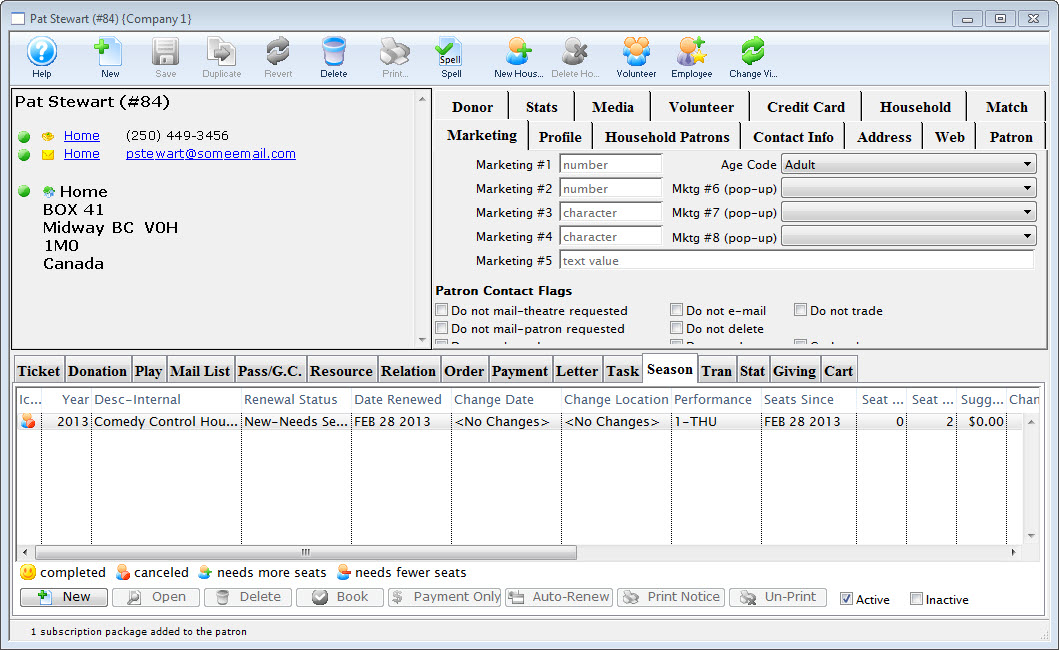
For information on accessing the Patron Window click here.
- Select the Season
 tab in the Patron Record.
 - Click the New
 button.
The Select A Season Package window opens.

The Select A Season Package window will not open if there is only one active season package.
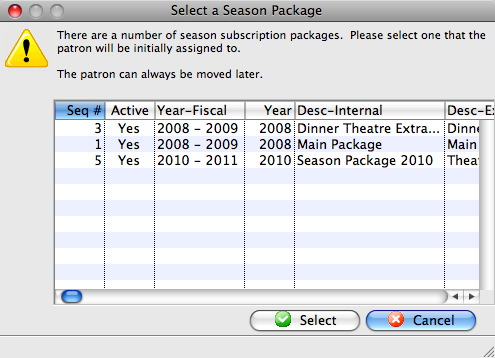
- Single click the desired Season Package and click the Select
 button.
The Select A Season Performance window opens.
The Select A Season Performance window will not open if there is only one performance in the season package.
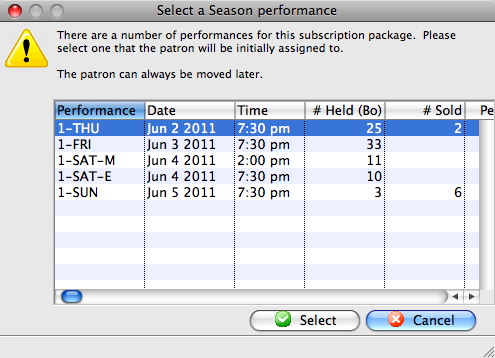
- Select the desired Performance and then click the Select button.
The Subscription Detail window opens.
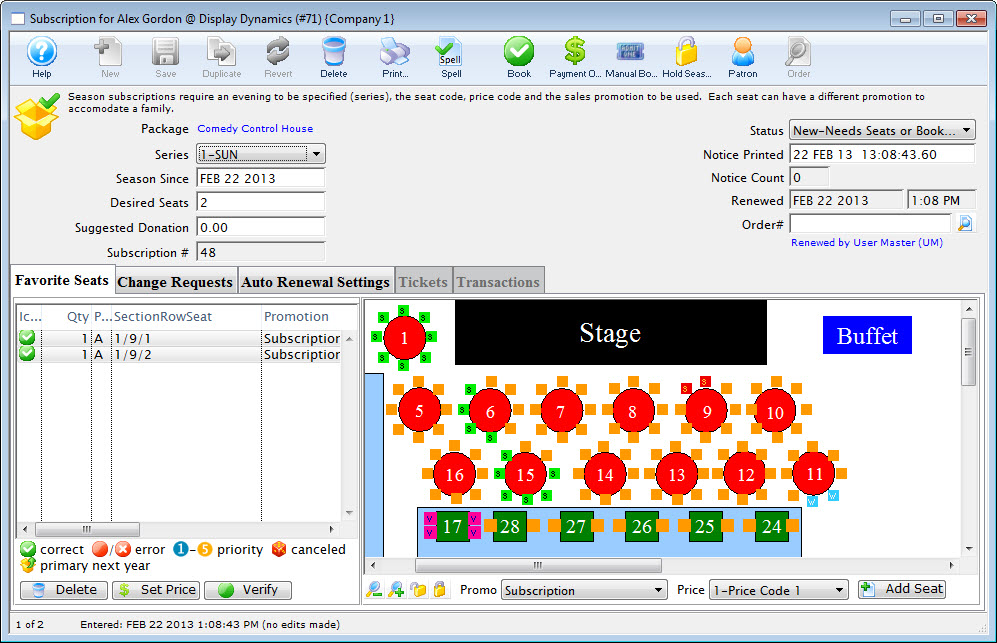
For more information on the Subscription Detail window click here.
The Patron has been added to the Season Package. Once added to the season package the patron can be assigned favorite seats.
Adding Favorite Seats from the Patron Window
Once you have added a patron to a season package, the patron's favorite seats can be assigned. Favorite seats indicate the location the patron wishes to sit in, as well as the price and promotion, to be used for the season subscription.
To add favorite seats to a season package from the patron window, you perform the following steps:
- Open the Patron Window.
For more information on how to access the Patron Window click here.
- Select the Season tab in the Patron Record. Then select the season package to add the favorite seats to.
For more information on the Season tab click here.
- Click the Open
 button.
The Subscription Detail window opens.
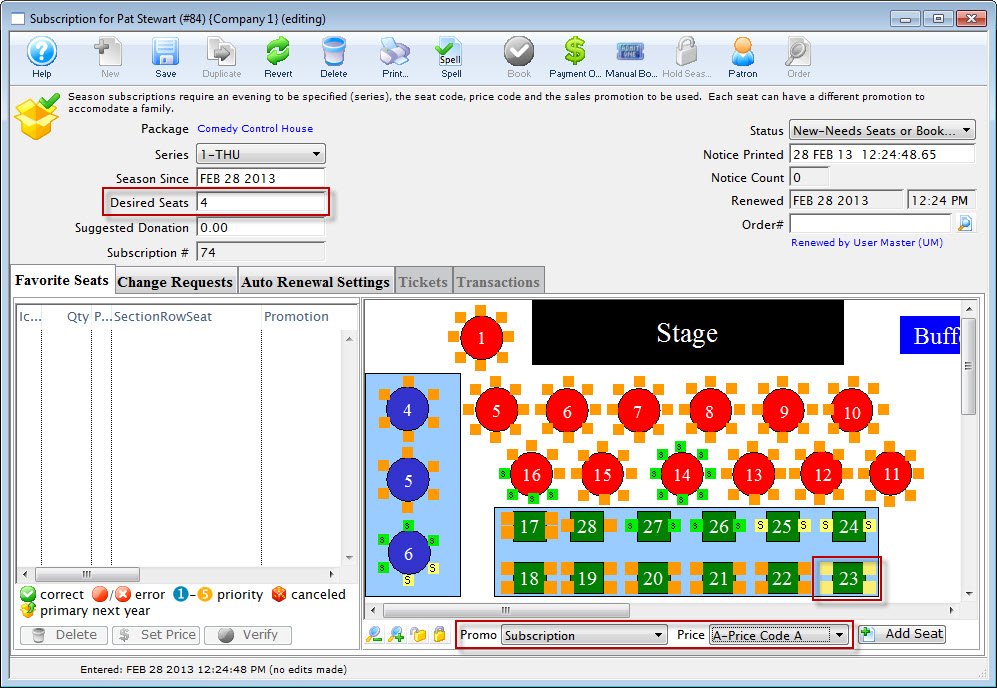
For more information on the Subscription Detail window click here.
- Edit the Desired Seats field to match the number of seats the patron requires in the season package.
- Highlight the seats the patron wants for their Subscription.
You select seats by using the mouse to drag a box over the preferred seats, or by holding the <SHIFT> key and clicking each seat.
- Choose the correct Promotion and Price Code for the subscription.
- Click the Add Seat button.
The seats are added to the Seat Selection area of the Patron Subscription Detail window.
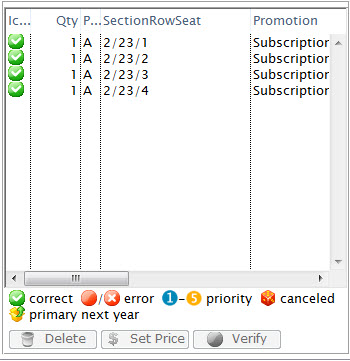
For more information on the Seat List area click here.
The patron now has favorite seats within the control house. The seats can be seen in the seating section of the Subscription Detail window on the left. The seats are also indicated on the map represented by a lower cases. The patron is now ready to book their season subscription.
Booking Subscriptions from a Patron Record
Once a patron has been added to a season package and their subscription contains favorite seats the season package can be booked.
To book the season package, you perform the following steps:
- Open the Patron Window.
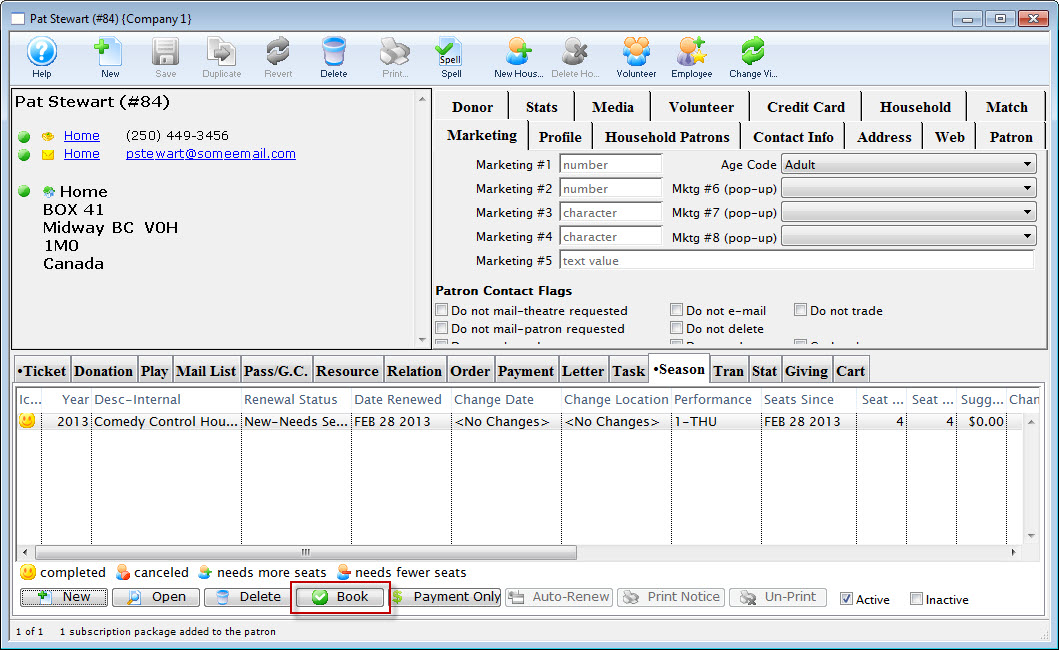
For more information on how to access the Patron Window click here.
- Select the Season tab in the Patron Record. Then the Season Package(s) to book.
Several season packages can be booked at the same time. Use the
key to select multiple season packages, or the key (Windows) or the For more information on the Season tab click here.
- Click the Book
 button.
The Order opens to the Payment window.
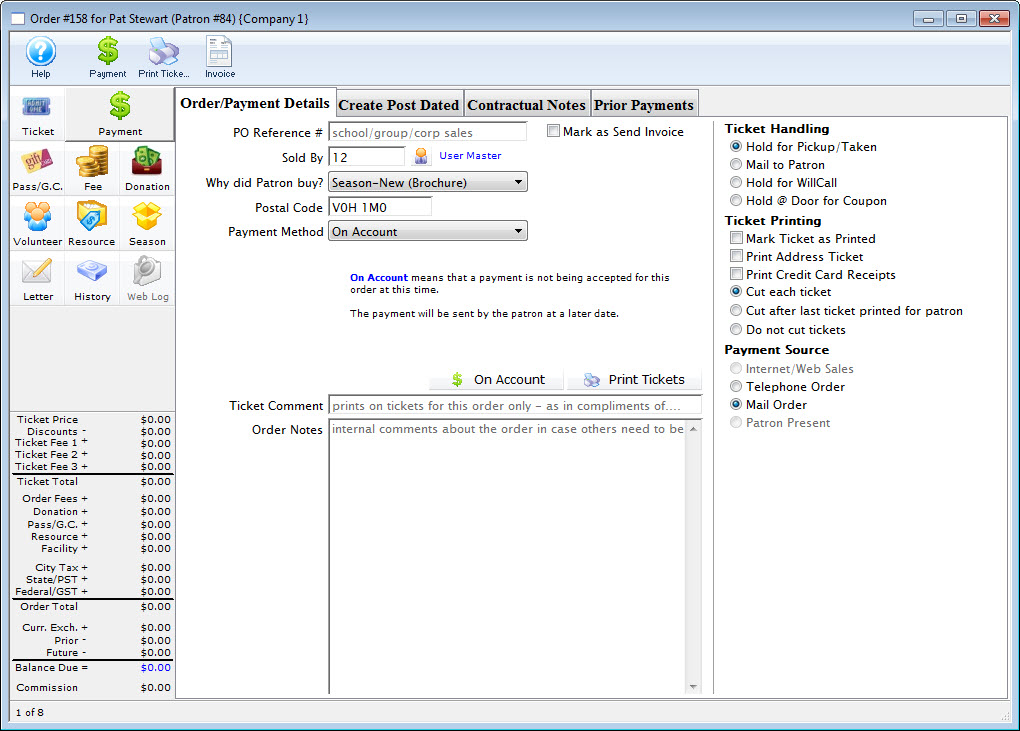
For more information on the Payment window click here.
- Select the type of payment from the Payment Method drop-down list and enter the payment details. Then, accept the payment.
If the tickets are to be printed now select Print Tickets. If the tickets will be Batch Printed at a later date select the Accept Payment button.
The payment window closes and you are returned to the Patron record.
The status of the Season Package is automatically updated.
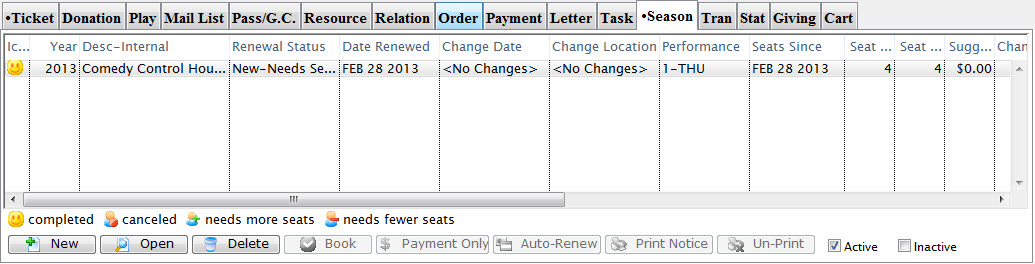
The patrons tickets are now booked and they are displayed on the tickets tab. The Season Package status is updated and the patron has been booked into Next Years Control House.
Order Window
This section contains the information to subscribe a patron to a season package through the order window.
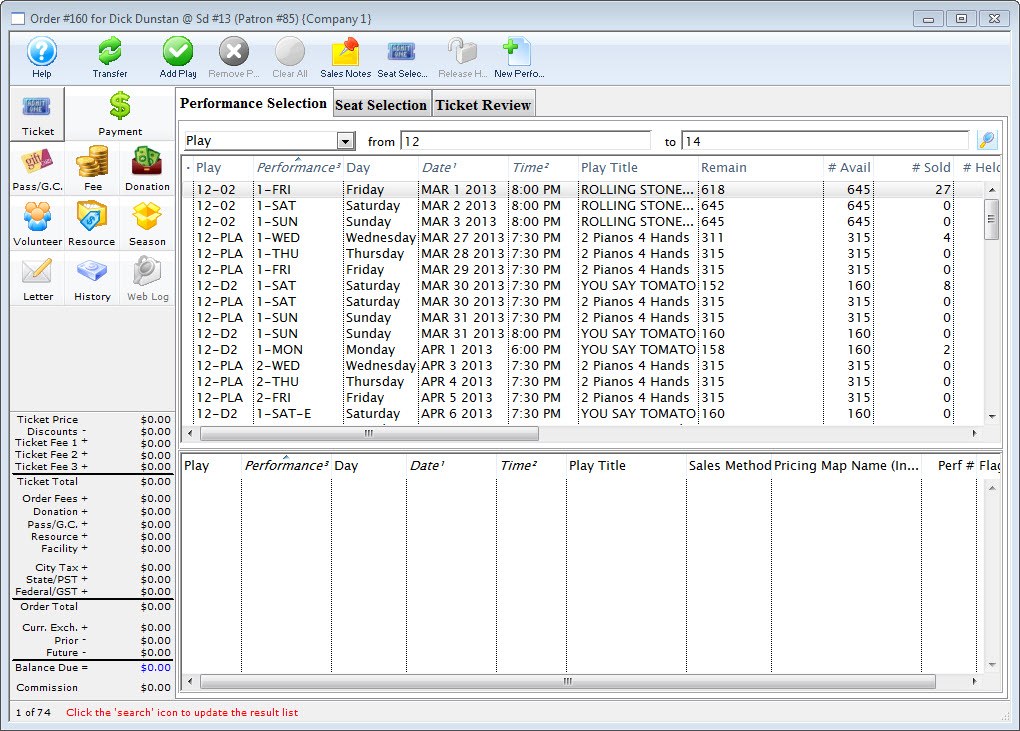
Subscribing a Patron to a Season Package via the Order Window
In the Order window, you can subscribe a patron to a Season Package, and book the seats along with other purchases. To start, you perform the following steps:
- Open the Patron record for the purchasing patron.
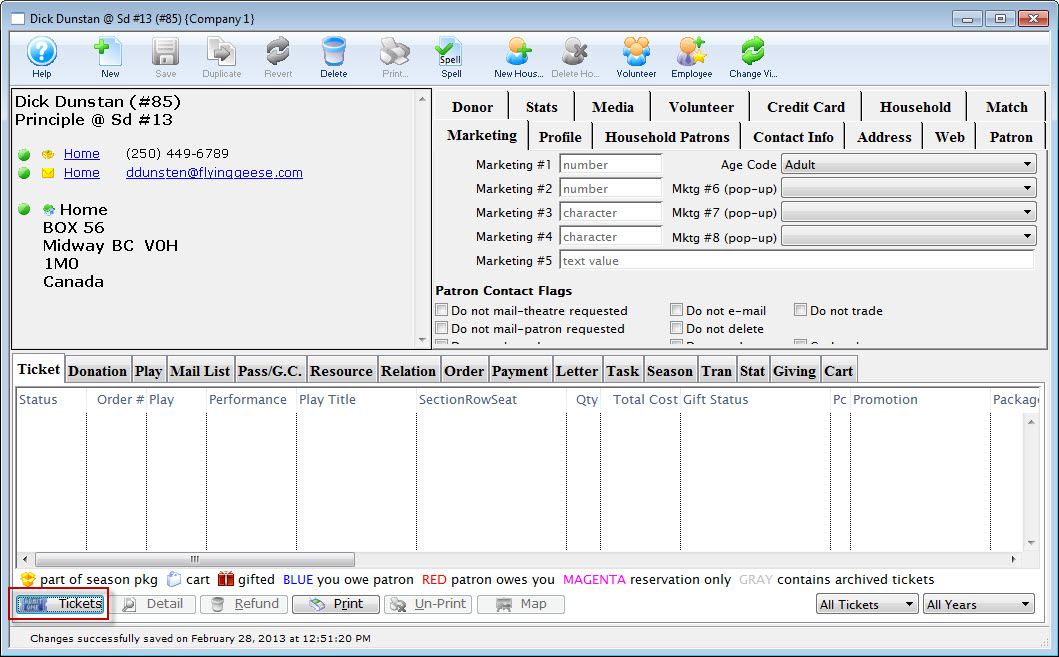
For more information on how to access the Patron record click here.
- Click the Tickets
 button in the the Ticket tab.
The Order window opens.
- Click the Season
 button.
The Season Subscription display opens.
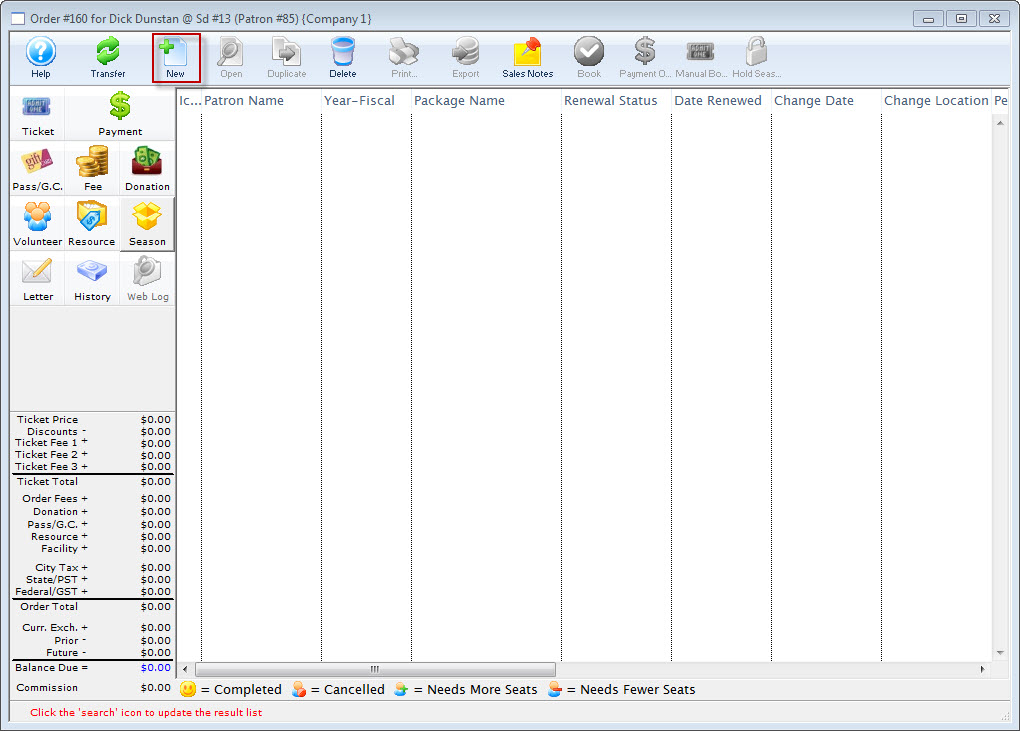
- Click the New
 button.
The Select A Season Package dialog opens.
The Select A Season Package window does not open if there is only one active season package.
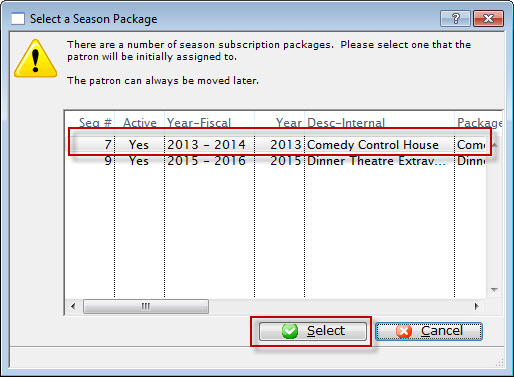
- Click to highlight the requested season package for the patron, and then click the Select button.
The Select a Season performance dialog opens.
The window does not open if there is only one performance in the season package.
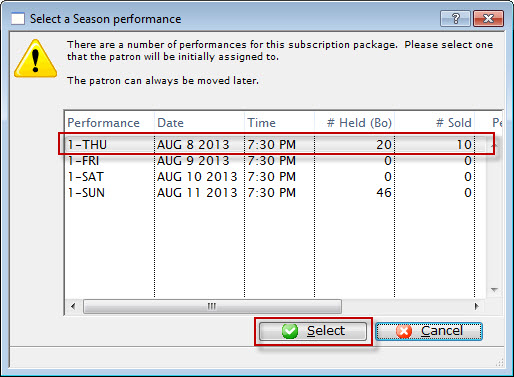
- Click to highlight the requested Performance. Then press the Select button.
The Subscription Detail window opens to the Favorite Seats tab.
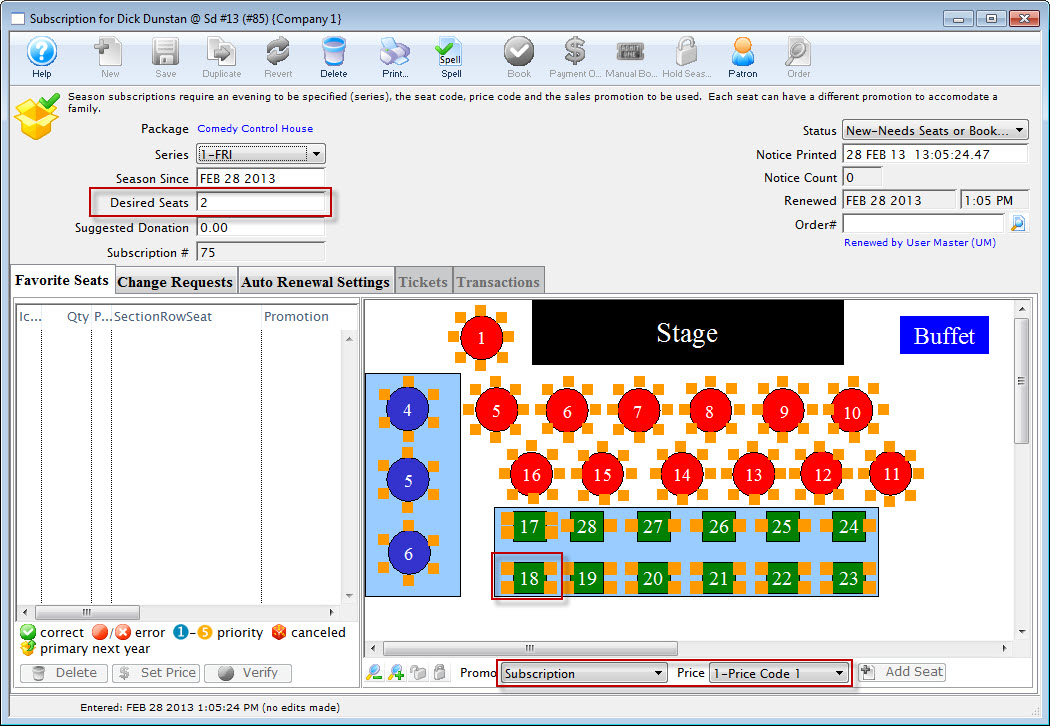
For more information on the Subscription Detail window click here.
- In the Desired Seats field, enter the number of seats the patron requests.
- Highlight the seats the patron wants for their Subscription.
You can select seats using the mouse to drag a box over the preferred seats, or by holding the <SHIFT> key and clicking each seat.
- At the bottom of the map, choose the correct Promotion and Price Code.
- Click the Add Seat button.
The seats are added to the Seat Selection area of the Patron Subscription Detail window.
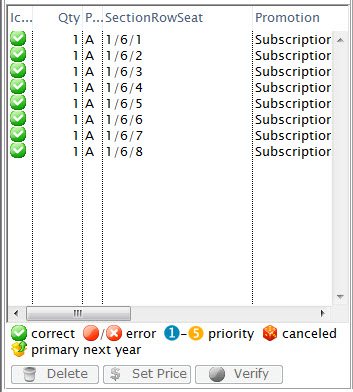
For more information on the Seat List area click here.
- Close the Subscription Detail window.
- Click the Book button in the Subscription window ribbon bar.
- In the Payment Method drop down, select the method of payment, enter the payment details and accept the payment.
If the tickets are to be printed now select Print Tickets. If the tickets will be Batch Printed at a later date select the Accept Payment button.
The Payment window opens.
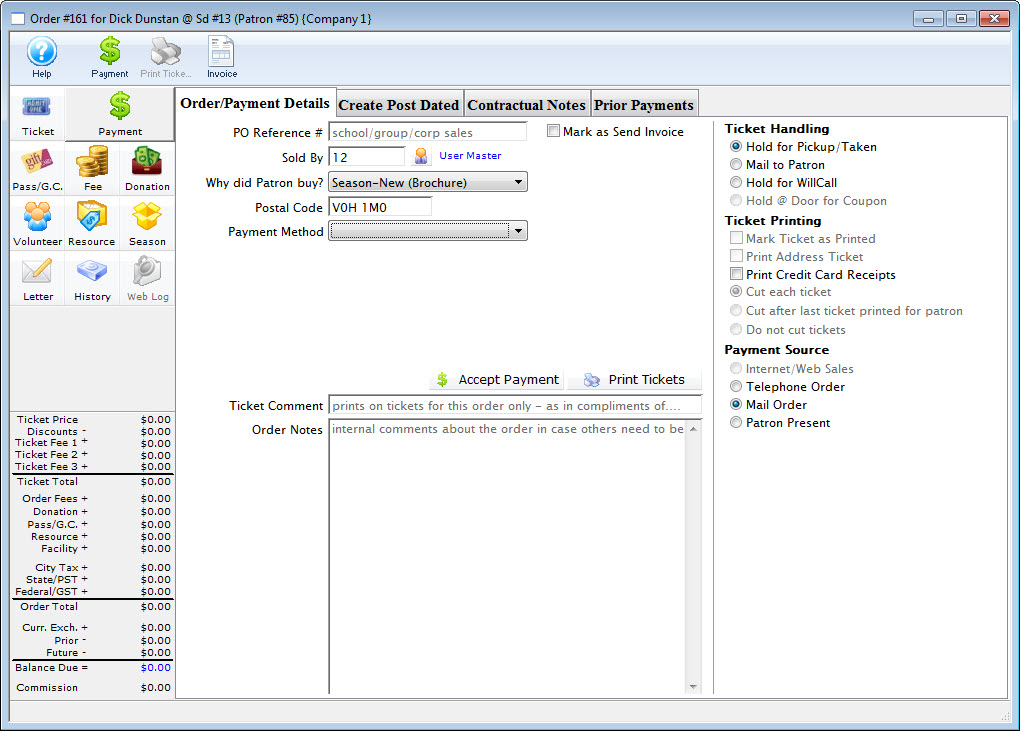
For more information on the Payment window click here.
The Order window closes and you are returned to Patron record.
The patron's season tickets have now been booked and the season package is now displayed in the Season tab.
| Click here for quick reference information on Buy a Season Subscription (from the order window) |
Reference Guide |
Cheatsheet |
Flash |
MP4 |


Season Package Detail Window
The following selections show you how to sell a Season Package in the Season Package Detail window.
Adding Patrons to a Season in the Season Detail Window
When a patron wants to take part in a season package, they need to subscribe to the season package before they select favorite seats and have their season package booked.
To add a patron to a Season Package in the Season Detail window, you perform the following steps:
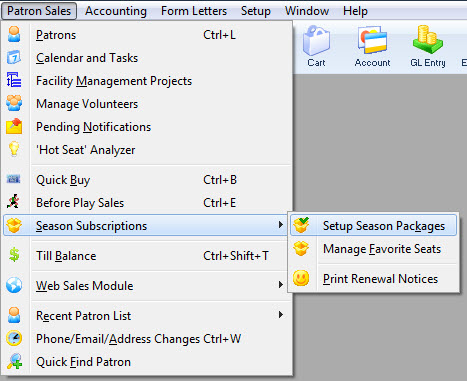
- Click Patron Sales >> Season Reservations >> Setup Season Packages.
The Season Package List window opens.
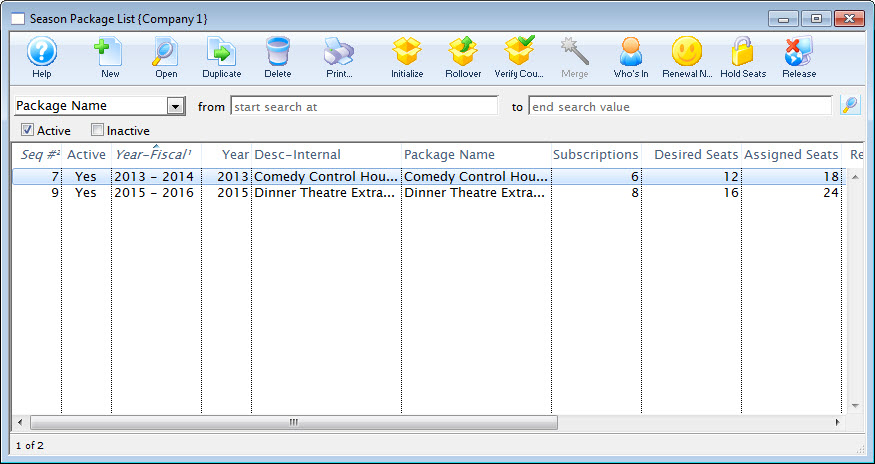
Click here for more information on the Season Package List window.
- Select the requested season package, Click the Open
 button.
The Season Package Detail window opens.
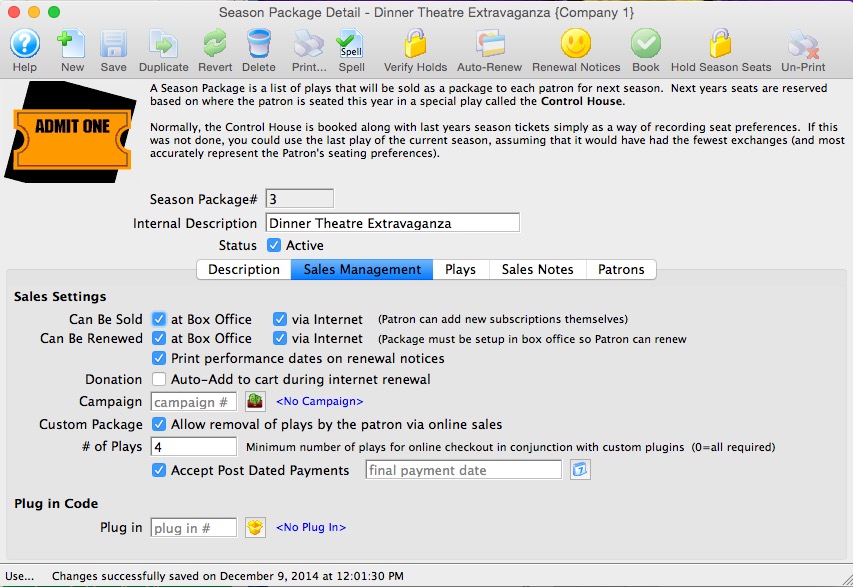
Click here for more information on the Season Package Detail window.
- Select the Patron
 tab.
tab.
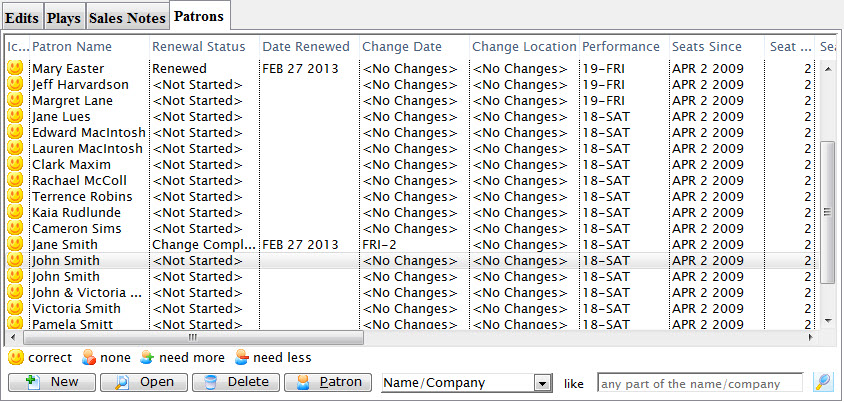
- Click the New button.
The Patron Lookup List window opens.
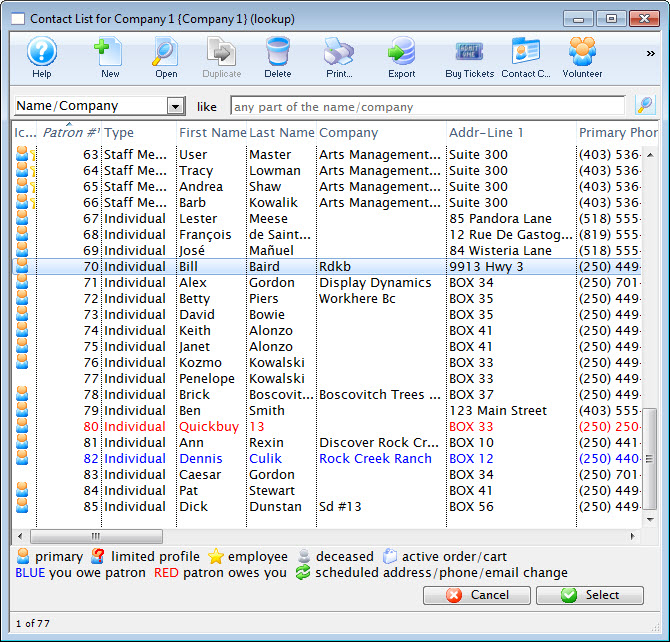
Click here for more information on the Patron Lookup List window.
- Search for and click on the patron you are adding to the season package.
- Click the Select button.
If there is more than one performance series, the Season Performance Selection window will open.
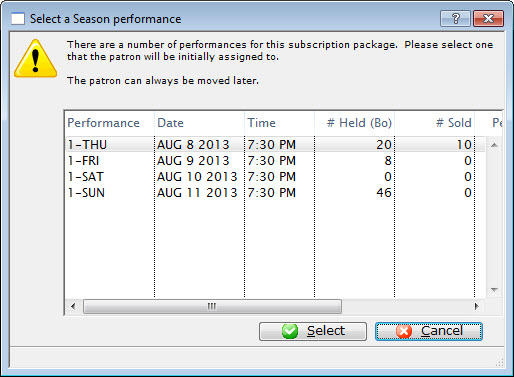
- Select the Performance the patron wants and click the Select button.
You are returned to the Season Package Patrons tab.
For more information on adding favorite seats to the season package click here.
Adding Favorite Seats in the Season Package Window
To add the patron's favorite seats to their season package, you would perform the following steps:
- Click Patron Sales >> Season Reservations >> Setup Season Packages.
The Season Package List window opens.
Click here for more information on the Season Package List window.
- Click to highlight the season package, then click the Open button in the Season Package List ribbon bar.
The Season Package Detail window opens.
Click here for more information on the Season Package Detail window.
- Select the Patrons tab.
- Click to highlight the patron wanting seats, then click the Detail
 button.
The Patron Subscription Detail window for the selected patron opens.
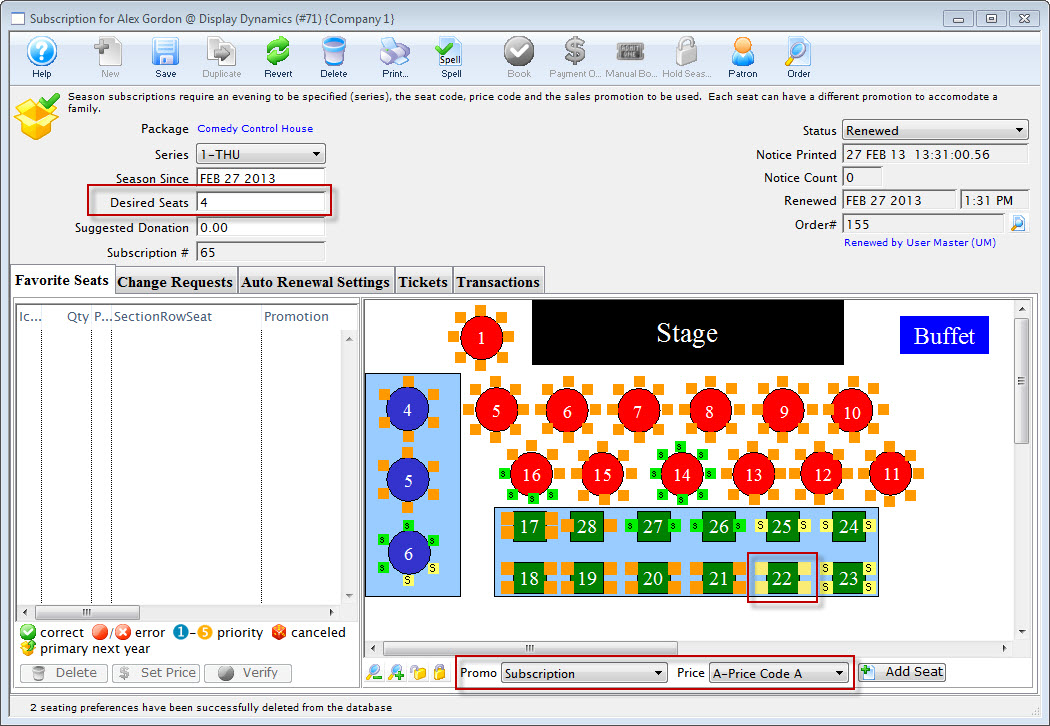
Click here for more information on the Patron Subscription Detail window.
- In the Desired Seats field, enter the number of seats the patron wants in their season package.
- Highlight the seats the patron wants in their subscription.

You can select seats by using the mouse to drag a box over the preferred seats, or by holding the <SHIFT> key and clicking each seat.
- At the bottom of the map, choose the Promotion and Price Codes.
- Click the Add Seat button.
The seats are added to the Seat Selection area of the Patron Subscription Detail window.
For more information on the Seat List area click here.
- Click the Save
 button.
- Close the Patron Subscription Detail window.
The patron is added to the season package. To learn how to add a patron to a season package click here.
Booking a Subscription from the Season Package Window
To book a subscription from the Season Package window, you perform the following steps:
- Click Patron Sales >> Season Reservations >> Setup Season Packages.
The Season Package List window opens.
Click here for more information on the Season Package List window.
- Click to highlight the season package, then click the Open button.
The Season Package Detail window opens.
Click here for more information on the Season Package Detail window.
- Select the Patrons tab.
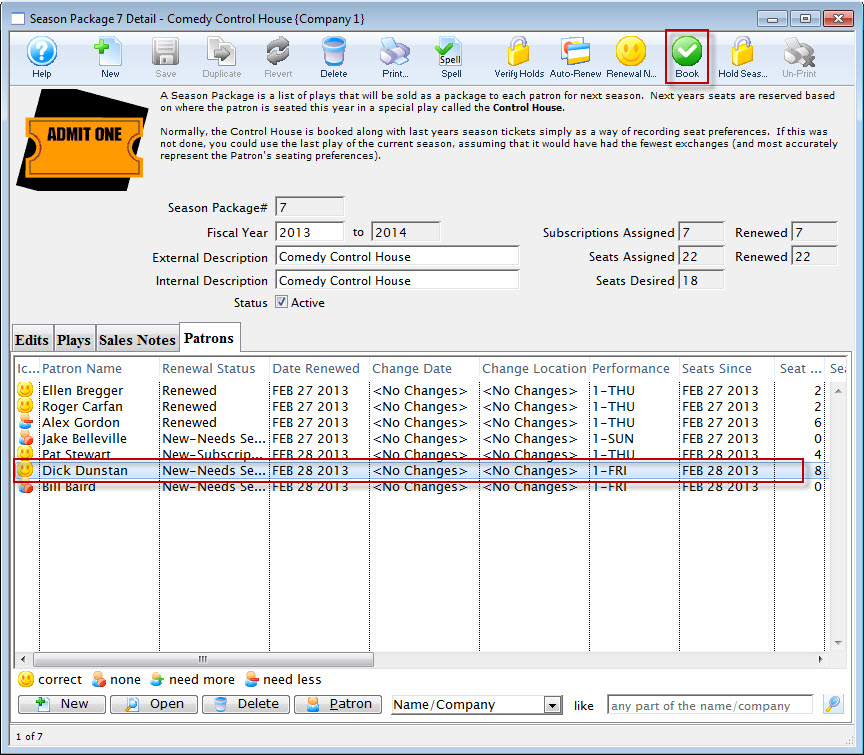
- Click to highlight the patron, then click the Book button.
The Order opens to the Payment window.
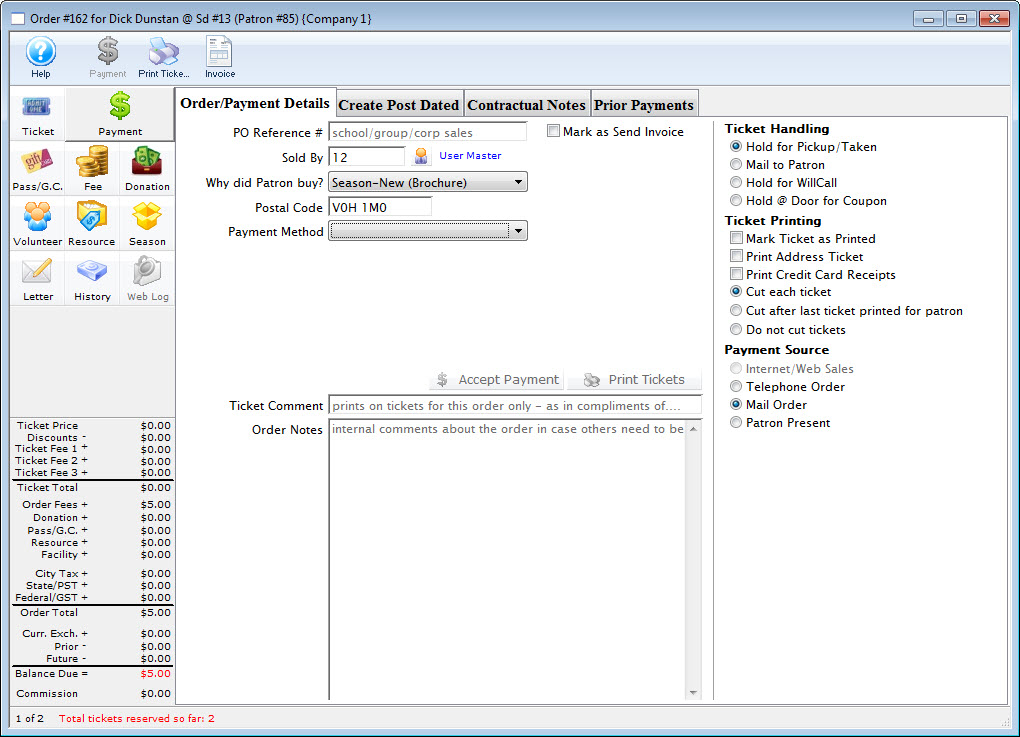
For more information on the Payment window click here.
- Choose the payment type from the Payment Method drop down list, enter the payment details and accept the payment.
If the tickets are to be printed now select Print Tickets. If the tickets will be Batch Printed at a later date select the Accept Payment button.
The payment window closes and you are returned to the Season Subscription Detail window. The patron status in the season package is automatically updated.
The patrons tickets are booked and the Season Subscription Detail window reflects the changes you have made.
Selling New Subscriptions During the Renewal Period
You have a great season ahead of you, and everyone wants to get in on the subscription process! You have promised all your existing subscribers that they will get the same seats they had last year. So what do you do with all the patrons who want to buy new subscriptions while at the same time honoring your promise to your existing subscribers? You don't want to have checks and credit card numbers lying around for months waiting until you can sell new subscriptions, and you want to get the money in the bank where you can use it to grow your business.
This help page discusses how to deal with the new subscribers that want to "buy in" before you have completed renewing your existing subscribership.
Your process may vary, however the typical chronology of events in the renewal period for Season Subscriptions is:
- Renewal notices are printed and sent
- Renewals are received back from patrons
- Regular ("straight") renewals with no changes are processed immediately
- Renewals with changes are processed for payments only, but no changes to the seat assignments are made at this time
- The Change Request tab in the Favorite Seats file is filled out for reference during change request fulfillment
- New subscriptions may be sold, but as with the above change requests, payments are processed, but seat assignments are not made
- The renewal deadline passes
- A short period is allowed for existing subscribers to get their renewals in (generally 7 - 14 days)
- Change requests are processed and seated using the Season Subscription-Change Requests report
- New subscriptions that were sold during the renewal period are seated
- New (and very late renewing) subscriptions are sold and immediately processed.
Process a Payment without booking a subscription
When a patron wants to purchase a new subscription during the renewal period, you will need to explain that you can process their payment, but cannot assign their seat until all existing subscribers have been seated. Following that (and you can provide the renewal deadline), you will be able to assign seats to new subscribers.
- In most instances, subscriptions are assigned in the same order they reached your office. It benefits the patron to subscribe early for the best seats, even if the seats cannot be actually assigned for months.
There are two methods that you can use to process a payment without booking a subscription.
Method 1 (Recommended):
- Open the Patron Window.
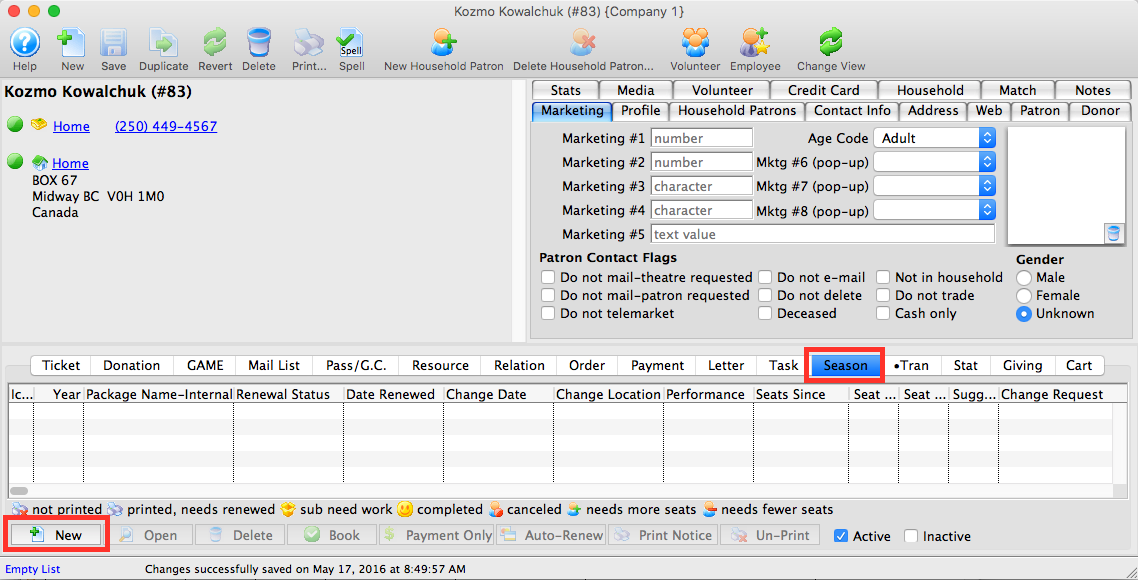
For information on accessing the Patron Window click here.
- Select the Season tab in the Patron Record.
- Click the New button.
The Select A Season Package window opens.

The Select A Season Package window will not open if there is only one active season package.
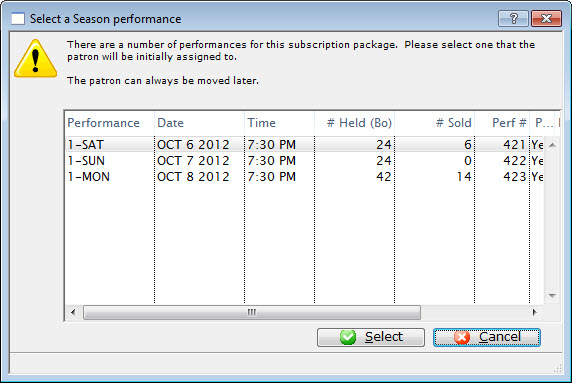
- Single click the desired Season Package and click the Select button.
The Subscription Detail window opens.
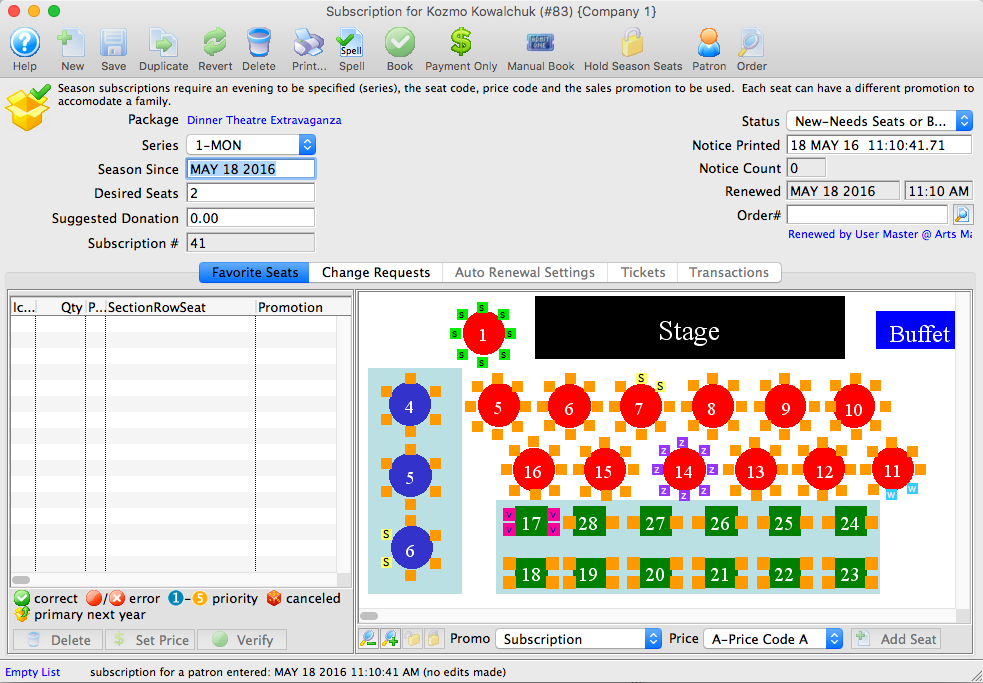
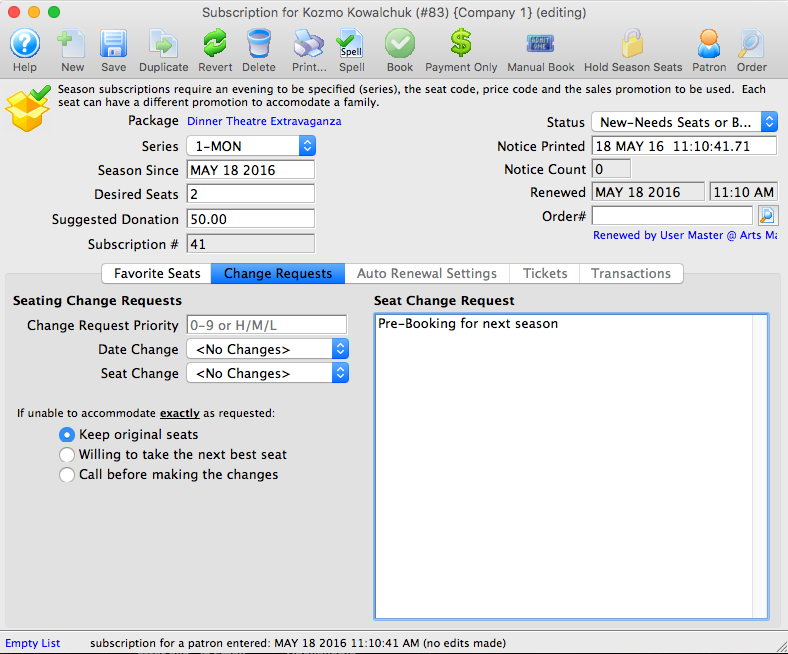
- At the top, indicate:
- The correct series
- The date of the request (this will default to today's date)
- The number of desired seats
- The suggested donation amount specific for this subscription
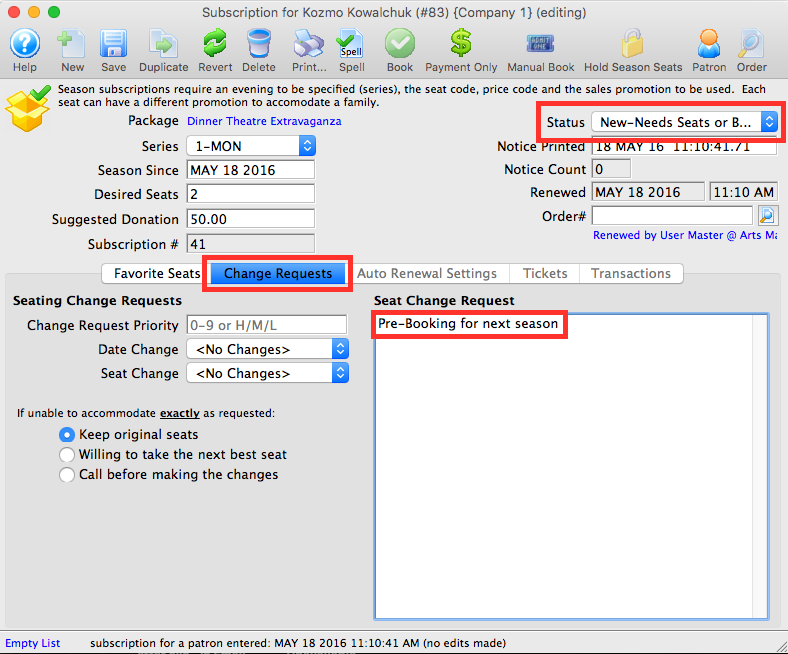
- Change the Status to "New-Needs Seats or Booking".
- Click on the Change Requests
 tab.
tab.
Add any notes about the seat request in the Seat Change Request text box.
- Click the Payment Only
 button.
 - Add the payment amount for the expected subscription.
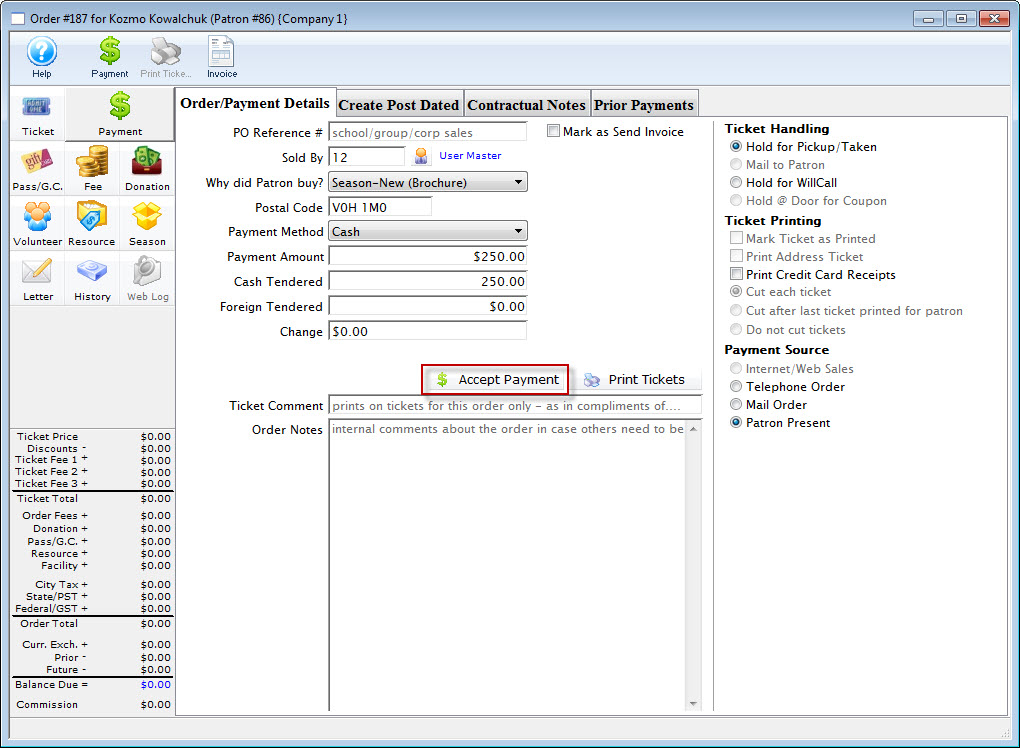
- Process the payment.
The payment window opens.
When you are able to assign and book the tickets:
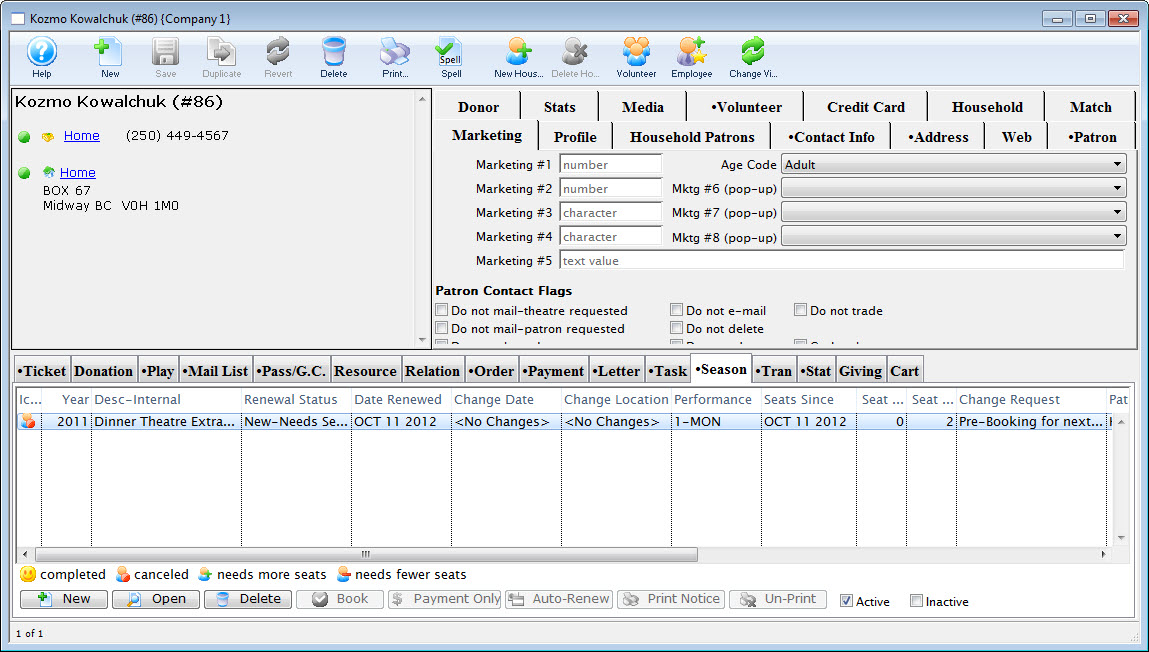
- Locate the patron record.
- Select the Season tab, and double click on the season package.
- Add the seats to the Favorite Seats tab.
- Click the Book button.
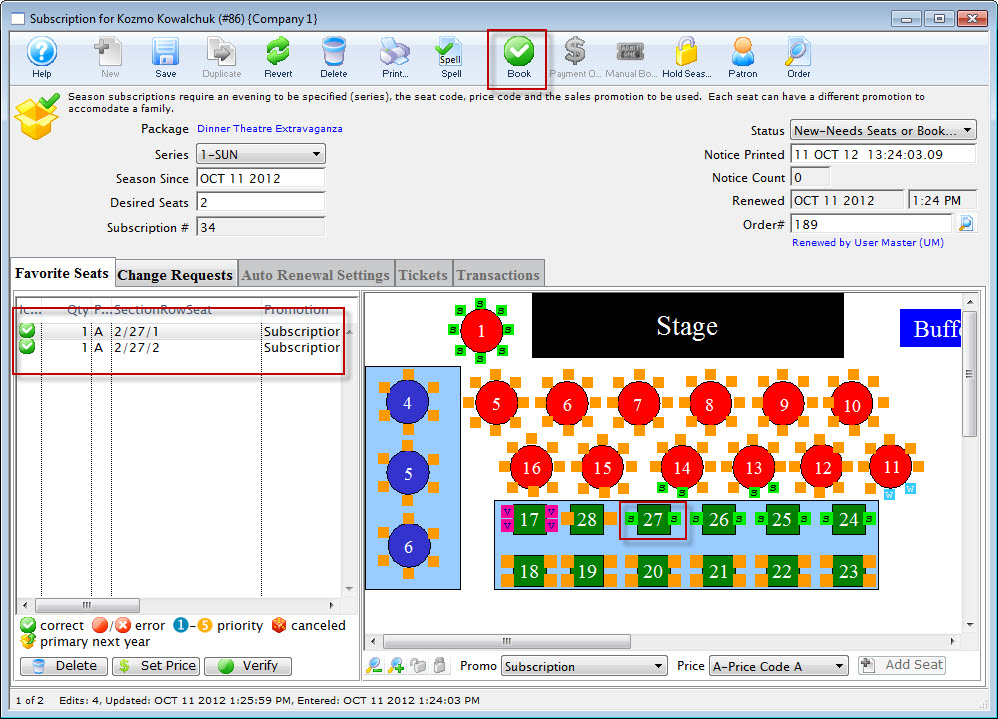
The payment window opens, but because of the prior payment, the balance due should be zero. If it is not, review the tickets assigned in the Ticket Review tab, and the prior payment to ensure they are correct.
Method 2 (Optional):
Method 2 is sometimes preferred by auditors who like to see that the patron has something of value, rather than the company having just processed a payment without giving anything in return. Most people understand the concept of Gift Certificates, so auditors will ask that you issue a Gift Certificate (or other Membership) in exchange for the payment. Then, when you are able to process the subscription, use the Gift Certificate to pay for the tickets.
The end result is the same - the patron has given you money, you have put it in your bank, and then that money - at a future date - pays for the tickets.