Reserved Seating Events
|
This section presumes you:
|

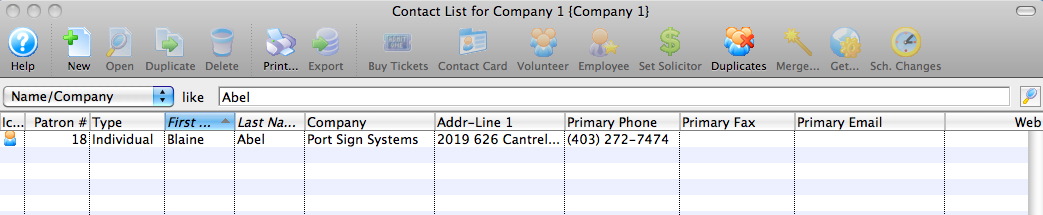
- Find a Patron - any Patron - from the Contact List.
For this example, we have found Patron #18, Blaine Abel.
- Double click on Blaine's name in the Contact List
Optionally, you can single click on Blaine's name, and click the
 button in the top tool bar. With this option, you can skip to Step 4.
 - When the patron record opens, click the
 button in the lower left corner.
The
button is located at the very bottom of the patron window. It is the first button on the left hand side of a row of buttons, when the  tab is selected.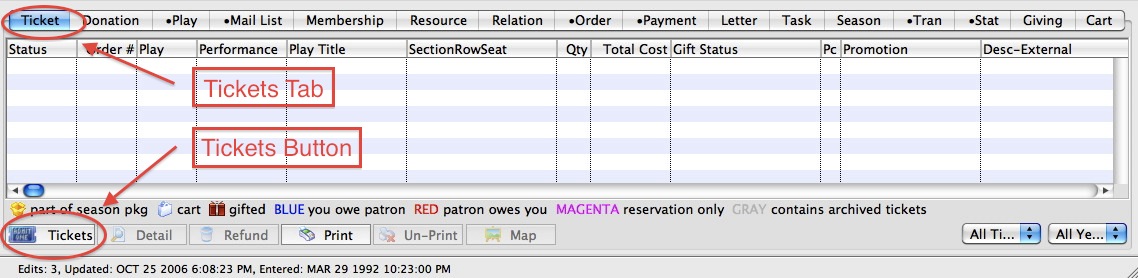

If the patron does not have existing tickets, then Theatre Manager will automatically advance to the BUY LIST of events currently onsale.
If the patron does have existing tickets, you will be presented with a menu of options. Please select the 'Purchase new tickets for this patron' option to proceed with the Demo.
Once either the
button or the button has been clicked, the select play(s) window opens.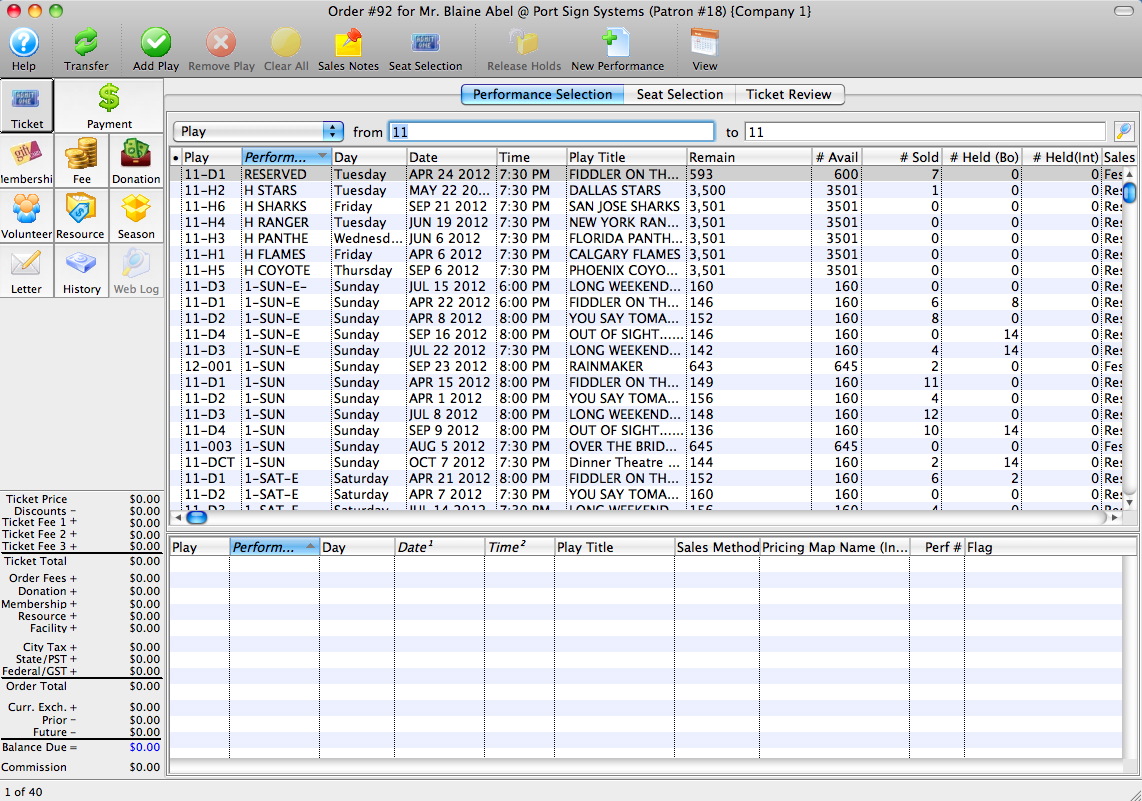
- Double click on the 1-SUN performance of FIDDLER ON THE ROOF
The play 1-SUN of Fiddler on the Roof should now be in the 'shopping cart' at the bottom of the window.
- Click on the
 tab at the top of the window.
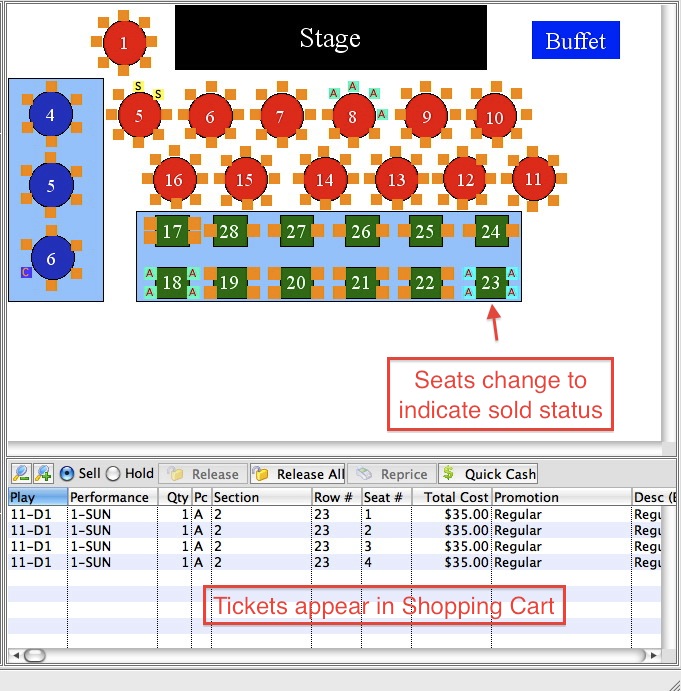
 - Choose the seats you wish to purchase on the graphic map.
This can be accomplished by either:
- Clicking on the seats individually
- Drawing a line through the seats (click and drag), or
- Drawing a box around the seats (click and drag)
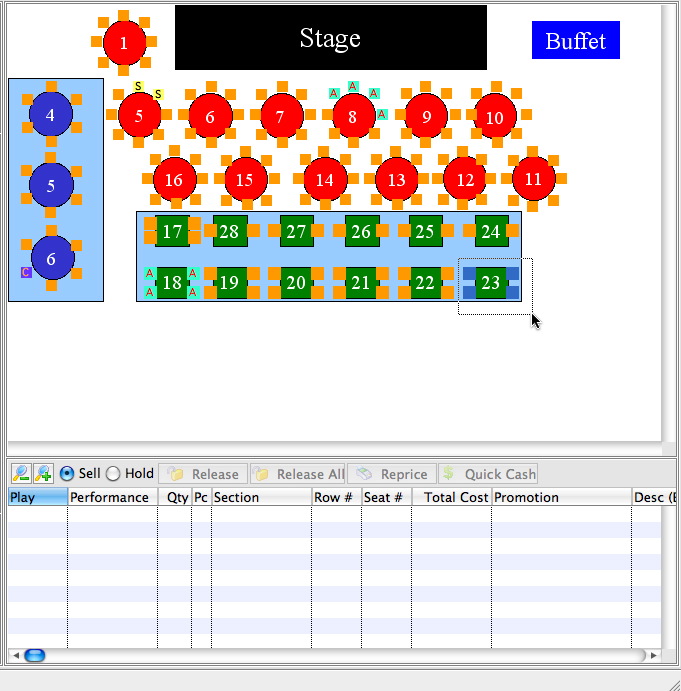
The seats you have selected will appear in the shopping cart at the bottom of the window.
Note: The sales happen in "real-time" meaning that as soon as they are placed in your shopping cart, all sales locations - including web sales - are updated to indicate that these seats are no longer available for sale. Theatre Manager places a "hold" status on them until the sale is completed, protecting them from other purchasers.
- Click the
 button to accept a payment for this order.
The
button is located in the upper-left corner (see Item #1, above) of the display window. - During the Performance selection process (Step 4, above), double click on multiple performances. This allows you to sell seats to multiple events simultaneously.
- Return to the top page to learn about how to navigate through the demonstration tutorial.
- Return to learn more about the Patron Window.
- Move forward to learn how to accept a payment.
- Move forward to selling a Festival (General Admission) event.
- Move forward to learn how to return a ticket.
- Jump to entering a donation.


There are 7 primary areas of this window that assist you with the sale.

| # | Item | Description |
| 1 | Sales Icons | Single click access to sell tickets, Memberships, Donations, Fees, add Volunteers or Resources, and Accept Payment. |
| 2 | Sales tabulation | Keeps a running total of the sale in progress. |
| 3 | Event & Performance listing | A listing of the event and performance currently being sold. You can choose multiple events simultaneously to sell the same seats to all performances (if the events use the same map). |
| 4 | Sales Promotion | In Theatre Manager tickets can be sold for a variety of Sales Promotions: 2 for 1, Senior/ Student discounts, Child, Adult admissions, Subscribers, Early Bird, etc. These promotions can even include markups for Gala Events or third party payments ('Dinner and a Show', for example). The user can define what Sales Promotions will be offered by their venue. Sales Promotions can be enabled/disabled on a per performance basis. |
| 5 | Price Code | Indicates the Price Code (often used when scaling the house) as the 'base price' and discounted price after the Sales Promotion is applied. |
| 6 | Graphic Map | A graphic map of the venue where seat selection takes place. The map will show the current state of sales in real time. For Festival or General Admission sales, the map is replaced by a simple set of 3 steps to reserve a specific quantity of tickets. |
| 7 | Shopping Cart | When selected, the seats will appear in the shopping cart, along with information about their Sales Promotion and final price. |

Theatre Manager processes the payment and returns you to the patron record.
|
Note: This process assumes that the order is fully paid. A partial payment can be entered if needed. |
|

|
From here you can: |
