Printing Renewal Notices
Printing renewal notices is done at the end or beginning of each season to remind patrons that it is time to renew their package subscription.
- Click on the Patron Sales menu from the main menu bar.
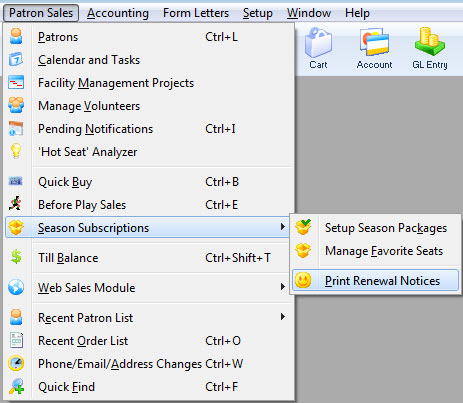
- Go to Season Reservations >> Print Renewal Notices.
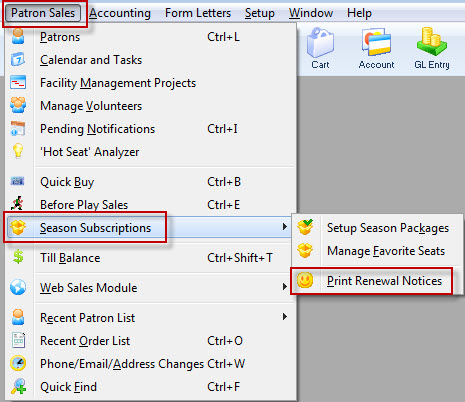
The Season Ticket Renewal Notice Criteria window opens.
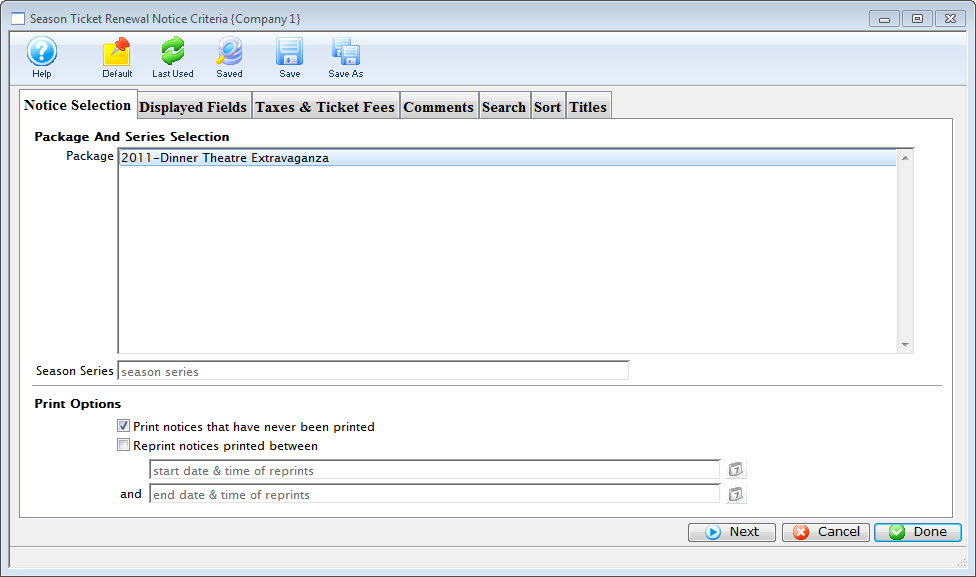
For more information on the Season Ticket Renewal Notice Criteria window, click here. For more information on printing renewal notices, click here.
Customized Renewal Notices
In Theatre Manager, you can customize your Season Renewal Notice to print it in a different format than the standard notice. For more information on printing the standard notice, click here.
Customized renewal notices contain the same information as the standard notice, however you can customize your form by moving the data around on the page, or you can delete the fields you do not want to appear. Printing your customized renewal notice is done through the reports menu.
- Open the Reports module, and select the Season Subscription and Subscription Packages category.
- Highlight (single click) the Season Ticket Renewal Notice report.
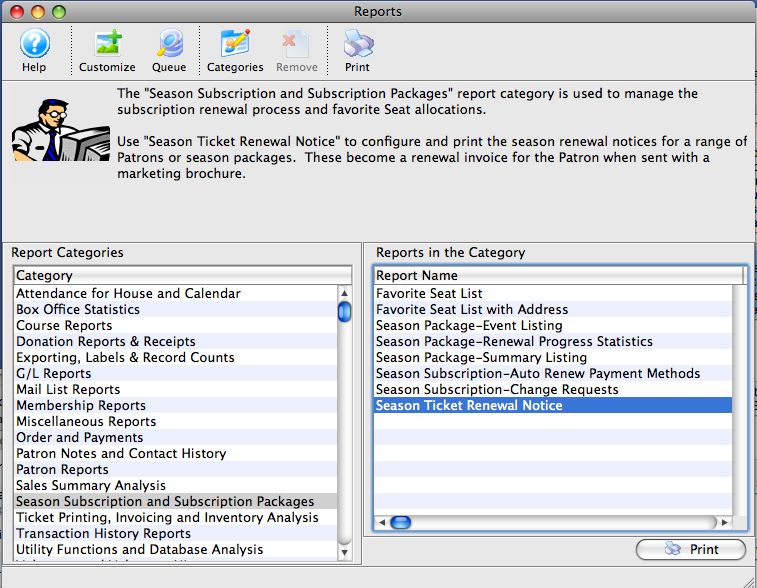
- Click the Customize
 button.
The Customizing Custom Season Ticket Renewal Notice window opens.
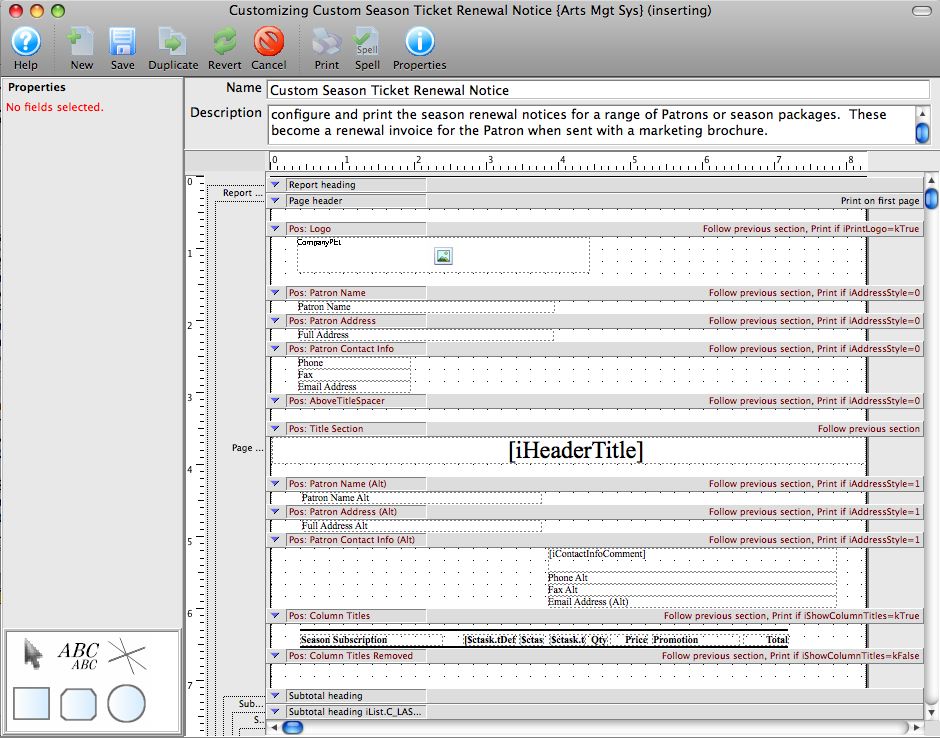
- Make your edits.
- Click on the ABC icon in the lower left toolbox.
- Draw a box on the renewal notice in the location you want the new text box.
- A new menu appears on the left to choose the font and point size. Select the font and size you wish to use.
- Double click on the box you drew.
- Enter the text you want to appear in the box.
- Use the formatting tools in the text box to bold, italicize, underline or change the font color.
- Click anywhere outside the box to close the editing window.
- Name your customized Renewal Notice at the top, and give it a description.
- Click the Save
 button.
| Margins | Edit the vertical margins in each section by raising and lowering the gray bars in between the sections. |
|
Edit the left margin by placing your cursor at the far left of the page, and clicking and dragging the start of the page left or right. Edit the page margins by clicking on the Properties Changing the top margin lowers the print on the page as shown.
| |
| Graphics | Boxes, circles, rounded boxes or new text blocks can be added and edited using the toolbox in the lower left corner. You add shapes and lines by clicking on the appropriate tool in the toolbox in the lower left corner, then drawing the item within the customized notice. |
| Text | Existing text is edited by double clicking on the text box within the custom notice and editing it within the box. Close the box, by clicking anywhere off the box. You can also edit the contents of existing text blocks within each section, or add text blocks. You can remove fields from the notice entirely if you choose not to use them. |
|
To add a new text box: |
 icon.
icon.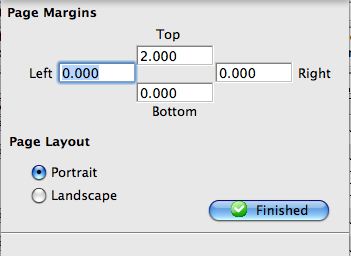

Once you have saved your Customized Renewal Notice, you can access it either through the Reports menu:
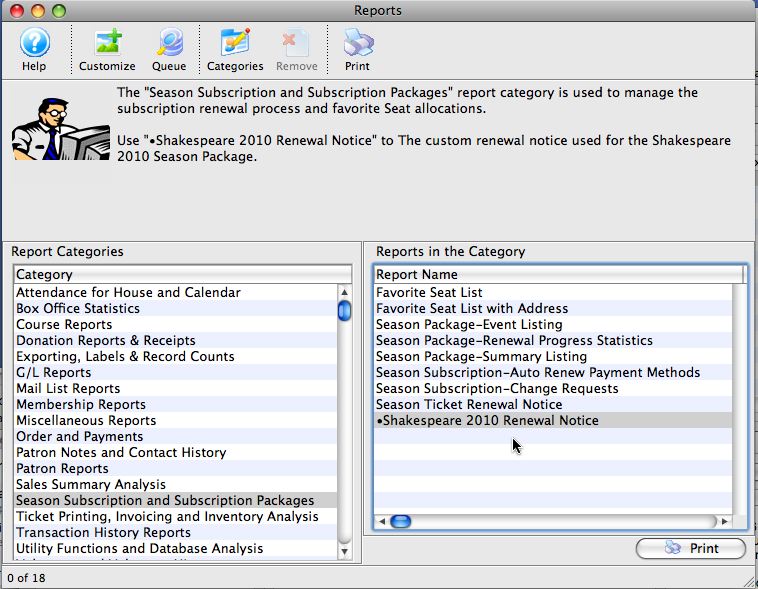
or through the Patron window on the Season tab  , under the Print Notice
  button.

For more information on printing renewal notices, click here.
Print Notices from the Manage Favorite Seats Window
Notices can be printed directly from the Manage Favorite Seats window. To start, you perform the following steps:
- Click the Subscription
 button in the Theatre Manager ribbon bar.
The Manage Favorite Seats window opens.
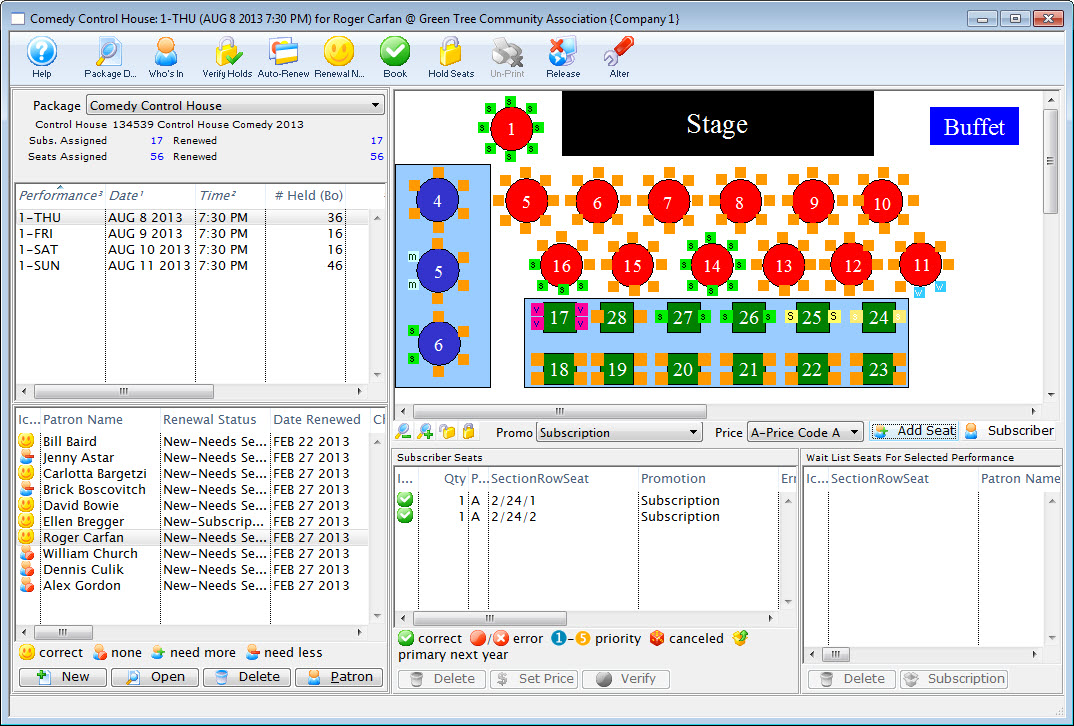
- Highlight the patron to print the notices for and click the Renewal Notice
 button.
The Season Ticket Renewal Notice Criteria window opens.
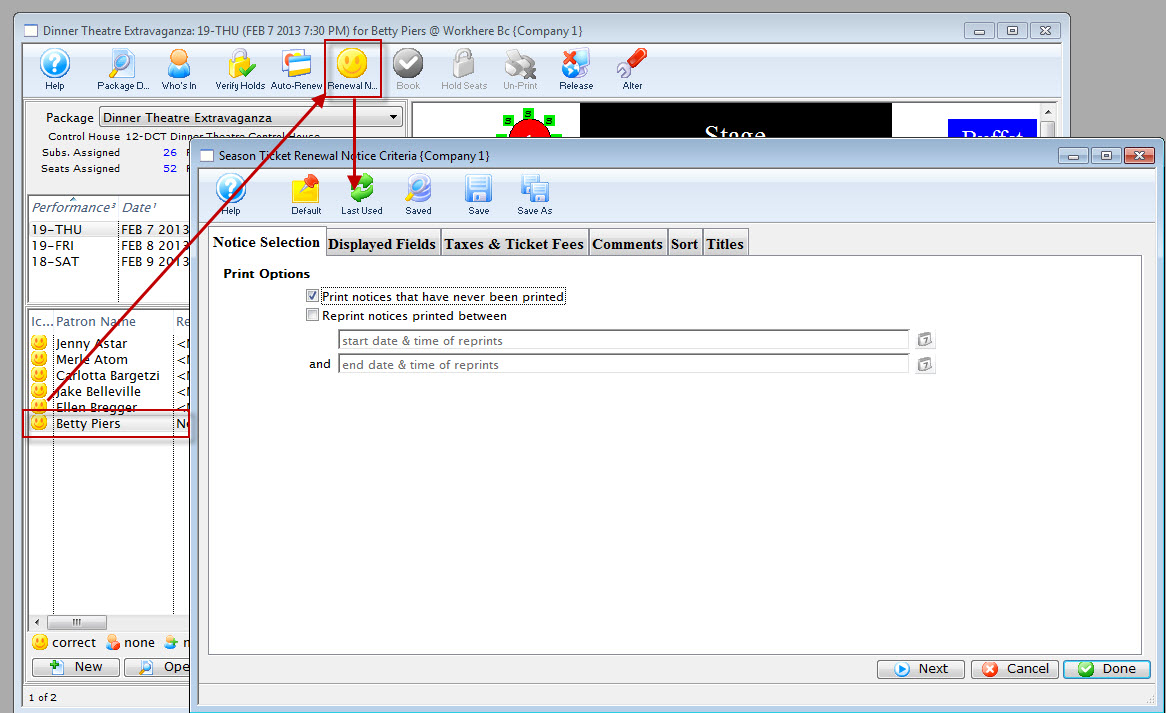
- Choose the Options you want to print.
To reprint notices previously printed, use the reprint option.
Click here for more information on the Notice Selection tab.
- Then click the Next
 button.
The Displayed Fields tab of the window opens.
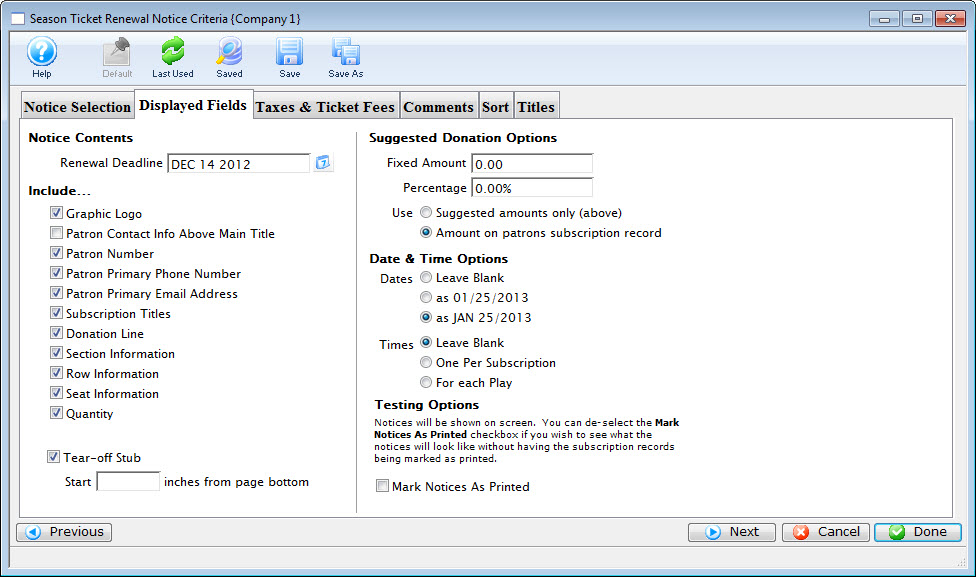
- Select the fields you want to have printed on the renewal notices. Then click the Next button.
Click here for more information on the Display Fields tab.
The Taxes & Ticket Fees tab of the window opens.
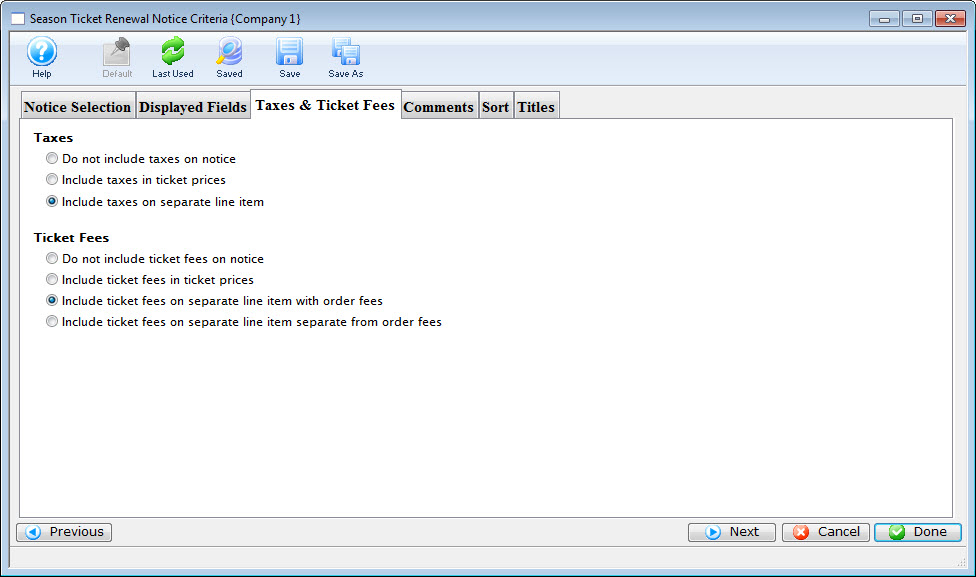
Click here for more information on the Taxes & Ticket Fees tab.
- Make the appropriate selections. Then click the Next button.
The Comments tab opens.
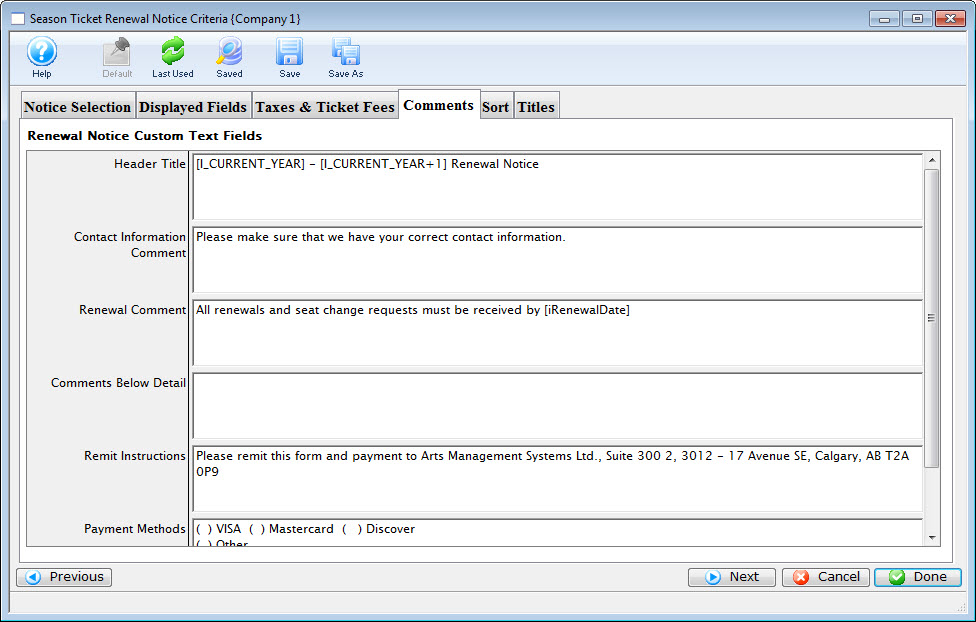
Click here for more information on the Comments tab.
- Edit the comment fields on the notice. Then click the Next button.
The Sort tab opens.
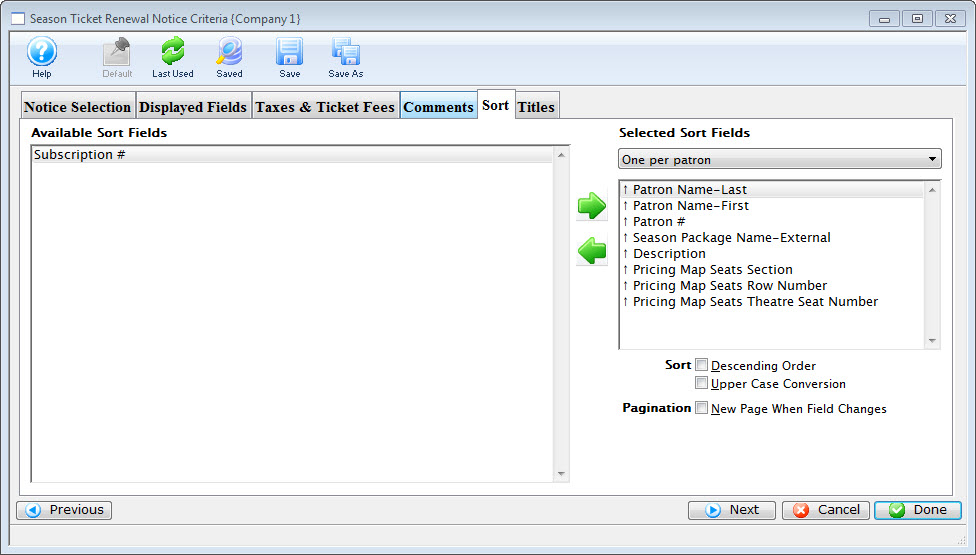
Click here for more information on the Sort tab.
- Make the appropriate selections. Then click the Next button.
The Title tab opens.
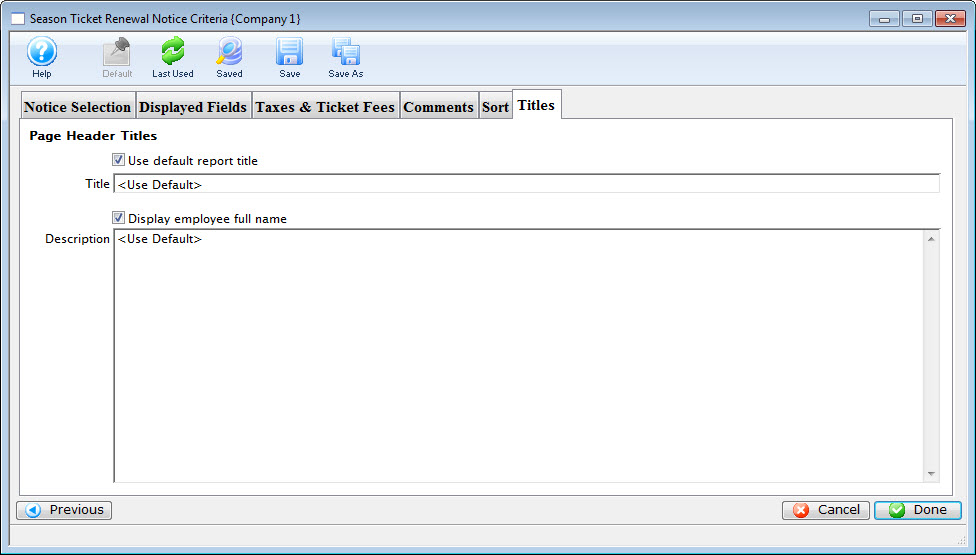
- You can enter a a new title and description and click the Done
 button.
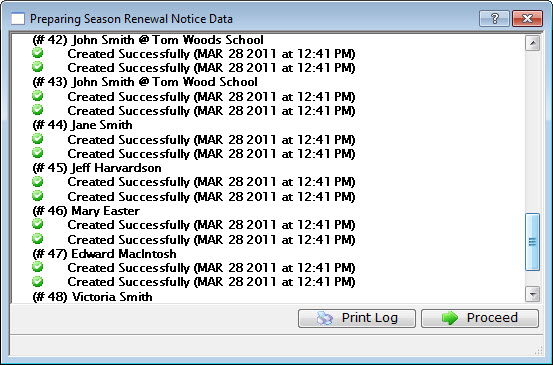
- Click the Proceed
 button to see a preview of the completed notices.
The Print
 button will print the notices without previewing them. To make changes before previewing the notices, simply close the Renewal Notices Data window.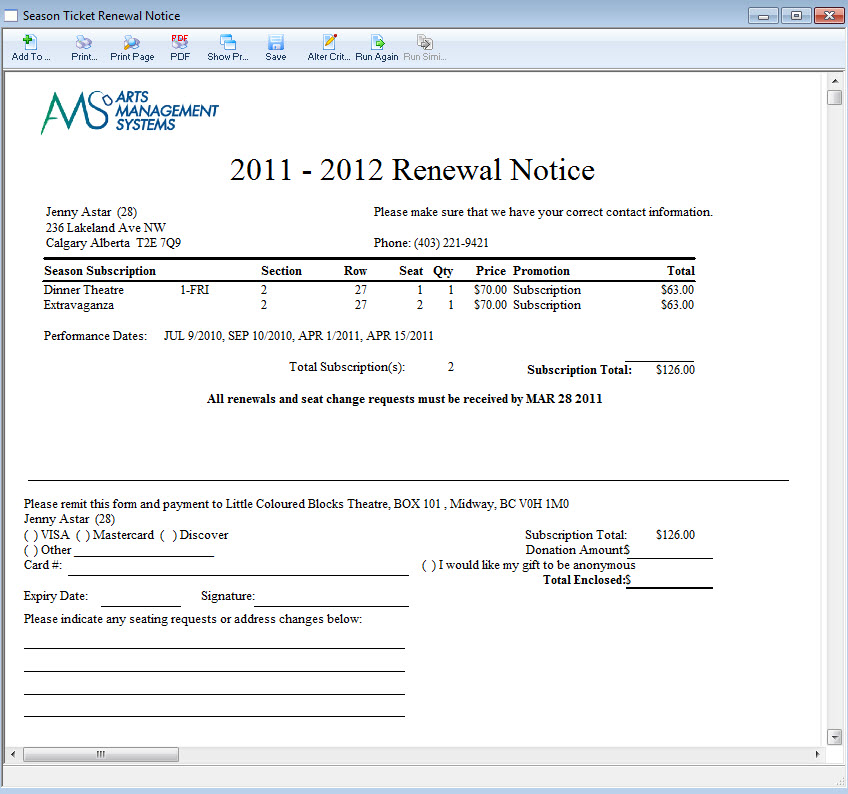
Click here for information on the Finished Report window.
You can now print the documents to a printer, or pdf (for emailing).
Printing Renewal Notices From the Detail Window
- Click Patron Sales >> Season Reservations >> Setup Season Packages.
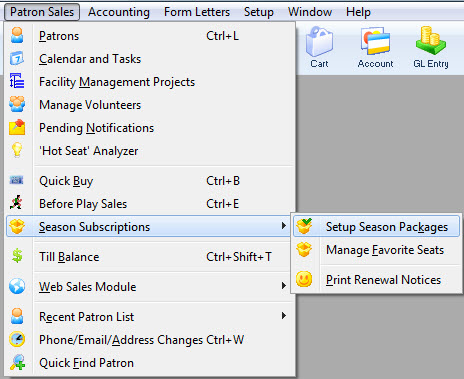
The Season Package List window opens.
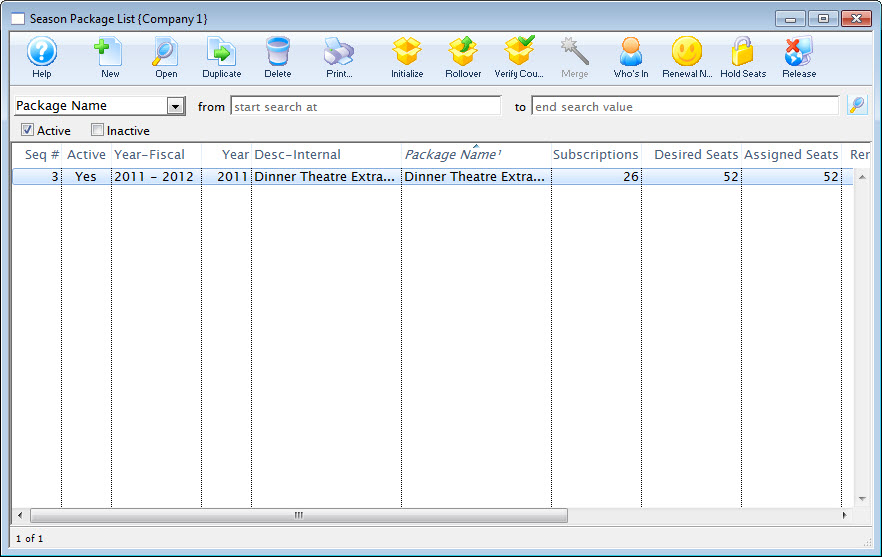
Click here for more information on the Season Package List window.
- Single click on the desired season package to select it.
- Click the Open
 button at the top of the window.
The Season Package Detail window opens.
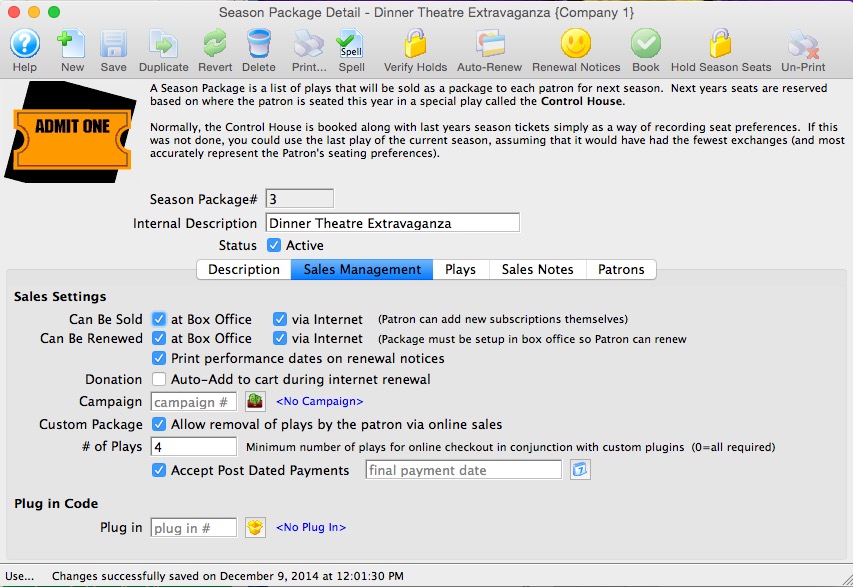
Click here for more information on the Season Package Detail window.
- Highlight the patron to print the notices for and click the Renewal Notice button.
The Season Ticket Renewal Notice Criteria window opens.
- Choose the Options you want to print.
To reprint notices previously printed, use the reprint option.
Click here for more information on the Notice Selection tab.
- Then click the Next button.
The Displayed Fields tab of the window opens.
- Select the fields you want to have printed on the renewal notices. Then click the Next button.
Click here for more information on the Display Fields tab.
The Taxes & Ticket Fees tab of the window opens.
Click here for more information on the Taxes & Ticket Fees tab.
- Make the appropriate selections. Then click the Next button.
The Comments tab opens.
Click here for more information on the Comments tab.
- Edit the comment fields on the notice. Then click the Next button.
The Sort tab opens.
Click here for more information on the Sort tab.
- Make the appropriate selections. Then click the Next button.
The Title tab opens.
- You can enter a a new title and description and click the Done button.
- Click the Proceed button to see a preview of the completed notices.
The Print
button will print the notices without previewing them. To make changes before previewing the notices, simply close the Renewal Notices Data window.Click here for information on the Finished Report window.
You can now print the documents to a printer, or pdf (for emailing).
Printing Season Subscription Renewal Notices
Printing renewal notices usually happens each season to notify patrons that it is time to renew their subscription to a season package.
- On the main menu bar, click on Patron Sales >> Season Subscriptions >> Print Renewal Notices.
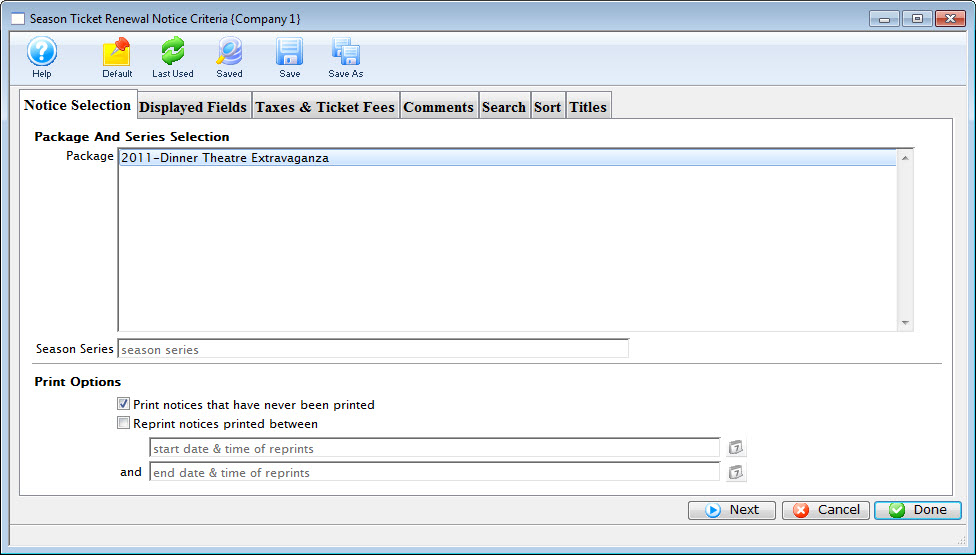
The Season Ticket Renewal Notice Criteria window opens.
- Choose the Options you want to print.
To reprint notices previously printed, use the reprint option.
Click here for more information on the Notice Selection tab.
- Then click the Next button.
The Displayed Fields tab of the window opens.
- Select the fields you want to have printed on the renewal notices. Then click the Next button.
Click here for more information on the Display Fields tab.
The Taxes & Ticket Fees tab of the window opens.
Click here for more information on the Taxes & Ticket Fees tab.
- Make the appropriate selections. Then click the Next button.
The Comments tab opens.
Click here for more information on the Comments tab.
- Edit the comment fields on the notice. Then click the Next button.
The Sort tab opens.
Click here for more information on the Sort tab.
- Make the appropriate selections. Then click the Next button.
The Title tab opens.
- You can enter a a new title and description and click the Done button.
- Click the Proceed button to see a preview of the completed notices.
The Print
button will print the notices without previewing them. To make changes before previewing the notices, simply close the Renewal Notices Data window.Click here for information on the Finished Report window.
You can now print the documents to a printer, or pdf (for emailing).
Season Ticket Renewal Notice Critera Window
The following, describe the different tabs available in the creation of the Subscription Notices
Selection Tab
You use the Season Ticket Renewal Notice Selection tab to determine which packages will have renewal notices printed in this run.
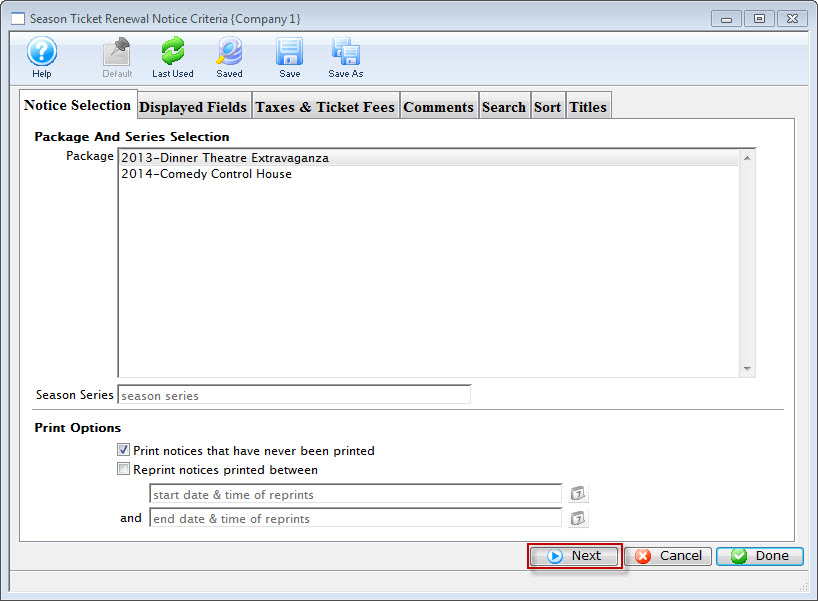
Parts of the Season Ticket Renewal Notice Selection Tab
Package and Series Selection |
|
| Package | Select the packages for which season renewal notices are to be printed. To select multiple packages, either use the SHIFT key to select a series of packages or the CTRL key (Windows) or OPTION key (Mac) to select multiple individual packages. |
| Season Series | Enter the season that the package will be part of. |
Print Options |
|
| Print notices that have never been printed | When checked, only notices that have never been printed will be searched for based on the package selections. |
| Reprint notices printed between | When checked, two dates will need to be entered by the user. Theatre Manager will find all renewal notices that were printed during that time frame and select them for printing. |
 |
This button will open the mini-calendar for easier entry of dates. |
|
Moves to the next tab of the process. |
 |
Cancels the renewal notices process. |
|
Leave the criteria entry process and begins assembling the renewal notices. |
Display Fields Tab
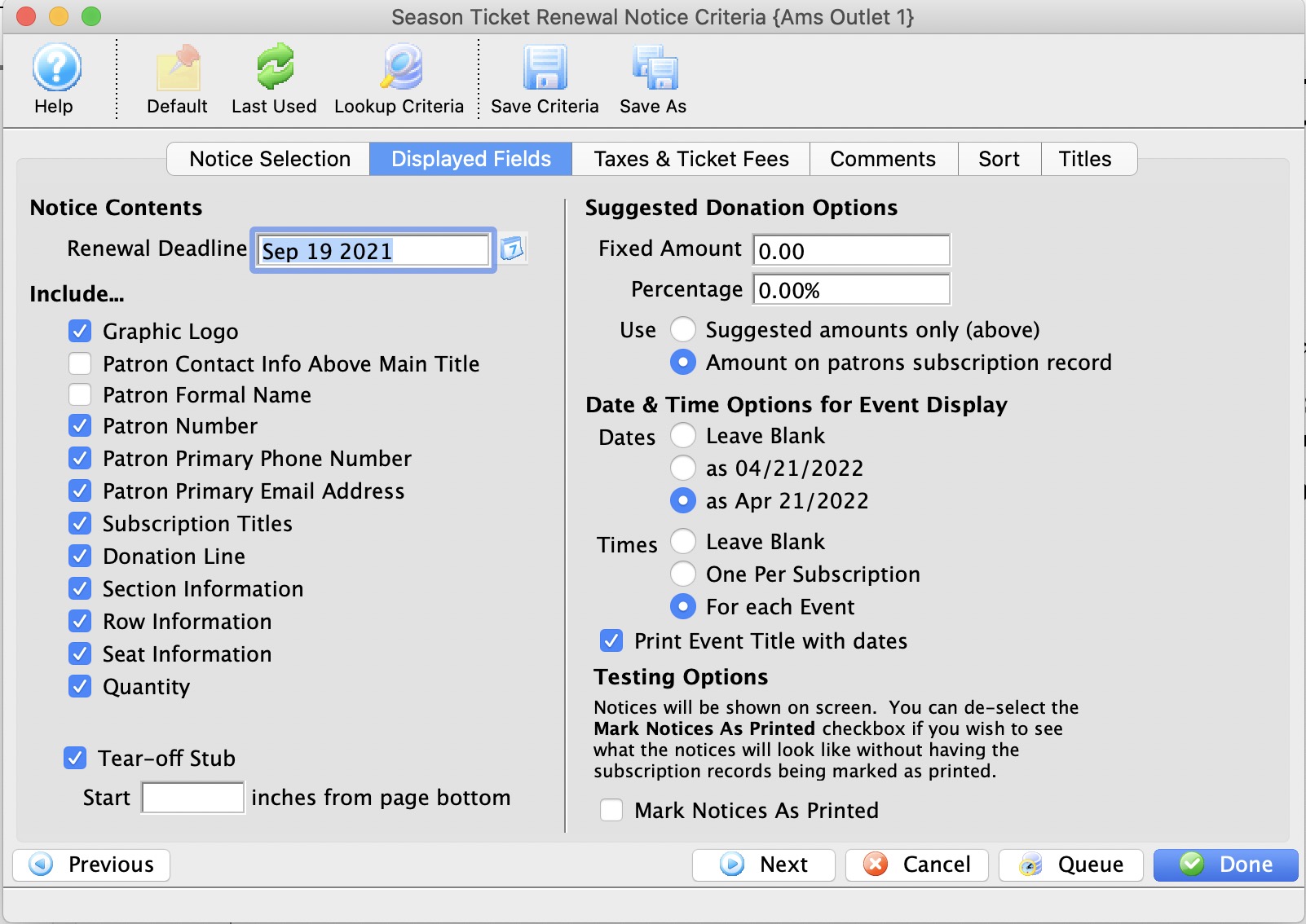
Parts of the Season Ticket Renewal Display Fields Tab
Notice Contents |
|
| Renewal Deadline | The date until which the patron's seats will be held for renewal. After this date, the seats will be made available to other patrons. |
 |
This button will open the mini-calendar for easier entry of dates. |
| Patron Contact Info Above Main Title | When checked, the patron's contact information will be moved above the title on the renewal notice. |
| Patron Number | When checked, the patron number of the patron will be included on the renewal notice. |
| Patron Primary Phone Number | When checked, the patron's primary phone number will be included on the renewal notice. |
| Patron Primary Email Address | When checked, the patron's primary email address will be included on the renewal notice. |
| Subscription Titles | When checked, the subscription titles will be included on the renewal notice. |
| Donation Line | When checked, the donation line will be included on the renewal notice. |
| Tear-Off Stub | When checked, a tear-off stub will be included on the renewal notice. |
| Section Information | When checked, the section information for the seats the patron holds will be included on the renewal notice. |
| Row Information | When checked, the row information for the seats the patron holds will be included on the renewal notice. |
| Seat Information | When checked, the seat information for the seats the patron holds will be included on the renewal notice. |
| Quantity | When checked, the quantity of seats will be included on the renewal notice. |
| Do not include taxes on the notice | When selected, taxes will not be included on the renewal notice. |
| Include taxes in ticket prices | When selected, the taxes will be included in the ticket prices on the renewal notice. |
| Include taxes on separate line item | When selected, the taxes will be listed as a separate item on the renewal notice. |
Suggested Donation Options |
|
| Fixed Amount | Allows for a fixed amount suggested donation to be included with the renewal notice. |
| Percentage | Allows for a percentage based suggested donation to be included with the renewal notice. |
Date & Time Options |
|
| Leave Blank | When selected there will be no date information printed on the renewal notice. |
| As Numerical (MM/DD/YYYY) | When selected, the date on the renewal notice will be listed in numerical format. |
| As Written (Month/DD/YYYY) | When selected, the date on the renewal notice will be listed in written format. |
| Leave Blank | When selected there will be no time information printed on the renewal notice. |
| One per subscription | When selected, the time will be listed once on the renewal notice. |
| For each event | When selected, the time for each performance will be listed on the renewal notice. |
| Print Event Title with Dates | If clicked, the event title will be printed along with the dates/times on the lower part of the renewal notices |
Testing Options |
|
| Mark Notices As Printed | When checked, the notices will be marked as printed once viewed on the screen. |
 |
Moves to the previous tab of the process. |
 |
Moves to the next tab of the process. |
|
Cancels the renewal notices process. |
|
Leave the criteria entry process and begins assembling the renewal notices. |
Comments Tab
The Season Ticket Renewal Comments tab is used to adjust the comments that print on the renewal notice.
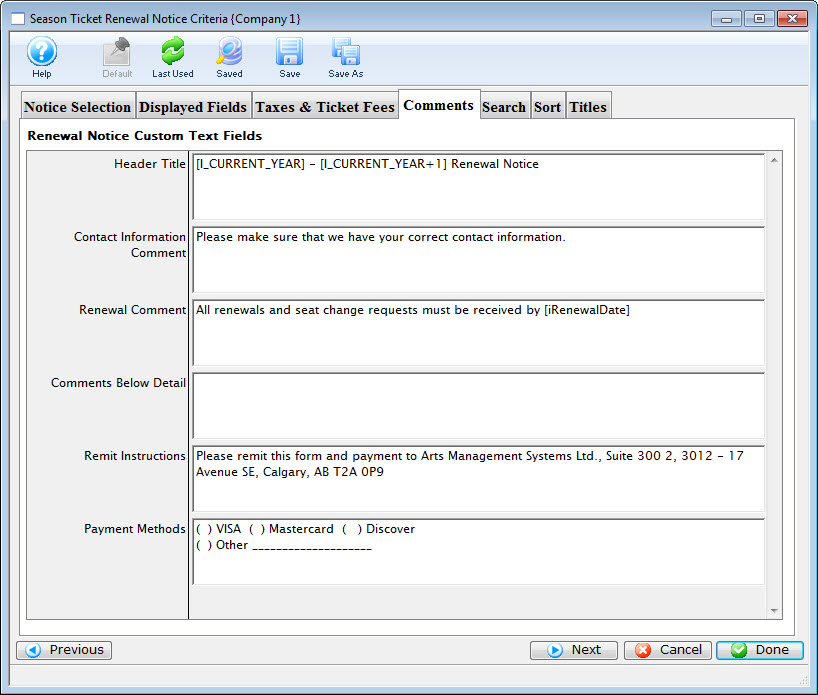
Parts of the Season Ticket Renewal Comments Tab
Renewal Notice Custom Text Fields |
|
| Header Title | Allows you to enter a custom header on your renewal notice. |
| Contact Information Comment | Allows adjustment of the default text that prints on the renewal notice in the renewal comments section. |
| Renewal Comment | Allows adjustment of the default text that prints on the renewal notice in the renewal comments section. |
| Comment Below Detail | Allows adjustment of the default text that prints on the renewal notice in the comments section under the package detail. |
| Remit Instructions | Allows adjustment of the default text that prints on the renewal notice in the remit instructions section. |
| Payment Methods | Allows adjustment of the default text that prints on the renewal notice in the payment methods section. |
 |
Moves to the previous tab of the process. |
|
Moves to the next tab of the process. |
|
Cancels the renewal notices process. |
|
Leave the criteria entry process and begins assembling the renewal notices. |
Search Criteria Tab
The Search Criteria tab is used to add the criteria to the report to find the specific information in the database that is needed. All reports need to have criteria selected or the report will pull all information from the database. This can take a very long time and make a very long report. By adding criteria, the reports only finds the specific information needed. Click here for detailed information on adding criteria.
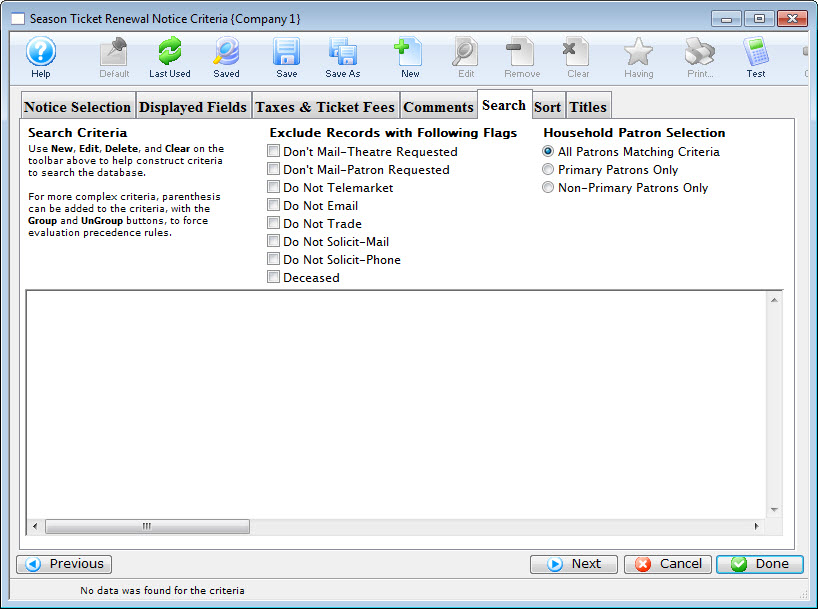
Parts of the Season Ticket Renewal Notice Search Criteria Tab
 |
If available, uses the default search criteria for this report. |
 |
If this report has previously been run, this button will add theprevious criteria. |
 |
Opens a list of saved criteria for this report. |
 |
Saves the current criteria to be used later. |
 |
Saves the current criteria to be used later and opens a dialog to name this criteria. |
 |
Opens the Add/Edit Parameter window to facilitate adding new criteria. Click here for more information on the Add/Edit Parameter window. |
 |
Opens the currently selected criteria in the Add/Edit Parameter window to allow adjustments. |
 |
Deletes the currently selected criteria. |
 |
Deletes all criteria from the Search tab. |
 |
Tests the current criteria to see how many records will be returned. A message will appear at the bottom of the window showing the number of records to be returned. |
 |
Prints a listing of the criteria currently in the Search tab. |
 |
Groups the currently selected criteria. This forces the criteria to take precedence in the search. |
 |
Ungroups the currently selected criteria. |
| |
Cancels that adding of criteria and returns the user to the Report window. |
| |
Completes the addition of criteria and the sorting of data, and begins to generate the report. Click here for more information on the Finished Report window. |
| |
Completes the addition of criteria and the sorting of data, and takes you to the next page of information for the selected report. |
|
Quick reference information for Reports Criteria |


Saved Criteria
To SAVE your criteria
- Build your criteria as you normally would in your Report, Mail List or Export.
- Click the
 icon at the top of the Criteria window.
- A new window will pop up with an opportunity to name (or rename) your criteria. The window will show the criteria for reference.
Select a name that is descriptive for you and others to remember. For example:
- 2018 Donors-All Campaigns, or
- 2018 Event Purchasers or
- Volunteers last year but not this year
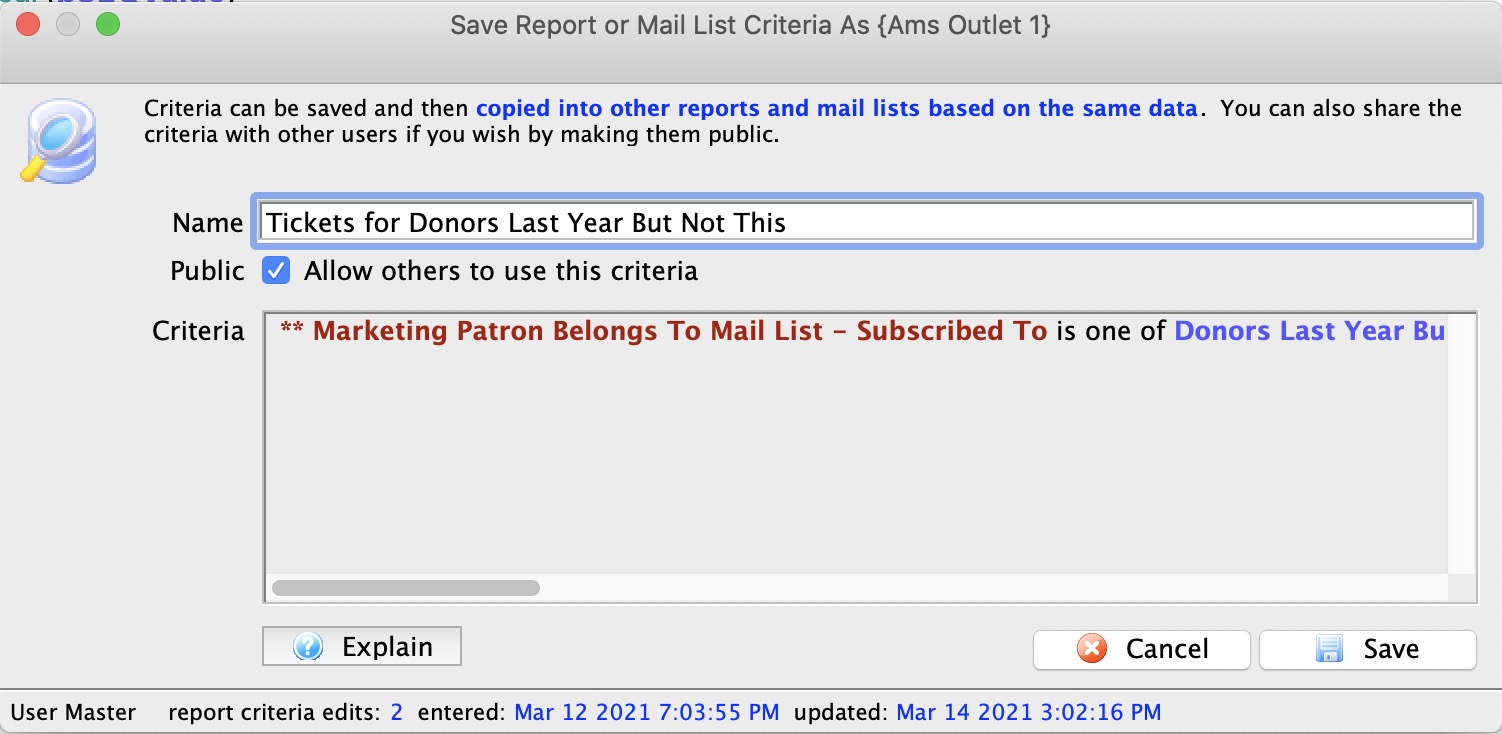
- If you want others to be able to view or use this criteria, click the
 box below the Criteria Name field. If you do not select this box, others can use this criteria, but cannot change it.
- A new window will pop up with an opportunity to name (or rename) your criteria. The window will show the criteria for reference.
- Click the
 button.
To retrieve your SAVED criteria
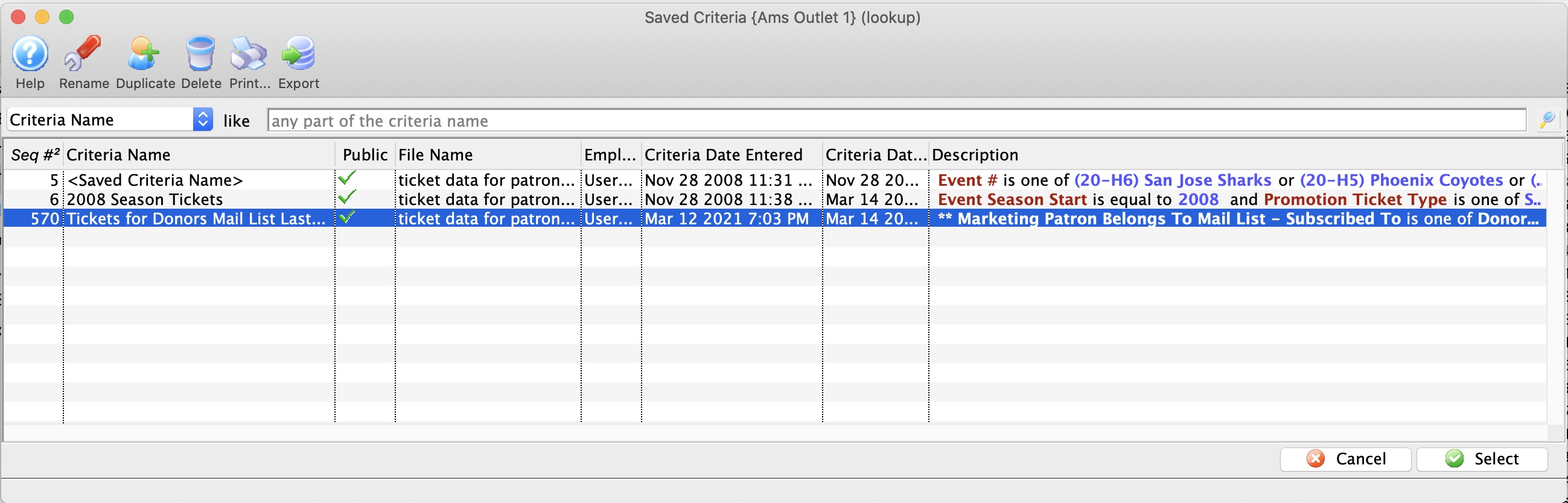
- Open any criteria window and click the
 icon at the top.
 - A list of your Saved Criteria will appear, including all the available saved criteria sets available for use with this Report, Mail List, or Export of data.
- Select the criteria you want to use either by double clicking on it, or single clicking and then clicking
 in the lower right corner.
Sort Tab
You use the Season Ticket Renewal Sort tab to adjust how the renewal notices are sorted when printed.
Parts of the Season Ticket Renewal Sort Tab
Available Sort Fields |
|
| Sort Fields | A list of the sort fields available to be used. |
 |
Adds the currently selected field to the sort field list. |
 |
Removes the currently selected field from the sort field list. |
Selected Sort Fields |
|
| Sort Fields | A list of the currently selected fields to be used for sorting. |
Sort Field Parameters |
|
| Sort in Descending Order | When checked the notices will be sorted in descending order by this field. |
| Upper Case Conversion | When checked any information in this field will be written in upper case. |
| New Page When Field Changes | When checked a new page will be started when this field changes. |
|
Moves to the previous tab of the process. |
|
Cancels the renewal notices process. |
|
Leave the criteria entry process and begins assembling the renewal notices. |