Volunteer Activity History and Evaluations
This section is located at the bottom of the Volunteer Window. It contains the activity history for a volunteer. Each history has an evaluation of their preformance included with it. These evaluations and comments can be used in your future selections of volunteers.
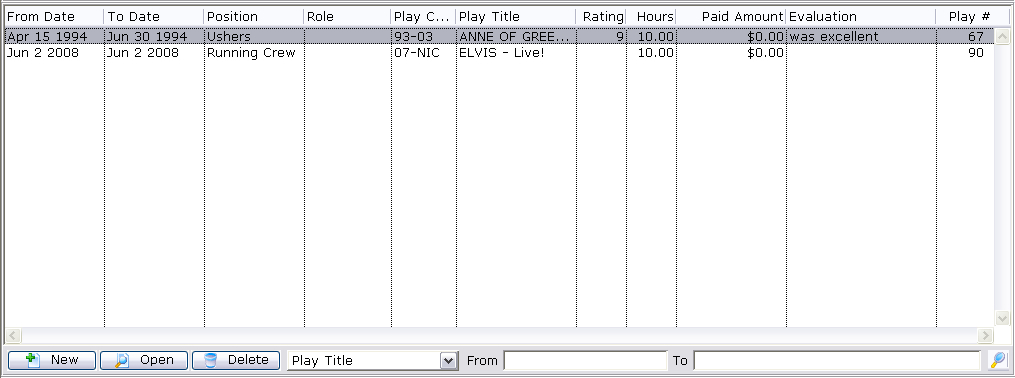
Parts of the Activity History / Evaluation Section
| From Date | The date the activity started. |
| To Date | The date the activity was finished. |
| Position | The position the activity was preformed under. |
| Role | The role of the volunteer. |
| Play Code | The play code the activity was performed for. |
| Play Title | The play name the activity was performed for. |
| Rating | The rating the volunteer recieved. |
| Hours | The number of hours the volunteer worked. |
| Paid Amount | The amount the volunteer was paid for the activity. |
| Evaluation | The comments associated with the activity. |
| Play Number | The number of the play. |
 |
Inserts a new activity into the personnel record. Click here to learn how to add an activity. |
 |
Opens the currently selected record and allows for the record to be edited. Click here to learn how to edit an activity. |
 |
Deletes the currently selected activity(s). Click here to learn how to delete an activity. |
| Search Function | Allows you to search the volunteer activity history based on a number of different categories. |
|
For Quick Reference Information on Adding Activities for a Volunteer, You can download |

Activity History
Patrons can be assigned various activities as either volunteers or personnel. They can be paid or unpaid for their services, but are all tracked in the same way. Once a volunteer is assigned to an Activity, the fine points of that Activity can be fine tunes, including:
- The hours and responsibilities for the Activity
- An evaluation by a supervisor for the Activity
- Awards given to the volunteer for performing the Activity
- Letters or Emails sent to the Volunteer regarding the Activity, and
- Billing for personnel resources (if you have the Facilities Management module)
|
The name of this module can be modified from the default on a venue by venue basis. While yours may be called "Volunteer," some databases have been set to call the module "Personnel" or "Staff." These terms can be used interchangeably throughout these help pages. |

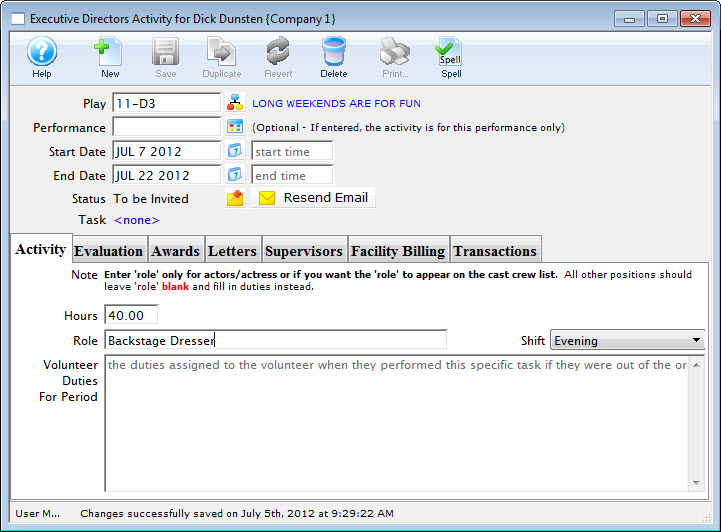
Activity Tab
Parts of the Activity tab
| Hours | This field indicates how many hours the volunteer worked for the event. It will default to the runtime of the performance as indicated on the Marketing tab of the Event setup. For more information on the Marketing tab, |
| Role | If tracking a cast member, indicate the role they will play here. This can be used to produce Cast Lists and Cast Contact sheets. Either "Role" or "Volunteer Duties for the period" must be entered. For more information on creating Cast List reports, click here. |
| Volunteer Duties for Period | If assigning volunteers to a task, indicate the task they perform here. Either "Role" or "Volunteer Duties for the period" must be entered. |
| Shift | The Shift drop-down allows you to indicate a particular portion of a longer event that the volunteer is assigned to. For example, if it is an all day event, volunteers may work the morning or afternoon shift. Values in this drop-down can be edited in Setup>>System Tables>>Code Tables, under Volunteer Shift. For more on adding or creating Code Table values, click here. |
Evaluation Tab
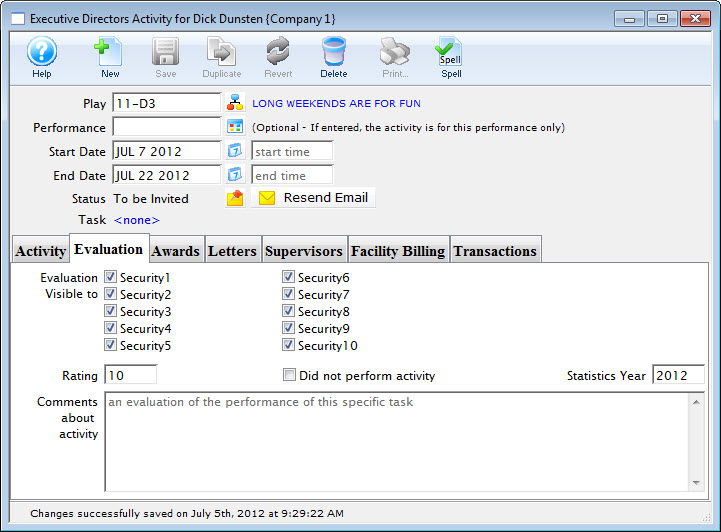
Parts of the Evaluation tab
| Evaluation Visible to | These settings coincide with the settings on the Employee Profile, allowing employees with specific security settings to view certain evaluations. For more on editing Employee Security settings, click here. |
| Rating | A scaled grade of how well the volunteer performed this activity. The rating must be a 1 - 10 scale. |
| Did Not Perform Activity | A checkbox to indicate that the volunteer did not perform the activity. |
| Statistics Year | The year that the volunteer activity will be attributed to. Theatre Manager sets thsi field automatically. |
| Comments About Activity | An opportunity to add comments from supervisors regarding the performance of the volunteer. These comments can be used in Form Letters or in exports. |
Awards Tab
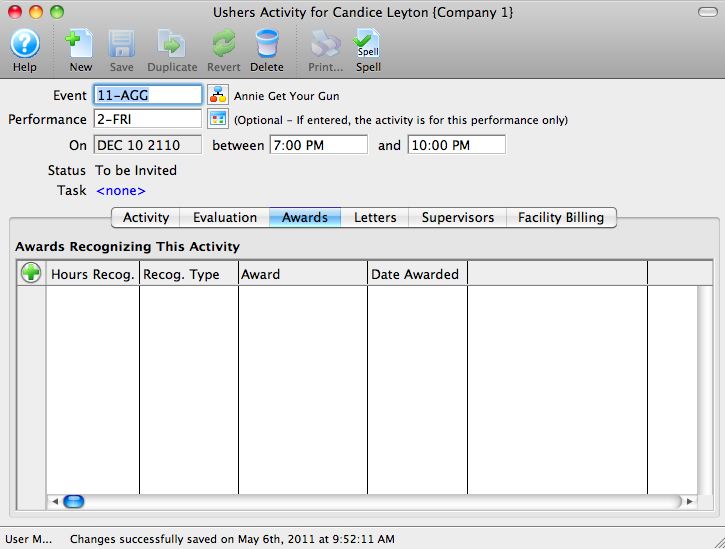
Parts of the Awards tab
 |
Click this icon to add a new Award. |
| Hours Recognized | When the Award is added, this column will display the hours the volunteer has been attributed for this activity. |
| Recognition Type | There are two types of Recognition: Recognition for Hours Contributed and Milestone. For more information on Recognition Types click here. |
| Award | The Award the volunteer was given (a pin, a trophy, a pass). |
| Date | The date the Award was given. |
Letters Tab
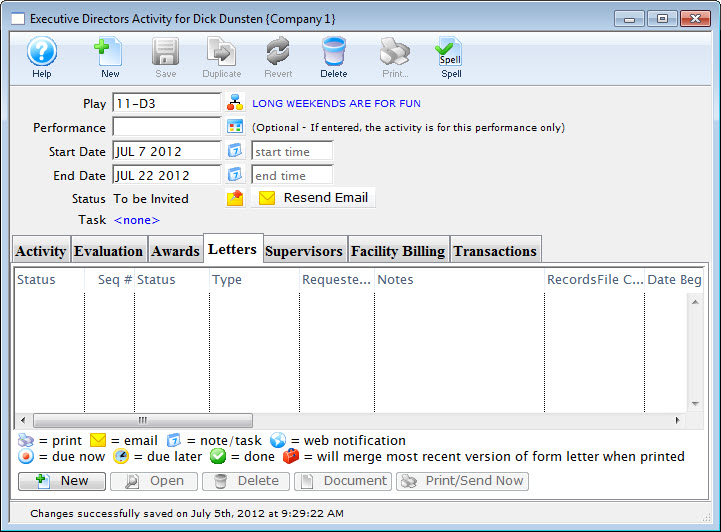
Parts of the Letters tab
| Status | An icon (or series of icons) indicating the status of the document. A legend of the icons appears at the bottom of the window. |
| SEQ # | The database sequence number for the task. |
| Status | The status of the task itself (Done, Not Done, In Progress, Error, Cancelled) |
| Type | An indication whether it is a letter or an email, and how the document was added (manually orby batch print). |
| Requested By | The Employee (User) requesting the document. |
| Notes | Under construction |
| RecordsFile Connected to Correspondance | The database file from which the document is drawing its data. |
| Date Begin | Date the letter task was requested by the employee. |
| Date End | Date the letter task was completed. |
| Date Printed | Date the letter was printed. |
|
Adds a letter (or email) to the record for printing/emailing. |
|
Opens the document status window. |
 or or  |
Prints or emails the document immediately. |
 |
Views the selected letter. You may modify it to personalize the letter. |
|
Deletes the selected letter. |
Supervisors Tab
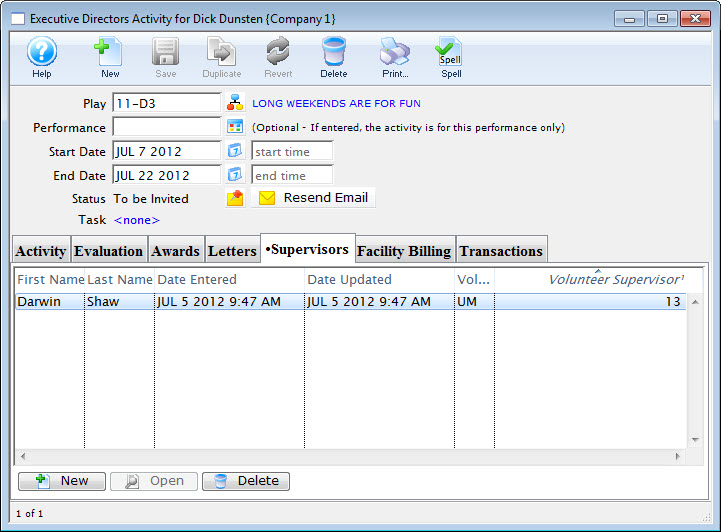
Parts of the Supervisors Tab
| First Name | The first name of the supervisor. |
| Last name | The last name of the supervisor |
| Date Entered | The date the supervisor record was added. |
| Date Updated | The date the supervisor record was updated (for example, if the supervisor was changed or edited). |
| Volunteer Supervisor Changed By | The employee logon that added this supervisor to this record. |
| Volunteer Supervisor | The sequence number in the database of the supervisor (Employee number). |
|
Click to add a new supervisor. |
|
Not an active button. |
|
Click to delete a supervisor from this record. |
Facility Billing Tab
The Facility Billing tab is available only if you have the Facilities Management module for Theatre Manager. If you do not have Facilities Management, but are interesting in finding out more about the module, click here.
The Facility Billing tab allows you to track income vs expenses for a specific task within a project. For example, if you need to hire an usher, you can track the payroll for the usher according to your pre-set usher cost and General Ledger structure, and expense that to a specific project.
Much of the Facility Billing tab will be filled in by default if the activity has been properly setup inSetup>>System Tables>>Code Tables>>Volunteer/Personnel Activity. For more information on setting up Code Tables, click here.
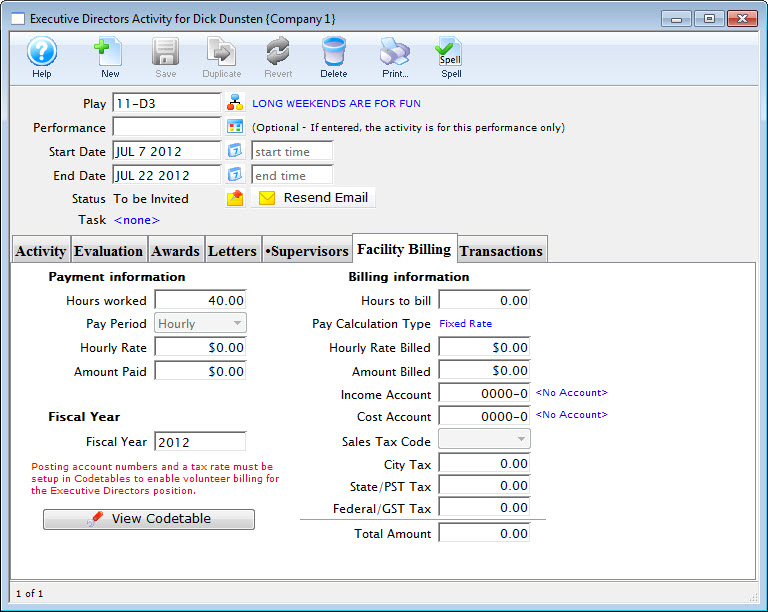
Parts of the Facility Billing Tab
| Payment Information | Options include:
|
| Fiscal Year | For billing purposes. Defaults to the Fiscal Year in which the task takes place. |
| Billing Information | Options include:
|
Transactions Tab
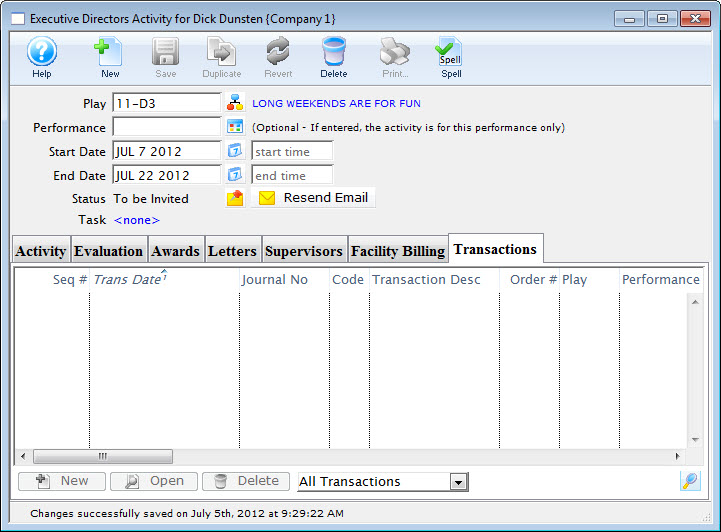
Adding Activity History and Evaluations
Once a volunteer has positions setup they can receive historical and evaluation comments. This data is displayed at the bottom of the Volunteer Window. The history and evaluations can help to choose the best personnel for the position you require.
- Find the Volunteer you are adding an evaluation and history to.
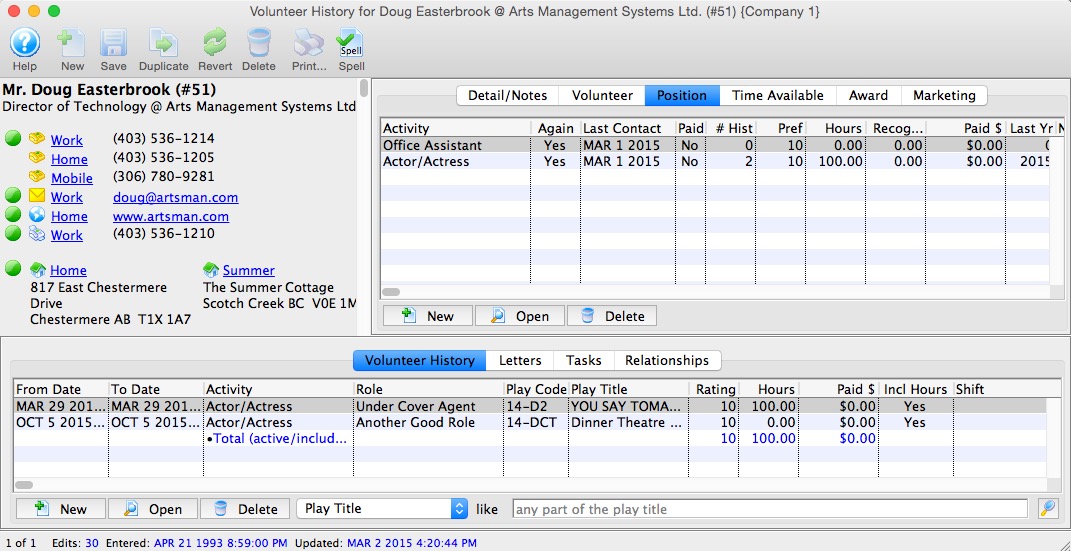
- Click the New button at the bottom of the
window.
If the Volunteer selected has more than one position associated with their profile, the New Activity History window opens.
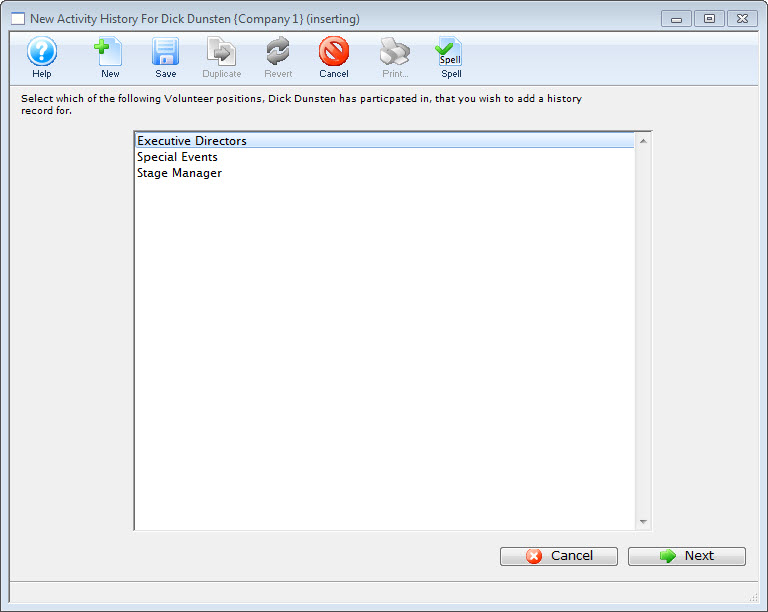
- Select the position the activity was performed under and click the Next button.
Only positions you have setup for the selected volunteer will be displayed. If you need to add a different position for the volunteer, clcik the Cancel button to return to the Volunteer Window where you can add a new position. Click here to learn how to setup positions.
- Click the Play Lookup
 button.
This opens the Play List Window allowing you to search for plays.
- Double click the play for which the activity was performed.
Youare returned to the Activity History Window.
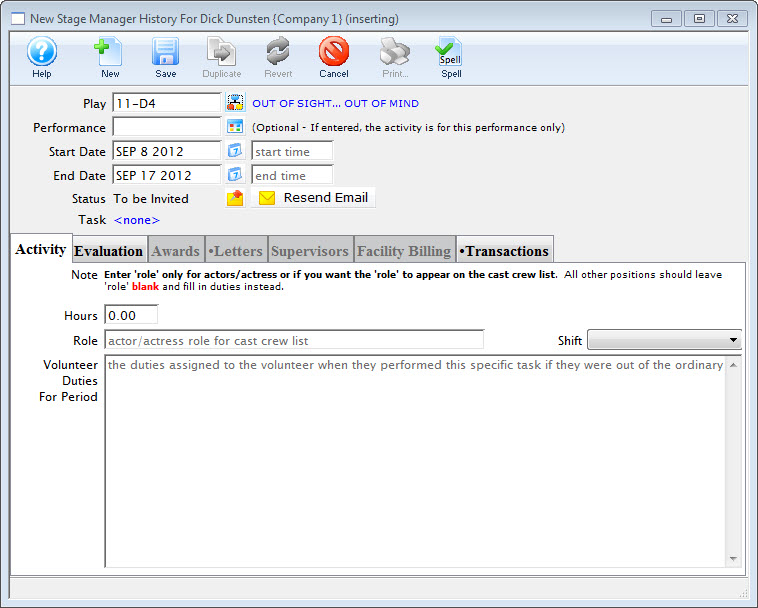
The play code is displayed in the field along with it's title to the right. The From and To fields will be filled with the dates which the play runs.
- Click the Performance Lookup
 button
to specify if this activity is only for one performance.
button
to specify if this activity is only for one performance.
If a performance code is entered, the date will be set, and times will be available to be entered.
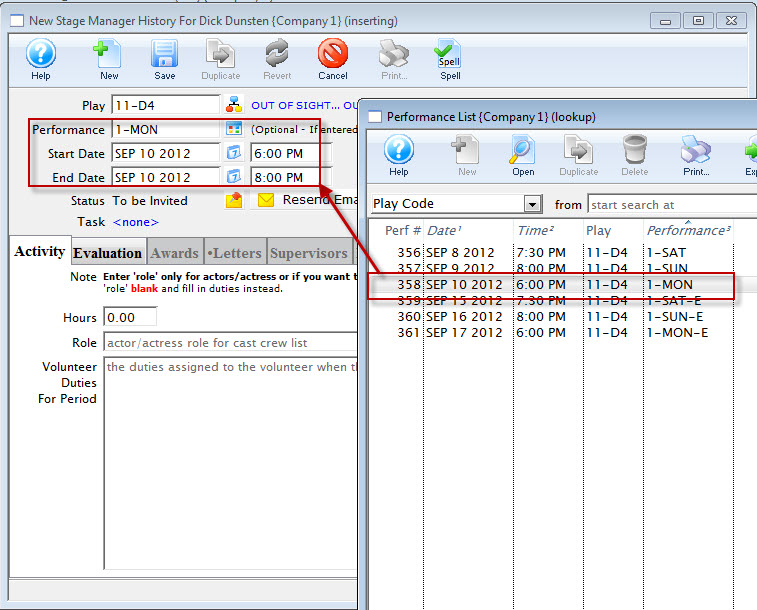
- Change the times if needed.
- Enter the number of hours to be credited to the volunteer for working.
- Enter a role and/or a description of the volunteer duties.
At least one of these fields must be filled to insert the data.
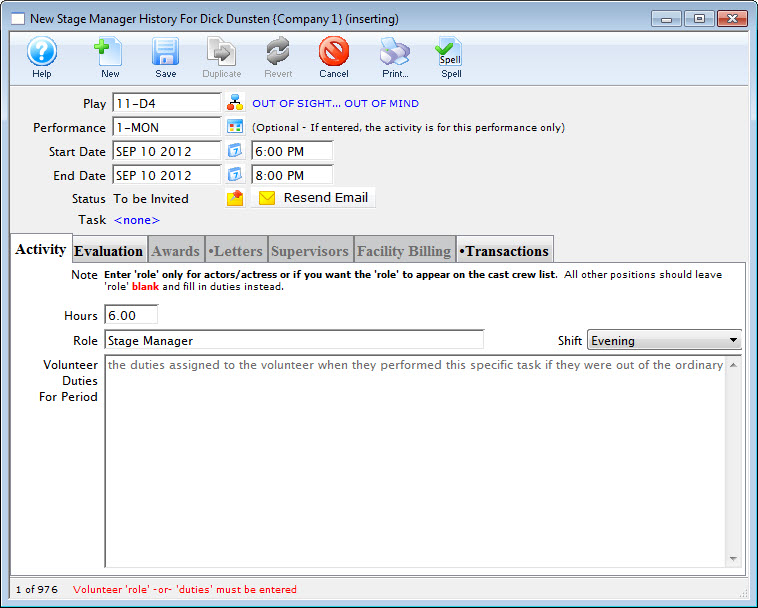
- Click on the Evaluation Tab.
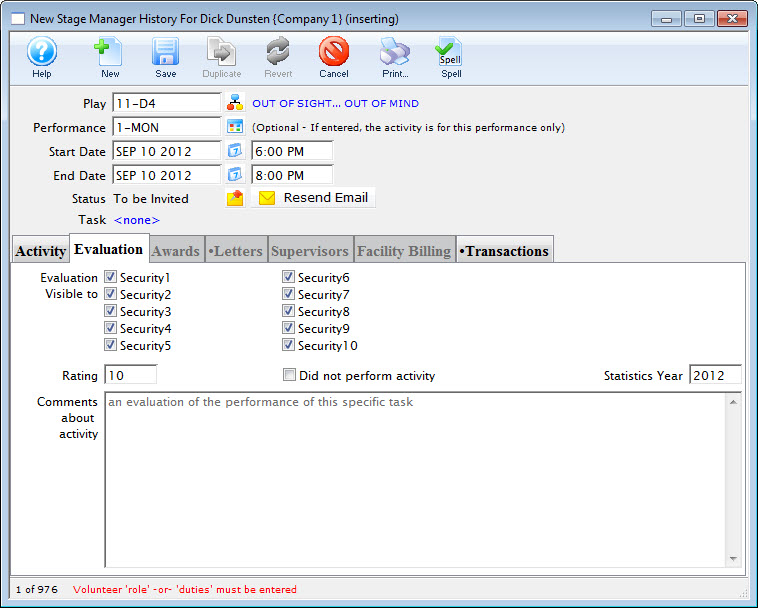
- Set the security level allowing who can view the evaluation of the volunteer.
- Rate the volunteer.
- Enter any comments about the activity.
These comments are to be used to critique the performance of the individual. This can then be used for finding the best volunteer for a particular position in the future.
- Click Save
 .
.
The Awards, Letters, Supervisors and Facility Billing Tabs become available.
The Activity History Widow opens.
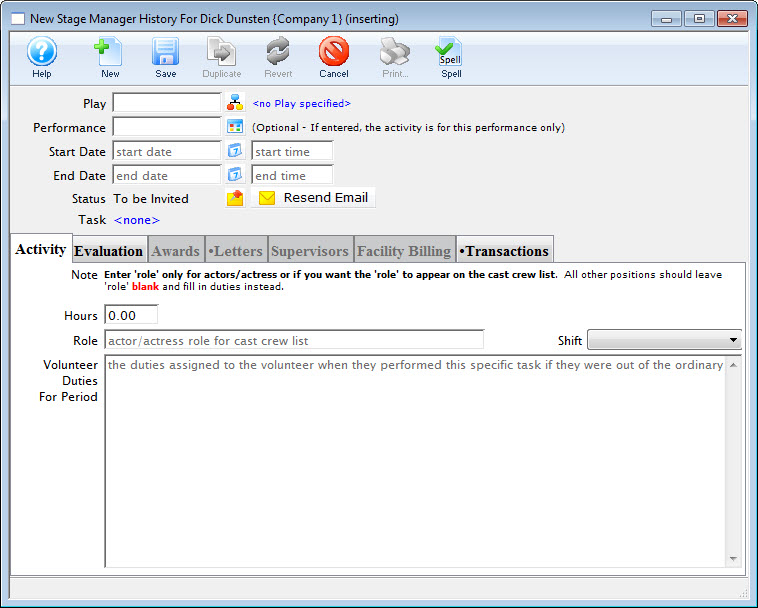
Deleting An Activity
If an activity has been entered improperly you may delete it using the steps outlined below. This procedure only deletes an activity associated with the volunteer.
- Find the Patron Record and open the Volunteer Window.
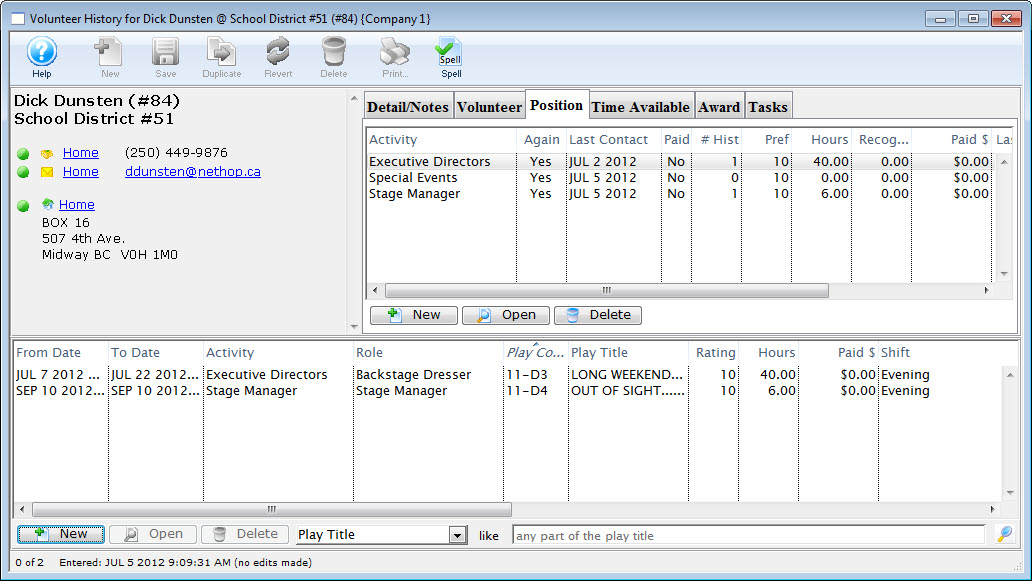
- Click on the activityto delete.
- Click the Delete button.
The following warning window will open.
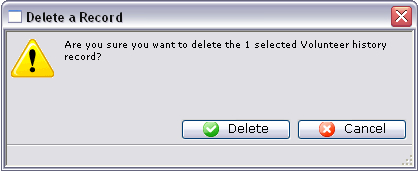
- Click Delete .
If you do not wish to continue with the deletion click Cancel
 . You will return to the Personnel History Window and the activity is removed.
Personnel Management - Editing Volunteer Activity History
- Find the Patron Record and open the Volunteer Window.
- Click on the Volunteer activity you want to update in the bottom section of the window.
- Click on the Open
 button.
A detail window for the activity will open.
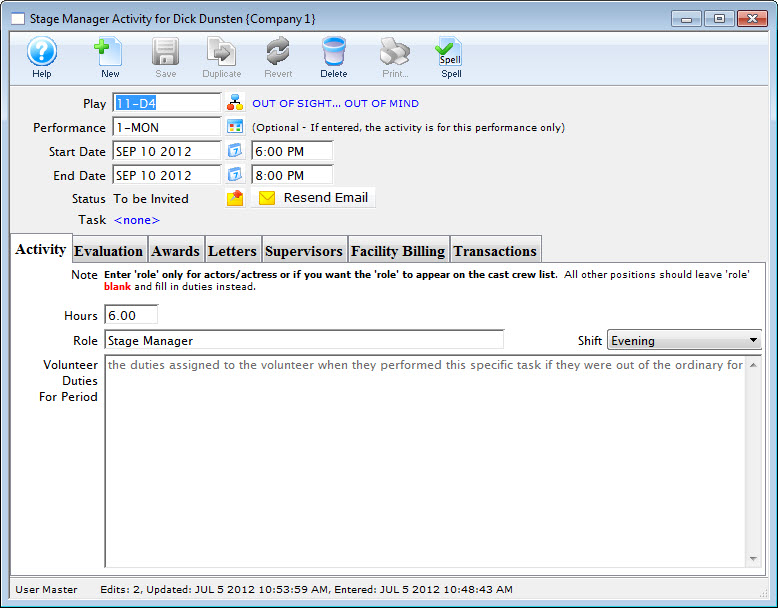
- Edit the information.
- Click the Save button.