Mail List Double opt in
Mail List Double opt in
- Explicit Consent which is implemented using a mail list that is set up as either
- single opt-in -or-
- double opt-in
- Implied consent which occurs if a client initiated activity with you (any sales or phone contact) where you have up to two years to contact them via email without asking their permission
 |
Explicit Consent is implemented in Theatre Manager using:
| |
Implied Consent:
|
What does an Explicit Consent mail list look like on the Web for the end user?
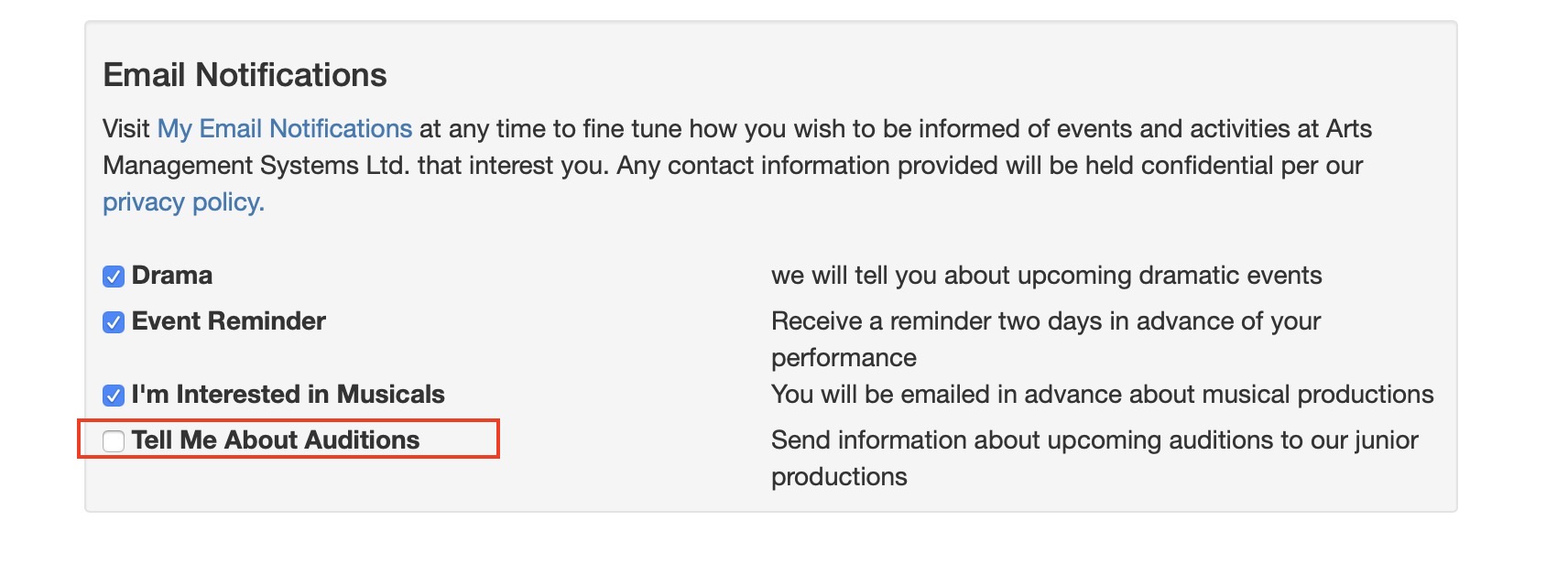
When one or more email notification lists are set up to allow people to sign in, they will look like this on the patrons account page. (they also show on the mail lists window).
Setting up a double opt-in mail list that will appear on the web
A double opt in mail list has two key settings on the mail list setup window:
- The mail list must be marked that the patron can subscribe to it via the internet (i.e. they can add or remove themselves from the list membership)
- It has the 'double opt in' flag checked.
- confirms the addition by clicking on a link, then they will be confirmed on the mail list with a 'double opt in' status. This also confirms the email address and records when the patron gave consent.
- does not confirm the addition to the mail list, then they will be removed from the list in approximately 24 hours (based on the value for 'keep unconfirmed mail list').
- Open the mail list you want to use for the subscribe online with double opt-in.
For more information on accessing the mail list window click here.
- Click on the Description tab.
The screen should look like the one below.
A best practice is to make sure that the 'Double Opt-In' option that is highlighted IS NOT CHECKED when building the list for the first time. If it is, then any patron added to the mail list in any manner will receive an email instantly. 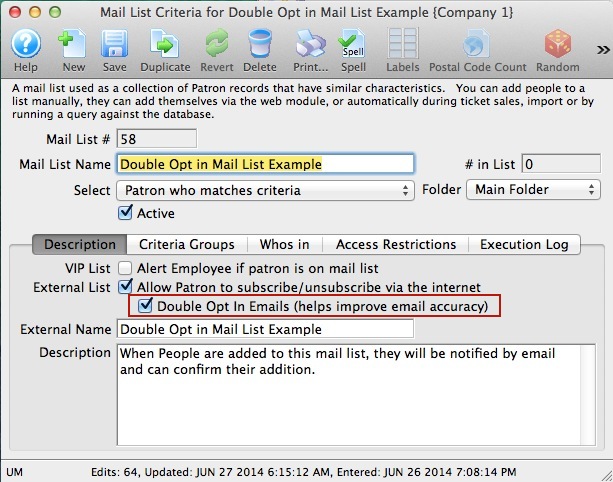
- Add Patrons to the mail list in any manner you wish.
You can use any of the standard ways to get people added to the mail list such as:
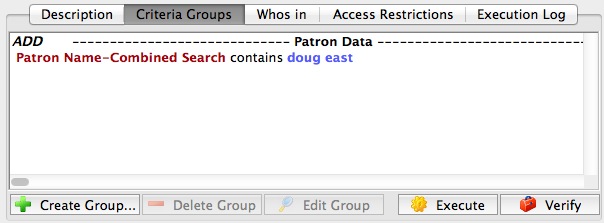
- Using criteria to build a list of patrons of interest (see the picture below for a simple example)
- dragging another mail list onto the who's in window to add all people in the mail list
- dragging people from the patron list
- Using the 'new' button on the who's in window to add a patron
- On the Description Tab, click the 'double-opt in' option
Theatre Manager will tell you that there are people in the mail list that have not received a notification per the image below. It will only consider those that have the mail list source status codes of
- Added Manually (meaning you dragged and dropped them into the list)
- Added via a mail list build (meaning criteria was executed to find people)
- Added during some sort of data import exercise
Click the opt-in button if you want to start generating an email for the patrons in the list with the 3 status codes above. If you click cancel, then you can still do it again by un-clicking the double opt in' button and saving, then clicking the double opt in button again to repeat the process.
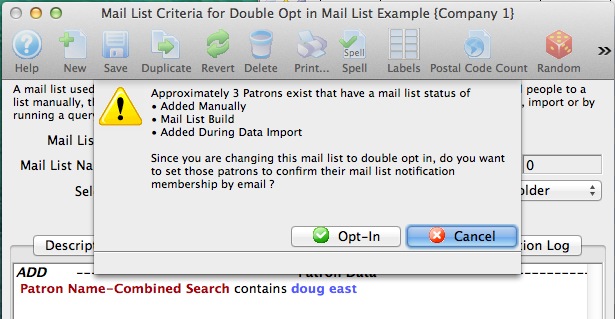
- Confirm you want to email to people using the 'double-opt in' option
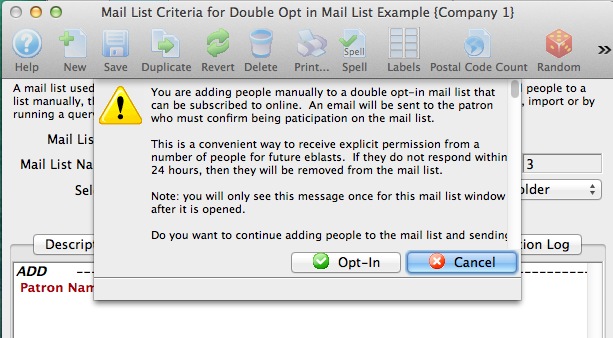
You are given a second chance to confirm you want emails to go to patrons having the mail list status codes above. This question is asked ONCE after opening the mail list detail window as a WARNING. After that, the message no longer displayed to you. After getting this once, you can continue to drag and drop other people only the list quickly and emails will be sent without a message.
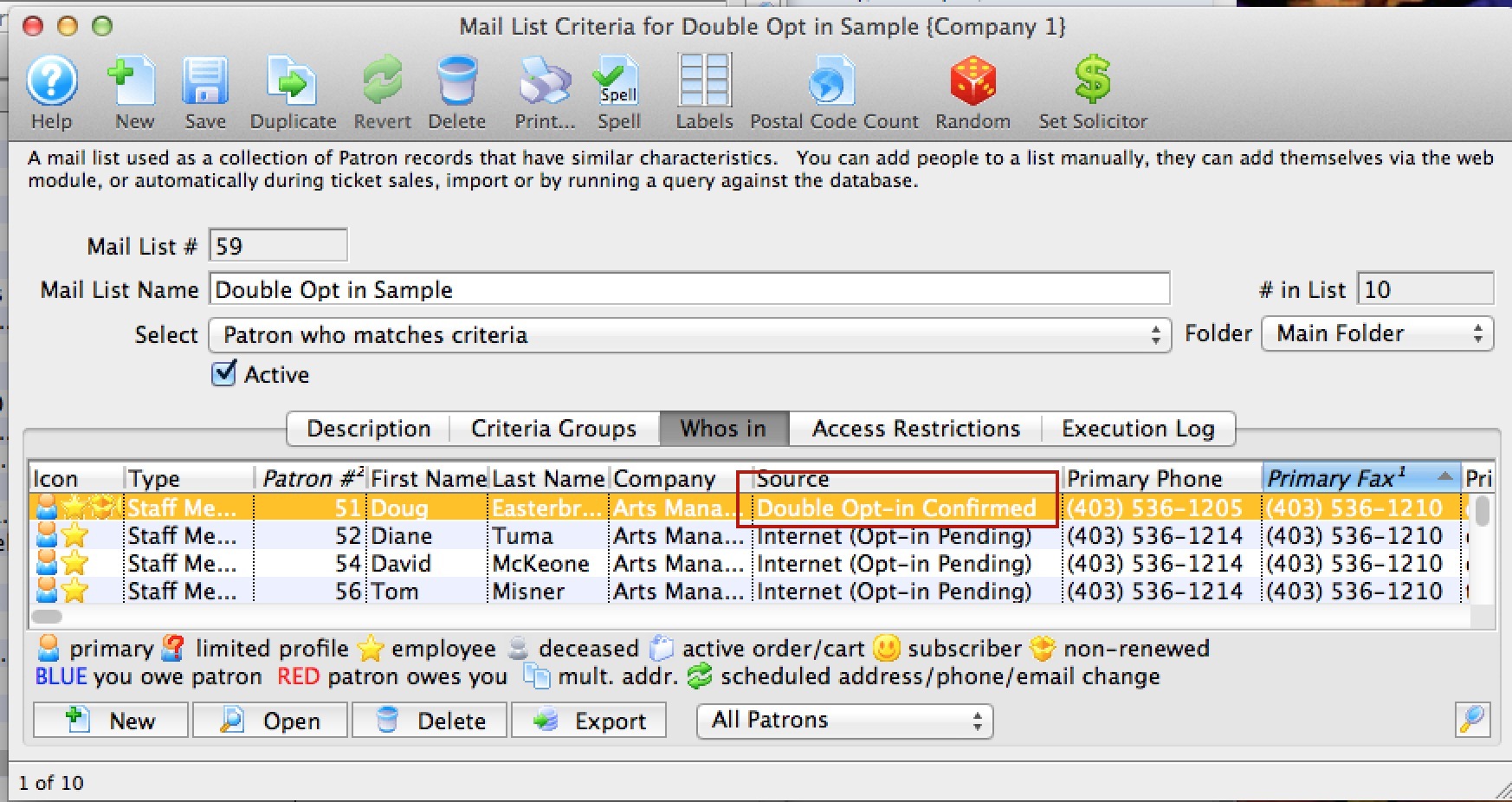
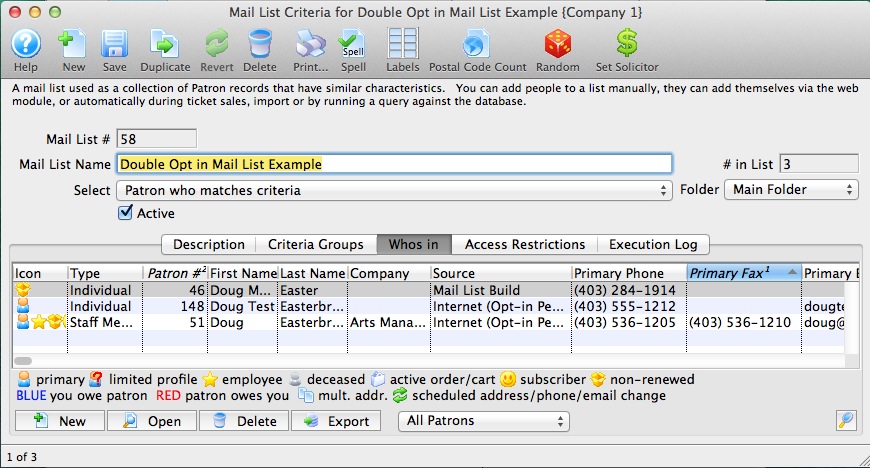
- On the 'Whos's In' tab, view the status of patrons.
If the patron has an email address, the status of the patron will be 'Internet (opt -in'). That means and email has been sent to the patron and they have not responded to the email to confirm them being part of the mail list.
Patrons who do not have an email address will retain their original mail list source. If you find an email for them, you can add it to the patron address, and then change the opt in status again to send out the remainder of the emails. People with pending opt-in status will NOT receive a second email.
- What the Patron sees in their inbox
An email will be sent to the patron that looks like below and is from the tmPatronUpdateEmailBoxOfficeOptIn.html web page. It will have your background and CSS stylings. The difference is that if there are 'double-opt-in' mail lists as part of the update, then the patron will see the new text highlighted in red. That is the link they will need to click to confirm the opt-in.
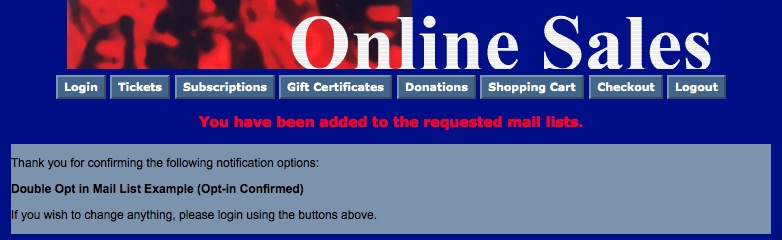
When they click the link, they will be taken to your web site and see the confirmation page below (tmMaillistVerifyOptin.html)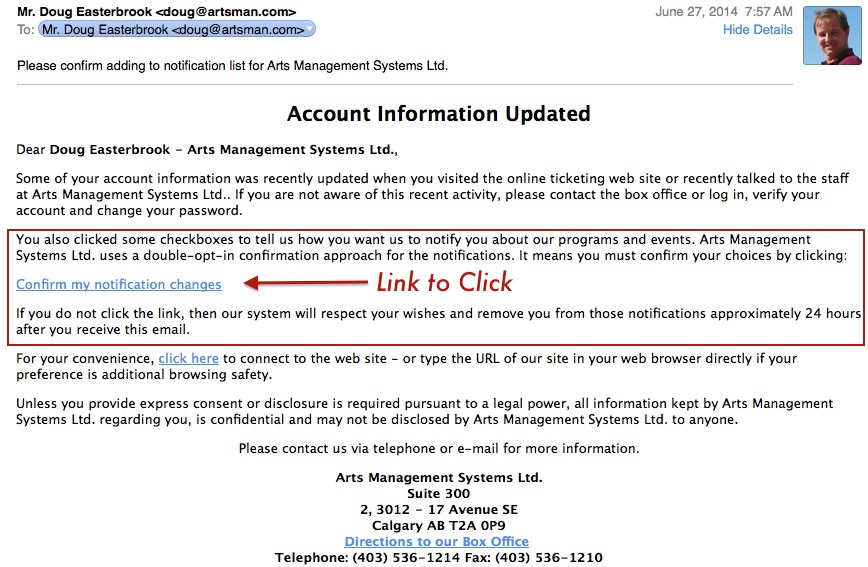
- What the Venue sees in the mail list
After the patron confirms participation in the mail list through double opt-in, the status of that person's mail list entry will change to 'Double Opt-in'. It also records the date of the opt-in.