Elavon End of Day
Elavon End of Day
-
Completing the End of Day when setup using Elavon is exactly the same as completing the standard End of Day as outline in the previous page. There is however one new step which requires logging into the Elavon Account, retrieving the credit card batch summary and entering the values into Theatre Manager. Access to your Orbital Account is defined in Step #5 below.
- Open the End of Day Wizard window. Click
 button from the main Theatre Manager Toolbar / Ribbon Bar.
For more information on accessing the End of Day wizard, click here.
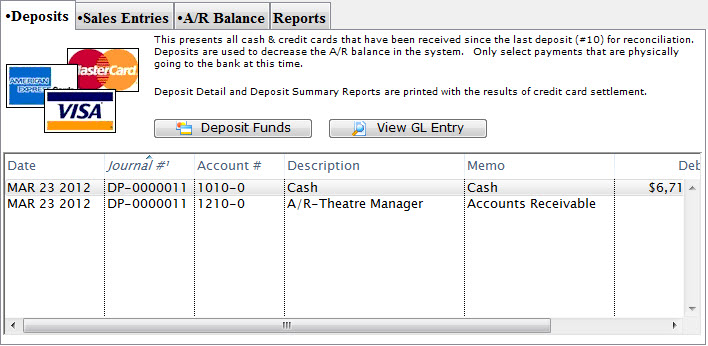
- Start at the Deposits tab which will be blank. Click the Deposit Funds
 button.
The Bank Deposits window opens.
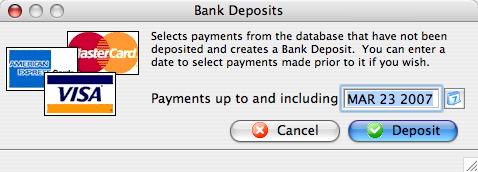
- Enter the date up to which the user would like to make the deposits.
Traditionally, accept the current default date to deposit all payments up to the moment.
- Click the Deposit
 button.
The Deposit window with the Elavon feature window opens.
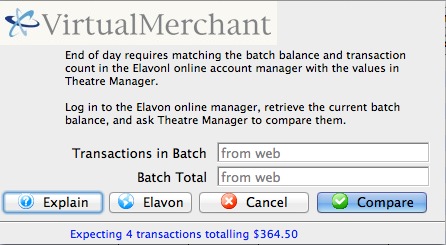
- Click the Orbital
 button to access your Elavon VirtualMerchant account, obtain your transaction count and total. Enter the number of Transactions in Batch and the value for the Batch Total obtained from your VirtualMerchant Account.
For more information about the Elavon VirtualMerchant window, click here.
- Click the Matches
 button to continue.
- Click the Step 2
 button to continue with the deposit.
The Confirm Deposit window opens.
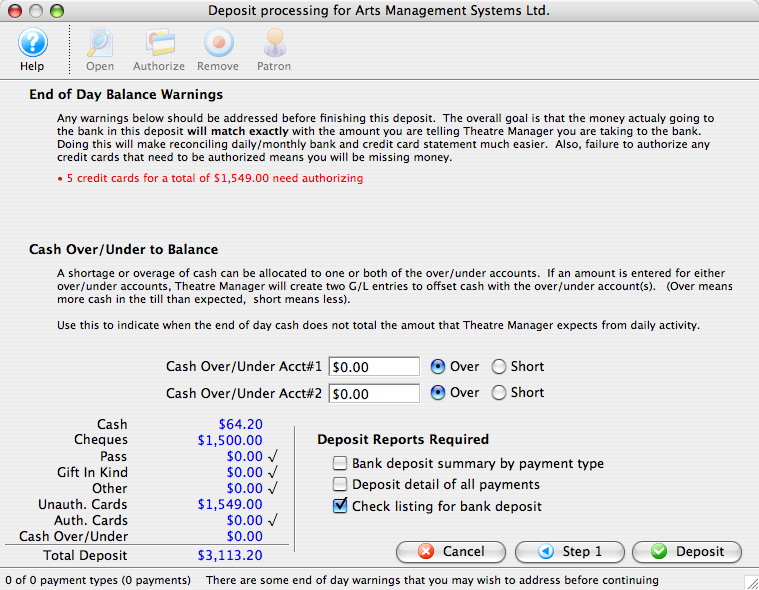
If the Box Office or Concession tills have an overage or shortage, fill the fields with the correct amount to show it as over or short.
- Click Deposit to continue with the transaction.
The Deposit Confirmation window opens.
- Click the Deposit button to continue.
Any reports selected will be generated to the screen for printing. The user will be returned to the End of Day Wizard window with the deposits displayed.
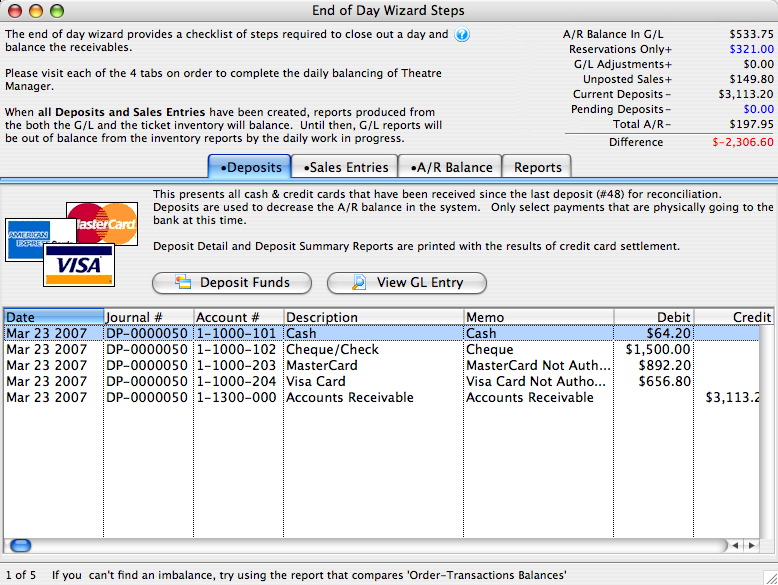
To continue the End of Day process with adding Sales Entries, click here.
Finding the Elavon Balance
Finding the Elavon Balance
 |
Theatre Manager assumes you have turned off auto-settle in the admin settings and that Theatre Manager will do the settlement. Do not settle the batch using the Elavon interface. |
To find the batch total, you will need to:
- log into the Elavon VirtualMerchant for your merchant account with your user id and password.
- Click on the Current Batches link at the left of the web page
- Click on the Main link (you may see info here, but if there are returns, they do not appear until you click 'Credit Card')
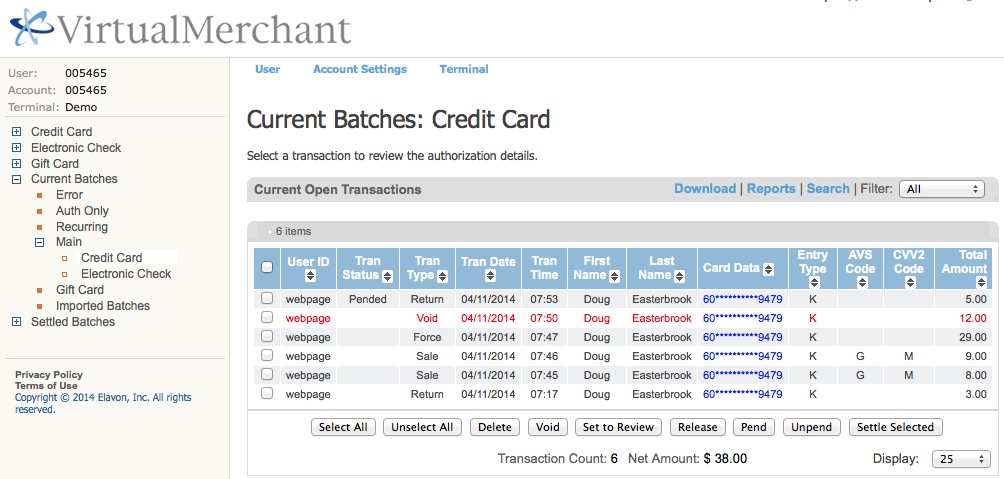
- Click on the Credit Card link and you will see a page like below showing the 'Current Batches: Credit Card' page
|
Elavon may have some items in the list above marked as pending or set to review in the 'Tran Status' column, especially for returns.
You should:
|
- Look at the bottom of the screen. You may (or may not) wish to alter the number of lines to display at the bottom right.
At the bottom centre, look for the following information:
- Transaction count - in the example it says 6. However, there is one VOID in the list that Theatre Manager will no longer know about. Subtract the voids from the total and enter that as the transactions count.
Example 6 (total) - 1 (voids) = 5 (net transactions)
- Net Amount - in the example, it is $38.00
- Transaction count - in the example it says 6. However, there is one VOID in the list that Theatre Manager will no longer know about. Subtract the voids from the total and enter that as the transactions count.
- When you have both those values, place them into the dialog window of the Theatre Manager Deposit process in the window show below and click Matches.
These values may be zero if there are no credit cards waiting to be settled.
If you do not know the balances or have already forced settled a batch, click No Match (this is not the normal practice).
Past Elavon Batches
Past Elavon Batches
To do so, you will need to:
- log into the Elavon VirtualMerchant for your merchant account with your user id and password.
- Click on the Settled Batches link at the left of the web page
- Click on the Main link and you will see a page like below showing the 'Settled Activity' page
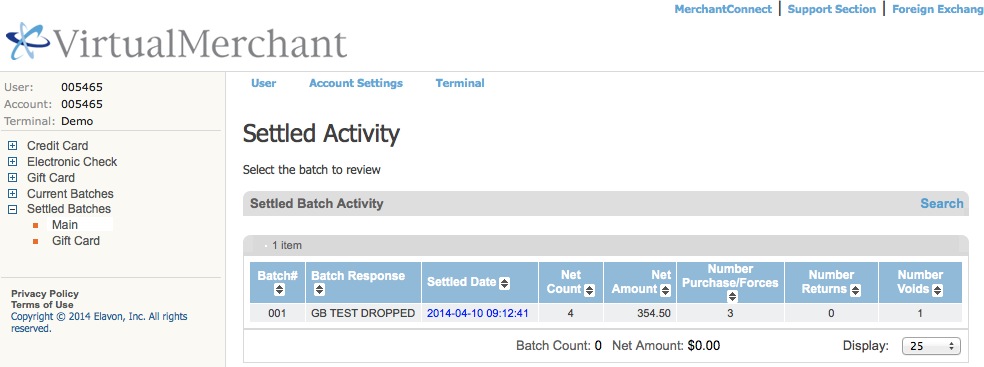
- you can double click on a 'blue' batch number under the 'settled date' column to see the detail in it
- you can also use the search functions.
- For more information or assistance, please refer to the virtual merchant user manual or call Elavon