Pricing - Price Codes
Pricing - Price Codes
This section is:
- a description of the Price List,
- Setting a Default Price Code for a performance (box office only)
- Copying Prices from one performance to all selected. This is useful for making each weekend performance the same price as another.
- Duplicating Prices which copies prices and promotions from another event for all the matching series codes. This is useful once you have set up the first event of a season and want to make all the other the same -and-
- Editing Prices
Pricing Information
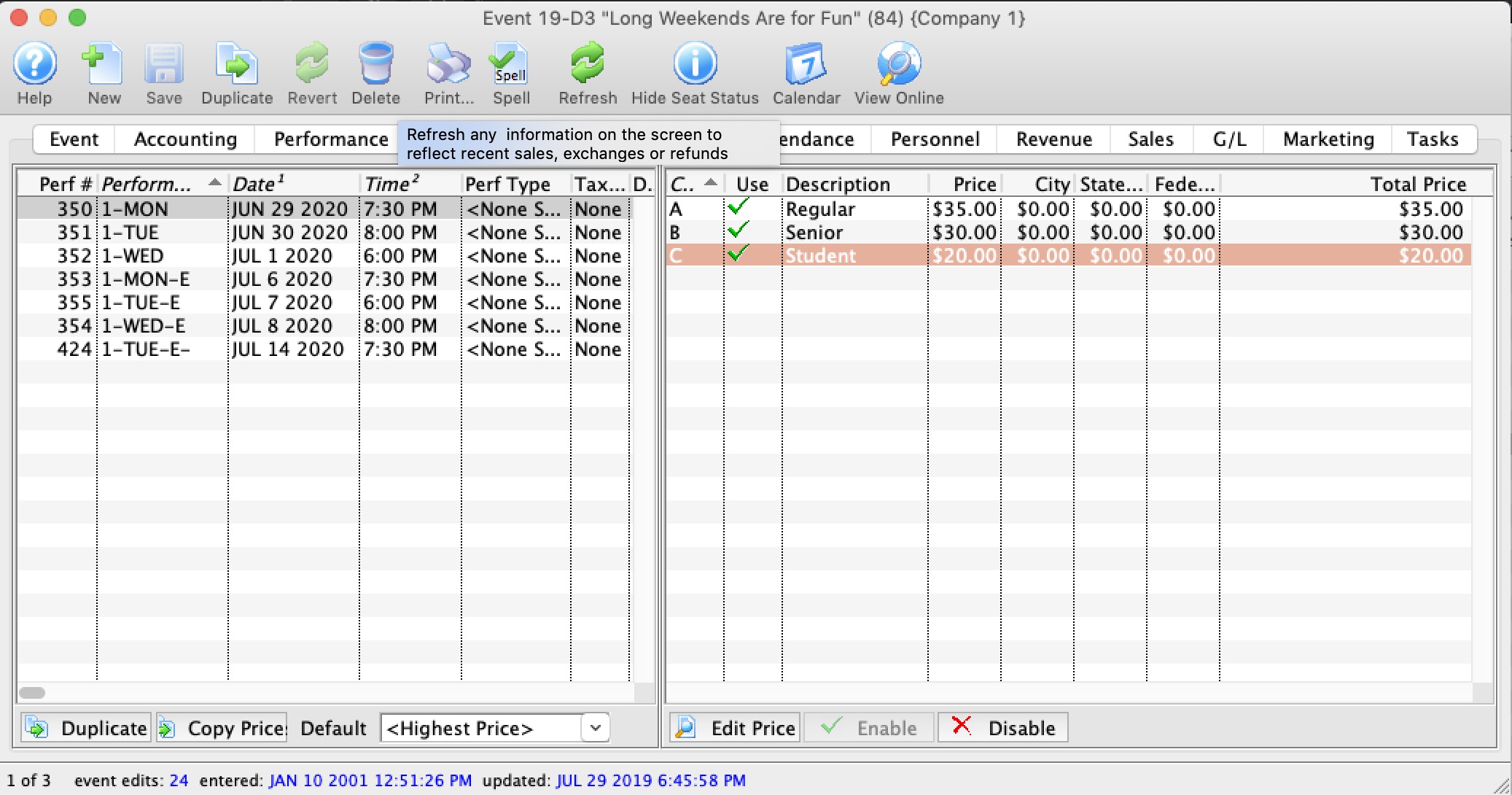
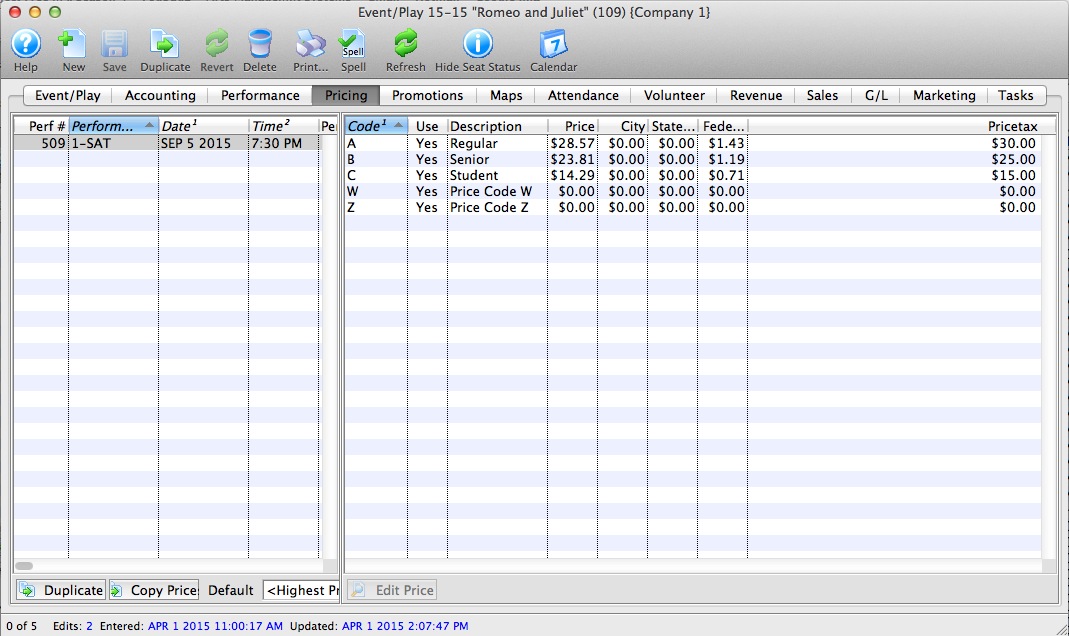
 Pricing information for the selected performance on the left side displays the price list on the right side of the window. When you click on different performances on the lest, the price list will change to reflect that performance.
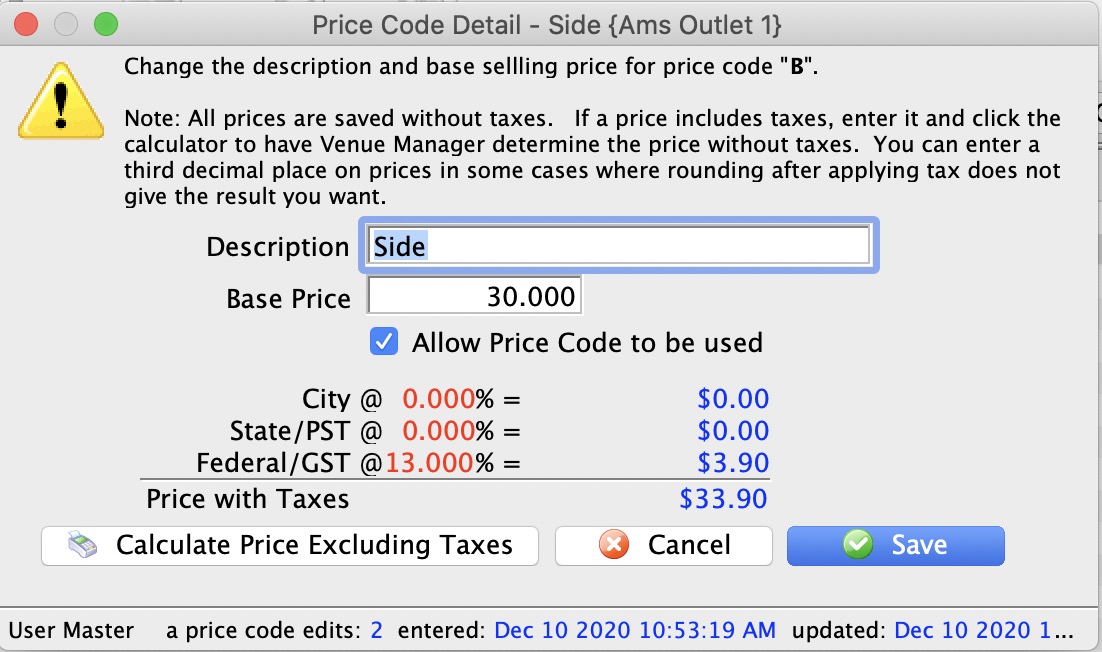
If you want to change one of the prices for the performance, the just double click on it. to see the edit window on the right. Make any changes, including activating/inactivating it and save.
 |
If you calculate price excluding taxes and the newly calculated based price does not return the full price you want, try enter a fractional price. eg, instead of a price of $12.65, you might try adding almost half a cent to see if $12.654 works, |
In the list, from left to right the price list displays:
| Code | Displays the single character code that is associated with this price. This character was assigned in the Price Code field in the Venue Map window. |
| Use? | Check box field. If the box is checked then the price code is available for use by the performance that is highlighted in the performance list. |
| Description | The description you give to easily identify the price code. For example, Adult, Child, Senior, Student. Or alternatively: Front, Mezzanine, Loge, Balcony. |
| Price | Displays the dollar value of the price code. For example, $10.00, 15.00... etc. |
| City | Displays the amount of city tax charged on the price code. |
| State/PST | Displays the amount of provincial / state tax that is charged on the price code. |
| Federal/GST | Displays the amount of Federal tax charged on the price code. |
| Price + Tax | Displays the total price of the price code with all taxes included. |
| Enable | Enable the selected price codes all at one time (you can use context menu as well, or edit them one at a time) |
| Disable | Disable the selected price codes all at one time (you can use context menu as well, or edit them one at a time) |
Duplicate Prices
Duplicate Prices
In Theatre Manager , you can duplicate the prices from an entire event already built in Theatre Manager to the new event you are creating.
- Click on the Pricing
 Tab of the Events and Dates Window.
Pricing information should now display on the right side of the Events and Dates window.
- Click the Duplicate Prices
 button.
The Duplicate Price Wizard window opens.
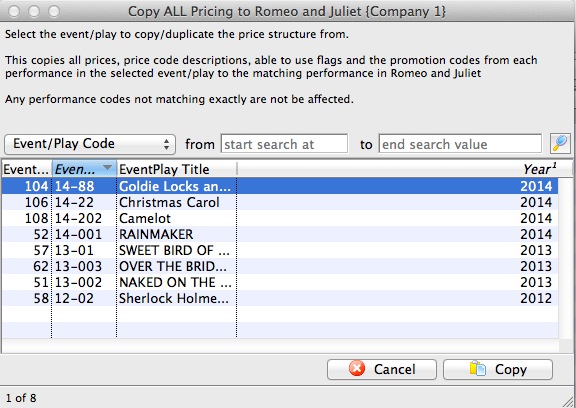
- Select the event you wish to copy all prices from.
Click the
 button.
The rule here is that Theatre Manager will duplicate the pricing for each performance from an existing event. The Event you copy from MUST have the same number of performances with the same naming convention: i.e. 1-SAT, 2-FRI etc. If not the case advance to the more selective process of Copying Prices
Copying Prices
Copying Prices
In Theatre Manager , you can copy prices to a single performance or group of performances, from any performance saved in Theatre Manager.
- Click on the Pricing Tab of the Events and Dates Window.
Pricing information should now display on the right side of the Events and Dates window.
- Select the performances that you want to Copy Prices to.
To do this, click on the first performance you want to copy prices to, then drag you cursor over the remaining performances from the performances list on the left side of the window. Alternately, you can click the first performance, and then hold <CTRL> (Windows) or <COMMAND> (Mac) and click each additional performance.
- Click the Copy Prices
 button.
The Copy Price Wizard window opens.
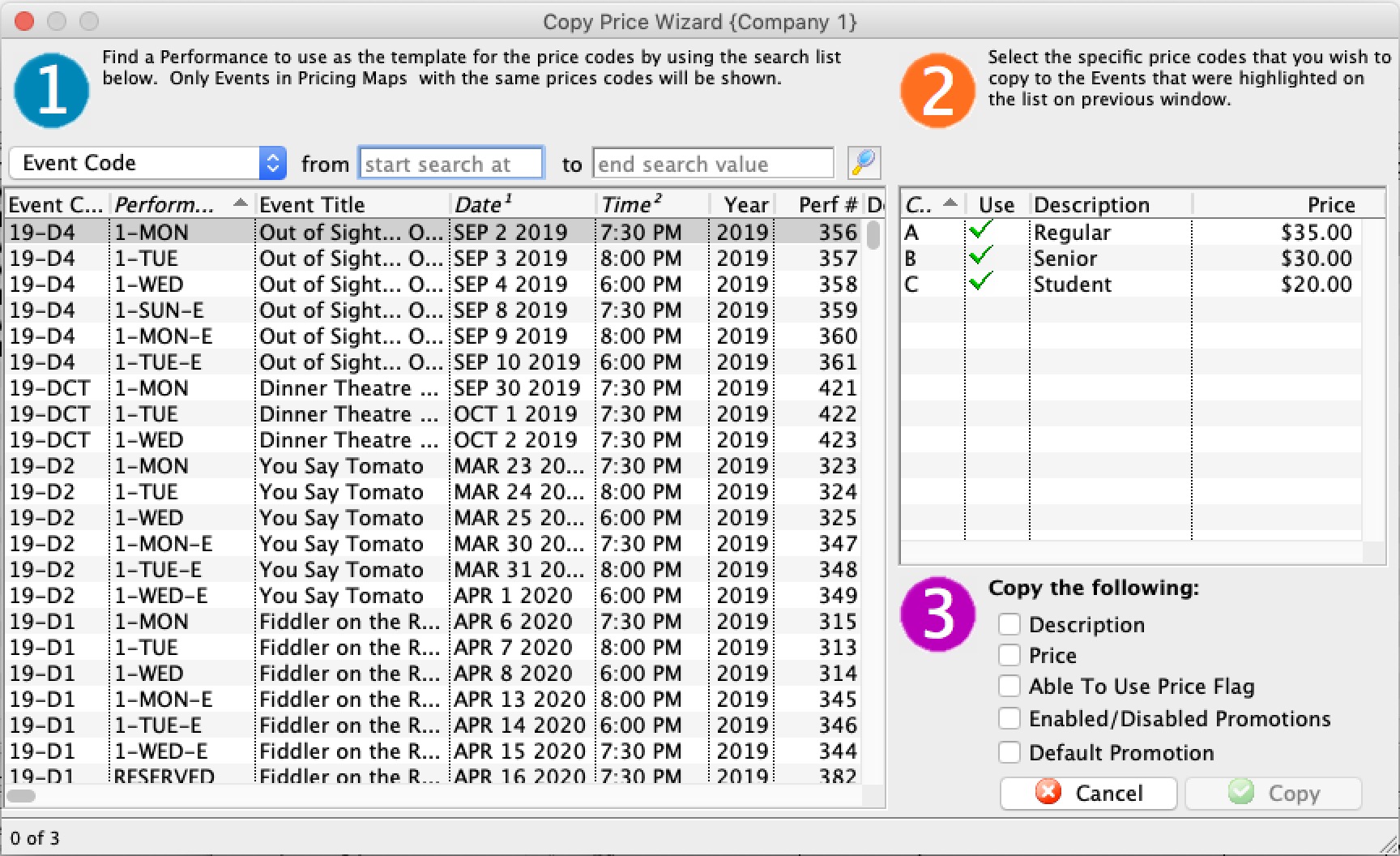
- In Step 1, select the performance to use as a Pricing Template.
To further refine your search, click the drop down list under the 1. You can then choose a different five search fields. They are:
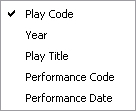
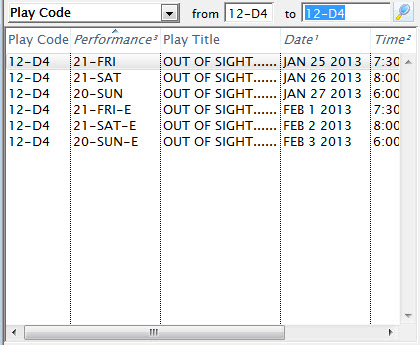
Select a search field, and you can further restrict the search using the "from" and "to" fields to enter criteria. For example, the (picture) below displays a successful search for performance that have Play Codes starting with 07.
- In Step 2, you select the performance that you want to use as a Pricing Template.
As you select plays, their price codes are displayed on the left and the performance's price codes are displayed on the right.
- Choose the Price Codes you want to copy.
Highlight the Price Codes you want. You can select all, none, or some of the price codes to be copied.
- In Step 3, you choose which Attributes of the Price Code to copy.
There are four parts of the price code that you can copy across. The Description, the Price, Able To Use Flag, and Enabled/Disabled Promotions. To copy an attribute put a check in the box beside the attribute desired.
- Click the Copy
 button.
Selecting a Default Price Code
Selecting a Default Price Code
|
Note: Default price only applies to box office sales.
Web sales always default to selecting the highest price because patrons generally accept any price offered. They never look to pay more, but they may look to pay less if it applies. Psychologically, if a computer offers a lower price, then people assume it must be right and nobody looks. The default price list only shows one line of price, so if you want to show more prices for customers online, you can edit rowTicketReserve.html to show more lines - allowing the patron to see and then pick a price easier. |
Each performance (series) can have its own default price code setting.
- Click on the Pricing Tab of the Event Setup Window.
Pricing information will display on the right side of the Event Setup Window.
- Select the performance to set the Default Price Code for.
Click on the performance from the performance list. The prices for this performance display in the price list on the right side of the window.
- Open the Default Price Code drop down list.
A list of usable price codes is displayed.
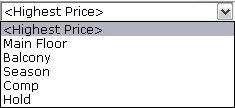
- Select the Price Code to be the Default.
Do this by clicking on a price code from the list.
Adding New Price Codes from Venue
Adding New Price Codes from Venue
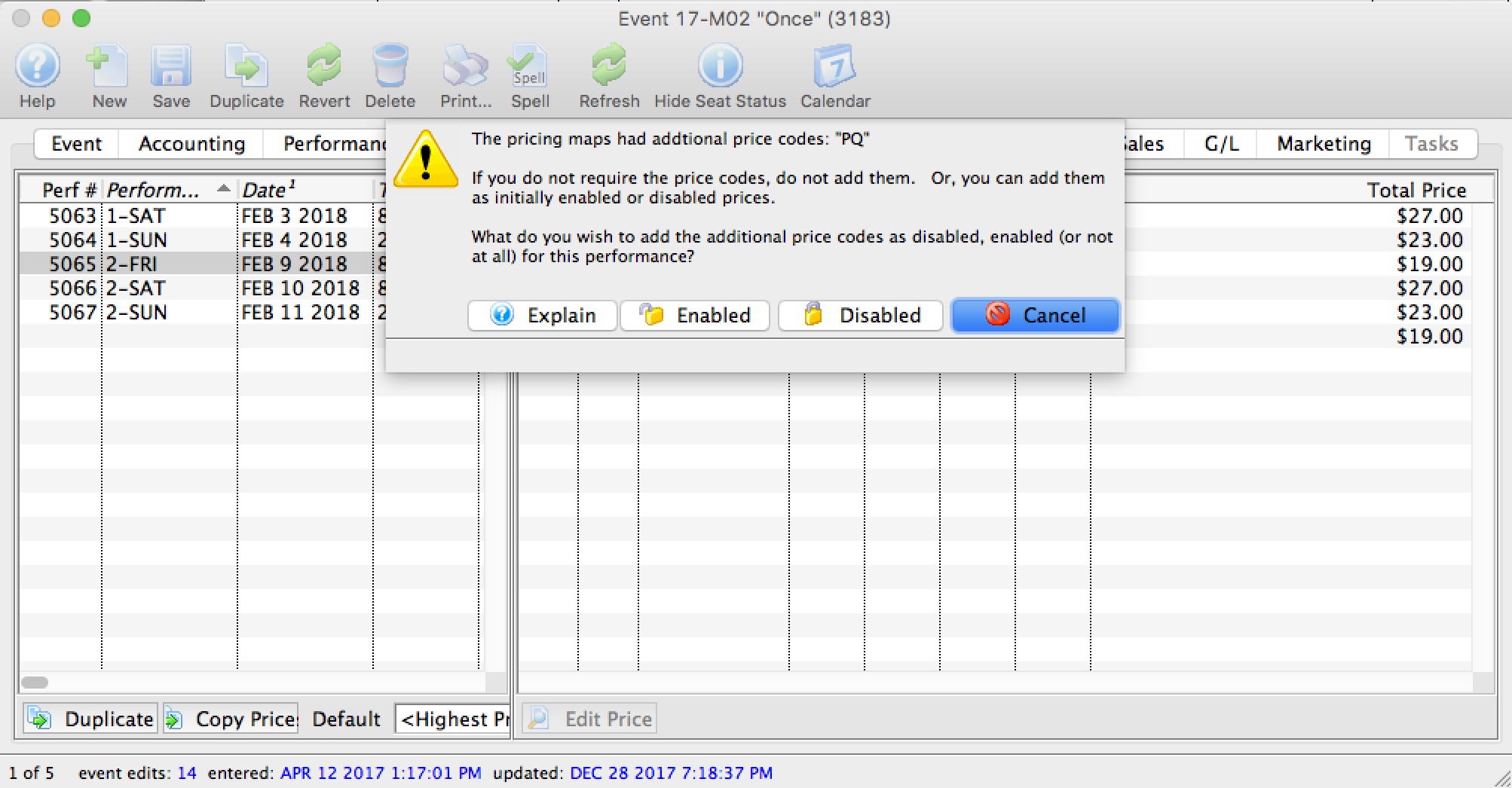
If new price zones are found when looking at pricing for a performance that do not have corresponding prices, you will see an alert dialog that asks what you want to do with those additional pricing zones. You can:
- Cancel adding the new pricing zones - which means that the new prices will not be created. This is the best option as pricing is not changed.
- Add the pricing zones to the performance as initially disabled, which means that the price codes are added as zero price, but not enabled for purchasing. This is a safe option since the price codes are added, but nobody can use them until you set prices.
- Add the price zones as initially enabled, which means that the prices are instantly available as zero price tickets. This is the least safe option, but probably what you would pick if the event is not available for sale online. If a performance is available for sale online, the disabled setting is automatically be used for that performance.
 |
You will only receive this message to add prices if:
|