Refunding Tickets
|
This section presumes you:
|
If a ticket is sold incorrectly or a patron desires to return their tickets, Theatre Manager's refund process will make the transaction very simple. Using Employee setup preferences, a Master User can decide which users have the authority to perform refunds.
- Find Patron #33, Darcey Albeck
Darcey's patron window will open. Look to the Patron Ticket Information portion of the patron window.

Note:The user must have sold tickets to Darcey Albeck in order to continue. If not, please refer to and complete the section, Selling a Ticket.
- Single Click on any Ticket
Highlight at least one ticket and make note of its order number.
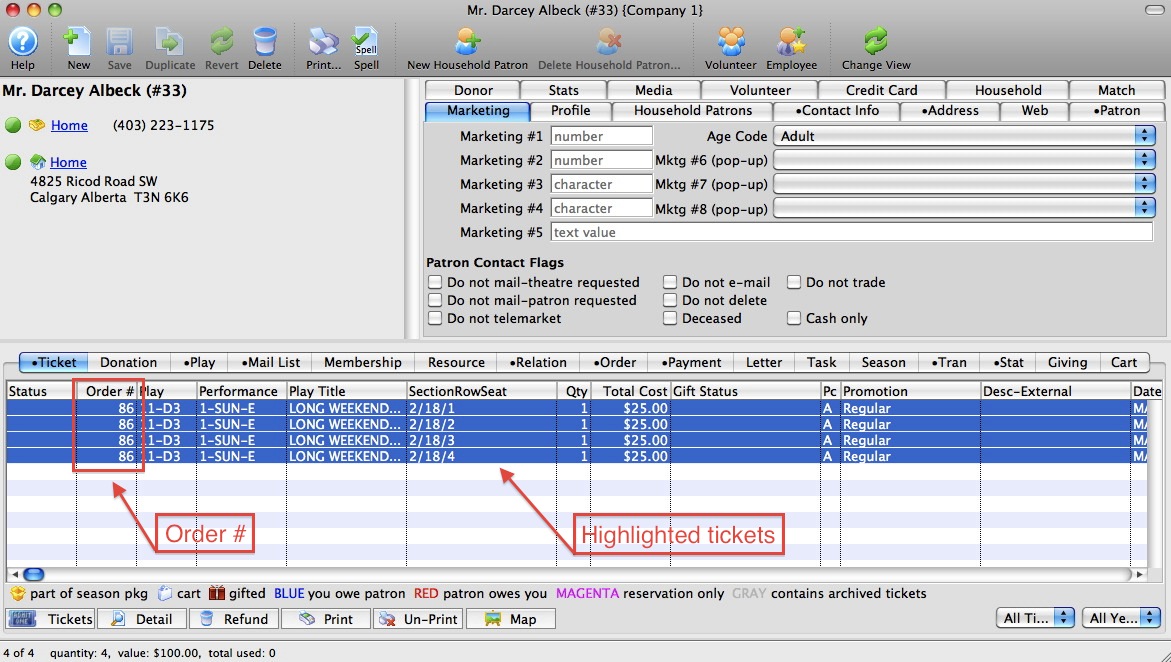
|
Note: A user can refund more than one ticket at the same time by simply highlighting multiple tickets. This is provided that the tickets are a part of the same order. |
At this point, you have three options, all of which will be discussed in the following pages:
- A 'direct' return of the tickets, causing a monetary refund to the patron, or
- A refund to a donation, where the refunded tickets are applied to a donation instead of a monetary refund to the patron, or
- A refund to a ticket voucher, where the refunded tickets are applied to a voucher which is good for another performance.
|
From here you can:
|

Direct ("Cash") Refund
|
This section presumes you:
|
Creating a Direct Refund
- After highlighting the ticket(s) in the patron record, click the
 button at the bottom of the
  tab.
tab.
The Ticket Review tab of the sales process opens. Note--the tickets will have a
 icon next to them in the list.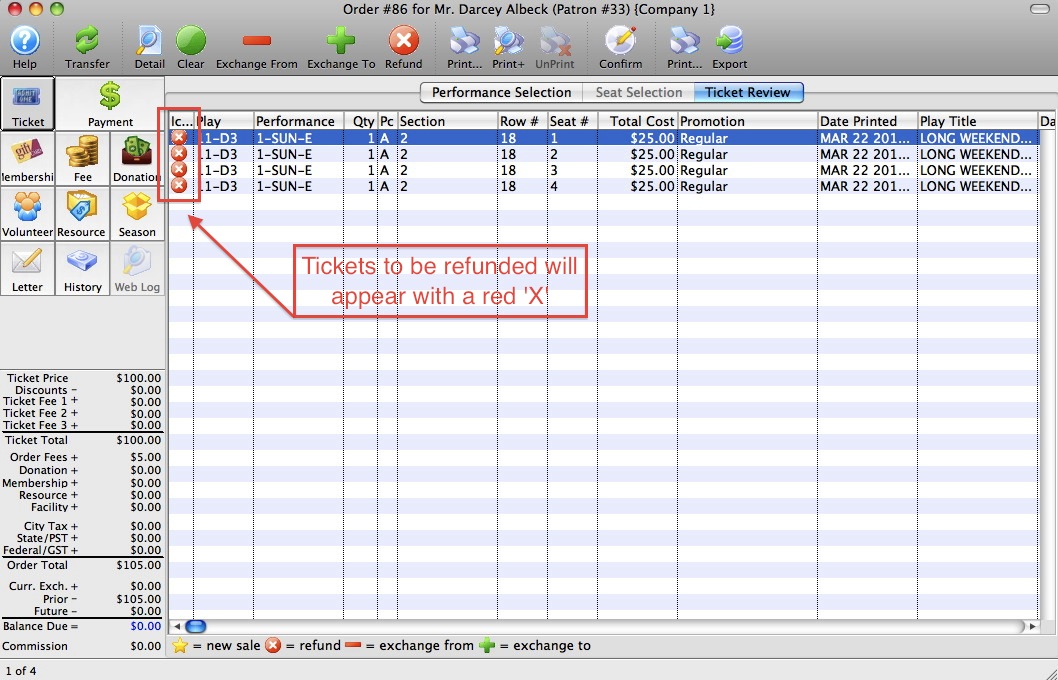
- Highlight all the tickets the patron wants to refund.
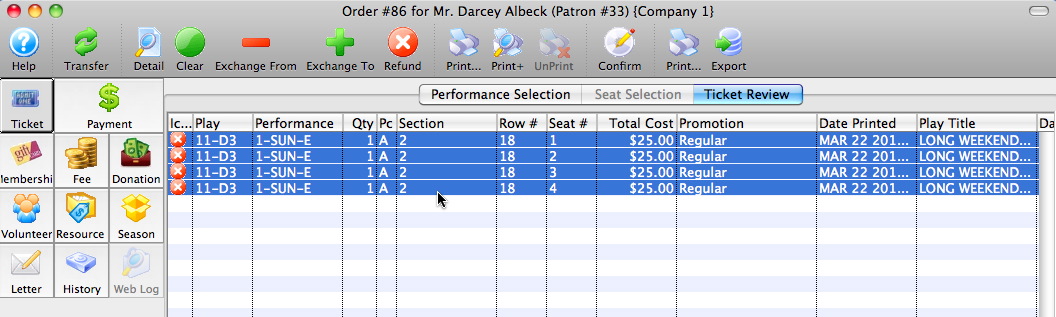
- Click the
 button on the top tool bar.
The tickets disappear. There is now a balance due for the patron, in the lower-left corner, for the value of the tickets.
Note: Theatre Manager will automatically refund the value of the tickets only. Any fees you collected for the sale, are generally non-refundable. However, if you want to refund these fees as well, you may. Simply click on the Fees button in the upper-left corner and delete the appropriate fee.
- Click the
 button in the upper-left corner of the window.
The Payment Window opens.
- Determine the method(s) of payment used for the original transaction.
- Choose the payment method to use for the refund.
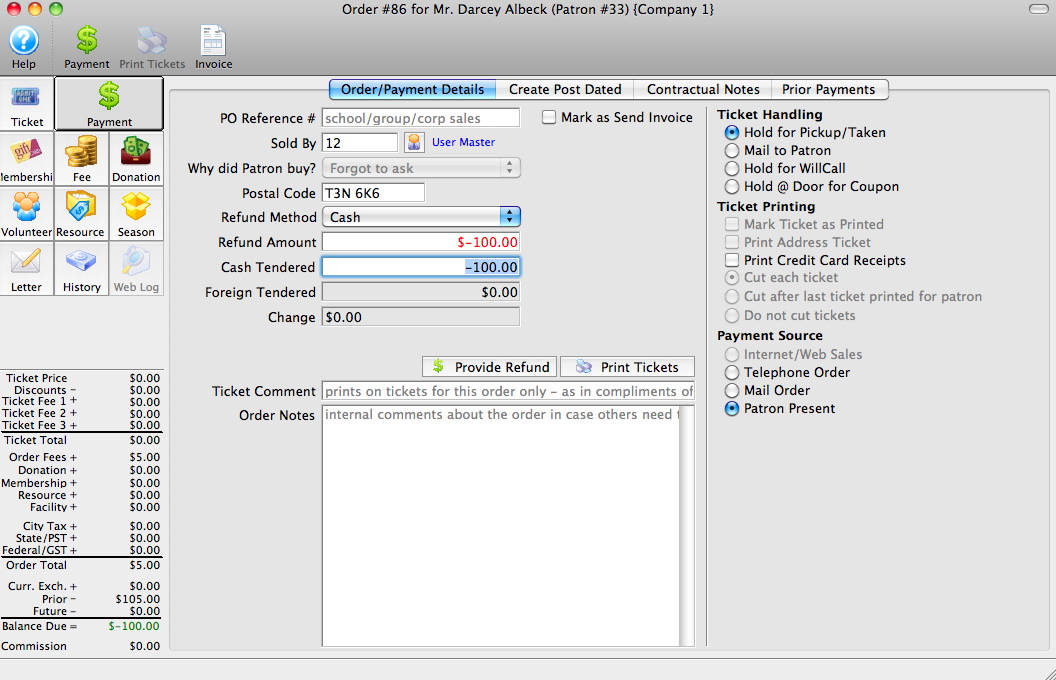
- Click the
 button.
Theatre Manager will journalize the transaction, and return you to the Patron Record.
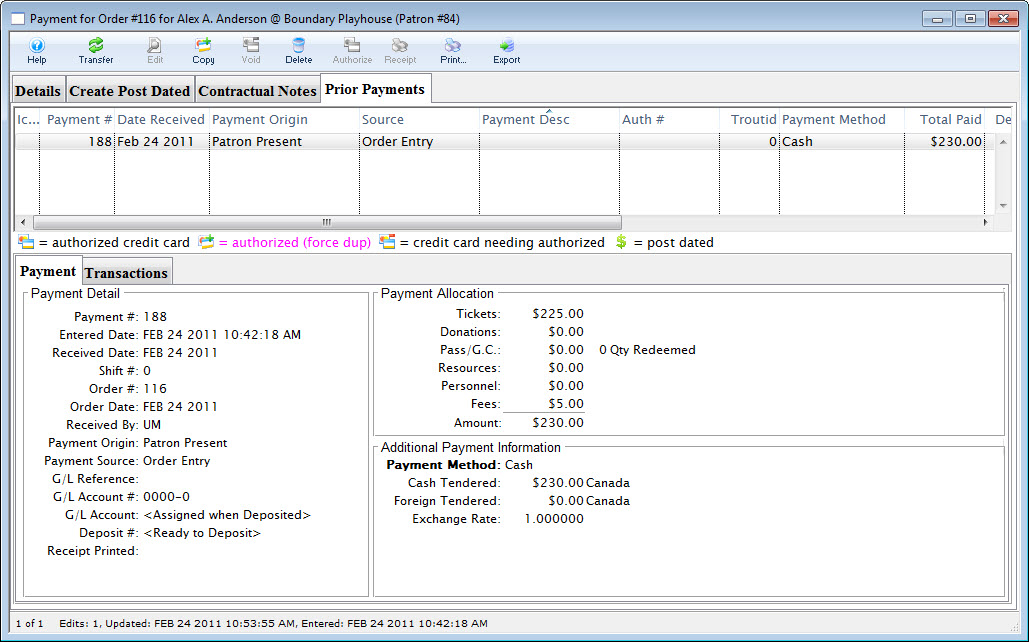
Click on the  tab to see what payments have been previously applied to this order.
|
Note: Normally the refund method should be the same as the method used to originally purchase the tickets. For example, if the patron originally used their VISA card to purchase their tickets, the refund should go on their Visa (and preferably the same VISA card). |
|
From here you can:
|
Refunding to a Donation
 |
This section presumes you:
|
To refund tickets to a donation:
- Find the patron wanting to refund tickets.
Click here to learn how to find patrons.
- Single Click on the desired Tickets
Highlight at least one ticket and make note of its order number.
Note: A user can refund more than one ticket at the same time by simply highlighting multiple tickets. This is provided that the tickets are a part of the same order.
- Click the
 button in the lower left corner.
The
button is located at the very bottom of the patron window. It is the first button on the left hand side of a row of buttons, when the tab is selected.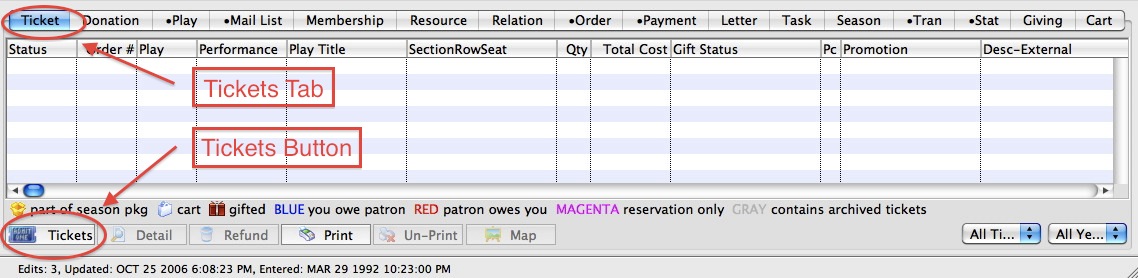
You will be presented with a menu of options. Please select the 'Return the selected tickets to the Box Office for resale' option to proceed with the Demo.
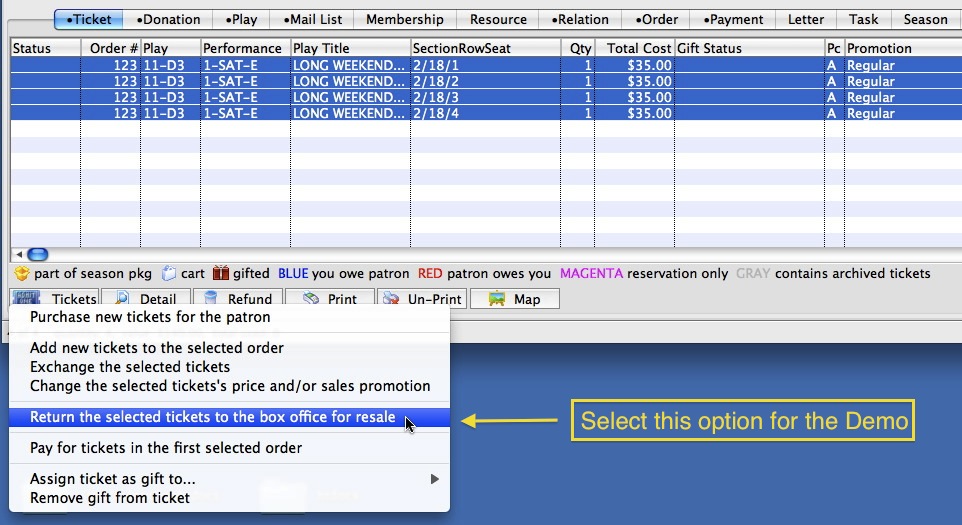
You are taken directly to the
 tab
tab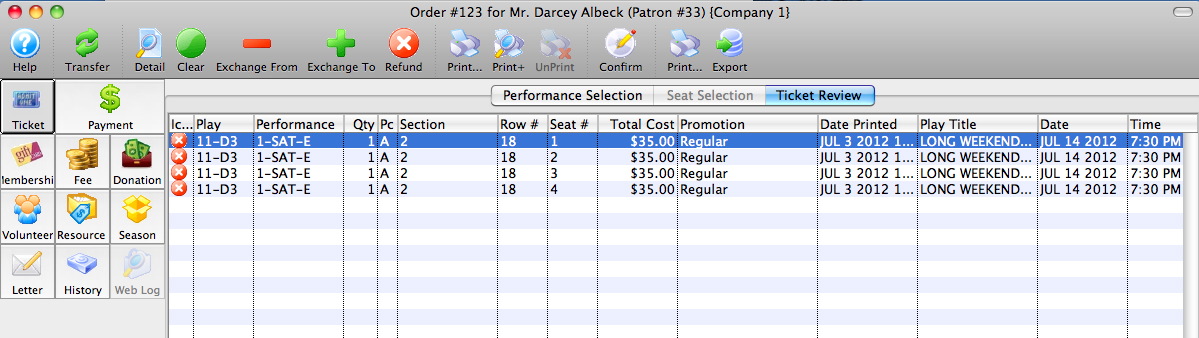
- Click the button on the icon bar at the top of the screen.
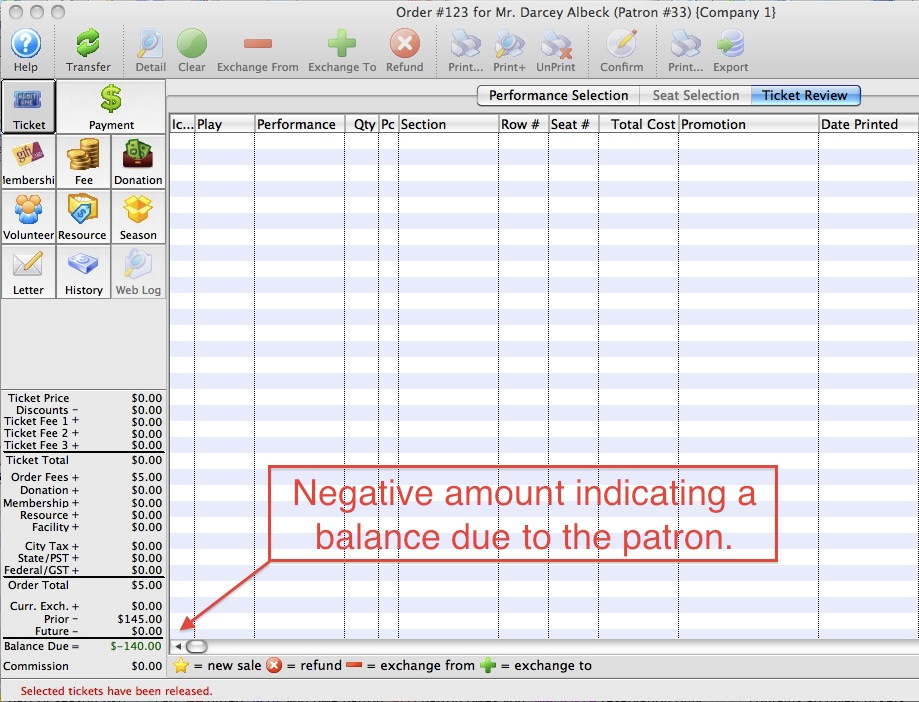
Theatre Manager removes the tickets from this order.
The Balance Due in the lower left corner of the screen now reflects a negative amount, indicating that a refund is due to the patron.
- Click the
 button in the upper left corner.
 - Click the
 in the top icon bar to insert a new donation.
 - Click the
 button.
The Donation Detail window opens.
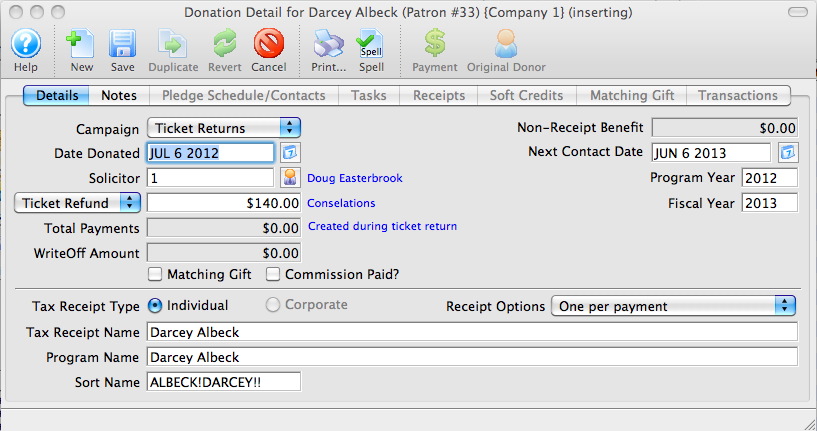

By default, many of the following fields will be entered automatically by Theatre Manager. You can make adjustments to them as your needs require.
- Click the
 button at the top of this window.
Theatre Manager will ask if this is a "normal" donation or - since you just did a ticket refund - is it a special 'Tix Refund' donation, and you would like to enter a donation to balance the order to zero.
|
Most times, you want Ticket Refund because it will use todays date for the donation receipt. Normal means you are adding a donation and Theatre Manager will use the date of first payment as the donation receipt date. |

You can now close out of this donation and this order.
Theatre manager will have:
- Returned the tickets to the Box Office so they can be resold,
- Created a donation in the amount of the tickets, and
- Returned you to the patron window so you are ready to assist the next patron.
|
From here you can:
|
Issuing a Ticket Voucher or Gift Certificate
|
This section presumes you:
|
If a patron wishes to return their tickets, and you want to provide a ticket voucher - good for a future admission - rather than giving them their money back, or turning the returned tickets into a donation, you may do so easily in Theatre Manager.
The process is very similar to refunding the tickets to a donation. At Arts Management Systems, we believe strongly that if a process works, it should be used in all aspects of Theatre Manager. Therefore, rather than having to learn one way to return tickets for donations and a completely different way to do so for a ticket voucher, we make the two processes utilize the same (or similar) windows.
To refund tickets to a Ticket Voucher:
- Find Patron #33, Darcey Albeck
Darcey's patron window will open. Look to the Patron Ticket Information portion of the patron window.
Note:The user must have sold tickets to Darcey Albeck in order to continue. If not, please refer to and complete the section, Selling a Ticket. If you have previously returned Darcey's tickets for a donation, find another patron who has tickets, or sell new tickets to Darcey Albeck.
- Single Click on any Ticket
Highlight at least one ticket and make note of its order number.
Note: A user can refund more than one ticket at the same time by simply highlighting multiple tickets. This is provided that the tickets are a part of the same order.
- Click the button in the lower left corner.
The
button is located at the very bottom of the patron window. It is the first button on the left hand side of a row of buttons, when the tab is selected.You will be presented with a menu of options. Please select the 'Return the selected tickets to the Box Office for resale' option to proceed with the Demo.
You are taken directly to the
tab
- Highlight all the tickets in the Ticket Review window.
You can do this by:
- Single-clicking on the top ticket,
- Holding down the 'shift' key on your keyboard, then
- Single-clicking on the bottom ticket.
- Click the button on the icon bar at the top of the screen.
- Click the
 button in the upper left corner.
- Click the in the top icon bar to insert a new membership.
Theatre Manager will ask if this is a "normal" membership or - since you just did a ticket refund - is it a special 'Tix Refund' membership, and you would like to create a membership to balance the order to zero.
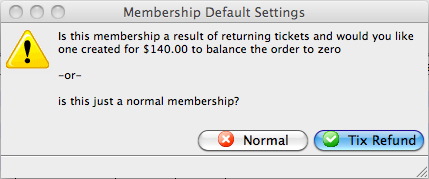
- Click the button.
The Membership Detail window opens.
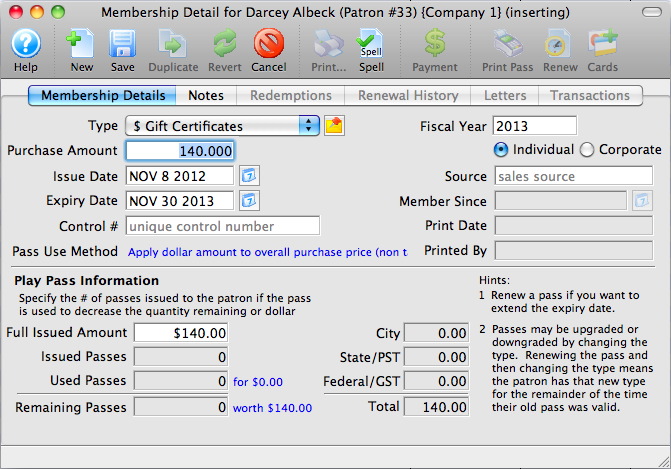
By default, many of the following fields will be entered automatically by Theatre Manager. You can make adjustments to them as your needs require.
- Click the button at the top of this window.
You can now close out of this membership and this order.
Theatre Manager removes the tickets from the order.
The Balance Due in the lower left corner of the screen now reflects a negative amount, indicating that a refund is due to the patron.
Theatre manager will have:
- Returned the tickets to the Box Office so they can be resold,
- Created a membership in the amount of the tickets, and
- Returned you to the patron window so you are ready to assist the next patron.
|
From here you can:
|