The General Ledger Submenu
In the General Ledger function you can post general ledger entries, set up general ledger accounts, look at transactions, and handle year end rollover. The General Ledger Sub-menu is accessed from the Accounting Menu >> General Ledger.
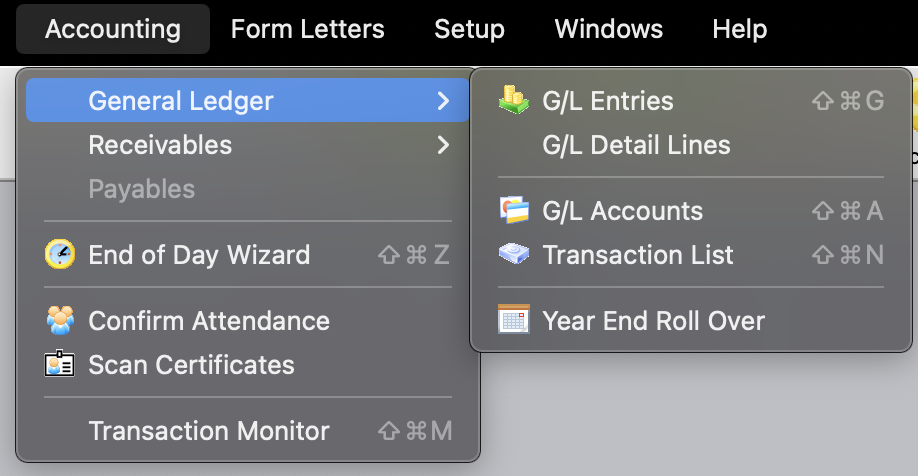
Parts of the General Ledger Sub-menu
| G/L Entries | The G/L Entries window allows the searching and posting of general ledger entries. For more information on the G/L Entries window, click here. |
| G/L Accounts | In the G/L Accounts window you can create and edit the general ledger accounts in Theatre Manager. For more information on the G/L Accounts window, click here. |
| Transaction List | In the Transaction List window you can search the transactions that have been created, including non-financial transactions. For more information on the Transaction List window, click here. |
| Year End Roll Over | Yhe Year End Roll Over function is used at the end of the fiscal year for your organization to "roll over" financial transactions and accounts to the new fiscal year. For more information on the Year End Roll Over function, click here. |
G/L Entries Window
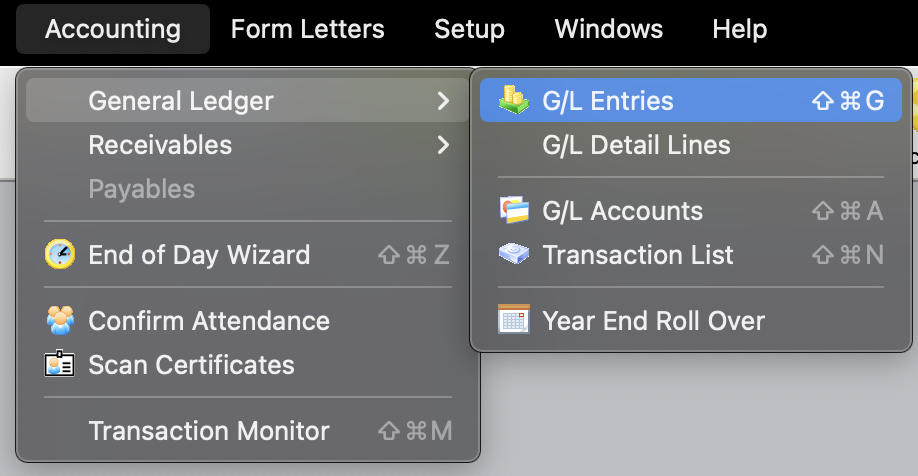
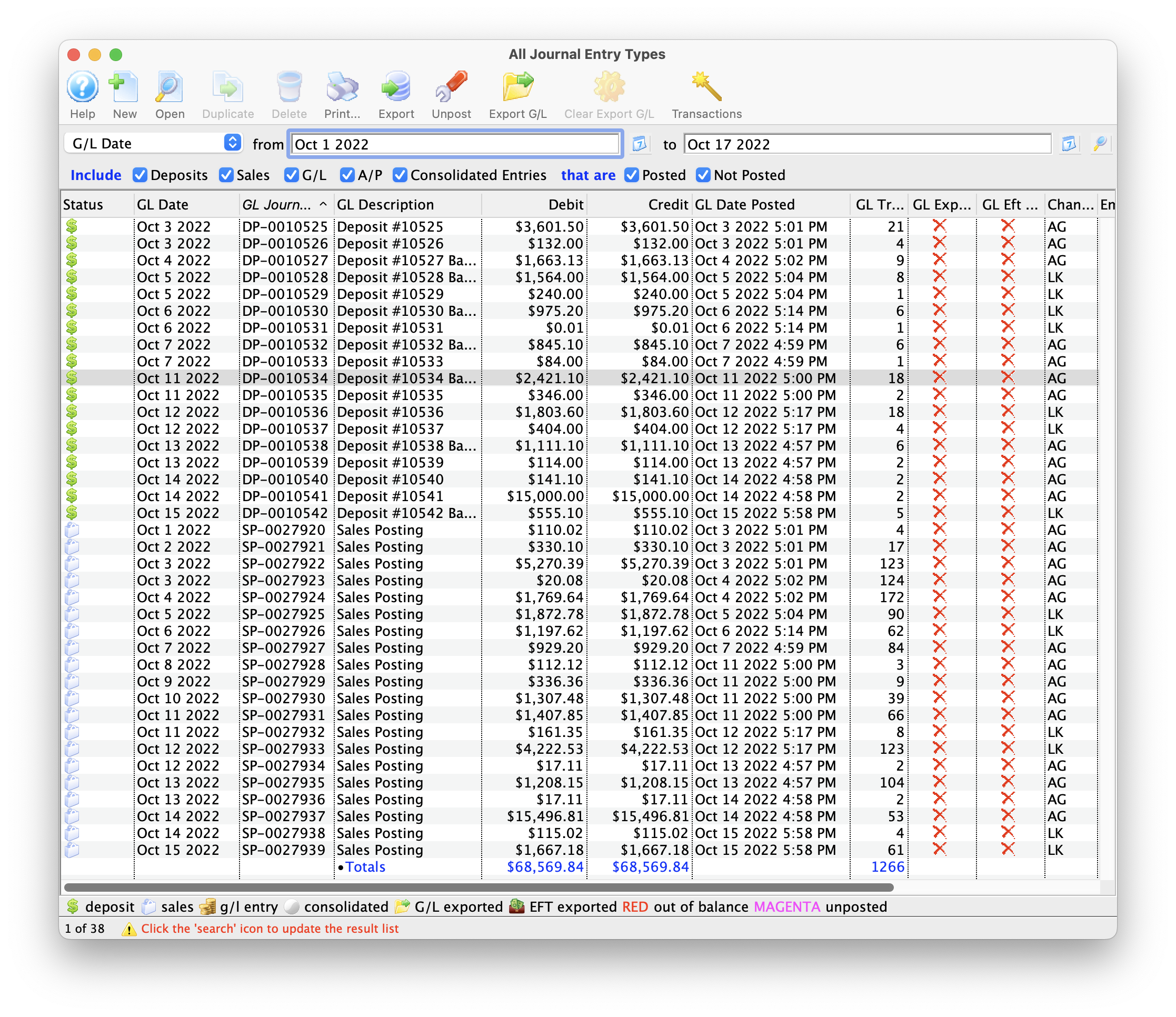
The G/L Entries List Window opens. For more information on the G/L Entries Detail window, click here
G/L Accounts Window
The General Ledger Chart of Accounts contains all the accounts which have been setup in the G/L. The Chart of Accounts can be accessed through the Accounting >> General Ledger >> G/L Accounts menu.
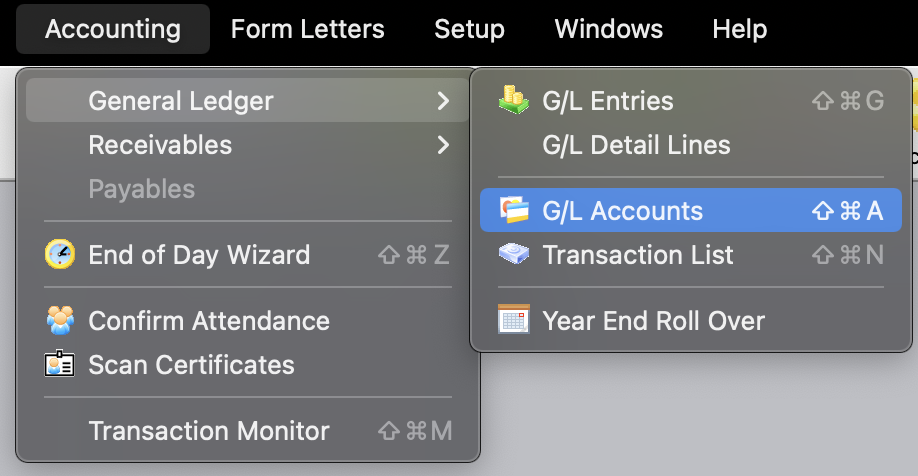
The G/L Chart of Accounts Window opens.
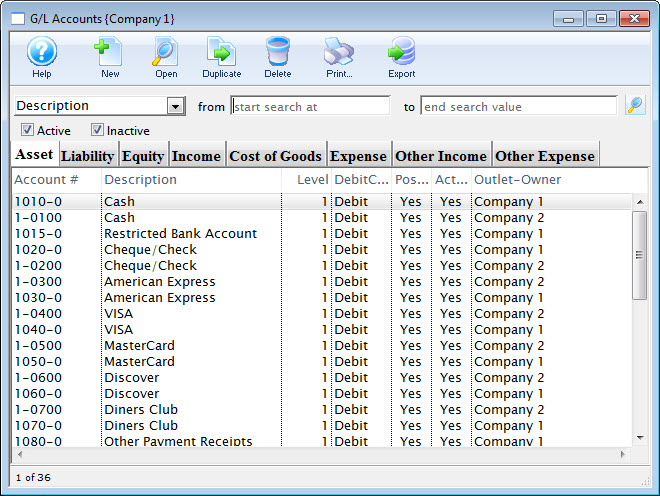
Both the active and inactive accounts can be displayed using the check boxes. Click here, for a description of the General Ledger Accounts window.
Transaction List Window
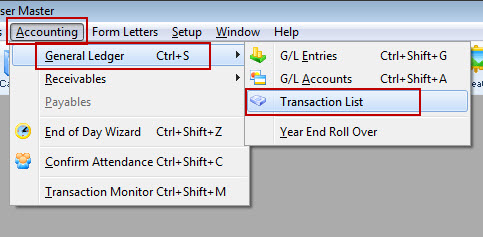
The G/L transaction List Window opens.
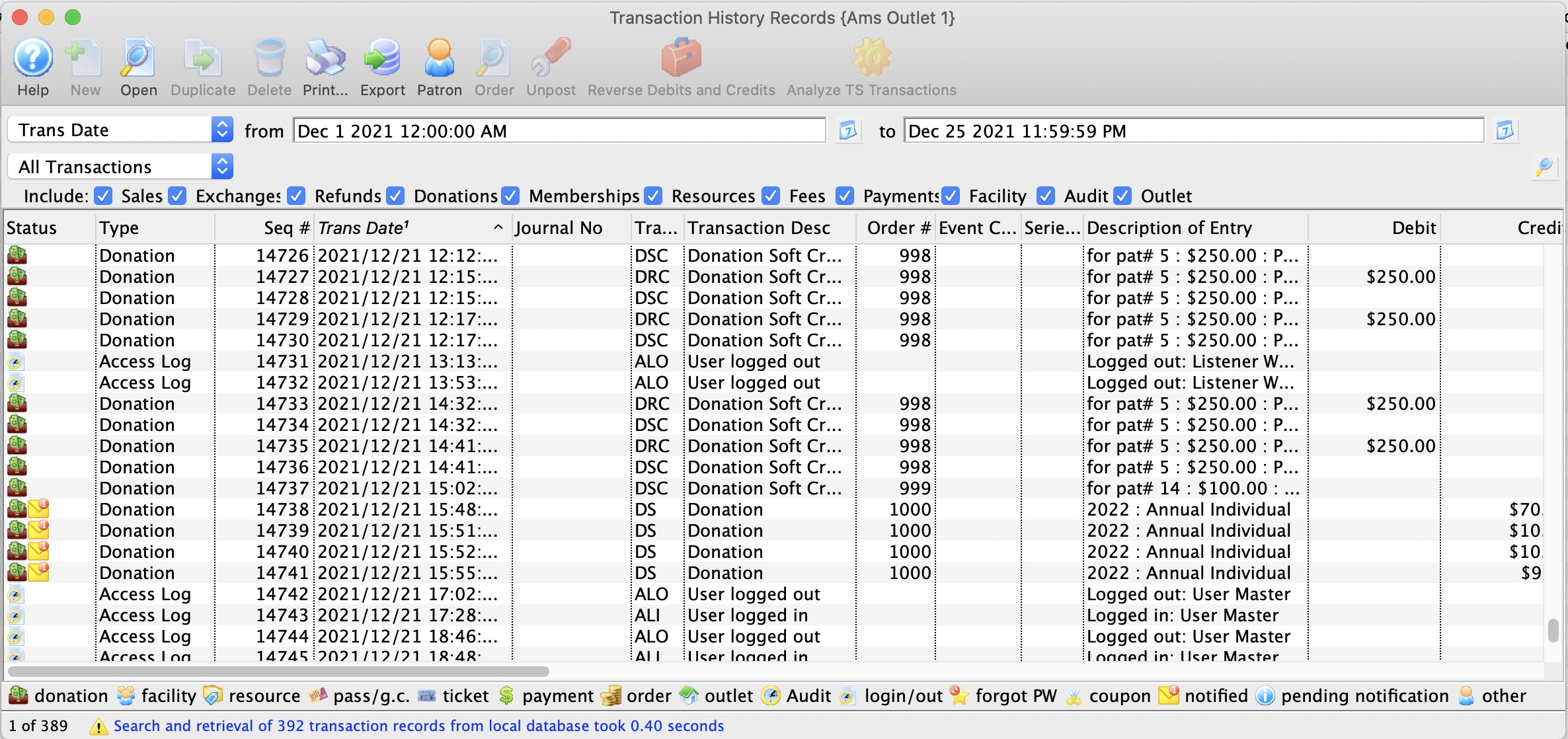
For more information on the G/L Transaction History window, click here.
Transaction History List
Parts of the Transaction History Window
 |
This function is not available in this window. |
 |
Opens the Transaction Detail window for further detail about the transaction. |
 |
This function is not available in this window. |
 |
This function is not available in this window. |
 |
Prints a copy of the information in the window. |
 |
Exports the information in the window to a TXT document for the purpose of importing into another program. |
 |
Opens the Patron record of the patron associated with the transaction. |
 |
Attempts to unpost the transaction where applicable. |
 |
Creates a reverse debit or credit for the transaction. This function is not yet available. |
 |
Analyzes the TS transactions to verify that they are in balance. |
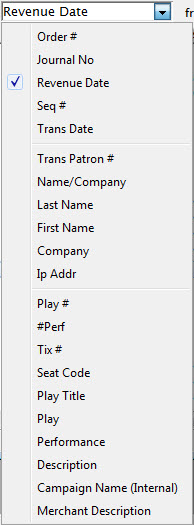 |
A drop down menu of the available search functions. |
 |
Initiates a search based on the parameters in the To and From fields. |
| Include | The items checked will be included in the search. Uncheck an item to remove it from the search. |
| Seq. # | The sequence number of the transaction. |
| Trans. Date | The date of the transaction. |
| Journal No | The journal number of the transaction. |
| Code | The transaction code associated with the transaction. |
| Transaction Desc | A description of the transaction. |
| Order # | The order number the transaction was part of. |
| Event / Play | The event / play the transaction is associated with. |
| Performance | The performance the transaction is associated with. |
| Description of Entry | An entry description. |
| Debit | The amount of the debit associated with the transaction. |
| Credit | The amount of the credit associated with the transaction. |
| User | The user who handled the transaction. |
| Qty | The quantity of items in the transaction. |
| Total | The total of the transaction |
| First Name | The first name of the patron associated with the transaction. |
| Last Name | The last name of the patron associated with the transaction. |
| Company | The company associated with the transaction. |
| Patron # | The patron number associated with the transaction. |
| Campaign | The donation campaign associated with the transaction. |
| Description | A description of the donation campaign. |
| Promotion | The promotion that used with the transaction. |
| Group | The report group of the promotion. |
| Merchant | The merchant that was used to process the transaction. |
| Event / Play Title | The event / play title associated with the transaction. |
| Event / Play Code | The event / play code associated with the transaction. |
| GL # | The general ledger number associated with the transaction. |
| Fee | The fee associated with the transaction. |
Transaction History - Detail
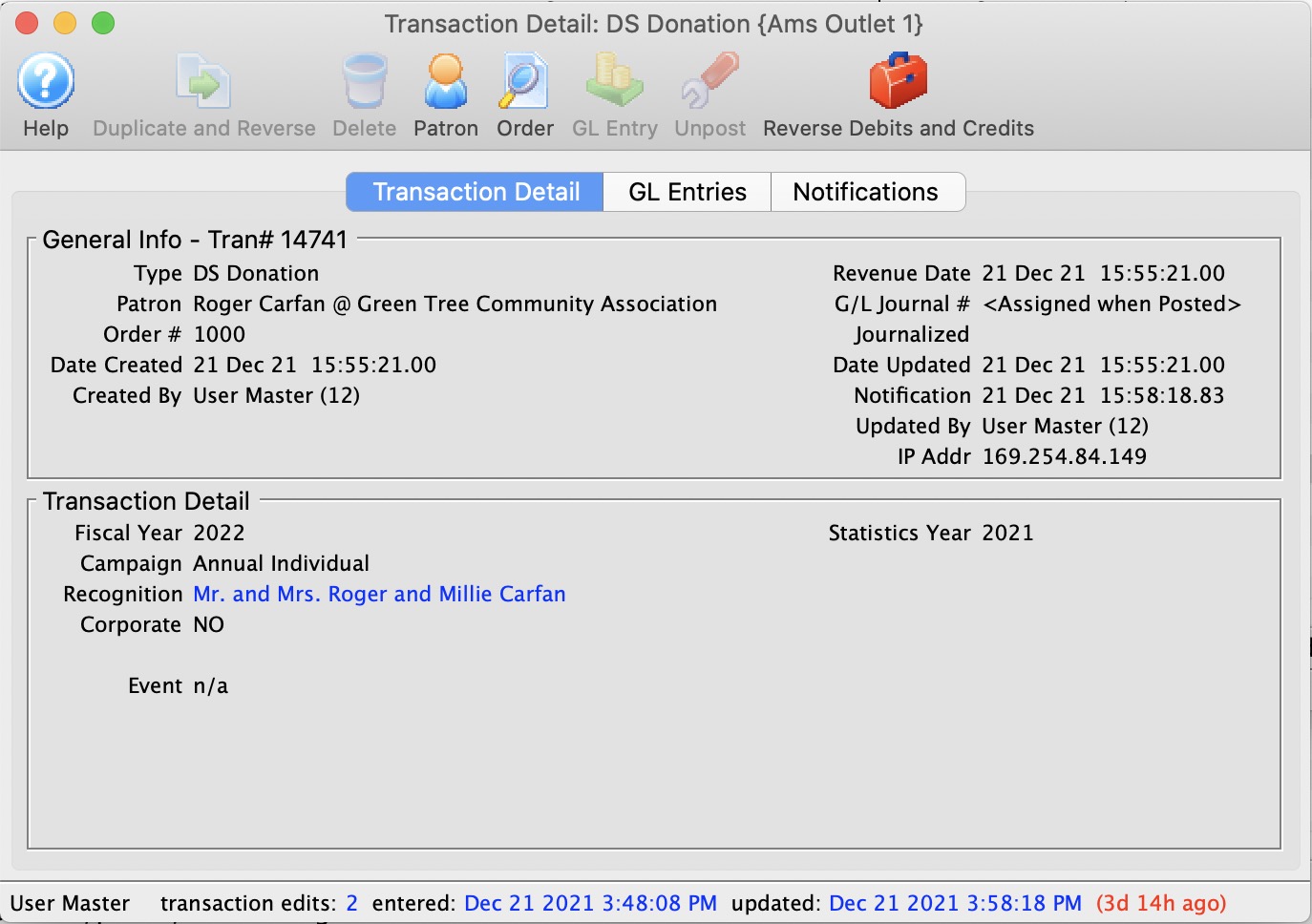
The parts of the window are:
Toolbar / Ribbon Bar
 |
Help - Opens the online help. |
 |
Duplicate - Duplicates and Reverses the transaction to create an offsetting entry |
 |
Delete - Unavailable |
|
Patron - show the patron this transaction belongs to. Opens the Patron record for the patron associated with the transaction. |
 |
GL Entry - Show the GL Entry containing this transaction if it has been posted |
|
Unpost - Clears the journal number on the transaction if it can be unposted so it can be posted again |
General Information
Displays general information about the transaction, such as:
- Type
- Patron
- Order Number
- Date Created
- GL Journal Number
- Transaction ID Number
- Dated
Transaction History - GL tab
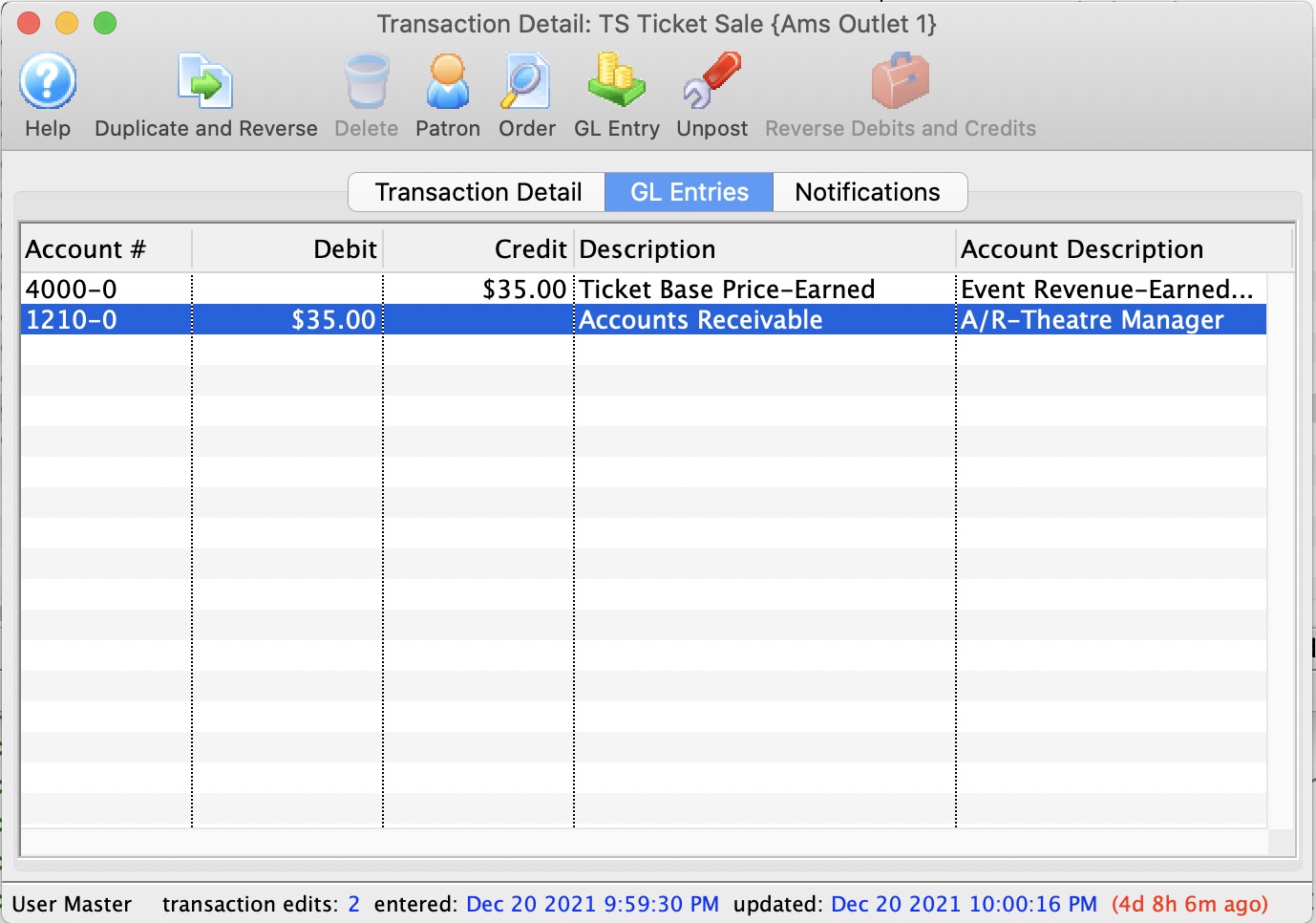
The GL Entries tab displays:
- for posted transactions - the accounts that the entry has posted to and contained in the G/L
- for not-yet-posted transactions - the accounts that the entry is expected to post to during end of day using the current account setup in events, passes, donations, etc. If those setup accounts are changed, prior to posting, the transaction will post to those changed accounts. In other words, the accounts that the system posts to is determined during end of day posting.
 |
|
Transaction History - Notifications

If a transaction has any notifications associated with it, you will see the recipients in this list. You can:
- View the contents of the notification sent to the employee
- See whether it has been read (or not)
- Resend the notification by changing its status to Not Done
Year End Rollover
- Current year monthly financial totals are moved into the previous year monthly totals.
- Donations that were deferred for the next fiscal year are transferred from deferred revenue to earned revenue.
- Passes and Gift Certificates that were deferred for the next fiscal year are transferred from deferred revenue to earned revenue
- Hours attributed to volunteers/staff are rolled forward one year.
- Marketing statistics are recalculated to reflect the new fiscal year
- Optional Steps:
- Ticket sales for the next fiscal year can all be transferred from deferred revenue to earned revenue based on accounting settings in Company Preferences
- All events with dates in the past can be closed automatically to prevent any sales, exchanges or refunds from occurring.
 |
The amount of time taken by the year end rollover is dependant only on the number of accounts and posting history. It should take only a couple of minutes to do the actual rollover once you have the reports you want. |
|
|
Complete the final End Of Day for the current year before doing a Year End Rollover. This generates the final deposit, creates all sales entries, posts to the G/L and then you can run any G/L reports that are traditionally required for auditors.
Refer to timing to decide when to do the rollover. |
|
|
Sales can continue on the web and at the box office while year end rollover is in progress. Just don't do your end of day until Rollover is complete. |
Year End Backup
Almost all reports in Theatre Manager can be re-run with the exception of the receivables report. That changes when anything new is bought and/or paid for. Auditors like to see your receivables as of year end and reconcile it to your accounting program.
This audit backup generally coincides with when you run the year end rollover, especially if you do your rollover on the last day of the fiscal year or the first day of the next year. If you decide to delay the year end rollover, then you will have future G/L entries that are pending posting (after the rollover), which will affect receivable reports. In that case, you will also want to do a back up as at the end of the fiscal year.
|
Venues with databases on the AMS cloud should contact AMS support with message asking to make a special backup for year end. |
|
You must manually create a backup at a time of your own choosing by following these instructions and saving the backup file. |
Timing of Year End Rollover
- wait until the first day of next fiscal year to run the rollover. This will capture internet sales through midnight and into the current year -or-
- do it a day or so early. Any sales occurring after rollover will be allocated to the next fiscal year.
- Generally speaking, a good accounting practice is that year end rollover should be run as soon as possible after the actual end of year
If you have not run a Year End Rollover and the last day of the fiscal year has now passed:
- the user will receive a message when trying to post G/L entries at end of day. This message indicates that some sales or deposit postings were not done because they are in the next fiscal year. This still gives time to print the G/L reports for prior year and make adjustments.
- any donations entered after the start of the new fiscal year default to the past fiscal year. If the intention of a donation is to be in the NEW fiscal year, then change the fiscal year on the donation entry window manually -or- do Year End Roll Over and the fiscal year default will change.
If the organization does a Year End Rollover and still needs to make manual adjustments to the G/L, they can be done to the prior year. Then print a G/L report for the prior year (because of the roll over, the current year moved to the prior year). This means the user can still get any financial information needed.
Year End Rollover and Extended Break Settlements
Fiscal Year End Roll Over
If your offices will be closed during the time of your Fiscal Year End (such as over December 31, for example), you may want to make Year End Roll Over (YERO) preparations before you close for the season that need to occur prior to transacting any business in the new fiscal year.
Why is this important?
The primary reason Theatre Manager needs a YERO performed is to appropriately move donation funds into the correct fiscal year. Typically, future campaign funds are kept in a separate General Ledger account (deferred) until the first day of the new fiscal year. The YERO process moves these funds from the deferred account to the earned account. New donations, intended for the upcoming fiscal year, will need to be appropriately allocated according to the ACCOUNTING tab of the campaign setup. The YERO also advances the default fiscal year setting when entering a donation. If the YERO has not been performed, the funds will not be allocated to the correct fiscal year. Season and event ticket income may also be affected depending on the settings in your database.
The complete YERO steps can be reviewed and followed at Year End Rollover as it provides you the step-by-step instructions to complete the process.
Special notes:
- Be sure to make a backup of the database prior to running the YERO.
- Be sure to read the section on the optional step carefully. Although most organizations do not use this option - review them with your accountant to see if they do apply to you.
- Do not interrupt the YERO process. It may take from several minutes to several hours to complete and the computer may look "stalled" during that time. Do not stop the process or interrupt the computer at any time. If you are unsure, contact Arts Management Systems Support first. If you quit the process, you may need to restore to a backup copy of the database before you can continue.
End of Day over an Extended Break
In addition, you may need to take into consideration your End Of Day process over an extended break, such as the upcoming holidays. Ideally, you need to keep the Deposits and Sales Entries portion of the End Of Day going on a regular basis over the break - bearing in mind that even though there is no one in the office selling tickets, if you have web sales, it will continue to run. Please refer to strategies to keep your system running smoothly over an extended break.
Steps in the Year End Rollover Process
|
|
 |
Do not interrupt the year end rollover process once you start it and it should finish in a few minutes.
If you do interrupt it, please contact Arts Management Support and it may be possible for us to re-run it for you |
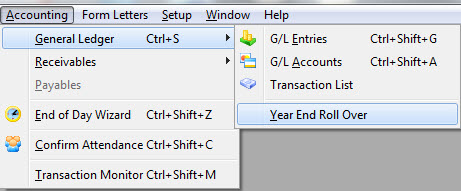
- Use the Accounting >> General Ledger >>Year End Rollover menu.
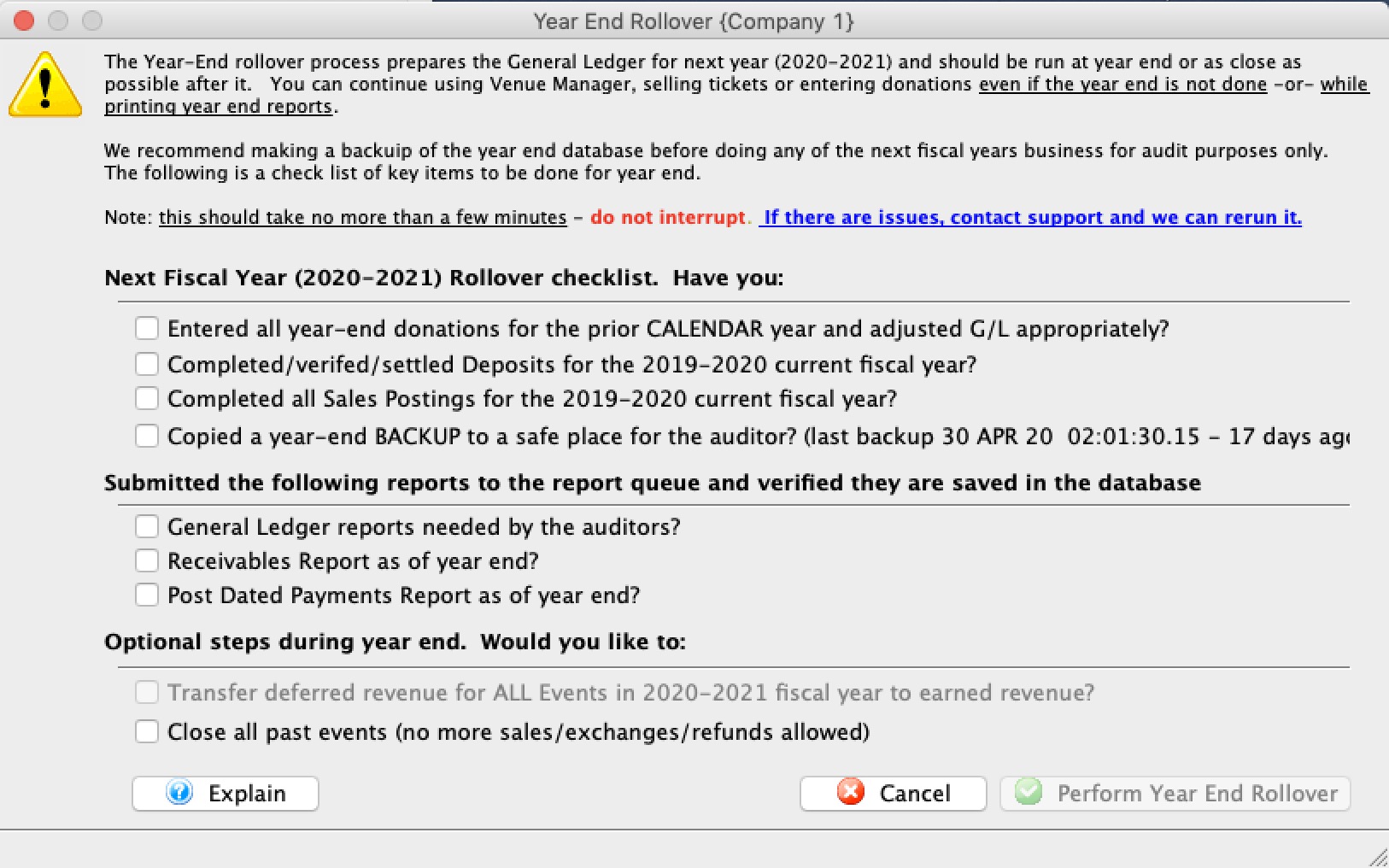
- Check off all items in the 'check list' section to confirm that you completed them and/or have the data and that you are ready to continue the Year End Rollover.
-
The check list contains a list of things that you should do (such as reports) before starting the rollover. Please make sure you do all the steps that you need before continuing.
- Receivables Based on Order Balances - By Event - to see if people owe you for events before they are closed
- Receivables Based on Order Balances - to find out who still owes you money
- the Post dated Payment Report - which can easily be printed from the Post Dated Payment List window
- Balance Sheet Detail-5 Year Comparison
- Balance Sheet Detail-Monthly for Current Year
- G/L Trial Balance
- Donor with Balance Due
Reports you should consider running include ones below. Send them to the background report queue and wait for them to complete. That way you will have reports as-at-year-end saved in your database and you can reference them later.
Check with your Auditors for a complete list:
-
The check box in the 'Optional Steps' at the bottom of this window to transfer events from deferred to earned revenue can ONLY be checked if your company preferences are set to defer revenue only from one "season" to another "season". (Other settings should prevent use of this option).
-
The check box to 'Close Past Events' will take all events that are completely in the past fiscal years and close them - so that ticket sales, exchanges and refunds can no longer occur. This can be reversed by editing the event and re-opening it.
- Click the Perform Year End Rollover
 button to continue.
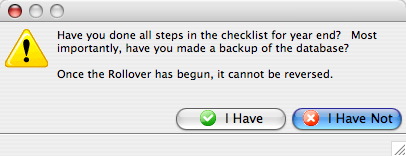
- A window opens confirming you are ready to run the Year End Rollover.
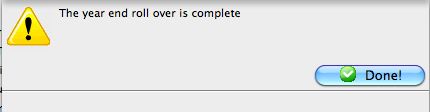
- A confirmation window opens stating the Rollover is complete.
Changing Fiscal Year End
|
|
If you are changing your fiscal year end, you can run a year end rollover:
This is such a rare situation, that we suggest you contact the support team. |
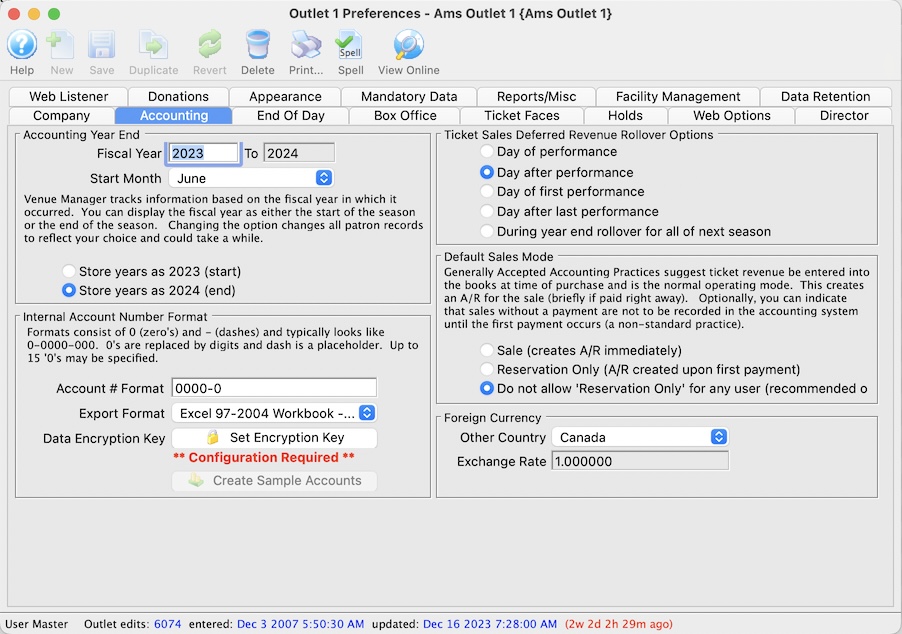
Making a shorter fiscal year
If, for example, your current fiscal year ends in October and you want to change the fiscal year end to be July of the same year, then you are making your fiscal year shorter. The current fiscal year will not be 12 months, it will only be 9 months and then the fiscal year will go from August to July moving forward.
At End of Day on July 31st of the shortened fiscal year
- Stop all sales in Theatre Manager
- Complete the final End Of Day for the shortened fiscal year on the day that you want to be the new year end.
- Make a backup of the database. If you are using AMS cloud, ask support team to make one for you to file away
- Alter the fiscal year end in Company Preferences to indicate the new end month of the fiscal year.. it will be 'JULY' in this example.
- Do the year end rollover to set the new fiscal year. In the example above, you will be doing a year end rollover on July 31st (instead of Oct 31st)
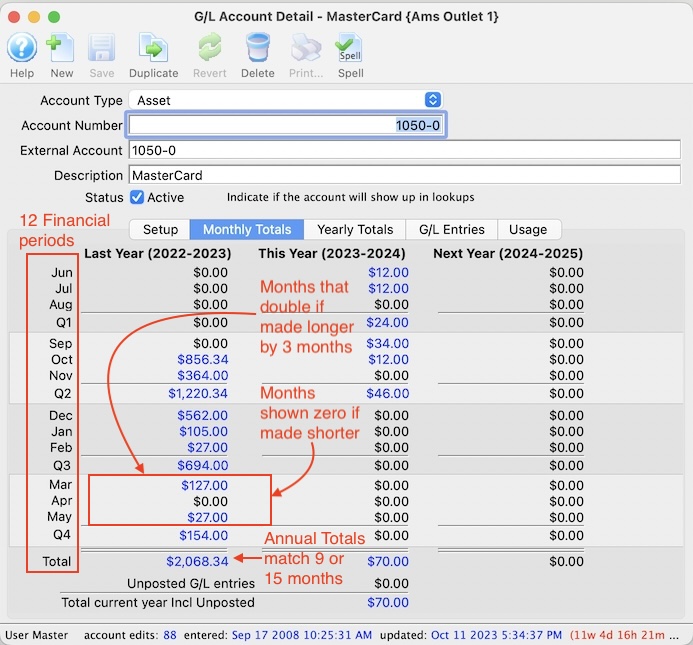 In the accounting data in TM, you will see the following effects.
- The prior year fields in accounting will show 9 months containing data and 3 months without data (since that represents August, September and October which have not happened yet.
- The title on the month columns in history will not reflect correctly. This is because TM simply calls the accounting periods - period 1 to period 12. For convenience, TM displays the month based on the value in default data - which is now meaningless since you adjusted the year end period. . Think of months as period 1 to period 12.
- The new year will start as expected, in the new month, starting in a new period 1 in the new fiscal year fields.
Making a longer fiscal year
For example, if you are changing your fiscal year from July 31 to October 30, (which means 15 months in the fiscal year), then you are trying to have more than 12 months in the current fiscal year. Theatre Manager only recognizes 12 motnhly periods, even if your accotning system recognizes more.
To make the change in TM, on July 31st of the current fiscal year:
- Alter the current fiscal year end in Company Preferences to indicate the new end month of October
- TM puts the monthly totals into the last periods in reports and on screen. They will contain totals for multiple months. This means:
- Month 10 (now named August, but formerly called May before you changed the fiscal year end month) will have accounting totals for both May and August.
- Month 11 (now named September) will contain totals for June & September
- Month 12 (now named October) will contain totals for July and October
- You will defer the year end rollover to the month that it should now occur, which is Oct 31st.
- The financial totals for the 15 months of the prior year will be correct -- and ther appear in the monthly columns adjusted by 3 months, with the last 3 months (Aug, Sept, Oct) each containing two months of financial data as described above.
The effect you will see in the accounting data for TM is that:
Fixing EOD Imbalance created because of Year End Rollover
|
Please read carefully and fully understand the ramifications of this one time only feature before using it.
It will make a historical balancing entry and should only be used if your most recent Year End Rollover resulted in an End of Day imbalance. |
|
DO NOT use this process to correct and EOD imbalance in the middle of the year. It is only to be used if the EOD imbalance occurred directly after running Year End Rollover |
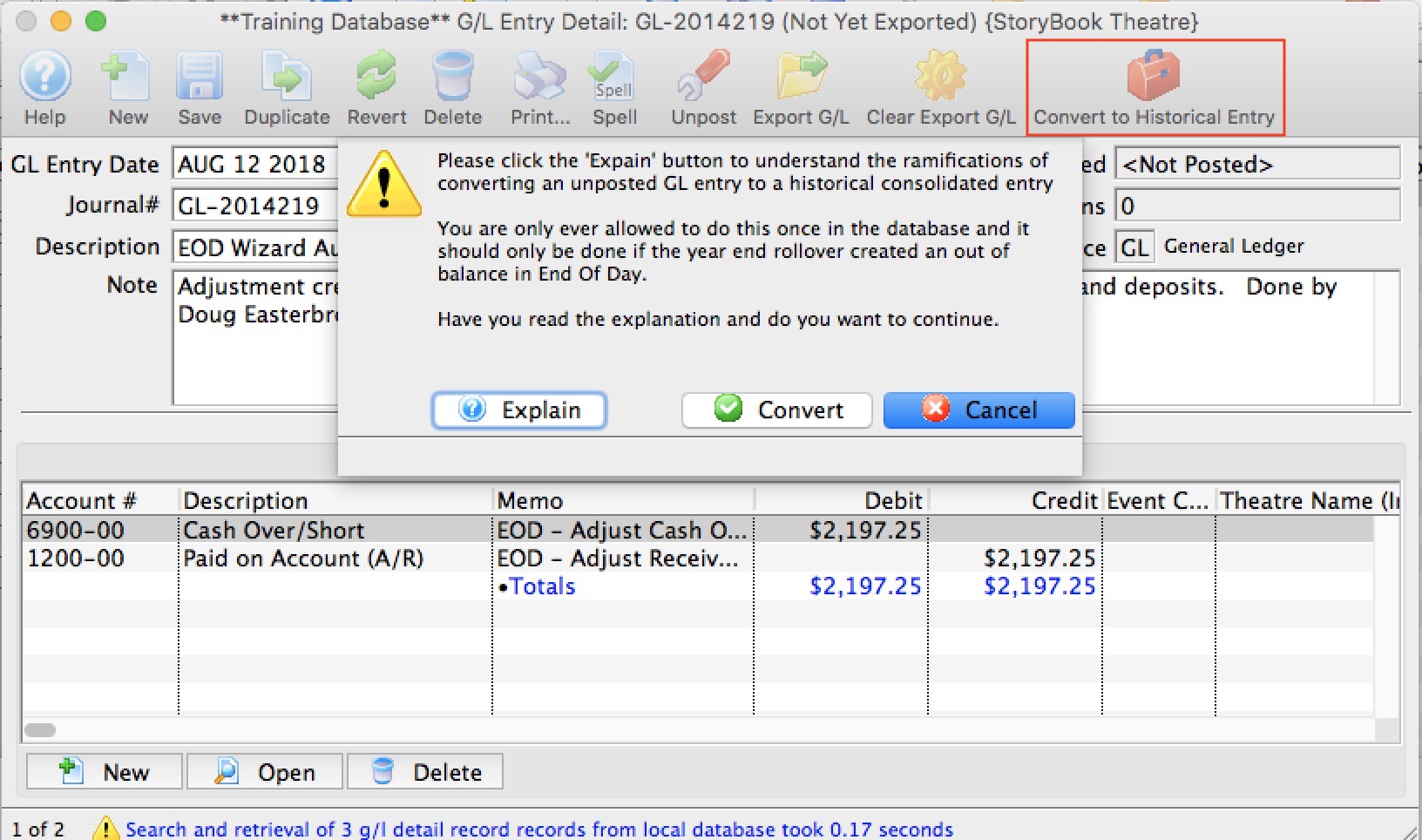
Why did I get an imbalance in the first place?
This issue should only arise if you:
- just ran your year end rollover -and-
- discovered that your first end of day after that was out of balance,
- The year end rollover process was redesigned in Mid 2018 to make it a much faster process. It now rebuilds annual GL totals from all past GL entries. The added benefit is that year-end-rollover to be rerun (please contact the support team to if you need this).
- Your venue has been using TM for a long time (most likely from version 6 era decades ago) -AND-
- A consolidated GL entry might not have been created properly - so this will address this missing data in the database
When NOT to use this process
DO NOT use this process if you just discovered and EOD imbalance in the middle of the year. Instead use the Troubleshooting End of Day imbalance checklist to find your issue.
Otherwise, we suggest to contact the support team to get assistance and to verify that the process should be used.
Who can do this process?
Only a master user or outlet administrator can make this entry. It is not visible for any other user.
What is the process and rules surrounding this feature
If you discover an EOD imbalance after your first end of day after year end:
- Try all troubleshootin processes as you would normally should end of day be out of balance.
- If you still cannot find the imbalance, contact the support team
If, after involving the support team and the End of Day Imbalance is still present, then:
- Force the EOD to balance by creating the adjusting entry under your normal user account.
- Do not post this force balanced GL entry.
If you posted it in TM, the next step you take depends on whether you passed this GL entry to your accounting system:
- If you just posted in Theatre Manager and have not created your end of day G/L report to pass to your accounting staff, please unpost this GL entry immediately.
- If you have already passed the Adjusting entry to your accounting staff, then:
- reverse the GL entry in TM.
- Create another force balance Adjusting Entry. The totals should be the same as the one you just reversed.
- Log in as the Master User or Outlet Administrator for your outlet. The feature is not available to anybody else
-
Find the EOD adjustment GL entry you just created. It must not be posted and it must be of type 'GL'
- Click the Convert to Historical Entry
- Confirm that you want to convert this GL entry to historical by clicking the Convert button.
What does this process do
Converting a GL Entry to historical will:
- Change the source of the GL entry from GL to CO, meaning that it is a historical consolidation accounting entry from years ago.
- Add text to the notes indicating that that it was a force balance after year end rollover
- Change the date on the GL entry to 10 years ago to the date
- Mark the entry as posted so that it will not be posted again
- It will back date the posting date to 10 years ago. This means it will not show up in today's end of day.
- Mark the GL entry as exported - meaning it cannot be exported and passed to your accounting system if you have automated that process
- Adds a flag to the GL entry to mark this a a special GL entry. Once you have created this one-time GL entry for a Year End Rollover problem, you will never be able to create another one.
- Theatre Manager will then rebuild the account balances as if it were ding year end rollover to bring TM's A/R account into balance. Since this GL entry is now 10 years old, it make it appear as if the force balance never occurred.