Parts of the Venue / Theatre Window
Click here, for quick reference information for Venues and Maps
The Venue / Theatre Window contains all the information about the venues in your organization. If you have multiple Pricing Maps for your venue, they are contained in the Venue window.
For example, The Civic Theatre sells some events with All Seats the same price (Pricing Map 46), while other events may utilize a Three Tier pricing setup (Center Orchestra, Sides, Balcony) and choose to use Pricing Map 61. For some events, they sell Festival Seating and while a Pricing Map will be used, no map will be displayed.
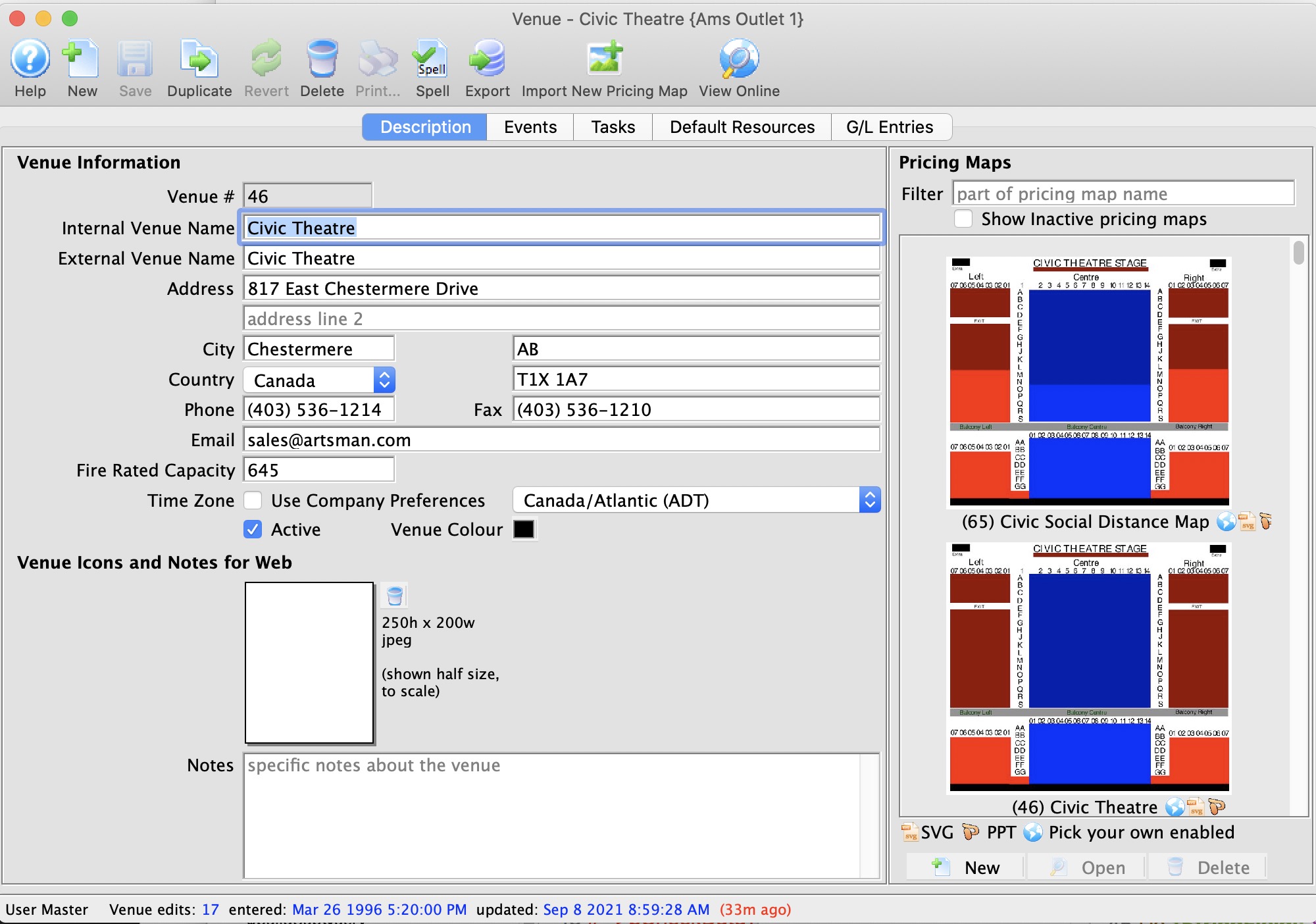
The parts of the window are:

| The Task / Ribbon Bar | Click here for more information on the Bar and its functions. |
 |
The Description Tab - This window is where you enter:
Click here for more information on the Description tab. |
 |
Event / Plays Tab - Lists all the envets / plays that are currently
using the currently selected theatre or have used this theatre in the
past. Click here for more information on the Event / Plays tab. |
 |
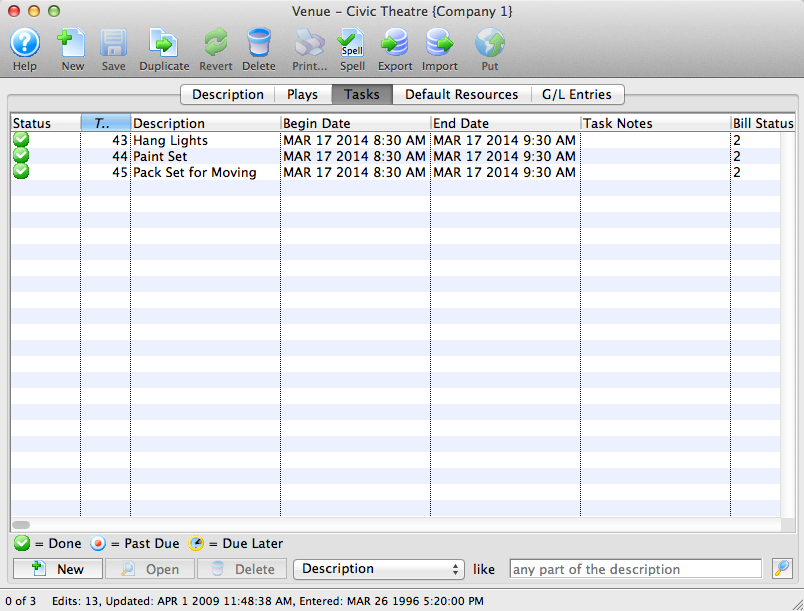
Tasks Tab - The tasks that are associated with the selected Theatre.
Click here for more information on the Tasks Tab |
 |
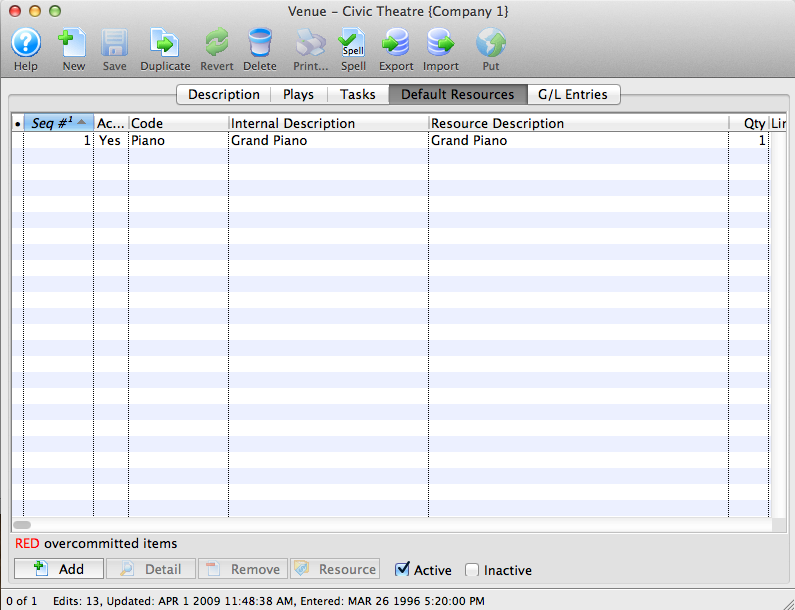
Default Resources Tab - Those resources that are a permanet part of
the venue.
Click here for more information on the Default Resources tab. |
 |
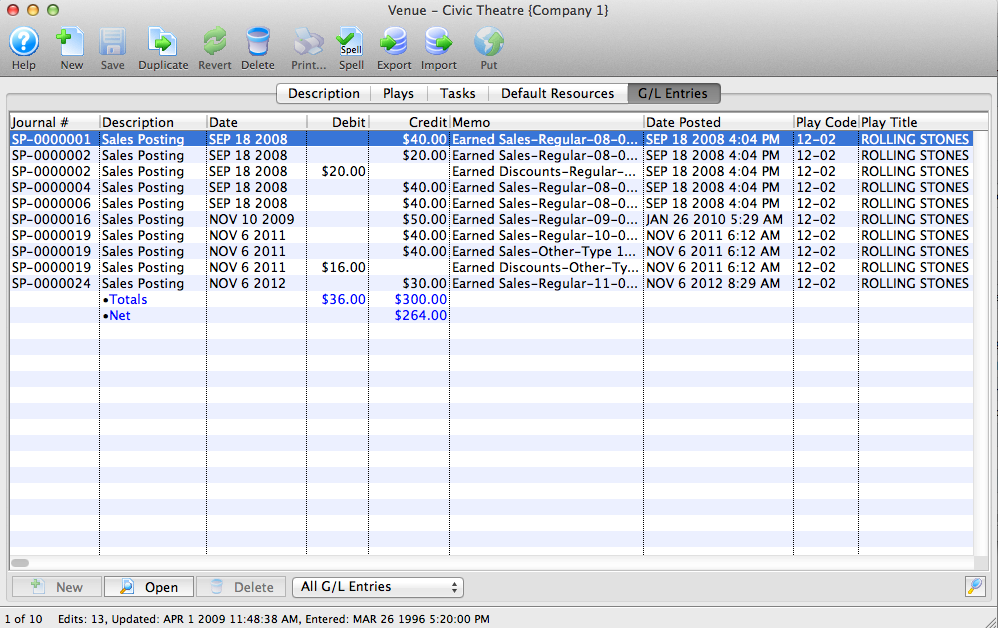
GL Entries Tab - Shows the GL Entries that have been directly associated with this venue. This allows you to compare the revenues for one venue as compared to another venue. |
Theatre Window Toolbar / Ribbon Bar
The Theatre Map window toolbar / ribbon bar is used by all four tabs:
- Description
- Plays / Events
- Tasks
- Default Resources
Functions
Click on a link to learn more about the features.
 |
Opens the Help file for Theatre Maps. Click here to view the Help page. |
 |
Creates a new theatre. Click here for more information on Createing a New Theatre. |
 |
Saves the information for the currently selected theatre. |
 |
Duplicates the information for the currently selected theatre. |
 |
If you change any information, clicking the revvert button returns the information to when it was last saved in the selected theatre. |
 |
The current theatre will be deleted if no files are currently referenced. |
 |
Checks the spelling of the information entered into the fields displayed. |
 |
Exports the currently selected theatre to txt - Tab Delimited, txt - Comma Delimited, xls - Excel 97-2004 or xlsx - Excel 2008 files. Click here for more information on Exporting. |
Description Tab
Parts of the Description Tab
Contact Information |
|||
| Venue (or "Theatre") Map # | Unique number of the map automatically assigned by Theatre Manager. | ||
| Internal Venue Name | The internal name of the venue that is used on the sales window. | ||
| External Venue Name | The external name of the venue used in web sales and for ticket faces. | ||
| Address | Address of the venue. | ||
| City | City in which the venue is located. | ||
| Province / State | Province / State where the venue is located. | ||
| Country | Country where the venue is located. | ||
| Postal Code / Zip Code | Postal code / zip code of the venue. | ||
| Phone | Phone number of the venue. | ||
| Fax | Fax number of the venue. | ||
| E-mail address for the box office. | |||
| Fire Rated Capacity | Maximum number of people allowed in the venue by the Fire Marshall. | ||
| Time Zone | The default is that all events in this venue all occur in the same time zone as company preferences. If you wish to change that, you can uncheck and then set a different timezone for all events in the venue.
|
||
| Active | Indicates if the Theatre is to be shown in reports for selection on reports in the pop-up lists. | ||
| Venue Colour | You can override the normal play/task colour displayed on the calendar by selecting a different colour for this venue from the colour palette. | ||

Venue Icons for the Web |
|
| Icon | Here you can add a 250x200 pixel jpeg that the iPhone application will use as a thumbnail to identify your venue as a thumbnail. If no Play picture is provided, this will be the default for any play in that venue. Click here, for information on adding a jpeg. |
 |
Removes the mobile app jpeg from the database. |
Notes |
|
| Notes | Any additional notes about the venue. These notes will appear on the internet for web sales. |
Pricing Map |
|
| Venue Image | Displays a Thumbnail of the graphic map. Click the image to Open the Pricing Map window to edit the map. |
 |
Icons to indicate what versions have been saved for each Pricing Map. |
 |
Opens a New Pricing Map window to enter a new map for the venue. Click here for more information on adding a New Pricing Map. |
 |
Opens the selected Pricing Map for editing. Click here for more information on editing a Pricing Map. |
 |
Deletes the selected Pricing Map. |
Adding a Venue Image
You can add a 200 pixel width by 250 pixel height jpeg that represents the branding for the venue. You only need to do this if your organization uses different icons for the venues instead of a generic icon for the Company. The default icon (if one is not entered here) is located in Setup >> Company Preferences on the Reports/Misc tab.
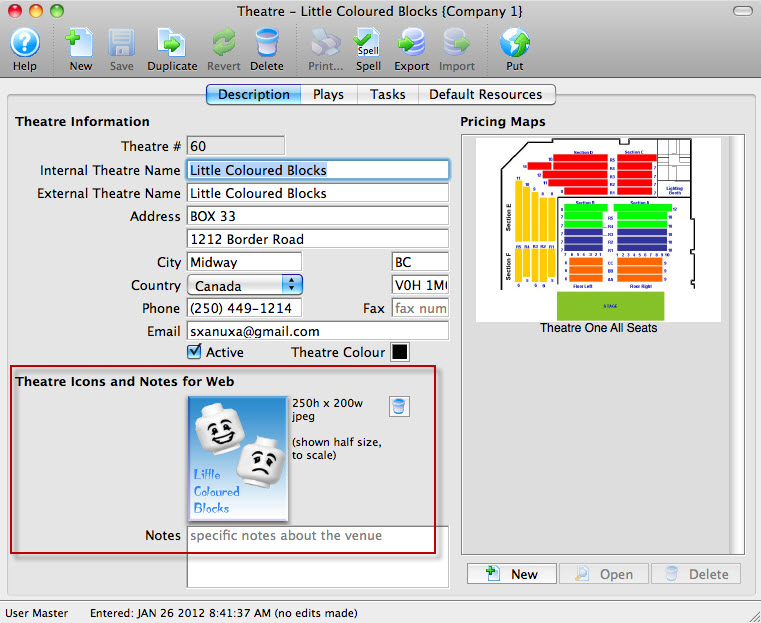
If you leave the field blank, TicketTrove will use the company icon for all venues.
To add a jpeg, you perform the following steps:
- Open the Theatre map window for the venue you are adding a jpeg to Click here for information on opening the Theatre map window.
- Right click on the Theatre Icon for Web field and Select Paste From File.
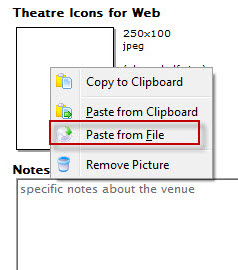
- Choose the desired image. The image should be a 250h X 200w jpeg.
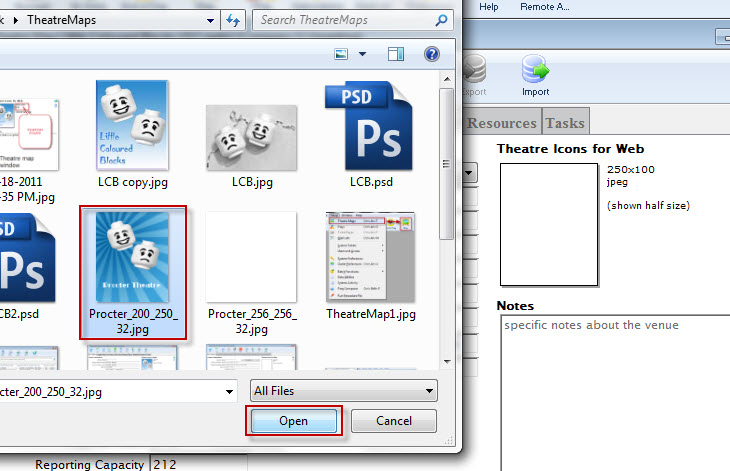
The file manager for your OS will open, select the file and click the Open button.
Your image will appear in the Theatre Map window.
Alternatively, you can drag and drop from the file manager to the field.
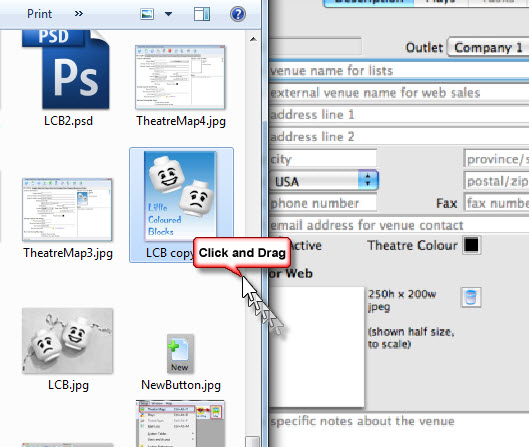
To remove the jpeg from the Theatre Map window, click the delete button.
Event / Plays Tab
The Event / Plays tab lists all the events / plays that are currently currently attached to the selected venue.
|
Note: The term "Play" can be customized in Theatre Manager to more accurately represent your type of performances. It may be called:
|

New events / Plays can be added to the venue through this window clicking the New button. Click here, for more information on creating an Event / Play.
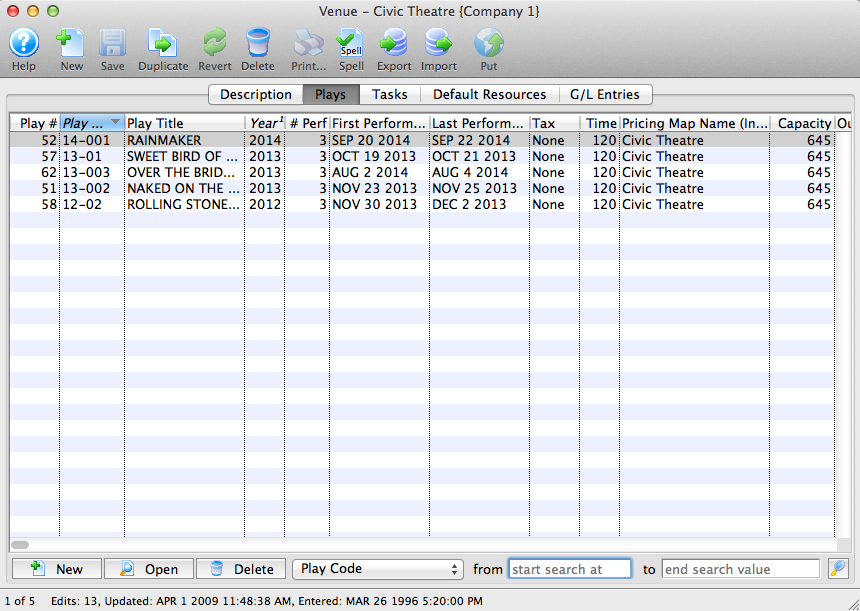
Parts of the Event / Plays tab
| Play # | The sequence number of the event / play in the database. |
| Event Code | The event code as defined on the Description tab. For more information on the Description tab click here. |
| Event Title | The event title as defined on the Description tab. For more information on the Description tab click here. |
| Year | The Season Year as defined on the Description tab. For more information on the Description tab click here. |
| # Perf. | The number of performances for the event. For more information on the Performances tab click here. |
| First Performance | The date of the first performance. For more information on the Performances tab click here. |
| Last Performance | The date of the last performance. For more information on the Performances tab click here. |
| Tax | The tax structure used for the event (if any), as defined on the Accounting tab. For more information on the Accounting tab click here. |
| Time | The runtime of the performances as defined on the Marketing tab. For more information on the Marketing tab click here. |
| Pricing Map Name(Internal) | The internal name of the map. |
|
|
Opens the template for creating a new event. For more information on creating a new event click here. |
|
|
Opens the selected event setup. |

|
Deletes the selected event from the database. Note: you can only delete events with no transactions. |
Tasks Tab
Tasks are at the heart of the Facility Management module. A task can represent anything you want to have show up on a calendar or appear on an invoice for a client. Because of its flexibility, it is important to understand all the different kinds of information that can be stored in a task so that you can determine which options to use for your particular situation.
- Tasks can be associated with plays or events
- Tasks can be associated with a particular show or performance
- Tasks can be associated with patrons or employees
- Tasks can show in the background of a calendar for all users
- A person can be assigned as the "owner" of a task
- Individuals can set alarms on tasks for themselves
- Tasks can have date and time ranges, such as meeting start and end times
- Tasks can be indicated as ToDo-type tasks that have only a necessary completion date
- Tasks can have resources assigned to them, such as the number of chairs needing to be set up in a venue, equipment being rented, or the actual rental of a room
- Tasks can have personnel assigned to them, such as the worker's billing hours for an event
When you ask the question "Can I use a task for .....?" the answer is probably Yes.
For more information about the Facility Management module click here. To read more specifically about tasks and their place within Facility Management, click here.
Default Resources Tab
There are a coupe of rules:
- A resource must be set up first
- Then it can be assigned to a venue
G/L Entries Tab
- 'How is my black box doing as compared to my Mainstage?'
- 'Are we making enough money for of the rental of the lecture hall to support keeping it?'