Editing Cards
Editing Cards
To edit Mebership Cards, you perform the following steps:
- Open the Patron Window.
Click here to learn how to access this window.
- Click on the Pass/G.C.
 tab.
Click here for more information on this tab.
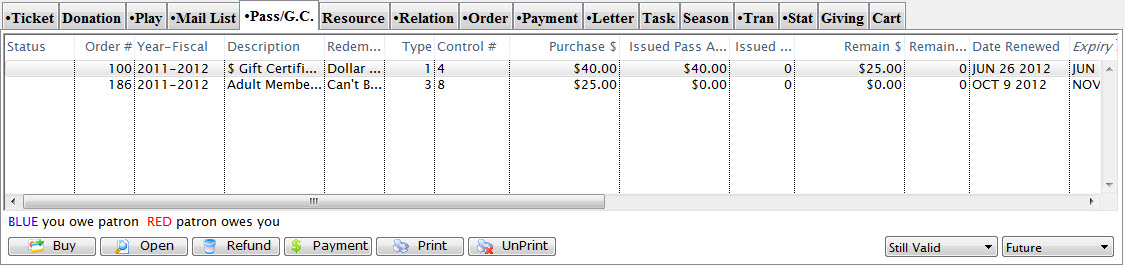
- Select a Pass/G.C. or membership.
Single click to select it.
- Click the Open
 button.
The Pass/G.C. Detail window opens.
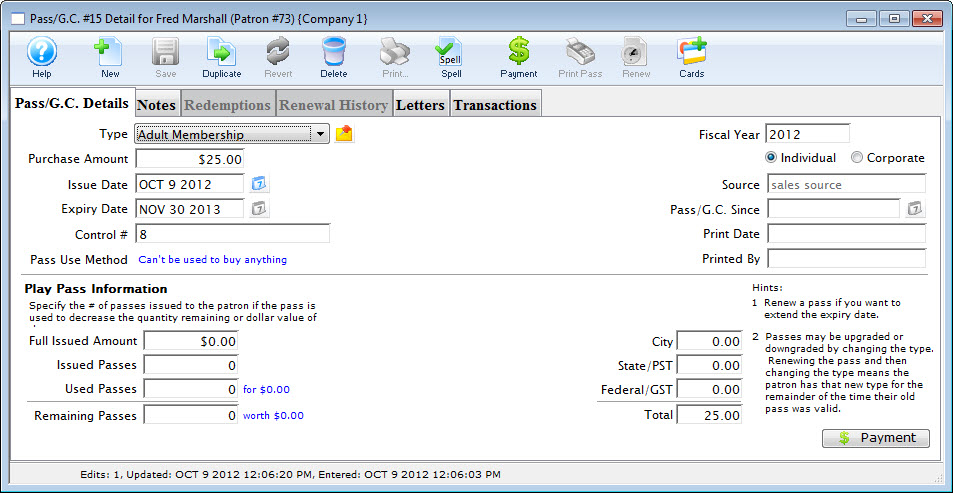
- Click the Cards
 button.
The Membership Cards Window will open.
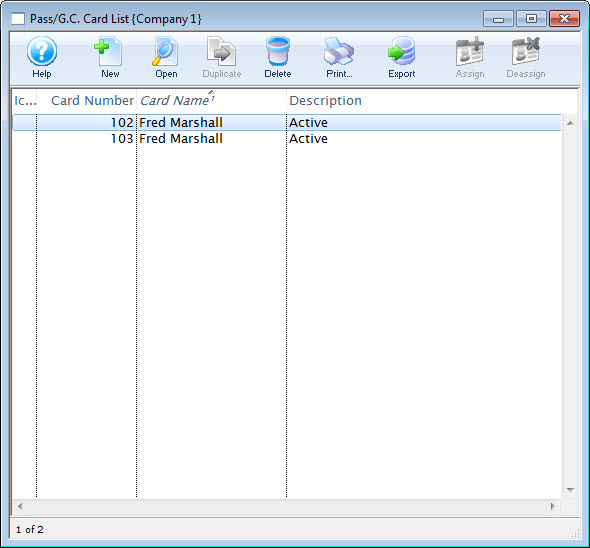
For a detailed description of this window and its functions click here.
- Select the card to edit.
Single click a card to select it or double click and the Pass/G.C. Card window opens.
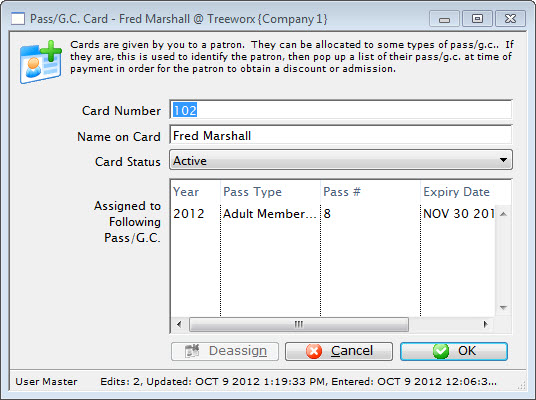
- Change the data as needed.
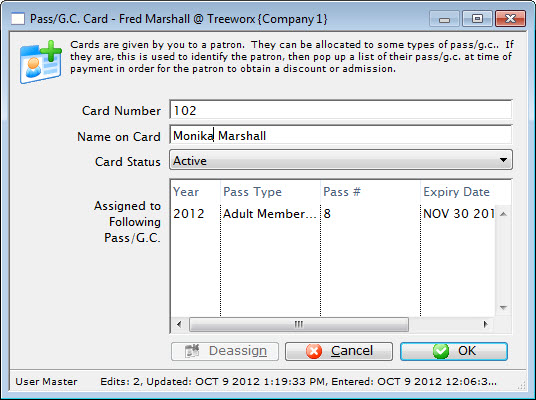
- Click the OK
 button.
The changes to the member card are now saved. Clicking Cancel
 button will abort the editing of the card.